> For the complete documentation index, see [llms.txt](https://docs.infraon.io/infinity/llms.txt). Markdown versions of documentation pages are available by appending `.md` to page URLs; this page is available as [Markdown](https://docs.infraon.io/infinity/user-guide/task-management/add-task.md).

# Add Task

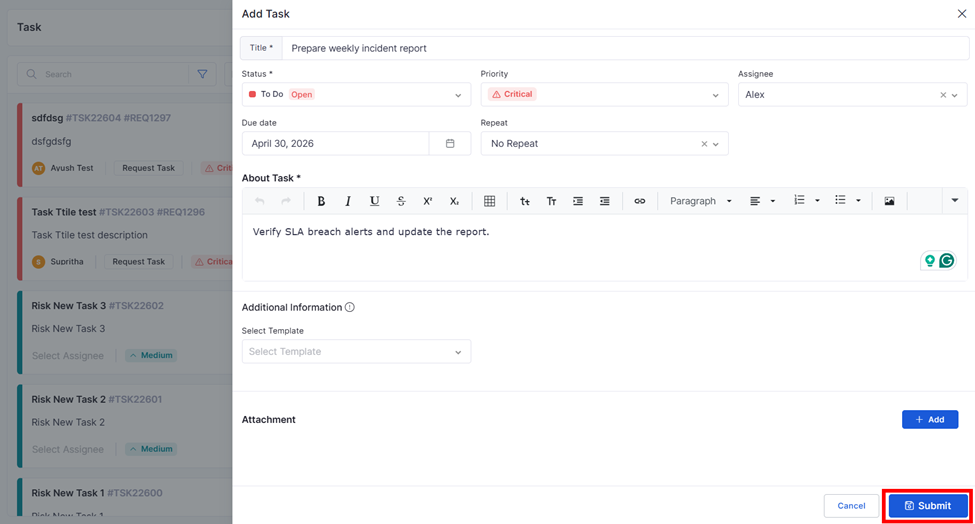
The **Add Task** allows users to create a new task, assign ownership, set priority and due dates, configure recurrence, attach files, and extend the task using form templates.

Tasks created here are immediately available in the **Task list** and follow the configured notification, audit, and repeat rules.

<figure><img src="https://content.gitbook.com/content/HOkWBaqDGJVTArkIQTsj/blobs/2sZNF1udQrVWvrRjWYmv/image.png" alt=""><figcaption></figcaption></figure>

**Add Task |** Field Descriptions

<table><thead><tr><th width="133" valign="top">Label</th><th width="175.7999267578125" valign="top">Action</th><th valign="top">Description / Example</th></tr></thead><tbody><tr><td valign="top"><strong>Title*</strong></td><td valign="top">Captures the task name</td><td valign="top">Enter a short, meaningful title for the task. This helps identify the task in the list view.<br><br><strong>Example:</strong> Prepare a weekly incident report</td></tr><tr><td valign="top"><strong>Status*</strong></td><td valign="top">Sets the current task state</td><td valign="top">Defines the task's lifecycle stage at creation.<br><br><strong>Available options:</strong> To Do, In Progress, Done (based on workflow configuration).</td></tr><tr><td valign="top"><strong>Priority</strong></td><td valign="top">Defines urgency level</td><td valign="top">Indicates how critical the task is. Priority is visually highlighted in the task list.<br><br><strong>Available options:</strong> Low, Medium, High, Critical</td></tr><tr><td valign="top"><strong>Teams</strong></td><td valign="top">Select a team from the Teams field.</td><td valign="top"><p>Assigns the task to the selected team.</p><p> </p><p><strong>Example</strong>: Select Team A to assign the task to Team A.</p><p> </p><p><strong>Note</strong>: When a task is assigned to a team, you cannot change the assignment directly from the panel view. The assignment can be changed through the Edit option. This prevents assignment conflicts because the common task view can contain tasks from different modules and teams.</p></td></tr><tr><td valign="top"><strong>Assignee</strong></td><td valign="top">Assigns task ownership</td><td valign="top">Selects the user responsible for completing the task. Notifications are triggered based on workflow configuration.<br><br><strong>Example:</strong> Alex</td></tr><tr><td valign="top"><strong>Due Date</strong></td><td valign="top">Sets task deadline</td><td valign="top">Specifies the expected completion date. Used to track task breaches and trigger overdue notifications.<br><br><strong>Example:</strong> 2026-02-10</td></tr><tr><td valign="top"><strong>Repeat</strong></td><td valign="top">Configures task recurrence</td><td valign="top">Defines whether the task should repeat automatically.<br><br><strong>Available options:</strong> No Repeat, Daily, Weekly, Weekday, Monthly, Quarterly, Half-Yearly<br><br>When configured, the system automatically creates new tasks based on the selected schedule. Each generated task is created as an <strong>independent (non-recurring) task.</strong></td></tr><tr><td valign="top"><strong>About Task*</strong></td><td valign="top">Adds detailed task description</td><td valign="top">Provides full context and instructions using a rich text editor. Supports formatting, links, lists, and images.<br><br><strong>Example:</strong> Verify SLA breach alerts and update the report.</td></tr><tr><td valign="top"><strong>Additional Information</strong></td><td valign="top">Extends task using templates</td><td valign="top">Allows selection of a form template to include additional custom fields in the task. Once selected and the task is created, the template cannot be changed. If the template is updated later, the changes are reflected in the task.</td></tr><tr><td valign="top"><strong>Select Template</strong></td><td valign="top">Loads custom form fields</td><td valign="top">Displays available form templates created under Template → Form Template. Selecting a template dynamically adds its fields to the task form.</td></tr><tr><td valign="top"><strong>Attachment</strong></td><td valign="top">Adds supporting files</td><td valign="top">Allows uploading one or more files related to the task. Attachments are stored with the task and can be accessed later.</td></tr><tr><td valign="top"><strong>Add (Attachment)</strong></td><td valign="top">Uploads files</td><td valign="top">Opens file picker to upload attachments. Supports download and delete actions during task edit.</td></tr><tr><td valign="top"><strong>Submit</strong></td><td valign="top">Creates the task</td><td valign="top"><strong>Saves</strong> the task with all configured details. The task appears in the Task list, and notifications are triggered based on workflow settings.</td></tr><tr><td valign="top"><strong>Cancel</strong></td><td valign="top">Discards task creation</td><td valign="top"><strong>Closes</strong> the Add Task panel without saving any entered information.</td></tr></tbody></table>

{% hint style="info" %}

* Tasks support **recurrence configuration,** where new tasks are automatically created based on the selected repeat schedule. Each generated task is created as an independent (non-recurring) task.
* Tasks can be extended using **form templates,** allowing additional custom fields to be included. Once a template is selected and the task is created, it cannot be changed.
* **Attachments** added during task creation are stored with the task and can be accessed, downloaded, or removed during task updates.
* **Email notifications** are triggered based on workflow configuration. When enabled, notifications are sent to the assignee, including task details and attachments.
  {% endhint %}

#### View Task Management

View Task Management allows users to view and track the details, assignment information, attachments, activities, and communications associated with a task.

View Task | **Basic Details**

<table data-header-hidden><thead><tr><th width="174.33331298828125" valign="top"></th><th width="152.5" valign="top"></th><th valign="top"></th></tr></thead><tbody><tr><td valign="top"><strong>Label</strong></td><td valign="top"><strong>Action</strong></td><td valign="top"><strong>Description / Example</strong></td></tr><tr><td valign="top"><strong>Summary</strong></td><td valign="top">View</td><td valign="top"><p>Displays the key information and assignment details of the task, including its associated source module.</p><p> </p><p><strong>Example</strong>: View the task details and identify whether the task is associated with an Incident, Request, Problem, or Change.</p></td></tr><tr><td valign="top"><strong>Attachments</strong></td><td valign="top">Add / Delete</td><td valign="top"><p>Allows users to add files related to the task and delete existing attachments when editing the task. Attachment additions and deletions are recorded in the audit log.</p><p> </p><p><strong>Example</strong>: Add a screenshot or supporting document required to complete the task.</p></td></tr><tr><td valign="top"><strong>Recent Activity</strong></td><td valign="top">View</td><td valign="top"><p>Displays the activities and updates performed on the task, helping users track changes.</p><p> </p><p><strong>Example</strong>: An attachment added to the task is recorded as a recent activity.</p></td></tr><tr><td valign="top"><strong>Communication</strong></td><td valign="top">View / Reply / Forward / Add Notes</td><td valign="top"><p>Displays task-related communications, which are segregated into All, SMS, and Comments for easier tracking. Users can reply to or forward existing communications and add notes to the task. Notes can be maintained with the applicable visibility, such as Private or Public.</p><p> </p><p><strong>Example</strong>: Select All to view all communications, SMS to view SMS messages, or Comments to view comments and notes. Reply to an existing communication, forward it to another user, or add a note with an update about the task.</p></td></tr></tbody></table>


---

# Agent Instructions
This documentation is published with GitBook. GitBook is the documentation platform designed so that both humans and AI agents can read, navigate, and reason over technical content effectively. Learn more at gitbook.com.

## Querying This Documentation
If you need additional information that is not directly available in this page, you can query the documentation by asking a question.

Perform an HTTP GET request on the following URL with the `ask` and `goal` query parameters:

```
GET https://docs.infraon.io/infinity/user-guide/task-management/add-task.md?ask=<question>&goal=<user_goal>
```

`ask` is the immediate question: it should be specific, self-contained, and written in natural language.
`goal` is what the user is ultimately trying to achieve, the reason they need the answer. Sharing it helps GitBook give you a better, more relevant answer. A goal is most helpful when it describes the outcome the user wants rather than restating the question. For example, with `ask=how do I create an API token`, a goal like `automate deployments from our CI pipeline` lets GitBook tailor the answer to that use case.

The response will contain a direct answer to the question and relevant excerpts and sources from the documentation.

Use this mechanism when the answer is not explicitly present in the current page, you need clarification or additional context, or you want to retrieve related documentation sections.
