> For the complete documentation index, see [llms.txt](https://docs.infraon.io/it-asset-management/llms.txt). Markdown versions of documentation pages are available by appending `.md` to page URLs; this page is available as [Markdown](https://docs.infraon.io/it-asset-management/user-guide/asset/asset-information/remote-desktop-protocol.md).

# Remote Desktop Protocol

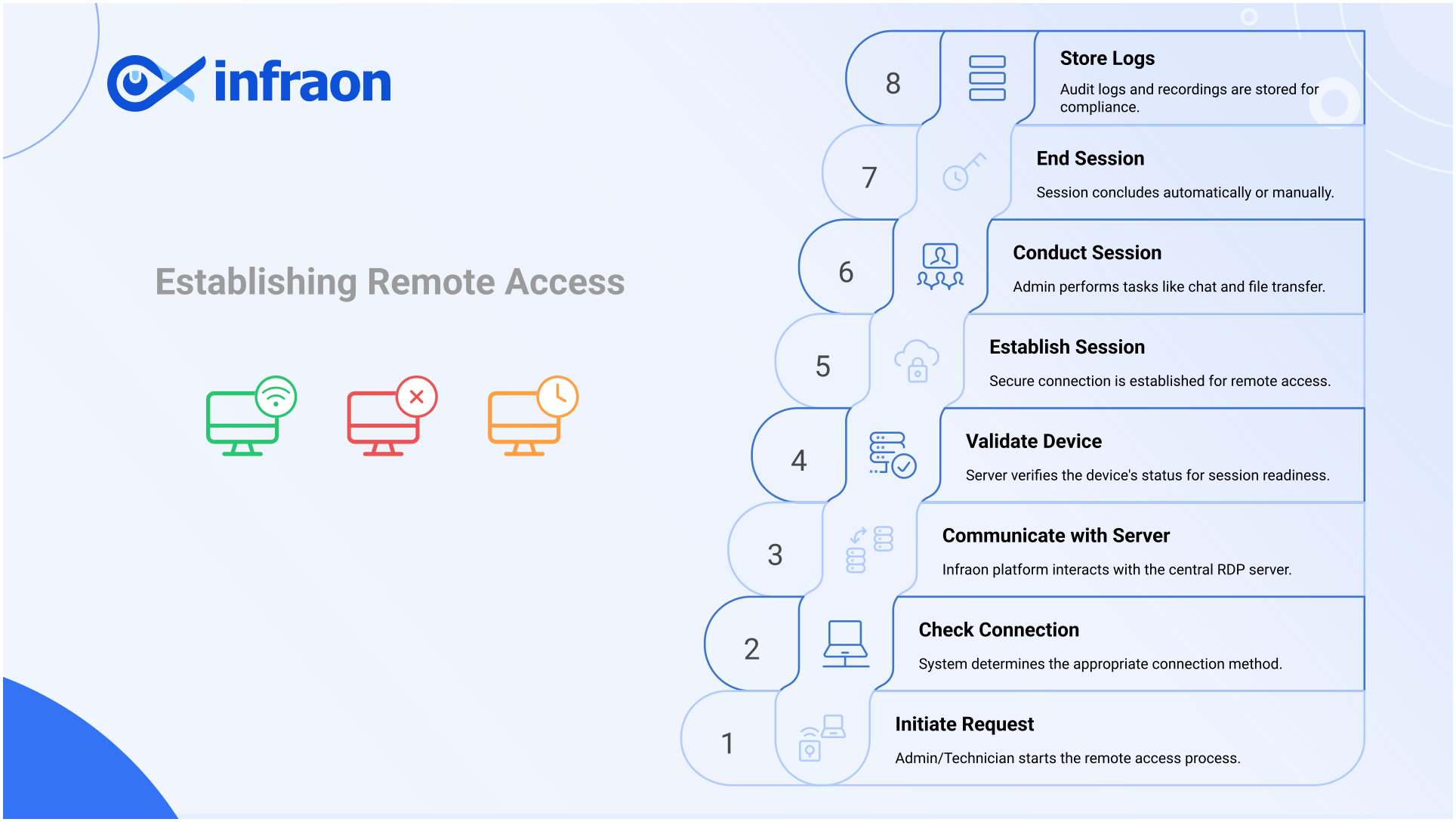
The **RDP** in the Infraon platform enables administrators and technicians to securely access and manage user systems remotely. It provides flexibility to either request access with user consent or perform unattended sessions for critical operations such as patching, troubleshooting, or configuration changes.

With RDP, IT teams can:

* Connect to user devices in real time for support or maintenance.
* Schedule access sessions for specific time slots with predefined durations.
* Perform unattended (immediate) access when required.
* Chat with users during a session and share files.
* Record sessions for auditing and compliance purposes.
* Access user drives or system files directly without interrupting ongoing work.

<figure><img src="https://content.gitbook.com/content/TpyfDN7TODGSB3Mh7Fda/blobs/7U9KLIg6Qd11mpBsrrqm/Establishing%20Remote%20Access.svg" alt="Remote Desktop Protocol - Lifecycle, workflow. Infraon ITSM"><figcaption></figcaption></figure>

[Click here ](/it-asset-management/user-guide/infraon-configuration/bots/inventory-agent/remote-desktop-protocol.md)for RDP installation steps.

## **Schedule RDP**

The **Schedule RDP** allows administrators and technicians to plan remote sessions or initiate instant access sessions.

Before scheduling, ensure that the **RDP component is installed** on the end user’s device. [Click here ](/it-asset-management/user-guide/infraon-configuration/bots/inventory-agent/remote-desktop-protocol.md#installation)to view the installation guide.

### **Instructions to schedule RDP**

1. Navigate to the **IT Assets page** and switch to **Card View**.
2. Select the asset for which you want to schedule an RDP session.
3. Click the **More Options** (three dots) icon and choose **Schedule RDP**.

![](https://content.gitbook.com/content/TpyfDN7TODGSB3Mh7Fda/blobs/3vutW3OW0cMdyNKPCqlc/1.png)

4. The **Schedule Remote Access** sidebar opens. Configure the fields as per the table below.

![](https://content.gitbook.com/content/TpyfDN7TODGSB3Mh7Fda/blobs/jHhLjSZV8PTwEbbseSd0/2.png)

**Schedule Remote Access |** Field Details

<table data-header-hidden><thead><tr><th width="181.800048828125"></th><th width="214.2000732421875"></th><th></th></tr></thead><tbody><tr><td><strong>Label</strong></td><td><strong>Action</strong></td><td><strong>Description / Example</strong></td></tr><tr><td><strong>Schedule Instant Session</strong></td><td>Toggle (Enable/Disable)</td><td>Allows immediate access instead of scheduling for a future date/time. When enabled, only the <strong>Expected Duration</strong> field is displayed. Default: Disabled.</td></tr><tr><td><strong>Session Recording</strong></td><td>Toggle (Enable/Disable)</td><td>Enables automatic recording of the RDP session. Recorded sessions are stored securely and can be accessed only by authorized users. Default: Disabled.</td></tr><tr><td><strong>Unattended Access (not available for Mesh Assistant)</strong></td><td>Toggle (Enable/Disable)</td><td>Allows sessions to start instantly without requiring user approval. Available only when the Mesh Agent is used. Default: Disabled.</td></tr><tr><td><strong>Date</strong></td><td>Select from the calendar</td><td>Choose the date on which the RDP session should start.<br><br><strong>Example:</strong> 11-09-2025.</td></tr><tr><td><strong>Time</strong></td><td>Select from the time picker</td><td>Define the exact start time of the RDP session.<br><br><strong>Example:</strong> 18:09 (6:09 PM).</td></tr><tr><td><strong>Expected Duration</strong></td><td>Enter time in minutes.</td><td><p>Set how long the session should remain active. Default: <strong>30 minutes</strong>.</p><p><strong>Example:</strong> 60 minutes.</p></td></tr><tr><td><strong>Cancel Button</strong></td><td>Click to cancel scheduling</td><td>Closes the Schedule Remote Access window without saving changes.</td></tr><tr><td><strong>Schedule Button</strong></td><td>Click to confirm scheduling</td><td>Confirms the entered details and creates the scheduled session.</td></tr></tbody></table>

### **Session Schedule Status**

After scheduling, session status is indicated with color-coded icons in the **Asset Card View**:

* **Orange** → Session scheduled, waiting for the scheduled time.

![](https://content.gitbook.com/content/TpyfDN7TODGSB3Mh7Fda/blobs/lyT51QQtV8uzRiZ8lEj0/3.png)

* **Green** → Session is active during the scheduled time.

![](https://content.gitbook.com/content/TpyfDN7TODGSB3Mh7Fda/blobs/cWqWXwxknAOYHmLzBqkV/4.png)

* **Red** → Session expired; user must reschedule to access again.

![](https://content.gitbook.com/content/TpyfDN7TODGSB3Mh7Fda/blobs/D1RXrwJThUi97t4JYQcJ/5.png)

{% hint style="info" %}
If no sessions are scheduled for a device, no session icon is displayed in the card view.
{% endhint %}

### **Reschedule Session**

A session can be rescheduled only while it is in the scheduled state (indicated by the **orange icon**).

1. Click on the **session icon** to open the session details page.

![](https://content.gitbook.com/content/TpyfDN7TODGSB3Mh7Fda/blobs/hFITYX5tBwl0C6RmY52L/6.png)

2. The page will display the scheduled session details, including the start time and duration.
3. To make changes, click on the **Reschedule** icon.

![](https://content.gitbook.com/content/TpyfDN7TODGSB3Mh7Fda/blobs/qJDUWL3rKrlVuGiWFFc6/7.png)

4. Update the **date** and **time** fields as required, then save the changes to confirm the new schedule.

![](https://content.gitbook.com/content/TpyfDN7TODGSB3Mh7Fda/blobs/kcXExN0oDcwYlDAeZPHG/8.png)

### **Remote Access page**

Once an RDP session is successfully scheduled and active, users can access file transfer options from the **Remote Access page.** Clicking the **scheduled session** icon navigates the user to the **Remote Access page.**

The left sidebar displays two options:

Remote Access Page **| Basic Details**

<table><thead><tr><th width="116.20001220703125">Label</th><th width="219.00006103515625">Purpose</th><th>Description</th></tr></thead><tbody><tr><td><strong>Desktop</strong></td><td>Remote desktop access</td><td>Opens the remote desktop interface, allowing the user to view and control the remote device screen.</td></tr><tr><td><strong>File</strong></td><td>File transfer</td><td>Opens the file transfer interface, enabling users to upload or download files to or from the remote device.</td></tr></tbody></table>

#### **File Transfer**

The File Transfer feature allows users to securely transfer files between their local system and the remote device during an active RDP session. This helps technicians upload required files to the remote system or download files from the remote device for troubleshooting, updates, or verification.

{% hint style="info" %}
File transfer is available only after an RDP session is successfully scheduled and connected.
{% endhint %}

**Step 1:** After scheduling the RDP session, navigate to the Remote Access page.From the left sidebar, click File, then select Connect to establish the file transfer connection.

![](https://content.gitbook.com/content/TpyfDN7TODGSB3Mh7Fda/blobs/cAYJamlJwQmDbI8CdqO3/Unknown%20image)

**Step 2:** Once connected, the user can view and access the local drives and directories available on the remote system.

![](https://content.gitbook.com/content/TpyfDN7TODGSB3Mh7Fda/blobs/EPKHitPrLpB3RfxS0GsR/Unknown%20image)

Within the File Transfer interface, users can perform the following actions:

* Rename files or folders
* Edit files
* Delete files or folders
* Create new folders
* Upload files
* Cut, copy, and paste files
* Zip files or folders
* Refresh the directory view
* Search for files using the Find option

{% hint style="success" %}
Clicking any file downloads it to the user’s local system.
{% endhint %}
