
The "Change" module allows users to add change requests. A user is a technician who requests a change. A change could also arise from a ticket, a request, or a problem from the requester.
To add a change, the following must be pre-configured
Requester - the user requesting the change
Priority - priority of the change
Change Manager - A Change Manager is usually a domain expert overlooking the change request.
Change Implementer - A Change Implementer is the user responsible for implementing the change.
Followers - users to be notified of the "change" status updates. Use the "Follow" button to follow directly.
Tags - groupings used for the classification of changes.
Go to the "Change" page.
Click on the "New Change" button.
If requesters have been added already, select the requester's name in the search option. If no requesters have been added or to add a new requester, use the "Add a New Requester" button. Follow the "Requester" module for details. You can select or add a requester from the next page too.
To add a change, follow the steps from the below table:
*Emergency Change is not part of this release. It will be implemented in a future release.
Once all details are added, the user must click "Submit as New" - to submit the change.
Go to "Add change"
Click on the select template.
The default templates and the ability to create custom templates for planning and specific changes. Ensure seamless data integration and automation tasks for increased efficiency.
Automated Hardware Change Notifications! Enable in feature plan, select an asset, and edit sub-category. Configure templates for custom mail notifications, including logo, keys, and menu order adjustments.
Label
Action
Description/Example
Requester*
Add a new requester or search for an existing requester.
Requesters are usually technicians or users with the required permissions who can add a change.
Reported by
Use the icon to expand this section. Add the reporter's name and email address, if applicable.
Reporters are users raising the change on behalf of the requester.
Change Manager
Select a Change Manager from the list.
A change manager overlooks the change analysis and implementation.
Change Implementer
Select the change implementer from the list.
A change implementer can be a user or a team responsible for implementing the change.
Impact Service
Select the Impact Service from the list.
This can be left blank. As the risk analysis progresses, the technicians can later select the impacted service.
Service Classification
Select the classification within the impacted service.
This is used when a specific service has multiple classifications. For example, if the impacted service is Network, the classifications can be connectivity, router issue, and so on. Leave this field blank if no classifications are defined.
Followers
Select a user to add them as followers.
Users who must be notified of the change request or any changes to the status of the change request can be added as followers. Use the 'Follow' option to self-follow the change request.
Tags
Select a tag to tag the change.
These tags must be predefined in the 'General Settings -> Tag Management module.
Subject
Add a subject line for the change.
The subject line can be a summary of the change. For example: Unable to connect to the network.
Description
Provide a brief description of the change.
Due By
It is the due date by which a team aims to implement the change.
Priority
Select the priority of the change from the list.
Risk
Select the risk level from the list.
Change Type
Select the type of Change from the list.
The changes can be of four types:
Standard Change
Major Change
Minor Change
*Emergency Change
Reason for Change
Specify the reason for requesting the change.
Add attachments
Use the action icon to add an attachment to the change.
Attachments can include emails, screenshots, etc.
Rollout
Specify the plan to rollout the change.
Leave this field blank if the rollout plan is not yet decided.
Rollback
Specify the plan to rollback the changes.
Leave this field blank if the rollback plan is not yet decided.
ITIL defines Change as "the addition, modification, or removal of any authorized, planned, or supported service or service component that could affect services." In other words, a Change is adding, removing, or modifying anything that could directly or indirectly affect the organization's services and operations. The changes could include documentation, processes, applications, or IT infrastructure. In Infraon, the module that handles all the change requests is called "Change."
Change Management is a set of processes defined to manage the lifecycle of a change request. It aims to minimize risks and disruptions to IT services and business operations while implementing changes.
Reduced system downtime and outage
Faster change implementation
Decreased negative impact on business and IT services
Visibility into future IT changes
Change Manager - A Change Manager is responsible for reviewing the submitted change requests, scheduling Change Advisory Board(CAB) meetings, updating the change records, reviewing the rollback and rollout plans, coordinating the implementation of changes, and reviewing the implemented changes. Usually, a high-level manager or a Domain Expert is assigned as a Change Manager to a change request.
Change Advisory Board(CAB) - A Change Advisory Board (CAB) may consist of Business, IT Operations, Development, Customer, Domain Experts, and Solution Architects, depending upon the type of the change. A CAB is carefully selected to ensure all facets of an organization are represented while discussing the impacts, benefits, and implementation of a change. CAB requires financial data, the technical advantage of the change request, the number of resources required, criticality, and so on, to make an informed decision on the change request. Depending upon the severity of the change, the Change Manager may decide whom to include in the discussions. A CAB chooses whether to approve or reject a change.
Infraon's Change Management module enables users/organizations to implement changes through the following steps seamlessly:
Change Detection is the first step of Change Management. For example, a customer may request a change in the services or ask for additional services. This is logged as a change request. A change request may also arise from a ticket, request, or problem.
Change Recording - A technician or user with the required permissions can log a change in the module.
Planning—In this stage, the change request is planned. A comprehensive plan is essential for the successful implementation of a change. A detailed plan showcases the risks, impacts, rollout plan, rollback plan, and associated downtime(if any) to all stakeholders. Planning is important in getting approvals from the Change Advisory Board (CAB).
Apart from these, Infraon also covers change ownership, monitoring, tracking, and communication - throughout the life cycle of each change request.
Changes are managed through the "Change" module. Users with appropriate permissions can raise changes. Changes follow multiple state(s) and status(es) throughout their life cycle.
Customized Status(es) can be configured from the 'Workflow' module to suit the requirement.
Demo data for ITSM module change for new Org
Knowledge Base Modules! Explore added knowledge articles to understand the functionality and purpose of KB modules.
Change Approvals - The change plan needs to be reviewed, and the Change Advisory Board (CAB) decides. The change plan may be approved or rejected.
Change Implementation - Once approved, the change manager ensures the change is implemented as detailed in the plan and at the right time. A Change Manager also ensures coordination between different teams involved in the change implementation.
Review - Once a change is implemented, a post-implementation review is conducted to confirm whether the change was successful. A review is also performed to determine if the change achieved its objectives. If the change implementation is unsuccessful, the rollback plan is activated promptly.
Closure - This is the last step in the Change management process. After conducting a post-implementation review, the change can be closed with closing comments on whether the change was successful, executed on time, and so on.
State
Status
Status Scenario
Open
New
When a new change is logged in the system.
In Progress
Planning
When the planning of the change request is in progress.
In Progress
Analysis
When the possible risk analysis is in progress.
In Progress
Implementation
When the proposed change plans are being implemented.
In Progress
Deployment
When the change is being deployed in production.
In Progress
Verification
When the deployed change is being verified.
On Hold
Pending
If any changes are pending to be implemented.
Close
Closed
After Post Implementation Review, the change can be closed with closing comments.
Close
Cancel
If the change implementation is canceled.
ITIL defines Change as "the addition, modification, or removal of any authorized, planned, or supported service or service component that could affect IT services." In other words, a Change is adding, removing, or modifying anything that could directly or indirectly affect the organization's services and operations. The changes could include documentation, processes, applications, or IT infrastructure changes.
Change Management is a set of processes defined to manage the lifecycle of a change request from start to closure. It aims to minimize risks and disruptions to IT services and business operations while the changes are being implemented.
Domain experts, management, architects, or solution architects are involved in planning and implementing a change request.
Type
Description
Example
Standard Change
Standard Changes are the ones that frequently occur in an organization. These changes are low-risk and have a pre-defined set of documented and approved processes to be followed. This pre-defined and approved process is called a template.
Emergency changes are used in urgent situations where immediate change implementation is necessary to fix major issues or avoid significant business impact.
Created when a critical issue (like a server outage or security flaw) needs resolution.
Follows an accelerated approval path or may skip it altogether depending on settings.
A CAB review may still be scheduled post-implementation for audit compliance.
Documentation and justification are mandatory to ensure traceability.
Use Case Example:
The production server crashes at midnight. The support team performs a hotfix immediately. Right after, an emergency change is logged to ensure that this change is recorded and reviewed.
Retrospective changes are created to record already implemented changes, often outside of standard workflows. These are essential for capturing unexpected or reactive actions taken in real-time.
Useful for manual interventions or critical on-the-spot fixes.
Allows post-facto documentation including reason, impact, and CI information.
Ensures visibility and inclusion in audit logs or reports.
Can be routed for post-change review if needed.
Use Case Example:
A network engineer applied a configuration fix during a late-night alert. Since no prior change request was raised, they document it afterward using this change option for internal tracking and compliance.
The "Change" page lists all change requests in two views: Panel View and Grid View. It lists all changes with details like a summary card, change description, status, subject, team, requester name, and actions, sorted by time.
Change Management involves people from different dimensions of a business. They work together to analyze, plan, and implement the change request.
There are two ways to view change details in the right-side panel. They are:
Panel View - You see change details as a Summary Card in the Panel view. The summary card gives a brief summary of the change. This summary contains all the important information needed to work on the change. Details include:
Change ID: Auto-generated when a change is created.
Requester: Name of the requester
Change Manager: Name of the manager overlooking the change request.
Status: Displays the current status of the change. Users can change the status from here as well.
The panel view for tickets has been revamped. The improved interface offers enhanced data visibility, with aging metrics conveniently displayed. This helps in faster navigation and reduced system load for a seamless user experience.
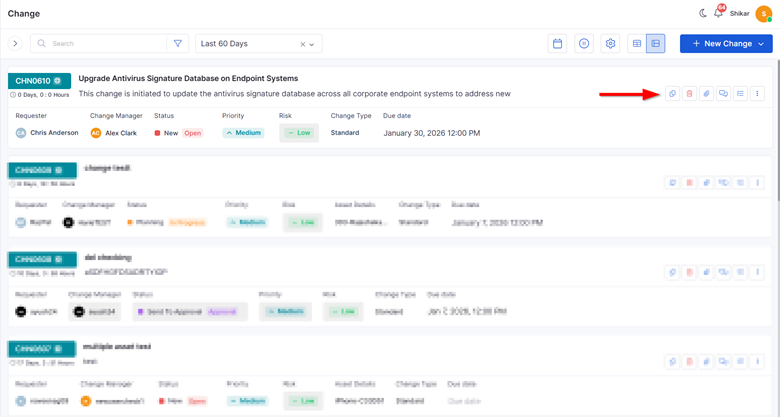
Clone Change
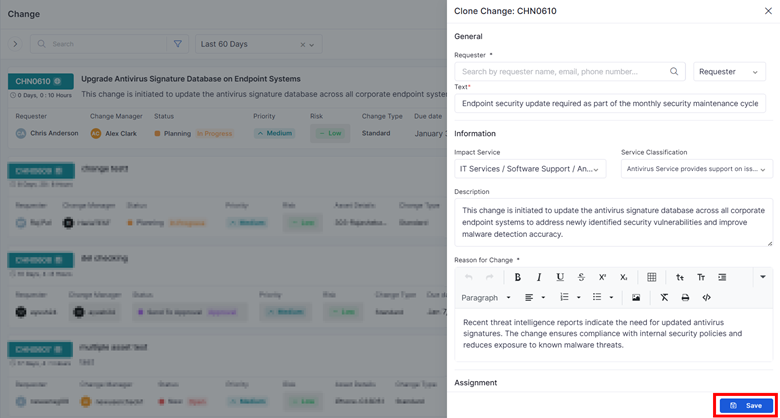
The Clone Change option allows technicians to quickly create a new Change Request (CR) by copying key details from an existing change. This reduces manual data entry, ensures consistency, and speeds up the creation of repeat or similar changes.
The following fields are automatically copied from the selected change:
Subject
Change Type
Change Manager
Change Followers
Location
Fields to Update During Cloning:
Grid View- In the Grid view, you see change details in tabular form. Clicking on the Change ID shows the change details.
Change ID: This is auto-generated when a change is created. Click on the Change ID to view the communication history, reply to and forward emails, add notes, analyze, view, and add work logs.
Subject: Subject of the change (derived from the change subject line).
Reason for Change: The reason for detailing why the change was requested.
Change Type: Type of change: Standard, Major, Minor, and Emergency.
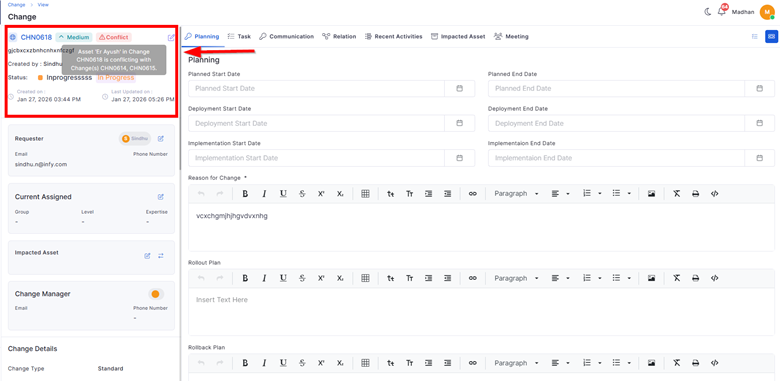
When an asset is added to a change, the system checks if the same asset is already linked to other active changes.
If a conflict is detected, a warning message displays the conflicting Change IDs.
Conflict detection is informational only and does not block the user from proceeding.
In the Change Calendar, overlapping scheduled changes involving the same asset are highlighted to indicate potential conflicts.
Change relationships follow the same structure as defined in . For a detailed explanation of how linked records work, refer to the Problem Management page.
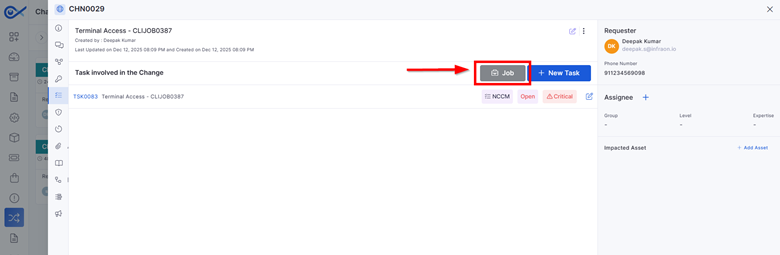
When a Change Task is created from the module, NCCM sends the Job Execution Details, Job Status, and Job ID to the Change Management module through an API call. The Job ID is stored against the Change Task to maintain traceability between the change and the associated NCCM job.
If the Change Type is set to NCCM and the user has the required NCCM job permissions, a Job button is displayed next to the Add Task option.
Clicking this button opens the corresponding page in a new browser tab. The related NCCM job grid is automatically filtered using the Change Summary, allowing users to quickly track the execution status of the job linked to the Change Task.
Delegation enables users to assign their approval responsibilities to another user for a specified period. Ensures that ongoing approvals are not delayed when the primary approver is unavailable due to planned leave, travel, or other reasons.
to learn more.
Implementing a change requires intensive planning, risk analysis, defining tasks, and approvals. To help users achieve this, the "Change" module has the following tabs:
Planning - A comprehensive plan is essential for successfully implementing a change. In the planning tab, a user can enter the following details:
Rollout Plan - A rollout plan is a detailed step-by-step description of how the change will be implemented in the production environment. The rollout plan is created in such a way that there is minimal impact on the organization. A rollout plan describes whether the change will be implemented in a phased manner or as a whole.
Rollback Plan - A rollback plan is a verified step-by-step fallback or back-out plan in case the change implementation doesn't go as expected. It is essential to have a rollback plan when implementing a major change.
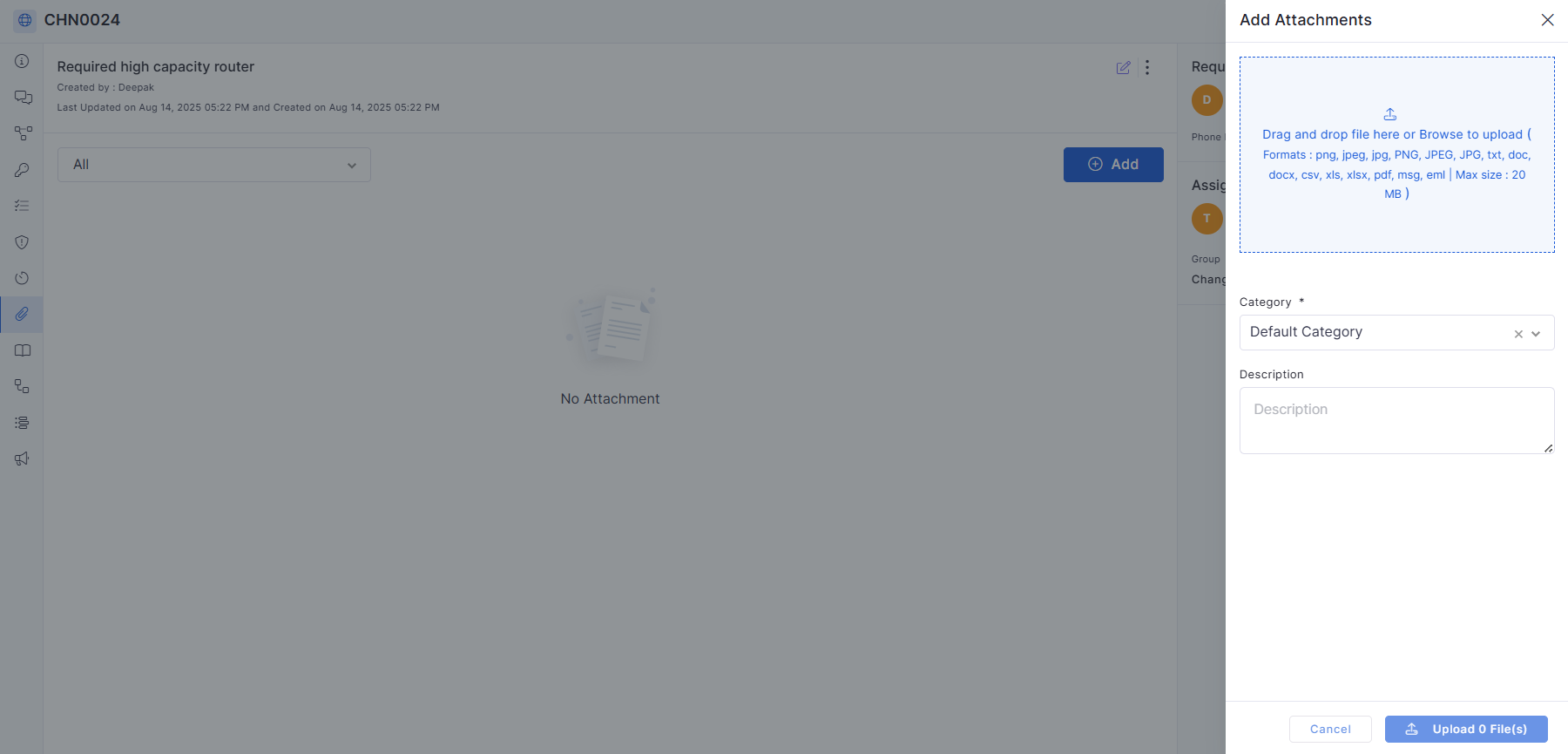
Attachments - When uploading attachments to a change ticket, Users can classify and organize files for clarity and compliance.
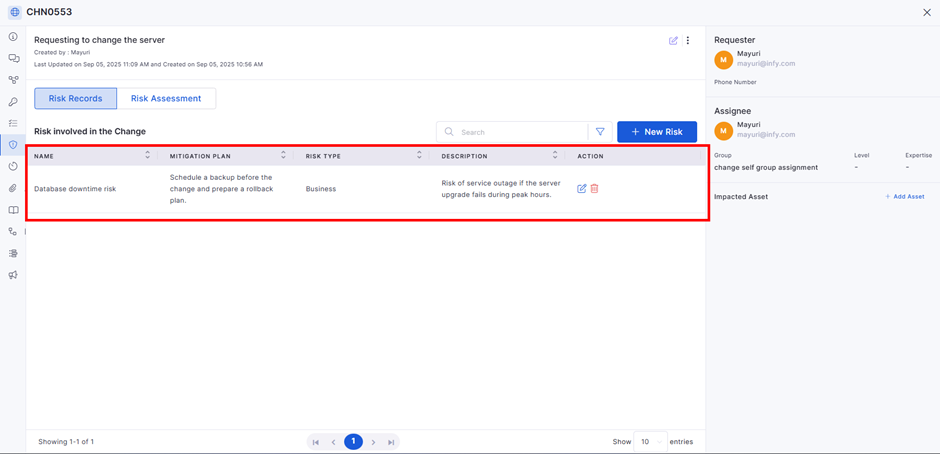
Risks - It helps identify, evaluate, and reduce potential risks associated with a change before it is implemented. It offers visibility into possible business, technical, financial, or operational impacts and ensures that suitable mitigation plans are established.
Risk Records
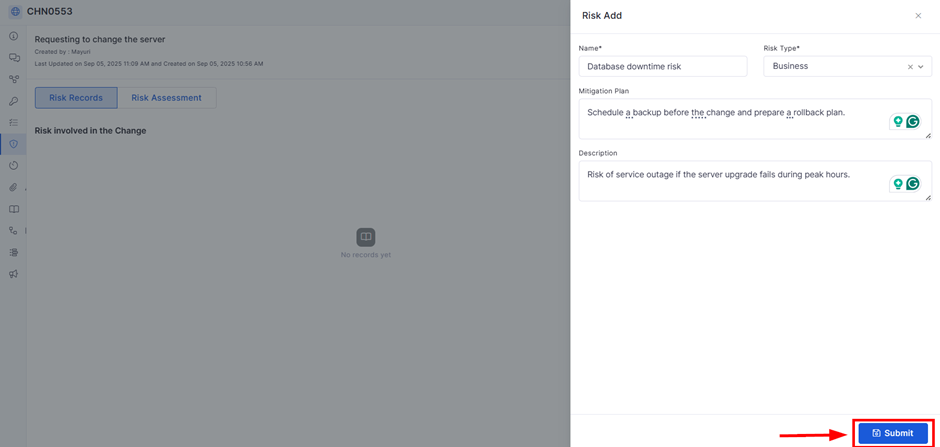
Risk Records are used to document or create a knowledge base of the risks associated with a change. They capture critical information such as the risk name, type, description, and mitigation plan.
Add Record
Click on Add Record to add the details below:
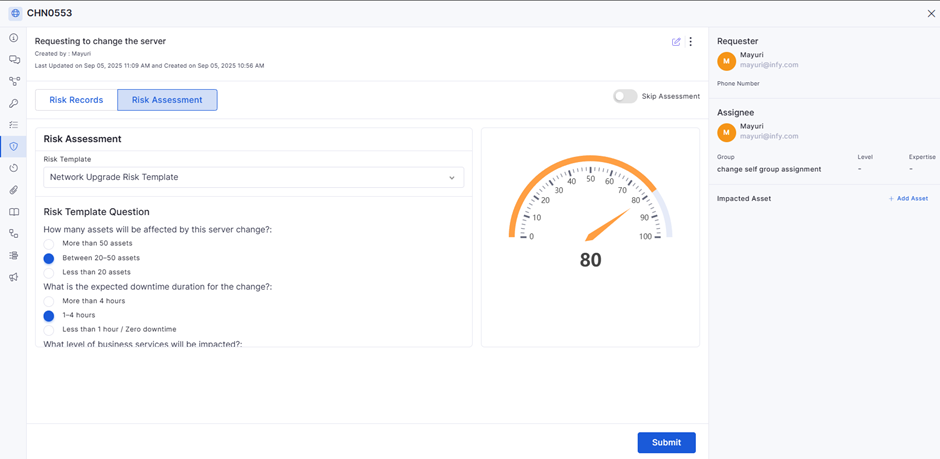
Risk Assessment
It provides a structured way to evaluate the potential risks associated with a change. It involves defining questions with multiple options, assigning weights, and mapping the responses to criticality levels.
The outcome of the assessment is represented through a riskometer, which indicates the overall risk level associated with the change.
Authorized Role: Only Change Managers can perform risk assessments.
Riskometer: Displays the criticality level based on assessment responses.
Workflow Dependency: Workflows can be configured so that changes move to CAB Approval only after risk assessments are completed.
Risk Level: Change priority is automatically updated based on the assessment result.
Workflow Integration
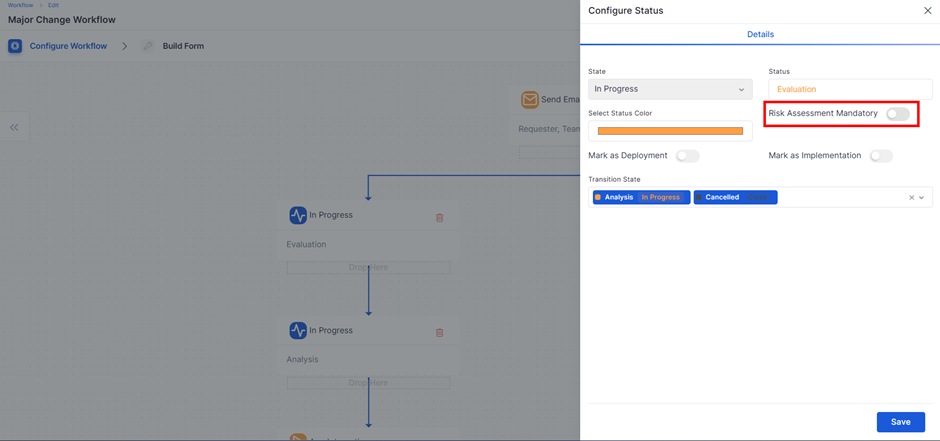
Risk Assessment Mandatory Toggle – Available in every workflow state; disabled by default. If enabled, the assessment must be completed before moving to the next state.
CAB Approval Dependency – Transition to CAB Approval can be restricted until the Change Manager completes the risk assessment.
Priority Adjustment – Assessment results can automatically update the change request’s priority based on evaluated risk.
Workflow Toggle: By default, the Risk Assessment Mandatory toggle is disabled. If enabled, completing the risk assessment becomes mandatory during state transitions.
Add Assessment
Risk Assessments cannot be added directly from the Risk tab. Instead, they are created using , which define the assessment questions, weights, and criticality values.
Skip Assessment: This toggle can only be updated by the Change Manager. When enabled, the risk assessment step can be bypassed.
Sample Questions | Basic Details
Riskometer Functionality
The Riskometer dynamically evaluates the overall risk involved in a change request based on the answers provided.
Each question is assigned a weight, and each selected option contributes a predefined risk value. The system then calculates the weighted percentage and displays the cumulative risk score on the Riskometer.
This visual indicator updates automatically and represents the level of risk associated with the change.
Risk Level Calculation
The Riskometer determines the final risk level using the total risk weight. The calculation follows these rules:
Critical (Red): Risk score above 80
High (Orange): Risk score between 61–80
Medium (Green): Risk score between 41–60
Low (Blue): Risk score between 21–40
The selected answers are:
Q1: Between 20–50 assets → High → Value = 2 (80%)
Q2: 1–4 hours downtime → High → Value = 2 (80%)
Q3: Core services impacted → Critical → Value = 1 (100%)
Q4: Rollback possible but time-consuming → High → Value = 2 (80%)
Total Weight = 17
Step 2: Weight % Calculation
Q1 → (4 ÷ 17) × 100 = 23.53%
Q2 → (5 ÷ 17) × 100 = 29.41%
Q3 → (3 ÷ 17) × 100 = 17.65%
Q4 → (2 ÷ 17) × 100 = 11.76%
Step 3: Risk Contribution of Each Question
Formula:
Risk Contribution = Risk Value Percentage × Weight Percentage of Question/ 100
Q1: (80 × 23.53) ÷ 100 = 18.82
Q2: (80 × 29.41) ÷ 100 = 23.53
Q3: (100 × 17.65) ÷ 100 = 17.65
Q4: (80 × 11.76) ÷ 100 = 9.41
Step 4: Final Risk Score
18.82+23.53+17.65+9.41+10.59=80
Total Risk Score = 80
Step 5: Riskometer Result
Score = 80
According to thresholds: High Risk (Orange)
*These quick action tools are available only for Major and Minor Changes.
The Change page also has the following actions.
*Select at least one change request to enable these options
This pop-up allows change managers or authorized users to close change requests with the appropriate closure type, category, notes, and timestamped records.
Service: Service category in which change is requested.
Actions: Quick action icons to work on the change.
Rollout Plan
Rollback Plan
Status: Displays the current status of the change. Users can change the status from here as well.
Impact Service: Service Category which the change could impact.
Priority: The priority of the change.
Risk: Risk level of the change.
Requester: Displays the name of the requester (initial)
Change Manager: Name of the manager overlooking the change request.
Change Implementer: Name of the user responsible for change implementation.
Actions: Quick action icons to work on the change.
Business
Location
Department
Group
User
Planned Start Date - The intended date to begin implementing the change.
Planned End Date - The intended date to end implementing the change.
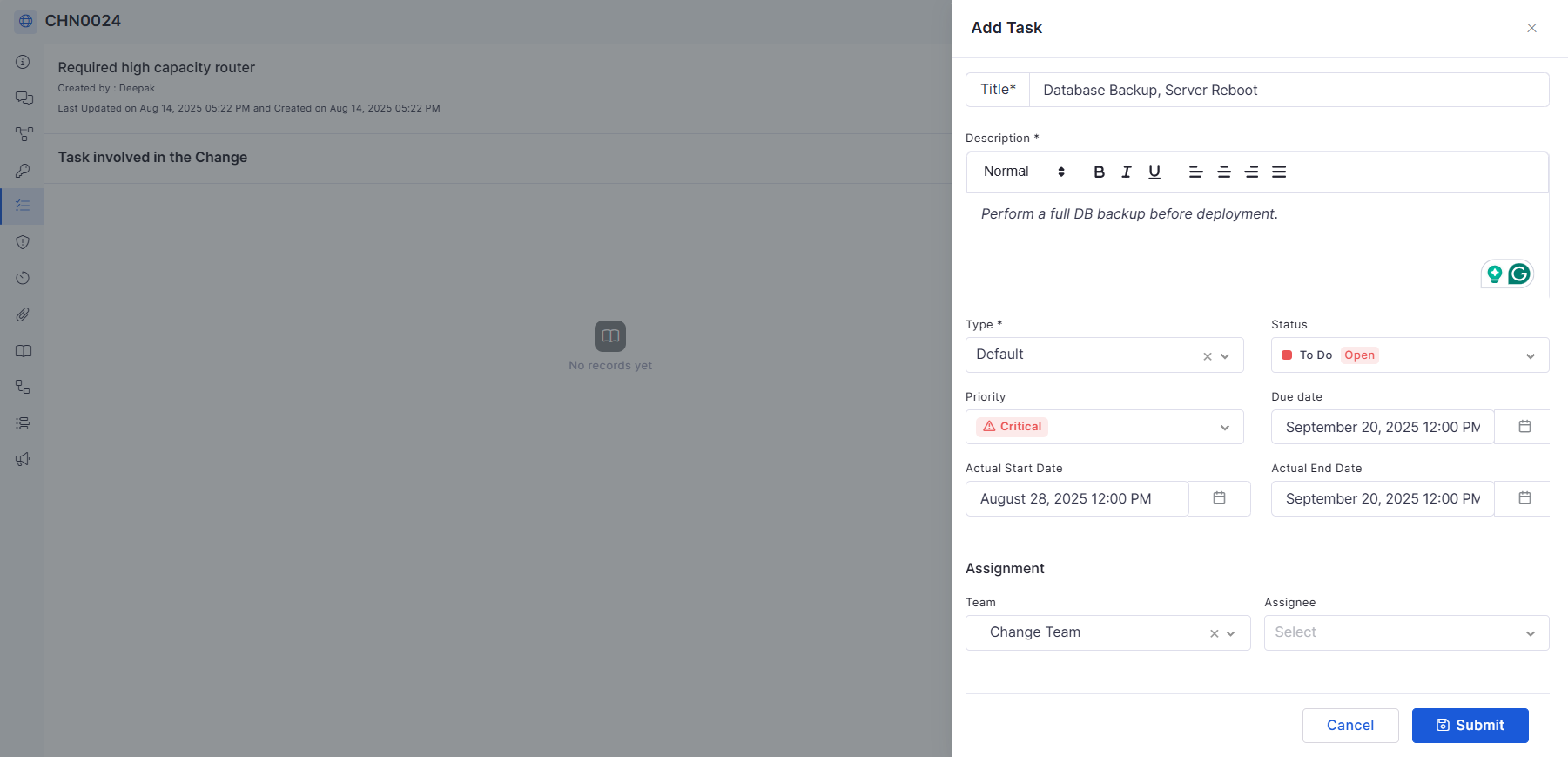
Tasks - This allows users to define and manage individual tasks involved in executing a change. Each task can be customized with fields such as title, type, priority, due date, and assignee.
Choose the current task status:
To-Do (Open)
Ongoing (In Progress)
Blocked (On Hold)
Done (Close)
Priority
Select from the drop-down
Indicates task urgency:
Low
Medium
High
Critical
Due Date
Select date
Target completion date for the task.
Actual Start Date
Select date
Date when the task was actually initiated.
Actual End Date
Select date
Date when the task was completed.
Team
Select from the drop-down
Choose the team responsible for executing the task.
Assignee
Select from the drop-down
Assign the task to a specific team member.
Submit
Click
Saves the task to the change ticket.
Cancel
Click
Discards the task and closes the dialog.
Cancel
Click to abort
Closes the pop-up without saving the changes.
Low
What is the expected downtime duration for the change?
5
More than 4 hours
Critical
1–4 hours
High
Less than 1 hour / Zero downtime
Low
What level of business services will be impacted?
3
Core services (e.g., customer-facing apps, payment systems)
Critical
Internal services (e.g., reporting, HR, internal tools)
Medium
Non-critical services (e.g., test/dev environments)
Low
How complex is the rollback or recovery plan for this change?
2
No rollback possible
Critical
Rollback possible but time-consuming
High
Simple and tested rollback plan
Low
What level of dependency exists on external vendors or third-party systems?
3
Multiple critical vendor/third-party dependencies
Critical
Limited vendor dependency with partial risk
Medium
No vendor dependency
Low
Very Low (Blue): Risk score 20 or below
Q5: Limited vendor dependency” → Medium → Value = 3 (60%)
If any issues occur while implementing the change, a ticket can be raised.
Change aging for helpdesk/ ITSM close and resolve conditions
Grid View includes Aging Metric. Track Change resolution time accurately. Click 'Resolve' or 'Close' to stop the aging clock. Get detailed aging reports based on resolved status.
Select one or more change requests to assign to a team.
*Delete
Select one or more change requests to delete them.
Pause
To pause the auto-reload.
Configure
To configure the summary card and column selection.
Actual Closure Date
Auto-filled or editable
Actual date and time when the change was completed or formally closed. Example: Aug 01, 2025, 12:53 PM
Agreed Closure Date
Select date
The closure date agreed during CAB or planning discussions. Example: July 31, 2025
Closure Category
Select from the drop-down
Captures the outcome of the change:
Successful: Change achieved the intended goal without issues.
Successful with Issues: Change succeeded with minor/managed issues.
Rollback: Change was reverted due to failure or risk.
Partially Implemented: Some objectives were met; others deferred or missed.
Complete (Button)
Click to confirm closure
Finalizes the closure and updates records. Post-closure changes require admin override.
Reset the Password of an email account.
Minor Change
A minor change is a small, low-impact, and low-risk change that only occasionally occurs in an organization. It needs approval from the Change Advisory Board(CAB). It is essential to document all the important information for future reference. A minor change could be converted to a standard change in the future.
Changes to the company website.
Major Change
A major change is a high-risk and high-impact change that could impact an organization's services if it is not planned properly. It requires an in-depth proposal on risk analysis, financial implications, and cost-benefit analysis. It also requires approval from the Change Advisory Board(CAB) and management.
Changes to Network Infrastructure
Emergency Change
Emergency changes are unexpected disruptions that must be assessed and implemented as soon as possible to restore an organization's normal functioning.
Dealing with a server outage
Retrospective Change
Designed to record changes that were implemented urgently without prior documentation or approval. These ensure compliance by logging the change post-implementation for audit and visibility.
Fixing a critical bug without prior approval.
Field
Description
Requester
Select the requester for the new change. This can be the same or different from the original change.
Assignment Details
Update the assignee or assignment group, if required.
Label
Action
Description / Example
Title*
Enter text
Name or heading for the task.
Example: Database Backup, Server Reboot
Description*
Enter content using the editor
A short explanation of the task.
Example: Perform a full DB backup before deployment.
Type*
Select from the drop-down
Choose the nature of the task:
Default – Generic task with no specific category.
Pilot – Task for trial or limited rollout.
Staging Development – Tasks in staging/testing environments.
Automation – Tasks handled via scripts or automation tools.
Field – On-site/field-level tasks.
Recurring – Tasks that repeat on a schedule.
Maintenance – Preventive or scheduled maintenance tasks.
Work Order – Actionable job-oriented tasks.
3rd Party – Task assigned to an external vendor.
NCCM – Tasks related to NCCM configurations or templates.
Status
Label
Action
Description
Upload Area
Drag and drop / Browse to upload
Upload files (Formats: PNG, JPEG, PDF, DOCX, XLSX, etc., Max size: 20MB).
Category*
Select from the drop-down
Choose a category to classify the attachment:
Default Category
Change Screenshot
Team Document
Team Docs
Test Plan
Dev Plan
Impact Assessment
Risk Assessment
Requirements
Rollout Plan
Rollback Plan
Other
Description
Enter text
Provide a brief note or context about the uploaded attachment.
Upload
Click to confirm
Label
Action
Description / Example
Name
Enter a name
Specifies the unique title or identifier of the risk. Example: Database downtime risk.
Risk Type
Select from the dropdown
Defines the category of the risk.
Business – Risks affecting operations or service delivery
Technical – Risks related to systems, infrastructure, or technology
Financial – Risks impacting costs, budget, or revenue
Other – Any risk outside the above categories
Mitigation Plan
Add mitigation details
Outlines the steps or strategy to reduce, transfer, or eliminate the identified risk. Example: Schedule backup before change and prepare rollback plan
Description
Provide description
Question
Weight
Options
Option Value
How many assets will be affected by this server change?
4
More than 50 assets
Critical
Between 20 and 50 assets
High
Name
Description
Comment
A user/technician can see the comments on the change and also can add new comments.
History
Shows the history of the current change request from the time it was created.
Interaction
Shows the history of the change request created by the requester.
Attachment
Shows all the attachments of the current change request.
Change Source
Shows the source of the change, like email, web, phone, etc.
Name
Description
Quick Edit
To perform quick edit actions like change manager, status, priority, urgency, severity, impact service, and the assignee. Use the "Detailed Edit" button to edit the Change details.
Edit
To edit the Change in detail.
Delete
To delete the Change. This action is irreversible.
Task
Shows the tasks involved in the change.
*Risk
Shows the risks involved in the change.
Label/ Icon
Description
Expand Icon
To View the change filters.
Search Bar
To help search for a specific change request using the Change ID, assignee, etc.
Calendar
To view changes and releases scheduled on the calendar. The calendar supports Month, Week, Day, and List views and allows filtering releases based on status, type, priority, risk, team, and other criteria. Filtered releases are displayed according to their scheduled duration.
Workspace task App
Enjoy a seamless and streamlined experience with the powerful capabilities of the Task Common Module for enhanced task management within the application.
*Tag
Select a change request to view the tag option. Tagging is a way to group change requests.
Label
Action
Description / Example
Status
Auto-filled or selected manually
Displays the change status (It will be closed).
Close Change*
Enter closure summary
Add final remarks on what was done, implementation outcome, or lessons learned. Example: “ES3 server restored with latest patch deployment.”
Closed by
Select from the drop-down
Choose the user who is closing the change. Example: Deepak Kumar
Close Type
Select from the drop-down
Select from the drop-down
Uploads the selected file(s) to the Change record.
Offers detailed context about the risk, including possible causes, expected impact, and scenarios in which the risk might occur.
Example: Risk of service outage if the server upgrade fails during peak hours
Less than 20 assets
*Add Ticket
*Assignment
Defines the method and reason for closure:
Auto Closure: The system was closed due to no further updates after a set period.
Not Solved: Change was implemented, but the issue was not resolved.
Solved: The issue was resolved successfully via this change.
Cancelled (Close)
Cancelled: Change was withdrawn before implementation.
Unsuccessful: Change failed and caused no improvement.