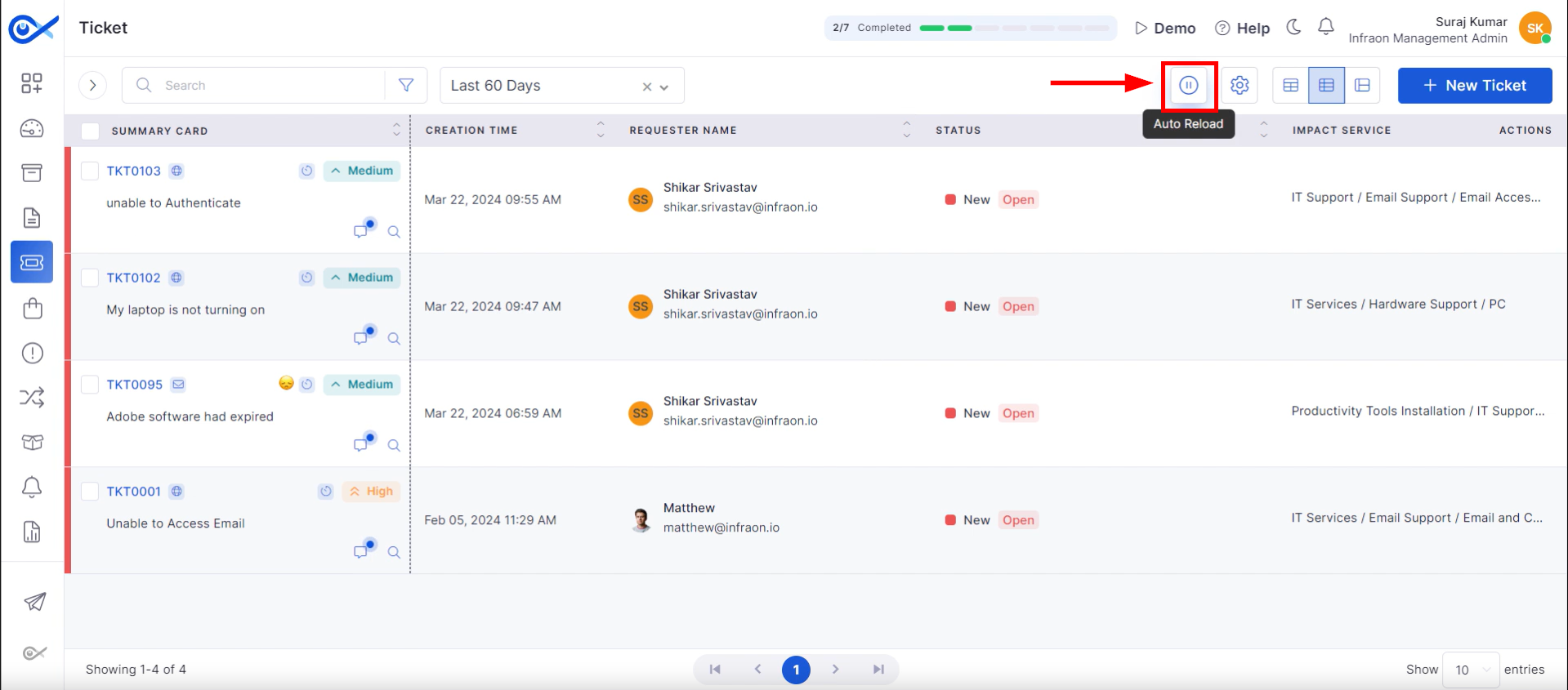
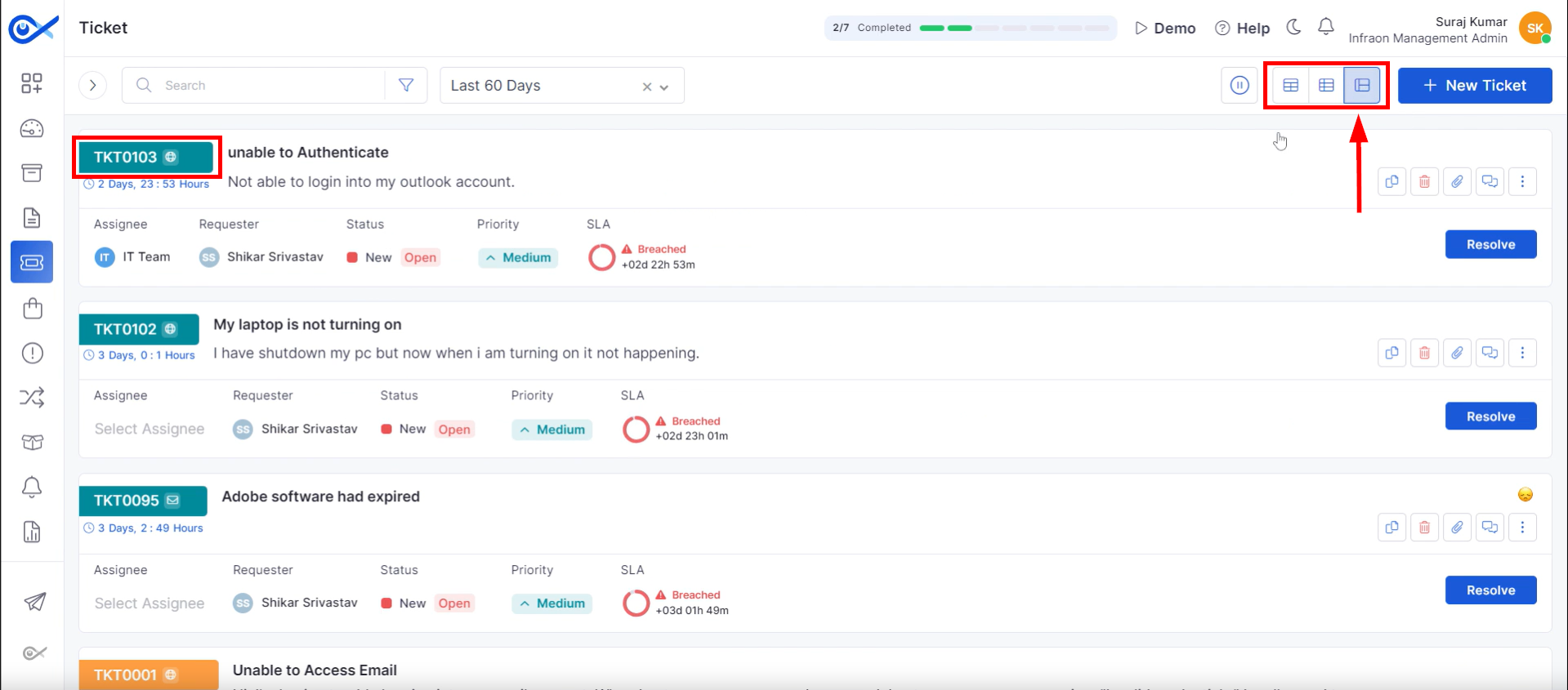
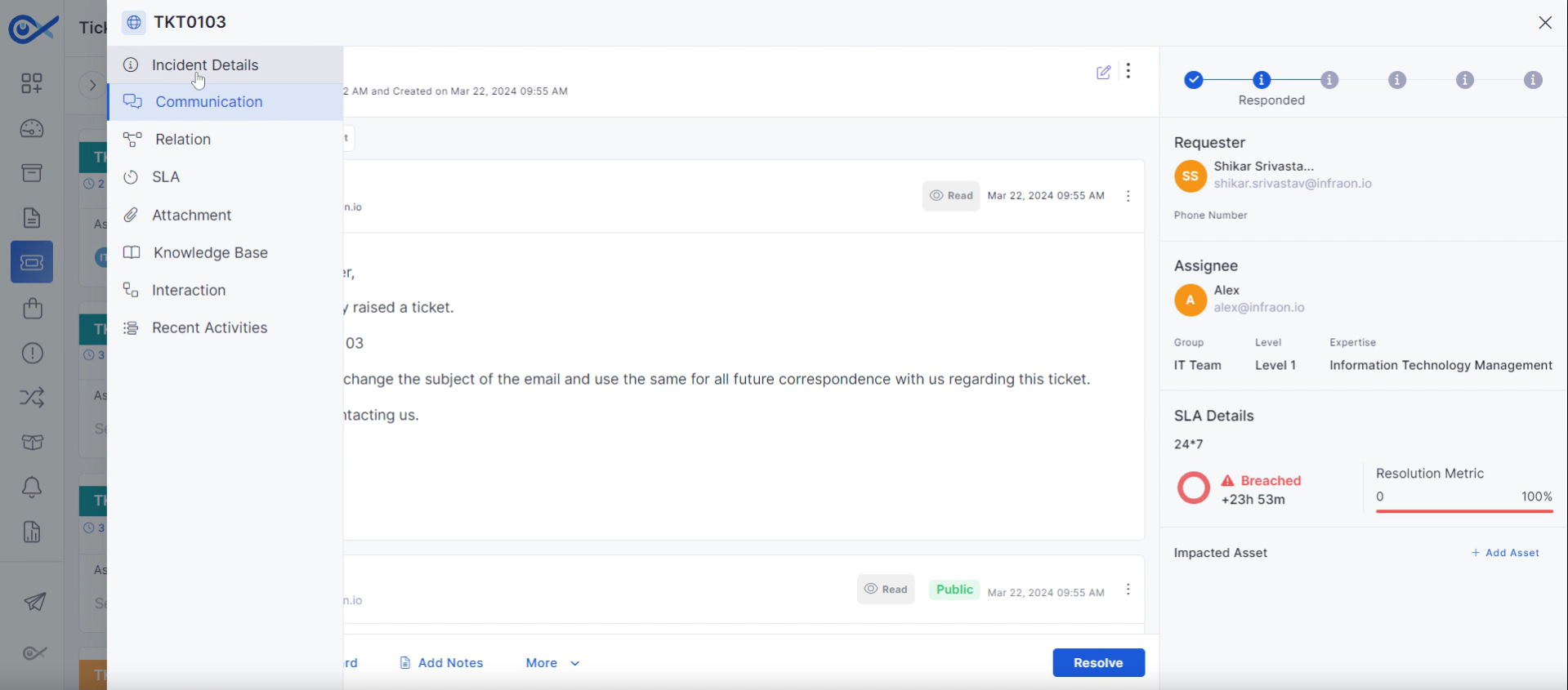
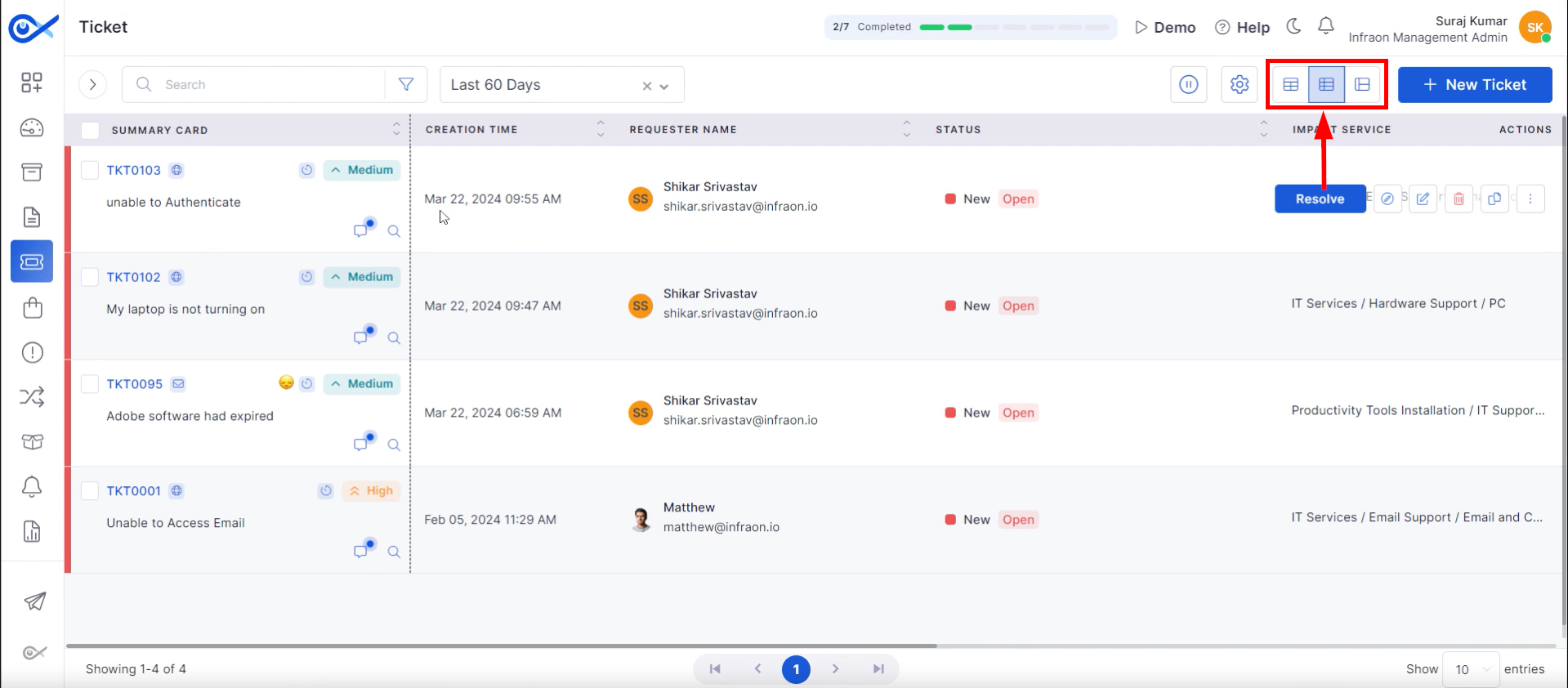
Explore the releases published during 2025, covering feature introductions, product enhancements, performance improvements, and resolved issues across Infraon modules.
Ticket Resolution
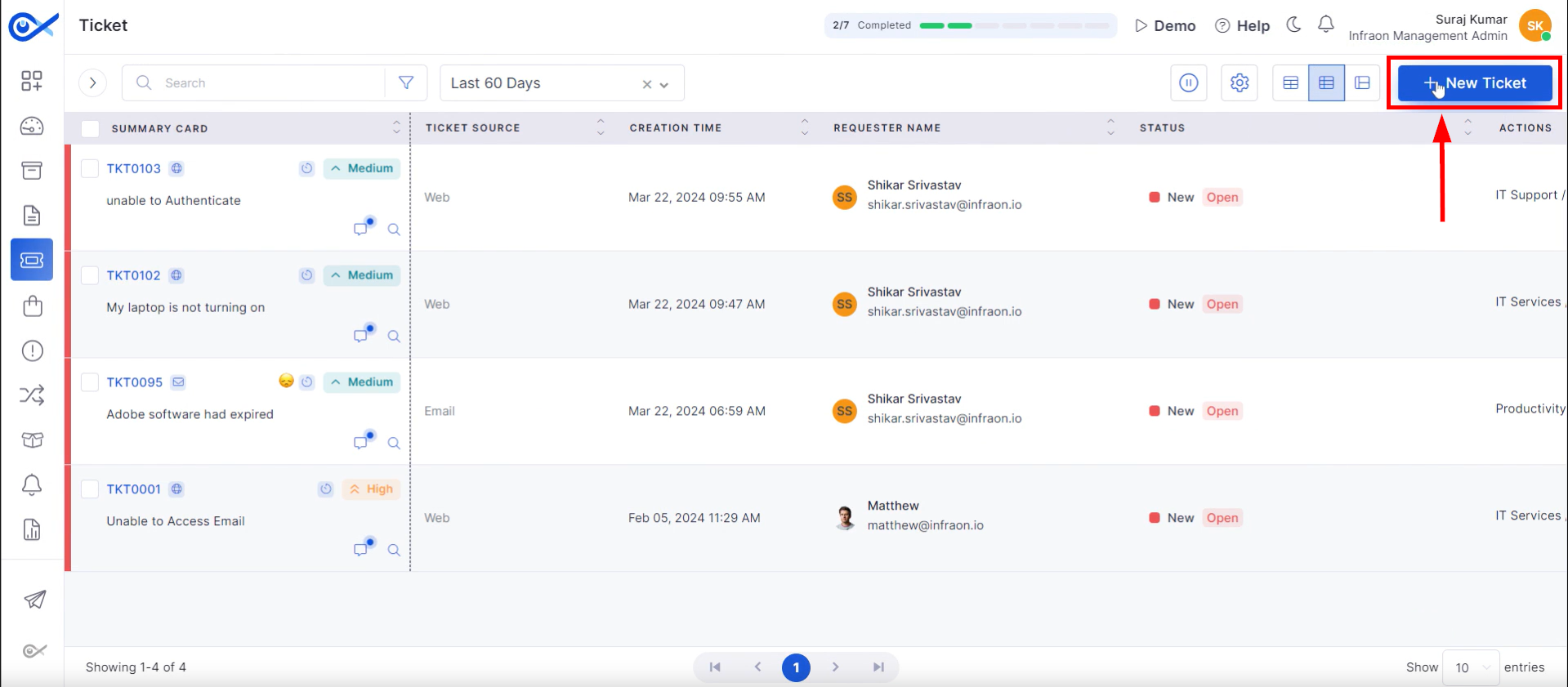
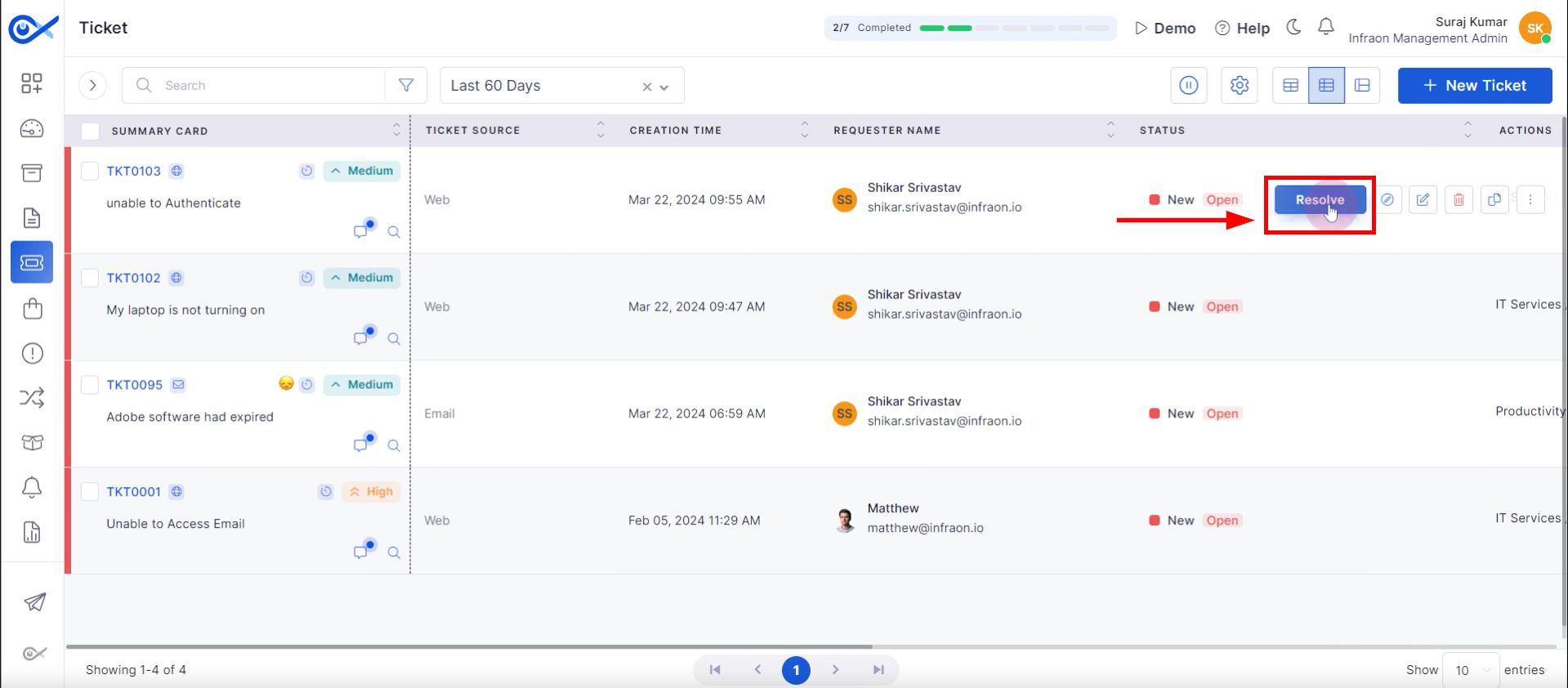
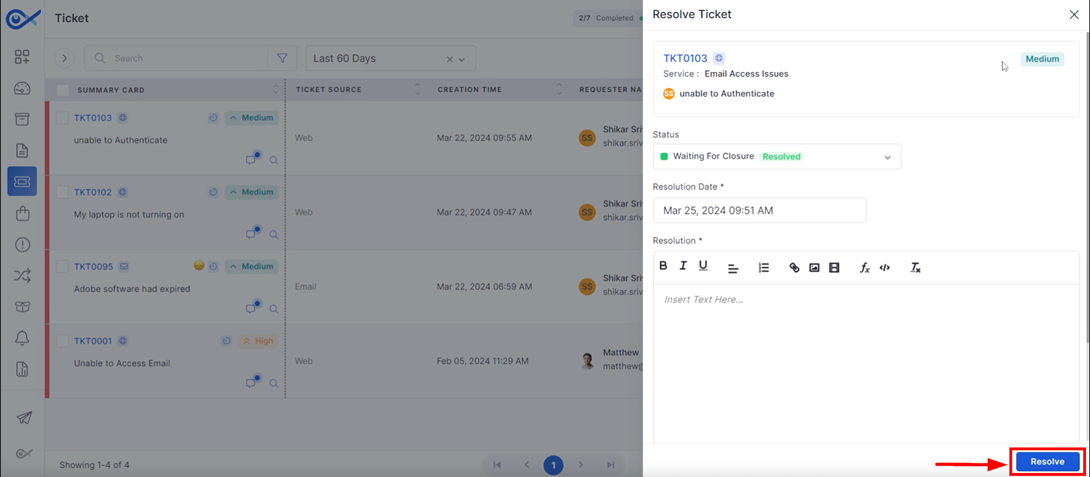
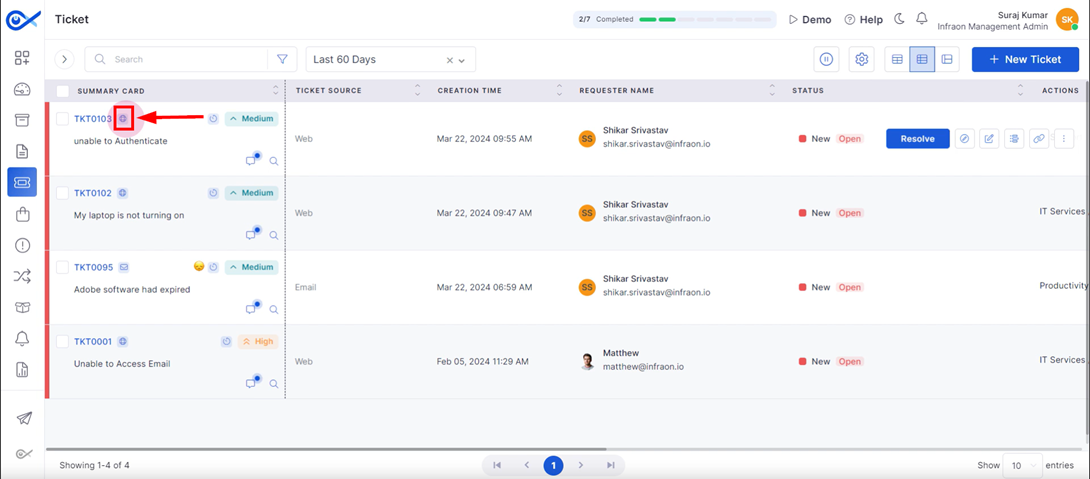
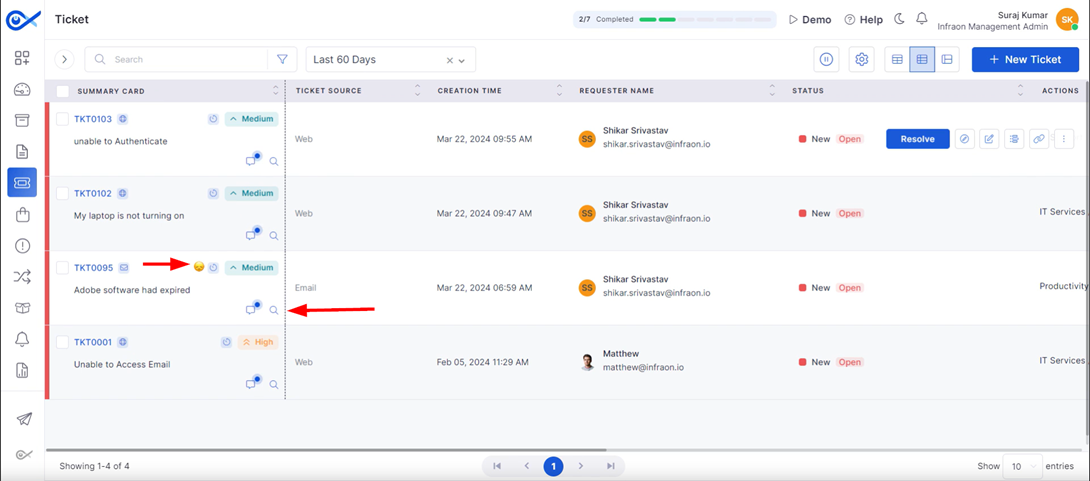
This guide outlines a technician or engineer's process for working on a ticket, from creation to resolution. Tickets follow a specific workflow, which are the steps or guidelines to follow when resolving a ticket, request, or problem.
NOTE: This demonstration will outline a default ticket workflow process implemented in Infraon Infinity. A comprehensive understanding can be gained by exploring the “Ticket Workflow” module under “Infraon Configuration -> Infraon Automation -> Workflow -> Ticket.”
Ticket Workflow
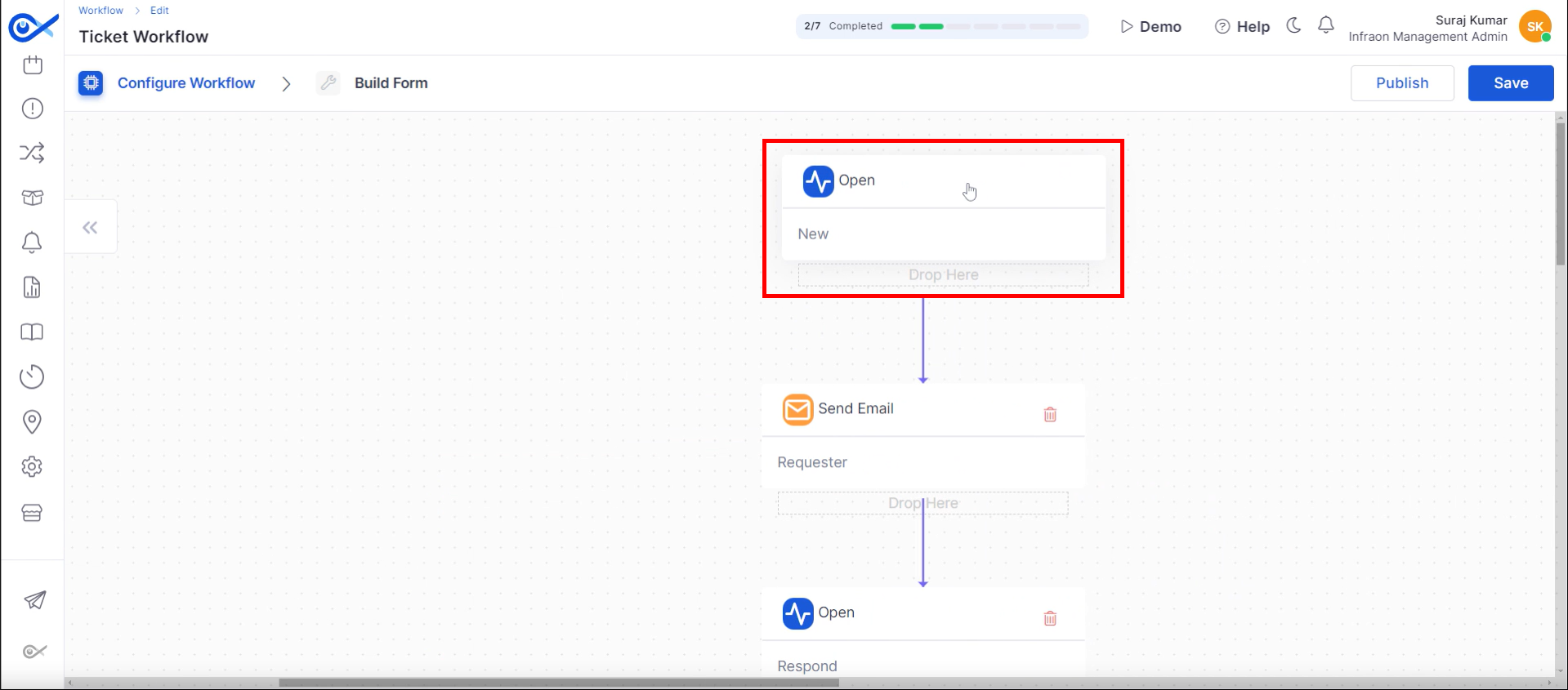
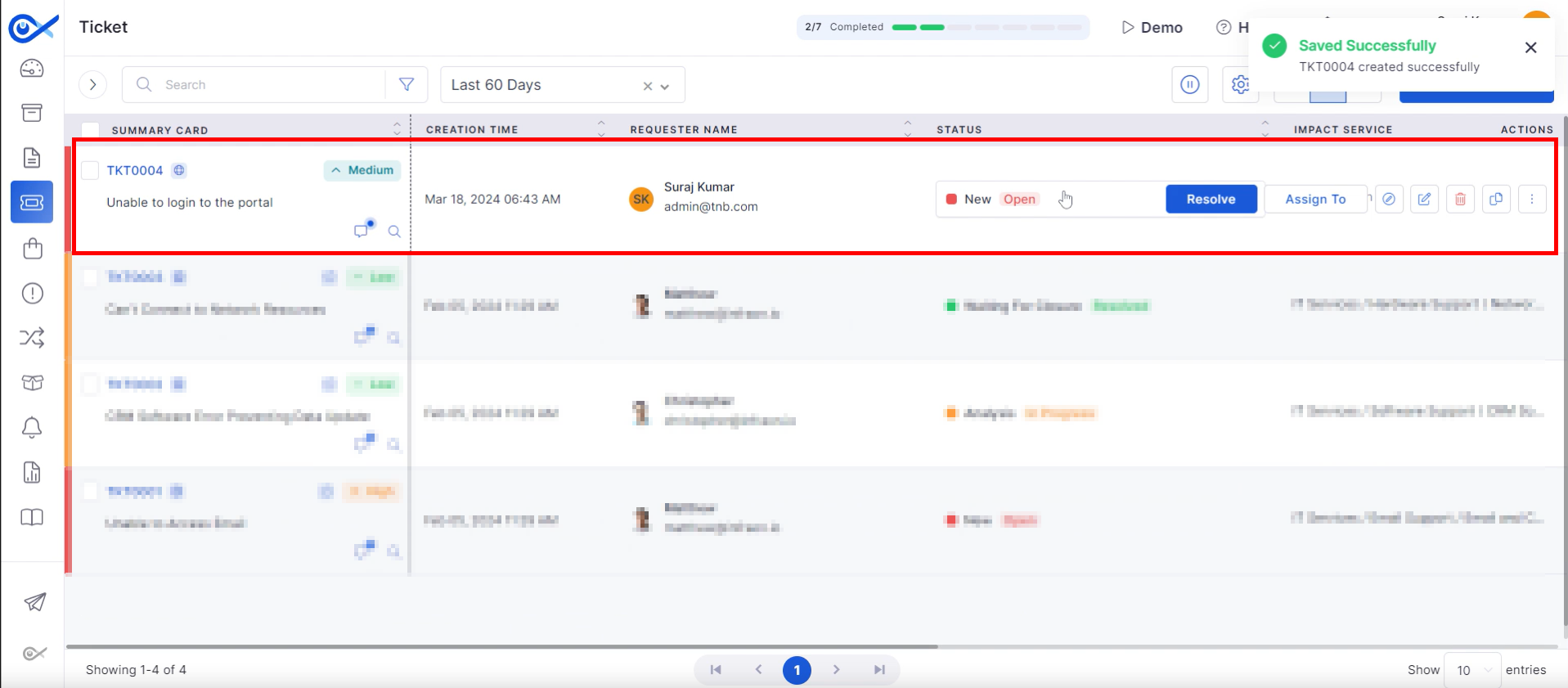
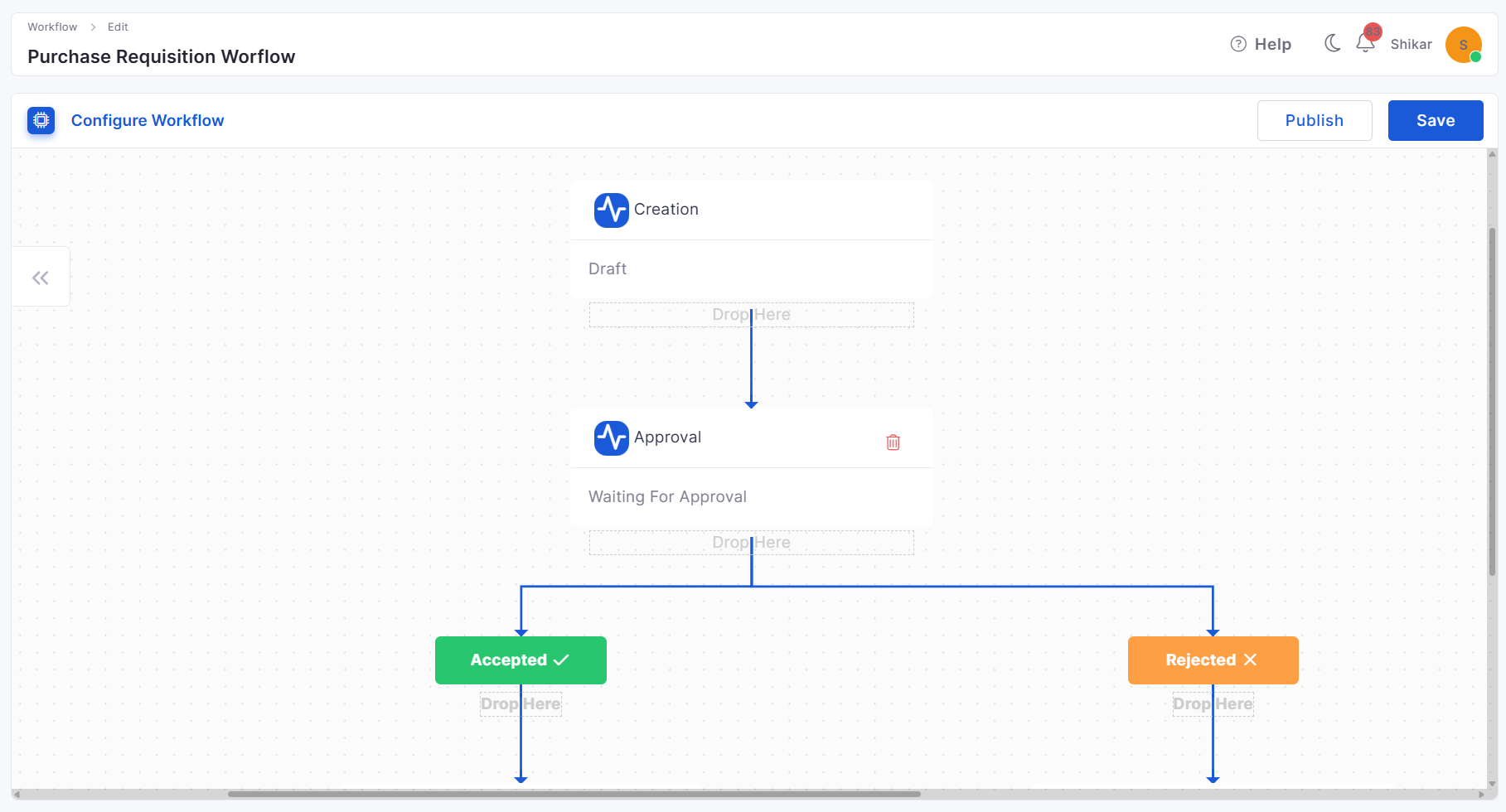
When a new ticket is generated within the system, its lifecycle is initiated in the “Open and New” state.
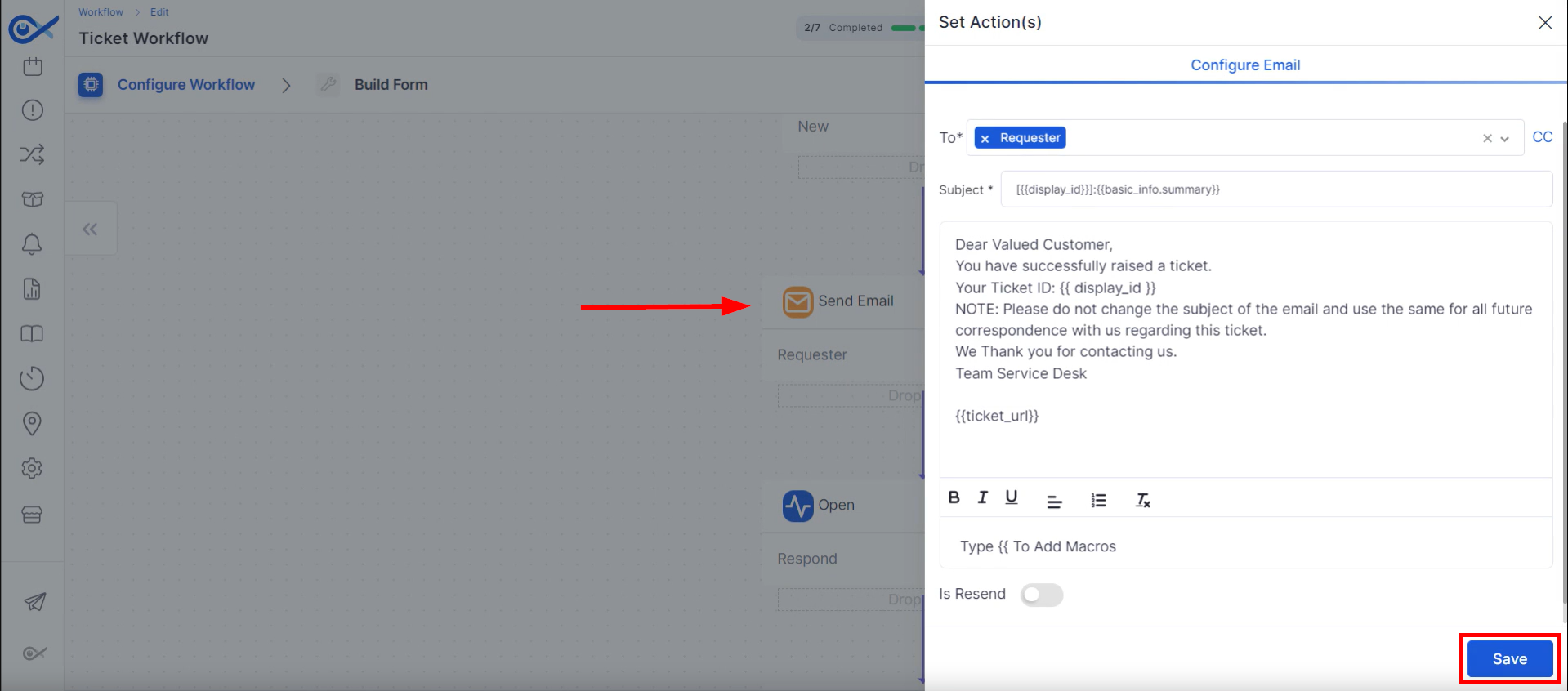
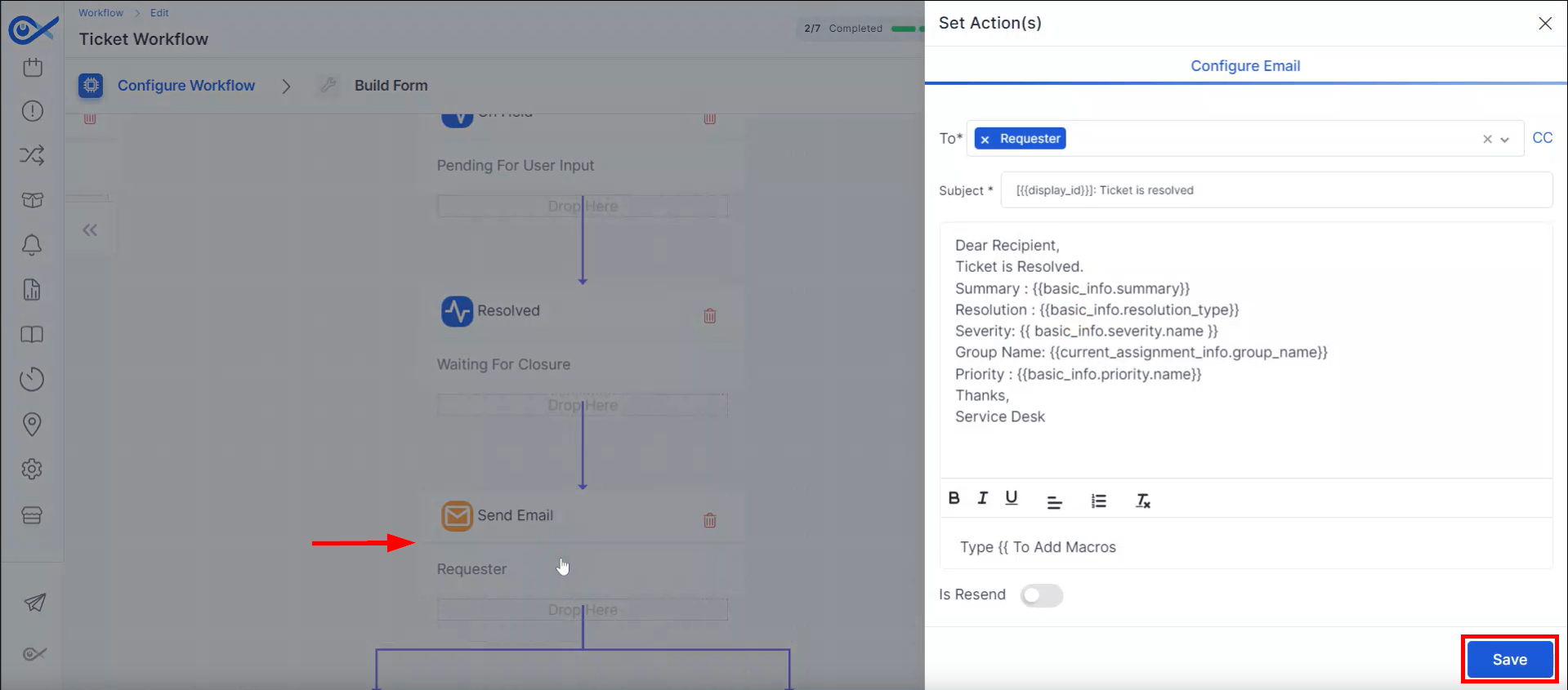
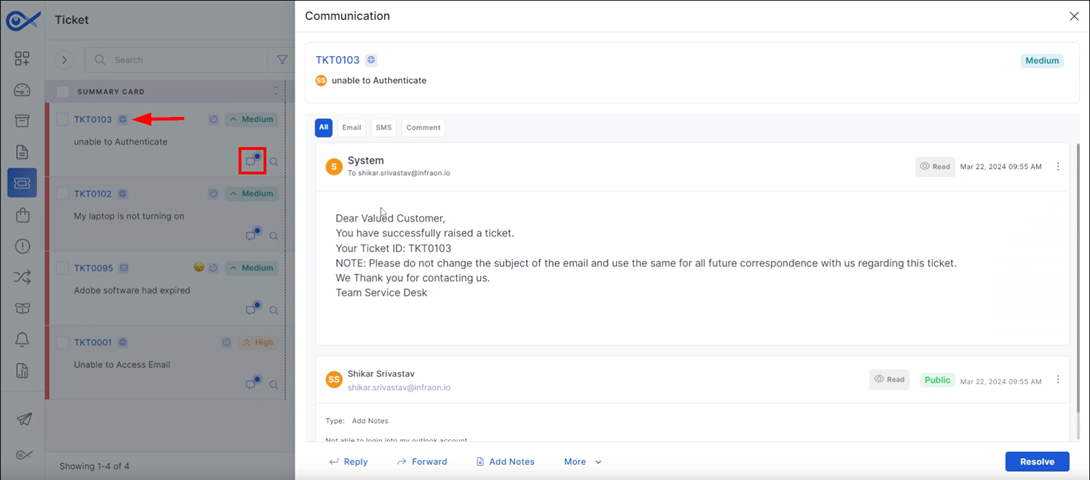
An automated email acknowledging ticket creation is sent to the end user. Email content can be customized using available macros.
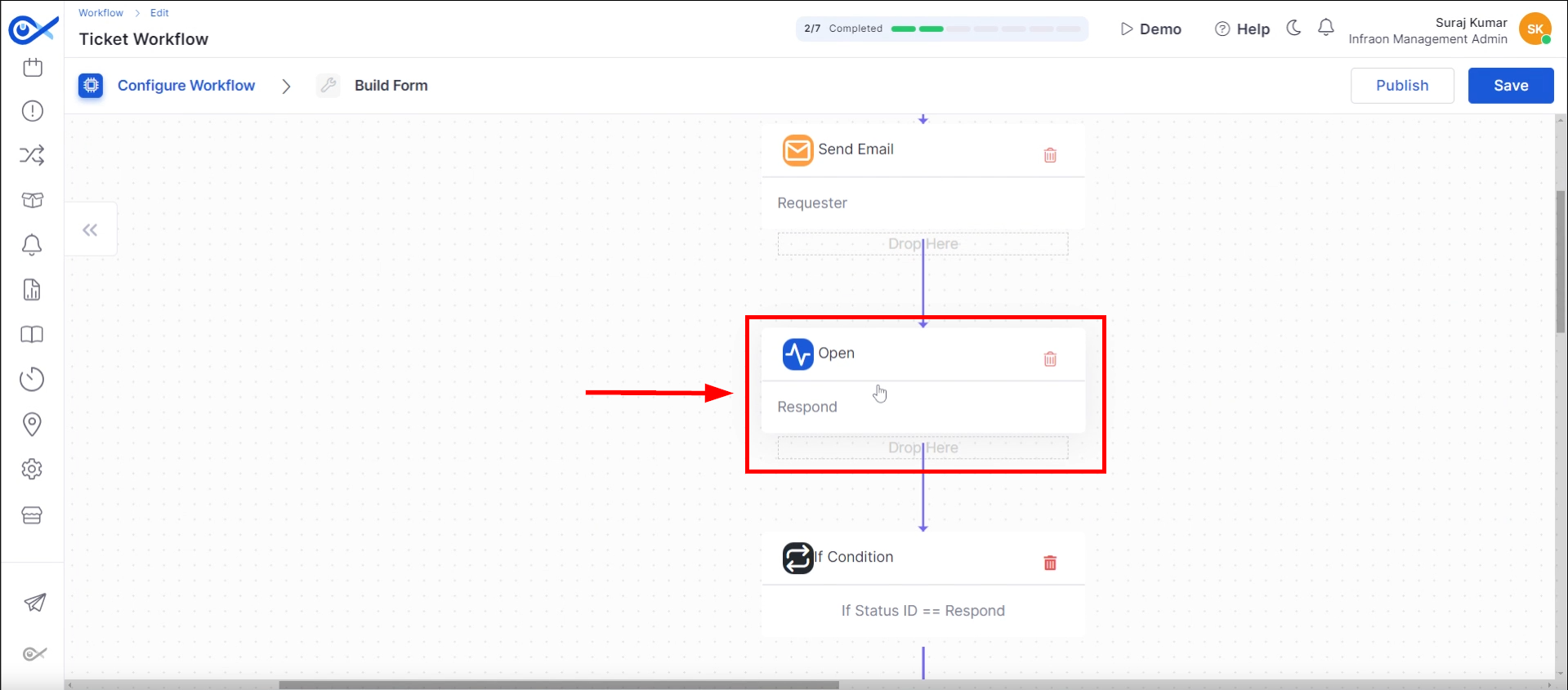
The ticket status is updated to “Open-Responded,” signifying the commencement of technician involvement.
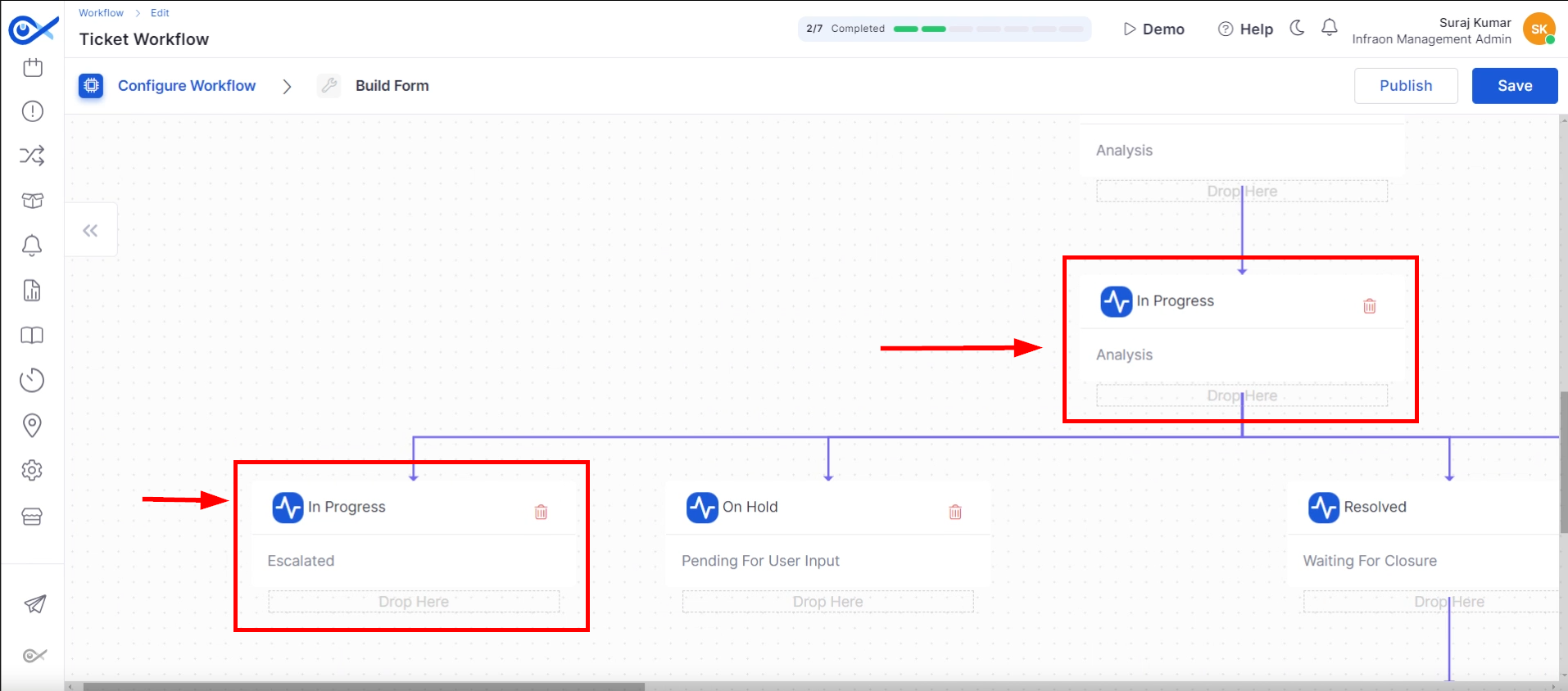
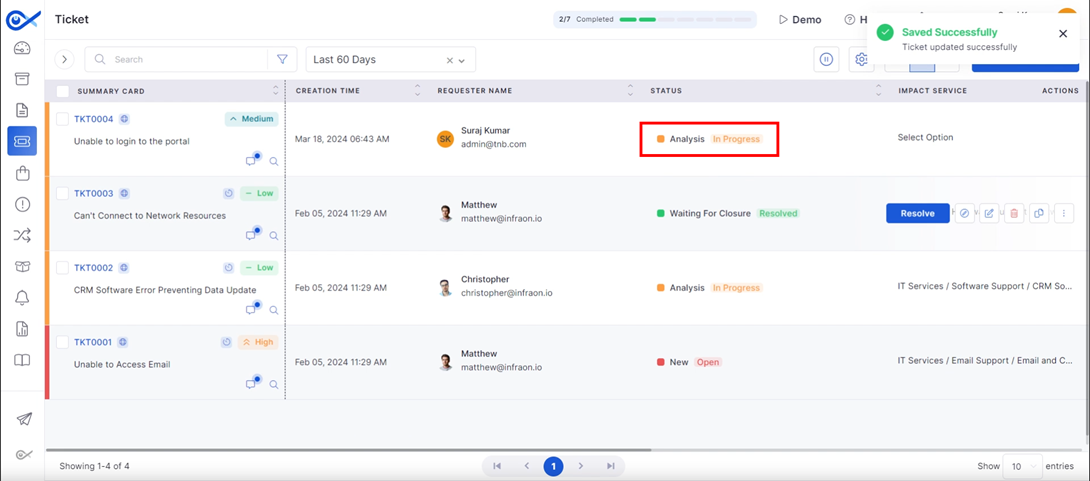
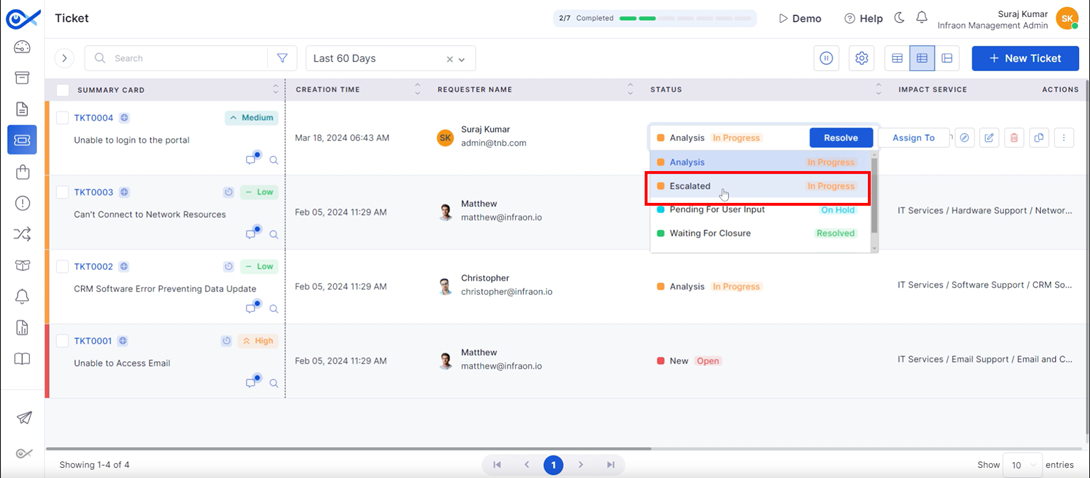
The ticket transitions to the “In-Progress Analysis” state. This phase may include sub-statuses like “In-Progress Escalated” for elevated issues.
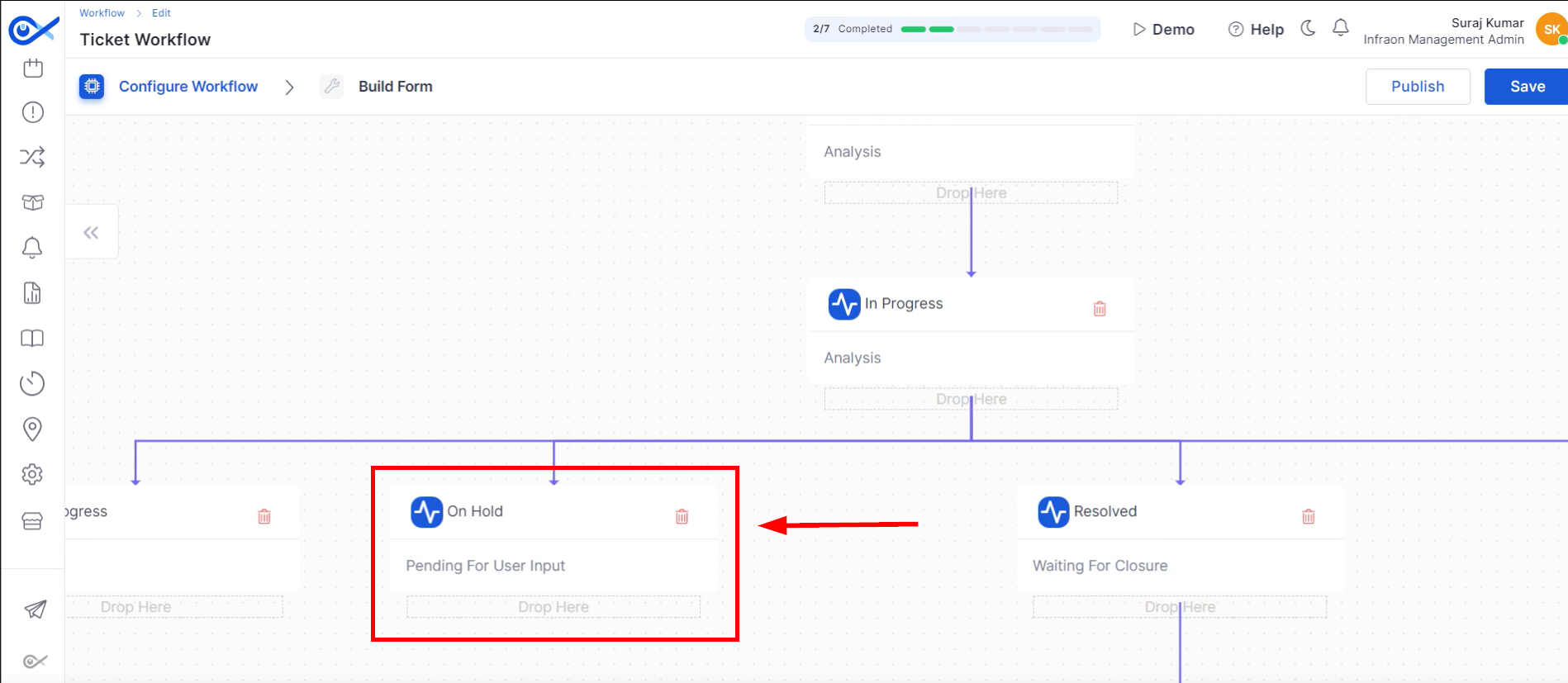
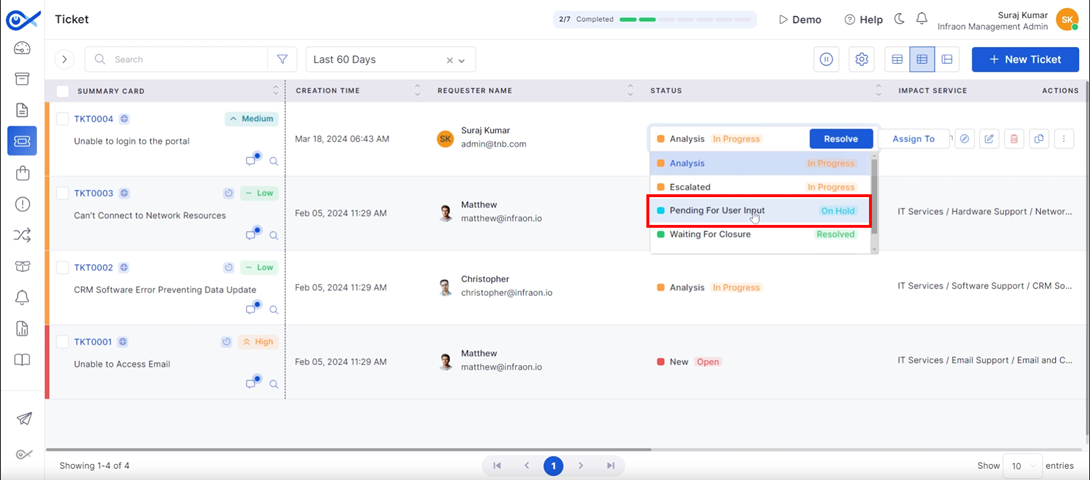
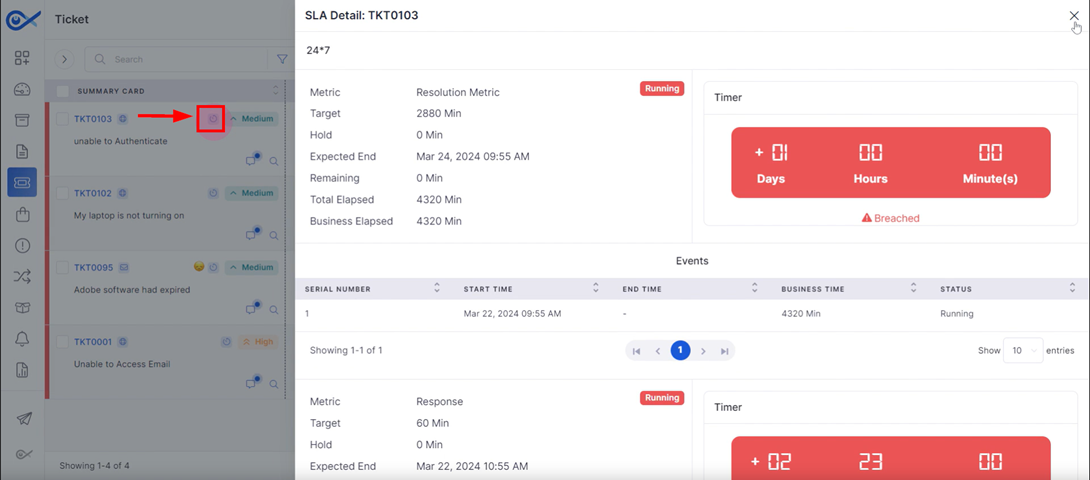
If the end user is required to provide additional information, the ticket can be placed on hold in the “Pending for User Input” state. SLA timers are paused during this phase.
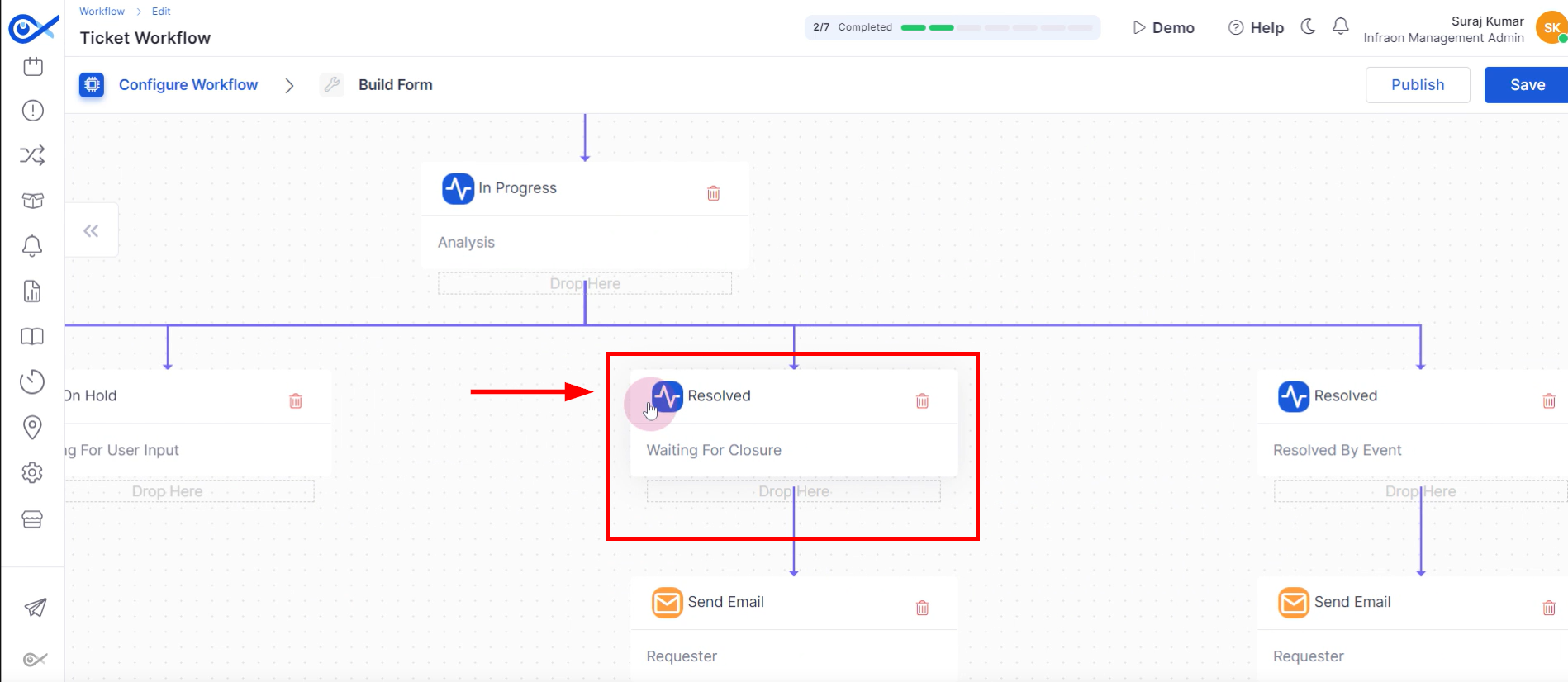
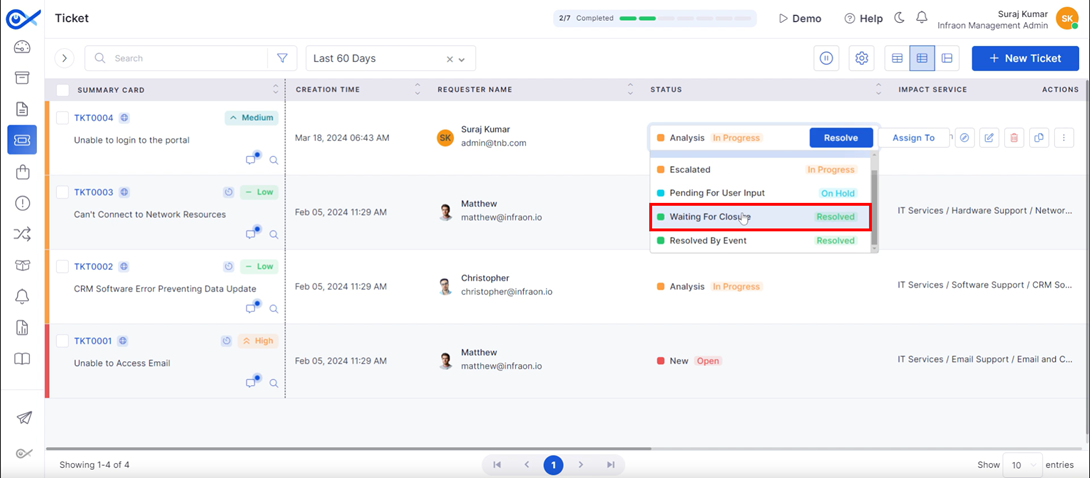
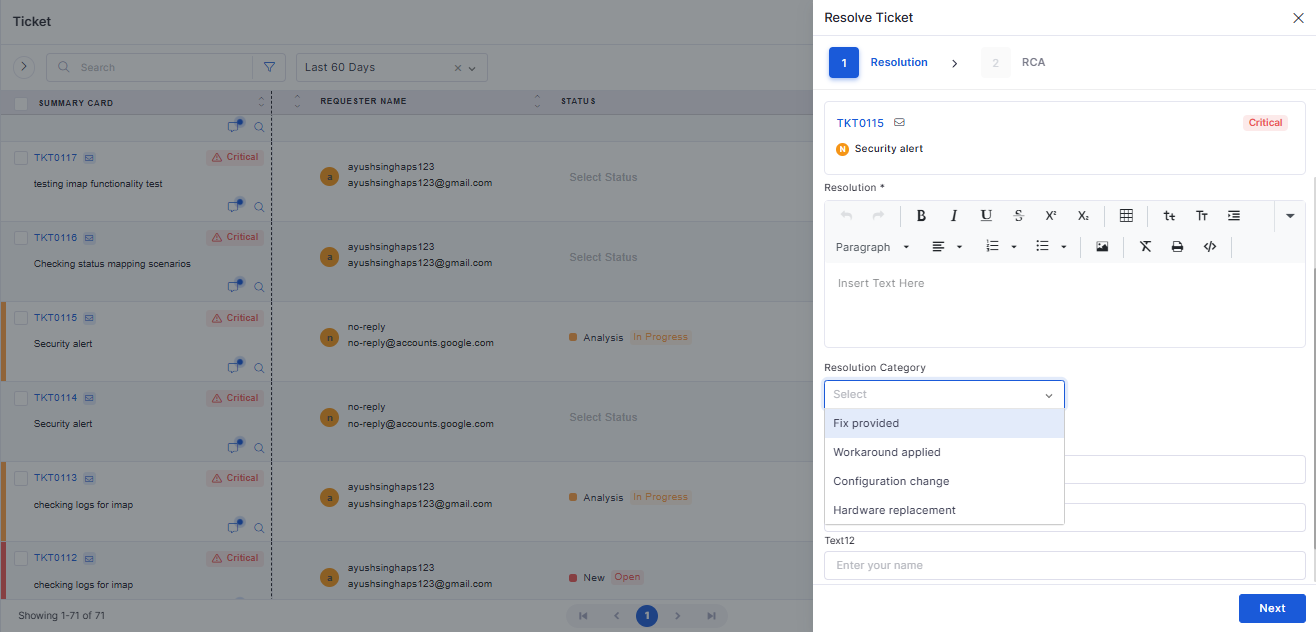
Once a solution is determined, the ticket status is changed to “Resolved and Waiting for Closure.”
An email is sent to relevant parties informing them of the ticket resolution, including a summary and solution details.
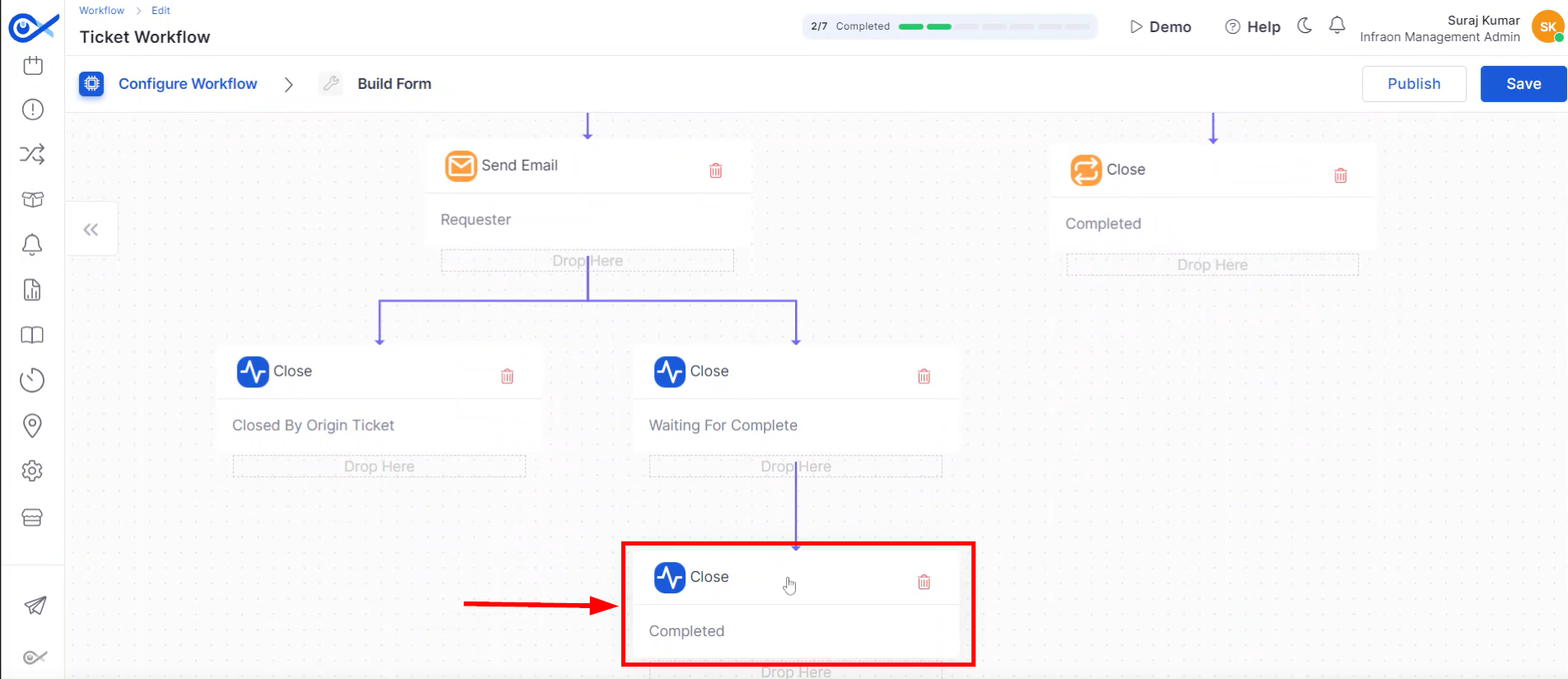
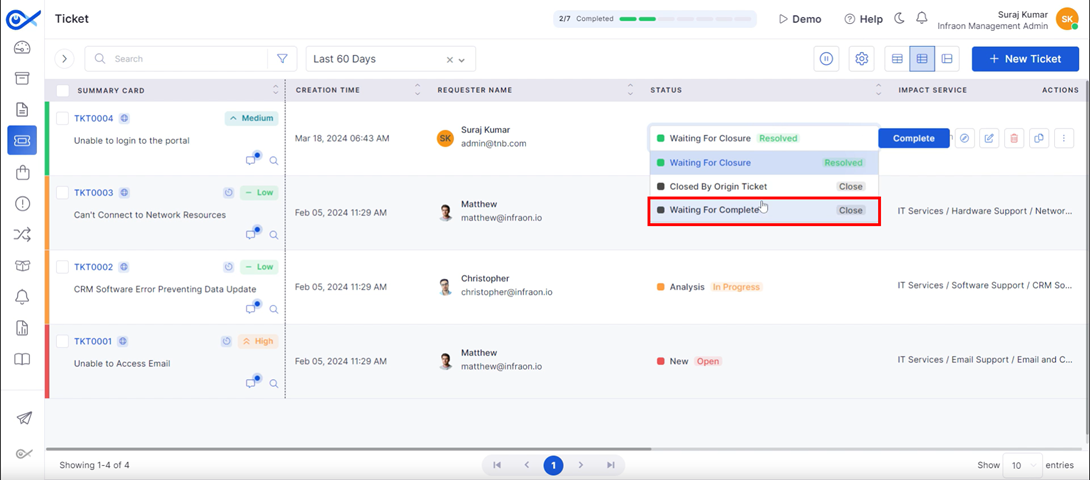
The ticket is officially closed upon confirmation from the end-user.
The ticket will be automatically closed if there is no response from the end user within a specified timeframe.
This outlines the standard ticket workflow. The following sections will detail how this workflow is implemented within the tool and technicians' specific actions when assigned a ticket.
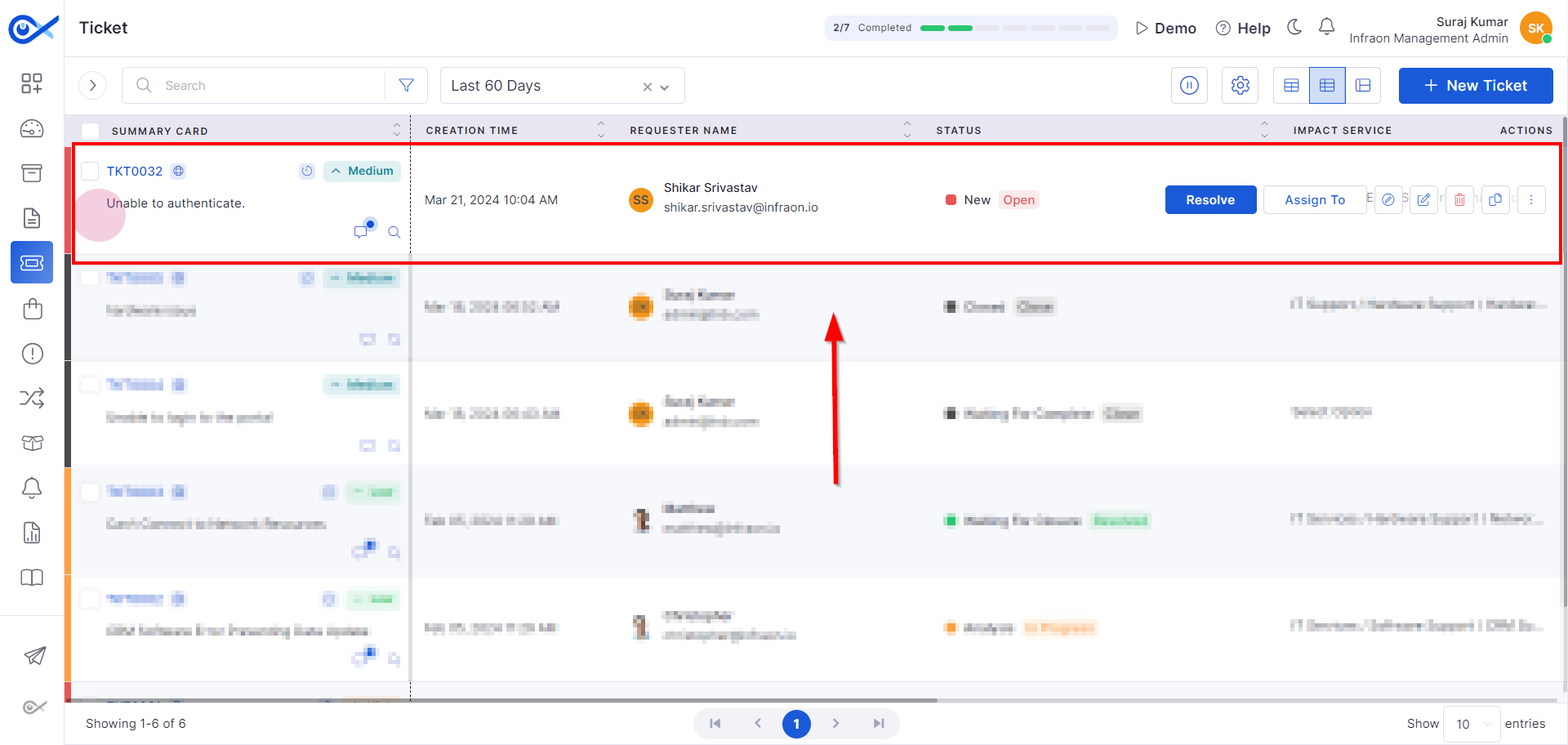
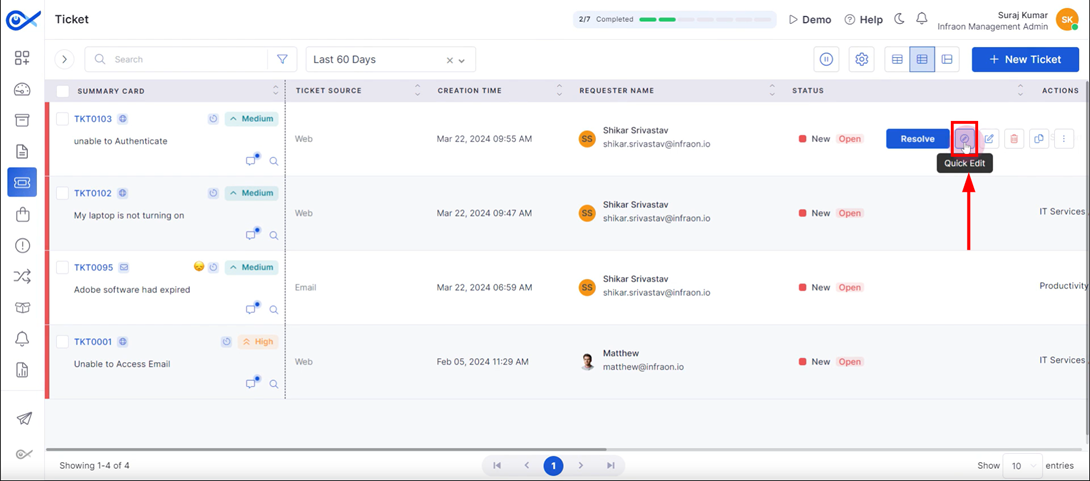
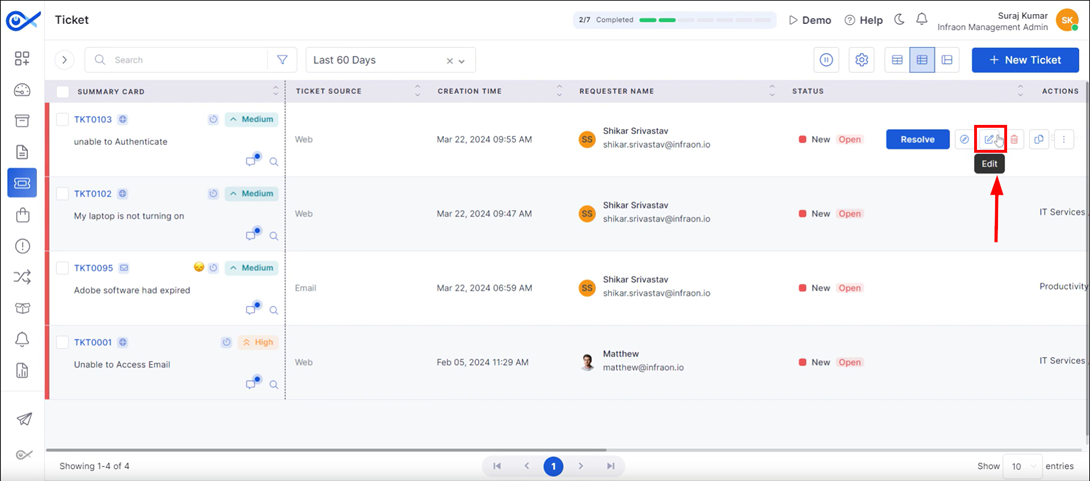
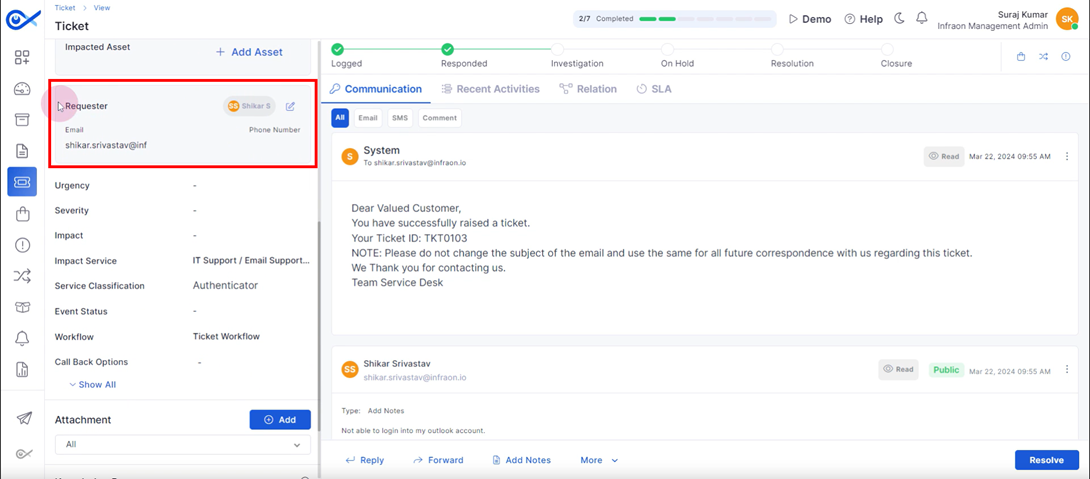
Whenevera new ticket is generated, it is assigned to the technician based on predefined rules or manual allocation.
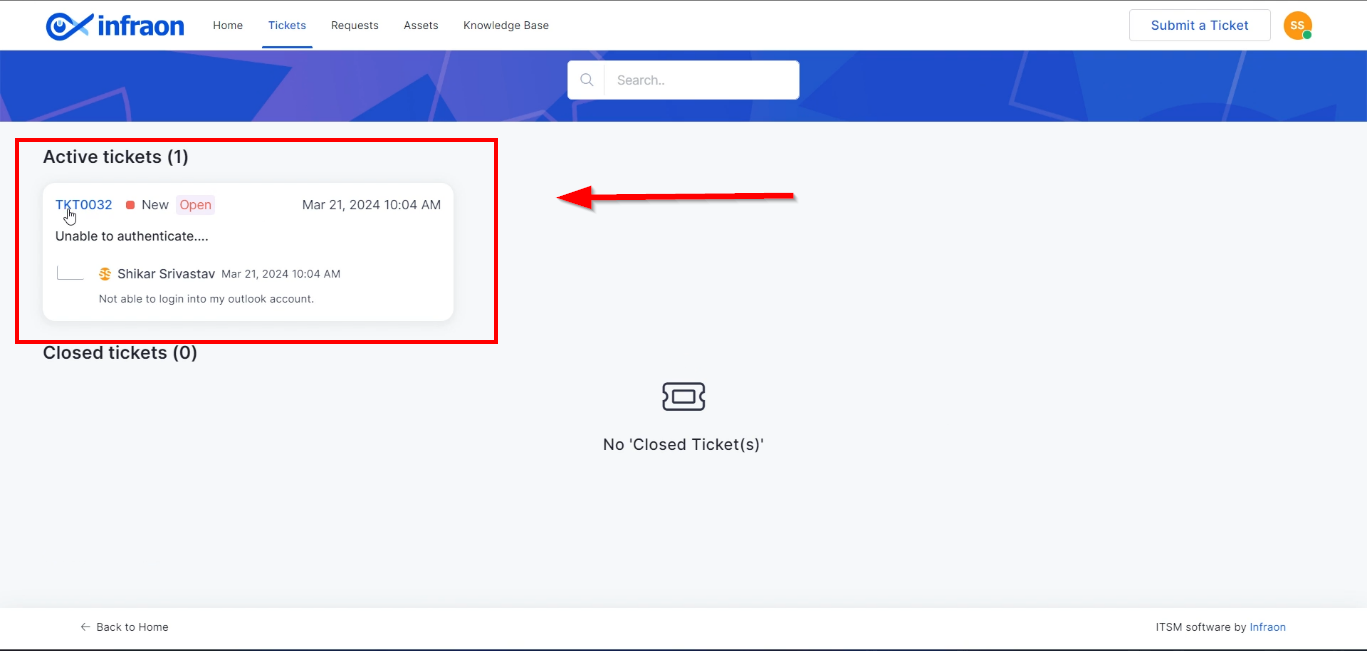
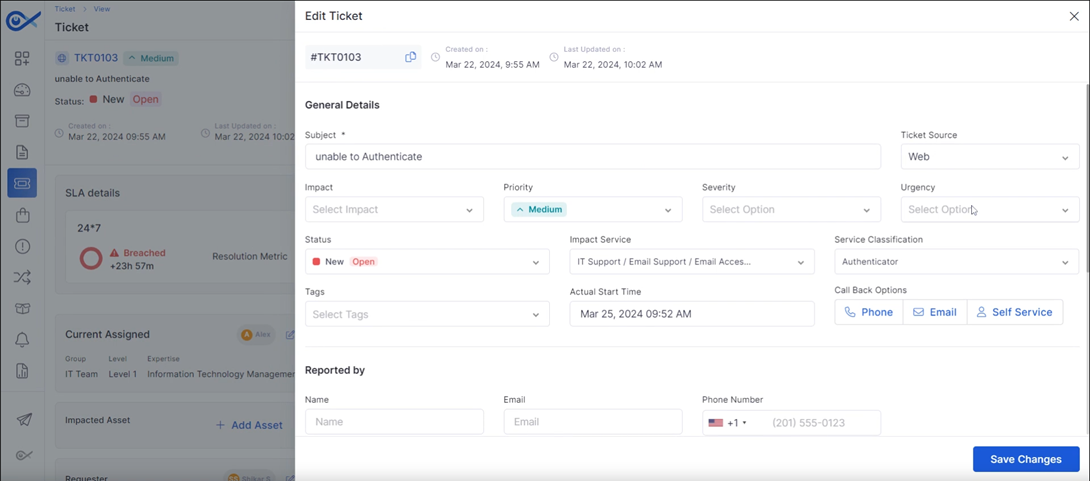
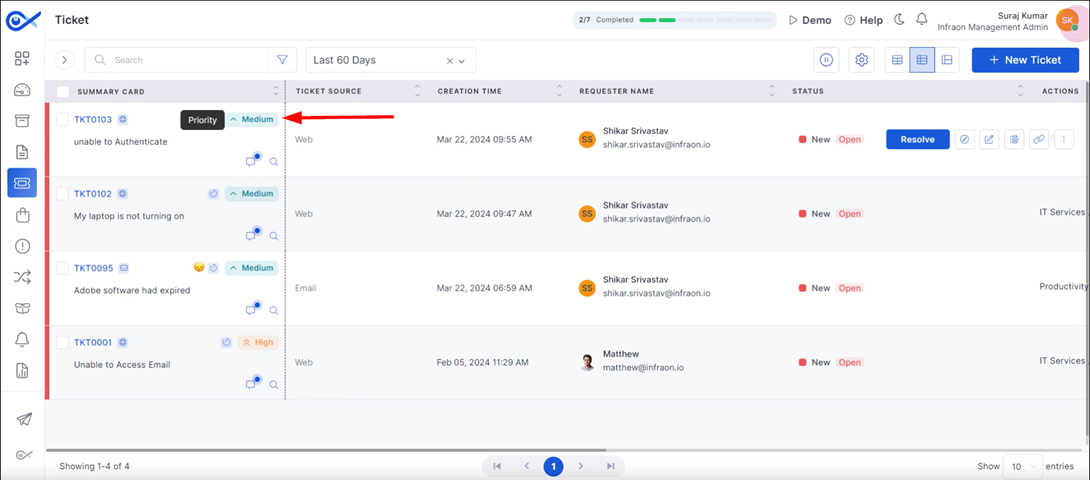
Essential ticket details, including the end-user, are populated. The ticket's initial status is then set to “New and Open.”
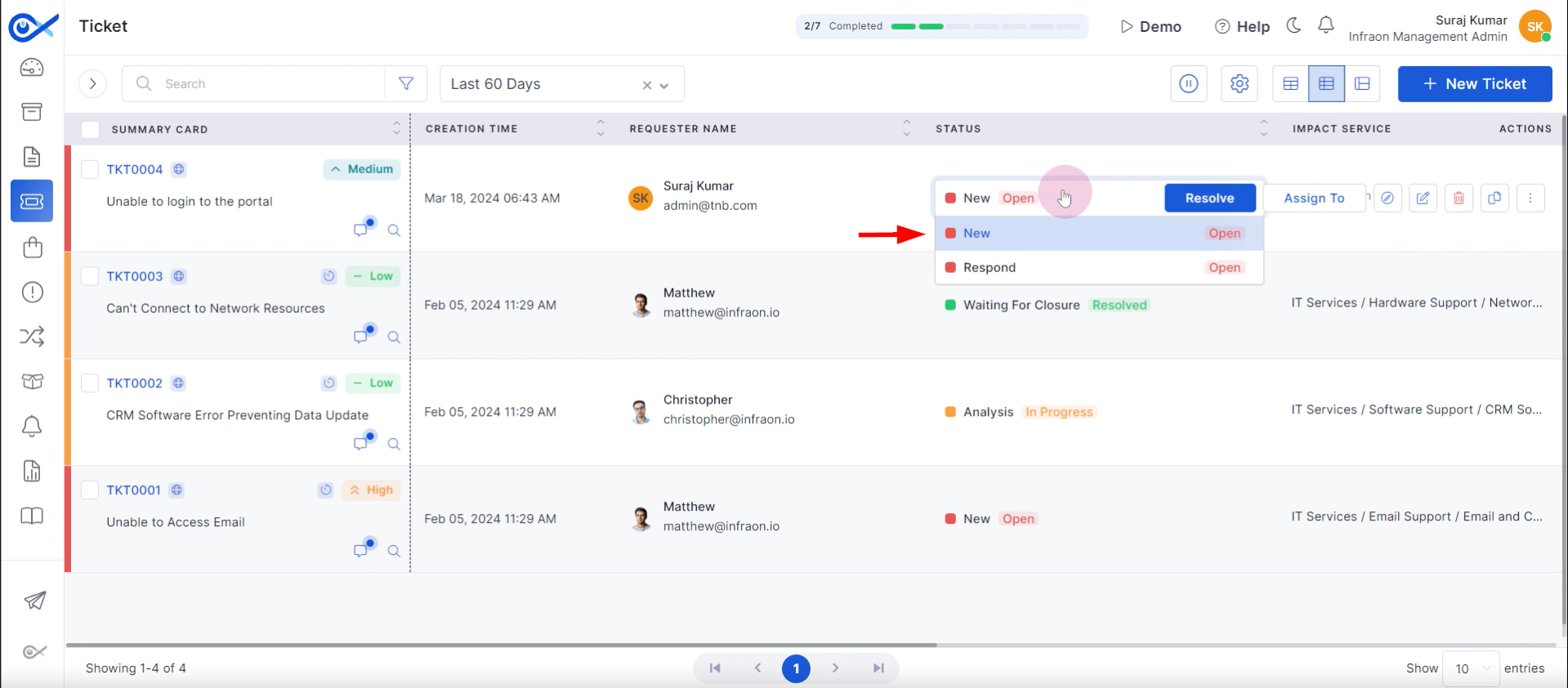
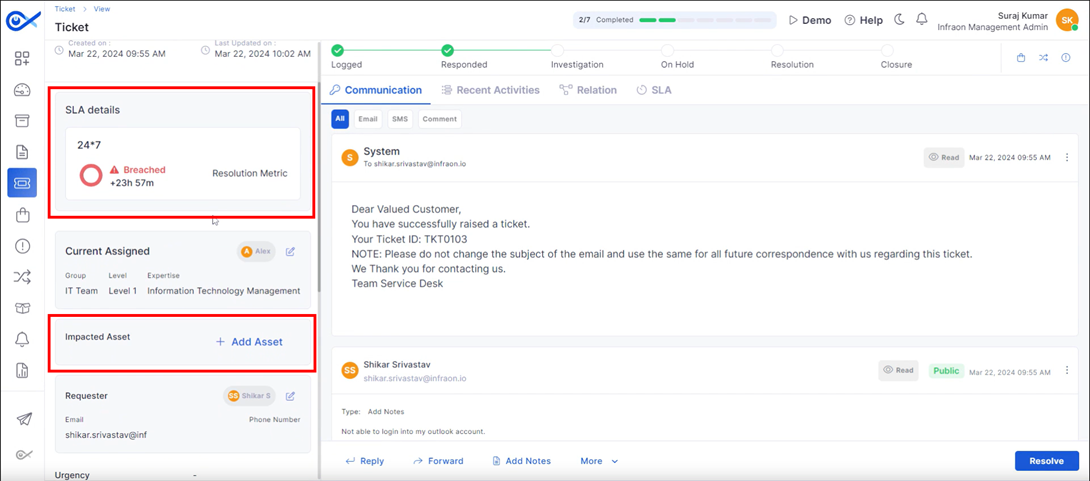
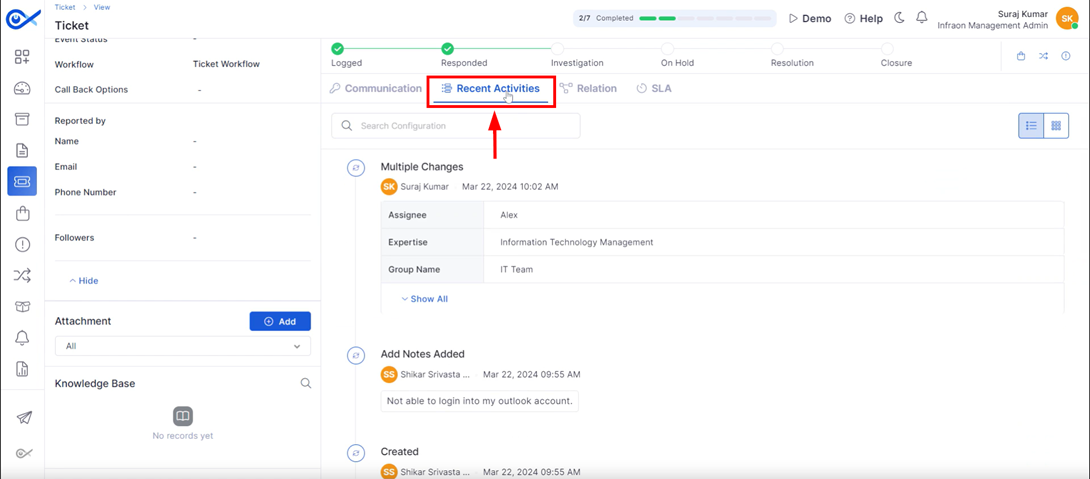
Upon acknowledging the ticket, the technician changes its status to “In-Progress Analysis.”
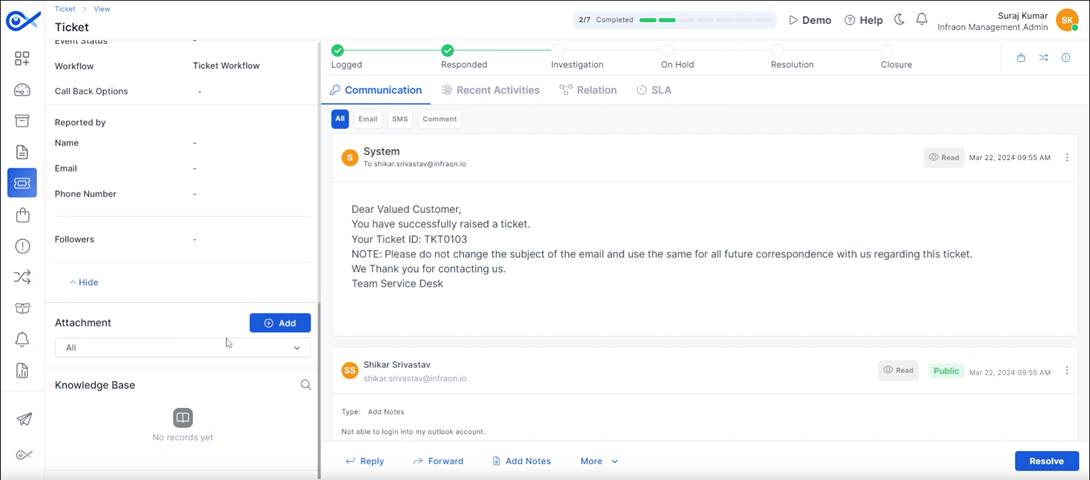
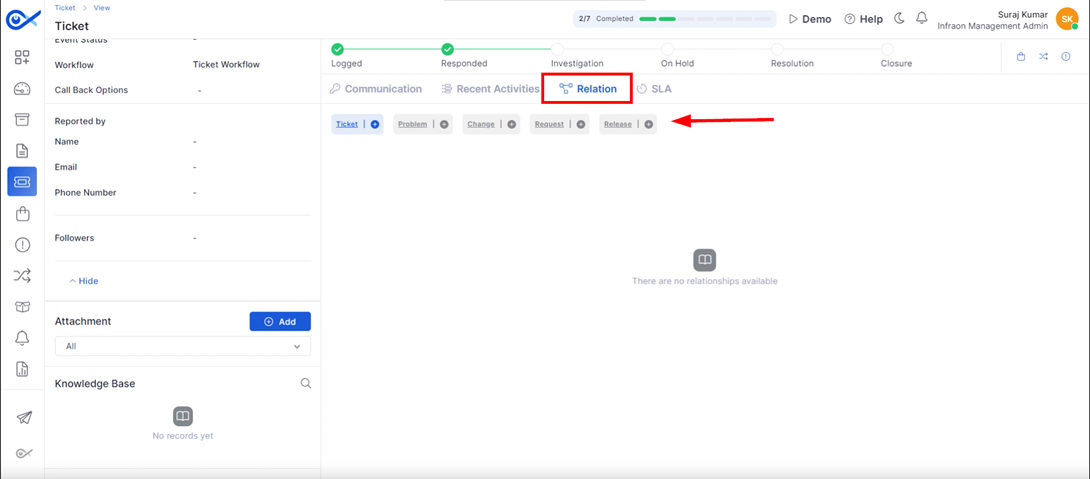
As the investigation progresses, the ticket status is updated accordingly. If additional information is required from the end user, the status is changed to “Pending for User Input.”
In case of escalation, the status is updated to “Escalated.”
Once a solution is determined, the ticket is marked as “Resolved and Waiting for Closure.”
The end user is then presented with options to close or reopen the ticket.
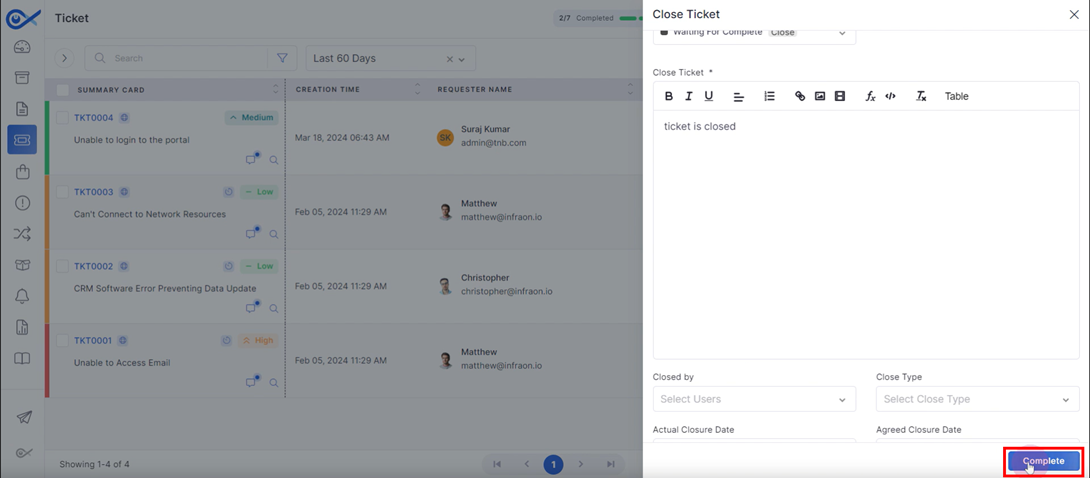
Upon closure confirmation from the end user or system timeout,
the ticket is finalized with a closing note.
This concludes the overview of a technician's workflow when handling an assigned ticket.
Ticket Handling
v7.3.14 – September 2025
View the latest features, enhancements, and fixes by release.
Version: v7.3.14
Date: 12th September
Overview
This release delivers significant new capabilities across Infraon ITSM and ITAM, along with critical bug fixes and enhancements. Key highlights include advanced reporting, stronger mobile app capabilities, improved patch and asset management, and workflow refinements. Multiple bugs have also been addressed to improve stability, accuracy, and user experience.
Key Updates
Reports
Device Uptime Report
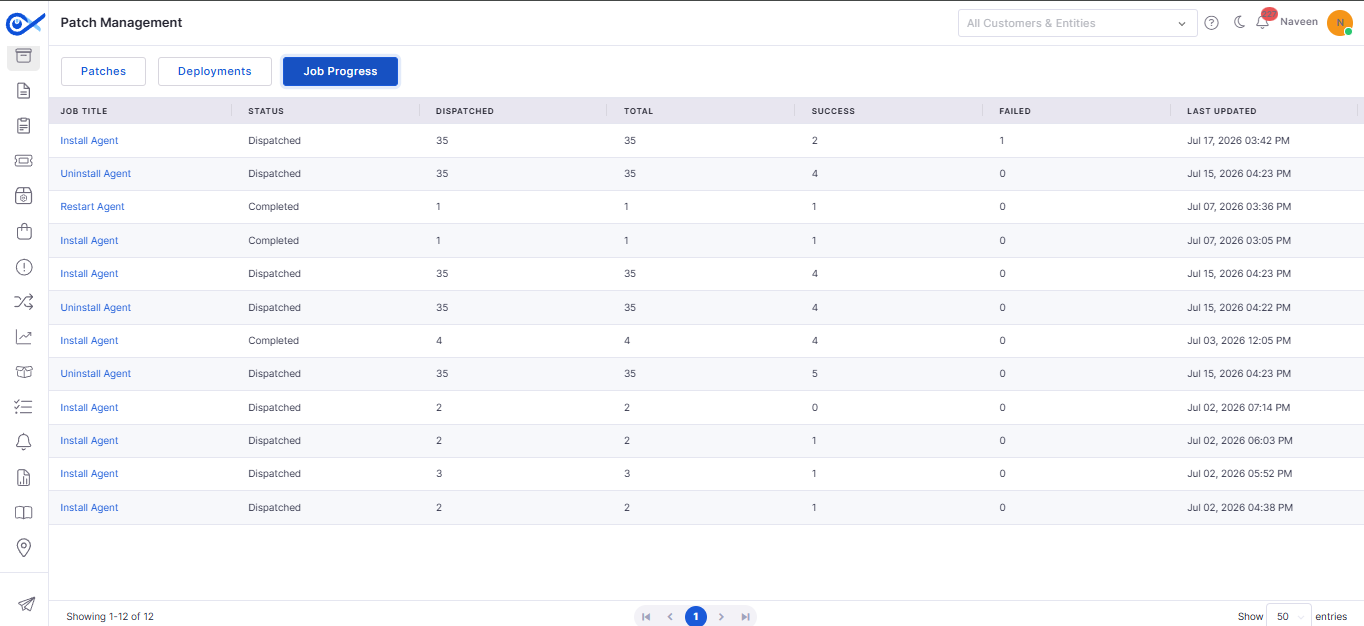
Added Agent Uptime tracking to the Inventory Agent Installation Report. Users can now monitor device uptime in minutes across various time ranges (7 days or 30 days), ensuring better visibility into system availability. Export options include uptime details for offline analysis and review.
Patch Management
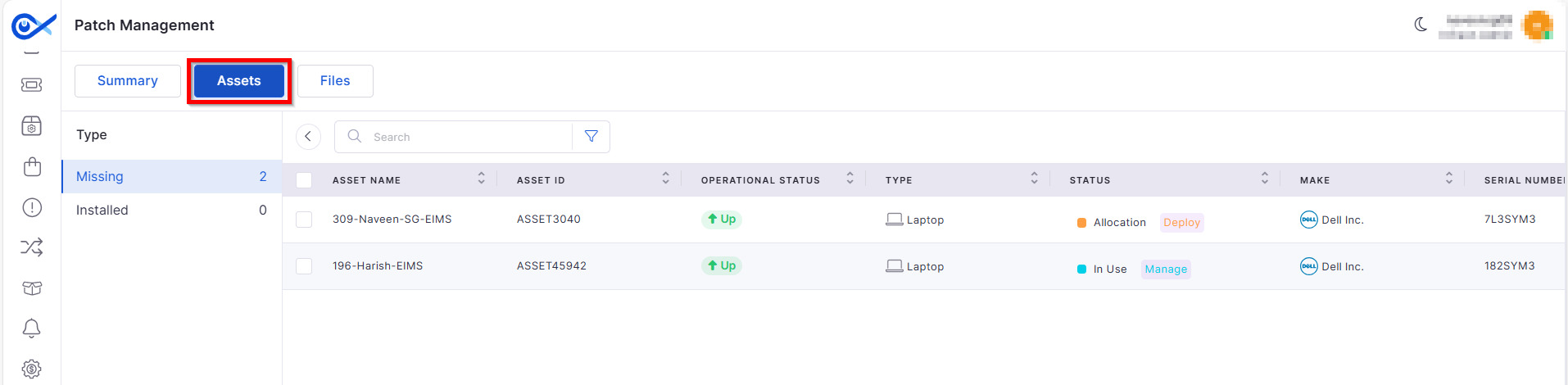
Patch Install Handler
Enables individual or bulk patch installation for missing and discovered patches, reducing manual patching effort.
Sync and Deployment Status Updates
Sync and deployment progress is now visible directly from the Marketplace and Asset pages for easier monitoring.
Calendar-Based Scheduled Syncs
Admins can now schedule patch syncs using a calendar, ensuring timely compliance without manual intervention.
Task Management
Task Report
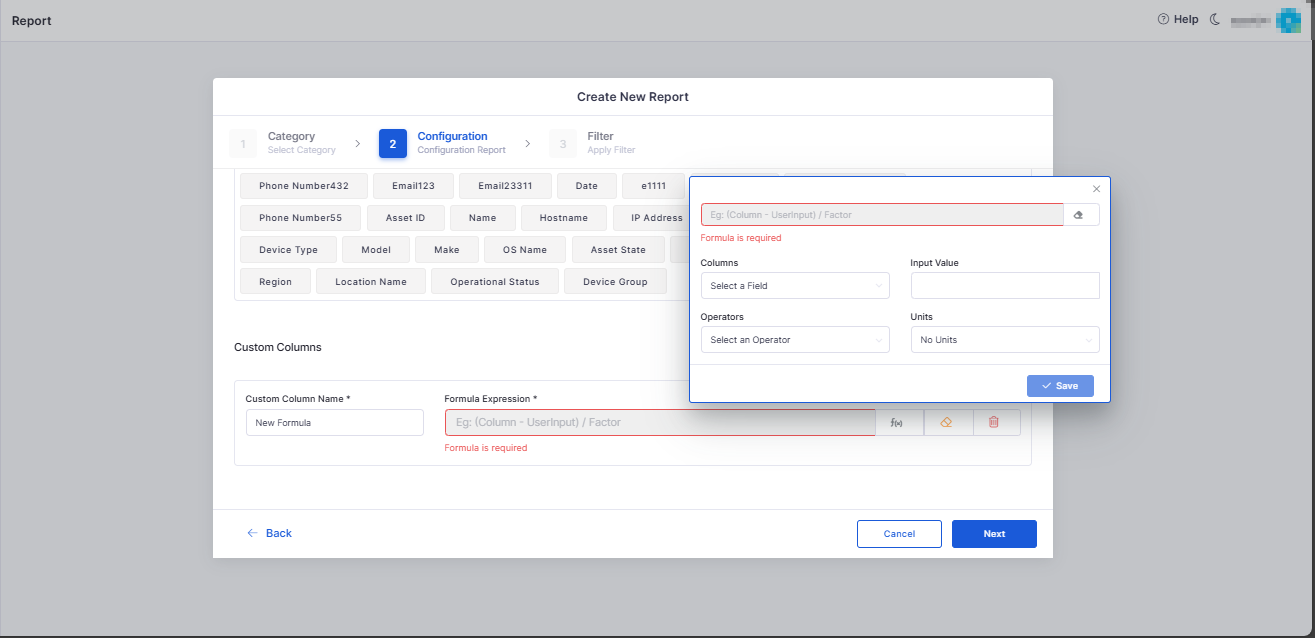
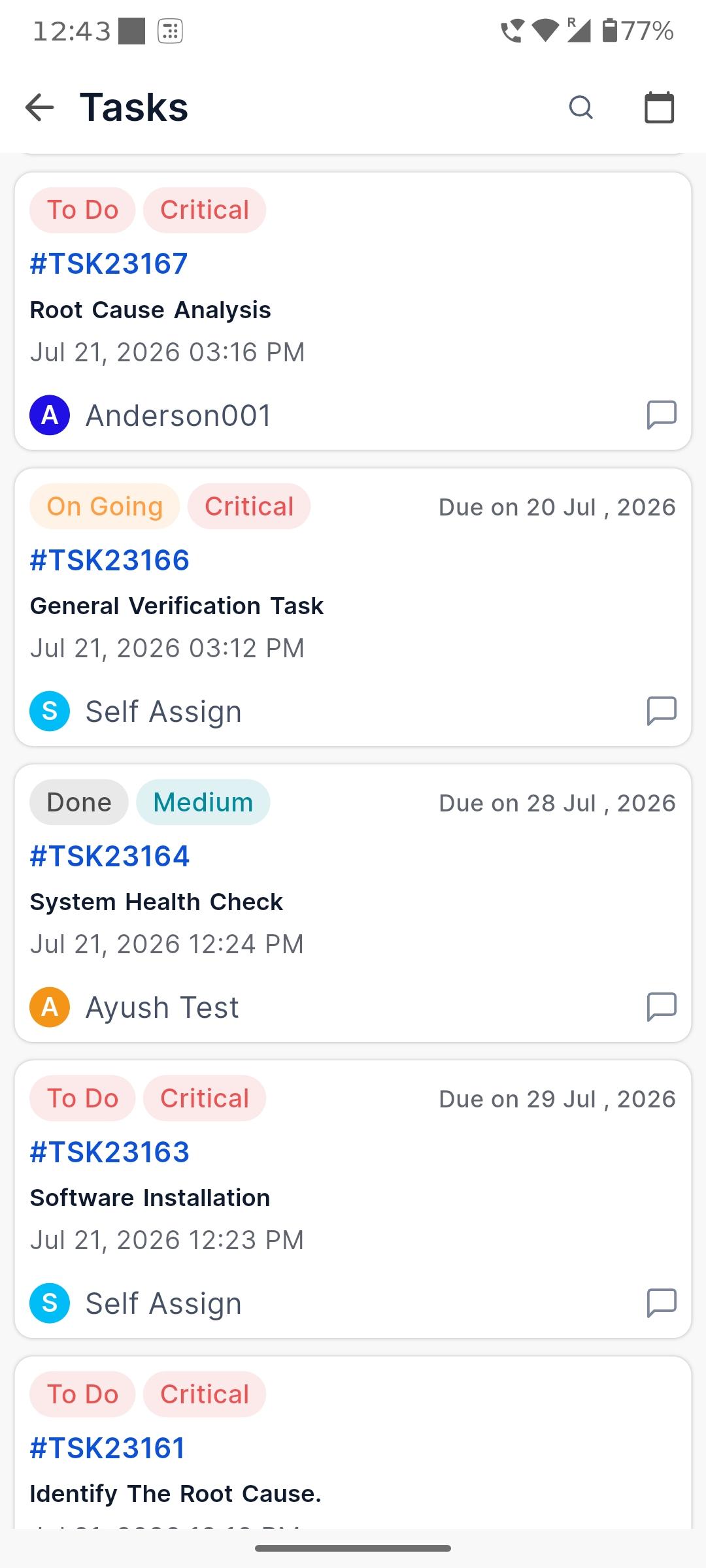
Introduces a robust reporting tool for ITSM tasks. Users can configure reports with filters (status, assignee, priority), preview, schedule, clone, and export them in multiple formats (CSV, PDF, XLSX). This improves task tracking and team productivity.
Mobile App Enhancements
Manual Data Sync
A "Collect & Sync" button enables users to push updated device data to the backend instantly.
Infinity Agent Security Detection
Expands device security monitoring by collecting biometric data, enrollment details, jailbreak/root status, emulator detection, and integrity checks. Generates a 0–100 security score for clear assessment.
Native MediaStore API Integration
Removed legacy storage permissions to comply with Google Play policies while ensuring smooth image saving.
Device Sensor & Carrier Info Collection
Collects accelerometer, gyroscope, magnetometer, and SIM/carrier details for analytics and monitoring.
Domain Name Hardening
Simplifies login by eliminating the need for manual domain selection. Domains are predefined in system properties, and users can choose either Technician or SSP login directly.
Hidden Log Sharing via Volume Keys
Users can reveal a Share Log File option by pressing volume keys, simplifying support diagnostics.
Authentication & Login
Requester Password Update on First Login
Newly created requesters must reset their password on first login. This enforces strong password policies and enhances security.
Asset Management
Mobile Asset Management
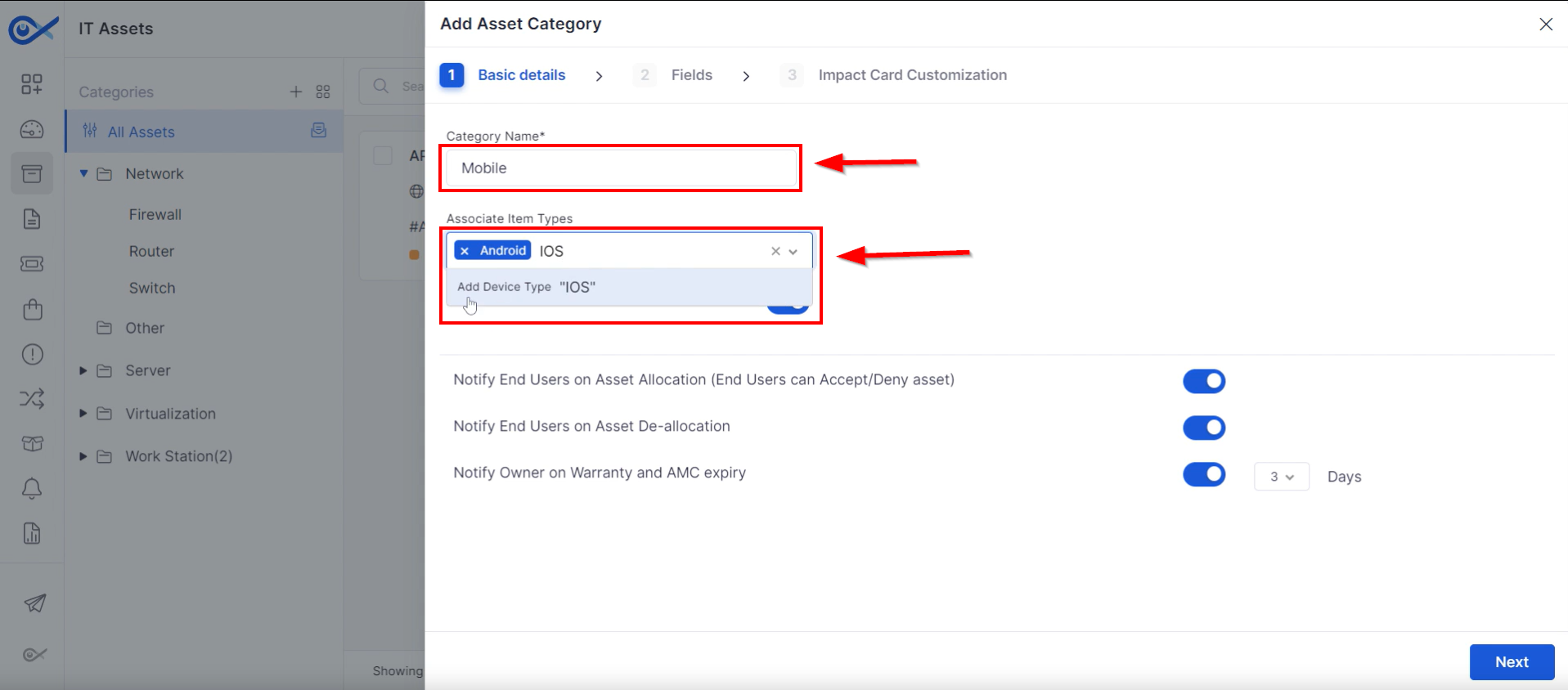
A new Mobile Devices section in Assets now tracks Android and iOS devices with the Infraon agent. Devices update automatically after reinstallation, and unsupported OS versions are excluded.
Automatic Asset Deallocation
When a requester or technician is deactivated, all associated assets are automatically deallocated, ensuring assets are never tied to inactive users.
Project Management
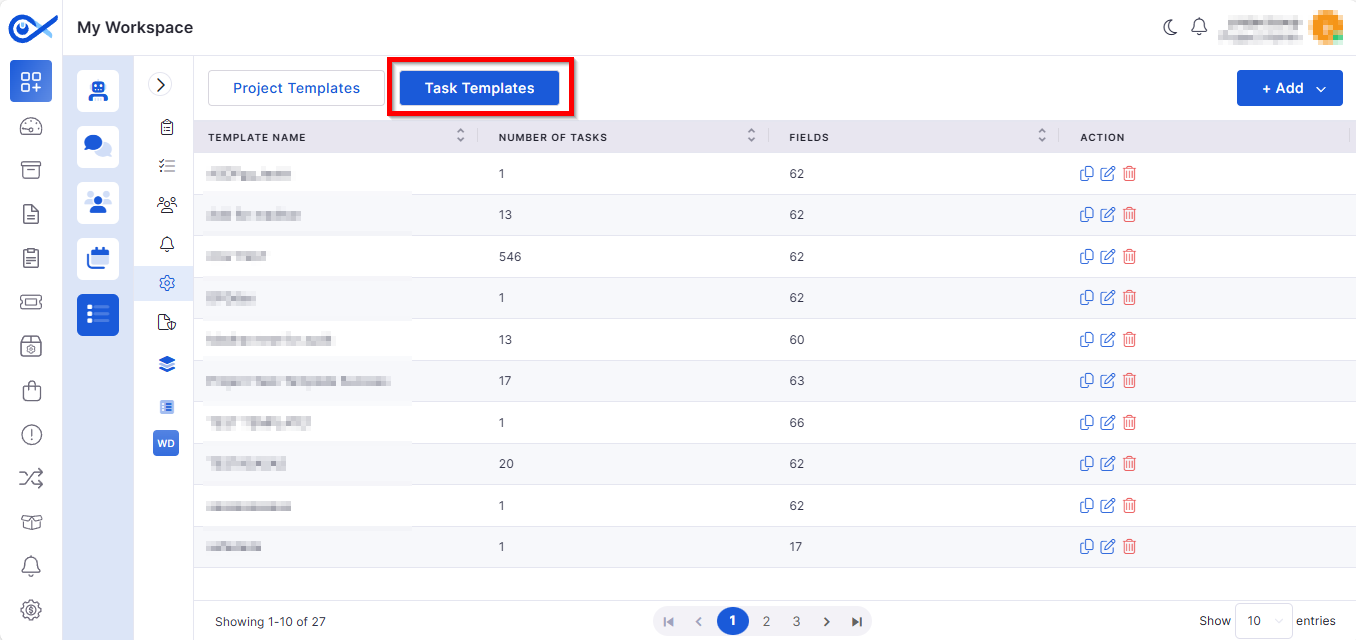
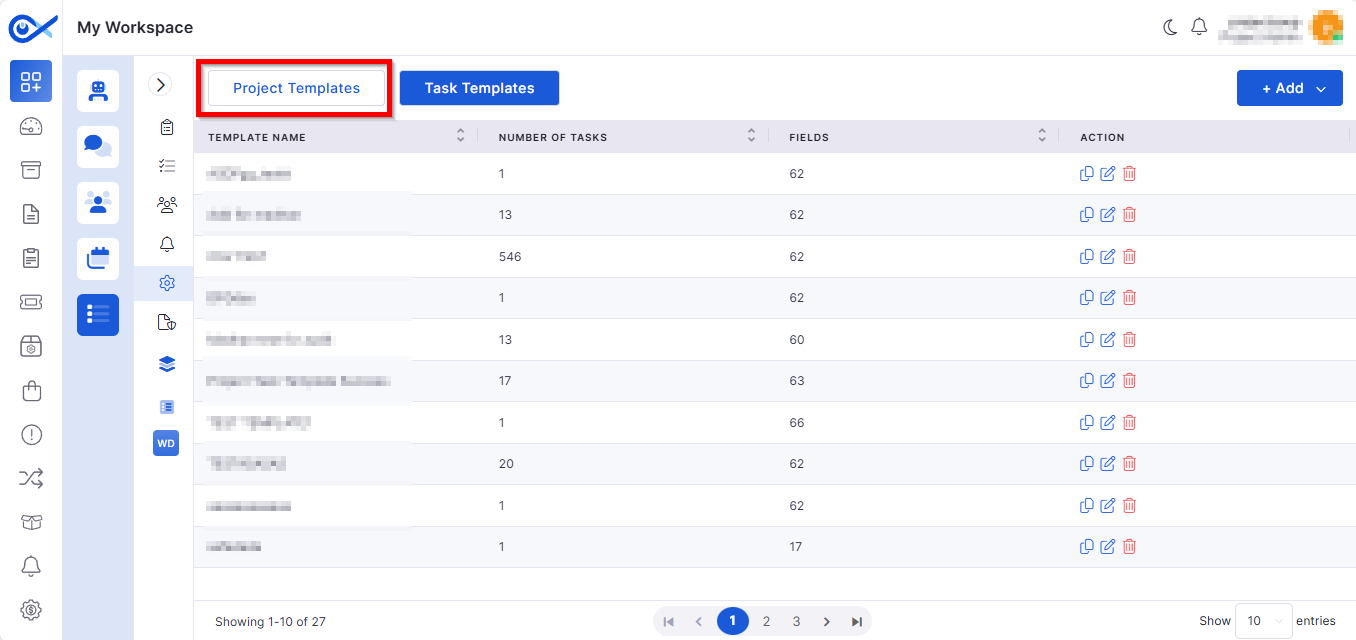
Task Templates with CSV Import/Export
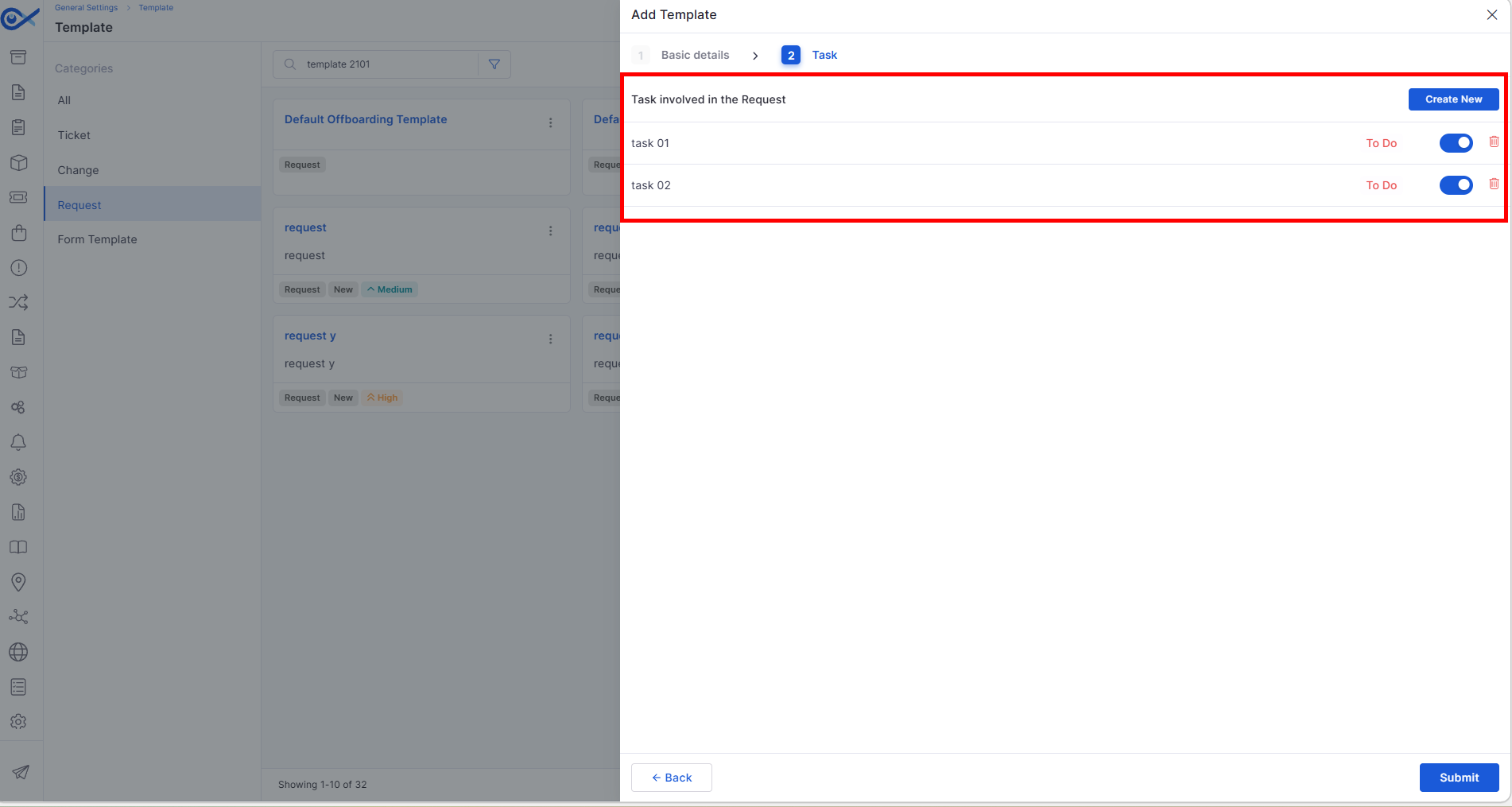
Create and reuse task templates with support for CSV bulk uploads and downloads. Tasks can be cloned, audited, and reused to standardize projects.
Spaces for Project Management
Allows the creation, updating, and deletion of project “spaces” with visibility controls. Spaces now support auditing for compliance and tracking.
Role & Team Enhancements
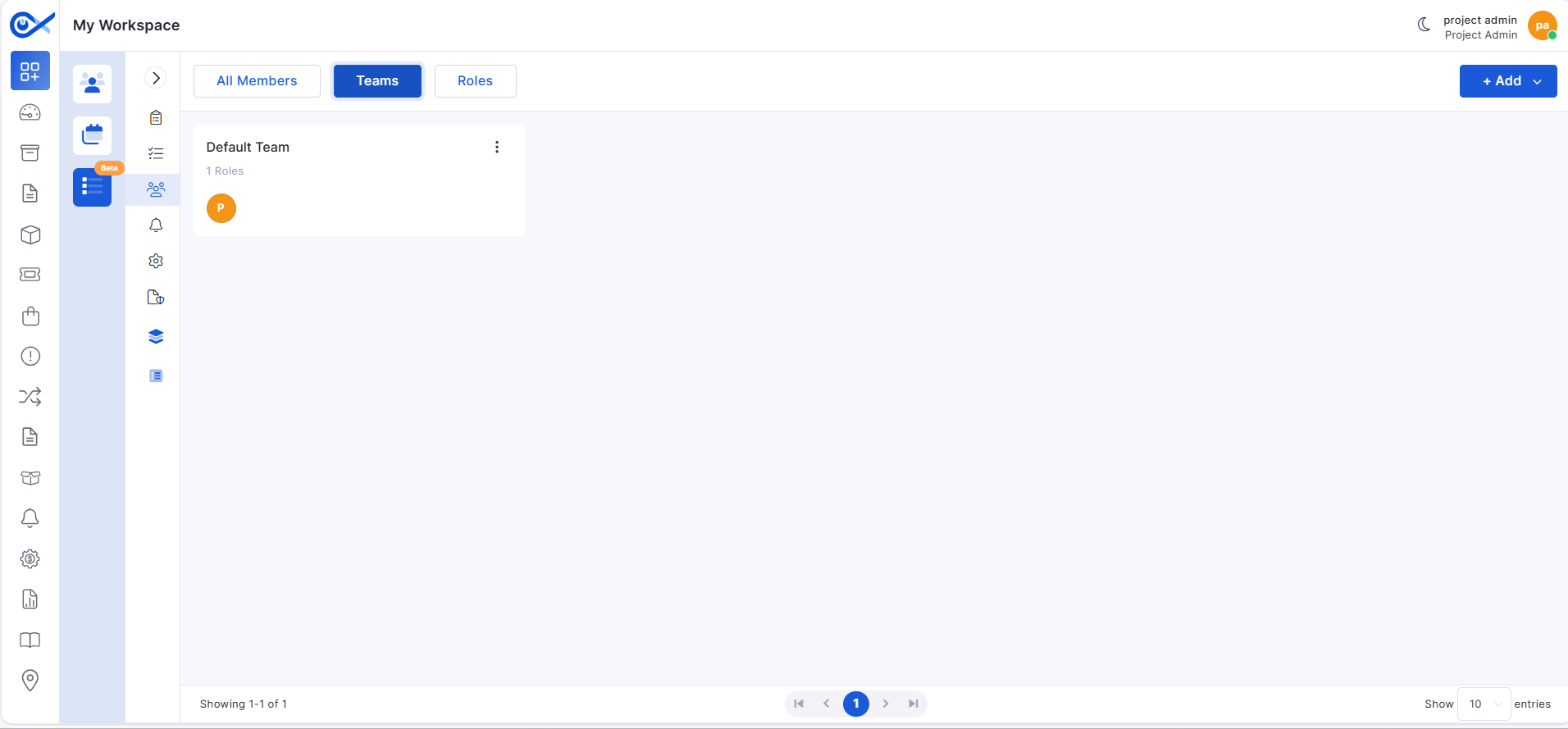
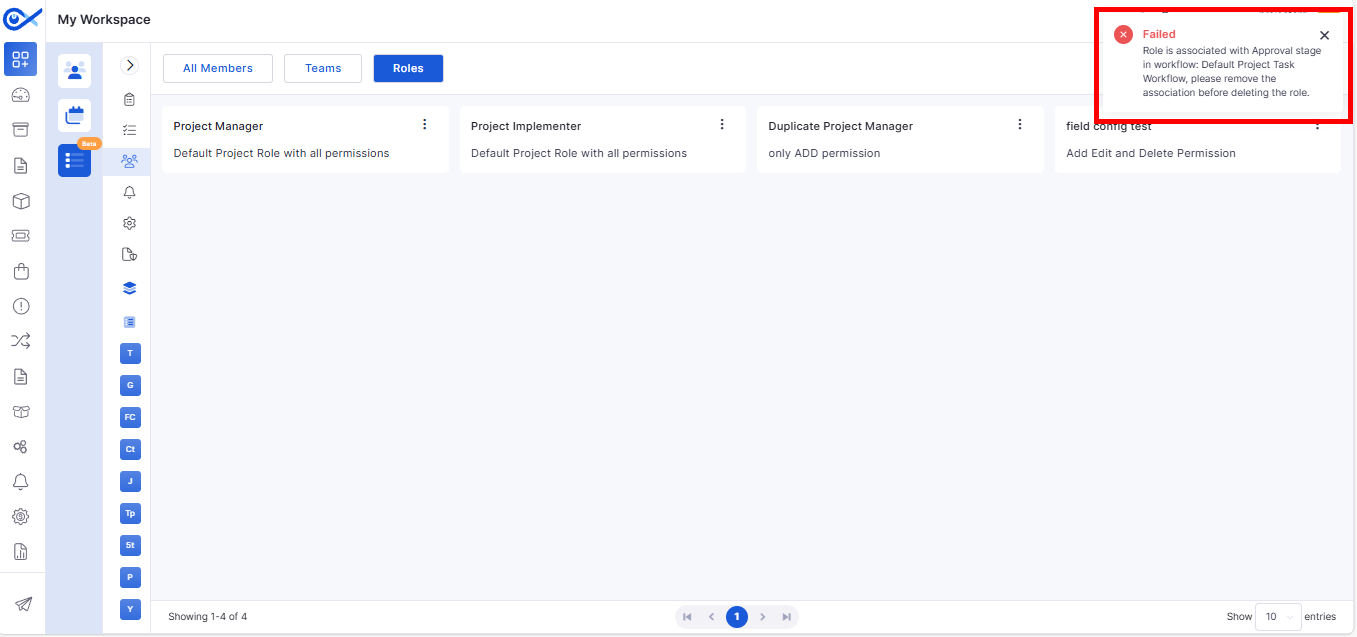
Added the ability to create, edit, and delete roles and teams through grid and card views. Built-in validations prevent duplicates and missing mandatory fields.
Marketplace
Monitoring-Enabled Apps Display
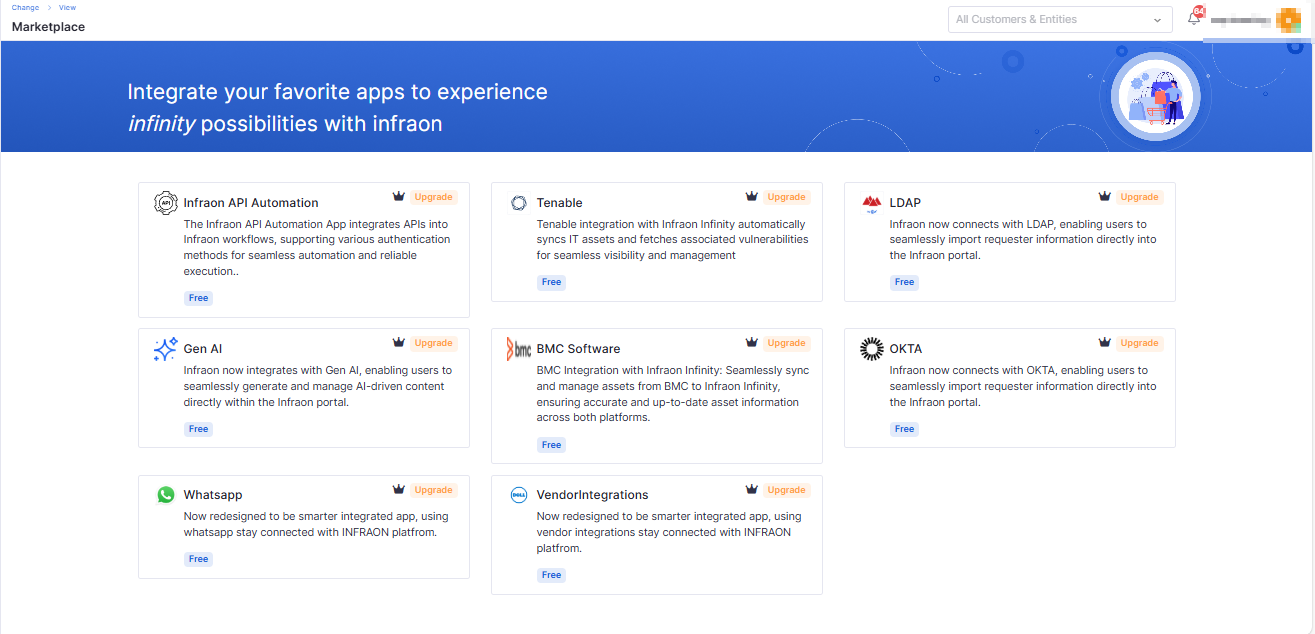
The Marketplace now displays only apps with monitoring enabled (e.g., Azure AD, Google Workspace, Slack, Tenable), enhancing relevance and clarity.
Lightweight Document Processing
Replaced heavy torch dependency with lightweight Python libraries, reducing package size and deployment time.
Incident Management
Bulk Update Enhancements
Supports multi-incident updates for fields like severity, assignment, or status. It handles skipped incidents gracefully, enforces mandatory reasons, and logs all actions in audit trails.
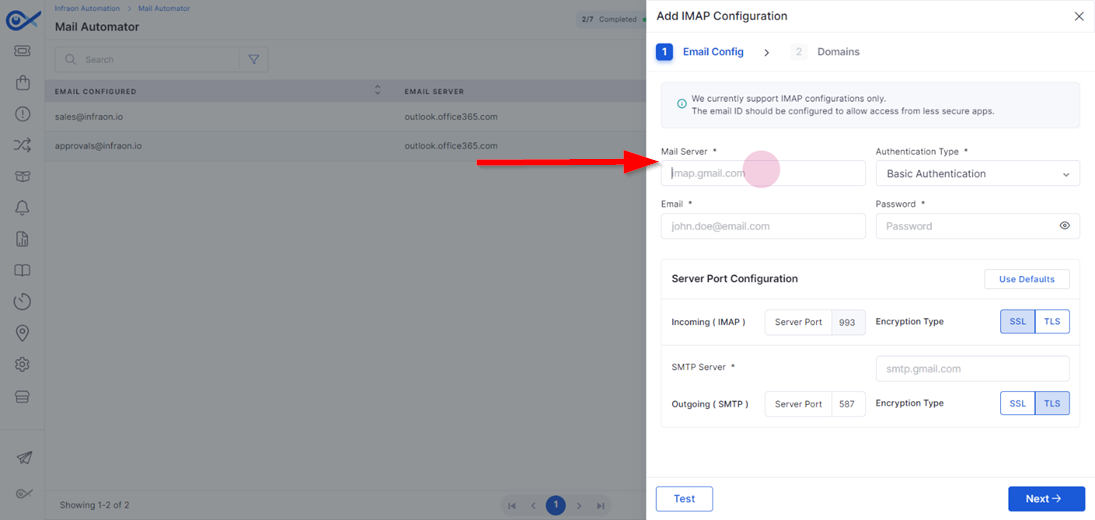
Mail Automator
IMAP Username in Basic Authentication
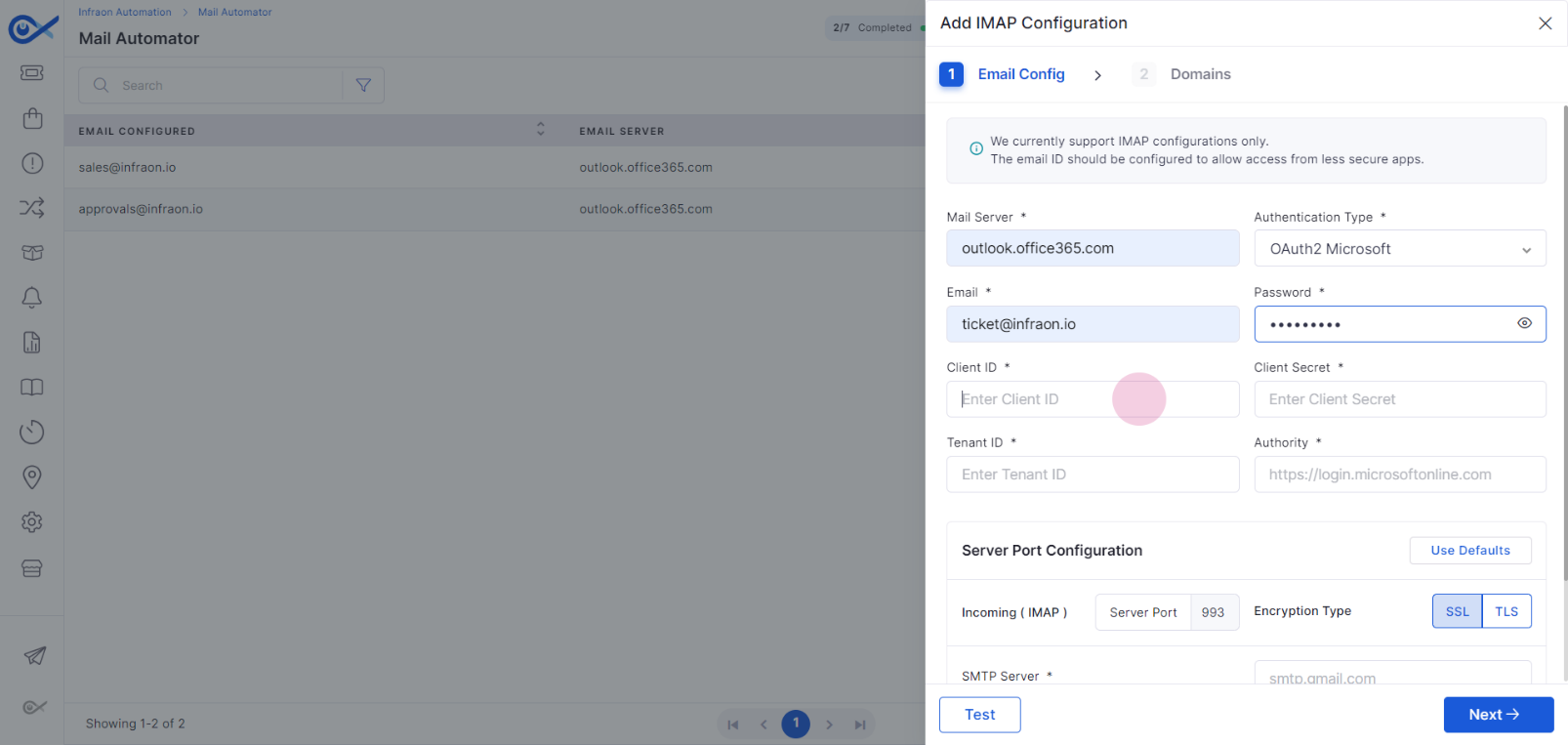
Adds support for explicit usernames when configuring IMAP/SMTP with Basic Authentication.
Request Management
Reopen Requests
Closed or resolved requests can now be reopened by end users or technicians with mandatory notes, improving flexibility and customer satisfaction.
Enhancements
Improved UI consistency across Service Catalogue, Asset, and Report modules.
Better error handling and validation in Request, Problem, and Change workflows.
Optimized mobile data sync and asset deallocation for smoother operations.
We have addressed multiple issues reported across modules, including:
Improvements in patch scan and sync reliability.
More consistent validations in the Change, Problem, and Request modules.
Correct data handling in reports, widgets, and dashboards.
Enhanced login and authentication flows for requesters and LDAP users.
These fixes ensure a smoother, more reliable experience across the platform.
v7.3.16 – November 2025
View the latest features, enhancements, and fixes by release.
Version: v7.3.16
Date: 20th November
Overview
This release brings key enhancements across Project Management, Knowledge Base, SLA, Software Metering, Asset Management, Workflows, Marketplace, and Mobile Security, focusing on improved usability, stronger automation, and better integration across ITSM and ITAM.
Key Updates
Mobile App Enhancements
iOS – Infinity Agent Security Collection
Collects comprehensive device security data such as integrity checks, jailbreak/root detection, and environmental analysis.
Generates a device security score and securely syncs the results to the server.
Project Management
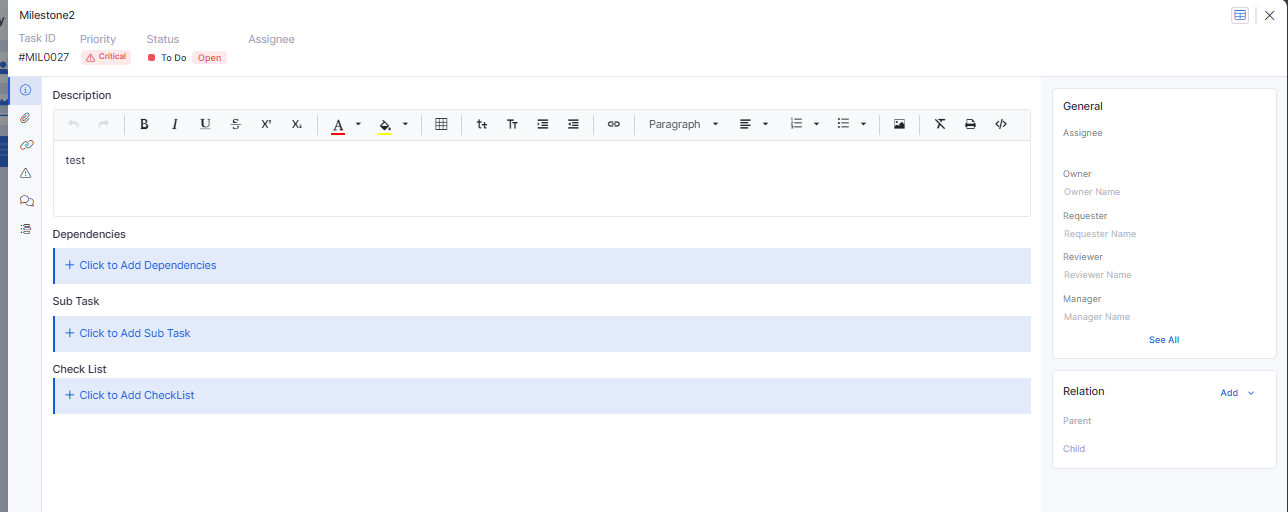
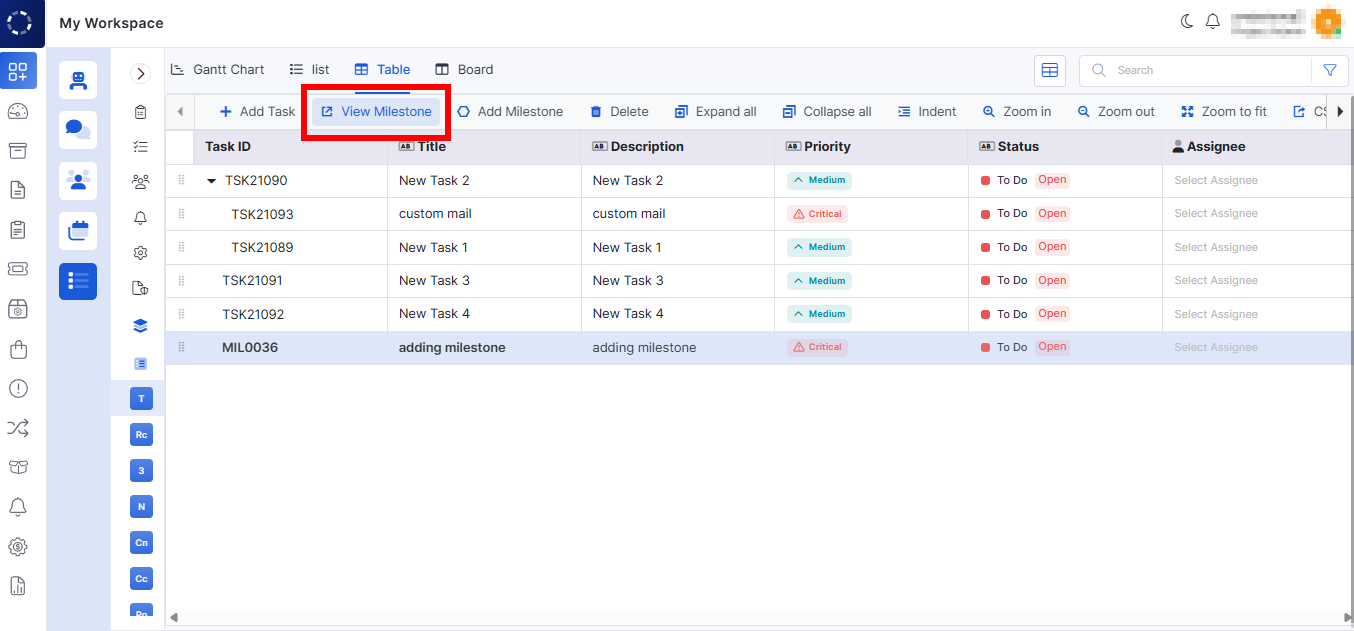
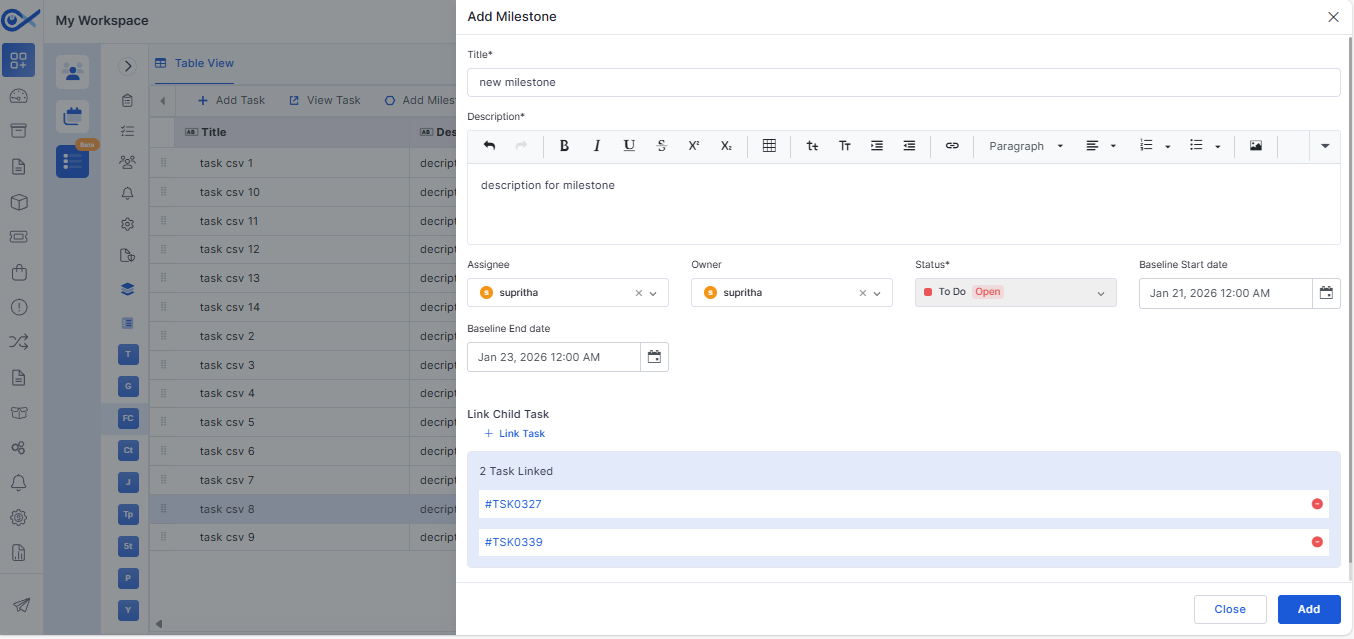
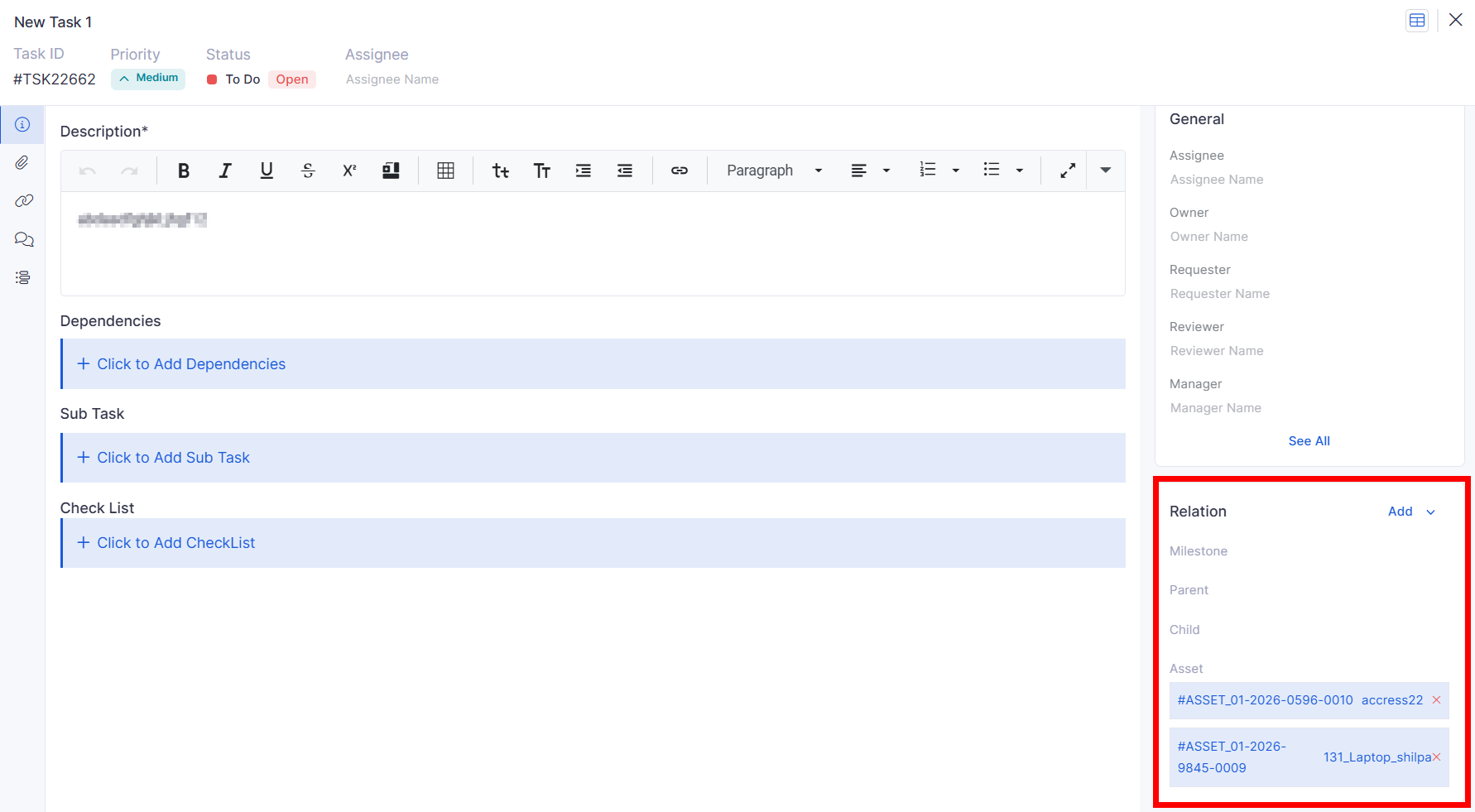
Project Milestone Relation
Allows linking tasks to milestones and vice versa.
The relation panel updates automatically to reflect changes.
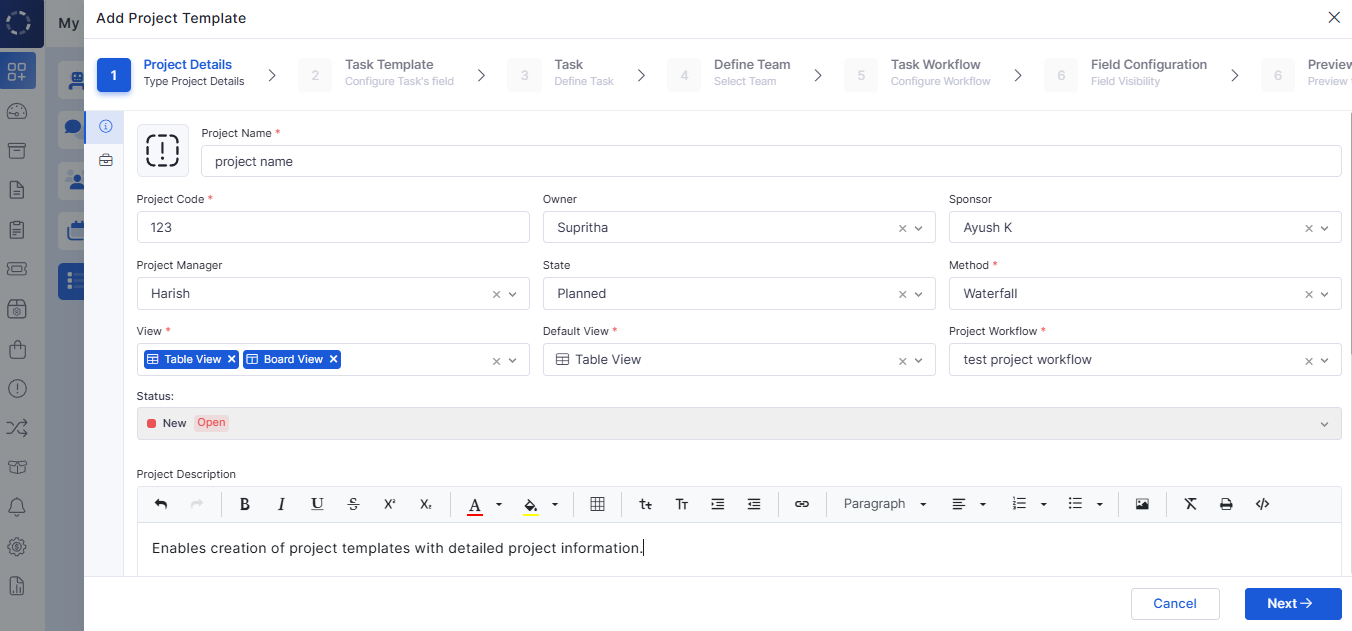
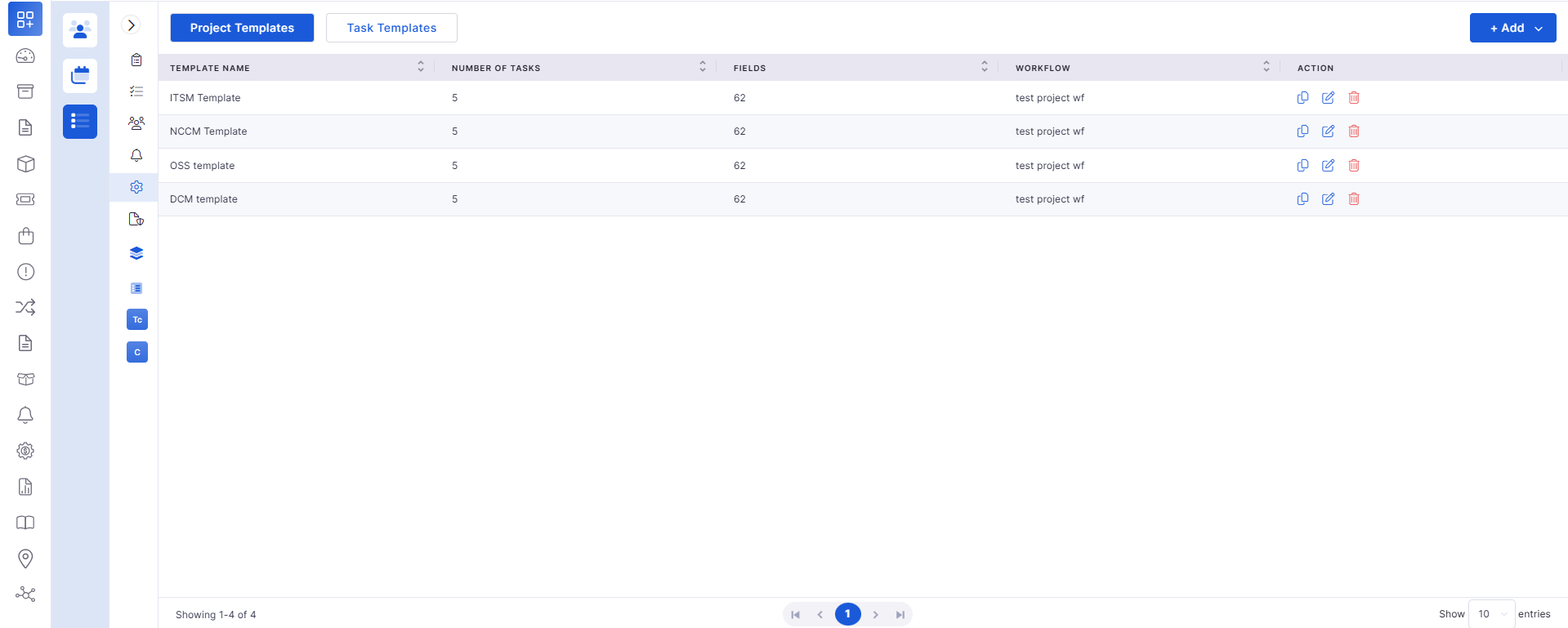
Project Template – Add & Grid View
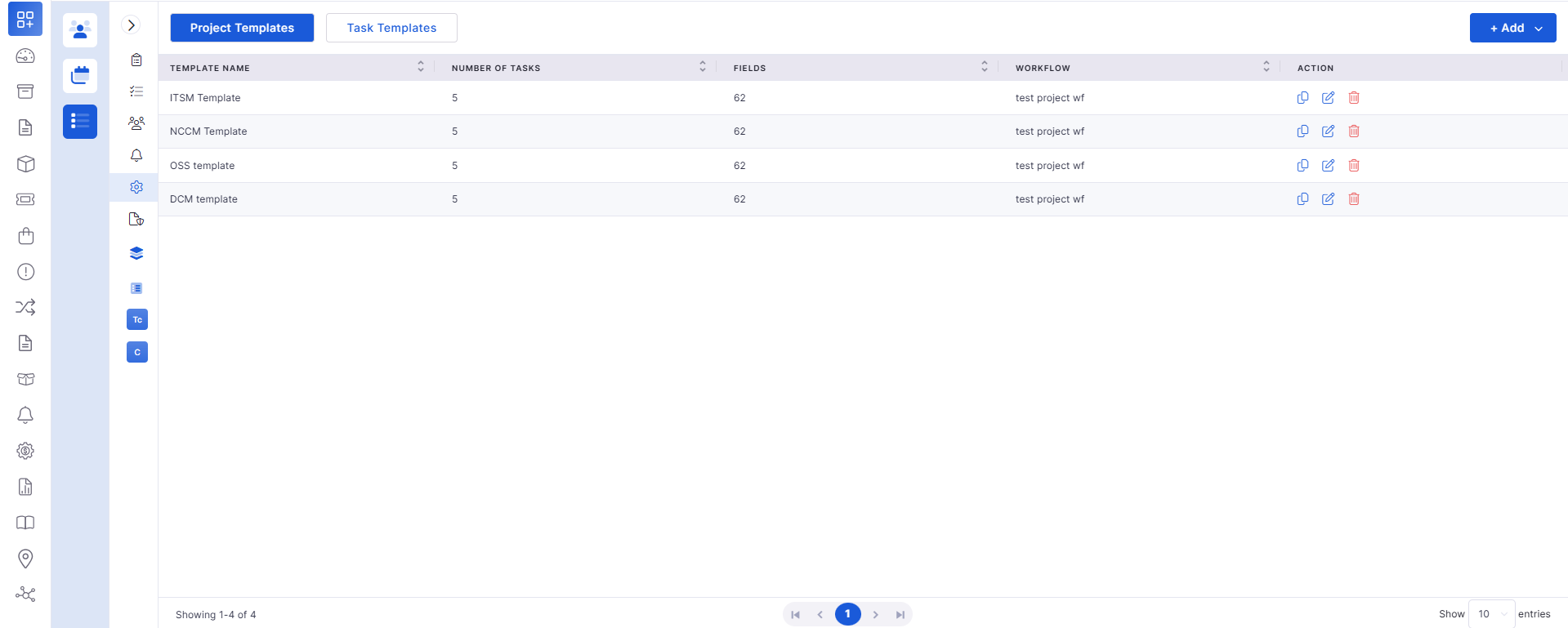
Enables creation of project templates with detailed project information.
Grid view offers quick access and filtering of templates.
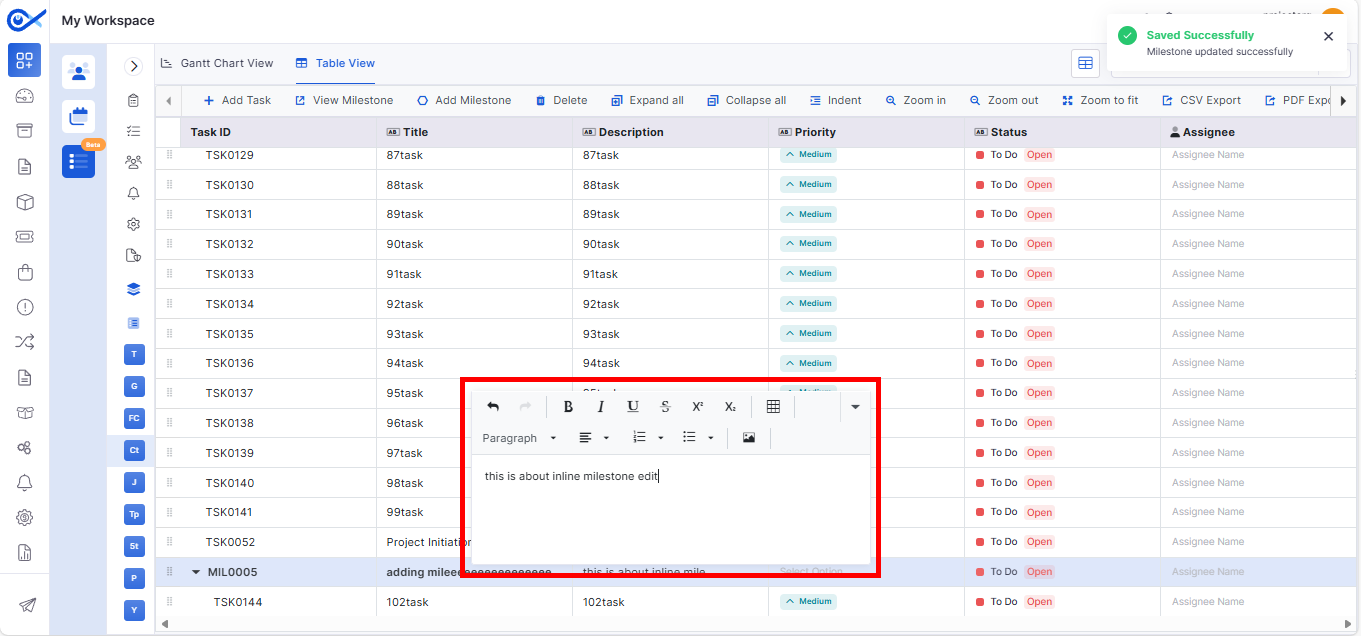
Task Column Configuration & Inline Edit
Customize task table columns and reorder them as needed.
Inline editing supports text, dropdowns, and dates with full audit tracking.
Project Details View Enhancements
Improved details page showing Summary, Teams, Workflow, and Business Hours.
Supports inline editing and structured display.
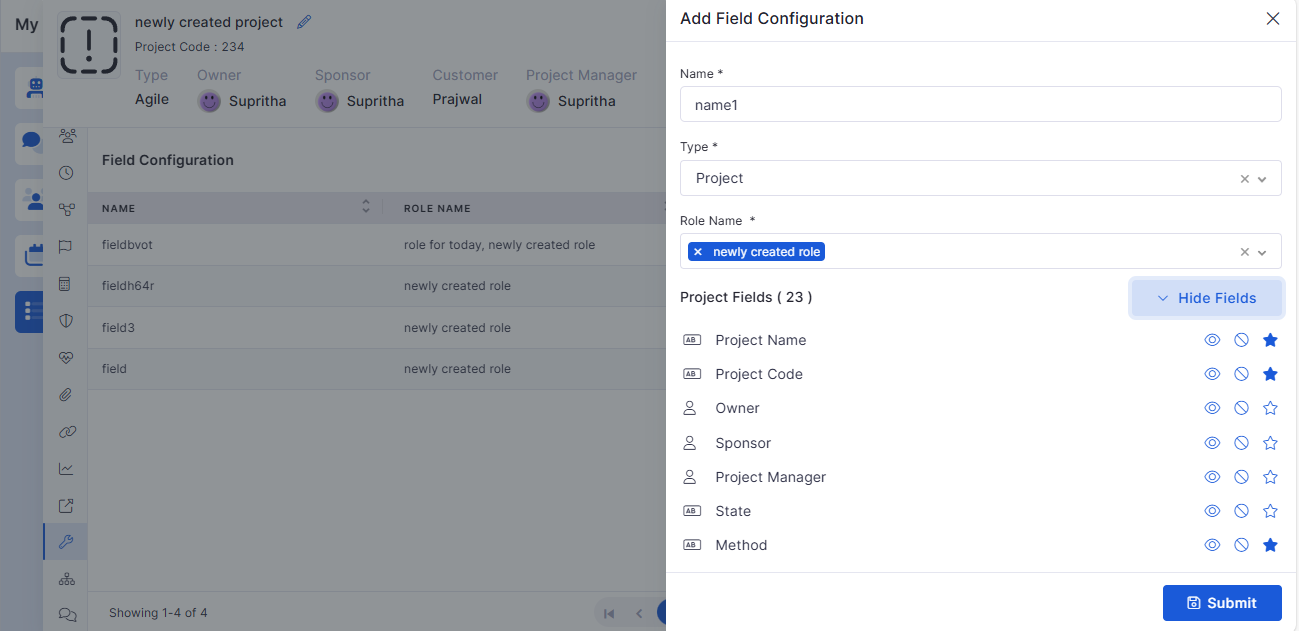
Project Details – Field Configuration, Attachments, Relation
Manage project-level custom fields, linked records, and file attachments.
Provides visibility into all related objects.
Task View – Basic Details
New summary panel showing key task information at a glance.
Project Task Integration
Project tasks now follow workflow-driven transitions and approvals.
Sub-Task Support
Add sub-tasks directly to a parent task with hierarchical visibility.
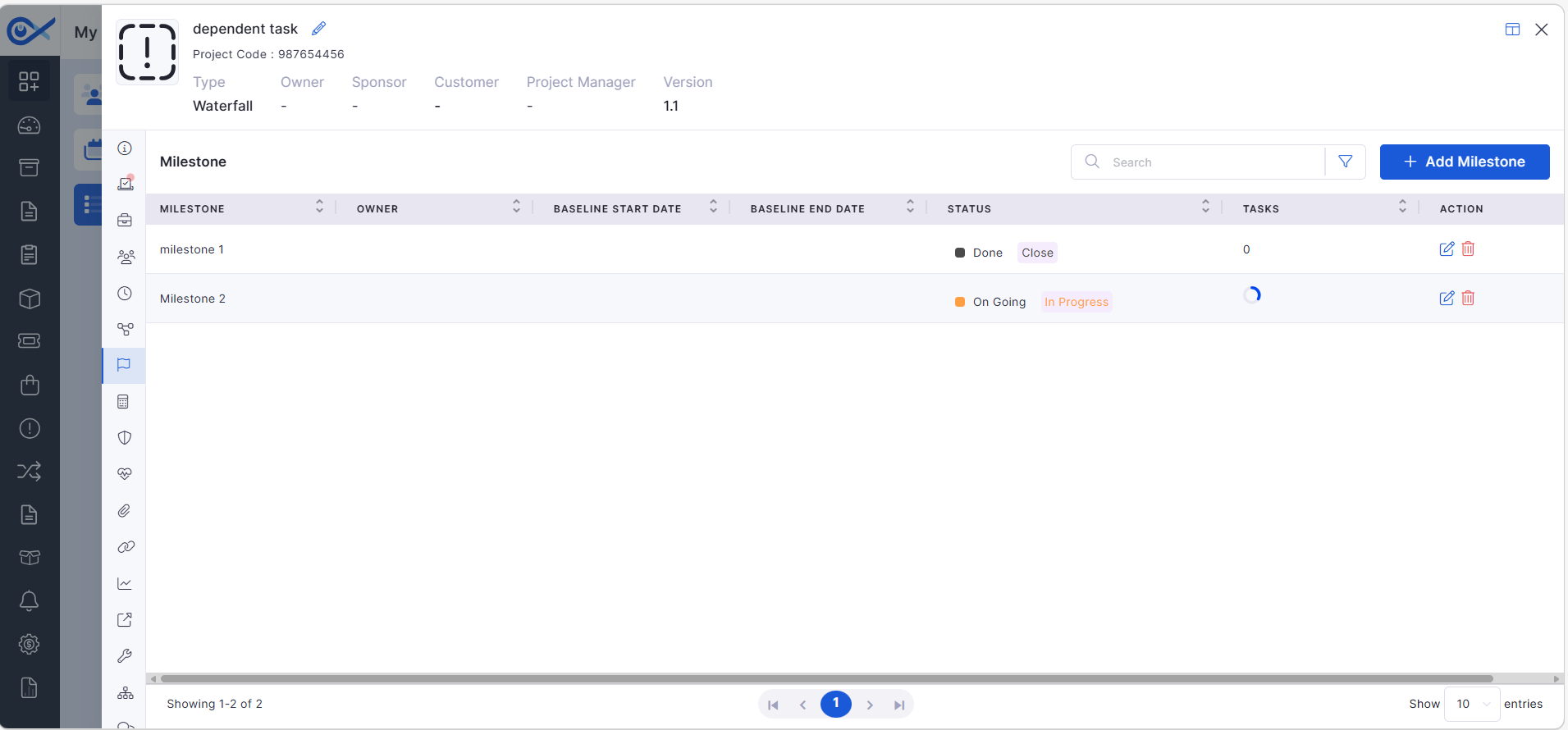
Project Milestone – Add, Edit & View
Manage milestones directly from project screens with inline editing and audit tracking.
Report
SLA Exclusion in Reports
SLA-excluded tickets are now correctly filtered from SLA reports and dashboards.
Ensures accurate SLA compliance calculations.
Purchase Order
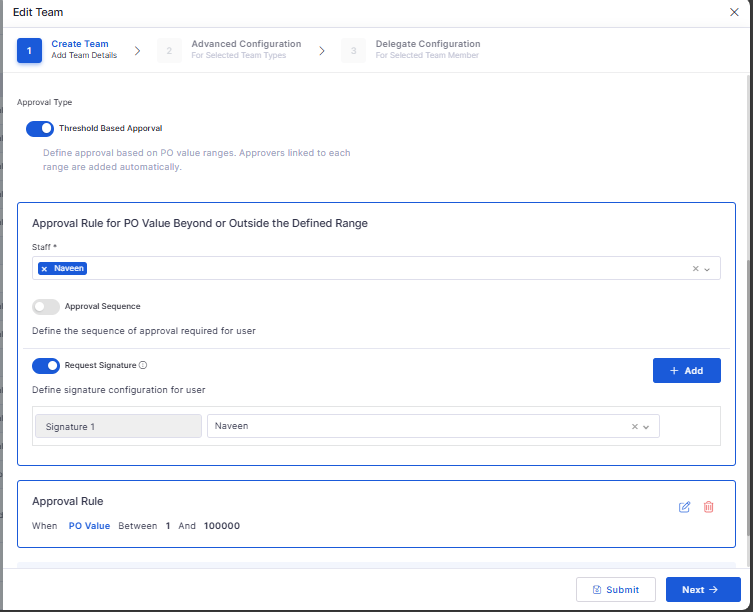
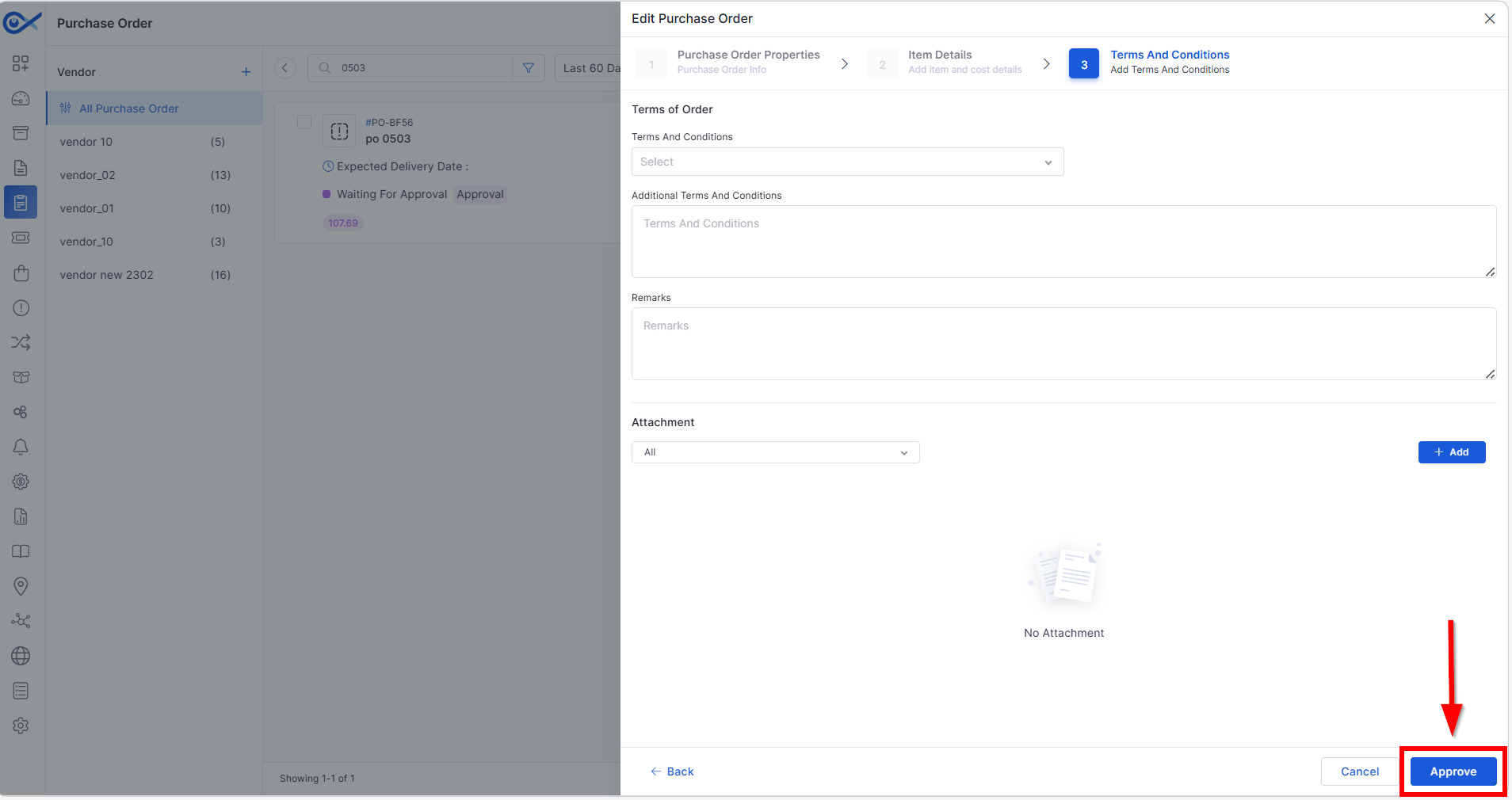
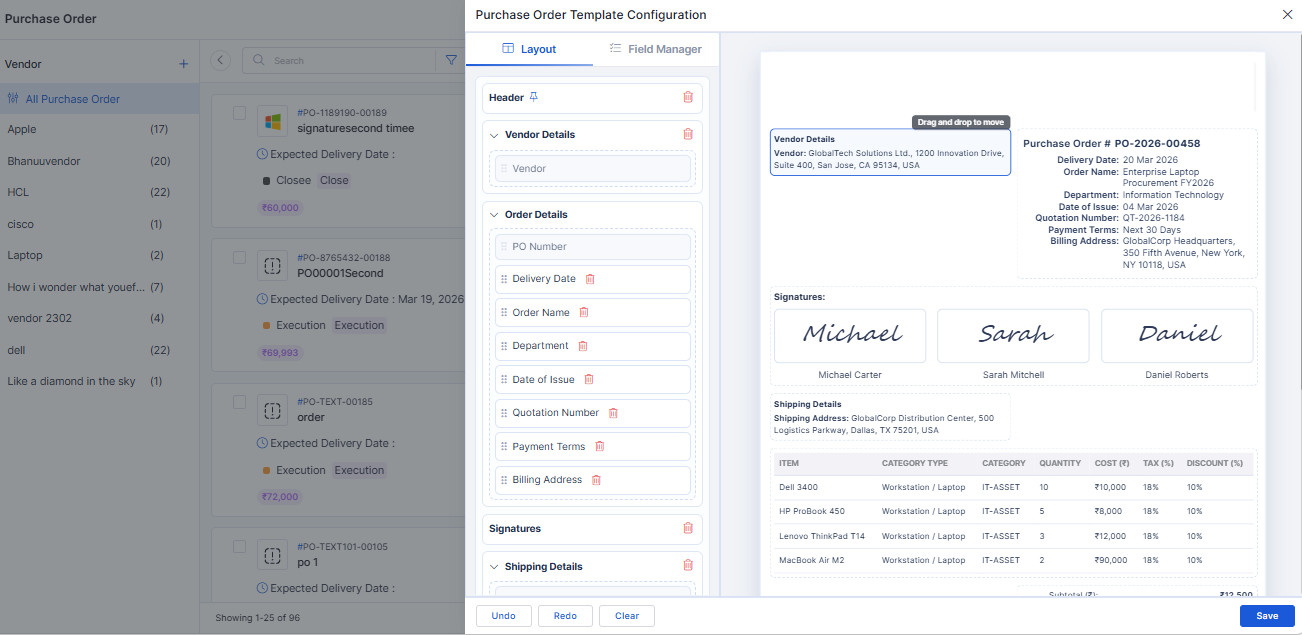
Secure Digital Signature for PO Documents
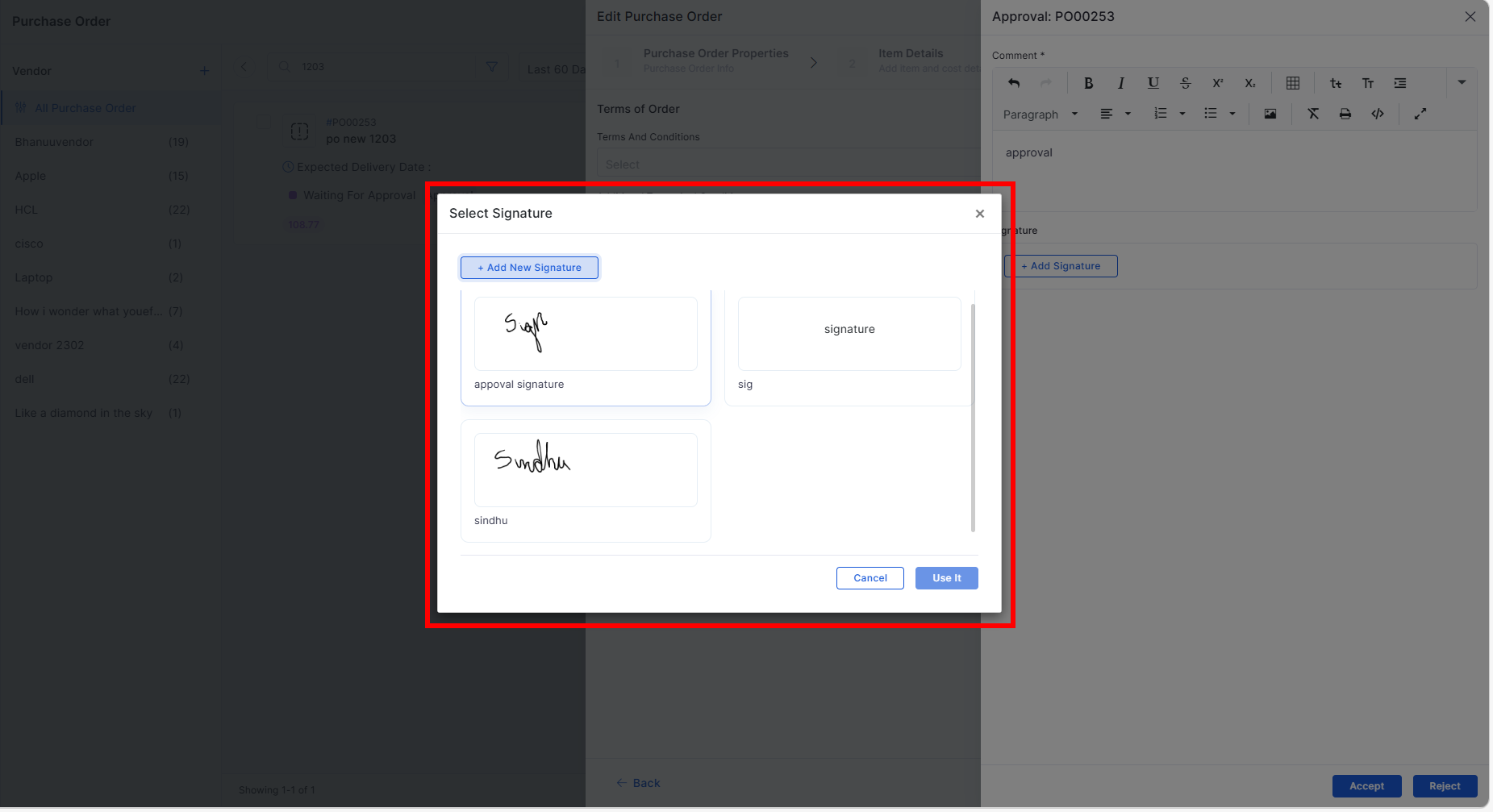
Adds digital signing support for purchase order documents.
Ensures authenticity and tamper-evident records.
Stores signature metadata for audit compliance.
Marketplace
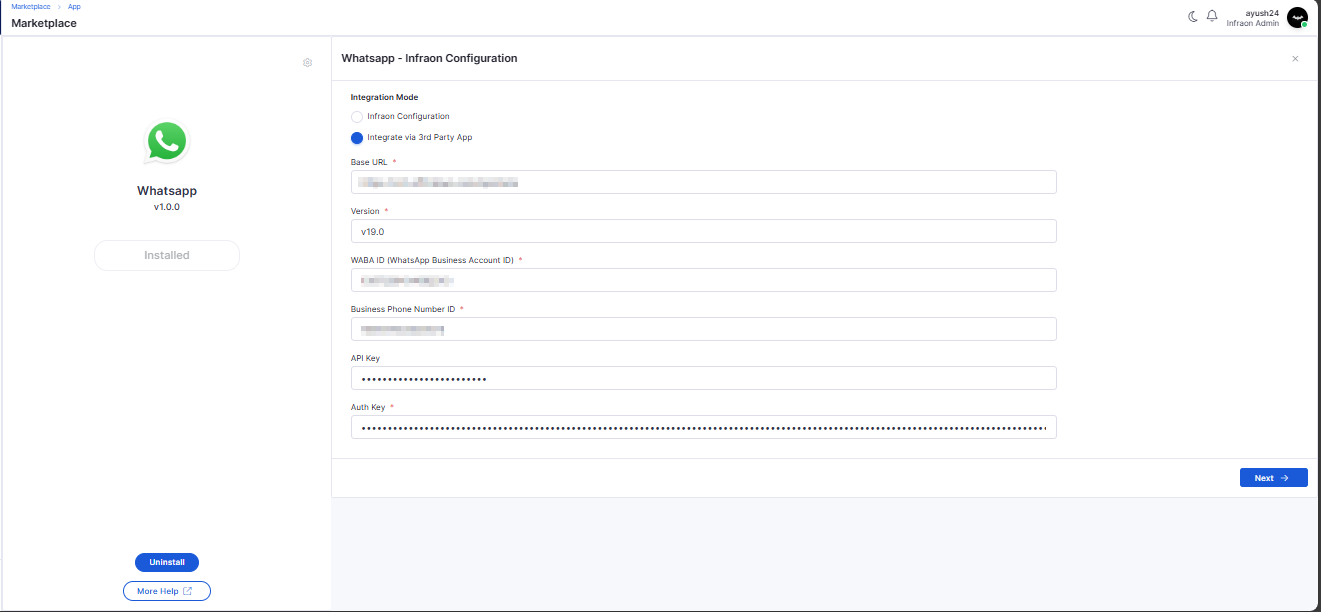
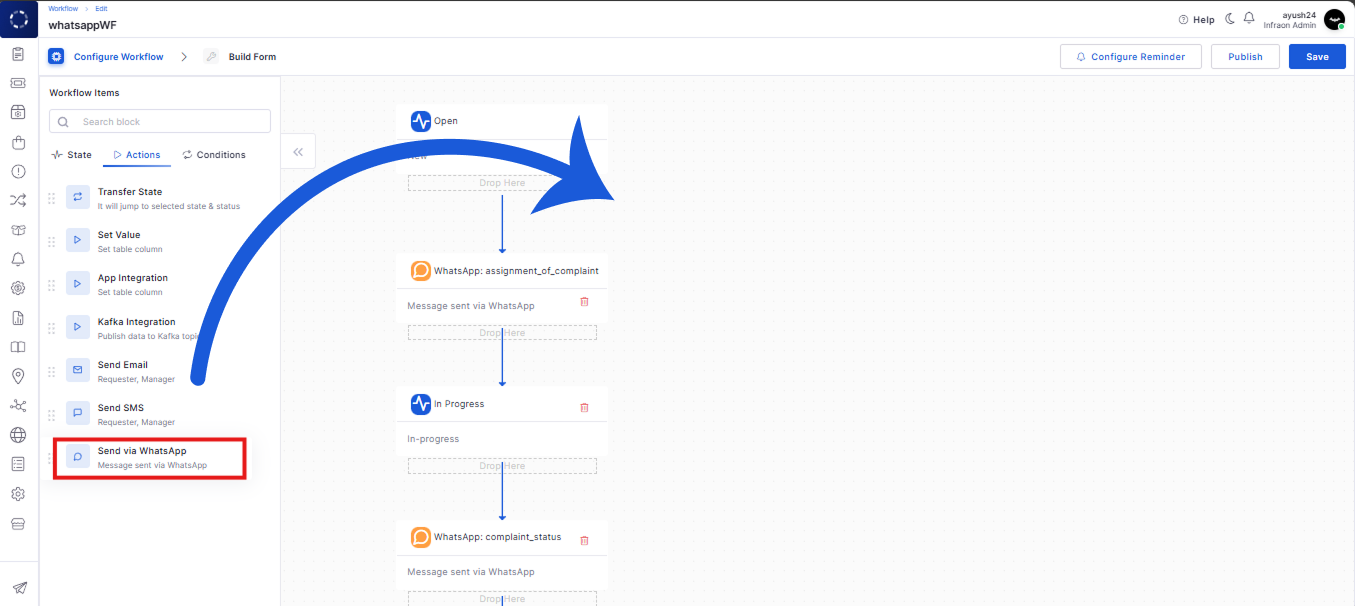
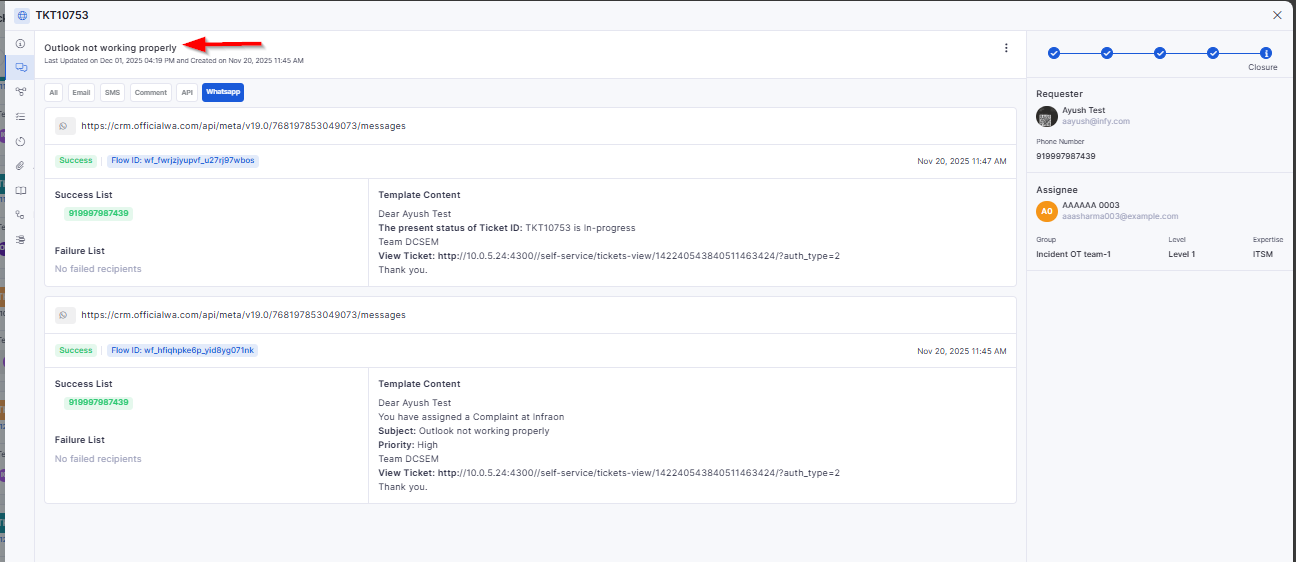
WhatsApp Integration – Marketplace App Config
Adds WhatsApp integration via Marketplace with configurable credentials.
Allows enabling WhatsApp-based communications for workflows and notifications.
Supports message templates and dynamic replacements.
Software
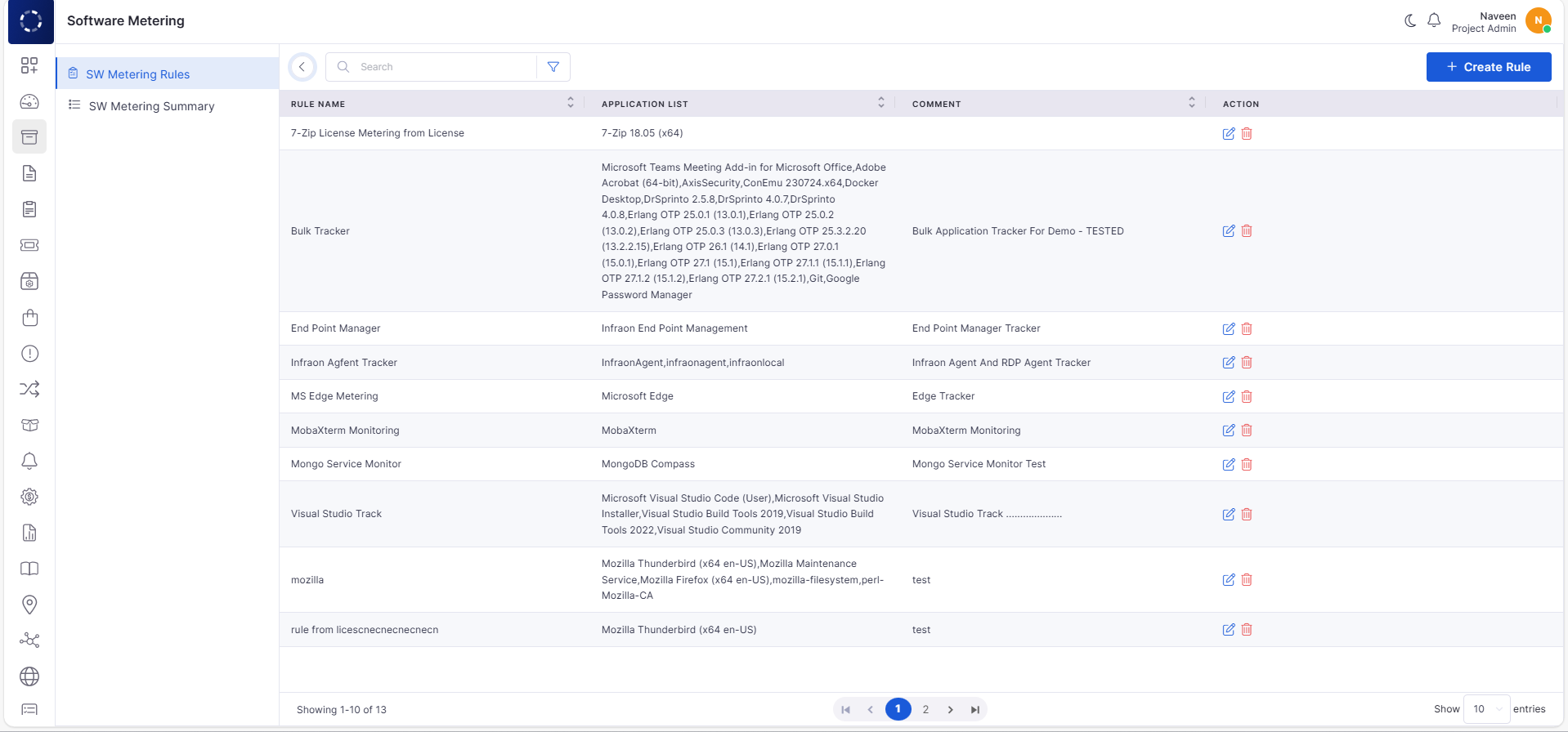
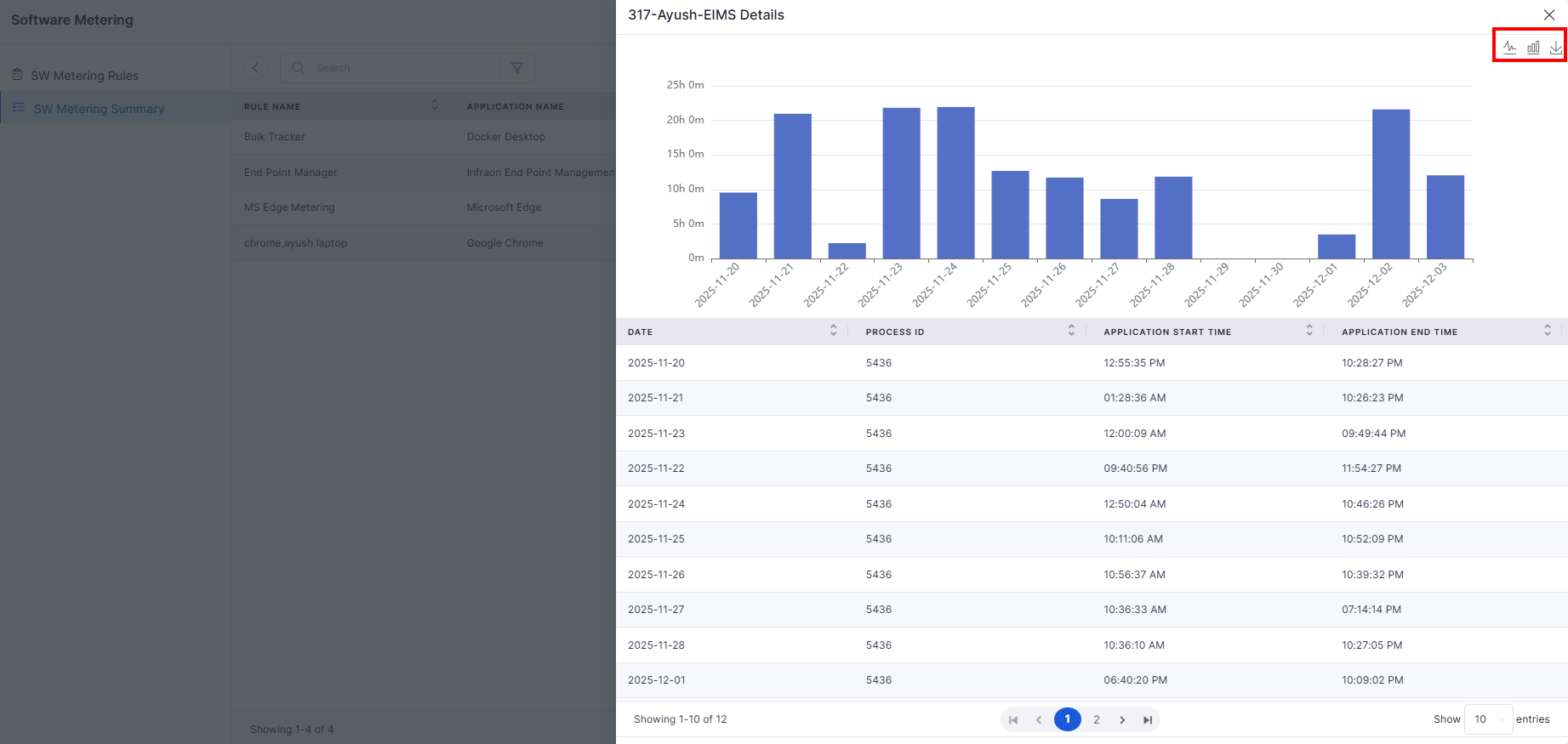
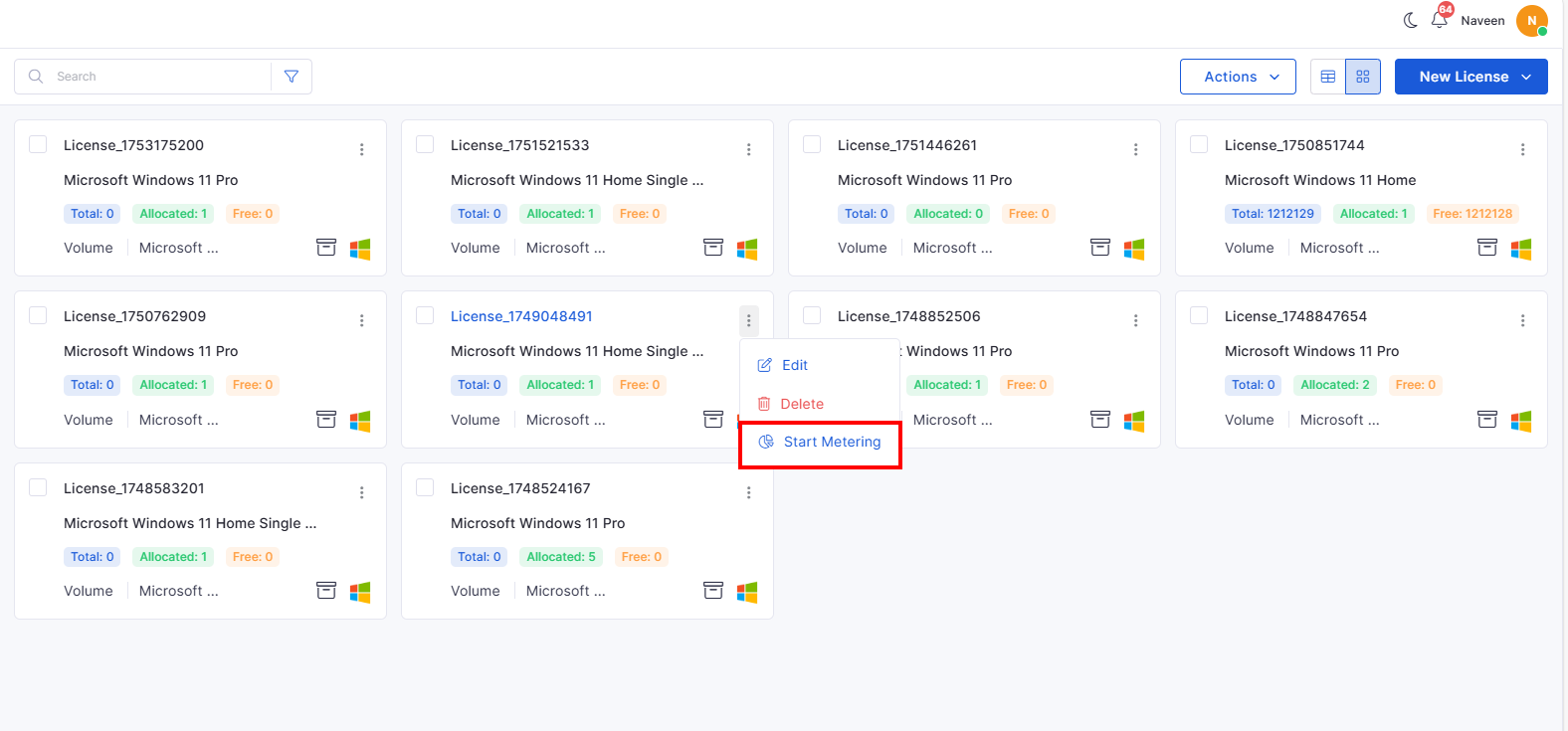
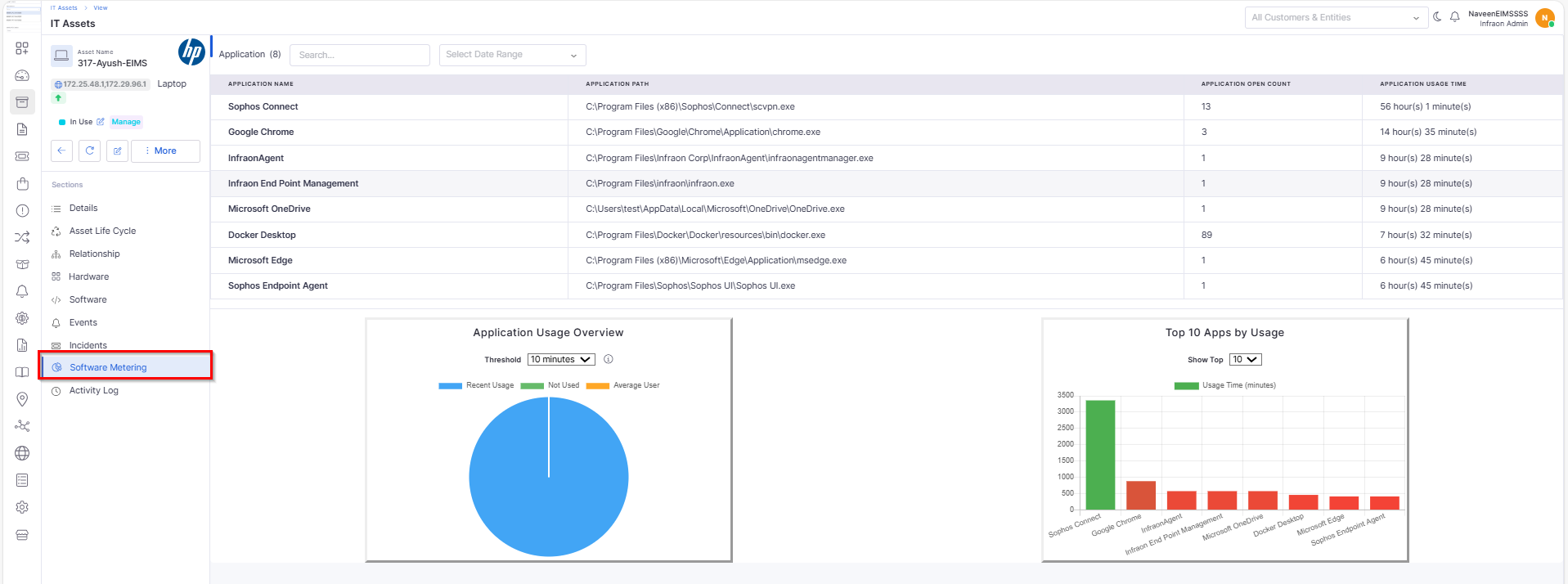
Software Metering Policy Rule
Allows rule-based monitoring and enforcement of usage thresholds.
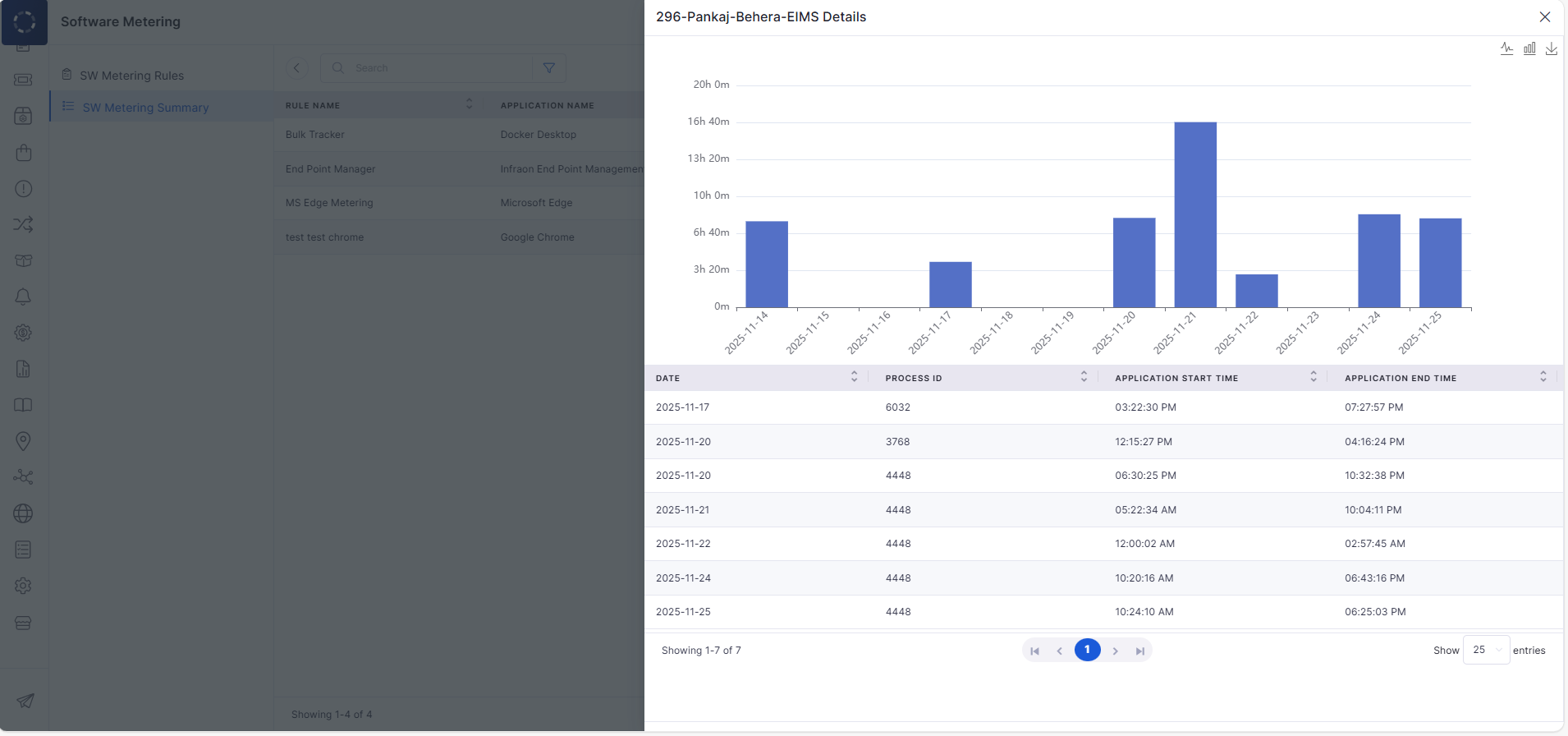
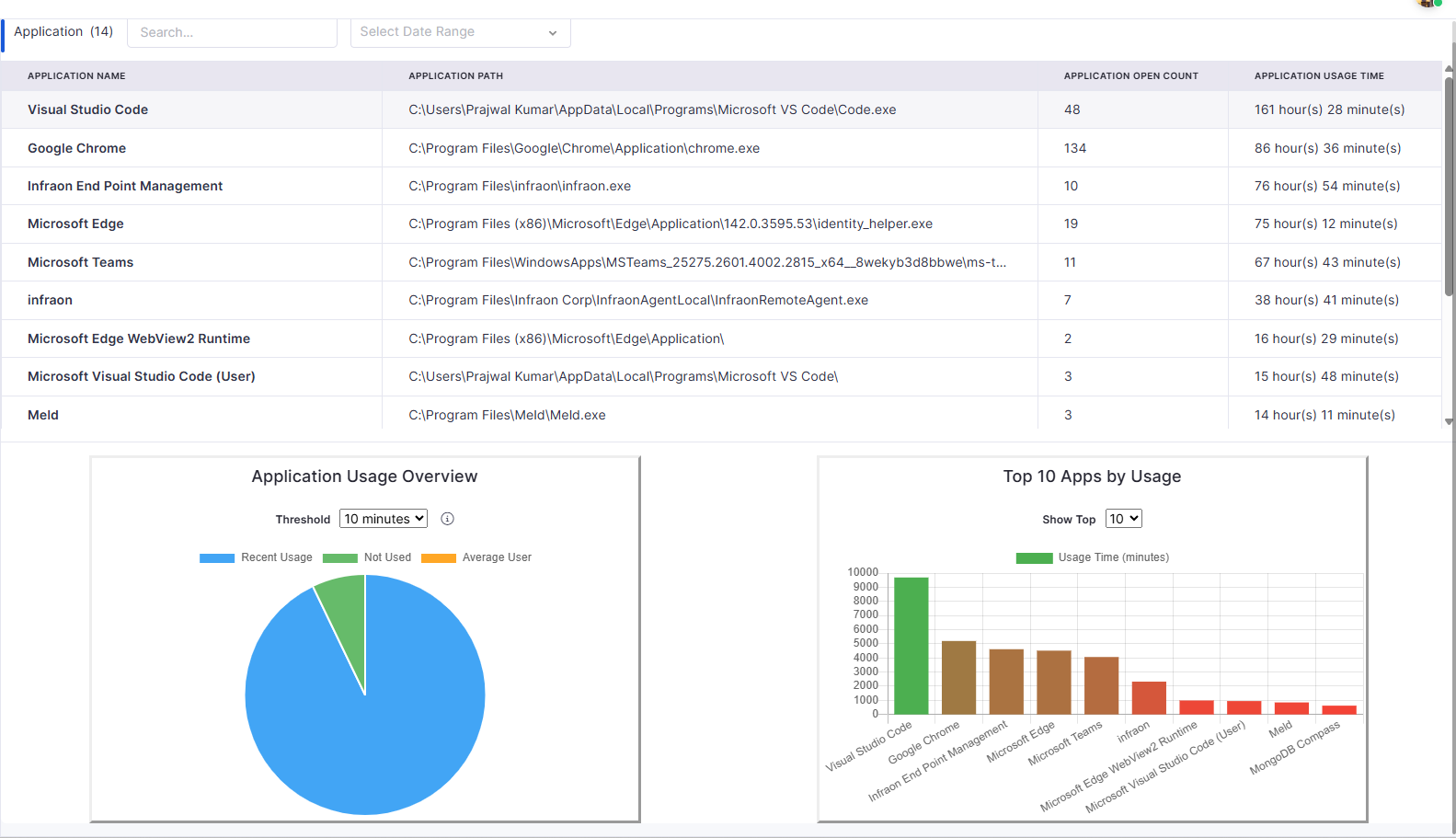
Software Metering Summary
Provides a consolidated view of the most and least used applications and their usage trends.
Asset
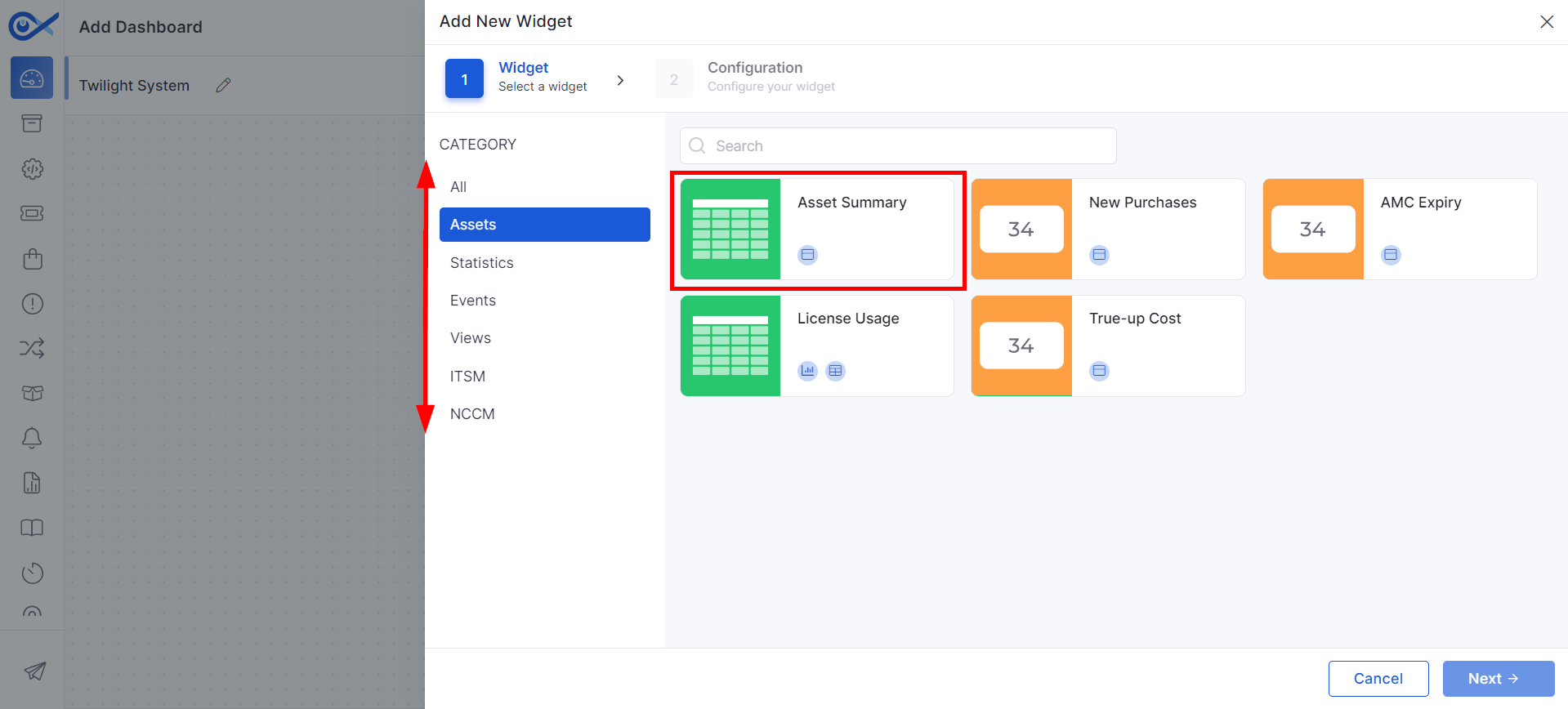
Description Field – Table Option
Adds a table formatting option in description fields for ITSM/ITAM.
Helps document structured data more clearly.
Business Rule
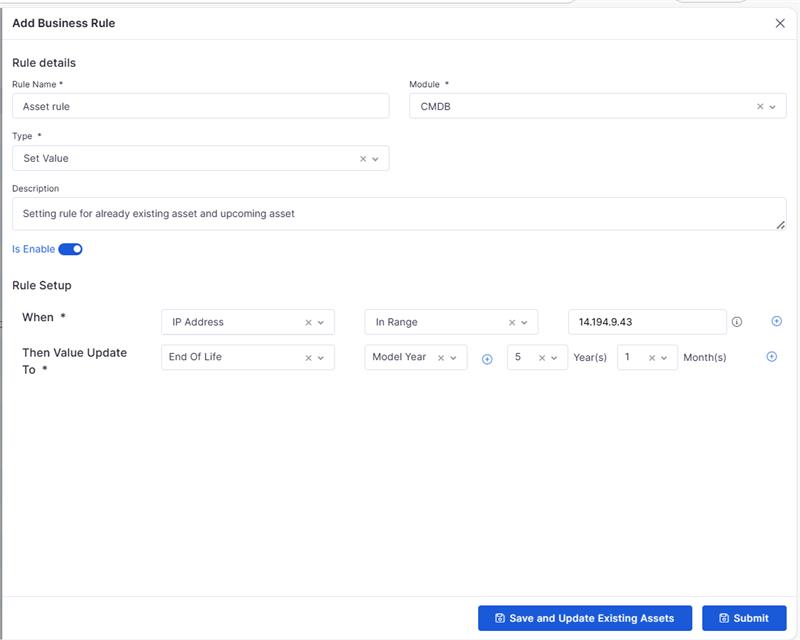
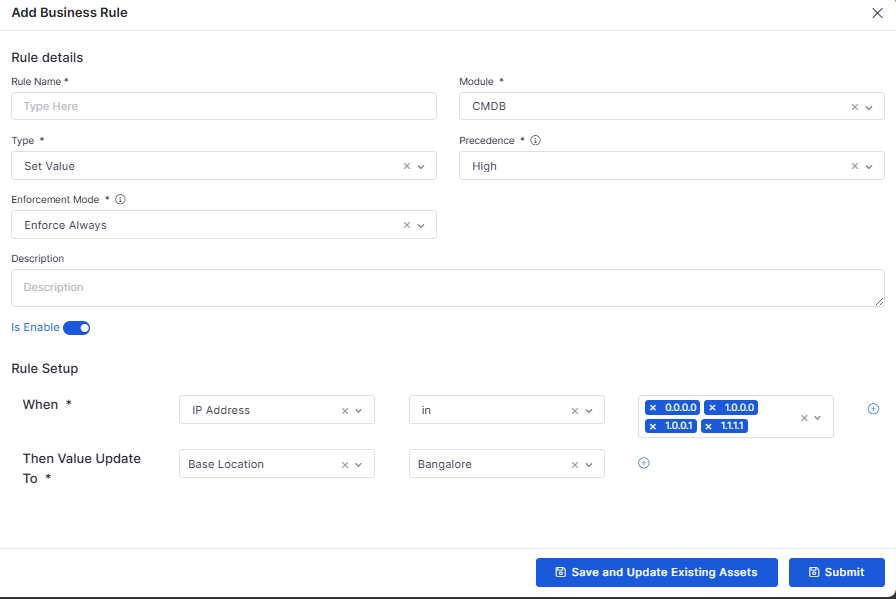
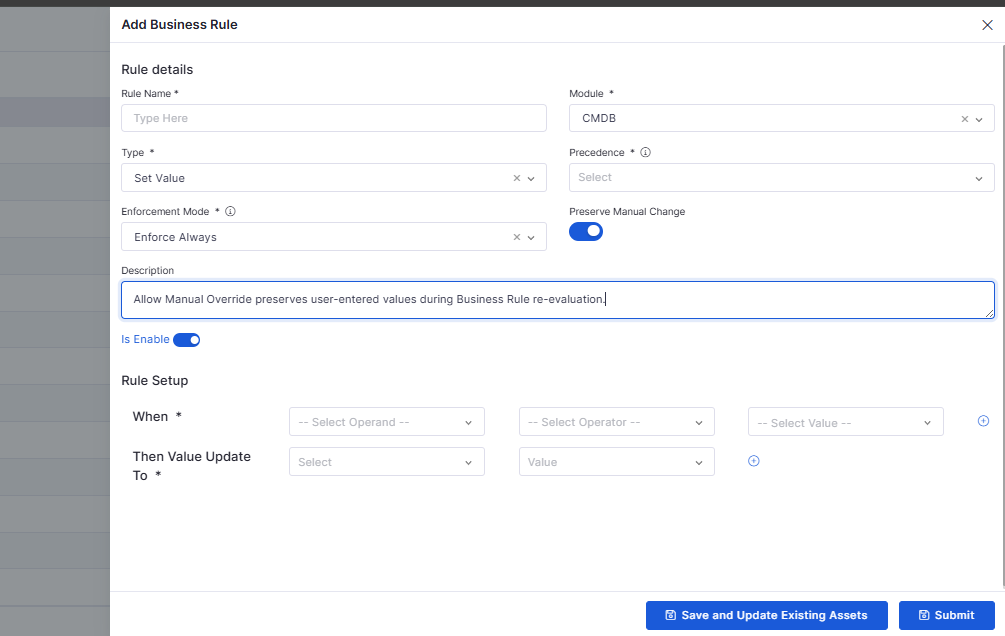
Business Rule Sync on Existing Assets
Newly created business rules can now be applied automatically to existing assets.
Ensures consistent enforcement without manual updates.
🐛 Bug Fixes
Improved overall stability across project workflows, templates, and milestone management.
Fixed UI display issues in task summary, attachments, and relations.
Corrected SLA exclusion behavior in tickets and reporting modules.
Enhanced WhatsApp and Kafka notification reliability.
Resolved software metering inconsistencies for accurate tracking.
Improved asset audit exports and description rendering.
General performance, sync, and validation fixes across all modules.
Stability improvements in Contract Management, Asset Management, and Mail Automator.
Multiple UI corrections for better readability and navigation.
Bug Fixes
v7.3.16 – December 2025
View the latest features, enhancements, and fixes by release.
Version: v7.3.16
Date: 30th December
Overview
This release introduces functional enhancements across Marketplace, Project Management, Asset Audits, Purchase Orders, Software Metering, Mobile, and Self Service Portal.
The updates focus on improving configurability, operational accuracy, integrations, and end-user experience across ITSM and ITAM workflows.
Key Updates
Marketplace
Centralized Marketplace
Introduced a centralized marketplace architecture to manage multiple Infraon instances.
Enables dynamic routing of requests based on registered instance URLs.
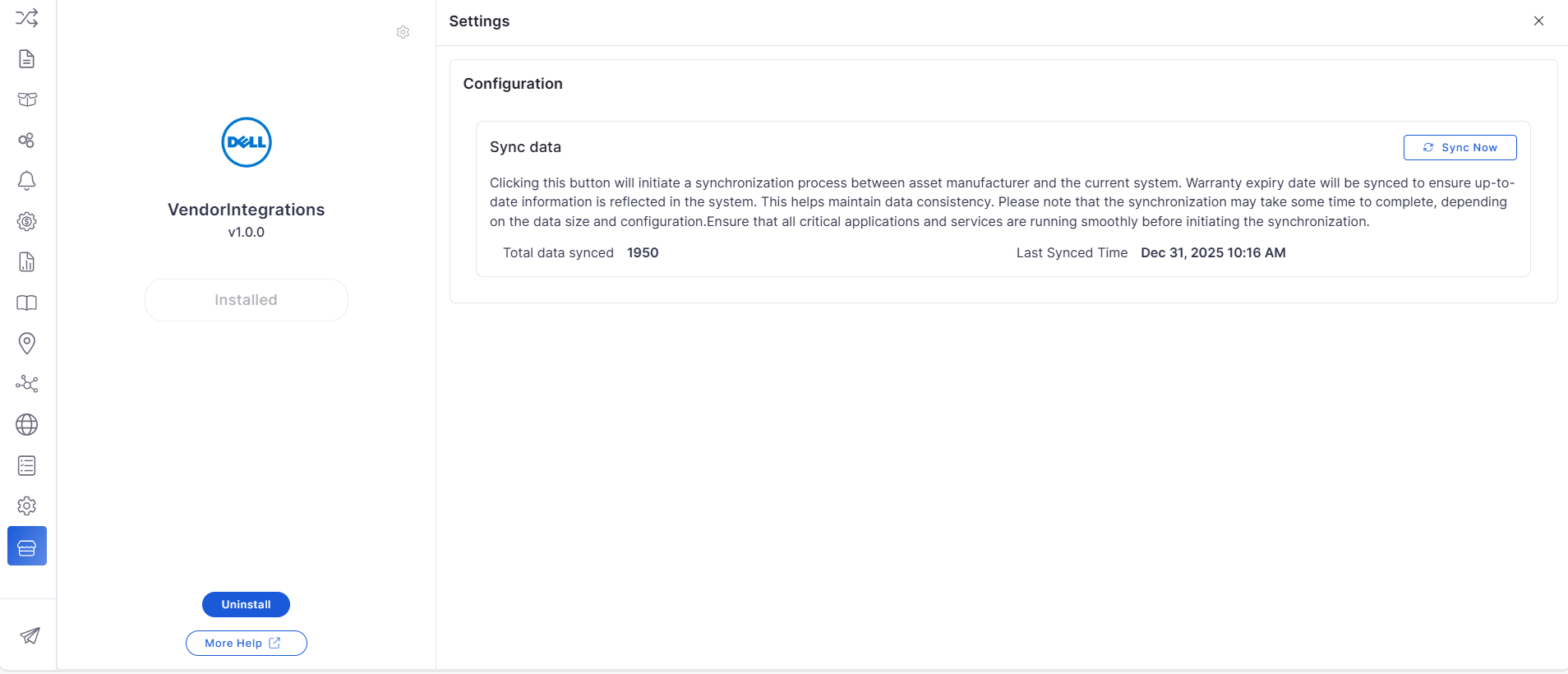
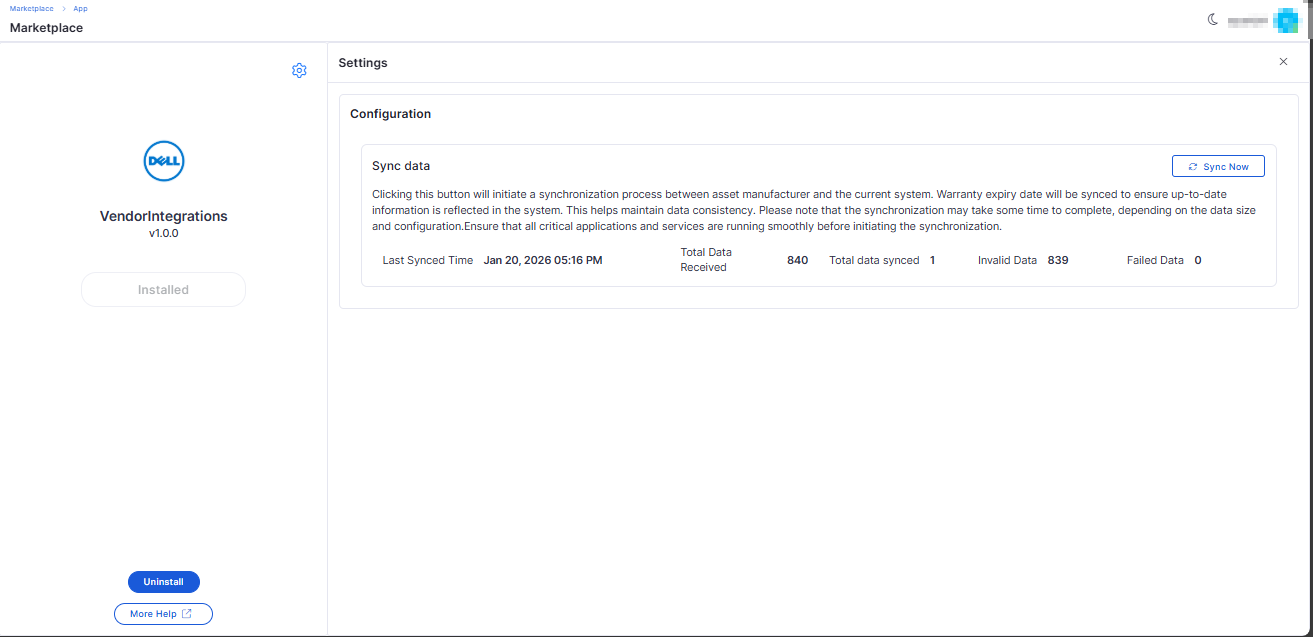
Dell Vendor Integration for On-Prem
Added Dell vendor integration via Marketplace for on-prem environments.
Automatically syncs device warranty and purchase details from Dell.
Contract Management
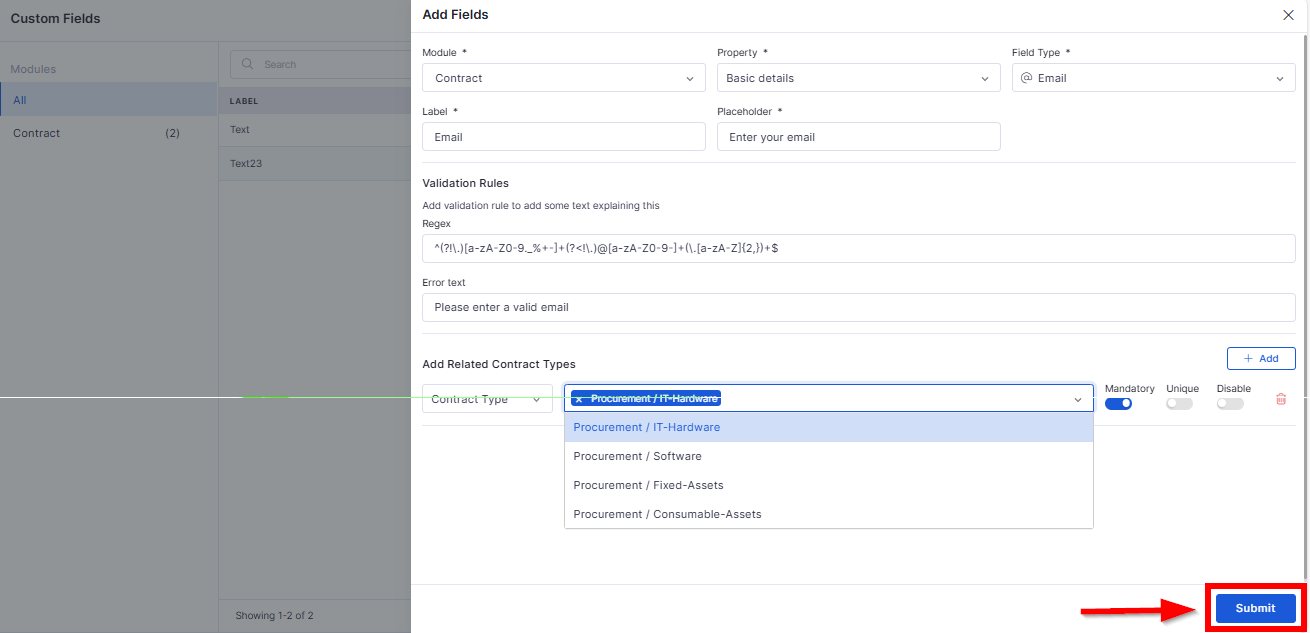
Custom Field Creation for Contract Management
Allows creation of custom fields specific to contract types.
Custom fields are available across contract records, reports, and dashboards.
Project Management
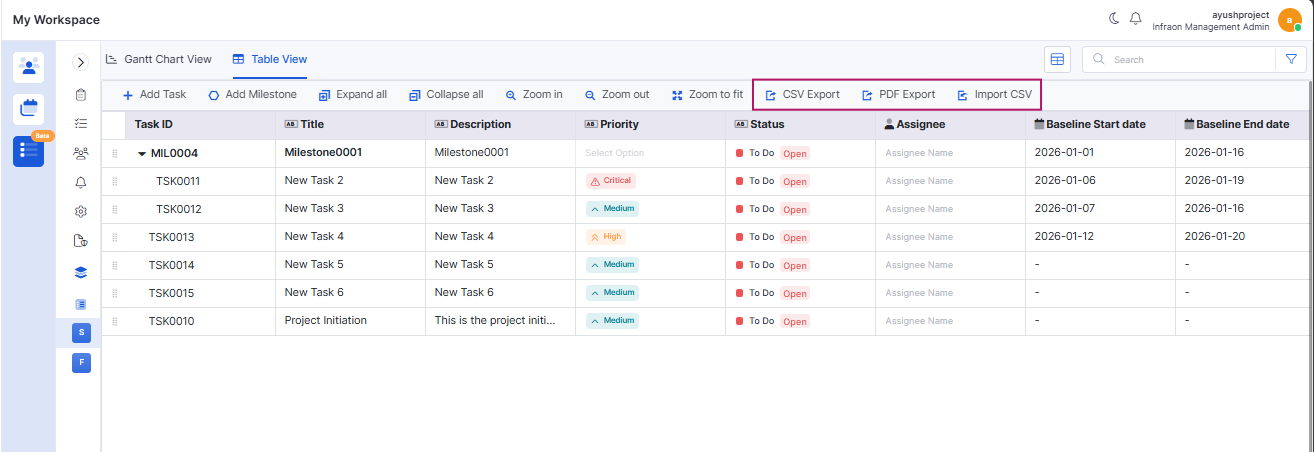
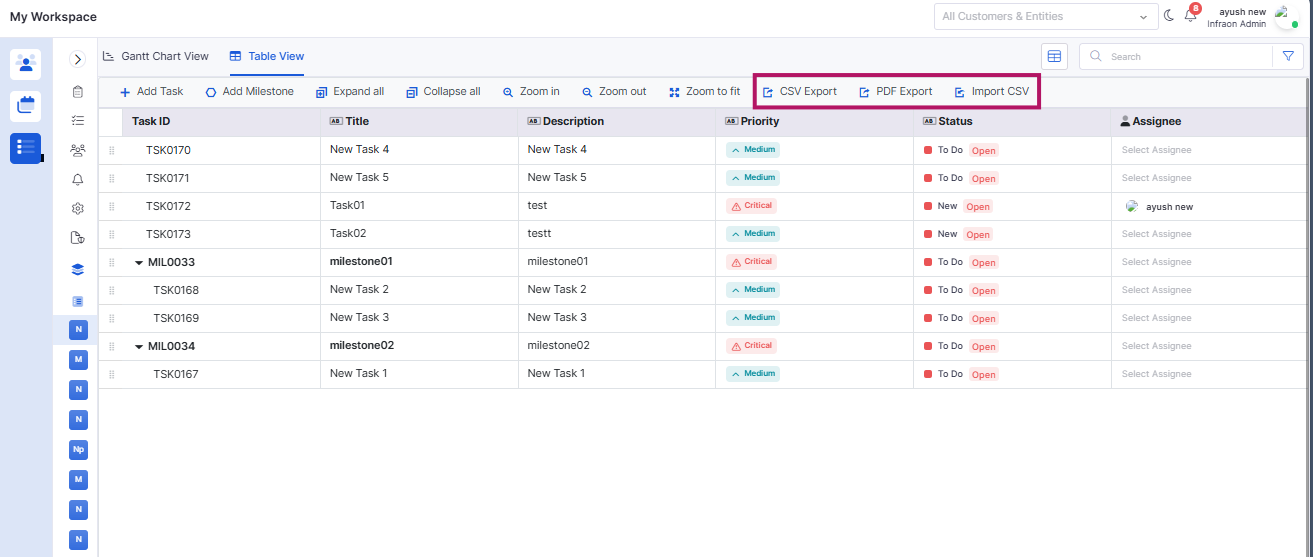
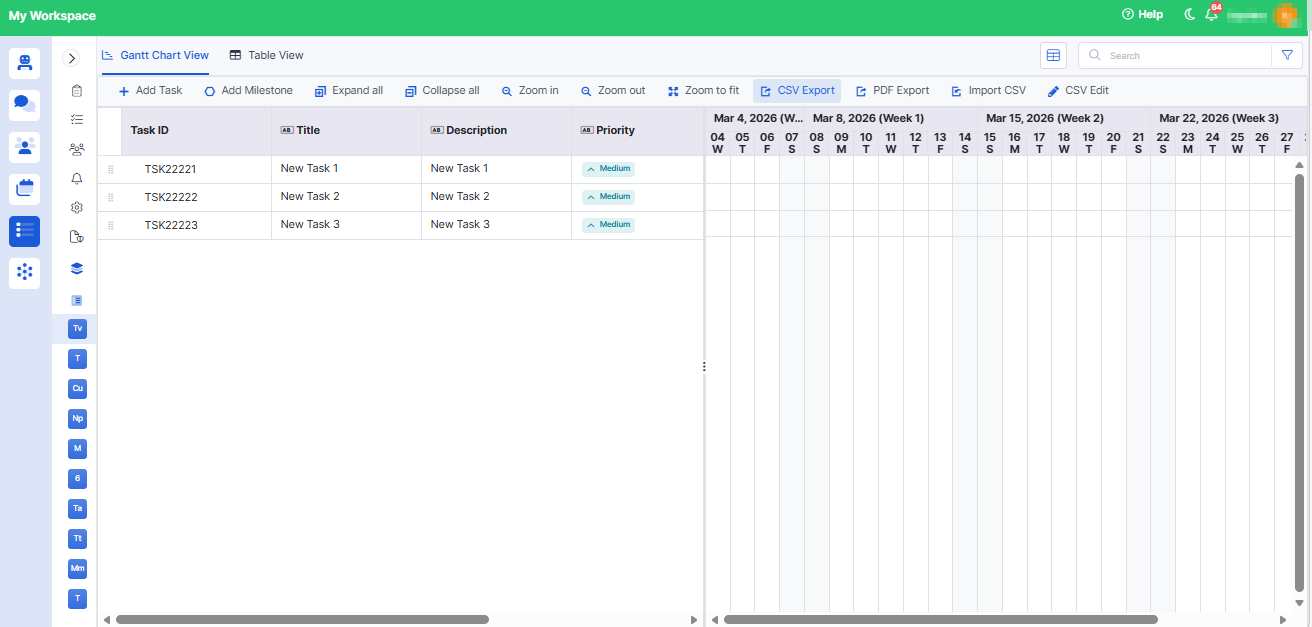
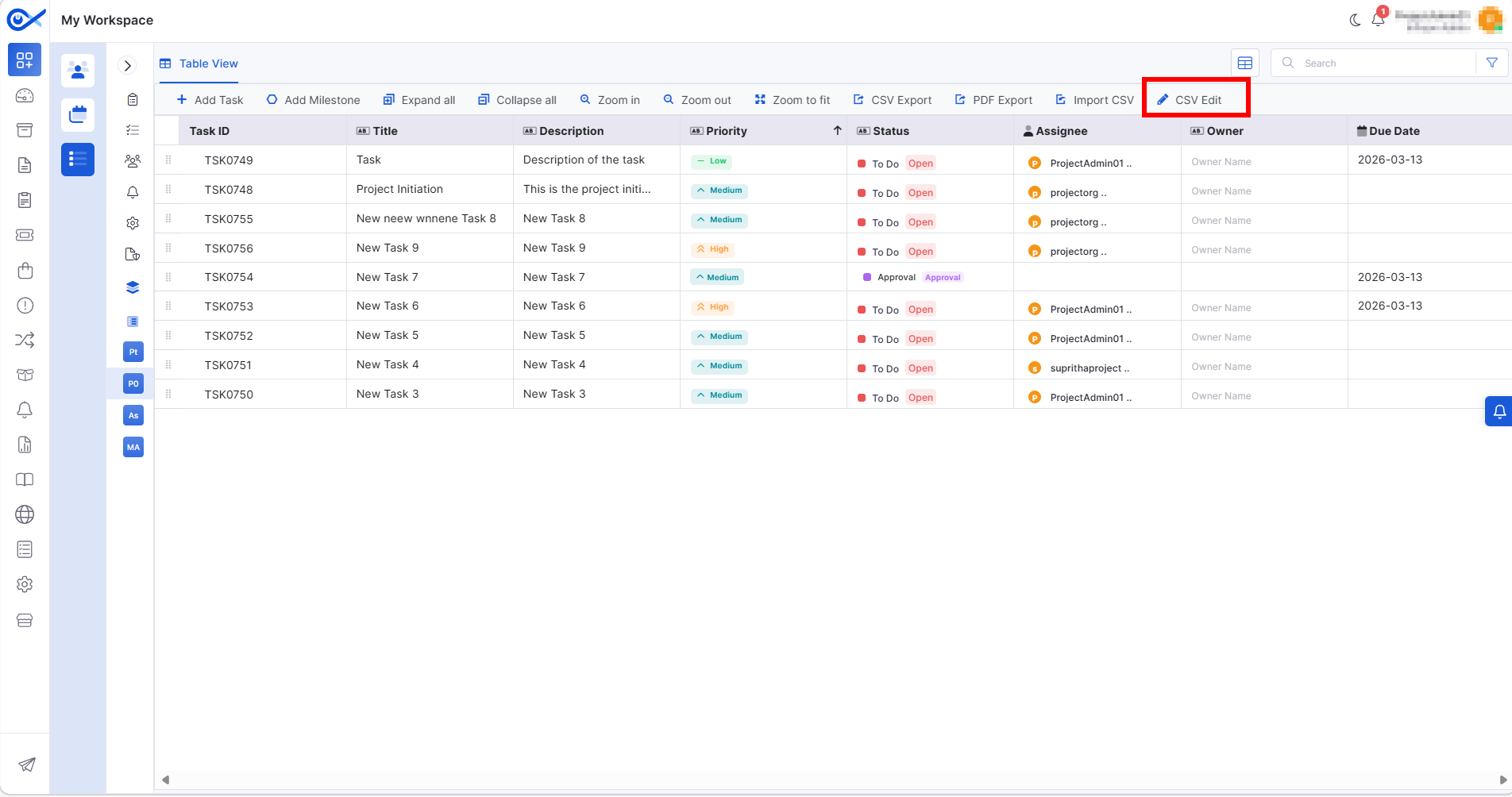
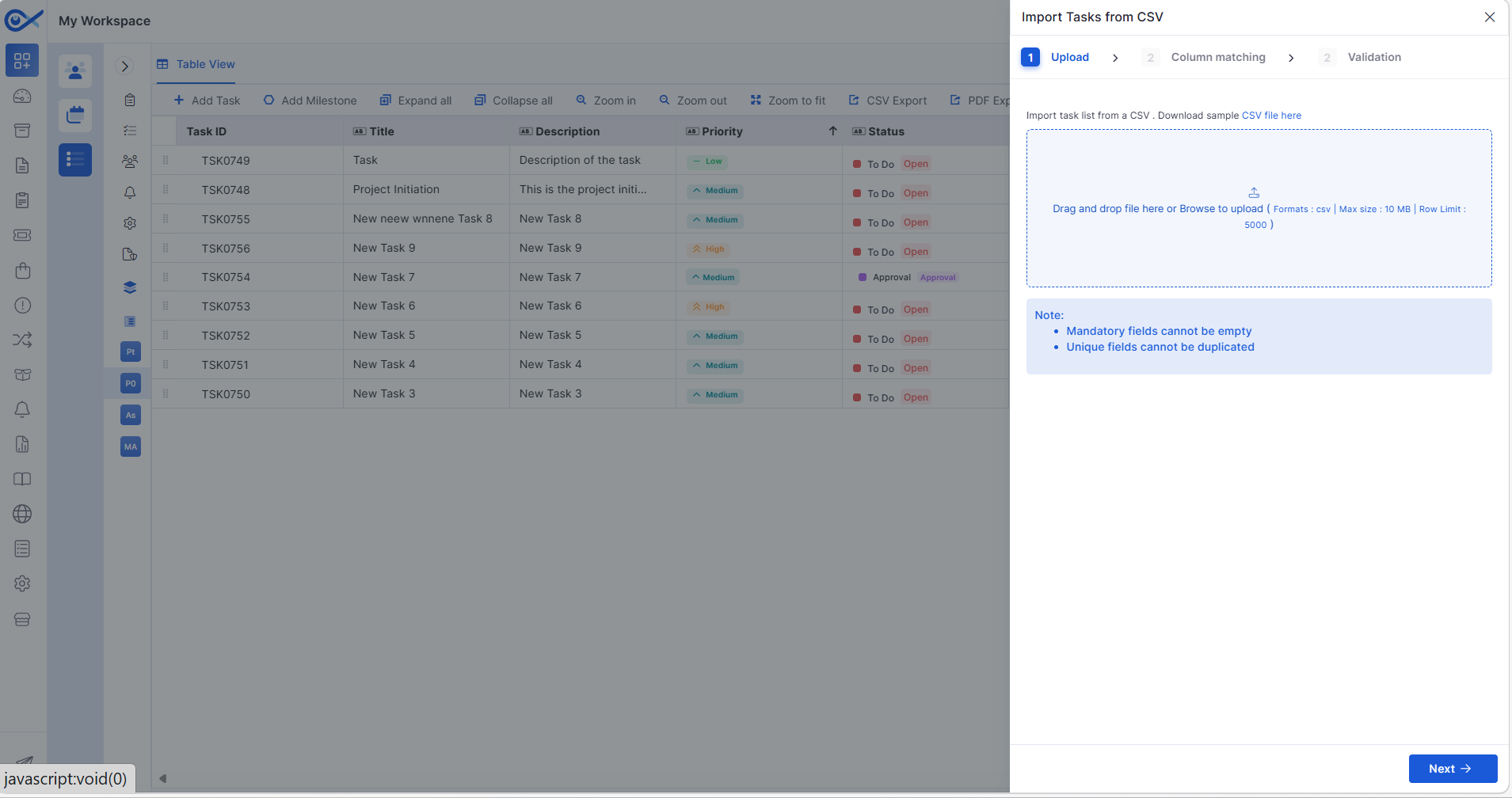
Task Export and Import (All Fields)
Tasks can be exported in CSV and PDF formats with all configured fields.
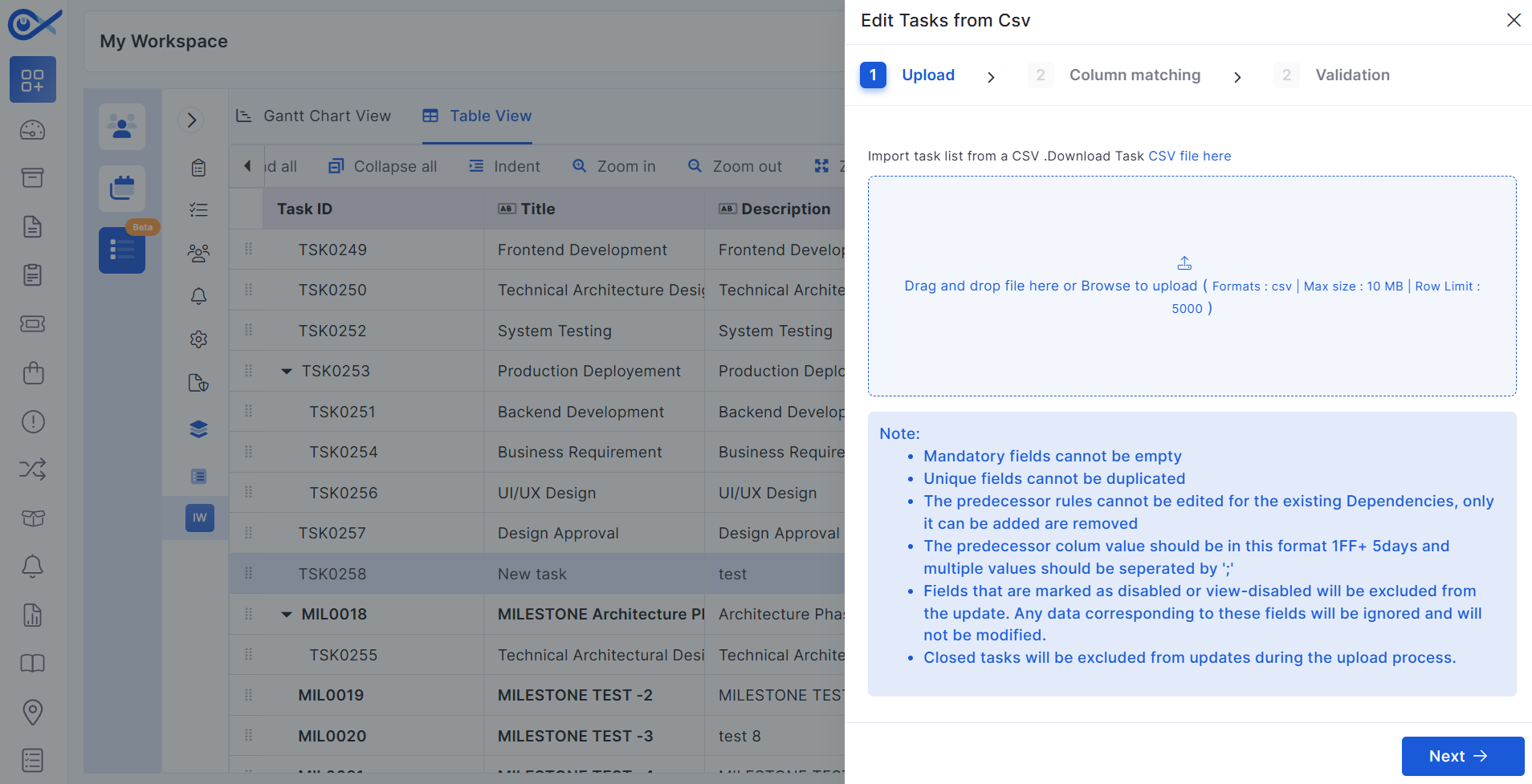
Supports importing tasks from CSV with validation and audit tracking.
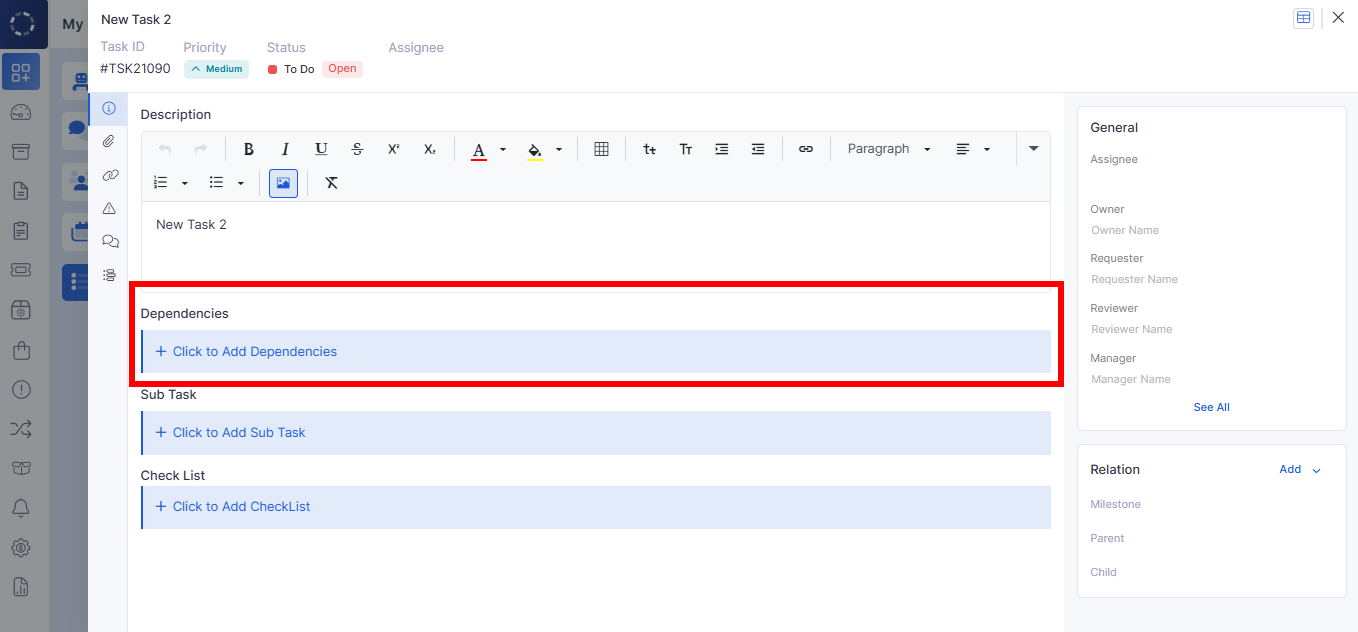
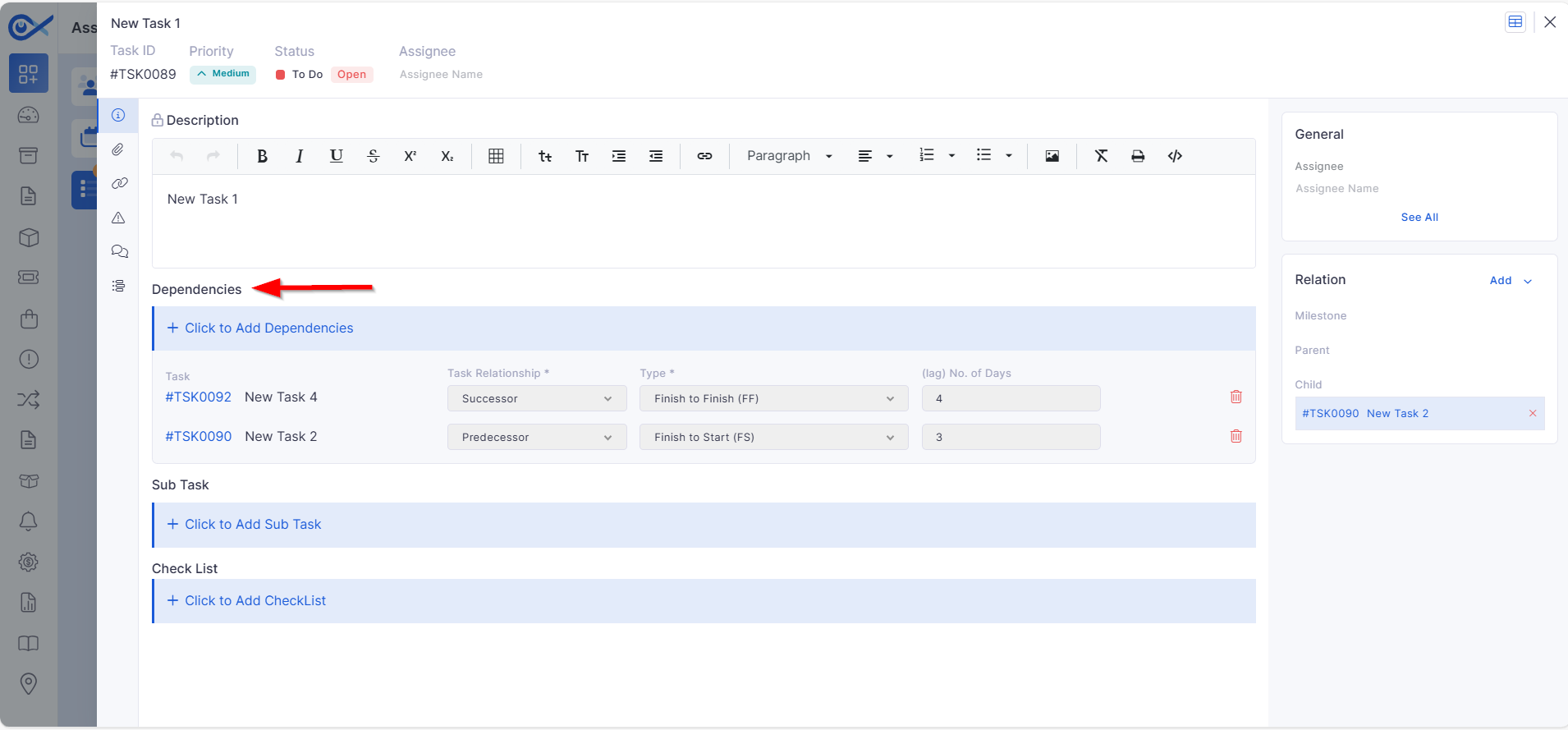
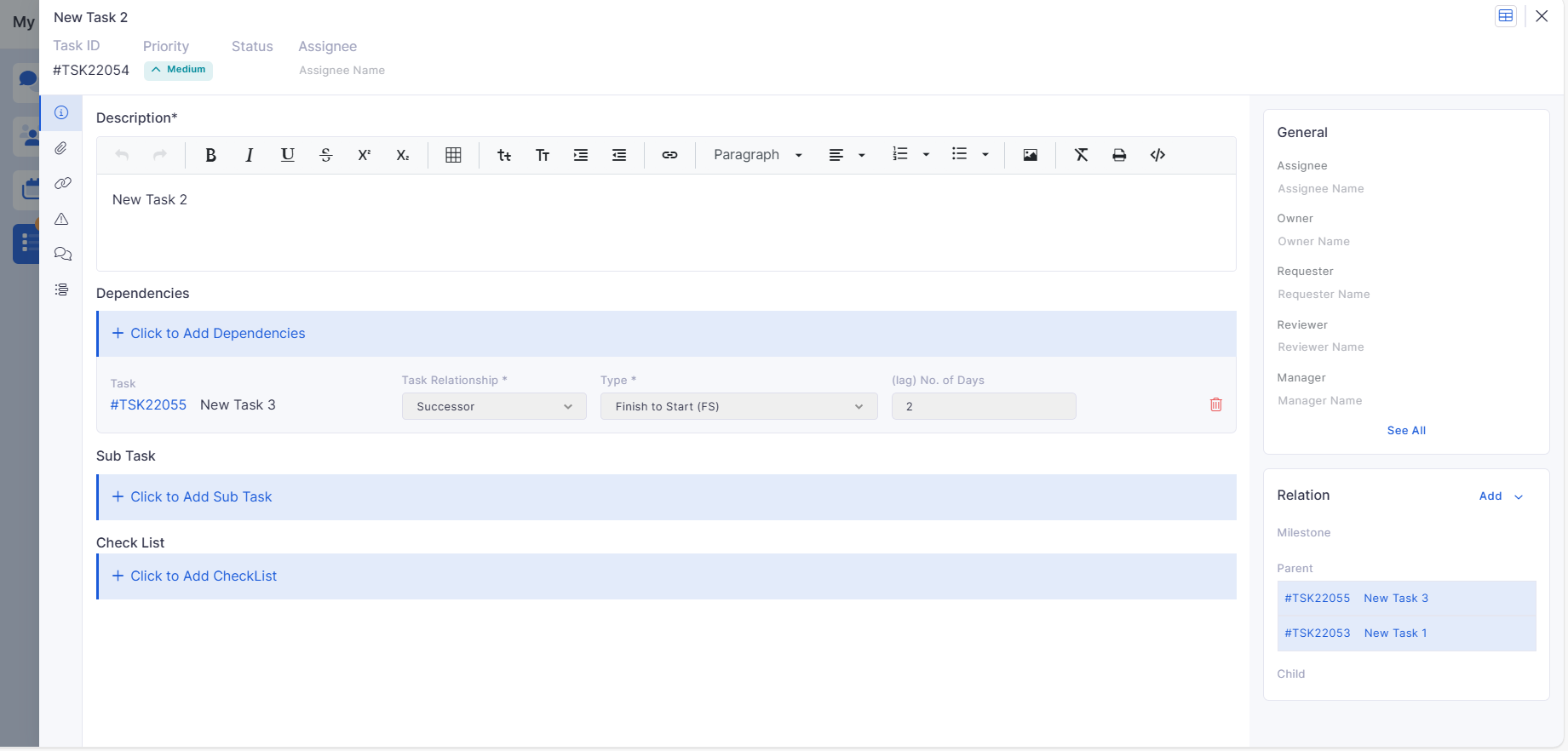
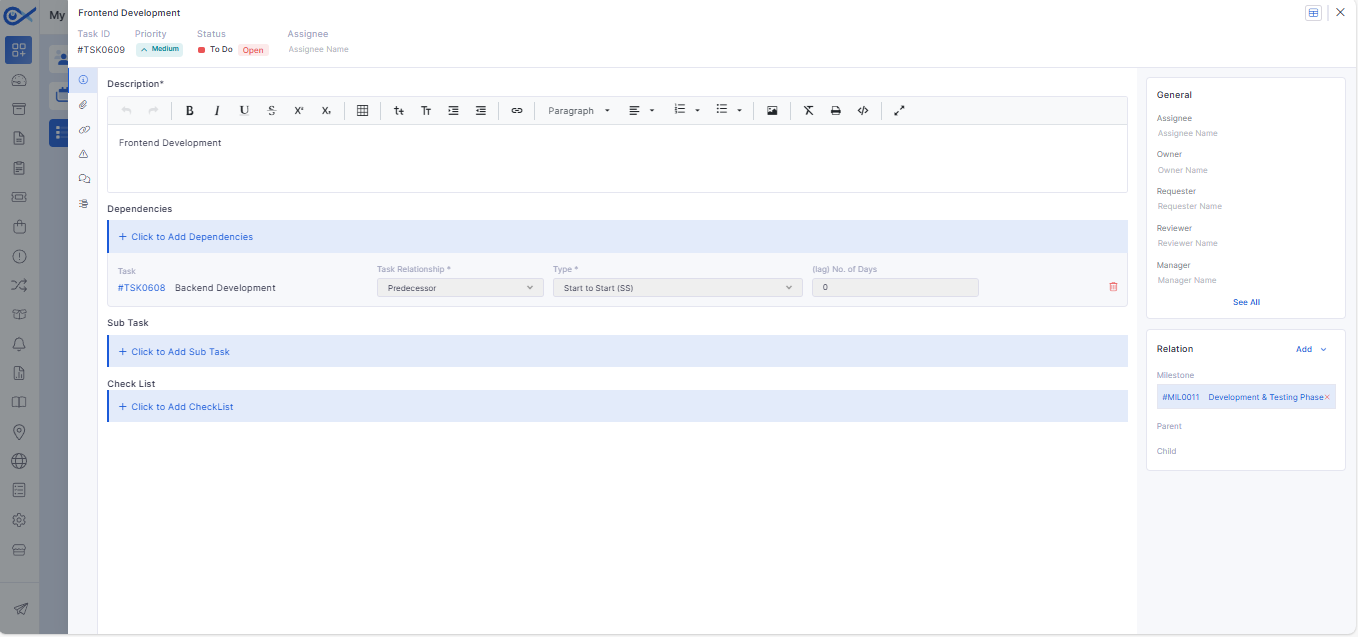
Dependent Task in Task View
Enables adding and removing task dependencies directly from the task view.
Supports relationship type, dependency type, and lag configuration.
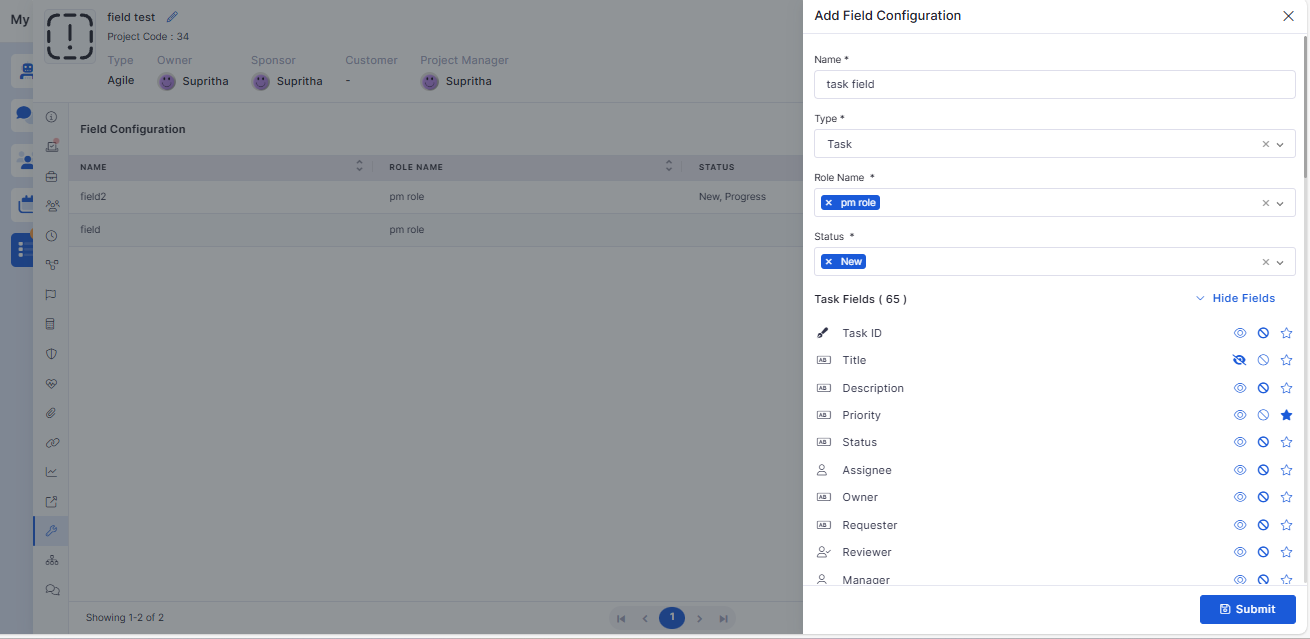
Task Field Configuration
Introduced conditional control for task fields based on user role and task status.
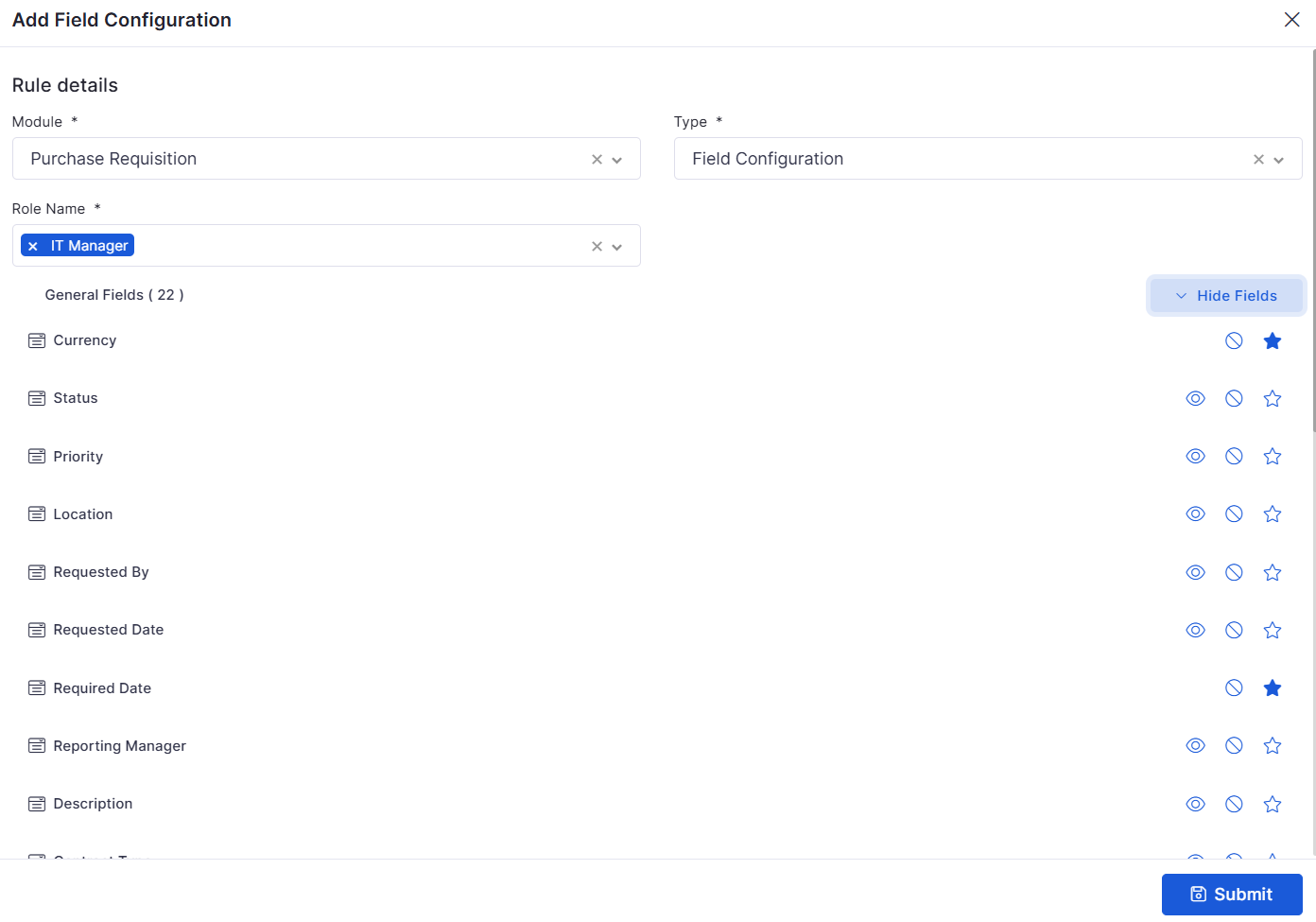
Fields can be hidden, read-only, or mandatory depending on context.
Default Project Setup on Registration
Automatically creates default project roles, teams, members, and task templates during organization setup.
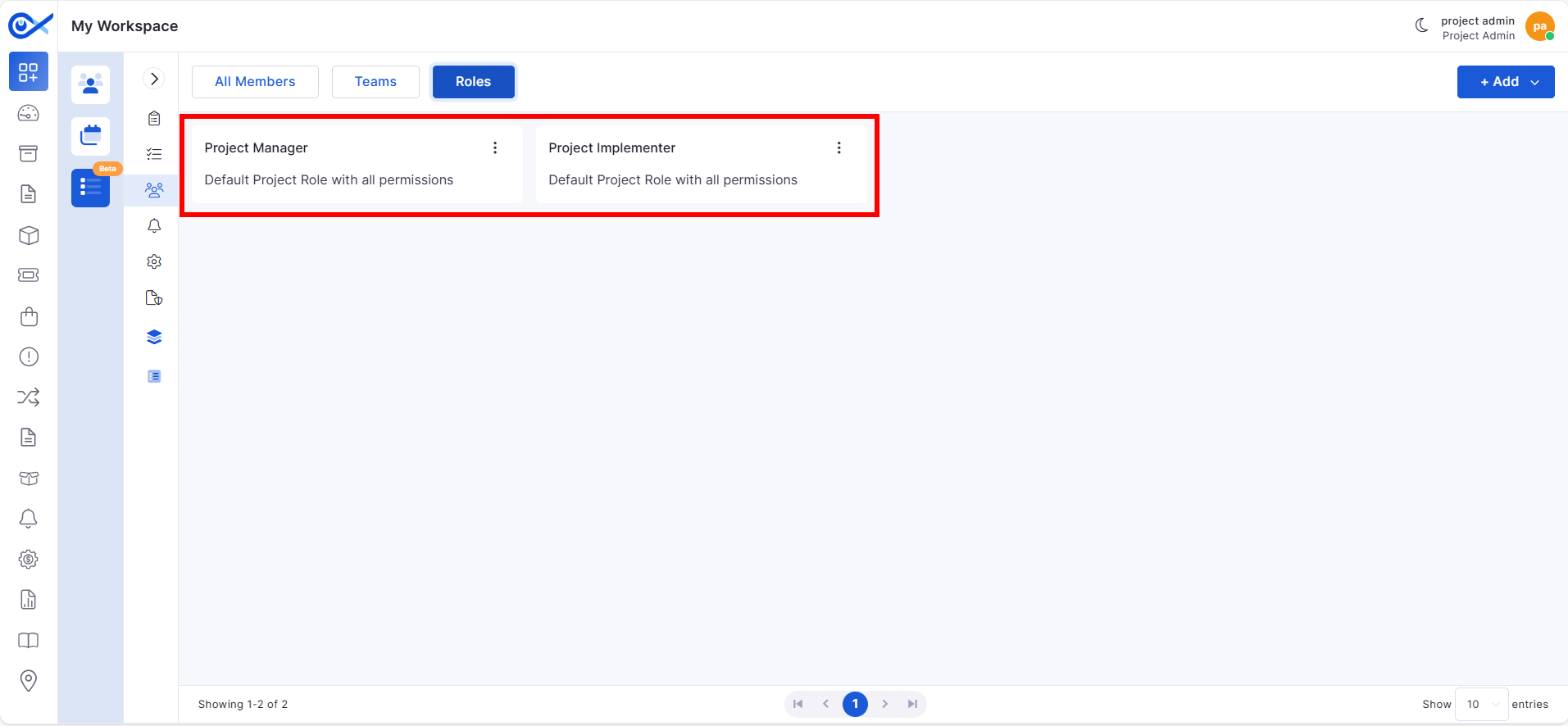
Includes predefined roles such as Project Manager and Project Implementer.
Knowledge Base
Attaching KB in Incident
KB articles are automatically attached to incident email responses.
Supports multiple KB attachments and prioritizes AI-generated articles.
Asset
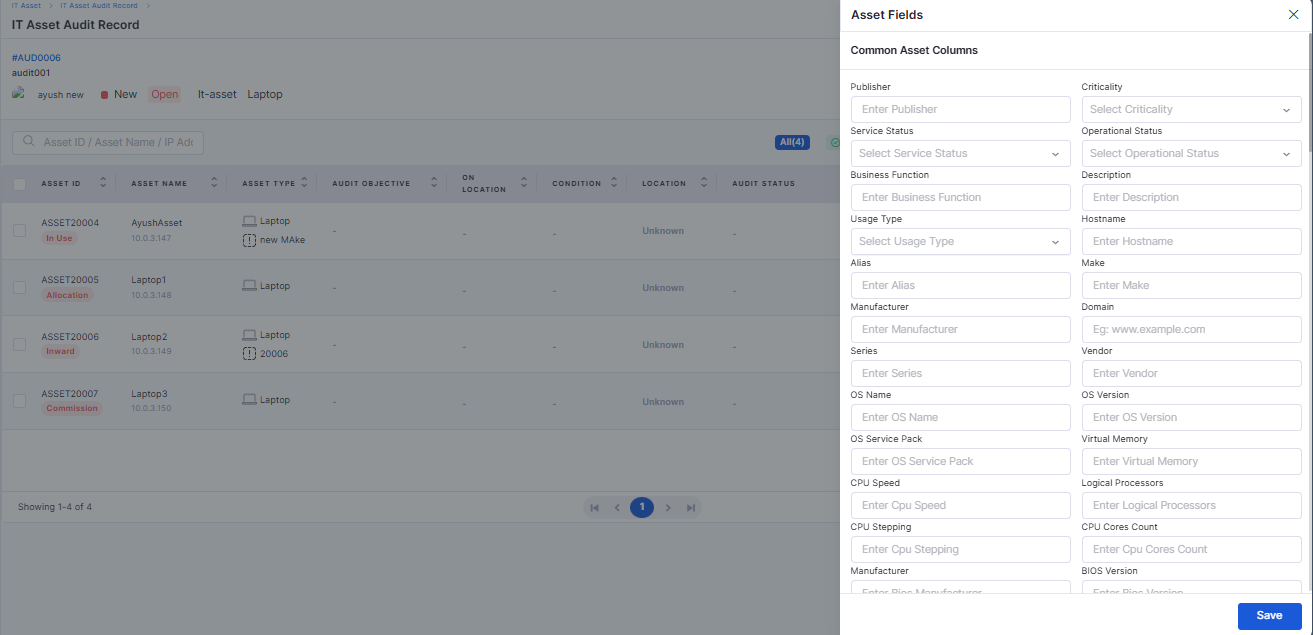
Edit Common and Specific Asset Fields During Audit
Allows editing common and applicable asset fields directly during audits.
Supports bulk asset selection with controlled field visibility.
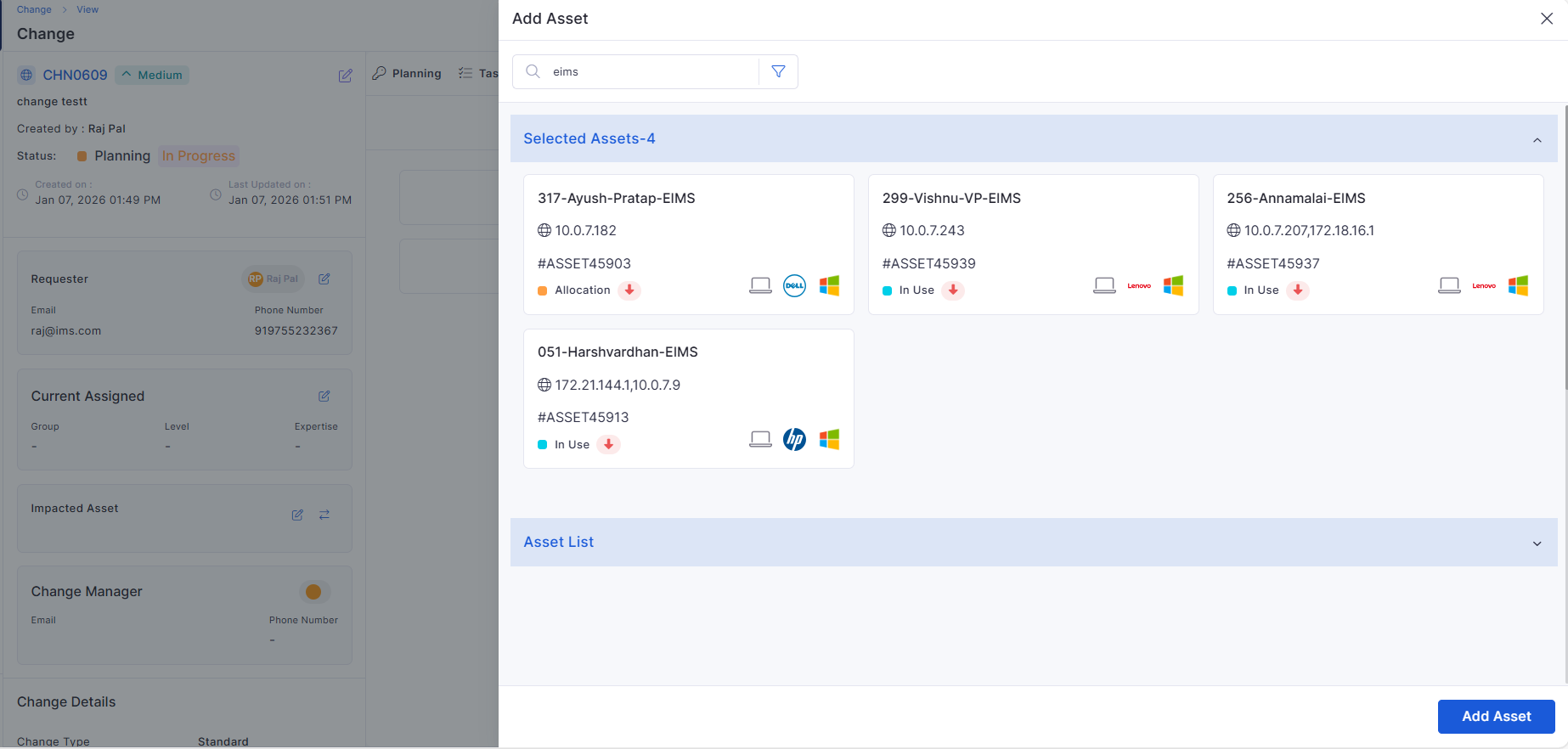
Fix for Attached Assets Getting Removed
Resolved an issue where previously attached assets were removed when adding new ones.
Ensures asset selections persist across filters, edits, and views.
Ticket Management
Support for ZIP and RAR Attachment Formats
Added support for uploading ZIP and RAR compressed files.
Enables attaching bundled logs, configurations, backups, and artifacts.
Purchase Order
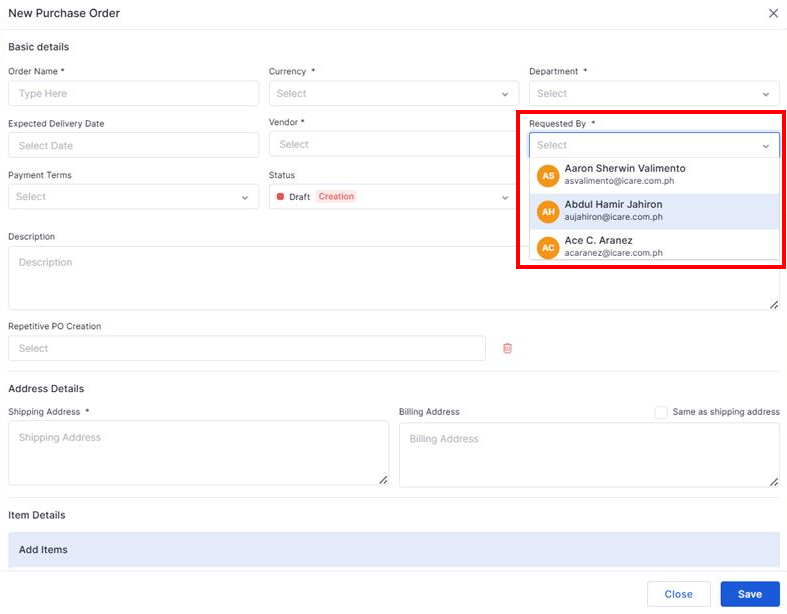
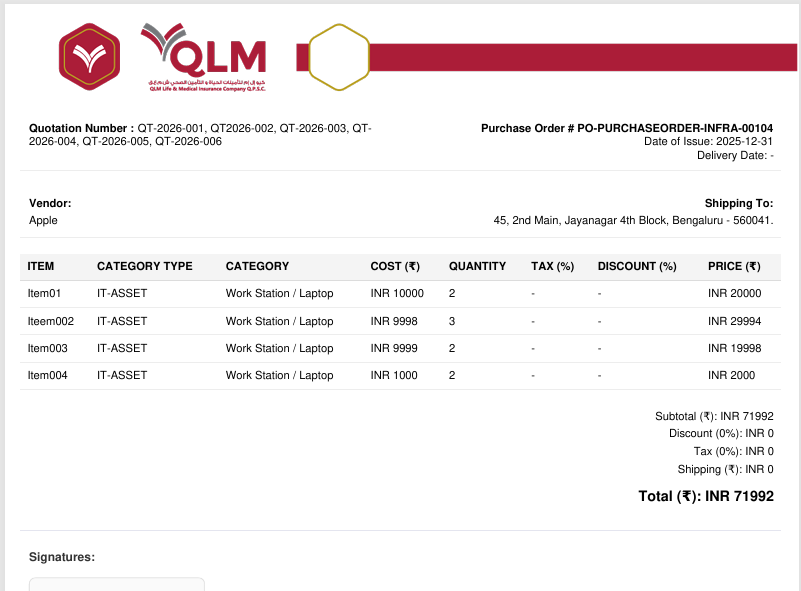
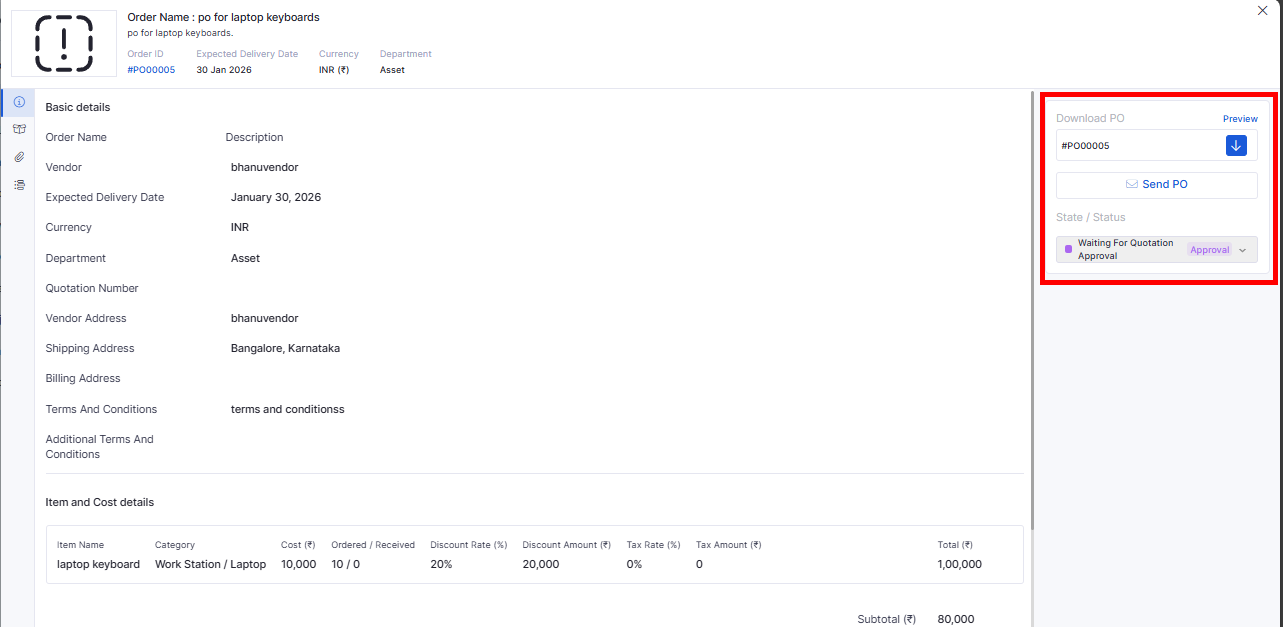
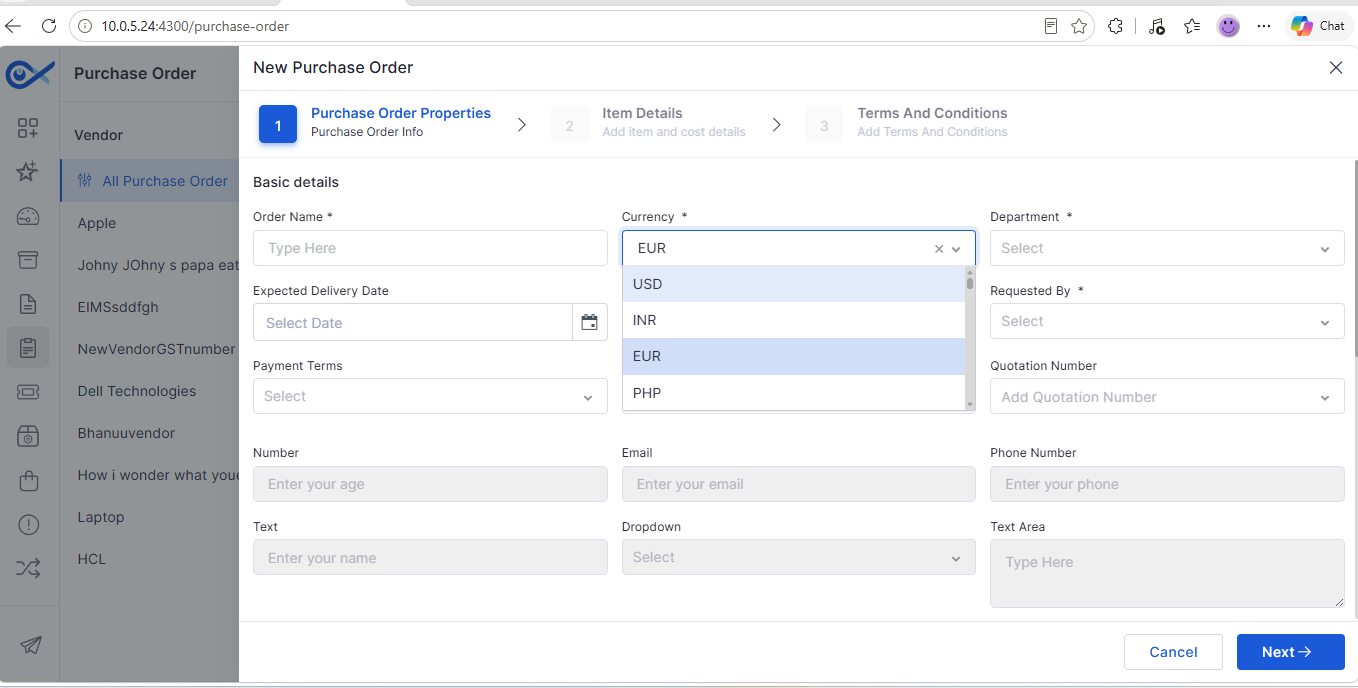
Quotation Number and Attachment During PO Creation
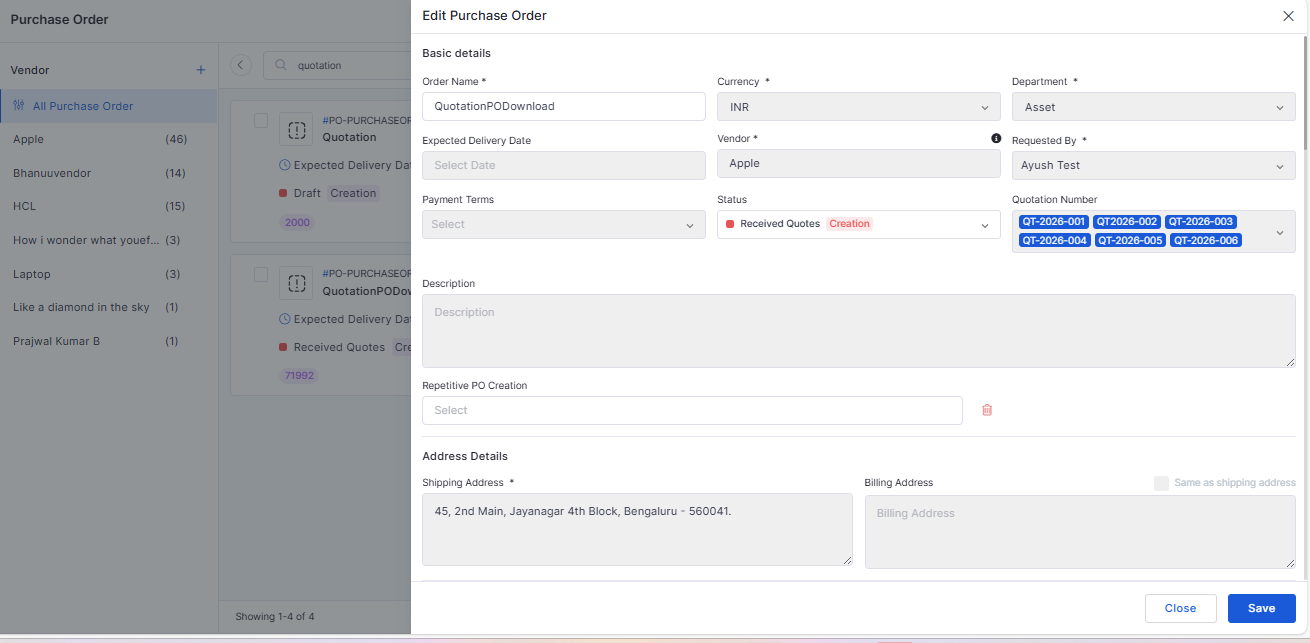
Introduced a quotation number field with support for multiple entries.
Allows attaching quotation documents directly during PO creation.
Downloadable PO with QLM Letterhead and Quotation Reference
Downloaded POs now use the official QLM letterhead.
Displays quotation reference details clearly for vendor communication.
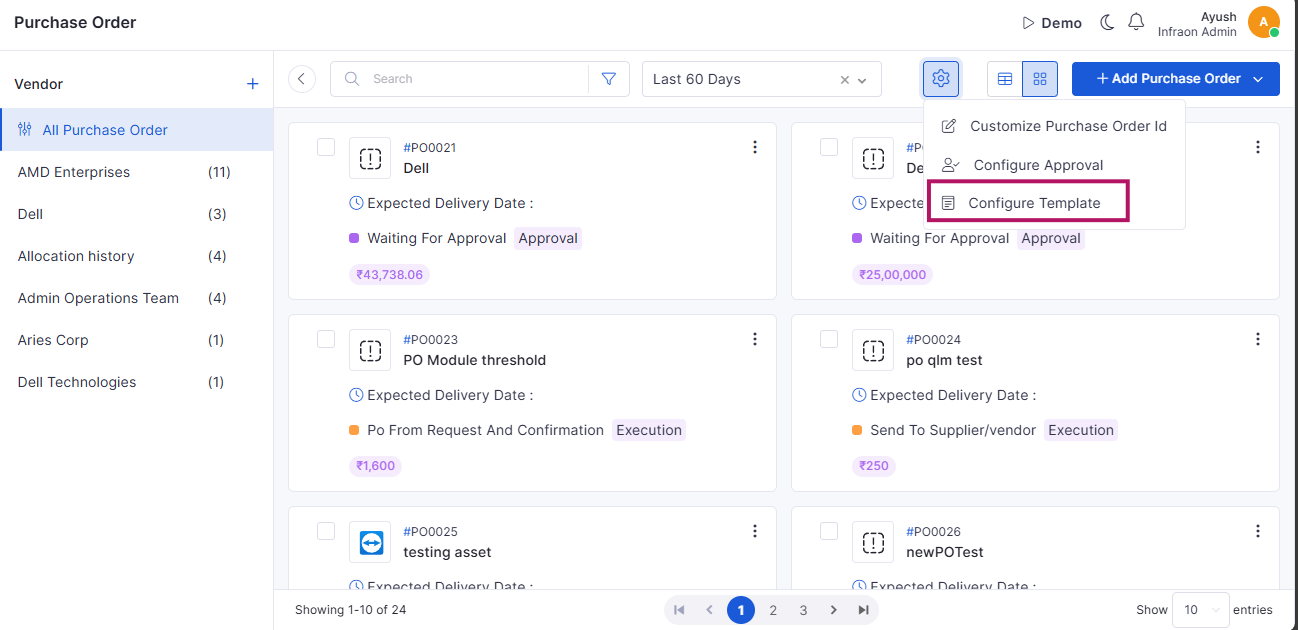
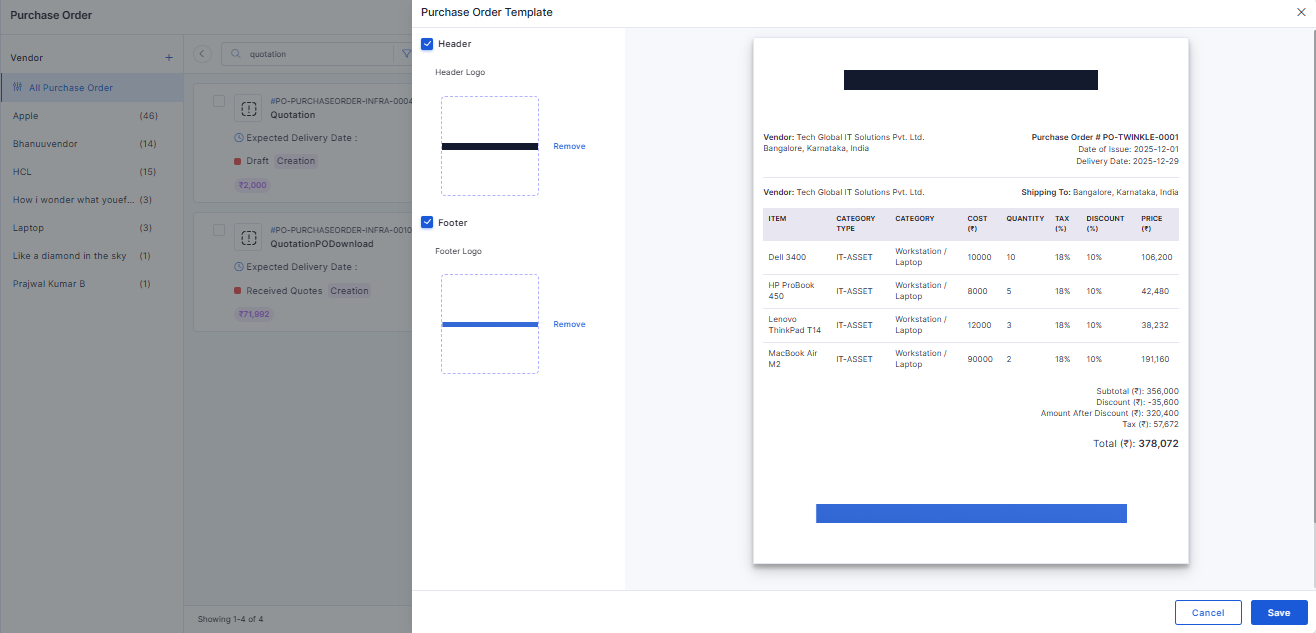
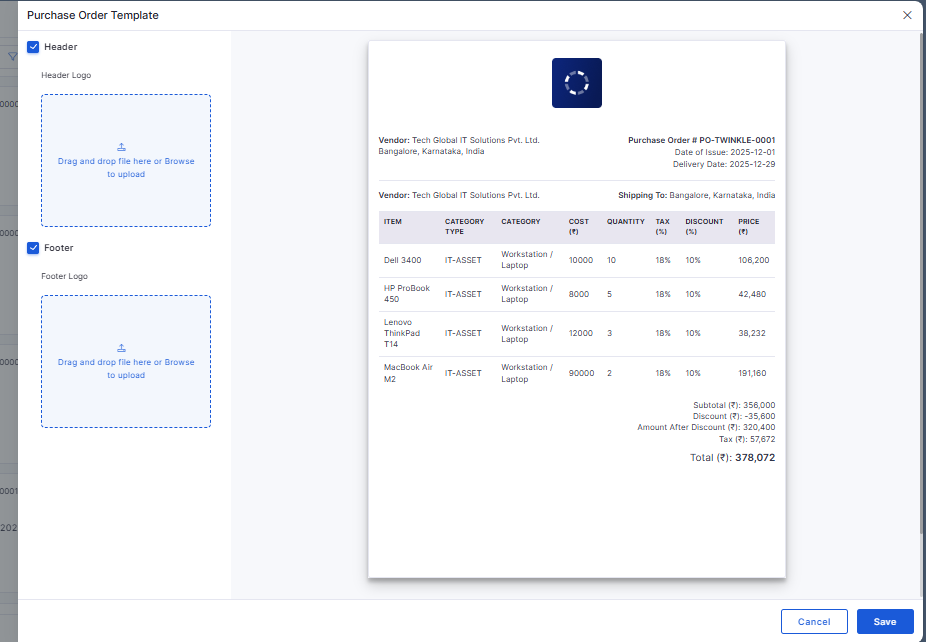
Enhanced Header & Footer Template Configuration
Header and footer images can be configured independently.
Enforces validation to ensure images are uploaded when enabled.
Inventory Agent
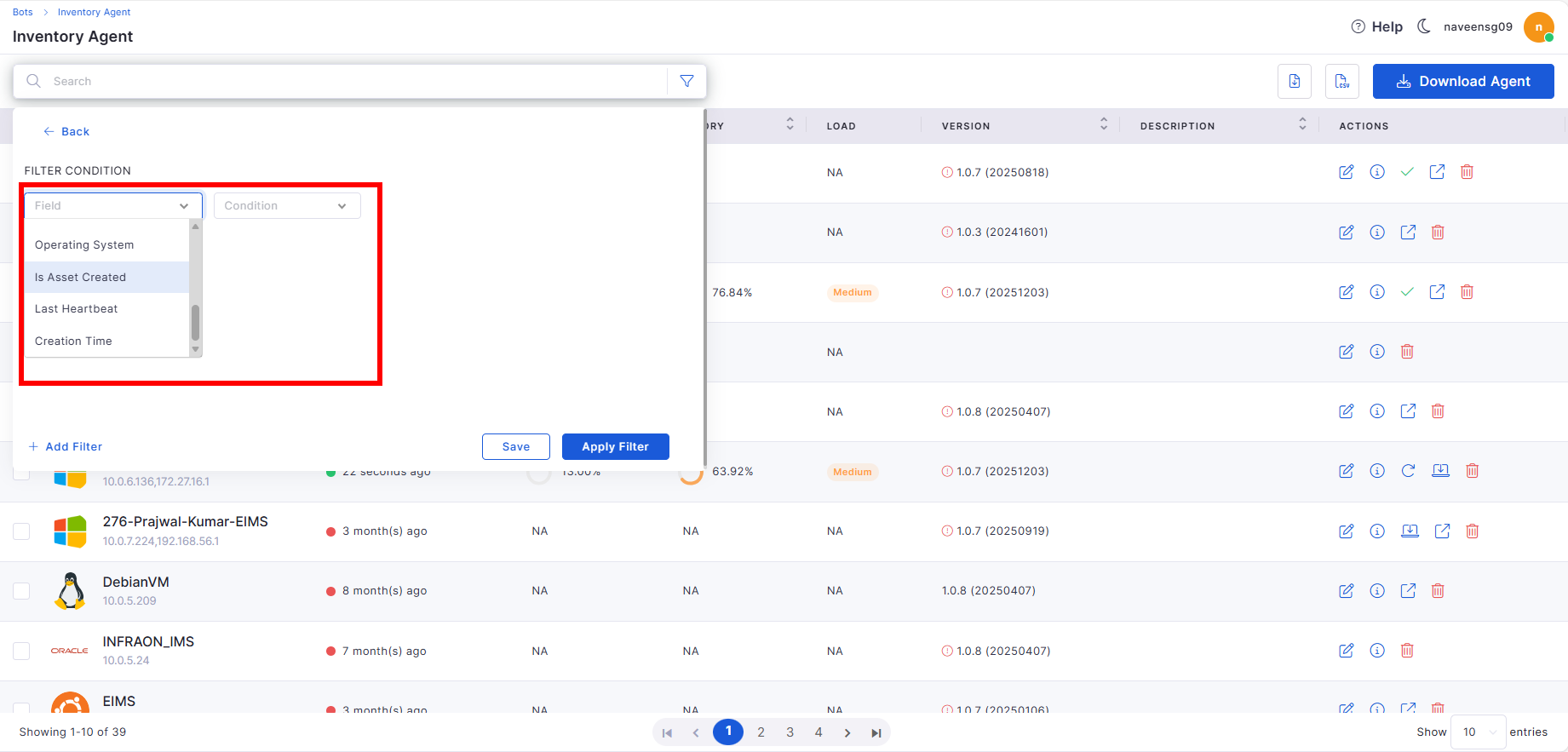
Filters for Inventory Agent Page
Added advanced filters such as Asset Created status, Last Heartbeat, and Creation Time.
Improves visibility and manageability of inventory agents.
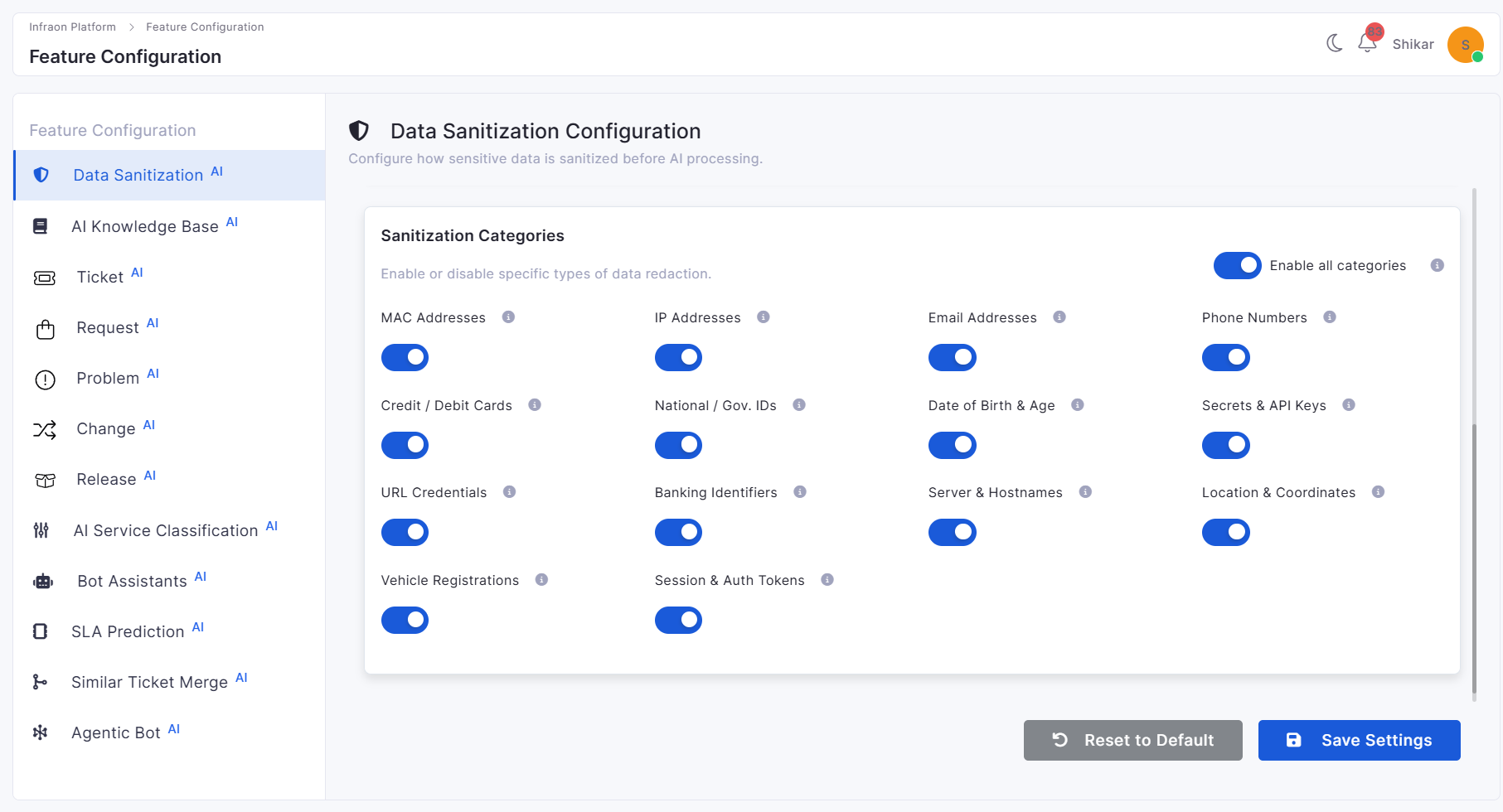
Introduced a UI-driven configuration module for Knowledge Base settings.
Allows administrators to manage AI behavior, quality thresholds, privacy, and processing rules.
Self Service Portal
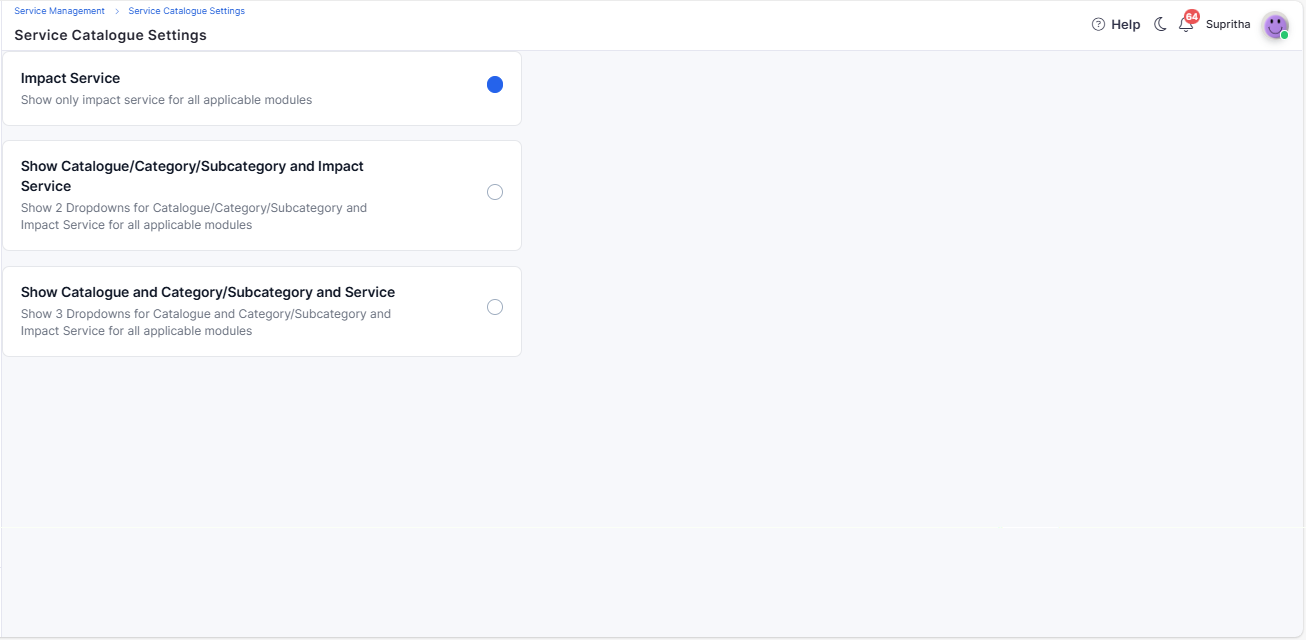
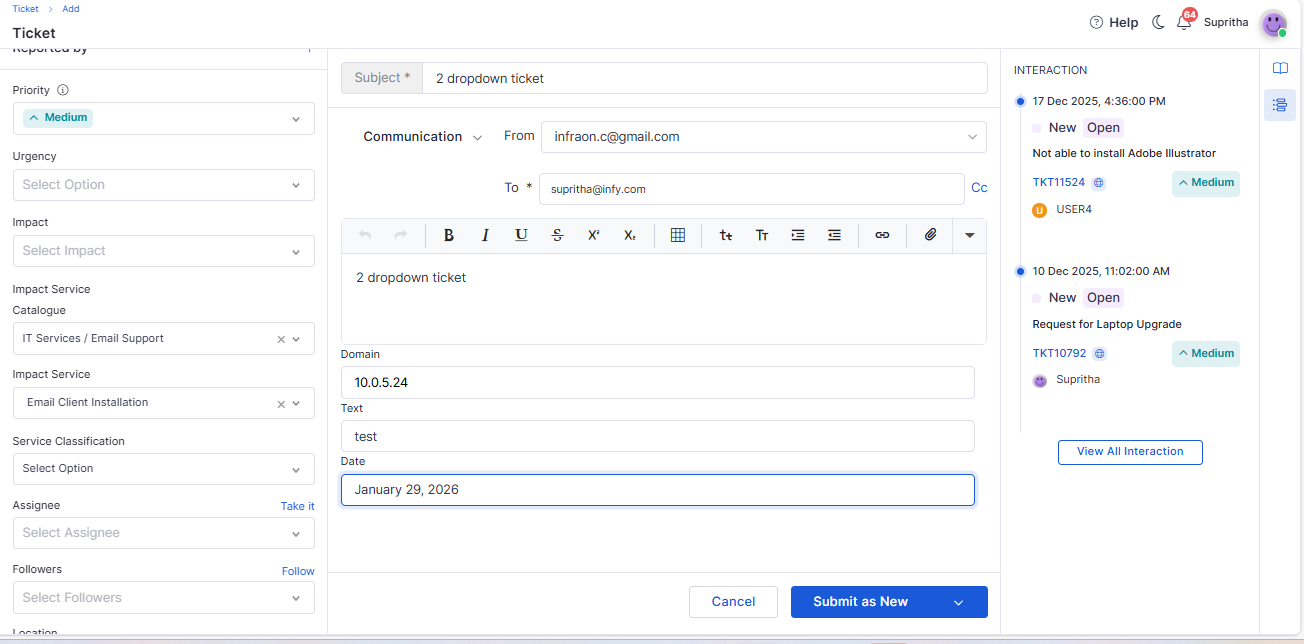
Service Catalogue
Introduced configurable service catalogue views (Tree view, Two-dropdown, Three-dropdown).
Applies consistently across Ticket, Request, Change, Release, and Problem modules.
Integrating Request Template in SSP
Request templates are now available in the Self Service Portal.
Simplifies request creation with predefined fields and workflows.
Dashboard
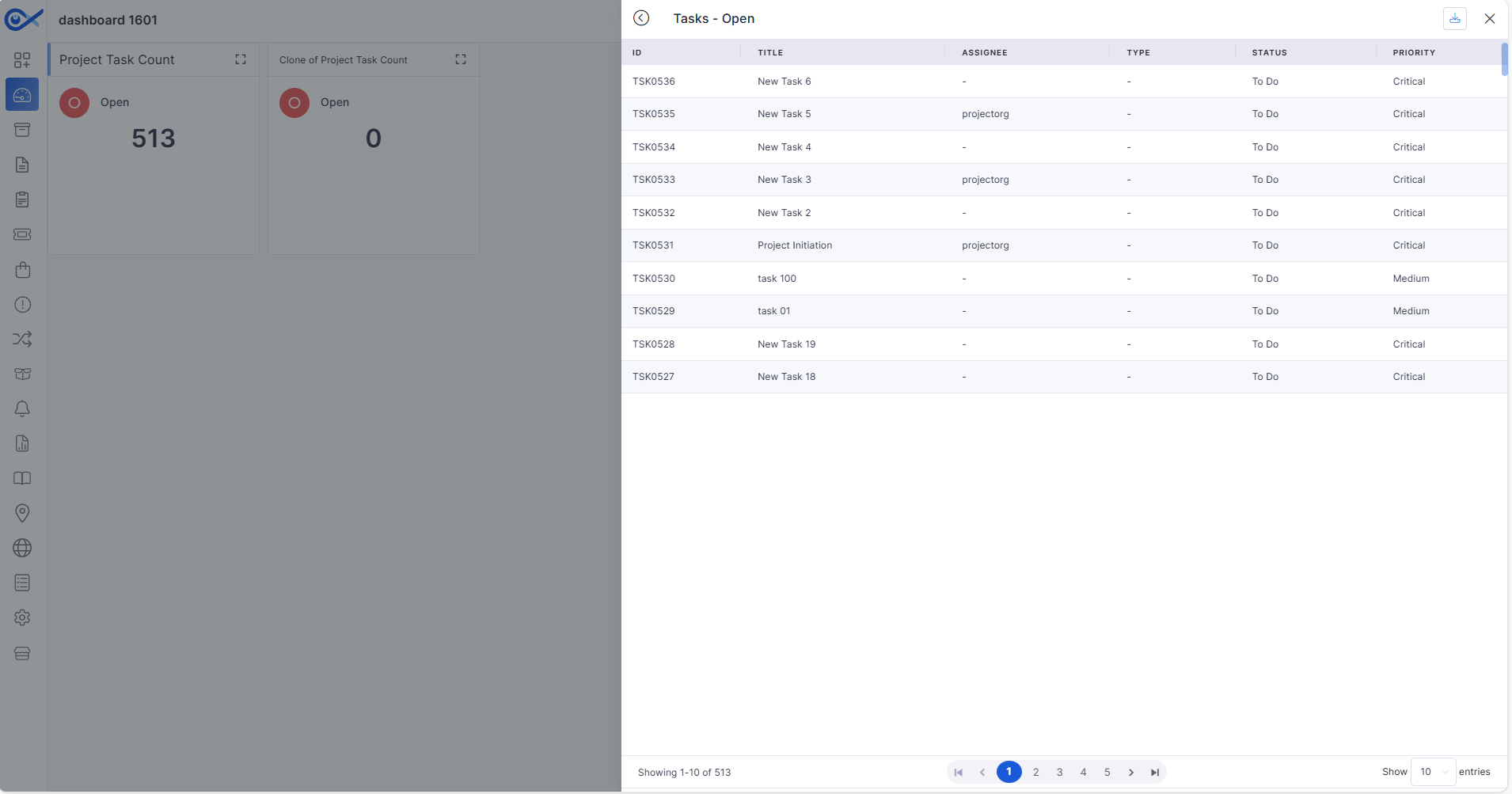
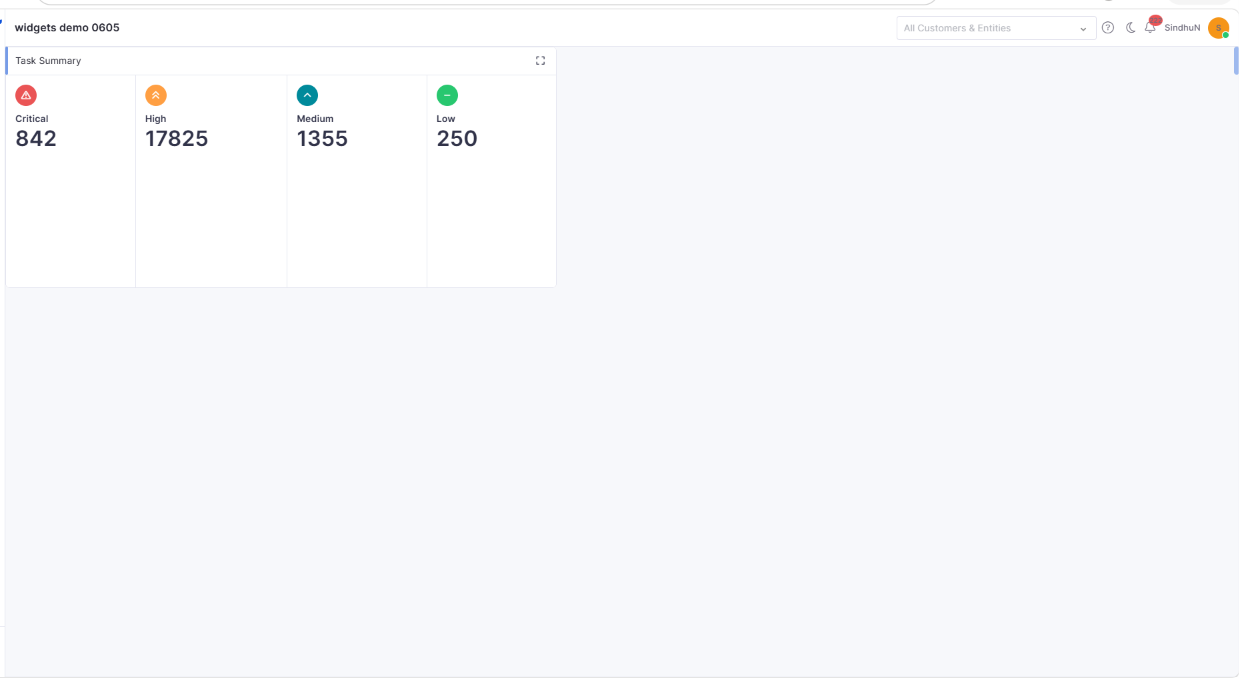
Project Task Summary Widget
Added a new widget to summarize project task status and progress.
Provides quick insights into task distribution and completion.
API Metering
API User & Token Management
Introduced management for API users and authentication tokens.
Supports token creation, expiration, and revocation.
Enhances API governance and usage control.
Reports
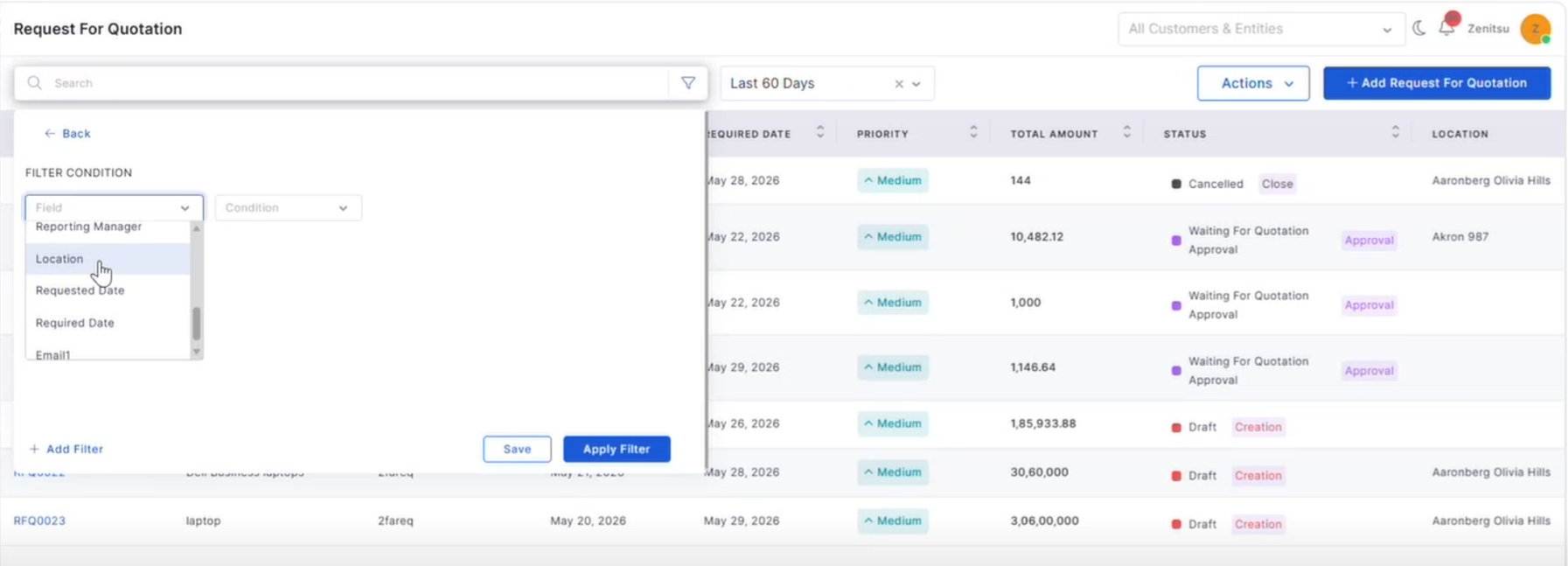
Location Filter in Report Custom Filter
Added the missing Location option in report filters.
Enables better segmentation and reporting accuracy.
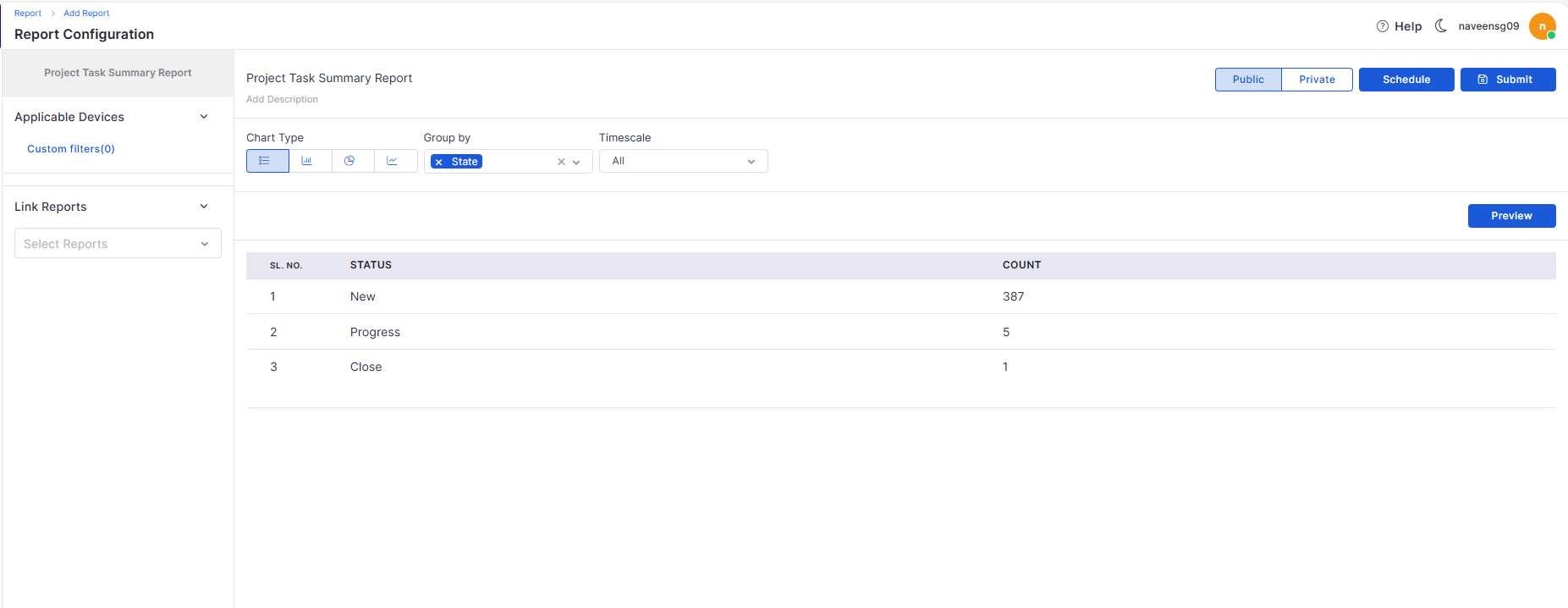
Project Task Summary Report
Introduced a consolidated project summary report.
Provides insights into project status, progress, and task distribution.
Templates
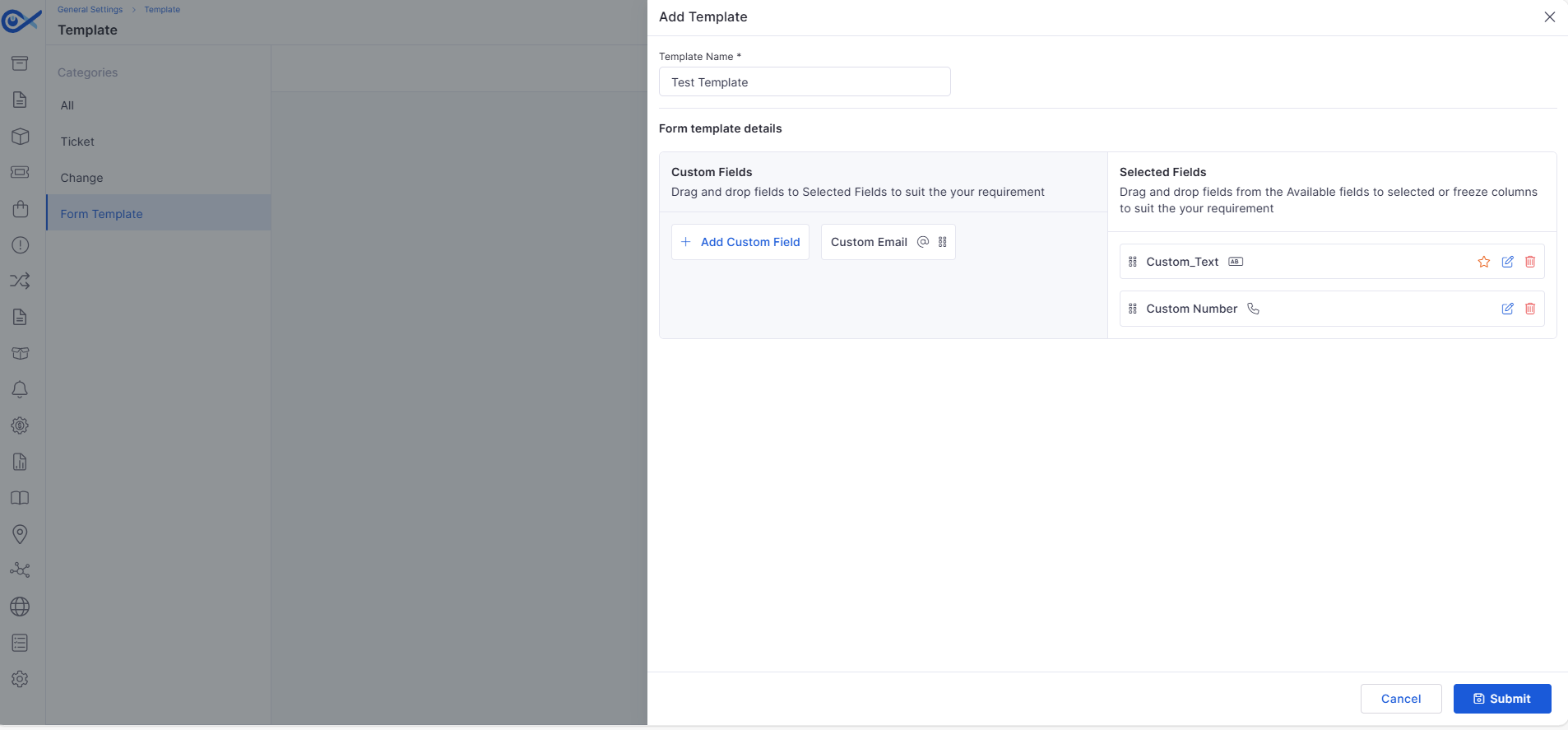
Form Template Creation
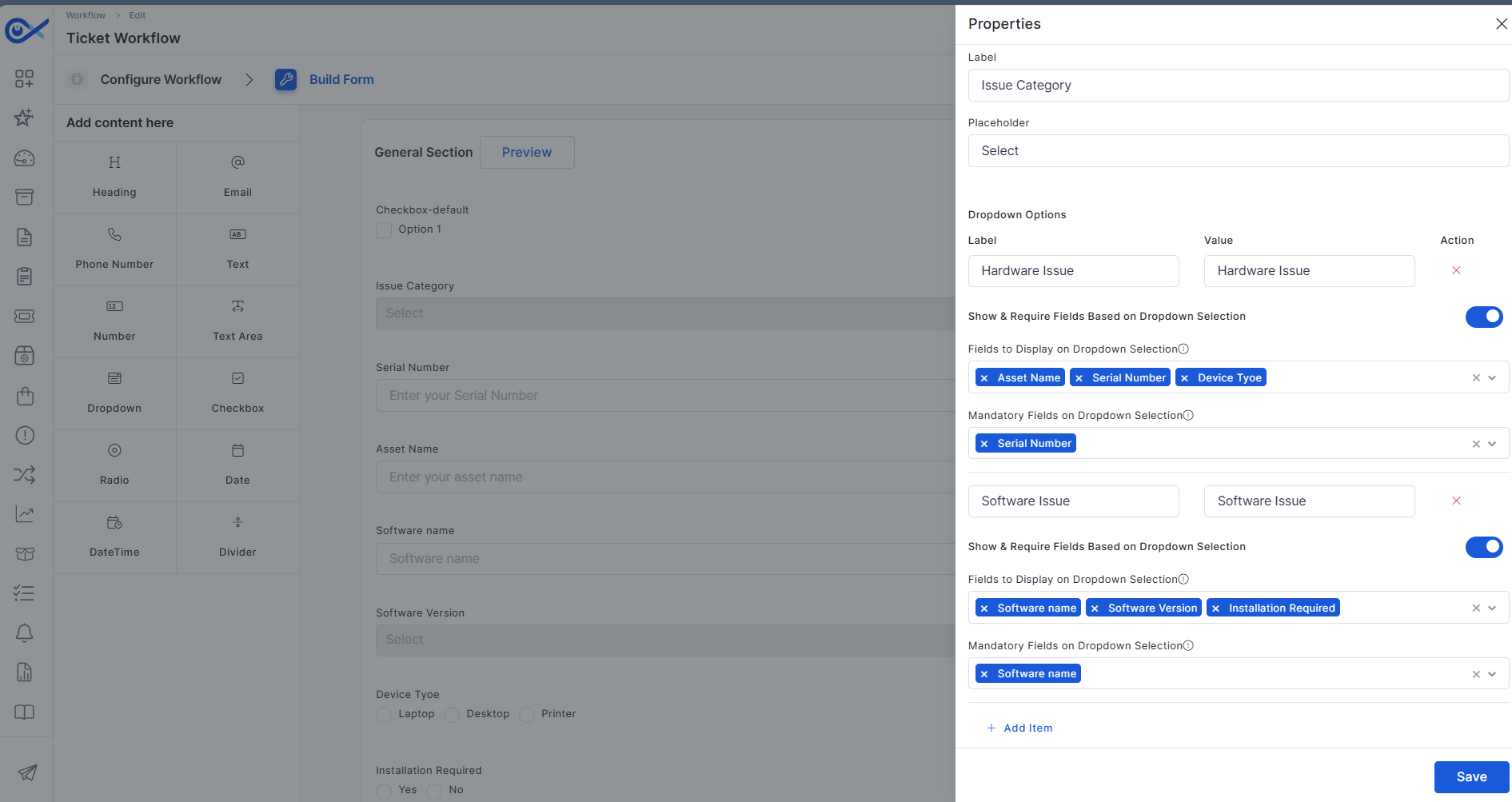
Enables creation and management of reusable form templates.
Supports consistent data capture across modules.
Service Template
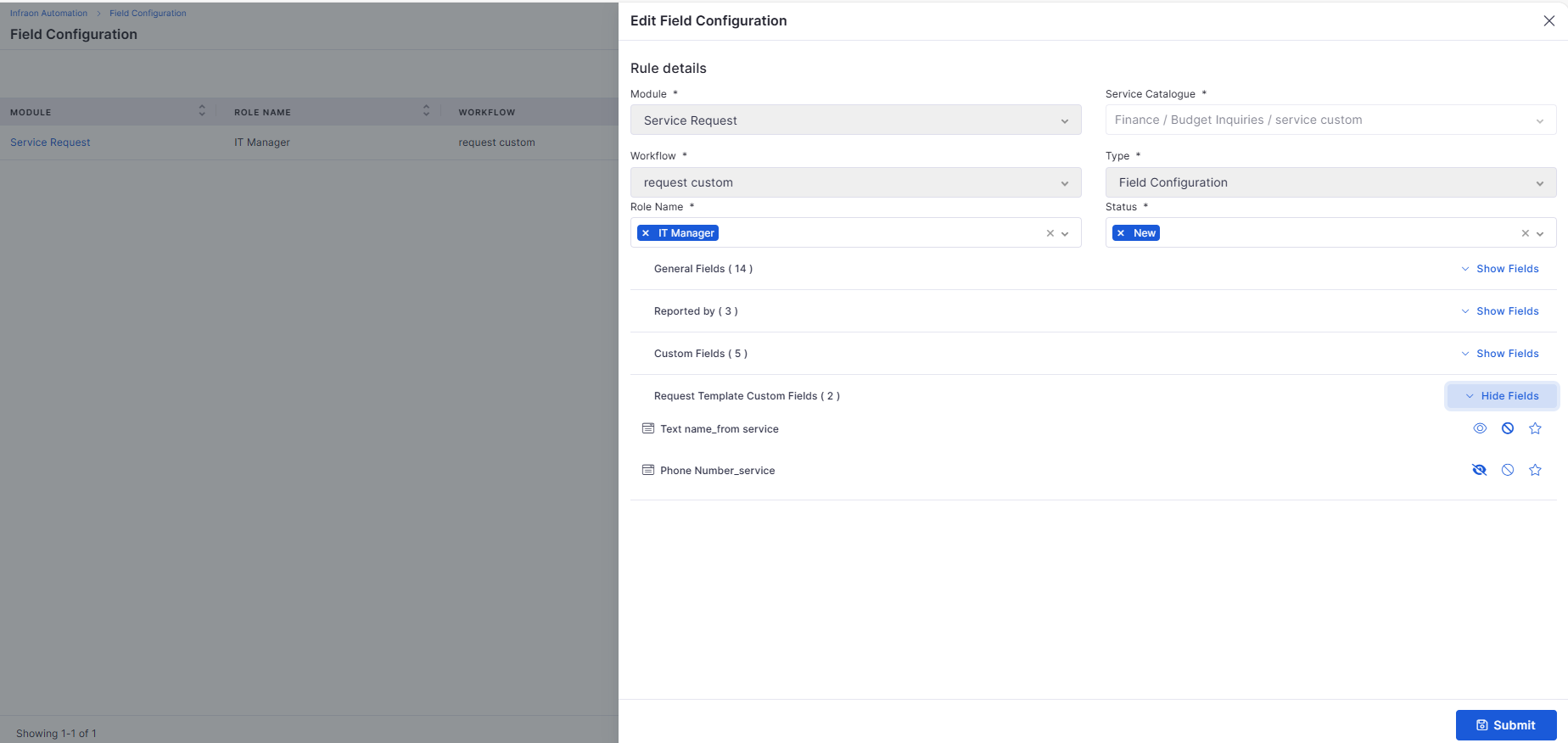
Service Template Fields in Field Configuration
Service template fields can now be managed via field configuration.
Supports visibility and control based on roles and workflows.
Mobile Enhancements
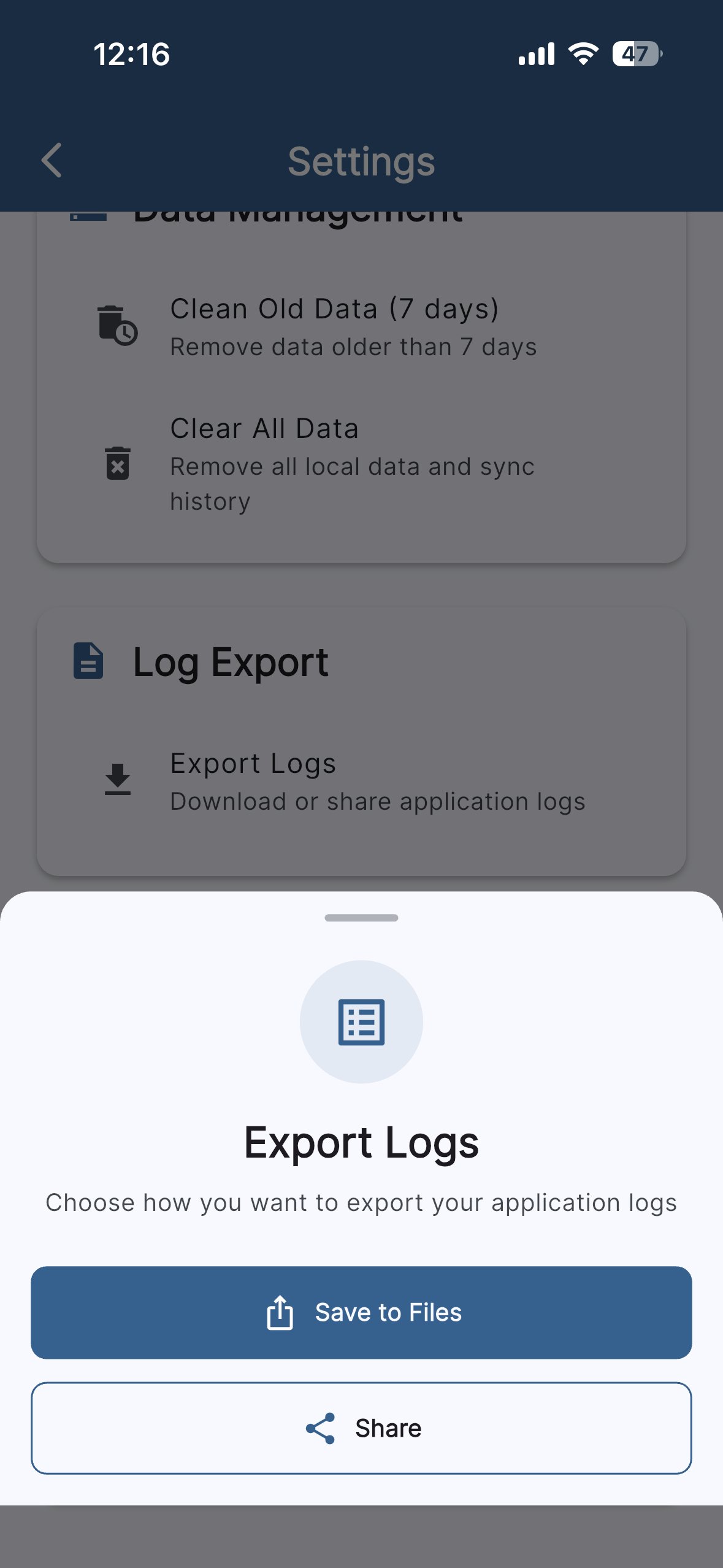
iOS – Export Logs
Allows exporting logs with download and share options.
Includes 7-day retention, auto-deletion, and size limits.
Mobile App Agent Configuration Feedback
Added feedback mechanisms for mobile agent configuration.
Improves diagnostics and usability of the mobile agent setup.
🐛 Bug Fixes and Improvements
Improved stability across Marketplace, Asset Audit, and Project workflows.
Fixed attachment persistence and audit edit issues.
Enhanced validation and consistency across Purchase Order templates.
General performance and usability improvements across modules.
v7.3.15 – October 2025
View the latest features, enhancements, and fixes by release.
Version: v7.3.15
Date: 23rd October
This release delivers new features and enhancements across Infraon’s ITSM and ITAM modules, focusing on improving usability, flexibility, and performance.
Users can now experience better workflow configuration, visibility control, and automation across key functional areas, including Asset, Project, Ticket, Request, Contract, Knowledge Base, Purchase Order, and Mobile modules.
We have addressed multiple issues reported across modules, including:
Resolved email notification issues in the ticket and requested approvals.Enhanced validation and accuracy in Asset Management filters and imports.
v7.3.14 – October 2025
View the latest features, enhancements, and fixes by release.
Version: v7.3.14
Date: 12th October
This release introduces multiple new capabilities and refinements across Marketplace, Patch Management, Project Management, Contract Management, Asset Management, SLA Metrics, Knowledge Base (KB), Mobile App, and Reporting modules.
The updates focus on improved visibility, configuration flexibility, AI-driven automation, and user-experience enhancements across the Infraon Suite.
We have addressed multiple issues reported across modules, including:
Improvements in asset workflows, ensuring accurate notifications, macro handling, and data display for better operational reliability.
Improves scalability and simplifies multi-instance management.
Updates asset records with warranty expiry and vendor information.
Supports role-based visibility and flexible contract ID formatting.
Ensures bi-directional visibility between dependent tasks.
Improves data integrity and guided task updates.
Reduces initial configuration effort for new organizations.
KB management page now segregates AI-created, manual, and most-utilized articles.
Provides usage analytics and visibility into feedback for KB effectiveness.
Ensures updated values are saved and reflected accurately.
Improves the reliability of multi-asset association workflows.
Files are validated, scanned, and handled consistently with existing attachments.
Quotation details are available in view, edit, reports, and CSV imports.
Prevents unintended footer inclusion in approved PO documents.
Enables precise filtering using date and condition operators.
Supports saving, resetting, validating, and testing without backend changes.
Enables browsing services, adding items to cart, and placing requests.
Fixed inconsistencies in project template configurations and workflow transitions.
Resolved email notification issues in the ticket and requested approvals.
Improved data consistency in Problem Management reporting.
Fixed mobile app data synchronization and layout display issues.
Addressed UI responsiveness and accessibility across multiple modules.
General performance and stability enhancements for smoother platform use.
These fixes improve system reliability, data accuracy, and overall user experience across the Infraon platform.
Overview
Key Updates
Asset Management
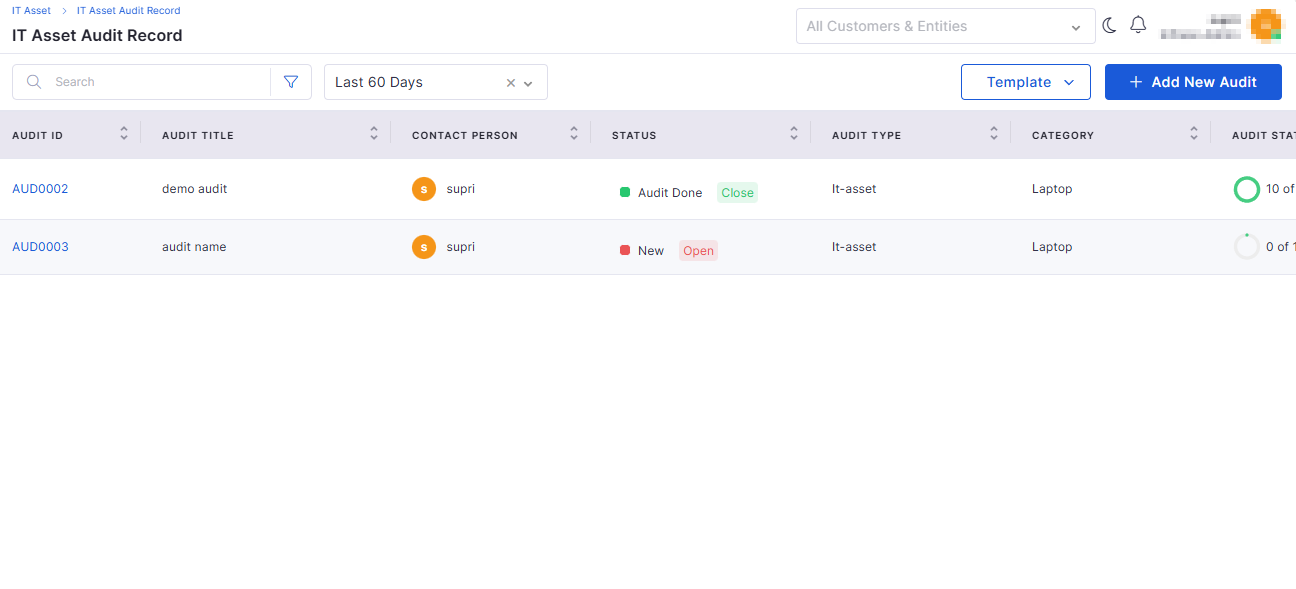
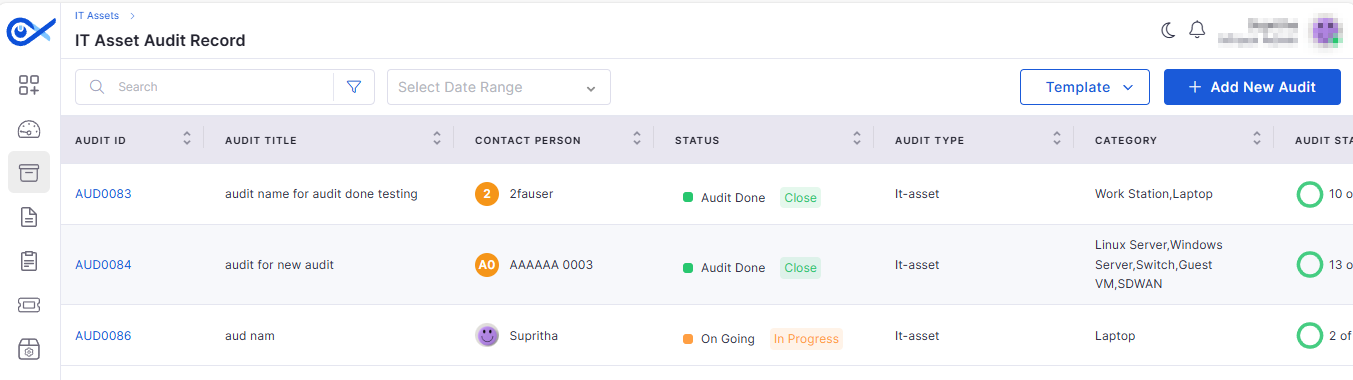
Asset Audit Record – New Design
The Asset Audit module now offers an improved layout and a better user experience.
Redesigned interface with an intuitive audit record view.
Easier tracking of audit outcomes and audit history.
Clear separation between internal and external audits.
Asset Page Filter Enhancements
Filtering and searching on the Asset page have been made more powerful.
Added advanced filter options based on location, category, and asset type.
Improved quick search for faster asset discovery.
Enhanced filter retention when switching between views.
Knowledge Base
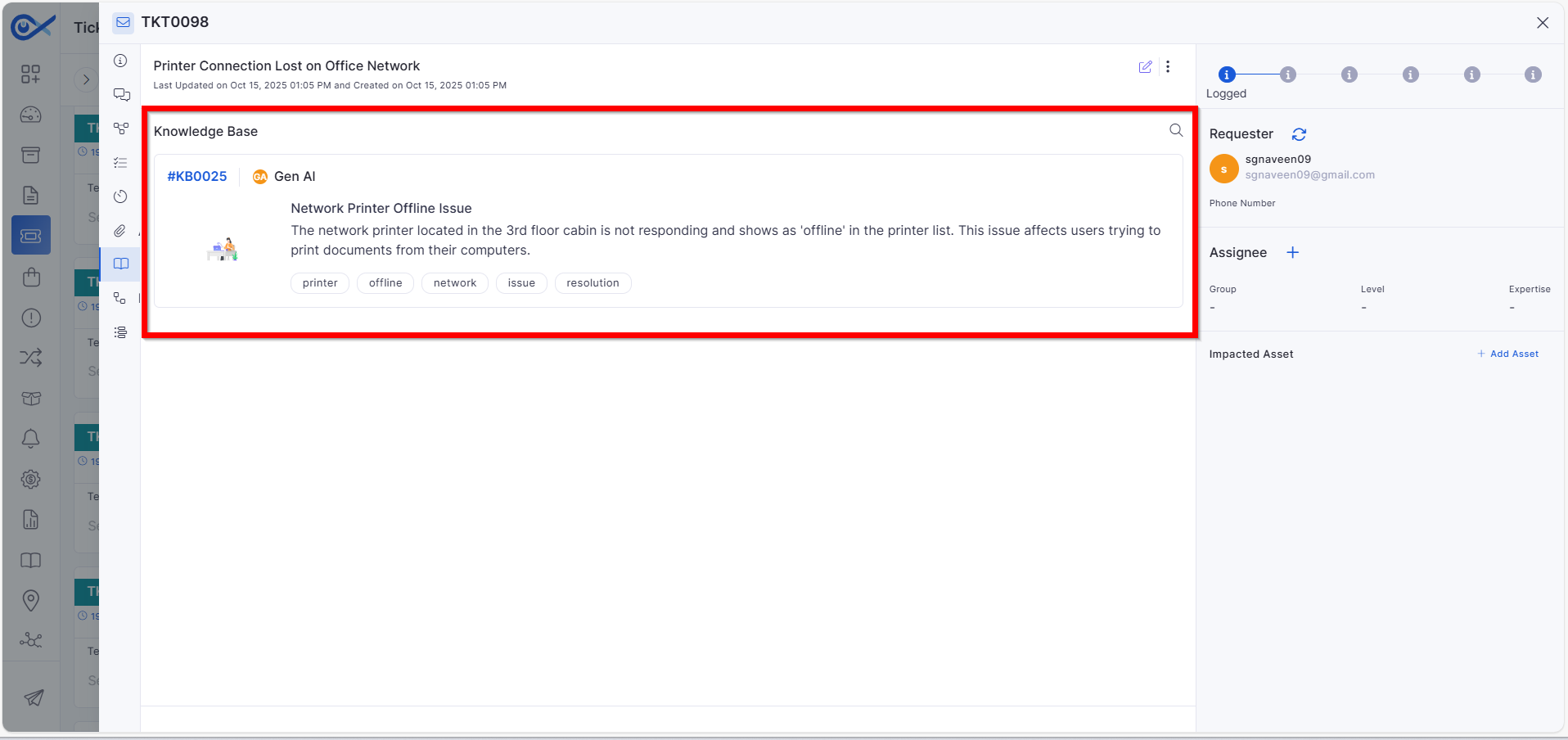
Attaching KB Article in Ticket Response Email
Technicians can now directly attach relevant KB articles while responding to tickets.
Simplifies the process of sharing KB references in ticket communications.
Ensures end users receive accurate solution references via email.
Helps reduce repetitive ticket creation for known issues.
KB Vector Database Synchronization and Isolation
Enhanced data handling and synchronization for the AI-powered Knowledge Base.
Automatic syncing of vector databases with the latest KB entries.
Improved data isolation to maintain accuracy for each tenant.
Strengthened data consistency between AI and KB modules.
Project Management
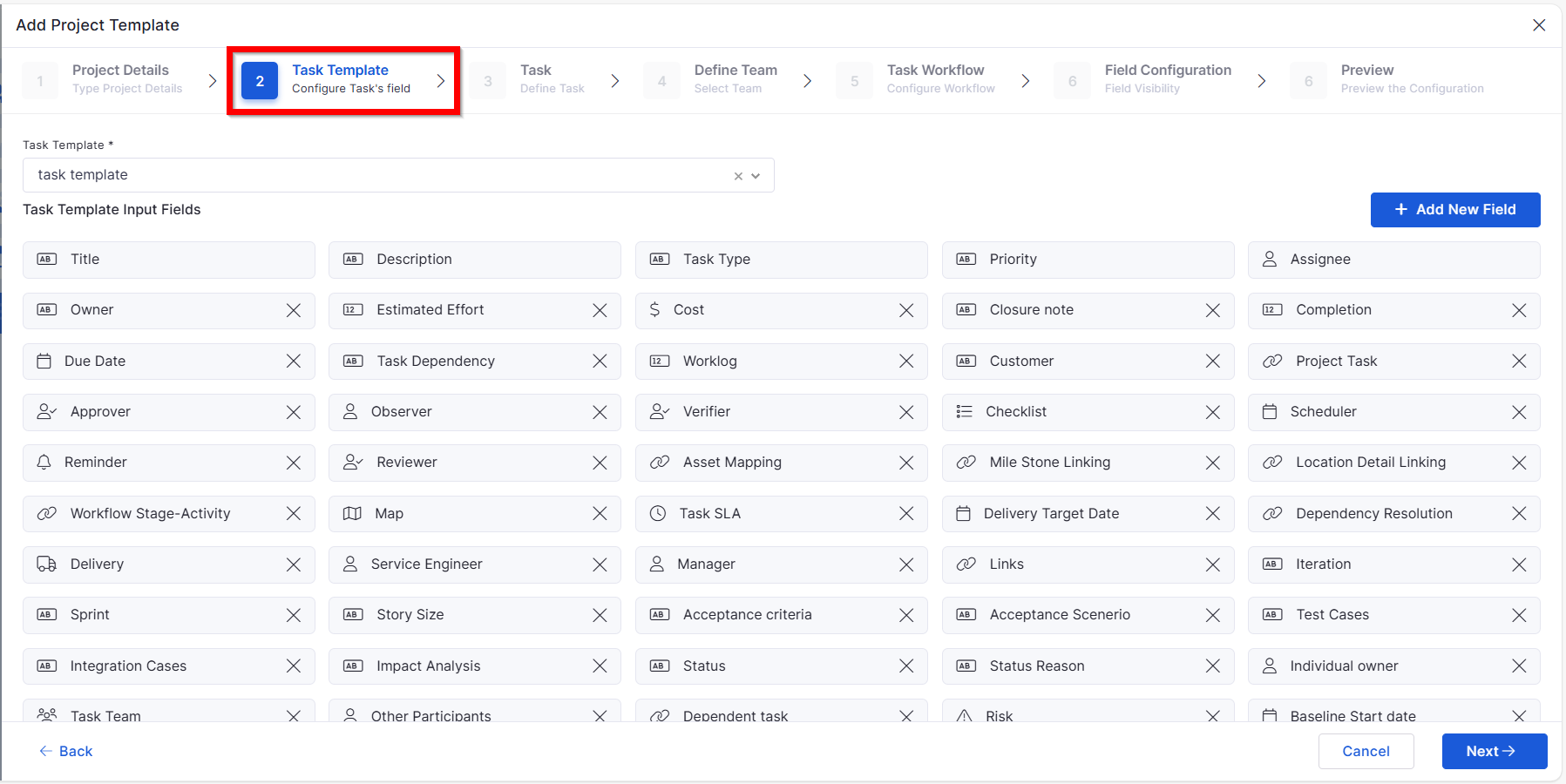
Project Template: Task Template
New support for task templates inside project templates.
Allows consistent task creation patterns across projects.
Saves configuration time for project managers.
Improves project setup accuracy and standardization.
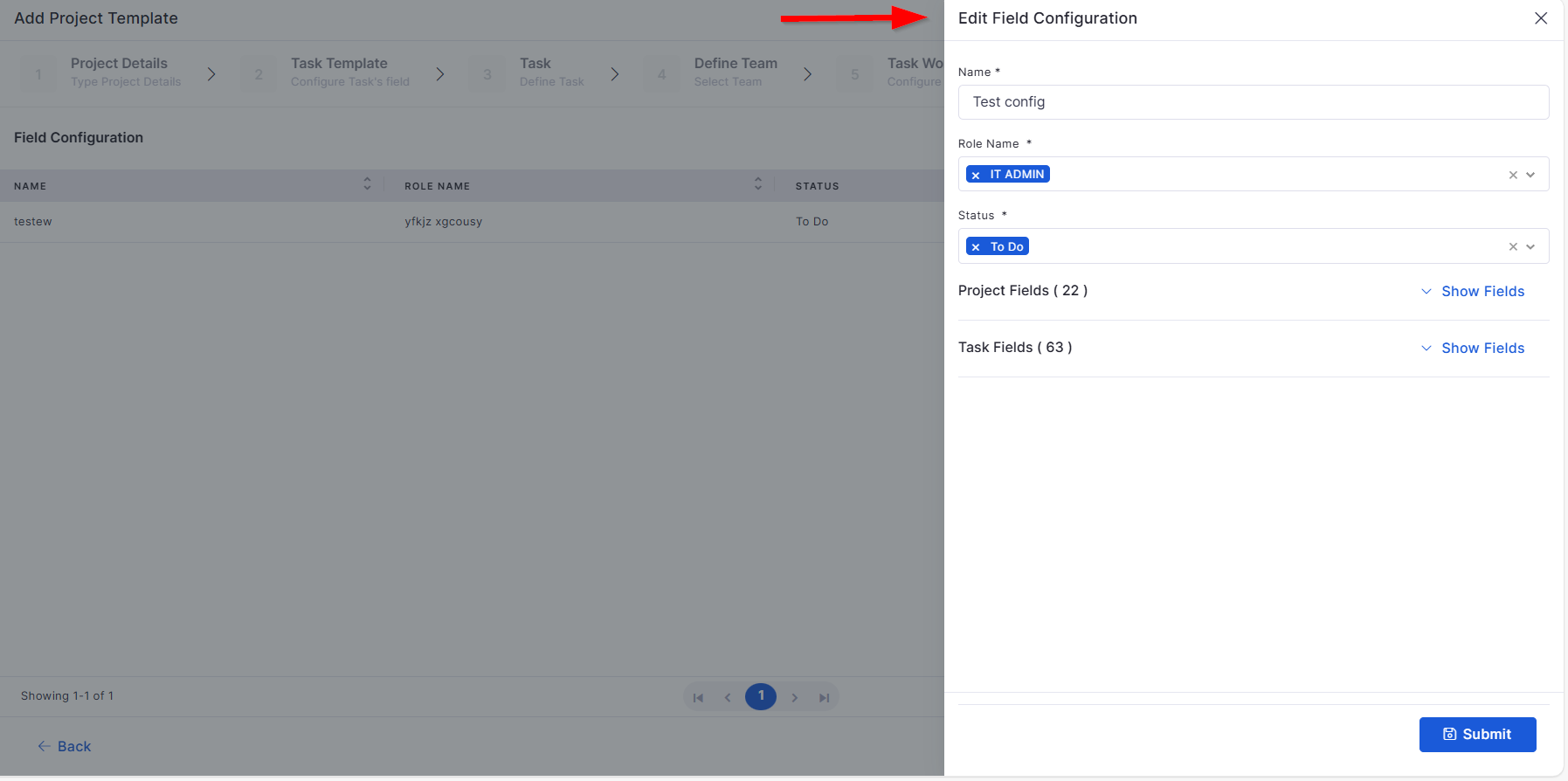
Project Template: Field Configuration – Edit & Delete
Improved flexibility for managing project field configurations.
Enables direct editing or deletion of existing field configurations.
Prevents data clutter by removing unused fields.
Maintains control over form structures within projects.
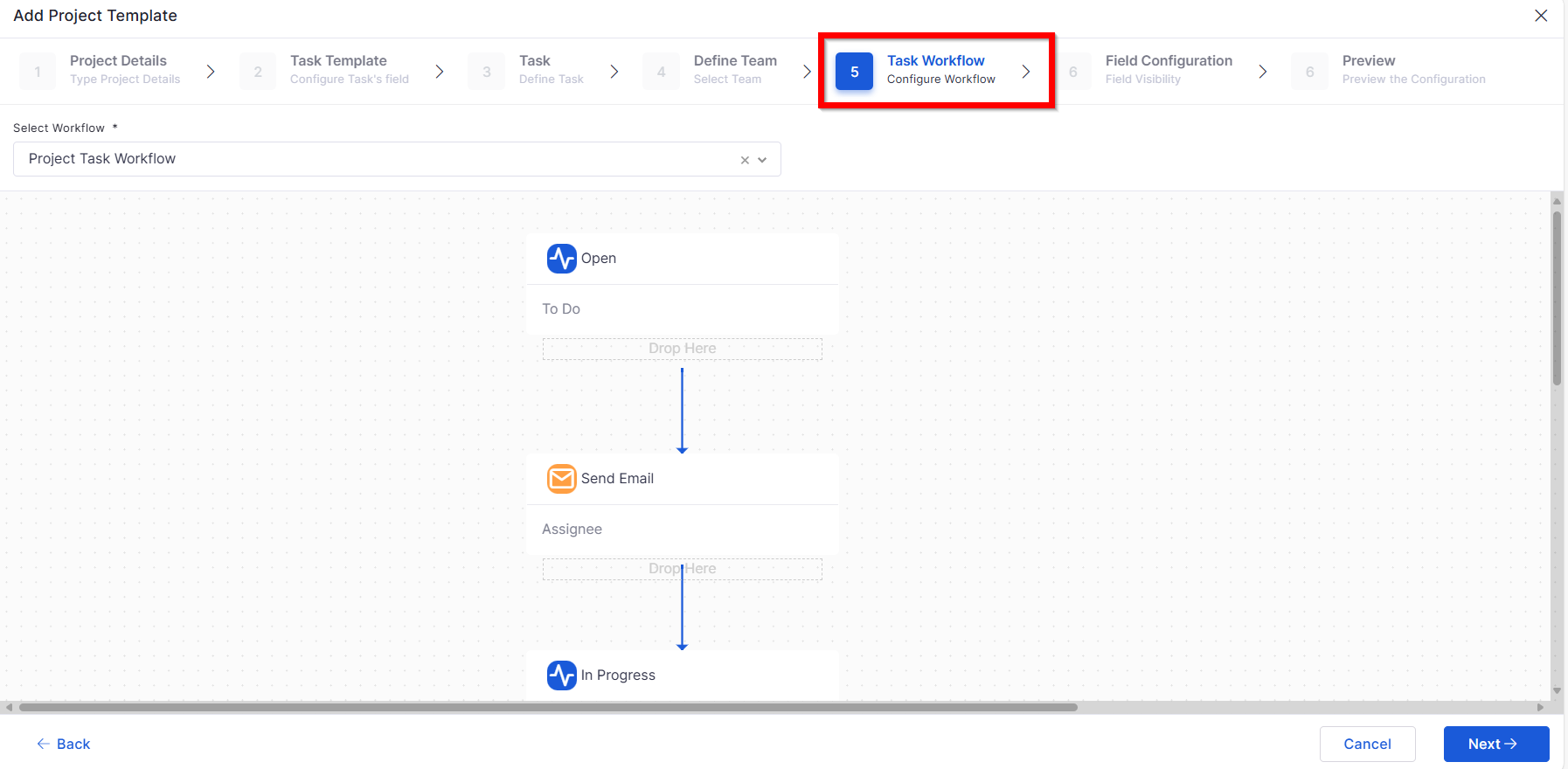
Project Template: Workflow and Field Configuration – Add & View
Enhanced setup and monitoring of workflow and field configurations.
Allows creation and configuration of new workflows from templates.
Offers a consolidated view of both field and workflow mappings.
Simplifies configuration management for admins.
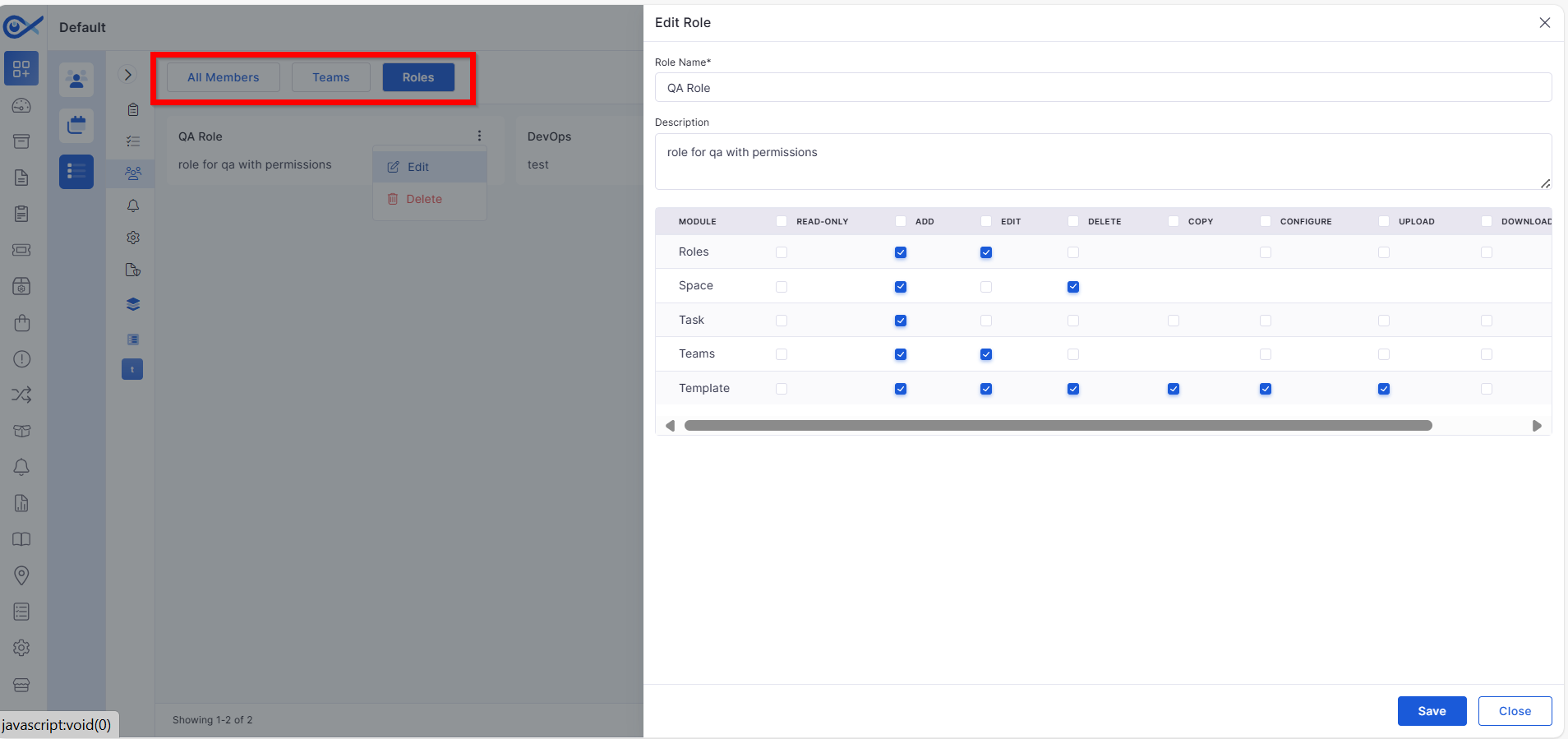
Teams, Space, Role – Role-Based Control
Introduced role-based visibility and permissions across project elements.
Controls user access to specific spaces, teams, and configurations.
Ensures secure collaboration by restricting unauthorized access.
Provides admins better control over visibility and actions.
Project Template: Clone & Delete
Improved efficiency in managing project templates.
Clone existing templates for reuse across different projects.
Delete outdated templates with confirmation prompts.
Reduces time spent on repetitive configuration setup.
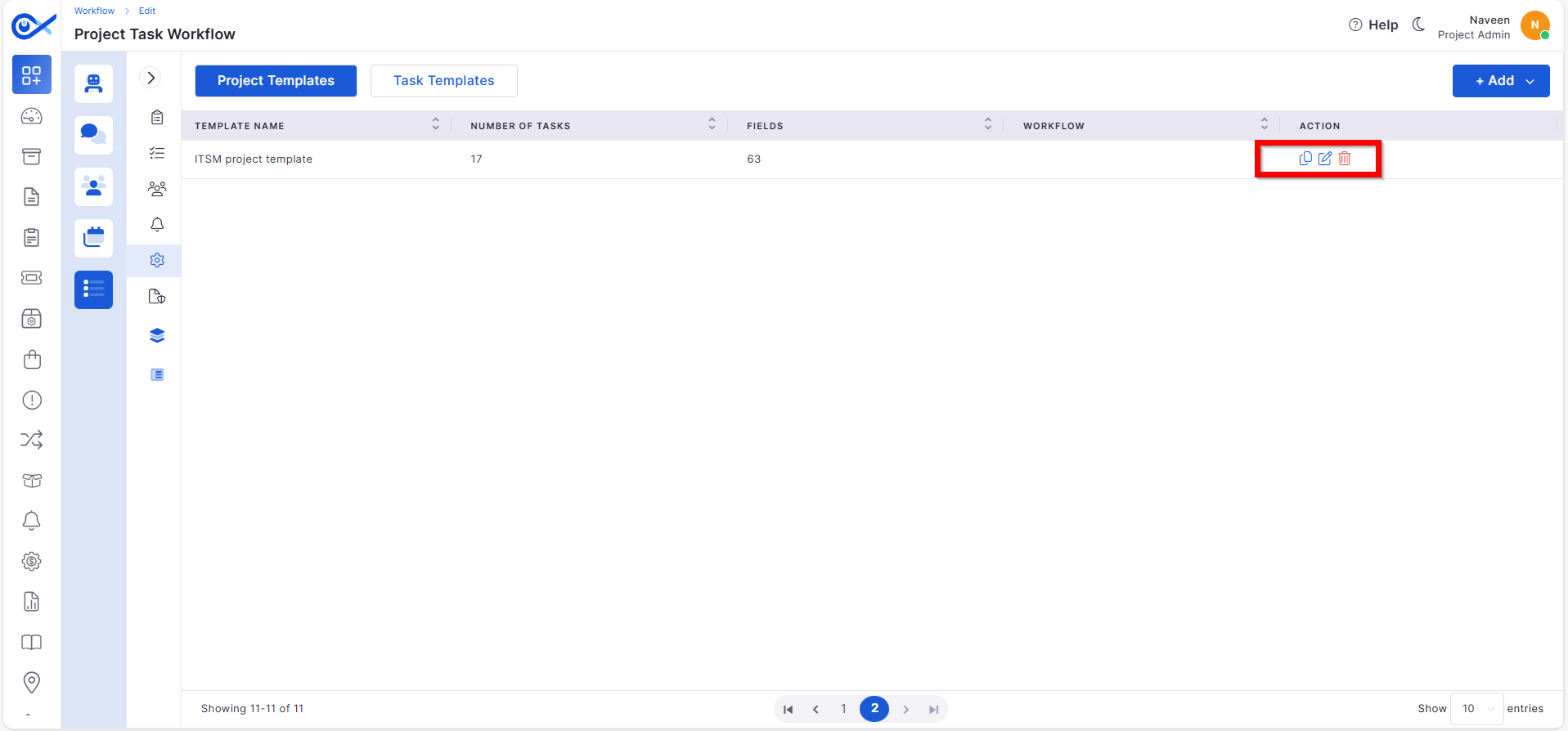
Project Template: List, Edit & Audit
New capabilities to manage and track template activity.
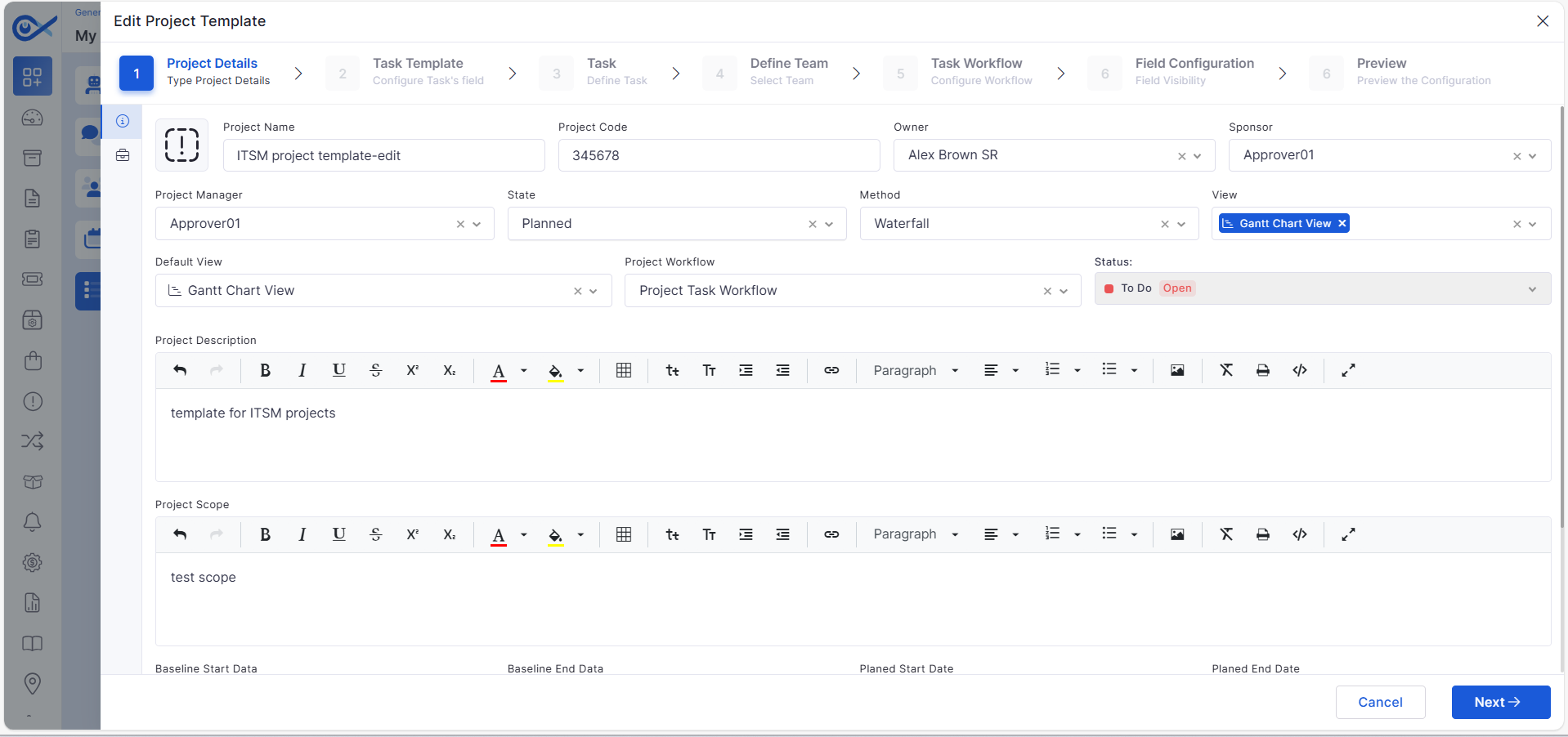
View, edit, and update project template details easily.
Access audit logs to track configuration changes.
Enhances traceability for governance and quality checks.
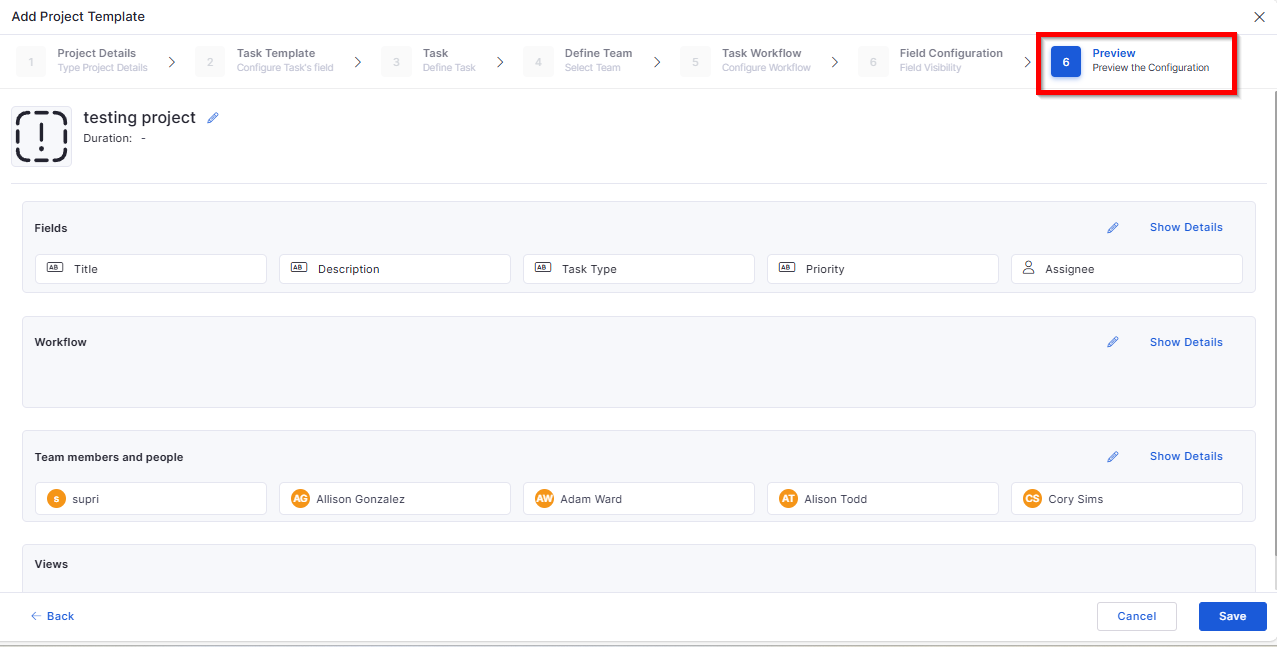
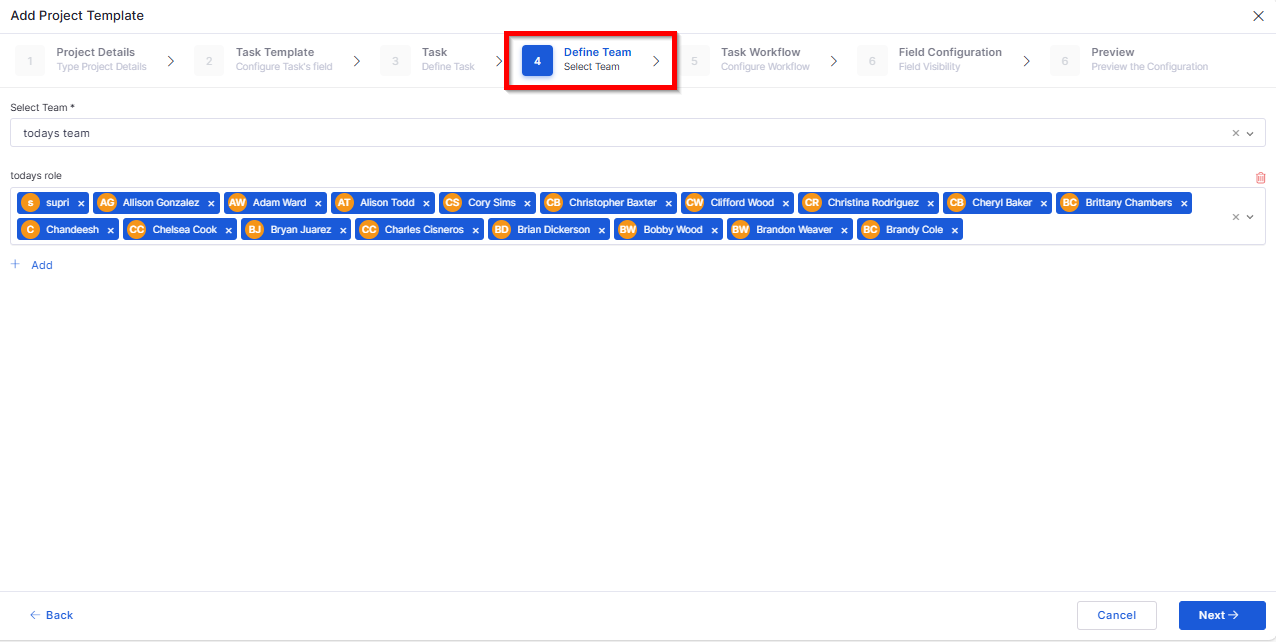
Project Template: Define Team & Preview
Added options to configure and review team setup before publishing.
Assign members and roles from a unified interface.
Preview team composition before finalizing.
Prevents misconfiguration and ensures proper role mapping.
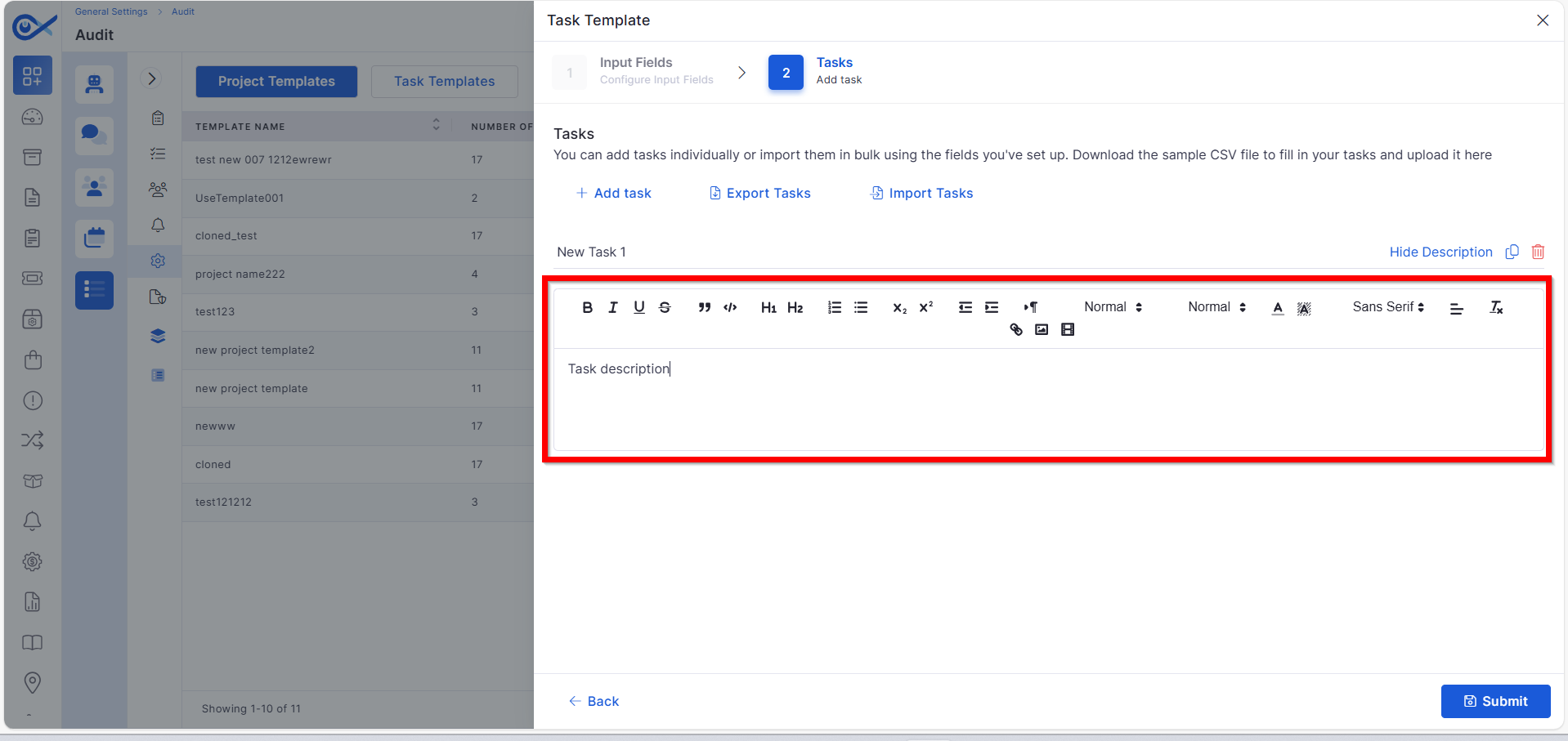
Description in Task Template
Improved documentation capability for project tasks.
Added description fields for each task template.
Allows specifying task goals and expectations.
Helps team members understand objectives clearly.
Mobile App Enhancements
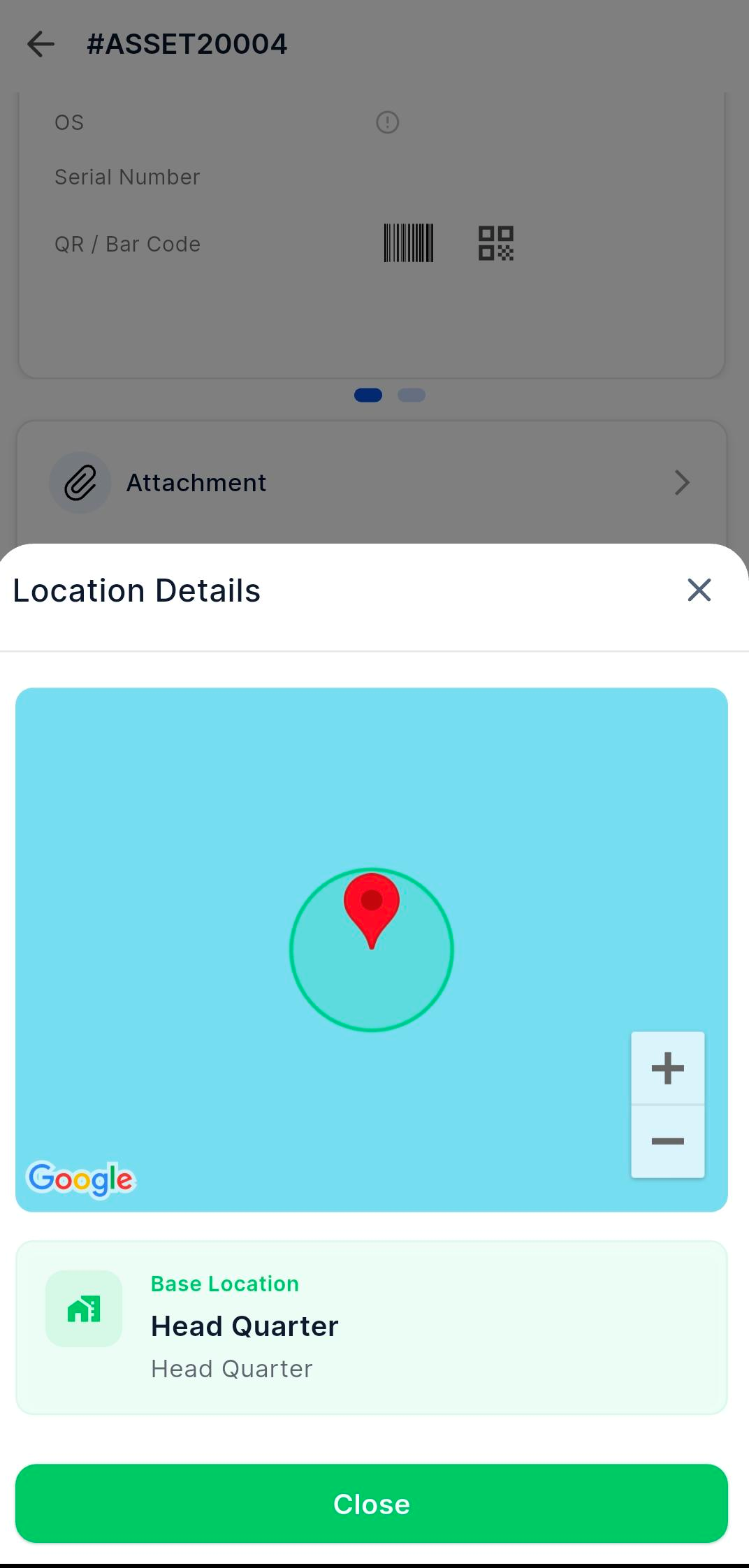
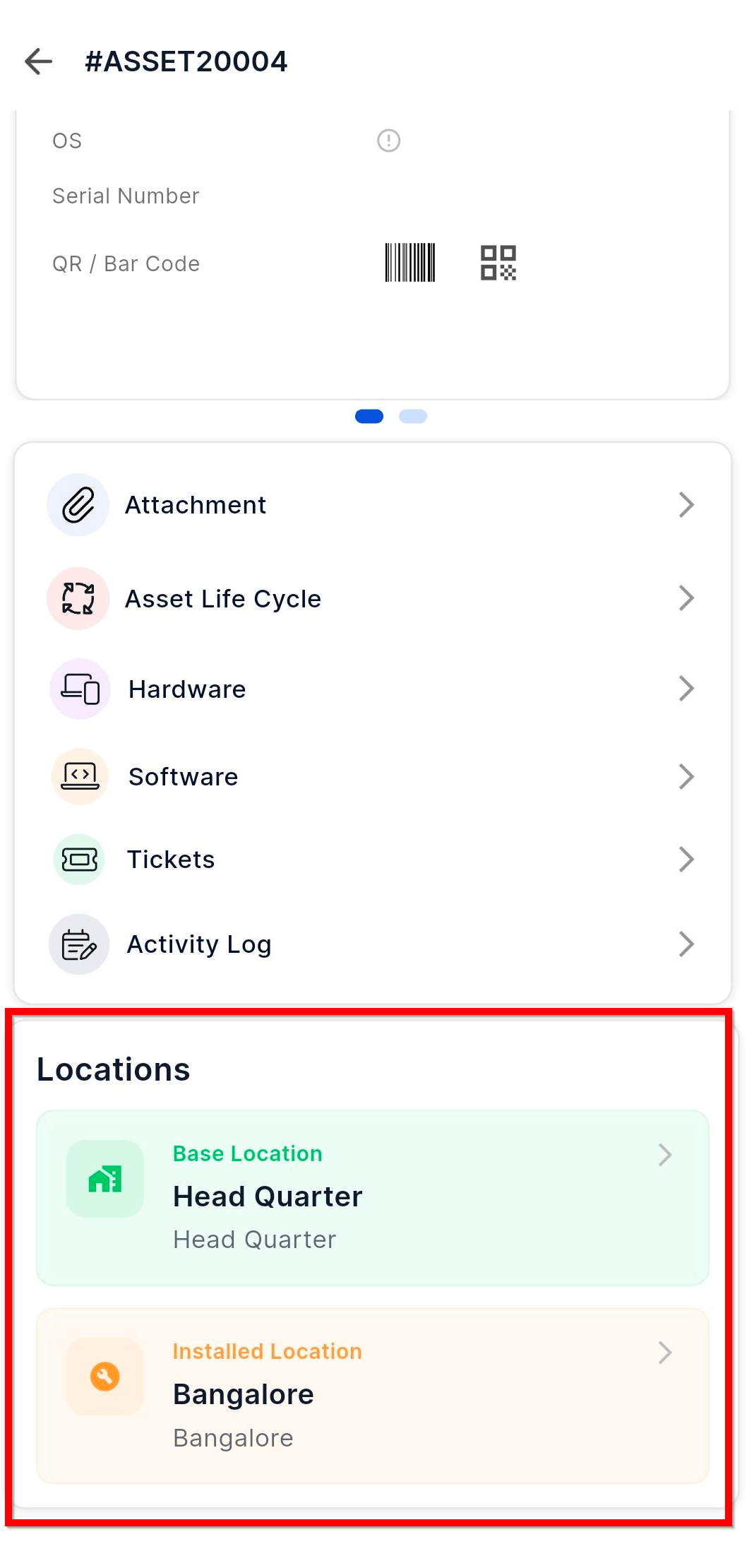
Android – Asset Location Details
Enhanced Android app to show detailed asset location information.
View installed and base locations directly from Asset Details.
Interact with mapped locations for better tracking.
Improves field visibility for mobile users.
iOS – Sync Collected Data
Improved data synchronization on iOS devices.
Sync collected asset and system data directly to the Infraon server.
Ensures real-time updates and accuracy.
Reduces manual data refresh requirements.
iOS – Device Sensor & Carrier Information
Enhanced device insight capabilities.
Automatically collects sensor and carrier details.
Provides better visibility of device performance metrics.
Useful for diagnostics and device management.
iOS – Infinity Agent Security Collection
Introduced a new security layer in mobile data collection.
Ensures secure transmission of collected asset data.
Adds verification layers for authenticated agent communication.
Improves compliance with enterprise security standards.
Reports
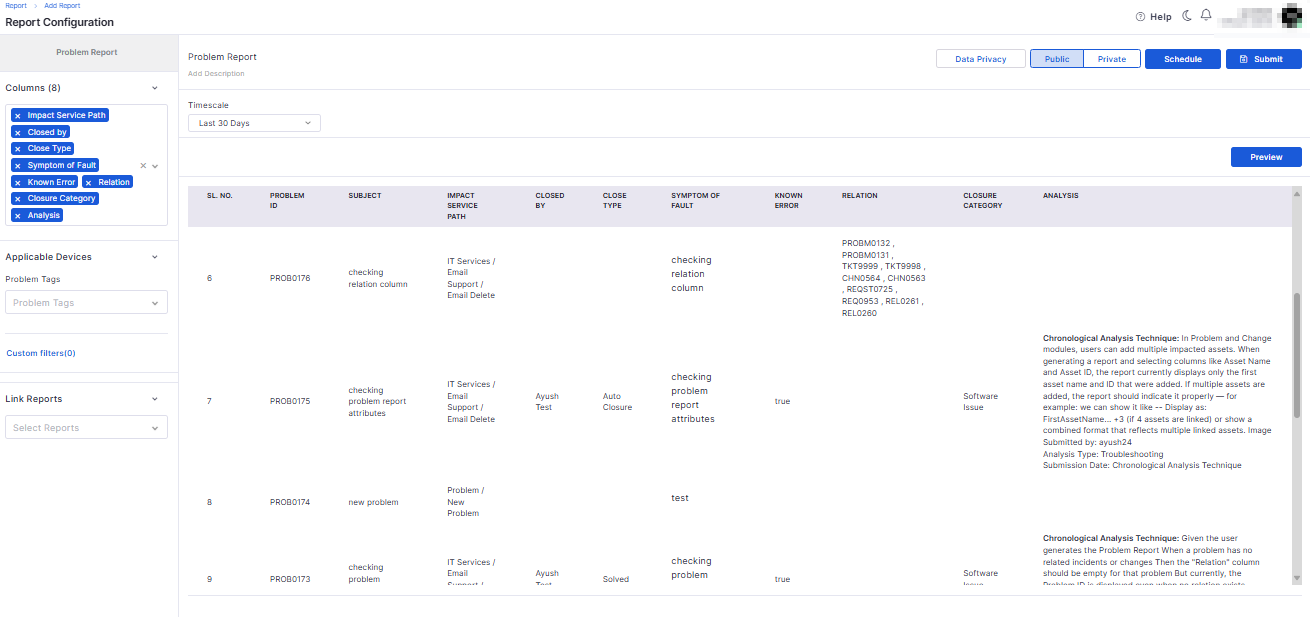
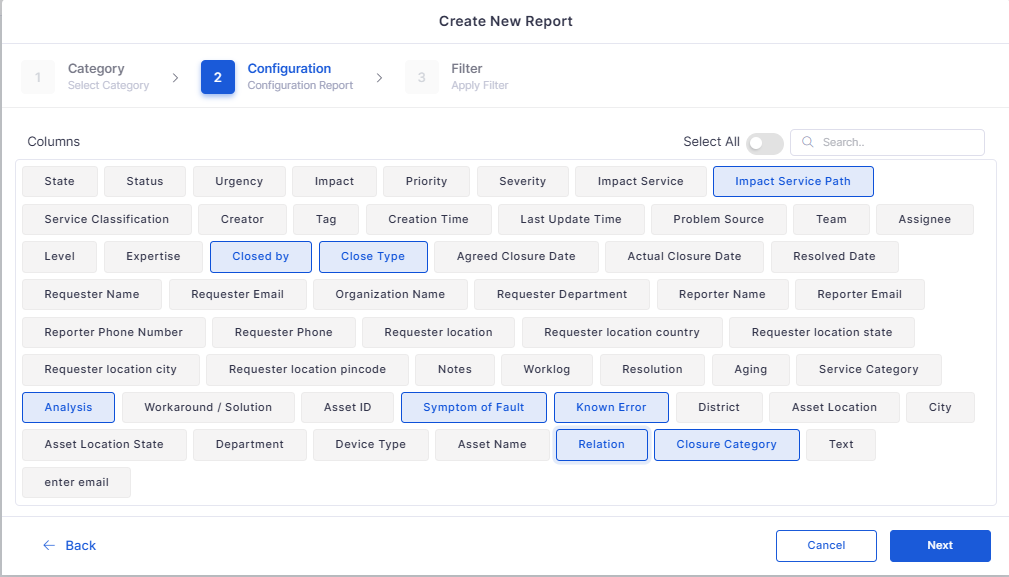
Problem Management Attributes in Reporting Module
Enhanced the Problem Management reports with additional attributes.
Added missing parameters for detailed analytics.
Improved filtering and report generation accuracy.
Ensures consistent data representation across modules.
Ticket Management
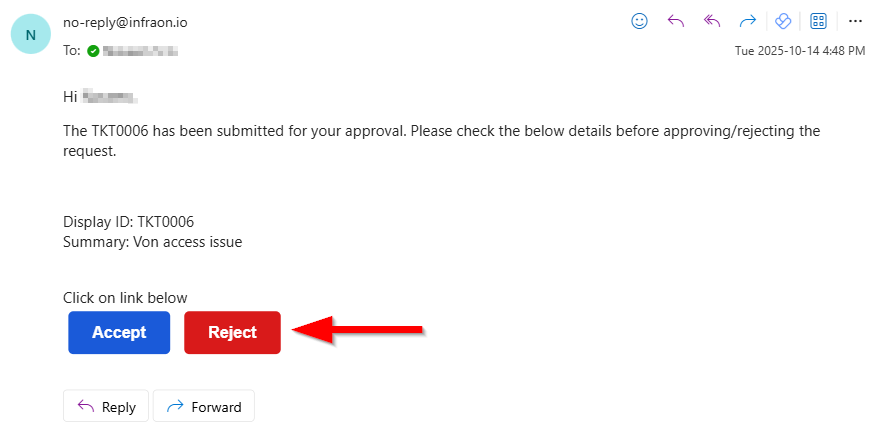
Simplified Ticket Approval via Email Response
Introduced direct approval from ticket notification emails.
Approvers can approve or reject tickets directly via email response.
Eliminates the need to log in for basic approval actions.
Speeds up approval workflows and improves responsiveness.
Request Management
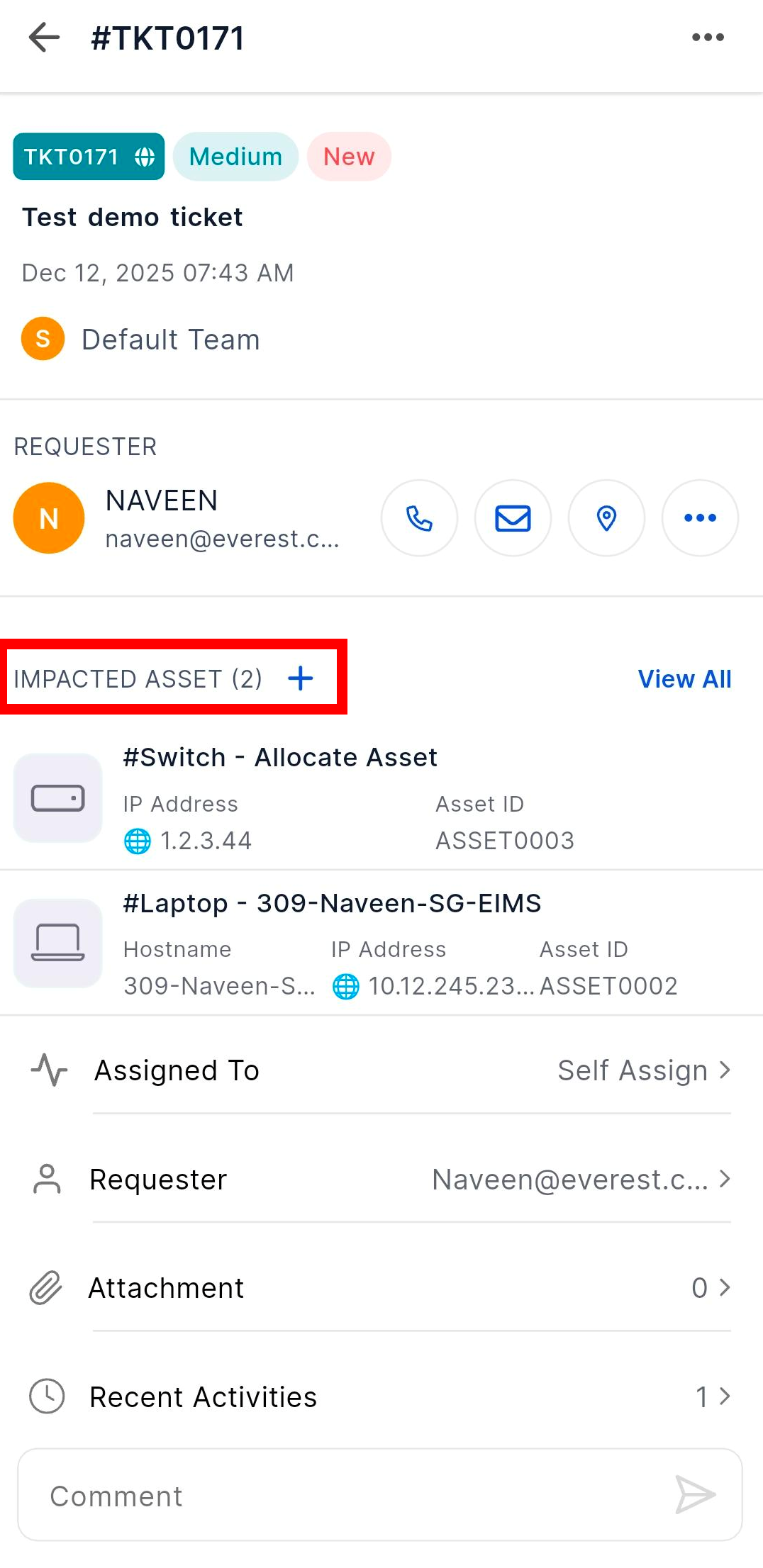
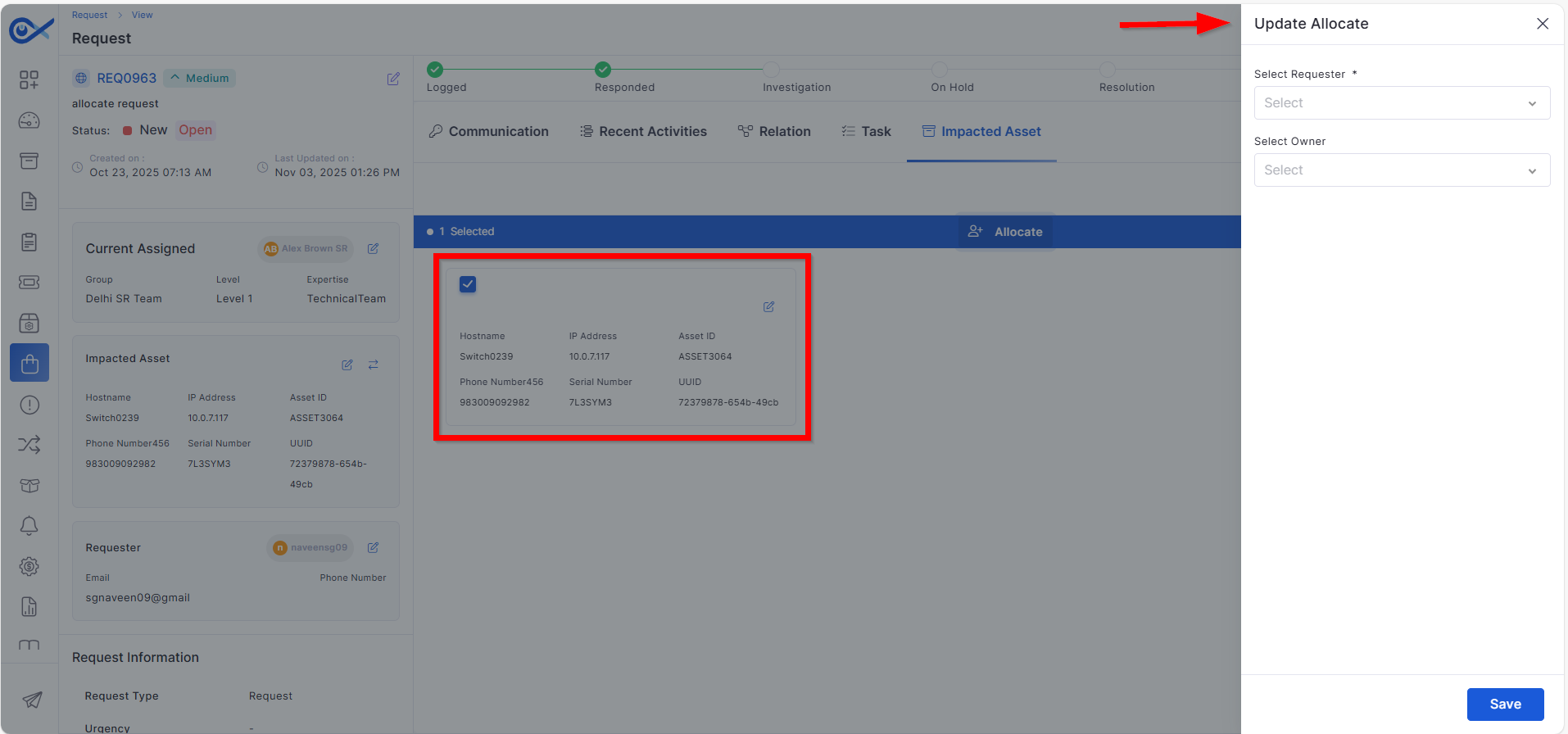
Requester and Owner Allocation from Impacted Asset Page
Improved ownership assignment in Request Management.
Requester and owner can now be assigned directly from the impacted asset.
Streamlines the asset-to-request linkage process.
Ensures better traceability of request ownership.
Bots
Inventory Agent Support for Older PowerShell Versions
Expanded compatibility for Infraon Inventory Agent.
Supports PowerShell versions below 5 for legacy Windows systems.
Enables agent deployment in older infrastructure environments.
Ensures broader device coverage for asset discovery.
Contract Management
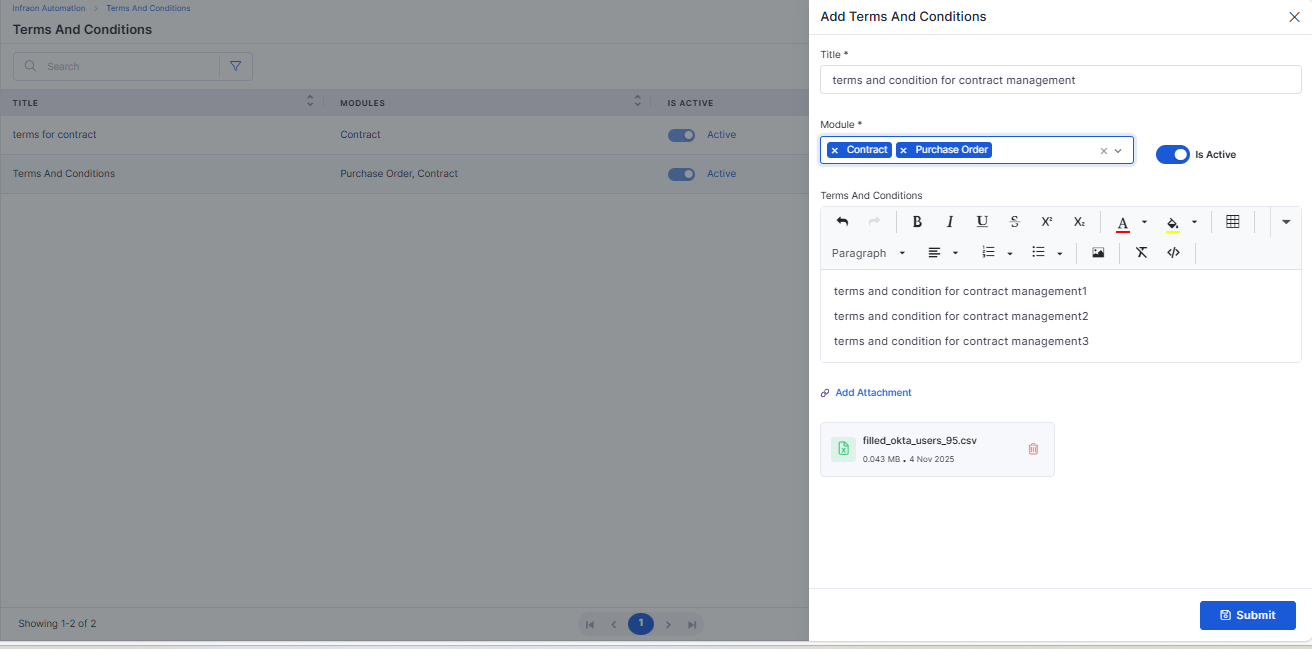
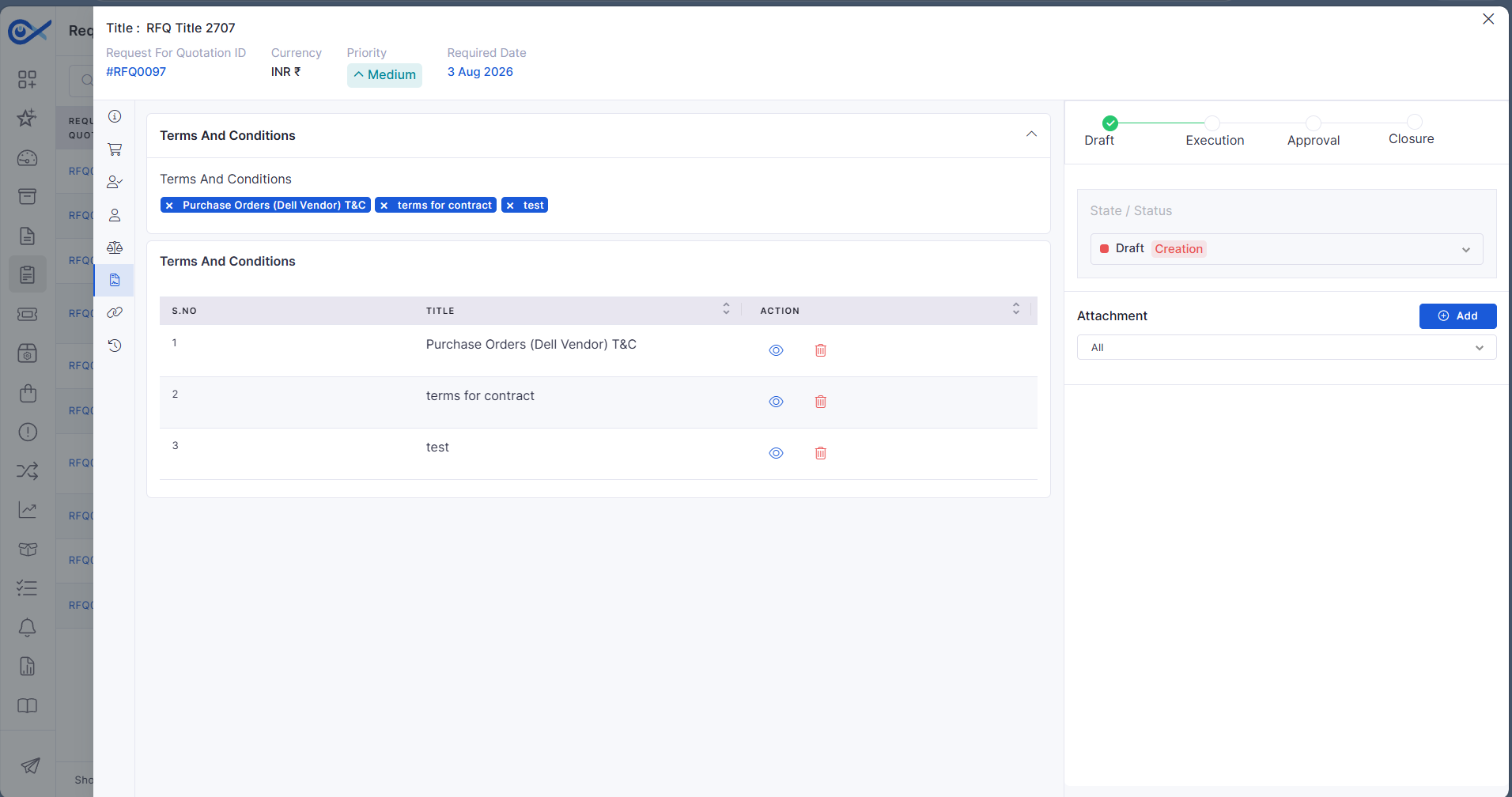
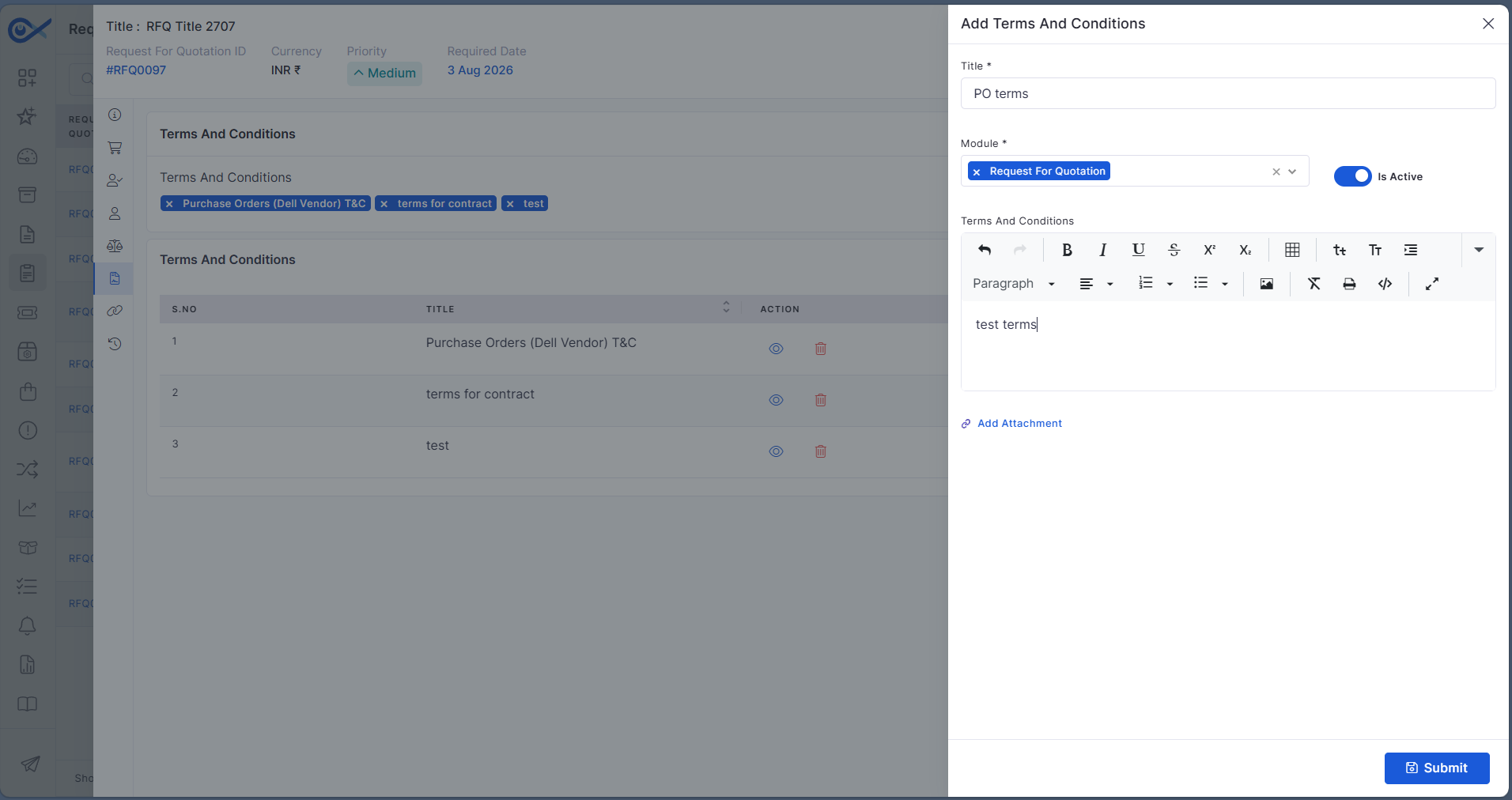
Terms and Conditions Module
Introduced a centralized Terms and Conditions management module.
Allows predefined contract clauses to be created and reused.
Maintains consistency across contracts and purchase orders.
Reduces manual drafting and ensures standardization.
Bug Fixes
Enhanced request management workflows, allowing proper approval transitions, email triggers, and consistent state updates.
Optimized ticket reports to display complete and correct data across all selected fields.
These are fixes in Asset Management for smoother page loading, accurate hardware data presentation, and improved UI consistency.
Resolved issues in reporting functions, enabling better search performance and data filtering.
General refinements across modules to improve stability, data synchronization, and system responsiveness.
Overview
Key Updates
Marketplace
GenAI Marketplace App Enhancement
Improved API key management and validation for GenAI integrations:
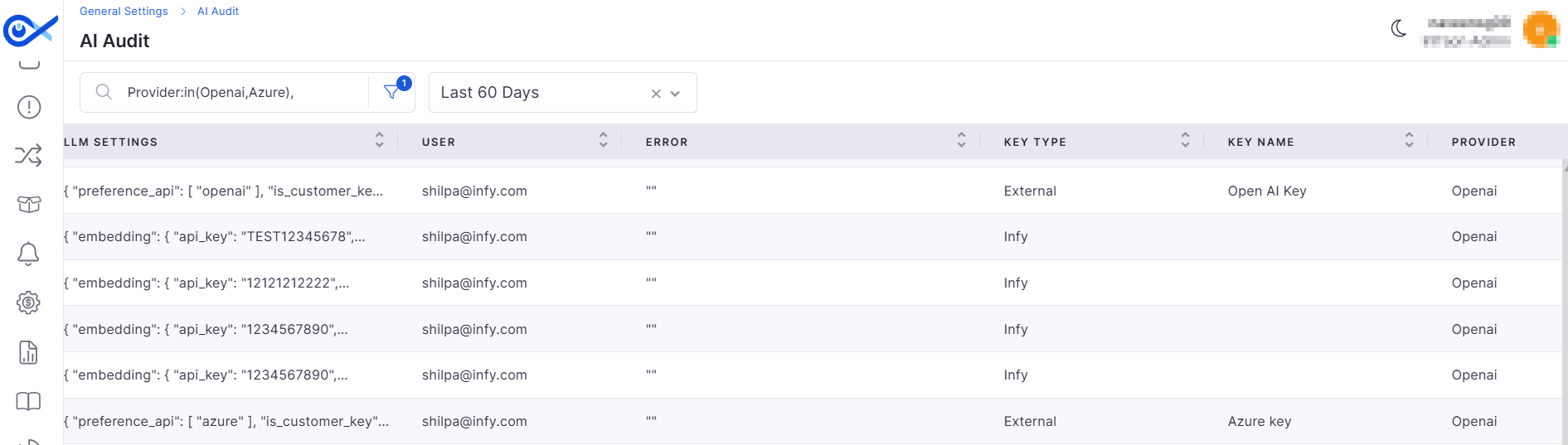
API Key Auditing – Logs every key used for AI operations, ensuring compliance tracking.
API Key Validation – Validates API keys with the provider before saving; invalid keys are rejected with an error message.
Duplicate Prevention – Detects and blocks duplicate API keys from being added.
Centralized Marketplace
Enables multi-instance environment setup by passing a centralized monitoring URL:
Each API instance registers its unique URL (IP: Port) in the marketplace.
Requests and responses are correctly routed to the right instance.
Prevents duplicate instance registration and supports instance deregistration upon uninstall.
Patch Management
Patch Asset Relation Functionality
Dedicated Patch Details page showing related assets by patch type.
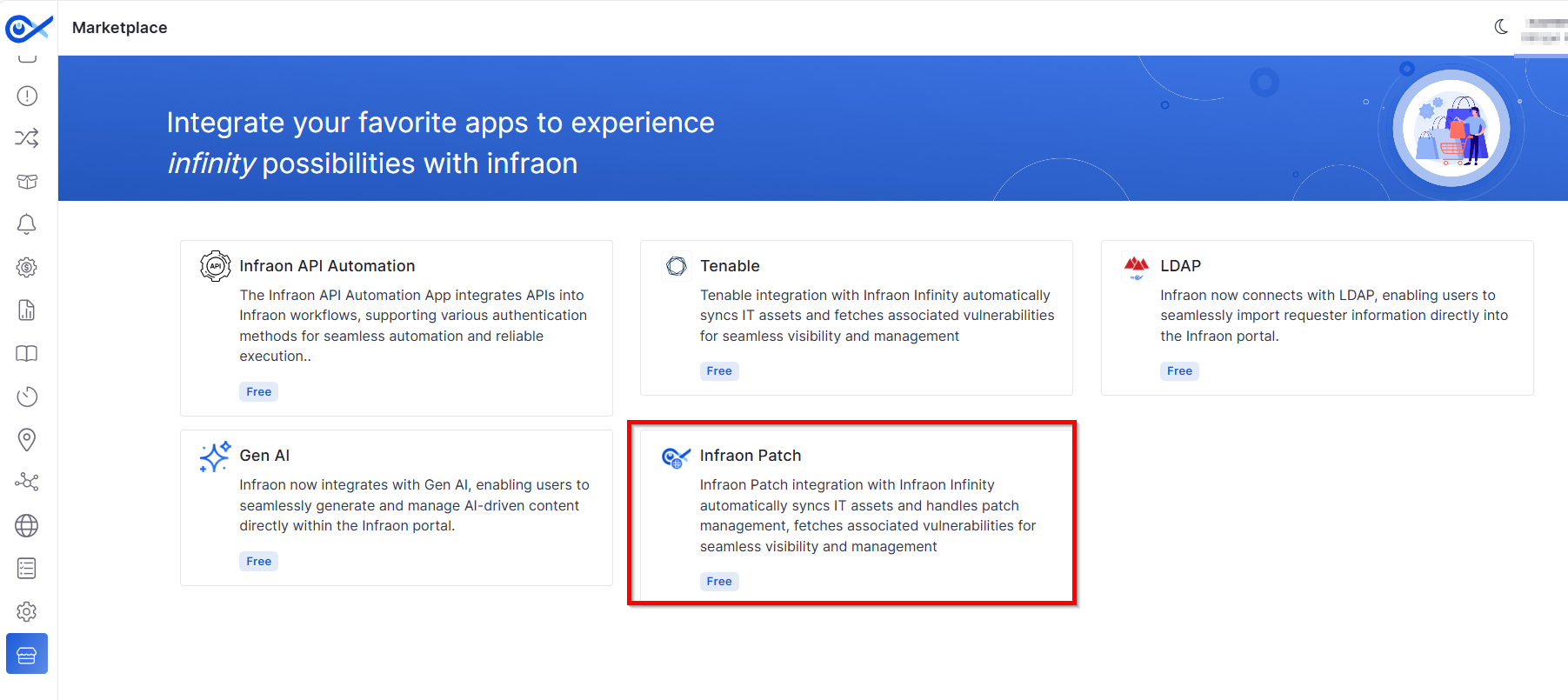
Rebranded “Zirozen” to “Infraon Patch App” within the Marketplace, updating the app name, icon, and imagery.
Project Management
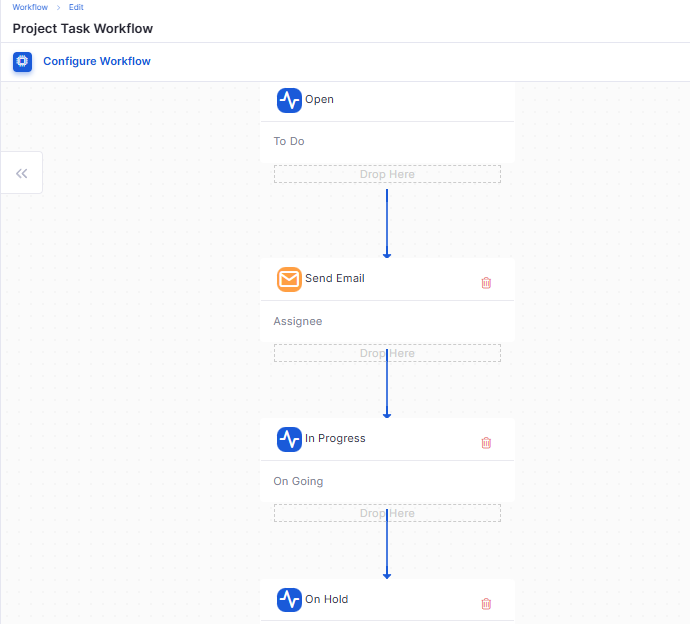
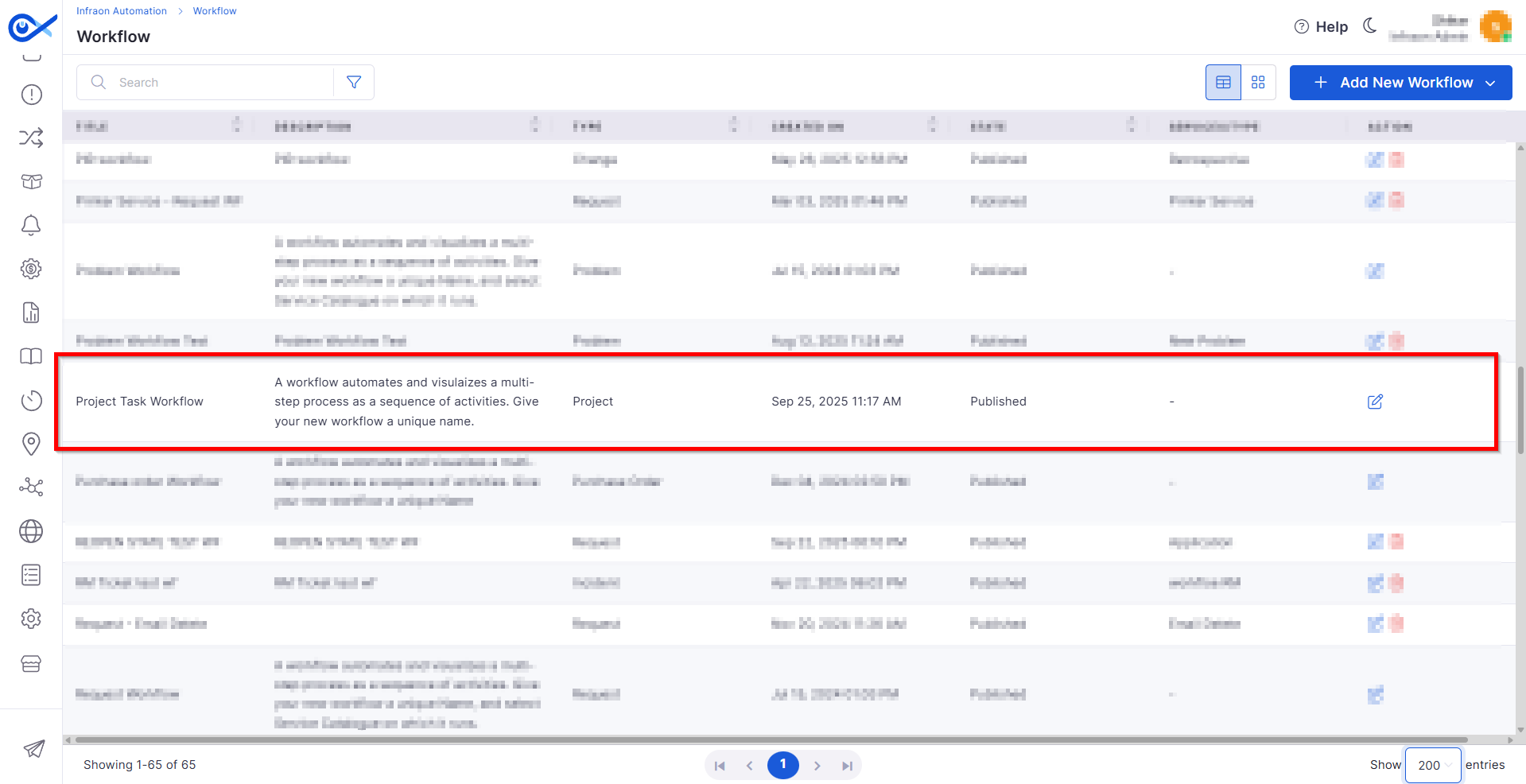
Project Task Workflow
Introduces customizable task workflow creation for projects:
Users can design and publish their own workflow sequences.
Built-in validations ensure logical state transitions before publishing.
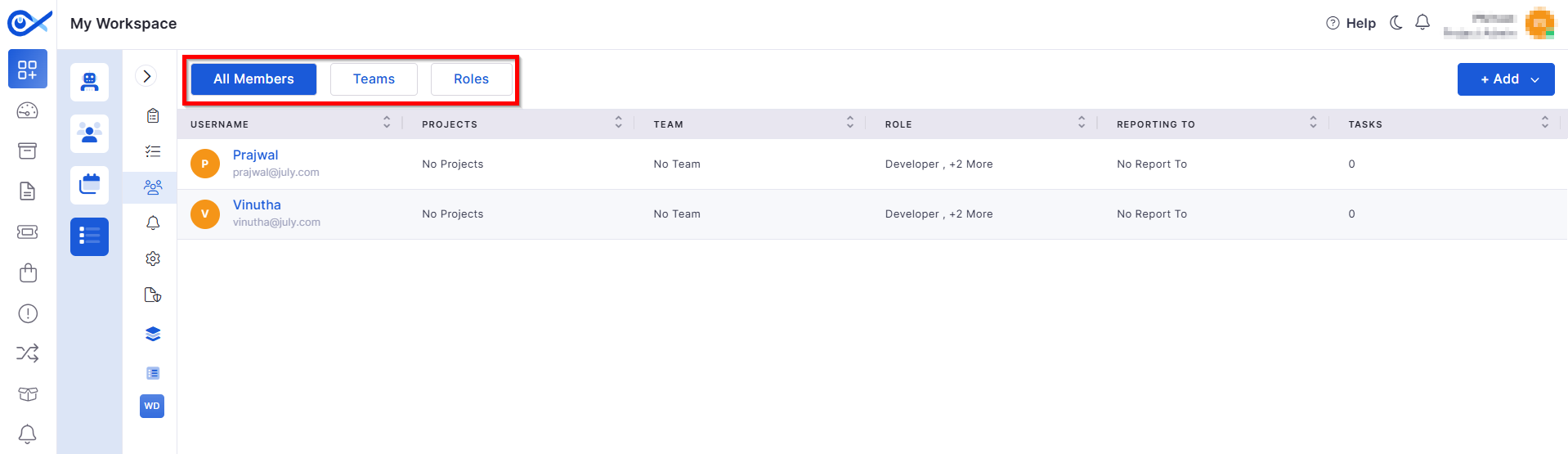
Teams & Roles — Project Members
Enhances member and role management within projects:
Add, remove, and view members in a unified grid view.
Tracks all member- and role-related activities in Audit logs for transparency.
Task Template — Edit, Clone & Delete
Streamlines task template handling:
Edit: Modify template name, fields, and tasks.
Clone: Create duplicates for reuse.
Delete: Remove templates with confirmation prompts.
All actions are logged in the Audit trail.
Project Admin & Member Visibility
Introduces granular visibility controls:
New Project Admin role governs access to the Project Management icon.
Role-based filtering ensures only authorized users can view or edit members and roles.
Project Template — Project Details
Adds a structured Project Details tab for creating and managing project templates:
Includes field validations, duplicate code checks, and planned-date validations.
Templates appear in the left navigation pane for quick access.
Mobile App Enhancements
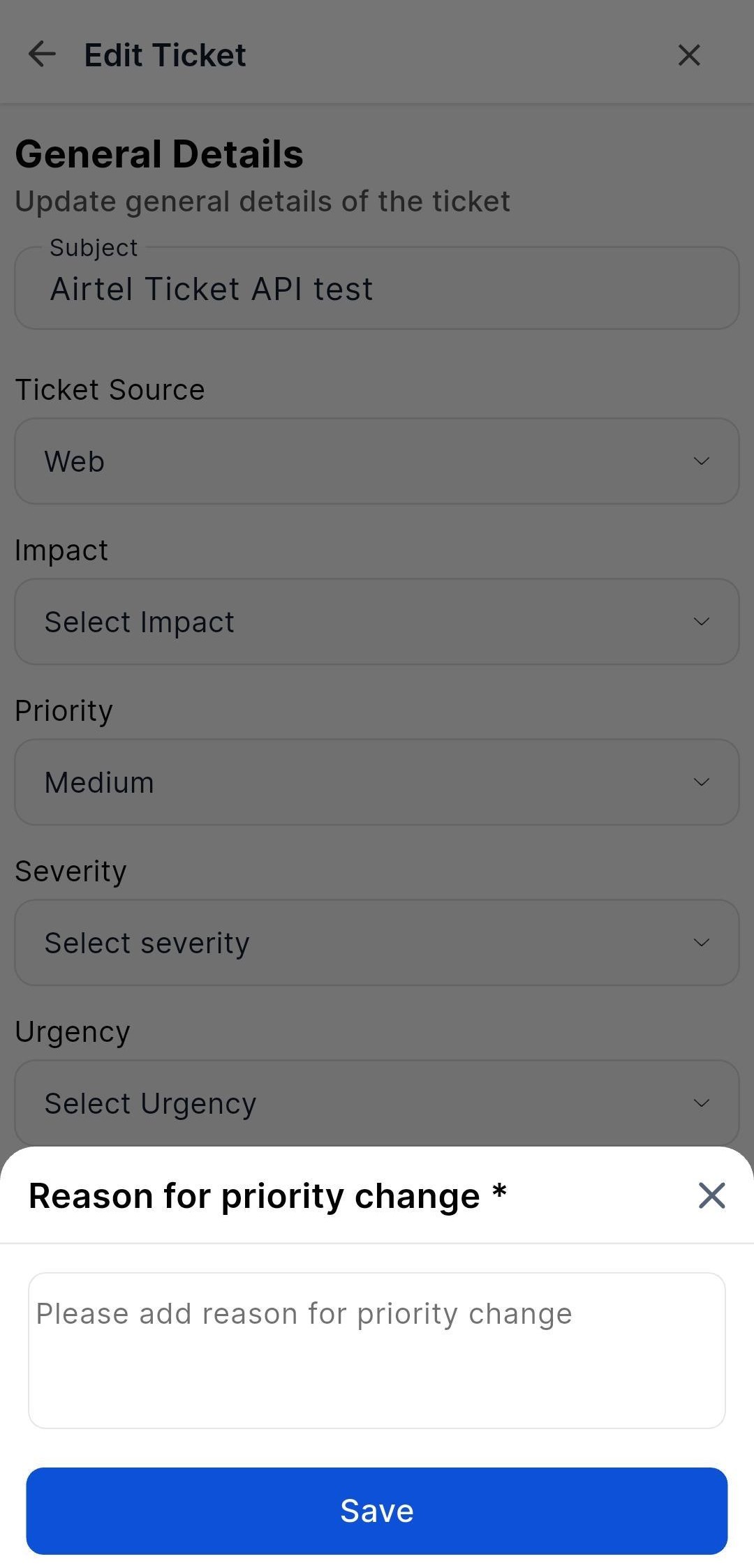
Ticket Priority Change Flow
Introduces a controlled workflow for priority changes:
When changing priority, users must provide a mandatory reason.
The reason is stored in system logs for auditing.
Cancelling the prompt retains the previous priority value.
Contract Management
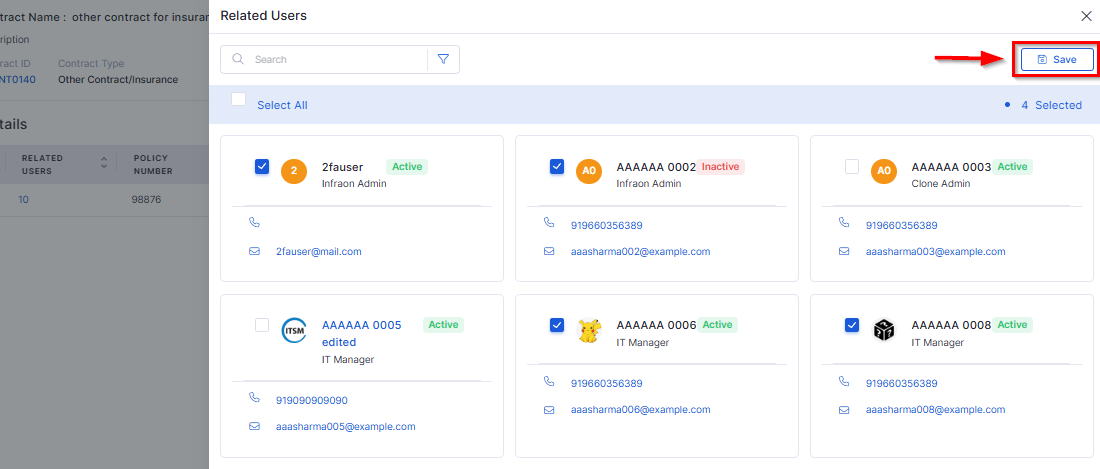
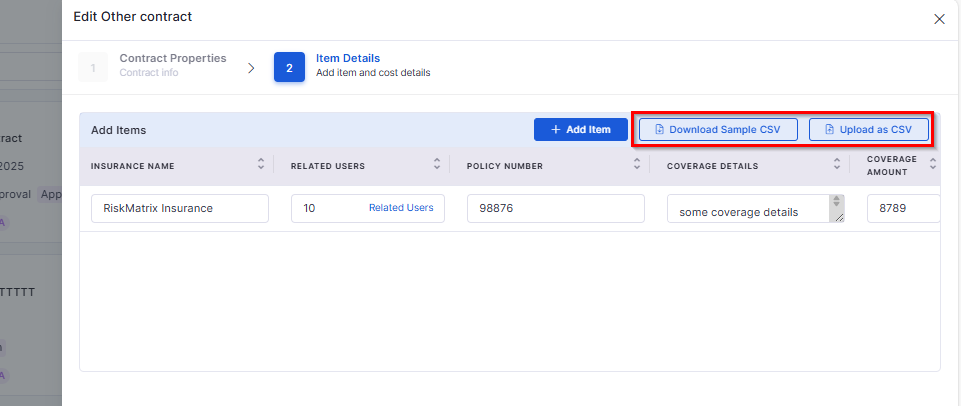
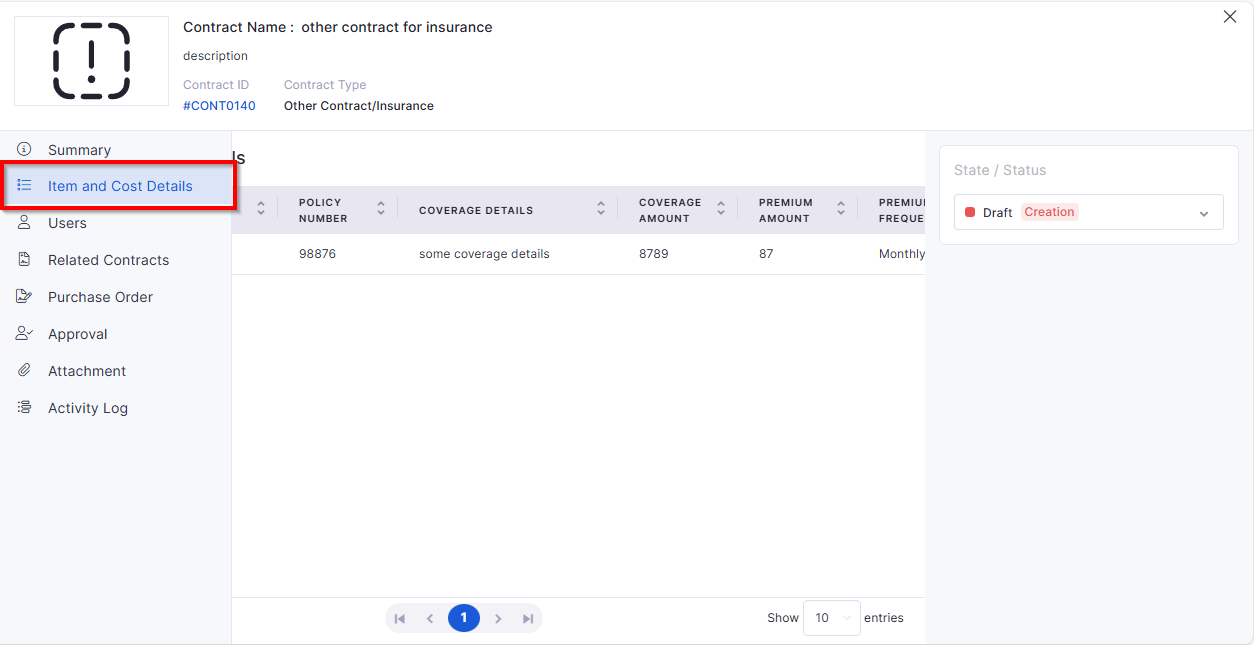
Line Items & Cost Details
New dedicated Item and Cost Details section in contract view:
Displays detailed line items and linked assets separately from the general view.
Allows linking/delinking of assets directly from the line item tab.
Supports CSV upload/download, pagination, and search functionality.
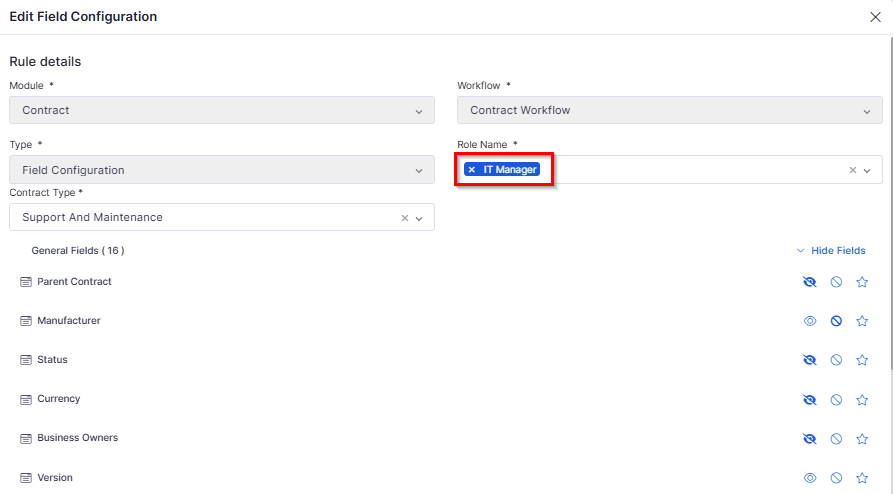
Role-Based Field Visibility
Implements field-level visibility control:
Card View: Only the fields allowed for a user’s role are shown.
Grid View: Columns remain visible, but restricted data appears blank.
Ensures secure, role-specific data visibility.
Asset Management
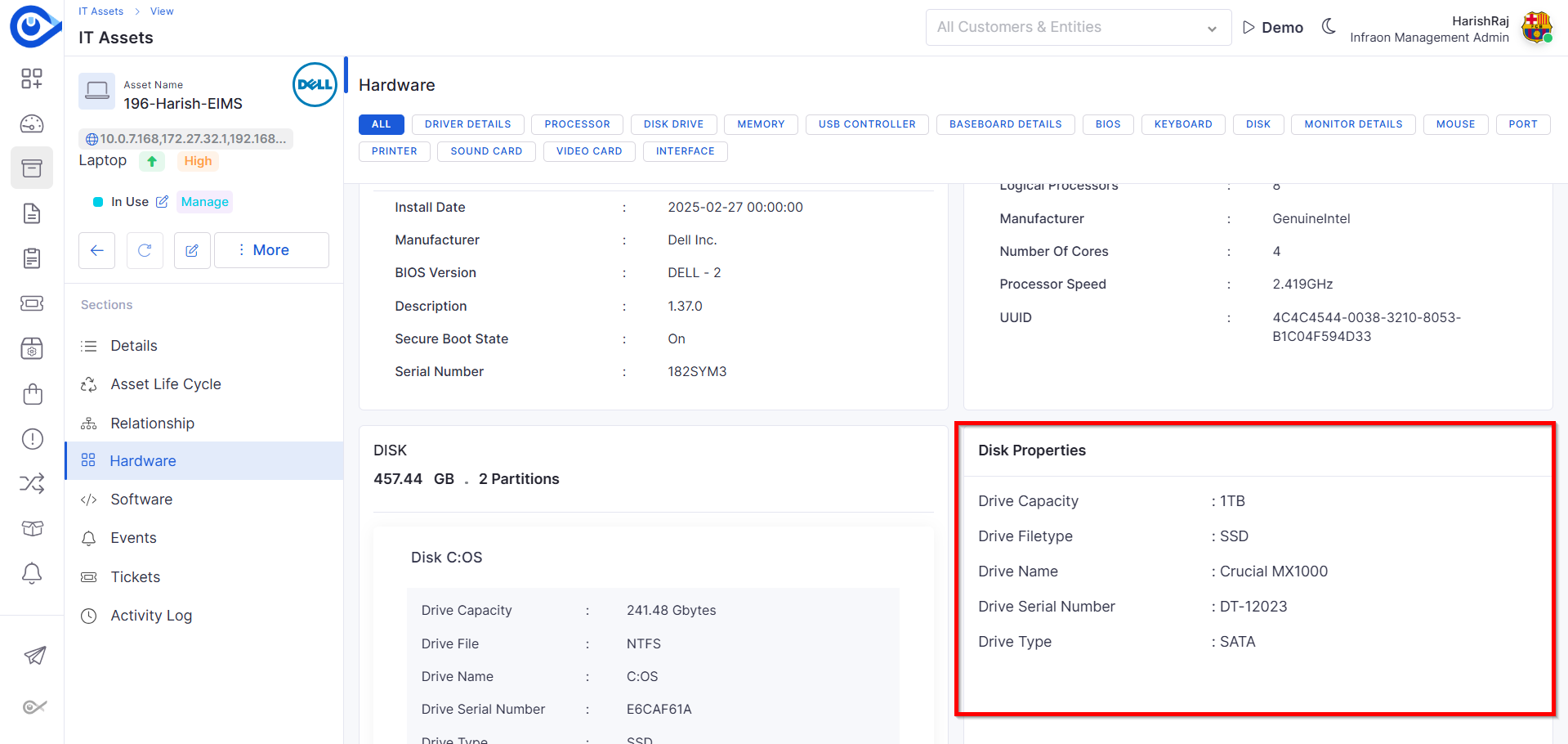
Additional Hardware Properties
Enhanced Hardware View for assets:
Displays both manually entered and agent-collected hardware details.
Supports custom fields for component-level attributes.
Independent Column Configuration for IT & Fixed Assets
Improved grid customization:
Fixed columns: Asset ID, Name, Device Type (always visible).
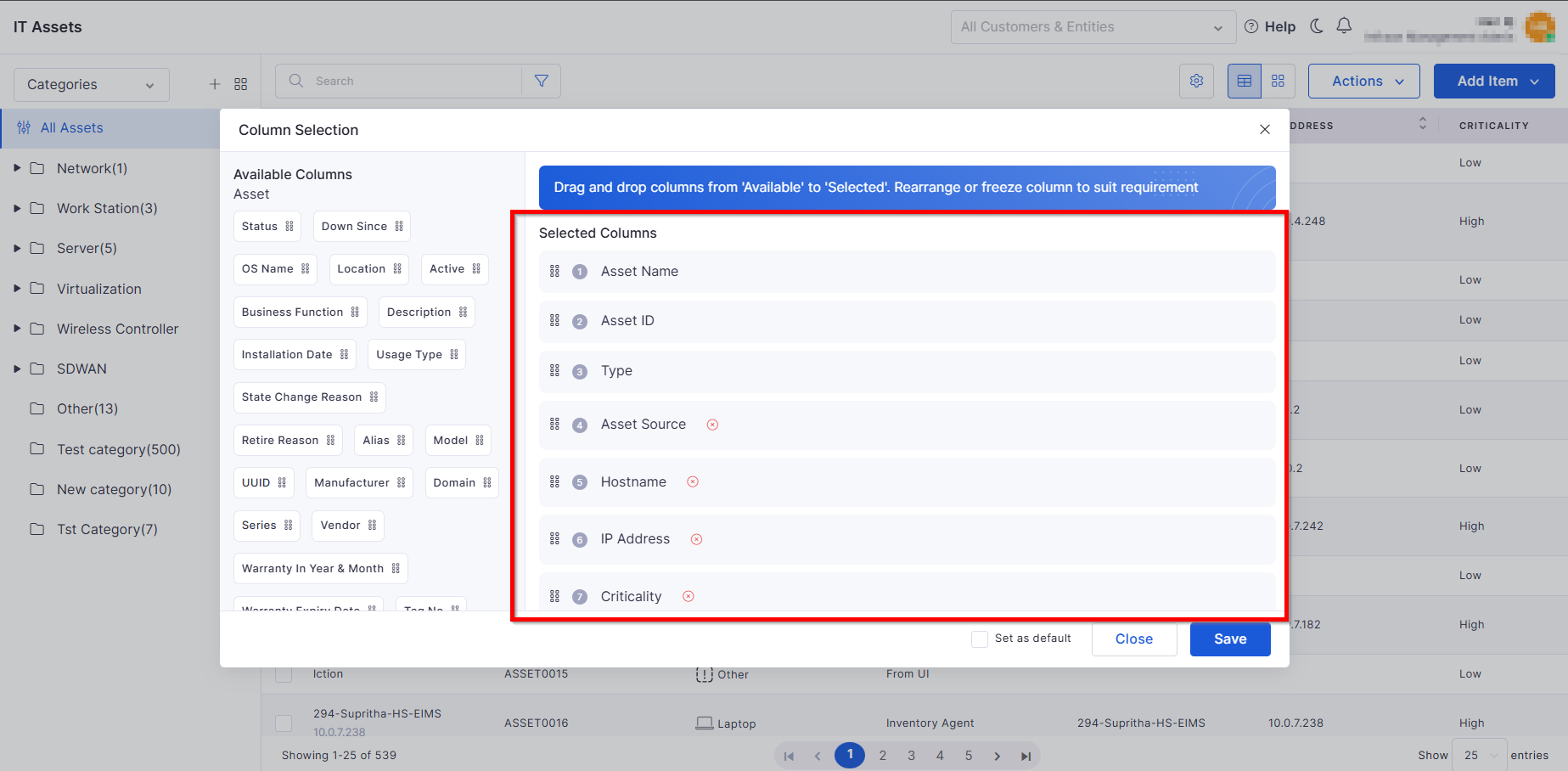
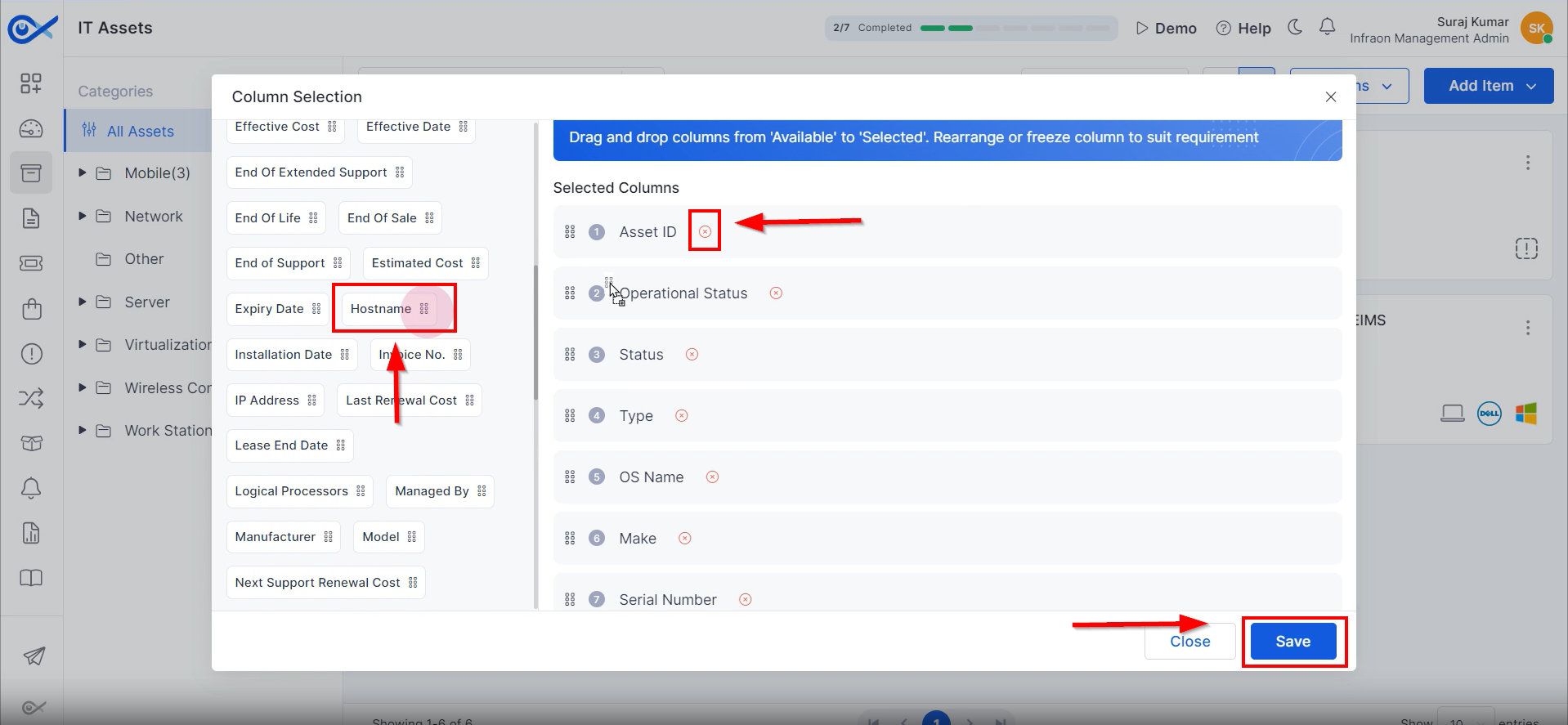
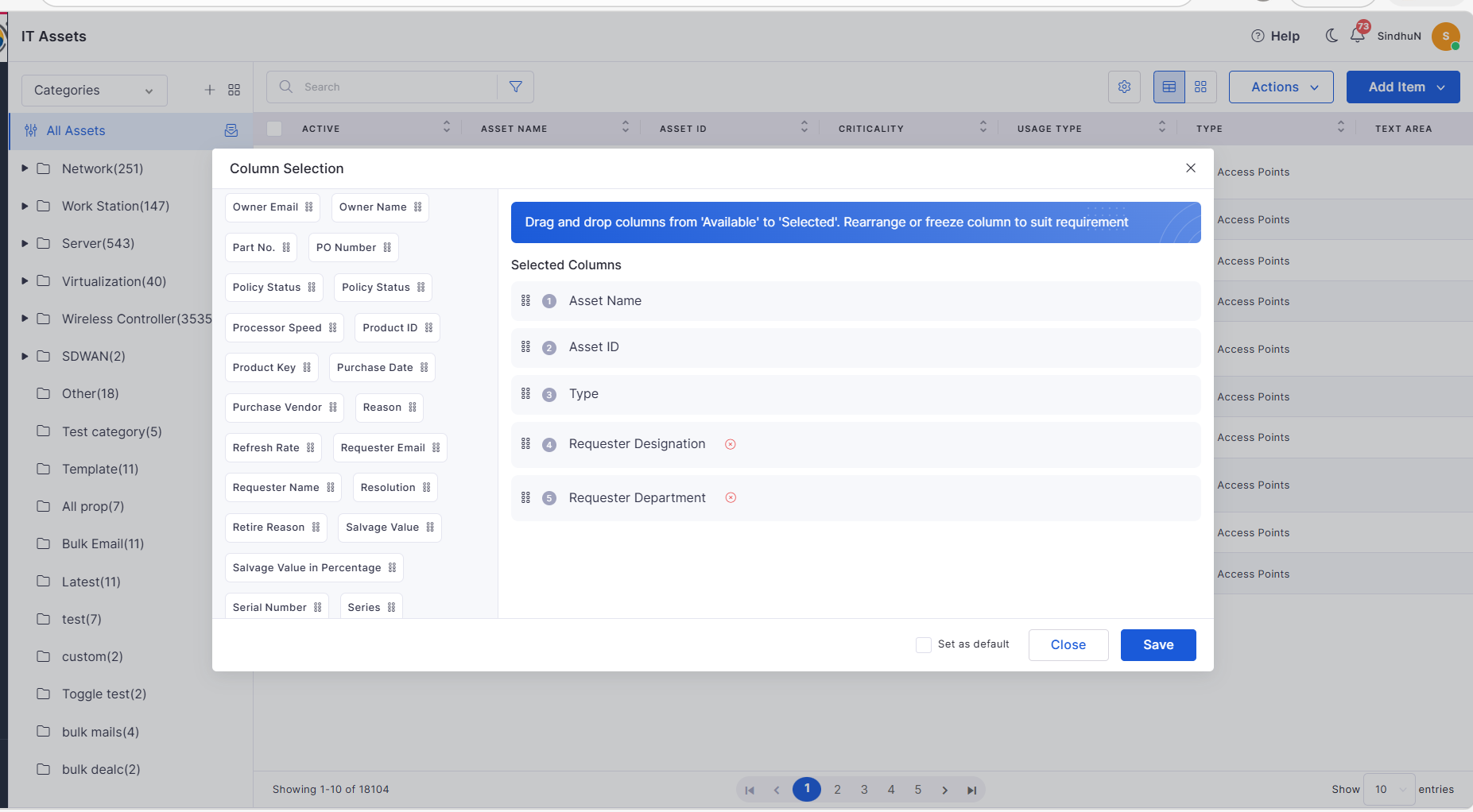
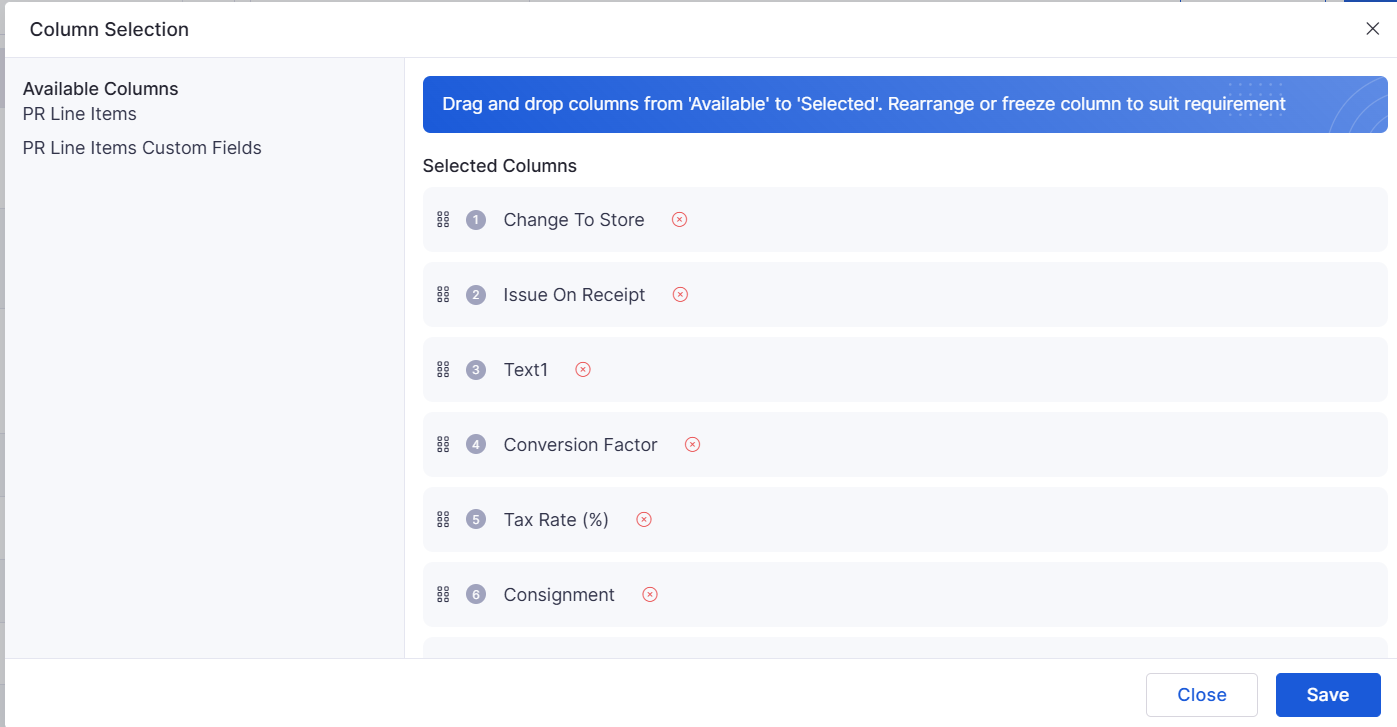
Configurable columns: Users can select and reorder additional columns.
Independent configuration for IT and Fixed Asset views.
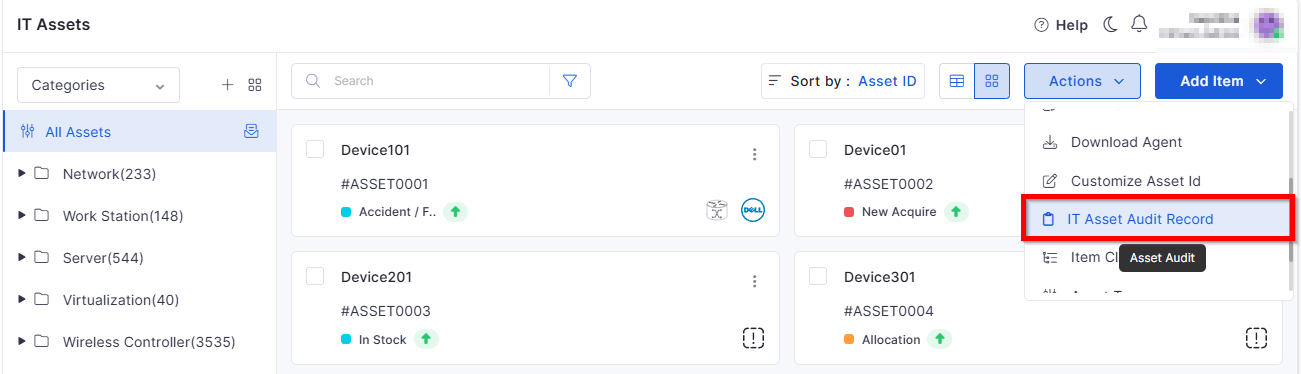
Asset Audit Enhancements
Expanded auditing functionality:
Internal/External auditor selection with tailored input fields.
Multi-Asset Audit to perform audits on several assets simultaneously.
Configurable audit scheduling and notifications.
Email alerts triggered upon audit completion.
SLA Metrics
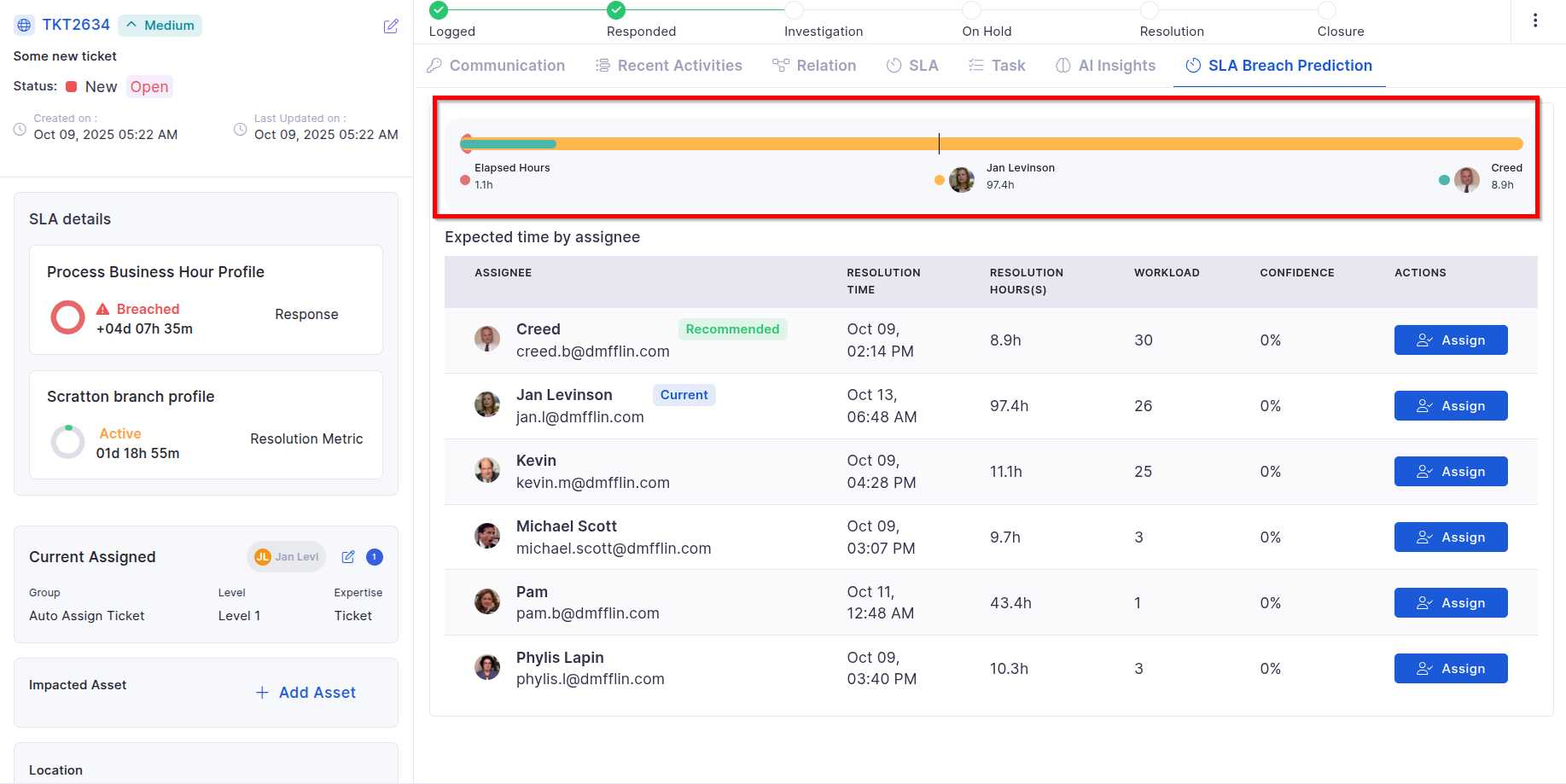
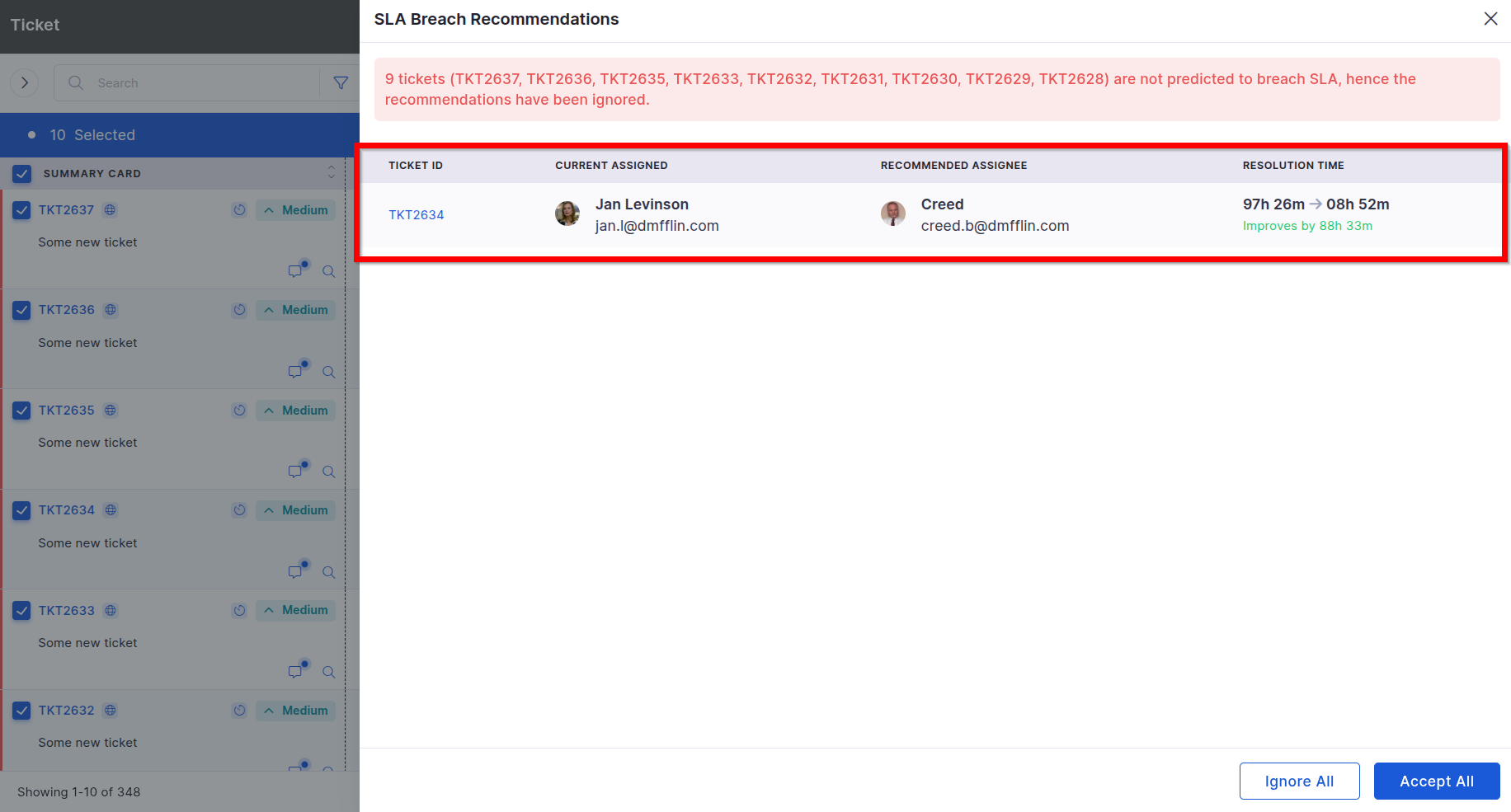
SLA Breach Detection and Indicators
Real-time monitoring of SLA risk:
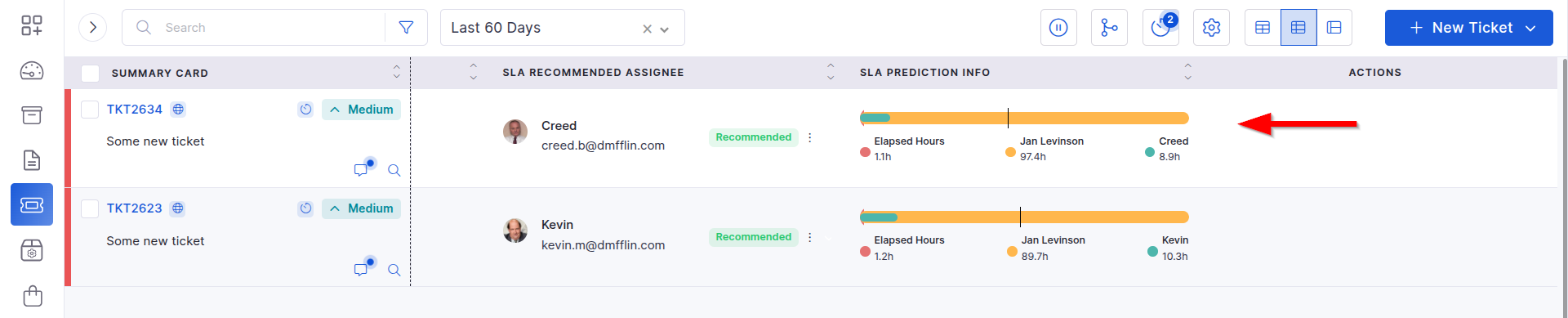
Displays blinking indicators for tickets predicted to breach SLA.
New filter to view at-risk tickets exclusively.
Automatic real-time updates from an AI-based prediction service.
Knowledge Base
Auto-Conversion of Qualified Closed Tickets to KB
Automates KB article generation from tickets:
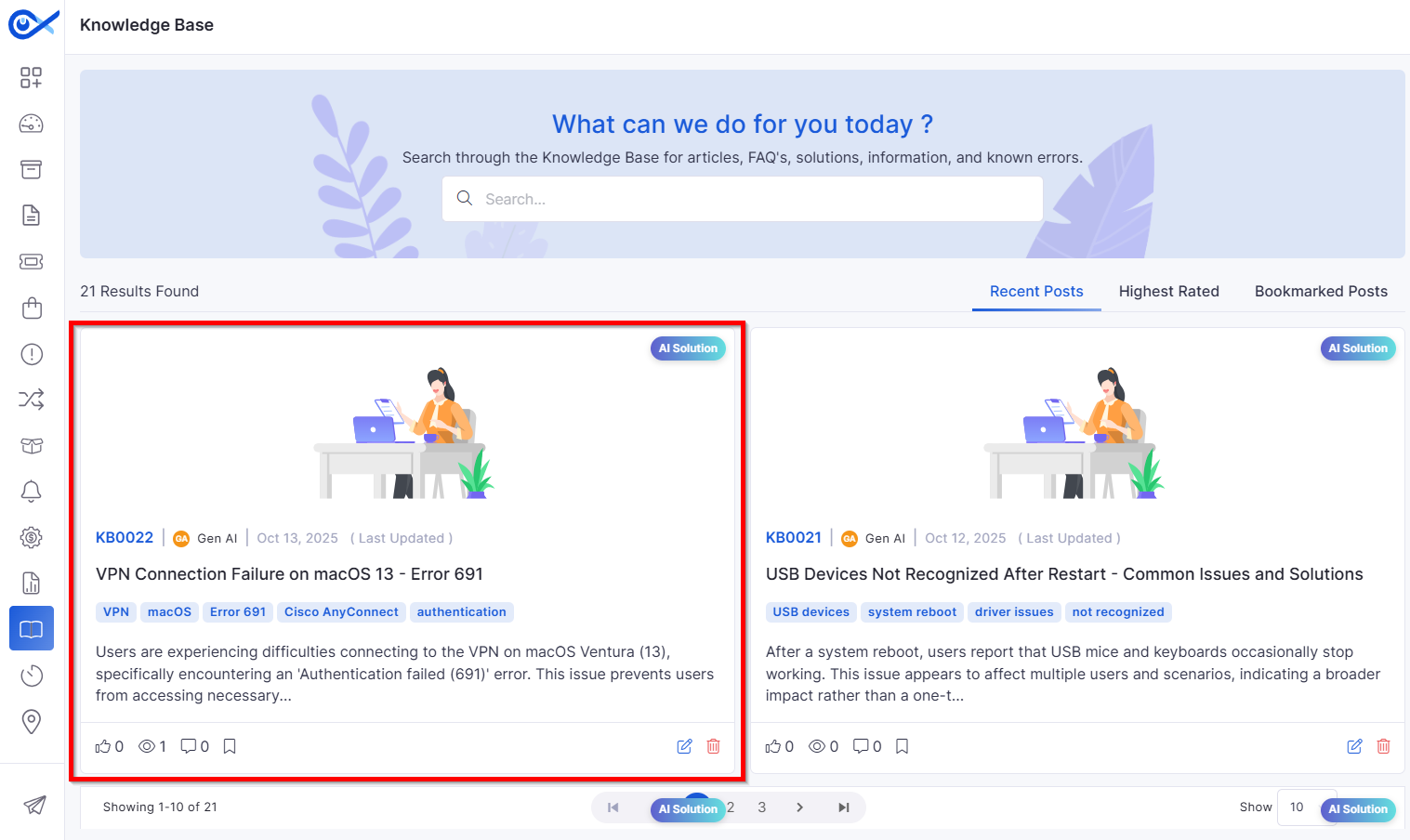
Converts eligible tickets into KB entries using AI-driven validation and similarity checks.
Updates existing KBs if similar data exists, or skips duplicates.
Supports bulk processing, merging similar tickets, and async operations via Celery.
Reports
Problem Management Reporting Enhancements
Adds missing reporting fields and improves flexibility:
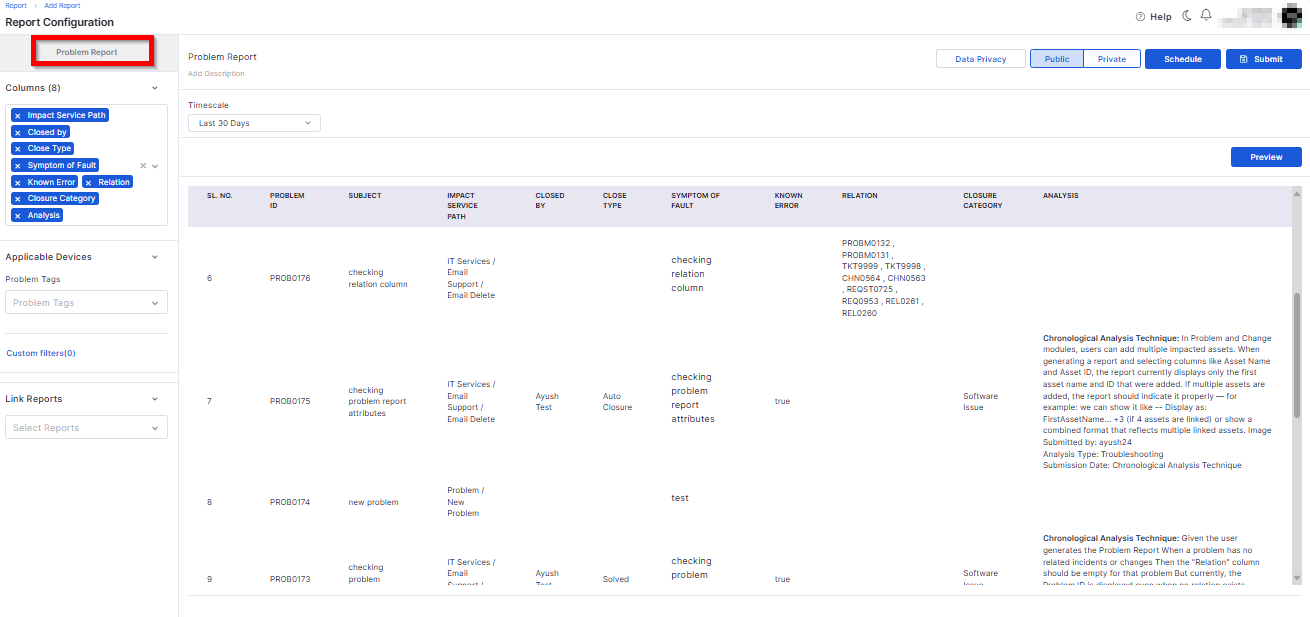
New attributes include Impacted Asset, Service Path, Known Error, Closure Category, Related Change, Related Release, and more.
“Reported by” field is no longer mandatory.
Enables accurate and complete reporting aligned with the Problem Management process.
Bug Fixes
v7.3.16 – December 2025
View the latest features, enhancements, and fixes by release.
Version: v7.3.16
Date: 11th December
Overview
This release introduces improvements across Ticketing, Marketplace, Feature Configuration, Kafka integrations, Purchase Order workflows, Asset audits, Software Metering, Inventory Agents, Request Management, Reports, Self Service Portal, Project Management, Mobile applications, Dashboards, Knowledge Base, and API Metering.
Updates focus on enhanced usability, improved automation, expanded configurations, richer communication tools, and better visibility across ITSM and ITAM modules.
Key Updates
General
Ticket to Incident Renaming – Enhancement
Updated terminology to provide consistency across ITSM modules.
Enhances clarity between request processes and the incident lifecycle.
Marketplace
Marketplace Server Migration
Migrated Marketplace services to an upgraded hosting environment for improved performance and reliability.
Centralized Marketplace
Unified Marketplace experience allowing all integrations to be managed from a central interface.
Provides a consistent configuration model across third-party apps.
Users can export logs with 7-day retention, auto-deletion, and file-size limits.
iOS – Export Logs (Download, Share, Retention)
Equivalent log export features added for iOS users.
Dashboard
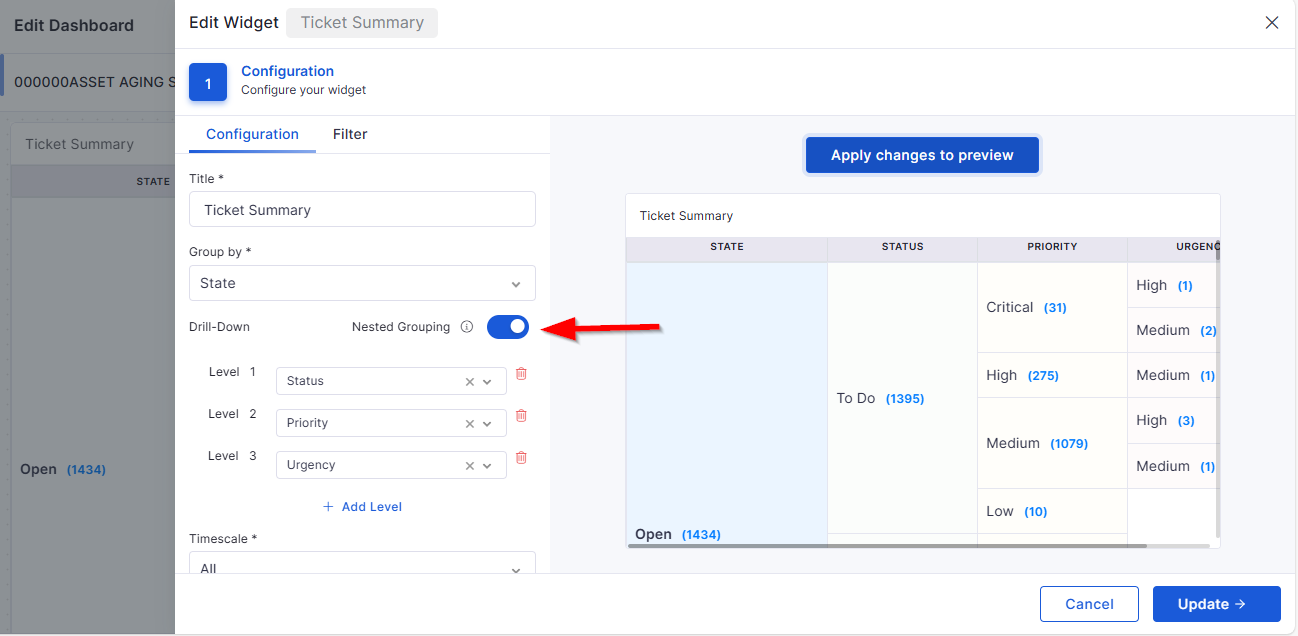
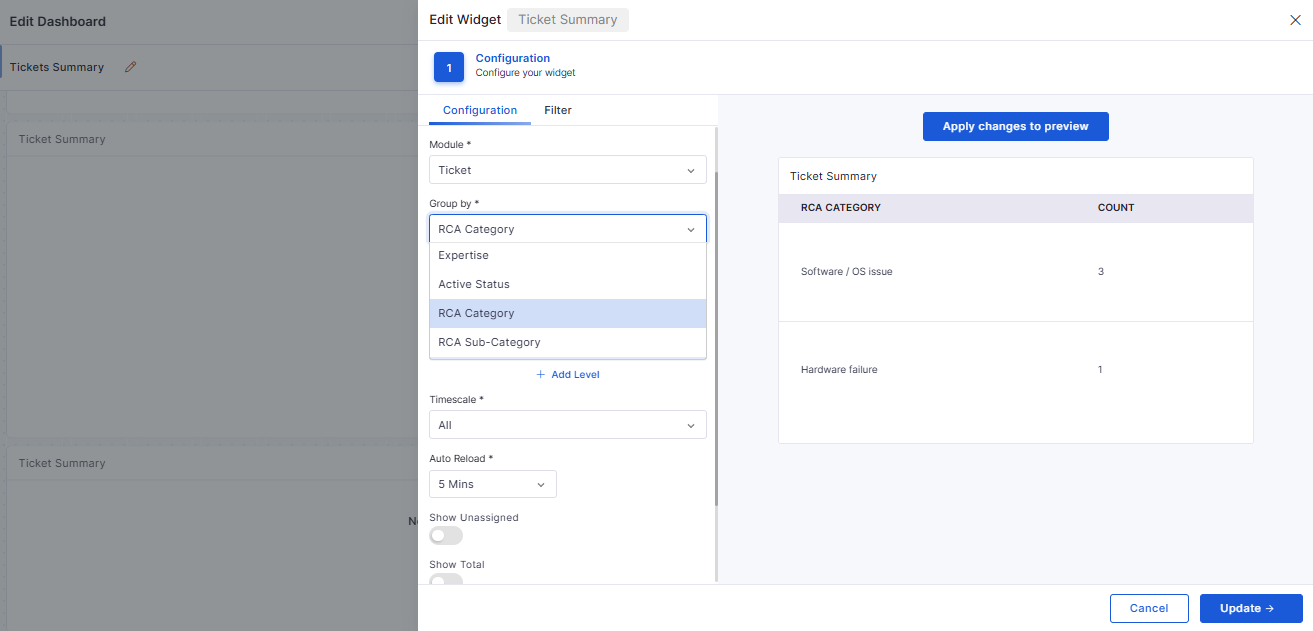
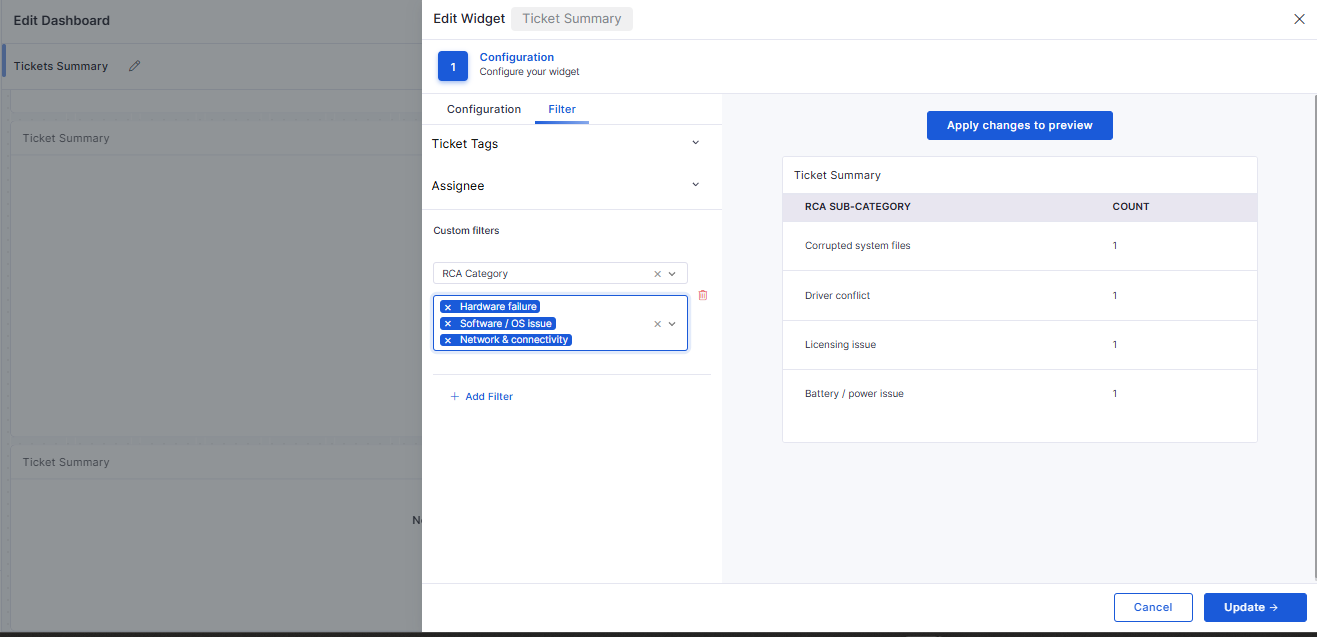
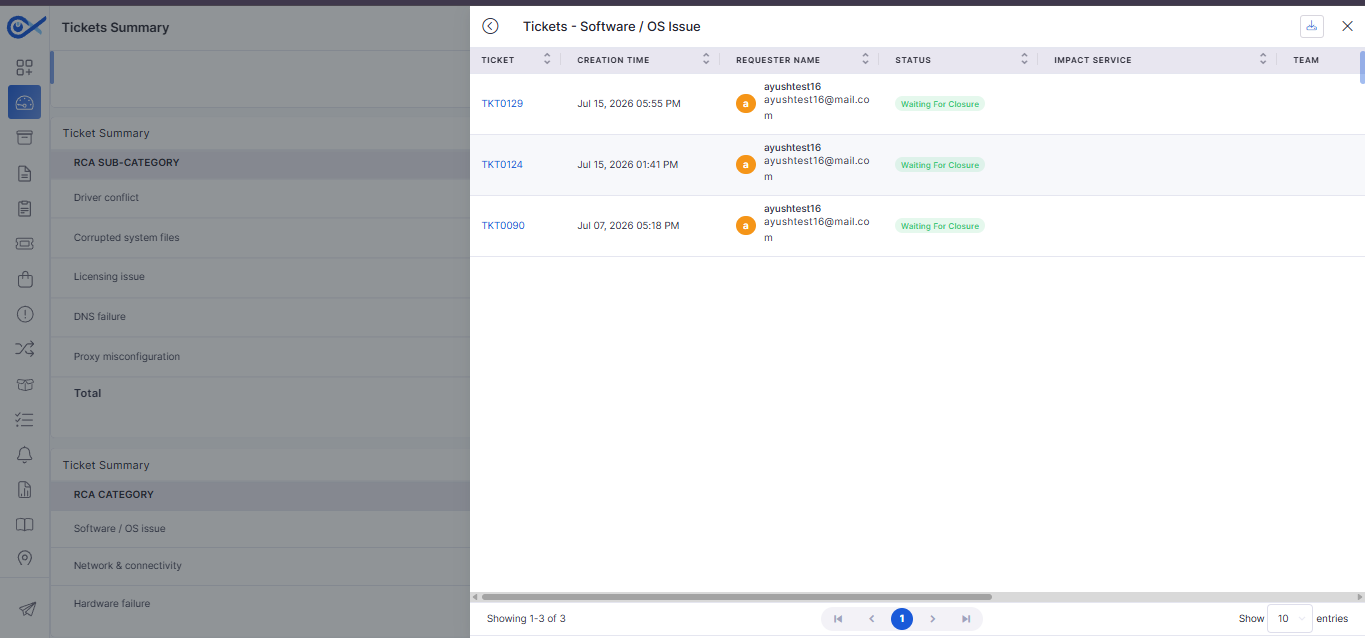
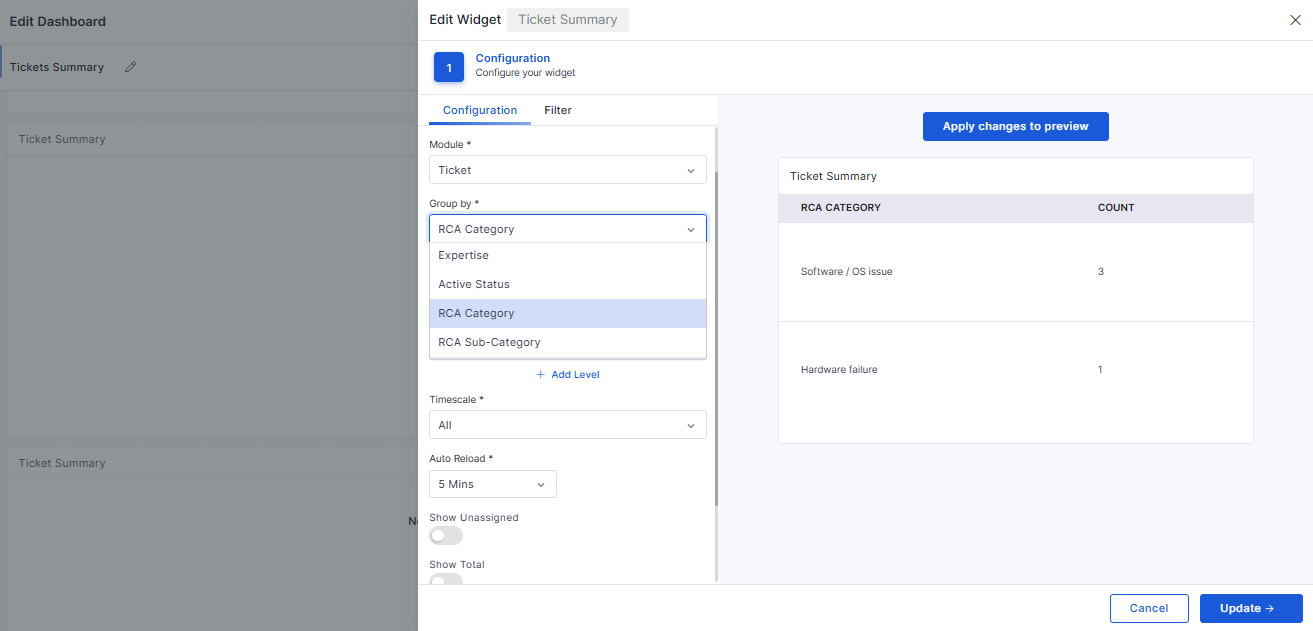
Multiple Group-by Options in Ticket Summary Widget
Additional grouping modes for deeper dashboard analysis.
Ticket
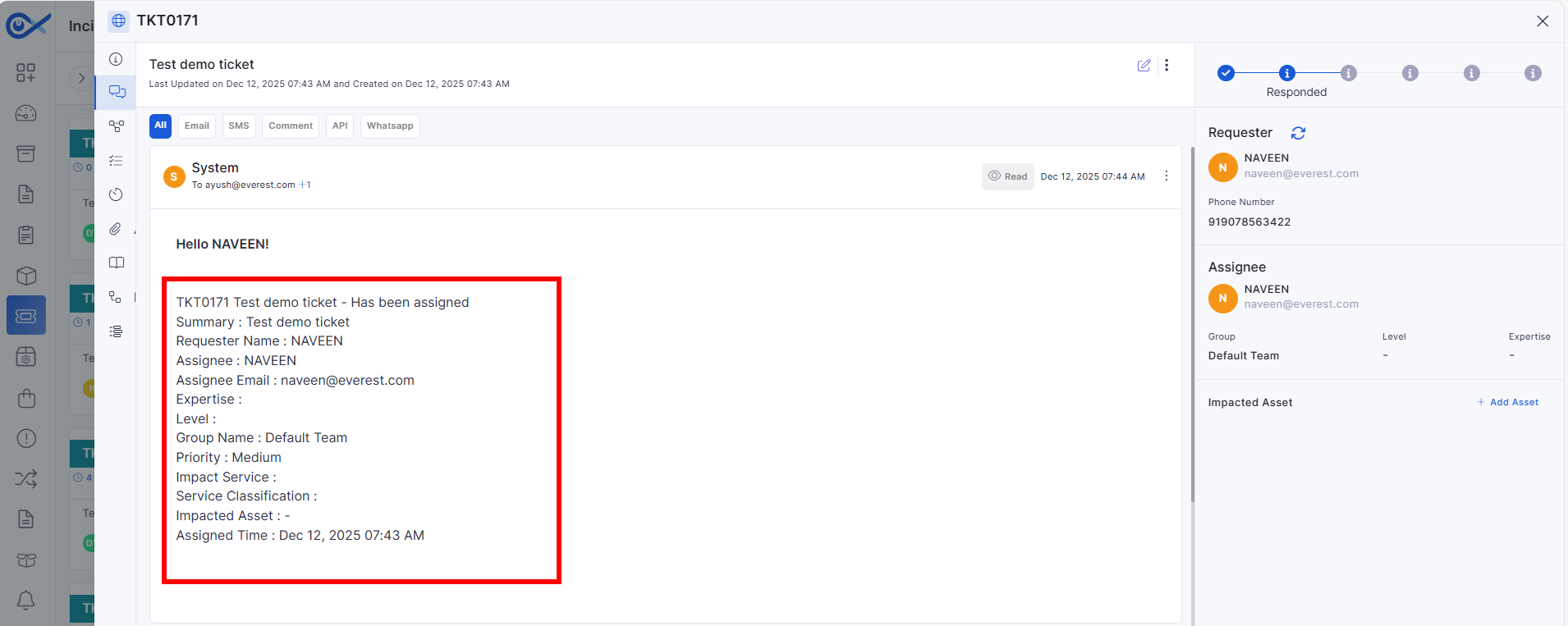
Update Ticket Assignment Email to Include Assignee Details
The assignment email now includes the assignee's name and email ID.
Improves communication clarity for ticket stakeholders.
Knowledge Base
Attaching KB in Incident – Feedback
Enhanced KB attachment experience within incident workflows.
Added options to provide feedback on article relevance.
API Metering
API User & Token Management
Full control panel to manage API users, token issuance, expiration, and revocation.
Improves API governance and monitoring.
🐛 Bug Fixes
Improved system stability across Feature Configuration, Project Management, and Software Metering.
Fixed inconsistencies in SLA exclusion propagation to reports and dashboards.
Resolved UI issues in mobile log exports and ticket communication components.
Enhanced reliability of Kafka and Marketplace integrations.
Corrected PO document formatting and quotation reference mapping.
General performance improvements and security updates across modules.
v7.3.15 – November 2025
View the latest features, enhancements, and fixes by release.
Version: v7.3.15
Date: 6th November
This release introduces significant improvements across Asset, Project, and SLA Management modules, along with substantial AI-driven enhancements to the Knowledge Base and new Okta Marketplace integrations.
We have addressed multiple issues reported across modules, including:
Improved data synchronization between Asset and Inventory views.
Resolved validation inconsistencies in the Project Template and Workflow modules.
Improves administrative control and system governance.
Fixed mobile app data collection and display issues for Android and iOS.
Enhanced report generation stability for Agent Utilization and SLA metrics.
Addressed UI alignment and widget display issues in dashboards.
Optimized Marketplace integration performance for Okta synchronization.
General performance and stability improvements across the Infraon platform.
These fixes deliver better reliability, improved accuracy, and smoother usability across Infraon Infinity’s modules.
Overview
Key Updates
Mobile App Enhancements
iOS – Sync Collected Data from Device to Server
Added a dedicated option to manually sync collected data to the backend.
Displays real-time sync status with retry options for failed attempts.
Ensures reliable and secure transmission of device information.
iOS – Device Sensor & Carrier Information Collection
Collects hardware sensor and carrier information directly from devices.
Captures accelerometer, gyroscope, and SIM carrier data accurately.
Enhances analytics and monitoring for mobile assets.
Android – Full App Migration to Edge-to-Edge Display
Migrated Android app to a full edge-to-edge Flutter interface for Android 13–15+.
Provides a modern, immersive layout aligned with Android design standards.
Improves navigation and accessibility through gesture-based control.
Knowledge Base
KB Vector Database Synchronization and Isolation
Synchronizes KB data with vector databases to improve AI-based search accuracy.
Supports tenant-level data isolation for enhanced privacy and performance.
Automatically updates indexes when KB content changes.
Auto Conversion of Qualified Closed Tickets to KB
Automatically converts resolved and validated tickets into KB articles.
Uses AI to detect duplicate or low-confidence entries and skip them.
Ensures continuous enrichment of the KB repository with verified solutions.
AI KB Search in ITSM Modules
Introduces AI-powered contextual search within ITSM forms.
Displays suggested KB articles while creating or updating tickets.
Helps technicians resolve issues faster by using existing knowledge.
Feature Configuration
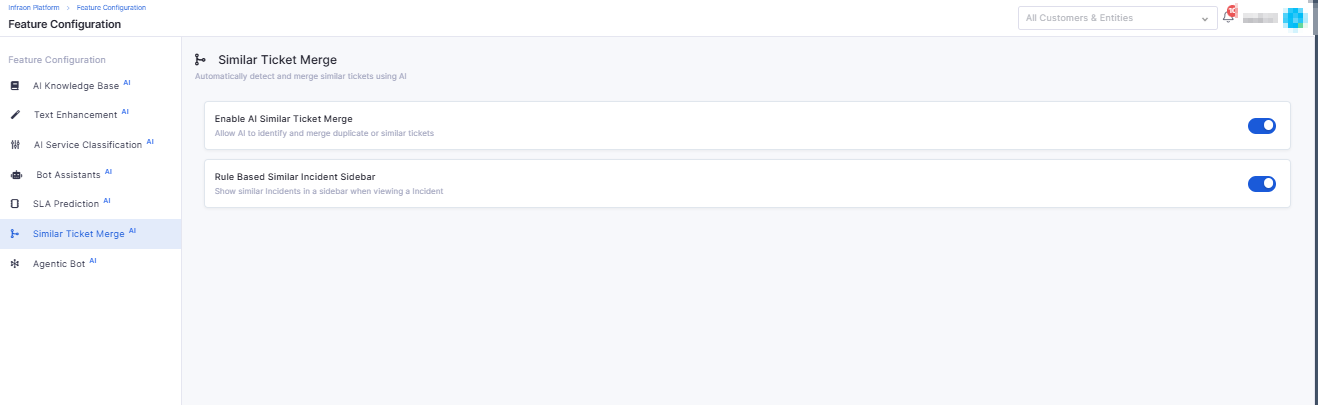
Feature Configuration Settings Module
New centralized module for managing AI and KB configuration parameters.
Admins can update vector synchronization, search relevance, and indexing settings.
Ensures consistent configuration across backend and UI.
Report
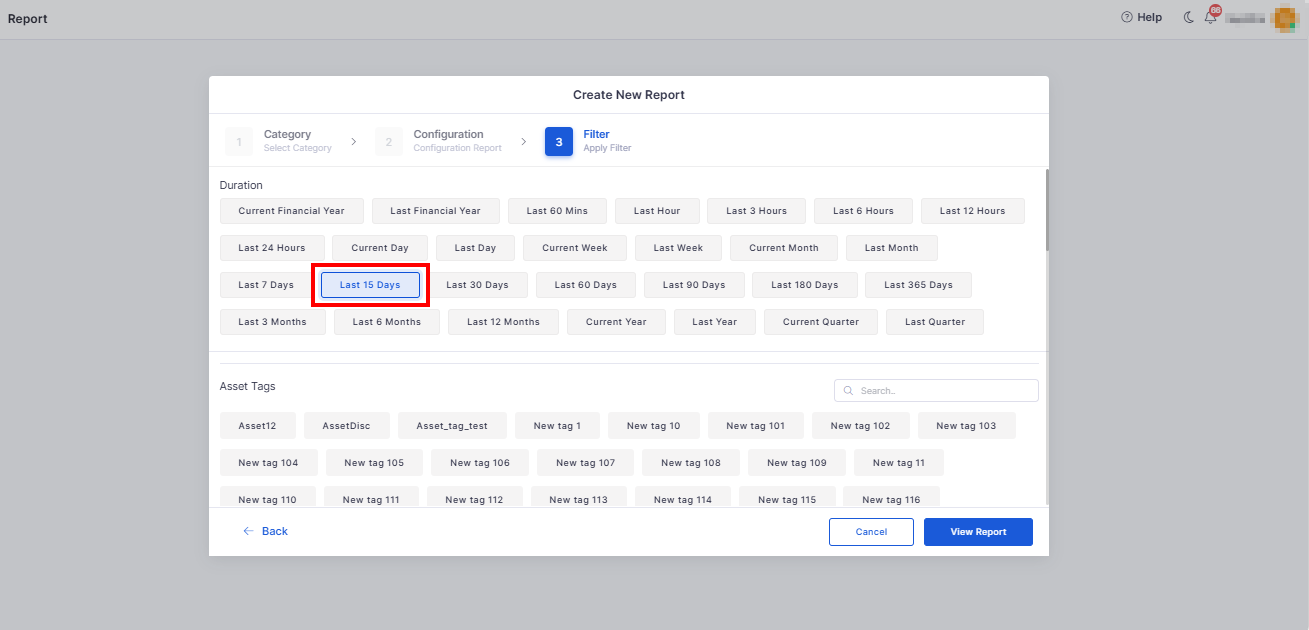
Agent Uptime Report – Custom Time Filter
Added the ability to filter agent utilization data for a specific time window.
Helps teams analyze performance for any custom duration (e.g., weekly or quarterly).
Improves flexibility in report generation and trend analysis.
Asset Management
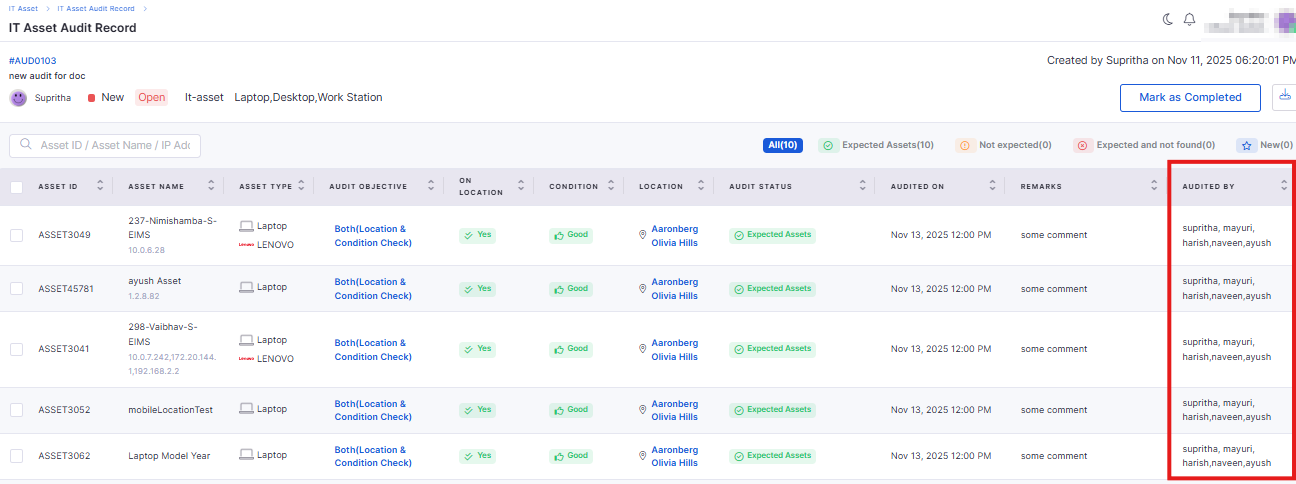
IT Asset Audit Record Enhancements
Added scheduling options for audit start and end dates.
Introduced “Audit Objective” and timestamp fields for better documentation.
Supports exporting audit results in XLSX format for record-keeping.
Asset Lifecycle Status Widget
Displays a summary of assets nearing expiration (warranty, AMC, or EOL).
Users can customize time windows for monitoring (7, 14, or 30 days).
Enables proactive renewals and maintenance planning.
Model Year–Based End-of-Life Estimation
Automatically calculates EOL based on the asset’s model year.
Uses predefined lifespan rules by asset category.
Provides predictive insights into hardware replacement planning
Operational Status Sync with Agent Heartbeat
Asset operational status now updates automatically based on agent heartbeat.
Reflects real-time device health (Active/Inactive).
Reduces manual updates and improves monitoring consistency.
Software
Software Metering
Introduced software metering to track usage across endpoints.
Displays license consumption in dashboard views and detailed reports.
Enables cost optimization and compliance tracking for installed software.
Workflow
Kafka Notification Trigger
Added support for Kafka message triggers during workflow execution.
Allows real-time notifications to integrated systems or tools.
Provides detailed logs for each published Kafka event.
Tickets
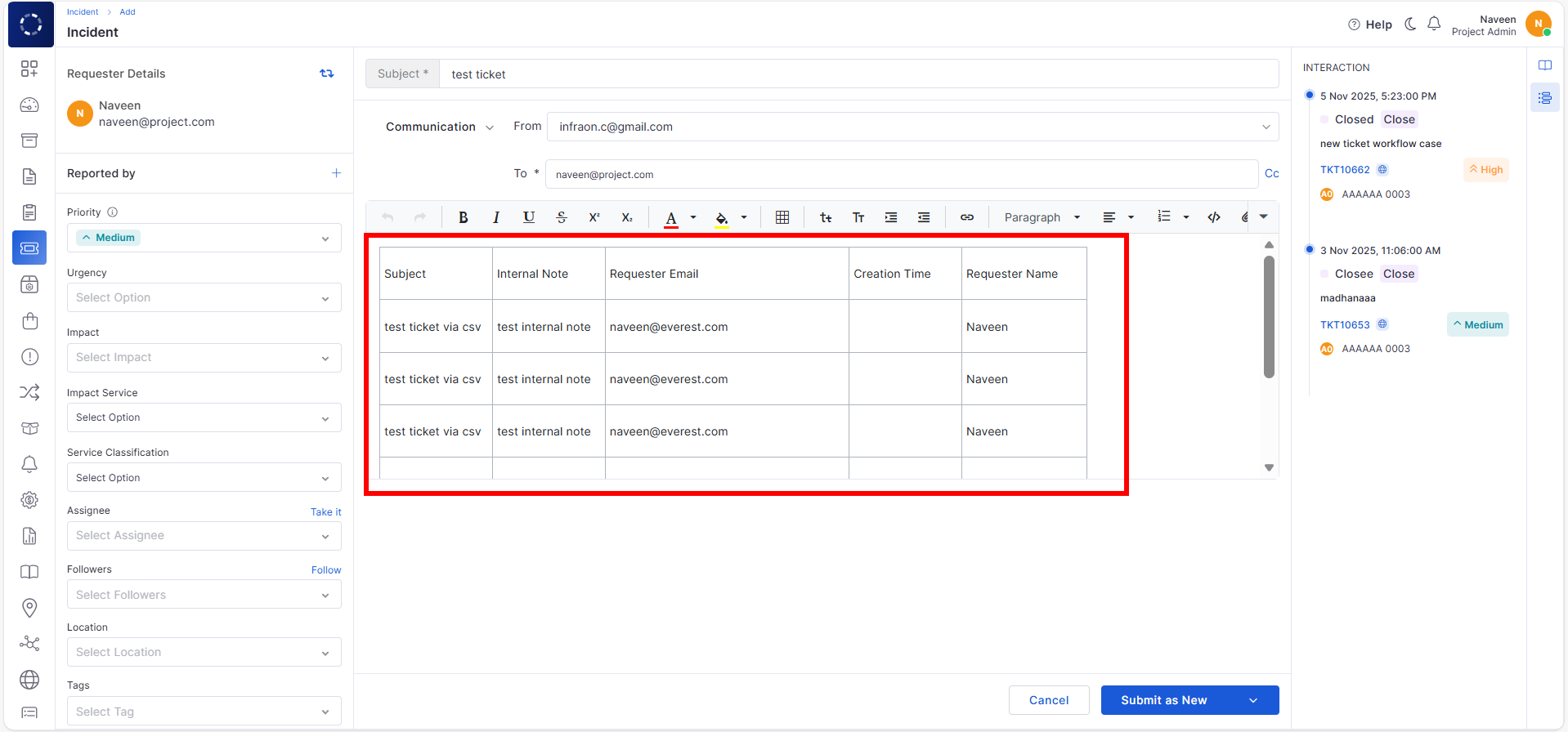
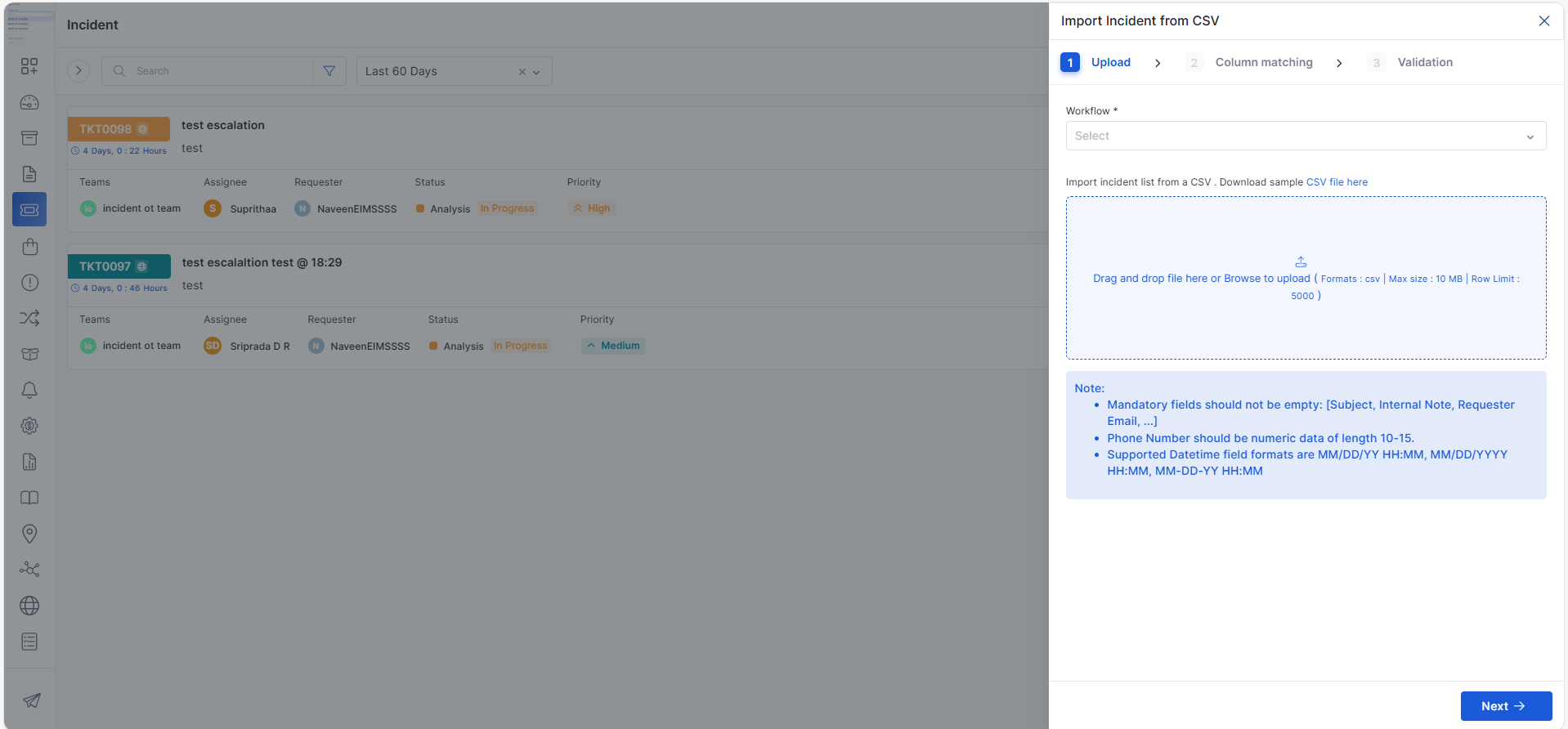
Import Tickets from CSV
Introduced ticket import functionality using pre-formatted CSV files.
Supports bulk upload with validation and mapping preview.
Displays upload results and allows download of failed records for review.
Dashboard
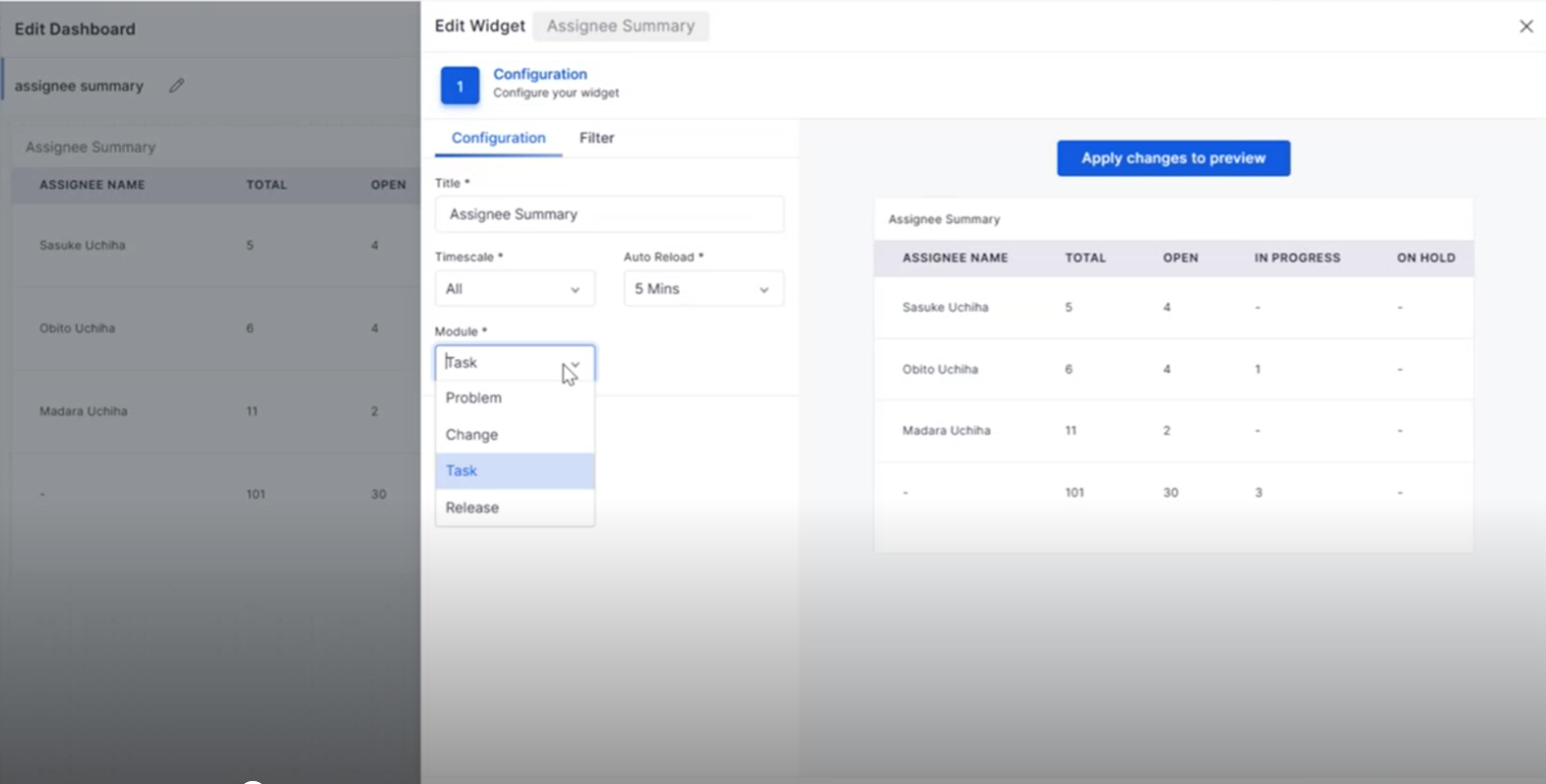
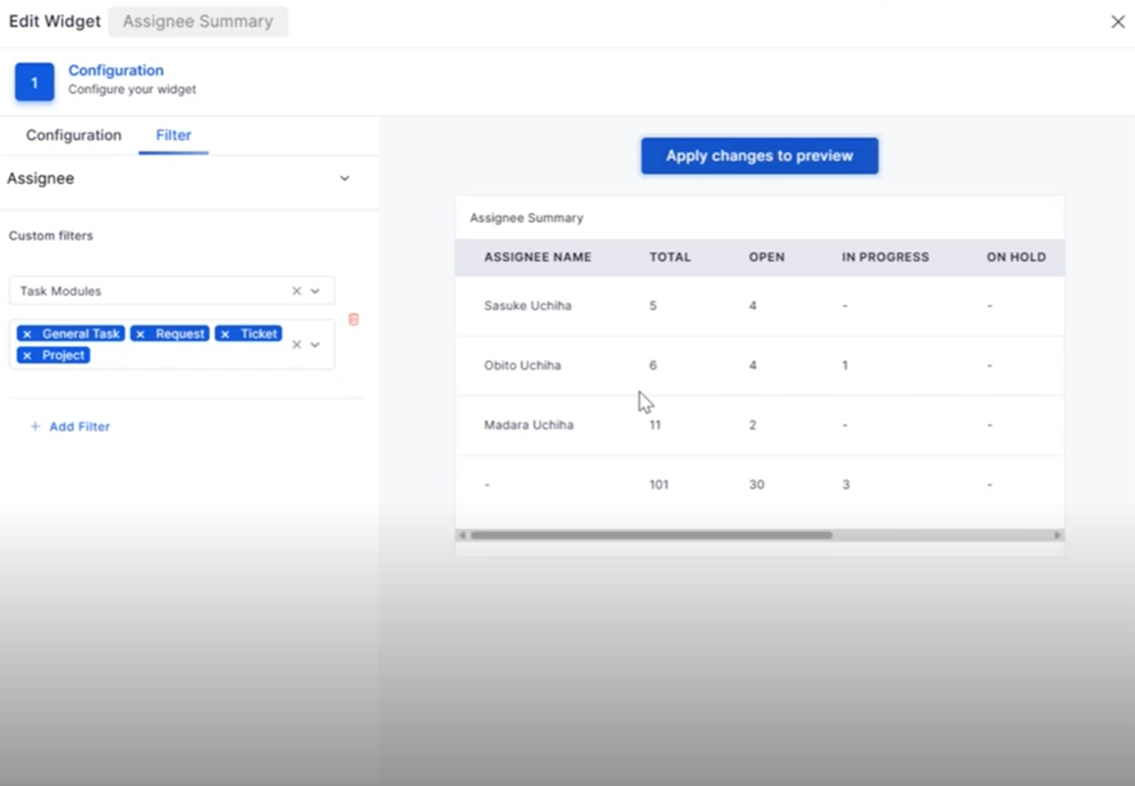
Filter Tab for Assignee Summary Widget
Added a dedicated filter tab to the Assignee Summary widget.
Allows filtering by status, priority, and ticket category.
Simplifies workload tracking and assignment analysis.
Project Management
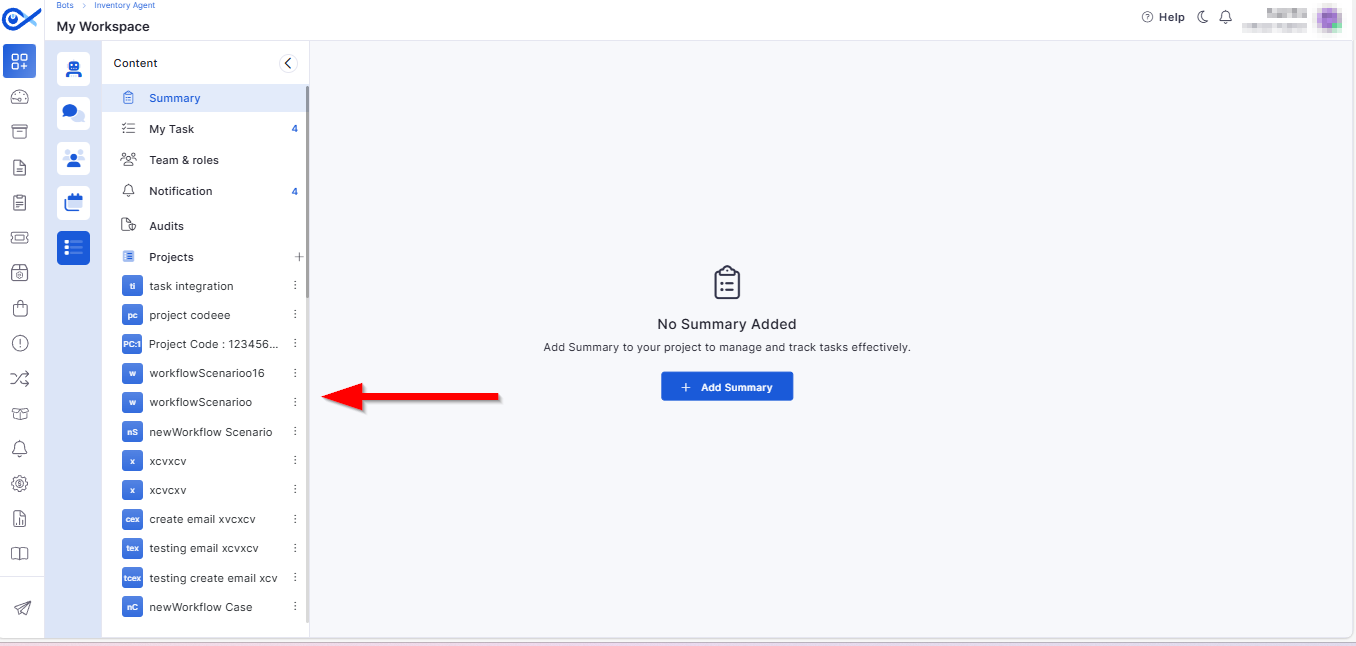
Project Add and View in the Left Panel
Simplified navigation with all project sections accessible via the left panel.
Enhances usability with consistent side navigation for tasks, teams, and workflows.
Automated Task Generation on Project Creation
Automatically generates default tasks based on the selected project template.
Ensures project consistency and reduces setup time.
Project Templates in Start-a-Project Sidebar
Added a “Start a Project” sidebar featuring available templates.
Includes a “Load More” option for easier browsing through templates.
Project Workflow Integration
Introduced dedicated project workflow support similar to task workflows.
Enables configurable approval and review stages for each project.
Project Workflow
Provides predefined project stages with clear state transitions.
Ensures consistent progress tracking across multiple teams.
Edit/Update Workflow Integration
Added a toggle option to require approval from all members in approval cards.
Improves governance and control during workflow execution.
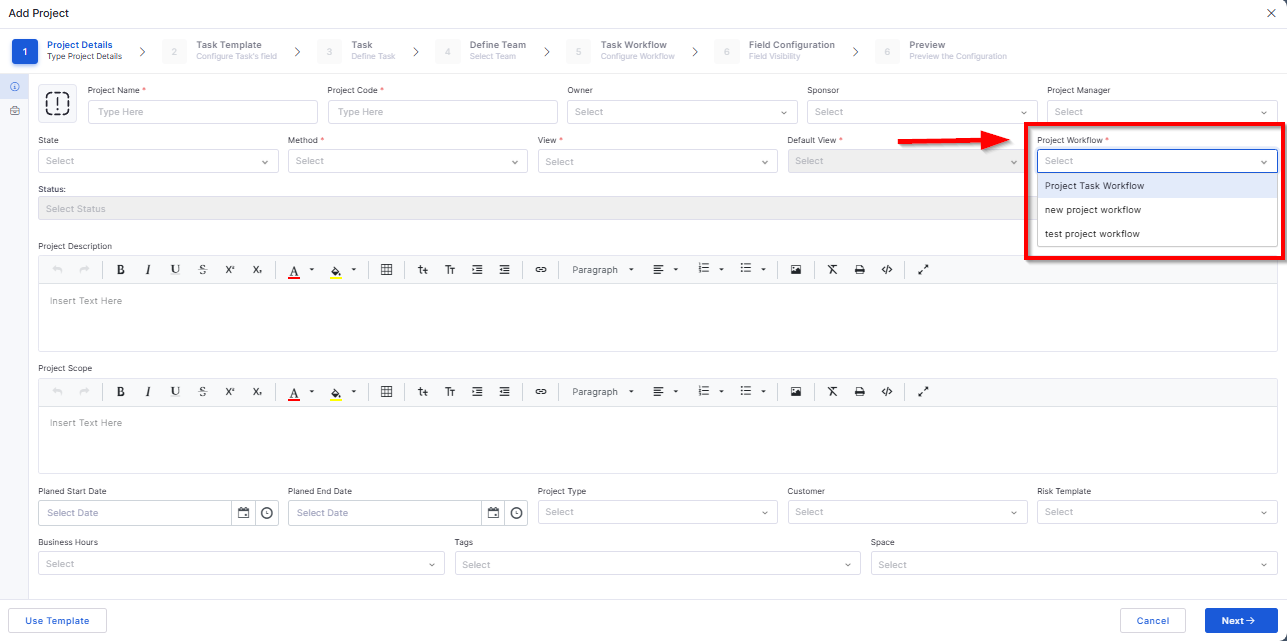
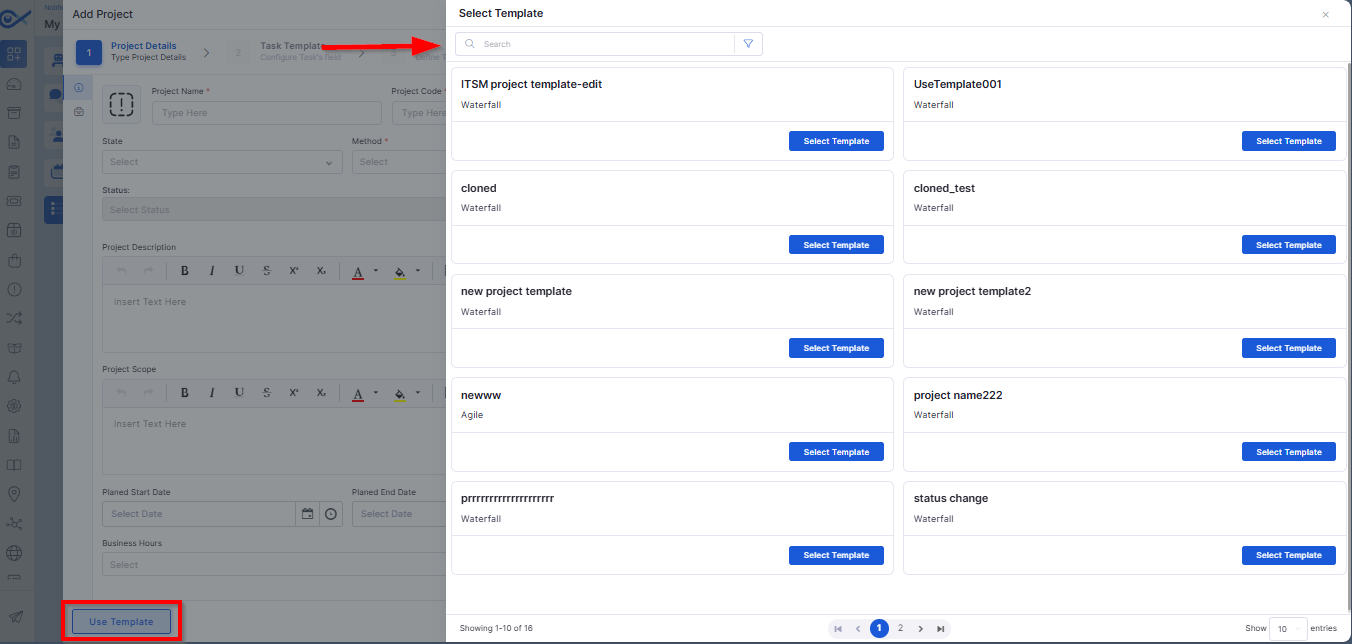
Project: Use Template
Allows users to select an existing template to auto-populate project details.
Validates required fields and prevents duplicate entries.
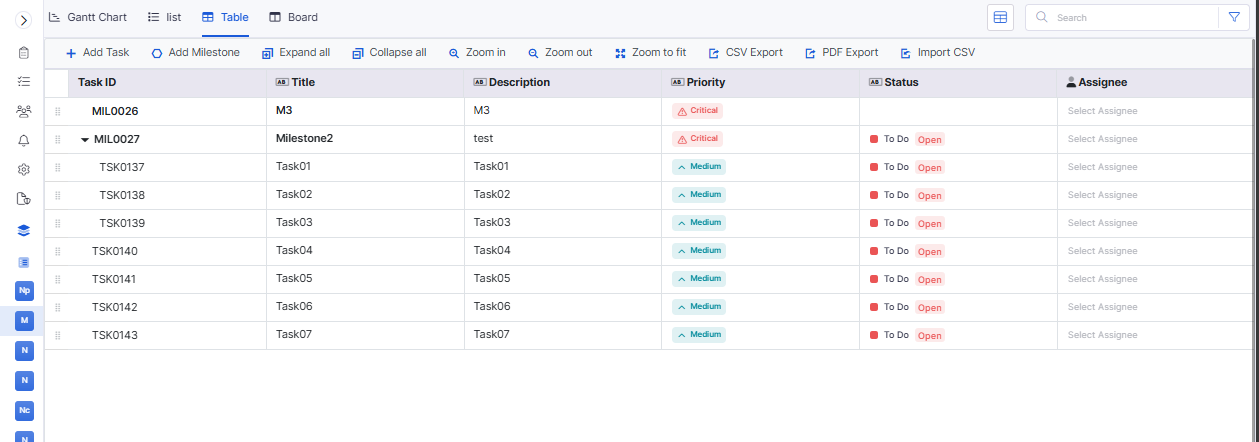
Project Task Add and View in Table View
Enables adding and managing tasks in a structured table layout.
Includes sorting, inline editing, and audit tracking for all updates.
SLA Management
SLA Exclusion from Tickets
Added an option to exclude specific tickets from SLA tracking.
Improves reporting accuracy for non-applicable cases (e.g., testing tickets).
Simplifies SLA performance analysis.
SLA Breach Detection and Indicators
Real-time detection of SLA breaches with color indicators.
Provides visual warnings and predictive alerts for near-breach cases.
Helps teams take preventive action proactively.
Marketplace
Okta Marketplace Integration – App
Introduced Okta Marketplace App for seamless authentication setup.
Simplifies domain linking and app registration.
Enables centralized identity configuration for organizations.
Okta Marketplace Integration – User Sync
Automatically syncs user data between Infraon and Okta.
Reduces duplicate user creation and manual synchronization effort.
Maintains consistent user identity across systems.
Okta Marketplace Integration – SSO Login
Enables secure single sign-on via Okta credentials.
Supports multi-domain authentication and improved session handling.
Simplifies login for enterprise users.
Centralized Marketplace
Enhanced centralization of marketplace integrations.
Allows managing multiple connected apps from a single view.
Ensures better control, visibility, and auditing of integrations.
🐛 Bug Fixes
Ticket Assignment (Manual)
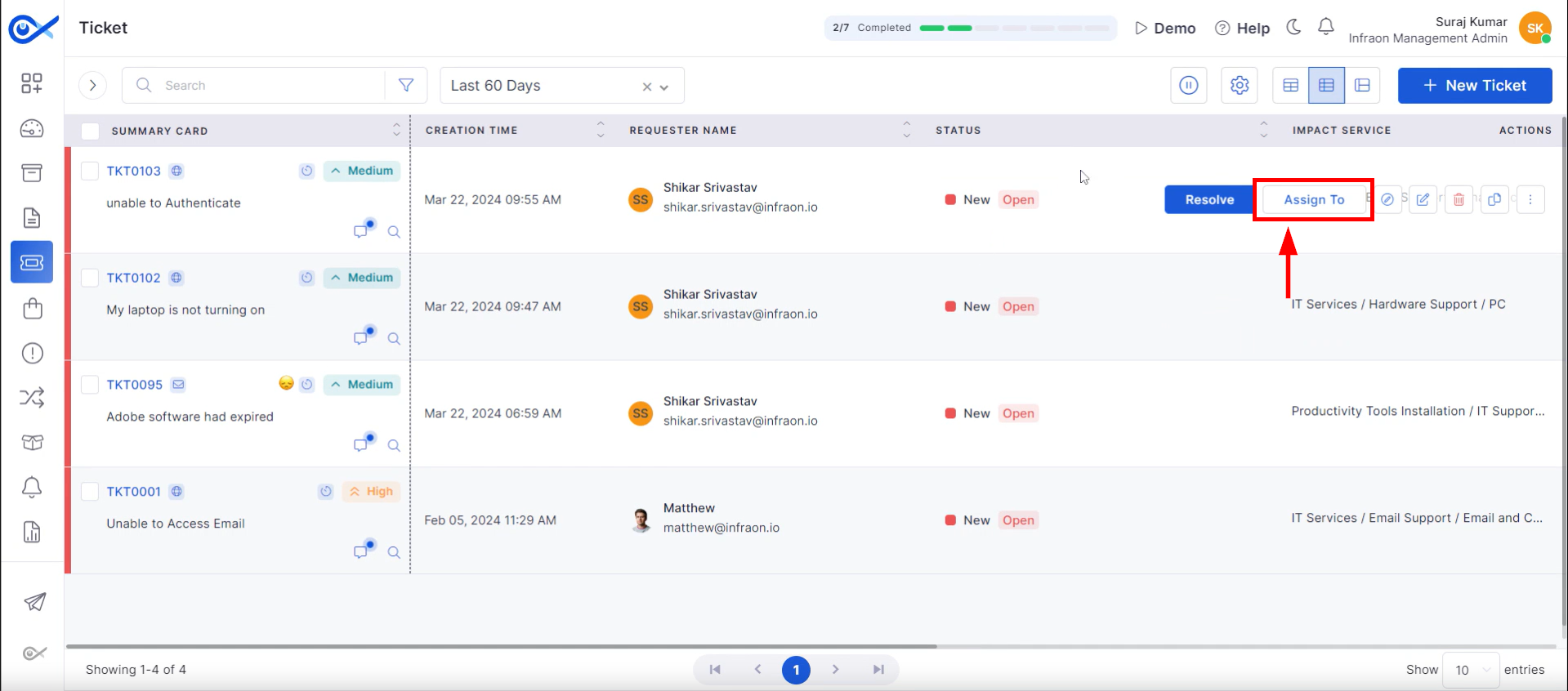
This guide explains the manual ticket assignment process in the Infraon Infinity platform. In this process, the Admins or the Service Desk team assign tickets by selecting the appropriate team, expertise, level, and technician. The ticket is then directly assigned to the selected technician.
Start with the following steps:
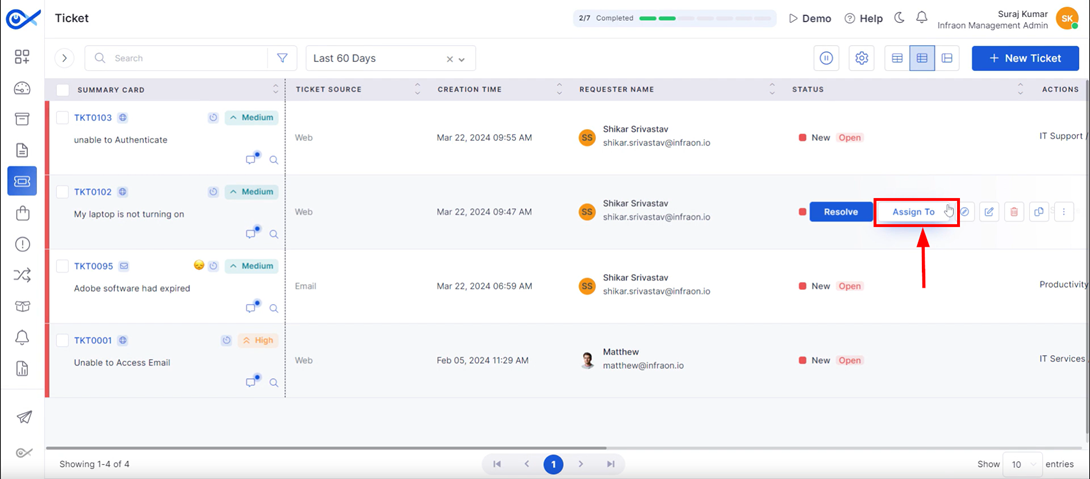
Step 1: Hover over the ticket and click on the “Assign To” option.
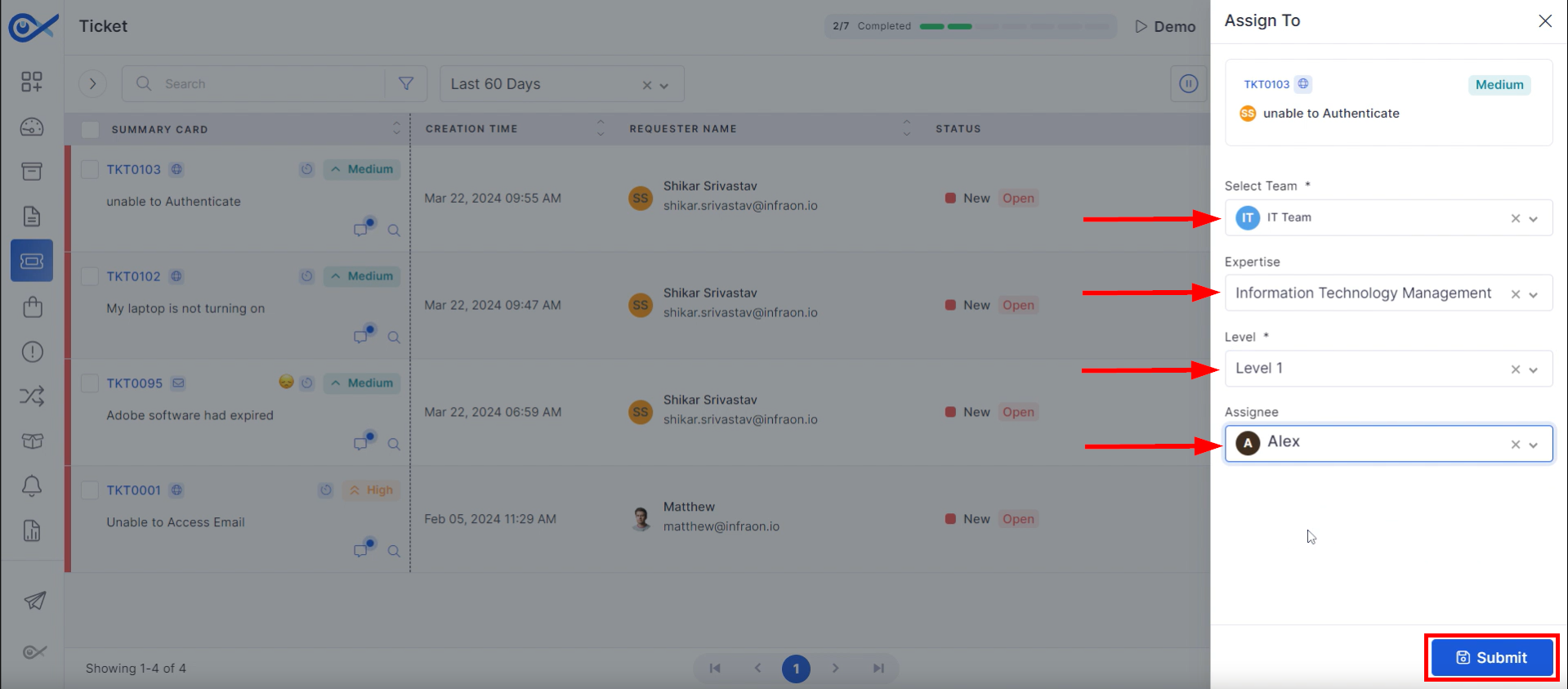
Step 2: A new pop-up window will appear where you can specify ticket ownership and handling.
Select the target “Team” responsible for the ticket and the appropriate Expertise group. Determine the ticket's priority “Level,” indicating the required skill tier within the designated team. Finally, choose the specific technician or the “Assignee” who will be assigned to address the ticket.
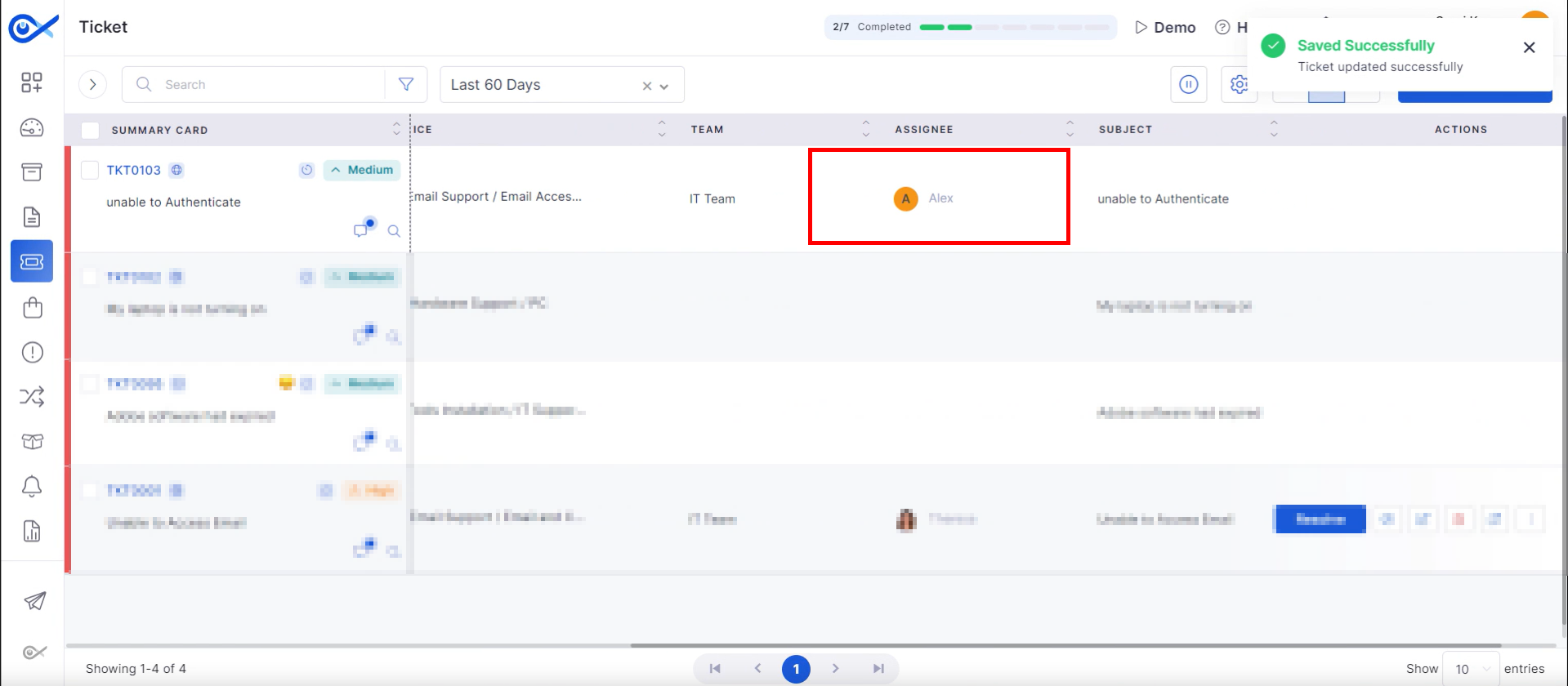
Click on Submit to finalize the assignment.
The ticket is now assigned to the selected technician.
This concludes the guide on manual ticket assignment in the Infraon platform.
Service Management
Service Catalogue
Please refer to our detailed for comprehensive documentation.
User Manual
Miscellaneous
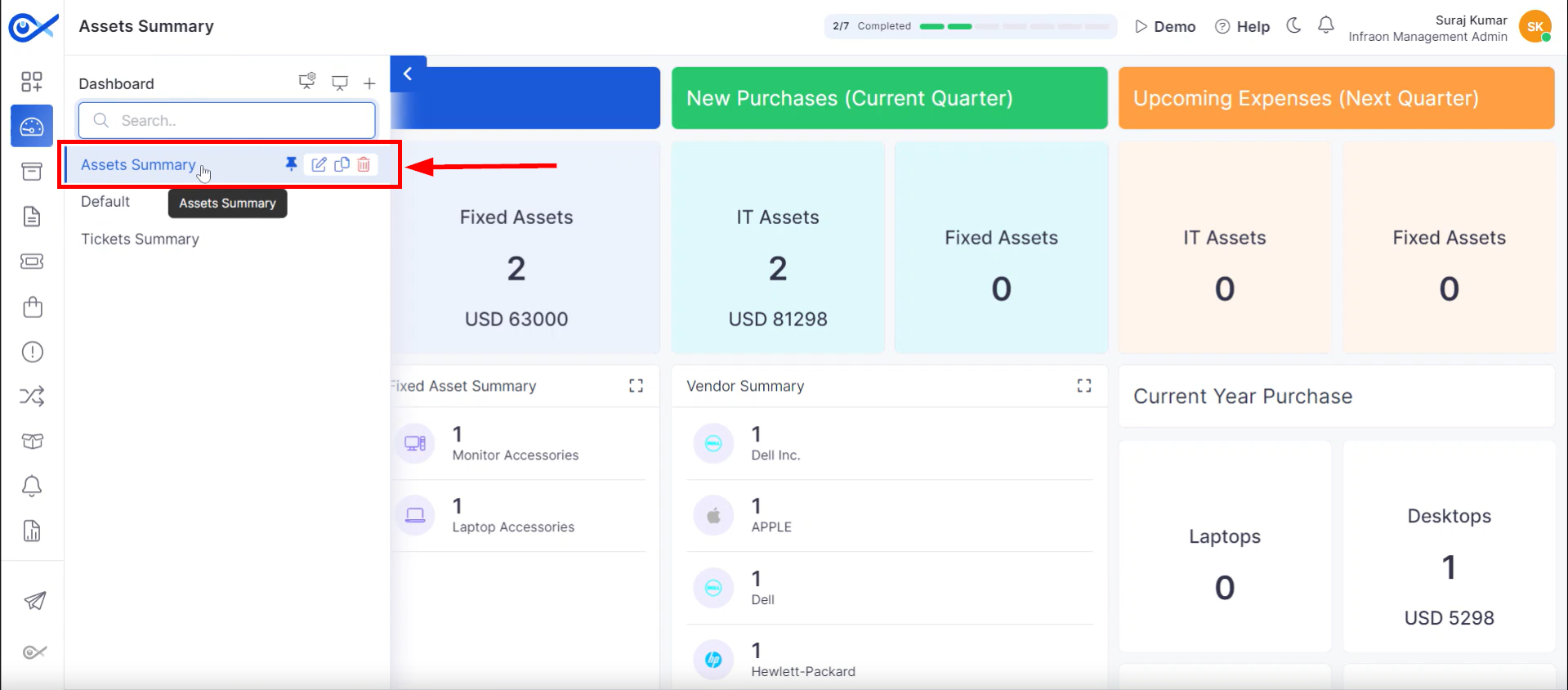
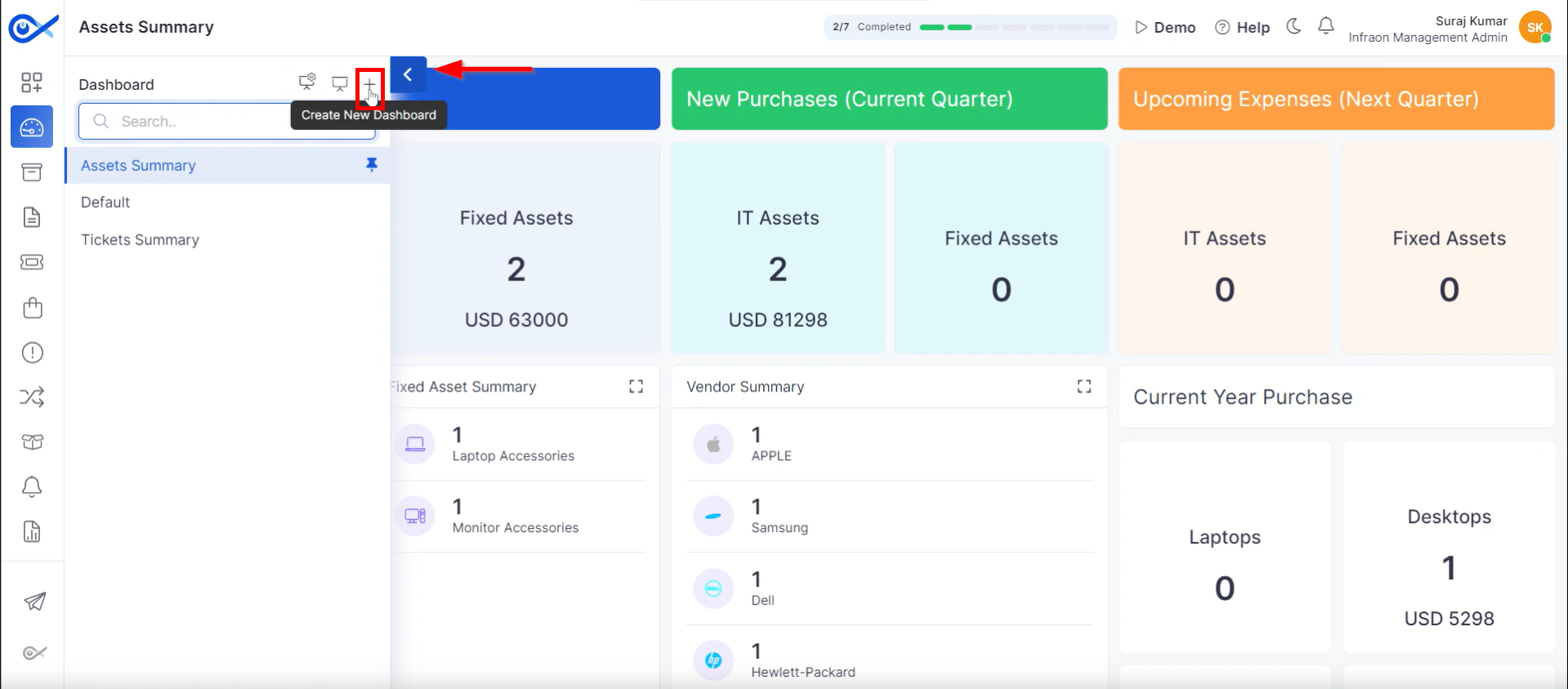
This guide will explore the various actions and edit the keys available on the dashboard page in the Infraon Infinity platform. These keys allow for customization and efficient dashboard management.
Click on the blue arrow at the page's top left corner. Hover the mouse over a category to reveal multiple action keys.
The initial key provides functionality to elevate a dashboard to a prominent position within the dashboard hierarchy.
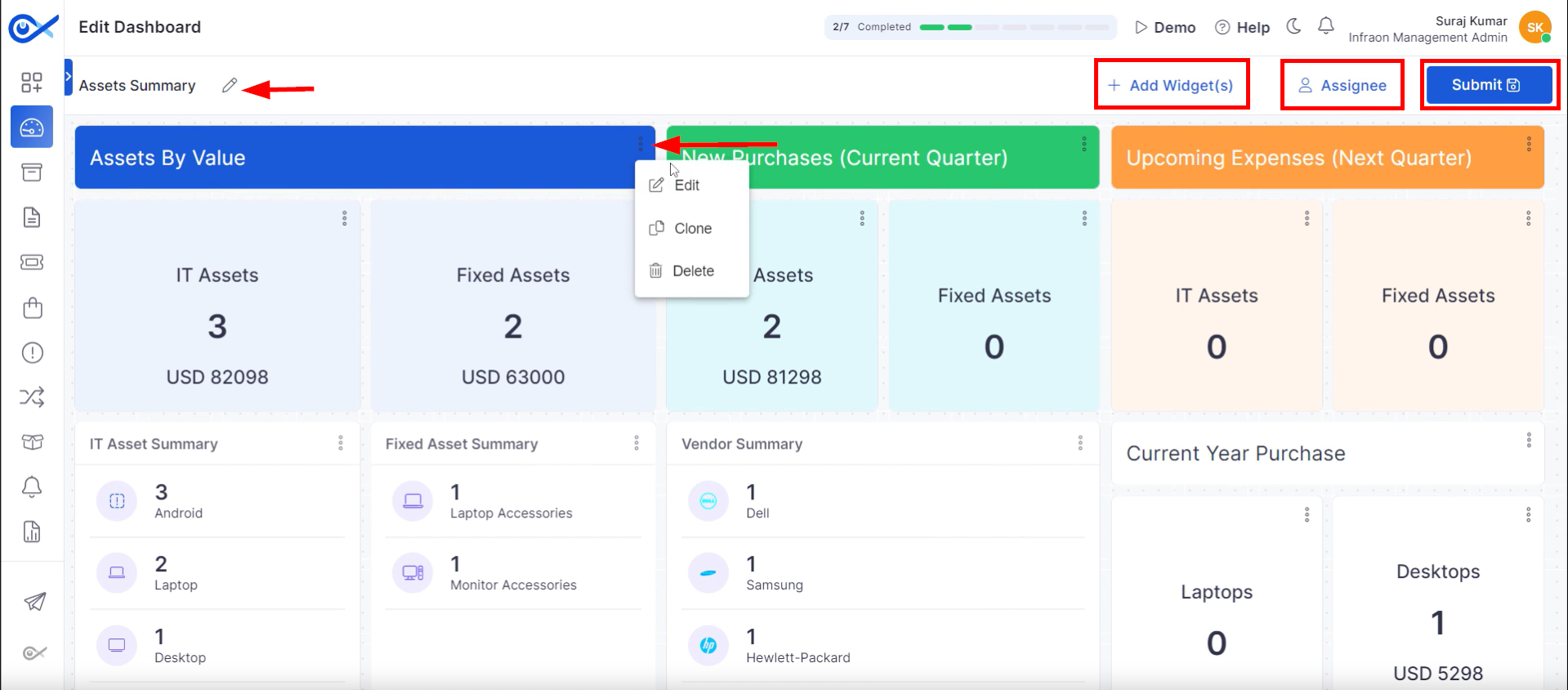
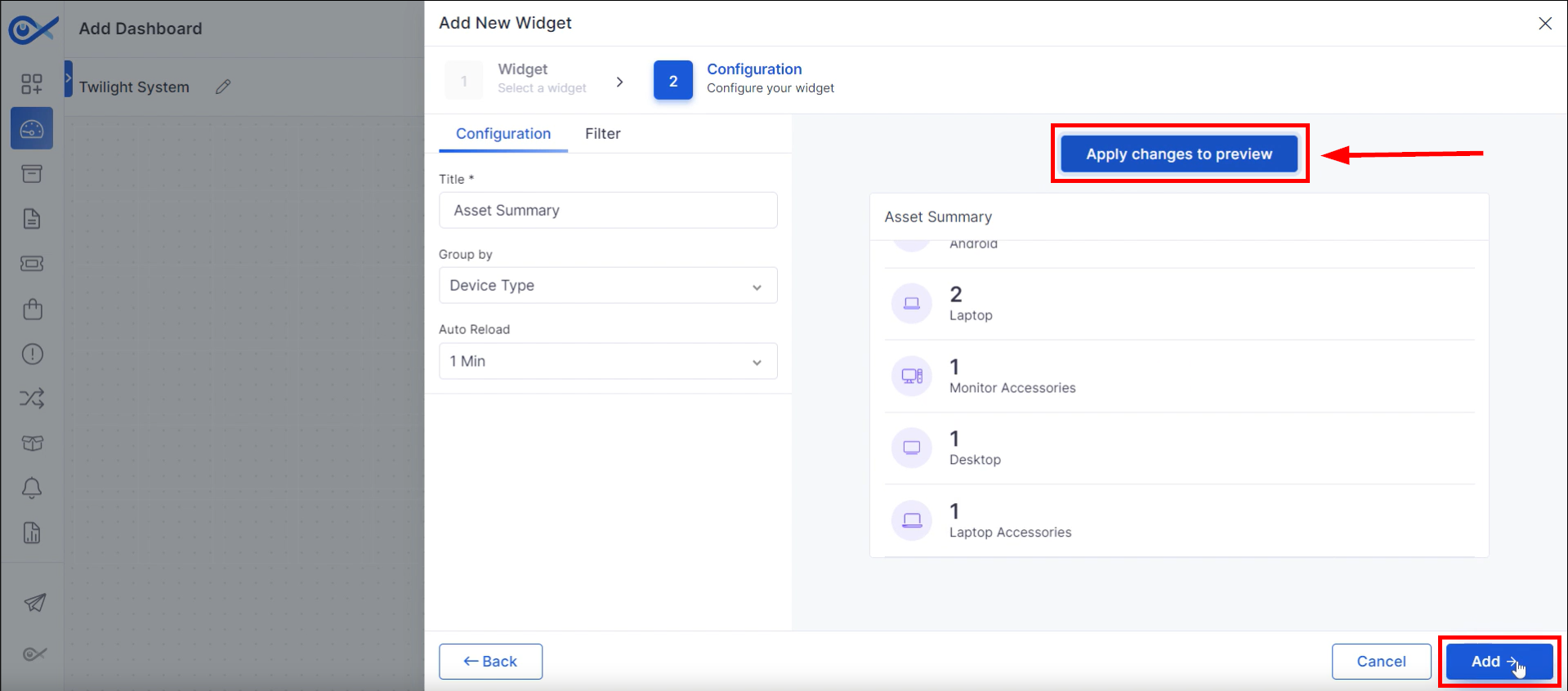
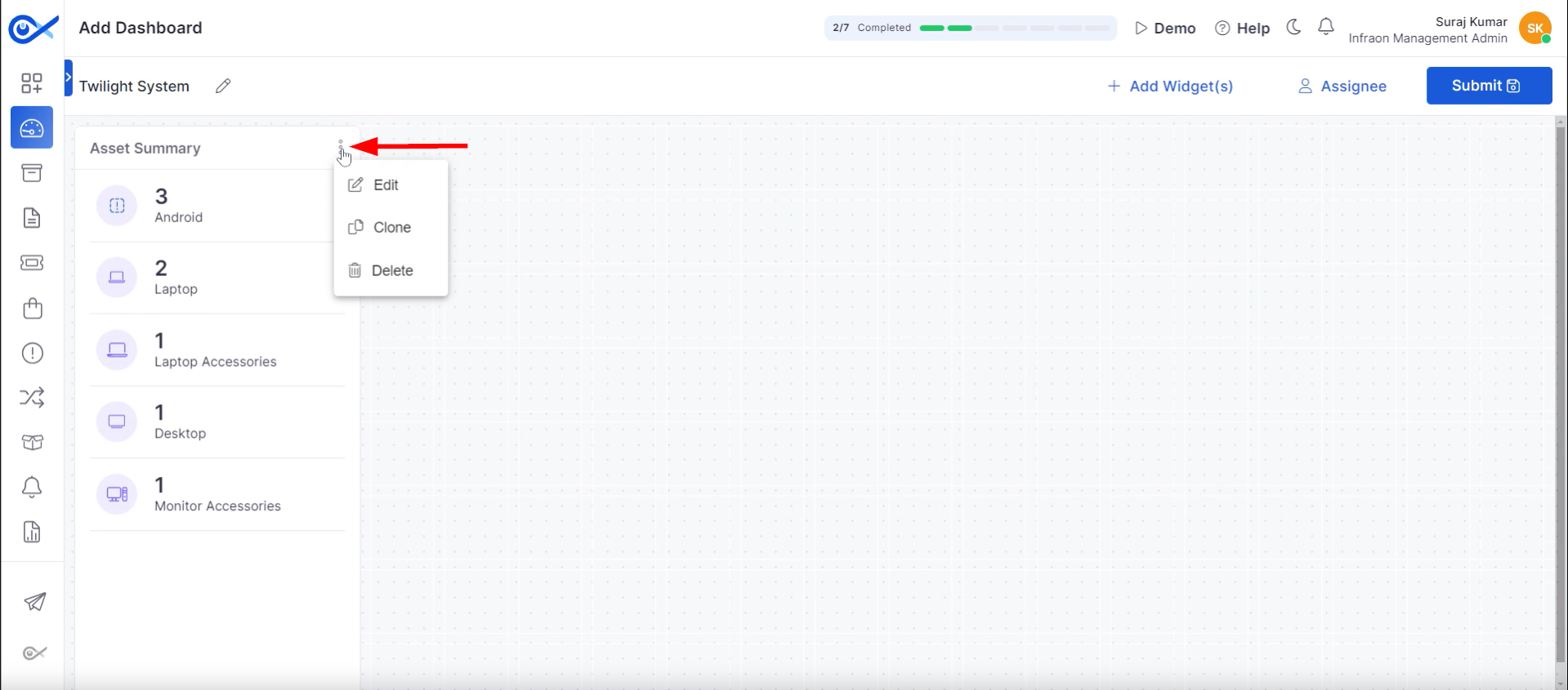
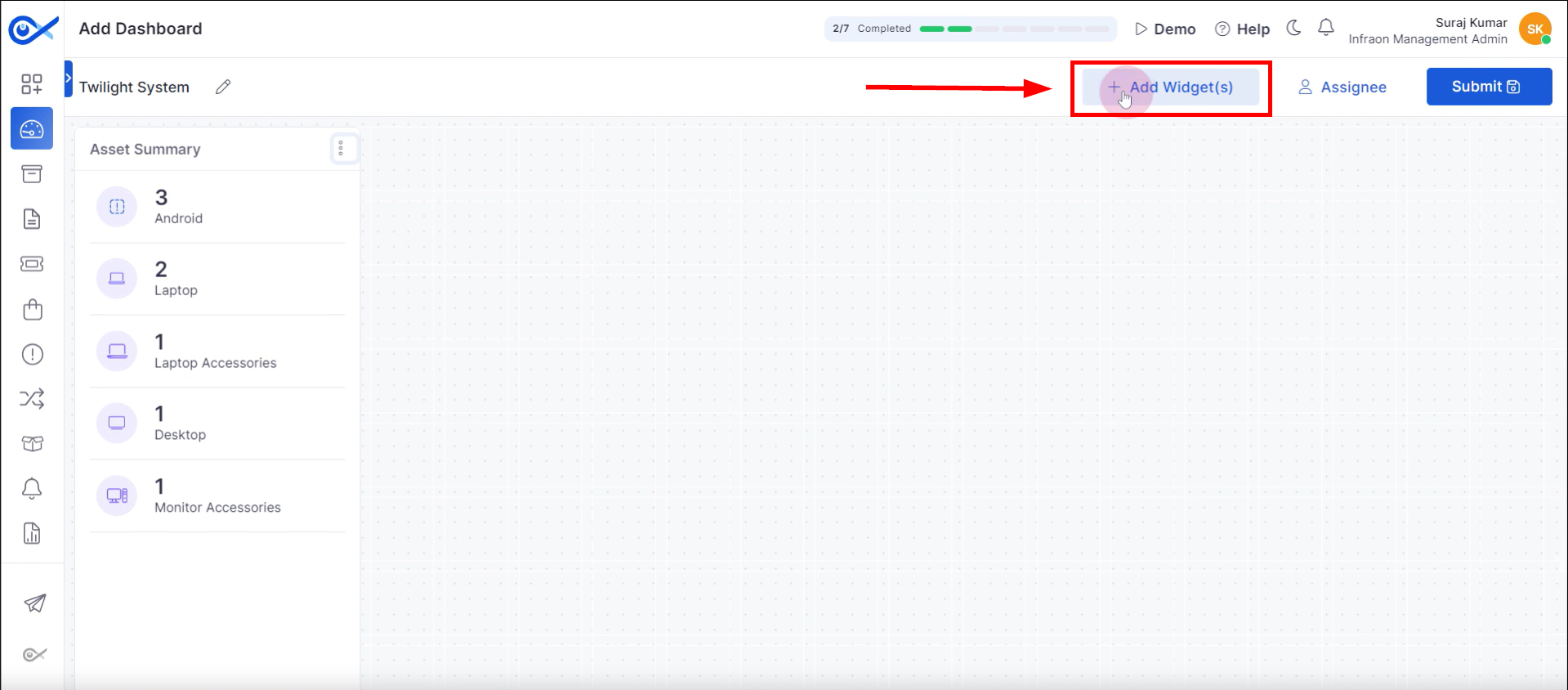
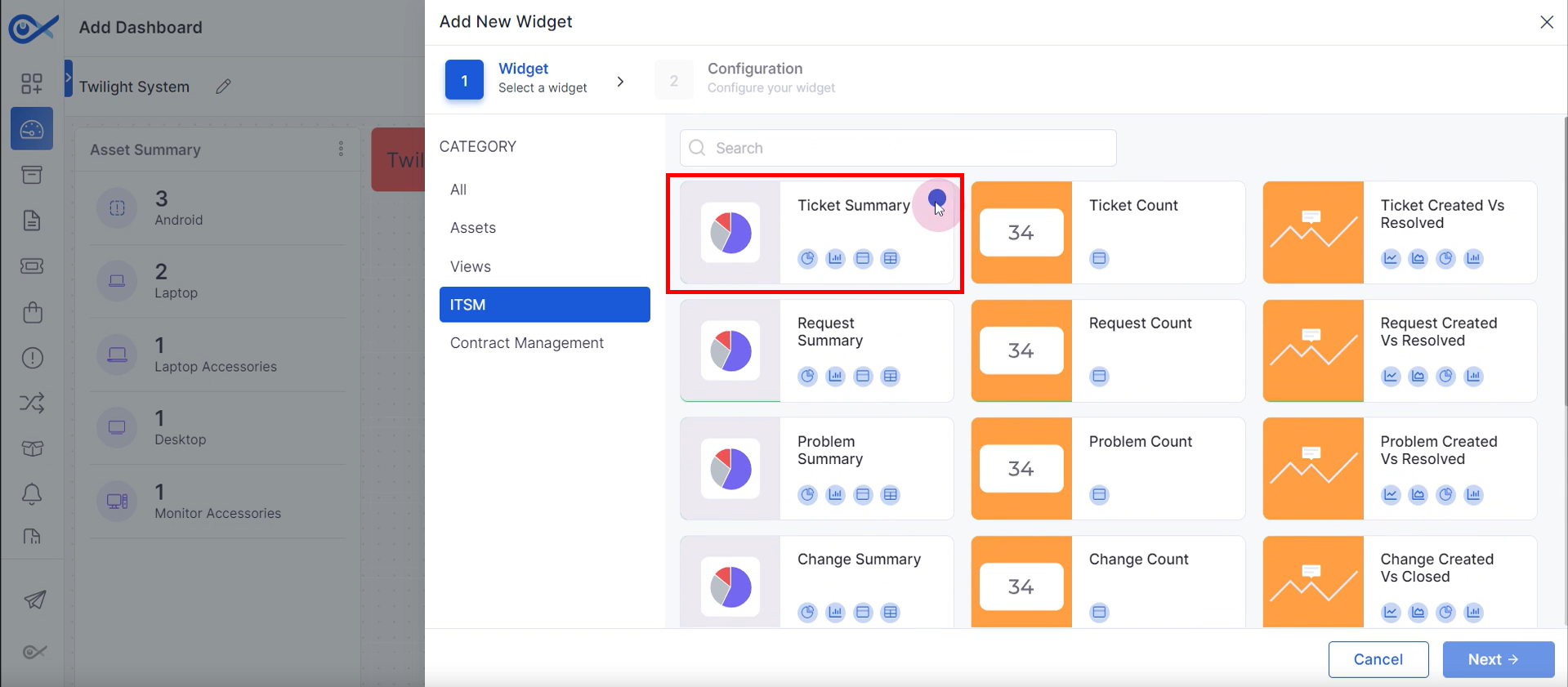
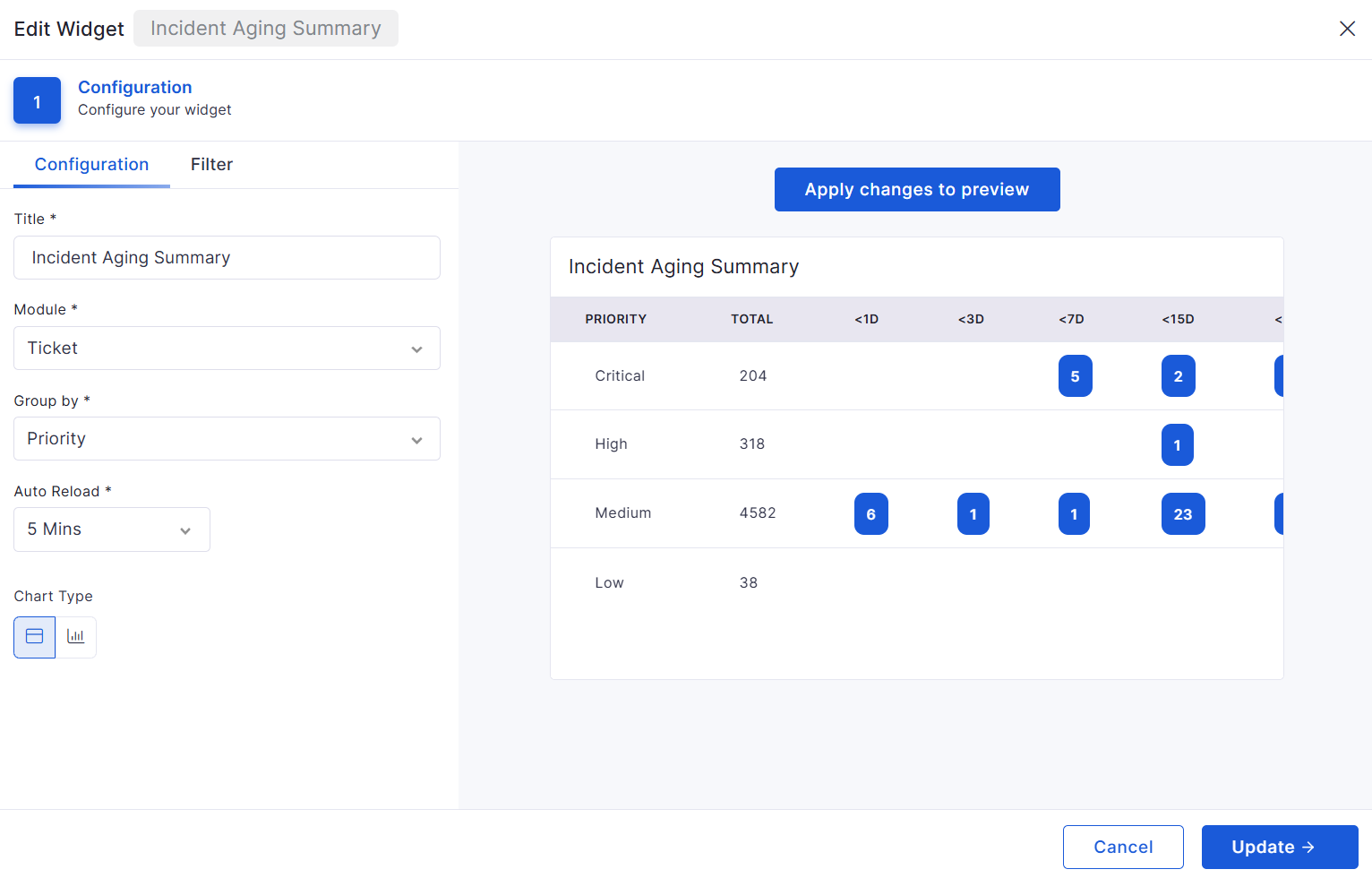
The secondary key facilitates dashboard modification, encompassing actions such as “Add Widget(s),”“Assignee,” and “Dashboard Renaming.” Upon activating the “Edit” function, widgets can be customized via the “More actions” menu at the top right corner of each widget.
Technical personnel can Edit, Clone, or Delete widgets as required. Additional refinements, such as filter implementation, are permissible. Technicians can modify the background color and apply other configurations contingent upon widget compatibility. To finalize changes, click the “Submit” button.
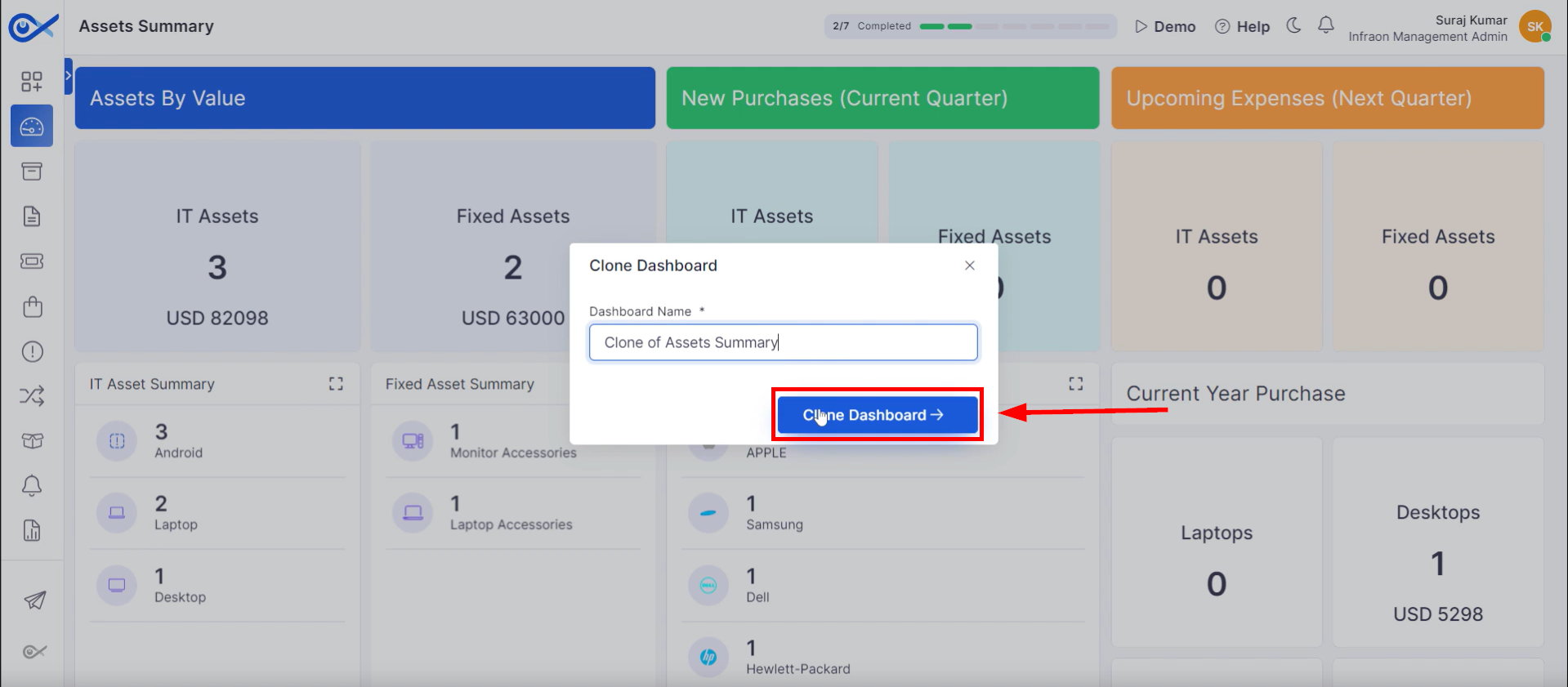
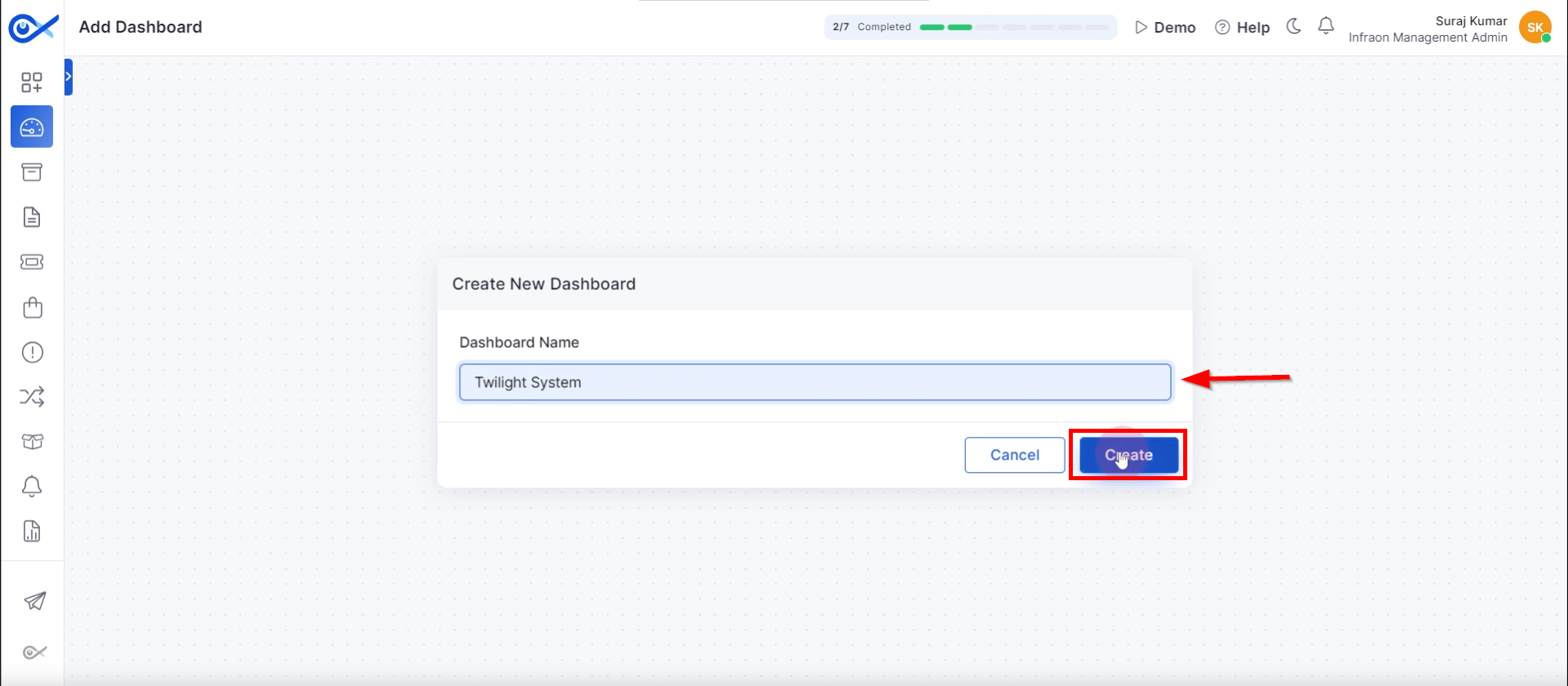
The tertiary action key facilitates dashboard replication through the “Clone Dashboard” function. Upon selection of this option, a new dashboard name must be inputted. The cloning process is initiated by clicking the “Clone Dashboards” button, creating a duplicate dashboard instance.
Utilize the “Delete” function to eliminate a specific dashboard from the dashboard inventory.
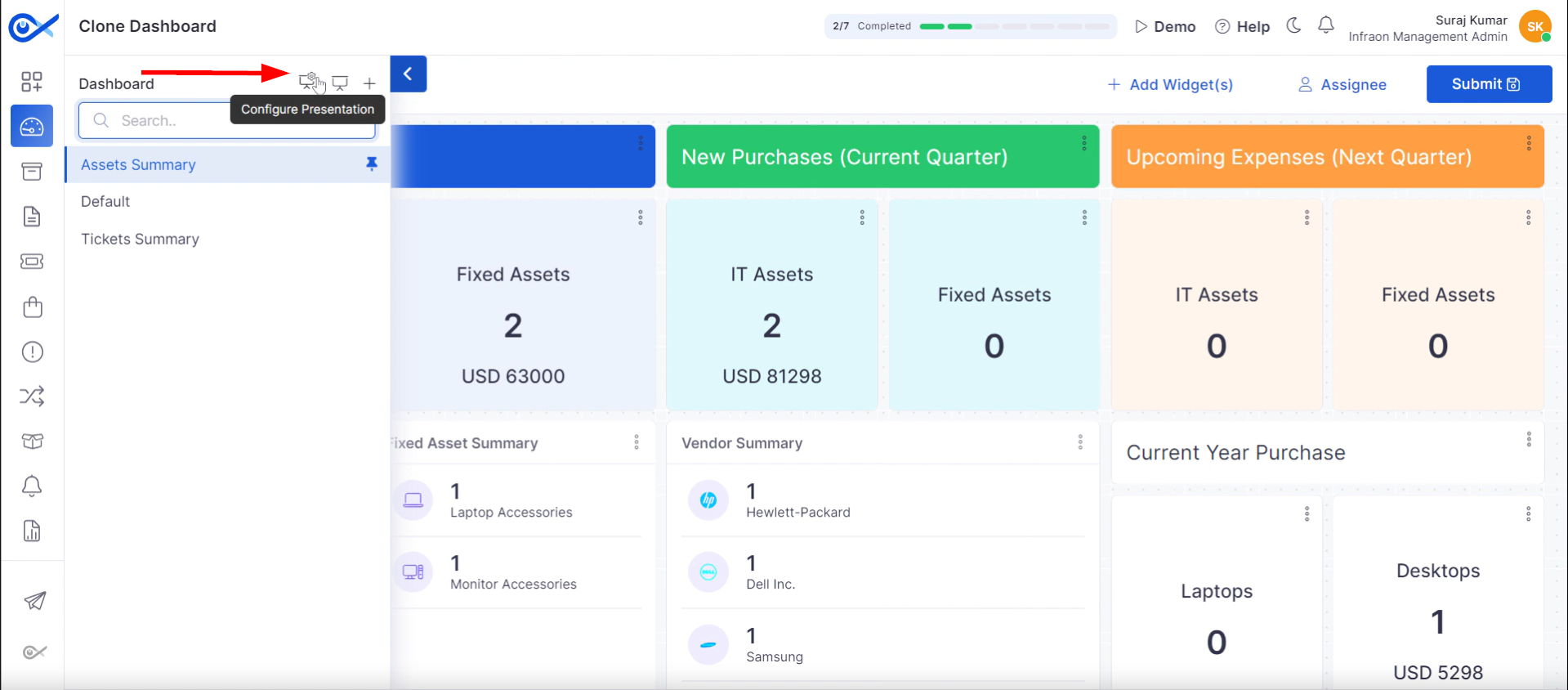
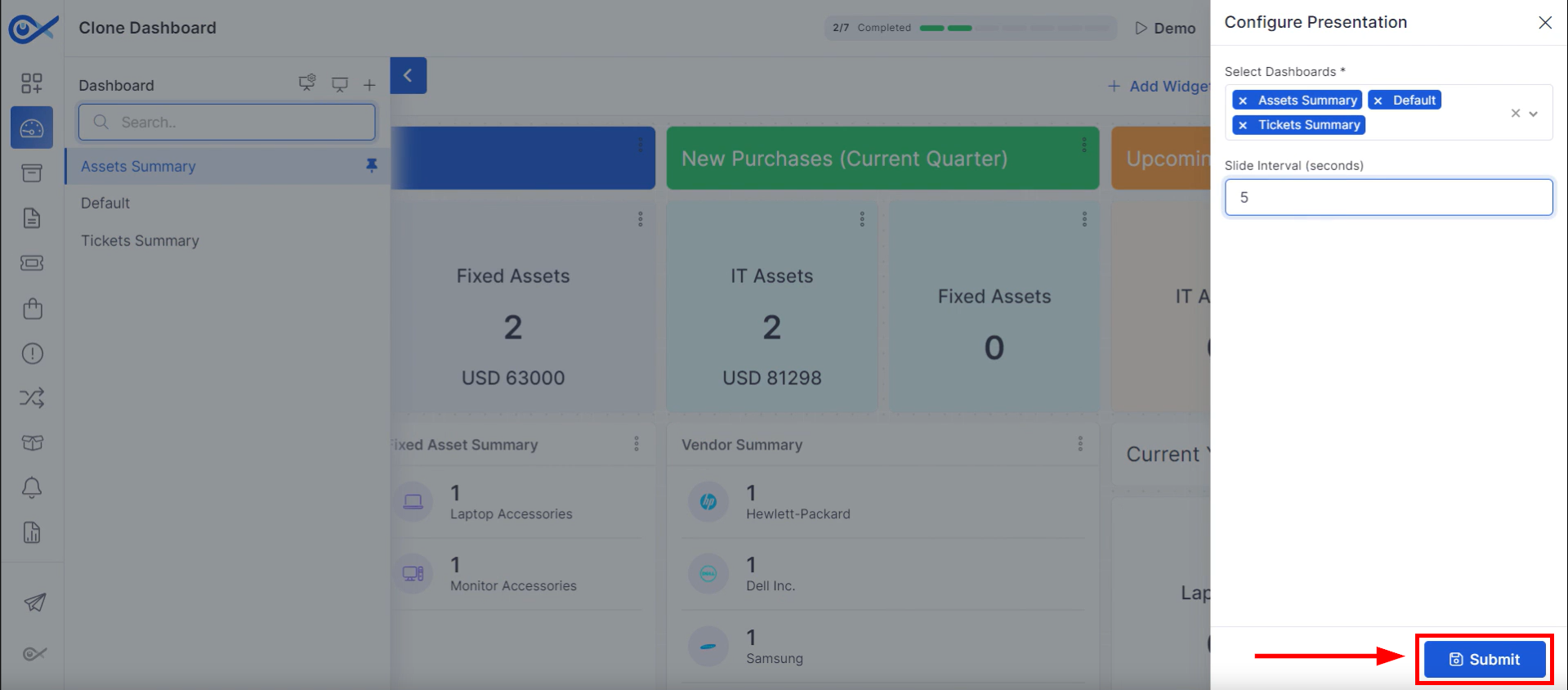
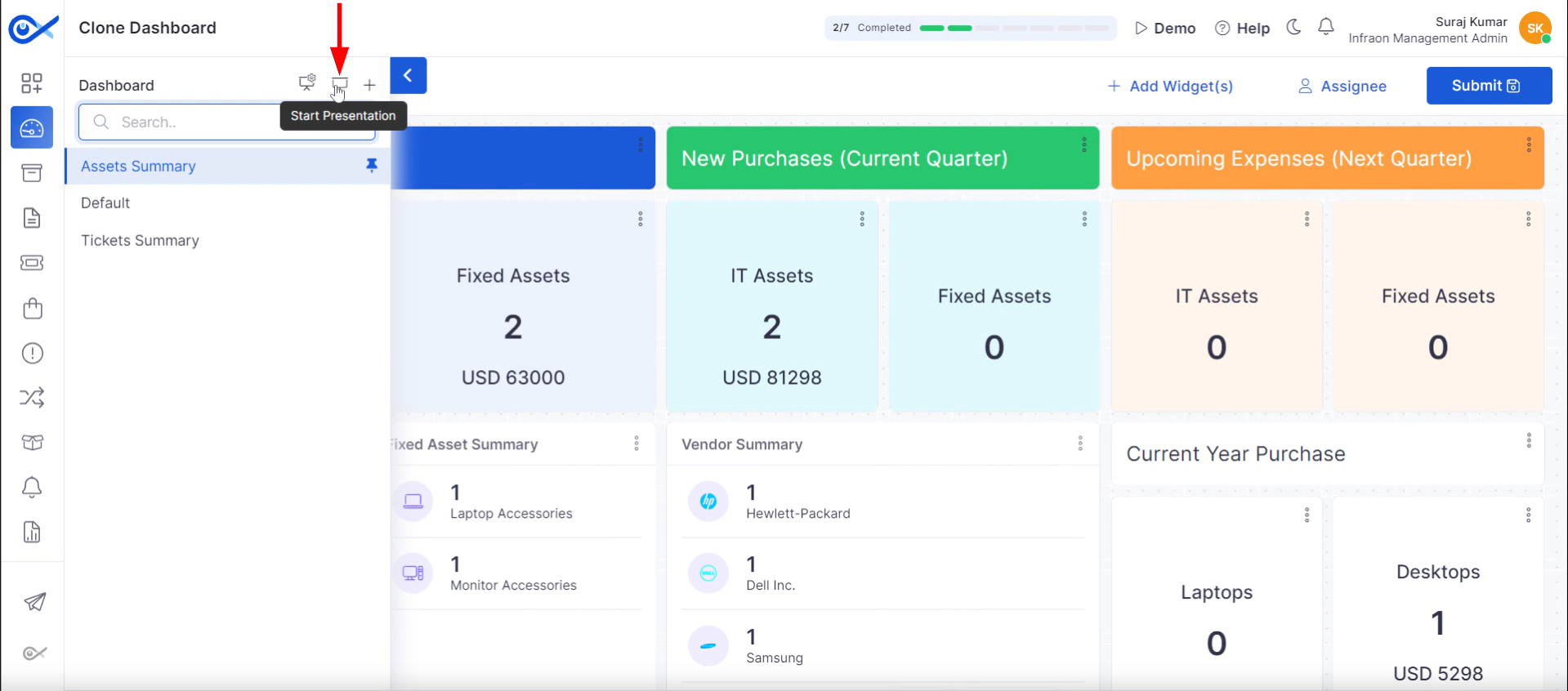
Step 1: Locate the “Configure Presentation” function in the upper left-hand section of the interface.
Step 2: A configuration pop-up will open, enabling customization of the dashboard presentation. Choose dashboards for display and set the slide transition time. Apply changes by clicking “Submit.”
Step 3: Click on Start Presentation to begin showcasing the dashboard.
The dashboard will be displayed in a presentational format.
This guide covers all the miscellaneous icons available on the dashboard page in the Infraon Infinity platform.
Presentation Configuration
Ticket Creation
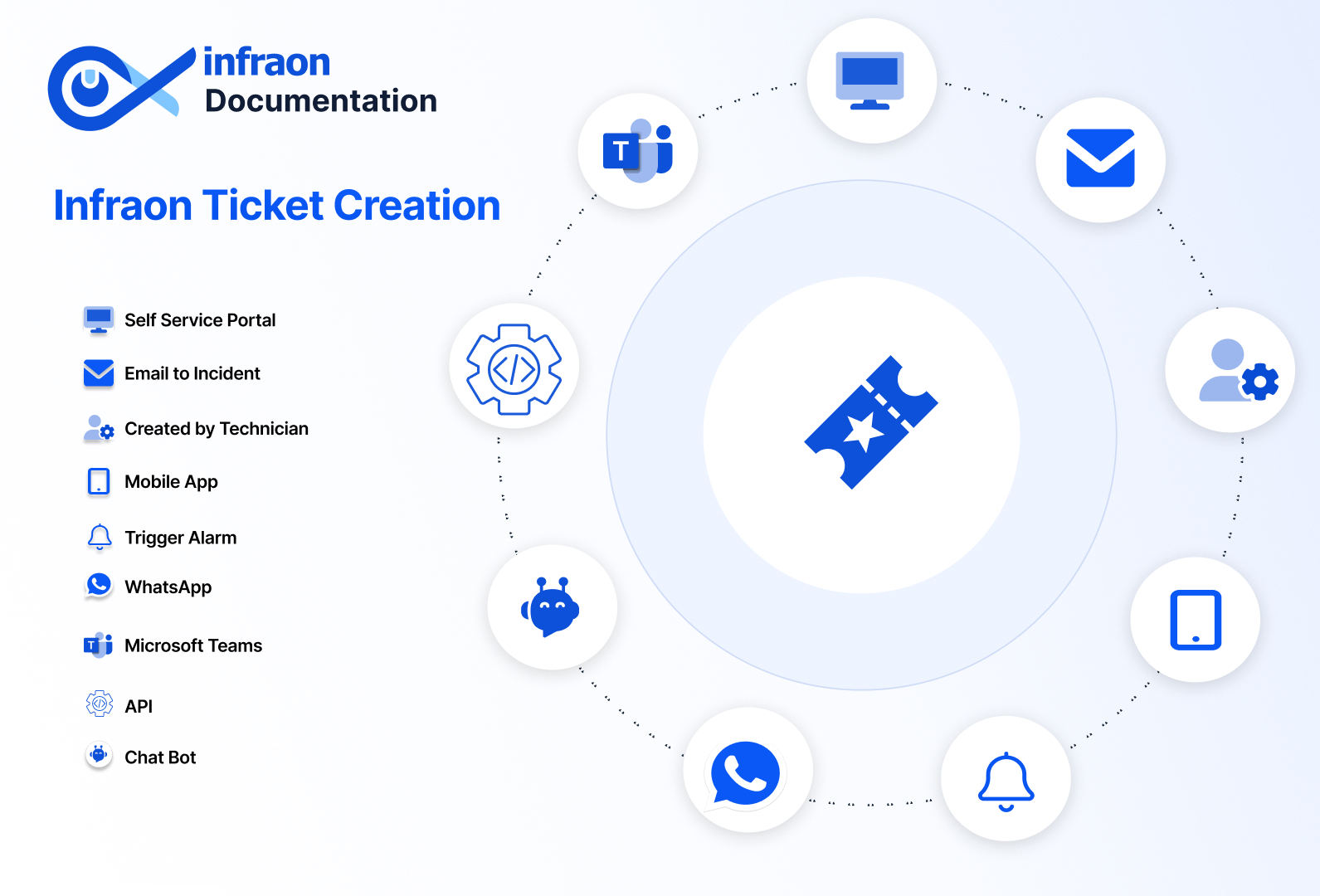
Infraon Infinity offers three primary methods for creating tickets.
Created by Technician
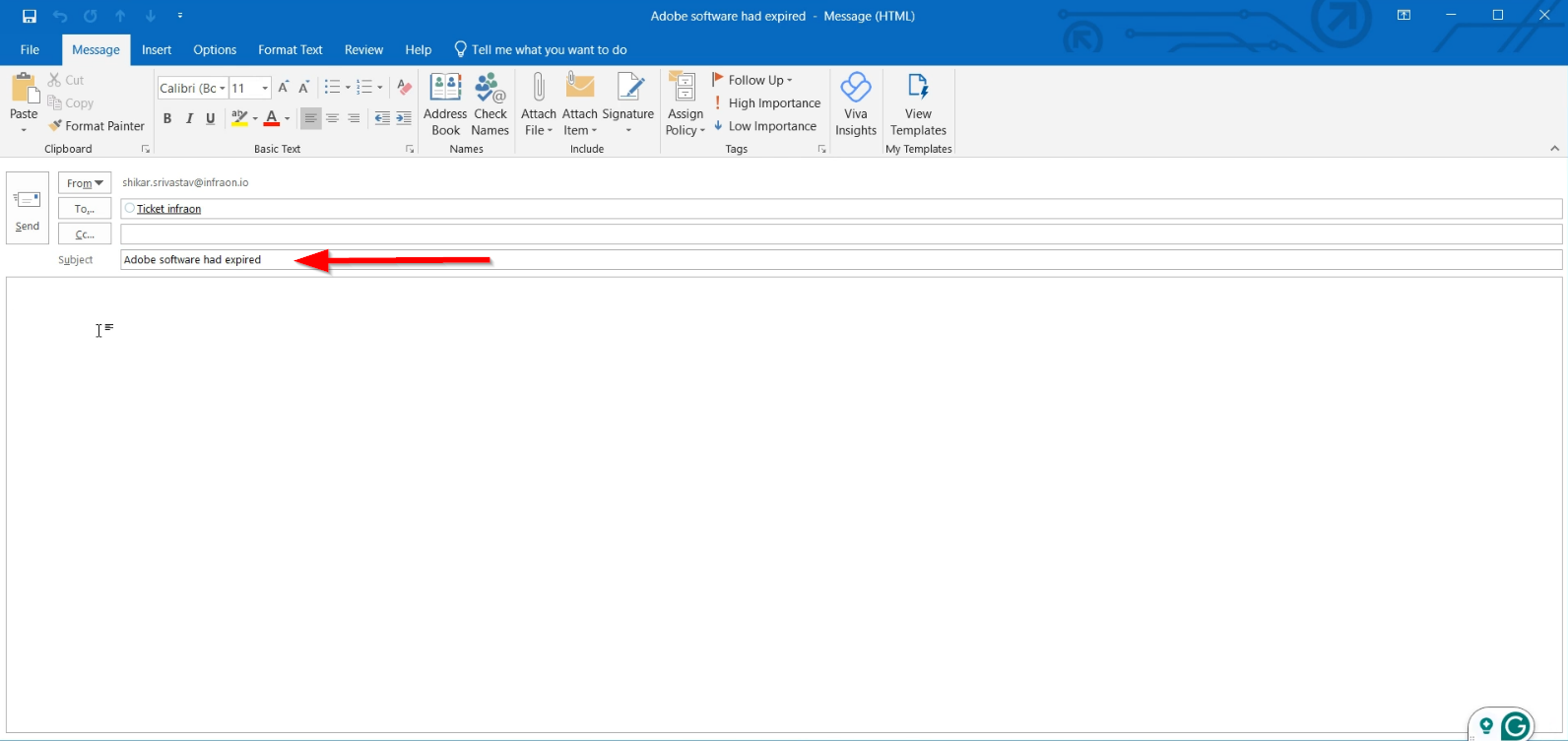
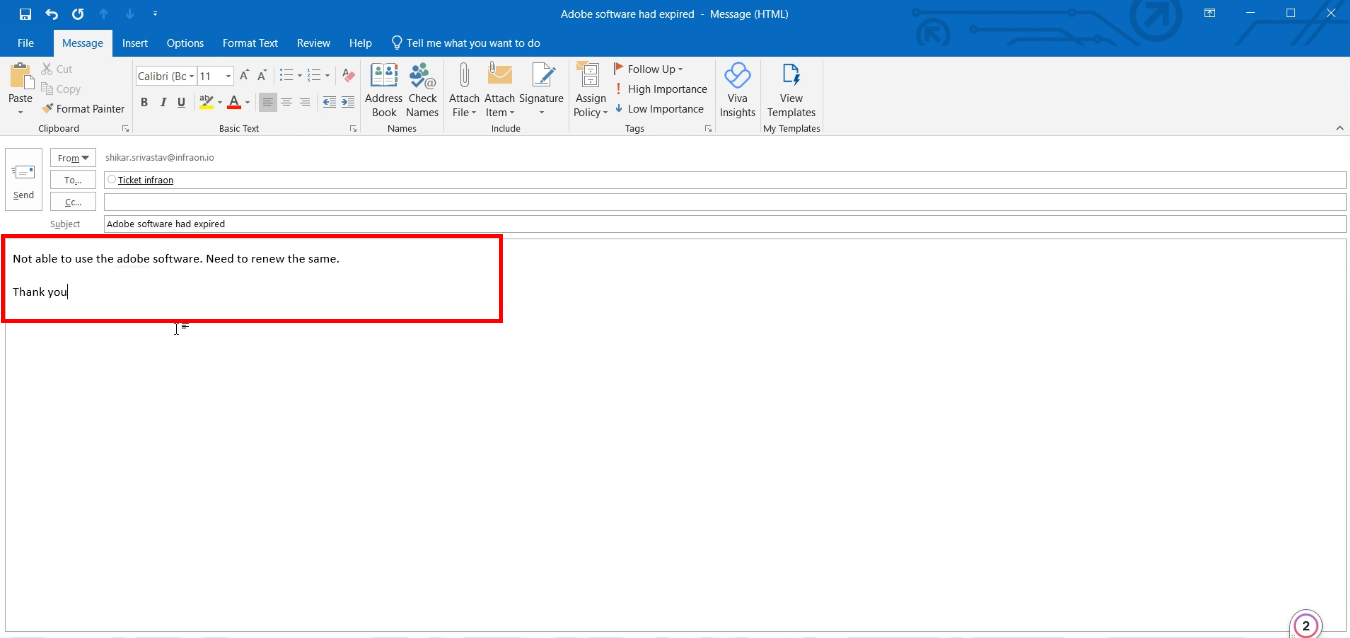
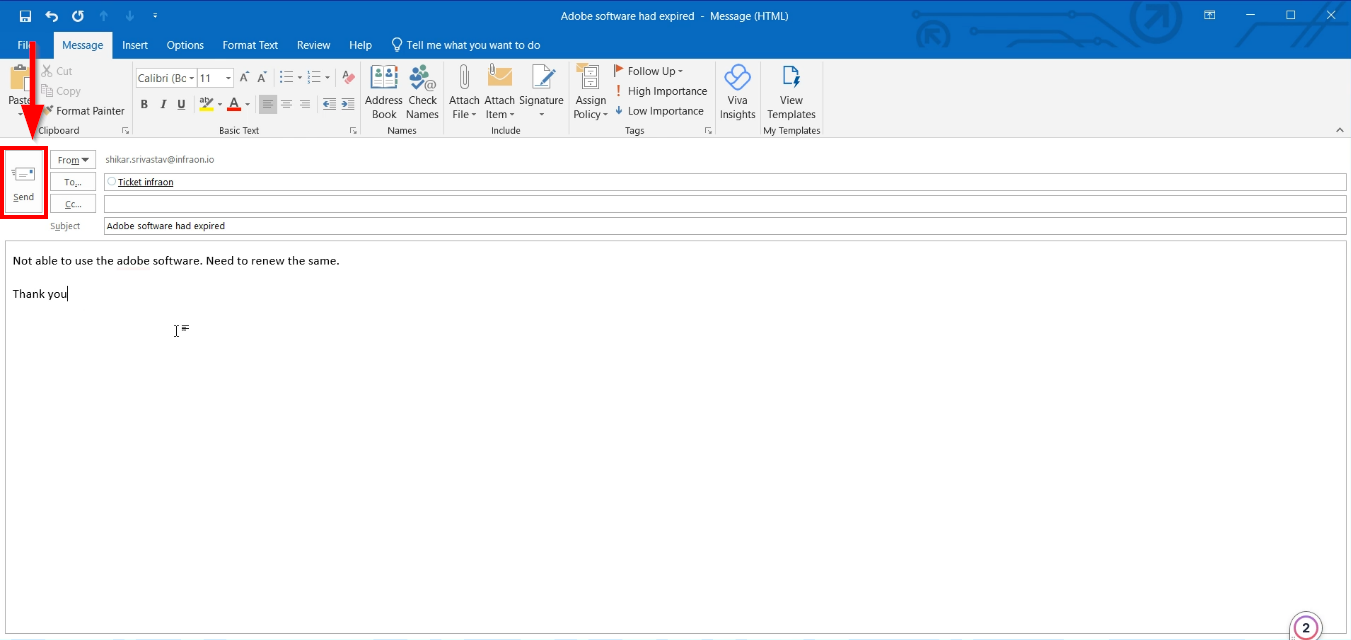
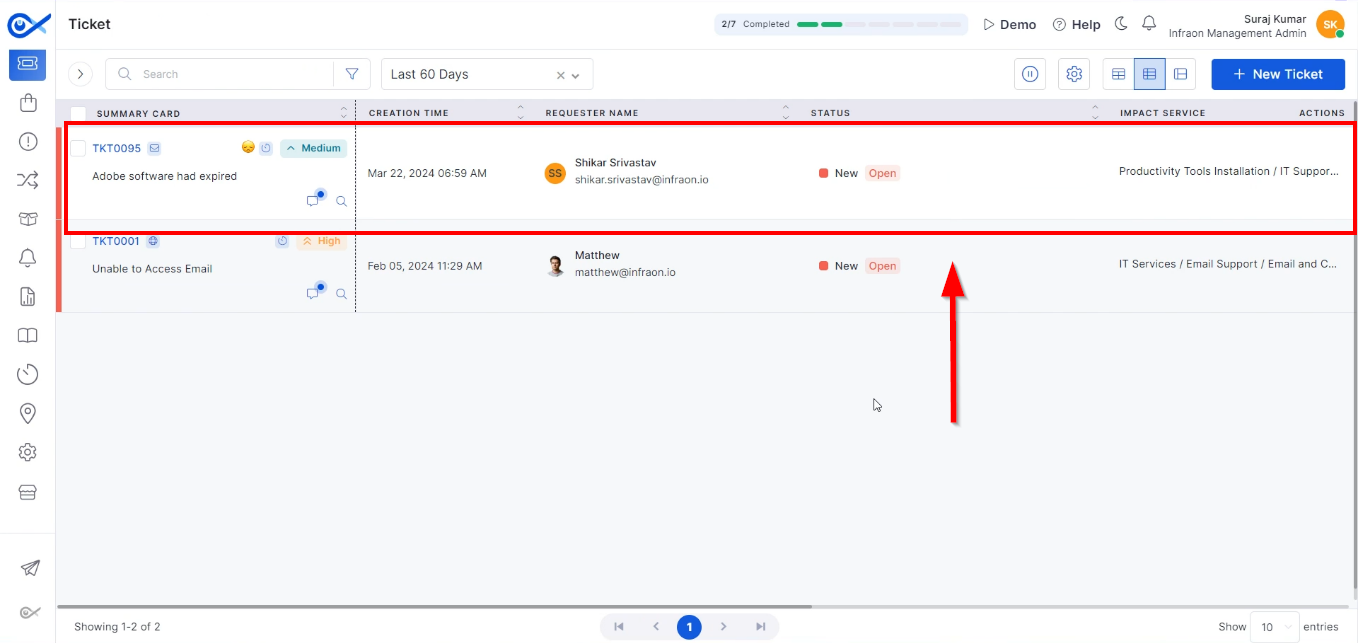
Email to Incident
Self Service Portal
Please refer to our detailed for comprehensive documentation.
For implementation assistance, view our Integration Guide.
IT & Fixed Asset
This guide explores the sub-modules of the Infraon platform's Assets.
Please refer to our detailed for comprehensive documentation.
For implementation assistance, view our Integration Guide.
Please refer to our detailed for comprehensive documentation.
For implementation assistance, view our Integration Guide.
Ticket Management
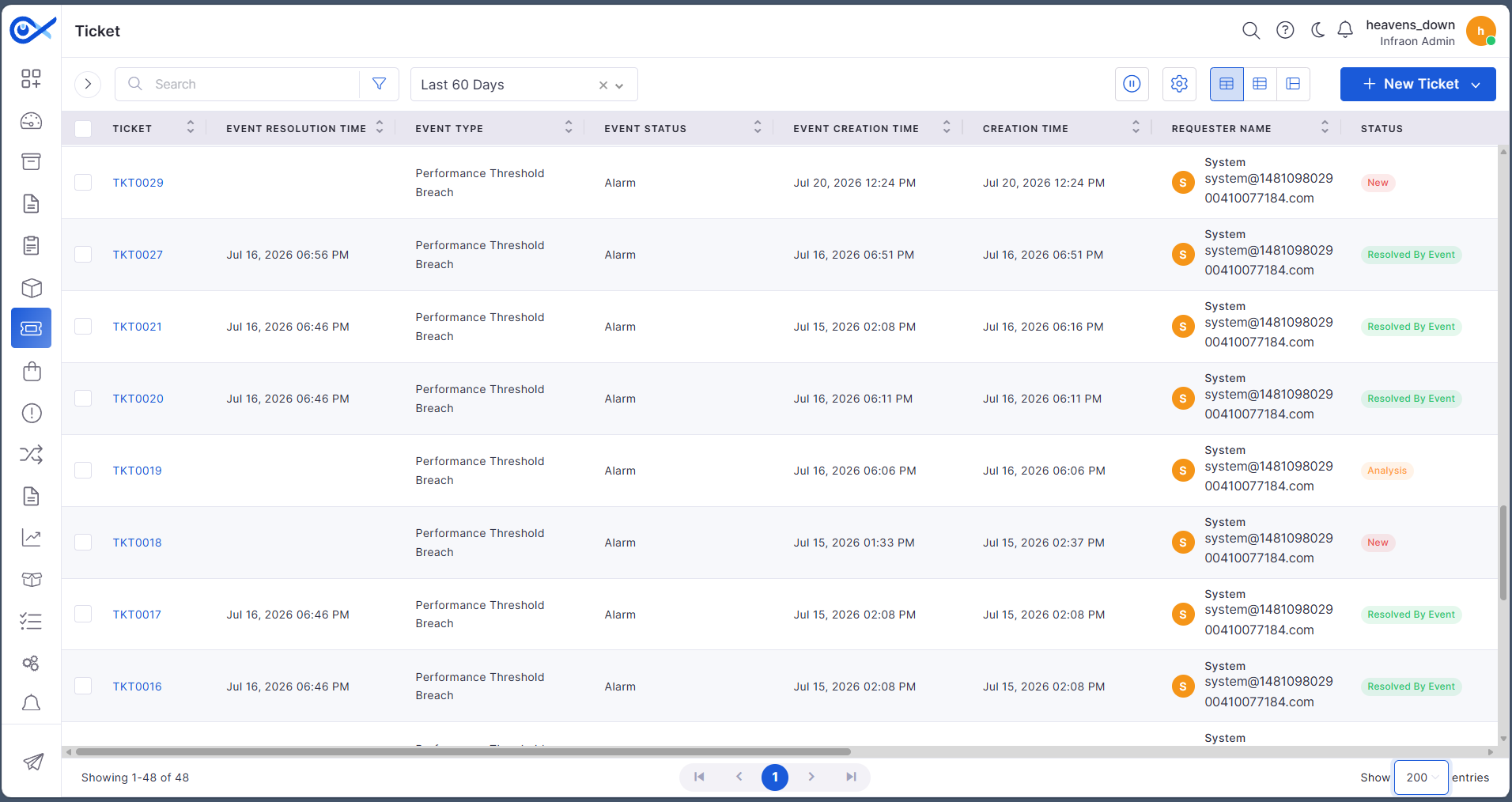
This guide provides a detailed walkthrough of ticket management within the Infraon Infinity platform. The ticketing module on the left panel is crucial for managing incidents.
In Infraon Infinity, tickets are synonymous with incidents, a term used to simplify the concept for end-users.
Incident management in the Infraon Infinity platform is designed to restore normal service operation as quickly as possible following an unexpected disruption or incident. An incident usually refers to an unplanned interruption or degradation of service that affects the regular operation of an IT service or system, disrupting users or stakeholders. These incidents can occur due to various factors, including hardware failures, software bugs, network issues, human errors, security breaches, or environmental events.
2026 Releases
Browse all Infraon releases published during 2026, including new features, enhancements, and bug fixes delivered across the platform.
This guide explores the Configuration Management Database (CMDB) view in this guide. This interface provides a structured visualization of configuration items (CIs) and their relationships.
Accessing the CMDB View
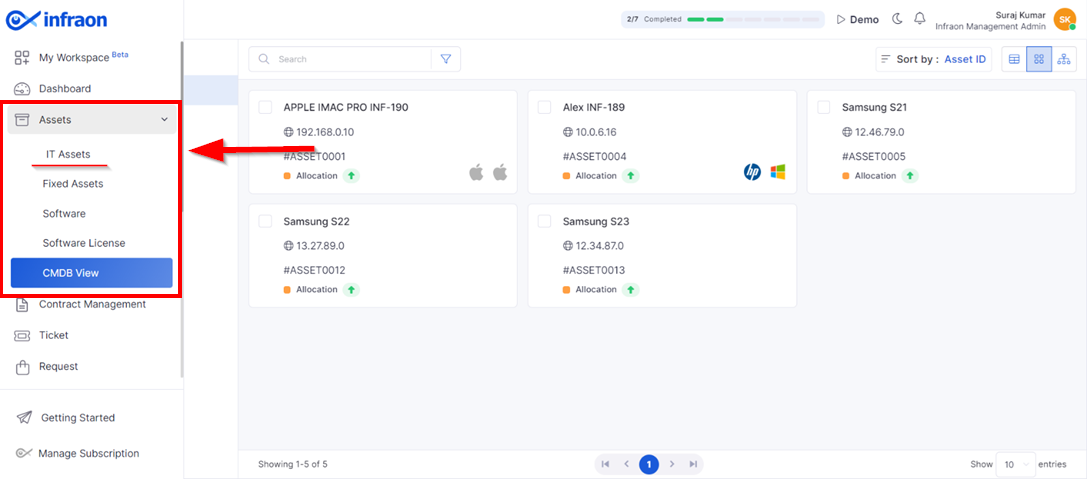
Locate the "CMDB View" option in the left menu of the asset catalogue. This view's left panel displays categorized configuration items.
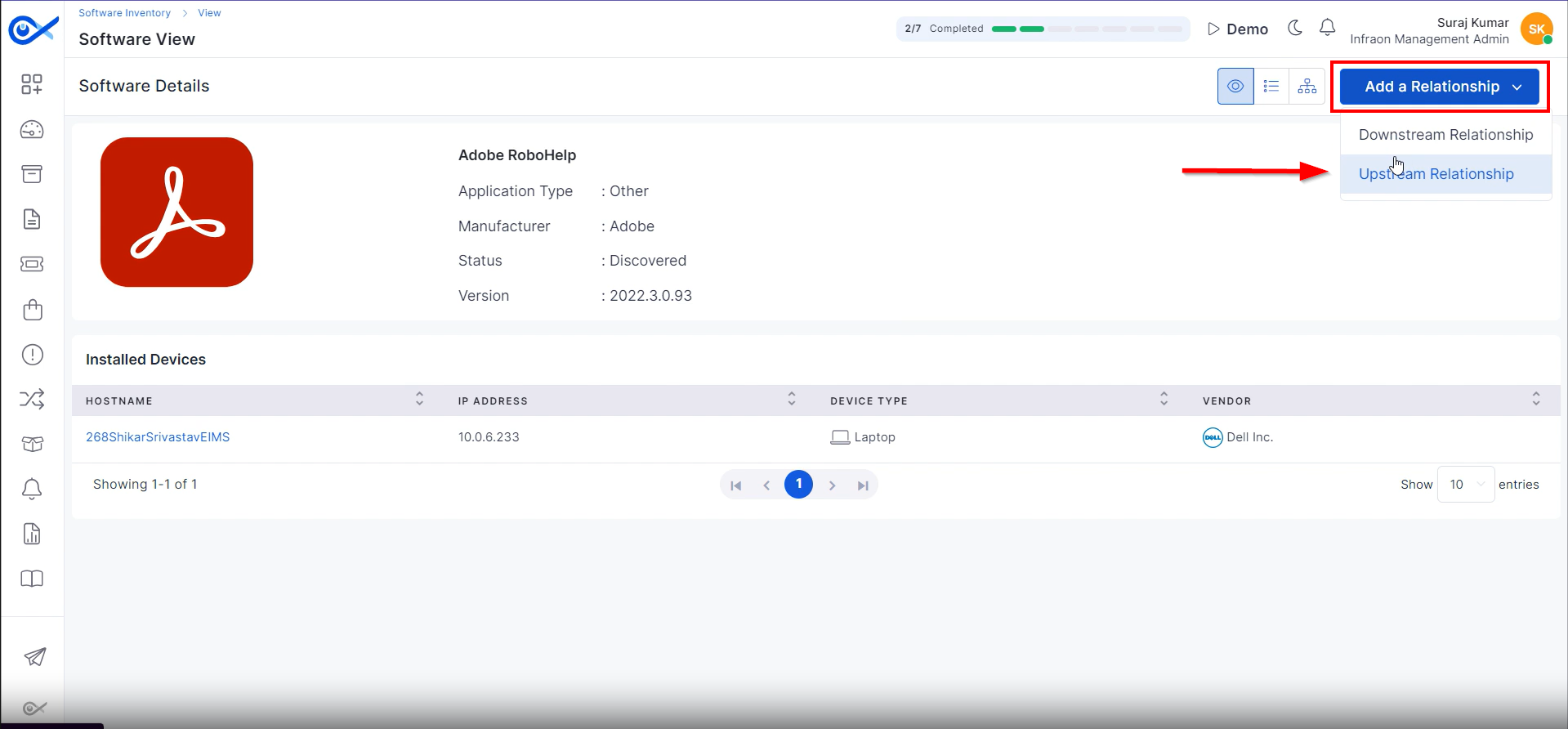
Adding and Viewing Relationships
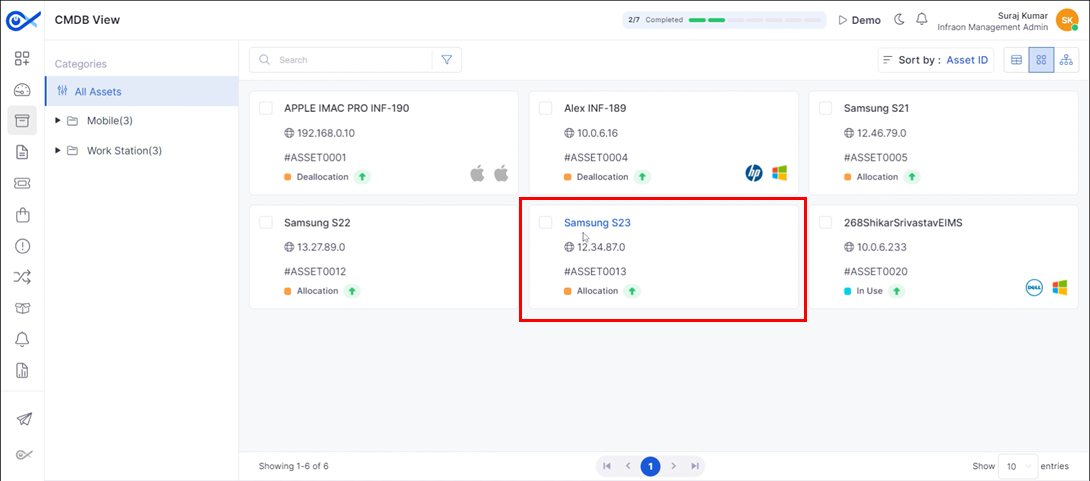
Step 1: Click on an asset to add or view a relationship.
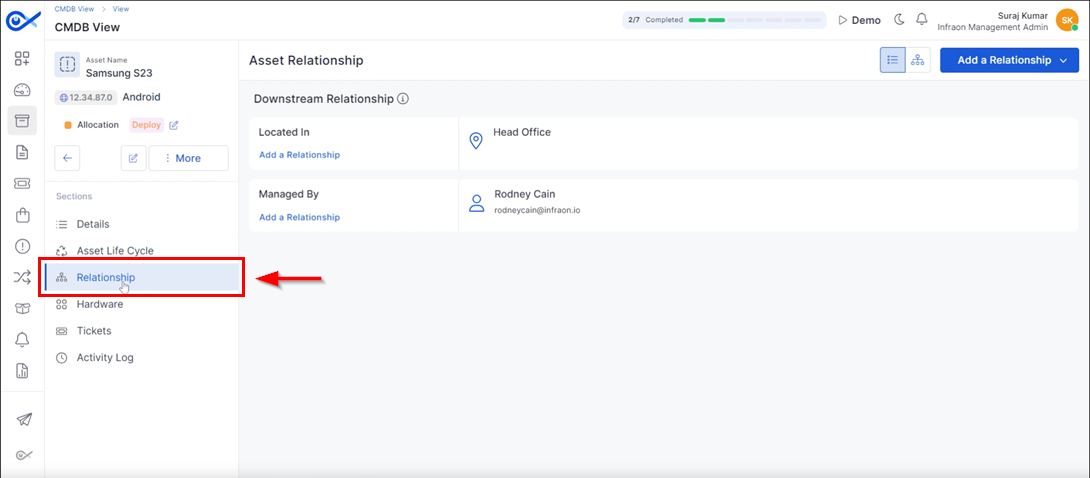
Step 2: Navigate to the asset information page and select the “Relationship” tab. This displays the asset's configured upstream and downstream connections.
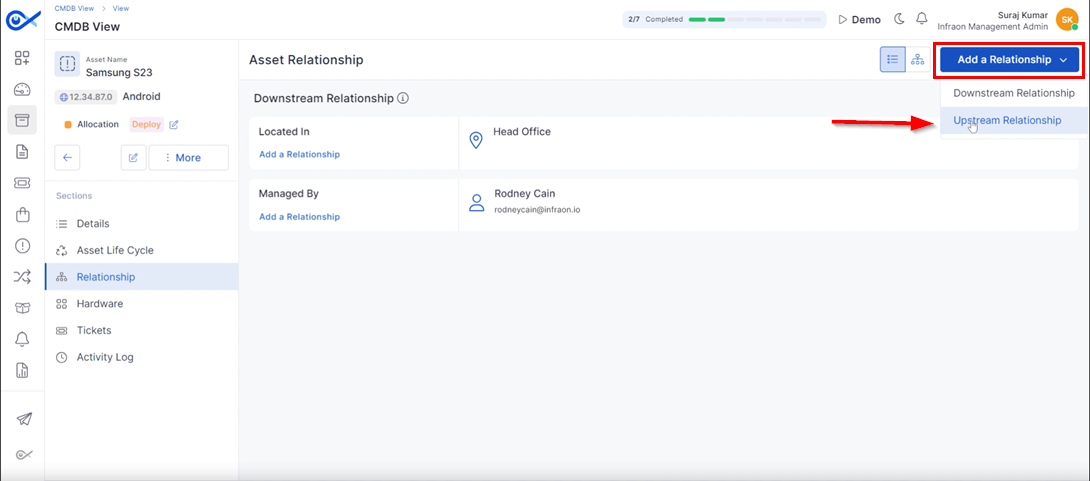
Step 3: To add a relationship, click on Add a relationship at the top right corner of the page.
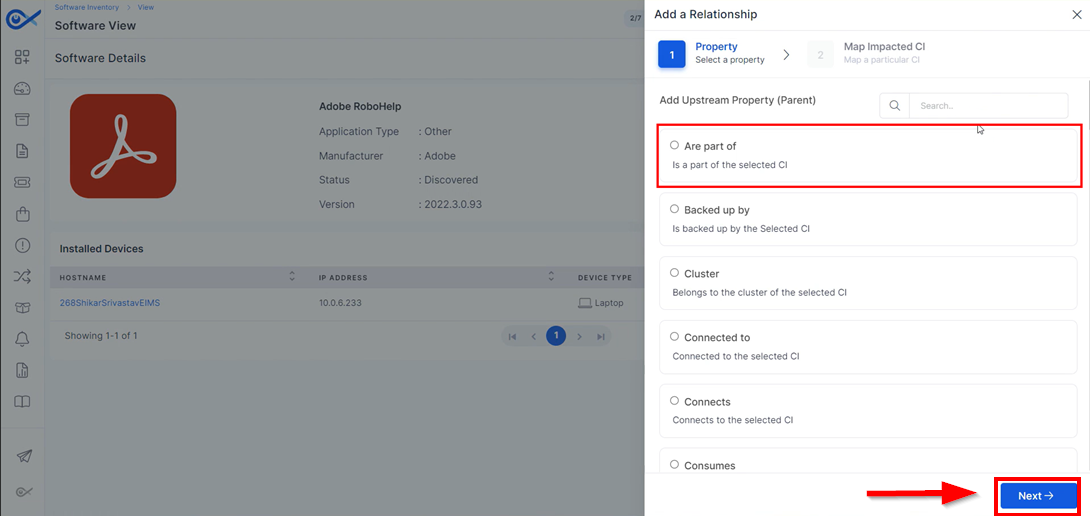
Mapping Properties
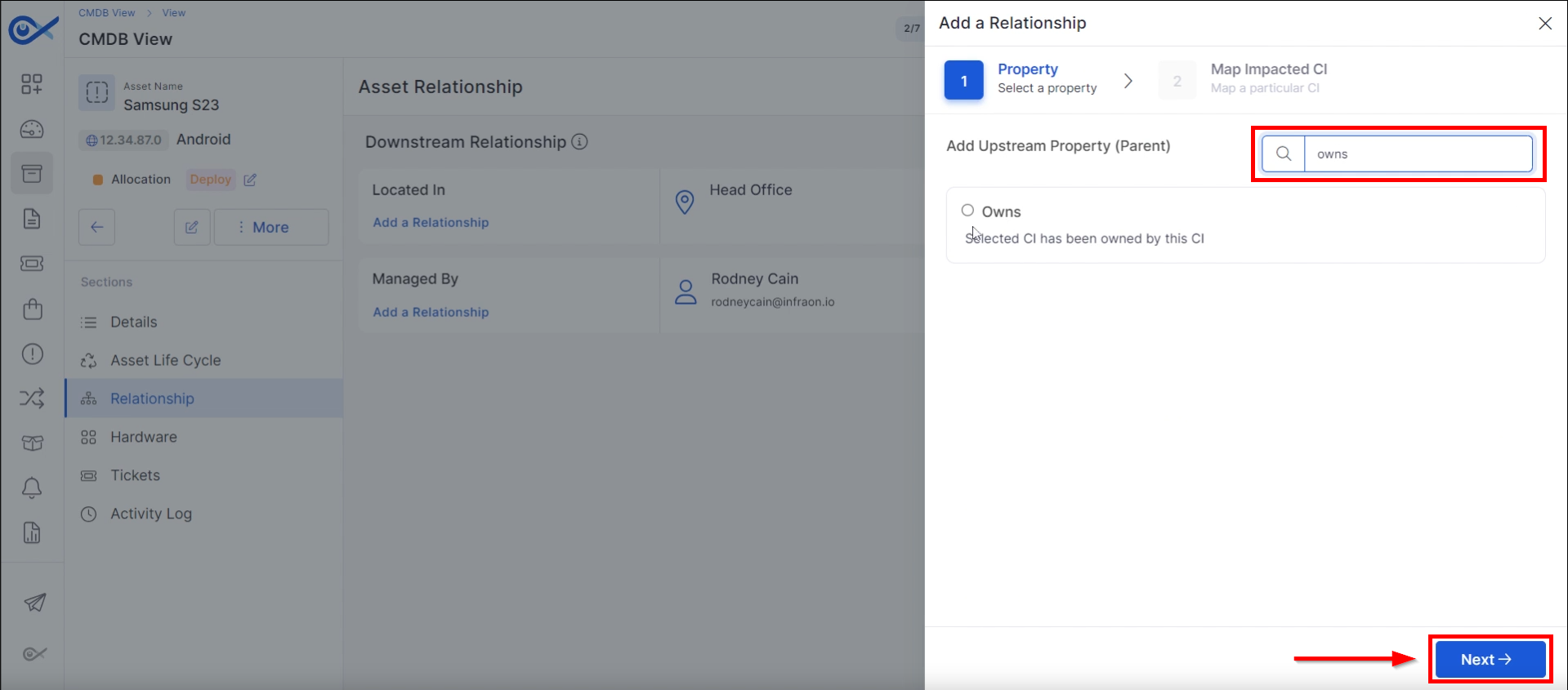
Step 4: In the property tab, fields are presented with properties such as 'Part Of,' which defines if it is part of the selected Configuration Item (CI), backed up by selected CI, etc.
Step 5: Search for the required property in a CMDVB view. Once the property has been selected, Click on Next.
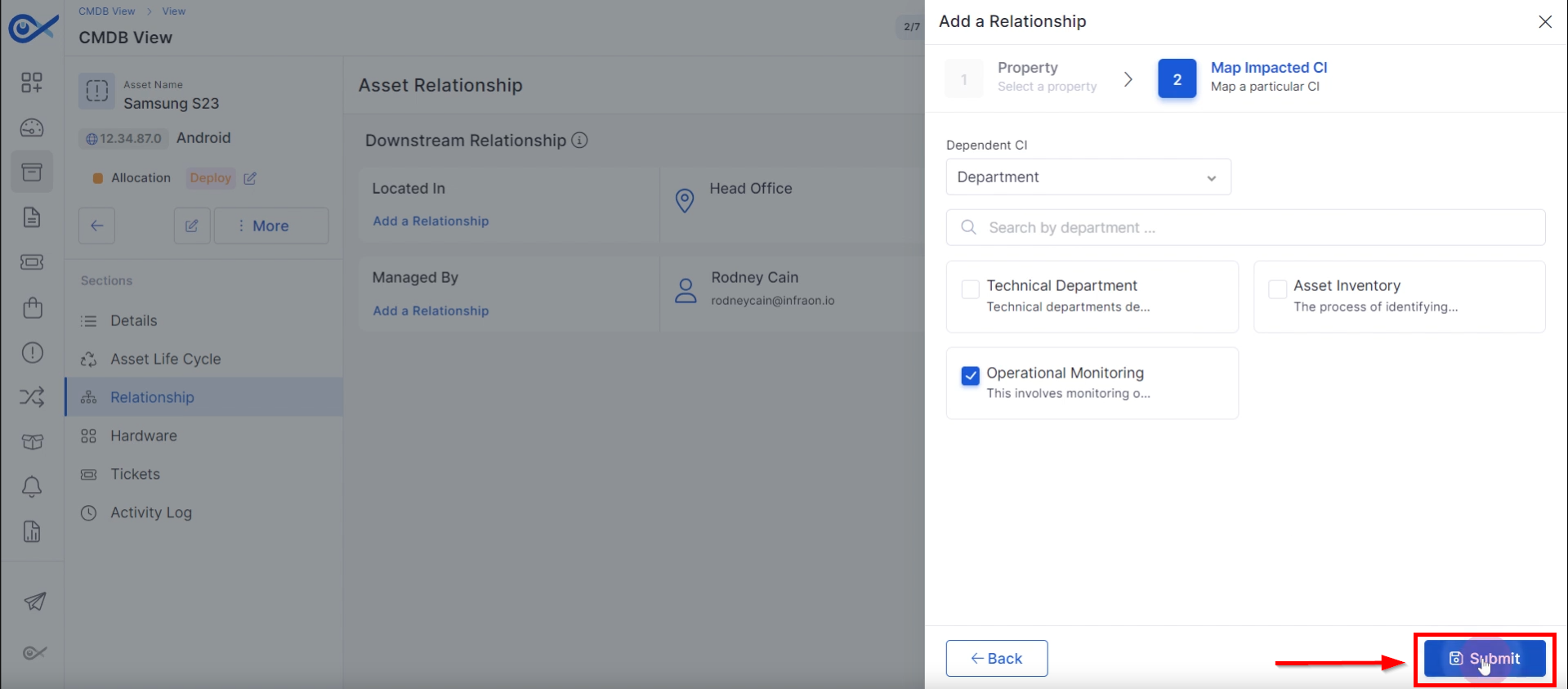
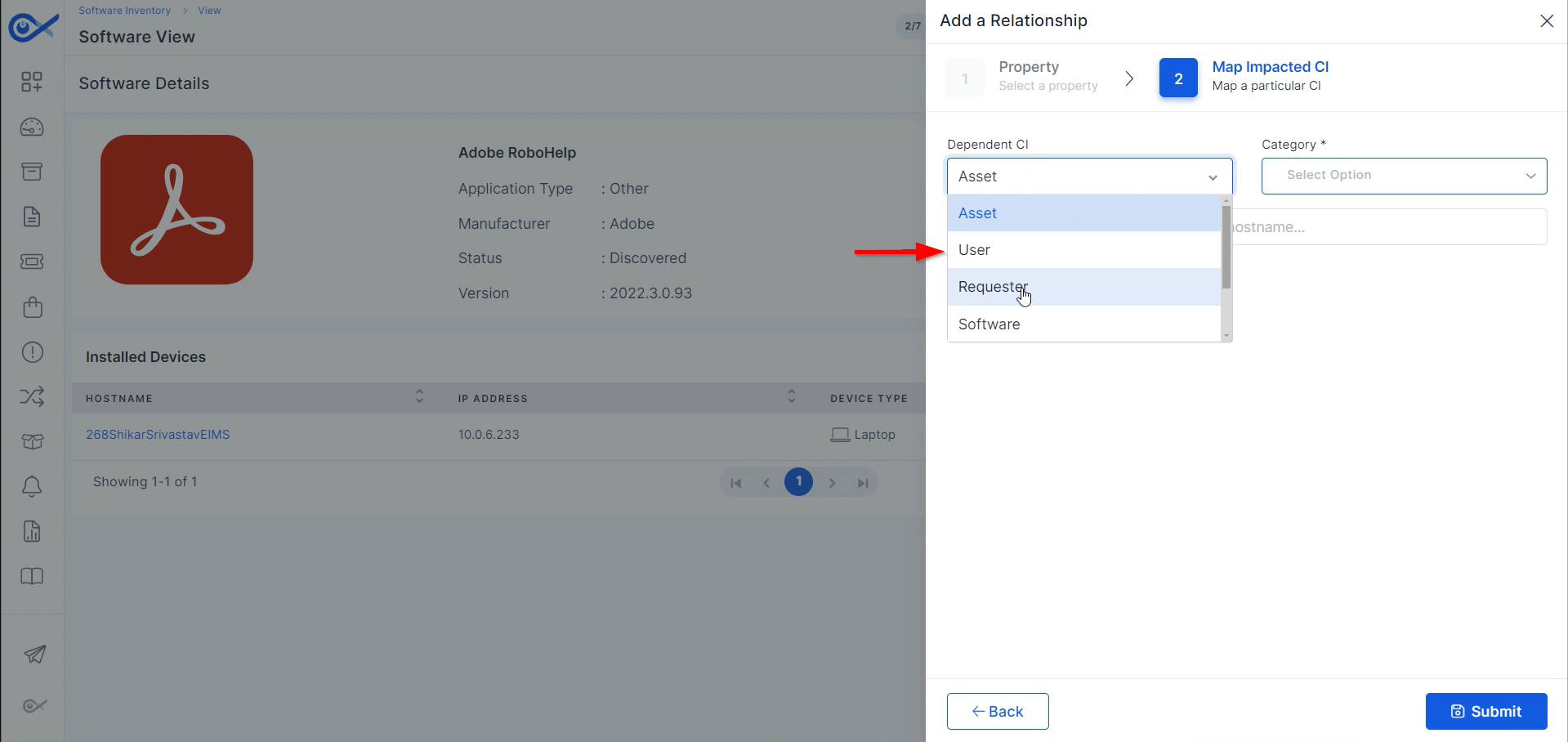
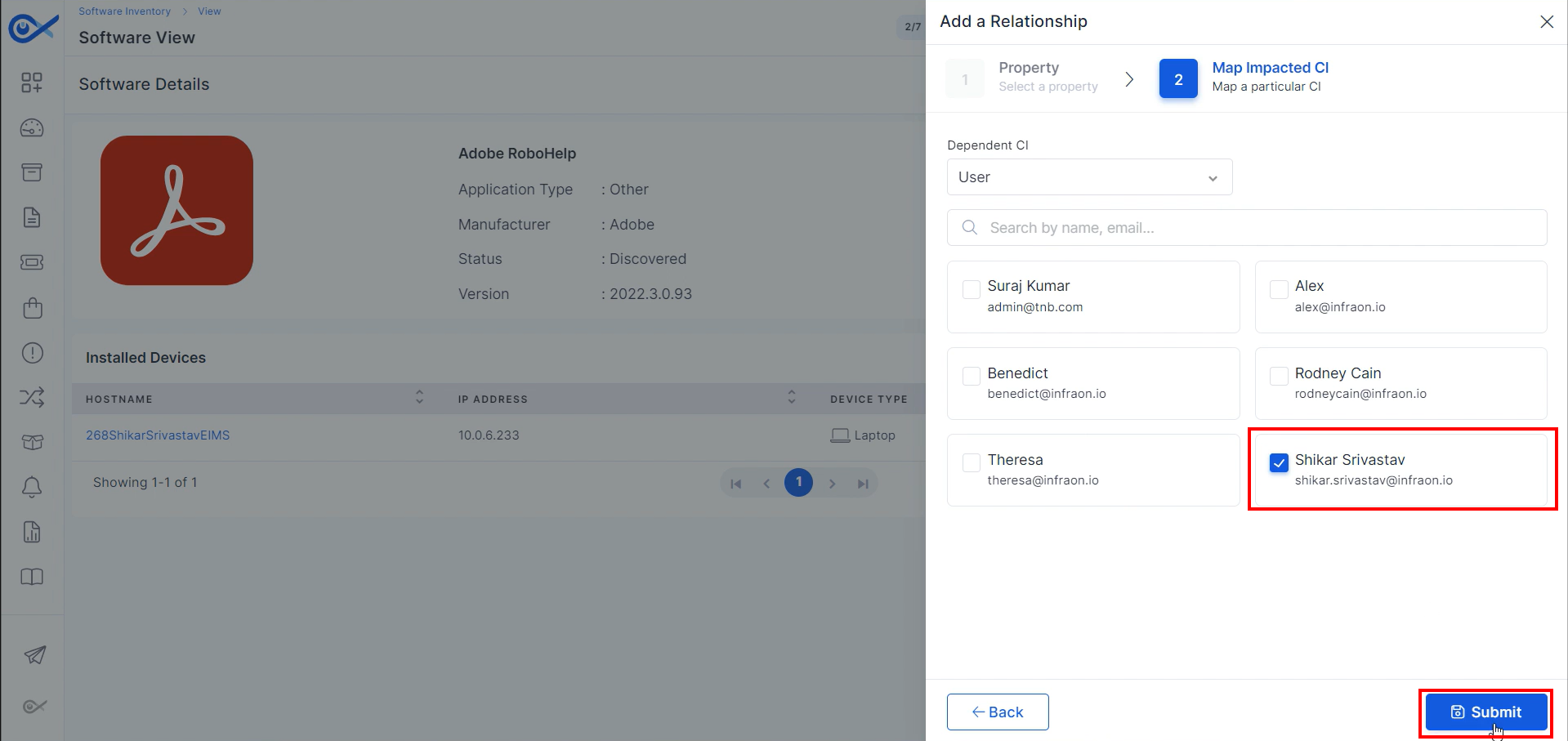
Step 6: Select the Dependent CI from the drop-down list in the Map impacted CI. Tick the appropriate selection to add the relationship. Once you've done this, Click on Submit.
Step 7: The changes will be reflected on the asset relationship page after submission.
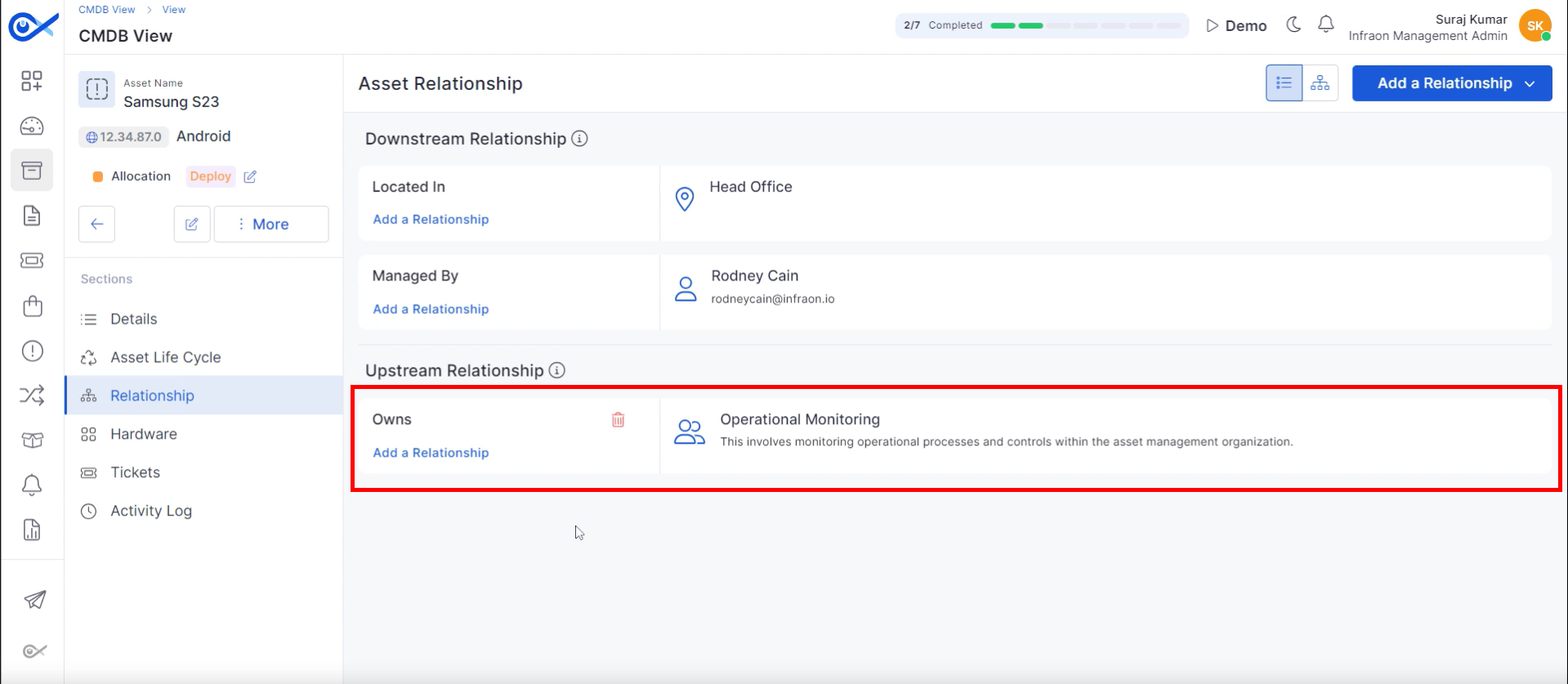
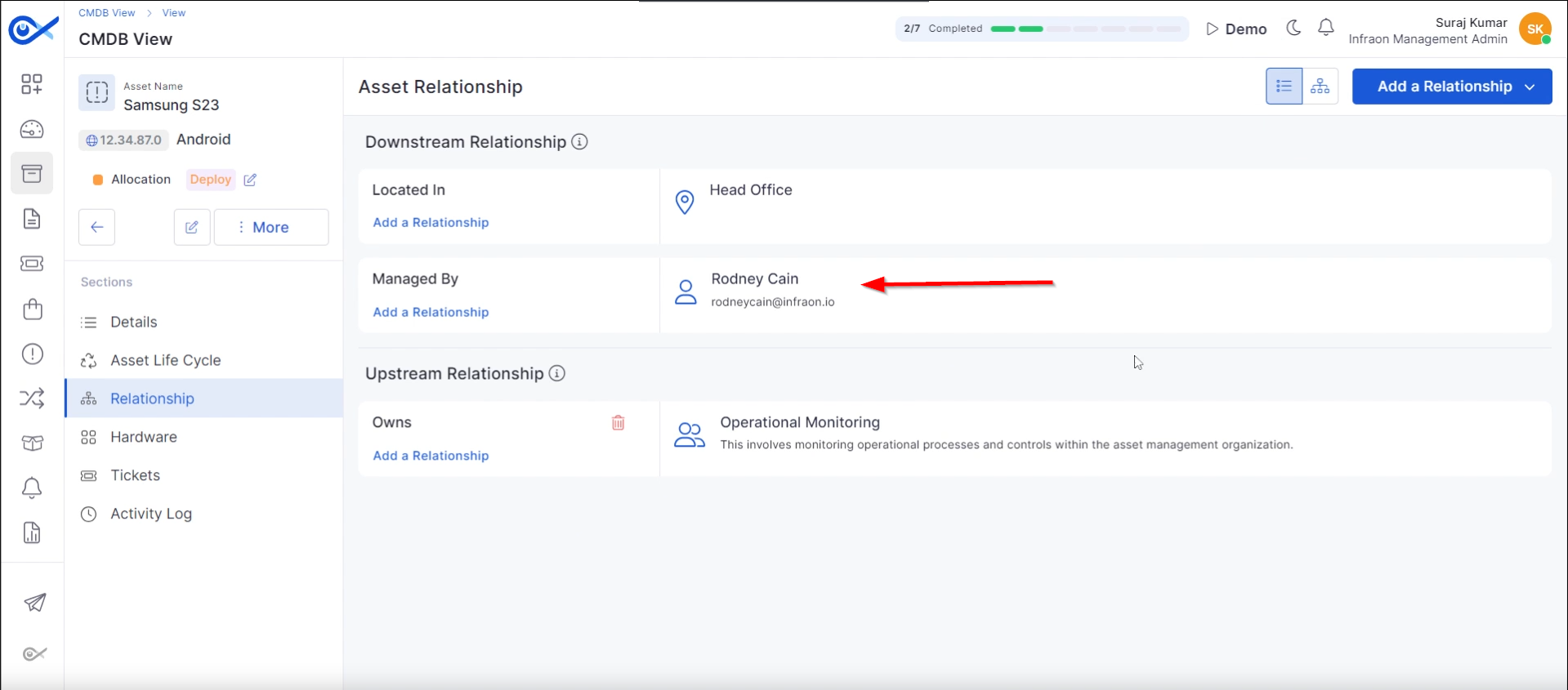
The configured relationship means that the asset is located in the head office and managed by Rodney Cain in the downstream relationship. The upstream relationship shows the asset is "Owned by" the Operational Monitoring Department.
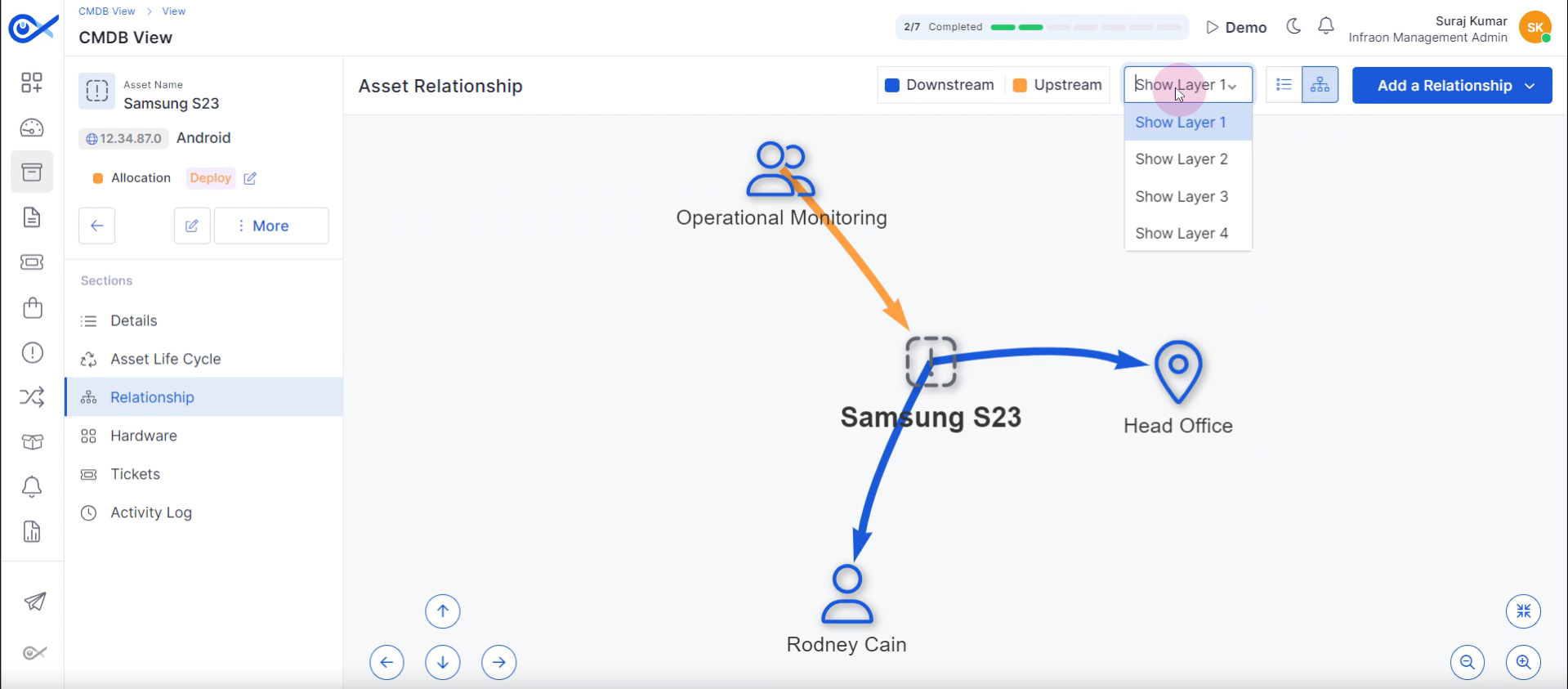
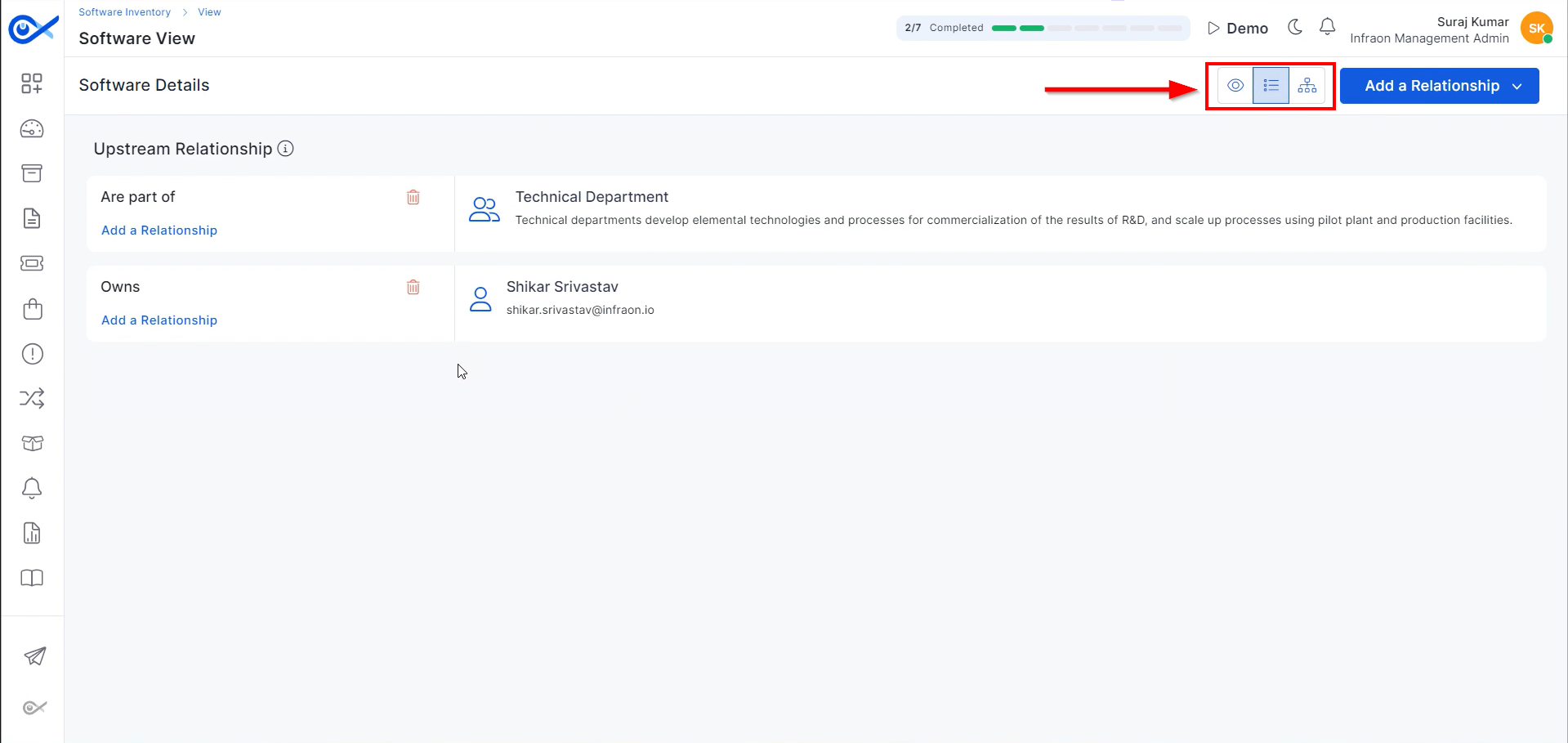
Infraon offers two views to view the relationship page: List View and Map View.
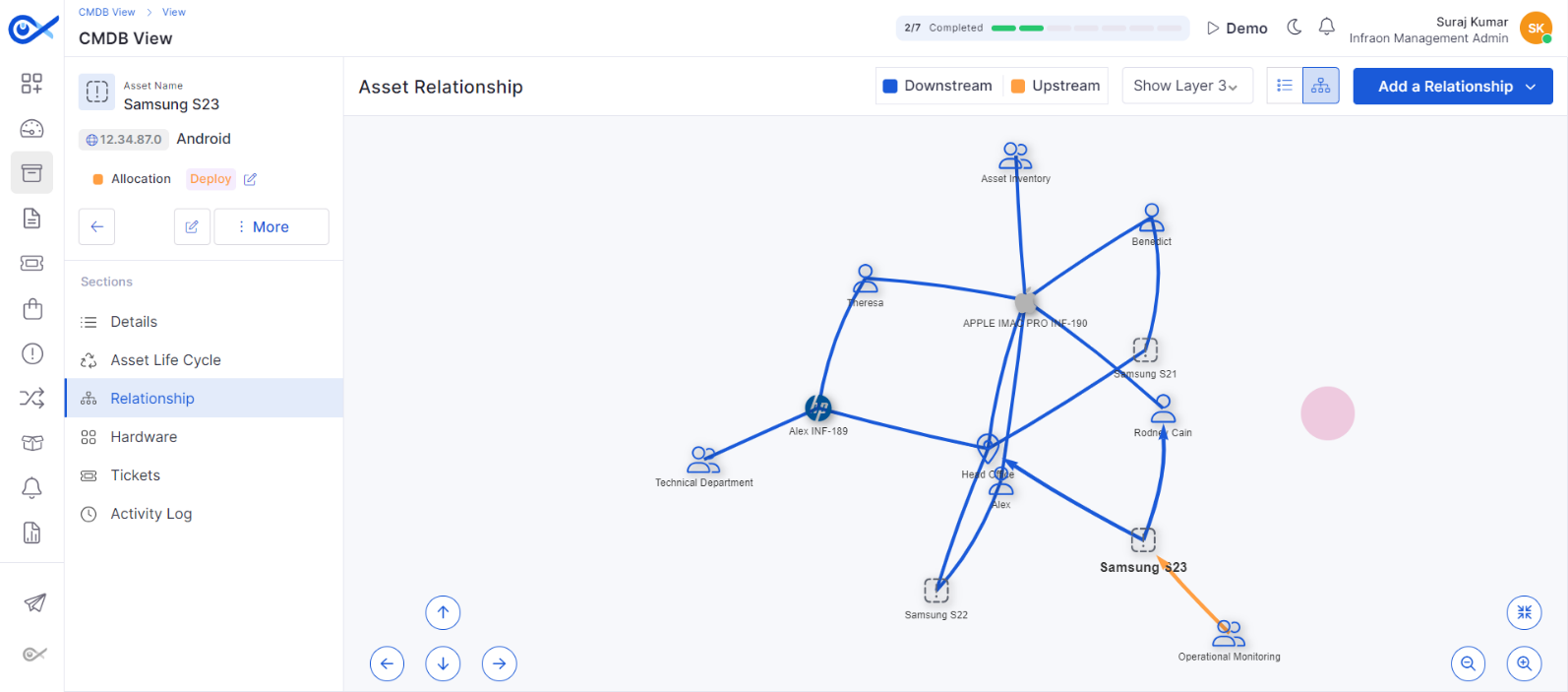
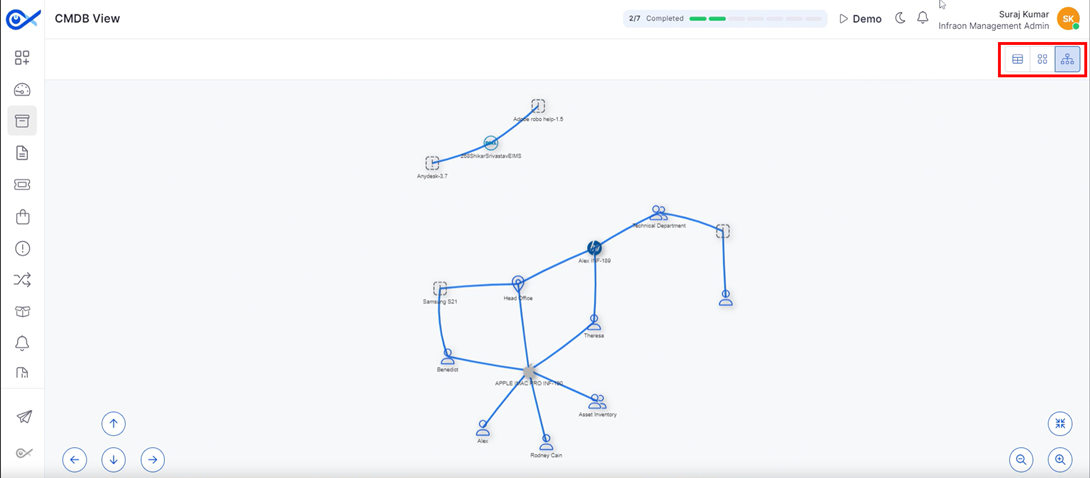
The Map view visually represents asset connections, showing upstream and downstream relationships. Technicians can view the topology based on different layers, with Layer 3 CI relationships as the default.
The map view offers multiple layers (1-5) for visualizing asset relationships. The default view shows Layer 3 connections. Selecting a different layer will adjust the map to display the corresponding level of relationships.
The screen navigation controls are located at the bottom. Technicians can zoom in, out, and pan using the provided buttons or arrow keys.
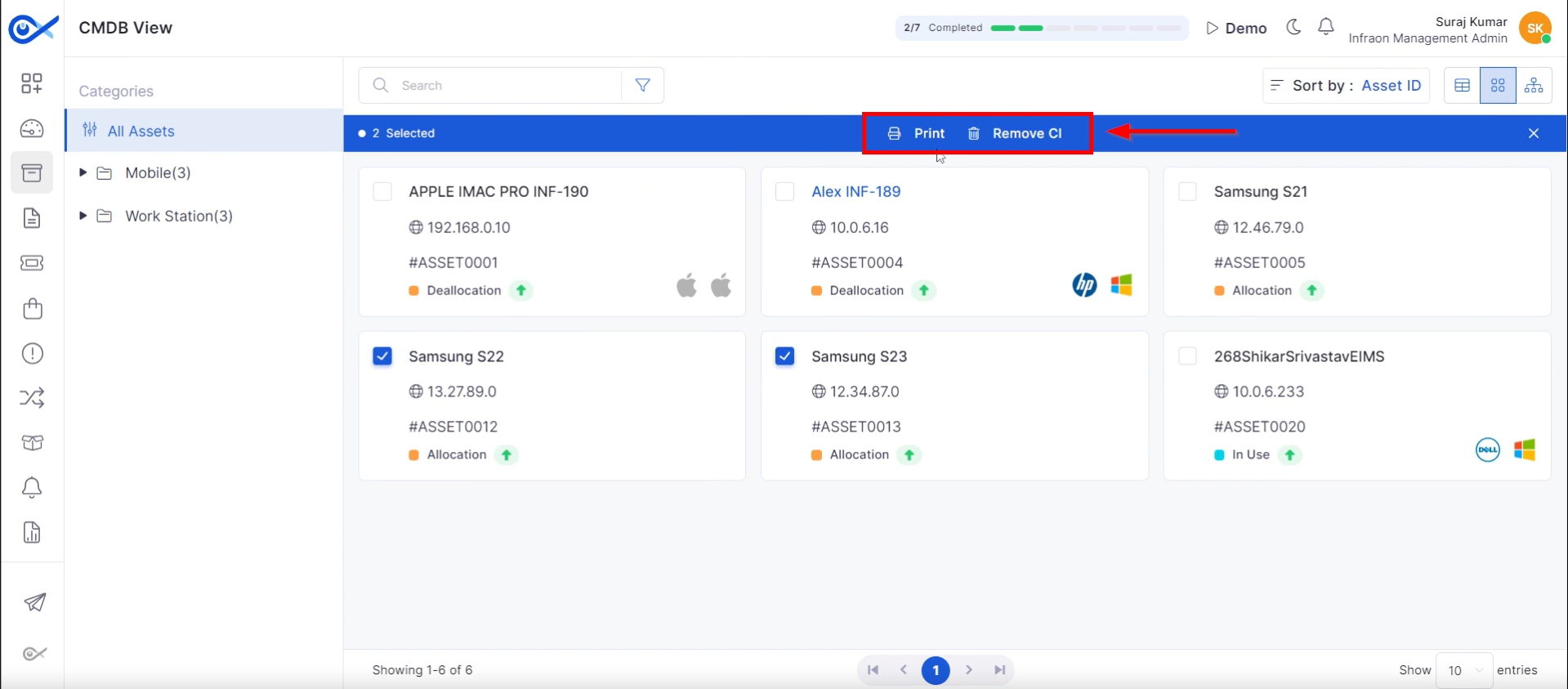
Select multiple assets on the CMDB view page. A top panel with options to Print or Remove CI will appear.
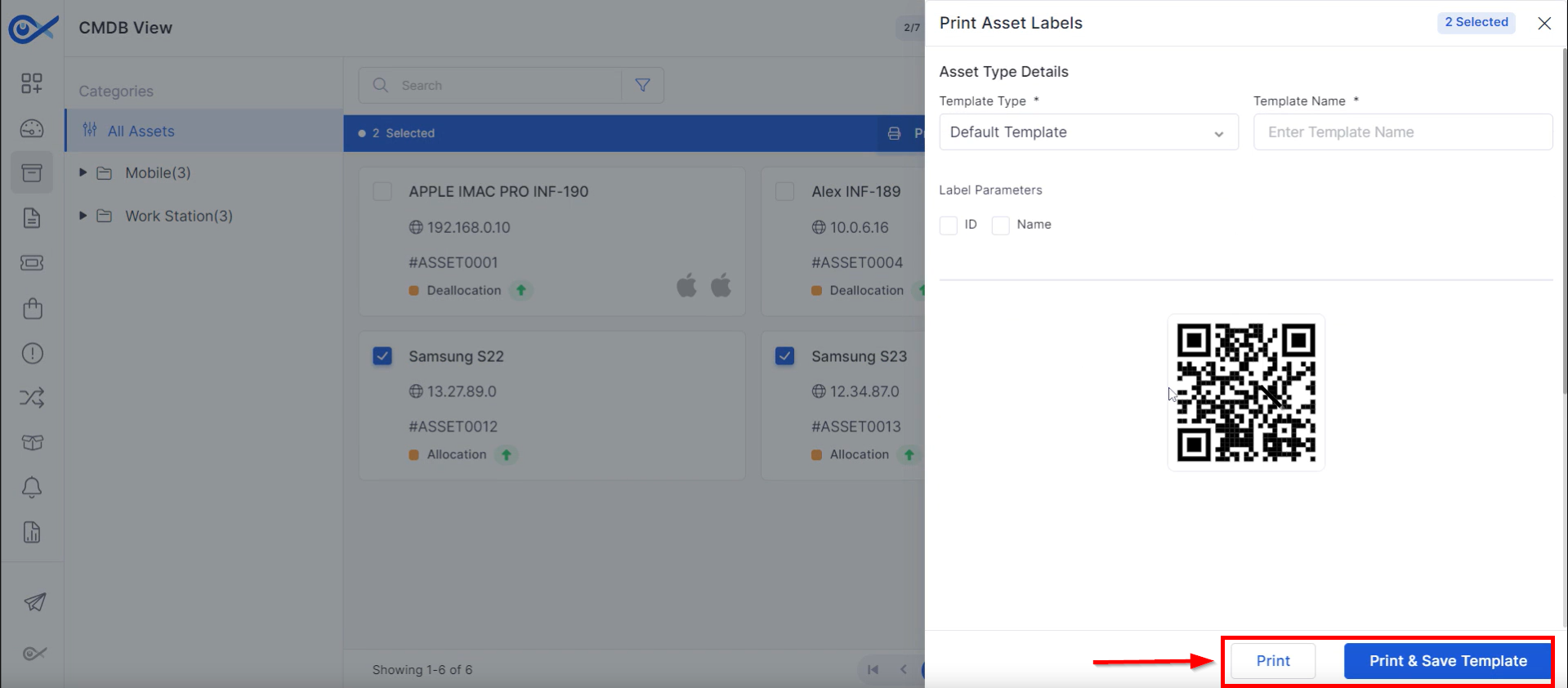
Step 1: Click the print option to print QR or barcode labels for selected assets. Customize labels by including the asset ID, name, or other relevant information.
Step 2: To print and store the template later, click 'Print and Save a Template.'
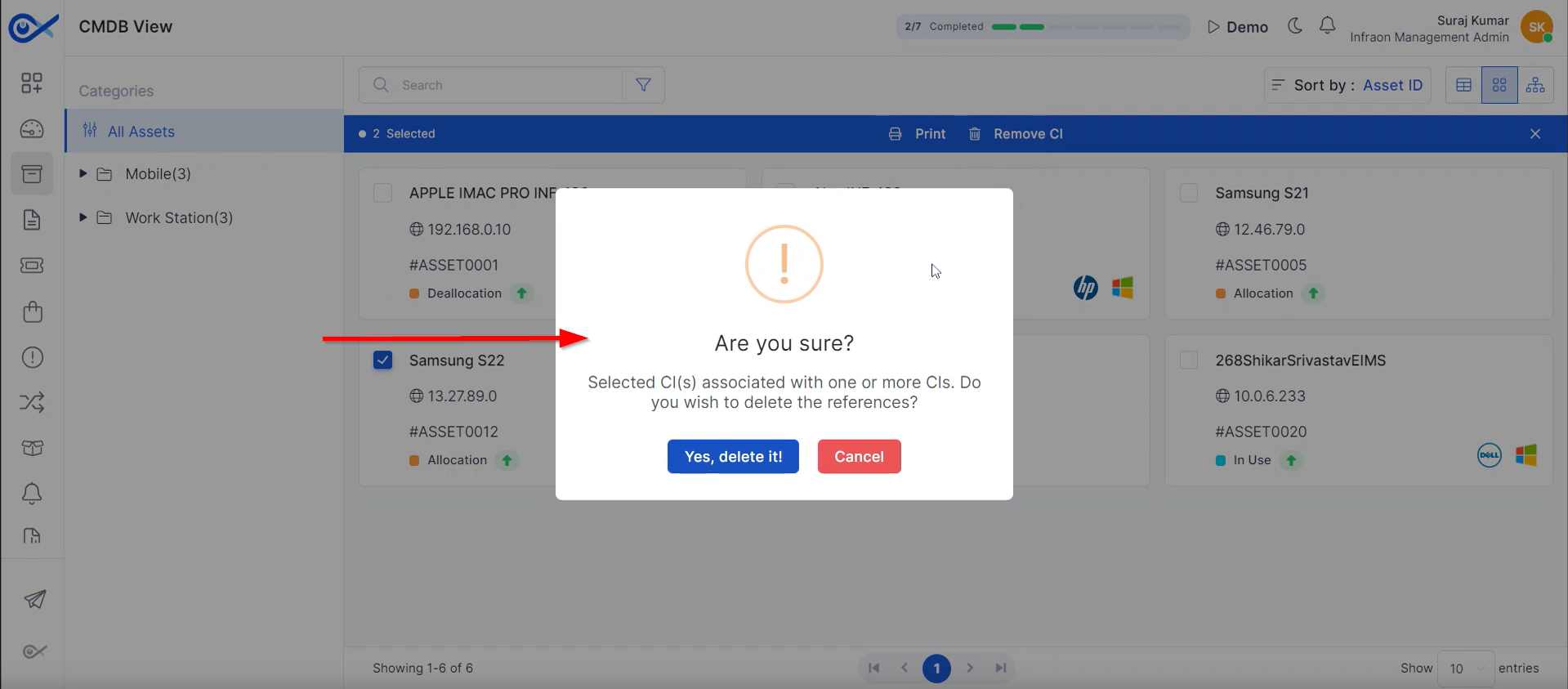
To remove a configuration item (CI) from an asset, select the asset and click “Remove CI.” Confirm the action to delete the CI from the CMDB view permanently.
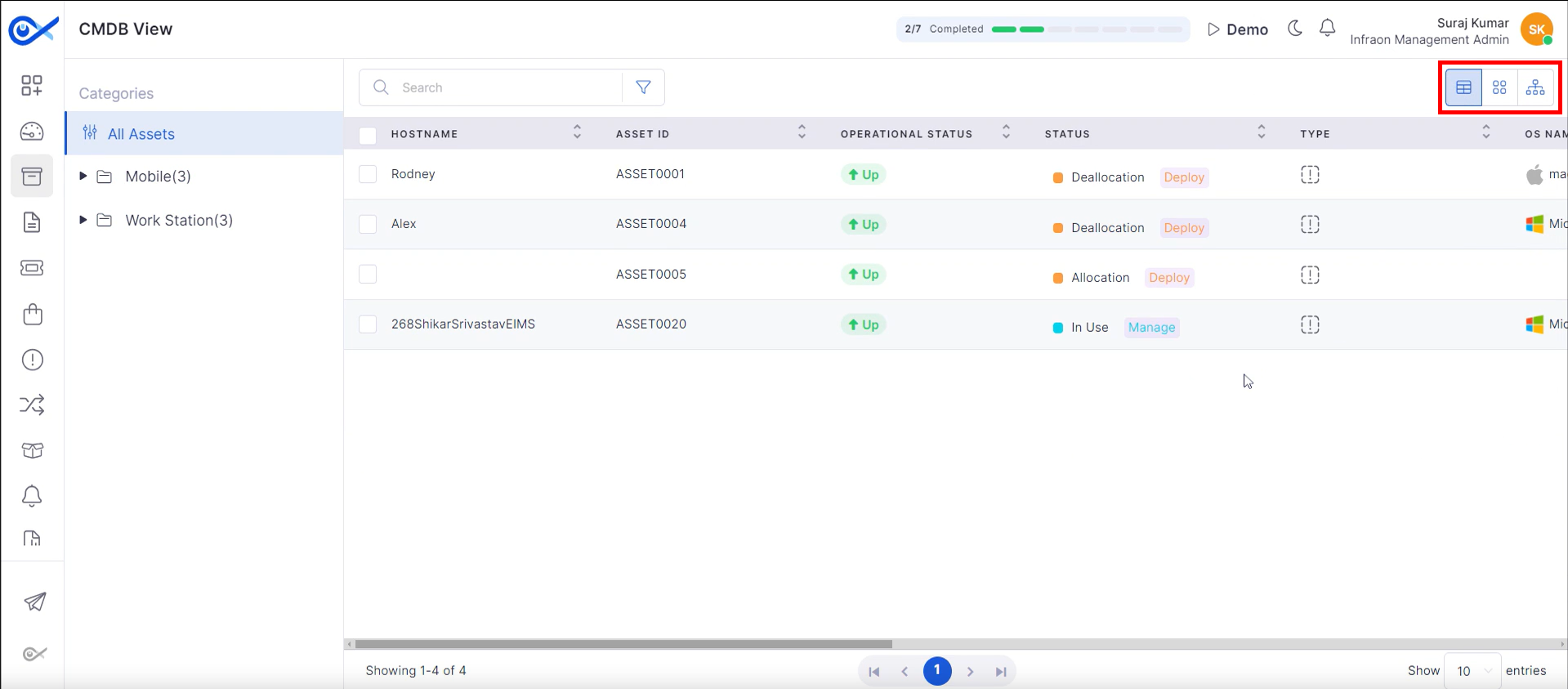
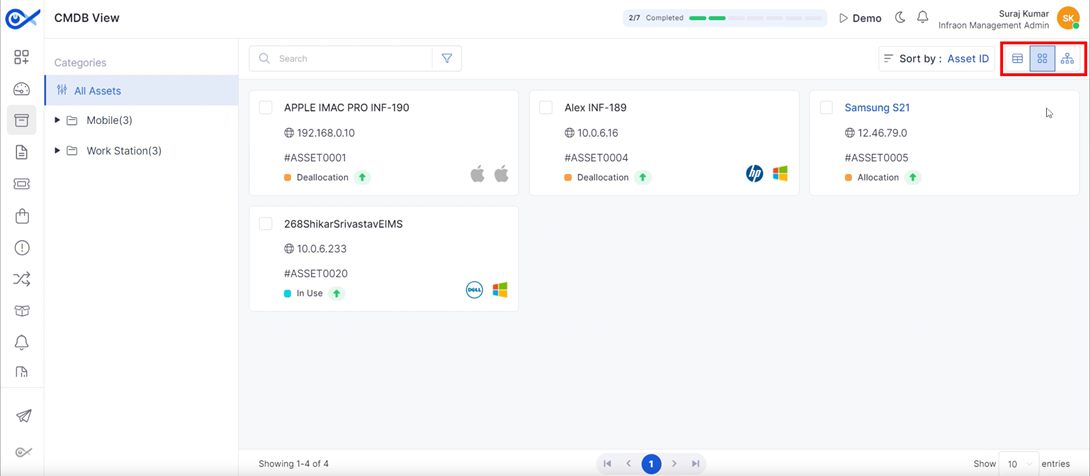
Infraon provides three CMDB view options.
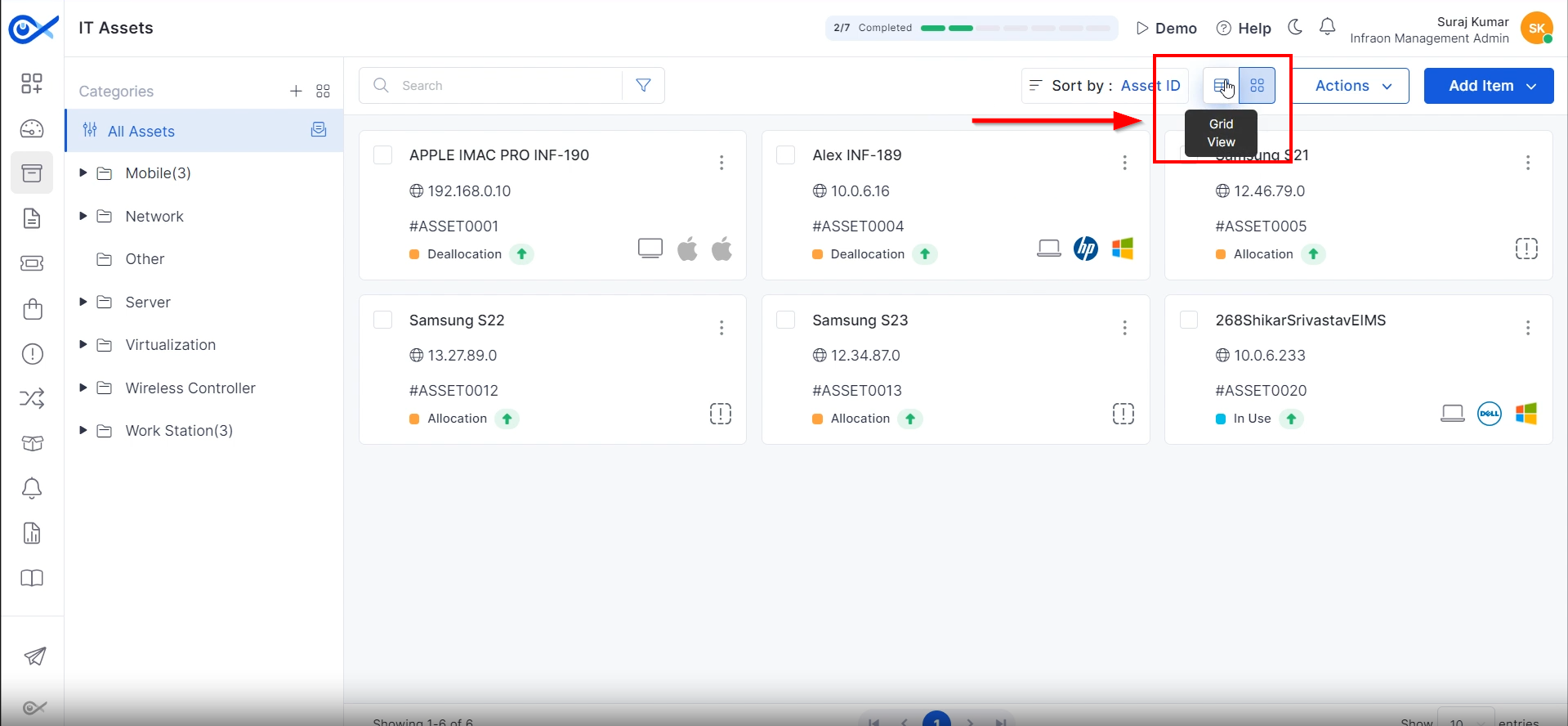
The Grid view presents data in a tabular format, offering a quick overview of configuration items.
The Card view, the default format, offers a more detailed asset overview in a card-like layout.
The Map view presents asset information in a visual, geographical format.
This concludes the CMDB view of the Infraon Infinity platform.
Assets
This guide will explore the asset module of the Infraon Infinity platform. Infraon Assets provides a unified platform for administrators and asset managers to manage all organizational assets.
Please refer to our detailed for comprehensive documentation.
For implementation assistance, view our Integration Guide.
Device Credentials
SSH Protocol
SNMP Protocol
WMI Protocol
HTTP Protocol
Please refer to our detailed for comprehensive documentation.
Add an Asset
These videos explain how to add an asset to a created asset category. There are three methods: manually, using a CSV file, or through Discovery (only applicable to IT assets).
Manually
This tutorial will focus on manually adding an asset:
Bulk Upload (CSV)
This tutorial outlines the steps to add multiple assets using the CSV file method:
Agent
This guide explains how to add an asset using the Infraon Inventory Agent
Miscellaneous
Please refer to our detailed for comprehensive documentation.
For implementation assistance, view our Integration Guide.
Infraon Configuration
This guide explores the Infraon configuration module, a comprehensive tool incorporating all necessary configurations for efficient operation. This module manages multiple levels of configuration, including administrative data.
Adding an asset using CSV
This tutorial outlines the steps to add multiple assets using the CSV file method.
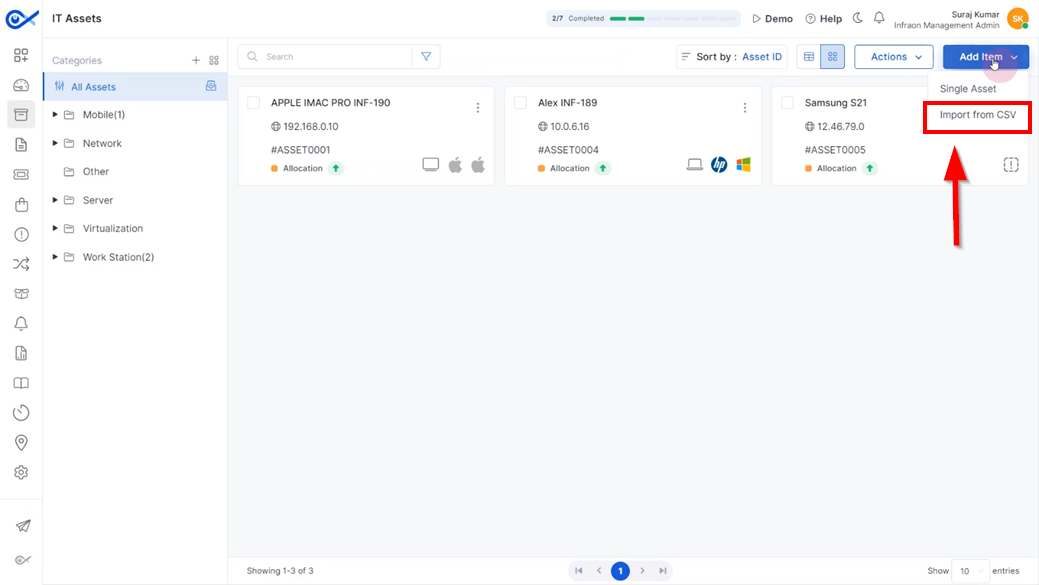
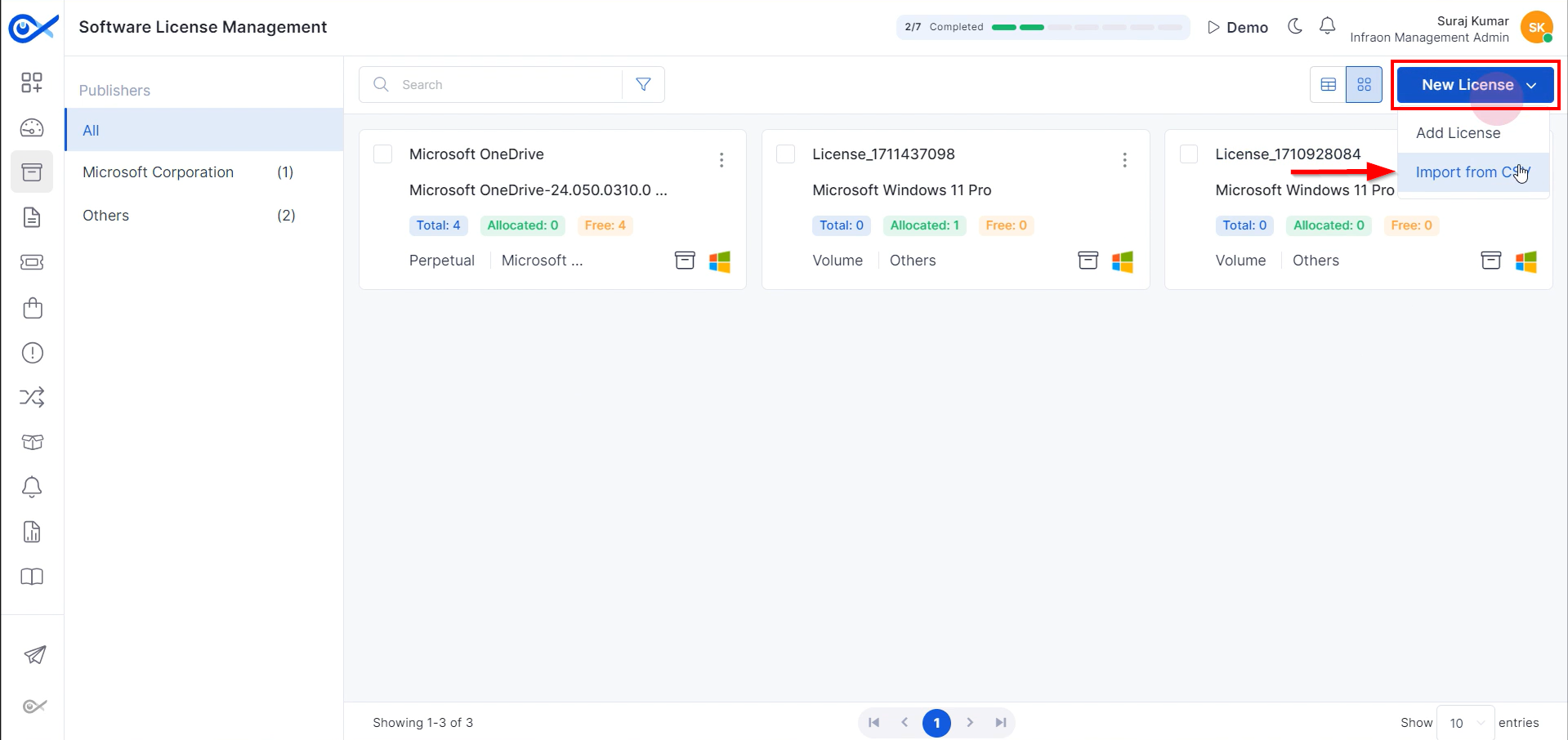
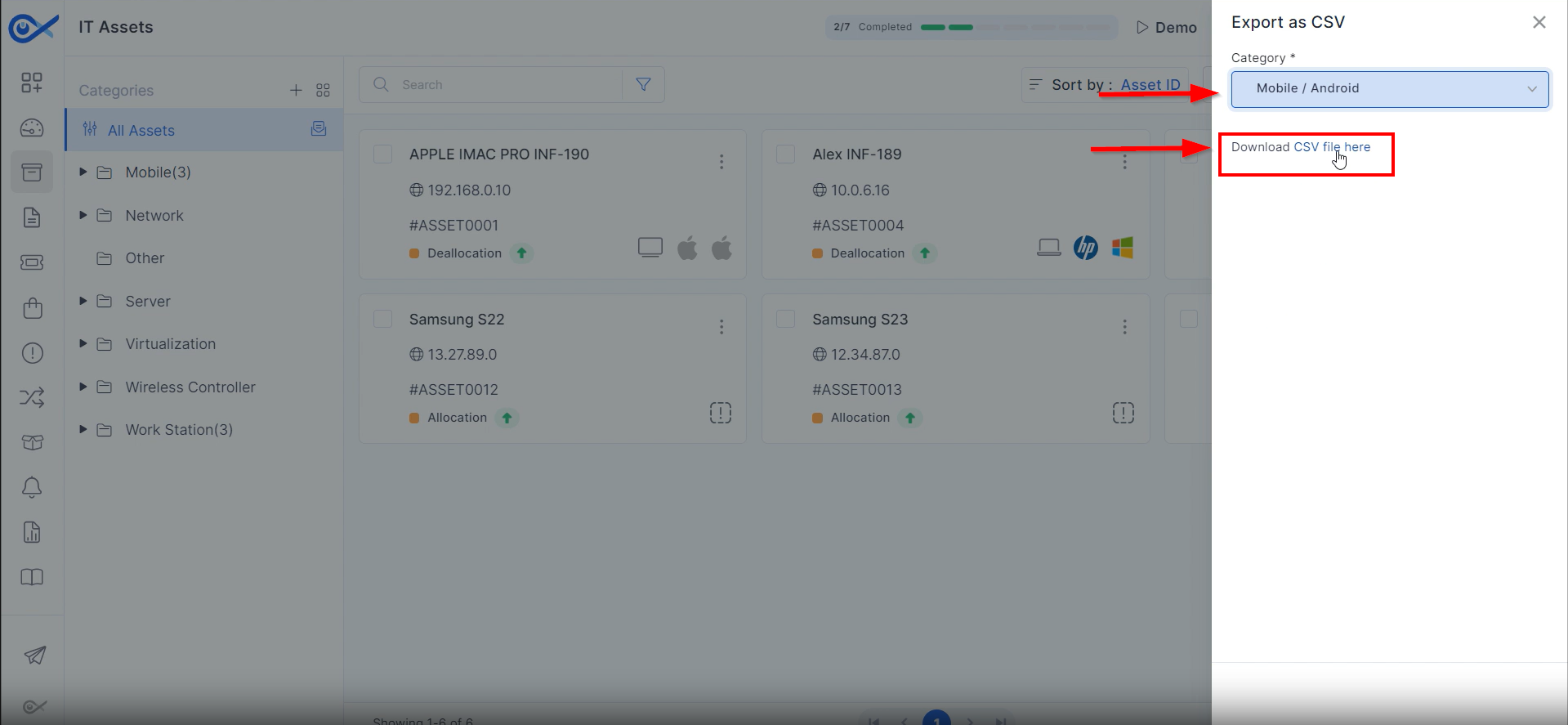
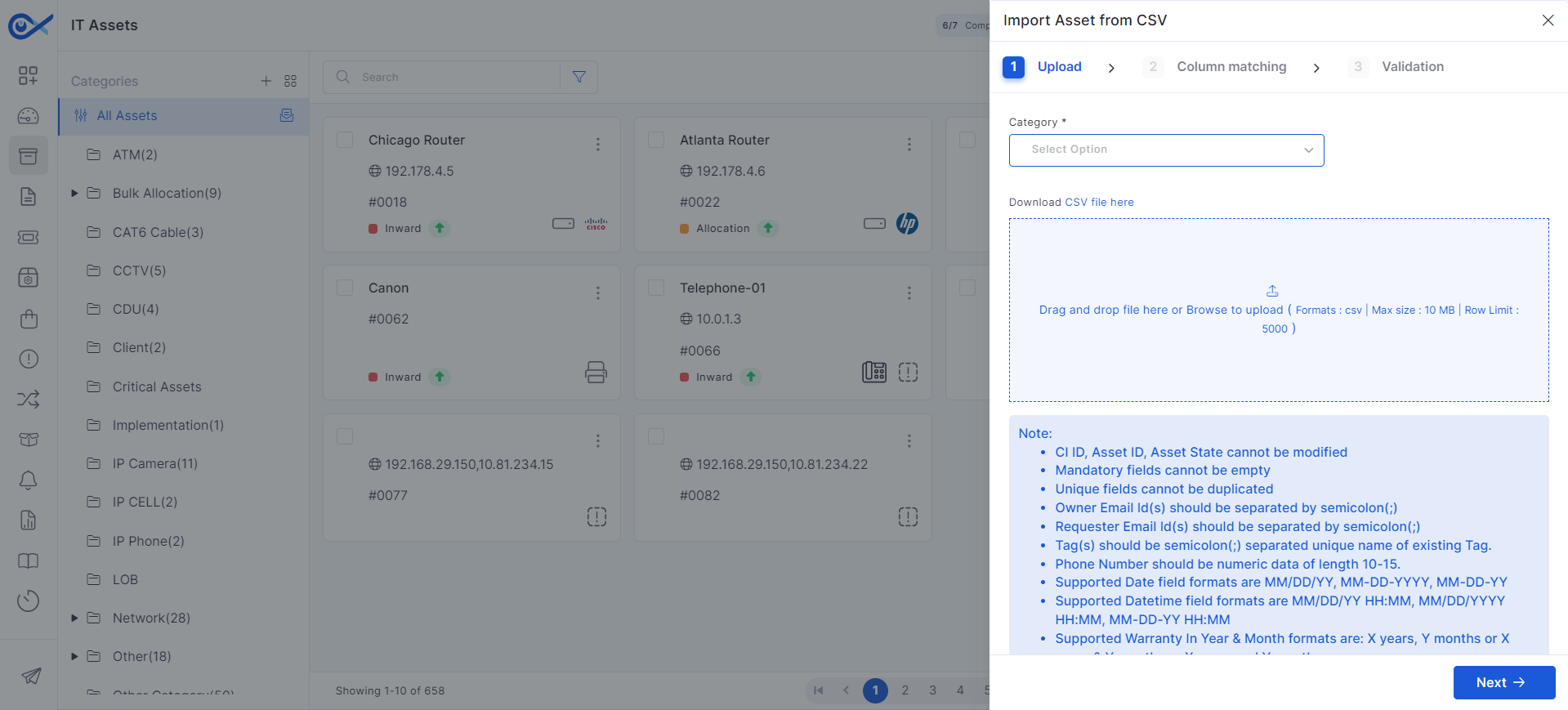
Step 1: Click on Add Item at the top right corner of the page and choose the ‘Import from CSV’ option.
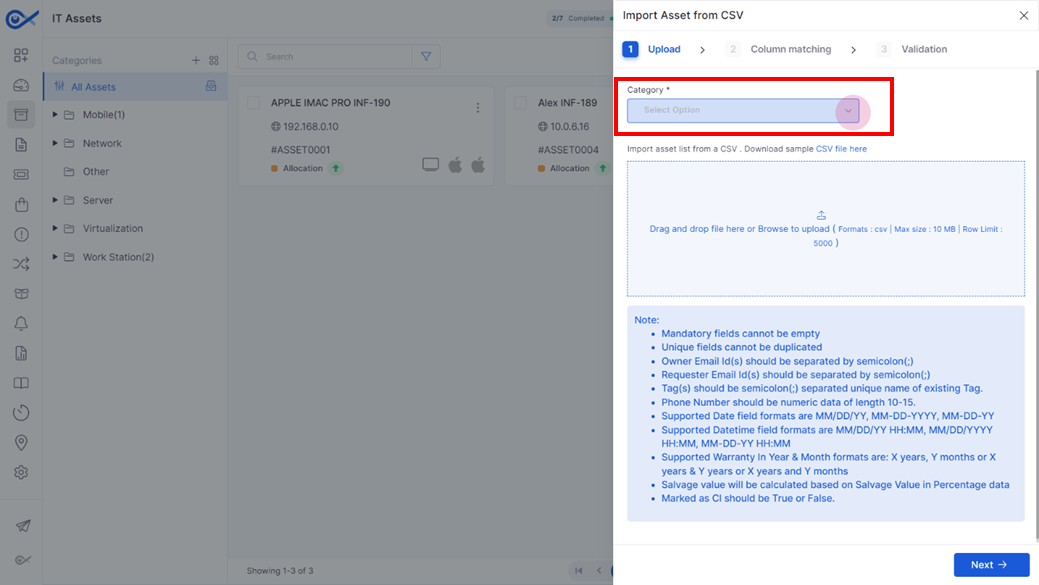
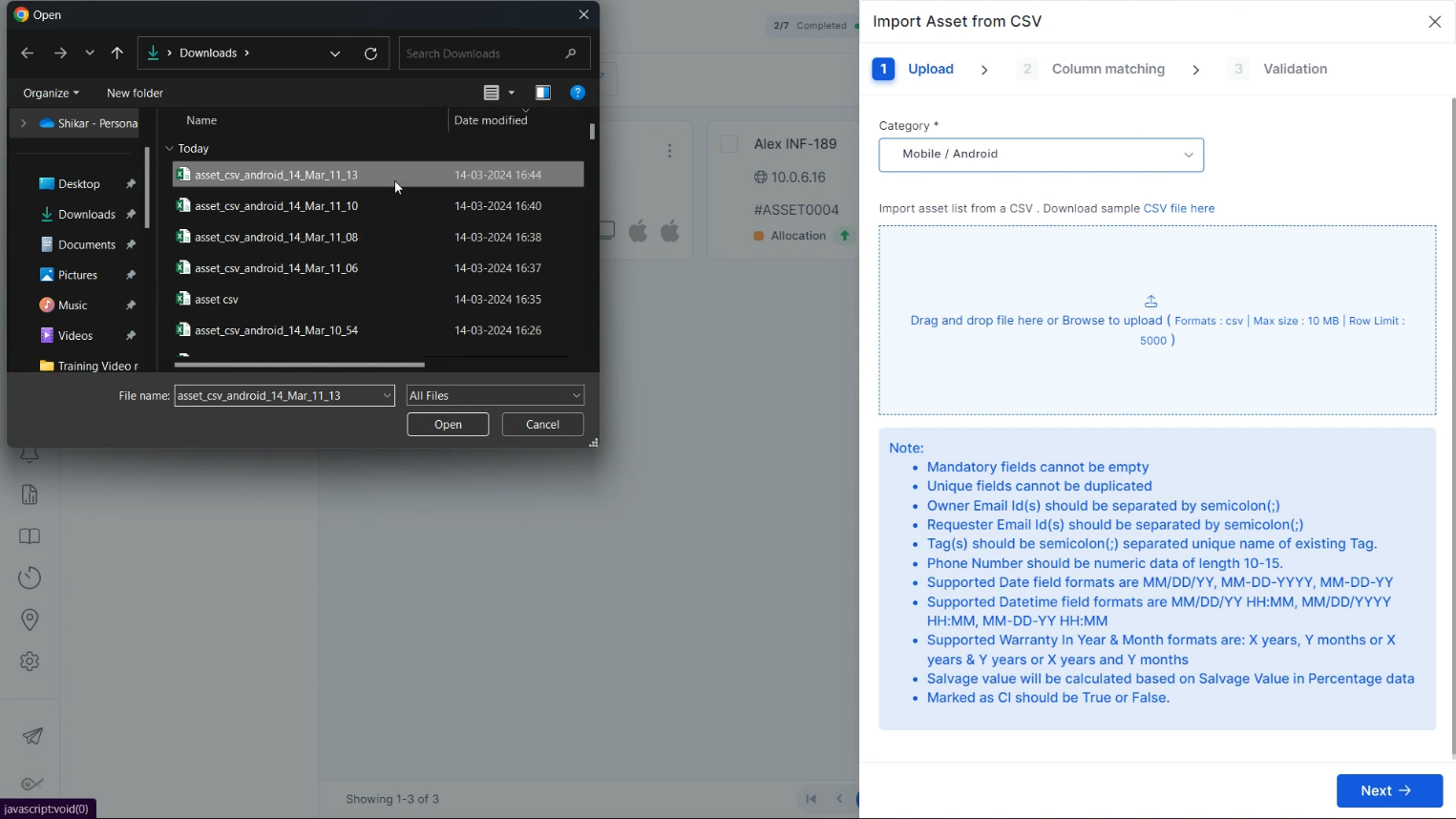
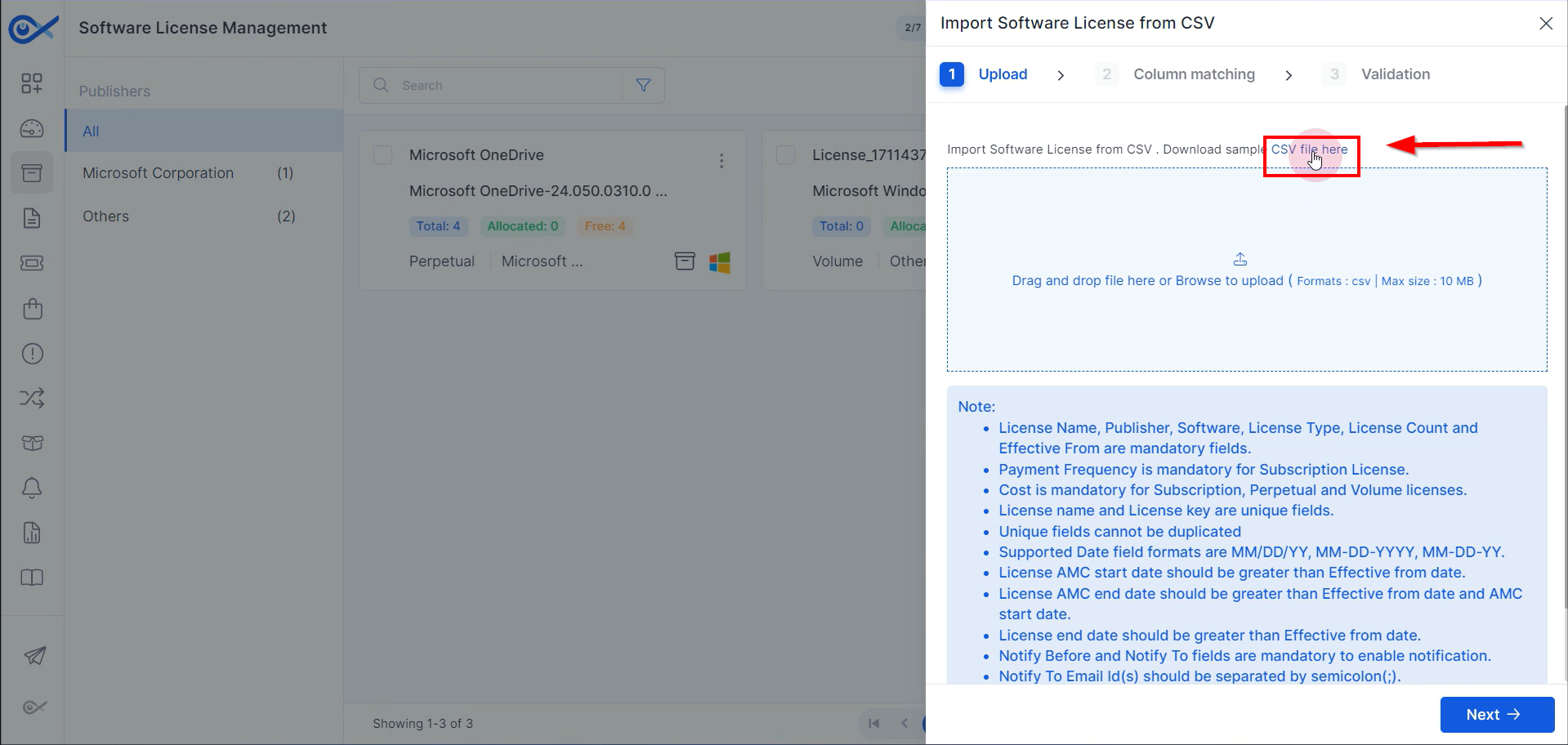
Step 2: In the pop-up tab, use the dropdown menu to map the assets to a parent or child category. Select the category in which the assets will be added.
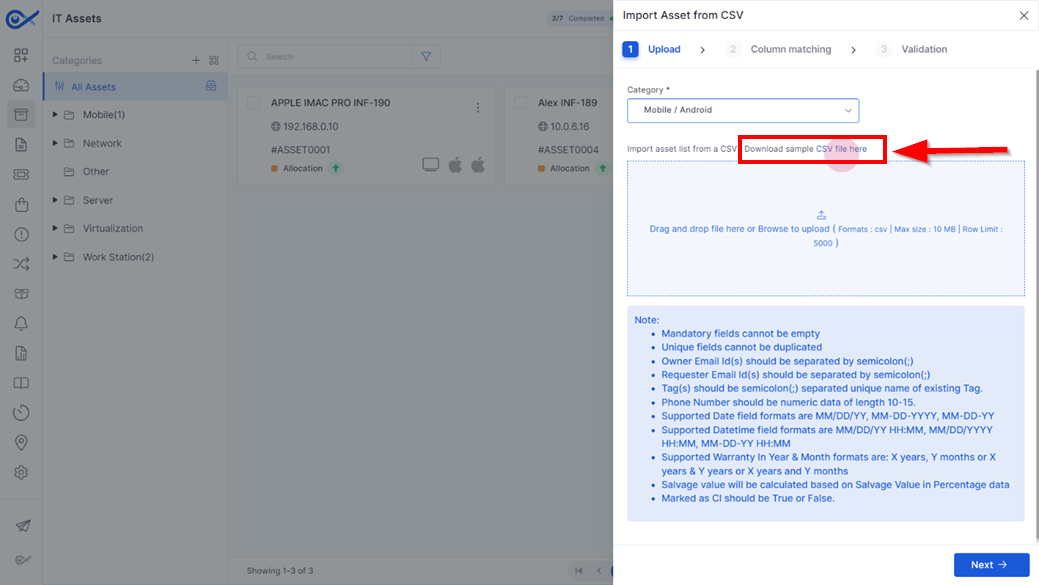
Step 3: Download the sample CSV file by clicking on the ‘CSV file here’.
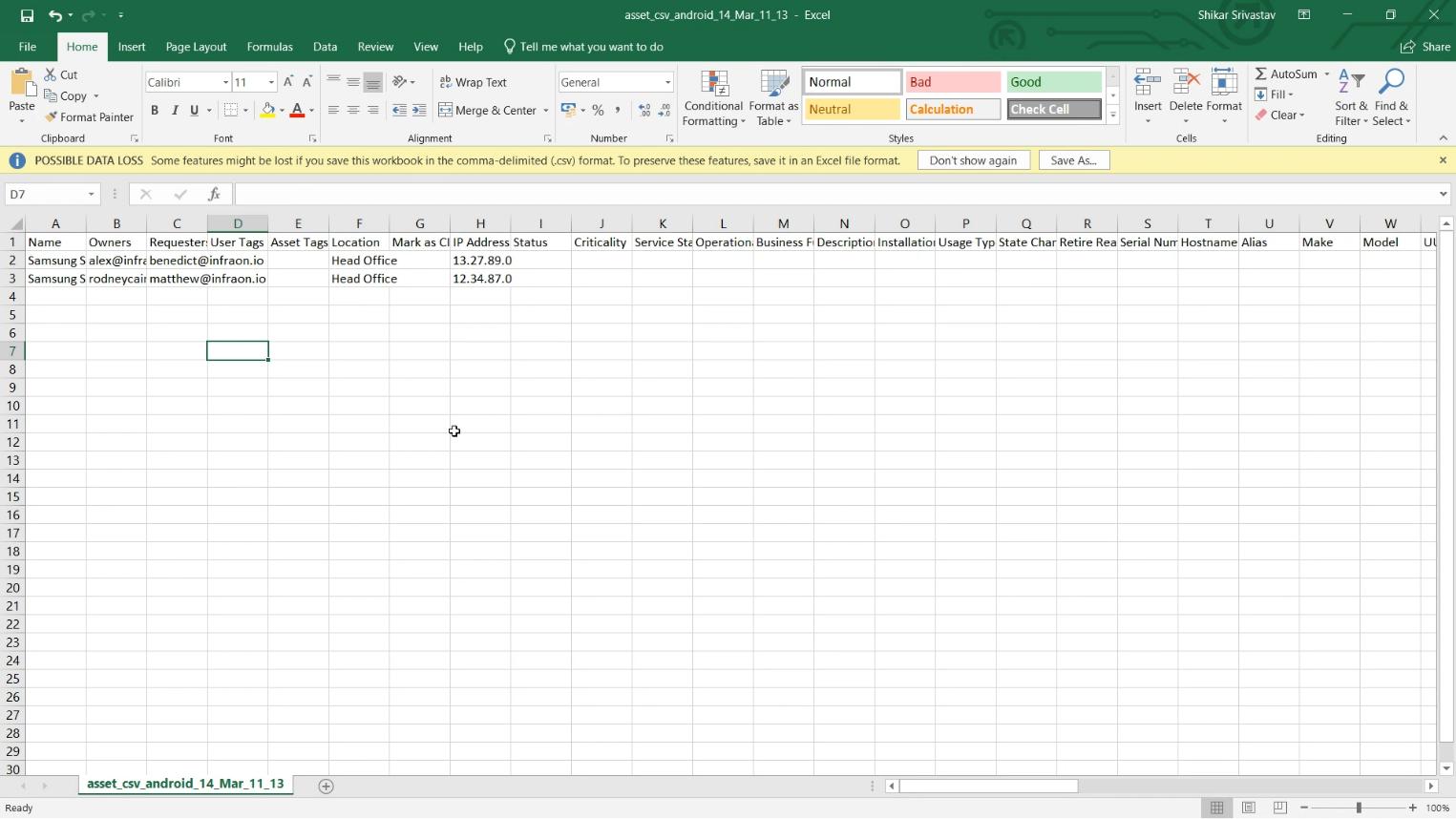
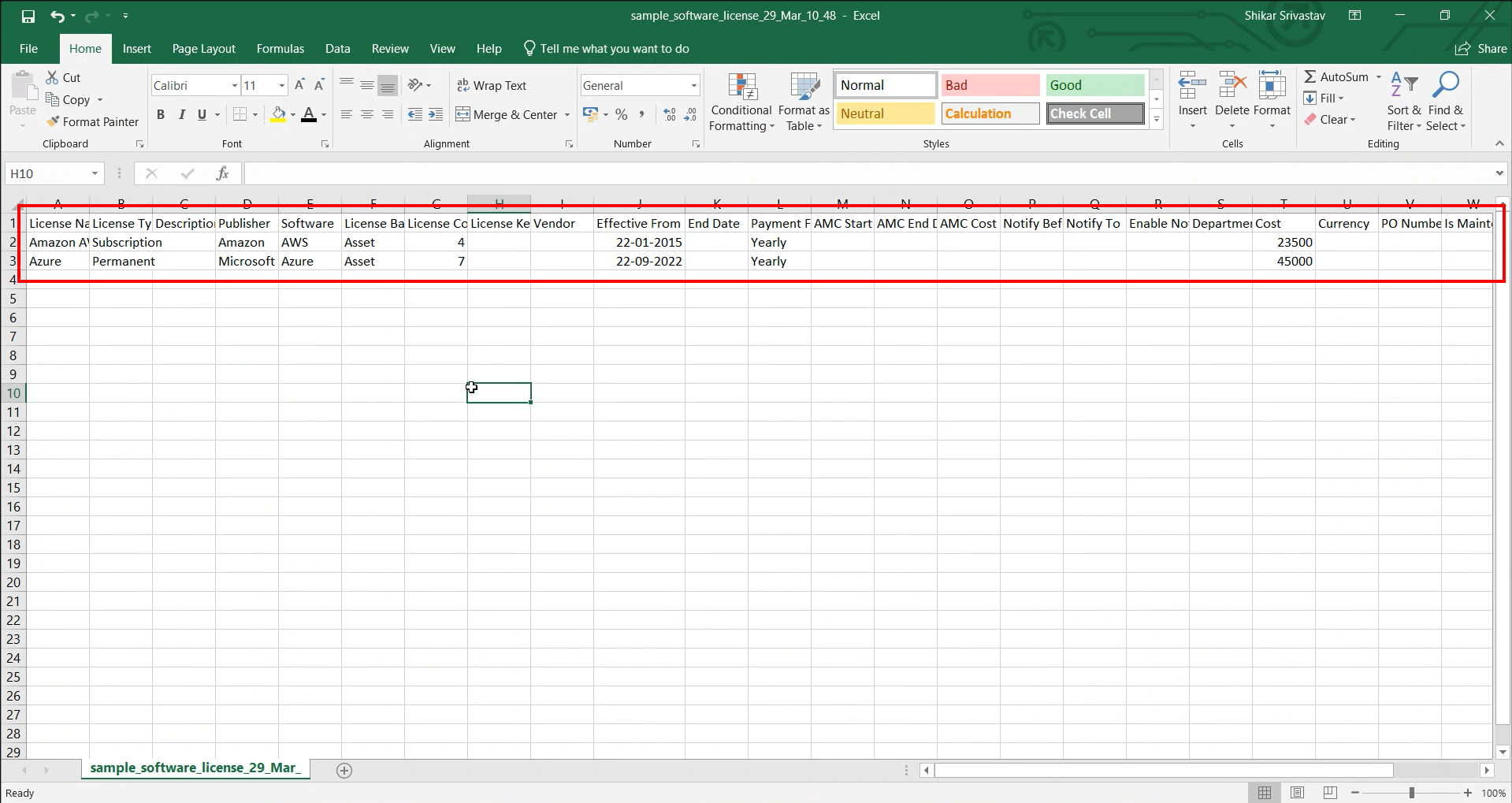
Step 4: Open the downloaded CSV file and fill in the required details for the assets in the appropriate columns.
Use Cases
Discover practical applications of our modules with step-by-step guides. This section features cards for different modules, providing detailed walkthroughs to help you effectively utilize each component of our platform.
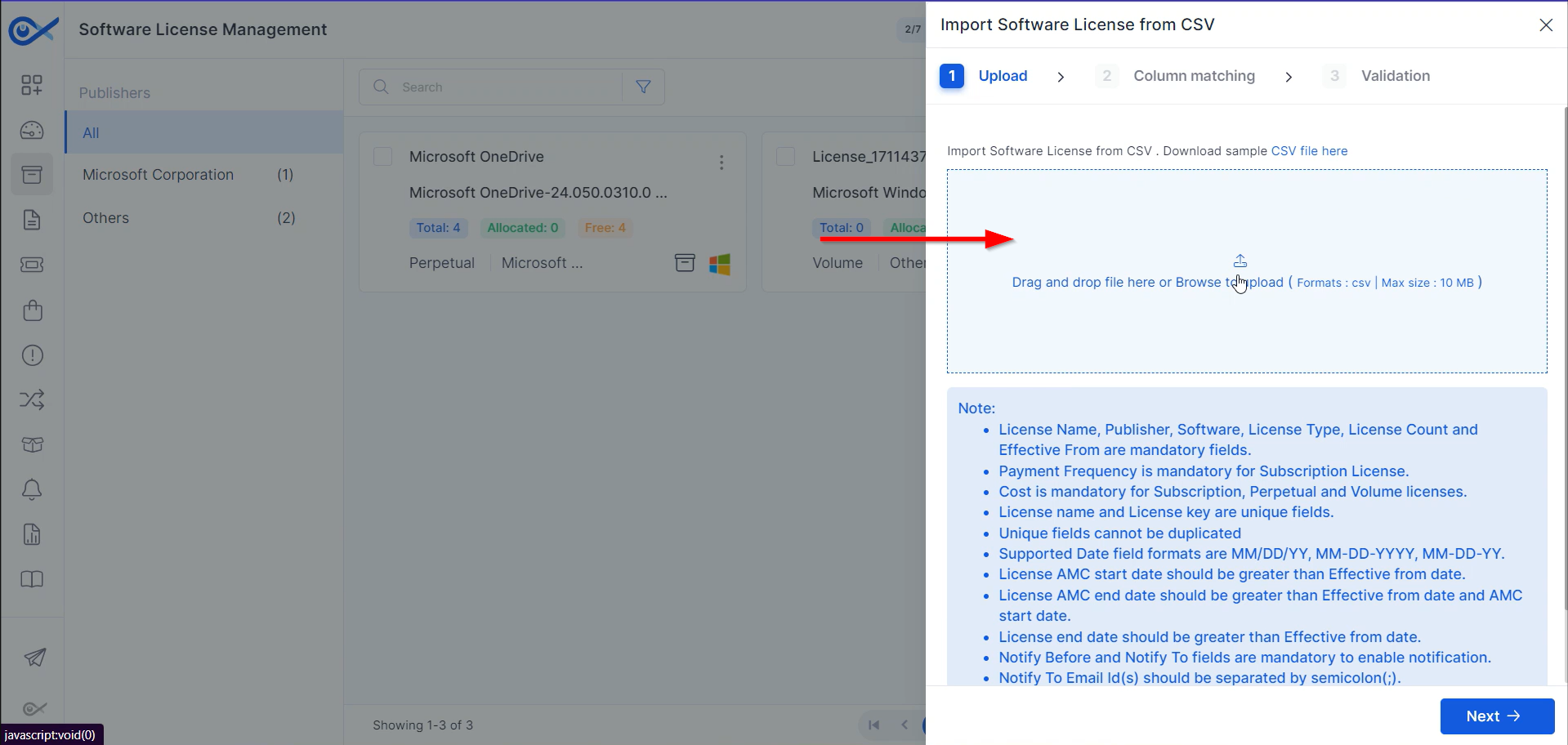
STEP 5: After filling in the details, save the CSV file and upload it.
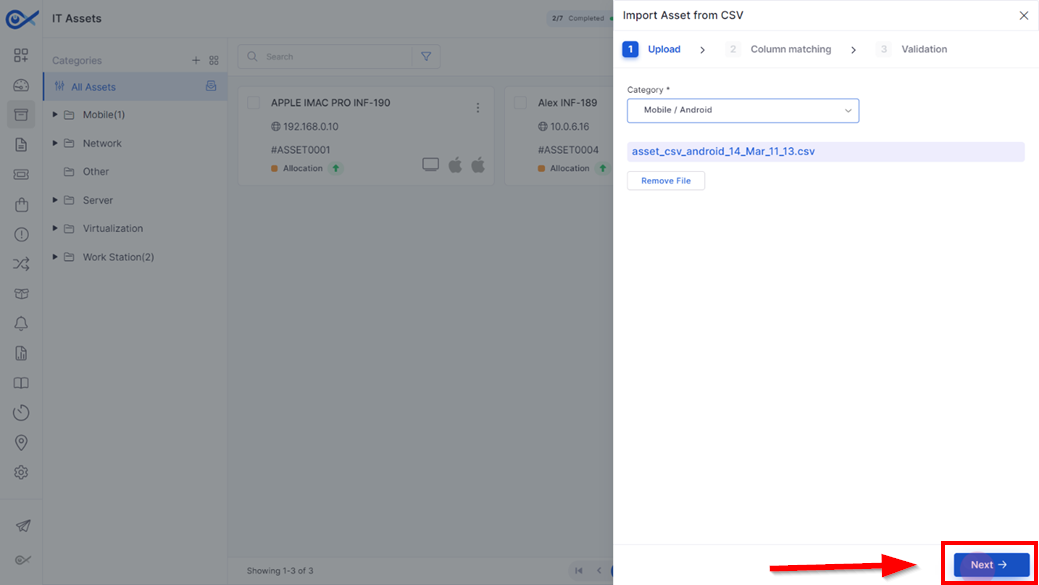
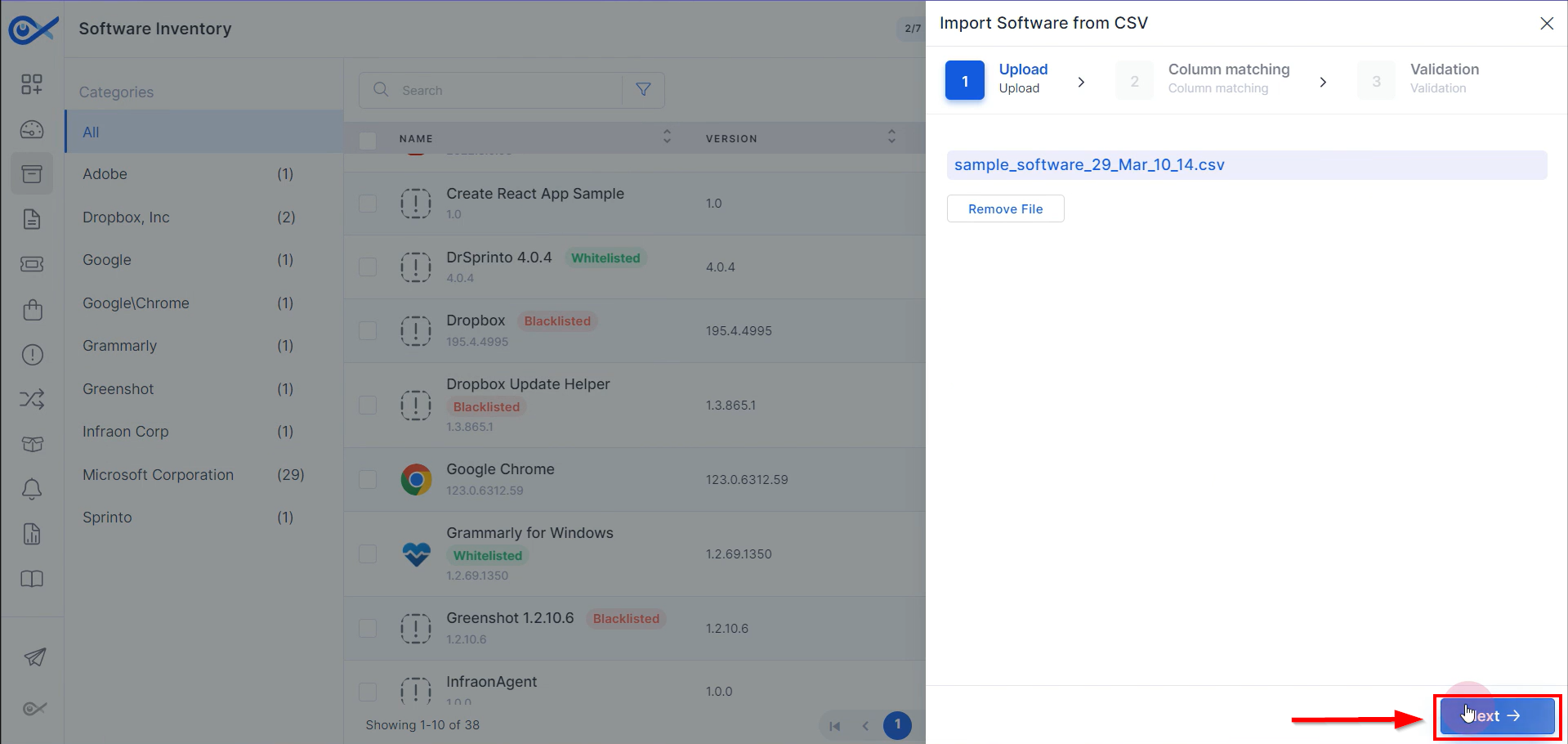
Step 6: After a successful upload, click Next.
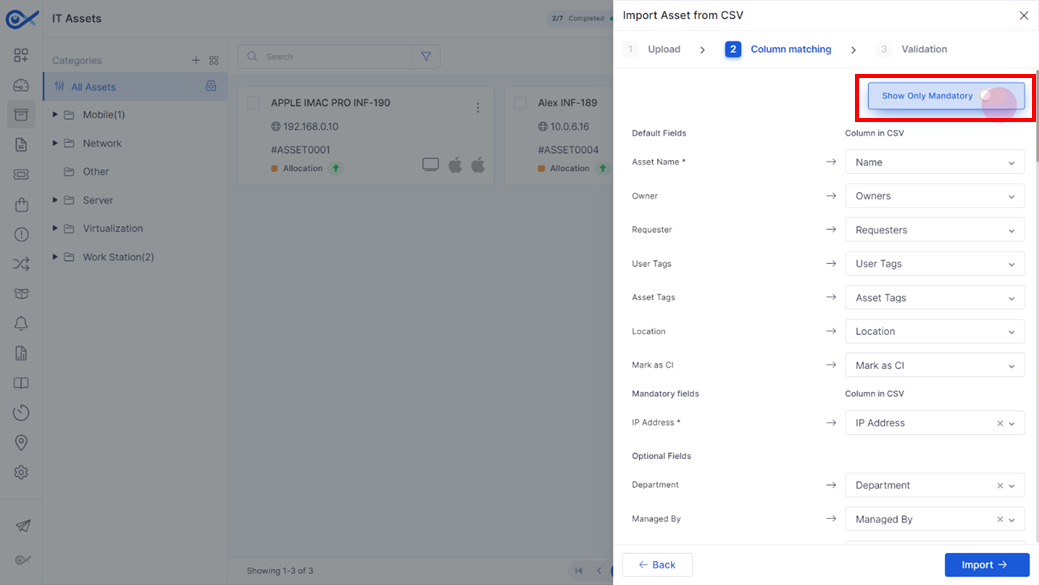
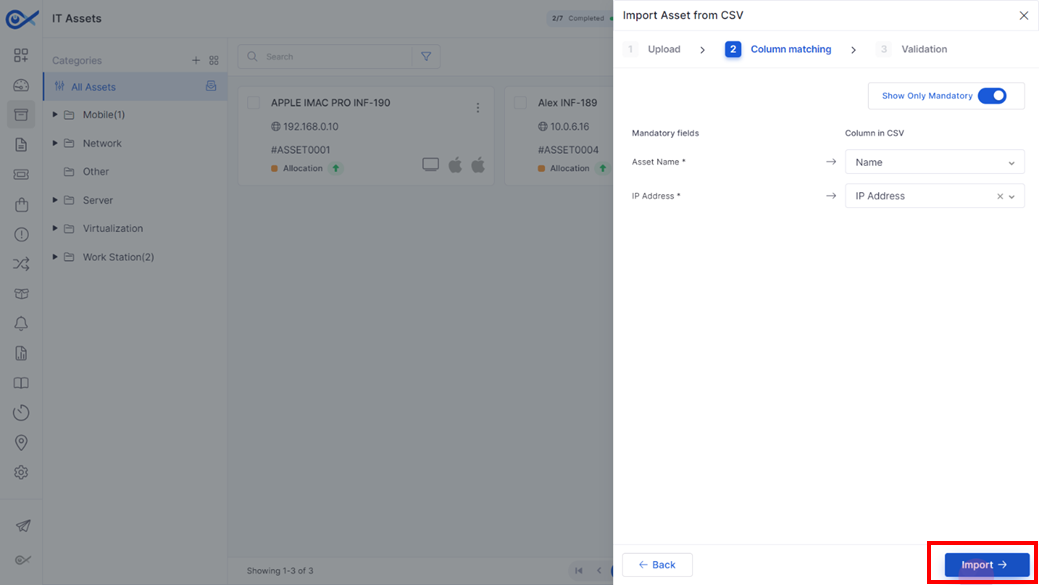
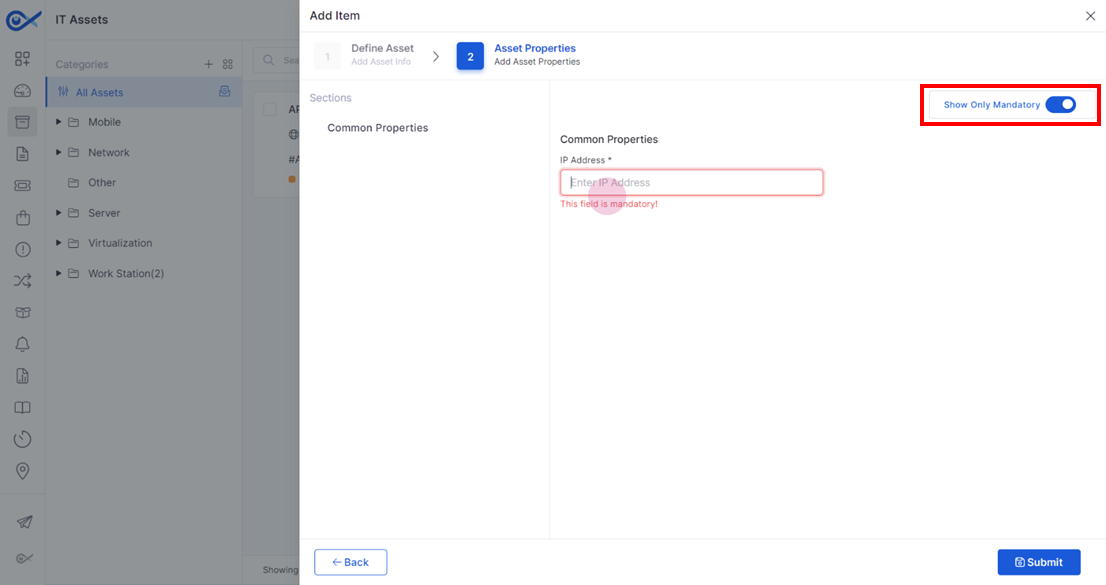
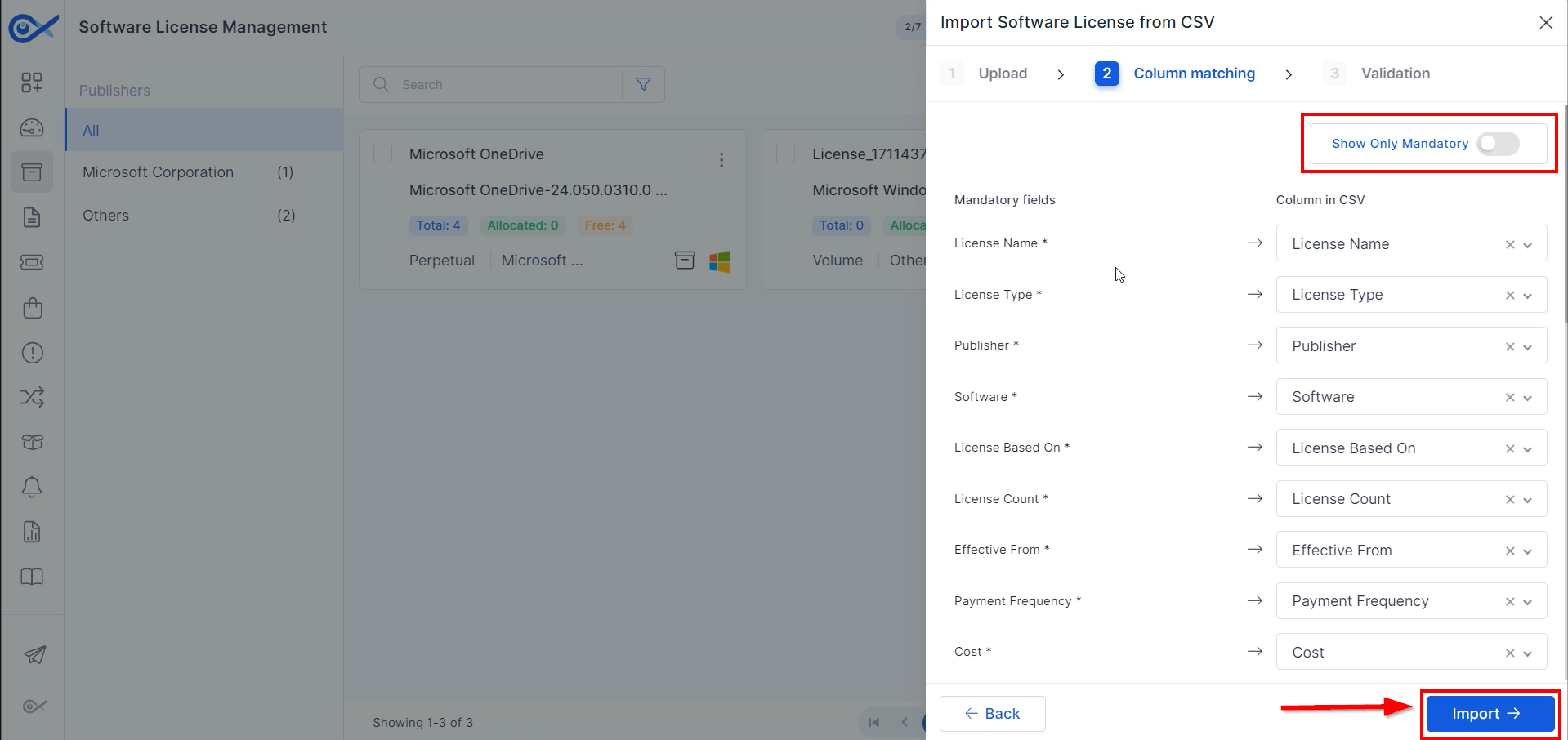
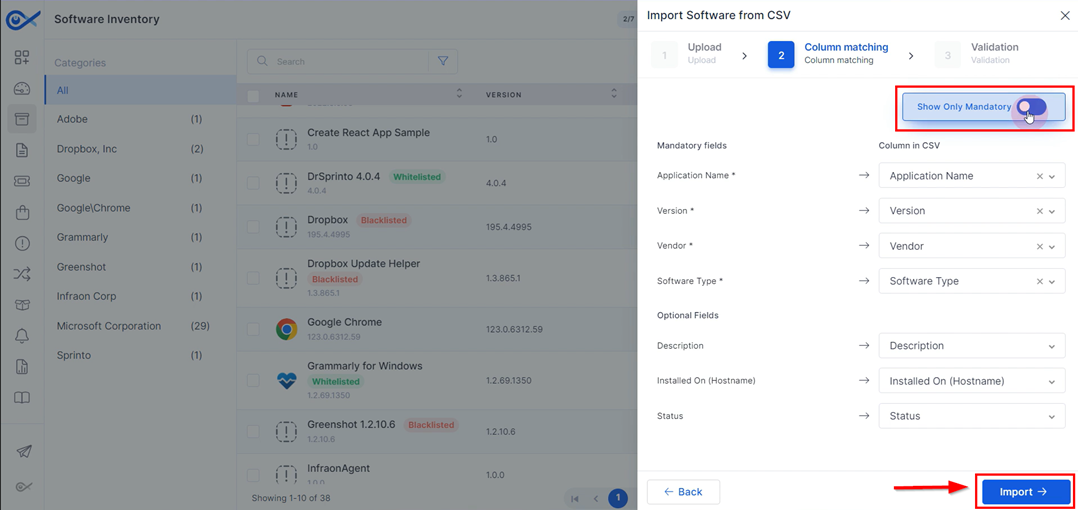
Step 7: On the column matching page, make sure the columns match the data in the CSV file. Use the ‘Show Only Mandatory’ toggle to view only mandatory fields.
Step 8: Click Import to start importing the CSV file.
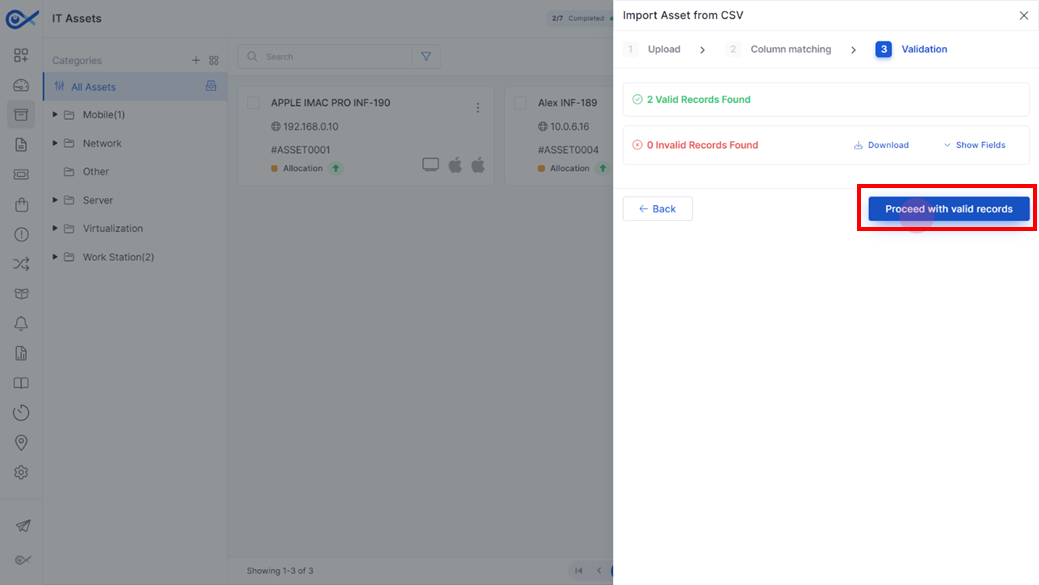
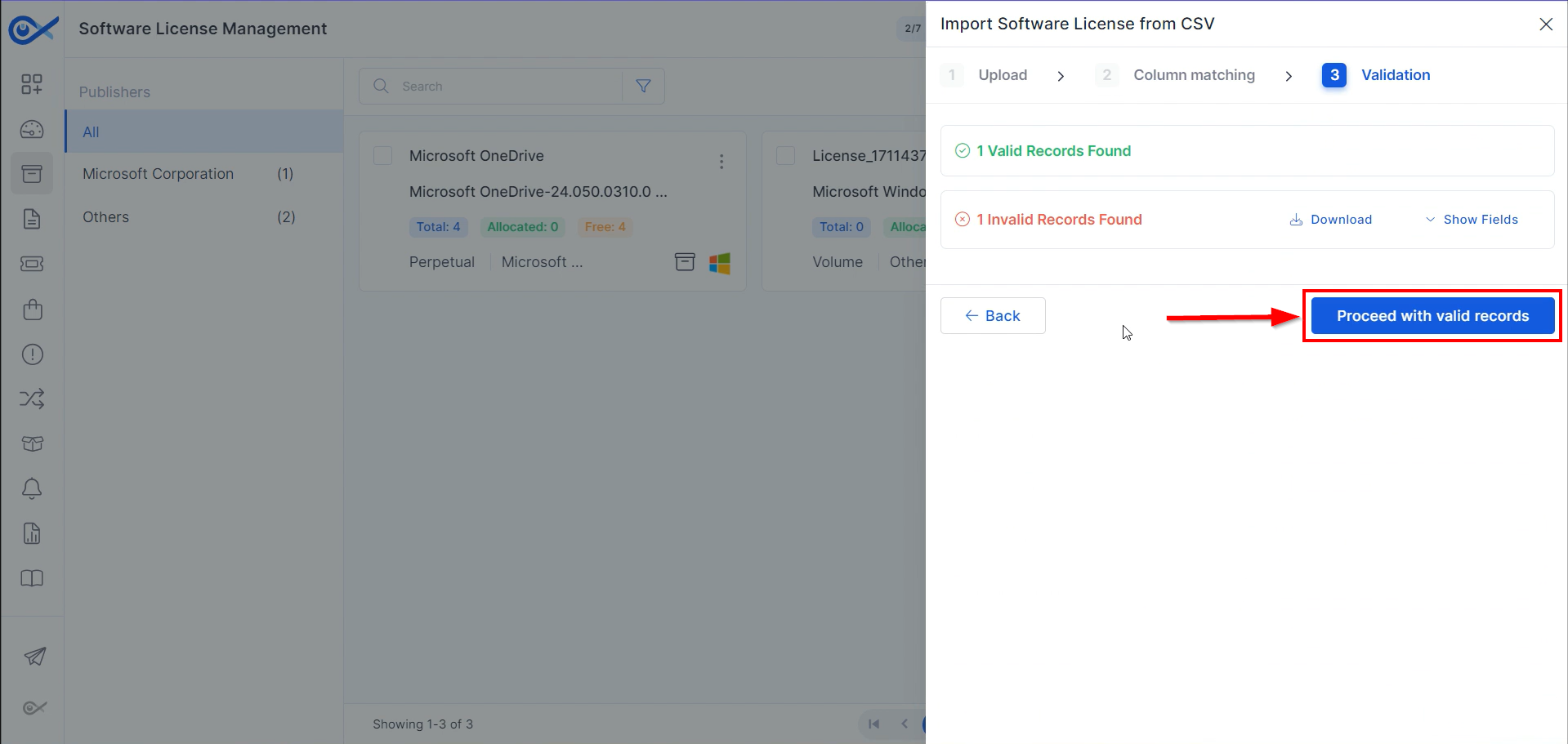
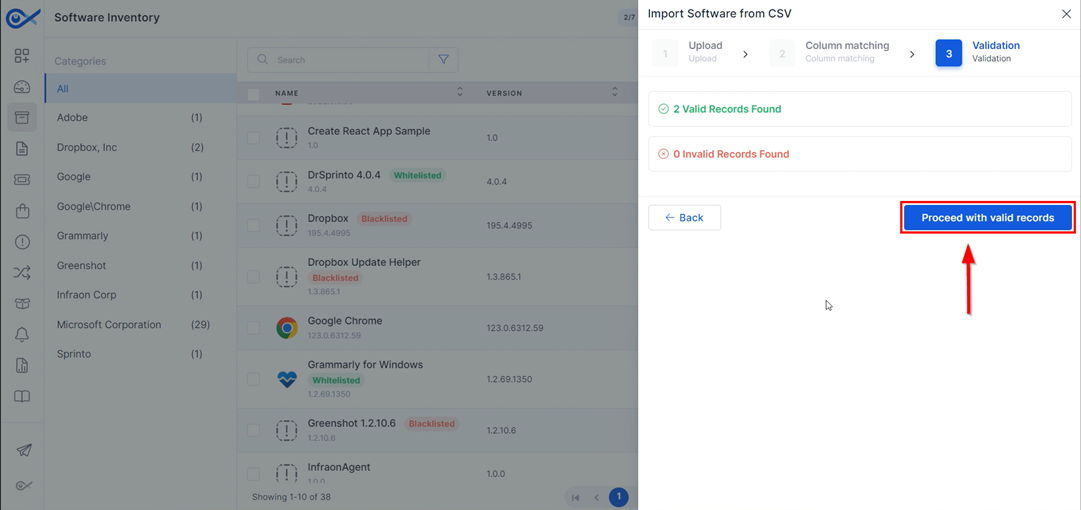
Step 9: Once the import is successful, select Proceed with Valid Records to add the assets.
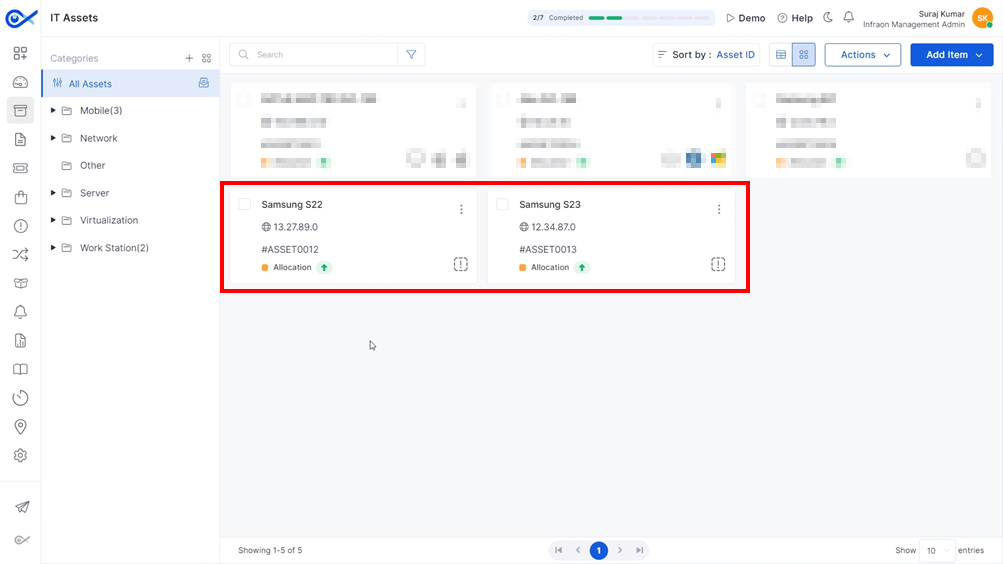
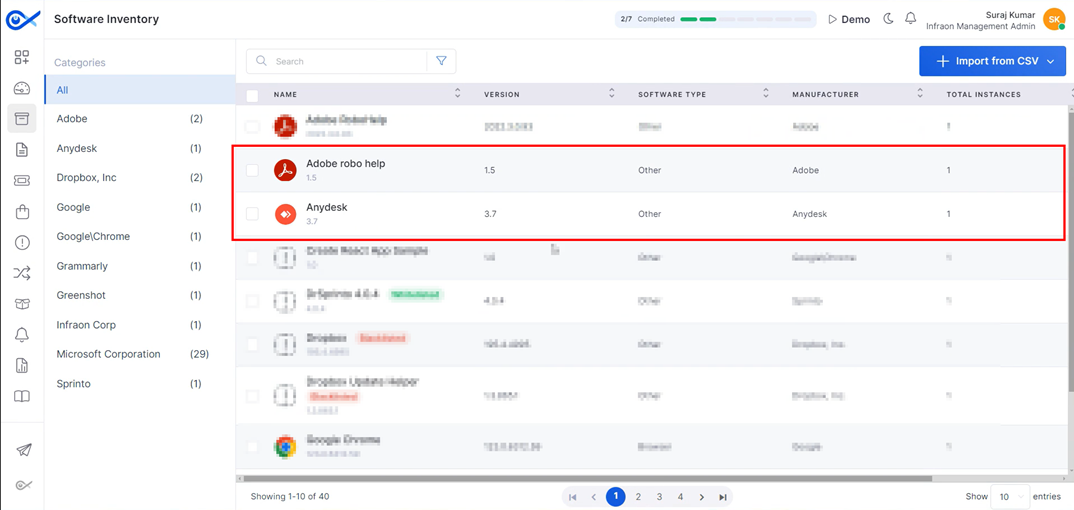
Step 10: A popup will appear confirming the successful upload of the CSV file and the addition of the assets to the selected category.
This guide explains how to add an asset using the Infraon Inventory Agent. The Infraon Inventory Agent is a software tool that automates inventory management for businesses. It functions like a digital inspector, scanning systems and compiling a comprehensive report of both hardware and software components. The Infraon agent is available for Windows, Mac, and Linux users.
Downloading and Installing the Infraon Inventory Agent
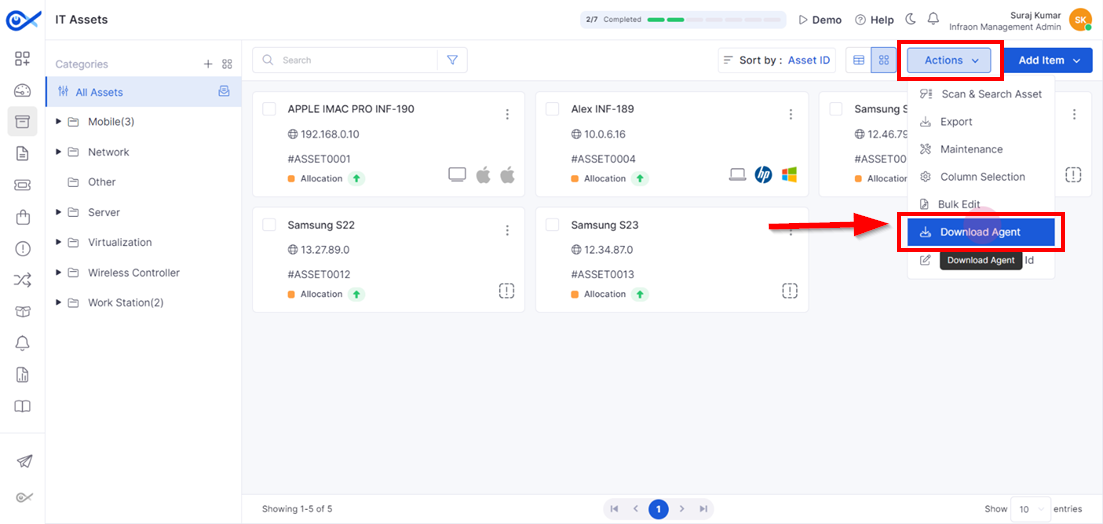
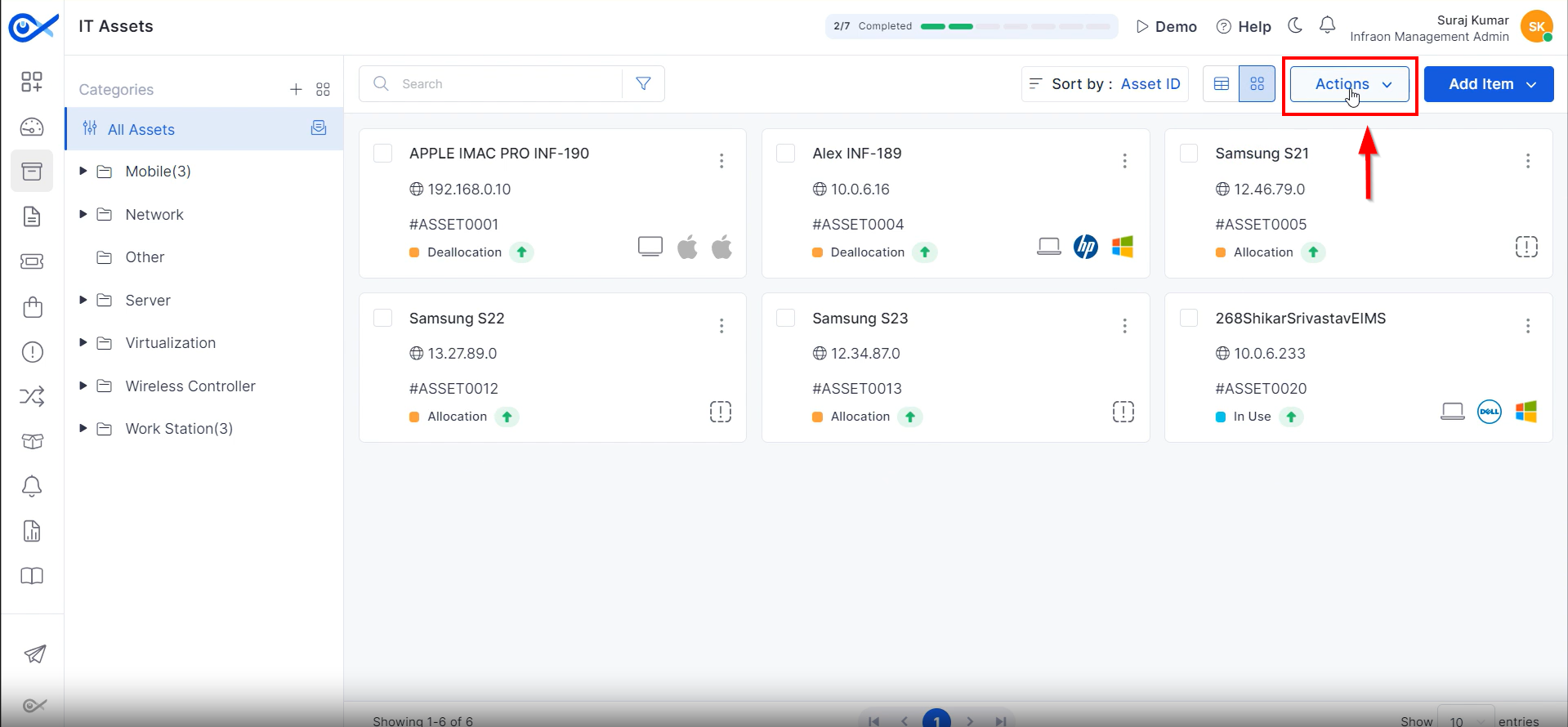
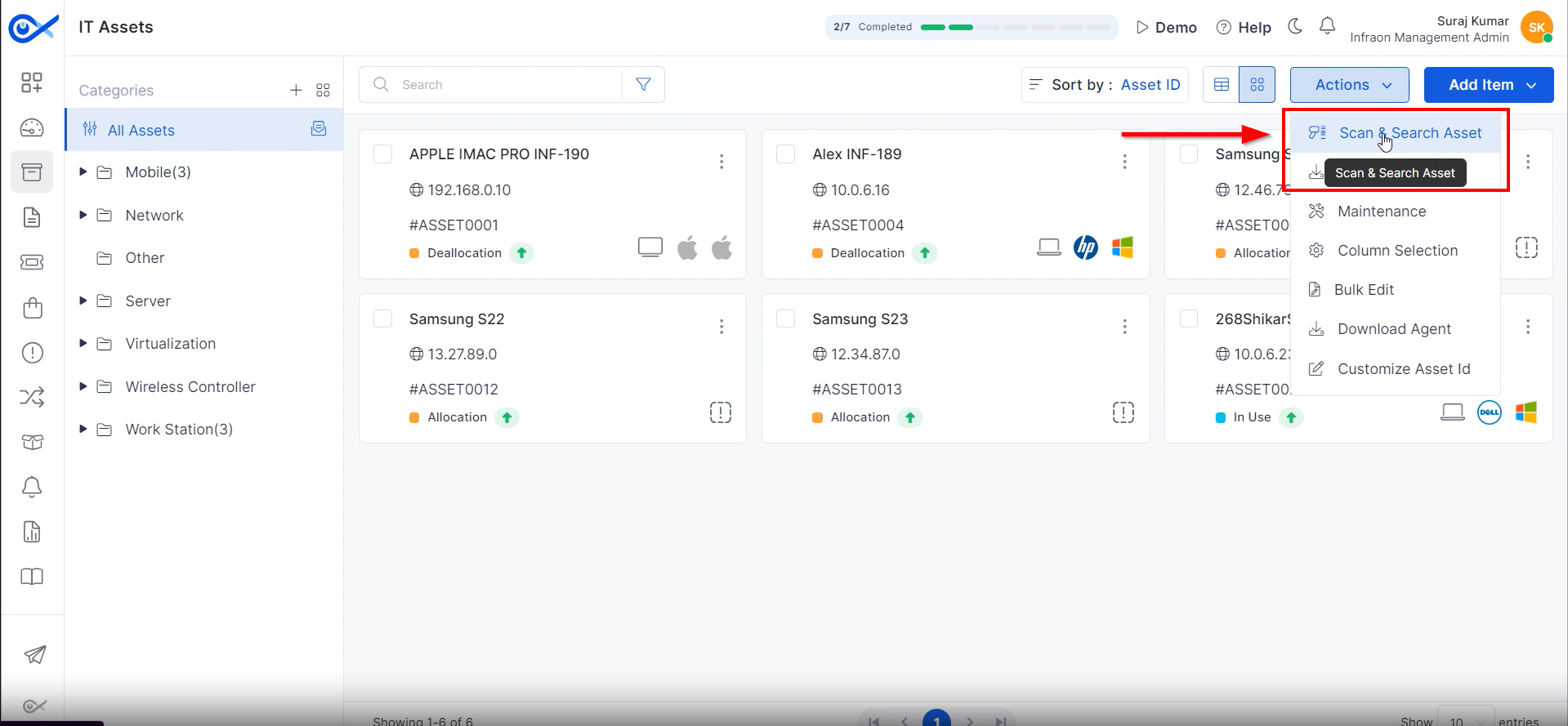
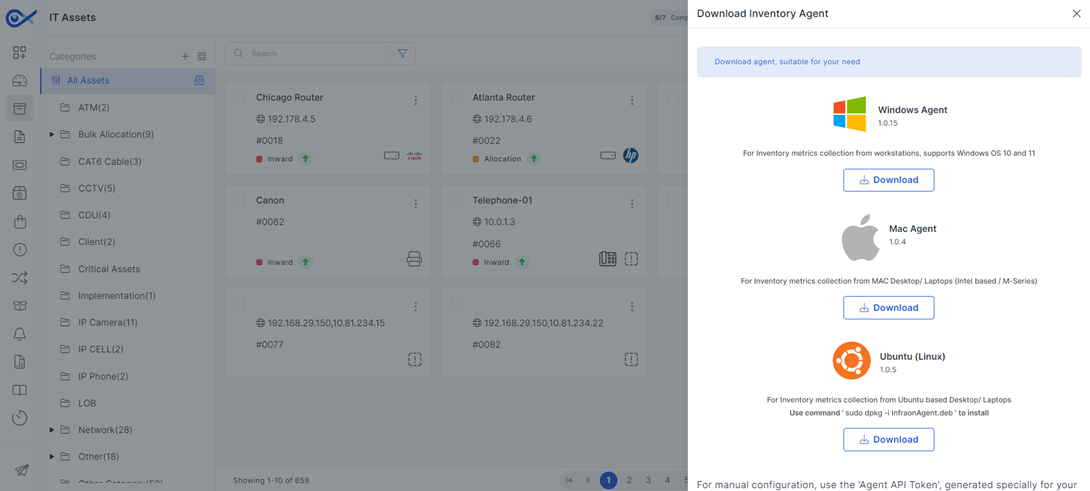
Step 1: To begin adding the asset using the agent, download the inventory agent itself. In the IT Asset tab, click 'Actions' on the top panel, and then select 'Download Agent'."
OR
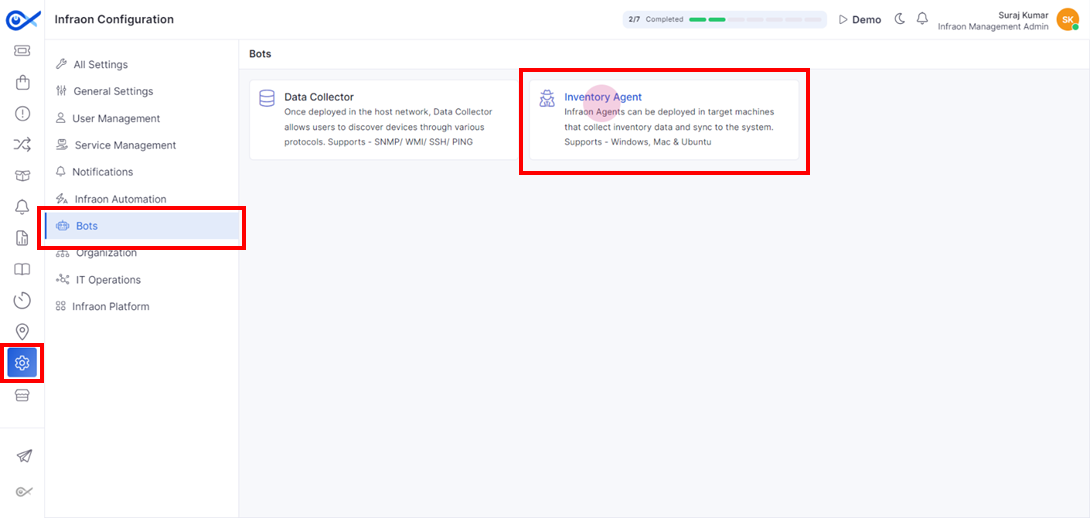
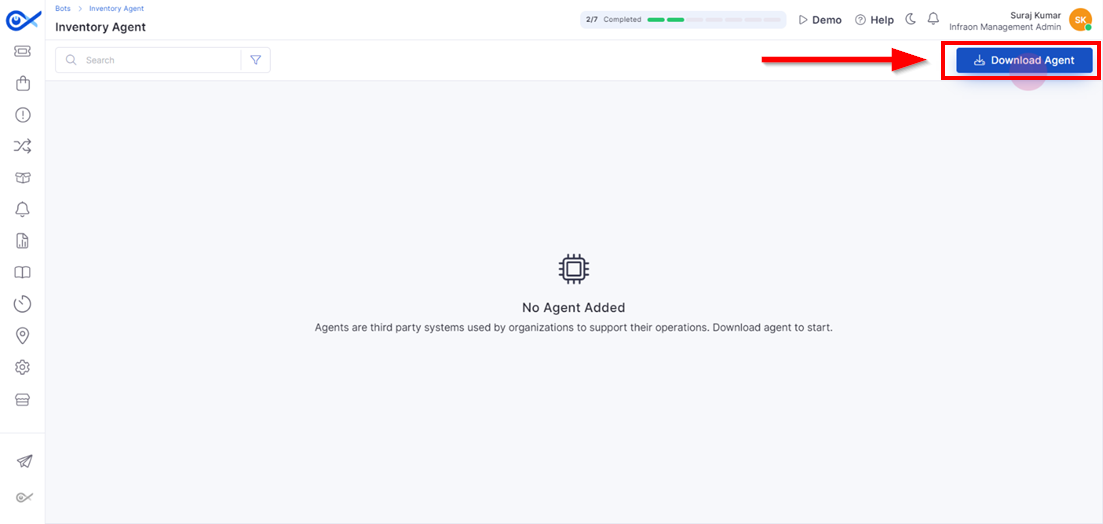
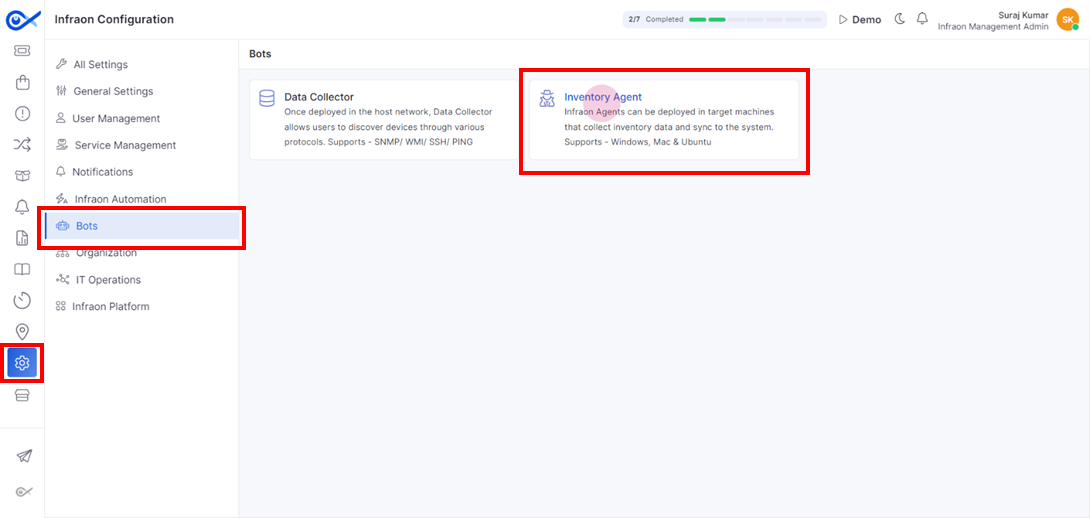
Alternatively, you can download the Inventory Agent from Infraon Configuration. Go to Bots and navigate to the Inventory Agent module.
Click on the download agent located at the top right corner of the page.
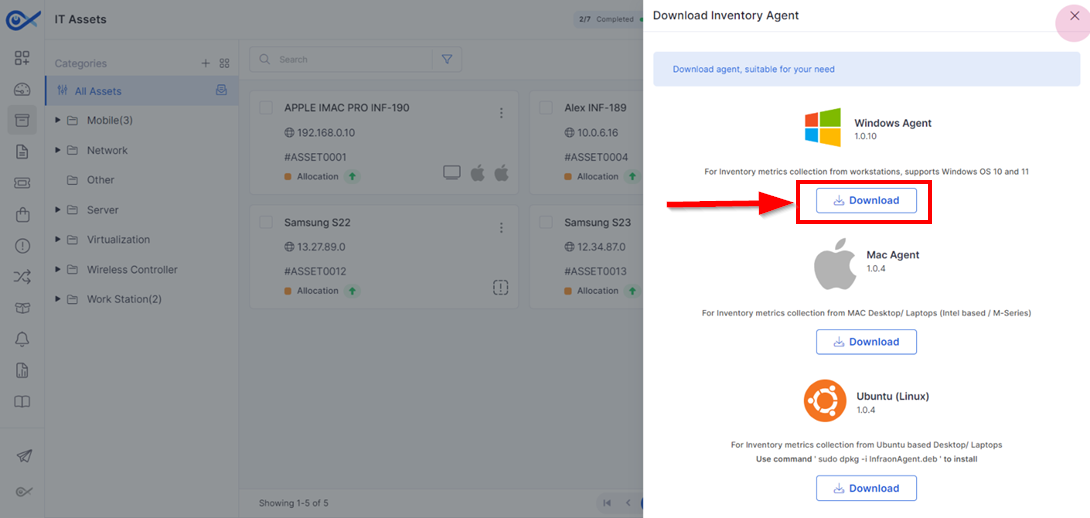
Step 2: The Inventory Agent is compatible with Windows, Mac, and Ubuntu (Linux) devices. Clicking the download button next to your chosen operating system will download the installation package for the Inventory Agent.
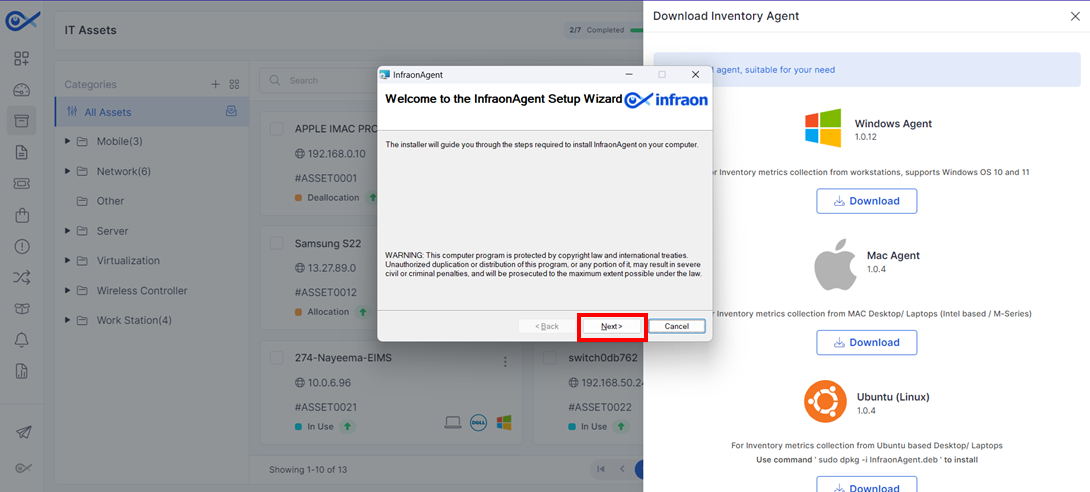
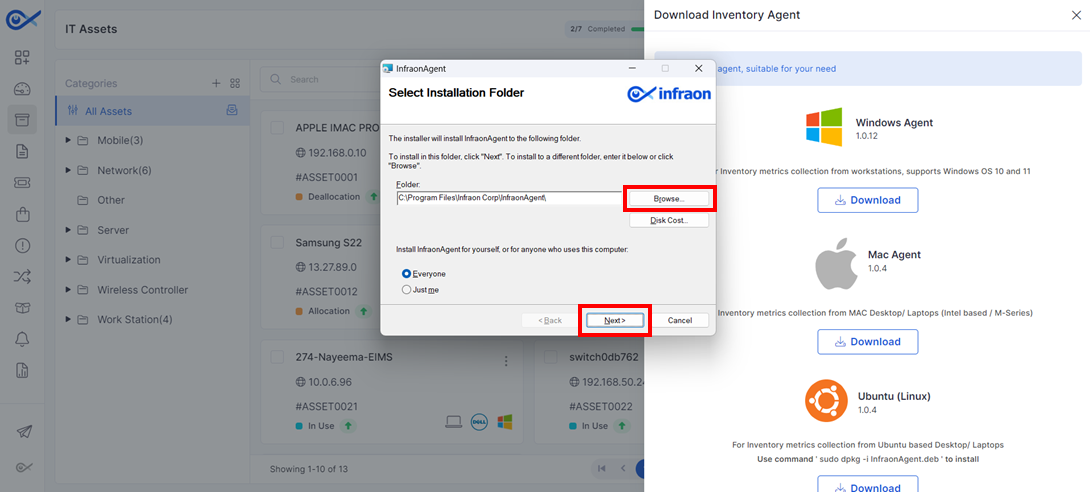
Step 3: Open the downloaded file to begin the installation. In the Infraon agent installer, click Next to proceed.
Step 4: Select the desired file path where the Infraon agent should be installed, then click Next.
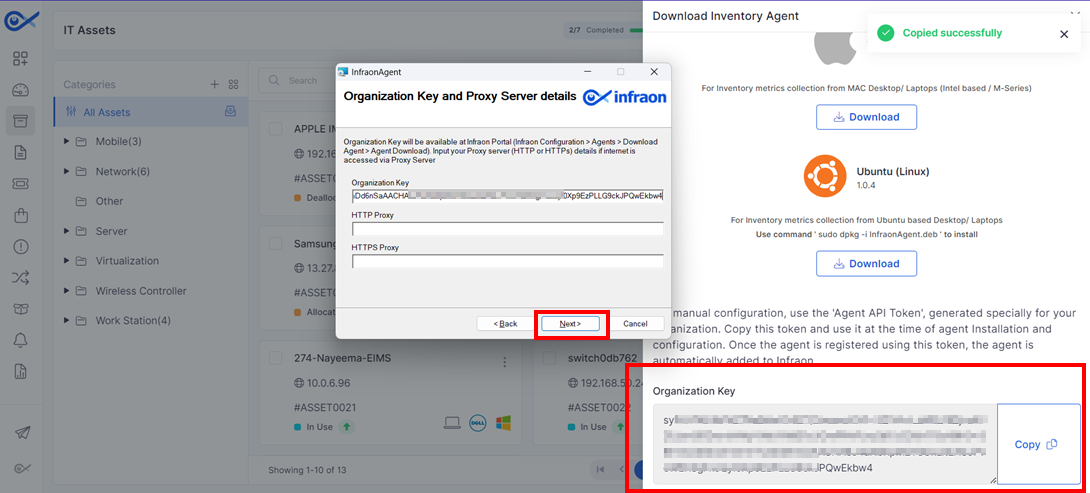
Step 5: Enter the organization key available in the download inventory agent module, then click Next.
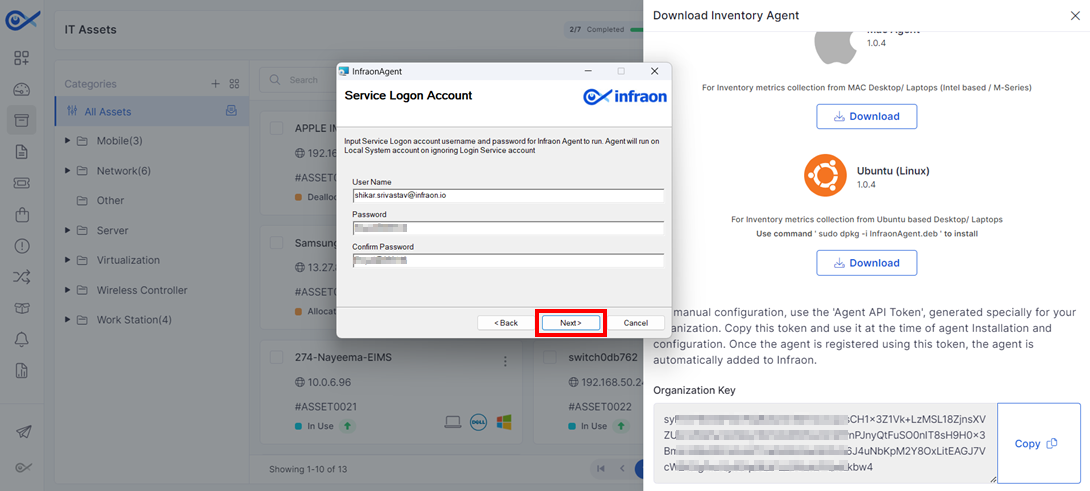
Step 6: Enter the username and password for the Infraon agent. Click Next to proceed.
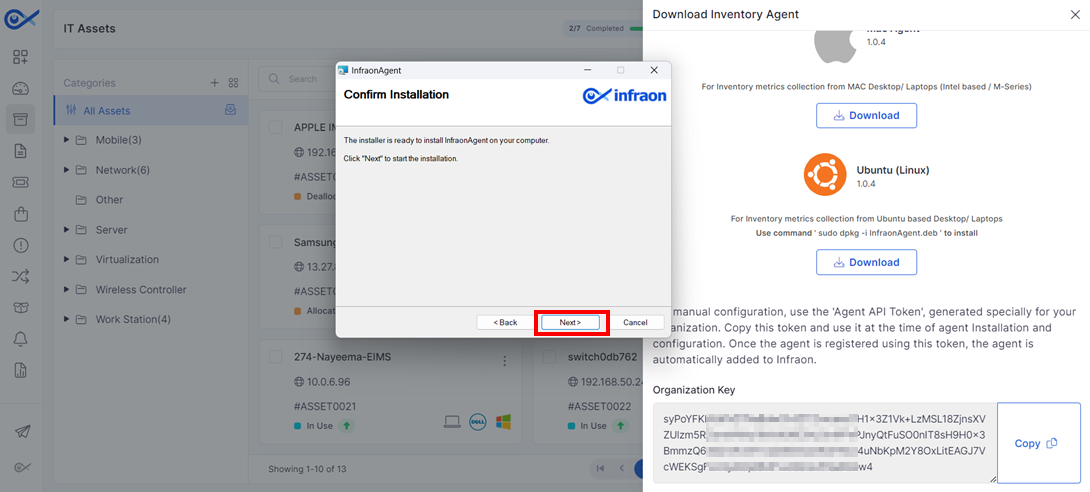
Step 7: Once the configurations are added, proceed to install it by clicking Next.
The inventory agent is now successfully installed.
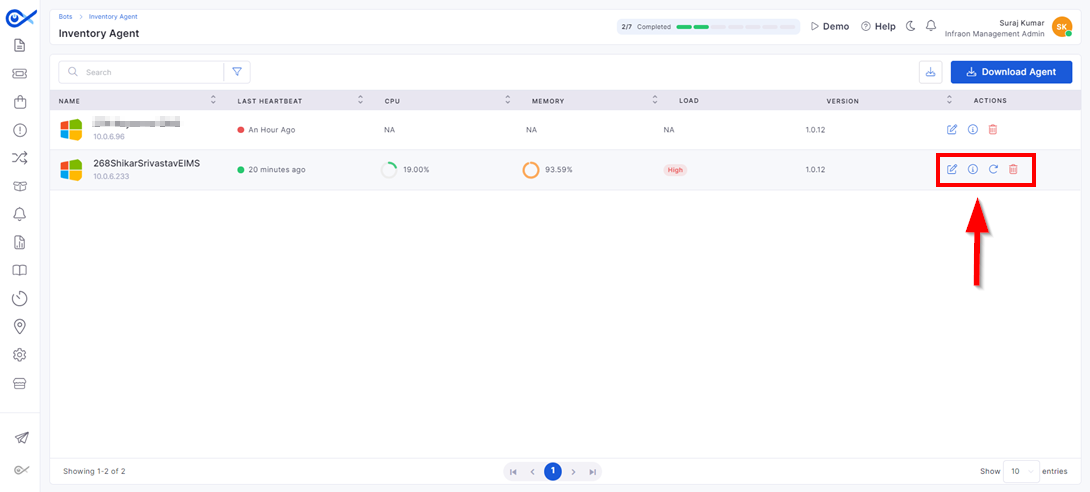
Step 1: Navigate to Infraon Configuration -> Bots -> Inventory Agent to view the list of installed agents.
Check the inventory agent list for the Infraon agent after installation.
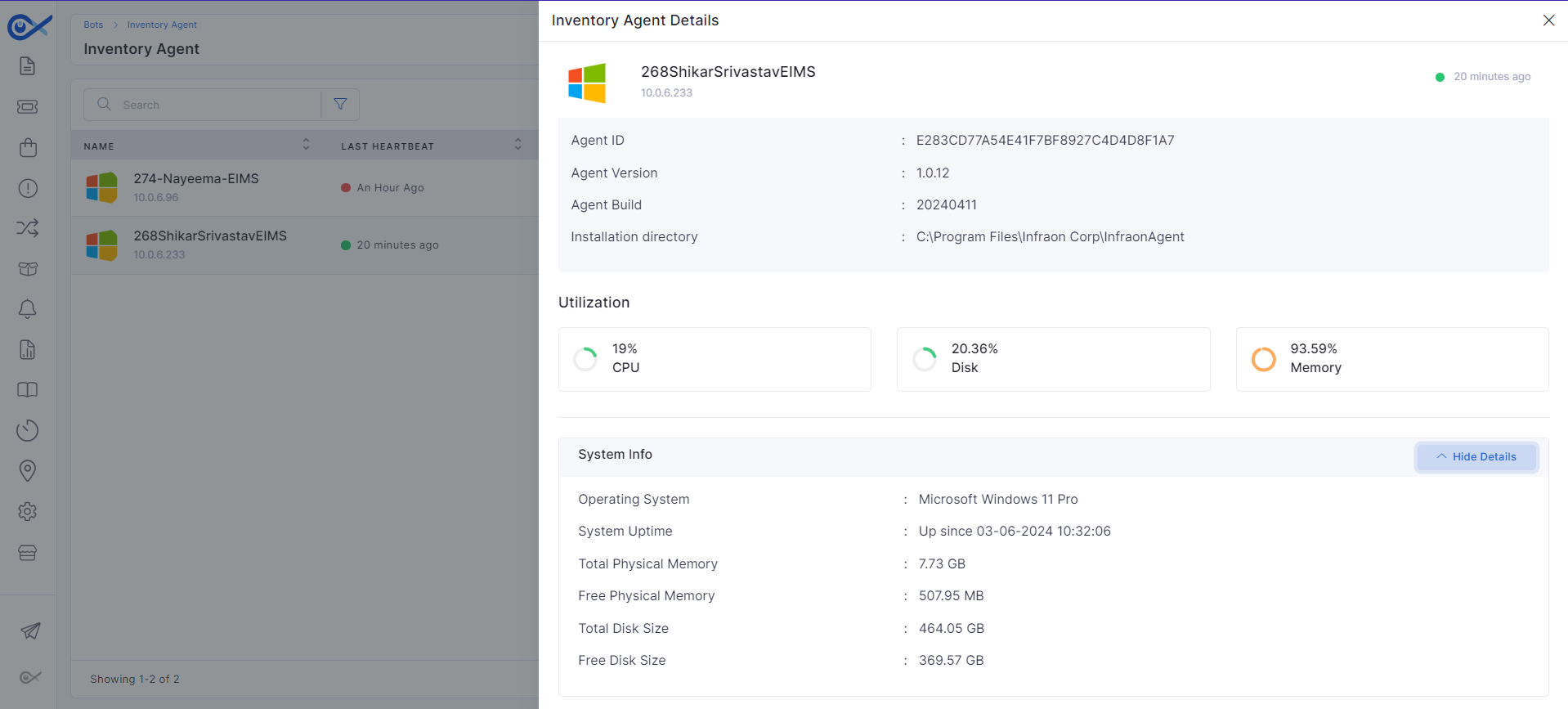
Step 2: Clicking on the (i) icon will open a pop-up page reflecting all the agent's name, last heartbeat, CPU usage, memory load, and version of the Infraon agent.
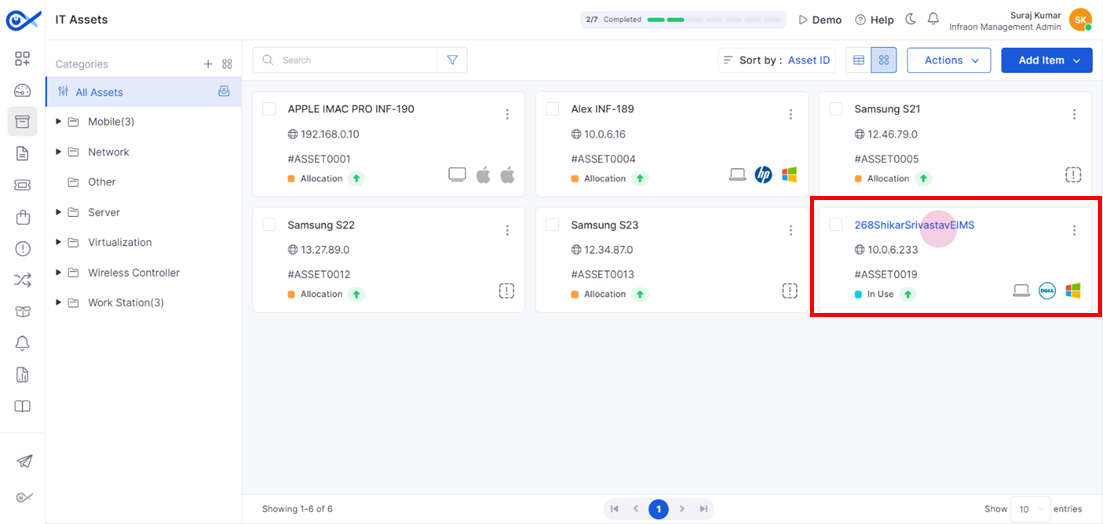
Step 3: The IT asset tab will reflect the asset discovered by the agent. Click on the discovered asset for more information.
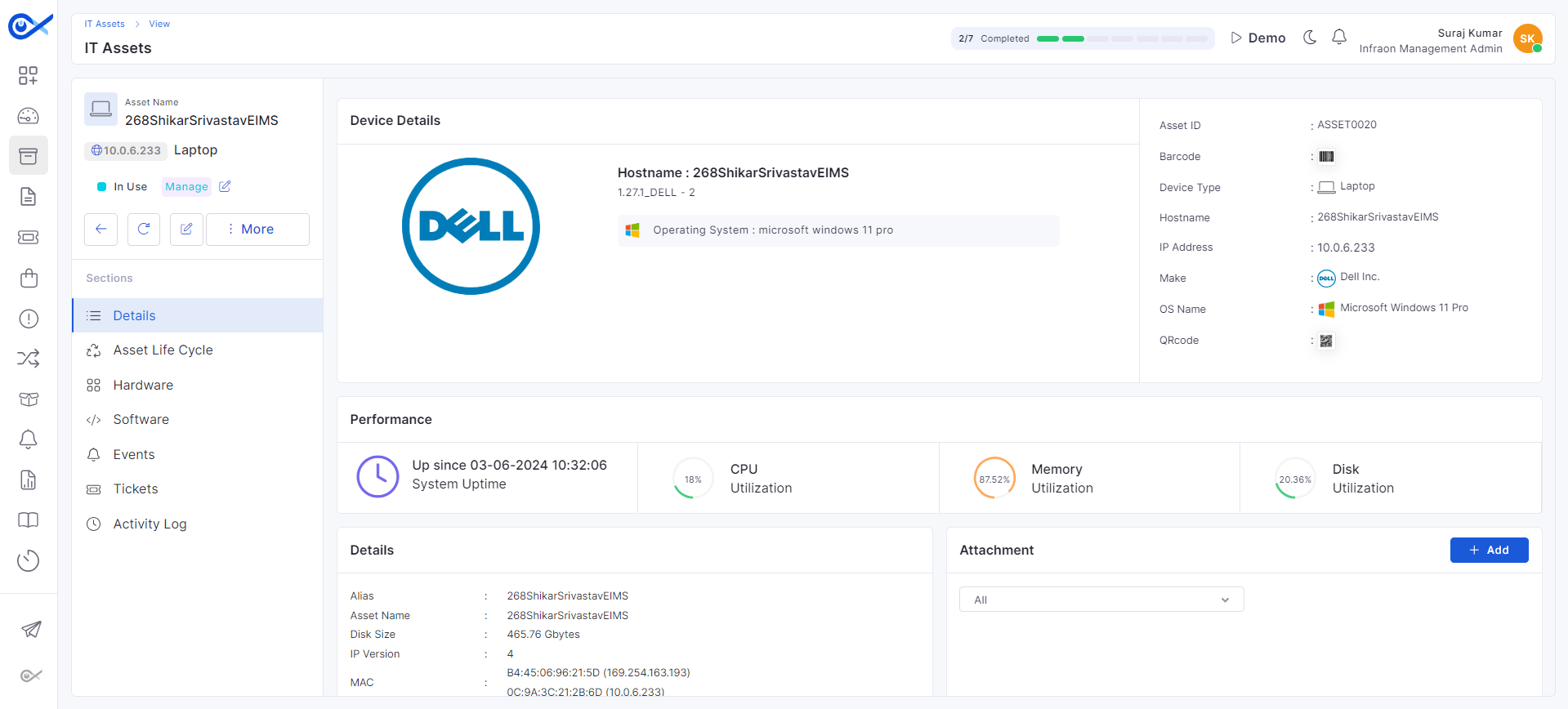
Step 4: Review the detailed information captured by the Infraon agent, including hardware and software details, asset lifecycle, and any associated events.
Diagnosis Tools
Ping Diagnosis
SNMP Walk
SSH Check
WMI Check
Please refer to our detailed for comprehensive documentation.
Advance Resource Configuration
What is Advance Resource Configuration
How to add a Resource
Please refer to our detailed for comprehensive documentation.
Notifications
Configure SMS
Messenger Audit
Configure SMTP
Please refer to our detailed for comprehensive documentation.
User Management
Departments
Leaves & My Leaves
Password Policy
Requester
Roles & Privileges and Users
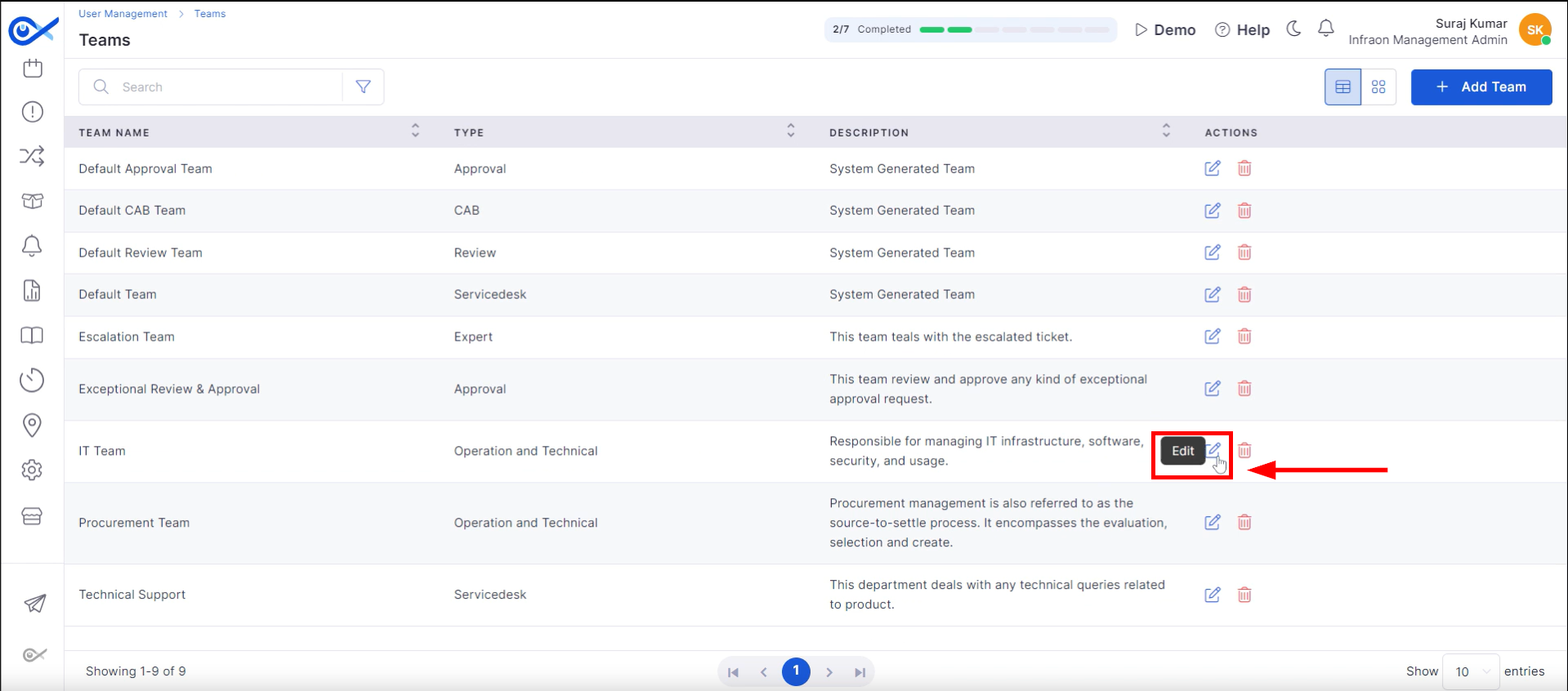
Teams
Please refer to our detailed for comprehensive documentation.
Infraon Infinity offers three primary methods for creating tickets.
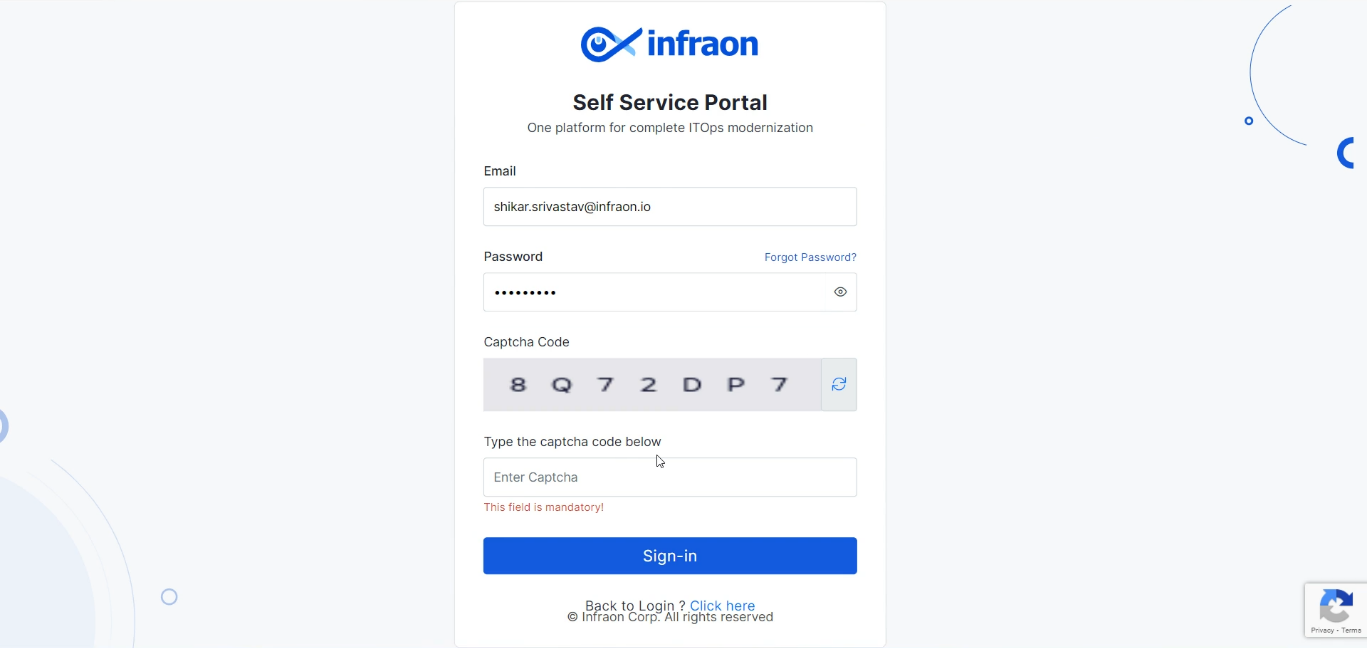
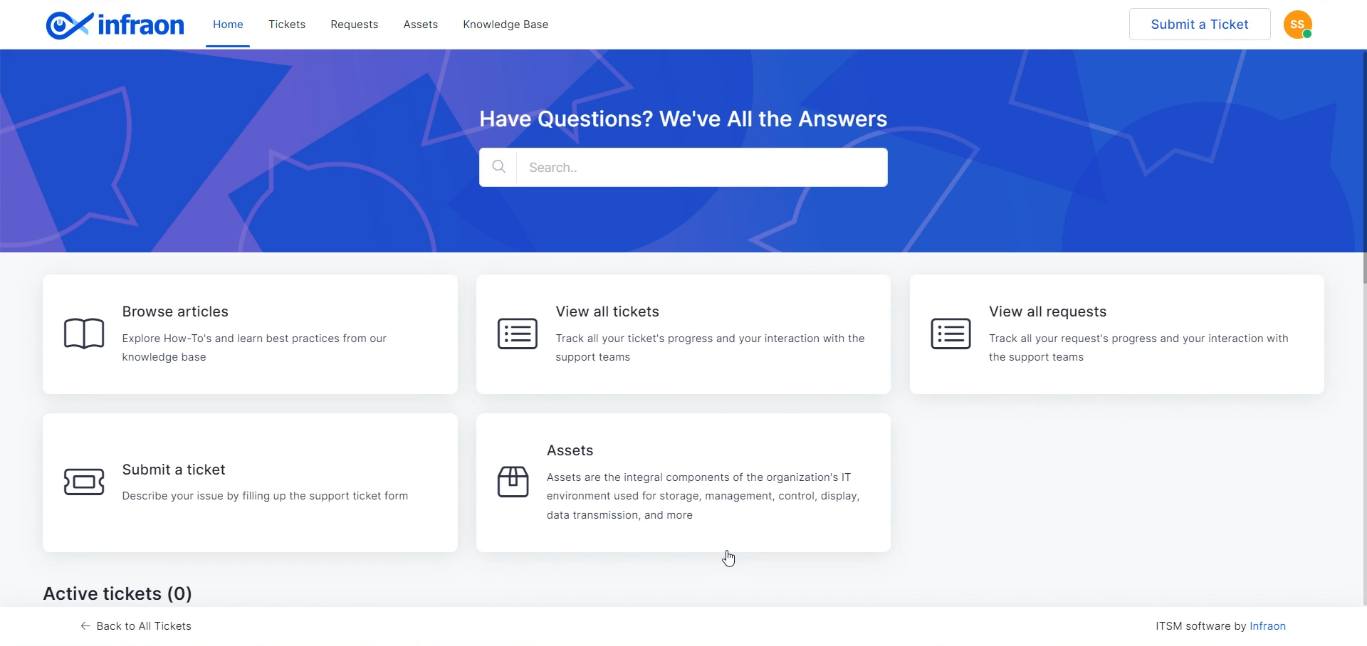
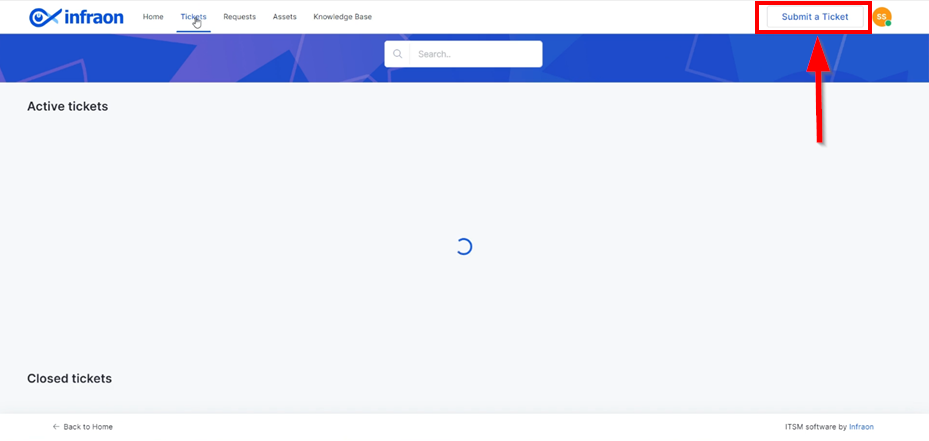
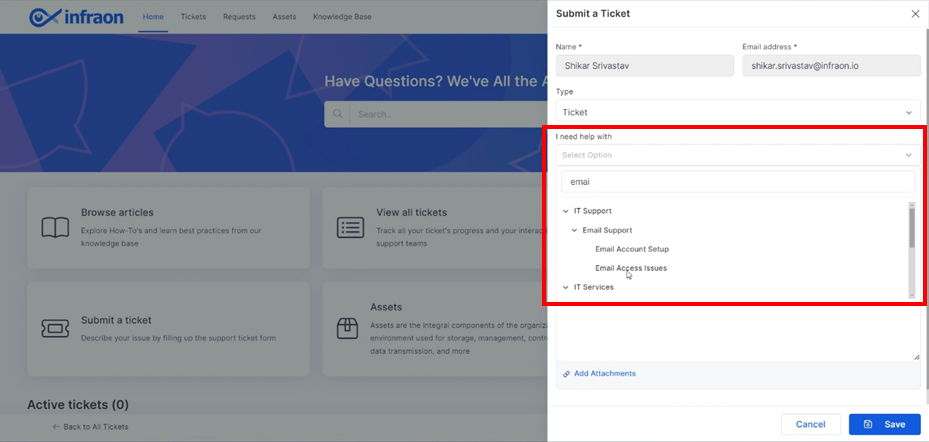
The first method is through the Self-service portal, where end users can log in and raise their tickets.
The second method involves an email-to-incident feature. By configuring the support email, any emails sent by an end user automatically generate a ticket in the Infraon Infinity platform.
The third method is via the technician portal. If an end user cannot use email or the self-service portal, they can directly contact a technician. The technician can create a ticket for the end user within the admin portal.
The following sections provide a detailed look at these different methods of ticket creation.
Request Management
This guide explores Request Management within the Infraon Infinity platform.
Handbooks
The Handbooks section will offer a series of comprehensive reference guides featuring step-by-step instructions for technicians, end users, managers, and IT service professionals. These handbooks aim to simplify our product features, making navigating and managing tasks easier. They provide valuable guidance to help you leverage the full capabilities of the Infraon platform.
This section provides downloadable ITSM workflow diagrams that visually represent key processes. These diagrams help users and professionals quickly understand and navigate the workflows involved in IT service management.
This guide offers step-by-step instructions for managing tickets within the platform. It covers everything from ticket creation to resolution and is designed to assist users in efficiently handling incidents and service requests.
Please refer to our detailed User Manual for comprehensive documentation.
Default Dashboard
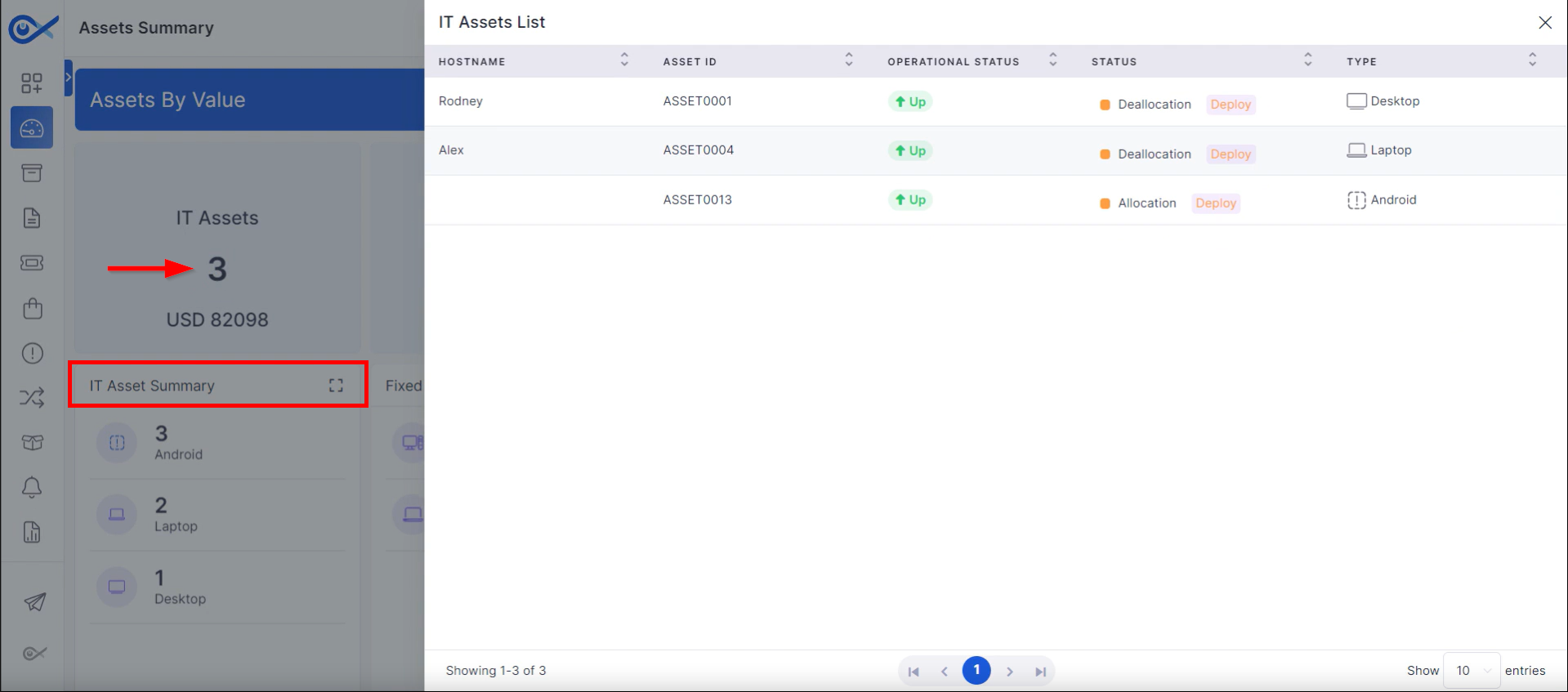
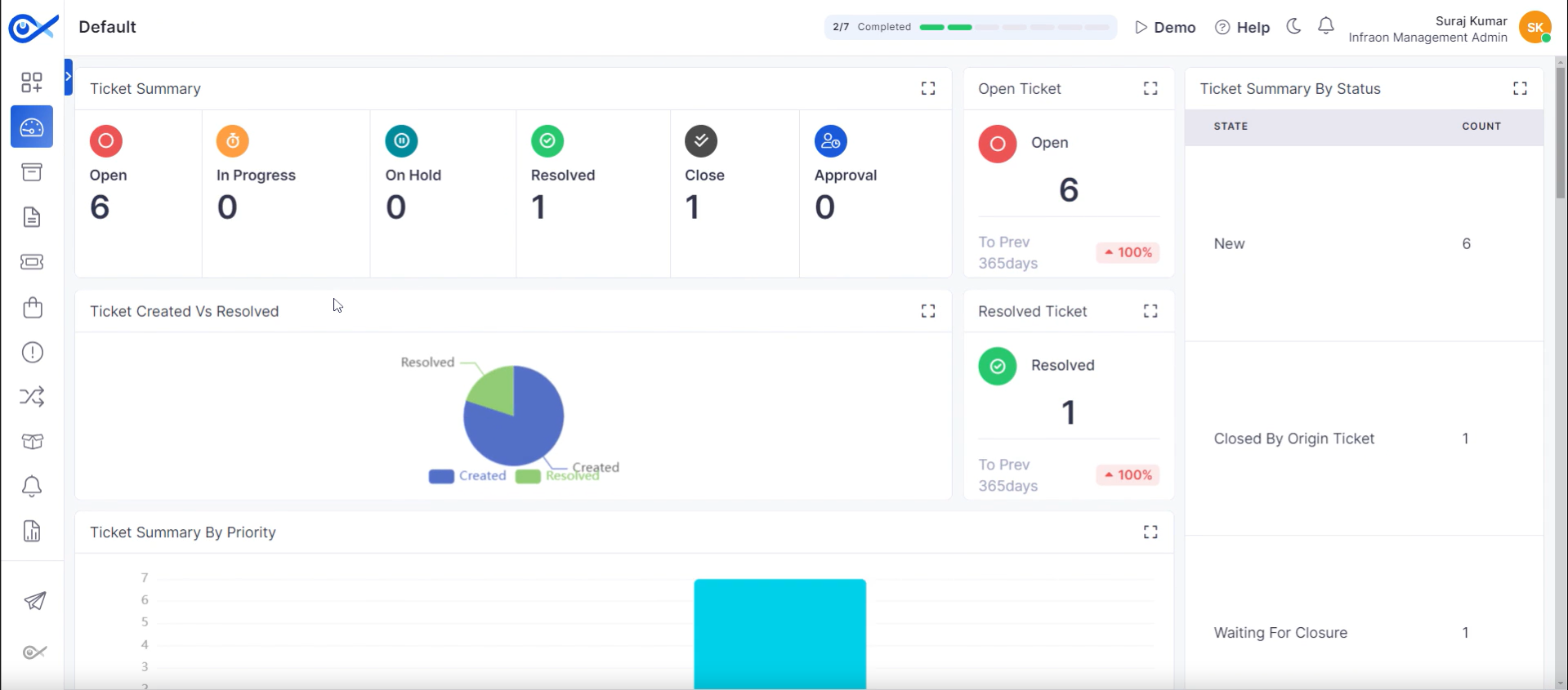
This guide explores the default dashboards provided by the Infraon Infinity platform in this guide. Infraon offers three dashboards: Asset Summary Dashboard,Default Dashboard, and Tickets Summary Dashboard. Dive into the details of each one below.
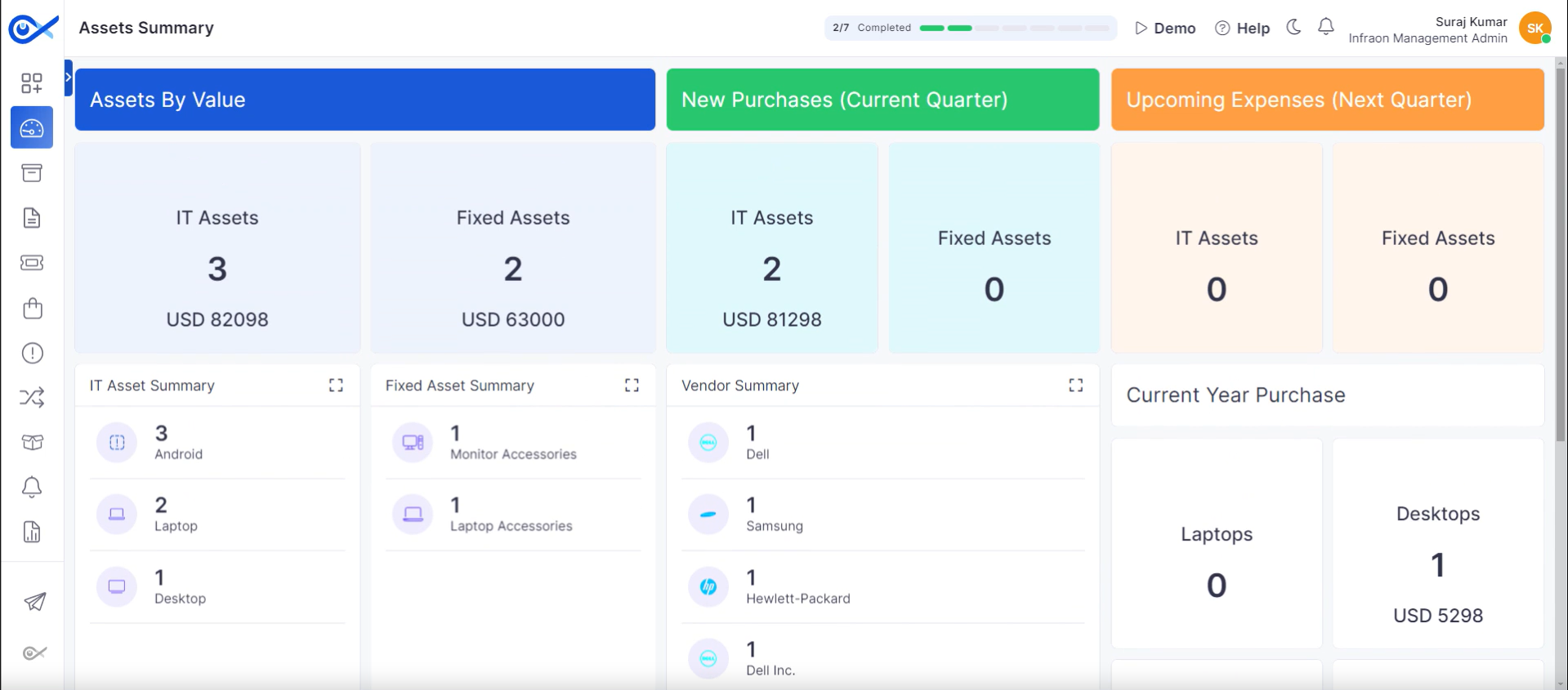
Asset Summary Dashboard
Overview
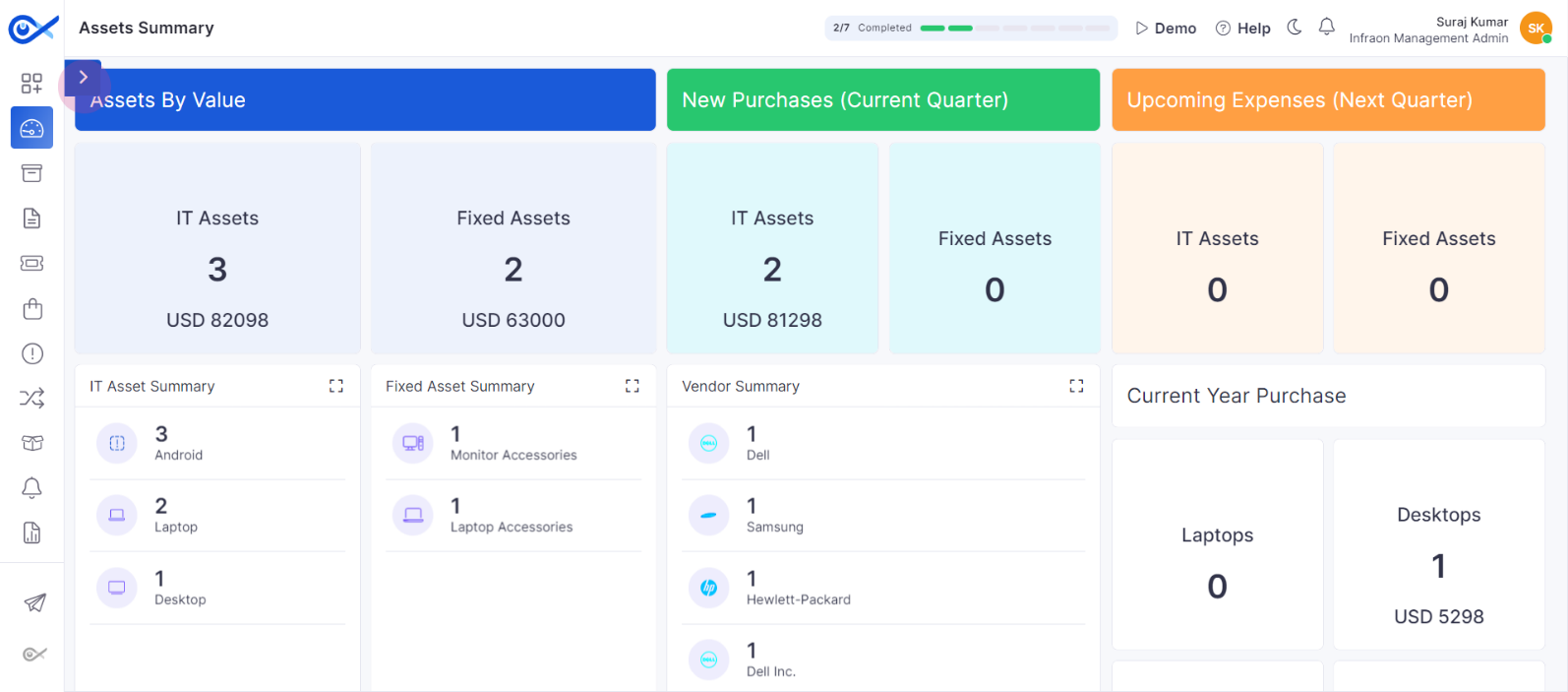
Includes pre-built widgets for asset value, new purchases, expenses, IT asset summary, fixed assets, vendor details, and current-year purchases.
Provides a visual representation of asset data through various widget types.
Data Exploration
Click on widgets to view detailed device information, including hostname, asset ID, status, type, OS, manufacturer, and location.
Utilize filter options within widgets to refine data display.
Maximize widgets for a closer look at specific data points.
Explore device categories like laptops, desktops, servers, and network equipment within purchase-related widgets.
Click on specific categories for detailed breakdowns.
Analyze asset trends and patterns across different widgets.
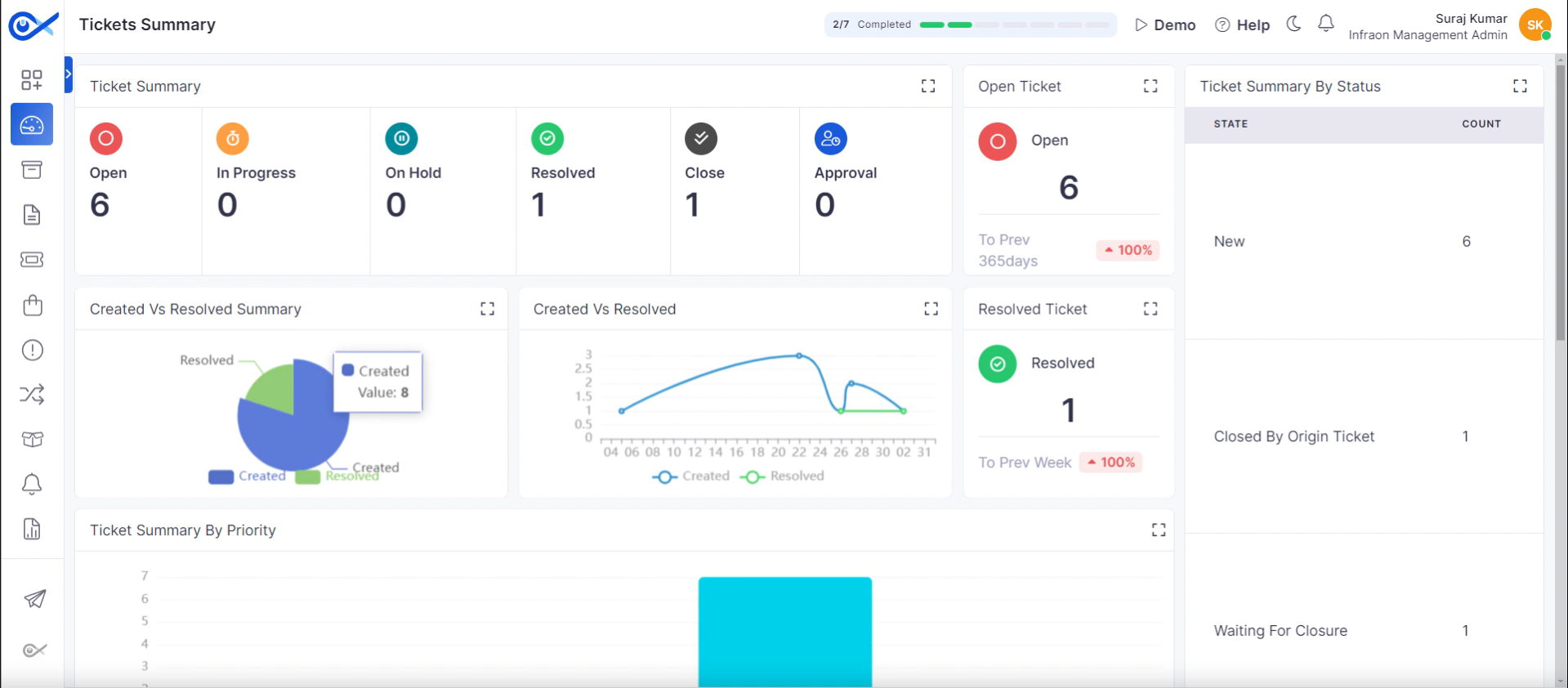
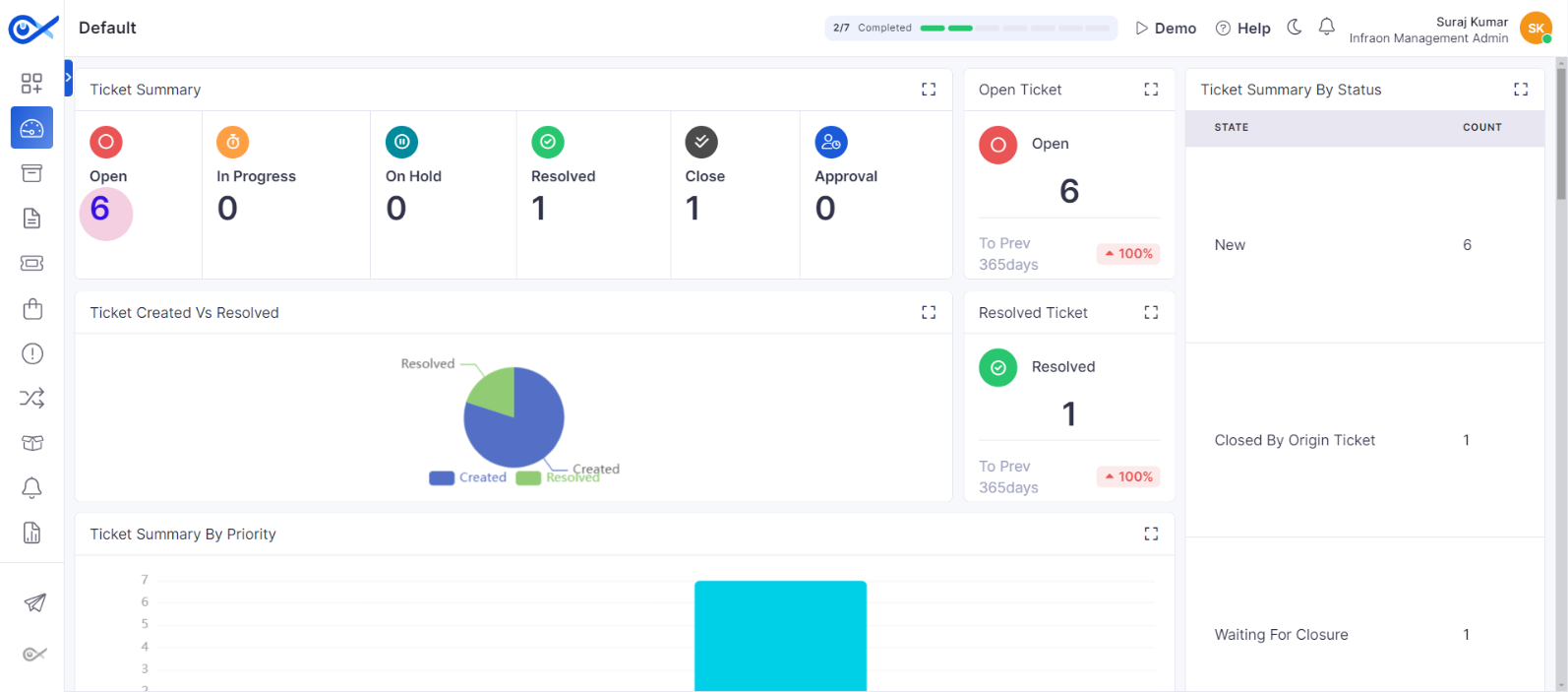
Features pre-built widgets for tickets, requests, problems, and changes.
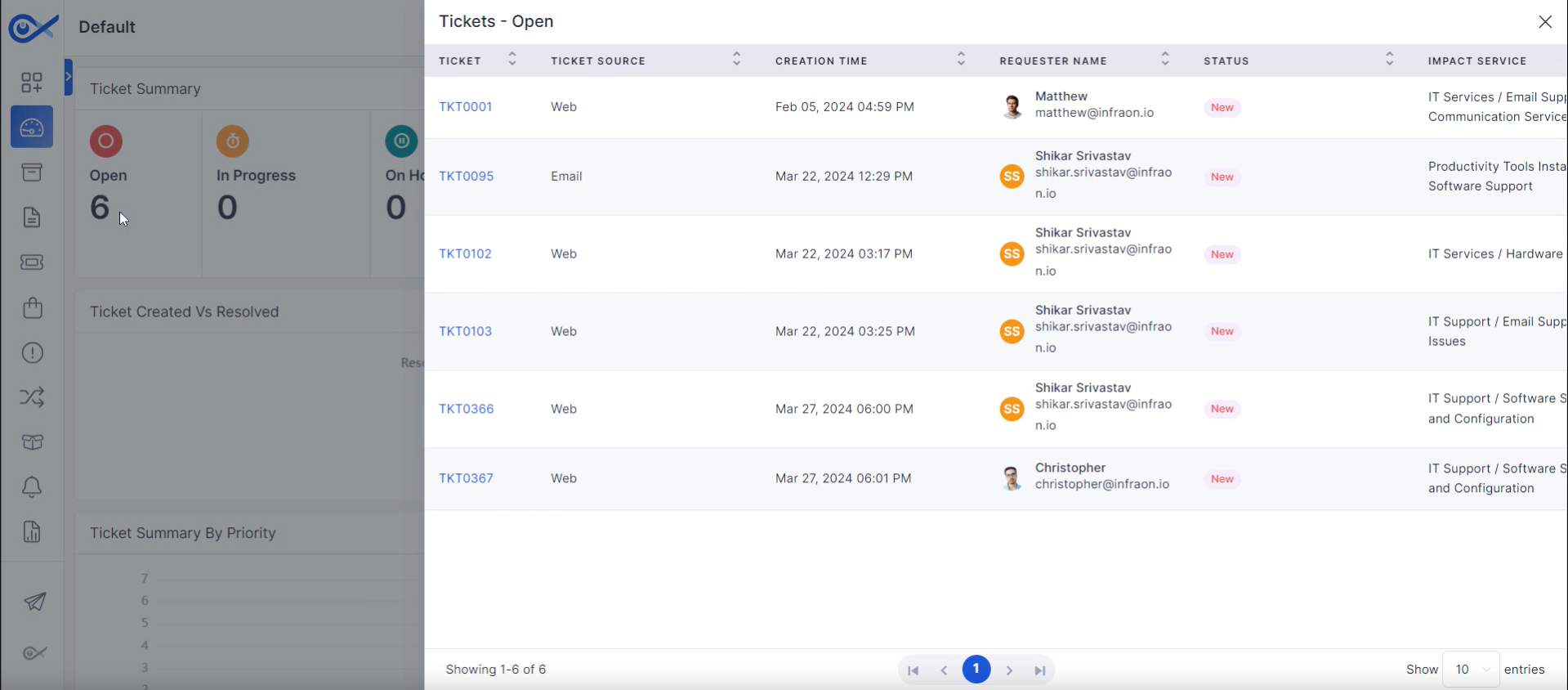
A decal section displays the ticket status (open, in progress, on hold, resolved, closed, approval).
Click on decal widgets to filter tickets and view details.
Explore pie charts for ticket creation to resolution overview.
Analyze ticket priority trends using bar charts.
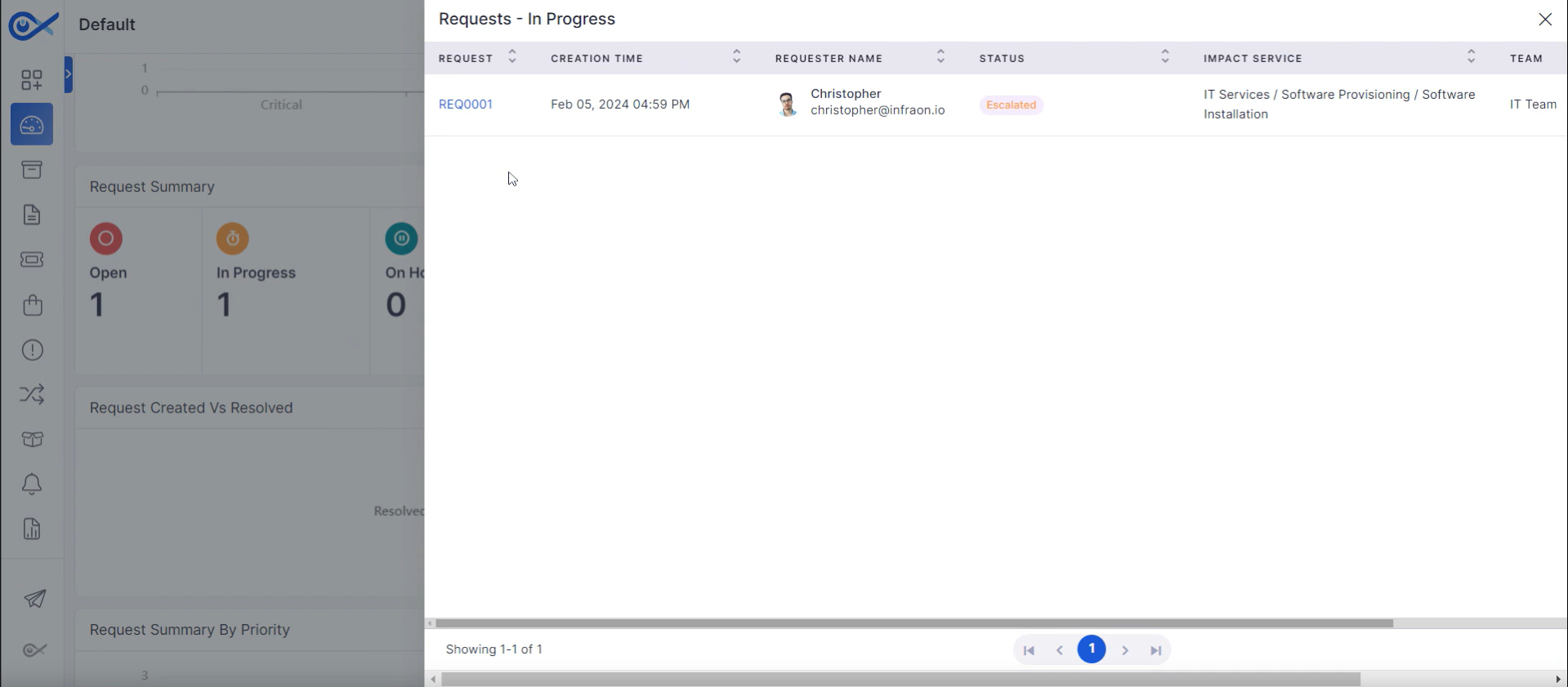
Interact with requests and problems and change widgets similarly to ticket widgets.
Gain insights into ticket and request volumes and statuses.
Identify trends and patterns in problem and change management.
Utilize dashboard visualizations for quick data analysis.
Dedicated dashboard for ticket-related metrics.
Visualizes ticket creation and resolution trends.
Provide ticket status and priority overviews.
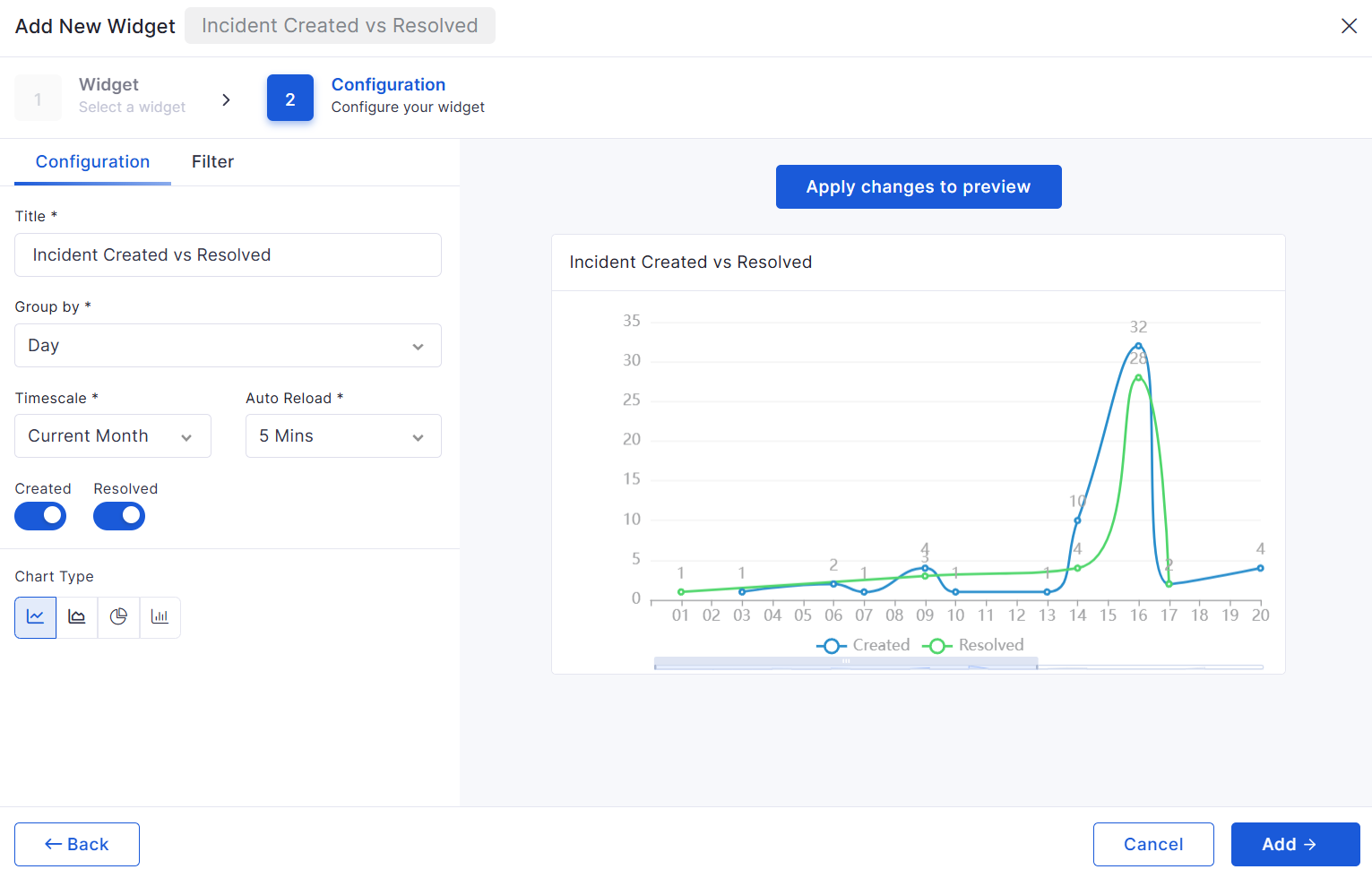
Displays ticket creation and resolution comparison.
Presents ticket status summary (open, in progress, resolved, etc.).
Shows ticket distribution by priority.
Utilizes graphs and charts for data representation.
Offers interactive elements for deeper data exploration.
These are the default dashboards available in the Infraon Infinity platform.
Ticket Management
This guide provides a detailed walkthrough of ticket management within the Infraon Infinity platform.
Please refer to our detailed for comprehensive documentation.
For implementation assistance, view our Integration Guide.
Software License
This guide covers the software license module in the Asset module.
Please refer to our detailed for comprehensive documentation.
For implementation assistance, view our Integration Guide.
Maintenance
Please refer to our detailed for comprehensive documentation.
Network Configuration
Configuration Profile
Add configuration profile (Manually)
Add configuration profile (CSV)
Miscellaneous
Download Jobs
Please refer to our detailed for comprehensive documentation.
v7.4.6 - June 2026
Release Cycle: 5th June 2026
Build: Pre-Release Documentation
This release introduces enhancements across AI Operations, Project Management, Reporting, Procurement, Asset Management, Mobile Applications, Workflow Automation, and Enterprise Asset Management. The updates focus on improving usability, reporting flexibility, workflow customization, and operational visibility across the platform.
Use these pages to go deeper into the modules covered in this release:
General stability and performance improvements across modules.
Fixed UI inconsistencies and validation issues.
Adding an Asset Manually
This guide explains how to add an asset to a created asset category. There are three methods: manually, using a CSV file, or through Discovery (only applicable to IT assets).
This tutorial will focus on manually adding an asset.
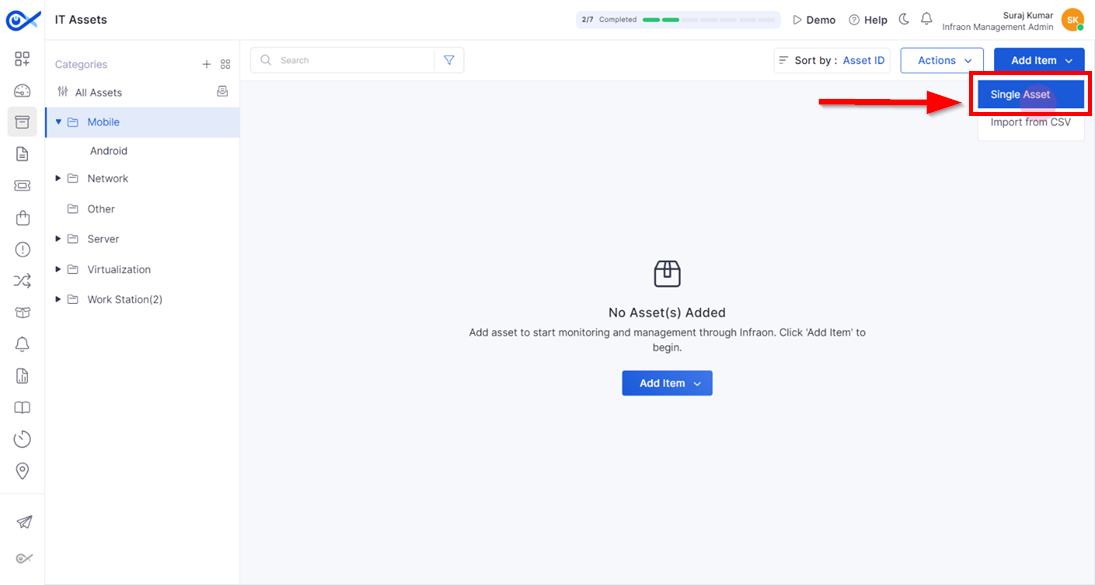
Step 1: Click on the add item at the top right corner of the page and select the single asset option.
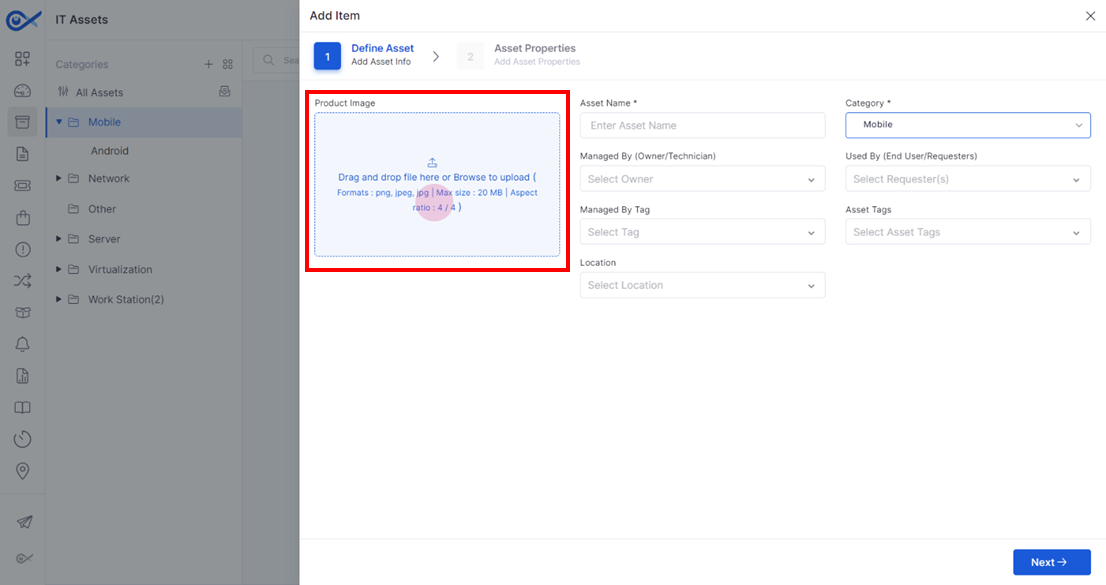
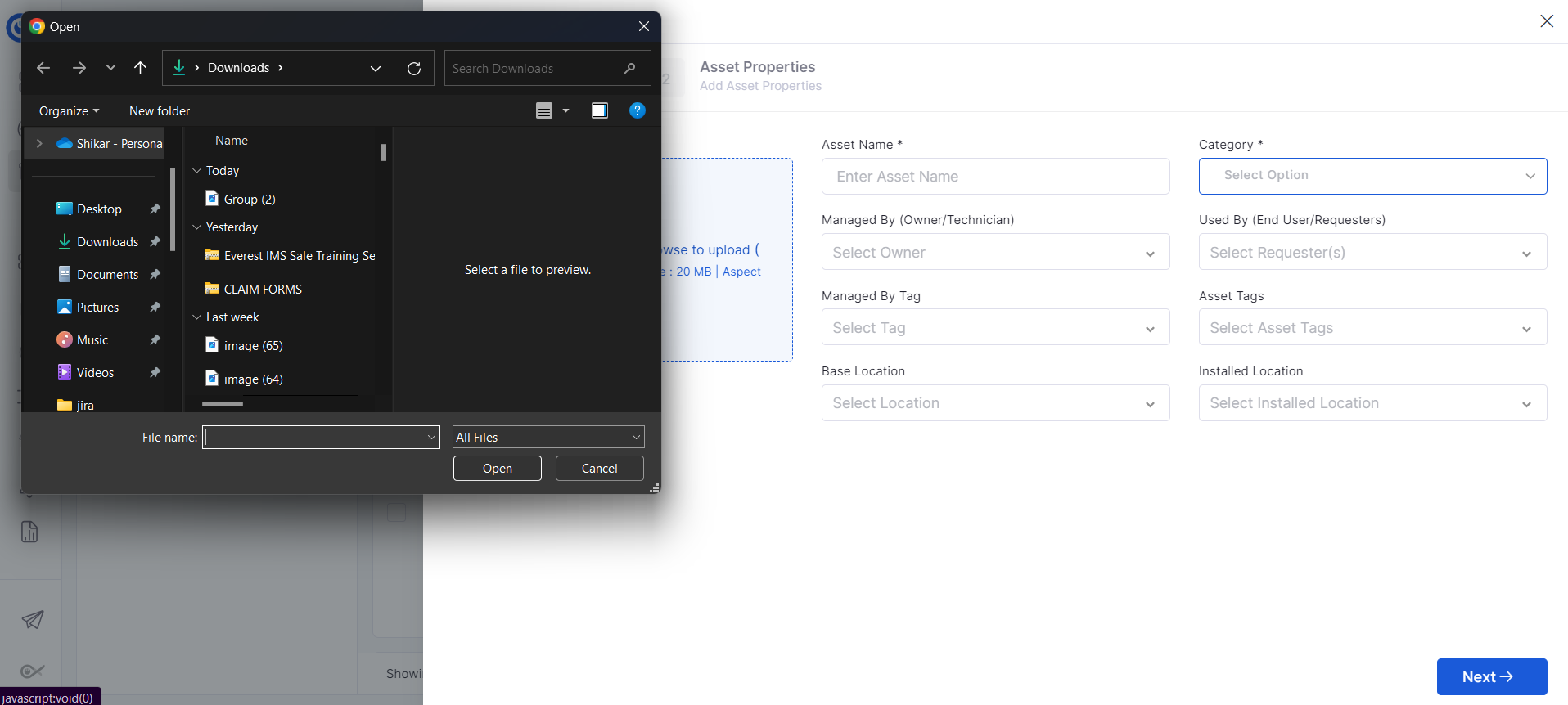
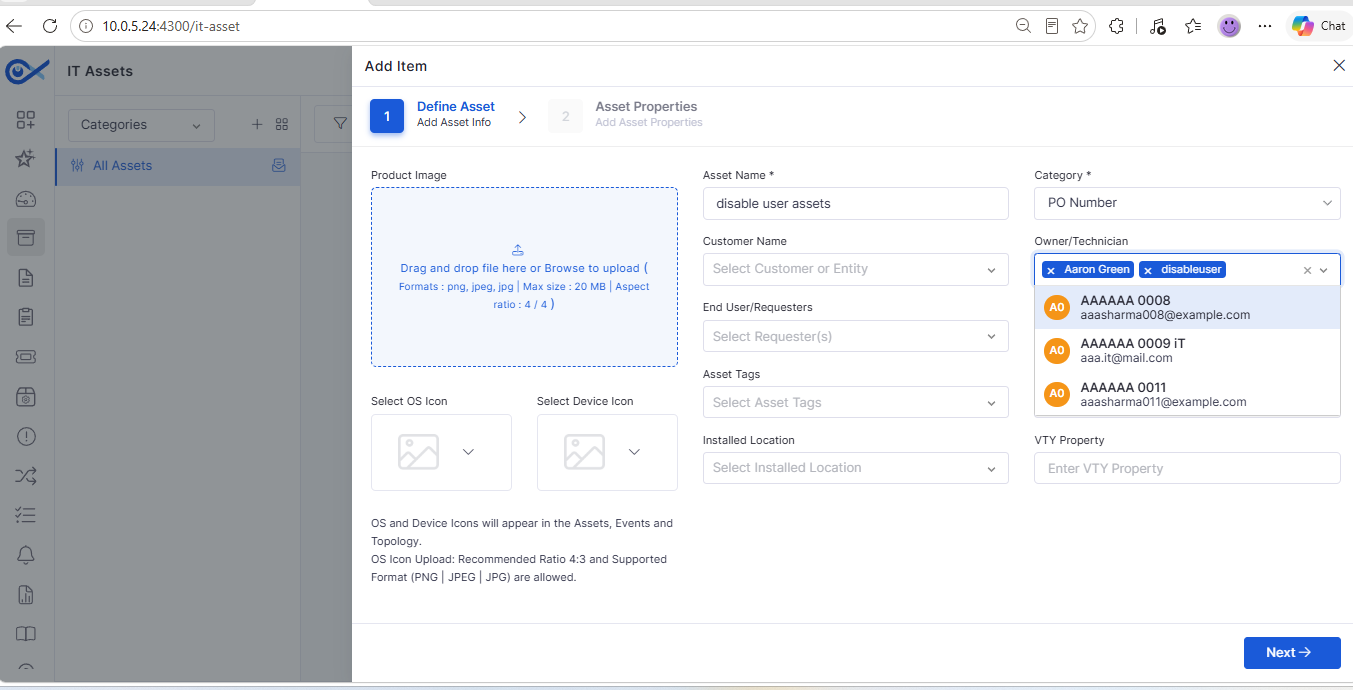
Step 2: On the Define Asset page, fill out the details in the respective call-out boxes, starting with the product image for the asset. (Formats: png, jpeg, jpg | Max size: 20 MB | Aspect ratio: 4 / 4)
Step 3: Drag and drop the asset image or select the file to upload.
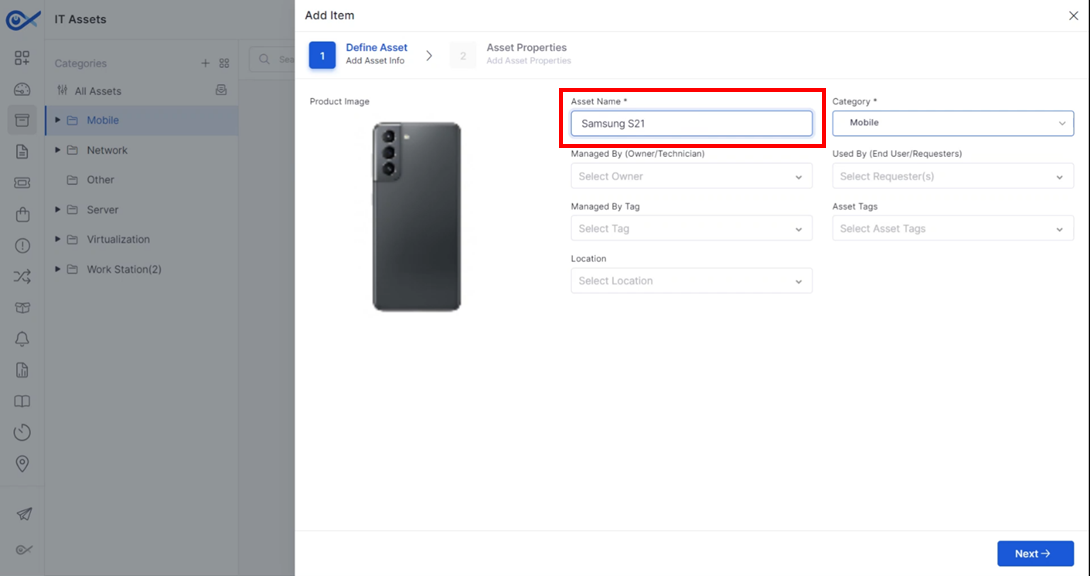
Step 4: After uploading the product image, click on the asset name input field and enter the name, for example, "Samsung S21."
Created by Techician
This guide outlines the process for a technician to create a ticket on behalf of an end user. This method is particularly useful when the end user cannot access their email or self-service portal, such as when their laptop or desktop won't power on. In these situations, the end user can contact a technician or service provider within the organization to create a ticket for them.
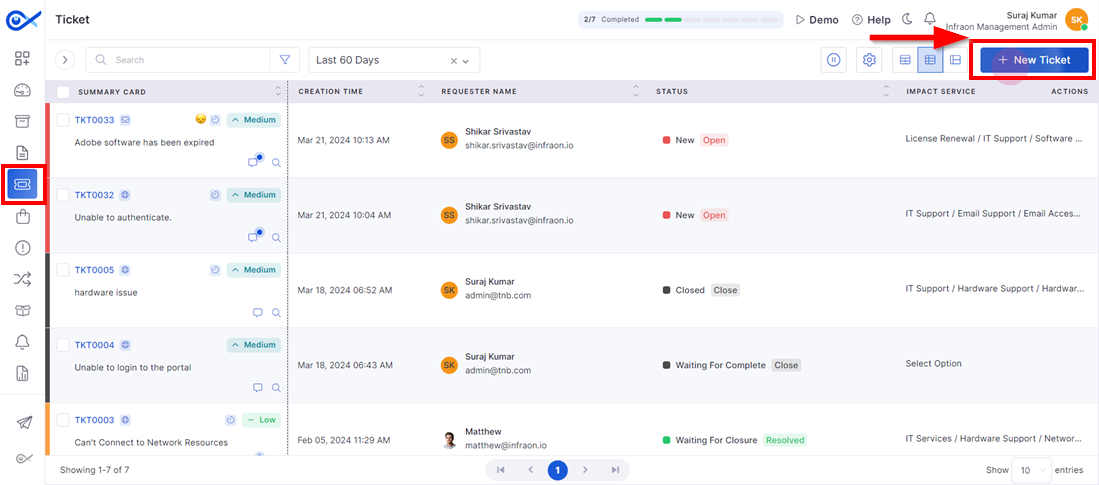
Step 1: To create a new ticket, navigate to the Ticket Management module on the left pane and click on New Ticket at the top right corner of the page.
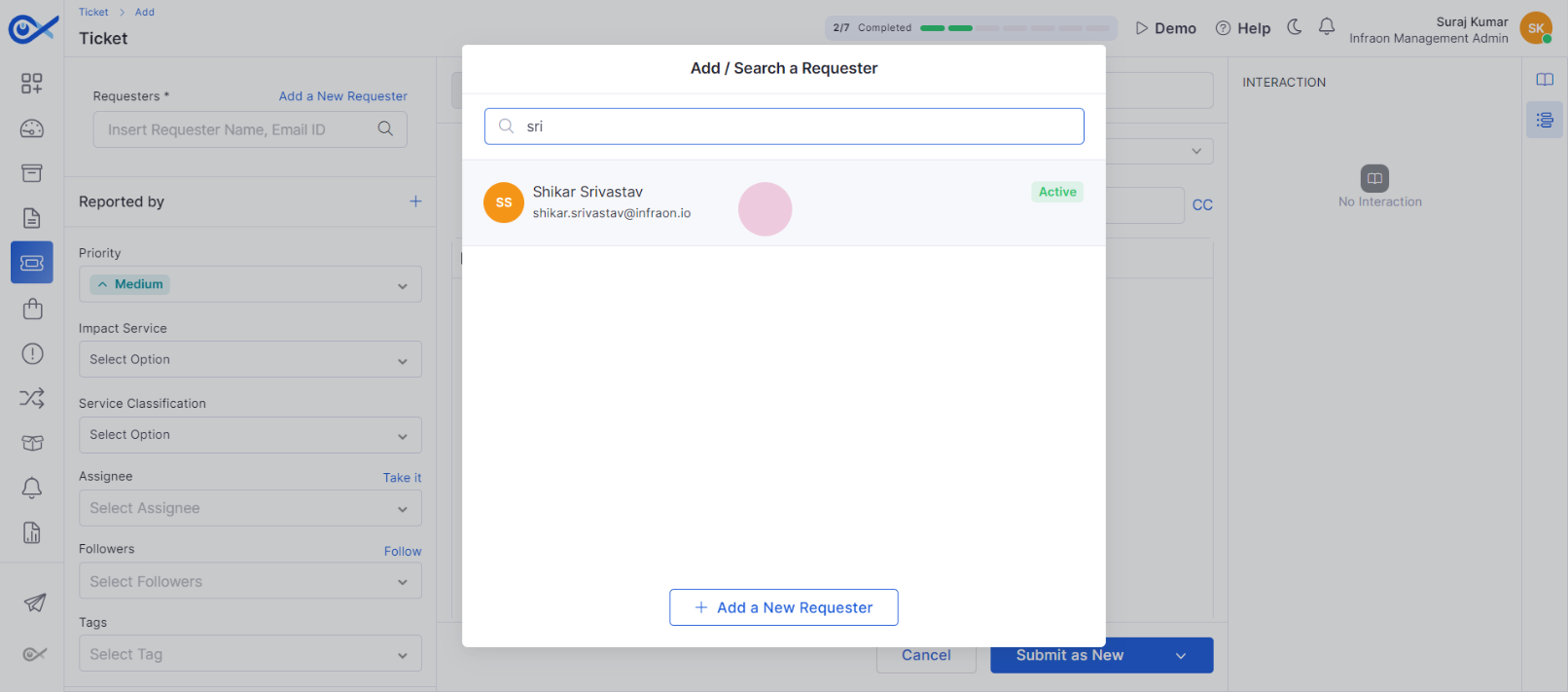
Step 2: In the pop-up tab, select the end user/requester experiencing the issue.
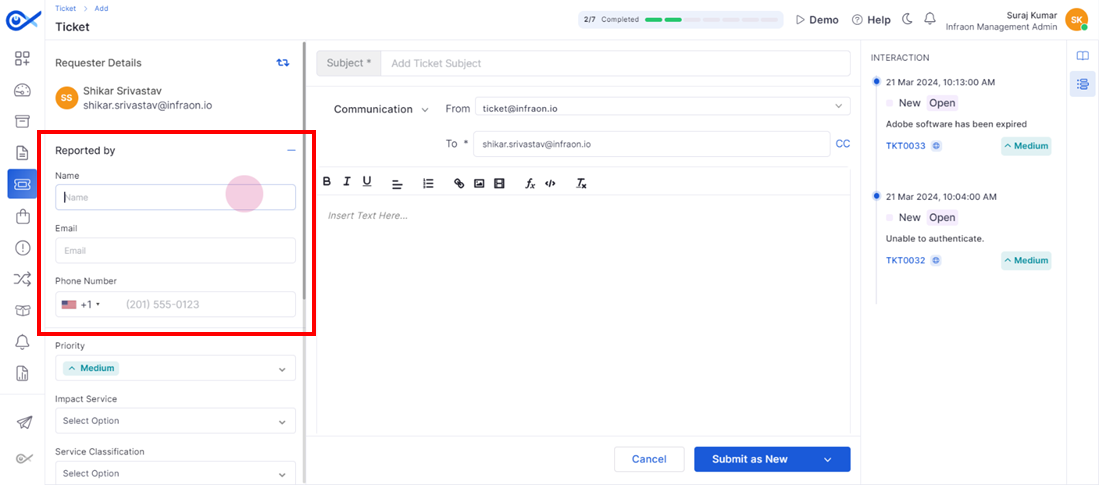
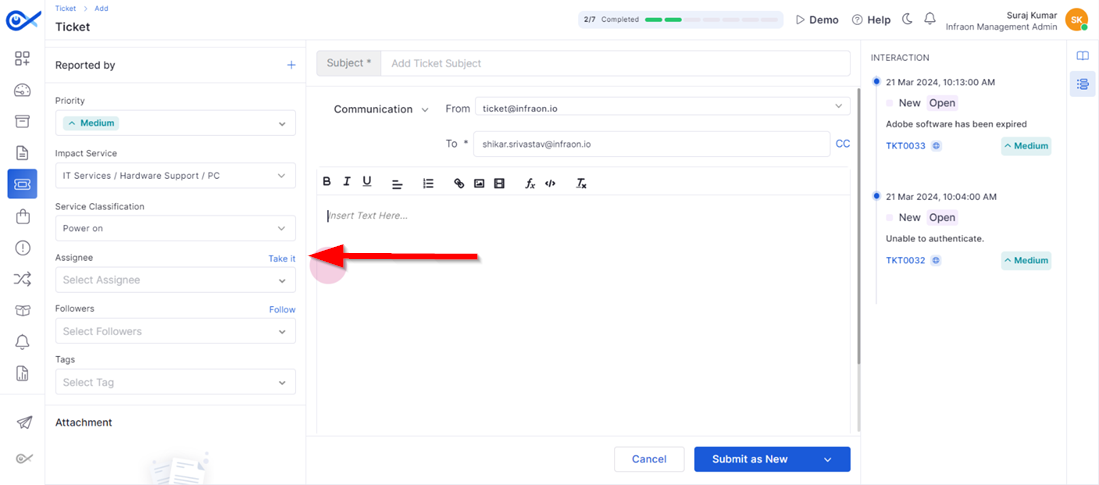
Step 3: Technicians can identify themselves in the 'Reported By' section by entering their Name, Email, and Phone Number. This ensures the requester and support team have a point of contact.
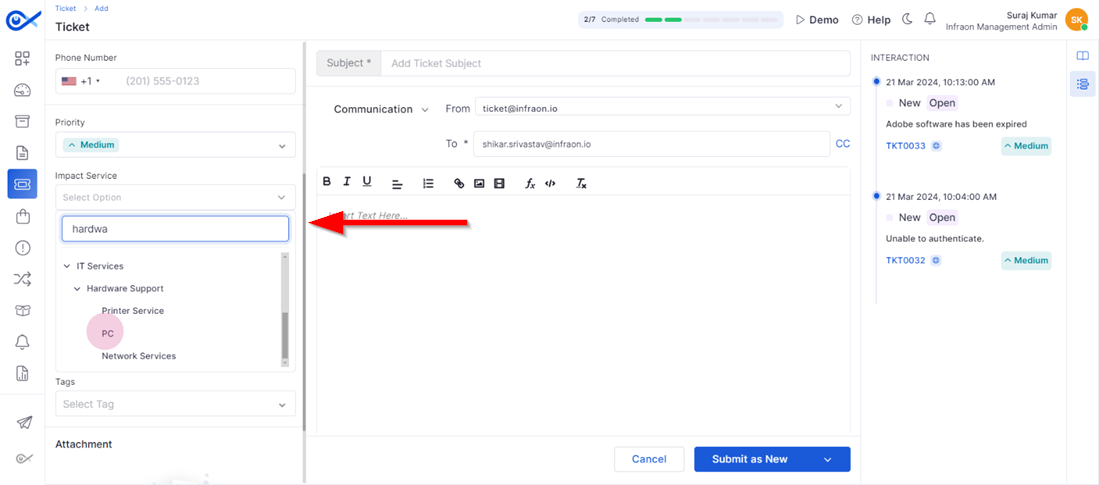
Step 4: Enter the impact service and specify the service area the end user is having trouble with.
Change Management
This guide explores change management within the Infraon Infinity platform.
Discovery
Software Inventory
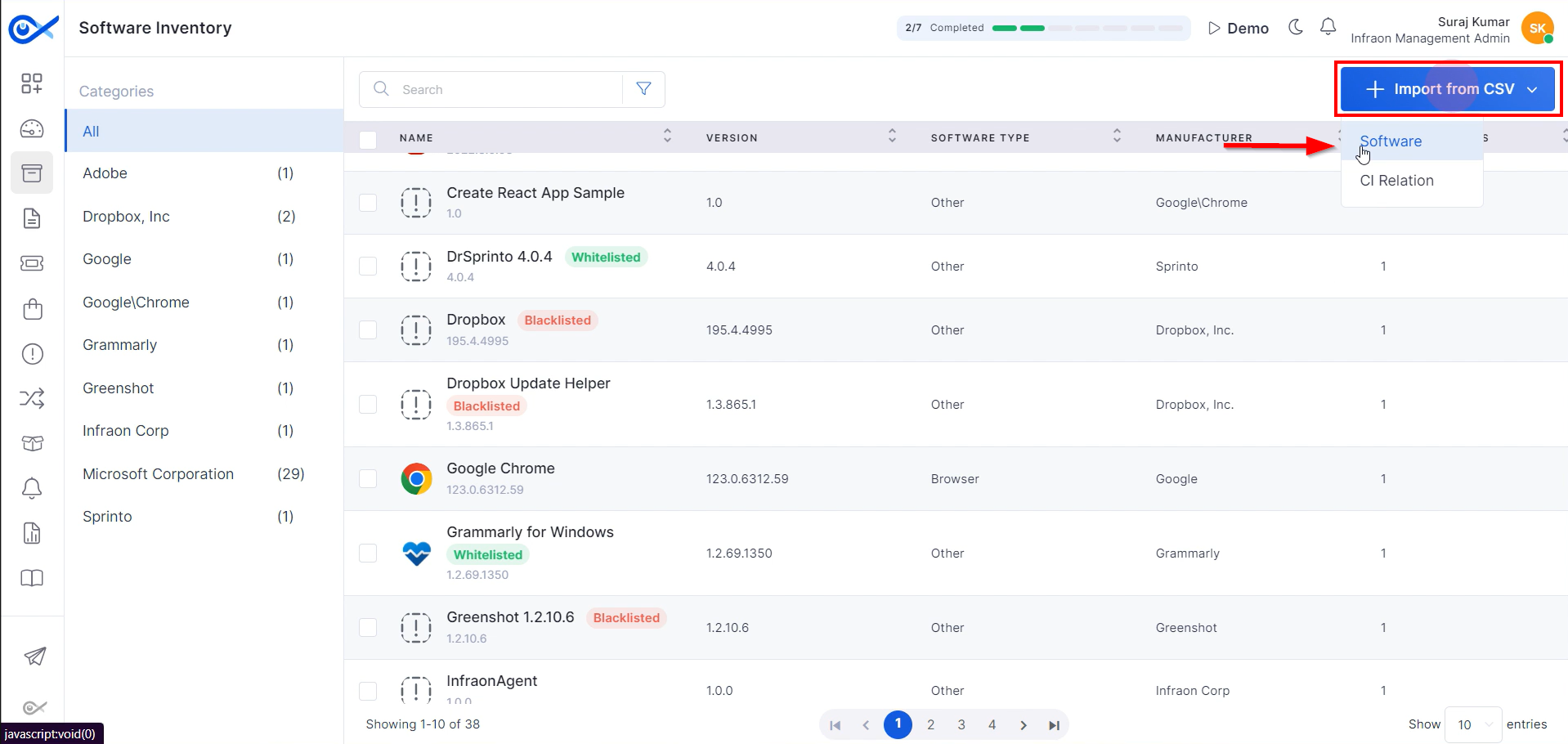
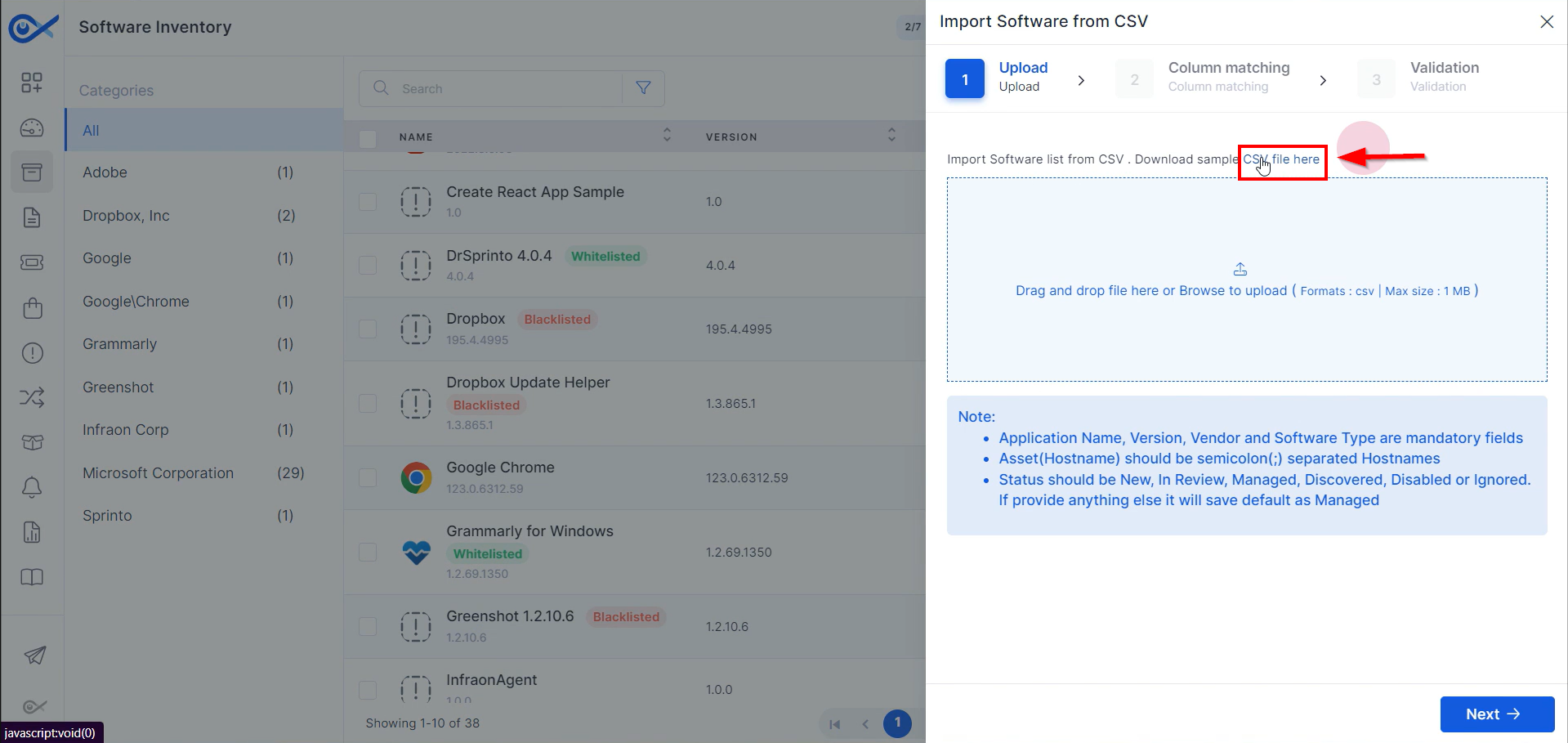
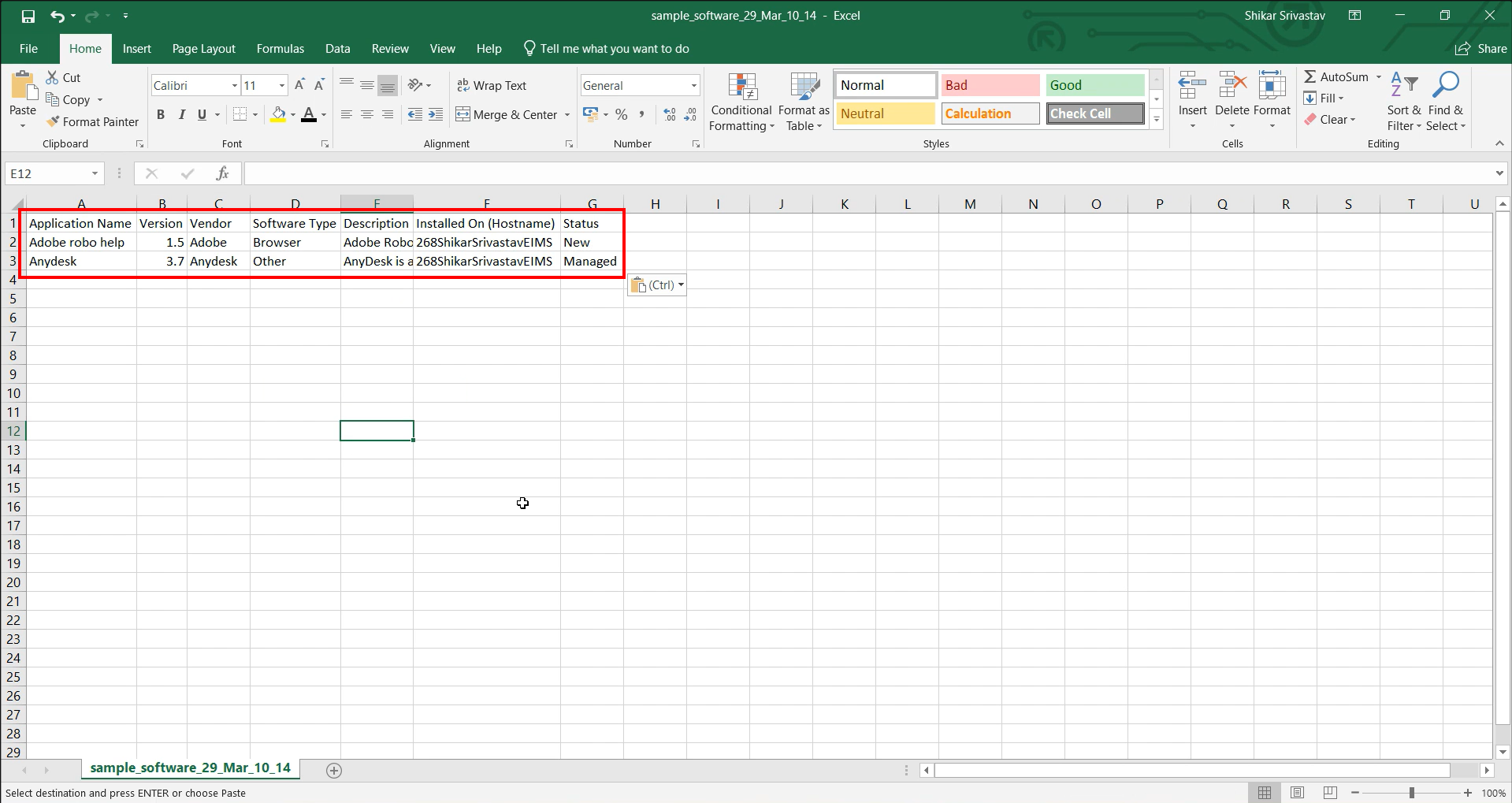
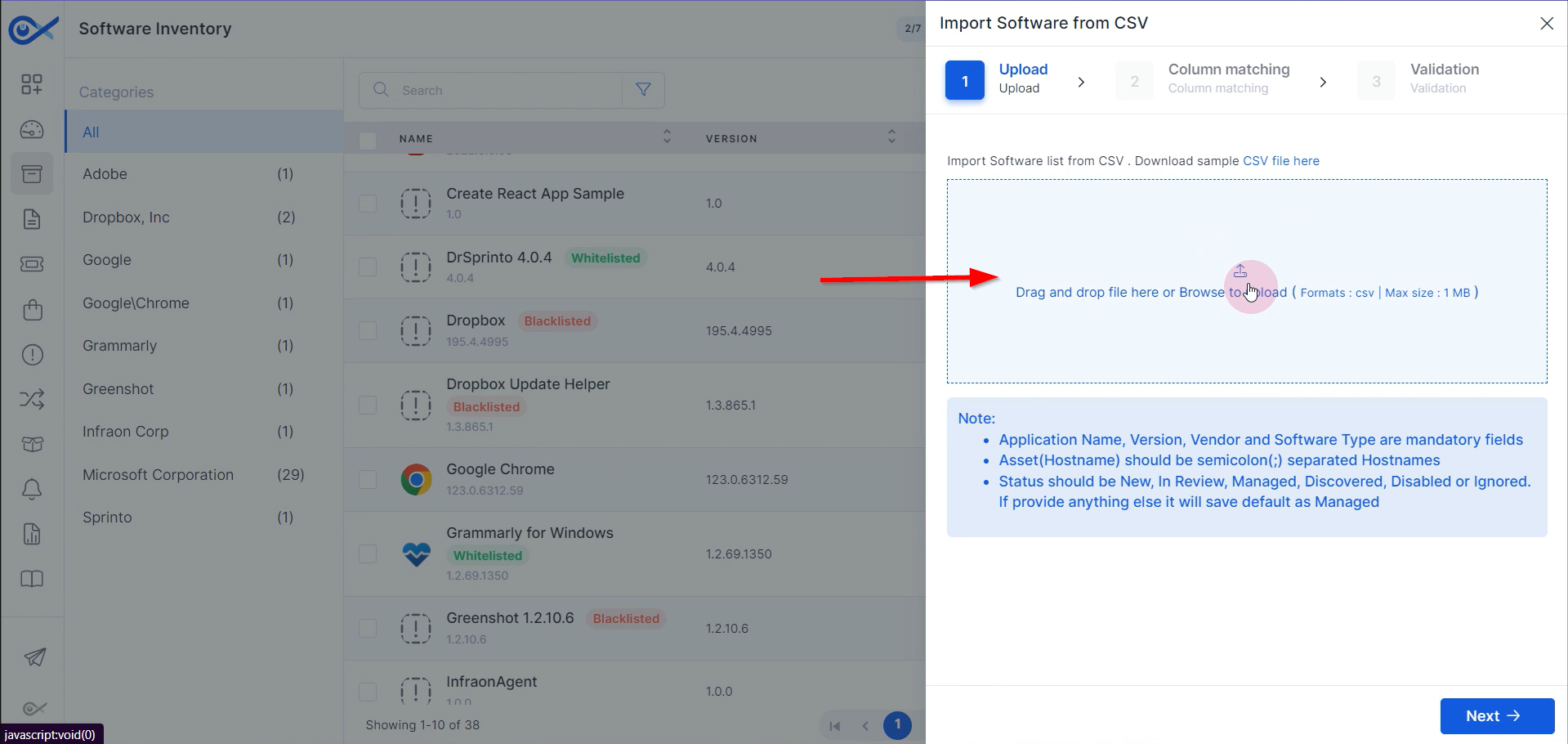
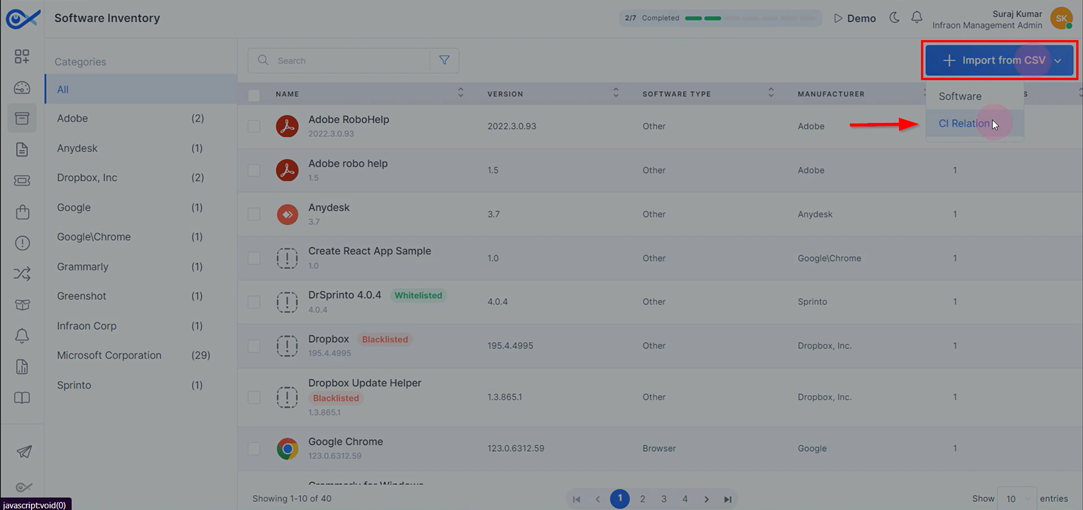
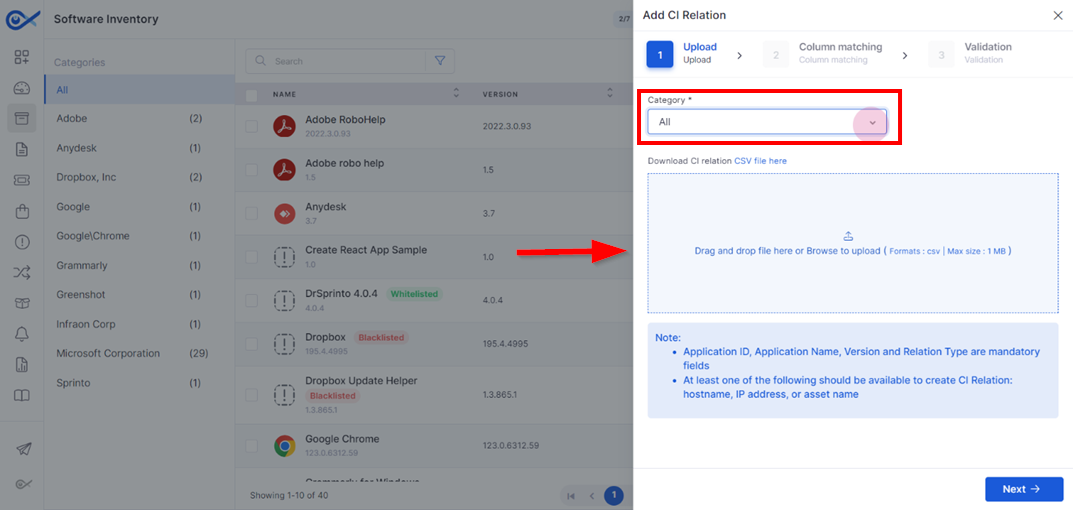
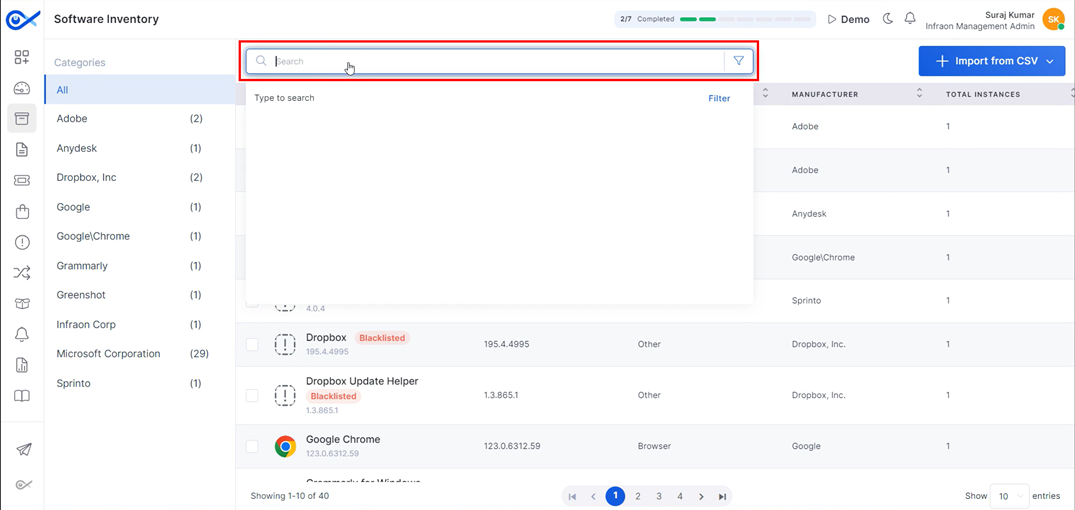
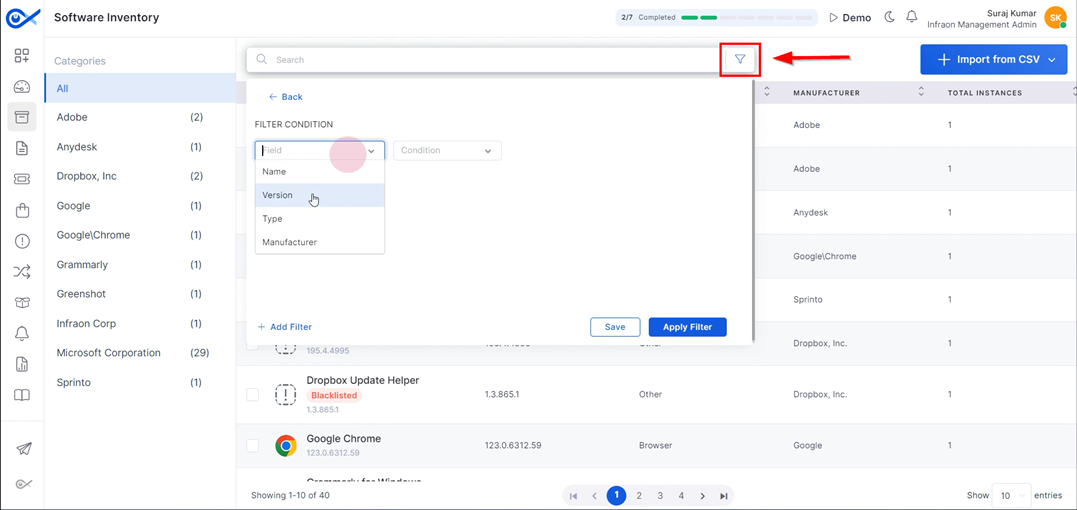
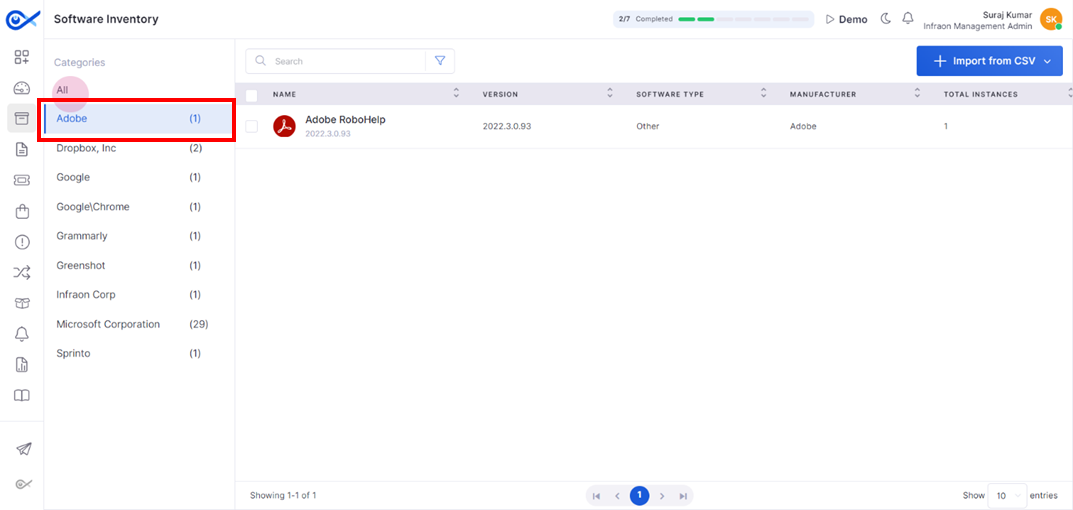
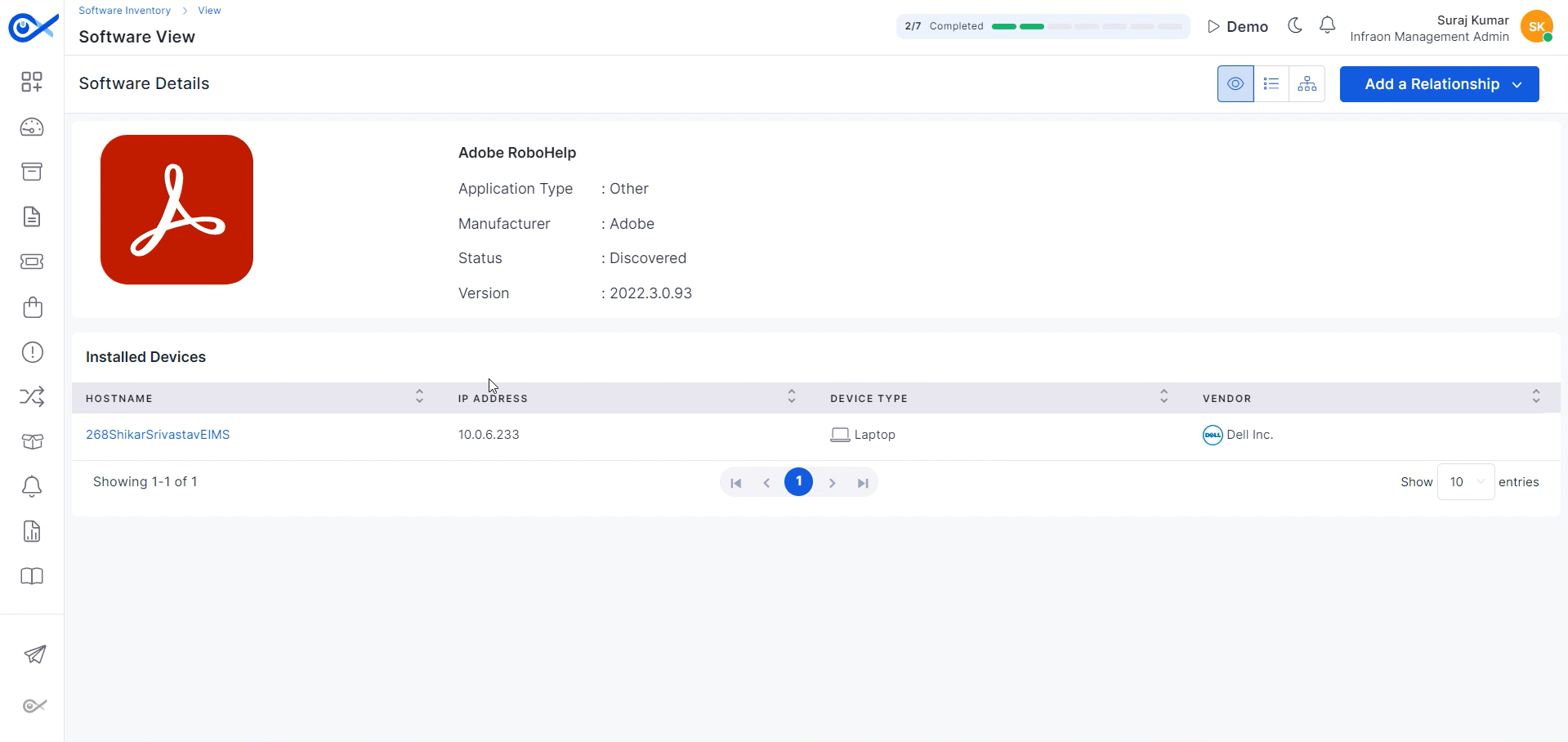
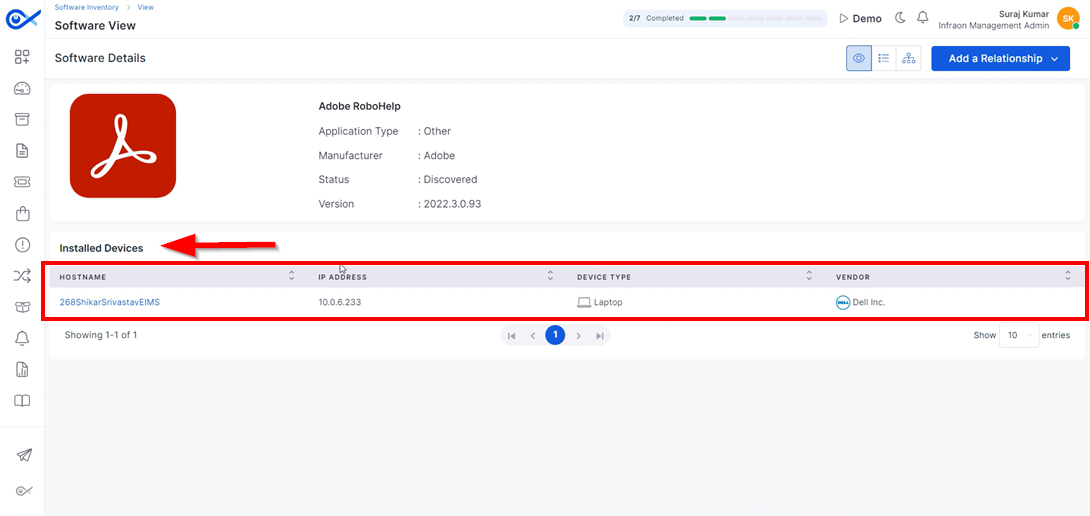
This guide will explore the software inventory tab in the Infraon Infinity platform. This tutorial guides technicians through managing software inventory, establishing CI relationships, and importing software via CSV file.
Welcome to the Infraon Release Notes page. Here you can explore all new features, enhancements, and bug fixes across the Infraon suite. Each release note is organized by version and release date, making it easy to find updates relevant to your workflow.
Minor fixes across reports, dashboards, and integrations.
Overview
Key Updates
AlOps
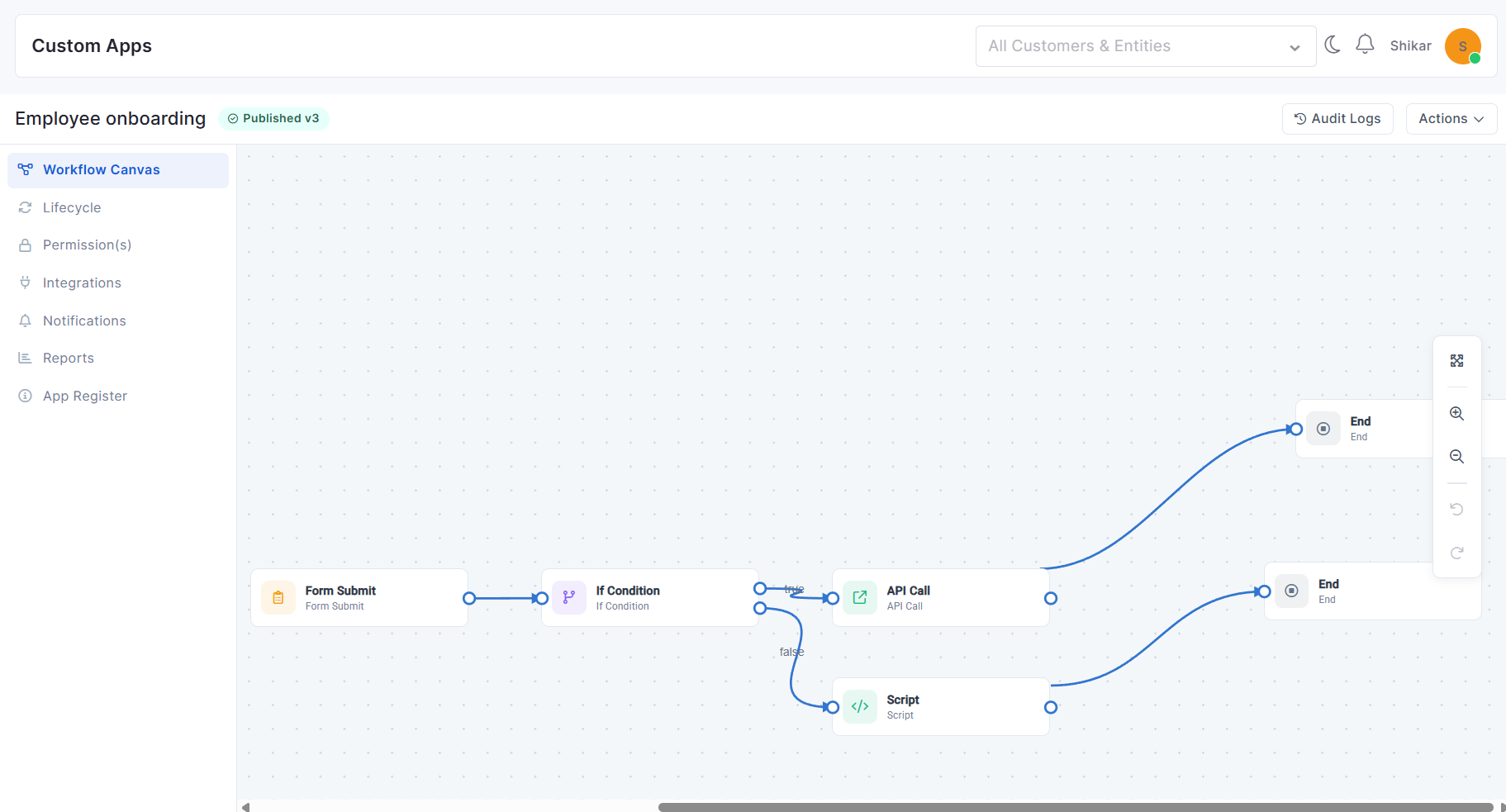
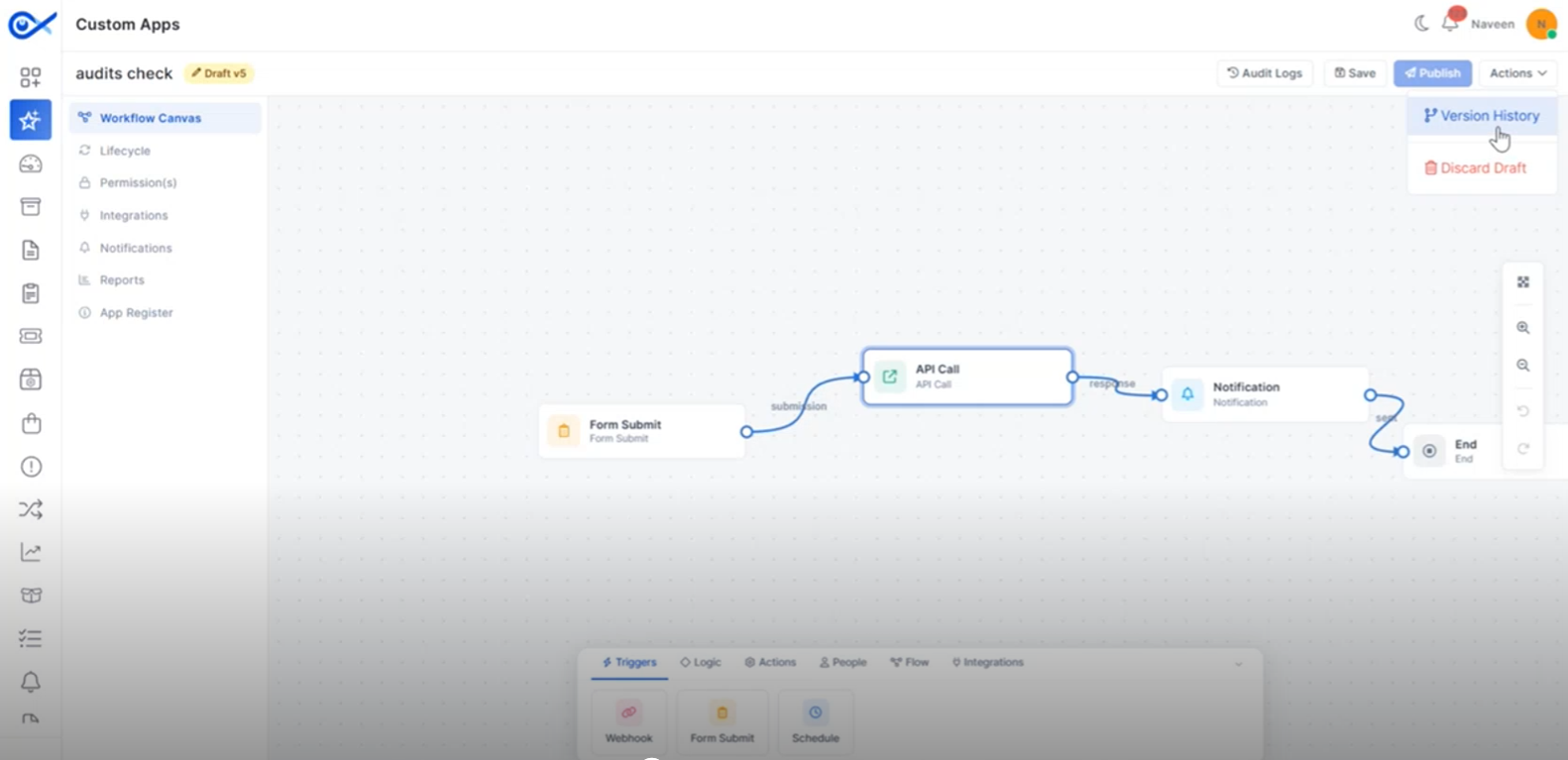
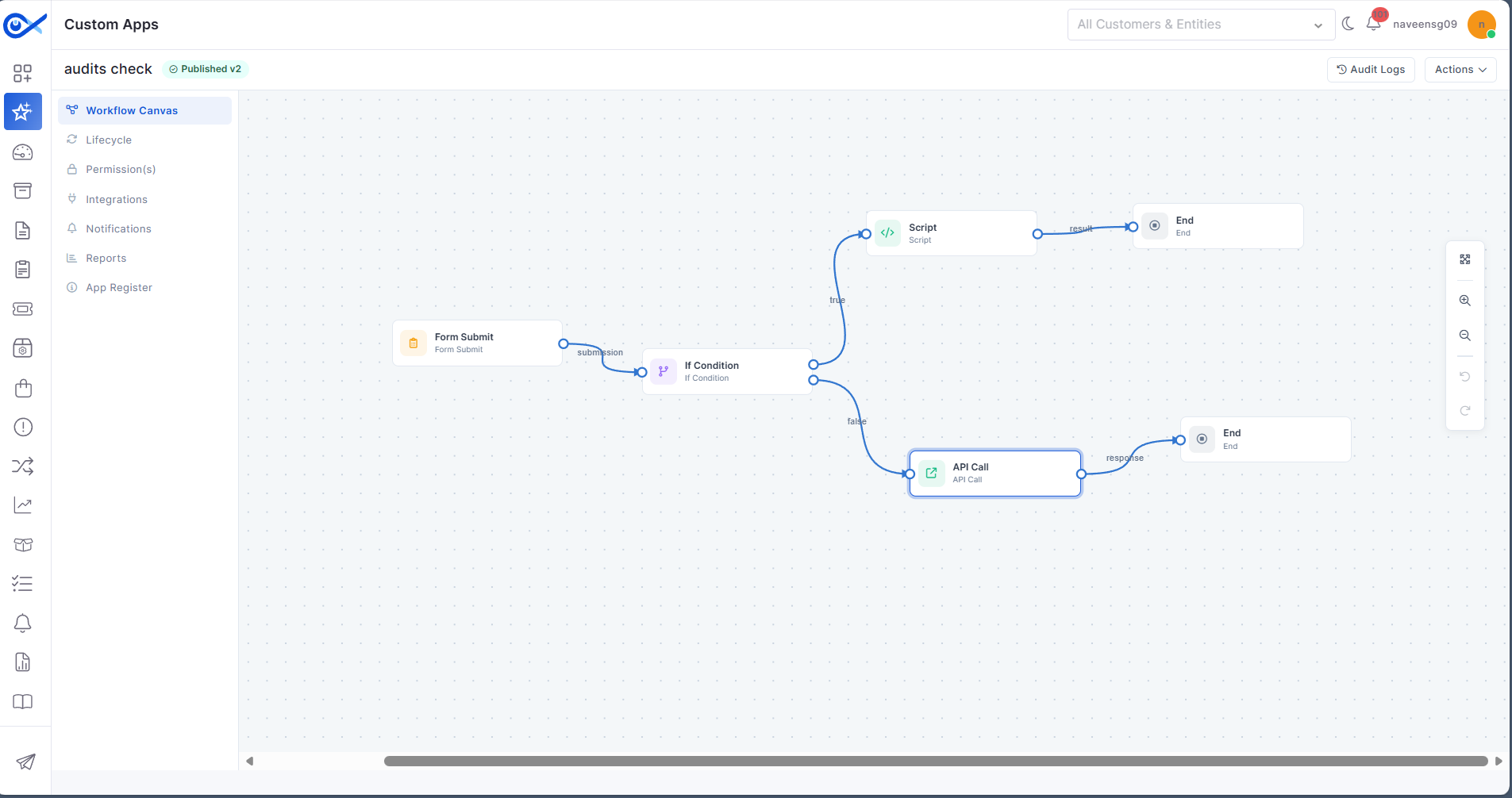
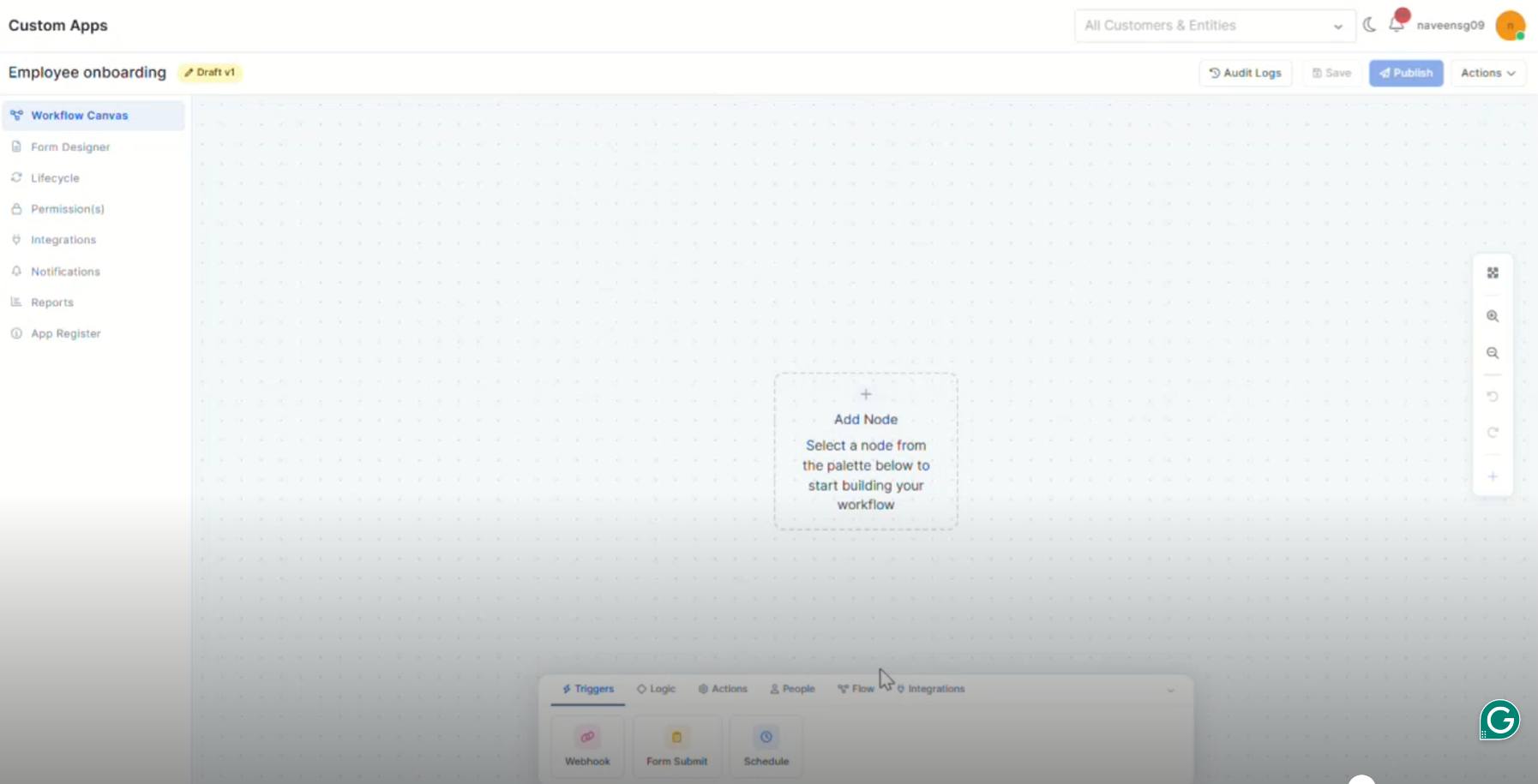
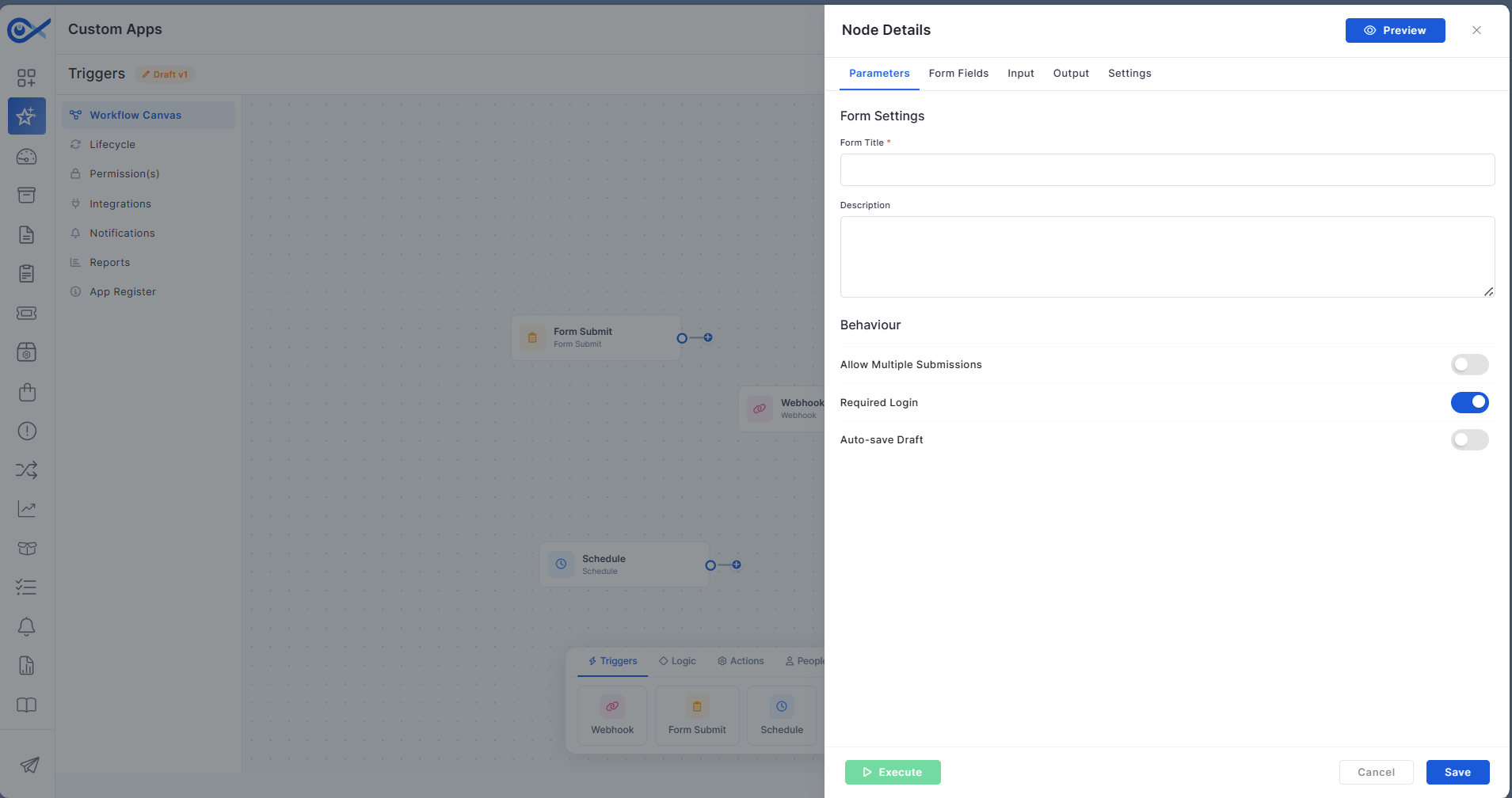
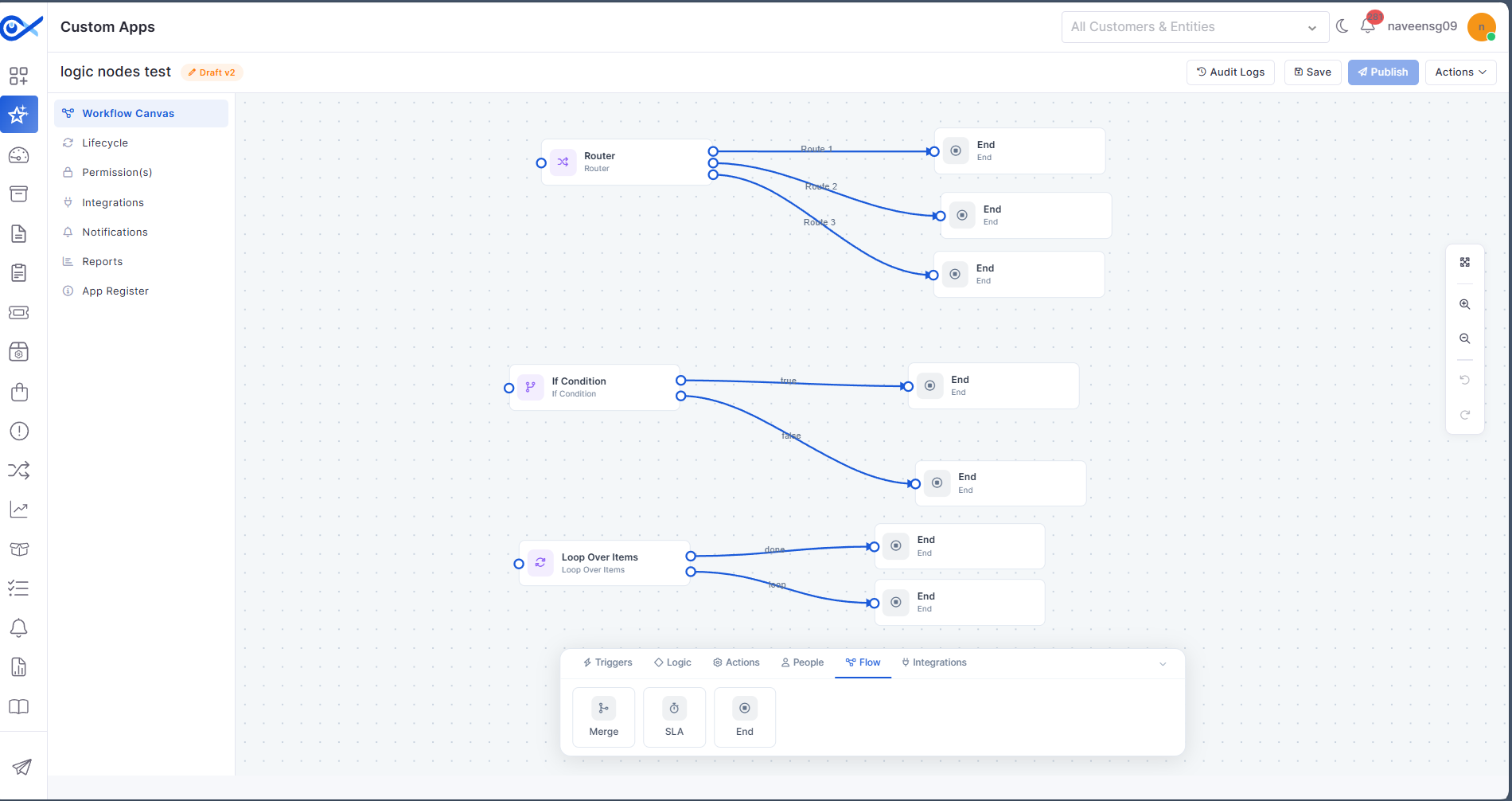
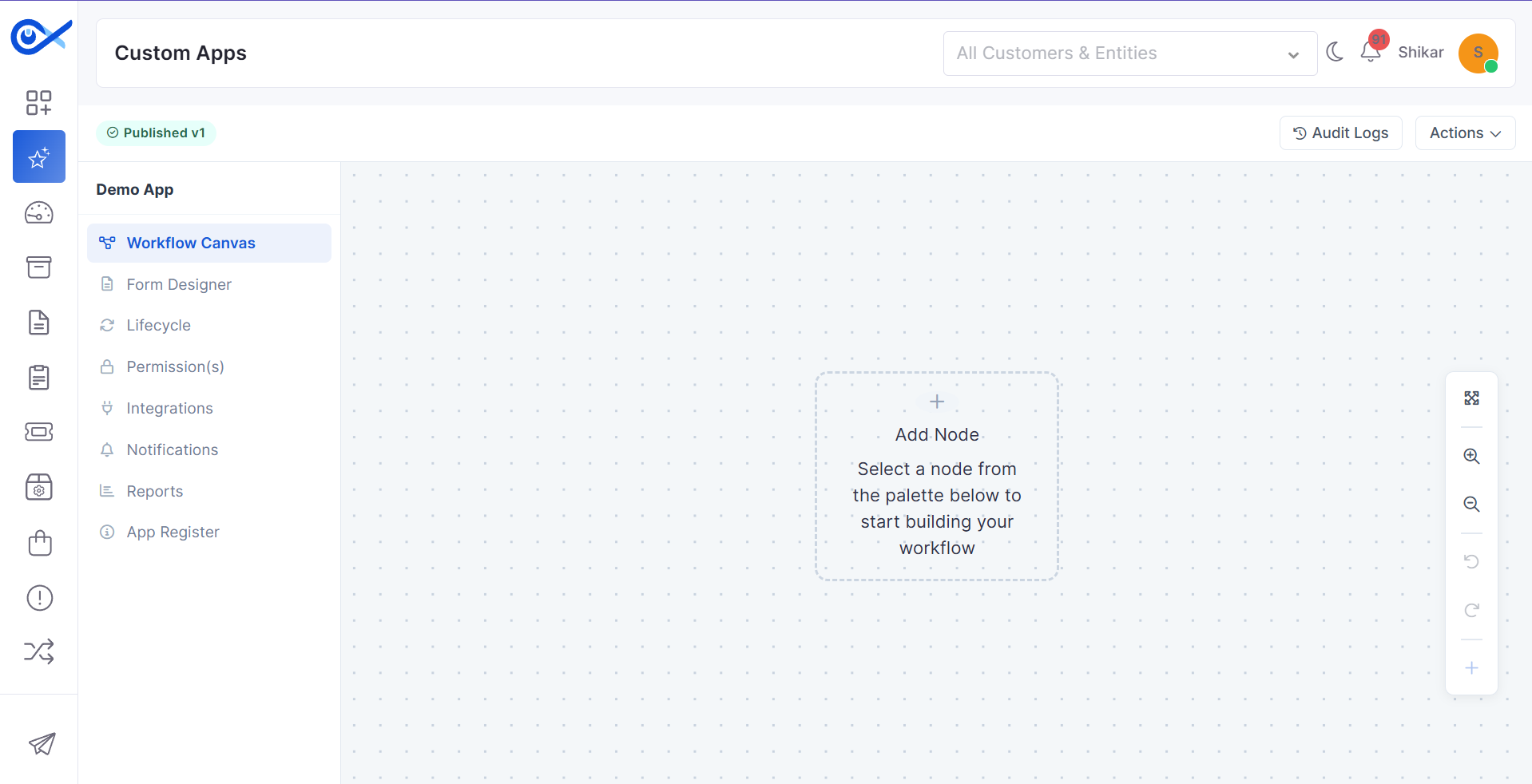
Workflow Canvas and Node Behavior UI Enhancements
Improved workflow canvas interaction for creating and managing node connections.
Added guided connection behavior to simplify workflow design.
Enhanced visual feedback for valid workflow paths and node relationships.
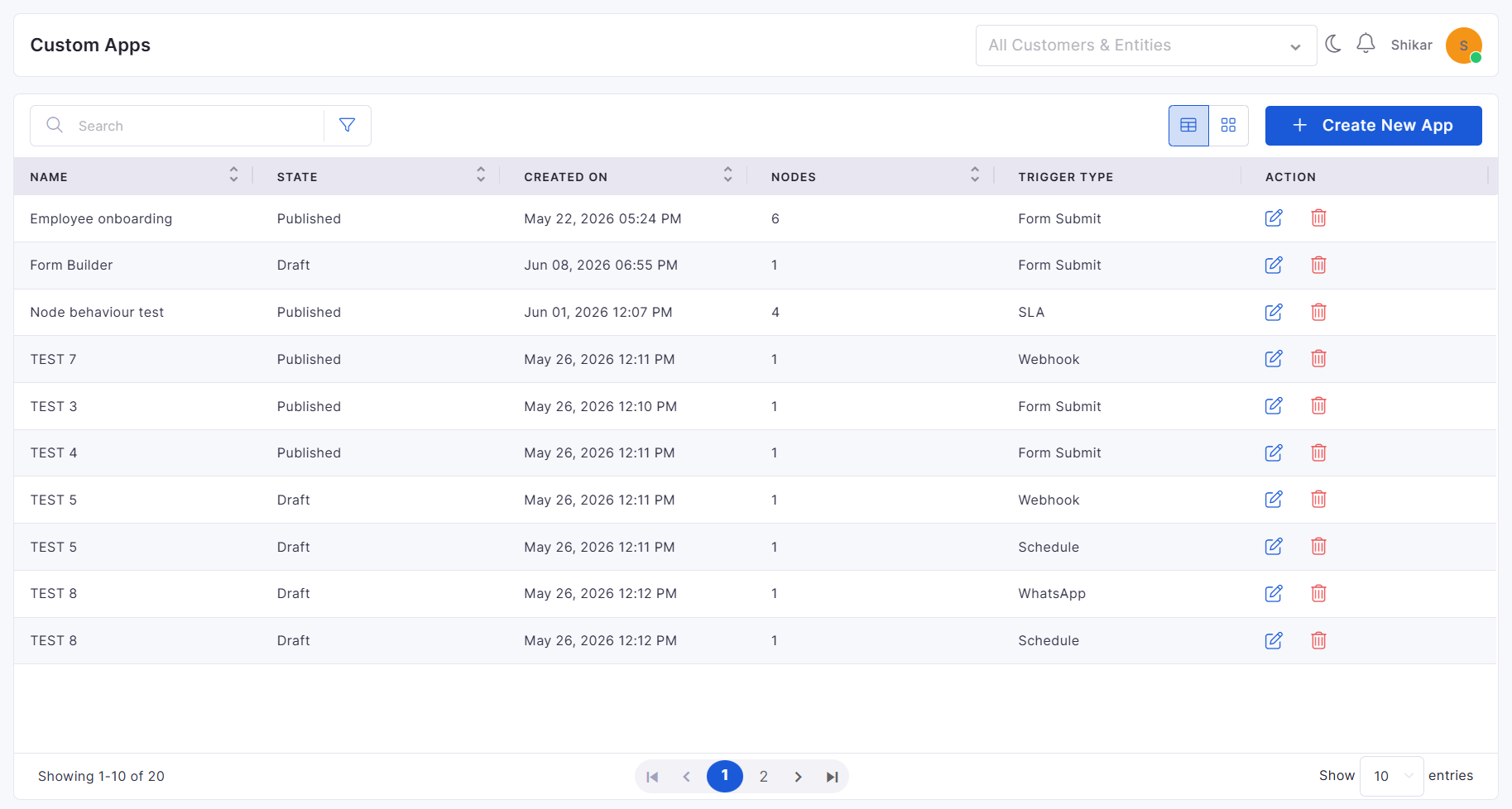
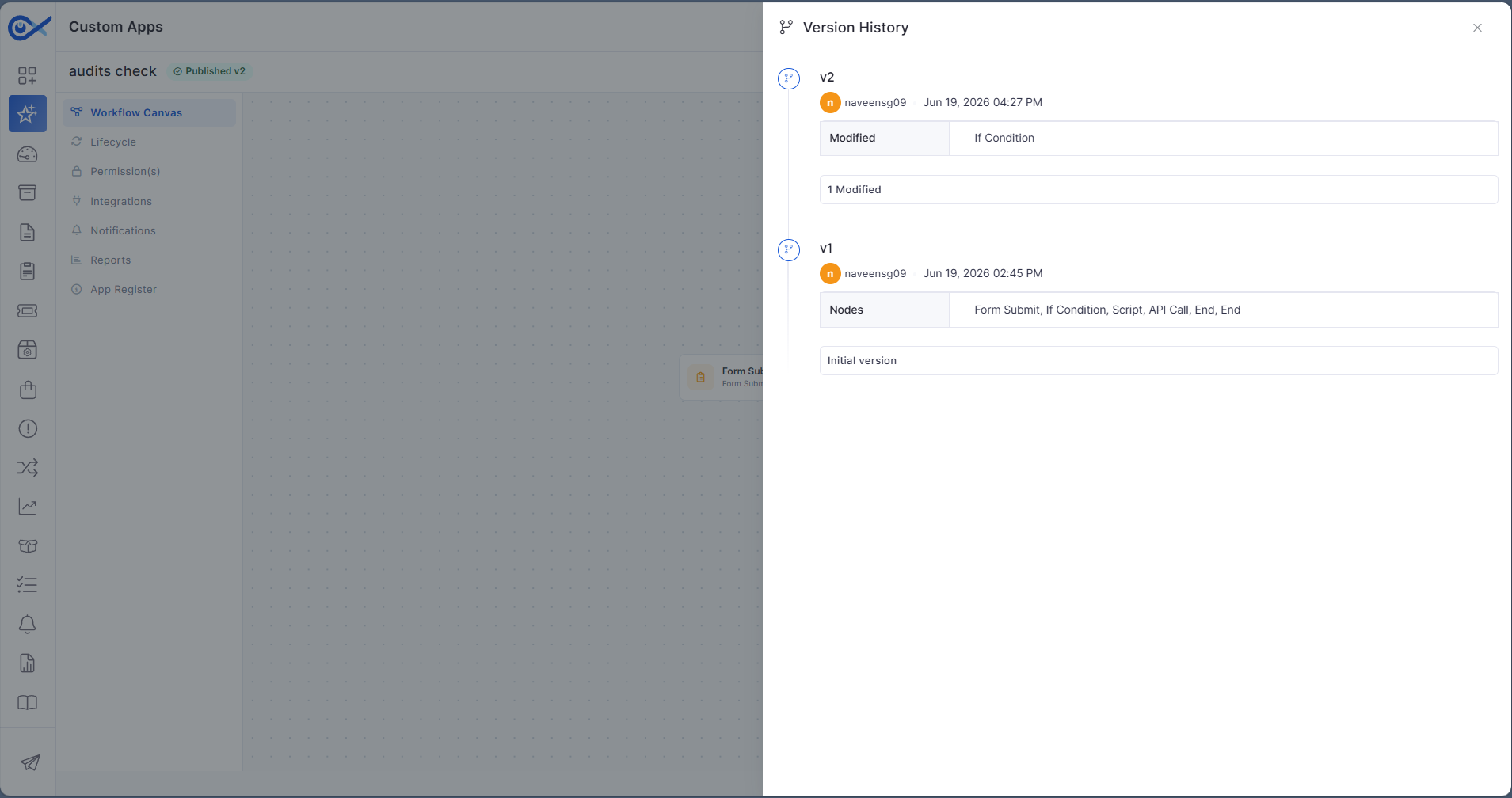
Custom Apps Configuration and View Management
Added support for creating, editing, and managing custom applications.
Enhanced grid and card views for improved application visibility.
Improved search, permissions, and application management experience.
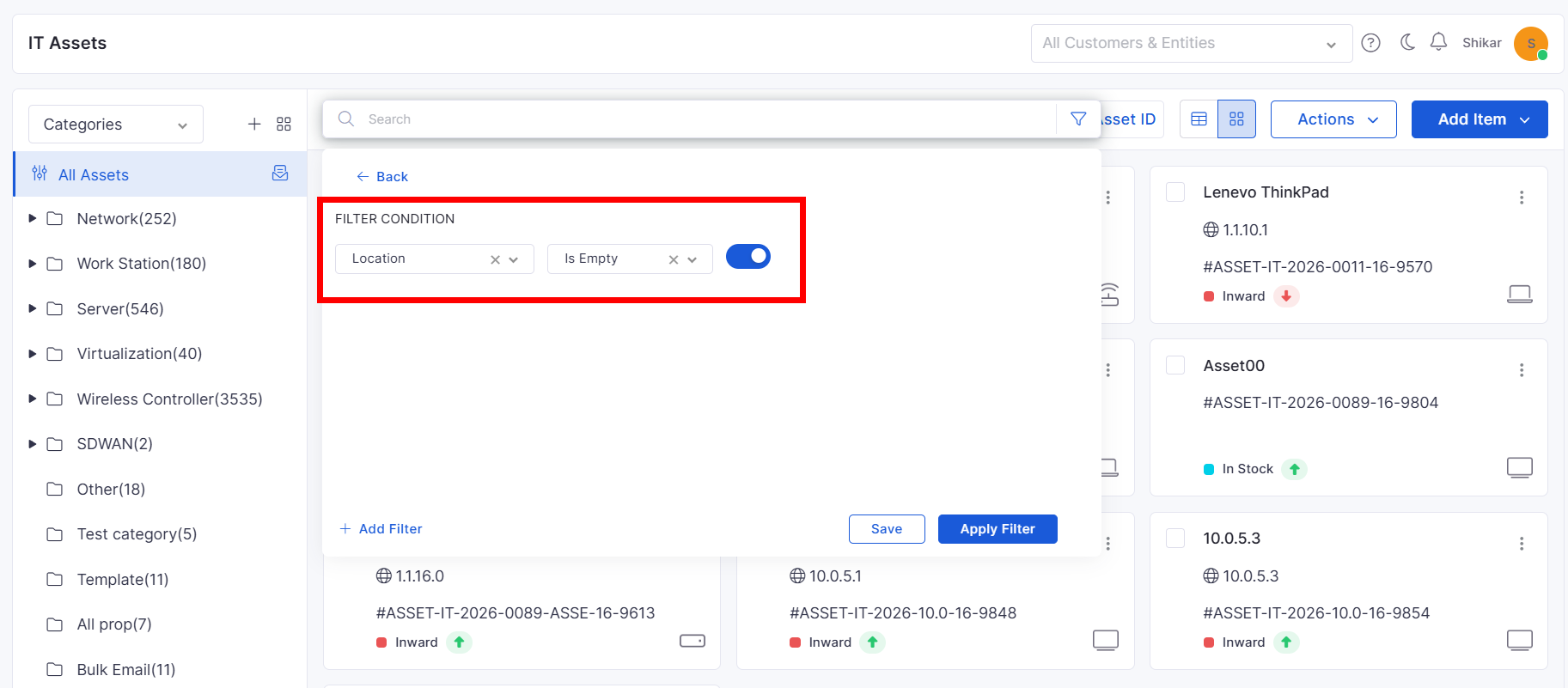
CMDB View
Empty Value Filtering in Asset Views
Added support for filtering assets with empty field values.
Improved asset discovery and data quality analysis.
Simplifies identification of incomplete asset records.
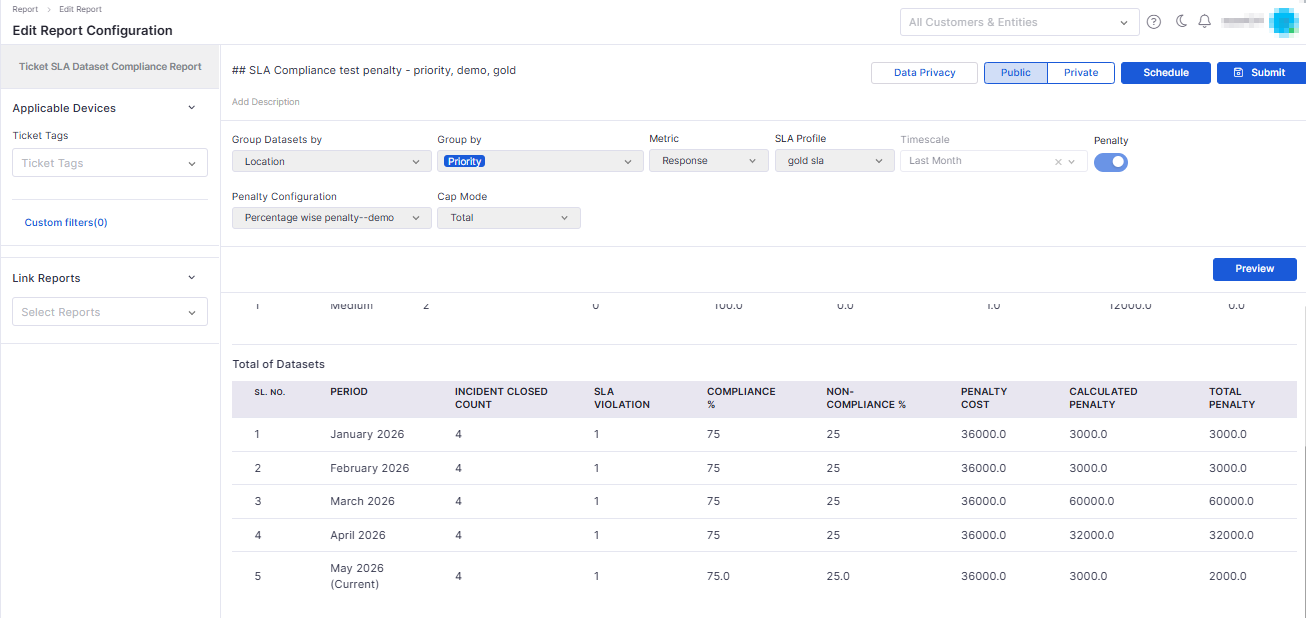
Report
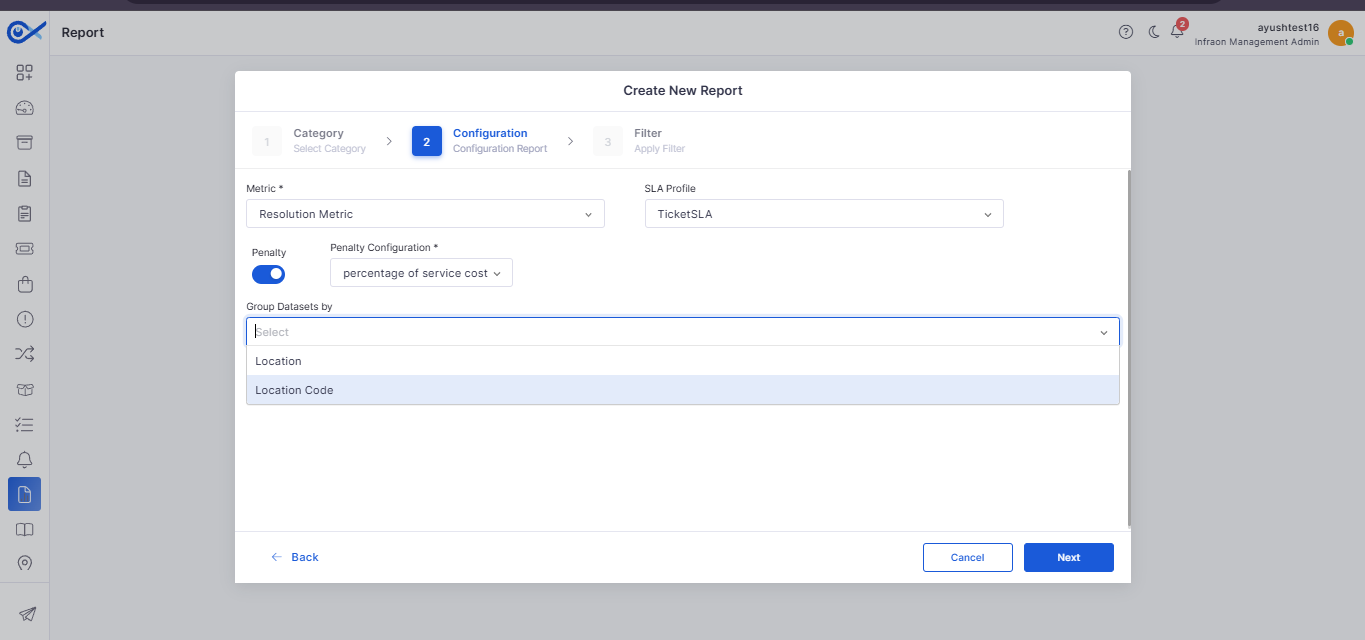
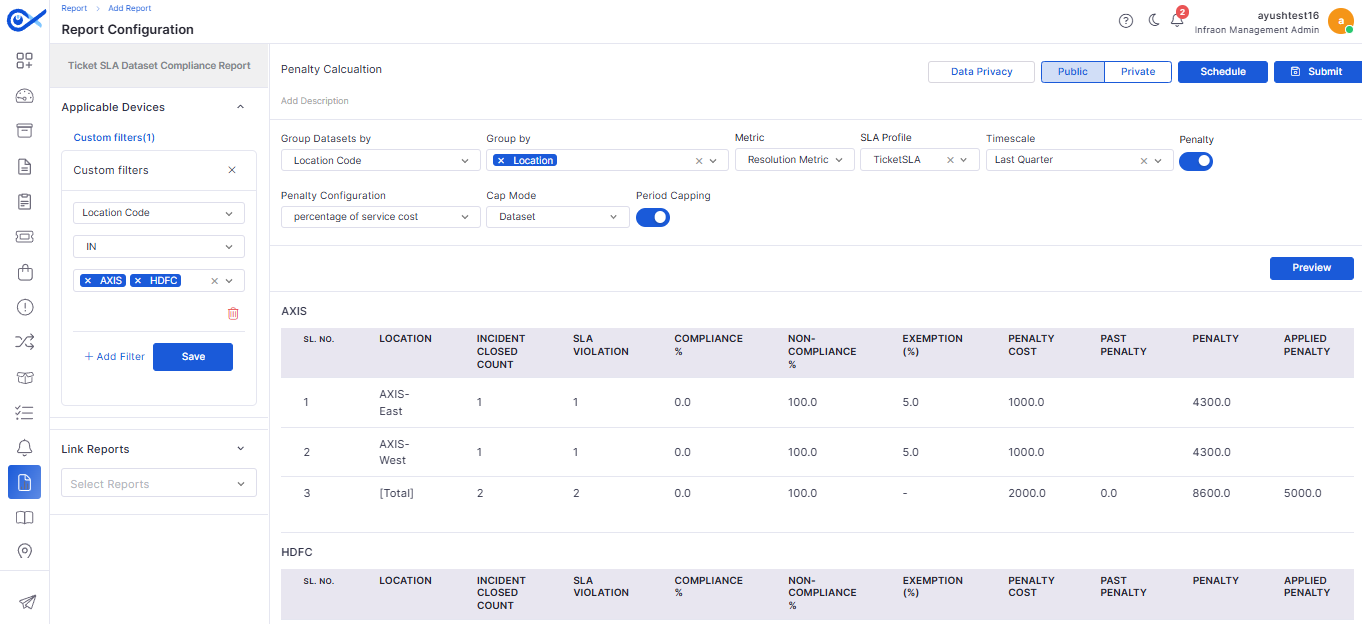
SLA Compliance Penalty Reporting
Added advanced SLA compliance reporting with dataset-level analysis.
Supports grouped SLA performance tracking across locations.
Provides enhanced visibility into compliance and penalty calculations.
Asset Audit and Allocation Report Enhancements
Added flexible Excel export options for asset-related reports.
Supports consolidated and grouped export formats.
Improves reporting and audit analysis capabilities.
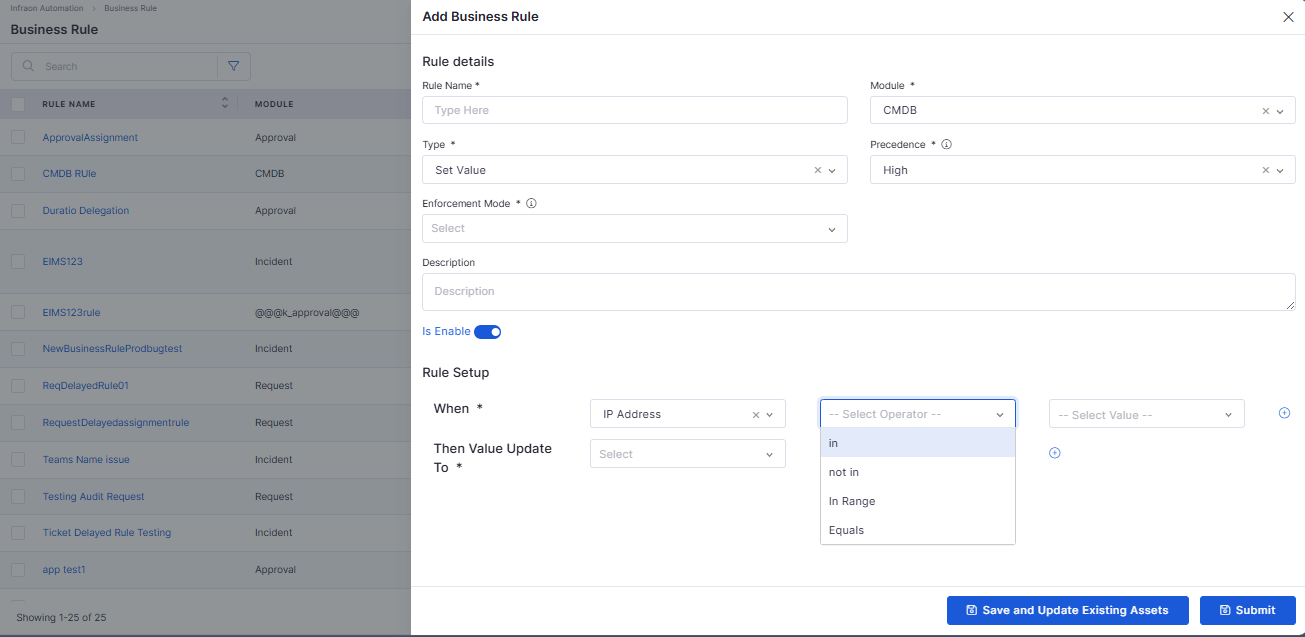
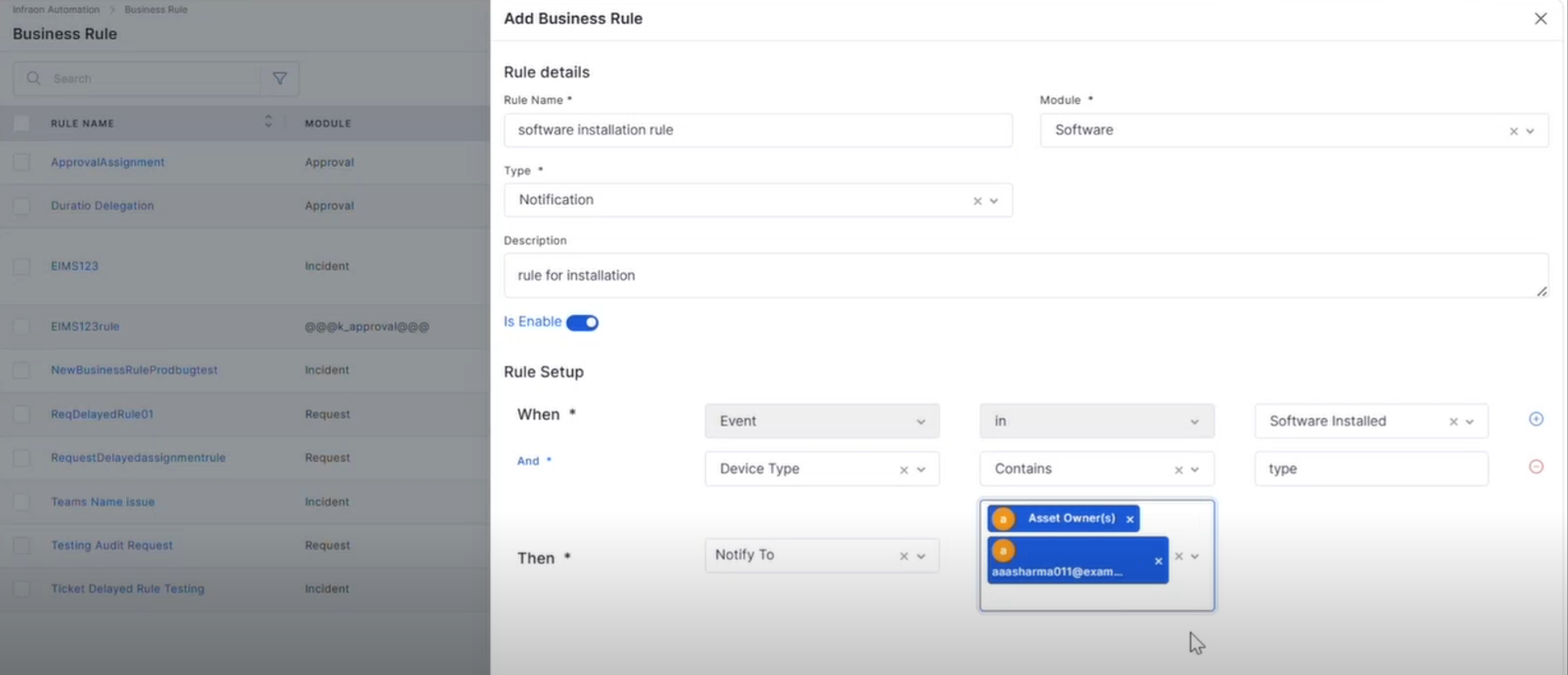
Business Rule
Enhanced Rule Conditions
Added support for In, Not In, Equal To, and Not Equal To conditions.
Improves business rule flexibility and precision.
Simplifies rule creation for asset and software processes.
Agentic AI
Tag Module MCP Agent
Added AI-powered tag management capabilities through Agentic AI.
Supports tag discovery, creation, and management using natural language.
Improves categorization and organization across supported modules.
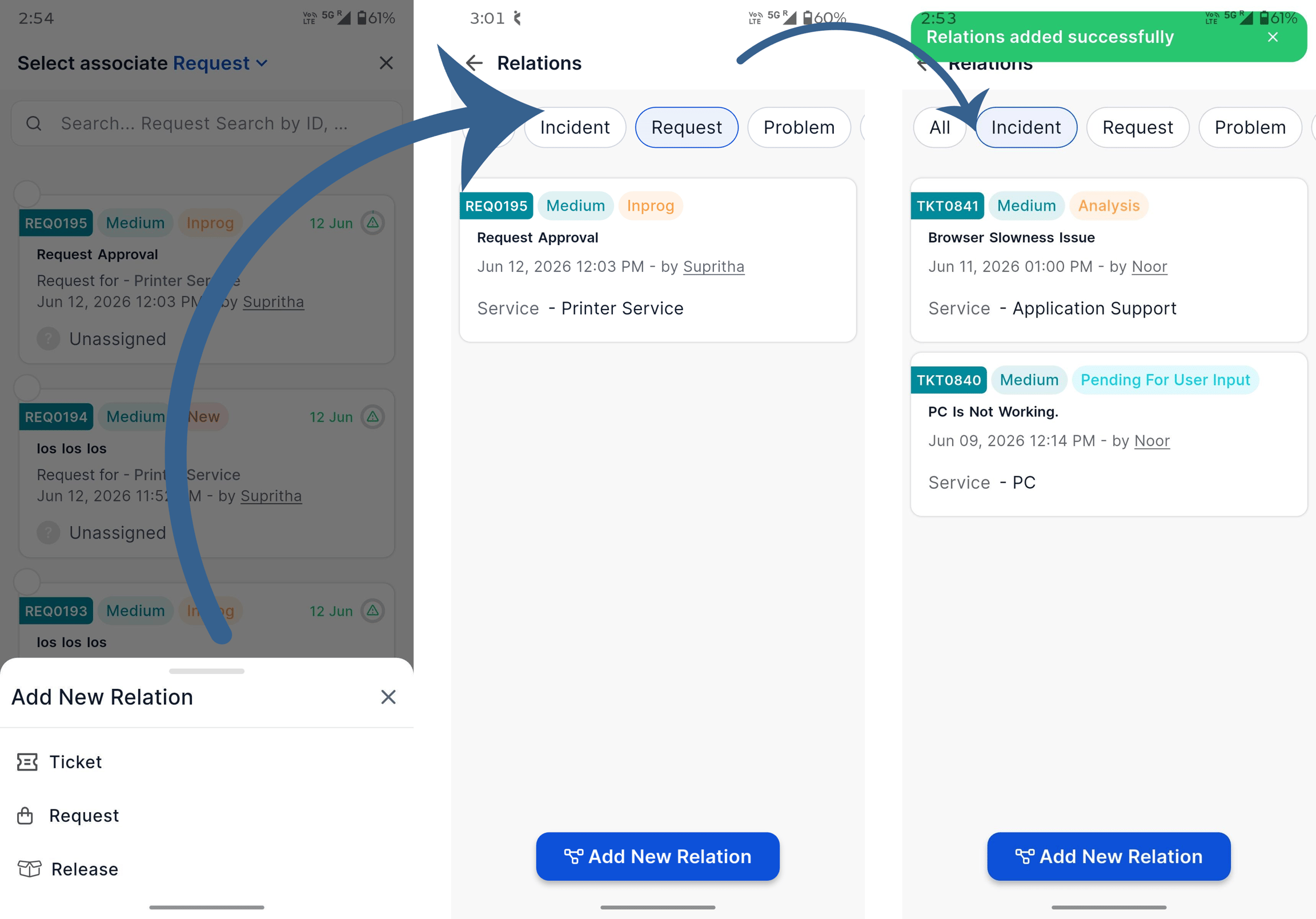
Mobile Enhancements
iOS – Relation Association
Added support for associating related records from mobile devices.
Simplifies relationship management while working on the go.
Improves visibility into connected records.
iOS – Relation View and Filtering
Added relation viewing and filtering capabilities for Tickets, Requests, and Releases.
Improves navigation across related records.
Provides a more consistent mobile experience.
Purchase Order
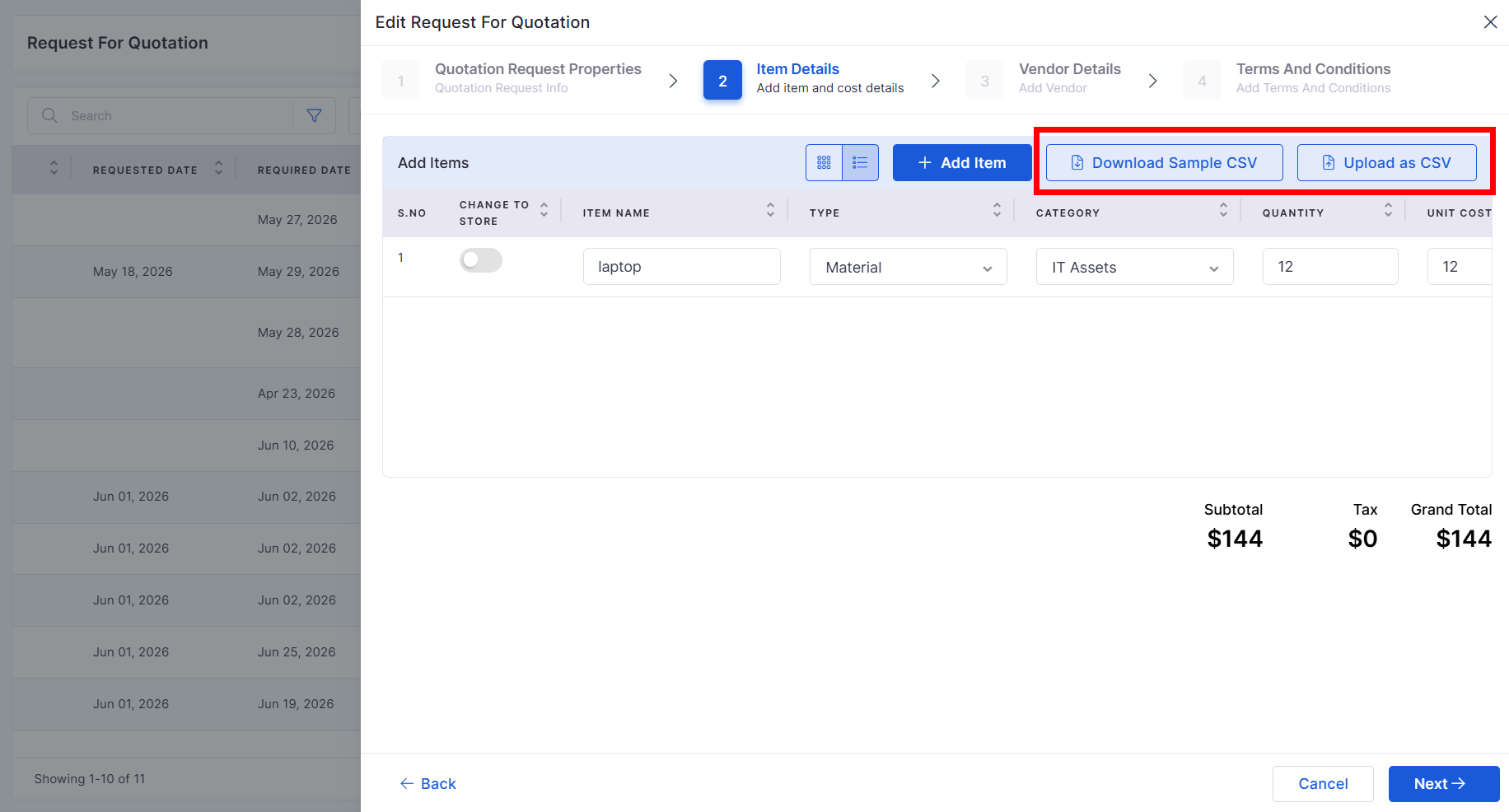
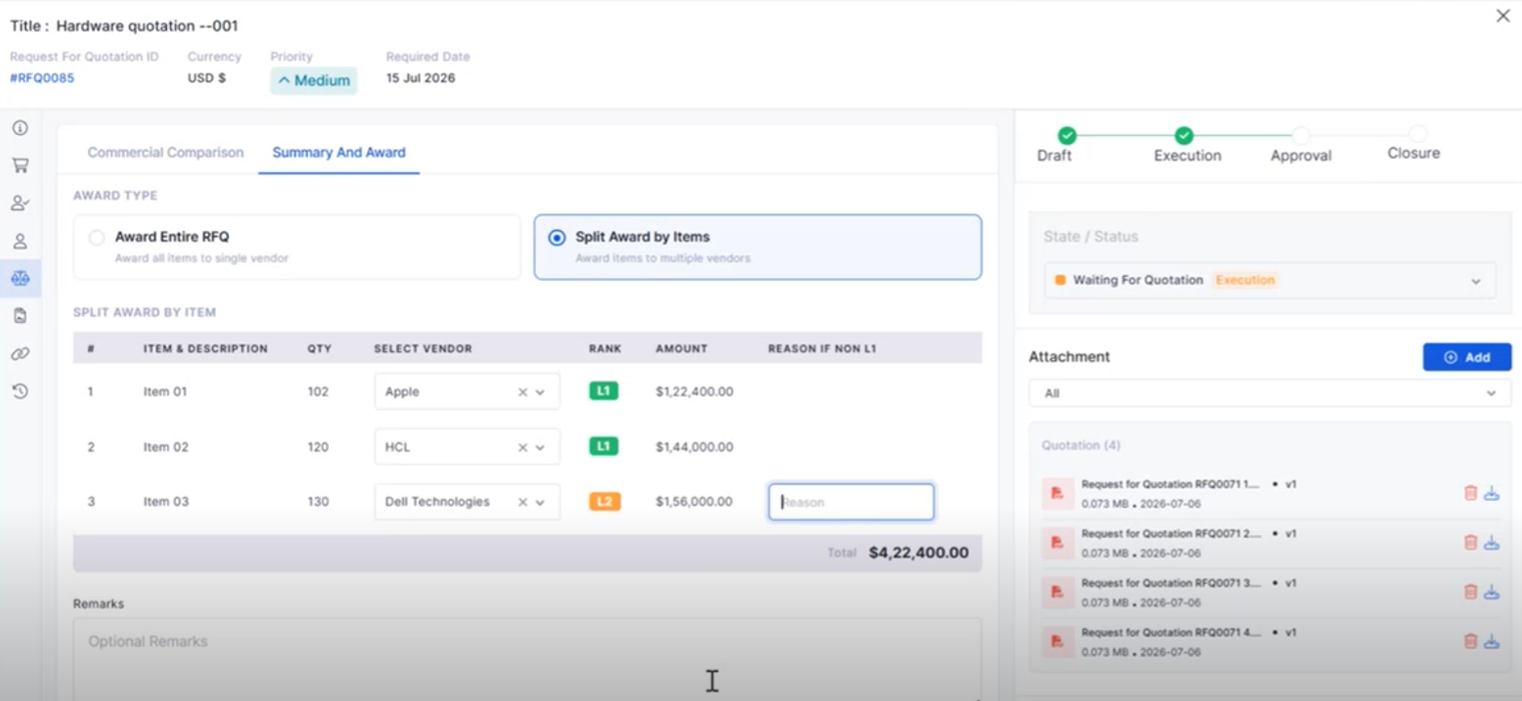
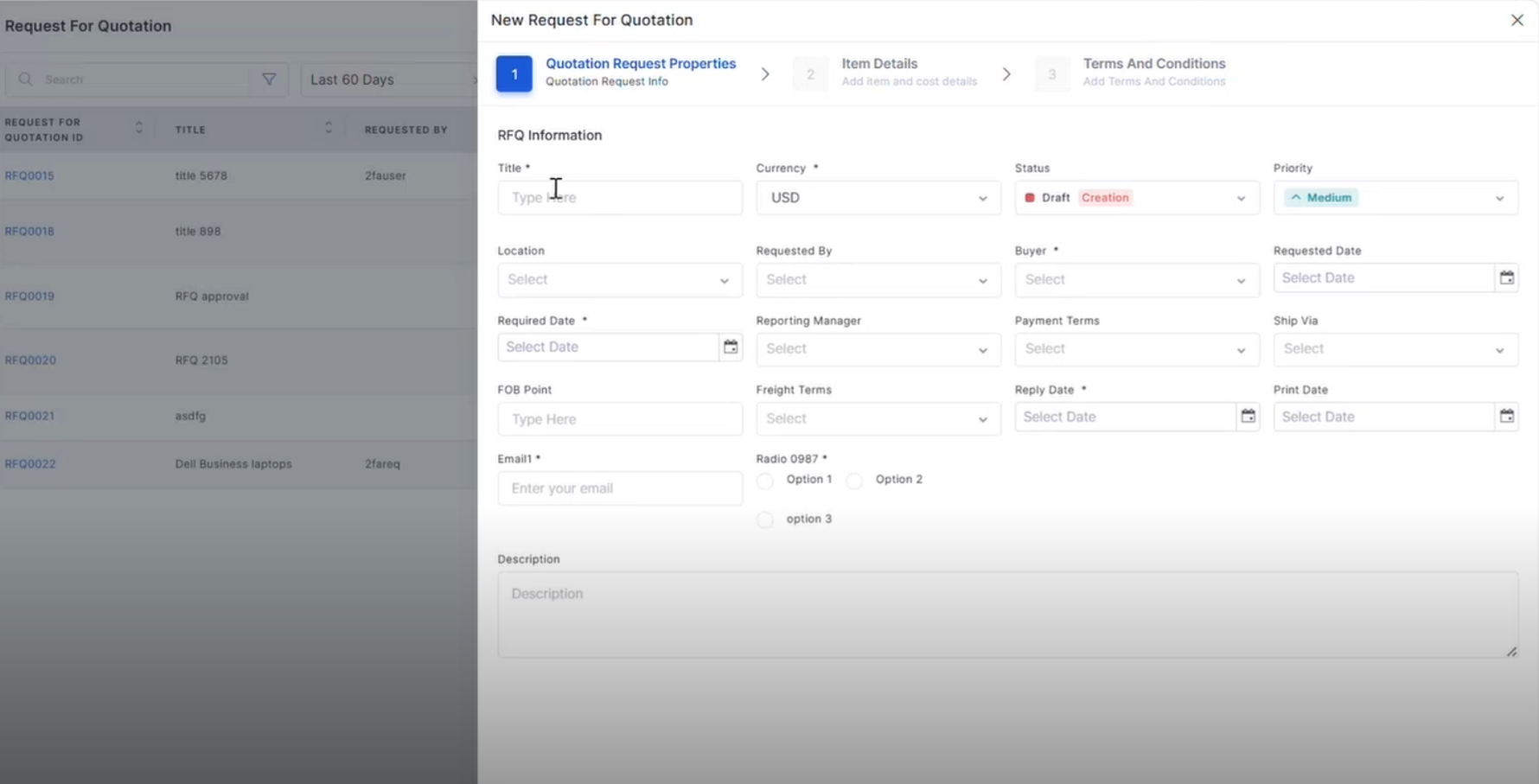
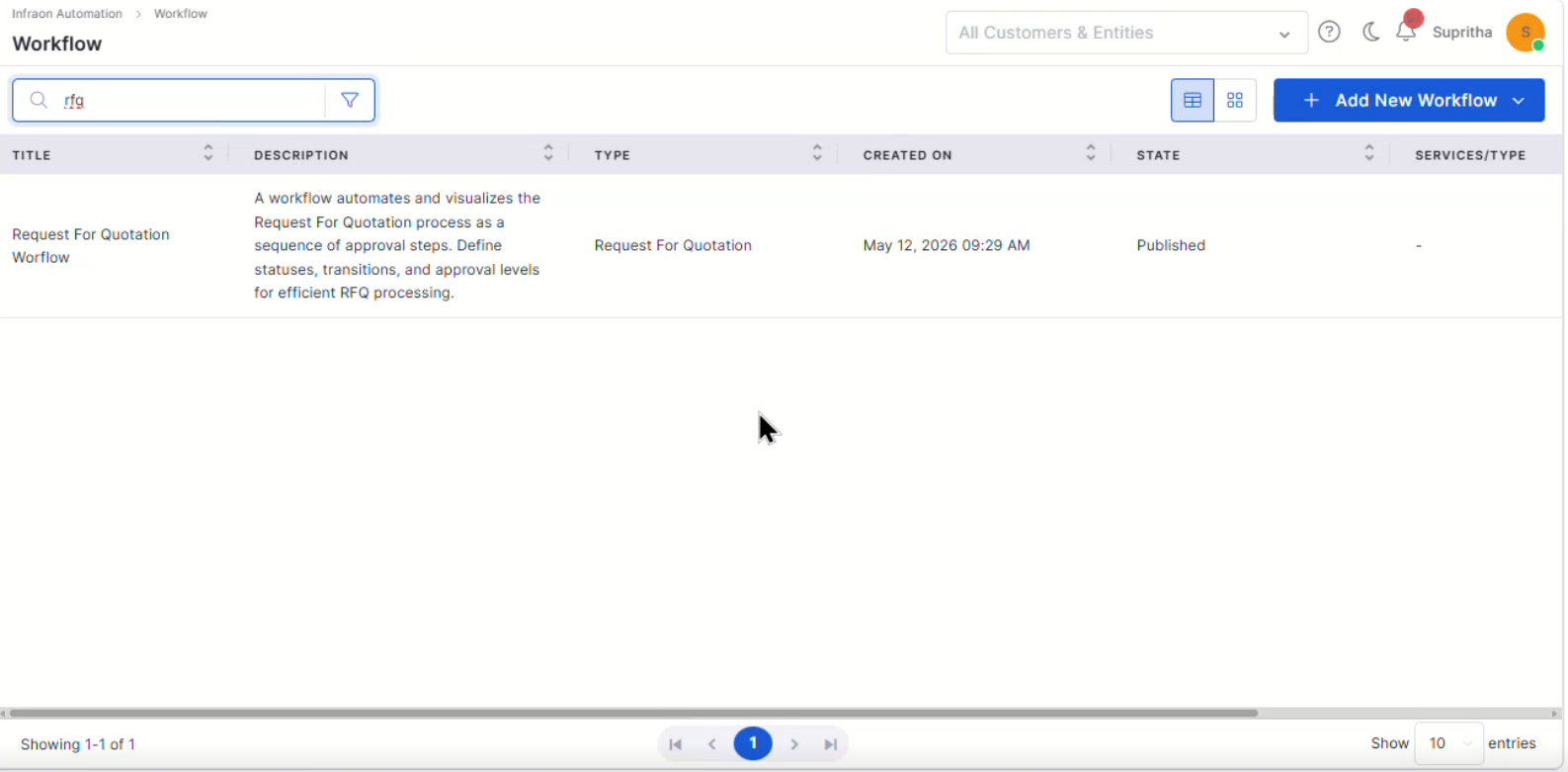
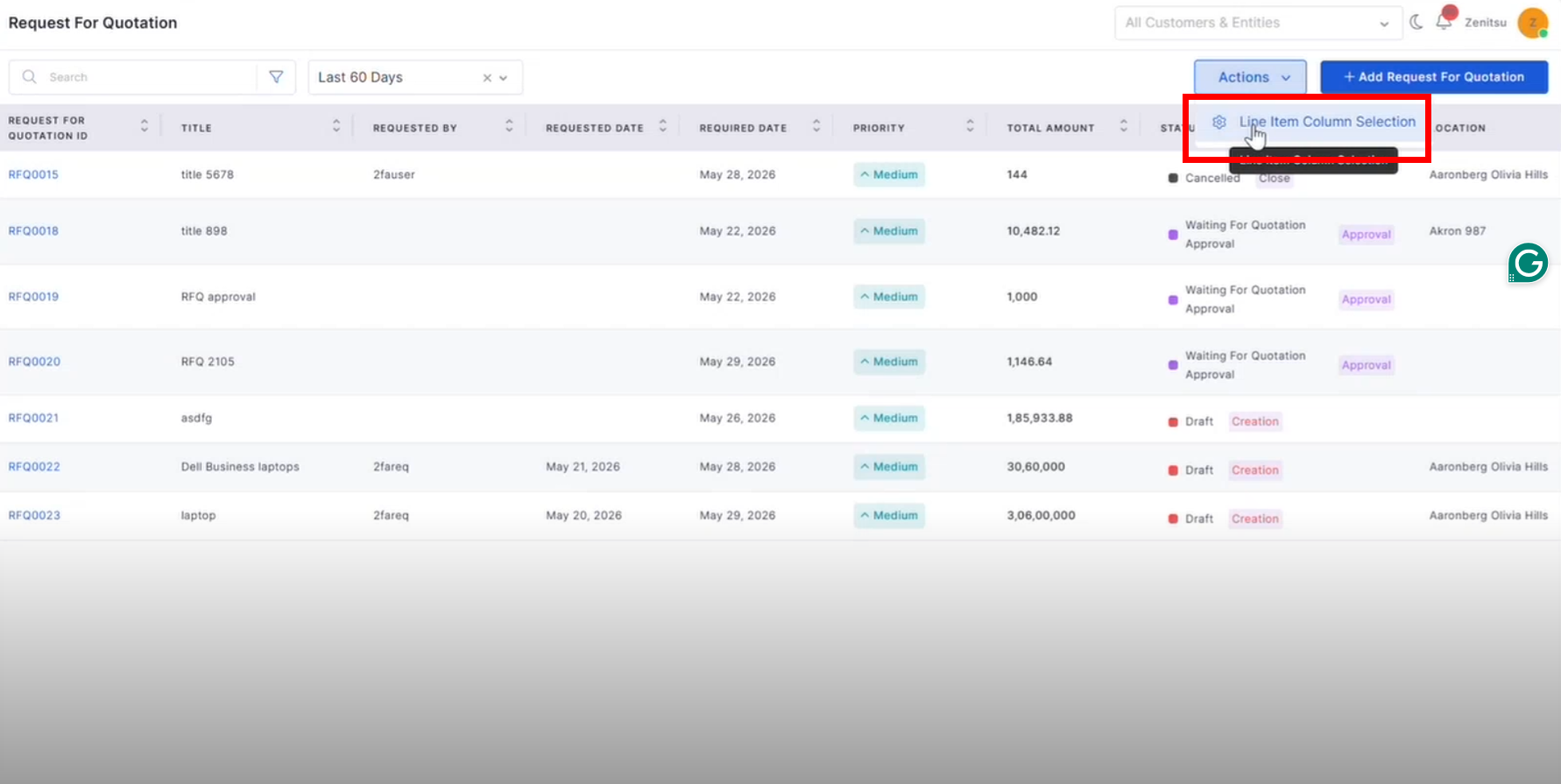
RFQ Line Item CSV Upload
Added CSV import support for RFQ line items.
Reduces manual data entry effort.
Simplifies RFQ creation for large procurement requests.
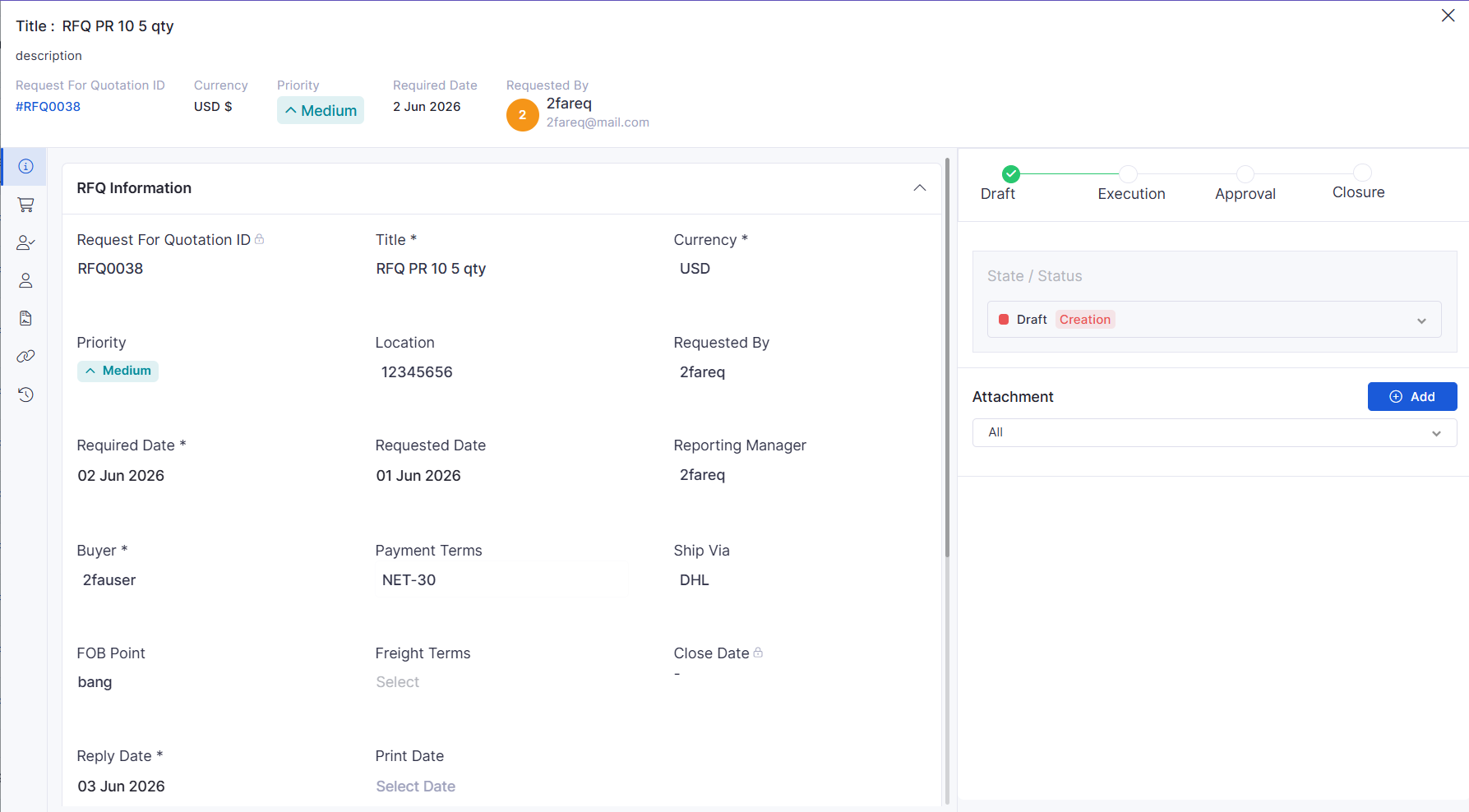
RFQ View Page
Introduced a dedicated RFQ view page.
Provides improved visibility into RFQ details and status.
Enhances procurement tracking and review processes.
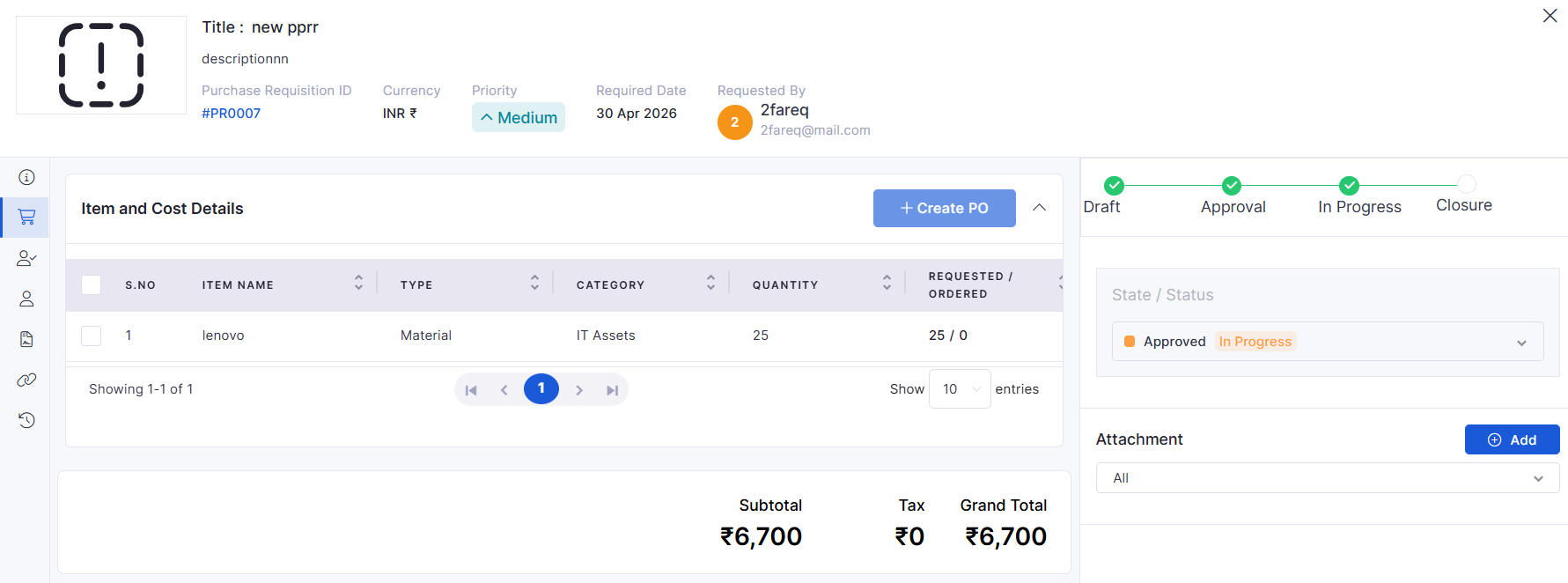
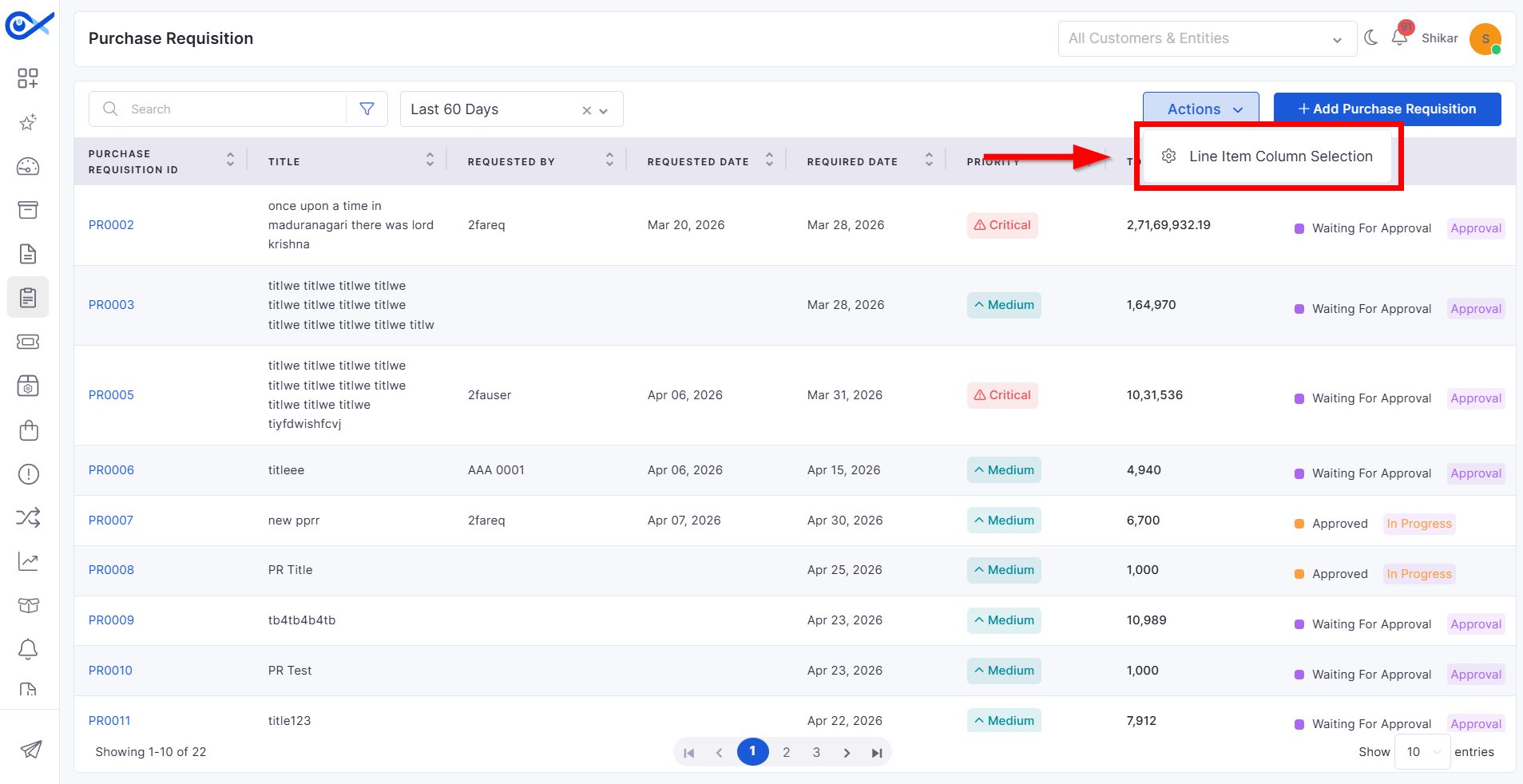
Purchase Requisition
PR Actions for PO and RFQ Creation
Added direct actions to create Purchase Orders and RFQs from Purchase Requisitions.
Streamlines procurement workflows.
Reduces manual processing steps.
Dashboard
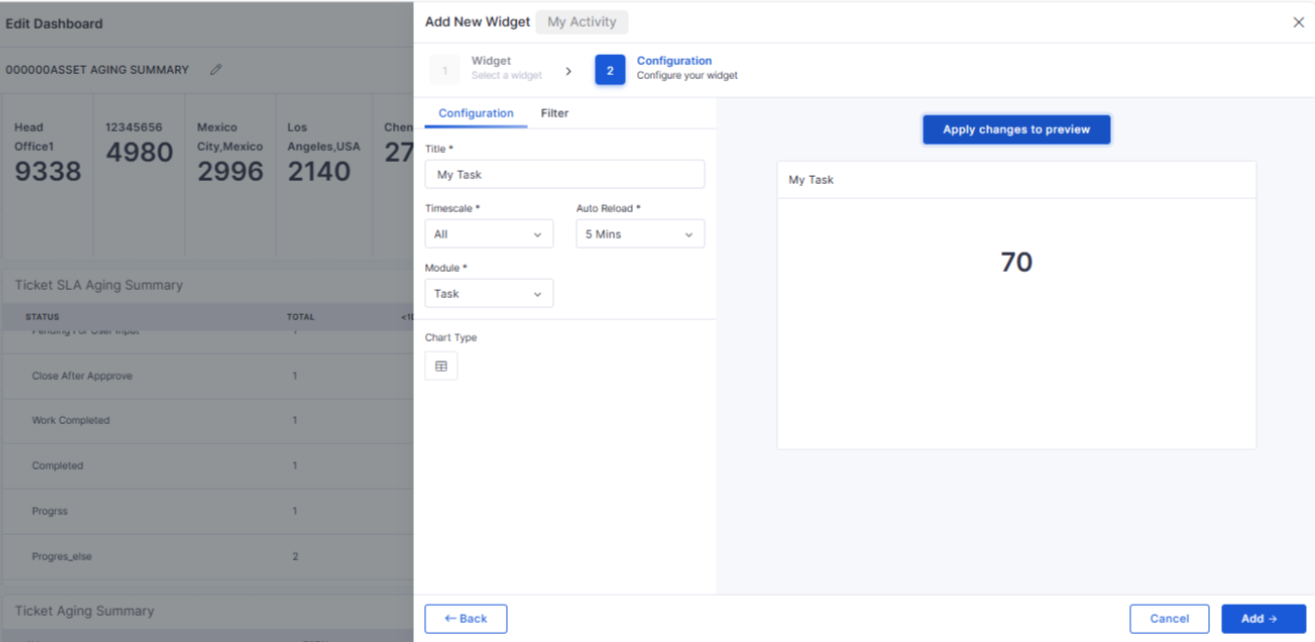
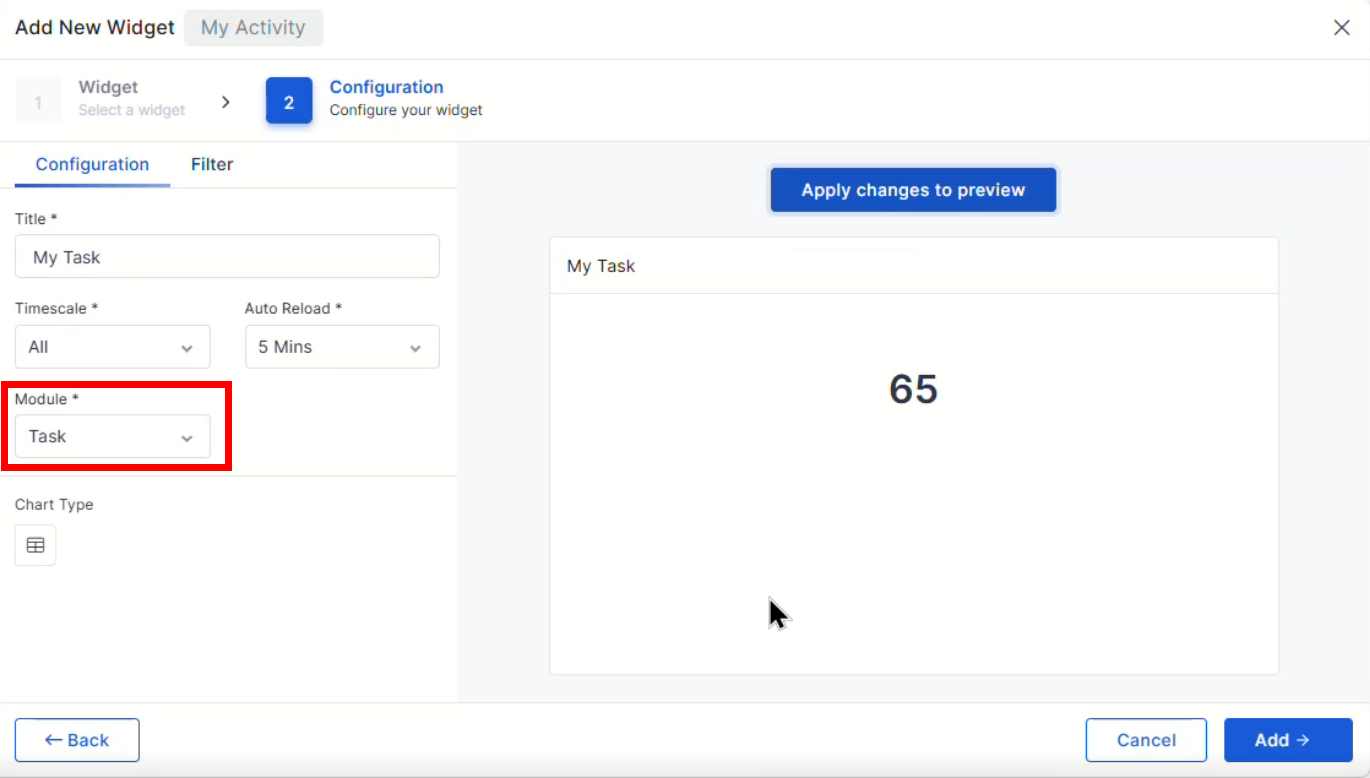
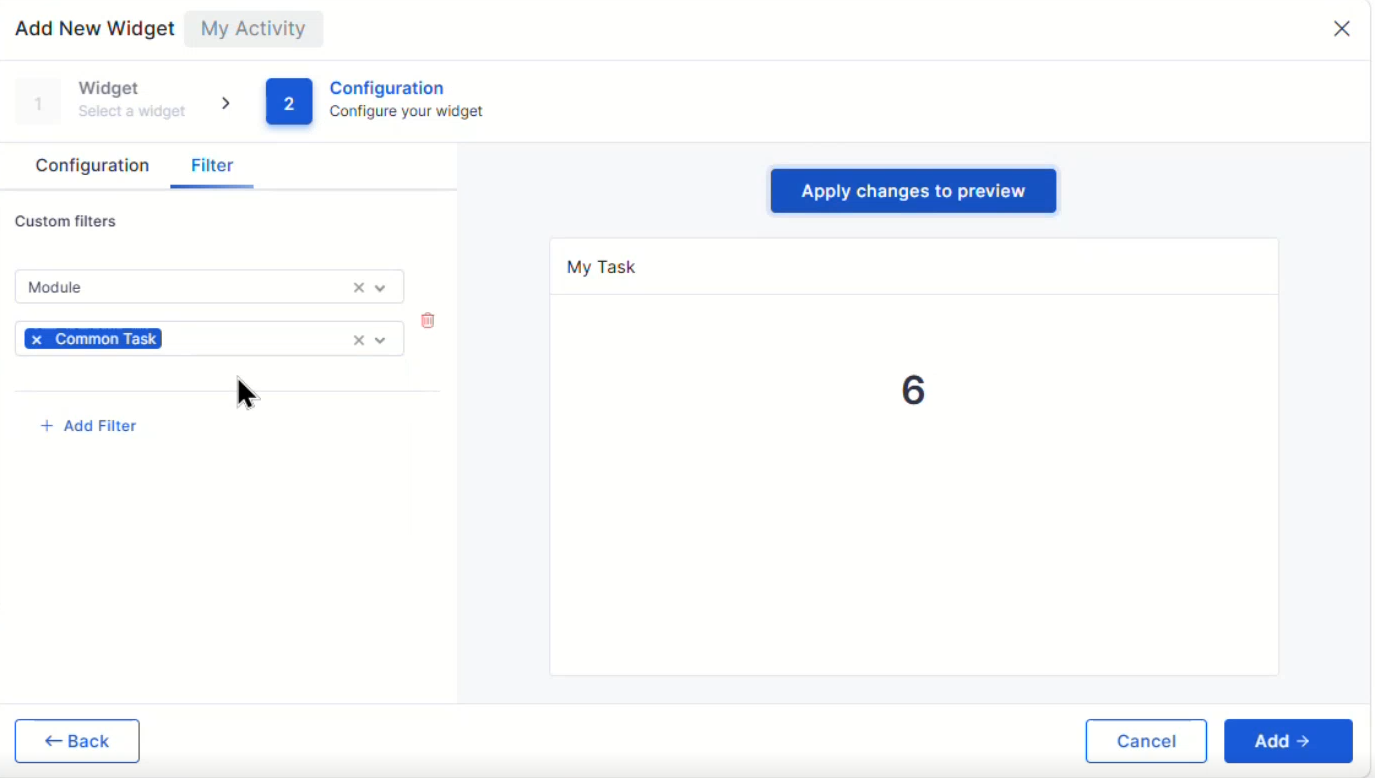
My Task in My Activity Widget
Added task visibility within the My Activity widget.
Provides quick access to assigned work items.
Improves personal workload tracking.
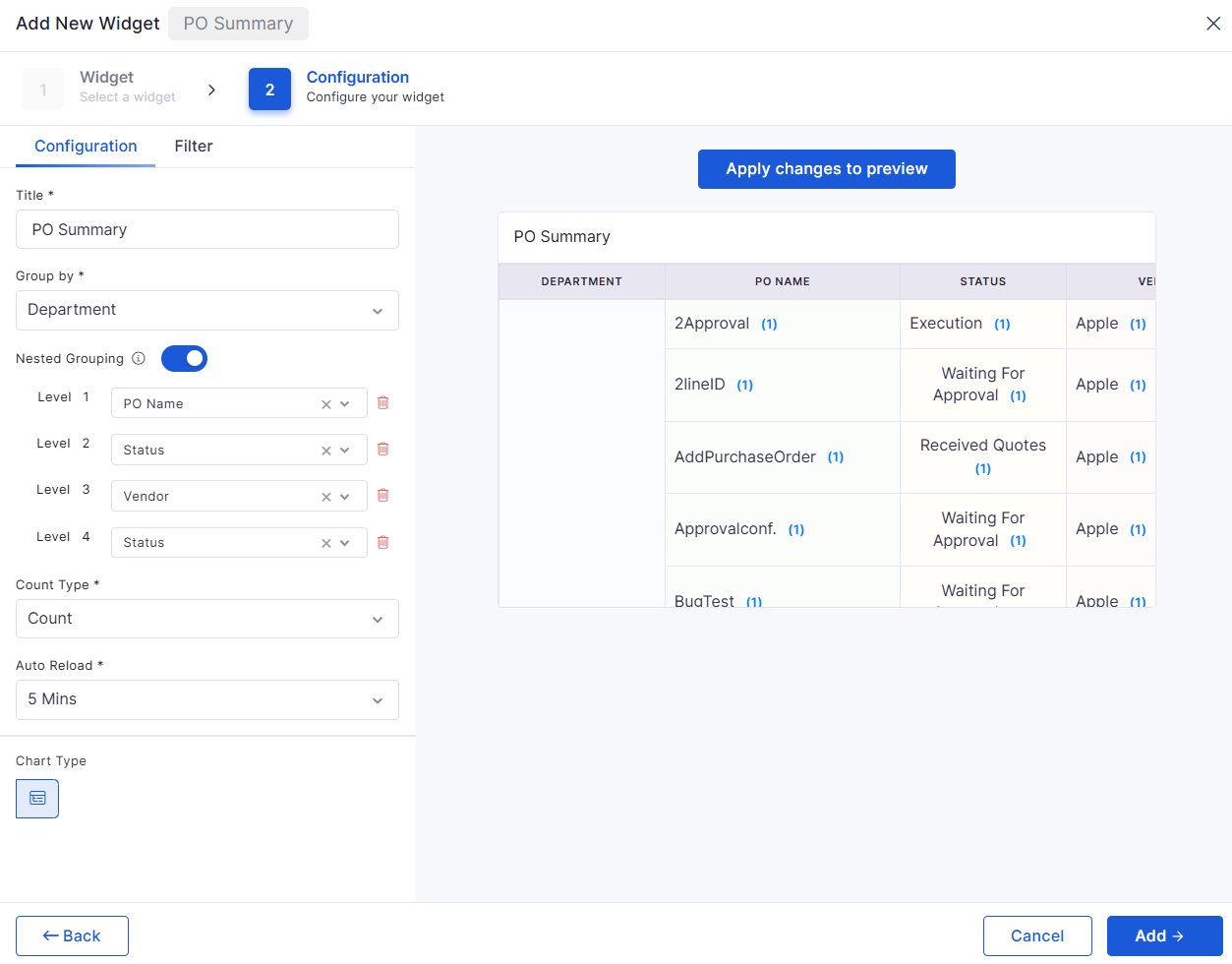
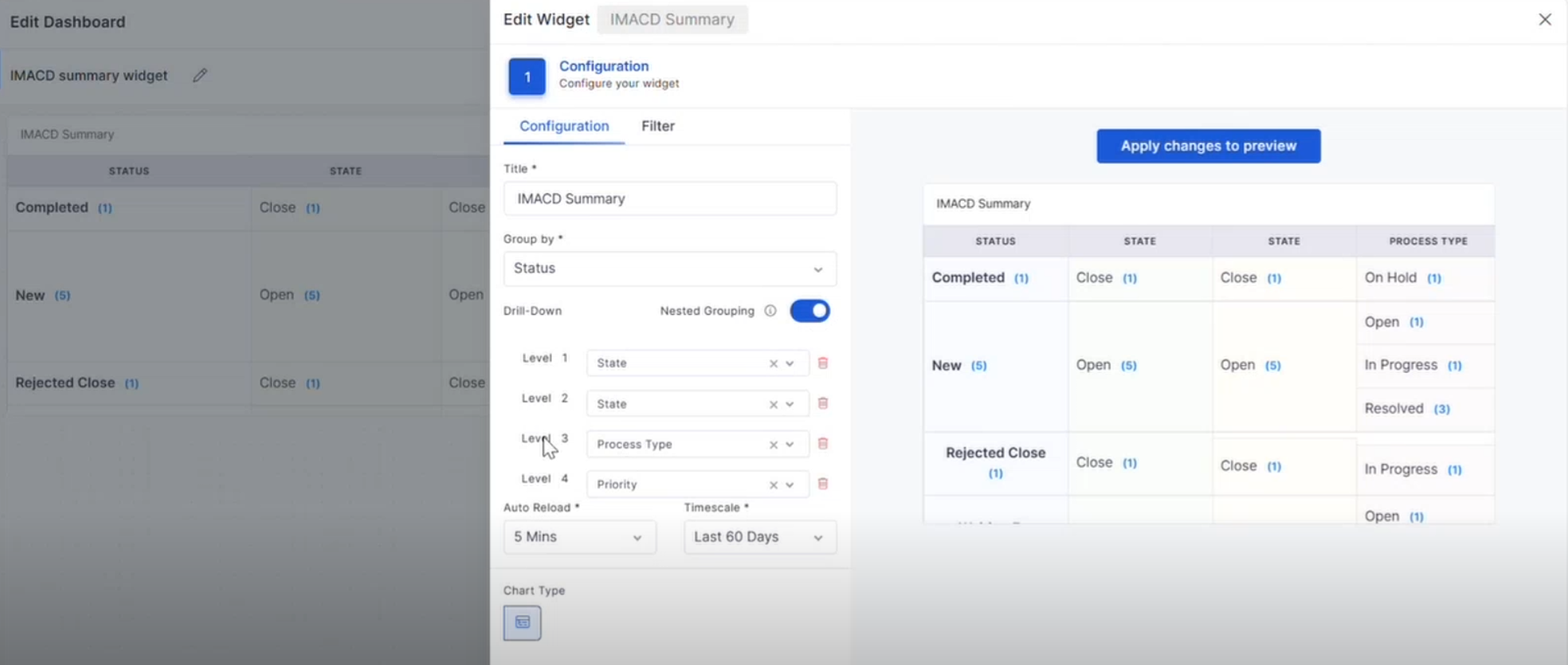
Contract and Purchase Order Widget Enhancements
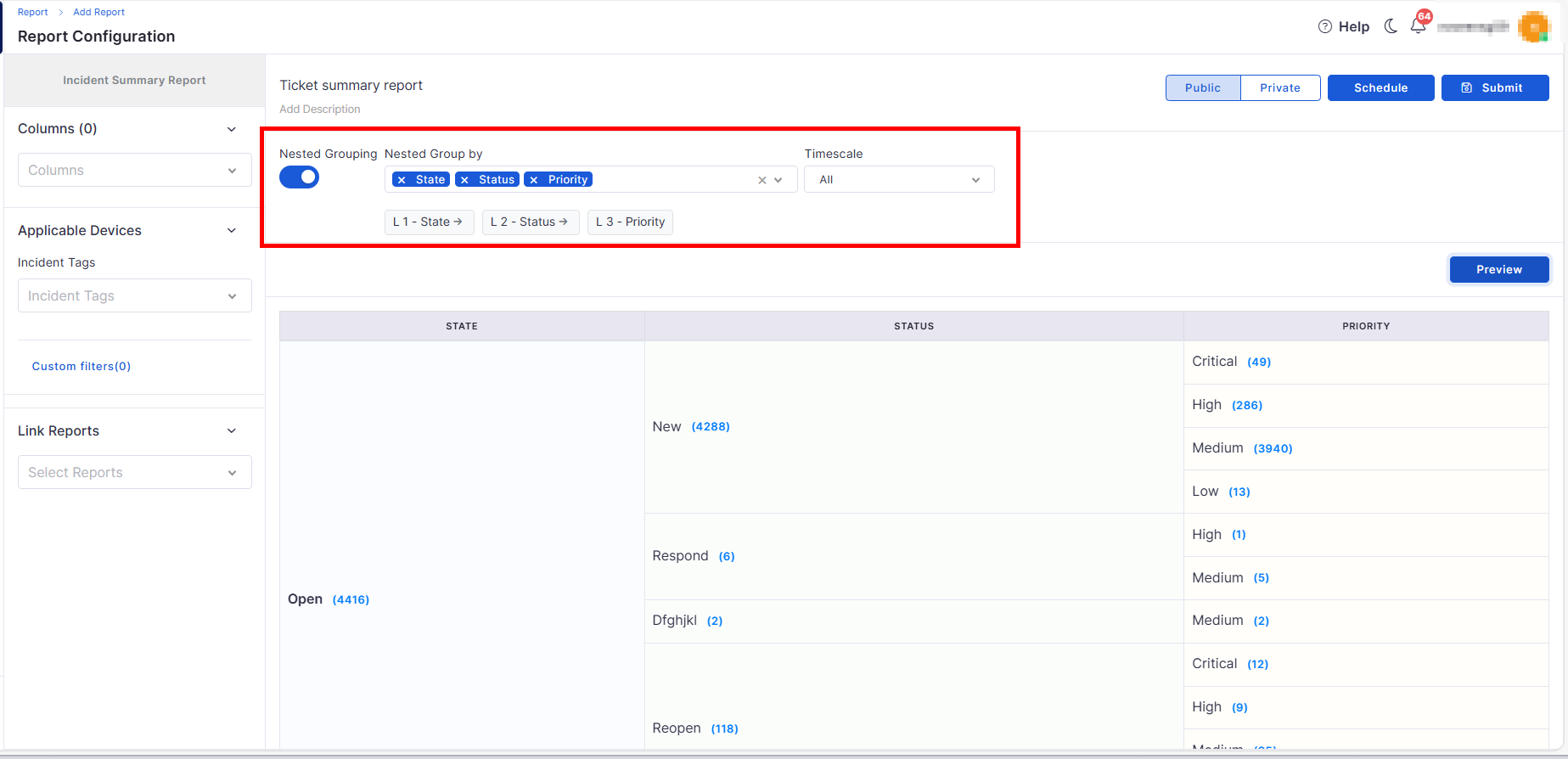
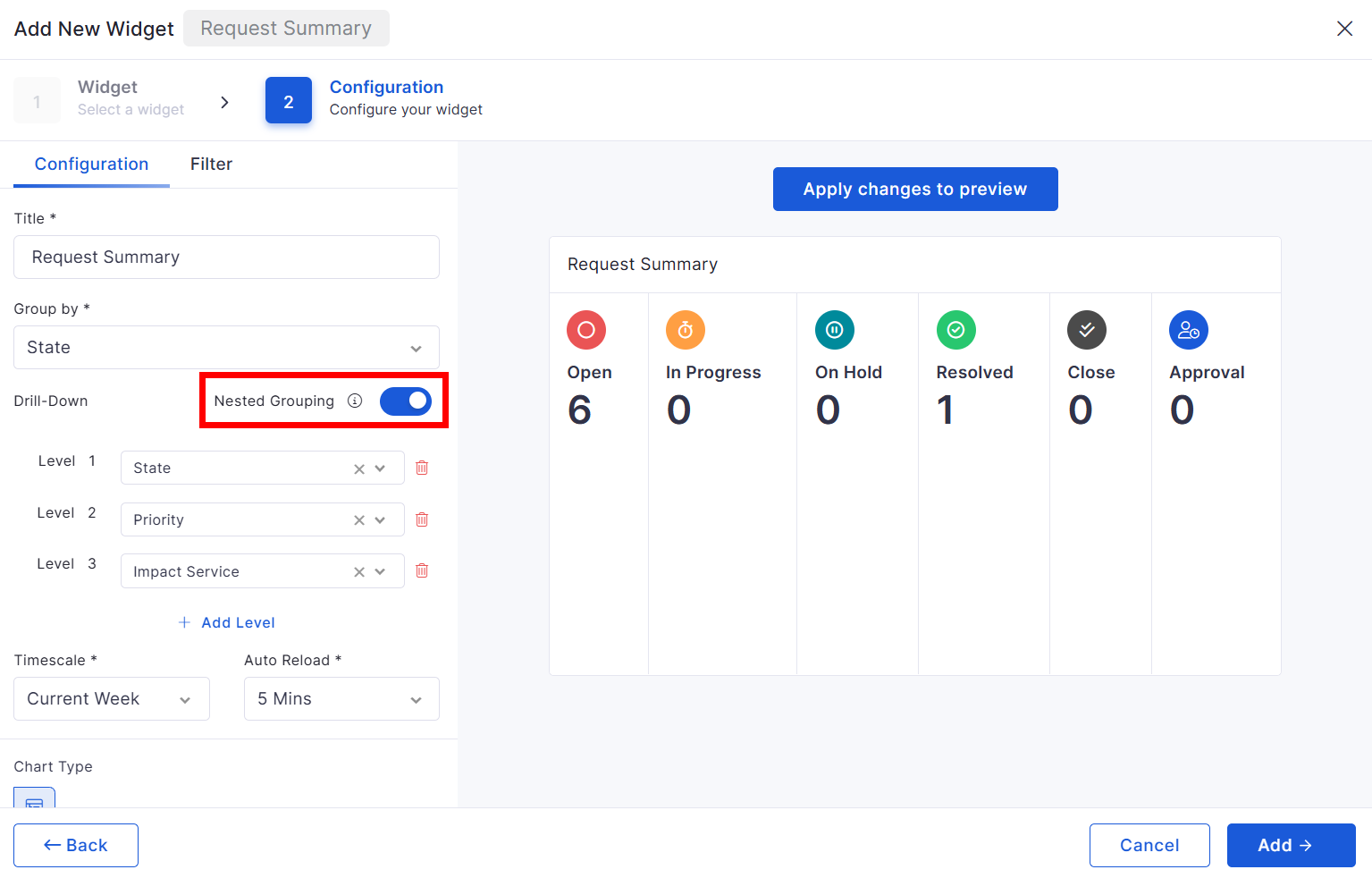
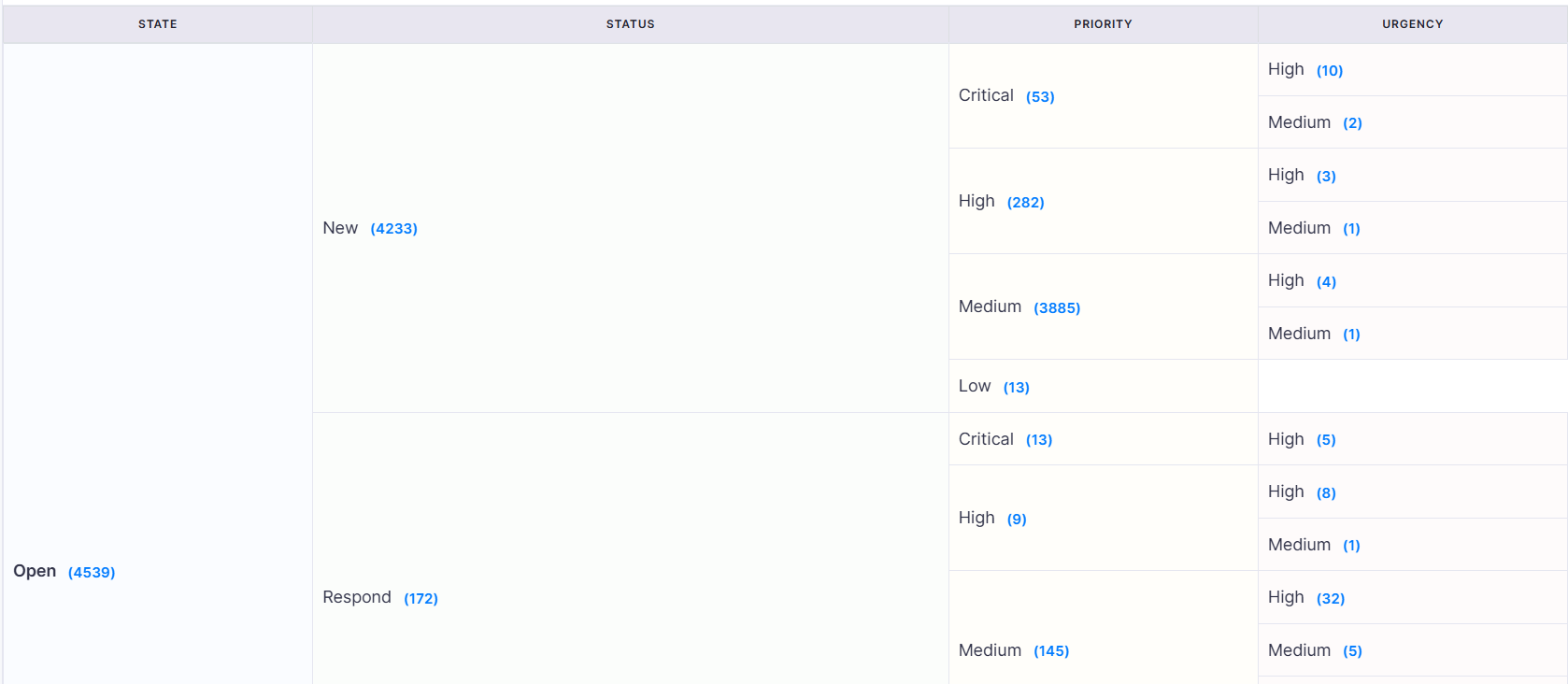
Added nested grouping and drill-down capabilities.
Enables deeper analysis of contract and procurement data.
Improves dashboard reporting flexibility.
Request Management
Service Request Template Visibility
Improved visibility of service request template fields in panel views.
Ensures important request information is displayed consistently.
Enhances request handling and review.
Workflow
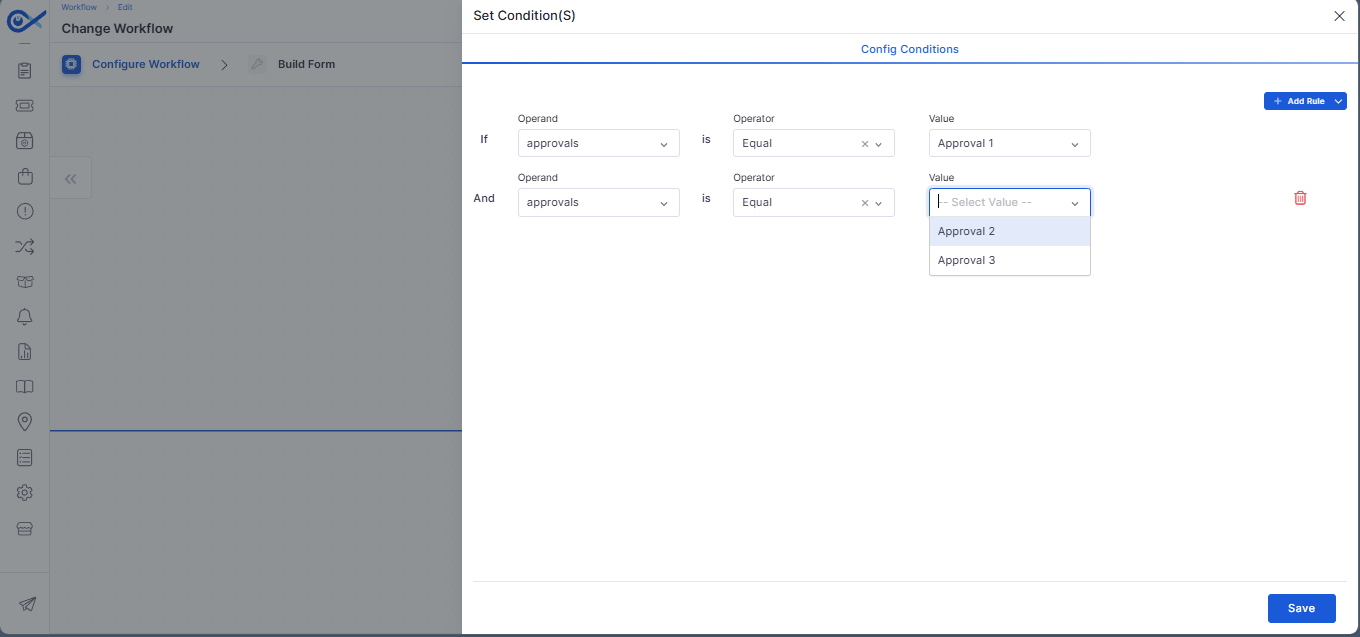
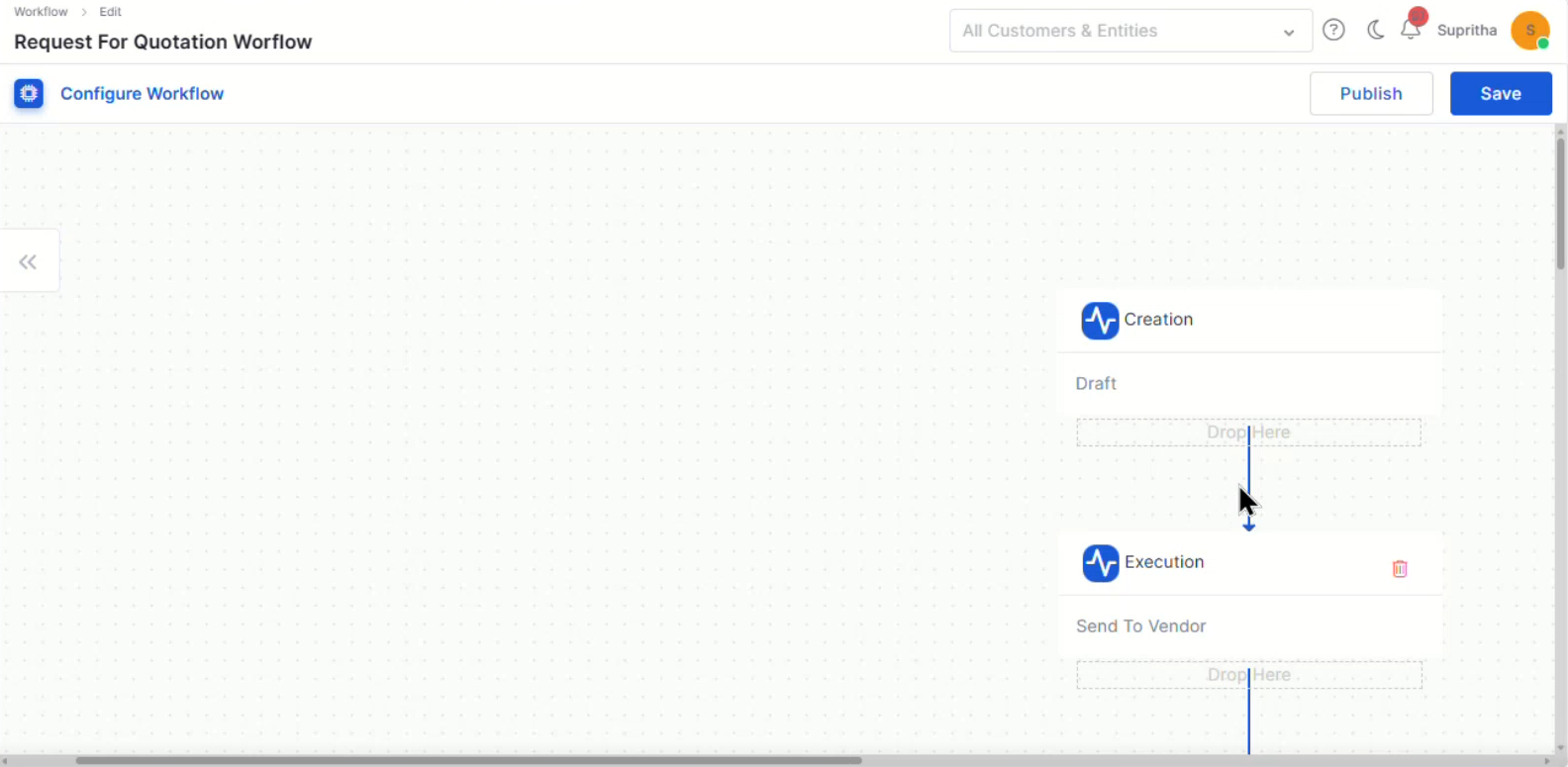
Custom Conditional Approvals for Change Workflows
Added support for configurable approval conditions within change workflows.
Enables more flexible approval processes.
Improves workflow automation and governance.
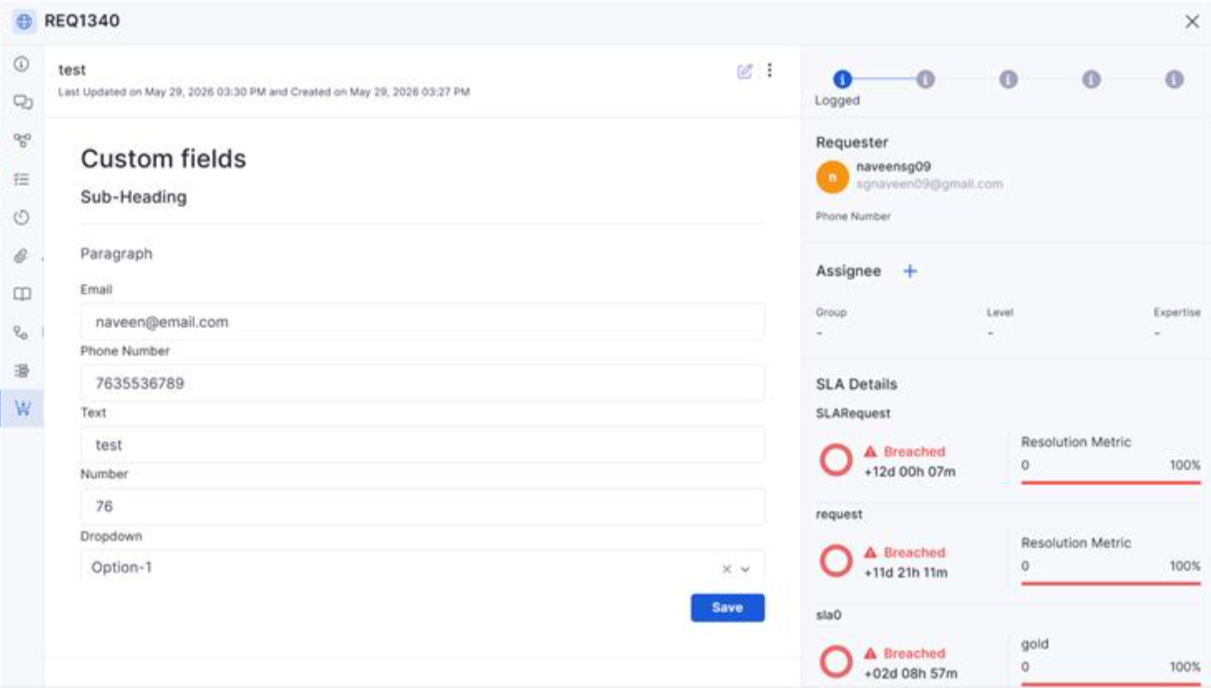
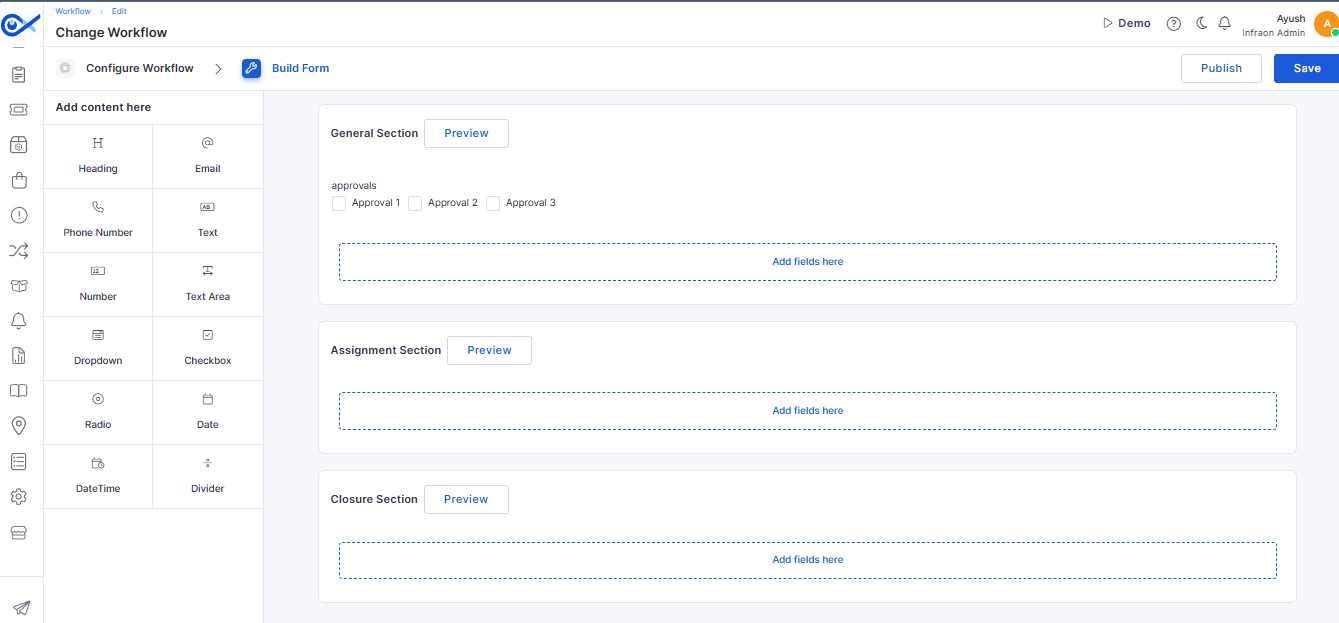
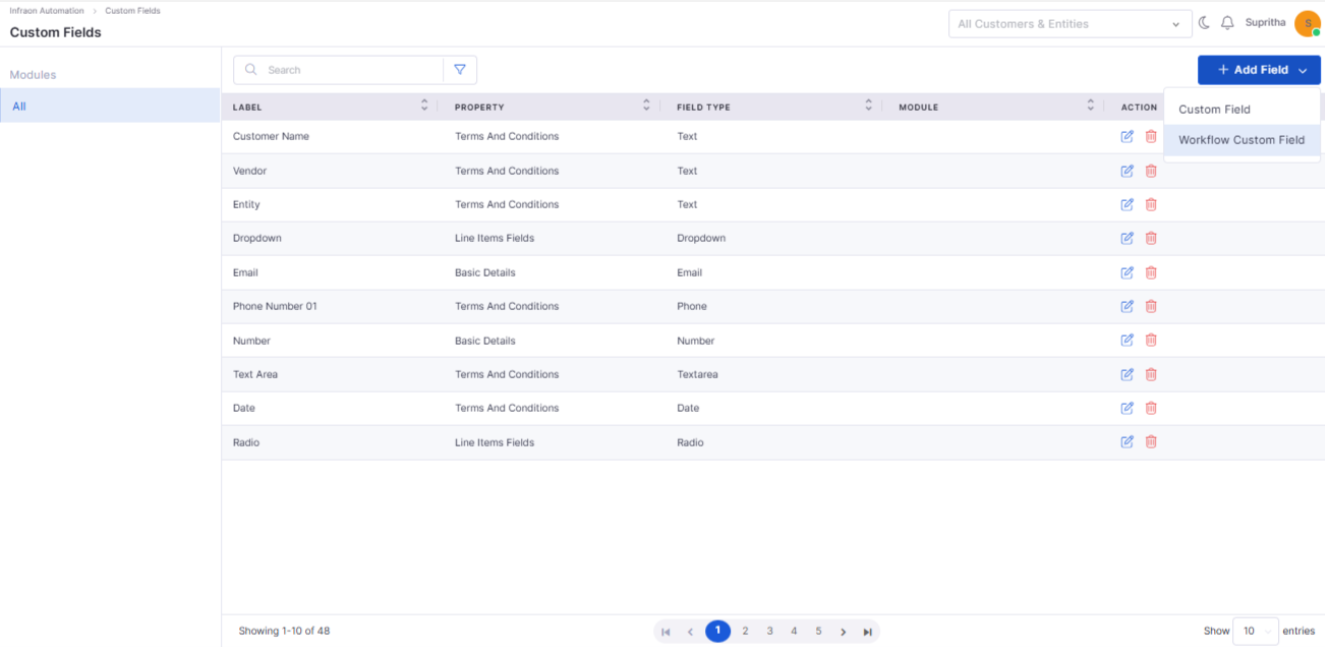
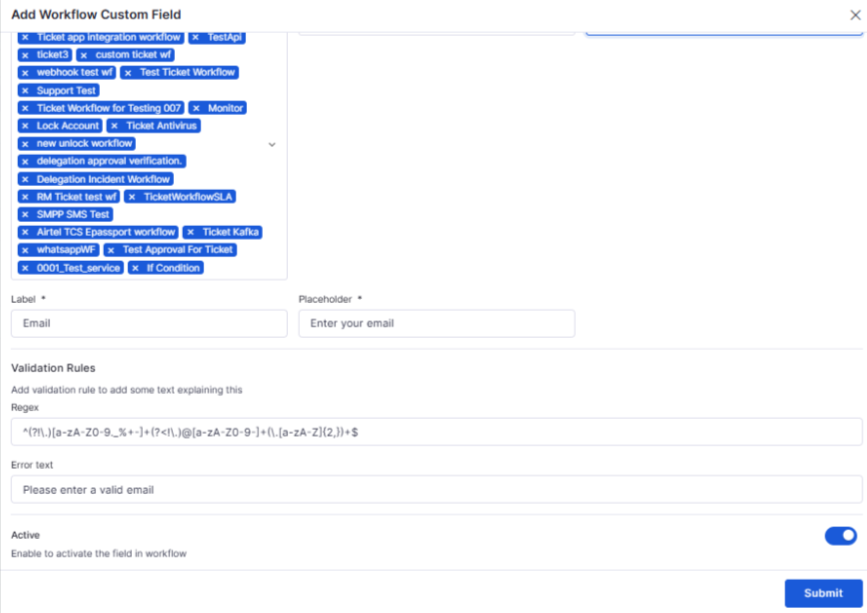
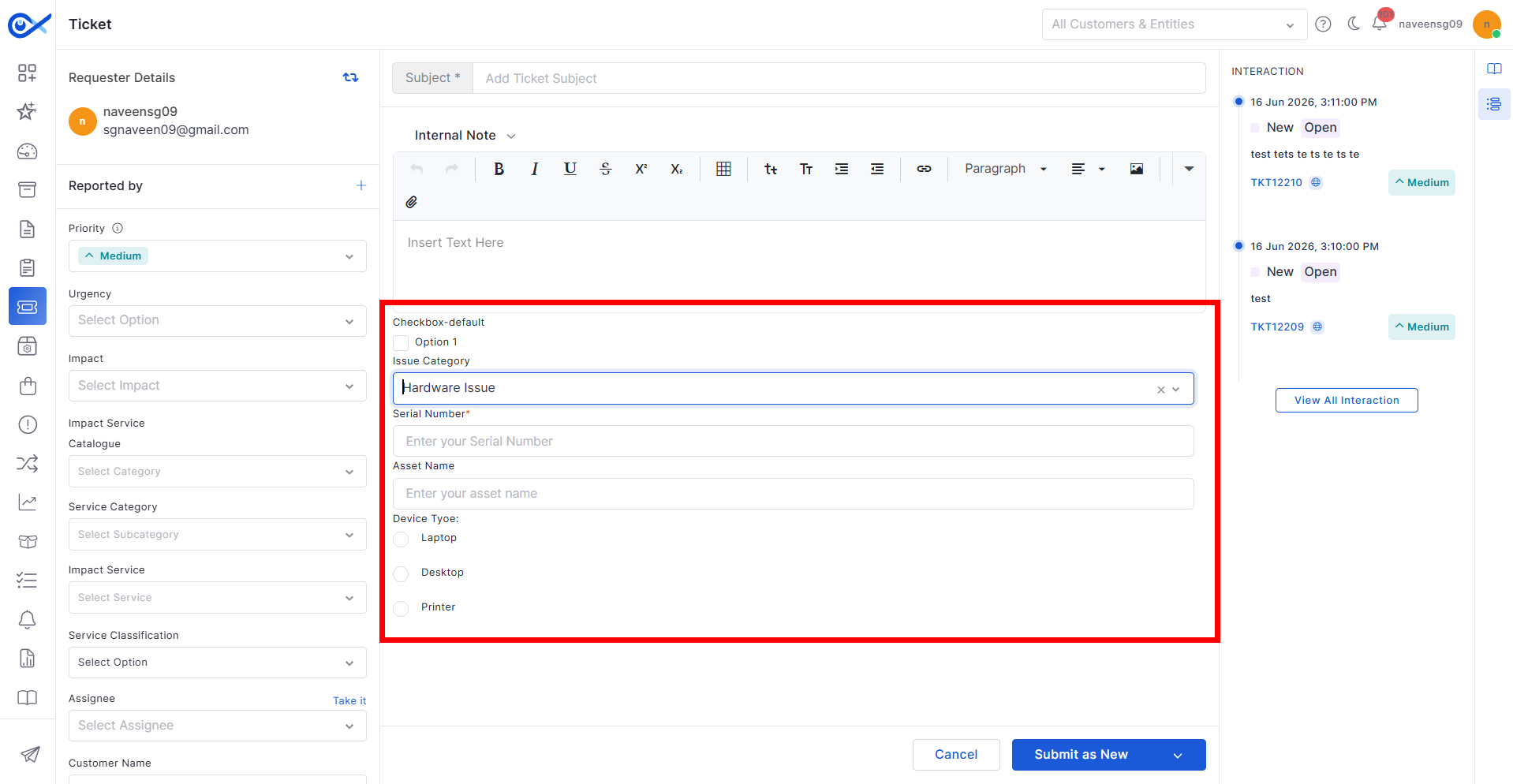
Common Custom Fields Across Workflows
Added support for common custom fields across ITSM workflow configurations.
Improves consistency across modules.
Simplifies workflow administration.
Enterprise Asset Management
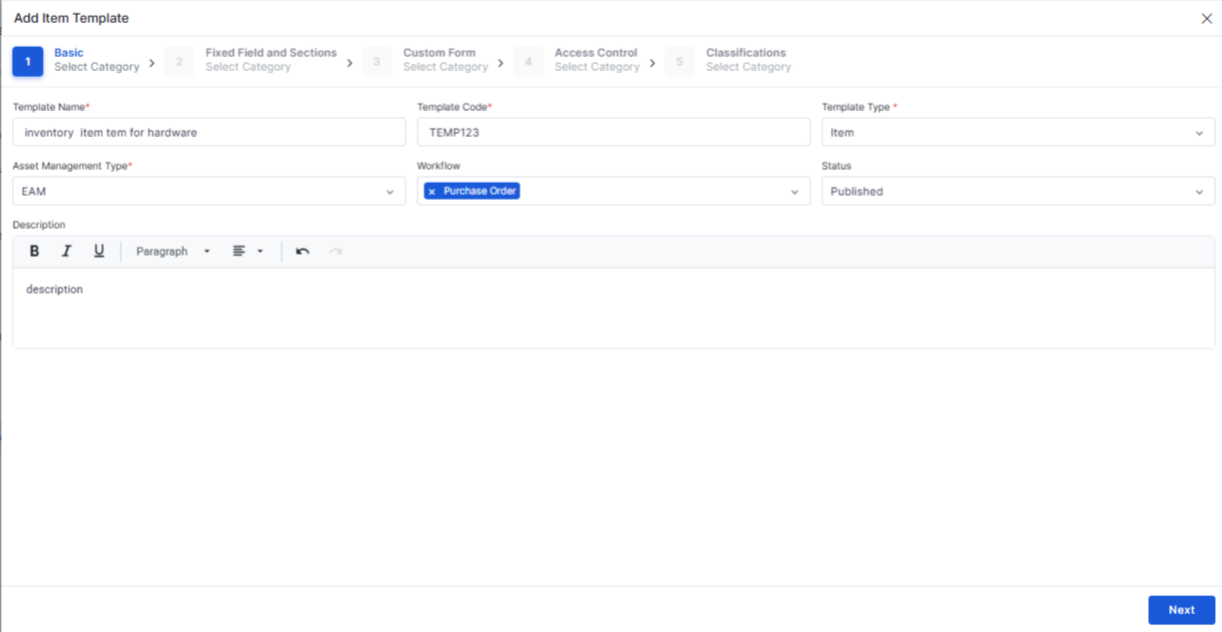
Inventory Item Templates
Added configurable item templates for inventory management.
Standardizes inventory record creation.
Improves inventory administration efficiency.
Inventory Meter Management
Introduced meter management capabilities within inventory configuration.
Supports improved tracking and measurement of inventory assets.
Enhances operational visibility.
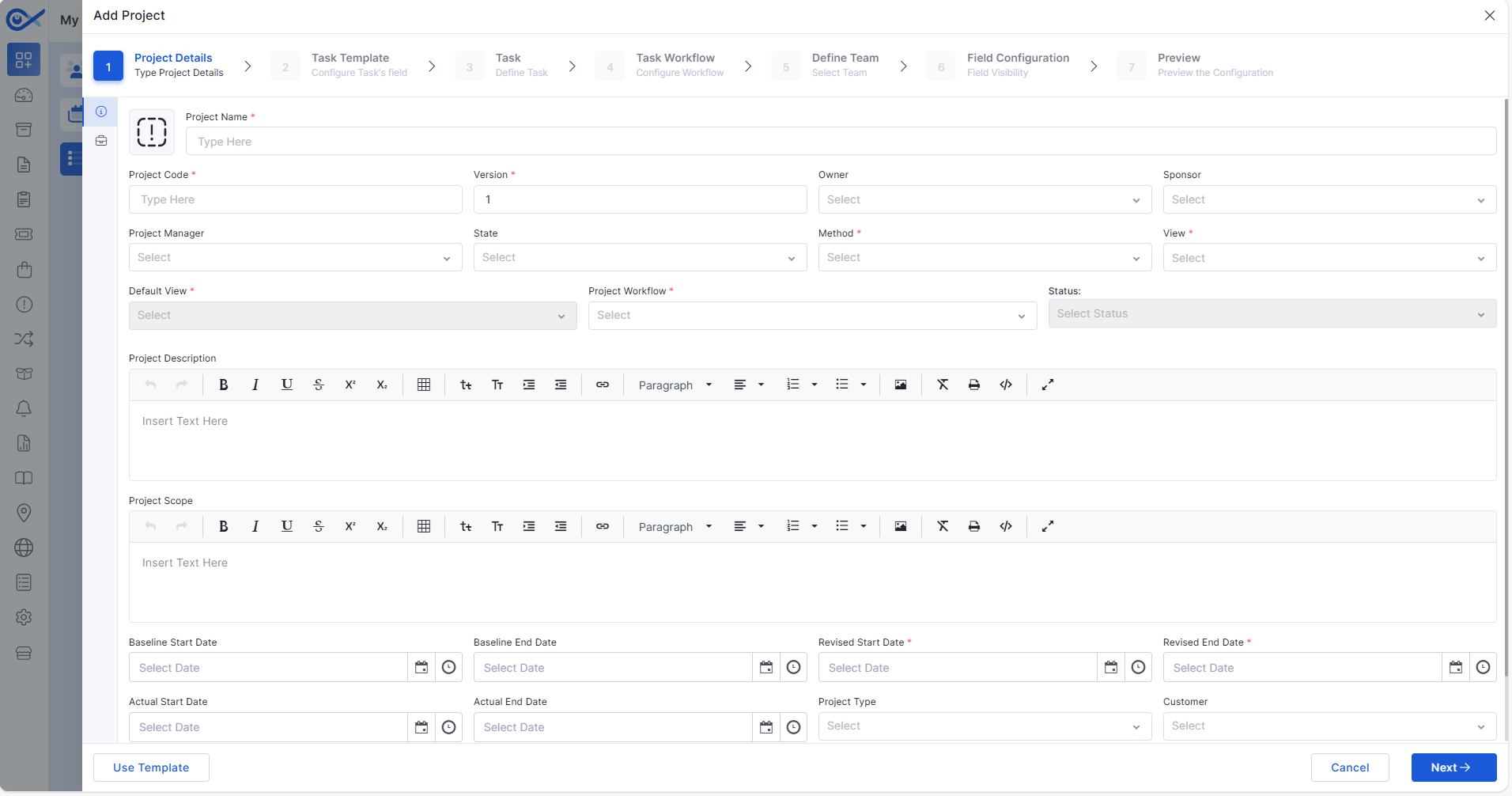
Project Management
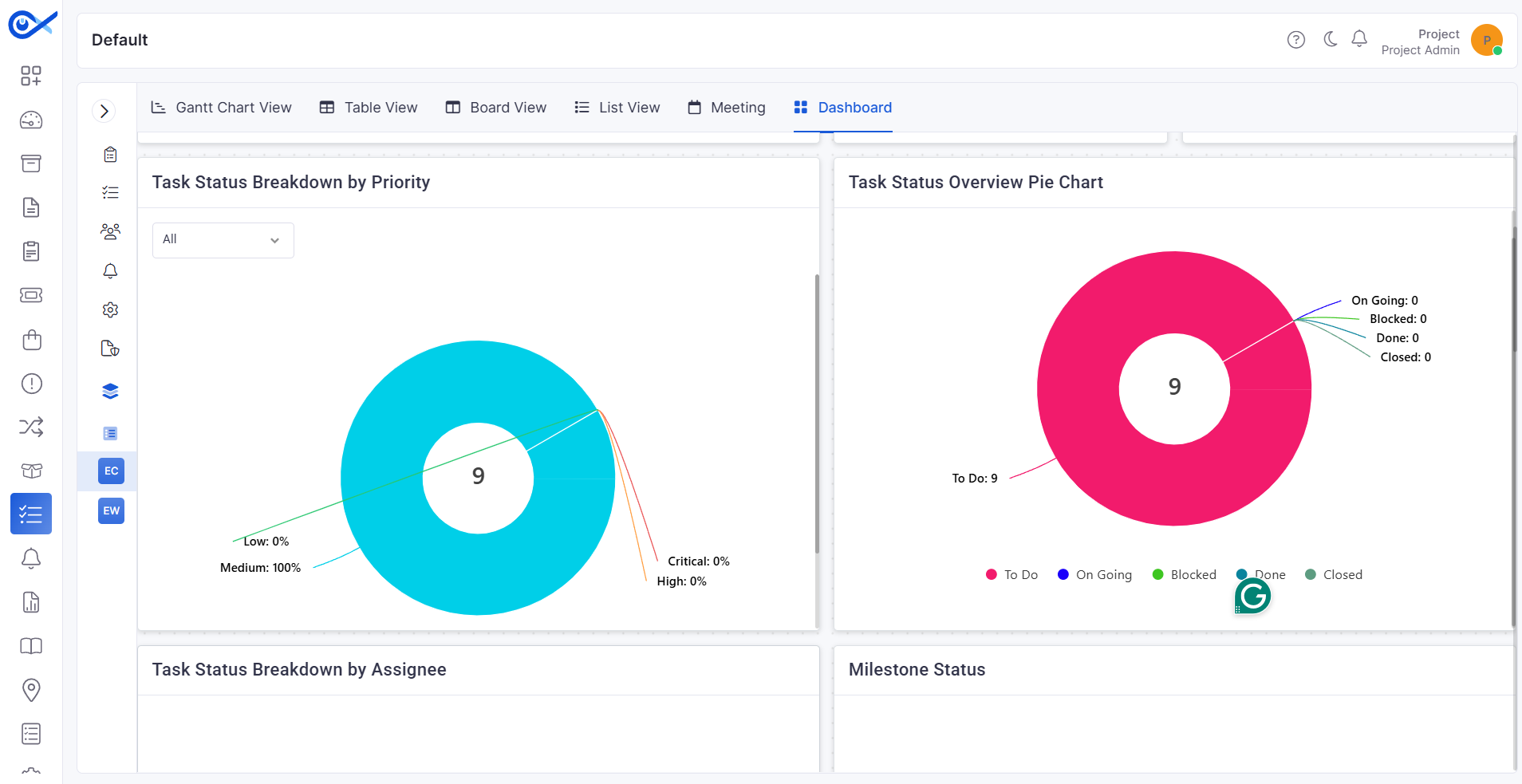
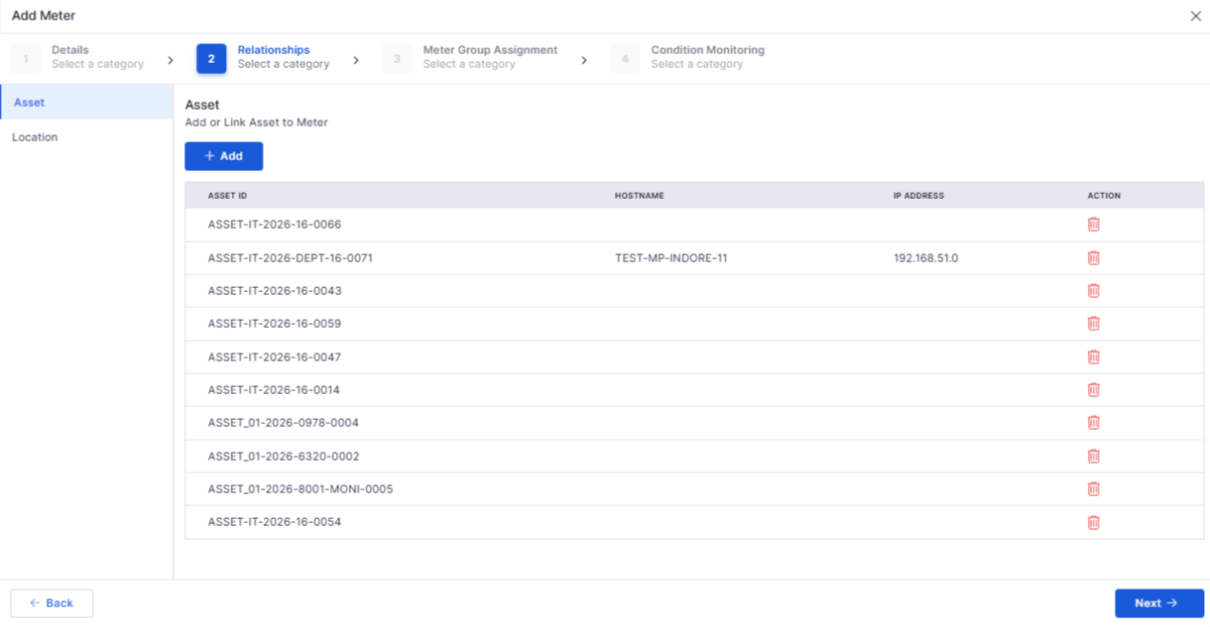
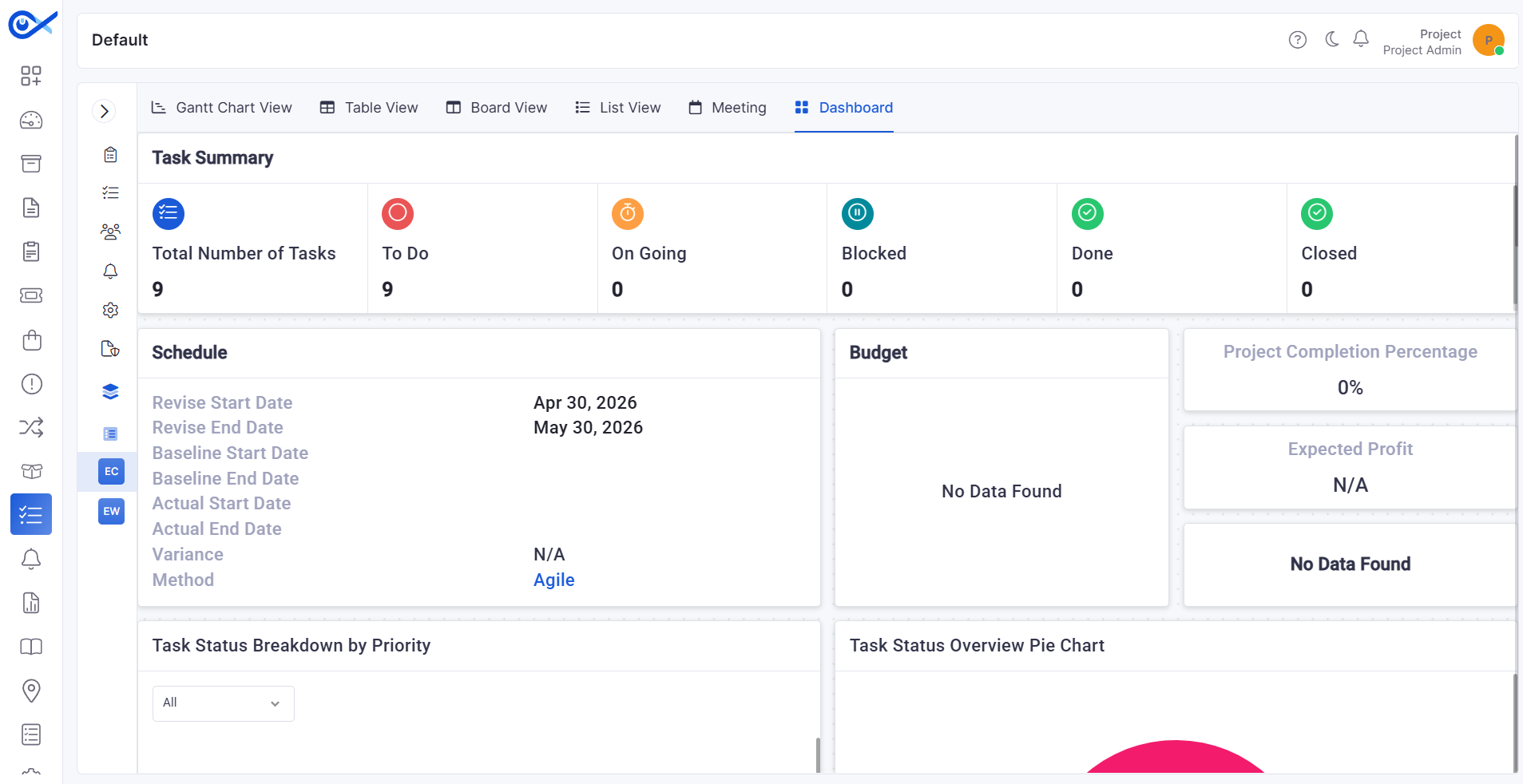
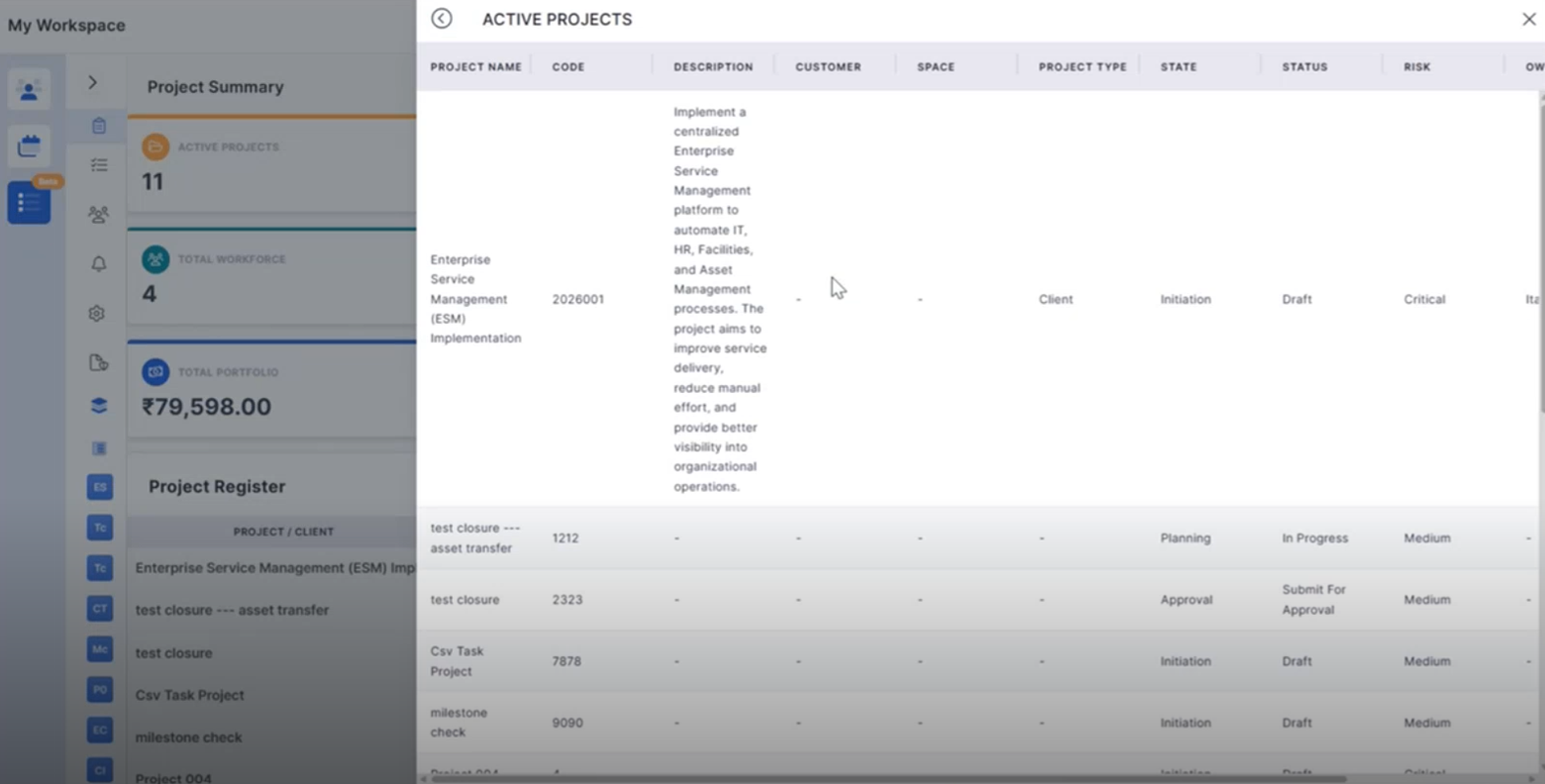
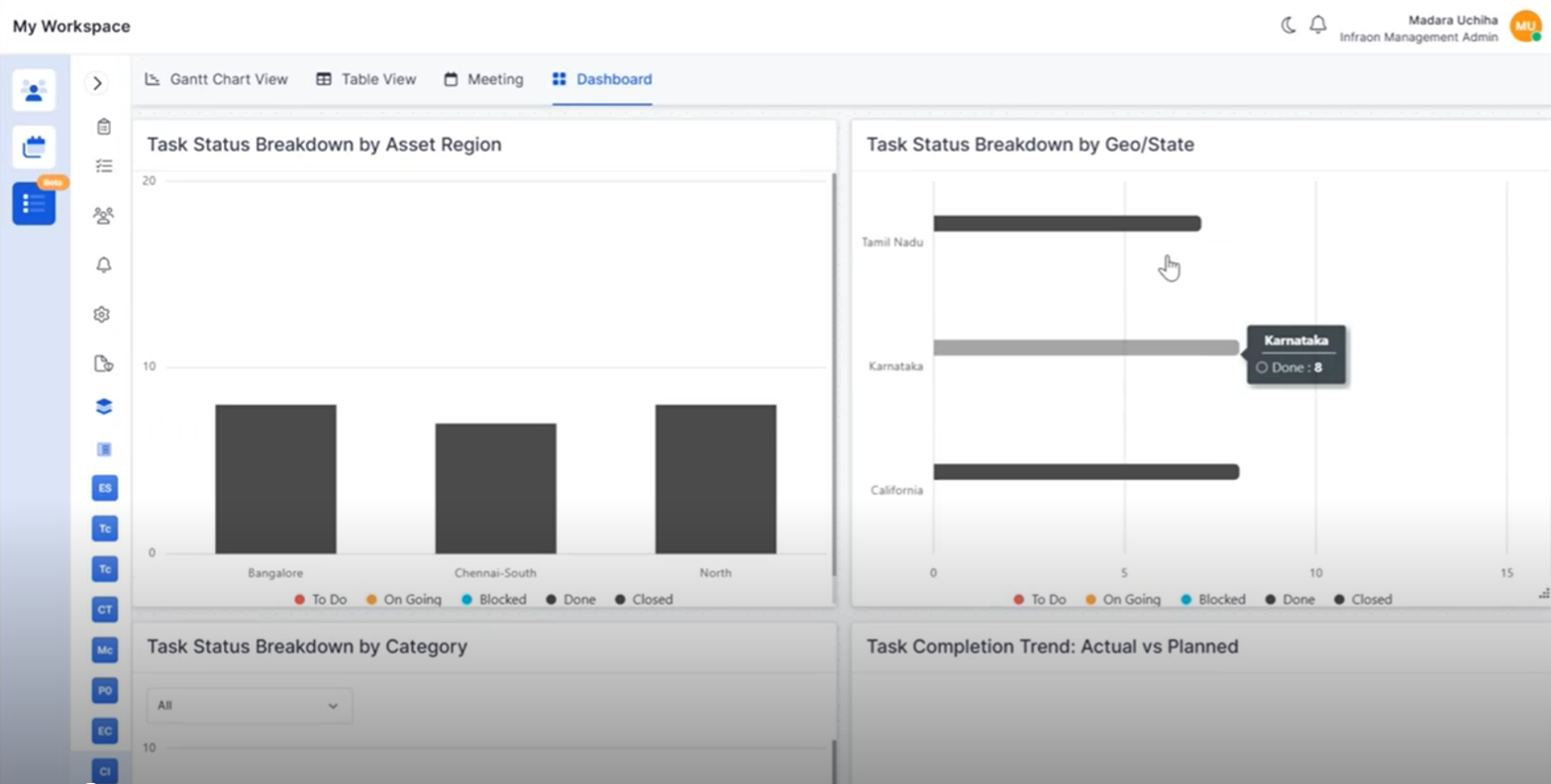
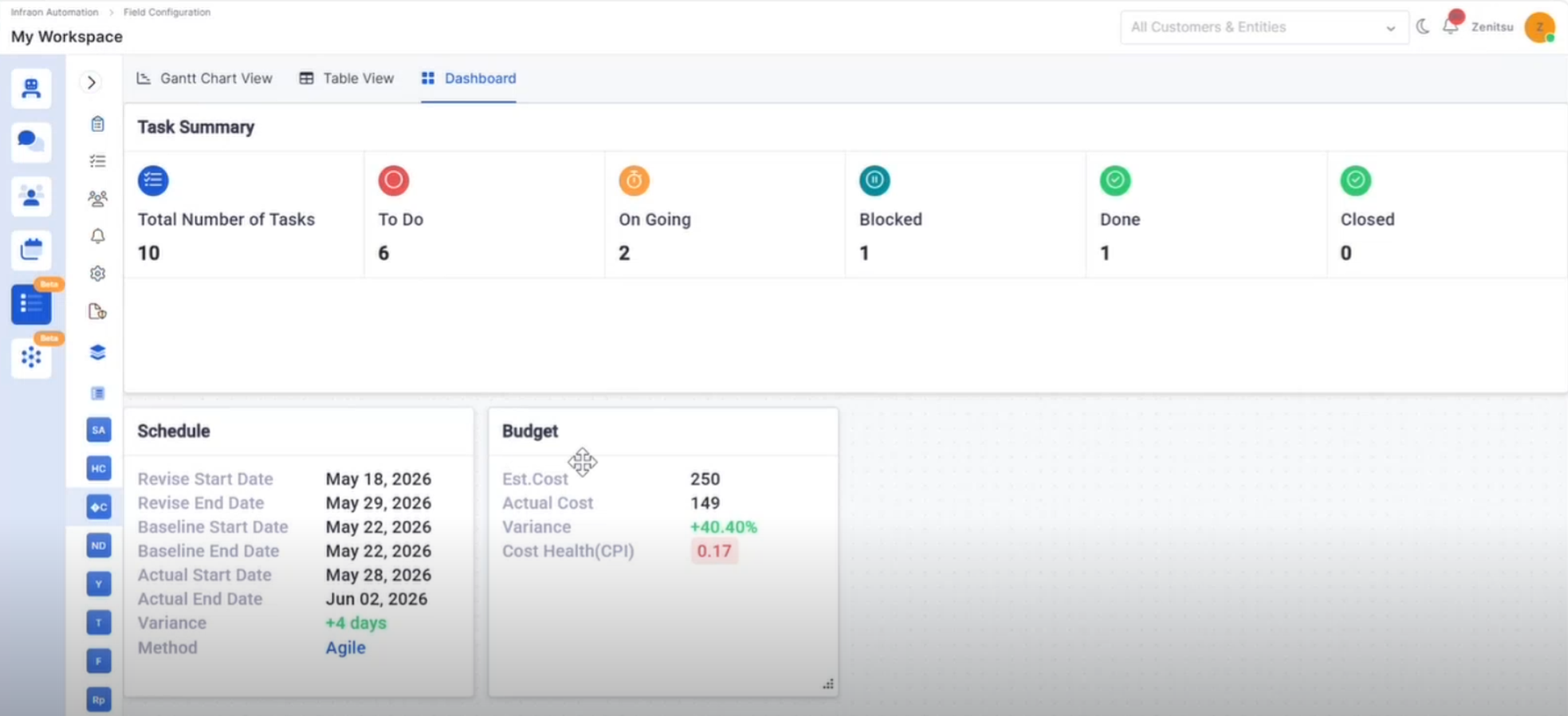
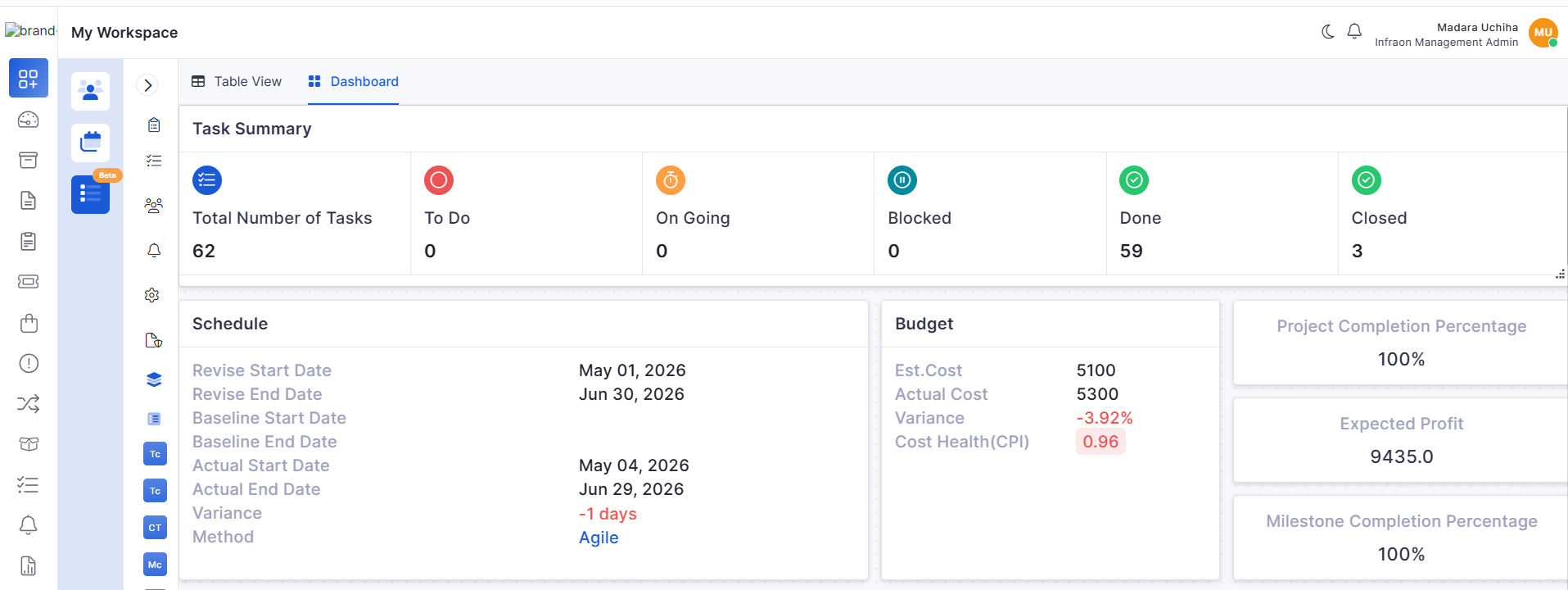
Project Dashboard Enhancements
Added project completion, profitability, priority, and task status widgets.
Provides improved project performance visibility.
Supports better project monitoring and decision-making.
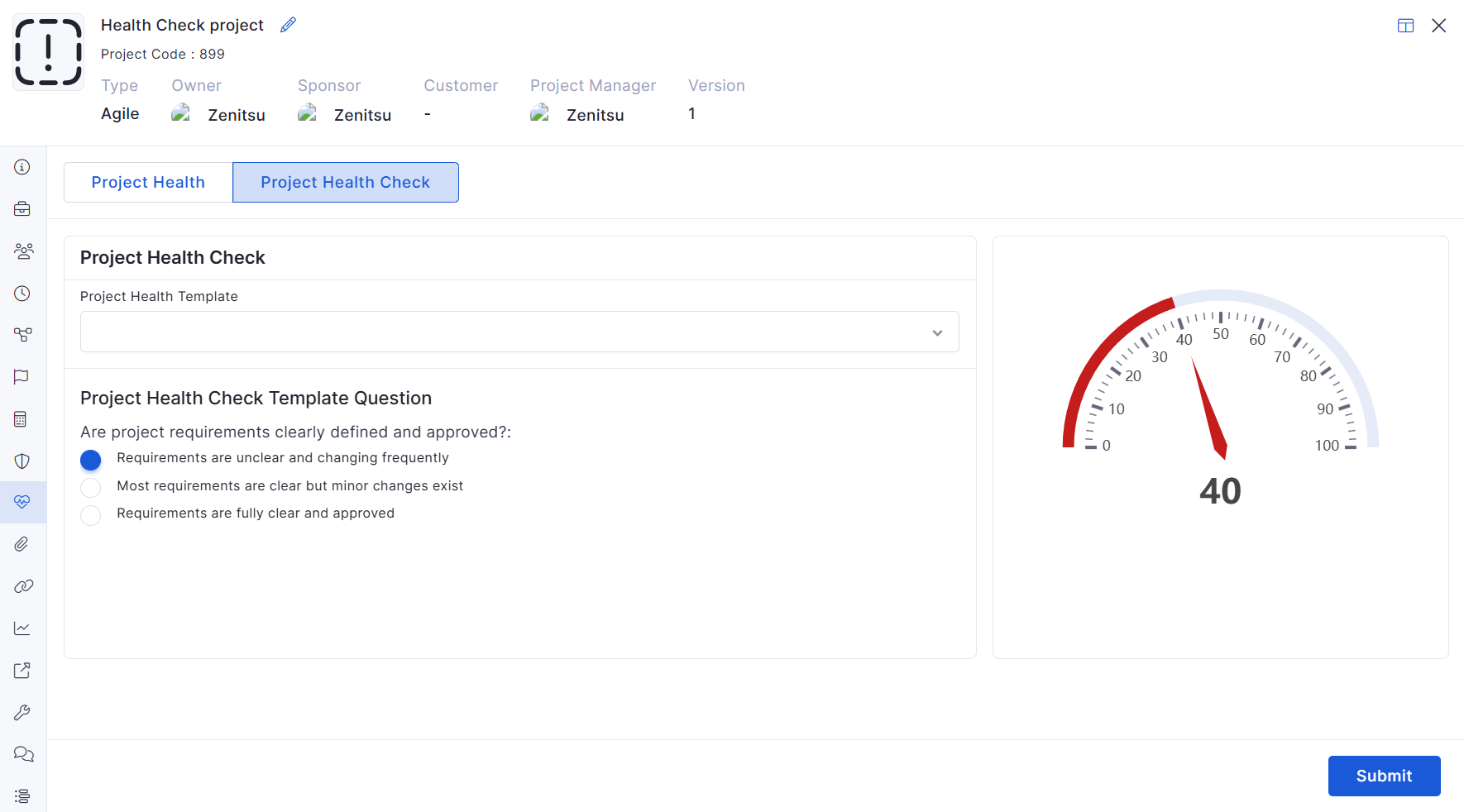
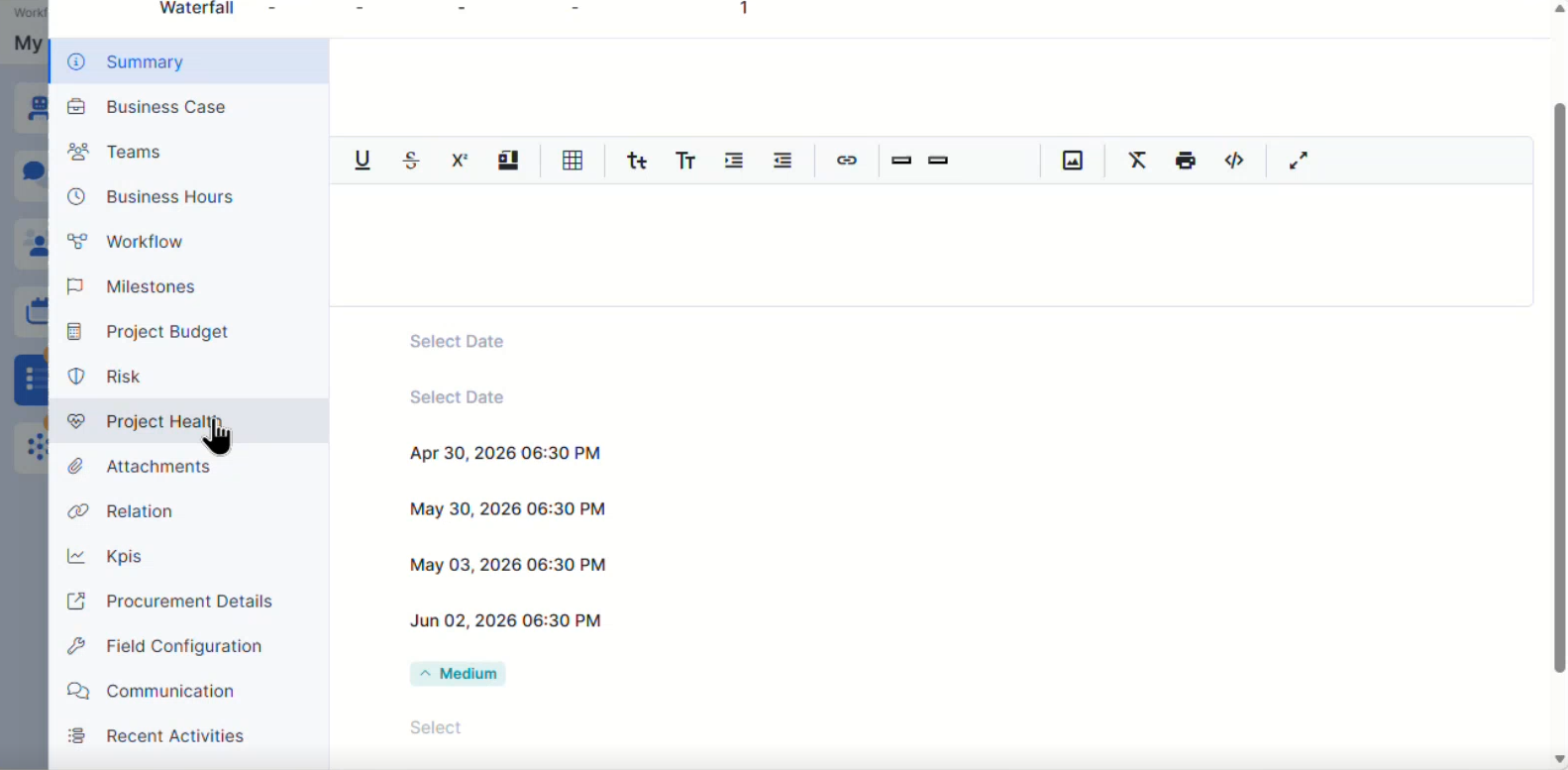
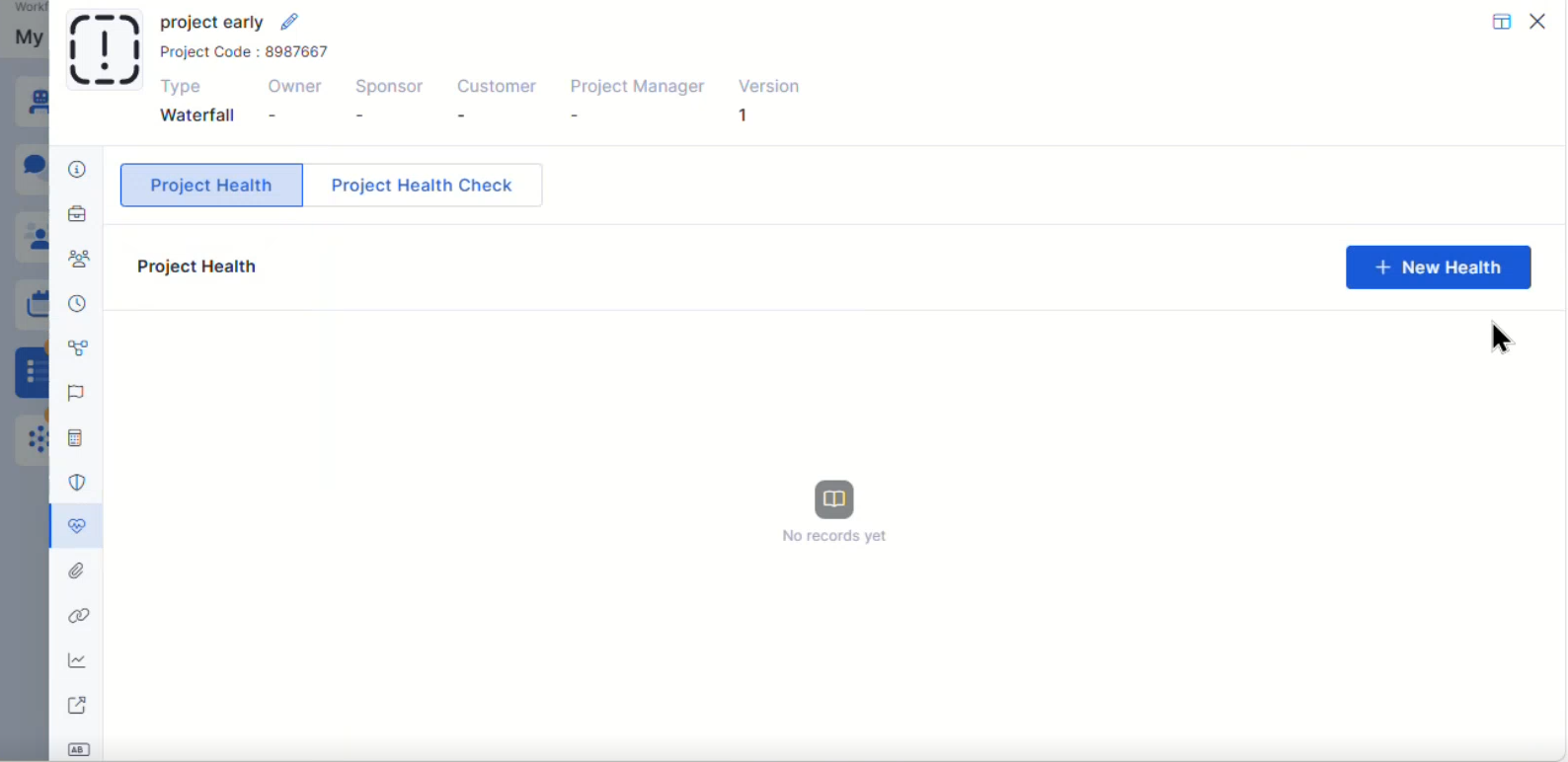
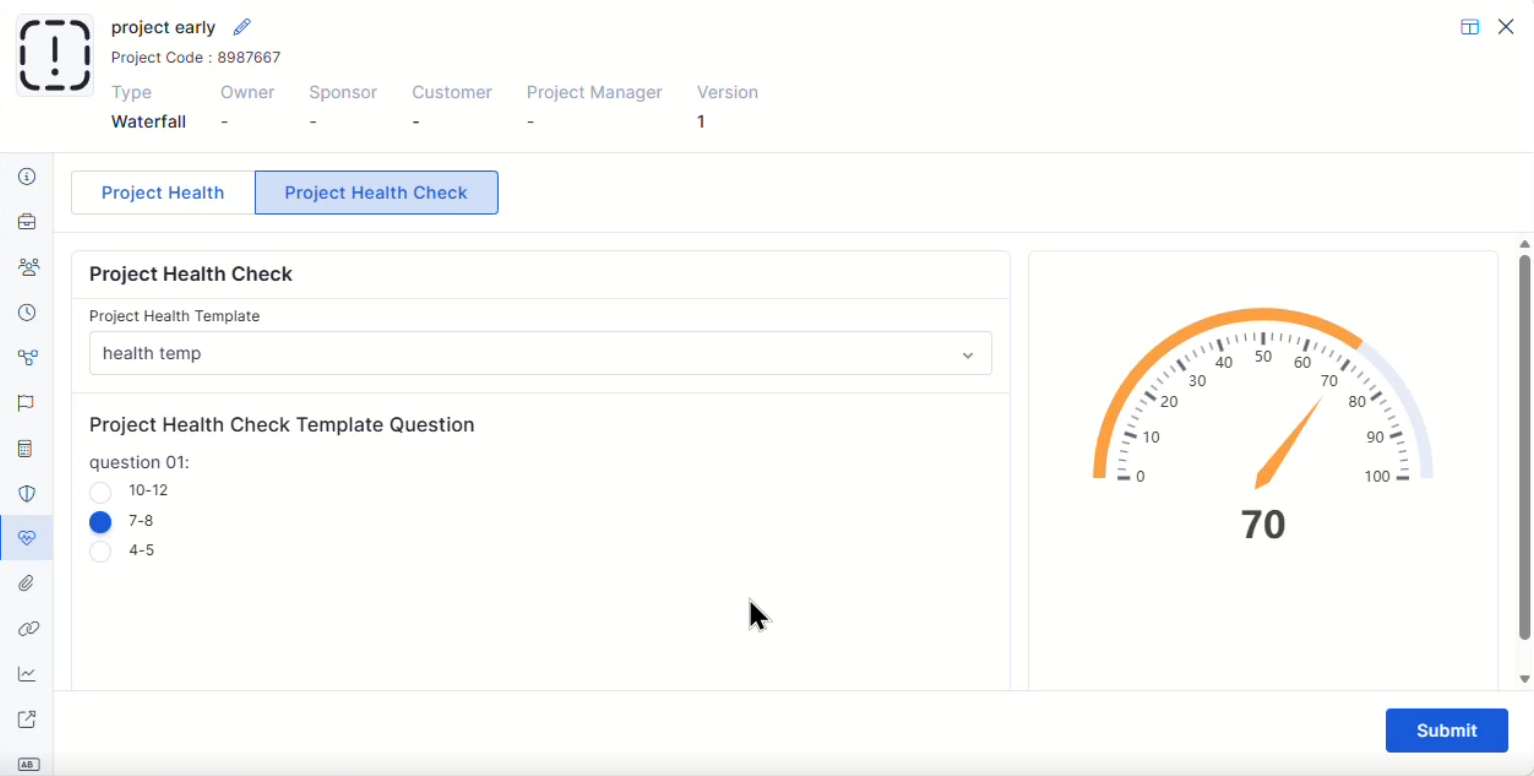
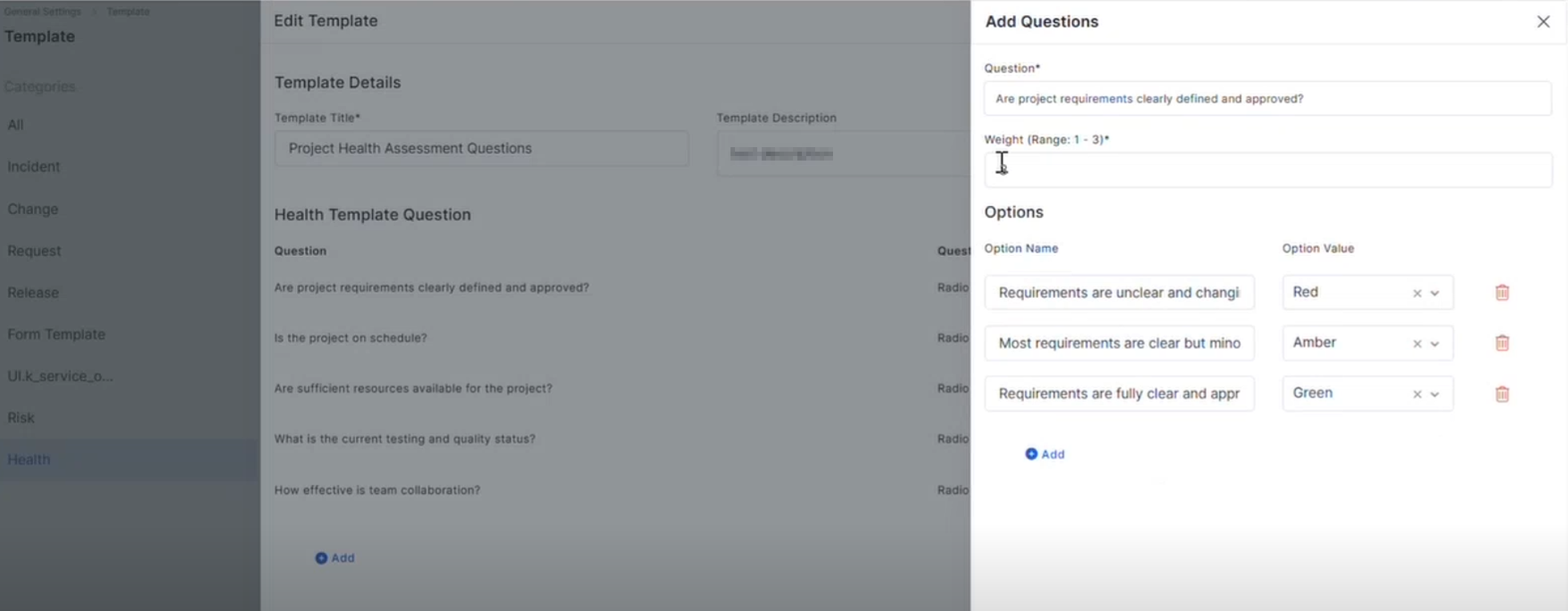
Project Health Assessment
Introduced project health assessment capabilities.
Helps track overall project status and performance.
Improves project governance and reporting.
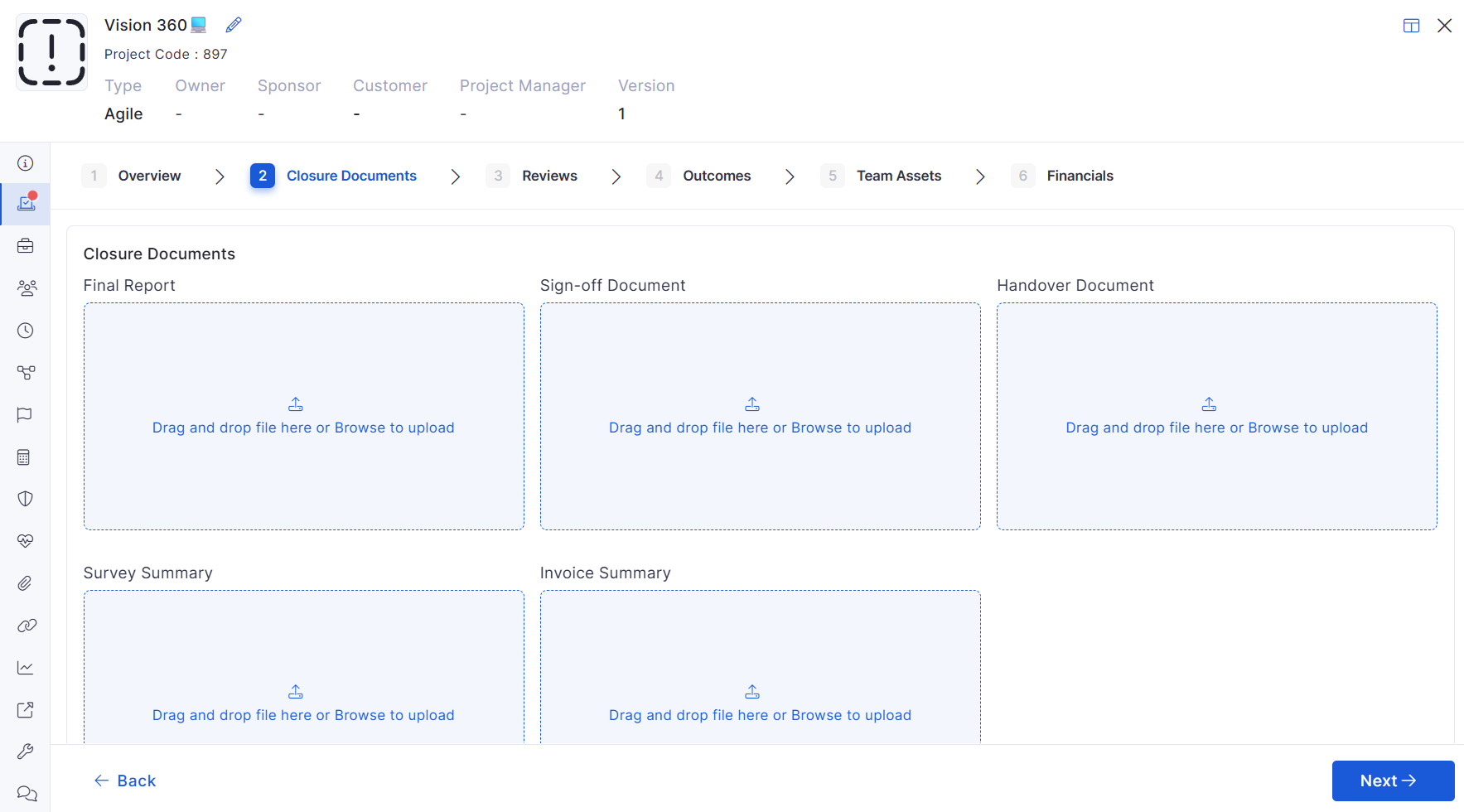
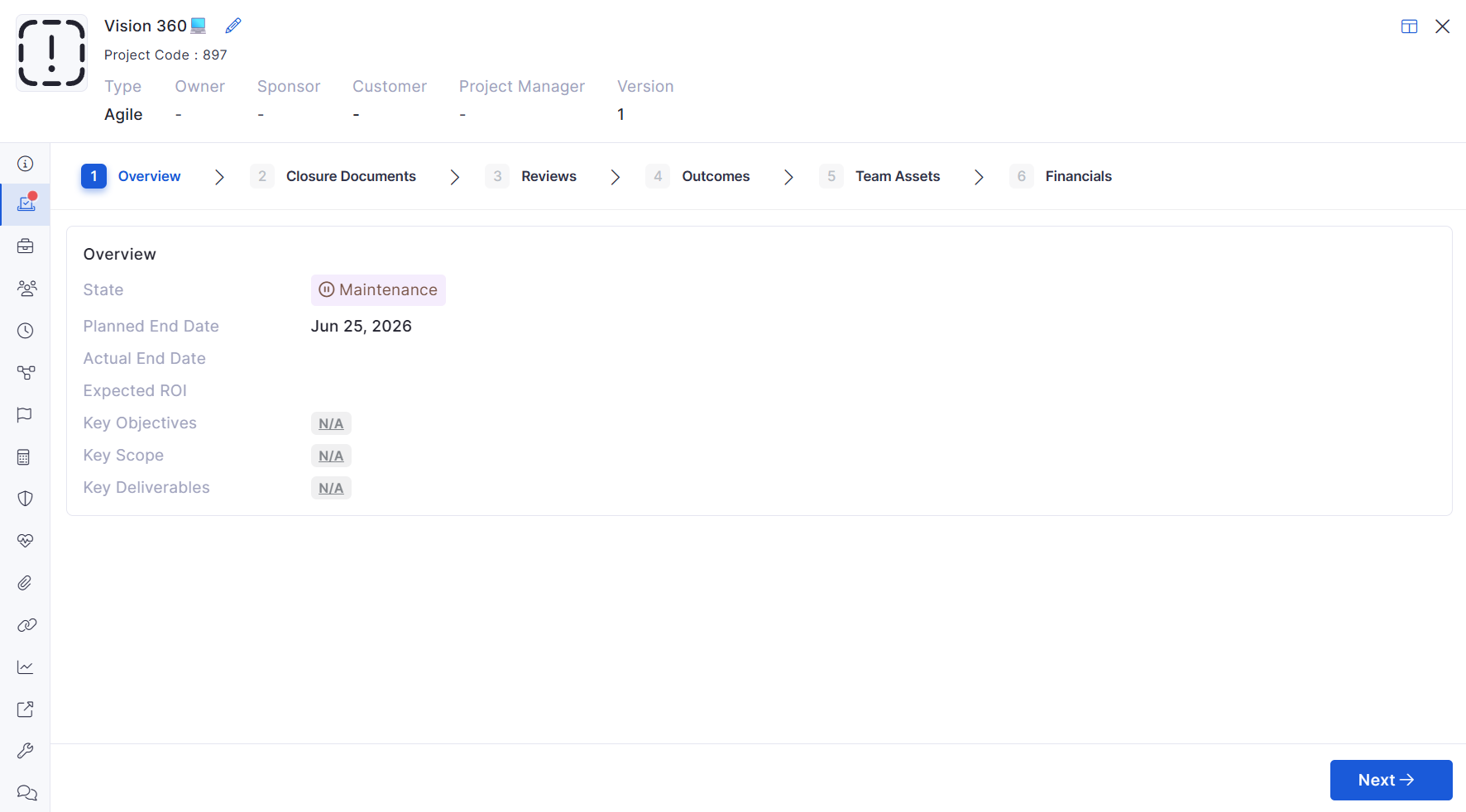
Project Closure Enhancements
Added overview and attachment management during project closure.
Improves project completion documentation.
Simplifies project handover activities.
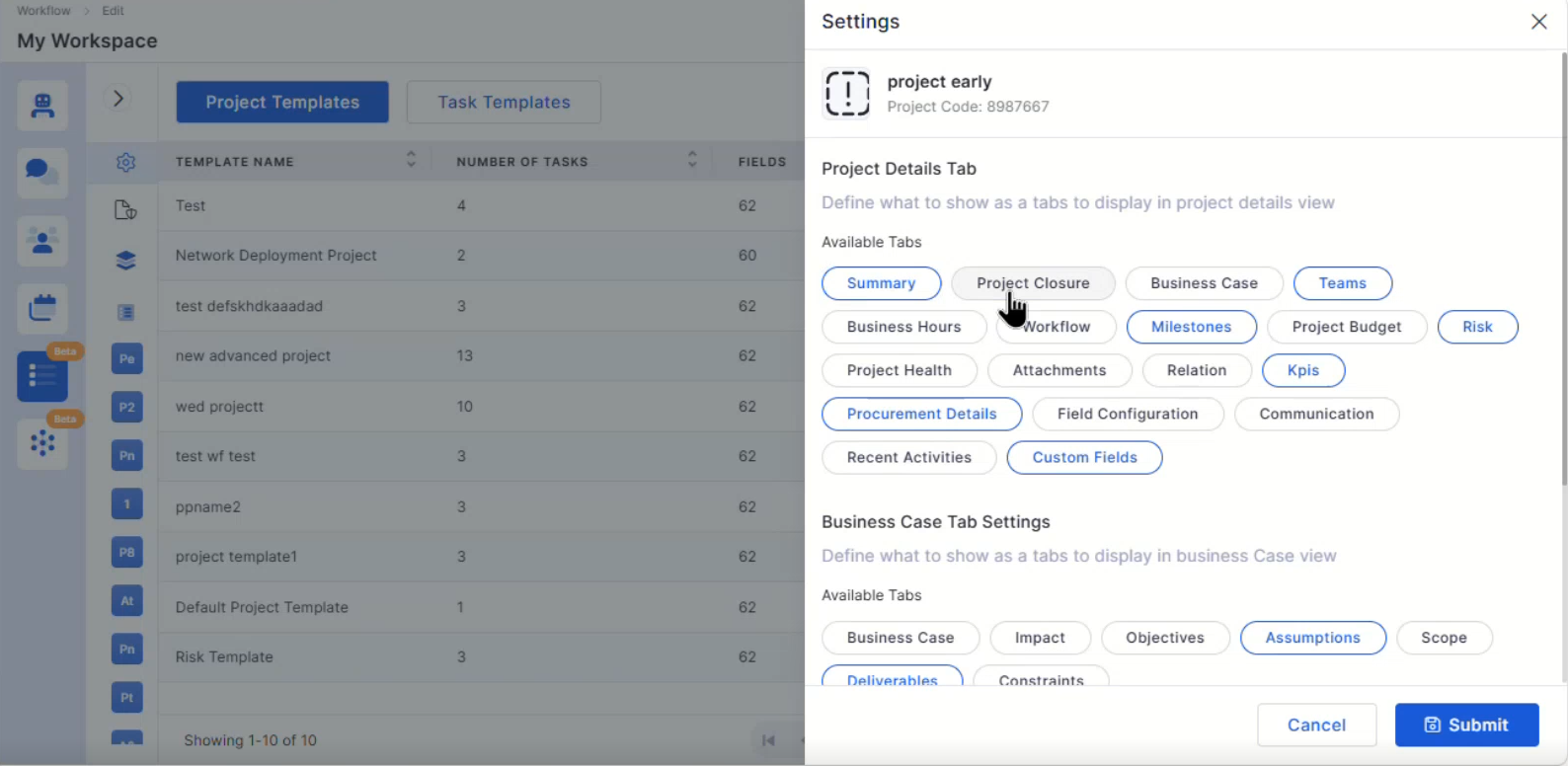
Custom Fields for Projects
Added support for custom fields within project records.
Enables organization-specific project data capture.
Improves project flexibility and reporting.
Bugs Fixed
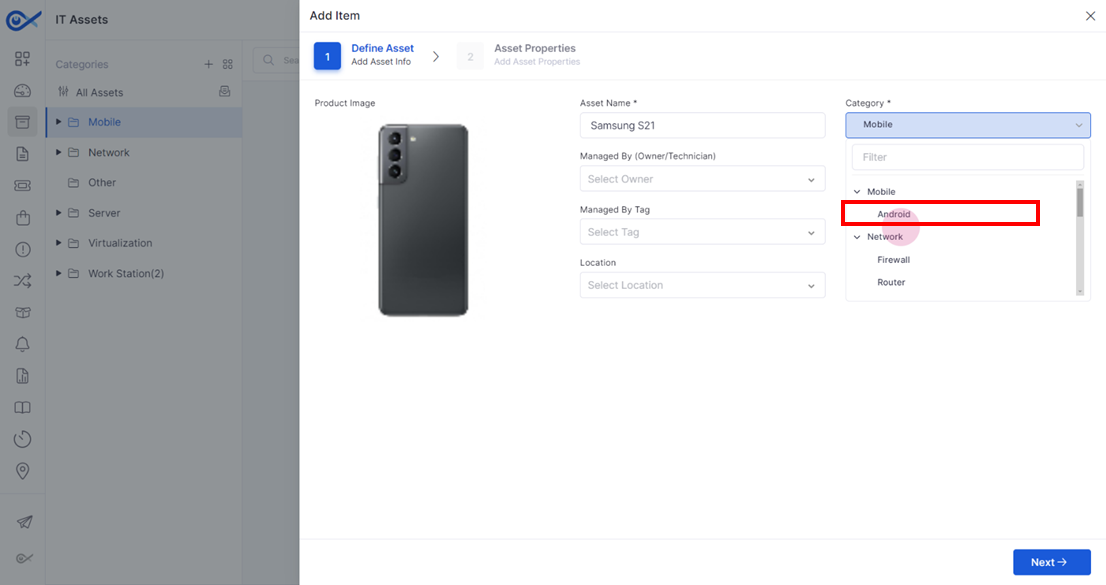
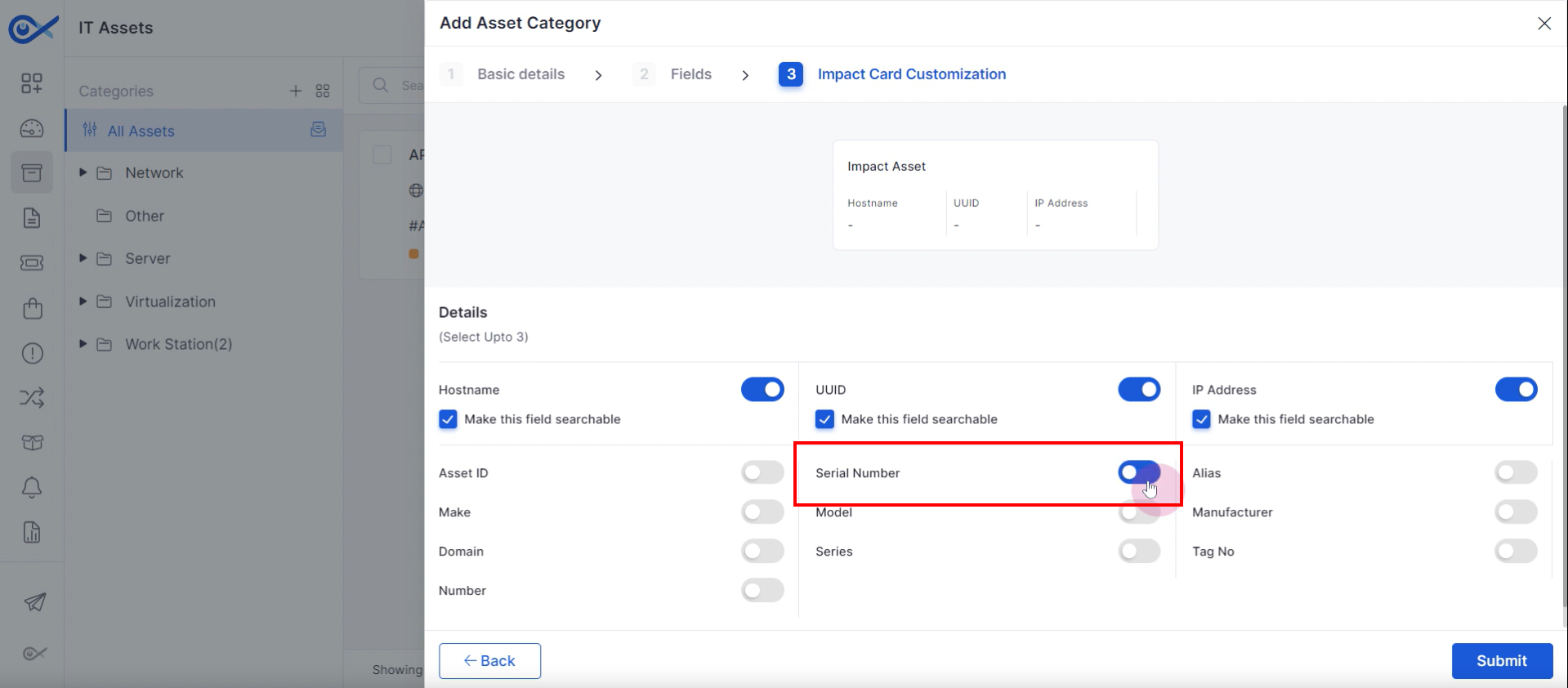
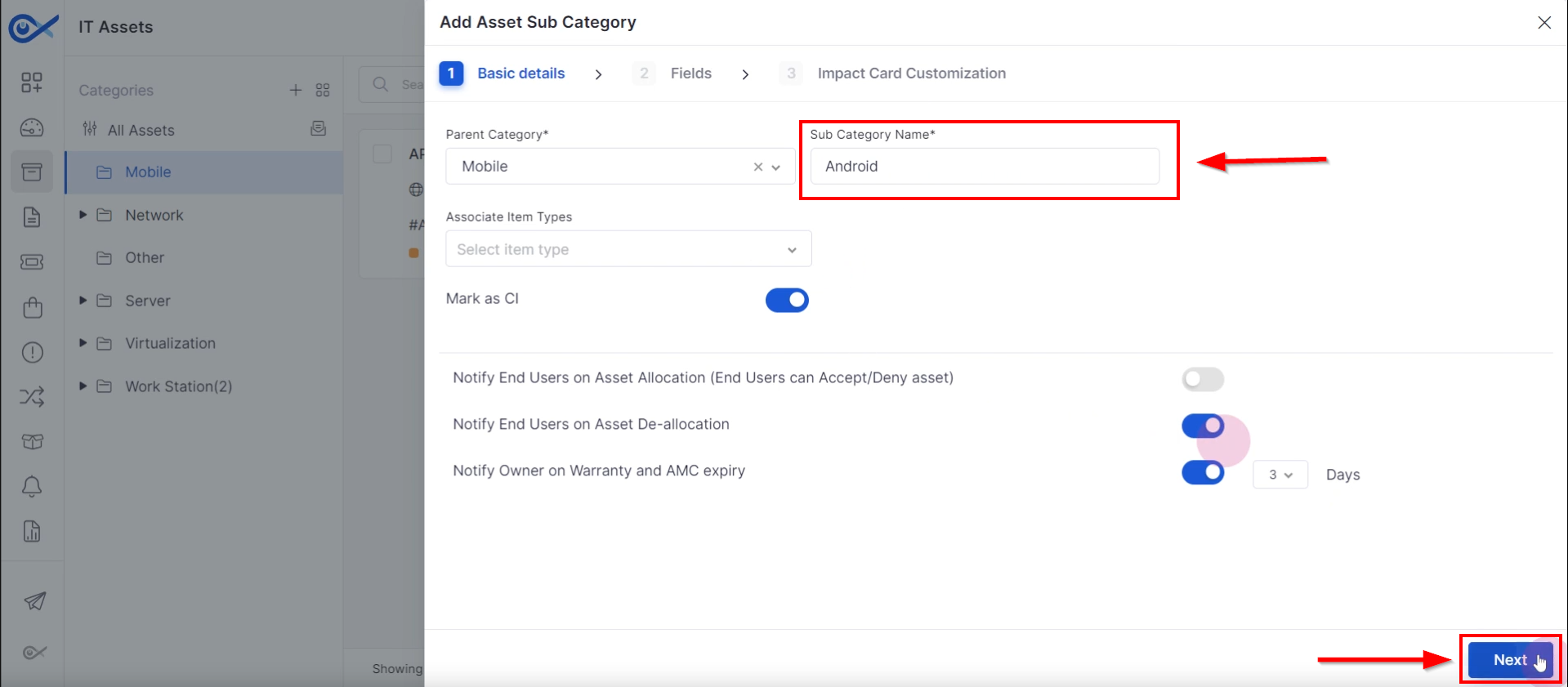
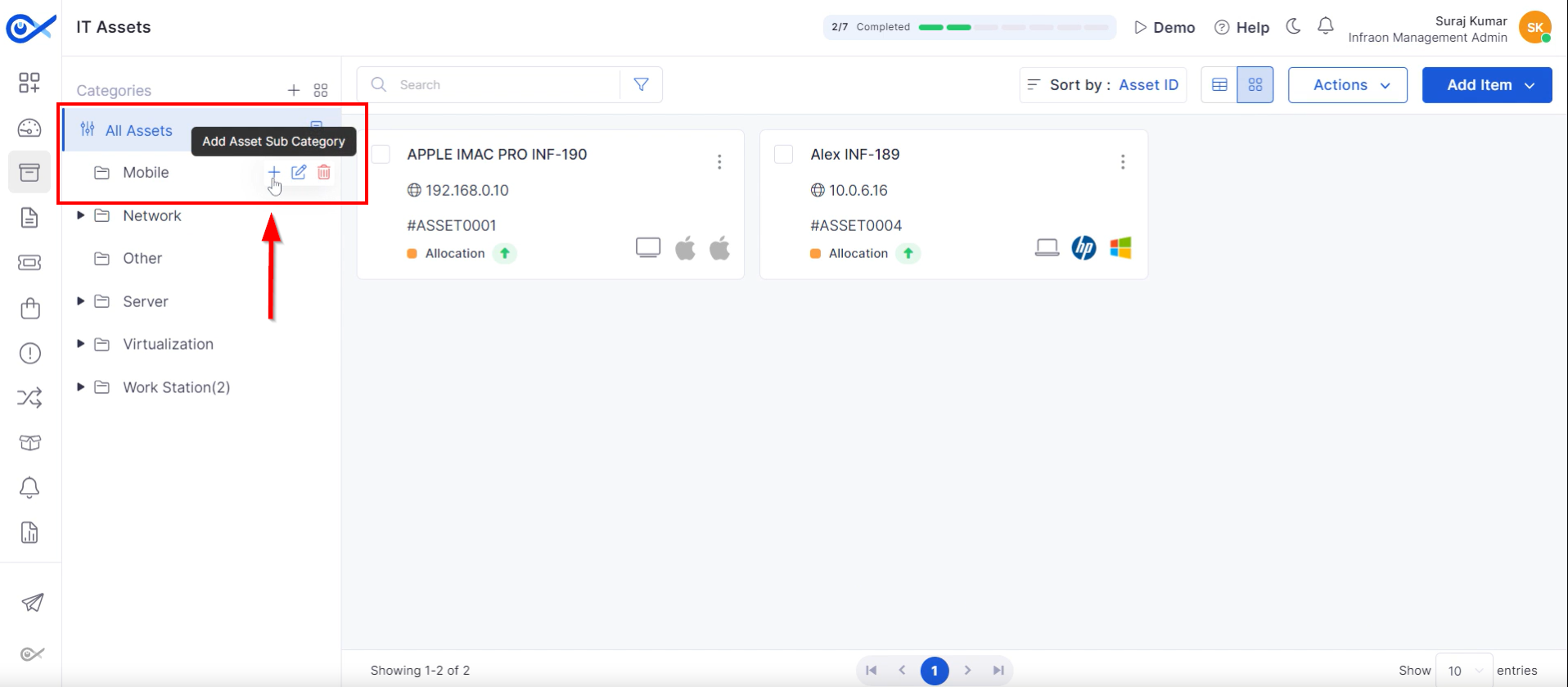
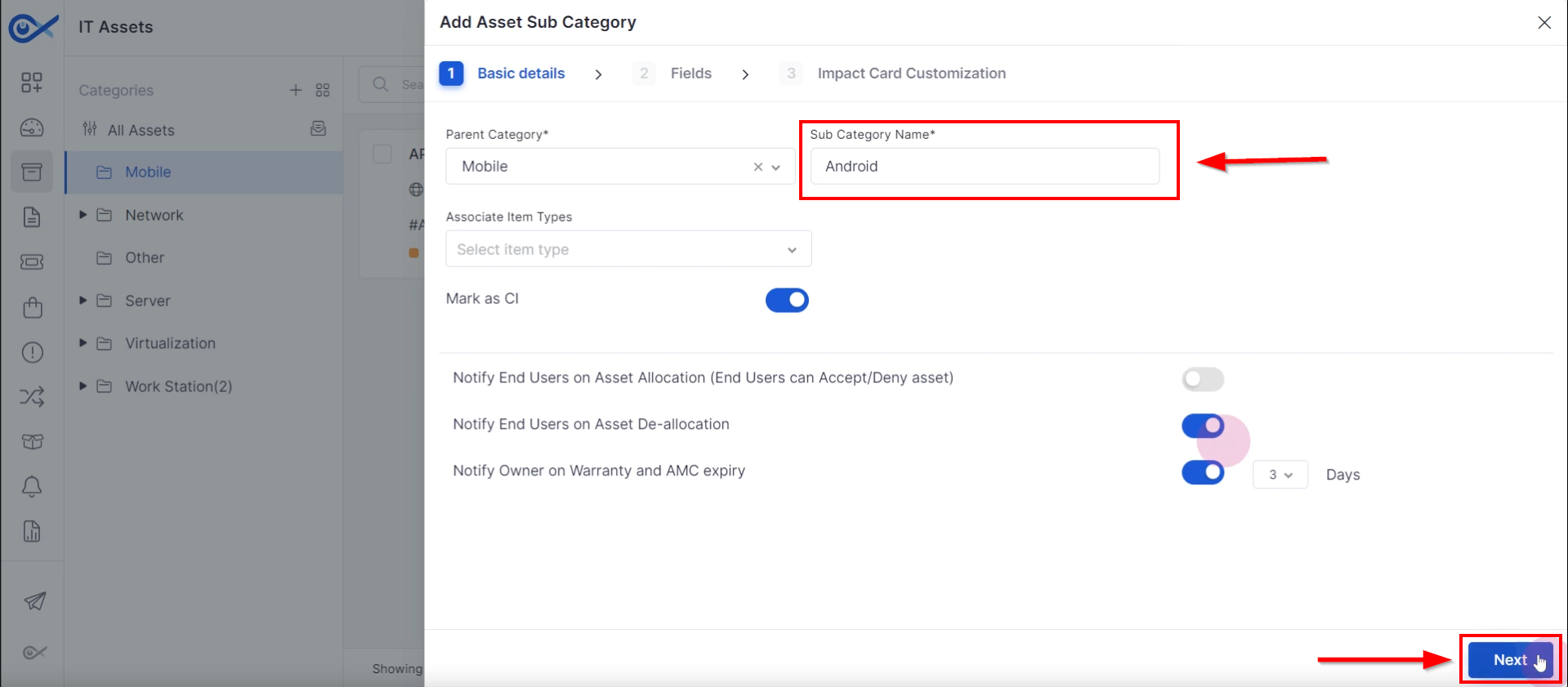
Step 5: The dropdown menu maps the asset to a parent or child category. For this example, select "Android" as the sub-category.
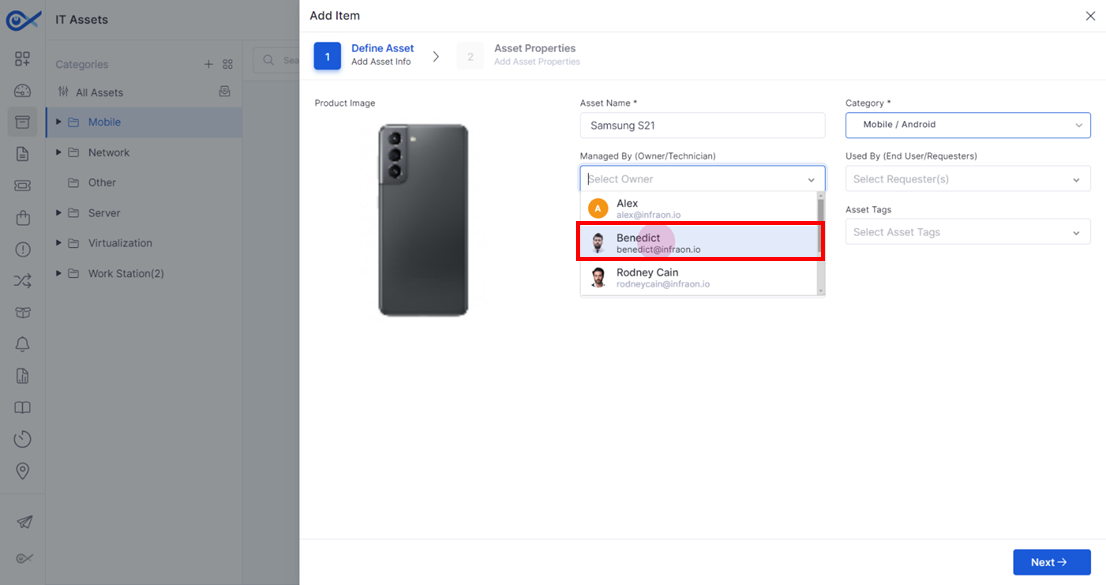
Step 6: In the "Managed by" field, designate the owner or the person managing the asset, potentially a technician. Users can make multiple selections based on the usage of the assets.
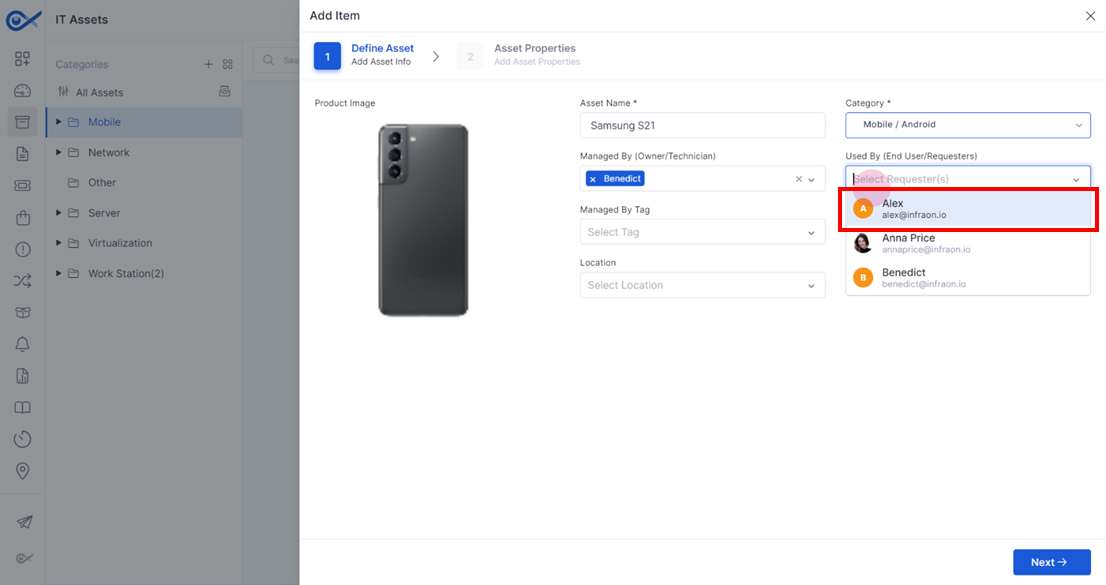
Step 7: The "Used by" field indicates the person using the asset, also known as the requester. Based on the usage of the assets, users can make multiple selections.
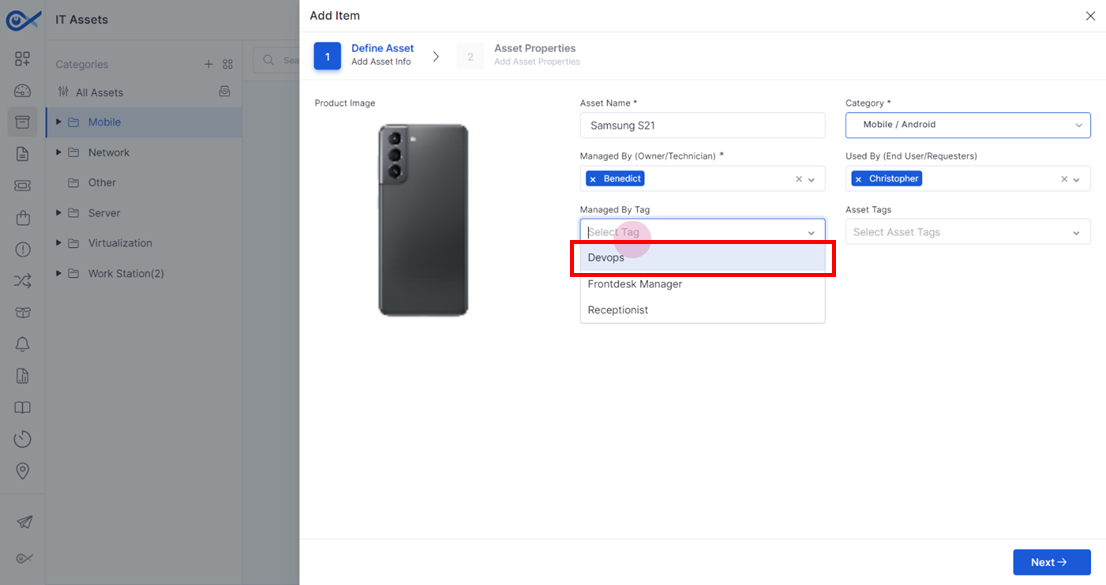
Step 8: In the 'Managed By' call-out box, select a tag from the drop-down list to specify the team that will manage the asset.
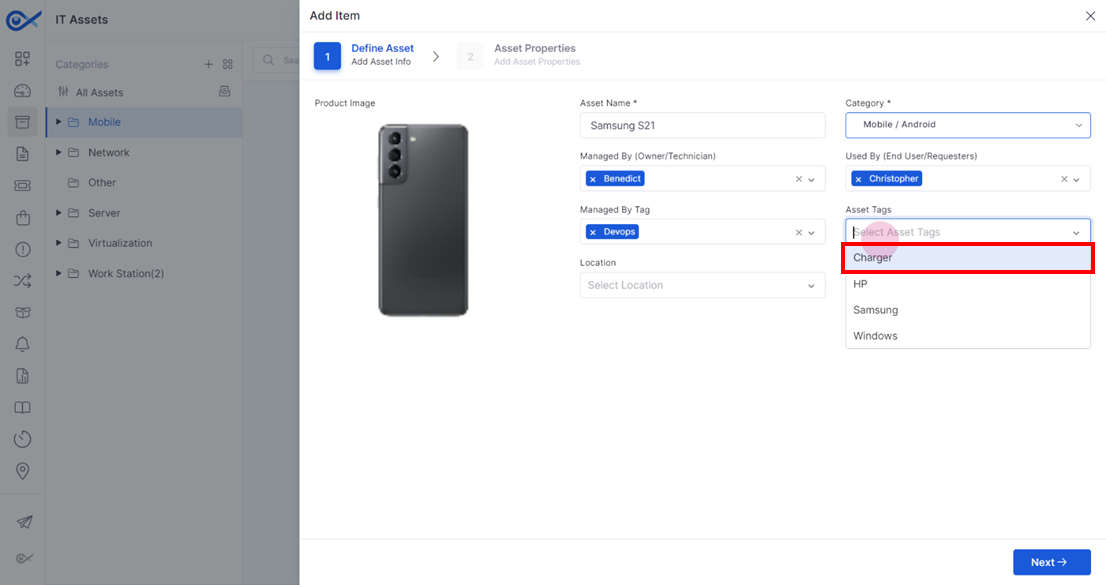
Step 9: Assign an asset tag to the specific type of asset by selecting it from the dropdown.
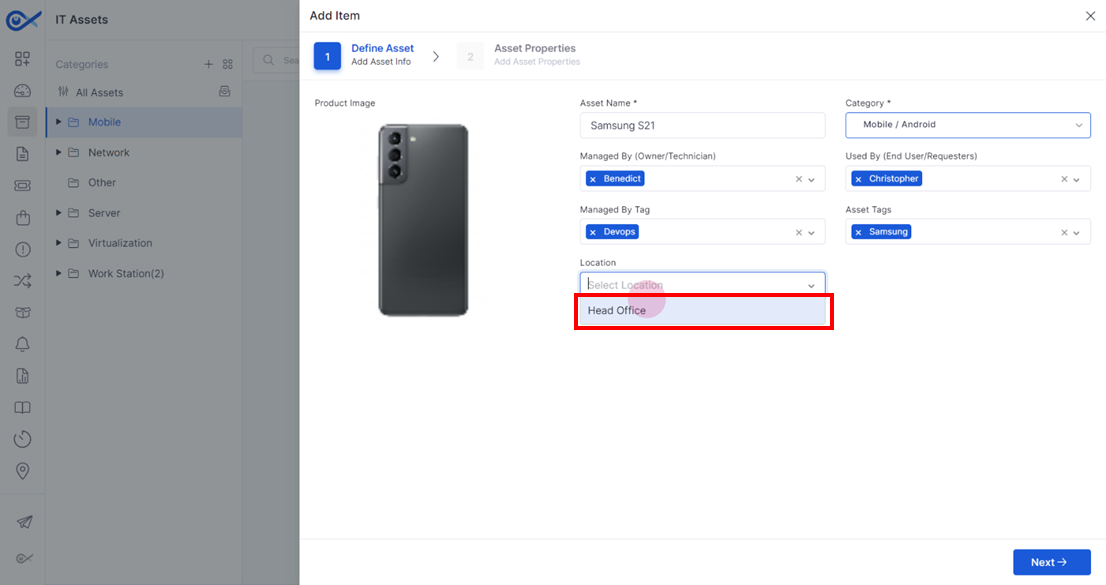
Step 10: Specify the location where the asset is situated.
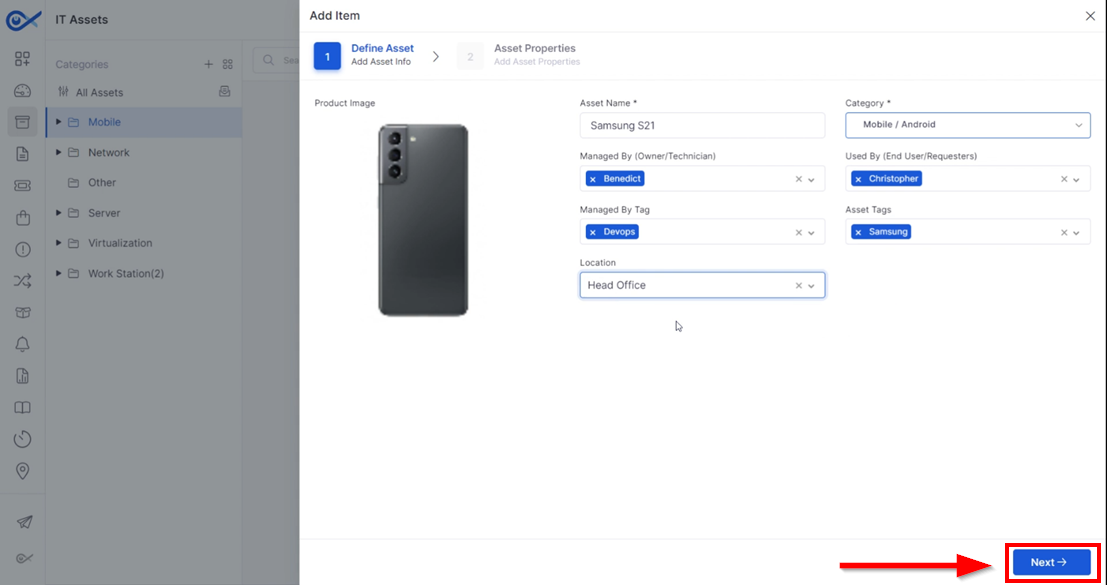
STEP 11: After filling in the data, proceed to the next step to view the asset properties.
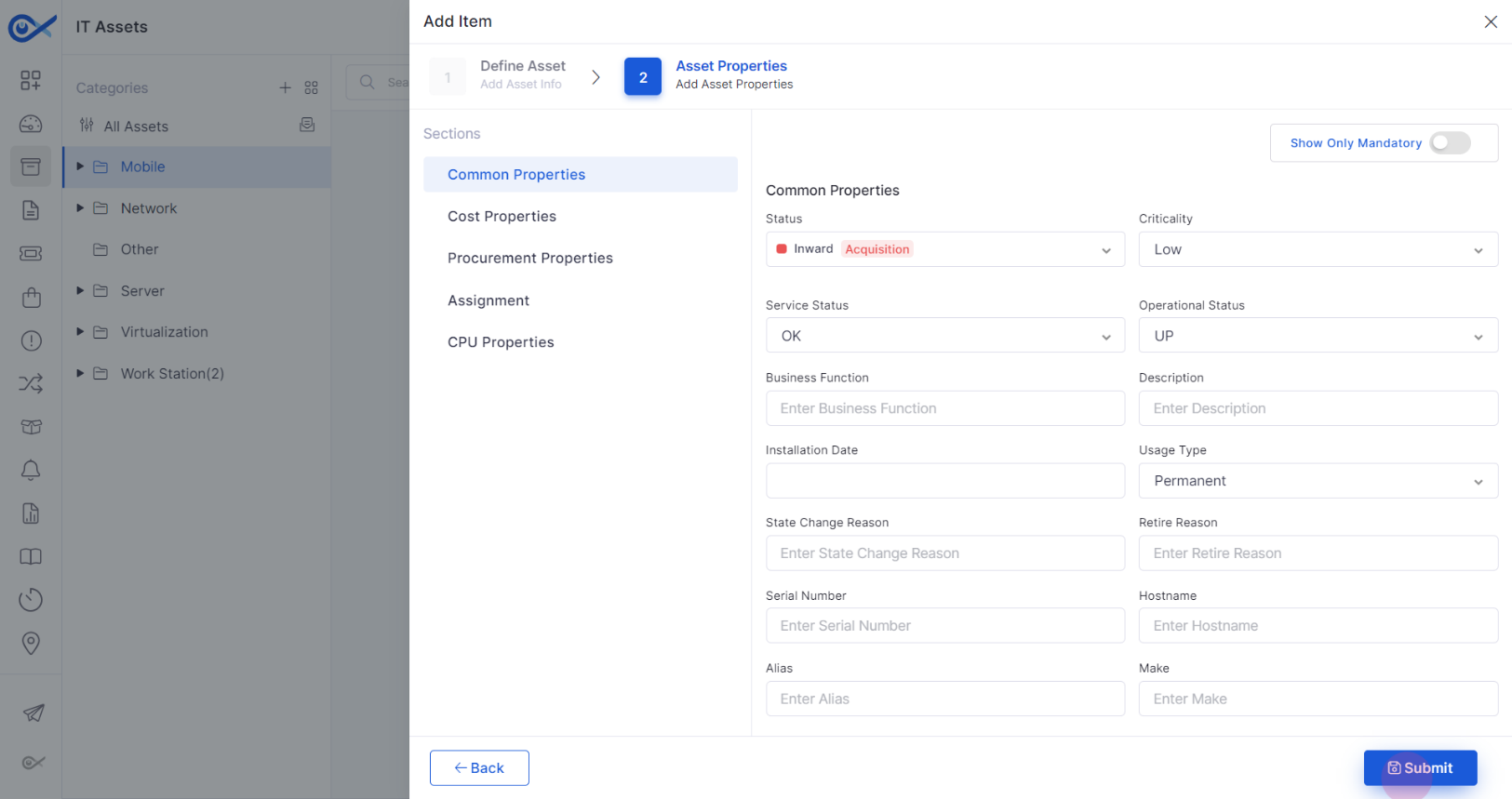
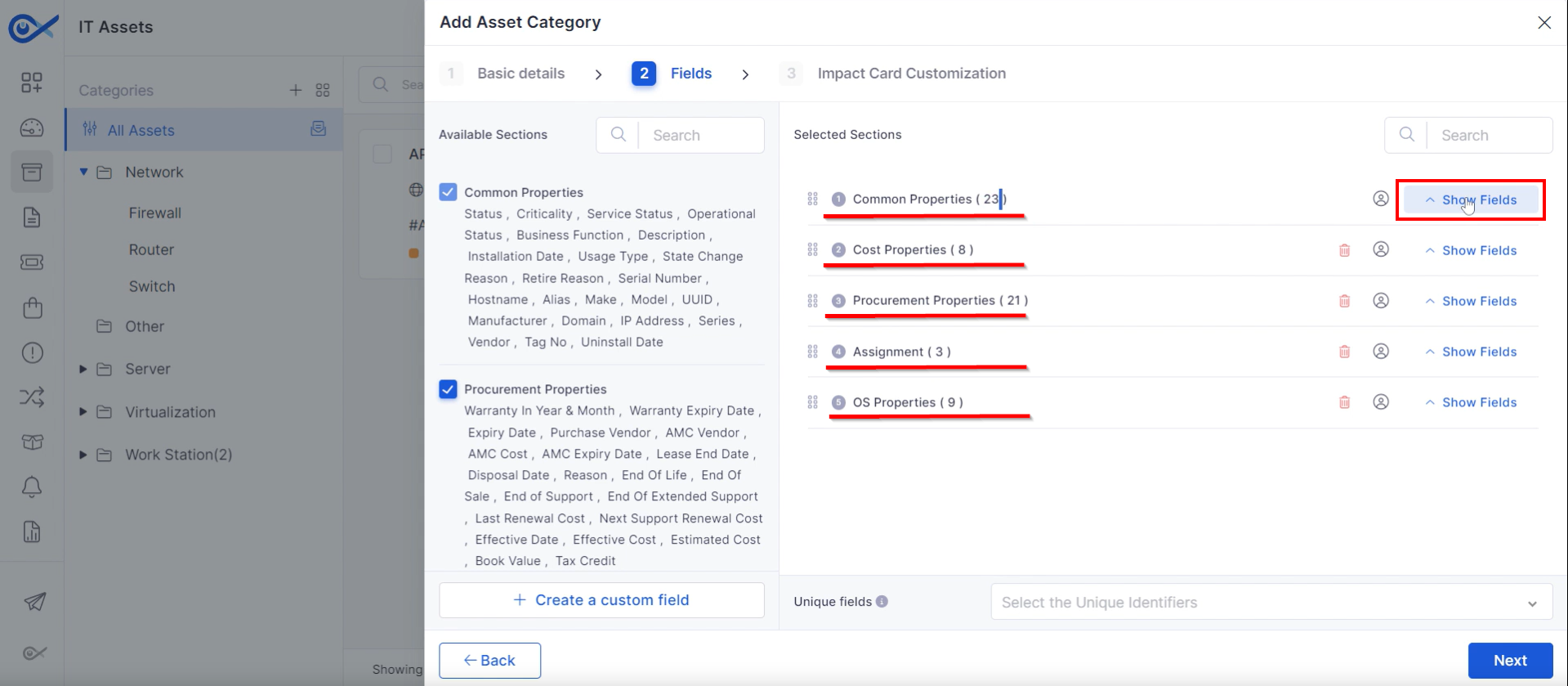
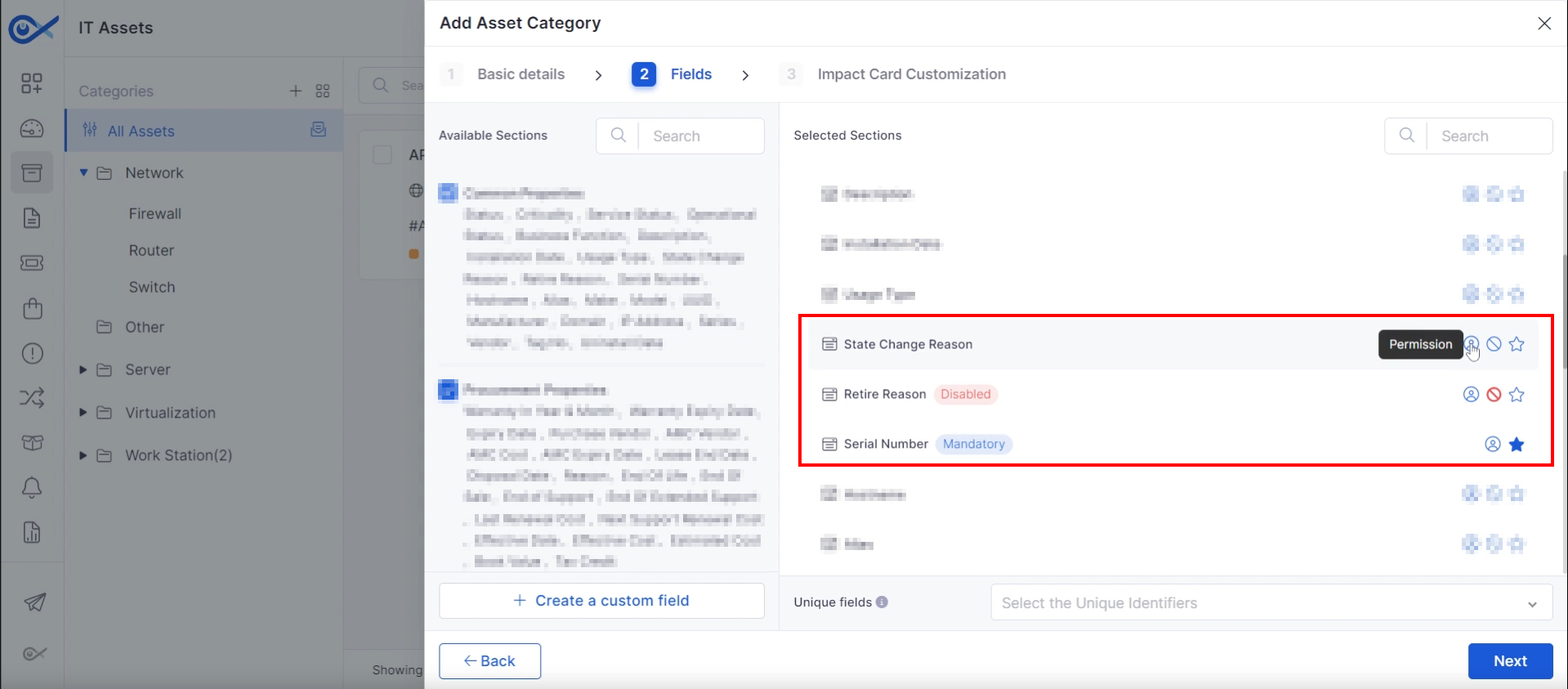
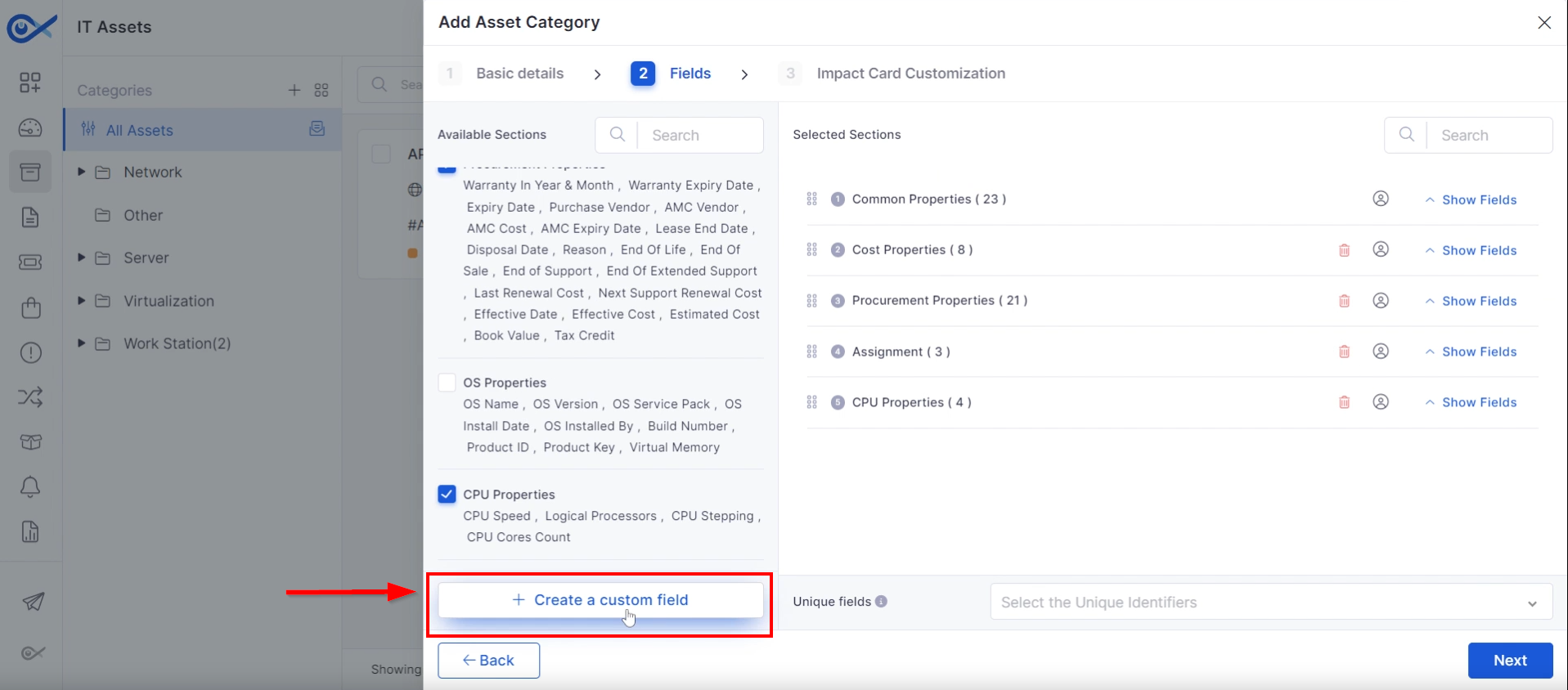
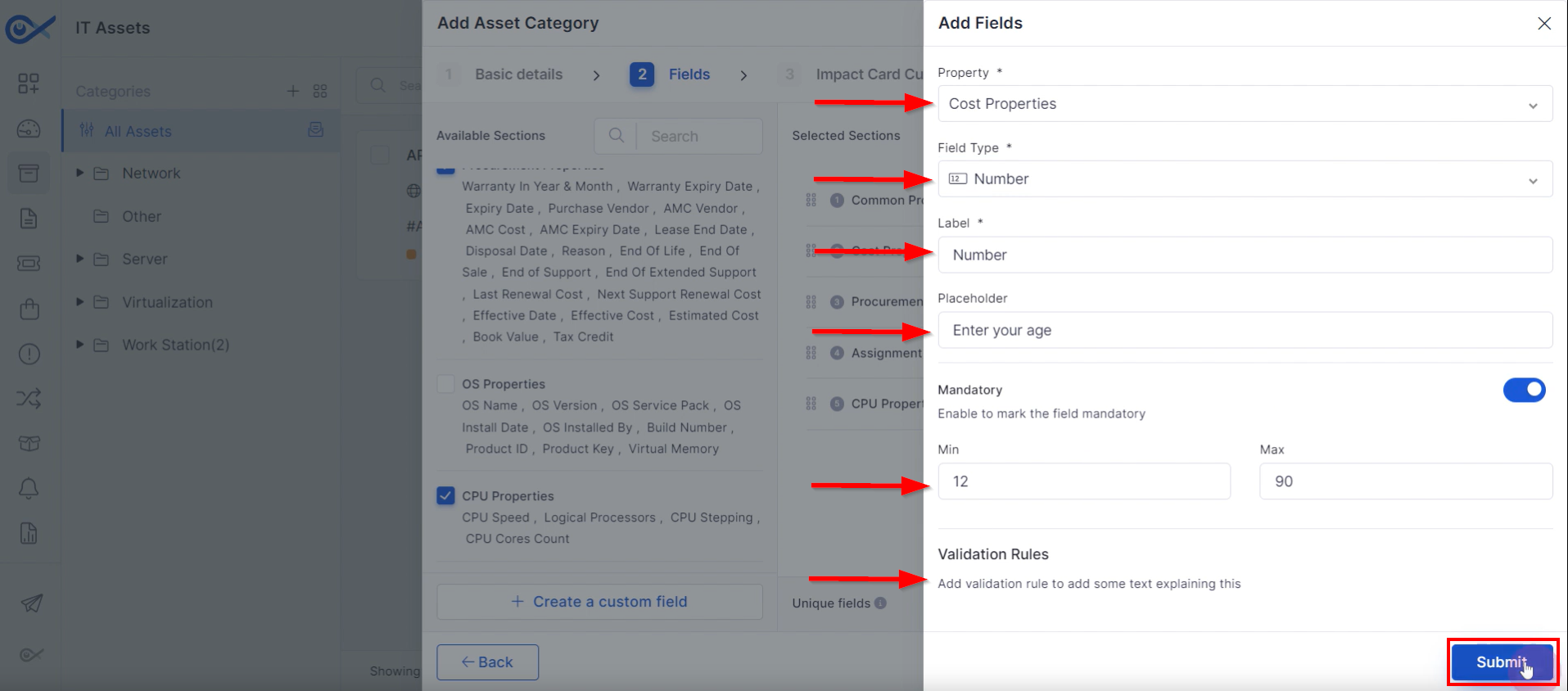
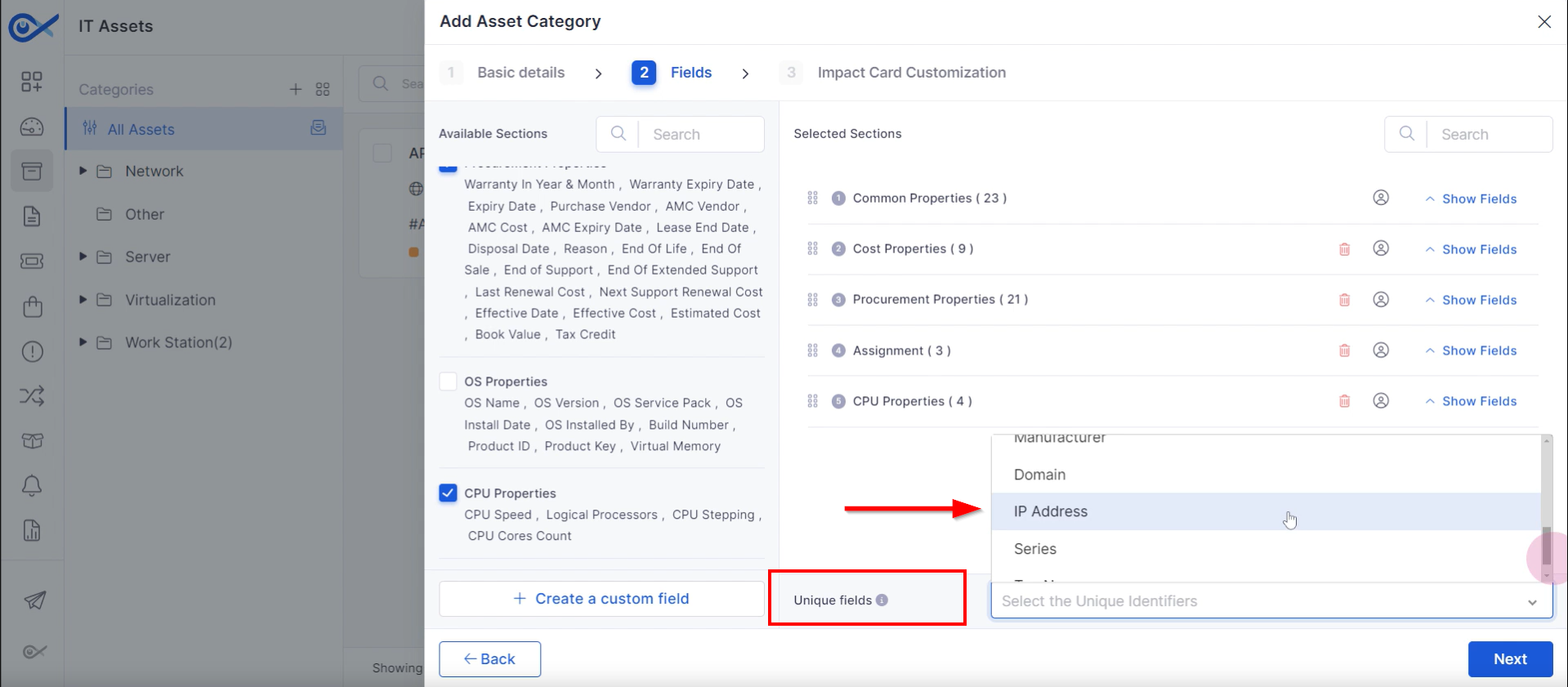
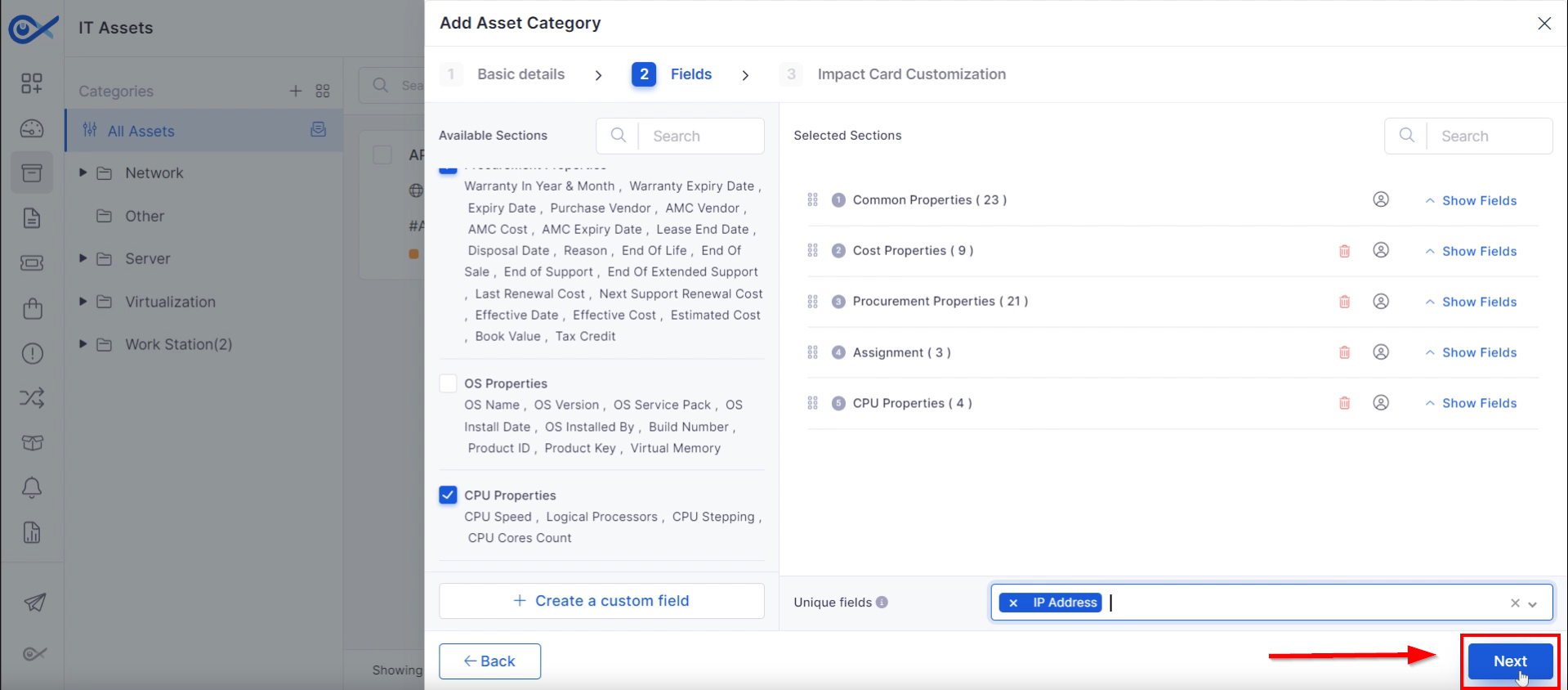
STEP 1: The Asset Properties section contains categories such as common properties, cost properties, procurement properties, assignment properties, and CPU properties. Each property has input fields where data can be entered.
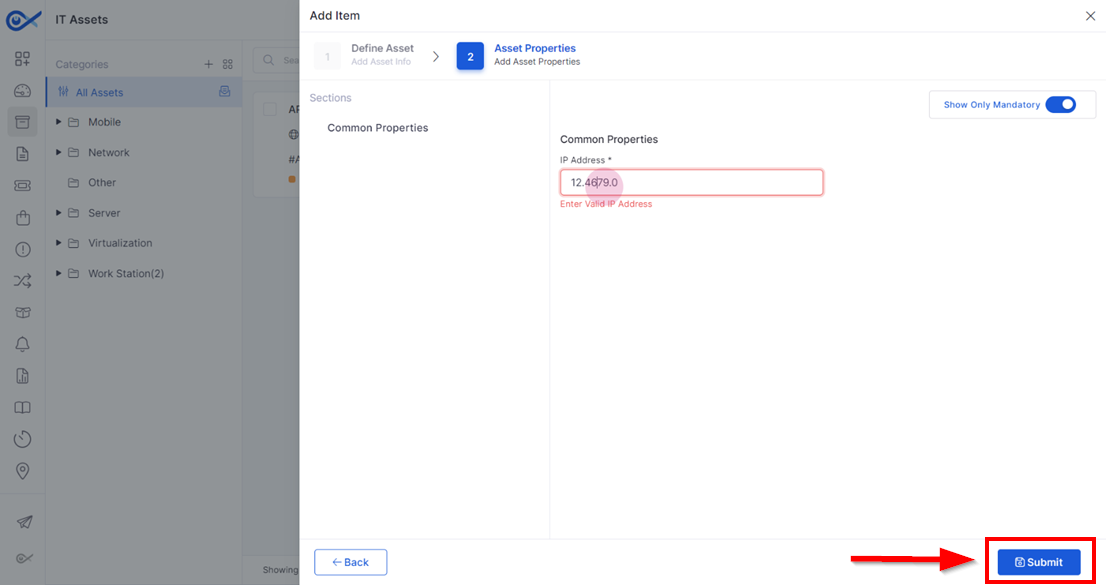
Step 2: After adding the mandatory data, submit the form to finalize the creation of the asset.
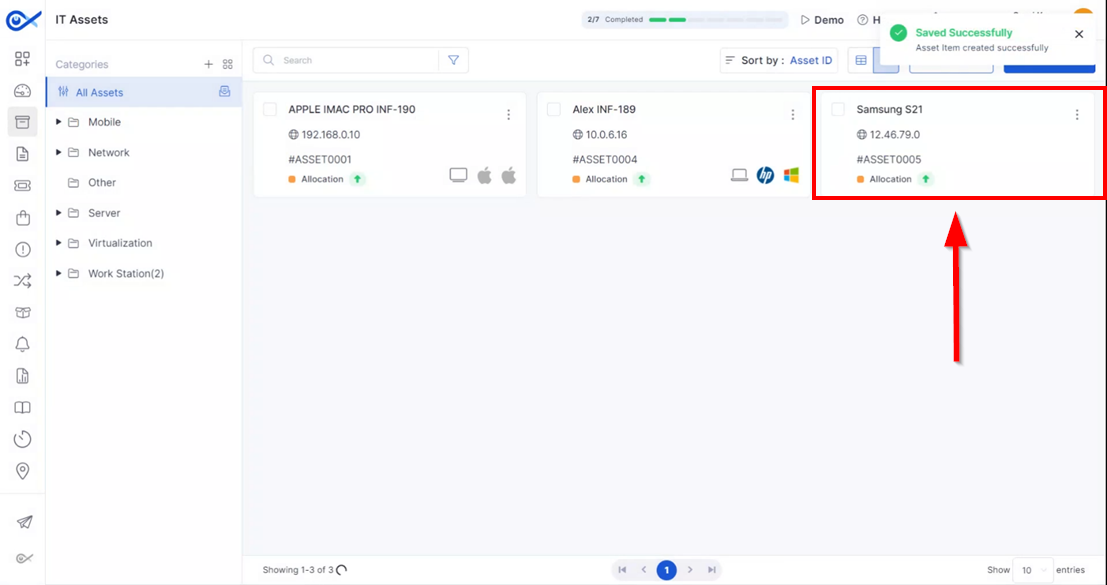
Step 3: After submission, the respective asset will be generated with a unique ID, facilitating its identification.
Filling Out Asset Information
Assigning Asset Management and Usage
Assigning Asset Tag and Location
NOTE: Fields denoted by an asterisk (*) are mandatory for completion. All other fields are optional.
Filling Out Asset Properties
NOTE: To view only mandatory fields, click on the show-only mandatory toggle.
Finalizing Asset Creation
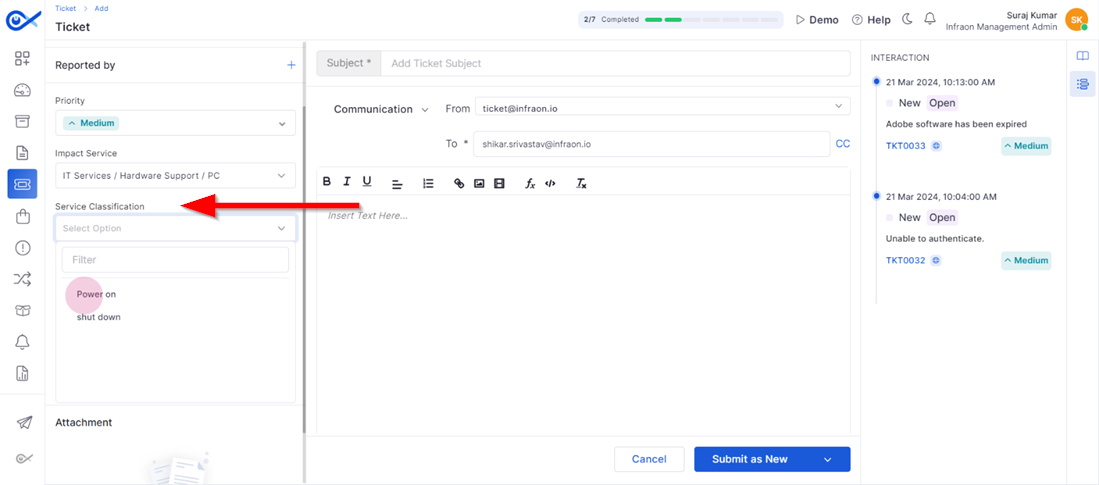
Step 5: Select the service classification based on the issue faced by the requester.
Step 6: Assign the ticket to the service technician working on the issue or to yourself if you're handling the problem. You can also add additional followers and relevant tags to the ticket.
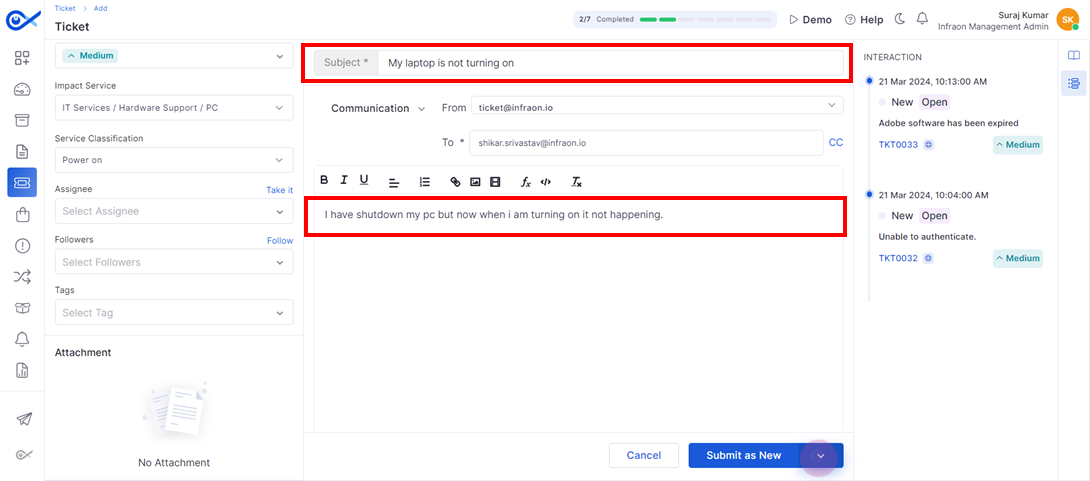
Step 7: Provide a subject for the ticket and a brief description of the problem faced.
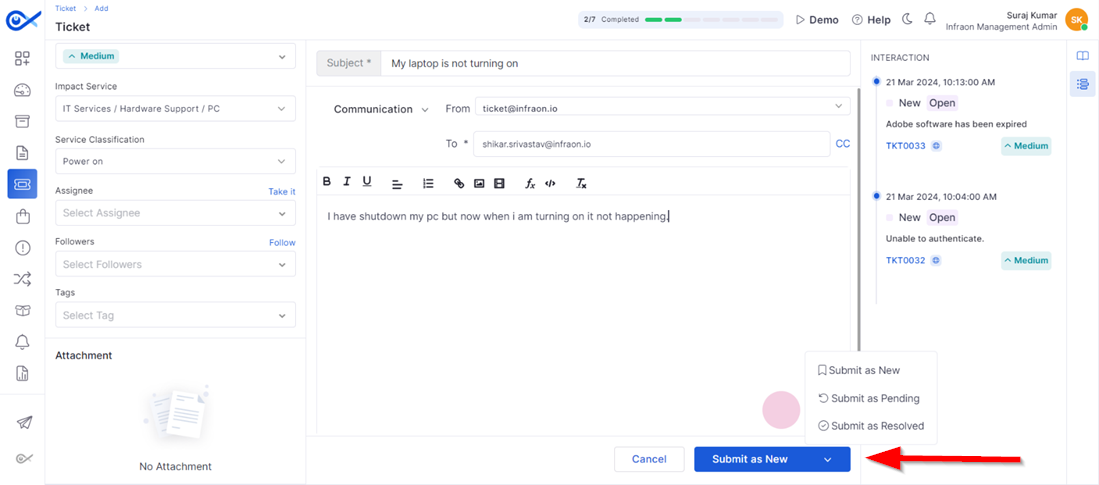
Step 8: Once all the necessary details have been filed, technicians can submit the ticket. If the issue is already resolved, submit the ticket as resolved. If work has started but the issue isn't resolved yet, submit it as pending. For new issues, click on submit as new.
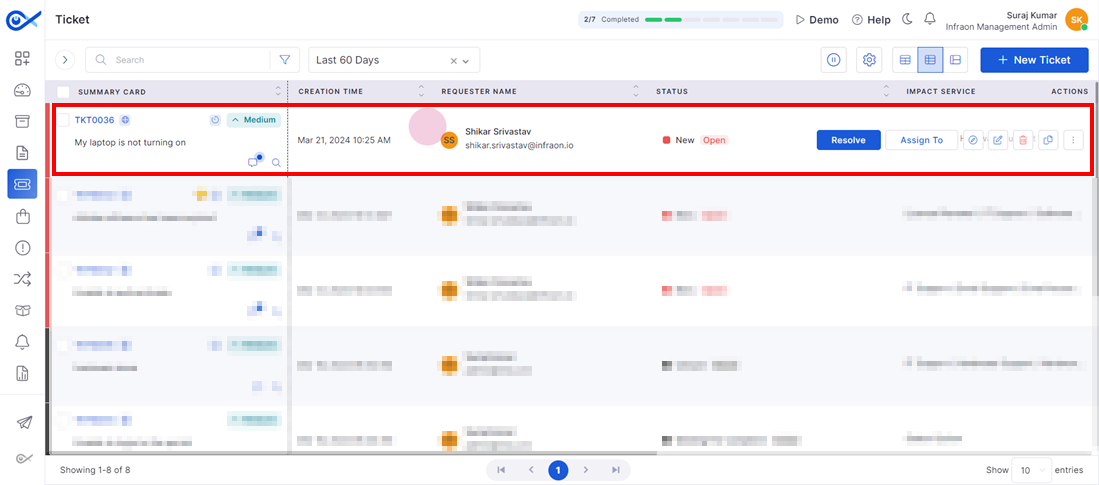
Upon clicking submit as new, the ticket is created in the Infraon Infinity tool on behalf of the end user.
Now, a ticket has been raised for the end user stating the reason, and a corresponding technician will rectify the issue.
This is how a technician creates a ticket for an end user who is unable to access their email or the self-service portal.
This guide will explore the automatic ticket assignment feature in the Infraon Infinity platform. This feature offers two options: Team Assignment and Business Rule.
Team Assignment
Team assignment is a process of automatically allocating technicians to resolve issues. When a ticket is created, the associated impacted service triggers the assignment. Predefined linkages between impacted services and responsible teams direct the ticket to the appropriate team. Subsequently, the ticket is assigned to a specific technician within that team.
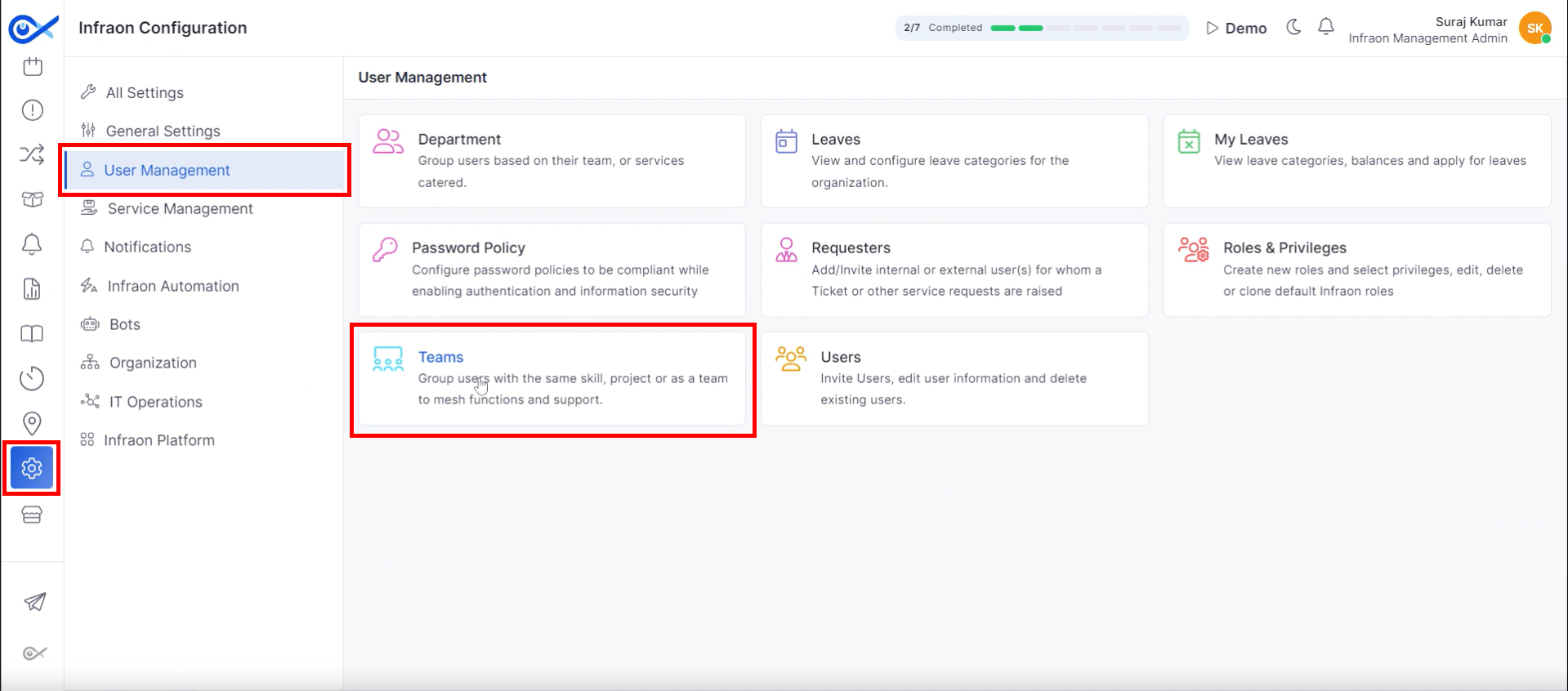
Step 1: Navigate to the “Infraon Configuration” module, then proceed to the “User Management” tab and select the “Teams” module to configure automated ticket assignment.
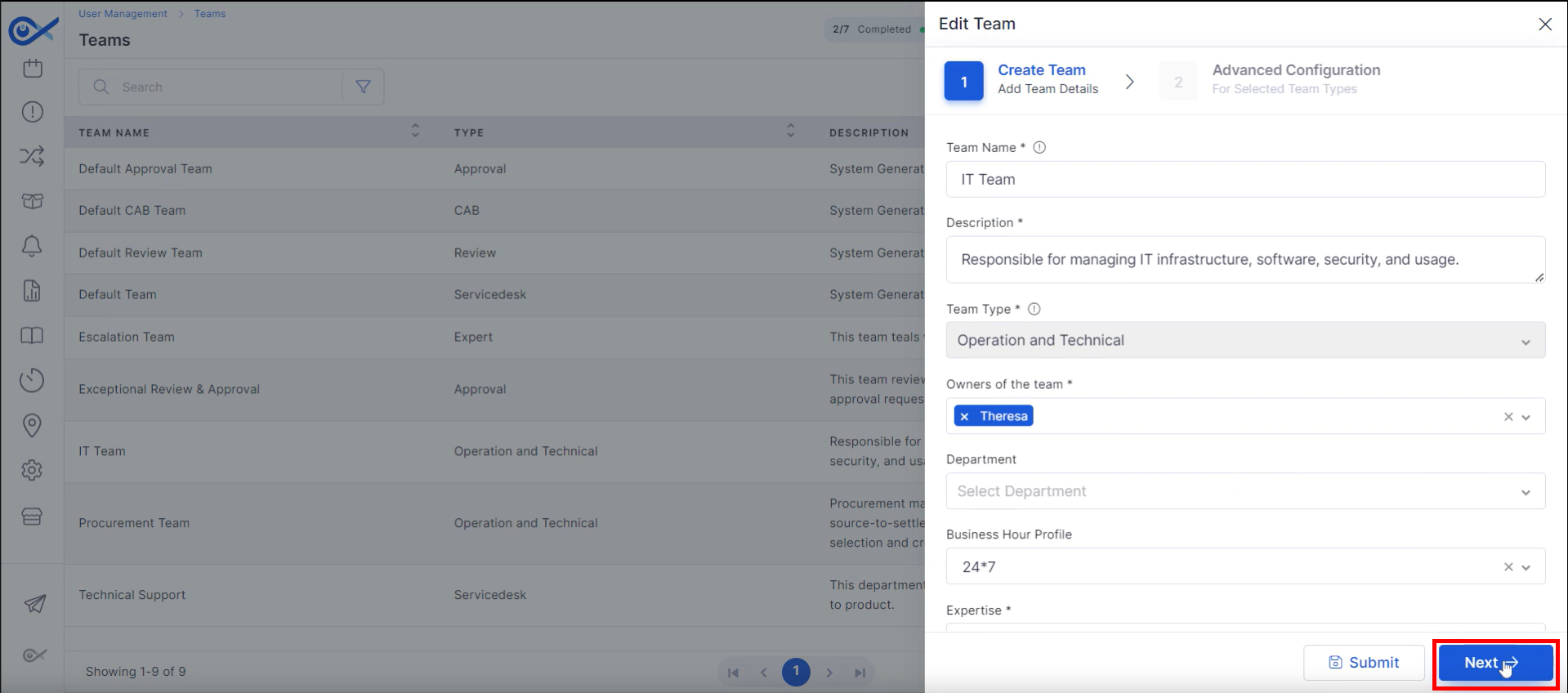
Step 2: To evenly distribute ticket workload among technicians within a specific team, select the desired team and click the “Edit” button to modify team assignments.
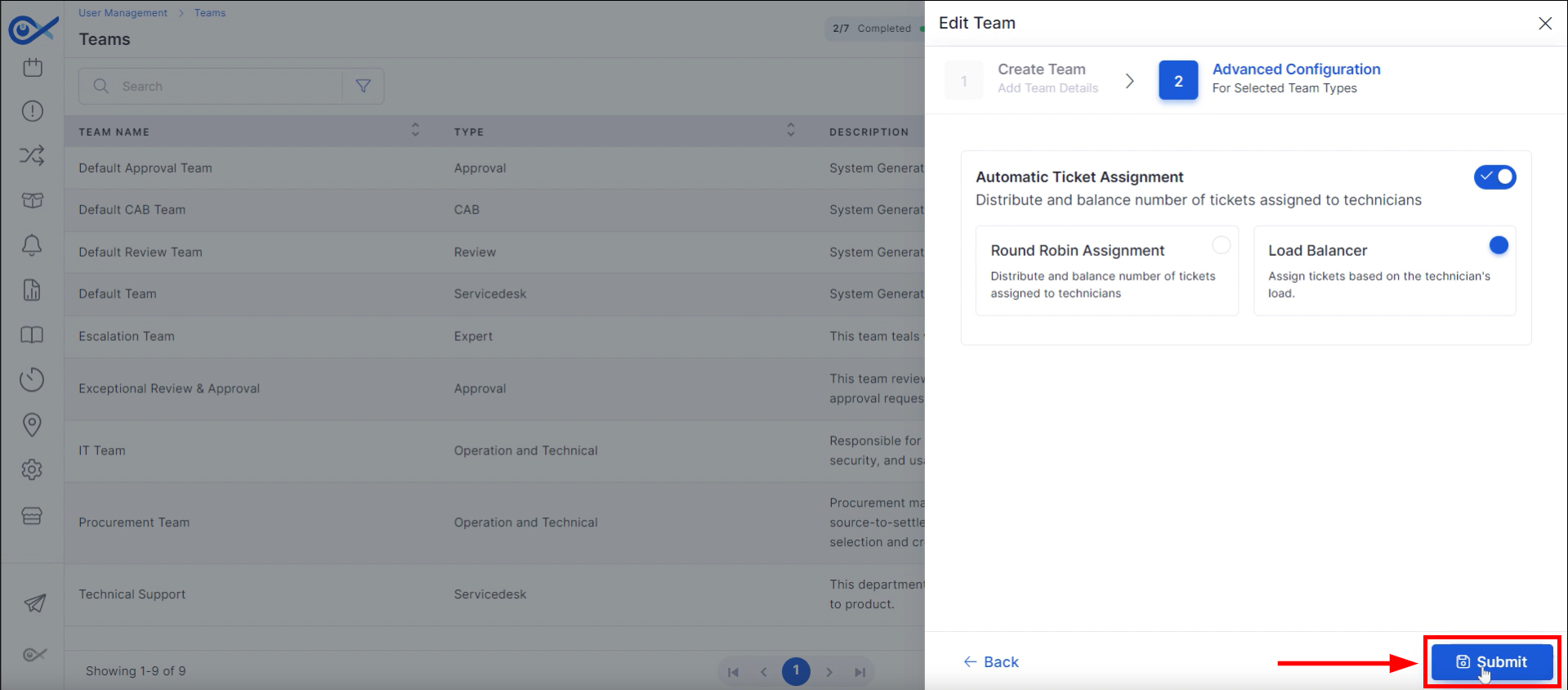
Step 3: Access the advanced configuration by clicking “Next” in the pop-up window. Within this section, enable automatic ticket assignment.
There are two methods: Round Robin Assignment and Load Balancer.
Round Robin ticket assignment evenly distributes incoming tickets among available technicians. For example, if a team consists of Alice, Bob, and Carol, the tickets would be assigned in the following order: Ticket 1 to Alice, Ticket 2 to Bob, Ticket 3 to Carol, Ticket 4 back to Alice, and so forth, continuing this cycle.
The load Balancer method considers the current workload of available agents to ensure a balanced distribution of tickets. For instance, if Alice is handling 6 tickets, Bob 2, and Carol 5, a new ticket would be assigned to Bob, as he currently has the lightest load. The load balancer continuously adjusts to distribute the workload evenly.
Step 4: Make appropriate configuration selections and confirm choices by clicking the “Submit” button.
This marks the end of the explanation of how automatic ticket assignment functions within the Infraon Infinity Teams framework.
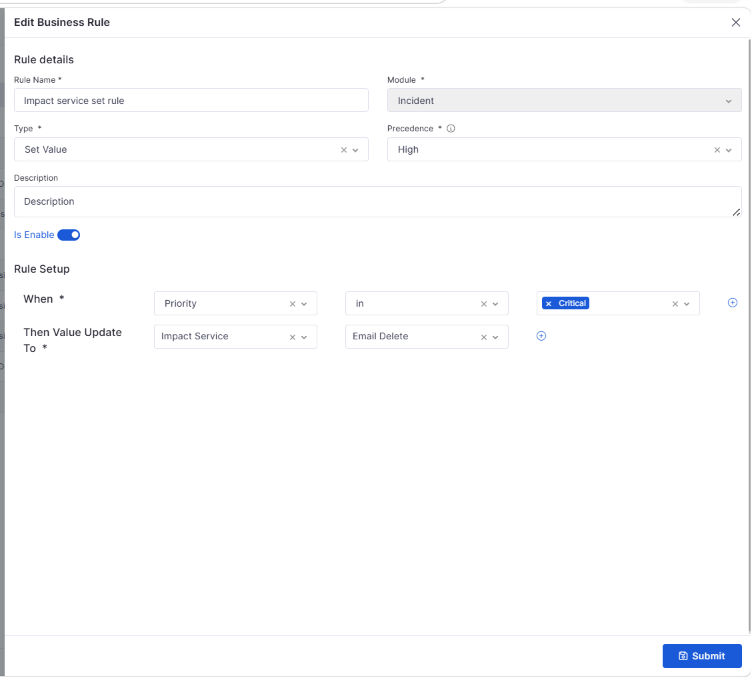
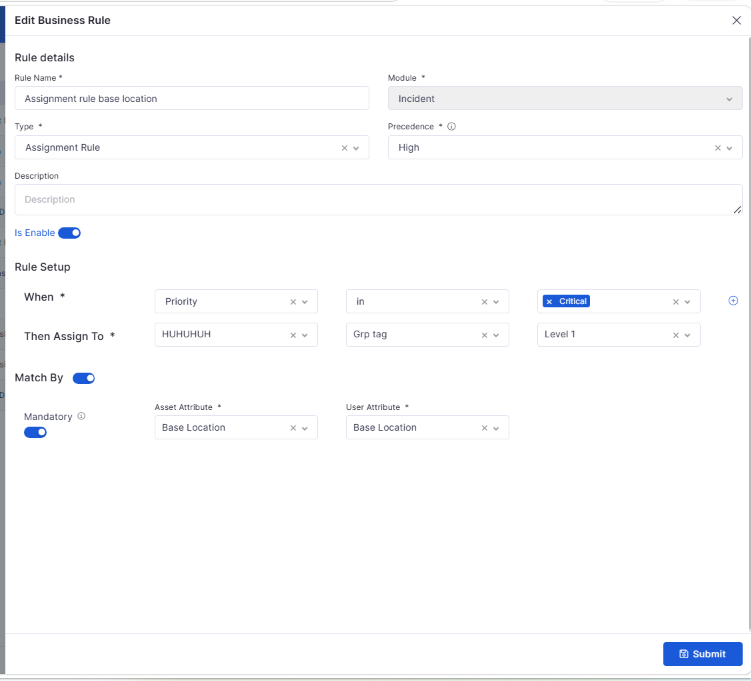
Business Rules automatically assign tickets based on the impacted service and requester tag. For example, if a ticket is created for a specific impacted service, it is automatically assigned to the Level configured for that service.
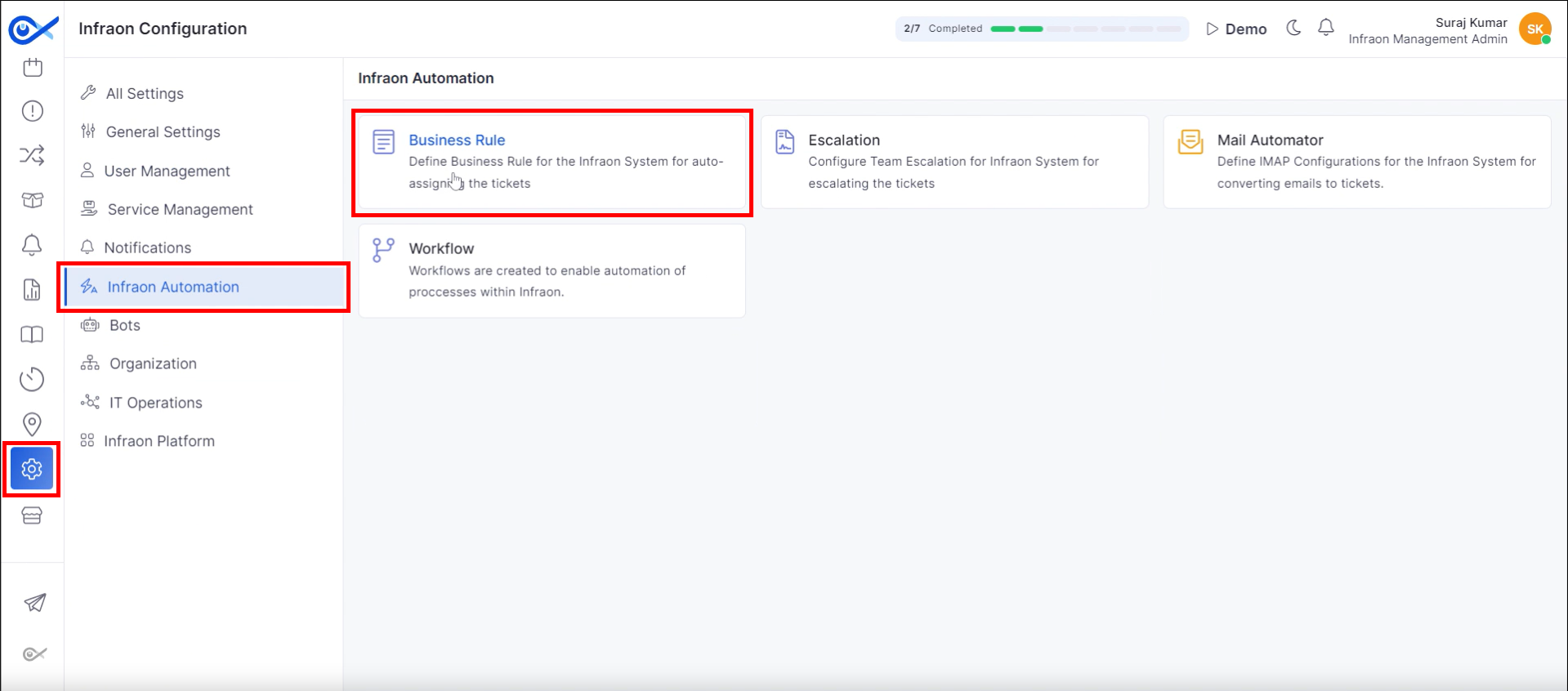
Step 1: Navigate to the “Infraon Configuration” module, then proceed to the “Infraon Automation” tab and select the “Business Rule” module to configure automated ticket assignment.
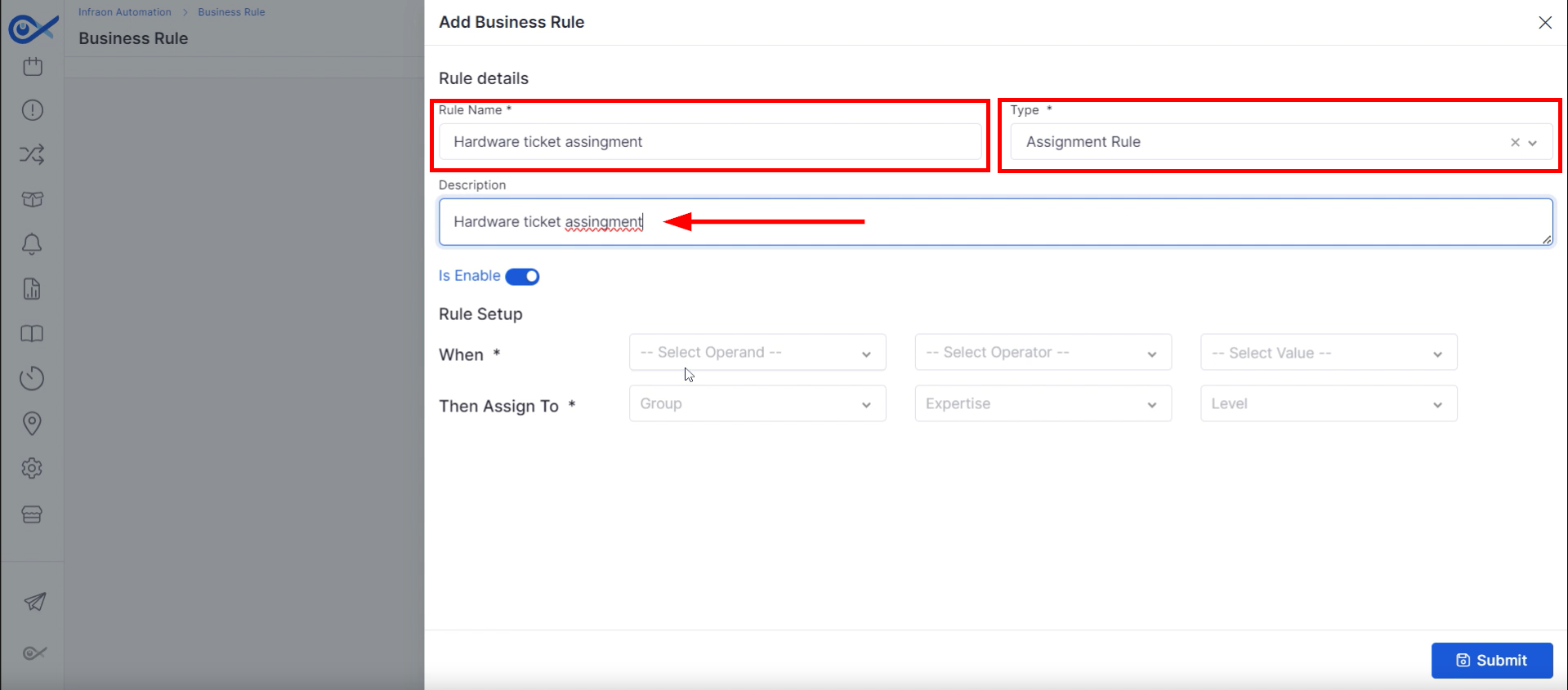
Step 2: Begin the rule creation process by inputting a rule name, determining the rule type, and supplying a brief description.
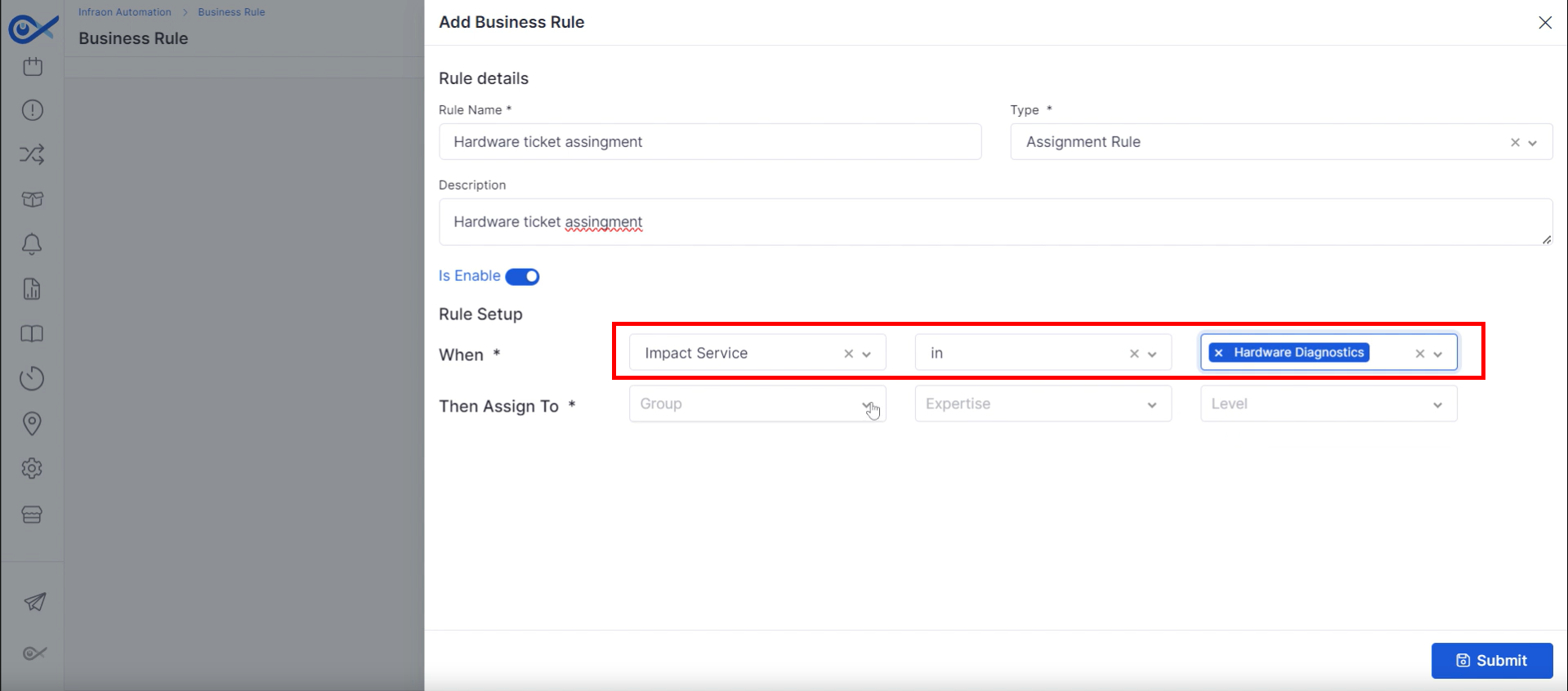
Step 3: In the “When” column, establish rule conditions by selecting an Operand (such as Impact service), applying an Operator (like 'in'), and defining the desired Value.
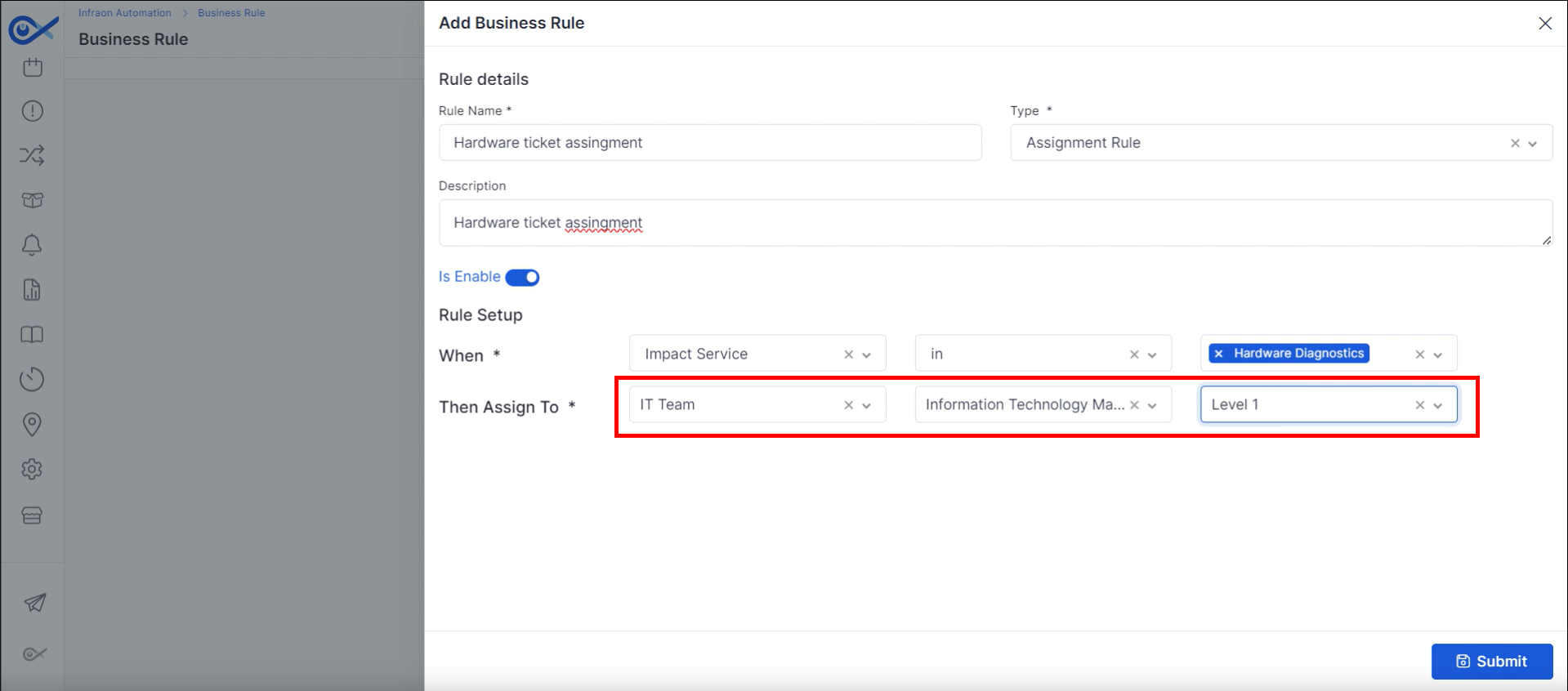
Step 4: In the "Then Assign To" section, define the assignment criteria by inputting the target Group, Expertise requirements, and impact service Level.
Once theconfiguration ismade, click “Submit.”
For example, if the impact service is hardware diagnostics, any ticket created with this service will be automatically assigned to the IT team level one technician.
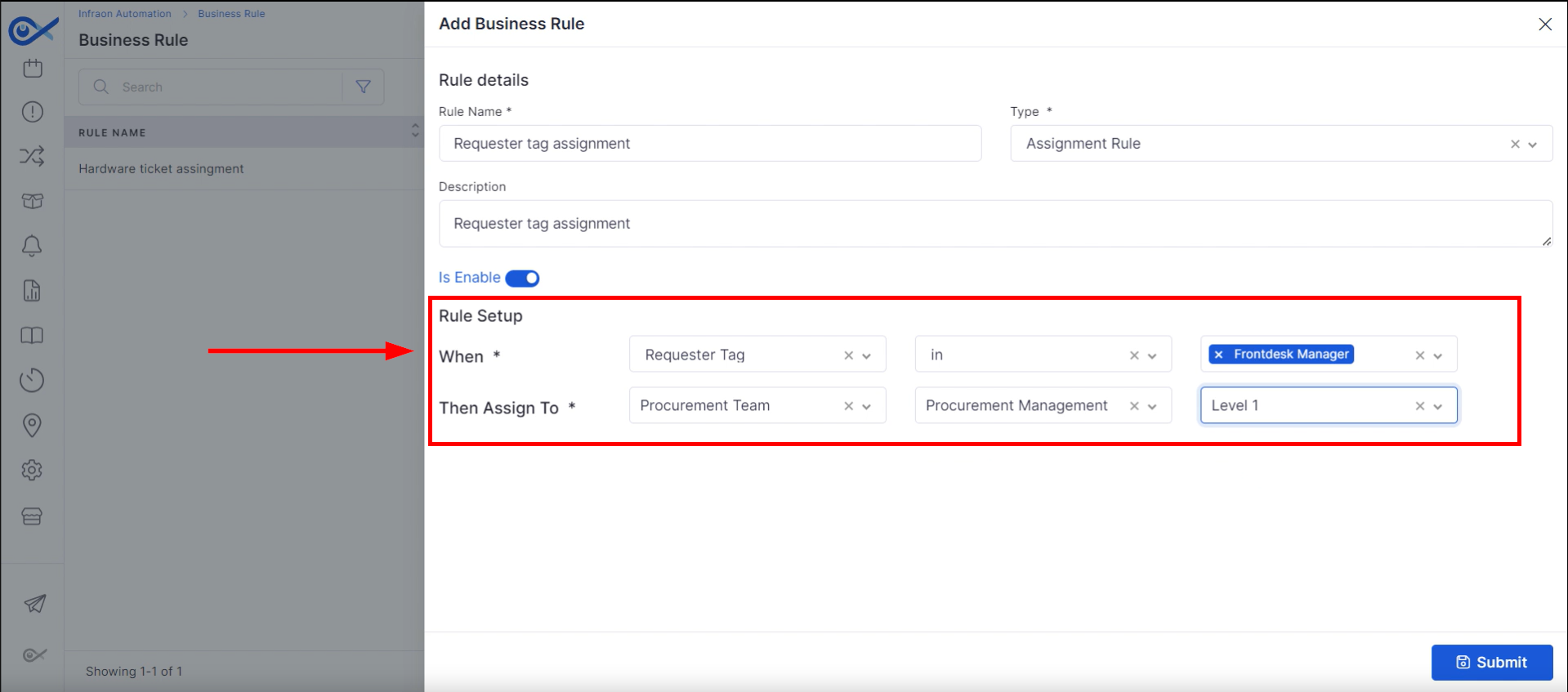
For the second case, if a business rule matches a requester tag, any ticket created by that requester is automatically assigned to the preconfigured level.
Step 1: Define a business rule for the requester tag by entering a rule name, selecting the rule type, and adding a descriptive explanation. Utilize the same procedure as described above.
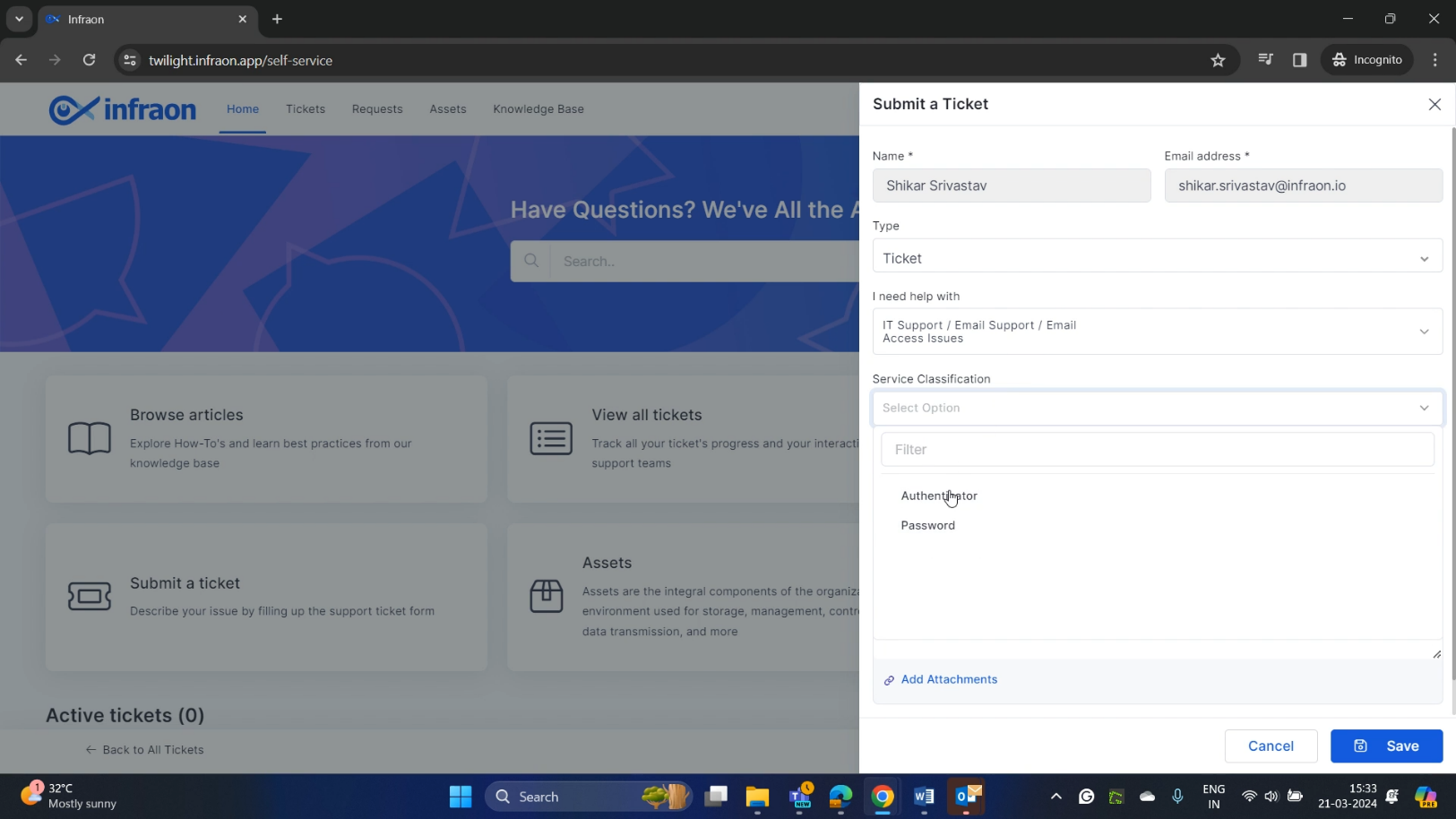
Step 2: To set up a business rule based on the requested tag, select the operator as the front desk manager and "Assign To" details, respectively.
When an end user creates a ticket, it will be directly assigned to the procurement team to the level one technician in the procurement team.
This is how to use the auto-ticket assignment feature in the Infraon Infinity platform.
IT & Fixed Asset
This guide explores the sub-modules of the Infraon Infinity platform's Assets.
IT assets, or IT nodes, are devices with an IP address. These encompass servers, routers, storage devices, transport devices, wireless controllers, and access points.
On the other hand, Fixed assets are tangible devices used in an organization's operations. Examples include scanners, fax machines, printers, modems, hubs, and air conditioners.
IT Assets
Clicking on the IT asset will display categories on the left panel, sorted by device type. Infraon maintains a comprehensive inventory of each asset. These categories help differentiate and filter assets based on their type.
The system employs a hierarchical structure to categorize IT assets.
Primary categories include:
Network
Other
Server
Virtualization
Workstation
Certain categories contain subcategories for more detailed classification.
Users can further refine their asset search by exploring the subcategories within each category.
The next guide will demonstrate how to add categories.
Asset
Explore a comprehensive guide to the Asset module featuring visual aids and step-by-step instructions. This guide provides detailed directions for specific asset submodules, including IT Assets, Fixed Assets, Software, Software License, CMDB view, and Asset Lifecycle. With clear What you see on the screen and How-to guides with pictorial representations, you can easily navigate the user interface and thoroughly understand the module.
Dashboard
Explore our comprehensive dashboard module guide, which includes visual aids and step-by-step instructions. Easily grasp the user interface and navigate the module effortlessly.
This guide focuses on the dashboard module of the Infraon Infinity platform. Dashboards serve as visual representations of crucial data, offering detailed views of various monitoring and performance metrics. They are customizable, allowing users to add metrics and reports to suit their needs.
Dashboards are visual interfaces that provide an overview of vital Key Performance Indicators (KPIs), metrics, and other relevant IT services and operations information.
A visual display of key data offers in-depth monitoring and insights into performance metrics.
Create a personalized dashboard. Infraon lets you add custom metrics and reports to fit your specific needs.
The dashboard provides a visual snapshot of key performance indicators (KPIs), metrics, and essential IT service information.
Dashboards centralize critical data for quick access and analysis. They help stakeholders monitor performance, identify trends, and make informed decisions to optimize IT services.
Infraon Infinity's dashboards empower IT teams by providing real-time insights and performance metrics, driving informed decision-making and operational efficiency.
SLA Management
This guide explores SLA Management within the Infraon Infinity platform.
What is SLA?
SLA configuration
Please refer to our detailed for comprehensive documentation.
Bots
Data Collector
Inventory Agent
Please refer to our detailed for comprehensive documentation.
Add Asset
Dashboard
This guide focuses on the dashboard module of the Infraon Infinity platform. Dashboards serve as visual representations of crucial data, offering detailed views of various monitoring and performance metrics. They are customizable, allowing users to add metrics and reports to suit their needs.
What is a Dashboard?
Infinity's default dashboard
How to add a dashboard?
Miscellaneous
Please refer to our detailed for comprehensive documentation.
For implementation assistance, view our Integration Guide.
User Manual
User Manual
Software License Management
This guide covers the software license module in the Asset module.
A software license outlines the permissions granted by software developers to users and details how the software should be used and paid for. The software license management page displays all software licenses captured by the Infraon agent.
There are two main methods for adding a software license: manually or importing from a CSV file. When an Infraon agent is installed on an asset, it automatically captures the operating system license of that asset.
Step 1: Click “New License” at the top right corner of the page and select “Add License.”
Step 2: Add the license information in the Basic Details tab. Begin with the license name and provide a description.
Step 3: Add the publisher from the dropdown list, which displays all the software added.
Video Library: Infraon Infinity
Explore our comprehensive video tutorials for Infraon Infinity. These videos offer step-by-step guidance on using the platform’s wide range of features. They cover various aspects of the product, helping you understand and manage everything from ITSM workflows to network monitoring and asset management.
Whether you're just starting or looking to enhance your skills, these guides will help you make the most of Infraon Infinity. New videos will be added regularly to keep you updated on the latest functionalities and enhancements.
General Settings
Network Diagram
This guide explores the Network Diagram within the Infraon Infinity platform.
Problem Management
This guide explores the Problem Management within the Infraon Infinity platform.
Geomap
This guide explores Geomap within the Infraon Infinity platform.
Blacklist and Whitelist
Correlation Rules
Thresholds
Organization
Upcoming Releases
Stay informed about the latest enhancements, new features, and improvements planned for upcoming Infraon releases. These release notes provide an early overview of functionality scheduled for future availability.
Step 4: After selecting the publisher, choose the software for which the license has been generated.
Step 5: Select the license type. Infraon offers a perpetual subscription-free trial license and volume license. Choose according to requirements.
Step 6: Choose the desired license count. License count refers to the total number of software licenses owned or allocated by an organization for the authorized use of specific software products or services.
Step 7: If standard license options are insufficient, create a custom license based on asset, user, or other criteria. Provide a license key if available. Specify the license start date. Include vendor details, AMC cost, and start and end dates if applicable. Set up license and AMC expiration notifications, choosing recipients and notification timing. Once complete, click “Next.”
Step 8: Add the department name and cost of the license to map the license to a particular department in the additional details tab.
Step 9: Select the currency, include the PO number, and note the compliance status, invoice date, and invoice number if applicable.
After inputting all details, click “Submit.”
The license will then be added to the software license management tab, where it can be viewed.
Step 1: Click “New License” at the top right corner of the page and select “Import from CSV.”
Step 2: Download the sample CSV file by clicking on the appropriate option.
Step 3: Open the CSV file and enter the required details to add software license information. After filling it out, save the file.
Step 4: Upload the prepared CSV file and click Next.
Step 5: Perform any necessary column matching on the column matching page. Click on the Show Only mandatory icon to view the mandatory fields. Once done, Click Import.
Step 6: The valid records will be processed after importing the CSV file. Click on Proceed with valid records to add the software licenses.
The licenses will then be added to the Infraon Infinity platform.
Click on the name of the added software licenses to view software details, including the license's software image and version.
The pie chart showing the total licenses, available licenses, allocated licenses, under-licensed status, and compliance status based on the license type can also be found here.
In the software license lifecycle section, the start date is noted as "Effective from," and the end date of the license can be viewed.
Step 1: Click on the Allocate option.
Step 2: Search for the requester and click Allocate.
The allocated user will then appear in the Allocated User tab below.
Click on the Deallocate button and proceed with the valid option.
The software licenses will then be deallocated from the selected requester.
The software license management page features a search bar at the top for finding licenses by name or number.
Filter software licenses by name, software, publisher, type, vendor, or other criteria. Save custom filter settings for later use.
Infraon's license management tab offers Grid and Card View formats. Each license displays details, including name, associated software, total licenses, user allocations, available licenses, category, company, assigned assets, and the software's logo.
To modify or remove a software license, click the "More" option. This will display additional actions, including the ability to edit license details.
Select the "delete" button to remove a license and follow the on-screen prompts permanently.
Select the Take Multiple Options feature to delete multiple software licenses simultaneously. This concludes the overview of the software license management functionalities within the Infraon Infinity platform.
Please refer to our detailed for comprehensive documentation.
Self Service Portal
This guide explains how to raise a ticket from the self-service portal. The self-service portal is a dedicated platform for end users to raise tickets and request services. To access this portal, the user, technicians, or admin must first grant the requester access.
Granting Access to the Self-Service Portal
Step 1: In the Infraon Infinity platform, navigate to the Infraon configuration located on the left panel, proceed to user management, and select the requester module.
Step 2: Add the respective end user in the requester module.
Admins must then share the self-service portal credentials with the end user.
Logging in and creating a ticket
Once the requester has the portal credentials, they're able to create a ticket.
Step 1: Use the login URL shared by the admins to access the self-service portal. Select the self-service option to continue.
Step 2: Enter the valid login credentials provided by the admins.
Step 3: After signing in, you'll be redirected to the homepage.
Here, requesters can browse articles, view raised tickets and requests and check allocated assets.
Step 1: To add a ticket, click on "Submit a ticket," located at the top right corner of the page.
Step 2: In the "I need help with" call-out box, select the type of service where the issue has occurred.
Step 3: Requesters can also add the Service classification in the respective call-out box.
Step 4: Enter a subject line stating the reason for raising the
ticket, for example, "Unable to authenticate."
Step 5: In the "Now let’s hear the details" section, describe the issue you're encountering in detail. You can also upload any attachments that help explain the problem by clicking on 'Add Attachments.'
Step 6: After entering all details, review them and click "Save" to submit the ticket.
The ticket will then be created in the self-service portal, allowing the end user to check its status.
The same ticket will also appear in the technician or admin portal.
Here, the technician can work on the ticket, assist the end user in resolving the issue, and finally close the ticket.
Ticket Assignment
This guide explains the ticket assignment process within the Infraon Infinity platform, focusing on the Ticket Visibility section.
Admins can view, manage, and allocate all tickets generated in the portal. In contrast, Engineers only have access to tickets assigned to them. During ticket creation, they can also self-assign tickets if they are linked to their team in the "Impacted Service" column.
The Service Desk Team can view all tickets and manually assign them to a team or a specific technician.
Infraon provides both manual and automatic ticket assignment options:
User Manual
User Manual
Infraon's Knowledge Help
Looking for something specific?
Report
This guide explores Report Management within the Infraon Infinity platform.
Use the search bar at the top of the page — or press
Ctrl
/
⌘
+
K
— to search across the Infraon documentation.
Four starting points cover most tasks. Choose the one that matches what you need to do.
Select a product to open its documentation set.
API Quickstart
Make your first Infraon API call in under 5 minutes.
This quickstart walks through the basic setup: generating an API key, pointing to your instance, and sending a test request. The examples use the same request in several languages, so you can start with the one that matches your stack.
Need some help?
Troubleshoot the errors you are most likely to hit.
With your first request done, use the API documentation for endpoints, parameters, and response formats.
Connect Infraon to the tools your teams already use — communication platforms, directory services, ticketing systems, and asset management tools — configured via the Marketplace module.
Structured, self-paced learning paths and certifications on learning.infraon.io — from platform fundamentals to advanced administration.
Please refer to our detailed for comprehensive documentation.
v7.3.16 – January 2026
View the latest features, enhancements, and fixes by release.
Version: v7.3.16
Date: 14th January
Overview
This release focuses on strengthening Project Management visualization, improving reporting flexibility, enhancing Purchase Order configuration, refining request and task ownership, and expanding mobile and service catalogue capabilities.
Several stability fixes have also been applied across ITSM, ITAM, dashboards, workflows, and integrations.
Key Updates
Software License
Improved Software License Summary Report
Added missing License Name and Description fields in the summary report.
Updated default column selection to include Free and Allocated licenses.
Project Management
Project Gantt Chart
Introduced an interactive Gantt Chart view for projects.
Displays all tasks and milestones with accurate start and end dates.
Automatically updates when project timelines, tasks, or milestones are modified.
Kanban Board View for Project Tasks
Added a Kanban-style board view within Project Task View.
Tasks are displayed as cards grouped by status.
Milestone Update Enhancements
Introduced structured milestone creation with fixed mandatory fields.
Milestones can only be closed once all child tasks are completed.
Dependent Task Validation
Enforced dependency rules between tasks based on dependency type and lag.
Supports Finish-to-Start, Start-to-Start, Finish-to-Finish, and Start-to-Finish validations.
Role, Team, and Member Validation
Prevents deletion of roles, teams, or members that are already in use.
Displays clear toaster messages when deletion is restricted.
Request Management
Created By Tracking for Auto-Created Request Tasks
Auto-created tasks now retain the Created By value of the request initiator.
Ensures non-admin users can view tasks generated from their requests.
Reports
Multiple Group-By Options in Ticket Summary Report
Enhanced Ticket Summary Report with nested group-by capability.
Supports up to four hierarchical grouping levels.
Purchase Order
Enhanced PO Template Configuration
Introduced feature-flag–controlled PO template configuration.
The default PO template loads automatically if no custom template is configured.
Mobile
Android – Secure Cross-App Auto-Pairing
Added secure auto-pairing between Infinity Agent and Infraon Infinity client app.
Uses OS-level security, encrypted storage, and explicit intent handling.
Service Catalogue
Enhanced Add Items / Services Design
Introduced type-based UI behavior for Service and Package creation.
Service type supports optional add-ons and SLA selection.
🐛 Bug Fixes and Improvements
Fixed issues with notification count updates and sidebar refresh behavior.
Resolved inconsistencies in dashboard widgets and ticket report values.
Addressed validation issues during status changes and panel-based updates.
Fixed asset audit display inconsistencies and duplicate audit timestamps.
Resolved CSV import issues caused by case sensitivity.
Fixed issues in Self Service Portal related to change types and requester visibility.
Addressed workflow sidebar display issues when configurations were missing.
Improved agent stability and resolved startup issues across supported platforms.
General UI, performance, and stability improvements across modules.
Email to incident
This guide explains how to create a ticket using the email-to-incident feature in the Infraon Infinity tool. This feature allows a requester or end user to send a ticket directly to a technician or the front-end administrator via a designated email ID. Before using this feature, it's necessary to configure the support mail ID in the Infraon Infinity tool.
Configuring the Support Mail ID
Step 1: Navigate to Infraon configuration and locate Mail Automator, also known as IMAP configuration, which resides in the Infraon Automation module. This allows you to set up automatic ticket creation from emails.
Step 2: Click on the New Configuration located at the top right corner of the page to create a new IMAP configuration.
Step 3: Enter the necessary details for the mail configuration. Start by entering the mail server.
Step 4: Choose the authentication method and enter the email address and password in the designated fields. Requesters will use this email address to submit tickets via email.
Step 5: Now, specify the Client ID, Client Secret, Tenant ID, and Authority in the respective call-out boxes.
Step 6: Enter the SMTP server details in the Server Port Configuration section.
Step 7: After entering all required information, click Next.
Step 8: On the domains page, add the impact services. Use the Allow Duplicate toggle button as needed. To block any email accounts, select the Blocked Email option.
Step 9: For the "Approve all Domains" option, choose the domain ID from which tickets are to be created, or click on Approve All Domains to allow tickets from all domain IDs to be created in the administrator's portal.
Step 10: Once the necessary configurations are made, click ‘Submit’ to add the IMAP Configuration.
Step 11: Now, admins or users can share this configured email ID with the requesters or end users to create tickets using the email-to-incident feature.
Step 1: To submit a ticket via email, compose a new email and address it to the configured email address.
Step 2: Include a subject line for the ticket. Without a subject, the ticket won't be created in the admin portal.
Step 3: Summarize the issue for the technician. This helps the technician resolve the issue more quickly.
Step 4: After filling in the details, click Send.
Once the email is sent, a ticket is generated in the admin portal. Technicians can see the created ticket, source (email), subject line, summary, and the requester's name.
The technician can then start working on the ticket and provide a resolution to the end user.
This process, known as "email to incident," allows the end user to send an email that is converted into a ticket in the Infraon Infinity tool.
v7.4.4 - February 2026
View the latest features, enhancements, and fixes by release.
Release Cycle: 26th February 2026
Build: Pre-Release Documentation
This upcoming release introduces enhancements across Inventory Agents, Dashboard monitoring, API Metering & License enforcement, Purchase Order workflow improvements, AI-powered Ticket interactions, Asset export optimization, and advanced grid/search capabilities.
The update also includes multiple stability, reporting, and integration fixes across modules.
Improved performance in the Ticket sidebar and Account Settings.
Resolved Azure AD sync, user count, and license validation issues.
v7.4.5 - April 2026
View the latest features, enhancements, and fixes by release.
Release Cycle: 10th April 2026
Build: Pre-Release Documentation
This upcoming release introduces enhancements across Mobile, Asset, Request, Project Management, Configuration, Purchase Order, Dashboard, Marketplace, and Feature Configuration. The focus is on improving AI-driven workflows, project planning, procurement usability, dashboard insights, and data privacy controls.
Fixed the missing scroll in the Help slider
Resolved blank Help slider on navigation
Asset Categories
This guide will explore the asset categories in the Infraon Infinity platform.
Step 1: Create a new category by clicking the "plus" icon. Clicking the indicated icon will open the asset category creation form.
Step 2: Enter a name for the category and specify associated item types (e.g., Android). Clicking "Add a device" will include specified item types in the category.
Step 3:Configure basic details:
Enable the “Mark as CI” option to include the asset in the CMDB configuration page.
Add a Dashboard
This guide explains creating a personalized dashboard in the Infraon Infinity platform.
Step 1: Click the arrow icon in the top left corner to open the left panel. Then, click the (+) "New Dashboard" icon to create a new dashboard.
Step 2: Enter a name for the dashboard in the provided field, then click “Create.”
Step 1: A pop-up will appear where technicians can add widgets to personalize their dashboard. Widgets are categorized into Assets, Statistics, Views, ITSM, Contract Management, and NCCM. Select a widget to add.
Step 2: Customize each widget by setting its “Title” and choosing a grouping option from the dropdown menu. Select the appropriate “Group By” criteria to categorize the data.
Setting Up Domains and Submitting Configuration
Creating Tickets as an End User
Introduced additional date-based time filters such as End Date, AMC dates, and Invoice Date.
Improved report preview, export, clone, and schedule behavior to retain selected filters and columns consistently.
Supports direct date updates from the Gantt view with real-time synchronization.
Supports drag-and-drop movement between columns.
Allows inline editing and task creation directly from the board.
Works seamlessly in both light and dark modes.
Supports inline editing, validation messages, and audit logging.
Milestones are visually highlighted in the task table.
Prevents incorrect task start or completion based on dependency constraints.
Improves project governance and avoids configuration inconsistencies.
Additional field visibility controls were added in project templates and task views.
Improves ownership tracking, reporting accuracy, and auditability.
Users can switch between Flat View and Drill-Down View.
Improves operational analysis across teams, priorities, services, and assignees.
Supports setting a default template for consistent usage.
Quotation Number is now included in the downloadable PO document.
Eliminates manual key entry for organization and improves setup reliability.
Package type supports primary item selection, asset mapping rules, and fulfillment configuration.
Improved clarity and usability during service and package definition.
Fixed SLA report inconsistencies and missing metric fields.
Corrected approval workflow and notification-related issues.
Addressed asset visibility and search discrepancies.
General stability, UI, and integration fixes across modules.
Overview
Key Updates
Inventory Agents
Persistent Device Identity
Introduced a persistent, agent-generated Device GUID for reliable asset identification.
Prevents duplicate asset creation during agent reinstallation.
Eliminates asset collisions caused by invalid or duplicate hardware serial numbers.
Ensures consistent reconciliation even with dynamic IP environments.
Dashboard
SLA Breach Time Dashboard
Added SLA Breach Forecast widget.
Displays upcoming SLA breaches grouped by configurable time intervals (minutes/hours/daily).
Enables proactive monitoring of tickets that are nearing a breach.
Fully configurable within Dashboard settings.
API Metering
API Metering & License Usage
Introduced comprehensive API usage tracking and auditing.
Captures endpoint, method, IP, organization, timestamp, and status.
Enforces API call limits based on licensed thresholds.
Sends automated alerts at 90% and 100% usage.
Blocks API calls when usage exceeds allowed limits.
Automatically resets enforcement when the license cycle renews.
Self Service Portal
Enhanced “Create” Dropdown for Ticket Submission
Replaced static “Submit a Ticket” button with dynamic Create dropdown.
Supports Ticket, Request, and Change initiation from a single entry point.
Sidebar auto-selects the chosen module type.
Improves submission flow and reduces user navigation steps.
Automatic redirection to the active section after successful submission.
Purchase Order
Stepper-Based PO Creation with Grid Line Items
Converted PO Add page into structured stepper workflow:
Basic Details
Items
Additional Details
Introduced grid-based line item management with inline editing.
Automatic calculation of totals, discounts, and taxes.
Improved validation and navigation control across steps.
Enhanced performance for large line item datasets.
Approval from PO Edit Page
Approvers can approve/reject directly from PO Edit page.
Eliminates dependency on email-based approval.
Supports multi-level approval workflows.
Approval history captured with comments.
PO Number Filter for Asset Widgets
Added PO Number as a filter in the Asset and License Usage widgets.
Enables filtering assets linked to specific Purchase Orders.
Improves dashboard data visibility and tracking.
Project Management
Project Meeting View
Added Meeting section in Project View.
Meetings can be associated directly with Projects.
Displays only meetings linked to the selected project.
Supports role-based visibility.
Meeting creation auto-selects the associated project.
Project Task Export with Start & End Variance
CSV export now includes:
Start Variance (Baseline Start – Actual Start)
Final Variance (Baseline End – Actual End)
Respects column configuration.
Ensures variance values are calculated and exported accurately.
Reflects the latest task updates in the exported file.
Ticket Management
Chat with AI Agent
Introduced an AI-powered conversational interface for ticket operations.
Supports actions like Create, View, and Update Tickets.
Displays thinking/processing indicators.
Handles unknown queries gracefully.
Stores chat history securely.
Response latency optimized for real-time interaction.
Incident Grid – Custom Fields in Column & Search
Workflow-specific custom fields are now available in:
Includes details, line items, addresses, and activity logs
Supports timeline and grid-based activity tracking
PR Search and Filter Enhancements
Added keyword-based search across PR records
Supports advanced filters and saved filters
Includes validation and empty-state handling
Dashboard
Project Relation Summary
Displays project-wise relation counts across modules
Supports custom filters and drill-down
CSV export available
Project Meetings Widget
Displays meeting count based on filters
Supports drill-down and CSV export
Project Milestone Summary
Displays milestone progress (Open, Closed, Total)
Includes completion percentage metrics
Supports filters and drill-down
Marketplace
Gen AI Enhancements
Improved API key handling with round-robin logic
Skips failed keys and prioritizes working keys
No fallback to default key for on-premise setups
Deprecated models removed from selection
Improved AI audit error visibility
Feature Configuration
Data Sanitization Before AI Processing
Introduced automatic sanitization of sensitive data
Detects and masks emails, phone numbers, IPs, and credentials
Supports configurable privacy controls
Ensures only sanitized data is sent to AI
Bugs Fixed
Select whether to send email notifications to asset requesters by notifying end-users of asset allocation.
Determine if an acknowledgment email should be sent upon asset deallocation.
Choose whether to send notifications for upcoming warranty or AMC expiration.
Step 4: Click "Next" to access the field configuration stage.
Step 1: Choose from Common, Cost, Procurement, Assignment, and OS properties. Clicking "Show Fields" at the extreme right panel will display the available input fields (status, criticality, model, serial number, etc.).
Step 2:Configure field properties:
Mark fields as mandatory using the "Mandatory" icon.
Prevent field modification by clicking the disable icon.
Control field visibility and editing rights using the "Permission" option.
Selecting the “Permission” option opens a popup displaying user roles and their associated permissions. Technicians can adjust these permissions by checking or unchecking the corresponding boxes.
Step 3:Editing custom fields:
The left side of the interface features “Available sections,” which lists both default and custom field categories provided by Infraon. These categories can contain various property sections that technicians can add as needed. To include or exclude specific sections, check or uncheck the corresponding boxes.
Step 4:Create custom fields:
Click "Create a Custom Field" to define new fields.
Select the property type (cost, procurement, assignment, CPU).
Choose a field type (email, text, dropdown, etc.).
Configure field label, placeholder, and mandatory status.
Set validation rules as needed.
Associate the custom field with selected categories or subcategories.
Step 1: To prevent duplicate entries within a category, technicians can choose a unique identifier from the dropdown menu. Available options include serial number, hostname, alias, make, model, UUID, manufacturer, domain, IP address, series, or tag number.
Selecting one of these identifiers guarantees data uniqueness within the category.
Step 2: Once the selection is made, click “Next” to continue.
Step 1: Choose up to three fields (hostname, UUID, IP address) to display on the impact card.
Step 2: Click "Submit" to save the impact card configuration.
Step 1: Click the "plus" icon within the parent category to Add a subcategory.
Step 2: Enter an ID and name for the subcategory (e.g., Android).
Step 3: Inherit properties from the parent category or make specific modifications.
Step 1: Click “Add” to add a subcategory.
Step 2: Click the "Edit" option to modify category details.
Step 3: Click the "Delete" option to remove a category (confirmation required for subcategories).
Step 4: To create custom fields applicable to multiple categories, Click "Custom Field."
Step 5: Now, click “New Filed” at the top right corner of the page.
Step 6: Configure a default category template for efficient category creation.
Click "Submit" to save all modifications made to categories or subcategories.
These steps allow technicians to create, manage, and customize asset categories within the Infraon Infinity platform.
Creating a New Category
Configuring Category Fields
Unique Fields
Impact Card Customization
Creating Subcategories
Managing Categories
Saving Changes
Finally, determine how often you want the dashboard to refresh by setting the “Auto Reload” time.
Step 3: To filter the data, click on "Filter." Technicians can then add filters based on asset ID, IP address, or other criteria to control the information displayed. Select the desired filters and apply them.
Step 4: After customizing the required configurations, click “Apply Changes” to view the changes. To include a new widget, click “Add."
Step 5: To rearrange widgets, drag and drop them on the dashboard. Clicking the “More Options” icon will enable the technicians to edit, copy, or remove a widget.
Step 1: Locate the “Add Widget(s)” button on the top panel to add a new widget.
Step 2: The ITSM category offers a range of widgets, including ticket summary, count, and creator-versus-resolved breakdowns. Similar widgets are available for requests, problems, and changes. Select the desired widget to proceed.
Step 3: Input a “Title” for the widget within the configuration tab and determine the “Group by” parameter from the available options. Use the dedicated “Timescale” configuration panel to filter data based on time.
Step 4: Customize the widget's appearance on the configuration page by selecting from Data Panel, Pie Chart, Bar Chart, or Data Table. Apply the changes to view the preview, then “Add” the widget to the dashboard.
Step 1: To allocate dashboard access privileges to specific users or groups, click on the “Assignee” tab.
Step 2: Select the desired entities from the available list to specify the target “Users” or “Team” recipients for dashboard access. Upon completion of the assignee selection process, “Submit” the configuration to save the changes and apply the specified permissions.
Once the desired dashboard modifications have been implemented, click “Submit” to finalize and store the updated configuration.
That's how to create a dashboard in the Infraon Infinity platform.
Creating a new dashboard
Adding widgets
NOTE: Only one widget can be added at a time.
NOTE: Customization capabilities differ between widget types. Refer to individual widget types for specific options.
Miscellaneous
NOTE: Widget customization options vary based on their respective data types and functionalities. For detailed customization parameters, consult the specific widget documentation. Infraon Infinity provides a user-friendly interface for data visualization through various graphical representations, including pie charts, graph views, panel views, data tables, bar charts, and line charts.
This release introduces enhancements across Dashboard, Procurement, Project Management, IT Asset Management, Mobile Applications, Business Rules, AI Ops, and the Self-Service Portal. The updates focus on improving operational visibility, procurement workflows, project governance, asset management, automation, and mobile usability.
Key Updates
Dashboard
Assignee Summary: Task Module Integration
The Assignee Summary widget now includes Task Management, providing better visibility into task assignments and workload distribution.
View task assignments directly from the dashboard.
Filter tasks based on workflow status and assignee.
Purchase Requisition
RFQ Vendor Quotation Comparison
Compare vendor quotations from a single interface to simplify procurement decisions.
View quotations from multiple vendors side by side.
Business Rule
Notification on Asset Add/Delete
Business Rules can now automatically trigger notifications whenever assets are added or removed.
Notify stakeholders about asset lifecycle events.
Improve visibility into asset changes.
Self-Service Portal
Attachments While Reopening Tickets and Requests
Users can now upload supporting files when reopening Tickets or Requests from the Self Service Portal.
Attach documents while reopening records.
Provide additional context for faster resolution.
AI Ops
Audits and Versioning Enhancements for Custom Apps
Enhanced audit and version management improve visibility into Custom App changes.
Track changes made to Custom Apps.
Project Management
Project Summary Widget Click Functionality
Project Summary widgets now support direct navigation to detailed project information.
Open filtered project lists directly from dashboard widgets.
View relevant project information based on selected metrics.
Project Widget Click Functionality
Interactive project dashboard widgets provide quick access to related project records.
Drill down into task and milestone information.
Project Notification Template Management
Notification Templates can now be created and managed within Project Management.
Create reusable notification templates.
Configure project-specific notification content.
Project Notification Rules
Notification Rules provide greater flexibility for project communications.
Configure automated project notifications.
Associate templates with project events.
Project Closure Enhancements
Project Closure now includes additional capabilities for completing project activities.
Transfer project teams and associated assets during closure.
Review project financial summaries.
Portfolio Overview Enhancements
Additional portfolio insights help monitor project performance more effectively.
Track project registers from the portfolio view.
Monitor budget utilization across projects.
Milestone CSV Enhancements
Milestone identification has been improved during CSV editing.
Highlight milestone rows within CSV files.
Improve visibility of milestone-task relationships.
IT Assets
Asset CSV Upload Jobs
A dedicated page now provides visibility into Asset CSV upload and bulk edit activities.
Track upload progress and job status.
View successful and failed records.
Asset QR Code Print Custom Template
Create reusable QR and barcode label templates for different asset types.
Design customizable print templates.
Configure headers, footers, logos, and asset fields.
Hardware Change Notification Optimization
Hardware change notifications have been refined for improved accuracy.
Reduce unnecessary hardware change alerts.
Improve notification relevance.
Asset Bulk Edit Optimization
Bulk editing has been enhanced to improve efficiency when managing assets.
Improve processing of bulk updates.
Reduce execution time for large operations.
Mobile Enhancements
Android – Multi-View for Impact Service
Android users can now switch between multiple Impact Service views for improved visibility.
Access different Impact Service layouts.
Improve navigation between related services.
iOS – Multi View for Impact Service
The iOS application now supports multiple Impact Service views.
Switch between different service views.
Improve visibility into impacted services.
🐛 Bugs Fixed
General stability and performance improvements across modules.
Fixed UI inconsistencies and validation issues.
Improved synchronization and workflow handling.
Minor fixes across reports, dashboards, and integrations.
v7.4.5 - April 2026
Release Cycle: 23rd April 2026
Build: Pre-Release Documentation
Overview
This upcoming release introduces enhancements across Cost Center Management, Templates, Software License, Feature Configuration, Project Management, Purchase Requisition, and Dashboard modules. The focus is on improving approval workflows, automation, project tracking, data privacy, and reporting capabilities.
Key Updates
Use these pages to go deeper into the modules covered in this release:
Cost Center Management
Cost Center Approval Process
Introduced approval lifecycle: Draft → Pending → Active → Closed
Finance Owner can approve/reject via UI or email
Template
Custom Template for All Request Types
Supports custom form configuration for all request types
Retains all configurations during edit (fields, order, properties)
Software License
Auto Allocation for Software License
Automatically allocates licenses based on software discovery
Deallocates licenses on uninstall or version change
Feature Configuration
Reversible Faker Data Mapping for AI Privacy
Replaces sensitive data with realistic synthetic values before AI processing
Restores original data in the final response
Project Management
Project KPIs
Added KPI tracking within project details
Supports multiple KPI entries
Includes validation for required fields
My Task in Project Management
Added “My Task” view for logged-in users
Displays all assigned tasks in a grid
Task CSV Edit Control
CSV editing respects field configuration rules
Mandatory fields must be filled out
Project Business Case History
Tracks changes across Business Case, Scope, Deliverables, and related sections
Logs add, update, and delete actions
Purchase Requisition
Custom Field Creation
Supports custom fields across PR forms
Enables validation, filtering, and visibility control
PR Approval Process with View
Introduced a complete PR approval workflow
Supports approval teams and threshold-based routing
Dashboard
Ticket and Request per Month Widget
Added monthly and weekly grouping options
Supports toggling between Created and Closed data
Module-wise Aging Widget (Summary & Count)
Extended aging widget to support Incident, Request, and Change modules
A single widget can be reused across modules
Bugs Fixed
General stability improvements across modules
Fixes in approval workflows and data consistency
UI corrections for better usability
Performance optimizations in reporting and dashboards
Software Inventory
This guide will explore the software inventory tab in the Infraon Infinity platform. This tutorial guides technicians through managing software inventory, establishing CI relationships, and importing software via CSV file.
In the Software inventory tab, view the software installed on systems where the agent has been deployed.
Select the desired manufacturer from the left panel to view software for a specific manufacturer.
Identify the software name, version, type, manufacturer, and total instance count on the software page.
Click on the software listing to access in-depth software details. Information includes hostname, installation path, type, manufacturer, status, and version.
Installed Devices Section
The “Installed Devices” section displays the hostname, IP address, device type, vendor, and installed assets.
Establishing CI Relations
Step 1: Click the "Add a Relationship" option at the top right corner of the page.
Step 2: Manage both downstream and upstream relationships.
Step 3: Select the part of the selected Configuration Item (CI) among the available properties. After selecting the property, click on “Next.”
Step 4: Add the dependent CI from the drop-down column in the map-impacted CI tab.
Step 5: Choose “User.” This will filter the list of users who have been added to the tool. Click “Submit” to create the relationship.
Infraon provides three different types of views: software view, list view, and map view.
Step 1: To label software items as whitelisted or blacklisted, navigate to the software inventory page. Use the green icon to whitelist and the red icon to blacklist specific software.
Step 2: After clicking on the whitelisting option, a configuration page will appear. Provide a profile for the specific software, including a description.
Step 3: After submitting, the software is labelled as whitelisted.
The process for adding software to the blacklist is identical to the process for whitelisting.
Step 1: Click on 'Import from CSV' at the screen's top right corner, and select "Software."
Step 2: Download the CSV template by clicking on "CSV file."
Step 3: Open the downloaded file and add the necessary details.
Step 4: Click "Upload" to upload the edited file.
Step 5: Click “Next” to move forward.
Step 6: Match the mandatory fields to CSV columns as needed on the column matching page. Once done, click “Import” to complete the process.
Step 7: Proceed with the valid records to add the software details on the software details page.
Step 8: Once the software has been added, it will be reflected on the software inventory page.
Step 1: Click on the “Import from CSV” option and select “CI Relation” to add the CI relation for the software listed on the software inventory page.
Step 2: Select the software category that best meets the technician's needs. Download the corresponding CSV file, fill in the details, and upload it after adding the CI relations.
Locate the search bar at the top of the software inventory page. Use it to find software by name, hostname, or version number.
Filter software by name, version, type, or manufacturer. Customize filter conditions as needed. Save filter settings for future use.
Infraon Automation
Business Rule
Escalation
Mail Automator
Workflow
Ticket Workflow
Change Workflow
Request Workflow
Problem Workflow
Please refer to our detailed for comprehensive documentation.
Miscellaneous
This guide will explore the features and options available on the fixed asset and IT assets pages. These pages offer various tools for managing and organizing assets effectively.
Locating the search option on the top panel of both pages will assist technicians in finding a specific asset based on its name, ID, and more.
Use the filter option adjacent to the search bar to refine your asset search. Apply filters based on criteria like asset name, ID, status, owner, location, requester, etc. Save your custom filter settings for future use.
Next to the filter option, find the sort-by-arrangement option. Sort assets by name, asset ID, operational status, type, OS name, make, serial number, base location, whether they are active or installed, and their locations. Choose to organize the assets in ascending or descending order.
Infraon Infinity provides two viewing options: grid view and panel view.
Miscellaneous
This guide provides a comprehensive overview of the ticket management page, explaining its features and functionalities. These pages offer various tools for managing and organizing tickets effectively.
Topology
This guide explores Topology within the Infraon Infinity platform.
Please refer to our detailed for comprehensive documentation.
Views in Infraon
Whitelisting and Blacklisting Software
Importing Software via CSV
Adding CI Relation for Software
Searching and Filtering Software
Drill down into task details from widget counts.
Improve workload monitoring across teams.
Compare pricing and procurement details efficiently.
Simplify vendor evaluation before creating a Purchase Order.
Improve procurement decision-making.
Reduce manual communication efforts.
Support automated asset notifications.
Improve collaboration between users and technicians.
Streamline the reopening process.
Maintain version history for application updates.
Improve governance and audit visibility.
Simplify application maintenance.
Improve navigation across project summaries.
Simplify project monitoring.
Open filtered project views directly from dashboard charts.
Improve dashboard usability and analysis.
Enable faster access to project data.
Edit and organize templates from a centralized view.
Improve notification consistency across projects.
Simplify notification management.
Improve communication throughout the project lifecycle.
Capture project completion details.
Improve project handover and documentation.
Improve portfolio-level reporting.
Support informed project decisions.
Simplify bulk project updates.
Reduce editing errors.
Search and filter upload jobs easily.
Improve monitoring of bulk asset operations.
Support multiple label layouts and paper formats.
Generate QR and barcode labels using saved templates.
Enhance hardware monitoring.
Minimize false notifications.
Simplify asset administration.
Enhance overall performance.
Enhance service monitoring.
Provide a more flexible mobile experience.
Simplify navigation.
Enhance usability on iOS devices.
Approval triggered on creation or budget increase
Rejection moves the record back to Draft with remarks
All actions captured in audit logs
Allows marking a single unique field
Prevents data loss with full form persistence
Controlled via “Auto License Management” toggle
Supports bulk enable/disable via grid and CSV
Tracks all actions in audit logs
Prevents exposure of sensitive information to AI systems
Controlled via configuration toggle
Supports multiple data formats and structures
Displays KPI metrics with start, current, and target values
Includes key task details like status, priority, and dates
Supports sorting and multiple project visibility
Disabled fields cannot be edited
Restricted fields are masked for security
Captures old vs new values with the user and timestamp
Ensures full auditability of project updates
Ensures proper handling of unique and disabled fields
Approvers can act via inbox, grid, or view page
Displays current and upcoming approval stages
Restricts editing during the approval process
Maintains a full approval audit trail
Automatically adjusts labels for clarity
Provides dynamic chart updates
Updates filters and grouping dynamically based on the module
Supports drill-down and export functionality
Find the actions tab adjacent to the view options.
The first option in the actions tab is the scan and search asset feature. Technicians can add an asset directly using its barcode number.
Enter the barcode and the asset is added to the platform.
Further along, find the export option. Use this function to create a CSV file of the assets listed on the IT and Fixed assets page. Select the asset category for which the data is needed, then click on the download CSV file option. The downloaded CSV file contains all the information about the asset, including asset ID, name, owner, requester, tag, asset tags, location, and other details.
Also, in the action tab, find the maintenance option. Clicking on it will redirect you to the maintenance module, which will reflect all past and future maintenance assignments.
In the column selection, choose the information displayed on the asset page. To add or remove columns, click on the cross option to remove a column. To add a selection, drag and drop it from the column selection. Once done, click on save to apply the changes. The grid view now reflects the selections just made.
Click on bulk edit to make changes to a specific category of assets using a CSV file. This option is similar to adding an asset using a CSV file.
You can download the inventory agent. This option is also available in the inventory agent located in the IT operations module.
Lastly, find the customized asset ID feature. Customize the ID format of the assets created. Change the prefix and choose alphanumeric or random ID format. Define the number of values and set the conditions for them.
Examine an example with the asset ID "Alex INF-189" on the asset grid page. The asset name, IP, asset ID, and its status—whether it is deallocated or not—are reflected. The asset's status is also shown, indicating whether it is up or down. Next to it, the type of device, its manufacturer, and the OS version are displayed. Additionally, find a "more options" key, which allows users to edit or make changes to the asset. To delete the asset, click "delete." To allocate a user to this specific asset, click "allocate."
For a detailed view of the asset, click on the asset name.
This page offers efficient bulk actions. By selecting multiple assets, a toolbar appears at the top of the page. From here, you can perform actions on selected assets, such as assigning owners, choosing requesters, applying group tags, printing, and accessing additional options.
The 'More actions' option provides bulk management capabilities. By selecting multiple assets, technicians can activate, relocate, recategorize, enable/disable, delete, reinstall, schedule maintenance, or mark assets as CI.
The left panel displays categories and subcategories for both fixed and IT assets. You can also perform actions such as editing, deleting, adding new categories, creating category templates, and adding custom fields.
This concludes the overview of the Infraon Infinity IT asset and the fixed asset management tab.
An AI-powered integrated platform for all ITOps and ITSM needs.
Please refer to our detailed for comprehensive documentation.
For implementation assistance, view our Step-by-Step Integration Guide.
v7.4.2 – January 2026
View the latest features, enhancements, and fixes by release.
Version: v7.4.2
Date: 29th January
Overview
This release introduces enhancements across API Metering, SLA management, Asset performance, Purchase Orders, Project Management, Mobile audits, and AI-assisted Incident handling.
The updates focus on improved visibility, enhanced validation, performance optimizations, and enhanced operational workflows.
Key Updates
API Metering
API Metering Data Report
Introduced a dedicated report to track API usage across users and endpoints.
Provides visibility into total calls, methods, endpoints, and usage patterns.
Mail Automator
Restrict Ticket Creation by Allowed Requesters
Added an option to allow only selected requester email IDs within a domain to create tickets.
Improves control over email-to-ticket creation and reduces unwanted requests.
SLA
Bulk Operations for SLA Breach Prediction
Enables bulk actions on tickets predicted to breach SLA.
Allows managers to apply or ignore AI recommendations for multiple tickets at once.
Mobile
Audit Detail Page (iOS & Android)
Introduced a detailed audit view for mobile users.
Displays device-level audit items with status, progress, and due dates.
Change Management
Change Manager Approval
Added support to submit changes for Change Manager approval.
Approval links are sent via email and available in the technician portal.
Asset
Vendor Sync Count Accuracy
Corrected vendor sync counts for assets with invalid serial numbers.
Sync summary now correctly reflects valid, duplicate, invalid, and failed records.
Optimized Asset Filter Loading
Improved asset grid performance by loading filter values dynamically.
Reduces initial page load time, especially for large asset datasets.
Purchase Order
PO Download During Approval Stage
Purchase Orders can now be downloaded while awaiting approval.
Enables approvers to review official PO documents before approval.
Software Selection in Purchase Orders
Added support for selecting software items during PO creation.
Enables license creation or updates during the receiving process.
Task
Common Task Creation
Introduced enhanced task creation with recurring options.
Supports form templates, attachments, notifications, and audit tracking.
Improves task standardization and automation.
Reports
Additional Asset Columns in SLA Reports
Added asset-related fields, including Category, Device Type, Serial Number, and Hostname.
Improves SLA analysis with asset context.
Custom Columns & Formula Engine for SLA Reports
Introduced custom computed columns using a BODMAS-based formula builder.
Supports time-based calculations, unit conversions, previews, and exports.
Project Management
Dependent Task Controls
Added validations to enforce dependency rules between tasks.
Prevents invalid task progression based on dependency configuration.
Task View – Basic Details
Improved task summary view for faster access to key task information.
Incident
AI-Based Similar Incident Matching
Introduced AI-powered similarity matching for incidents.
Helps technicians identify related or recurring incidents faster.
🐛 Bug Fixes and Improvements
Improved accuracy and stability across Asset Vendor Sync and SLA Reports.
Fixed performance issues in Asset grid filtering for large datasets.
Resolved inconsistencies in PO downloads and approval workflows.
Addressed UI and data refresh issues in mobile audit views.
General performance, validation, and reliability improvements across modules.
Trigger Configuration
This guide explains the Trigger configuration module in the Infraon Infinity suit. Triggers are rules or configurations that trigger an alert or an event within Infraon. Infraon allows adding conditions to raise alerts or events when the specified rule is met.
There are two types of trigger configurations within Infraon. They are:
Alerts - Alerts are based on configured thresholds (refer to Threshold module for details)
Correlation - Infraon correlates events based on multiple conditions to trigger an action.
This functionality is crucial for automating ticket creation and sending alert notifications to users via email or SMS in response to system alarms, ensuring that users are promptly informed about any issues.
Navigating Trigger Configuration
Step 1: To initiate trigger configuration in Infraon, access the Infraon Configuration from the left panel. From the main menu, select the Notifications option and locate Trigger Configuration within the menu.
After entering the Trigger Configuration section, a list of previously configured triggers will be displayed.
Step 2: Click on the 'Add Trigger' button at the top-right corner of the page. Choose 'Event Trigger' from the dropdown menu to set up a new event-based trigger.
Follow the steps below to add the required details in the 'Add Trigger Configuration' section.
Step 3: Assign a name to your trigger configuration. Next, set the trigger's status, choosing between 'Active' and 'Inactive.'
Step 4: You have two main options:
'Alert Raises’: The trigger activates when event data meets the specified criteria.
'Notify After Correlation': The system waits for a correlation process to complete before activating the trigger.
After making your selection, click Next to proceed.
Step 5: Define specific filters to determine which events should activate the trigger.
Additionally, you can apply a Business Hours Profile from the available system options.
For instance, selecting a 24/7 profile ensures that alarms generated during these hours automatically trigger notifications or ticket creation.
Step 6: Optionally, you can configure notifications to trigger only when the Parent Node is operational using a toggle button.
For example, if the parent node is active but child nodes are down, alarms will still be triggered for the non-operational links. Activating this option means alarms are only generated for the parent node if both parent and child nodes are down.
Step 7: Users can delay the trigger action by setting a specific time delay in seconds.
The delay option allows for a range between 300 and 3600 seconds. Toggling the option off when necessary disable the delay.
Step 8: To refine the trigger criteria, multiple filter conditions can be added. By default, the severity filter is set to Critical, but you can include additional conditions for Major and Minor severities.
To add more conditions, select 'Add Condition' and choose 'AND' to apply them cumulatively. Filters include Alarm Message, Asset ID, Hostname, IP Address, Device Type, and more, ensuring that the conditions match your requirements.
Step 9: Click Next to proceed to the action details after defining your conditions.
The action page has two main options: Notify or Create a Ticket.
The system supports multiple notification protocols, including SMTP (email), SMS gateway integration, and REST API endpoints. The notification delivery mechanism is executed based on the selected protocol configuration.
Let’s see each one in detail:
Step 1: Select the recipient email address from a dropdown or enter it manually. Optionally, you can add a CC and define the email subject.
Step 2: The email body supports dynamic content injection through macro implementation using double curly braces ({{). The system provides predefined macro variables, including network parameters (IP_ADDRESS, HOSTNAME) for customized alert messaging.
Step 1: Create a custom SMS message describing the trigger action.
Step 2: Specify the recipient's phone number from the dropdown box.
Step 1: Select the appropriate API from the list of registered APIs.
Step 2: Choose the GET or POST method and enter the endpoint respected URL.
Step 3: Select the content type (e.g., application/JSON) and provide the required data in the corresponding fields.
Once the notification channel configurations are completed for the selected protocol (email, SMS, or API), the system executes a validation sequence and confirms successful trigger deployment.
Several toggles are available during ticket creation, such as 'Impact Service,' 'Resolve if Cleared,' and 'Reopen if Necessary.' Let’s break down these options:
Impact Service: If this toggle is enabled, users are prompted to choose a service impacted by the event for ticket creation. The available services will be displayed in a dropdown menu. Once a service is selected, the created ticket will be automatically linked. This optional step allows users to associate a service or leave the feature disabled.
Resolve if Cleared: Enabling this option allows the system to resolve the ticket automatically when the event has been cleared. This feature is optional and should be selected if users wish the ticket to close upon resolution of the alarm.
Reopen on Re-alarm: Activating this toggle ensures the system reopens the ticket if a re-alarm or event recurrence occurs. Initially, the ticket moves from an open to a resolved state, but with this option enabled, the ticket status will change to 'in progress' upon re-alarm.
After adjusting the necessary settings, click the Submit button.
A confirmation message will appear, indicating that the trigger has been successfully created and is visible in the trigger list.
You can configure multiple triggers for scenarios requiring multiple actions (e.g., notifying users and creating tickets for the same event).
Once configured, triggers will activate based on the predefined thresholds. You can monitor triggered events in the events module, where details like event ID and ticket ID are displayed.
Tickets can be accessed through the ticket module, and corresponding notifications are sent to designated recipients, providing full traceability of the trigger configuration process.
User Manual
User Manual
v7.4.3 - February 2026
View the latest features, enhancements, and fixes by release.
Version: v7.4.3
Date: 12th February
This release introduces enhancements across Project Management, Marketplace integrations, Change Management, Purchase Order customization, AI configuration, Mobile audit capabilities, and advanced Dashboard analytics.
The update also includes a broad set of stability, performance, and reporting fixes across ITSM, ITAM, Marketplace, and SLA modules.
This release resolves multiple issues across ITSM, ITAM, Dashboard, Marketplace, and Reporting modules, including:
Fixed SLA attachment inconsistencies and penalty configuration issues.
Supports filtering and column selection for flexible analysis.
Improves efficiency in handling large volumes of SLA-sensitive tickets.
Supports filtering, search, pagination, and error handling for large audit sets.
Applies to Standard, Normal, Emergency, and Retrospective changes.
Enhances flexibility in SLA reporting and analytics.
Improves resolution speed and knowledge reuse.
Resolved Asset lifecycle, allocation/deallocation, and vendor sync discrepancies.
Corrected multiple Dashboard widget calculation and filter issues.
Addressed LDAP, Azure AD sync, and login validation problems.
Fixed UI alignment, dropdown loading, tooltip, and sidebar rendering issues.
Overview
Key Updates
Project Management
Project Versioning & History
Introduced automatic project versioning with default version initialization.
Version increments automatically when baseline dates are modified.
Version details are displayed in the Project Detail view.
Version changes are logged in Recent Activity for audit tracking.
Project Integration in Meeting Module
Added “Project” as an option in the Associate With dropdown.
Supports selecting single or multiple projects when creating a meeting.
Automatically syncs project members into meeting attendees.
Displays associated projects in Meeting details and edit mode.
Change Management
Attachment Categorization for Rollout & Rollback
Added attachment support in Planning, Rollout, and Rollback editors.
Attachments are categorized automatically (Default, Rollout, Rollback).
Deleting attachments in one section does not impact others.
Ensures proper attachment visibility in the Change Detail view.
Marketplace
Azure AD – Reporting Manager Sync
Enabled sync of Reporting Manager details from Azure AD.
Reporting manager fields are available in requester details and exports.
Re-sync updates, manager changes, or removals automatically.
Manager fields are read-only when synced from Azure AD.
Added improved sync statistics and retry options.
Marketplace Individual App License Management
AI features and long-standing feature-flag items are now enabled by default for eligible plans.
Marketplace app access is controlled by product plan (Essential, Standard, Professional, Enterprise).
Upgrade badges are shown for restricted apps.
Improved Marketplace UI behavior and app access control.
Feature Configuration
Rule-Based Similar Incident Control
Introduced the Similar Ticket Sidebar on the ticket detail view.
Admins can enable/disable via AI configuration settings.
Reset to Default restores the original configuration.
Improves duplicate detection and incident analysis.
Mobile
iOS – Audit Detail Page
Added detailed audit view with device-level entries.
Supports filtering (All, Pending, Completed).
Displays audit status, due dates, and device information.
Supports pagination, search, retry handling, and real-time updates.
Purchase Order
Custom Fields for Purchase Order Management
Admins can create configurable custom fields for PO.
Custom fields are supported in Create, Edit, View, Filters, Reports, and Widgets.
Supports validation rules, RBAC control, unique constraints, and CSV import/export.
Custom fields can be included in PO ID formatting.
Dashboard
My Project Task Widget
Added a personalized widget to display tasks assigned to the logged-in user.
Supports project, status, priority, and due date filters.
Enables drill-down view and CSV export.
Supports cloning, editing, deleting, and auto-reloading.
Project Task Count Widget
Displays task counts based on configurable criteria.
Supports time filters, drill-down view, CSV export, clone, and delete.
Dynamic field-option dependency for Status, Priority, and Category.
Asset-Level Size Metrics Table Widget
Displays CPU, RAM, and Disk metrics per asset.
Supports role-based visibility and dynamic filtering.
Auto-refresh maintains applied filters and pagination state.
Hardware Size Metrics Widget
RAM Distribution, CPU Configuration, and Disk Capacity Distribution views.
Supports Bar, Pie, and Tabular views.
Enables drill-down to asset list with CSV export.
🐛 Bug Fixes and Improvements
Infraon Assets
Asset lifecycle, discovery, CMDB relationships, contracts, and licensing.
Infraon ITSM
Incidents, requests, problems, changes, and SLA workflow configuration.
Infraon NCCM
Config backups, compliance policies, drift detection, and rollback.
Configuring Trigger Details
Note: Trigger actions will only execute when the status is Active. If the status is set to Inactive, no actions will be triggered.
Adding Conditions
Note: You can assign a business service by configuring specific business hours. (To know more, )
Defining Trigger Actions
Notify
Notify via Email
Notify via SMS
Notify via API
Create a Ticket
Submitting the Configuration
Miscellaneous
User Manual
Miscellaneous
This guide provides a comprehensive overview of the ticket management page, explaining its features and functionalities. These pages offer various tools for managing and organizing tickets effectively.
Navigating the Top Panel
Locating the “Search” option on the top panel will assist technicians in finding a specific ticket based on its ID, requester, and more.
Use the “Filter” option adjacent to the search bar to refine your ticket search. Apply filters based on criteria like ticket ID, requester, technician, issue, ticket type, etc. “Save” your custom filter settings for future use.
Adjacent to the search and filter options is a “Timeframe Selector,” which enables users to view tickets within specific timeframes, such as the past thirty, sixty, or ninety days or the entire previous year.
The top panel includes an “Auto-Reload” feature, which refreshes the page every five minutes by default. This allows for real-time updates on ticket statuses. To manually disable this feature, click the auto-reload icon.
Tickets can be toggled between panel view, smart grid, and grid view.
The panel view provides a concise overview of tickets, displaying key details such as assignee, requester, status, priority, and SLA. Selecting the Ticket ID,
It opens its dedicated module, which provides comprehensive information on incident details, communication, relationships, SLAs, attachments, knowledge base, interaction, and recent activities.
The smart grid provides a concise overview of tickets through summary cards that include creation time, requester, status, affected service, and actionable items.
The grid view presents ticket data in a tabular format, displaying key information such as ticket number, creation date, requester, status, and affected service in dedicated columns.
Locate the “Configure” icon on the top panel next to the view options to customize the displayed columns. This will open a menu allowing users to select the “Configure Summary Card” or “Column Selection” format.
The smart grid offers a “Configure Summary Card” option, enabling users to customize the card's content. This includes adding ticket source and analysis details and toggling the visibility of impact and severity indicators. Alternatively, the impact status can be displayed directly on the main page by selecting the corresponding option and saving the changes.
In Column Selection, users can modify the displayed columns by dragging and dropping desired fields from the available options to the active column list. Once satisfied with the selection, save the changes and apply them to the view page.
The "New Ticket" button, located in the upper right-hand corner of the page, is the entry point for creating new tickets.
Mouse-over interactions on ticket listings reveal accessible quick-action controls.
The initial quick action available is "Resolve," which allows for the direct closure of a ticket upon execution.
Upon selecting "Resolve," a pop-up window appears prompting for a resolution summary. Click “Submit” to finalizes the ticket closure process.
The "Assign To" quick action allows for immediate ticket reassignment within the management interface.
A “Quick Edit” function is accessible for expeditious modification of ticket attributes including priority, urgency, severity, and impact levels. The impacted service and assembly can also be amended via this streamlined process.
For comprehensive ticket modification, access the detailed “Edit” function.
The “Edit” view provides visibility into ticket source, urgency, severity, and priority. Additionally, users can add followers or reassign the ticket within this interface.
The edit page displays “SLA” metrics and assigned technician details. “Impacted assets” relevant to the ticket can also be linked within this section.
“Requester” information is accessible within the ticket details section, alongside urgency, severity, and impacted service data.
Relevant “Attachments” can be added directly within the ticket. Additionally, the “Communication” section provides a view of associated emails, SMS messages, and comments.
The "Recent Activities" section maintains a chronological record of modifications made to the ticket, providing transparency into the ticket's evolution.
The "Relations" area facilitates the association of related problems or changes to the primary ticket, enabling comprehensive issue management.
Real-time “Service Level Agreement (SLA)” metrics are readily accessible within the ticket interface, allowing for proactive monitoring of performance against agreed-upon service levels.
Technicians can Convert “Ticket to Request,” “Add Change,” or “Add Problem” here. Once the ticket is resolved, technicians can also convert it into a “Knowledge Base” article if needed. That concludes the overview of the ticket editing options.
Tickets can be deleted by clicking the designated “Delete” icon. To create a duplicate, utilize the “Copy” function. The copied ticket requires the addition of requester details and other relevant information before finalization.
Customize action keys, navigate to the 'Quick Actions' menu and select “Edit Actions.” This allows for configuration, such as enabling a drag-and-drop function to view ticket history and related records.
The ticket summary card incorporates a “Ticket Source” metadata field, indicating the originating channel for the ticket, whether it be a web-based interface, email, or self-service portal.
The summary card includes an “SLA” indicator which, when clicked, expands to display detailed SLA information.
The summary card displays the ticket “Priority” adjacent to the SLA indicator.
To initiate ticket-related communication, click on the “Ticket ID” to access the dedicated communication tab. This area provides a comprehensive view of all interactions associated with the ticket. Users can directly respond to the end-user, including adding a personalized signature, with new message notifications indicated by a blue pointer icon.
The “Search” icon enables ticket history analysis. Ticket creation initiates an automated emoji assignment process based on subject line content.
The "Show entries" option at the bottom of the page enables users to customize the number of tickets displayed per page, ranging from 10 to 200.
The “Views” pop-up, accessible via the right arrow icon located at the top left corner of the page, provides various ticket overviews for technicians. Technicians can analyze ticket counts by groups based on unsolved, unassigned, new tickets in the group, solved tickets, pending, unsolved, my group solved tickets, my approval, and unread message.
This concludes the complete details of the ticket management page.
v7.4.5 - March 2026
View the latest features, enhancements, and fixes by release.
Release Cycle: 27th March 2026
Build: Pre-Release Documentation
This upcoming release introduces enhancements across Request, Asset, Marketplace, Workflow, Purchase Order, Dashboard, Inventory Agents, Cost Center, Self Service Portal, Project Management, Incident, Reporting, Customer Satisfaction, and AIOps. The focus is on improving usability, reporting flexibility, automation, and AI-driven capabilities.
Stability improvements across Request, Asset, and Reporting modules.
Fixes for data inconsistencies in reports and dashboards.
v7.4.4 - March 2026
View the latest features, enhancements, and fixes by release.
Release Cycle: 13th March 2026
Build: Pre-Release Documentation
This upcoming release introduces enhancements across Dashboard analytics, Cost Center management, Mobile application capabilities, Self Service Portal workflows, Project Management tools, Purchase Order configuration, Asset lifecycle tracking, Reporting, and Software License management. The update also includes multiple stability and performance improvements across modules.
Resolved issues with Windows inventory agent discovery.
Fixed asset CSV export failures in large environments.
click here
Quick Actions
Summary Catalogue
UI corrections for better usability and navigation.
Performance optimizations in agent and backend processing.
Overview
Key Updates
Request
Android - Request Activities, More Details, Interaction
Added detailed request view with activities, interactions, and additional information.
Supports timeline-based activity tracking with expand/collapse behavior.
Handles empty, error, and loading states for a better user experience.
Asset
Requester Designation & Department in Asset Columns
Added Requester Designation and Department fields in column selection.
Enables better asset visibility and user context in grid view.
Marketplace
Azure AD User Sync
Introduced Azure AD integration for automated user synchronization.
Supports manual and scheduled sync (hourly, daily, weekly, monthly).
Provides export reports for users with failed sync.
Workflow
Default Workflow for Purchase Requisition (PR)
Added default workflow for PR with predefined statuses and transitions.
Supports customization of approval steps and workflow configuration.
Ensures structured lifecycle from draft to closure.
Purchase Order
Purchase Requisition (PR) Creation
Introduced full PR lifecycle management (create, view, update, delete).
Includes validation, audit tracking, and grid-based listing.
Vendor Details in PO Report
Improved PO reports to include vendor-related details.
Ensures better reporting and procurement visibility.
Dashboard
Custom Fields in Group By
Enabled custom fields in Group By for Ticket and Request widgets.
Supports drop-down, checkbox, and radio-type custom fields.
Allows dynamic grouping based on the selected module.
Inventory Agents
Agent Node Enhancement
Improved agent registration and duplicate handling.
Enhanced validation using primary and secondary passkeys.
Optimized performance with indexing and improved logging.
Cost Center
Cost Center View / Edit
Introduced slide-out panel with inline editing and auto-save.
Includes tabs for Basic Info, Financials, and Activity Logs.
Cost Center Search & Filter
Added search and advanced filtering in the Cost Center grid.
Supports combined filters with pagination and reset options.
Project Management
Predecessor & Successor via CSV Edit
Added support to define task dependencies through CSV updates.
Enables bulk updates for task relationships.
Includes validation of dependency formats and error handling.
Incident
Agentic AI Feature Settings
Introduced configurable settings for AI agent behavior.
Supports bot visibility, human handover, and internet search control.
Settings are persistent and configurable by admins.
Category & Subcategory Filters
Added filtering in the incident grid using category and subcategory.
Enables refined incident search and analysis.
Report
Nested Group By in Asset Summary
Supports up to 4 levels of hierarchical grouping.
Enables detailed drill-down analysis in reports.
Asset Summary Split View
Introduced the Split By option for detailed asset breakdown.
Maintains consistency across preview, view, and export.
Approval Columns in Reports
Added “Approved By” and “Approval Comment” columns.
Enhances visibility of approval data in reports.
Customer Satisfaction
CSAT for Request Process
Enabled feedback collection for resolved/closed requests.
Sends feedback links via email to requesters.
Supports CSAT tracking across the Request module.
AIOps
AI Bot Internet Search Engine
Added LLM-based internet search capability for the AI bot.
Provides external solutions with reference links.
Includes usage limits, quotas, and admin configuration.
Self Service Portal
Redirect to SSP from Technician Portal
Added option to switch between Technician and Self-Service Portal.
Maintains session without re-login.
Ensures role-based access control during switching.
Bugs Fixed
Corrected captcha validation during user registration.
Addressed SSP dashboard visibility issues for requesters.
Fixed status update issues across ticket, request, and problem modules.
Corrected team and location mapping issues in ticket assignments.
Resolved UI alignment issues in the Inventory Agent Installation Report.
Overview
Key Updates
Dashboard
Custom Formula Column for Ticket Count Widget
Introduced a custom formula builder for supported dashboard widgets.
Allows users to define KPI columns using ticket attributes and mathematical expressions.
Supports BODMAS-based calculations for advanced reporting and analysis.
Cost Center
Cost Center Grid View and Creation Wizard
Added Cost Center management with a grid view and creation wizard.
Supports structured creation with validation and duplicate prevention.
Enables linking Cost Centers with Business Units, Departments, and Managers.
Mobile
Request Details View
Mobile users can now access complete request information from the request list.
Displays request metadata, SLA details, attachments, activities, and related records.
Microsoft SSO Login
Added Microsoft and Google SSO login support for mobile applications.
Enables secure authentication using organization accounts.
Request List Improvements
Added search, filters, and pagination support for request lists.
Allows quick assignment of unassigned requests directly from the list view.
Self Service Portal
Employee Form for Request Templates
Introduced employee entry grid for request templates, such as onboarding/offboarding.
Supports adding multiple employees with validation and duplicate checks.
Employee details are captured and reflected in the technician portal after submission.
Project Management
Milestone Search and Filtering
Added page search capability in the milestone grid.
Enables filtering milestones using field-based conditions.
Project Task CSV Editing
Users can export tasks, modify them via CSV, and re-upload for bulk updates.
Includes validation for incorrect or missing field values before applying updates.
Purchase Order
PO Template Customization
Introduced configurable Purchase Order template layout.
Allows rearranging sections and fields for consistent PO document generation.
The customized template is automatically applied during PO creation and download.
Approval Signature Support
Approvers can add signatures during the PO approval process.
Supports both email-based approval and in-application approval workflows.
Asset
User-Based Asset Lifecycle Tracking
Enhanced asset lifecycle tracking to display serial numbers of previously allocated assets.
Improves visibility of asset history for user-based tracking.
Meeting Scheduling Enhancements
Improved video conference scheduling experience.
Added meeting types, attachment support, and enhanced notification details.
Supports selecting attendees from both users and requesters.
Reports
Last 15 Days Filter
Added predefined Last 15 Days time range filter for supported reports.
Enables faster reporting for recent activity.
Custom Fields Support in Reports
Reports and dashboards now support filtering and column selection using custom ticket fields.
Software License
Software License Distribution
Introduced license allocation across users, departments, locations, and organizations.
Supports multiple license keys for a single license.
Enables bulk deallocation and improved license tracking.
Bugs Fixed
v7.5.1 - July 2026
Release Cycle: 17th July 2026
Build: Pre-Release Documentation
Overview
This release introduces enhancements across System Configuration, SLA Management, Agentic AI, Procurement, and AI Ops. The updates focus on improving platform configurability, streamlining procurement processes, expanding AI-driven automation, and enhancing workflow capabilities to deliver a more efficient and flexible user experience.
Key Updates
System Configuration
Default Currency Settings at Organization Level
Configure a default currency at the organization level to standardize financial transactions across supported modules.
Set a default currency for procurement and asset-related modules.
Automatically apply the configured currency when creating new records.
SLA Profile
Generic Page Search
The SLA Profile page now supports an enhanced search experience for faster navigation and record discovery.
Search SLA Profiles using a single search bar.
Filter records using configurable search criteria.
Agentic AI
Azure AD MCP Tool Integration
Business Rules can now automatically trigger notifications whenever assets are added or removed.
Notify stakeholders about asset lifecycle events.
Improve visibility into asset changes.
MCP Tools for Ticket Management APIs
Expanded MCP tool support enables AI-assisted management of ticket operations.
Perform ticket management activities using conversational requests.
Retrieve ticket information and perform workflow actions through AI.
MCP Documentation
New documentation improves visibility into available MCP capabilities and supported operations.
Browse supported MCP tools from a centralized location.
Understand available operations more easily.
Purchase Order
Procurement Module Enhancements
Multiple enhancements improve flexibility and usability across Purchase Orders, Purchase Requisitions, Contracts, and RFQs.
Configure line item columns based on business requirements.
Support multiple Terms & Conditions within procurement documents.
AI Ops
Trigger Nodes for Custom Apps
Custom Apps now support configurable trigger nodes for event-driven and scheduled workflow execution.
Configure Webhook-based workflow triggers.
Schedule automated workflow execution using Scheduler nodes.
Logic Nodes for Custom Apps
New logic nodes provide greater control over workflow execution within Custom Apps.
Configure conditional workflow logic visually.
Support dynamic decision-making within automation flows.
Business Rule
Set Impact Service Based on Requester
Business Rules can now automatically assign the appropriate Impact Service based on requester-specific conditions, improving ticket routing and workflow automation.
Automatically assign Impact Services during Ticket and Request creation.
Configure requester-based conditions such as department, email, or user group.
Allow Manual Override for CMDB Business Rules
CMDB Business Rules now include an Allow Manual Override option, giving administrators greater flexibility when applying automated updates.
Preserve manually updated values when manual override is enabled.
Improve flexibility by combining manual override with supported enforcement modes.
Incident
Event Information in Tickets
Incident records now capture additional event information, providing better visibility into event-driven tickets.
Capture Event Type, Event Creation Time, and Event Resolution Time.
Display event information within ticket views and grid layouts.
RCA Category Support in Dashboard Widgets
Ticket Summary widgets now support Root Cause Analysis (RCA) categorization for improved reporting.
Group ticket data by RCA Category and RCA Sub Category.
Filter widgets using RCA-based criteria.
RCA Category Selection Enhancements
Ticket closure now provides an improved experience for selecting RCA Category and Sub Category.
Simplify RCA selection during ticket resolution.
Improve consistency between categories and subcategories.
SBOM Data Formatting Using Syft
Software Bill of Materials (SBOM) information is now processed using standardized formatting for improved software inventory management.
Improve consistency of SBOM data across supported formats.
Enhance software inventory visibility.
IT Assets
Bulk Asset QR Code Printing
Generate and manage QR code labels for multiple assets through centralized bulk print jobs.
Create bulk print jobs using predefined or custom templates.
Monitor print progress and job status from a dedicated interface.
Asset Visibility – Creator Access Control
Improve asset security by controlling visibility based on asset ownership.
Restrict access to assets based on creator permissions.
Improve data privacy across organizations.
Report
SLA Compliance Dataset Enhancements
The SLA Compliance Dataset Report includes additional reporting capabilities for improved compliance analysis.
Group datasets using Location Code.
View historical SLA compliance information.
Patch Management
Patch Agent Deployment Enhancements
Patch Management now includes improved visibility and control for patch agent deployment activities.
Monitor patch deployment jobs through the Job Progress view.
Track deployment status across managed devices.
Dashboard
Count Summary – Task Module Integration
The Count Summary widget now supports Task Management, providing additional operational insights.
Display Task data within Count Summary widgets.
Group tasks by Assignee, Team, or Module.
Task Summary Dashboard Widget
A dedicated Task Summary widget provides greater visibility into task performance.
Monitor task workload from dashboards.
View task distribution across teams and statuses.
Mail Automator
Email Pipeline Enhancements
The Mail Automator has been enhanced to improve email processing reliability and overall system performance.
Optimize inline image handling to eliminate duplicate attachments.
Improve email processing through parallel execution.
Task
Task Management Enhancements
Task Management has been enhanced to improve usability, workflow efficiency, and day-to-day task tracking.
Simplify task management through an improved user experience.
Enhance task tracking across different workflow stages.
Mobile Enhancements
iOS – OCR Support
The iOS application now supports Optical Character Recognition (OCR) to simplify ticket creation.
Extract text directly from captured or uploaded images.
Reduce manual data entry while creating tickets.
Android – Create Ticket with Image (OCR)
Android users can now create tickets directly from images using AI-powered OCR capabilities.
Generate ticket details by extracting text from images.
Review and edit extracted information before submission.
Android – Task Search, Filter & Pagination
Task management on Android has been enhanced with advanced search and navigation capabilities.
Search tasks using relevant keywords.
Apply filters to quickly locate required tasks.
iOS – Task List
The iOS application now includes a dedicated Task List for improved task visibility.
View assigned tasks from a centralized screen.
Monitor task status and progress.
Android – Task List
Android users can now access a dedicated Task List for efficient task management.
View assigned tasks in a centralized list.
Quickly access task information.
iOS – Task Search, Filter & Pagination
Task navigation on iOS has been enhanced to improve usability and accessibility.
Search tasks quickly using keywords.
Filter tasks based on configurable criteria.
🐛 Bugs Fixed
General stability and performance improvements across modules.
Improved overall platform reliability and responsiveness.
Fixed UI inconsistencies and validation issues across multiple modules.
Enhanced synchronization and workflow processing.
Addressed minor issues related to dashboards, reports, procurement, and asset management.
Improved mobile application stability and user experience.
Fixed miscellaneous defects to improve overall usability and system performance.
v7.4.6 - May 2026
Release Cycle: 22nd May 2026
Build: Pre-Release Documentation
Overview
This release introduces enhancements across Self Service Portal, Reports, AIOps, Inventory Agents, Software, Purchase Order, Dashboard, Project Management, and Mobile modules. The update focuses on improving configurability, reporting, workflow flexibility, asset visibility, and procurement operations.
Key Updates
Use these pages to go deeper into the modules covered in this release:
Self Service Portal
Configurable SSP Home Page
Added configurable SSP Home page settings from SSP Configuration
Supports customization of Banner Title, Quick Help, and Quick Access sections
Report
Service Hub Field in Asset Reports
Added Service Hub field support in Asset Reports
Supports column selection and reporting visibility
Removed default Location grouping for simplified asset visibility
NABARD – SLA Compliance Report Enhancement
Added new Partial Threshold options:
Round Down
AIOps
Custom Apps – Node Builder and Palette Configuration
Added workflow node builder support for Custom Apps
Supports drag-and-drop node configuration
Inventory Agents
Asset Creation ACK from Server
Added ACK-based asset creation tracking for Inventory Agents
Improved discovery synchronization reliability
Added retry handling for failed asset creation requests
SSL Certificate Discovery in Windows Devices
Added SSL Certificate discovery support for Windows devices
Displays certificate details in Asset View
Software
Software License – Expiry Date Renaming
Renamed “End Date” to “Expiry Date” across Software License modules
Updated references in reports, filters, lifecycle, and audit sections
Software-Based Notification Rules
Added event-based notification rules for software activities
Supports events such as:
Purchase Order
RFQ – Column Selection, RBAC, and Custom Fields
Added RBAC and custom field support for the RFQ module
Supports configurable field visibility and permissions
RFQ – CRUD Operations with Grid and Filter
Added complete RFQ lifecycle management
Supports search, filters, pagination, and grid view
RFQ Workflow
Added configurable default RFQ workflow
Supports workflow status, transitions, and approvals
CSV Upload for PR Line Items
Added CSV upload and download support for PR line items
Supports validation for mandatory and duplicate fields
Uploaded records are reflected across PR views
Dashboard
Nested Group By and Drilldown in Summary Widgets
Added Nested Group By support in:
Consumable Summary
Project Dashboard – Task Summary Widget
Added the Task Summary widget in the Project Dashboard
Displays total task count and workflow status-wise counts
Project Management
Project Dashboard – Schedule & Budget Widgets
Added Schedule and Budget widgets in Project Dashboard
Displays:
Project Left Menu Settings and Advanced Settings
Added configurable Project Left Menu settings
Improved advanced project configuration controls
Project Procurement Details
Added Procurement Details support within Project Management
Improves project procurement visibility and tracking
Project Health Template
Added Project Health Template configuration support
Supports project health monitoring and evaluation
Health Template Integration in Project
Added Health Template integration within Projects
Enables project-level health assessment workflows
Mobile Enhancements
iOS Common Feature for Request
Improved request handling capabilities in the iOS application
Enhanced request workflow consistency
Android – Relation View & Filter Mapping
Added relation view support for Ticket, Request, and Release modules
Improved filter mapping and relation visibility
Android – Task Creation Form with Metadata Selection
Added metadata selection support during task creation
Improves task configuration flexibility in Android applications
iOS – Request-Specific Task List API
Added request-specific task list fetching and mapping support
Improved request-based task visibility in the iOS application
Bugs Fixed
General stability and performance improvements across modules
Fixed UI inconsistencies and validation issues
Improved report rendering and synchronization handling
Minor fixes across workflow and dashboard operations.
v7.4.6 - June 2026
Release Cycle: 19th June 2026
Build: Pre-Release Documentation
Overview
This release introduces enhancements across Mobile Applications, Project Management, Enterprise Asset Management, Workflow Automation, Procurement, Reporting, Business Rules, Agentic AI, and Notifications. The updates focus on improving user experience, workflow flexibility, project visibility, asset management, and operational efficiency across the platform.
Key Updates
Mobile Applications
Mobile users can now approve or reject requests directly from the application, enabling faster decision-making and request processing.
Approve and reject requests directly from mobile devices.
Improves response time for approval workflows.
A dedicated Request Dashboard provides better visibility into request performance and trends.
View request status distribution and summaries.
Track request creation and resolution trends.
Enhanced request creation with improved support for images and attachments.
Add images directly within request descriptions.
Upload and manage multiple attachments when creating a request.
Custom fields are now displayed consistently throughout the request lifecycle.
Supports custom fields during request creation and updates.
Displays relevant fields during assignment, resolution, and closure stages.
Business Rule
Business Rules can now dynamically respond to asset updates and changes.
Automatically re-evaluates rules when asset data changes.
Supports configurable enforcement behaviors.
Report
Enhanced SLA reporting provides improved visibility into compliance and penalty calculations.
Improves accuracy of SLA penalty calculations.
Enhances compliance reporting visibility.
Notifications
Notifications are automatically marked as read when viewed.
Reduces manual notification management.
Improves notification tracking.
Agentic AI
The Agentic AI experience has been refined to provide a more intuitive and user-friendly interaction model.
Improved AI conversation experience.
Enhanced visibility of AI-generated responses.
Enterprise Asset Management
New template-based configuration simplifies storeroom setup and standardization.
Workflow forms now support dynamically visible dependent dropdown fields.
Displays fields based on user selections.
Simplifies service request forms.
Purchase Requisition
Procurement workflows are enhanced with integrated vendor communication capabilities.
Centralize RFQ communication activities.
Improve collaboration with vendors.
Project Management
New portfolio-level widgets provide greater visibility into project performance.
Monitor active projects across the portfolio.
Track workforce utilization and project progress.
Project milestones can now be managed through CSV-based updates.
Update milestone relationships in bulk.
Reduce manual project administration effort.
Project dashboards now include asset-related reporting and visualizations.
Analyze projects using asset-related insights.
Improve visibility into asset-linked activities.
Expanded dashboard widgets provide deeper project insights.
Monitor project budgets and utilization.
Track project status distributions.
Configurable feedback templates help standardize project review processes.
Create reusable feedback templates.
Improve project evaluation consistency.
Project closure activities now include enhanced review and reporting capabilities.
Capture project outcomes during closure.
Support project review processes.
Additional widgets improve project tracking and visibility into performance.
Monitor task and milestone progress.
Track deliverables and completion trends.
AI Ops
Custom Apps now support configurable form-building capabilities within workflows.
Simplifies custom application creation.
Supports dynamic data collection.
Enhanced lifecycle management capabilities provide better control over custom applications.
Maintain version history for custom apps.
Improve audit visibility and tracking.
🐛 Bugs Fixed
General stability and performance improvements across modules.
Fixed UI inconsistencies and validation issues.
Improved synchronization and workflow handling.
Minor fixes across reports, dashboards, and integrations.
CMDB View
This guide explores the Configuration Management Database (CMDB) view in this guide. This interface provides a structured visualization of configuration items (CIs) and their relationships.
Please refer to our detailed for comprehensive documentation.
For implementation assistance, view our Integration Guide.
Allow users to modify the currency before saving individual records.
Preserve existing records when the organization default is updated.
Save frequently used search filters for quick access.
Improve navigation across large SLA Profile lists.
Reduce manual communication efforts.
Support automated asset notifications.
Simplify ticket assignment, updates, and lifecycle operations.
Improve technician productivity with AI-assisted interactions.
Simplify AI tool adoption.
Improve administrator and developer reference material.
Create Terms & Conditions directly while creating procurement records.
Improve navigation through drill-down access to linked records.
Add serial numbering for improved line item readability.
Test trigger configurations before deployment.
Improve automation flexibility within Custom Apps.
Improve workflow flexibility and maintainability.
Simplify creation of advanced automation scenarios.
Support consistent Impact Service assignment for Email-to-Ticket and Self Service Portal requests.
Respect manually selected Impact Services to avoid unintended overrides.
Simplify Business Rule configuration for CMDB fields.
Enhance visibility of manual changes through audit tracking.
Support filtering using event-related fields.
Improve event analysis and troubleshooting.
Improve visibility into recurring issue trends.
Support more meaningful operational dashboards.
Enhance reporting accuracy.
Support standardized root cause classification.
Support standardized software component information.
Improve downstream vulnerability analysis.
Download generated labels after successful processing.
Maintain print history and asset print status.
Enhance access control for asset records.
Support secure asset management practices.
Improve penalty reporting across reporting periods.
Enhance SLA reporting accuracy and flexibility.
Restart Patch Agents directly from asset details.
Improve monitoring of patch deployment activities.
Analyze task counts using Status, State, or Priority.
Apply Task-specific filters for improved reporting.
Filter task information using configurable criteria.
Improve operational monitoring for Task Management.
Enhance message queue stability for reliable email processing.
Deliver faster and more consistent email ingestion.
Improve task visibility for technicians and teams.
Optimize overall task processing and management.
Improve the accuracy of ticket information.
Deliver a faster ticket creation experience.
Reduce manual effort during ticket creation.
Improve the overall mobile support experience.
Navigate large task lists using pagination.
Improve productivity while managing tasks on mobile devices.
Access task details with fewer navigation steps.
Improve productivity while working on the go.
Track task progress more efficiently.
Improve day-to-day task management.
Browse large task lists using pagination.
Improve the overall mobile task management experience.
Added support for Old Design and New Design layouts
Allows visibility control for SSP home page components
Users can apply manual grouping when required
Round Up
Exact
Added Exemption (%) column support in reports
Improved SLA penalty calculation flexibility
Added Location filter support in SLA Compliance Reports
Added node palette and property configuration support
Improved workflow testing and publishing controls
Prevents duplicate asset creation using object tracking
Added SSL dashboard with:
Valid
Expiring
Expired certificate visibility
Supports certificate search, filter, and expiry tracking
Software Installed
Software Uninstalled
Blacklisted Software Detection
Supports software and asset-based filtering conditions
Added configurable notification recipient options
Added line item column selection support
Added Saved Filters and Recent Filters support
Improved RFQ data handling and validation
Added workflow publishing support
Contract Summary
IMACD Summary
PO Summary widgets
Supports up to 4 levels of hierarchical grouping
Added expandable tree-based widget view
Export retains the grouping hierarchy structure
Updates dynamically based on task status changes
Budget variance
Cost health
Project schedule variance
Supports Agile and Waterfall project visibility
Provides a seamless approval experience on the go.
Ensures consistent request status updates.
Supports multiple time-based views for analysis.
Improves operational visibility and monitoring.
View and remove attachments with ease.
Improves collaboration and information sharing.
Improves access to request-specific information.
Enhances workflow consistency.
Improves automation accuracy and consistency.
Enhances asset data governance.
Supports detailed performance analysis.
Simplifies SLA auditing and tracking.
Provides a cleaner user experience.
Helps users focus on pending actions.
Better presentation of AI actions and outcomes.
Improves overall usability of Agentic AI features.
Release Cycle: 11th September 2026
Build: Pre-Release Documentation
Overview
This upcoming release introduces enhancements across Meeting, API Metering, Custom Apps, Software License, IT Assets, AI Agent, Project Management, Reporting, Announcements, Dashboards, AIOps, Mobile Applications, and Enterprise Asset Management.
The updates focus on improving usability, security, automation, asset lifecycle management, mobile accessibility, workflow capabilities, reporting, and inventory operations.
Enhancements
Meeting
Meeting Module Enhancement
The Meeting module has been enhanced to simplify video conference scheduling, attendee management, and location selection.
Added support for Web-Based and Network-Based Video Conference meeting types.
Improved attendee selection using users, requesters, and manual email addresses.
API Metering
Data Encryption on API Response
API response handling has been enhanced to provide improved protection for sensitive information.
Strengthened protection of sensitive API response information.
Improved security when exchanging information through APIs.
API User Feedbacks and Enhancements
API Metering has been enhanced to provide improved visibility and control over API usage.
Improved API usage tracking and monitoring.
Enhanced visibility into API consumption.
Custom Apps
Form Building Node – Custom Apps
Custom Apps now support form creation directly within workflow designs.
Create forms using configurable fields.
Support multiple field types and field configurations.
Software License
Custom Fields and RBAC for Software License
Software License custom fields now support role-based access configuration for better control over license information.
Configure custom field visibility and edit permissions by role.
Control whether fields are visible, hidden, disabled, or mandatory.
IT Assets
Asset Archival Process
The Asset Archival process provides a controlled way to manage inactive assets while retaining their historical information.
Archive individual or multiple assets with a defined reason.
View archived IT Assets and Fixed Assets separately.
Asset Notification Email(s)
IT Assets now support additional notification recipients for asset-related activities.
Configure additional email recipients for asset notifications.
Send expiry notifications to configured recipients and asset owners.
Gate Pass Linking in IT Asset Page
Gate Pass information is now available directly from the IT Asset and Fixed Asset pages.
View Gate Passes associated with an asset.
Display Gate Pass status, process, route, and creation details.
AI Agent
AI Text Assistant – UI Enhancement
The AI Text Assistant experience has been enhanced to provide a more intuitive way to generate and manage AI-assisted content.
Improved the AI-assisted text editing experience.
Added clearer actions for accepting, retrying, or undoing generated content.
Project Management
Project Management Enhancements for Delete, Clone, and Milestone Support
Project Management has been enhanced to simplify project maintenance and support reuse of existing project structures.
Delete projects that are no longer required.
Clone existing projects to reduce repetitive project setup.
Report
Asset Deletion Report
The Asset Deletion Report provides improved visibility into assets removed from the system.
View deleted asset information in a consolidated report.
Review key asset details associated with deletion activities.
Announcement
Enhancements Needed in the Announcement Feature
The Announcement experience has been enhanced to provide clearer separation between announcements and other notification types.
Keep announcements separate from alerts.
Maintain independent announcement counts and read states.
Dashboard
Agent Summary Widget
The Agent Summary widget provides a consolidated view of agent-related information within dashboards.
Add Agent Summary information directly to dashboards.
Provide a centralized view of agent information.
AIOps
Custom Apps – Enhancements
Custom Apps have been enhanced to provide greater flexibility when designing and monitoring automated workflows.
Improve workflow design and configuration.
Enhance workflow execution visibility.
Custom Apps Workflow Engine
The Custom Apps Workflow Engine provides improved support for automated workflow execution.
Support workflows triggered by forms, schedules, and external events.
Allow workflows to pause for approvals or reviews and continue after decisions.
Mobile Enhancement
Android – First Time User Login
The Android first-time login experience has been enhanced to provide a simpler onboarding experience.
Improve first-time user account setup.
Provide clearer validation and error messages.
iOS – Task Details
The iOS Task Details experience has been enhanced to provide clearer access to task information.
View task details in a structured layout.
Display key task information in one place.
iOS – SSP Catalogue Service Enhancement
The Self-Service Portal catalogue experience has been enhanced for faster service discovery and improved usability.
Improve catalogue loading and service retrieval.
Support keyword-based service search.
Mobile App – Service-Based Priority Not Applied to Tickets
Ticket creation has been improved to ensure the priority configured for a service is correctly reflected on the ticket.
Apply the configured service-based priority during ticket creation.
Improve consistency between service configuration and ticket priority.
Android – Switching Between the Technician Portal and the Self-Service Portal (SSP)
Android users can now switch between the Technician Portal and Self-Service Portal without unnecessary reauthentication.
Switch between portals from the Profile and Dashboard.
Clearly identify the currently active portal.
iOS – First Time User Login
The iOS first-time login experience has been enhanced to simplify account activation and improve error handling.
Provide a dedicated first-time account setup experience.
Improve validation and feedback during account setup.
iOS – Switching Between the Technician Portal and the Self-Service Portal (SSP)
Mobile portal switching has been enhanced to provide easier access to the Technician Portal and Self-Service Portal.
Switch between Technician Portal and SSP from supported mobile locations.
Display the currently active portal.
Access-Based Login to Portal – Single Login Button on Mobile App
The mobile login experience has been simplified with a single Sign In option that directs users to the appropriate portal based on their access.
Provide a single Sign In button for portal authentication.
Automatically determine the appropriate portal after authentication.
Enterprise Asset Management
EAM – Add/Edit Item Master
The Item Master provides a centralized way to create and maintain inventory, spare part, consumable, and service item information.
Create new Item Master records using configurable item templates.
Edit and maintain existing item information.
Inventory Master
Inventory Master provides a centralized view of inventory records, balances, and stock information.
View inventory balances and key inventory indicators.
Search, filter, and sort inventory records.
Goods Receipt Module
The Goods Receipt module provides a structured process for recording received materials and updating inventory.
Create Goods Receipts through a guided workflow.
Capture vendor, purchase order, and received item information.
Stock Movements Module
The Stock Movements module provides visibility into inventory movement and stock health.
View key inventory movement and health indicators.
Identify fast-moving, slow-moving, and dead stock.
Gate Passes Module
The Gate Pass module provides controlled management of material movement across locations and processes.
Create and track Gate Passes for material movement.
Support transfers, returns, repairs, loans, demonstrations, and other movement processes.
Role-Based Access for All EAM Modules
EAM modules now support role-based access control for improved security and operational governance.
Control visibility of EAM modules based on user roles.
Restrict access to EAM pages based on permissions.
Cycle Count Module
The Cycle Count module provides a structured process for planning and reviewing inventory counts.
Schedule inventory count sessions.
Define the inventory items included in a count.
RMA/Return Module
The RMA/Return module provides a centralized process for managing inventory returns.
Create and track Return Merchandise Authorizations.
Support inbound and outbound returns.
Rotational Pool Module
The Rotational Pool module provides visibility into assets and inventory participating in rotational pools.
View active rotational pools and their members.
Monitor current cycles and inventory status.
Spare BOM Module
The Spare BOM module enables users to manage spare parts associated with assets.
Define spare parts required for an asset.
Associate components with asset Bill of Materials.
Bugs Fixed
General stability and performance improvements across modules.
Fixed UI inconsistencies and validation issues.
Improved synchronization and workflow handling.
Minor fixes across reports, dashboards, mobile applications, assets, and integrations.
Vendor Guide
Vendor onboarding and management.
Enhanced location and region selection for meeting hosts and guests.
Improved calendar visibility with clearer meeting time and subject information.
Added support for meeting attachments in attendee notifications.
Improved meeting access and scheduling options for the Self-Service Portal.
Provides a safer experience for API-based integrations.
Improved usage auditing for API users.
Enhanced handling of API usage limits and notifications.
Add, edit, reorder, and remove form fields.
Preview the form before using it in a workflow.
Simplify data collection within automated processes.
Apply field permissions across Software License pages.
Respect configured field visibility when viewing and exporting license information.
Search, filter, and manage archived asset records.
Restore archived assets when required.
Maintain archive and restore history for better traceability.
Send allocation and deallocation notifications to relevant recipients.
Support consolidated notifications for bulk asset operations.
Maintain notification activity for better visibility.
View newly generated Gate Passes from asset movement activities.
Identify returnable Gate Passes easily.
Provide read-only access to associated Gate Pass information.
Improved visibility while AI-generated content is being processed.
Provides greater control over AI-generated text before it is retained.
Include milestone information during task CSV uploads.
Improve project planning and management efficiency.
Improve audit visibility for asset deletion operations.
Simplify review of historical asset deletion records.
Prevent announcement records from appearing in the Alerts list.
Improve navigation when users interact with notifications.
Improve visibility into agent activity and status.
Support easier monitoring through dashboard-based views.
Improve handling of workflow actions and outcomes.
Provide better visibility into workflow runs and activities.
Support additional automation use cases.
Improve workflow execution tracking and visibility.
Support consistent handling of workflow actions and outcomes.
Improve automation of business processes.
Improve loading and retry behavior.
Provide a smoother transition after successful account setup.
Improve access to task-related information from mobile devices.
Provide a more consistent task management experience.
Update catalogue results dynamically based on search input.
Provide clearer loading, empty, and error states.
Improve responsiveness while browsing services.
Ensure the selected service priority is retained on the ticket.
Preserve the authenticated session when switching portals.
Maintain applicable organization and domain context.
Provide appropriate retry options when switching fails.
Provide clear confirmation after successful registration.
Allow users to correct invalid information and retry.
Improve handling of network and timeout conditions.
Preserve the authenticated session during switching.
Maintain applicable organization and domain context.
Provide clear error and retry handling.
Support users with Technician Portal or SSP access.
Simplify the mobile login experience by removing separate portal login options.
Preserve the authenticated session after login.
View item details in a structured layout.
Search, filter, sort, import, and export item records.
Improve consistency in item information management.
Monitor stock conditions such as reserved, in-transit, dead, and low stock.
Access inventory operations from a centralized view.
Improve visibility into inventory health.
Review receipt details before posting.
Update inventory quantities after receipt posting.
View receipt details and associated line items.
Monitor items approaching expiry.
Identify overstock and negative stock conditions.
Review inventory trends from a centralized dashboard.
Track Gate Pass status throughout its lifecycle.
View movement history and acknowledgement details.
Support returnable material tracking.
Control available actions according to assigned roles.
Apply access controls consistently across EAM modules.
Record counted quantities.
Review inventory variances.
Maintain count activity history for traceability.
Capture return reason and related item information.
Track return status and resolution.
Improve visibility into return activities.
Track installed, in-store, and in-repair items.
View warehouse, bin, previous asset, and movement information.
Export rotational pool information for further analysis.
Identify required and critical spare components.
Review spare part information from a centralized view.
Improve spare planning and asset maintenance visibility.
v7.5.2 - August 2026
Release Cycle: 3rd August 2026
Build: Pre-Release Documentation
Overview
This release introduces enhancements across Workflow, IMACD, and IT Assets to improve workflow automation, strengthen data visibility, and simplify asset and software inventory management. These updates enhance operational efficiency, provide greater control over asset information, and deliver a more streamlined user experience.
Key Updates
Workflow
Reviewers can be selected by anyone from the available members in the review team
The Ask for Review workflow has been enhanced to provide greater flexibility in assigning reviewers, enabling organizations to automate the review process and reduce manual intervention.
Allow reviewers to be automatically assigned to the ticket requester when self-review is required.
Enable review requests to be assigned to a randomly selected eligible member from the configured review team.
IMACD
Data visibility should be implemented for the IMACD report and dashboard
Data visibility rules are now consistently applied across IMACD reports and dashboard widgets, ensuring users can access only the information allowed by their assigned permissions.
Enforce data visibility across IMACD reports and dashboards.
Restrict unauthorized access to sensitive information.
IT Assets
Asset - Manual Reconciliation
Manual reconciliation capabilities have been introduced to help organizations verify asset ownership and maintain an accurate inventory.
Initiate manual reconciliation for organizational assets.
Improve inventory accuracy through asset verification.
SBOM Data Lifecycle and Server-Side Cleanup
Software Bill of Materials (SBOM) lifecycle management has been enhanced to ensure software inventory remains current and relevant.
Automatically maintain software inventory as managed assets change.
Remove obsolete software inventory associated with retired assets.
SBOM Inventory View
A dedicated SBOM Inventory View provides centralized visibility into software components and associated vulnerabilities.
View software inventory across managed assets from a single location.
Monitor software components and vulnerability information with ease.
Asset page filter - Dropdown option: Population for selected custom fields
Asset filtering has been enhanced to simplify searching and managing assets using configured custom fields.
Populate filter values dynamically based on selected custom fields.
Improve search accuracy for asset records.
Asset View SBOM Information
Asset details now include SBOM information, providing a consolidated view of software inventory alongside asset information.
View software inventory directly from the asset details page.
Access software composition without navigating to another module.
SBOM File Storage using local / s3 / sftp
SBOM file storage has been enhanced to support multiple storage options, providing greater deployment flexibility.
Support local, S3, and SFTP storage options for SBOM files.
Improve deployment flexibility across different environments.
SBOM DB Sync History Sidebar and vulnerability sync
SBOM synchronization has been enhanced with improved visibility into synchronization activities and vulnerability updates.
Monitor SBOM synchronization history from a dedicated sidebar.
Track vulnerability synchronization status with greater transparency.
Incident
OCR-Based Image Text Extraction for Email-to-Incident
Email-to-Incident now supports Optical Character Recognition (OCR), enabling the system to extract text from image attachments and use it during ticket creation.
Automatically extract text from supported image attachments received via email.
Ticket RCA Category Group by in Widgets
The Ticket Summary widget has been enhanced to support grouping by Root Cause Analysis (RCA) categories, making it easier to identify recurring issues and analyze incident trends.
Group tickets based on RCA categories within dashboard widgets.
Gain better visibility into recurring incident patterns.
Auto Assignment of the Ticket to the User if Asset Location Matches
Incident assignment has been enhanced to automatically route tickets based on the associated asset's location, ensuring requests are directed to the appropriate support personnel.
Automatically assign tickets when the asset location matches configured criteria.
API Trigger on Comment Updates
Comment updates can now trigger configured integrations, ensuring external systems remain synchronized with the latest ticket activities.
Trigger external integrations whenever ticket comments are updated.
Keep connected systems synchronized with ticket activities.
Notification
Project Notification Rule Engine
A new Project Notification Rule Engine provides greater flexibility in configuring notifications for project-related events and activities.
Configure notifications based on project-specific events.
Automate stakeholder communication using configurable rules.
Dashboard
Team, Expertise, Level, Users/Assignee Nested Group by in Ticket Summary Widget
The Ticket Summary widget now supports additional nested grouping options, providing more flexible ways to analyze ticket data across teams and users.
Group ticket data by Team, Expertise, Level, and Assignee.
Cost Centre
Organization-level currency setting & integrating into Cost Center, Project Settings
Organizations can now configure a default currency at the organization level, ensuring consistent financial data across Cost Center and Project Settings.
Configure a default organization-wide currency for financial operations.
Automatically apply the configured currency across Cost Center and Project Settings.
Report
Requester details in asset report (Employee ID)
Asset reports have been enhanced to include requester details, providing better visibility into asset ownership and allocation.
Include requester information alongside asset details in reports.
Display the Employee ID to improve asset identification.
Purchase Order
Shipment creation against approved POs
Approved Purchase Orders can now be used to create shipments, streamlining procurement and shipment tracking.
Create shipments directly from approved Purchase Orders.
Simplify the transition from procurement to shipment processing.
Mobile Enhancement
Android – Task Details
The Android application has been enhanced to provide richer task details, enabling users to view and manage task information more efficiently while on the go.
View comprehensive task information directly from the mobile app.
Access key task details without switching between screens.
My Profile
Font Size Preference
Users can now personalize their viewing experience by configuring their preferred font size within their profile settings.
Choose a preferred font size for a more comfortable reading experience.
Improve accessibility based on individual user preferences.
Request
Mandatory Policy Acceptance During Node Requests
A mandatory disclaimer has been introduced during node request submission to ensure users acknowledge the organization's node request policy before proceeding.
Display a policy disclaimer during node request submission.
Require users to accept the disclaimer before submitting the request.
Inventory Agents
Search Filter for Agent Control Policy
Agent Control Policy management has been enhanced with search capabilities, making it easier to locate and manage policies.
Search Agent Control Policies using relevant filter criteria.
Quickly locate specific policies within large environments.
Requesters
Enhanced Requester Details Export
Requester management has been enhanced to improve the reliability of downloading requester information.
Restore the ability to download requester details successfully.
Improve the reliability of requester data exports.
This release introduces enhancements across ITSM, IT Asset Management, Dashboards, Agentic AI, Procurement, AIOps, Self Service Portal, Enterprise Asset Management, Workflow, Notifications, and Mobile Applications. The updates focus on improving automation, visibility, configuration flexibility, approval management, asset quality, procurement operations, and overall user experience.
Improved performance when generating Asset Allocation reports with large volumes of allocation data.
Fixed widget headings that did not correctly reflect selected group-by options during drill-down.
Simplify review assignment with configurable review options.
Improve review notifications and activity tracking for better visibility throughout the review process.
Deliver a consistent reporting experience across the platform.
Improve compliance with organizational access policies.
Simplify reconciliation tracking and monitoring.
Reduce discrepancies between recorded and actual assets.
Improve the accuracy of vulnerability information.
Optimize software inventory management across the environment.
Improve visibility into software inventory across the organization.
Simplify software inventory management through a centralized interface.
Simplify navigation across large asset inventories.
Deliver a more consistent filtering experience.
Improve asset investigations with consolidated information.
Enhance visibility into software inventory associated with each asset.
Simplify storage management based on organizational requirements.
Ensure reliable access to software inventory files.
Improve visibility into software inventory updates.
Simplify operational monitoring and troubleshooting.
Reduce manual effort by capturing information directly from images.
Improve the accuracy and completeness of incident details.
Accelerate ticket creation and processing.
Improve trend analysis for operational reporting.
Support informed decision-making through meaningful insights.
Reduce manual assignment efforts.
Improve response times by routing incidents to the right users.
Streamline ticket handling across distributed locations.
Improve automation across integrated workflows.
Ensure timely sharing of ticket updates.
Deliver timely updates for important project activities.
Improve collaboration through relevant notifications.
Create hierarchical views for better workload analysis.
Improve visibility into team performance and ticket distribution.
Build more meaningful dashboard reports using flexible grouping options.
Maintain consistency in financial planning and reporting.
Simplify currency management across projects and cost centers.
Enhance asset tracking and reporting accuracy.
Simplify audit and asset ownership verification.
Improve visibility into shipment status.
Reduce manual effort during order fulfillment.
Improve productivity with an optimized mobile experience.
Manage tasks more efficiently from Android devices.
Apply font size settings across the user interface.
Enhance overall usability with a personalized display experience.
Improve compliance with organizational policies.
Ensure users are informed of the latest node request guidelines.
Improve policy management efficiency.
Simplify navigation and administration.
Ensure exported information is complete and accurate.
Enhance the overall requester management experience.
Corrected Ticket reply subjects that incorrectly displayed assignment-related information.
Fixed Change approval status issues where incorrect pending approval or team information was displayed.
Improved request approval handling and notification delivery.
Fixed issues affecting Asset page loading and asset selection.
Improved report statistics search behavior.
Fixed inconsistencies in ticket, dashboard, report, and workflow data.
Improved stability and responsiveness across modules.
Overview
Enhancements
General
Addition of Filter in the Communication Section of ITSM Modules
Communication sections now include search capabilities to help users quickly locate relevant conversations and updates.
Search communication entries across Ticket, Request, Problem, Change, and Release modules.
Search across emails, comments, SMS, API, and other supported communication types.
Quickly narrow results using keywords from communication details.
Clear the search to restore the complete communication history.
Login
Remove "Login to Self Service? Click here" Option from the login page
The login experience is simplified by removing the separate Self Service Portal login option from the login page.
Reduce unnecessary options during login.
Technicians can access SSP after signing in through the available portal switch.
Requester-only users continue to access the Self Service Portal as their default experience.
Provide a cleaner and more focused login experience.
Agentic AI
Request MCP Tools – Agentic Bot Chat-Based Service Request Management
Service requests can now be managed through conversational interactions with Agentic AI.
Create and search service requests using natural language.
View request status, details, history, conversations, and attachments.
Update, assign, resolve, close, and reopen requests through conversational commands.
Support request approvals, relationships, tasks, and conversions to other ITSM records.
Improve service request handling through guided, conversational workflows.
Dashboard
Location Hierarchy Filter for Global Dashboard Filter
Dashboards now support hierarchical location-based filtering for more focused operational insights.
Configure location hierarchy levels such as Country, State, City, Region, and Location.
Use cascading selections to progressively narrow dashboard data.
Apply selected hierarchy values across supported ticket widgets.
Simplify analysis of ITSM data by location.
Addition of Total Option in the ITSM Summary Widget
ITSM Summary widgets can now display the total number of records alongside status-based counts.
Display a consolidated Total count on supported summary widgets.
Enable the Total count for Table, Panel, and Bar chart views.
Keep the Total count synchronized with the displayed data.
Hide the Total count when no data is available.
Hierarchy Filter Integration in Asset Summary
Location hierarchy filtering is now extended to supported Asset and CMDB dashboard widgets.
Apply asset location filters to Asset and CMDB widgets.
Use the same hierarchy selection to filter related ticket information.
Support consistent location-based analysis across dashboard data.
Improve visibility into assets and associated ITSM activity.
Add Count Bar Chart Type to Ticket Summary Widget
The Ticket Summary widget now includes an additional chart option for presenting ticket counts.
Select Count Bar as a visualization type.
Present grouped ticket counts in a compact bar format.
Retain existing grouping options.
Improve visual comparison of ticket volumes.
IT Assets
SBOM Component View
The SBOM inventory now provides a dedicated view for reviewing software components associated with an application.
View component names, versions, types, and licenses.
Filter components by type for easier analysis.
View component counts for each application.
Improve visibility into software composition.
Asset Reconciliation Rules – Automatic Cluster Merge and Split
Asset reconciliation now provides greater control over duplicate asset clusters.
Automatically merge high-confidence duplicate clusters when appropriate.
Keep clusters with conflicts available for manual review.
Split incorrectly grouped clusters into separate records.
Review and manage reconciliation results with improved visibility.
Auto Deduplication
Asset Deduplication helps identify and consolidate duplicate asset records.
Review duplicate asset clusters and similarity information.
Configure rules for identifying potential duplicates.
Merge duplicate records individually or in bulk.
Review merge history and undo eligible merge actions.
Software License
Custom Fields and RBAC for Software License
Software License custom fields now support role-based access configuration.
Configure visibility and edit permissions for custom fields by role.
Control whether fields are visible, hidden, disabled, or mandatory.
Apply configured permissions across Software License pages.
Respect field visibility when viewing or exporting license data.
AIOps
Flow Nodes Configuration – Custom Apps
Custom Apps now provide additional workflow nodes for handling information within automated flows.
Configure Merge nodes to combine information from multiple workflow paths.
Select appropriate merge behavior based on workflow requirements.
Configure input and output behavior for workflow nodes.
Build more flexible automation flows.
People Nodes Configuration – Custom Apps
People nodes enable Custom App workflows to involve users at appropriate stages of an automated process.
Add Approval, Review, Notification, and Assign actions to workflows.
Configure the appropriate users for human-driven actions.
Pause workflows for approval or review when required.
Continue automated processing after required human actions are completed.
Actions Nodes Configuration – Custom Apps
Custom App workflows now include configurable action nodes to build flexible automation flows.
Configure reusable actions within Custom App workflows.
Define inputs, outputs, and execution settings.
Test configured actions before using them in workflows.
Improve automation possibilities for Custom Apps.
Custom Apps
Custom App Flow – End Node and SLA Node Execution
Custom App workflows now provide improved control over workflow completion and SLA-related processing.
Use End nodes to clearly complete a workflow.
Support SLA handling within Custom App flows.
Improve visibility into workflow completion status.
Provide more predictable workflow execution.
Purchase Order
Business Unit Module
Business Units can now be managed to improve the organization of procurement and budgeting activities.
Create, view, edit, and delete Business Units.
Define Business Unit details and ownership.
Use Business Units during budget planning and allocation.
Search and manage Business Unit records efficiently.
Shipment Visibility in Vendor Page
Vendor pages now provide improved visibility into shipment information associated with purchase orders.
View shipment details directly from the vendor page.
Access shipment activity and history more easily.
Improve visibility into vendor-related deliveries.
Simplify procurement and shipment tracking.
Purchase Requisition
Read Vendor Quotation from Email
Vendor quotations received through email can now be captured within the procurement workflow.
Identify and process supported vendor quotation attachments.
Match quotations with the relevant RFQ and vendor.
Create quotation records from eligible email submissions.
Retain quotation attachments and communication details for traceability.
Approval & Delegation
Approve & Forwarded for Approval Actions
Approval actions have been enhanced to provide clearer options when processing approval requests.
Replace the generic Accept action with Approve & Forward.
Add remarks before forwarding an approval to the next level.
Replace Reject with Clarification Sought for requesting additional information.
Allow supporting files to be included with clarification requests.
Notification
Notification Rules for Request, Problem, Change, and Release
Notification Rules now extend to additional ITSM modules.
Configure notifications for Request, Problem, Change, and Release.
Trigger notifications based on supported module events.
Improve communication across ITSM workflows.
Reduce manual notification activities.
Configurable To and CC Recipients & SMS for Ticket Assignment
Notification configuration now provides greater control over recipients for ticket-related notifications.
Configure To and CC recipients using supported user roles and audiences.
Apply recipient settings to ticket escalation and reassignment notifications.
Extend configured recipients to supported SMS notifications.
Maintain existing recipient behavior when no custom configuration is provided.
Report
My Approval Summary Report
A dedicated report provides approvers with a consolidated view of their assigned approvals.
View approval records assigned to the logged-in user.
Filter approval information by module and status.
Select relevant approval-related report columns.
Save, schedule, clone, and export approval summary reports.
Incident
Incident View – Events Tab
The Incident view now provides a dedicated Events tab for improved event visibility.
View events associated with an incident.
Access event information directly from the Incident view.
Improve investigation of event-driven incidents.
Provide better context during incident analysis.
Default Timescale Configuration for ITSM Pages
Administrators can configure a default timescale for supported ITSM pages.
Set a preferred default timescale for ITSM views.
Reduce repetitive timescale selection.
Provide a consistent reporting view for users.
Improve dashboard and page usability.
Mail Automator
Spam and Bounce/Undelivered Email Filter for Email-to-Ticket Conversion
Mail Automator can now identify unwanted and automated email responses before they create unnecessary tickets.
Filter spam messages during email-to-ticket processing.
Detect bounce and undelivered email notifications.
Configure spam and bounce filtering independently for each mailbox.
Reduce unnecessary ticket creation and service desk noise.
Workflow
Multiple Impact Services in Request Field Configuration
Request Field Configuration now supports applying the same configuration to multiple Impact Services.
Select multiple Impact Services within a single configuration.
Apply Mandatory, Disable, or Hide settings across multiple services.
Reduce repetitive configuration work for administrators.
Maintain consistent field behavior across related services.
Disable Reason for Impact Service Change Field
The reason field for Impact Service changes is now handled more appropriately during initial service mapping.
Avoid unnecessary prompts for reasons when an Impact Service is selected for the first time.
Simplify initial Impact Service configuration.
Apply reason requirements when an existing service association is changed.
Improve the workflow configuration experience.
Self-Service Portal
Enable/Disable Quick Access and Quick Help & Services in SSP
Administrators can now control the availability of the Quick Access and Quick Help & Services sections on the SSP home page.
Enable or disable each section independently.
Select which options are displayed to SSP users.
Save customized section configurations.
Display only the selected options when a section is enabled.
Enterprise Asset Management (EAM)
EAM – Item Master Layout Design
The Item Master experience has been enhanced with a structured layout for managing inventory and service items.
View item information through organized sections.
Access item details, specifications, procurement, and tracking information.
Search and navigate Item Master records more efficiently.
Provide a consistent experience for managing item information.
EAM – Delete/Bulk Delete – Item Master
Item Master records can now be removed individually or in bulk.
Delete individual Item Master records.
Select multiple records for bulk deletion.
Confirm deletion before records are removed.
Simplify Item Master data maintenance.
Item Master Enhancement
Item Master provides an improved detail-view experience with easier editing and navigation.
Edit item information directly from the Item View.
Navigate between organized item detail sections.
Manage specifications, procurement, tracking, vendors, and related information.
Update item details without navigating through multiple screens.
Mobile Enhancements
iOS – Bottom Navigation Bar Enhancement
The iOS Bottom Navigation Bar has been redesigned to provide a cleaner and more intuitive mobile navigation experience.
Navigate between frequently used modules more easily.
Clearly identify the currently selected section.
Preserve navigation state when switching between modules.
Provide a consistent experience across supported screen sizes.
Android – Bottom Navigation Bar Enhancement
Android users now have an improved bottom navigation experience across the application.
Access frequently used modules more easily.
Clearly identify the active navigation section.
Preserve the selected tab and screen state when navigating.
Improve consistency across the mobile experience.
iOS – Login Enhancement and Flow Changes
The iOS login experience has been redesigned with an improved user flow and interface.
Introduce a cleaner login and welcome experience.
Improve login field validation and error handling.
Provide clearer loading and authentication states.
Preserve existing login and session behavior.
Android – Login Enhancement and Flow Changes
The Android login experience has been updated with an improved interface and streamlined authentication flow.
Provide an enhanced welcome and login experience.
Improve field validation and authentication feedback.
Provide clearer loading and error states.
Maintain the existing authentication experience.
Android – SSP Catalogue Service Enhancement
The SSP Service Catalogue experience has been improved for faster browsing and easier service discovery.
Improve catalogue loading and service retrieval.
Search catalogue services using keywords.
Provide clearer loading, empty, and error states.
Improve responsiveness while browsing available services.
Android – Version API Migration (Target Android 16 / API Level 36)
The Android application has been updated to align with Android 16 platform requirements.
Target Android 16 (API Level 36).
Improve application startup responsiveness.
Improve stability during application launch.
Support updated Android navigation behavior.
IMACD
Data Visibility for IMACD Reports and Dashboards
IMACD reports and dashboards now follow consistent data visibility rules.
Ensure users see only IMACD records available to them.
Apply visibility restrictions consistently across reports and dashboards.
Maintain broader visibility for authorized administrators.
Provide consistent data access across IMACD views.
Gate Pass Enhancements
Gate Pass and Move processes have been enhanced to improve asset selection, approvals, relationships, and access control.
Automatically filter assets based on the selected Source Address.
Support streamlined approval handling.
Relate Move processes to Incident, Problem, Change, and Request records.
Improve access control for locations and Gate Pass templates.
Bugs Fixed
Ticket Resolution
This guide outlines a technician or engineer's process for working on a ticket, from creation to resolution. Tickets follow a specific workflow, which are the steps or guidelines to follow when resolving a ticket, request, or problem.
Please refer to our detailed for comprehensive documentation.
For implementation assistance, view our Integration Guide.
Release Cycle: 08th May 2026
Build: Pre-Release Documentation
Overview
This release introduces enhancements across Mobile, Release Management, Self Service Portal, AIOps, Dashboard, Project Management, Purchase Requisition, IT Asset, Inventory, SLA, and Requester modules. The update focuses on improving workflow flexibility, hierarchical reporting, asset management, project risk handling, mobile request operations, and configuration-driven controls.
Key Updates
Use these pages to go deeper into the modules covered in this release:
Mobile
Android – Request Information CRUD (UI + API)
Added support for creating, editing, and deleting Request Information entries from the Android application
Supports multiple request information records in a single request
iOS – Order Information View and Edit (UI + API)
Added support to view and edit existing Order Information in iOS
Supports update operations without allowing create or delete actions
Android – Create Request with Template and Impact Services
Added API integration for request creation using templates and impact services
Supports mapping of Request Information, Workflow Custom Fields, and Order Information
Release
Additional Field Support
Added missing Release fields in Reports, Dashboards, Grids, and Filters
Newly supported fields include:
Self Service Portal
SSP Custom Form CSV Import
Added CSV import support for custom forms during request creation
Imported records are displayed in a structured grid format
Supports validation for:
AIOps
AI Custom Apps – Workflow Canvas UI Configuration
Enhanced Workflow Canvas UI using customized Syncfusion diagram components
Applied Infraon theme styling across canvas, toolbars, sidebars, and nodes
Dashboard
Nested Grouping for ITSM Summary Widgets
Enhanced nested grouping capabilities for the following widgets:
Request Summary
Problem Summary
Project Management
Project Risk Assessment
Added Risk Assessment capability within Project Management
Users can select risk templates and complete assessments
Advanced Project Management Features License Control
Added license-based visibility control for advanced project management features
When enabled, users can access:
Project Task – Multi Asset Mapping
Added support for mapping multiple assets within project tasks
Asset selection supports:
Project Risk CRUD
Added complete Risk Record management within Project Management
Supports:
Purchase Requisition
PR – Role-Based Access Control
Added RBAC support for Purchase Requisition Management
Supports field-level permissions:
PR – Column Selection for Line Items
Added configurable line item column visibility for Purchase Requisition
Supports default and custom field selection
IT Asset
QR Code Customization – Column Selection
Added support to configure fields displayed within generated QR codes
Selected asset fields are encoded into QR data
Enterprise Asset Management (EAM) Inventory
Inventory Configuration – Meter Group
Added Meter Group configuration module under Inventory Configuration
Supports:
Inventory Configuration – Unit of Conversion
Inventory Configuration – Unit of Conversion
Added Unit of Conversion configuration support within Inventory Management