Loading...
Loading...
Loading...
Loading...
Loading...
Loading...
Loading...
Loading...
Loading...
Loading...
Loading...
Loading...
Loading...
Loading...
Loading...
Loading...
Loading...
Loading...
Loading...
Loading...
Loading...
Loading...
Loading...
Loading...
Loading...
Loading...
Loading...
Loading...
Loading...
Loading...
Loading...
Loading...
Loading...
Loading...
Loading...
Loading...
Loading...
Loading...
Loading...
Loading...
Loading...
Loading...
Loading...
Loading...
Loading...
Loading...
Loading...
Loading...
Loading...
Loading...
Loading...
Loading...
Loading...
Loading...
Loading...
Loading...
Loading...
Loading...
Loading...
Loading...
Loading...
Loading...
Loading...
Loading...
Loading...
Loading...
Loading...
Loading...
Loading...
Loading...
Loading...
Loading...
Loading...
Loading...
Loading...
Loading...
Loading...
Loading...
Loading...
Loading...
Loading...
Loading...
Loading...
Loading...
Loading...
Loading...
Loading...
Loading...
Loading...
Loading...
Loading...
Loading...
Loading...
Loading...
Loading...
Loading...
Loading...
Loading...
New to Infraon Infinity? Follow these steps to find the right documentation and get started.
Each documentation set follows the same order, so the opposite path works for whichever module you begin with.
Choose your guide
Start with the User Guide if you are using the platform, or the Administrator Guide if you are configuring and managing it.
Complete the basics
Follow the getting-started and initial configuration documentation for your environment.
Explore the major capabilities and documentation areas available in Infraon Infinity.
Configure and maintain Infraon Infinity, manage users and access, and control system settings.
Covers system configuration, user management, roles and permissions, notifications, workflows, integrations, security, and reports.
Stay up to date with new features, enhancements, changes, and bug fixes in Infraon Infinity.
Can't find what you're looking for? Explore the documentation or contact the Infraon support team for assistance.
Explore the platform
Use the documentation to explore the modules relevant to your role.
Go deeper when needed
Move on to advanced configuration, APIs, integrations, troubleshooting, and release documentation.
Service Management
Incidents, service requests, problems, changes, releases, and SLAs.
Asset Management & CMDB
Asset lifecycle, discovery, configuration items, and relationships.
Network Monitoring
Device onboarding, polling, thresholds, topology maps, and alerting.
Configuration Management
Configuration backups, compliance policies, drift detection, and rollback.
AIOps & Automation
Anomaly detection, noise reduction, predictive insights, and automated workflows.
Marketplace Integrations
Directory services, communication platforms, ticketing, and asset tools.
Platform Administration
Users, roles, permissions, notifications, security, and system settings.


Self Service Portal
Service catalog, request submission, approvals, and end-user self service.

To add a new software license, navigate to the top panel and select New License.
Software licenses can be added using two methods:
Manually
Import from CSV
Fill in the basic license information as described below, then click Next.
License Information | Basic Details
Additional Details | Add Additional Information
Once all required details are entered, click Submit to add the software license to the platform.
It allows administrators to bulk add or update software licenses using a predefined CSV template.
Step 1: Go to Software License Management and click New License → Import from CSV from the top panel.
Step 2: Click Download CSV File to download the empty CSV template. Use this template to prepare software license data in the required format.
Step 3: Open the downloaded CSV file and fill in the required license details.
Step 4: Upload the prepared CSV file. On the Column Matching screen, map each CSV column to the corresponding software license field in the system, then proceed.
Step 5: The system validates all uploaded records. If issues are detected—such as missing mandatory fields, invalid values, incorrect date formats, duplicate licenses, or unsupported file types—appropriate error messages are displayed.
Step 6: If validation errors exist, download the invalid records for review and correction.
Only valid records will be processed. Click Proceed with Valid Records to continue.
Once the import is successful, the system displays a confirmation message. The imported software licenses are added to the Software License Management page and are available for review and further updates.
Optional notes to describe the purpose or scope of the license. Example: License for finance team users.
Publisher*
Select from the drop-down column
Software publisher associated with the license. This is derived from the selected software. Example: Adobe.
Software*
Select from the drop-down column
Software to which the license applies.
Example: Adobe Acrobat (64-bit) – 25.001.20577.
License Type*
Select from the drop-down column
Defines the license model.
Examples: Perpetual, Subscription, Trial License, Free License, Volume.
License Count*
Enter quantity
Total number of licenses purchased or available. Example: 300.
License Based On*
Select allocation basis
Defines how the license is allocated. Example: User (license assigned per user).
License Key
Enter license key
Vendor-provided license key, if applicable. Example: XXXX-YYYY-ZZZZ-AAAA.
Effective From*
Select start date
Date from which the license becomes active. Example: 01-Jan-2025.
End Date / Trial End Date
Select end date
Applicable for Subscription or Trial licenses. Example: 31-Dec-2025.
Payment Frequency*
Select frequency
Billing cycle for subscription licenses. Example: Monthly.
Vendor
Select vendor
Vendor from whom the license was purchased. Example: Adobe Authorized Reseller.
AMC Cost
Enter AMC amount
Annual Maintenance Contract cost, if applicable. Example: ₹15,000.
AMC Start Date
Select date
Start date of AMC coverage. Example: 01-Jan-2025.
AMC Expiry Date
Select date
End date of AMC coverage. Example: 31-Dec-2025.
Notify user on license and AMC expiry
Enable / Disable
Sends alerts before license or AMC expiry. Example: Enabled to notify 30 days before expiry.
Currency
Select currency
Currency used for the license cost. Example: INR.
PO Number
Enter PO reference
Purchase Order number for procurement tracking. Example: PO-2025-0041.
Invoice Number
Enter invoice reference
Invoice number received from the vendor. Example: INV-ADBE-88901.
Invoice Date
Select invoice date
Date on which the invoice was issued. Example: 05-Jan-2025.
Is Maintenance Included
Select from the drop-down column.
Indicates whether maintenance support is included with the license. Example: Yes.
Compliance Status
Select from the drop-down column
Indicates license compliance status. Option Includes: Compliance and Non-Compliance.
License Name*
Enter license name
Name used to identify the license in the system. Example: Adobe Acrobat – User License.
Description
Department
Select from the drop-down column.
Department responsible for the license ownership. Example: General Management.
Cost*
Enter total cost
Enter description
Total cost of the license purchase. Example: 1200.
The Dedup Rules page allows administrators to define the conditions used to identify duplicate asset records and determine how those records should be handled.
The rule list displays information such as:
Order
Click New Dedup Rule to open the Rule Builder. Users can configure condition groups, similarity thresholds, perform a dry run, and publish the rule.
The Two Records Are Duplicates When section allows users to define the conditions used to determine whether two asset records should be considered duplicates. Users can add one or more conditions and combine them using AND or OR operators.
AND requires all specified conditions to match before two records are identified as duplicates.
OR requires at least one of the specified conditions to match.
Users can also organize conditions into groups to create more flexible duplicate-matching rules.
Example
Consider two asset records with the following details:
Asset 1: Dell Laptop, Serial Number SN12345, MAC Address AA:BB:CC
Asset 2: Dell Laptop, Serial Number SN12345, MAC Address XX:YY:ZZ
If the rule is configured as:
both the Serial Number and Asset Name must match for the records to be identified as duplicates.
If the rule is configured as:
the records can be identified as duplicates when either the Serial Number or MAC Address matches. This is useful when one identifier may not be available for every asset.
View
Displays the order in which the deduplication rule is evaluated.
Rule Name
View/Edit
Displays the name assigned to the deduplication rule.
Match Condition
View
Displays the conditions used to identify matching asset records.
Survivor Strategy
View
Displays the strategy used to determine which record survives the merge.
Clusters
View
Displays the clusters associated with the rule.
Precision
View
Displays the rule precision using a progress bar.
Status
Toggle
Enables or disables the rule directly using the toggle switch.
Updated
View
Displays when the rule was last updated.
Actions
Click
Allows users to edit or delete the rule.
Rule Name
Enter a rule name
Defines a unique name for the deduplication rule to identify its purpose.
Schedule
Select from Manual, Hourly, Daily, and Weekly
Two Records Are Duplicates When
Define duplicate conditions
Specifies the criteria used to determine when two asset records are considered duplicates.
AND
Combine conditions using AND
Dry Run — No Writes
Enable Dry Run
Evaluates the current asset snapshot and identifies potential duplicate clusters without making any changes to the asset records.
Confidence Threshold
Set the confidence percentage
Determines when the deduplication rule runs. Manual Only requires the user to trigger the rule manually.
Asset Scope
Select All Assets or Filtered Assets
Defines the assets to which the deduplication rule applies. All Assets evaluates the complete asset inventory, while Filtered Assets evaluates only the assets matching the selected criteria.
Asset Scope
Select Filtered Assets
Applies the deduplication rule only to assets that match the defined filter conditions.
Field
Select an asset field
Specifies the asset field used to filter the records, such as Asset Name, Asset Type, or Manufacturer.
Contains
Enter the matching value
Defines the text or value that the selected field must contain.
Value
Enter a value
Specifies the value used with the selected field and condition to determine which assets are included in the deduplication scope.
Requires all conditions to match. Example: Serial Number matches AND Asset Name matches.
OR
Combine conditions using OR
Requires at least one condition to match. Example: Serial Number matches OR MAC Address matches.
Condition Group
Add or group conditions
Allows users to organize multiple conditions into groups for creating more precise duplicate rules.
Field
Select a field
Specifies the asset field to compare, such as Serial Number, Asset Name, IP Address, or MAC Address.
Condition
Select a matching condition
Defines how the selected field is evaluated between the records.
Value
Specify the comparison value
Defines the value used by the condition when evaluating the duplicate criteria.
Defines the confidence level used to classify potential duplicate matches. For example, matches above 0.85 are considered confident, while lower-confidence matches are flagged as Ambiguous.
One-click Merge Threshold
Set the merge threshold
Defines the confidence level above which a duplicate cluster can be merged automatically without manual review, provided there are no conflicts. For example, 0.95 automatically merges qualifying matches.
Cancel
Select Cancel
Discards the changes made while creating or editing the deduplication rule and returns without publishing the rule.
Publish Ruleset
Select Publish Ruleset
Saves and activates the configured deduplication ruleset so that it can be used to identify and process duplicate asset records.
The Infraon Platform is the central hub for configuring and managing various aspects of your Infraon Infinity environment. It provides a user-friendly interface for accessing and managing sub-modules that cater to different administrative tasks.
Let's see each one in detail:
Once the necessary configurations have been completed in the ARC module, such as enabling prediction and/or forecasting and selecting the appropriate change point scale, business profiles, and other parameters, the system begins processing and modelling the data.
After completing the configuration:
Go to Assets → IT Asset and open the relevant asset from the list.
In the left panel, click on the Resources section.
Select the specific resource (e.g., Ethernet, Virtual Memory) for which AIOps was configured.
Choose the statistic or metric (e.g., CPU Utilization, Bandwidth) you want to monitor or analyze.
Let's see in detail.
Roles define the level of access, responsibilities, and actions a user can perform within a project. They act as a control layer that determines how users interact with projects, tasks, workflows, and other configurations.
Each role is mapped to specific privileges (configured in the Roles & Privileges module) that control permissions such as viewing, creating, editing, deleting, and performing workflow actions like approval or review.
Roles are assigned to members either directly or through teams, ensuring that users have clearly defined responsibilities within a project.
It helps in identifying:
What actions a user can perform within a project
Which users are responsible for specific activities
How access and control are distributed across the project
Infraon provides a set of default roles within the Project Management module to simplify initial setup and ensure standardized access control. These roles come with predefined permissions and can be directly assigned to members or teams.
The default roles available are:
Default Roles | Basic Details
Privileges | Basic Details
A role can be assigned to multiple members, and a member can have different roles across different projects. Roles are reusable and can be applied across multiple teams and projects to maintain consistent access control and responsibility mapping.
List of roles with:
Role Name
Description of the role
Associated permissions (based on configured privileges)
To create a new role in Project Management:
Click the + Add option available on the top-right corner and select Add Roles.
The Add Role sidebar opens.
Enter the Role Name.
Provide a Description to define the responsibility or purpose of the role (optional but recommended).
Ensure that the required privileges are already configured in the Roles & Privileges module.
The permissions assigned at the platform level will govern what actions this role can perform within Project Management.
Click Save to create the role.
Project Admin
Has complete administrative control over the Project Management module. Responsible for configuration, governance, and access control across projects.
Sets up project structure, defines workflows, configures roles, and controls access before project execution begins
Project Manager
Responsible for end-to-end project execution, including planning, coordination, and delivery.
Create / Edit / Delete Projects
✔
✔
✖
Creates a project, assigns teams, tracks progress, manages tasks, and ensures timely delivery
Project Implementer
Focuses on executing assigned tasks and tracking project progress.
Works on assigned tasks, updates status, completes deliverables, and reports progress
View Projects
✔
✔
✔
Manage Project Settings
✔
✔ (limited)
✖
Configure Teams & Roles
✔
✖
✖
Assign Members
✔
✔
✖
Create / Edit / Delete Tasks
✔
✔
✔ (limited)
Update Task Status
✔
✔
✔
Import / Export Tasks
✔
✔
✖
Configure Workflows
✔
✖
✖
Perform Approval / Review Actions
✔
✔
✖
Access Audit Logs
✔
✖
✖
Field Configuration
✔
✖
✖
The Software License module helps track and manage software licenses across the organization. It allows administrators to record license details, monitor allocation and usage, and maintain compliance by mapping licenses to software, publishers, and vendors.
These are added manually or imported using CSV and mapped to the relevant software and publisher. The system tracks purchased and allocated permits in real time and supports scheduled usage checks to monitor thresholds. Licenses can be searched, filtered, edited, or updated in bulk to maintain accurate and compliant license records.
The page displays all available licenses in a centralized list. From the left panel, users can view licenses grouped by publisher categories, making it easier to navigate and manage licenses across different software vendors.
Software License | Basic Details
The Actions button in the top panel provides options to manage software licenses in bulk.
This option allows administrators to configure scheduled notifications when software license usage exceeds a defined threshold.
Schedule Usage Alerts | Basic Details
Once configured, the system automatically monitors license usage based on the defined schedule and sends notifications to the selected recipients whenever the usage threshold is exceeded.
This option allows administrators to update existing software licenses in bulk using a CSV file.
Using Bulk Edit, users can modify license attributes, including license count, cost, validity dates, compliance details, notification settings, and allocation information, for licenses already in the system.
Refer to for detailed steps on file preparation, column mapping, and validation rules.
Search
Search licenses
Allows users to search licenses by license name, software, publisher, or vendor.
Filter
Apply custom filters
Filters licenses using fields such as Software, Publisher, License Type, Vendor, etc. Supported conditions include in, not in, equal to, and not equal to.
Actions
Perform bulk actions
Provides two options: : Allows users to configure scheduled notifications when software license usage exceeds a defined threshold. Example: Send an alert when license usage crosses 50%, scheduled daily at 10:28 AM, 10:30 AM, and 10:32 AM, to selected email recipients. : Enables bulk updates or deletion of multiple software licenses at once by uploading a CSV file.
Threshold (%)*
Enter percentage
Defines the license usage percentage at which alerts should be triggered. Example: 50 triggers alerts when allocated licenses reach or exceed 50% of the total.
Active
Enable / Disable
Column Selection
Users can switch to Grid View, click the Column Selection icon, and configure the columns displayed in the Software License grid.
Supports drag-and-drop column selection between Available Columns and Selected Columns. Users can rearrange, remove, save, and set preferred columns as the default for the grid view.
New License
Add or import licenses
Provides two options: Add License – Manually create a new software license. Import from CSV – Upload licenses in bulk using a CSV file.
View Only Fields
License Name
View license name
Displays the name assigned to the software license.
Publisher
View publisher
Displays the publisher associated with the software. This value is derived automatically from the selected software.
Software
View software
Shows the software to which the license is mapped.
License Type
View license type
Indicates the license type, such as Per User, Per Device, or Subscription.
License Based On
View license metric
Displays the basis for counting the license, such as users, devices, or installations.
Vendor
View vendor details
Shows the vendor from whom the license was purchased.
Purchased
View purchased quantity
Displays the total number of licenses purchased.
Allocated
View allocated quantity
Shows the number of licenses currently allocated to users or assets.
Actions
Edit
Modify license
Allows users to update license details.
Delete
Remove license
Deletes the selected software license from the system.
Bulk Edit
Delete
Click to action
Select multiple software licenses in the grid or card view to update or delete them in a single action.
Auto License Management
Select one or multiple licenses and choose Enable or Disable
Automatically manages license allocation and deallocation based on software inventory scans. When Enabled:
Automatically allocates licenses for discovered software during inventory scans.
Allocates licenses only for matching software versions.
Automatically deallocates licenses when software is uninstalled, upgraded, or downgraded.
Supports bulk enable/disable actions.
Records all allocation and deallocation activities in audit logs.
When Disabled:
Automatic allocation and deallocation will not occur during inventory scans.
Users must manage license allocation manually.
Enables or disables the alert configuration without deleting it.
Schedule Mode
Select frequency
Defines how often the system checks license usage.
Available options: Every, Daily, Weekly, Monthly.
At*
Set time(s)
Specifies one or more times at which the alert check should run. Multiple times can be added or removed. Example: 10:28 AM, 10:30 AM, 10:32 AM.
Add Schedule
Add a time slot
Adds time entry under the selected schedule mode. Example: Add another daily check at 11:00 AM.
Delete Schedule
Remove time slot
Removes a previously added schedule time.
Start (Optional)
Select start date and time
Defines when the alert schedule should begin. Example: 2025-01-01 10:00 AM.
Until (Optional)
Select end date and time
Defines when the alert schedule should stop running. Example: 2025-12-31 06:00 PM.
Schedule Summary
View schedule
Displays a read-only summary of the configured schedule. Example: Scheduled for every day at 10:28, 10:30, and 10:32.
To*
Select recipients, select from the drop-down column.
Specifies the email recipients who will receive the license usage alerts.
Update Schedule
Save configuration
Saves or updates the scheduled license usage alert configuration.
The Template Configuration module allows administrators to manage and customize predefined email templates used across the Infraon Infinity platform. These templates are used for asset allocation, deallocation, hardware and software change notifications, ticket escalations, reassignment notifications, and SLA escalation alerts.
Administrators can edit the available templates to modify email content, field mappings, privacy policy text, and notification details based on organizational requirements. The module also supports enabling a comment field in allocation and deallocation templates for end-user acknowledgment workflows.
Available Templates | Basic Details
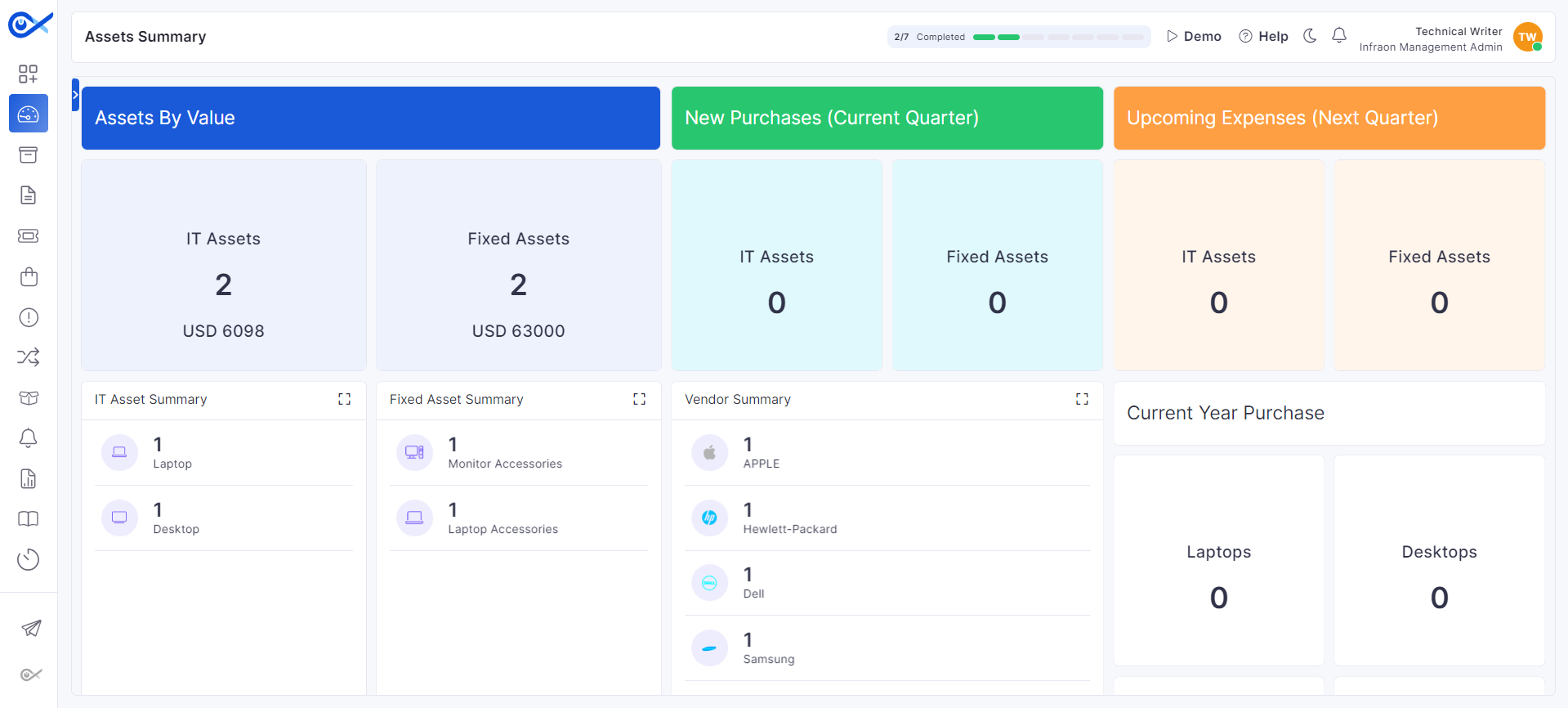
Once the initial customization is saved, you can use Infraon. Your default landing page looks like the below:
There are three default sections across all Infraon modules/pages.
Let's see these in detail:
The top panel has the below options to view:
The left menu panel can be expanded to view menu labels.
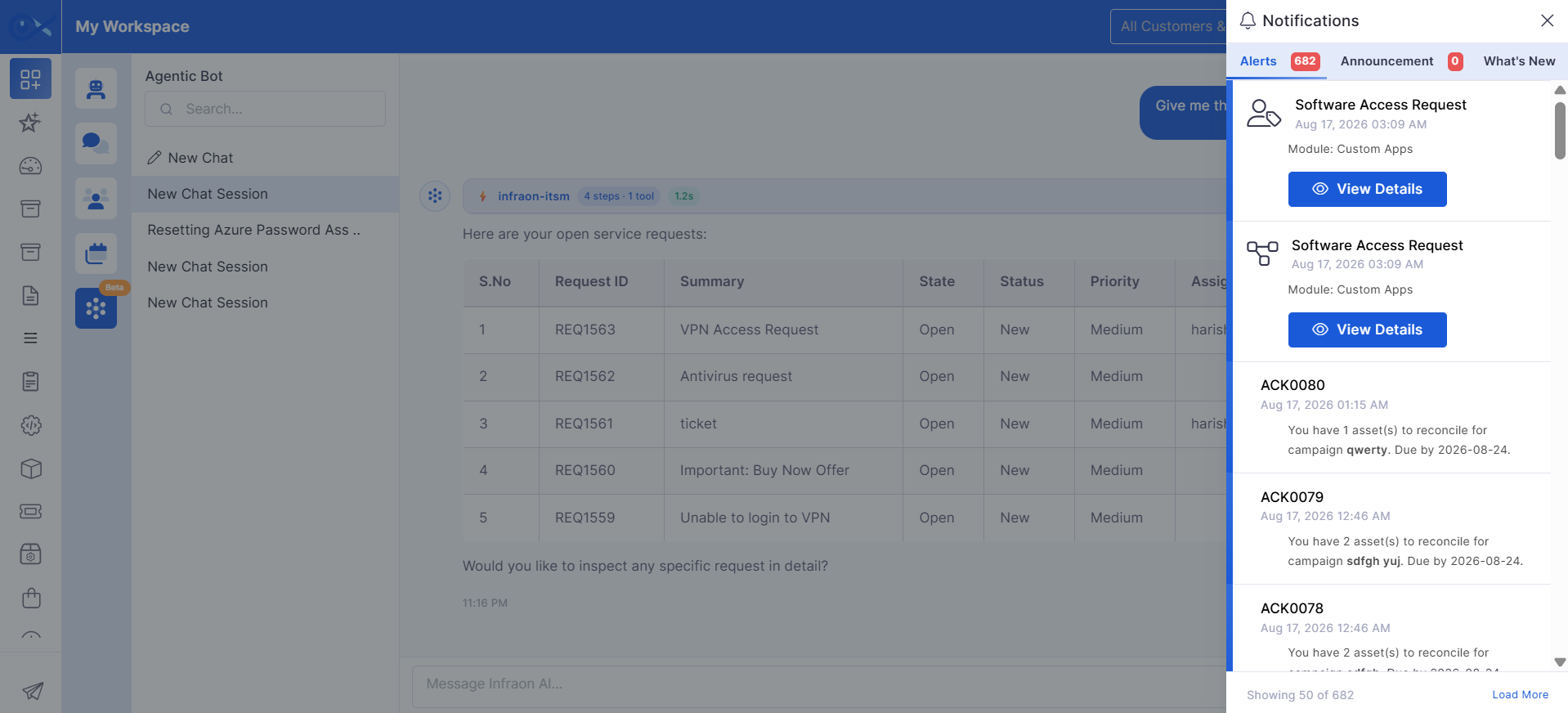
A notification icon, visible across all Infraon modules, displays your number of new alerts. Clicking this icon reveals a panel containing both informational updates and task-related notifications.
In the section, you can view messages from this panel, approve or reject requests, and check product updates. The panel includes alerts and information about recent changes or additions to the product.
Allocation
Asset allocation notification
Used to send allocation details to end users when an asset is assigned. Includes asset details, requester details, allocation time, privacy policy, and optional comment field configuration.
Deallocation
Asset deallocation notification
Used to notify users when an allocated asset is deallocated or returned. Supports privacy policy and optional acknowledgment comments.
Hardware Changes
Hardware change notification
Sends notifications about hardware modifications or asset updates.
The Allocation and Deallocation templates include a Privacy Policy option that allows administrators to include organization-specific privacy or compliance information in notification emails.
When the Privacy Policy toggle is enabled:
The configured privacy policy content is displayed in allocation or deallocation emails.
End users can review the privacy terms before acknowledging the request.
Organizations can include terms, disclaimers, usage policies, or compliance-related information.
The Allocation and Deallocation templates also support the Enable Comment Field option.
When enabled:
End users must provide comments while accepting or rejecting allocation and deallocation requests.
The entered comments are captured in allocation reports and activity logs.
This helps administrators track acknowledgment details and user responses more effectively.


Software Changes
Software change notification
Used to notify users about software installation, updates, removal, or license-related changes.
Ticket Escalation
Escalated ticket notification
Sends escalation alerts when tickets exceed the configured SLA or escalation criteria. Notifications can be sent to the configured To and Cc recipients, such as the Assignee, Owner, Team Members, or Follower.
Ticket Escalation Notify
Ticket escalation update notification
Sends notifications when a ticket escalation is updated. Notifications can be sent to the configured To and Cc recipients, such as the Assignee, Owner, Team Members, or Follower.
Ticket Reassignment
Ticket reassignment notification
Sends notifications when a ticket is reassigned. Notifications can be sent to the configured To and Cc recipients, such as the Assignee, Owner, Team Members, or Follower.
SLA Escalation
SLA breach notification
Sends alerts when ticket SLA conditions are approaching breach or have been breached.
The CI Rule Configuration empowers administrators to automate how Configuration Items (CIs) are discovered, categorized, and managed in your environment. Admins can select and configure specific rules based on different criteria to streamline CI management.
This rule automates department assignments for your Configuration Items (CIs). With this rule enabled, whenever a department is linked to an asset within the system (mapping can be enabled or disabled), a CI relation is automatically created. This eliminates manual assignment, ensuring accurate and up-to-date departmental ownership of CIs throughout your IT infrastructure.
The Location Rule automated location assignment for your Configuration Items (CIs). Similar to the Department rule, admins can enable or disable location mapping on assets. When enabled, this rule automatically creates a CI relation whenever a physical location is linked to an asset. This eliminates manual effort, guarantees CIs are accurately assigned to their corresponding locations within your IT infrastructure, and improves organization and location-based reporting.
The Requester Rule automates by enabling or disabling requester mapping on assets. Admins can configure this rule to automatically create CI relations whenever a service request or incident is linked to a specific user. This eliminates manual assignment and ensures CIs are associated with the appropriate requester, providing valuable insights into departmental or user-based IT asset usage.
The Software Rule simplifies CI management by automating the creation of CI relations for discovered software. Admins can turn software mapping on or off on assets within the system. With this rule active, a CI relation is automatically created whenever software is identified or manually linked to an asset. This eliminates manual effort and ensures accurate tracking of software assets associated with specific hardware, improving overall visibility into your IT infrastructure.
The User Rule automates CI relations based on designated technicians or managing users within your ITSM system. By enabling or disabling "manage by/technician" mapping on assets, you can configure this rule to create CI relations automatically. Whenever a specific user is assigned as the technician or manager for an asset, this rule triggers the creation of a CI relation. This eliminates manual assignment, ensuring CIs are linked to the appropriate technicians, which can be crucial for service accountability and troubleshooting workflows.
Teams represent logical groupings of users within Project Management, organized based on function, department, or project requirements. They help in structuring collaboration by grouping members who work together on similar tasks or responsibilities.
A team consists of multiple members and is associated with specific roles that define responsibilities within a project. Teams simplify assignment and management by allowing users to be handled collectively rather than individually.
It helps in identifying:
Which group is working on the project
How members are organized within a project
How responsibilities are distributed across different teams
List of teams with:
Team Name
Associated members
Roles assigned within the team
Number of projects linked to the team
Additional details (if configured)
To create a new team in Project Management:
Click the + Add option available on the top-right corner and select Add Team.
The Add Team sidebar opens.
Enter the Team Name.
Click + Add and select Roles and Members to choose roles for the team.
Select the required role from the list. The selected role will be added as a section.
For each selected role:
Use the Select Members dropdown to assign users to that role.
Multiple members can be assigned to a single role.
You can add multiple roles within the same team by clicking + Add again.
Use the delete icon to remove any role if required.
Once all roles and members are configured, click Save to create the team.
The Meeting module allows users to create, schedule, and manage meetings directly from the Workspace Calendar. It supports one-time, instant, and recurring meetings with attendee management, location selection, meeting associations, calendar views, filters, and meeting lifecycle operations such as starting, joining, canceling, and ending meetings.
The module also supports multiple meeting types, including video conferences and conference room meetings, while allowing meetings to be associated with operational entities such as Tickets, Requests, Changes, and Assets.
This page displays a calendar-based meeting management interface that lets users schedule and track meetings across the Month, Week, Day, and List calendar views.
Users can create meetings, refresh calendar data, and apply status and meeting-specific filters. The calendar also lets users navigate between dates and view meetings by status, attendee email, VC location, region, meeting type, and associated records.
Meeting | Basic Details
Meeting | Filters
Meeting | Calendar Legend
The calendar uses color coding to indicate meeting status and type.
Use this option to create and schedule a new meeting from the Meeting calendar.
The meeting creation process is organized into the following four sections:
Meeting Details
Location & Invitees
Host & Contact Person
Agenda & Attachments
Add Meeting | Field Descriptions
Add Meeting | Locations & Invitees
Add Meeting | Host & Contact Person
Add Meeting | Agenda & Attachments
Once all required details are added, click Schedule Meeting to create and schedule the meeting.
The page displays assets that have been archived from the active IT Assets and Fixed Assets pages. You can archive assets when they are no longer required for active asset management, such as when an asset is retired, disposed of, or becomes inactive. Archiving removes the asset from active asset views while retaining its asset information for future reference and management.
The Archived Assets page provides separate tabs for IT Assets and Fixed Assets. Each tab displays only the archived assets of the selected asset type.
Archived Assets | Basic Details
The Shift Calendar module in Workspace allows users to view and manage configured team shifts directly from the Calendar section. It provides a timeline-based view of shift schedules, assigned members, shift duration, shortages, and leave details for different teams within the department.
For detailed information about configuring shifts, business hours, and shift schedules, refer to the Shift Configuration documentation.
Using the Shift Calendar module, users can:
View configured shifts for different teams within their department.
View shift timings, working duration, shortages, and leave details.
View members assigned to a particular shift.
Add users to a shift.
Remove users from a shift.
Monitor operational coverage using the timeline-based shift view.
View on-duty and off-duty member details for the selected shift.
When devices are discovered using Infraon (inventory agent), the software installed in them is listed under the asset module as Software.
Download, view, and manage software entries, also blacklist/whitelist and uninstall software.
The discovered software is categorized based on the manufacturer. You have the option to blacklist or whitelist a specific software.
Check the Blacklist and Whitelist and Software License Management module for details.
Select a field, condition, and value, then click Apply Filter.
Filters archived assets based on conditions such as Asset Name contains, Serial Number equal to, or Hostname not equal to.
Select Date Range
Select a relative or custom date range.
Displays assets archived within the selected period.
Example: Last 7 Days or a custom start and end date.
Actions
Restore
Click Restore for an archived asset.
Opens the Restore Asset sidebar, where you provide a Restore Reason and optional Restore Notes before restoring the asset.
IT Assets
Click to view archived IT assets.
Displays only archived IT Assets.
Fixed Assets
Click to view archived fixed assets.
Displays only archived Fixed Assets.
Search
Enter text to search for an asset.
Search using an asset name or other available asset information.
Example: Lenovo ThinkPad.

Filter
Switch calendar view
Displays meetings in a month-wise calendar format.
Week
Switch calendar view
Displays meetings in a week-wise calendar format.
Day
Switch calendar view
Displays meetings in a day-wise calendar format.
List
Switch calendar view
Displays meetings in list format.
Microsoft Teams
Access Teams options
Provides access to Microsoft Teams-related options when enabled.
Meeting Started
Apply filter
Displays meetings that are currently in progress.
Meeting Completed
Apply filter
Displays meetings that have ended.
Meeting Title
Filter meetings
Filters meetings based on the meeting title.
Attendee Email
Filter meetings
Filters meetings based on the attendee email address.
VC Location
Filter meetings
Filters meetings based on the selected VC location.
Location / Regions
Filter meetings
Filters meetings based on the selected location or region.
Meeting Type
Filter meetings
Filters meetings based on the configured meeting type.
Associate With
Filter meetings
Filters meetings based on the module or record associated with the meeting.
Gray
Completed
Red
Cancelled
Schedule Type*
Select schedule type
Defines how the meeting is scheduled. This field is mandatory.
Available Options: One Time and Recurring.
Start Time*
Select start date and time
Specifies when the meeting starts. This field is mandatory.
End Time*
Select end date and time
Specifies when the meeting ends. This field is mandatory.
Meeting Type
Select meeting mode
Defines the type of meeting session.
Example: Web-Based Video Conference.
Meeting Link*
Enter meeting URL
Specifies the URL used to join the meeting. This field is mandatory.
Associate With
Select module or record
Associates the meeting with a supported module or operational record.
Participating VC Locations*
Select participating locations
Specifies the VC locations that will participate in the meeting. This field is mandatory.
Select all guest locations
Enable/disable toggle
Selects all available guest VC locations that match the selected regions.
Add a VC location manually...
Select VC location
Allows users to manually add a VC location.
Attendees Email
Manage attendee emails
Displays the number of selected attendee email addresses and lets attendees add from the available options.
Invite everyone from the selected VC locations
Enable/disable toggle
Invites everyone associated with the selected VC locations.
Add from EMS Directory
Select an email ID
Allows users to add an attendee by selecting an email ID from the EMS Directory.
Add an email ID manually
Enter email ID
Allows users to manually enter an attendee email address and add it to the meeting. Example:
Host Email
View host email
Displays the email address of the meeting host.
Host Phone
View host phone
Displays the meeting host's phone number, when available.
Meeting Contact Person
Enter contact details
Specifies the person invitees can contact on the day of the meeting.
Contact Person Name*
Enter contact name
Specifies the meeting contact person's name. This field is mandatory.
Contact Person Phone Number*
Enter contact phone number
Specifies the meeting contact person's phone number. This field is mandatory.
Schedule Meeting
Schedule meeting
Creates and schedules the meeting after you configure the required details.
Previous / Next
Navigate calendar
Moves to the previous or next month, week, or day based on the selected calendar view.
Add Meeting (+)
Create a new meeting
Opens the Add Meeting panel to schedule a new meeting.
Refresh
Refresh calendar data
Reloads the calendar and displays the latest meeting information.
View All
Apply filter
Displays all meetings.
Upcoming
Apply filter
Blue
Upcoming — web-based VC
Green
Upcoming — network-based VC
Amber
Title / Subject Line*
Enter meeting title
Specifies the name or subject of the meeting. This field is mandatory.
Example: Monthly review
Type
Select meeting type
Location / Regions*
Select regions
Selects the required regions. The selected regions filter the available participating VC locations and attendees.
Host VC Location*
Select host location
Meeting Host
View host details
Displays the meeting host details from the user's EMS profile.
Host Name
View host name
Agenda
Enter meeting agenda
Allows users to enter the meeting agenda or discussion details.
Attachment
Upload attachment


Month
Displays scheduled meetings that have not yet started.
In-Progress
Defines the meeting's purpose or category.
Specifies the VC location the meeting host uses.
Displays the meeting host's name.
Allows users to attach supporting documents or files related to the meeting.
Use this option to create a new IT Asset Audit record for performing physical and/or logical verification of assets.
To add a new audit:
Navigate to IT Asset → IT Asset Audit Record.
From the top panel, select Add New Audit.
Configure the audit using the fields described below.
Add Audit | Audit Details
Click Next to proceed to asset mapping.
This step associates assets with an audit record. In this step, users select the IT or Fixed Assets that must undergo verification as part of the audit. Multiple assets can be linked to a single audit to ensure comprehensive coverage.
Assets are added through a dedicated selection window, where users can search, filter, and select the required assets. Once linked, these assets become part of the audit scope and are evaluated using the assigned audit checklist.
To add the asset, select Add to proceed.
Link Asset | Add Audit
Now select the assets to link them to the Audit records.
Links the selected assets to the audit record, adds them to the audit scope, and then moves the workflow to the Audit Checklist stage.
Here, users can select the required to configure the checklist that will be used for audit execution. The selected template defines the verification fields and checkpoints that auditors must complete for the mapped assets.
Once the configuration is complete, click Save to finalize and create the audit record in the system.
Once an audit record is created and assigned, the designated auditor can perform the audit for the mapped assets. The audit process allows auditors to verify asset location and condition using the configured checklist and record audit results for each asset.
From the IT Asset Audit Record list page, auditors can initiate the audit directly from the Action column.
Navigate to IT Asset → IT Asset Audit Record.
In the Action column, select Audit for the required audit record.
The audit workspace displays the mapped assets and the associated audit checklist.
Auditors can Export asset and checklist data in XLSX format, if required.
Select an asset and click Asset Audit to begin auditing the selected asset.
The Audit details page has three tabs:
The Audit Details screen is used to perform the actual audit for an asset. It captures location verification, condition checks, audit status, and checklist responses based on the selected template.
Audit Details | IT Asset Audit Record
After completing all required fields and checklist entries, click Submit Audit to save the audit results for the selected asset.
This action records the audit outcome and updates the audit progress for the overall audit record.
The Attachments section allows auditors to upload and manage supporting evidence related to the audit. This helps validate audit findings and maintain verifiable records for compliance and future reference.
Auditors can upload files such as asset photos, barcode/QR code images, condition evidence, or audit documents directly from this section.
Add Attachments
To add an attachment:
Navigate to Audit Details.
Open the Attachments section.
Click Add to upload files.
Select the appropriate category and provide an optional description.
Attachments | Fields Description
Uploaded attachments are displayed within the Attachments section and remain linked to the audited asset for reference.
The Recent Activities section displays a chronological log of all actions performed on the audit record. It captures key events, including audit creation, asset mapping, status updates, attachment uploads, and audit completion.
This section provides clear visibility into who performed each action and when, ensuring traceability and accountability throughout the audit lifecycle.
Once all assigned assets have been audited and the required details are recorded, the auditor can select Mark as Completed to finalize the audit. This action confirms that the audit activities are complete and updates the audit status accordingly.
To add a new Purchase Requisition, click + Add Purchase Requisition available at the top-right corner of the Purchase Requisition page.
In Purchase Requisition, there are three tabs available for configuration:
Purchase Requisition Properties
Item Details
Terms and Conditions
This module is designed for initial user registration within the Infraon Infinity platform. Administrators can verify their accounts by providing essential details like their email address, company name, and mobile number. This information is stored securely within the Infinity data, allowing registered administrators to access and utilize the various functionalities.
Defines the name of the audit record. Use a clear, identifiable title that reflects the audit purpose.
Example: Laptop Physical Verification – Q1
Status
Select from the drop-down
Indicates the current state of the audit. The default status is New (Open) when created.
Other options include: In Progress (Ongoing), On Hold (Pending), and Close (Audit Done)
Audit Objective*
Select from the drop-down
Defines the scope of verification for the audit.
Options include:
Location Check: Verifies the physical location of assets
Asset Condition Check: Verifies the physical condition of assets
Both (Location & Condition Check): Verifies both location and condition
Type*
Select from the drop-down
Specifies how the audit is initiated. Options include:
Scheduled: Audit runs based on a defined schedule
Random: One-time audit without scheduling
Start Date*
Select date
Specifies the date on which the audit begins. Mandatory for scheduled audits.
End Date*
Select date
Specifies the expected completion date of the audit and helps track audit duration.
Assignment Details
Contact Person*
Select from the drop-down
Identifies the primary point of contact responsible for coordinating the audit. This user is typically responsible for communication and follow-ups related to the audit.
Auditor Type*
Select an option
Defines whether the audit is performed by an internal user or an external entity.
Internal: Audit is conducted by users within the organization
External: Audit is conducted by third-party auditors
Auditor*
Select from the drop-down
Assign the auditor responsible for executing the audit. If External is selected, provide the auditor’s Email and Phone Number.
Notify Audit Scheduling
Click to enable the toggle
Enables audit scheduling and notification configuration. When enabled, scheduling details and email notifications can be configured.
Audit Schedule Details
Schedule Mode
Select an option
Defines how often the audit is triggered.
Options Include: Once, Every, Daily, Weekly, Monthly, and Yearly.
Scheduled At*
Select date and time
Displays the configured audit execution date, time, and time-zone. Example: 13 January 2026, 12:00 (Asia/Kolkata)
Email Configurations
To*
Enter email address
Specifies the recipients who will receive audit notifications and reminders.
Subject*
Enter text
Defines the subject line of the audit notification email.
Example: Physical Asset Verification
Message Body
Edit content
Configures the audit notification email content. Supports predefined macros that dynamically populate audit information when the notification is triggered.
Filter
Click the filter icon
Apply filters to narrow down assets based on predefined criteria such as asset attributes or categories.
Asset Type
Select from the drop-down
Choose the asset category to display. Options include IT Asset and Fixed Asset.
Asset Category
Select from the drop-down
Filters assets based on categories such as Work Station, Laptop, Desktop, Server, etc., depending on the selected asset type.
Location Check*
Select from the drop-down
Indicates whether the asset is found at the expected location.
Options include:
Yes: Asset is present at the expected location
No: Asset is not found at the expected location
Misplaced: Asset is found, but at a different location
Asset Condition Check*
Select from the drop-down
Records the asset's physical condition.
Options include:
Good: Asset is functional and in acceptable condition.
Damaged: Asset has physical or functional damage.
Unknown: Condition could not be verified.
Audit Status*
Select from the drop-down
Represents the audit classification of the asset. Options include:
Expected Assets: Asset was expected and successfully verified
Not Expected: Asset was found, but not part of the expected audit list
Expected and Not Found: Asset was expected but could not be located
Audit Comment*
Input field
Add remarks or observations related to the audit, such as location mismatch, damage details, or verification notes. Example: Asset verified at the assigned location and found to be in good working condition. No physical damage or discrepancies observed during inspection.
Audit By*
Input field
Enter the name of the auditor who conducted the audit for this asset.
Example: Chris Johnson.
Audit Date and Time*
Select date and time
Specify the exact date and time when the audit was performed on the asset.
Checklist Fields
Input as applicable
Displays additional fields defined in the selected (such as Text, Dropdown, Date, DateTime, or Checkbox). These fields capture checklist-specific audit information.
Upload the file to associate it with the audit record.
Supported Formats
View only
Supported formats include: PNG, JPEG, JPG, TXT, DOC, DOCX, CSV, XLS, XLSX, PDF, MSG, EML
Max File Size
View only
Maximum file size allowed is 20 MB
Category
Select from the drop-down
Classifies the attachment.
Options include: • Asset Photo • Tag/Barcode/QR Code • Condition Evidence • Audit Report Document
Description
Input field
Add brief context for the attachment Example: “Front panel image captured during physical verification”
Upload File(s)
Click to upload
Uploads and associates the selected files with the audit record
Cancel
Click to discard
Close the attachment panel without uploading
Basic Details
Audit Name*
Add Asset
Click Add
Opens the asset selection window to add assets to the audit.
Search
Type keywords
Base Location*
Select from the drop-down
Select the asset's verified physical location at the time of the audit.
Example: Bangalore. This confirms the asset's current location.
Audit Objective*
View-only
Add
Click to open the upload panel
Opens the Add Attachments panel to upload supporting files
Upload Area
Drag and drop / Browse
Enter a value
Search assets using Asset ID, Asset Name, or IP Address to quickly locate specific assets.
Displays the audit objective selected during audit creation.
Upload files by dragging them into the area or browsing from your device
Purchase Requisition Properties | Basic Details
The Purchase Requisition Properties tab is used to configure PR information, contract references, vendor details, requester information, and procurement-related configurations before adding line items and submitting the PR.
PR Information
Title
Click Next to proceed to the Item Details tab for configuring line items, procurement costs, and related item information.
Item Details | Basic Details
The Item Details tab is used to add and manage line items associated with the Purchase Requisition. Users can configure procurement-related item information required for the procurement process.
The Item Details section allows users to configure:
Item Name
Item Type
Category and Sub-Category
Quantity
Unit Cost
Tax Rate and Tax Amount
Loaded Cost
Conversion Factor
Consignment Details
Order Unit
Model Details
Commodity Code
Vendor-related Item Details
based on field configuration and RBAC permissions
Users can:
Add line items manually using the + Add Item option
Upload multiple line items using the Upload as CSV option
Download a predefined CSV template using the Download Sample CSV option
Configure visible line item columns based on permissions and field configurations
View calculated values such as Subtotal, Tax, and Grand Total
After configuring the required line item details, click Next to proceed to the Terms and Conditions tab.
Terms and Conditions | Basic Details
The Terms and Conditions tab is used to configure shipping details, billing information, and procurement terms associated with the Purchase Requisition. Users can define delivery addresses and apply predefined terms and conditions required for procurement processing.
Shipping Address
Enter the shipping address details
Specify the delivery address for the requested items. Example: Infraon Technologies, Bangalore Office, 5th Floor, MG Road, Bengaluru – 560001
Billing Address
Enter the billing address details
Once all required details are configured, click Submit to complete the Purchase Requisition.
The Merge History page provides a record of previous deduplication actions and allows users to review what happened to duplicate clusters.
Merge History | Top Panel
All
History Details
Once Software Metering rules are configured and data is collected from agents, the Software Metering Summary page provides an aggregated view of application usage across devices. This view helps analyze how frequently applications are used, for how long, and across how many endpoints.
For each rule, the summary grid displays:
A Space is a logical grouping within a project that organizes tasks, teams, and activities. It helps segment the project into manageable sections such as phases, modules, departments, or workstreams.
Spaces enable better work structuring by allowing teams and roles to be assigned at a more granular level, ensuring clear ownership and controlled access across different parts of the project. It helps in identifying:
How project work is divided into logical sections
Which teams or users are responsible for specific areas
Auto Deduplication identifies and consolidates duplicate asset records created through multiple discovery sources, manual entry, imports, or integrations. It helps maintain a single trusted asset record (Golden Record) while preserving historical data and audit traceability.
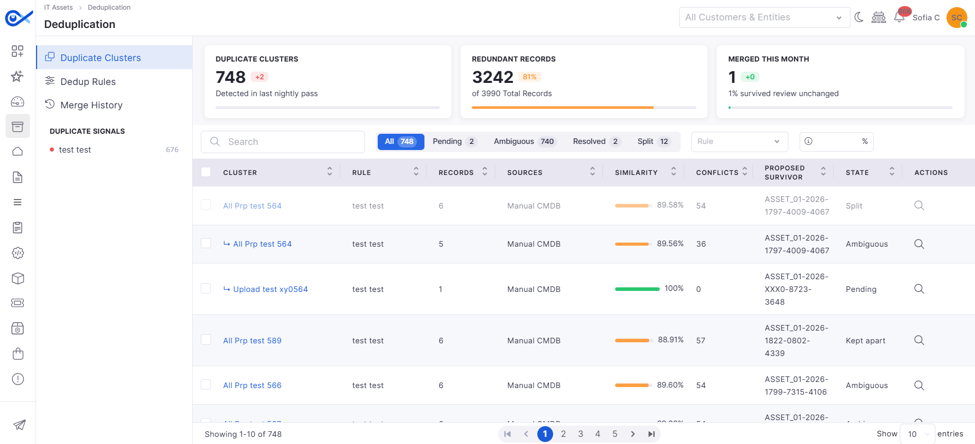
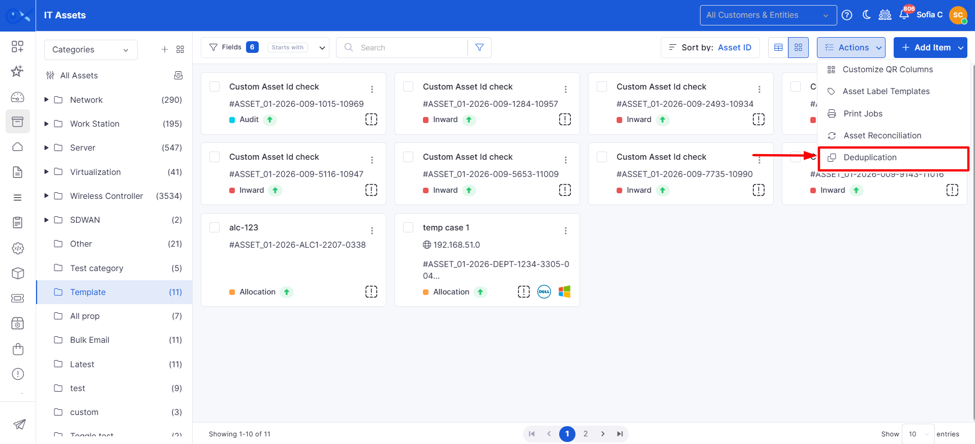
Navigate to IT Asset/Fixed Asset → Action List →Deduplication to open the Duplicate Cluster page. The system groups potential duplicate asset records into clusters based on duplicate signals and similarity. Users can review the clusters, select the appropriate surviving record, resolve field conflicts, preview the impact, and then merge, split, mark the cluster as not duplicate, or leave it for later.
Asset Deduplication provides capabilities to:
Identify potential duplicate asset records.
Actor
View
Displays the user or process that performed the action.
Survivor
View
Displays the record selected as the surviving asset.
Retired Records
View
Displays the records retired as part of the merge.
Overridden Fields
View
Displays fields whose values were overridden during the merge.
Undo
Click
Reverses an eligible deduplication action within the available 30-day window.
Select
Displays all recorded deduplication actions.
Merged
Select
Displays clusters that were merged.
Kept Apart
Select
Displays clusters that were kept separate.
Undone
Select
Displays actions that were undone.
Timestamp
View
Displays when the deduplication action was performed.
Action
View
Duplicate asset records can originate from discovery, manual entry, imports, or integrations.
The objective is to maintain one Golden Record while preserving historical and audit information.
Automatic merging requires zero conflicts + similarity at or above the one-click merge threshold.
Active dependencies prevent automatic merging and send the cluster for manual review.
Undo is available only within 30 days.
A wrongly grouped cluster can be split into two or more groups, with every existing record assigned exactly once.
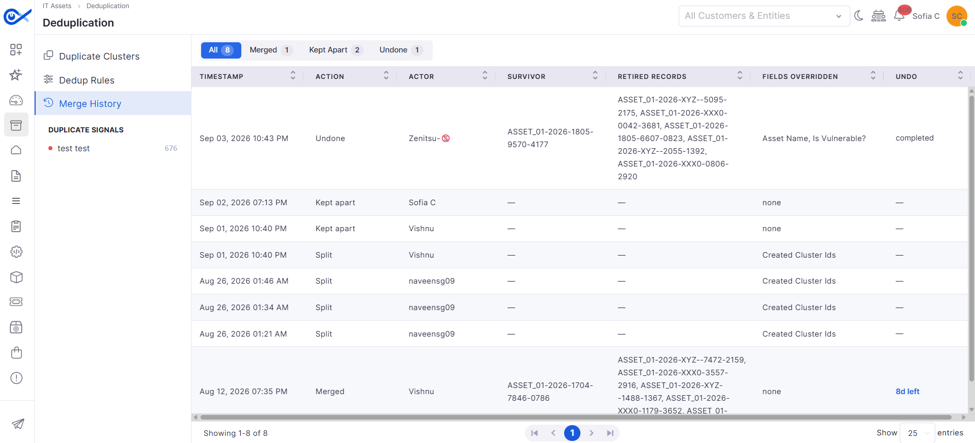
Displays the action performed on the cluster.
New: Newly identified asset during the audit
View only field, no actions can be taken
Name of the configured metering rule
Application Name
View only field, no actions can be taken
Tracked application under the rule
Usage Count
View only field, no actions can be taken
Total number of times the application was opened
Total Instance
View only field, no actions can be taken
Number of devices on which the application was used
Duration
View only field, no actions can be taken
Total usage time aggregated across all devices
Click the View icon to drill down into device-level usage details for the selected application.
This view displays:
Asset Name
View only field, no actions can be taken
Unique device where the application is used
Application Path
View only field, no actions can be taken
Click on the Usage Count value to open a detailed usage view for the selected asset.
This section provides:
Graphical Representation
View usage trends using a Bar Chart or a Line Chart
Displays day-wise usage distribution
Tooltip shows date and usage duration (hours/minutes)
Process-Level Details
Date – When the application was used
Process ID (PID) – Unique process instance
Application Start Time
Each process instance is tracked separately, even for the same day
Additional capabilities:
Switch between chart types for better visualization
Export the chart as an image for reporting and analysis
Rule Name
To add a new Space within a project:
Click on the Space dropdown
Select + Create Space
Add Space | Configuration
Space Name
Enter text
Define the space name based on project segmentation. Example: Network Deployment – Phase 1
Add all people in the Project
Select option
To create a new project, click the + (plus) icon in the Projects section available on the left panel. This opens the project creation panel.
Users can choose to create a project using an existing template or start from scratch.
Select a Project Template to create a project with predefined configuration (tasks, workflow, teams, and fields).
Select Blank Project to create a project manually without any predefined setup.
Once selected, the Add Project configuration wizard opens.
Project creation is completed through the following configuration steps:
Project Details – Define basic project information such as name, code, owner, workflow, and description
Task Template – Select and configure task fields
Task – Define or import tasks
Task Workflow – Configure task lifecycle and transitions
Define Team – Assign teams, roles, and members
Field Configuration – Control field visibility based on role and status
Preview – Review all configurations before submission
For detailed configuration of each step, refer to the Project Template section.
Review duplicate asset clusters and their matching details.
Select the asset record to retain as the Survivor.
Resolve field-level conflicts before merging records.
Merge duplicate records into a single asset record.
Mark records as Kept apart when they are not duplicates.
Split incorrectly grouped records into separate clusters.
Create and manage deduplication rules.
Automatically merge high-confidence duplicate clusters.
Review previous merge activities and undo eligible merges.
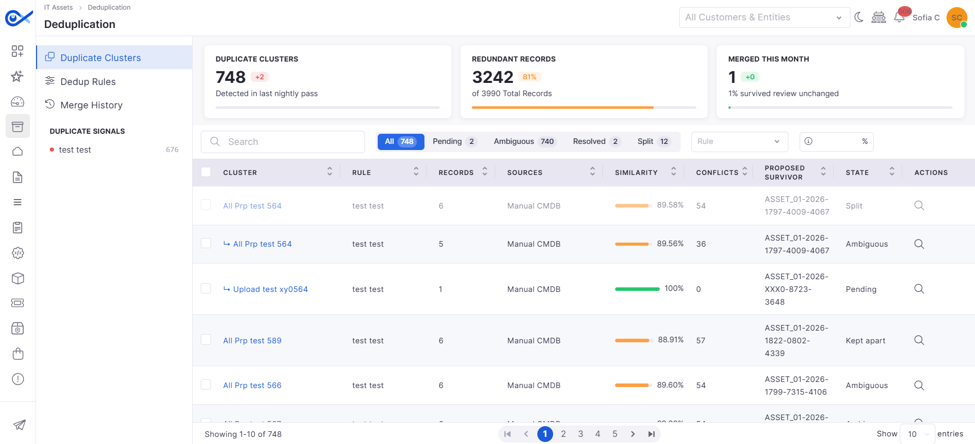
Asset Deduplication | Sidebar
Duplicate Clusters
Click
Opens the queue containing identified duplicate asset clusters for review and resolution.
Dedup Rules
Click
Enter the title
Used to provide the title or summary for the Purchase Requisition. Example: Laptop Procurement for the IT Team.
Currency
Select a currency from the dropdown
Used to define the transaction currency for the Purchase Requisition.
Example: USD, INR, or EUR.
Status
Select a workflow status from the dropdown
Displays and manages the Purchase Requisition's current workflow state. Example: Draft, Waiting for Approval, or Approved.
Status Date
Select the date
Displays the current workflow status date associated with the Purchase Requisition. Example: 21 May 2026.
Priority
Select the priority from the dropdown
Used to define the priority level of the Purchase Requisition. Example: Low, Medium, High, or Critical.
Location
Select a location from the dropdown
Used to associate the Purchase Requisition with a specific branch or operational location.
Requested By
Select a requester from the dropdown
Used to define the user requesting the Purchase Requisition.
Requested Date
Select the requested date
Used to define the date on which the Purchase Requisition was requested. Example: 20 Mar 2026.
Required Date
Select the required date
Used to define the expected procurement or delivery date for the requested items or services.
Example: 28 Mar 2026.
Reporting Manager
Select the reporting manager from the dropdown
Used to associate the requester’s reporting manager for approval or tracking purposes.
Description
Enter the description
Used to provide detailed information about the Purchase Requisition requirement. Example: Procurement request for employee onboarding laptops and accessories.
Contract Reference
Contract Type
Select the contract type from the dropdown
Used to associate a contract category with the Purchase Requisition. Example: AMC, Service Contract, or Procurement Contract.
Contract Reference
Select the contract reference from the dropdown
Used to map an existing contract reference associated with the Purchase Requisition. Example: AMC-2026-001.
Contract Revision
Enter the contract revision
Used to define the revision version of the associated contract. Example: Revision 2 or v1.1.
Vendor Details
Vendor
Select a vendor from the dropdown
Used to associate the vendor with the Purchase Requisition.
Example: Dell Suppliers, Cisco Distributor, or HP Vendor.
Payment Terms
Select payment terms from the dropdown
Used to define payment conditions associated with the Purchase Requisition. Example: Net 30, Advance Payment, or Quarterly Payment.
Ship Via
Select the shipping method from the dropdown
Used to define the shipment or delivery method for the requested items. Example: Courier, Air Freight, or Direct Delivery.
FOB Point
Enter the FOB point
Used to define the Freight On Board location or shipment transfer point. Example: Bangalore Warehouse or Chennai Port.
Type
Select the requisition type
Used to define whether the Purchase Requisition is for internal or external procurement. Example: Internal or External.
Pay Tax To Vendor
Enable or disable the toggle
Used to define whether applicable tax payments should be made directly to the vendor.
Pay On Receipt
Enable or disable the toggle
Used to define whether payment should be processed upon receiving the requested items or services.
Inspection Required
Enable or disable the toggle
Used to define whether the requested items require inspection before approval or acceptance.
Next
Click Next
Cancel
Click Cancel
Cancels the Purchase Requisition creation process without saving changes.
Specify the billing or invoice address associated with the Purchase Requisition.
Same as Shipping Address
Check to copy the shipping address into the billing address field
Automatically copies the Shipping Address details into the Billing Address field.
Terms and Conditions
Select the required terms and conditions from the drop-down
Used to apply predefined procurement terms for the Purchase Requisition. Click here to configure Terms and Conditions.
A Purchase Requisition (PR) is used to formally request the procurement of items or services required for business operations before a Purchase Order is created. It helps organizations track, review, approve, and manage procurement requests through a structured workflow.
For example, an employee can submit a Purchase Requisition to request laptops, software licenses, networking devices, office equipment, or vendor services. Once submitted, the PR moves through the configured approval workflow before proceeding to the procurement or Purchase Order stage.
It is commonly used for:
Hardware procurement requests
Software or license requests
Vendor service requests
Office and operational purchases
Internal approval-based procurement processes
Unlike a which is issued to a vendor to confirm procurement, a Purchase Requisition is an internal request used for approval and procurement planning before the actual purchase process begins.
A Purchase Requisition follows a workflow-driven process in which each PR moves through predefined stages based on the configured and approval conditions. Users can create PRs, add line items, configure vendor and address details, submit the PR for approval, and track the approval status from the PR view page.
Workflow Stages | Purchase Requisition
The Purchase Requisition page displays all created PR records in a grid view. Users can search, filter, create, edit, delete, and manage Purchase Requisitions. The page also provides quick access to PR details, including priority, requested date, total amount, workflow status, and vendor information.
Purchase Requisition | Basic Details
Members represent all users who are associated with projects through teams and roles. It defines who is involved in project execution, how responsibilities are assigned, and how task ownership is managed.
Members are the actual users who perform work within a project. They are mapped to roles and teams, which determine their responsibilities and participation across different projects.
It helps in identifying:
Who is working on the project
Who is assigned to specific roles
Who is responsible for tasks
A member can belong to more than one team and can have different roles across different projects. Task ownership and assignment are mapped to members, ensuring each task is assigned to a responsible user based on their role within the project.
List of users with:
Username
Associated projects
Team
To add members and assign them to roles within Project Management:
Click the + Add option available on the top-right corner and select Add Members.
The View Members sidebar opens, displaying existing member-role mappings.
Each row represents a role with associated members.
To create a new mapping, click Add Items.
In the newly added row:
Select one or more users from the Members dropdown.
Select the corresponding Role from the Select Role dropdown.
You can add multiple rows to map different members to different roles.
Use the delete icon to remove any mapping if required.
Click Save to apply the changes.
This configuration ensures that selected users are assigned appropriate roles within projects and can participate in task execution in line with their assigned responsibilities.
There are multiple types of assets in an organization. The first step of asset management is the categorization of assets. Broader categorization enables better management. The default categorization of assets within Infraon is as follows:
Asset Type -> Asset Category -> Asset Sub-Category -> Asset
The process of managing an asset depends on its type. Based on asset type, Infraon assets have been split into four modules.
IT Assets are physical assets or devices used in an organization's business activities that fall under the responsibility of IT staff. For example, computers, servers, routers, scanners, fax machines, printers, modems, hubs, and IoT (Internet of Things) devices.
Fixed Assets are any physical objects or vehicles you consider 'assets' to your organization. It can be easily converted into cash—for example, vehicles, machinery, equipment, etc.
Consumables are assets that organizations use. They must be replaced regularly because they wear out or are used up—for example, mouse devices, external keyboards, computer cables, printer toners, etc.
Software Assets are any functional software in an organization that requires service level agreement to ensure compliance with software licenses. For example, software assets may be internal or external, on-premises, or in the cloud.
Within these asset Types, assets are further classified into:
Categories – Categories are also referred to as 'parent' categories. A category is the first division of assets within the selected asset type. For example, within IT assets, there can be categories like laptops, desktops, etc.
Sub-Categories - Sub-categories are also referred to as child categories. The sub-category is the next level of asset division within the category. For example, if the categories are laptop or desktop, sub-categories within IT assets can be Dell, Lenovo, Apple, etc. Assets or asset items can be added here.
Refer to the and sections for details and instructions.
Expand the left menu panel.
Click on Assets
Select the respective asset type.
Click on the respective asset category or asset to view more details.
SBOM provides a consolidated view of applications, software components, assets, and vulnerability information, enabling users to review software composition and assess associated risks.
Top Panel Details
Critical
View
Displays the total number of Critical vulnerabilities identified across the scanned assets.
High
View
Displays the total number of High vulnerabilities identified across the scanned assets.
Medium
View
Displays the total number of Medium vulnerabilities identified across the scanned assets.
Low
View
Displays the total number of Low vulnerabilities identified across the scanned assets.
Risk Distribution
View
Displays a stacked bar chart representing the distribution of vulnerabilities across different severity levels.
Total Apps
View
Displays the total number of distinct applications identified across the scanned assets.
Total Assets
View
Displays the total number of assets that have been scanned.
Opens the page where deduplication rules can be created and managed.
Merge History
Click
Opens the history of previous merge and keep-apart actions.
Duplicate Signals Summary
View
Displays a summary of the signals used to identify potential duplicate asset records.
Executable path of the application
Usage Count
View only field, no actions can be taken
Number of times the application was opened on that device
Duration
View only field, no actions can be taken
Total usage time for that device
Draft
The initial stage is when the Purchase Requisition is created and saved, including PR details, vendor details, line items, and terms and conditions.
Waiting for Approval
Indicates that the PR has been submitted for approval and is awaiting action from the configured approver or approval team.
Approved
Search
Enter keywords to search PR records
Used to search Purchase Requisitions using keywords such as PR0002, vendor name, requester name, or PR title.
Filter
Role
Reporting To
Task count
Access can be controlled at the space level
Includes all project members in the space by default. If selected, all members automatically get access to the space.
Add specific teams or users
Select option
Allows selecting specific teams or users for the space. If selected, only selected teams and roles will have access
Select Team
Select from the dropdown
Choose the team to be associated with the space (mandatory when selecting specific teams). Example: FE Engineer Team
Add Role
Click to add
Assign roles within the selected team for the space.
Role Member Selection
Select from the dropdown
Assign specific members to the selected role within the space.
Indicates that the PR has been approved successfully based on the configured workflow and approval conditions.
Rejected
Indicates that the PR has been rejected during the approval process. Users can review and modify the PR if required.
Closed
Final stage of the Purchase Requisition lifecycle, indicating that the PR process is completed successfully.
Click the filter icon to apply conditions
Used to apply advanced filter conditions based on PR fields such as Status, Priority, Vendor, Workflow State, or custom fields.
Date Range
Select a date range
Used to filter Purchase Requisitions based on selected date ranges such as Today, Last 7 Days, Last Month, or custom date ranges.
Line Item Column Selection
Click Actions and configure columns
Used to configure and manage visible line item columns such as Item Name, Quantity, Unit Cost, Tax Amount, and custom fields based on RBAC permissions.
Add Purchase Requisition
Click + Add Purchase Requisition
Opens the Purchase Requisition creation page to add a new PR, including vendor, line items, addresses, and terms and conditions.
Column Details
Purchase Requisition ID
Click to open in the view page
Displays the unique Purchase Requisition ID.Example: PR0002. Clicking the ID opens the detailed PR view page.
Title
View only field, no actions can be taken
Displays the configured title or summary of the Purchase RequisitionExample: "Laptop Procurement Request" or "Networking Device Purchase".
Requested By
View only field, no actions can be taken
Displays the name of the user who created or submitted the Purchase Requisition.
Requested Date
View only field, no actions can be taken
Displays the date on which the Purchase Requisition was created or submitted.
Required Date
View only field, no actions can be taken
Displays the expected procurement or delivery date configured for the Purchase Requisition.
Priority
View only field, no actions can be taken
Displays the configured priority level of the Purchase Requisition.Available Options: Low, Medium, High, or Critical.
Total Amount
View only field, no actions can be taken
Displays the total calculated amount of all configured line items in the Purchase Requisition.
Status
View only field, no actions can be taken
Displays the current workflow status of the Purchase Requisition Available Options: Draft, Waiting for Approval, Approved, Rejected, or Closed.
Vendor
View only field, no actions can be taken
Displays the mapped vendor associated with the Purchase Requisition.
Locations
View only field, no actions can be taken
Displays the configured branch, office, or operational location associated with the Purchase Requisition.
Edit
Click the edit icon
Opens the selected Purchase Requisition in edit mode to modify details, such as line items, vendor details, addresses, or workflow-related information, subject to permissions.
Delete
Click the delete icon
Deletes the selected Purchase Requisition from the system, subject to delete permissions and workflow restrictions.
The CMDB part of ITSM is incorporated as Assets within Infraon. Infraon Assets allows administrators/asset managers to view and manage all organizational assets, i.e., all IT and non-IT assets, in one place.
Any device with an IP is known as an IT Asset or Node. It can be a Server, Router, Storage Device, Transport Device, Wireless controller, Access point, etc.; as part of an Asset, Infraon collects and maintains the complete inventory details for an asset.
Infraon collects basic yet important inventory information for each device, server, hypervisor, and application. The inventory information includes:
IP Address
Hostname
Device Type
Vendor
Model
Serial Number
Operating System and Version
MAC Address
CPU Information
Memory
HDD Details
Port Level information
Etc.,
For Hypervisors,
CPU Socket
No of Processor
CPU Speed
Etc.,
The Infraon Admin Guide is explicitly designed for administrators responsible for configuring, managing, and maintaining the Infraon Infinity platform. This guide focuses on modules and functionalities exclusive to the Management Admin role, such as system configuration, user management, and platform settings.
This guide includes only those modules and features that are exclusive to Management Admin users, such as:
Platform Configuration
User & Role Management
System Settings
The remaining modules are shared between both users and admins. To avoid duplication and provide a clear, role-based experience, these shared modules are documented under the section.
If you’re an Admin looking for detailed documentation on all other modules:
Navigate to the for technician-level modules and operational features.
Use the left-side navigation menu to explore topics by module.
Use the search bar at the top of the page to quickly find specific content.
The Notification module allows you to configure project-specific notification rules and templates to automate notifications for project events and activities. These notifications help keep project members informed about important updates and workflow events throughout the project lifecycle.
Using the Notification module, you can:
Configure notification rules to define when notifications are triggered.
Create and manage notification templates for consistent notification messages.
It is used to define and manage the people involved in project execution. It provides a structured way to organize users into teams, assign roles, and control responsibilities within projects.
This sub-module ensures that each project has clearly defined ownership, role-based responsibilities, and proper access control. The Teams & Roles structure follows this hierarchy:
Each level defines how users are grouped and how responsibilities are assigned within a project.
Memory Size
Define the recipients who should receive notifications.
Select the appropriate notification channels, such as Email, In-App, or other supported channels.
Configure conditions and delivery schedules to control when notifications are sent.
Automate notifications for various project events to keep stakeholders informed.
Workspace is a centralized collaboration and productivity hub within the Infraon Infinity platform that enables users to communicate, collaborate, manage operational activities, and interact with AI-powered assistants from a unified interface.
Key capabilities of Workspace include:
Real-time communication through chats and channels
AI-powered assistance for ticket handling and guided support
Centralized scheduling for meetings, events, and activities
Project collaboration and task coordination
Unified access to operational and support workflows
Workspace enables users to:
Create and track tickets
Communicate through chats and collaboration channels
Schedule meetings, events, and video conferences
Collaborate on projects and operational tasks
Workspace contains the following modules:
Infraon Bots enables users to interact with AI-powered assistants for ticket-related tasks and automated support. Users can create tickets, retrieve ticket details, engage in guided conversations, and hand off chats to technicians when required.
Real-time communication between users and technicians. It supports direct conversations, ticket discussions, notifications, and AI-assisted chat interactions for faster issue resolution and collaboration.
Channels allow teams to organize conversations into dedicated communication spaces based on projects, departments, teams, or operational activities. It helps users collaborate and share updates in a structured manner.
Calendar helps users manage schedules, events, meetings, shifts, and video conferences. It provides centralized visibility into planned activities and supports coordination across teams.
Provides conversational AI capabilities within Workspace. It supports natural language interactions for ticket creation, ticket tracking, guided assistance, AI-based responses, and technician handover workflows.
Helps users plan, organize, and track projects and tasks. It enables teams to manage activities, monitor progress, assign responsibilities, and collaborate efficiently within the Workspace environment.
Let’s see each one in detail.
Workspace Settings is used to configure live chat behavior, technician allocation, session handling, and chat response settings within the Workspace module. It helps administrators manage live chat operations between requesters and support technicians.
Live Chat Configuration allows administrators to define chat session settings, technician assignment rules, inactivity handling, and support team allocation for live chat operations.
Live Chat Configuration | Basic Details
Administrators can configure chat session duration, response timeout, and technician allocation settings.
Incoming live chat requests are automatically assigned to technicians based on the selected allocation algorithm.
Chat sessions are automatically closed if no activity is detected within the configured timeout duration.
Chat history is retained based on the configured retention period for audit and tracking purposes.
The Mobile Device sub-module allows you to manage and monitor mobile assets, including Android and iOS devices.
Devices are automatically discovered when the mobile agent is installed and configured with the organization key. Once registered, the device is added as an asset and categorized based on its operating system.
The module provides visibility into device details, hardware information, installed applications, and location data (if enabled). It helps track mobile assets and ensures that device information is kept up to date through periodic agent synchronization.
Mobile device management is enabled through the mobile agent installed on the device.
Install the mobile agent on the device.
Enter the organization key during setup.
The device registers with the system and is added under the Mobile Device section.
Devices are automatically categorized into Android or iOS based on the operating system.
The agent periodically syncs data with the system to update device details.
Based on the configured settings, the agent collects and updates:
Device information (name, OS, model, etc.)
Hardware details (battery, network, security, etc.)
Installed applications
Location data (if enabled)
The collected data is displayed in the respective tabs within the mobile device details page. Any configuration changes are applied during subsequent agent sync.
The Mobile Asset View page provides detailed information about a selected mobile device. It displays device details, ownership information, hardware data, installed applications, and location information (if enabled).
The information is organized into tabs such as Details, Hardware, and Application, allowing you to view specific aspects of the device. Data displayed on this page is collected by the mobile agent and updated periodically during agent synchronization.
Mobile Asset | Basic Details
DB Sync allows users to monitor the synchronization status of the SBOM vulnerability database. It provides information about database updates, the latest synchronization time, database status, schema version, and the update source.
The SBOM vulnerability database is periodically synchronized to keep the vulnerability information up to date. The DB Sync page maintains a history of database updates and displays the current database status.
Use case: For example, if the vulnerability database is successfully synchronized, users can open DB Sync to verify when the database was last updated, check its current status, and view information such as the schema version and database build date. If the database becomes stale, the page indicates the stale status so that users can identify that the vulnerability data may require an update. The documented stale condition is when the database is more than 30 days old.
When you select DB Sync from the SBOM navigation, the DB Sync page/sidebar displays the database synchronization status and update history. It provides summary information at the top followed by details of previous database updates.
The DB Sync details provide information about the database version, build information, update status, and the source that triggered the synchronization.
The Azure AD MCP Tool enables users to manage their own Azure AD account through the Agentic Bot. Users can request supported account actions using natural-language prompts and confirm the requested action before it is executed.
The following actions are supported:
Reset Azure AD Password – Resets the user's Azure AD password and provides a temporary password that must be changed during the next sign-in.
Unlock Azure AD Account – Unlocks the authenticated user's Azure AD account.
Disable Azure AD Account – Disables the authenticated user's Azure AD account.
Open Agentic Bot.
Enter a request for the required Azure AD action. Example: “Reset my Azure AD password.”
Agentic Bot identifies the requested action and displays a confirmation prompt.
Review the action and confirm the request.
Project Management on the Infraon platform is used to plan, execute, and track projects by organizing work into structured components, including projects, tasks, teams, workflows, and milestones. It provides a centralized workspace where users can manage the full lifecycle of a project, from creation through execution and monitoring, while maintaining visibility and control over progress, ownership, and timelines.
To access the module, navigate to Workspace → Project Management. This opens the project workspace where projects are listed in the left panel, and key sections such as Summary, Tasks, Teams & Roles, Notifications, Project Settings, and Audits are available for the selected project.
The module is designed to support controlled project execution by combining task management, workflow-driven status transitions, role-based access, and real-time updates.
Projects can be created using a blank configuration or an existing project template. During creation, users define project details, select a workflow, configure teams and roles, and set up tasks.
After creation, tasks can be added, edited, deleted, cloned, or imported via CSV. Tasks can be updated directly from the table view and linked with milestones and dependencies.
The selected action is performed on the authenticated user's Azure AD account.
The result is displayed in the Agentic Bot conversation.
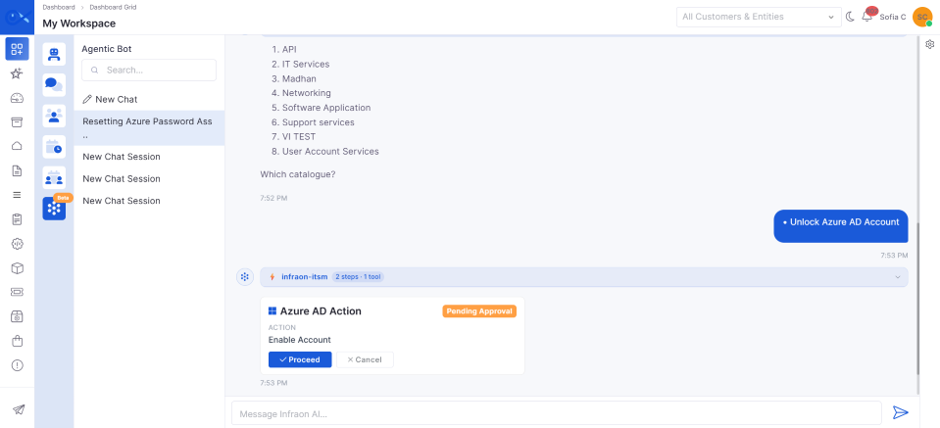
Update
View
Displays an individual database synchronization event.
Update Time
View
Displays when the database synchronization occurred.
Status
View
Displays the status of the synchronization event.
Online
View
Indicates that the vulnerability database is available and operating normally.
DB Built Date
View
Displays the date when the vulnerability database was built.
Triggered By
View
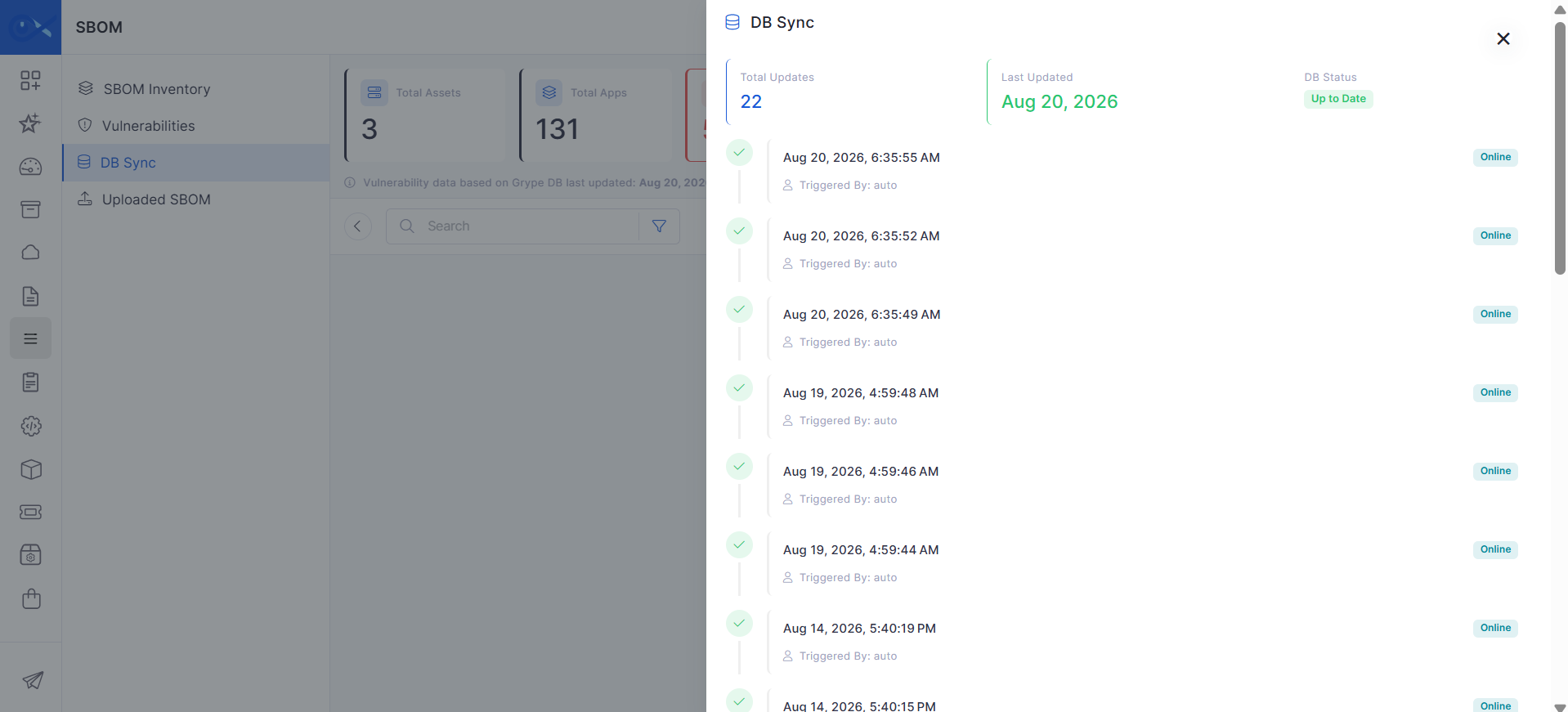
Displays the source or process that initiated the database synchronization.
Receive AI-assisted guidance and automated responses
Chat Response Timeout (Seconds)
Enter response timeout
Defines the maximum waiting time for chat responses before timeout handling is triggered.
Example: 120 seconds.
Min Active Live Agents
Enter minimum value
Specifies the minimum number of active technicians required for handling live chat requests.
Agent Allocation Algorithm
Select allocation method
Defines how chat requests are assigned to technicians.
Available options include:
Round Robin: Assigns chat requests sequentially among available technicians to ensure balanced distribution.
Load-Based: Assigns chat requests based on technician workload and availability.
Chat Support Team
Select support team
Allows administrators to select the technician team responsible for handling live chat requests.
The selected support team handles all incoming live chat requests within the Workspace environment.
Chat History Duration (Days)
Enter duration
Defines the number of days chat history is retained in the system.
Example: 30 days.
Session Timeout (Seconds)
Enter the timeout value
Specifies the inactivity duration after which the live chat session is automatically closed.
Example: 120 seconds.
Mobile Device Configuration
Click to open the configuration sidebar → Enable/Disable toggles → Click Save
Allows you to control what data the mobile agent collects at the organization level.
Location: Collects the installed location, current location, and location history to track assets.
Device Details: Collects device model, OS, and general device information.
Security Details: Collects security posture, vulnerabilities, and compliance-related data.
Actions
Scan, Search Asset, and Add Asset
Search by barcode: type the asset's code.
To scan and search for an asset, click the 'Scan and search asset' option, then use your phone to scan the QR code to initiate the asset search.
Export
Click to choose the category.
To export the data, click the 'Export' button, then choose the desired category, and finally download the CSV file containing the selected data.
Bulk Edit
Go to the Infraon Asset Card page -> Actions -> Bulk Edit.
Select the Category.
Download the CSV file (Excel sheet) and enter the Asset details in the sheet.
Upload the same edited CSV file.
To edit multiple assets' information or details at once.
Add Item
Click to open add options → Select method
Add mobile assets using: Manually create an asset. Bulk upload multiple assets
Search
Enter the keyword in the search bar
Search mobile assets based on asset name, IP address, or other identifiers.
Filter
Click the filter icon → Select field and condition → Apply Filter

Filter mobile assets using fields such as CI ID, Asset Name, Asset ID, Agent Name, etc.
Dashboard for summary and insights
Table view for status tracking
Gantt Chart for timeline and dependencies
Meeting View for tracking project-related meetings, attendees, schedules, and discussions associated with the project lifecycle.
Teams, roles, and workflows can be configured to control access, ownership, and status transitions, including approval and review stages.
In the left panel of the Project Management module, you can access the sections described below.
The Project Workflow defines the end-to-end lifecycle of a project—from initiation to closure. It ensures structured progression, stakeholder validation, and controlled execution across all project phases.
The workflow progresses through a sequence of predefined states:
Initiation
The project is created and enters an initial/open state.
Basic details such as scope, owner, and objectives are defined.
Planning
Project scope, timelines, resources, and deliverables are finalized.
Dependencies and milestones are configured.
Approval
Stakeholders review the project plan.
Approval mechanisms include:
All members' approval
Percentage-based approval
Execution
Project activities are actively carried out.
Tasks are assigned and tracked.
Review
Project outcomes are evaluated.
Validation ensures deliverables meet expectations.
Closure
The project is formally completed and closed.
Final documentation and sign-offs are completed.
Project Workflow | Status / State Options
Open / Initiation
The project is created and initialized
New project created
Planning
Project details and execution plan are defined
The Project Task Workflow defines how individual tasks move from creation to completion within a project. It ensures clear task tracking, execution control, and validation.
How the Task Workflow Operates
To Do
Task is created and awaits execution.
Assigned to a user or team.
In Progress
Work begins on the task.
Active execution phase.
On Hold
Task is temporarily paused.
Typically due to blockers or dependencies.
Review
Completed task is validated.
Ensures quality and correctness.
Done
Task is successfully completed.
Ready for closure.
Closed
Task is finalized and archived.
No further changes allowed.
Task Workflow | Status / State Options
To Do / Open
Task is created and pending execution
New task assigned
In Progress
Task is actively being worked on
Live Chat enables requesters and technicians to communicate in real time within the Workspace module. It allows users to interact with AI-powered assistance, receive guided troubleshooting support, and seamlessly connect with live technicians when human assistance is required.
The Live Chat module supports AI-assisted conversations, technician handover, real-time messaging, session tracking, and chat history management to improve collaboration and issue resolution.
Key Features:
AI-powered conversational assistance
Real-time chat communication
Human handover from AI to technician
Technician allocation based on configured algorithms
Chat history and session tracking
AI-generated conversation summaries
Session timeout and inactivity handling
Chat-to-ticket mapping
Attachment sharing support
Technician notifications and chat assignment
A requester initiates a conversation from the Workspace module in the
The AI assistant responds to the requester, providing troubleshooting guidance or ticket-related assistance.
If additional support is required, the requester can request a live technician handover.
The AI confirms the handover request and transfers the chat to an available technician.
To access Live Chat:
Navigate to Workspace.
Select the Chat icon from the left panel.
Choose an existing conversation or start a new chat session.
The Live Chat interface contains the following sections:
The system initially handles requester conversations using AI-powered assistance.
The AI can:
Provide troubleshooting guidance
Respond to common support queries
Assist with ticket-related operations
Suggest possible resolutions
Live Chat supports handover from AI assistance to a live technician.
When a requester asks for human assistance:
The AI confirms the handover request.
The system assigns an available technician.
The requester receives confirmation that a technician has been connected.
The technician receives the complete conversation context.
The system also displays an AI-generated summary containing:
User intent
Conversation summary
Service information
Previous troubleshooting actions
Technicians are automatically assigned to chat sessions based on the configured allocation algorithm.
Supported allocation methods include:
The allocation method is configured from
The Category Template allows IT admins to predefine metadata fields, default behaviours, and automation logic for various asset categories. It acts as a blueprint that ensures asset records are consistent, enriched with required fields, and easily mapped during asset onboarding or discovery.
It is used to:
Apply default settings like location, ownership, and asset ID.
Choose which field groups (like Procurement or OS details) should appear when creating assets.
Simplify asset management through structured, pre-configured templates.
The template configuration is split into two tabs:
Basic Details
Fields
This section allows administrators to configure behavior-based options for the asset category.
This tab allows you to define which metadata sections should appear when assets of this category are created or imported.
These fields correspond to the ones described under and are grouped as follows:
Common Properties (e.g., Hostname, IP, Serial Number)
Cost Properties (e.g., Book Value, Estimated Cost)
Procurement Properties (e.g., Warranty, AMC details)
Assignment (e.g., Owner, Requester, Allocation details)
Admins can:
Select or deselect which sections to include in the template.
View or modify the fields inside each group by clicking Show Fields.
Create Custom Fields to accommodate organization-specific needs.
This page provides an asset-centric view of patch status. Once patches are discovered and deployed, administrators can view all patches related to a specific asset directly from the asset details page.
This section represents the Asset-to-Patches relationship, allowing users to see which patches are installed or missing on an individual asset without leaving the asset context.
The Patch Management tab within an asset displays a list of patches associated with the selected asset, categorized by installation status.
Installed – Patches that are already applied to the asset
Missing – Patches that are detected but not yet installed
to view detailed patch information or manage patches across multiple assets.
Allows users to select multiple missing patches for an asset and install them in a single action, reducing manual effort.
The IT Asset Audit Record is used to conduct physical verification of IT and Fixed Assets to validate asset condition, location, and compliance. It maintains an audit history for each asset for each audit execution.
Audits can be created as random or scheduled and configured as internal or external. Each audit is performed using predefined templates (checklists) that define the verification criteria for auditors. The module tracks audit progress, completion status, and audit results across selected asset categories.
The IT Asset Audit Record page displays all created audit records, including their current status, progress, and assigned auditors. Users can search, filter, schedule, and manage audits, and create and apply audit templates.
Audit Records | Basic Details
It helps detect anomalies in performance metrics by automatically learning patterns and setting dynamic thresholds, instead of relying on fixed, static values. It is part of the Prediction engine and is particularly useful for identifying unusual behavior in real-time monitoring data.
Adaptive Thresholds are model-generated limits that define what is considered "normal" for each metric over time. Instead of using a fixed value (like 80% for all metrics), the system learns from historical data and sets a custom threshold for each hour of each day.
This ensures better accuracy in detecting genuine anomalies while reducing noise, especially in environments with varying traffic patterns, workloads, or seasonal behavior.
Data Collection
The system regularly collects performance metrics (polled data) (e.g., every 5 minutes).
Model Training
The short-term prediction model is trained using the last 30 days of historical data, which is aggregated at an hourly level. This model generates adaptive thresholds for identifying anomalies in real time.
This module is used to monitor and analyze application usage across devices. It provides visibility into application usage frequency, duration, and activity at the process level, helping organizations understand actual software consumption.
This feature is primarily used for:
Tracking how often an application is used
Measuring time spent on each application
Identifying underutilized or unused software
The View Purchase Requisition page provides complete visibility into the Purchase Requisition details, workflow progress, line items, approvals, related records, attachments, and activity history.
Users can navigate between sections in the left panel and track the current PR status in the workflow stage panel.
Purchase Requisition View | Overview
The header section displays summarized information about the selected Purchase Requisition, including:
Purchase Requisition ID
Currency
User(s) can self-register on Infraon when they receive an invitation from the administrator(s). Click on the link, add details, and Voila! You are all set.
Please contact your administrator or manager if you cannot view any Infraon modules/pages.
When you first log in, Infraon offers options to customize your theme.
Sends a notification to the end user when the asset is de-allocated.
Customize Asset ID
Click the toggle to enable
Allows customization of asset IDs as per customer-defined formats. Helps ensure traceability and compliance with internal tagging rules.
Example: #ESOL-D-0038.
Note: Common categories must include the "Customized Asset Id" field for this to work.
Select default asset location
Select from the dropdown list
Automatically assigns a default location when an asset of this category is created or discovered.
Example: Head Office – Bengaluru.
Select default asset Owner/Technician
Select user(s) from dropdown
Assigns a default owner or technician to assets created under this category.
OS Properties (e.g., OS Name, Product Key, Version)
Label
Action
Description / Example
Notify End Users on Asset Allocation
Click the toggle to enable
Sends a notification to the end user when an asset is allocated. User can Accept/Deny the asset.
Notify End Users on Asset De-allocation
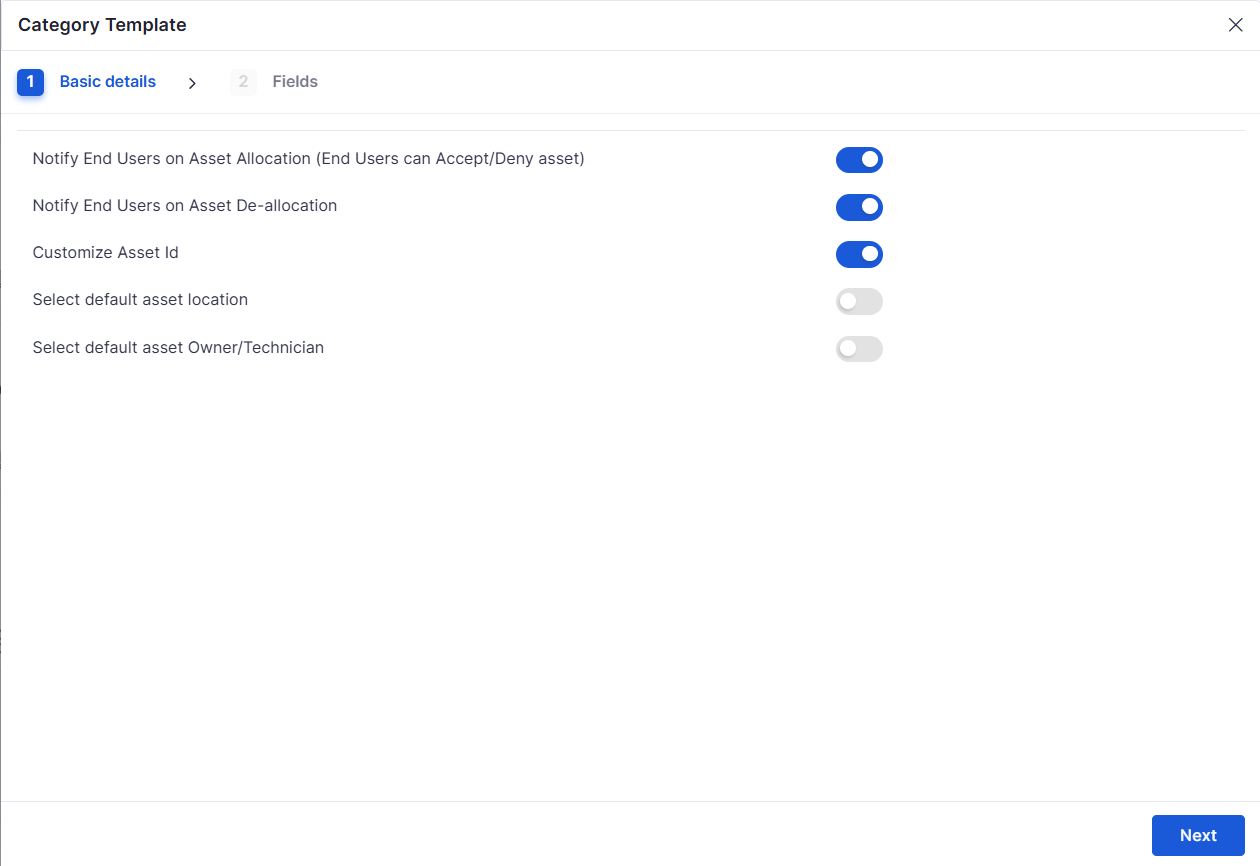
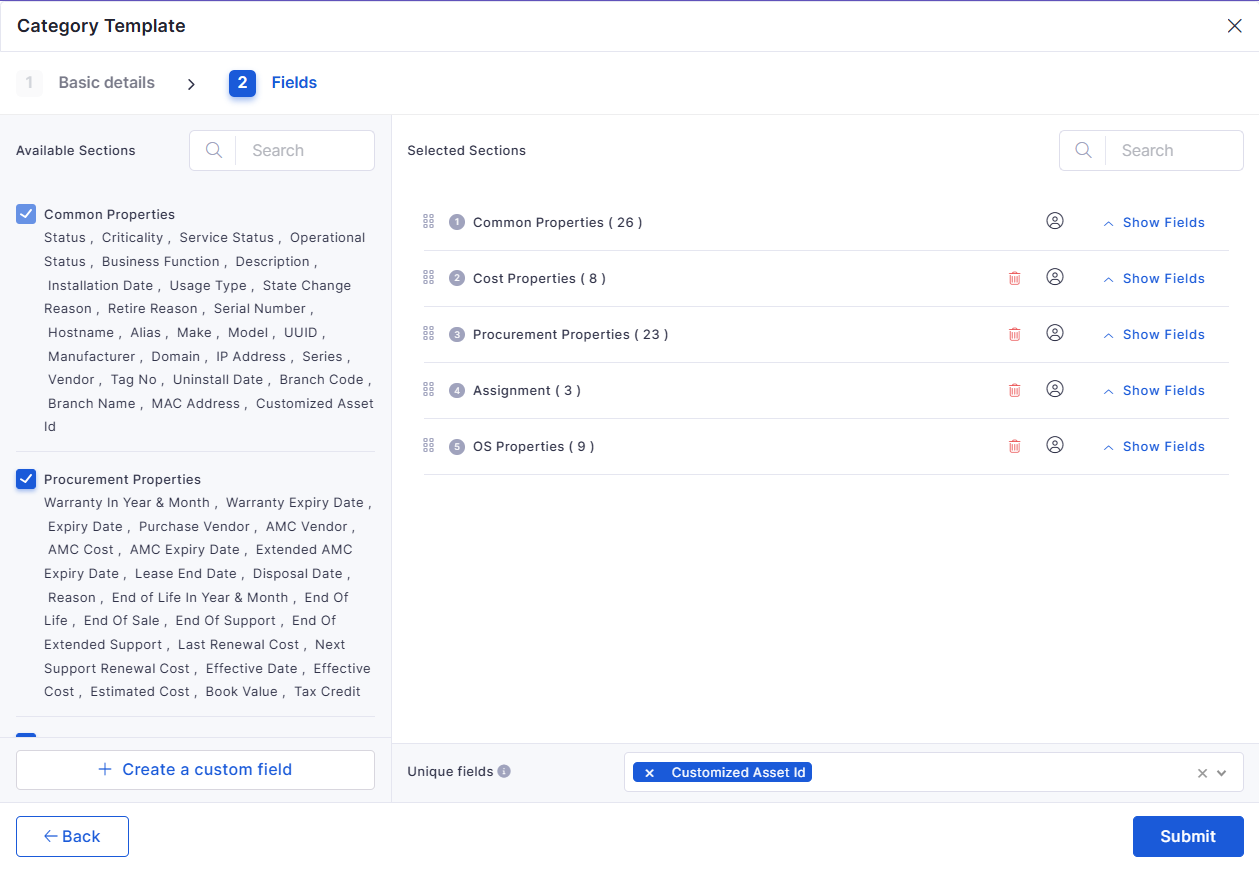
Click the toggle to enable
The system assigns a technician based on the configured allocation algorithm.
The technician receives the complete conversation context, including AI-generated summaries and user intent details.
Both requester and technician can continue the conversation in real time until the issue is resolved.
Chat sessions, actions, and conversation history are automatically stored for future reference and audit purposes.
Message Composer
Allows users to send messages during the chat session.
AI Assistance Area
Displays AI-generated responses, recommendations, and troubleshooting guidance.
Chat Summary Section
Displays summarized conversation details during technician handover.
Guide users through issue handling workflows
Chat List Panel
Displays active and previous chat sessions.
Search Bar
Allows users to search chat conversations.
Conversation Window
Round Robin
Assigns chats sequentially among available technicians.
Load Based
Assigns chats based on technician workload and availability.
Displays the ongoing conversation between the requester, the AI, and the technician.
Sensor Details: Collects sensor data, including battery status and connectivity information.
SIM Details: Collects SIM-related information such as status and provider.
Hardware Details: Collects hardware-related data, including device status and recovery details.
Network Details: Collects network information such as IP address and network type.
Battery Details: Collects battery health, charging status, and related metrics.
Only the enabled configurations are collected and synced by the mobile agent.
Click Next -> Import -> Proceed with Valid Records.
Email notifications
SMS alerts
State transitions
Ensures audit tracking and traceability
Conditional logic
Re-triggerable actions (Is Resend)
Ensures structured execution and visibility
Scope finalization
Approval
Stakeholders validate the project
Manager approval
Execution
Project work is actively in progress
Tasks being executed
Review
Output is evaluated and validated
QA / stakeholder review
On Hold
The project is temporarily paused
Waiting for dependency
Closure / Closed
The project is completed and archived
Project delivered
Development started
On Hold
Task is paused due to blockers
Waiting for approval
Blocked
Task cannot proceed due to issues
Dependency missing
Review
Task is under validation
QA review
Done
Task is completed
Work finished
Closed
Task is finalized
Task archived


Search
Type keywords
Search audit records by Audit ID or Audit Title. Minimum three characters are required to trigger a search.
Filter
Select criteria
Filter audits using fields such as Audit ID, Audit Name, Contact Person, State, Status, Audit Type, Category, Auditor, and Creation Time. Conditions include in, not in, equal to, not equal to, contains, and not contains.
Select Date Range
Choose a time window
Filter audit records based on creation time. Examples: Current Hour, Last 60 mins, Today, Last 7 Days, etc.
Templates define the checklist used during an IT Asset Audit. They specify what an auditor must verify for each asset, including condition, serial number, location, compliance details, and custom verification points.
Templates ensure audits are performed in a structured and consistent manner and can be reused across multiple audit records. Assigning a template is mandatory to execute an audit.
To create a new template:
Navigate to IT Asset Audit Record.
From the top panel, select Template.
Click Add Template to configure a new checklist.
Templates are built by selecting relevant asset attributes and adding custom input fields that auditors will complete during the audit.
Add Template | Basic Details
Template Name
Enter a value
Provide a meaningful name to identify the checklist. Example: Laptop Physical Verification
Common Asset Columns
Select from the drop-down
After selecting the required asset columns, add verification fields to build the checklist. These fields define what the auditor must review or capture during the audit.
Available field types include:
Email – Capture an email address for confirmation or contact
Text – Record short text inputs such as serial numbers or remarks
Number – Capture numeric values like counts or measurements
Dropdown – Provide predefined options for selection
Text Area – Capture detailed comments or observations
Check Box – Confirm yes/no or compliance-based checks
Date – Record a specific date
Date and Time – Record a precise date and time of verification
Once all required columns and checklist fields are configured:
Click Submit to save the template.
The template becomes available for selection while creating or editing an IT Asset Audit Record.
Saved templates can be reused across multiple audits to maintain uniform verification standards.
The model predicts usage for the next 2 weeks, broken down hour by hour.
Threshold Generation
For each hour, the system generates the following dynamic thresholds:
Polled Data – Actual collected data from the resource.
Lower Band – Minimum expected value.
Upper Band – Maximum expected value.
Critical Upper Band – A stricter upper threshold for flagging critical anomalies.
These thresholds help the system determine normal vs. abnormal behavior for each time window.
Adaptive Thresholds use short-term time-series prediction models that learn usage patterns over time. Key concepts include:
Trend detection – Identifies regular increase/decrease patterns.
Hourly profiling – Learns a "normal" value for each specific hour.
Upper and lower bounds – Represent a statistical confidence range.
Model refresh – Rebuilt every 7 days using the latest data.
The system avoids overfitting or underfitting by using a balanced model sensitivity.
The Adaptive Threshold screen displays a performance graph that visually compares actual system behavior against dynamically learned threshold ranges. The graph provides a real-time, hour-by-hour overview of how a metric (e.g., CPU, memory, interface utilization) performs relative to predicted safe zones.
Adaptive Threshold | Basic Details
Label
Action
Description / Example
Polled Data
Displays actual usage
Blue line showing real-time performance values collected at intervals.
Lower Band
Adaptive Threshold | Basic Details
This provides a detailed view of predicted thresholds and anomalies for each timestamp.
Label
Description / Example
Time
Timestamp for each data point (e.g., May 18, 2025 12:00 AM).
Upper Band
The maximum expected value for the metric at that time (e.g., 8.37%).
Lower Band
Note
Feature
Forecast
Prediction
Focus
Long-term trends (1–6 months)
Short-term anomalies (1–4 weeks)
Use Case
Capacity planning
Supporting license optimization and cost control
Software metering uses agent-based tracking, in which installed agents continuously monitor application activity on devices. The data collected is processed and displayed in both summary and detailed views.
Metering is configured through rules, where one or more applications are grouped and tracked across selected devices or environments.
Software Metering works through agent-based tracking combined with rule configuration. Once a metering rule is created, it is pushed to the Inventory Agents installed on devices. These agents continuously monitor application usage (based on process activity) and send the collected data to the platform, where it is aggregated and displayed in summary and detailed views for analysis.
Key Points:
Rule-Based Tracking: Applications are monitored based on configured Software Metering rules.
Agent Dependency: Tracking is performed by Inventory Agents installed on devices.
Continuous Monitoring: Usage is captured when the application process is running, even if it is not actively used.
Sync Functionality: The Sync option ensures newly added or updated rules are applied to all agents and devices.
New Application Handling: Newly installed applications are tracked only if they are part of an existing rule.
New Device Handling: New devices start tracking only after receiving the configured rules (via sync or default push).
No Scheduling Required: Once configured, tracking runs automatically without manual intervention.
The Software Metering screen displays all configured Software Metering Rules along with their associated applications. It provides options for searching, filtering, creating, and managing rules, as well as synchronizing configurations with agents to ensure accurate tracking.
Software Metering | Basic Details
Search
Enter keyword
Allows you to search Software Metering rules using Rule Name or Application details.
Filter
Apply filter conditions
To create a new Software Metering rule, click on + Create Rule located at the top right corner of the page. A configuration panel opens, where you can define which applications to track and the rule's scope.
A rule is typically created per application or specific use case, making it easier to identify and analyze usage.
Create Rule | Basic Details
Rule Name
Enter value
Specify a unique and meaningful name for the rule, ideally based on the application being tracked. Example: Microsoft Edge Usage Tracking
Software
Select from the list
Priority
Required Date
Requested By
PR Title and Description
Details Section
The Details section is loaded by default when the View page opens.
This section displays:
PR Information
Contract Reference details
Address Details
Additional requisition information configured during PR creation
Users can expand or collapse sections using the expand/collapse icon available on each section header.
The Item and Cost Details section displays all configured PR line items and procurement cost details.
This section includes:
Line item information added during PR creation
Quantity, tax, conversion factor, and order details
Cost summary including:
Subtotal
Tax
Grand Total
The line item grid supports pagination for viewing multiple records.
The Approval section displays the configured approval workflow for the Purchase Requisition. This section helps users track:
Current approver
Approval progress
Parallel approval configuration
Approval percentage requirements
Approval status
The workflow view updates dynamically based on the configured approval stages and actions performed by approvers.
The Vendor section displays the vendor-related information configured for the Purchase Requisition.
This section includes:
Vendor type
Vendor name
Payment terms
Shipping method
Tax and inspection-related configurations
The Terms and Conditions section displays the configured procurement terms associated with the Purchase Requisition.
This includes:
Terms and Conditions template
Additional procurement conditions
Procurement instructions configured during PR creation
The Related Records section displays associated records linked with the Purchase Requisition.
This section displays the record count for:
Purchase Orders
RFQs
Contract References
Users can quickly identify related procurement records from this section.
The Activity Log section maintains the complete audit trail of Purchase Requisition activities.
This section displays:
PR creation activities
Status changes
Approval actions
Contract updates
System-generated activities
Additional capabilities include:
Timeline view
Grid view
Activity search
Chronological tracking of updates and workflow actions
The Software License View page provides a detailed overview of a selected software license, including license availability, allocation details, compliance status, lifecycle information, and license usage insights.
This page helps users monitor license consumption, track allocation status, manage license distribution, and review software license utilization from a centralized view.
License View | Basic Details
The Allocate option allows users to distribute software licenses to different distribution types, such as Individuals, Assets, Departments, Locations, Entities, or Tags. Users can allocate licenses based on availability and track allocation details directly from the Software License View page.
The allocation process updates software usage details, allocation counts, insights, and distributed license records automatically after successful distribution.
Navigate to the required Software License View page.
Click Allocate.
The Distribute License sidebar opens.
Select the required Distribution Type.
Select the target value in the Distributed To field.
Enter allocation details such as owner or quantity, based on the selected distribution type.
Click Distribute to allocate the license.
After successful allocation:
License allocation counts are updated.
Available and allocated license values are refreshed.
Distribution details are recorded.
The allocation activity is updated in the audit records.
Distribute License | Allocation
The Distribute License sidebar is used to allocate software licenses to supported distribution targets.
Once added, click Distribute to allocate licenses. This allocates the selected software license to the configured distribution target.
Channels in Workspace provide a centralized space for users, technicians, and teams to communicate and collaborate in real time. Channels help organizations manage operational discussions, coordinate activities, and work on ITSM-related records from a single interface.
Using Channels, users can:
Create public and private collaboration channels
Communicate through group conversations
Add and manage tickets, requests, problems, changes, and releases within the channel
Collaborate on operational and support activities
Add comments, replies, and discussion threads
Assign and track tasks
View service-related activities assigned to them
Users can also reference existing records using IDs within conversations for quick operational collaboration.
The Channel page displays collaboration channels, operational conversations, ITSM activities, and task-related information within the Workspace module.
In the left panel, users can:
View available channels
Access their task queue through the My Task section
View services and operational activities assigned to them under the queue section
Channel | Basic Details
Channels can be created to organize team discussions, operational activities, and ITSM-related collaboration within the Workspace module. Users can create channels for departments, projects, support groups, or operational teams.
To add a new channel:
Navigate to the left panel in the Workspace module.
Under the Channel section, select the (+) Plus icon.
In the Add Channel pop-up window, enter the required details.
Select Submit to create the channel.
Add Channel | Basic Details
Users can start conversations and perform operational activities directly within a channel. Messages, discussions, and ITSM-related activities are maintained within the channel conversation thread.
To start a conversation in a channel:
Navigate to the required channel from the left panel.
Select the message composer field at the bottom of the page.
Enter the required message or discussion content.
Select the Send icon to post the message in the channel.
Users can also use keyboard shortcuts to quickly create ITSM records within the channel.
After completing the registration process, log in using the default credentials provided or opt for a Google account login.
For more details on login options, refer to the Login Settings.
Once logged in, you will be directed to the screen below.
The' Getting Started' page lets you easily configure essential settings for new accounts. There are seven key steps in this process:
Customize the portal URL to allow your employees easy access to Infraon. Although it's recommended to stick to the default URL, you can modify it later if needed.
For more information on customizing the URL, refer to the Infraon URL module.
Configure a dedicated support email address to ensure all incoming communications are automatically converted into tickets. This address will also be used for all customer-related responses. You can set up a new email on Infraon's domain or link your existing mail server.
For step-by-step instructions, visit the Mail Automator module.
Infraon utilizes a dynamic, role-based access control system, offering various default roles with pre-defined access levels such as view, add, edit, delete, and copy. Based on organizational needs, administrators can create new roles, modify existing ones, or delete defaults. Default role names can also be edited.
For detailed instructions, see the module.
Adding users to Infraon is simple. You can invite users by entering their email addresses and assigning them roles. When adding multiple email addresses, separate them with commas. You can invite multiple users across different roles simultaneously, but only pre-defined roles can be assigned.
Learn more in the module.
This step allows administrators to deploy Infraon agents—such as inventory agents and data collectors—that efficiently extract data from desktops and network devices.
For detailed guidance, visit the module.
You can input your organization's head office, branch office, and other addresses here. Providing this information simplifies the alignment of users, assets, and services across multiple locations.
For further details, consult the module.
Personalize Infraon by customizing its appearance to match your organization's branding. You can change the theme, adjust the colors of the navigation bar and containers, and select your preferred language. Preview changes in real-time and save your favorite look.
For more details, refer to the module.
Now that you are all set with customizing Infraon proceed to Know Infraon
Shows the minimum predicted value
Bottom boundary of the threshold range. Values below this are considered anomalies.
Upper Band
Shows the maximum predicted value
Top boundary of the expected range. Values above this may indicate a warning or anomaly.
Critical Upper Band
Flags high-risk upper threshold
Stricter limit above the Upper Band used to detect critical-level anomalies.
Red Markers
Highlights anomalies
Appears when actual data goes outside the threshold bands.
Filters
Current Month
Time filter
Displays data from today to the end of the current month.
Next Month
Time filter
Displays projected threshold behavior for the following month.
Next 3 Months
Time filter
Shows threshold forecasts and anomalies across the next 90 days.
Next 6 Month
Time filter
Displays long-term prediction and anomaly trend for up to 180 days.
The minimum expected value for the time slot (e.g., 6.19%).
Critical Upper Band
A stricter limit highlights critical anomalies (e.g., 9.47%).
Anomaly
Indicates whether the actual value exceeded thresholds (e.g., 20%).
Toggle: Show Only Anomalies
Filters the table to display only rows where anomalies are detected.
Anomaly detection
Output
Graphs and capacity reports
Adaptive thresholds and alerts
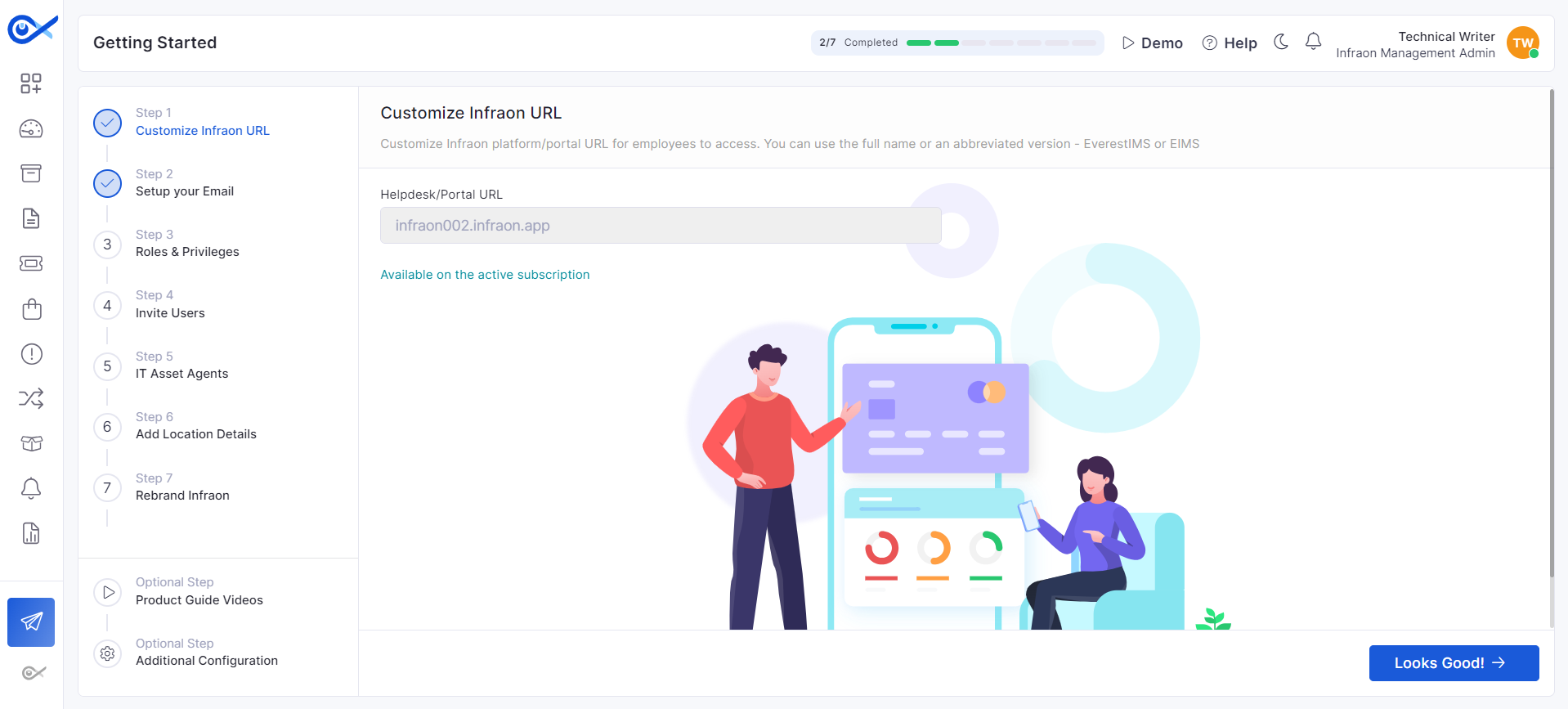
Owner
Select the required owner.
Allows users to associate the allocated license with a specific owner or requester.
Quantity
Enter the required quantity.
Specifies the number of licenses to distribute. The entered value should not exceed the available license count.
Software Details
View-only field; no action can be taken
Displays complete information related to the selected software license, including software name, publisher, license type, compliance status, license count, and allocation details.
Allocate
Click Allocate to distribute licenses.
Opens the Distribute License sidebar, allowing users to allocate software licenses to individuals, assets, departments, locations, or other supported distribution types.
Software Logo
View-only field; no action can be taken
Displays the logo associated with the selected software or publisher.
Total License(s)
View-only field; no action can be taken
Displays the total number of purchased or available licenses configured for the software.
Available License(s)
View-only field; no action can be taken
Displays the number of licenses currently available for allocation.
Allocated License(s)
View-only field; no action can be taken
Displays the number of licenses already distributed to users, assets, departments, or locations.
Under-Licensed
View-only field; no action can be taken
Displays the number of allocations exceeding the available license count.
Compliance Status
View-only field; no action can be taken
Displays the compliance condition of the software license, such as Compliance or Non-Compliance.
License Based On
View-only field; no action can be taken
Displays the allocation type configured for the license, such as User or Asset.
License Count
View-only field; no action can be taken
Displays the configured license quantity for the software.
License Type
View-only field; no action can be taken
Displays the license category, such as Perpetual or Subscription.
Publisher
View-only field; no action can be taken
Displays the publisher associated with the software license.
License Life Cycle
View-only field; no action can be taken
Displays the software license lifecycle timeline from the effective date to the current or expiry date.
Effective From
View-only field; no action can be taken
Displays the start date from which the license becomes active.
License Usage (Last Year)
View-only field; no action can be taken
Displays a graphical representation of software license usage trends for the last year.
Distribution Type
Select the required distribution type.
Allows users to choose how the license should be distributed. Supported options include Individual, Department, Location, Asset, Entity, and Tags.
Distributed To
Select the required value.
Displays values based on the selected distribution type. Example: If Location is selected, the location list is displayed.
Shows tasks assigned to the logged-in user. Task creation and management follow the Task module workflow.
Channel Section
Displays available collaboration channels
Shows public and private channels accessible to the user.
Add Channel (+)
Allows users to create a new channel
Users can create collaboration channels for teams or operational activities.
Queue
Displays assigned services and activities
Shows tickets, requests, and operational services assigned to the user.
Channel Conversation Area
Displays conversations and activities within the selected channel
Users can collaborate, reply, and manage operational discussions.
Filter Tabs
Filters operational activities by module
Users can filter activities based on Ticket, Task, Request, Problem, Change, or Release.
Add Ticket
Creates a new ticket within the channel
Allows users to create and track tickets directly from the channel.
Add Task
Creates a task within the selected channel
Used for assigning and tracking operational tasks.
Add Request
Creates a request within the channel
Allows users to raise service requests from the workspace.
Add Problem
Creates a problem record within the channel
Used for managing problem management activities.
Add Change
Creates a change record within the channel
Allows users to initiate change management activities.
Add Release
Creates a release record within the channel
Used for managing release-related activities.
Message Composer
Allows users to send messages and replies
Users can start discussions, add comments, and create conversation threads.
Date Filter
Filters channel activities based on duration
Example: Last 60 Days.
Add Specific Users
Select the option button
Allows users to create restricted or team-specific collaboration channels by manually selecting required users or requesters.
Add User / Requester
Select from the drop-down
Select one or more users or requesters to include in the channel. Added users can participate in conversations, collaborate on operational activities, and view ITSM records shared within the channel.
Search
Allows users to search channels and conversations
Users can search for channels, tasks, discussions, or operational activities.
My Task
Channel Name
Enter the channel name
Specify a unique and meaningful name for the collaboration channel.
Example: Product Support
Add all people in Infraon
Select the option button
Displays personal and assigned tasks
Automatically adds all available Infraon users to the channel. This option is useful for organization-wide announcements, common operational discussions, or collaboration channels where all users must have access.
Template
Select from the drop-down
Used to manage audit templates (checklists). Options include:
View Template (review existing checklists)
Add Template (create a new checklist for audits).
Click here to view the steps to add templates.
Add New Audit
Click to create
Create a new audit record by defining audit details, category, audit type (internal/external), auditors, schedule, and assigning a template.
Audit ID
Click ID
Unique system-generated identifier (for example, AUD0106) used to track the audit record.
Audit Title
View text
Displays the audit name, such as "Quarterly Laptop Audit."
Contact Person
View avatar/name
Primary point of contact responsible for the audit.
Status
View state
Indicates the audit lifecycle state:
Open-New
In progress- Ongoing
on hold- pending
Close -Audit Done
Audit Type
View value
Specifies whether the audit is performed for IT Assets or Fixed Assets.
Category
View value
Shows the asset categories included in the audit, for example, Laptop, Desktop, Workstation, and Windows Server.
Audit Status
View progress
Displays completion progress such as 0 of 10 Completed or 10 of 10 Completed, with a visual progress indicator.
Creation Time
View timestamp
Shows when the audit record was created in the system.
Internal Auditors
View icons/count
Displays the assigned internal auditors responsible for performing the audit.
External Auditors
View icons/count
Displays assigned external auditors if the audit is marked as external.
Schedule Details
View schedule
Shows whether the audit is scheduled or run immediately, along with planned execution details.
Audit Completion Time
View timestamp
Displays the date and time when the audit was completed.
Actions Icons
Edit
Click icon
Modify audit details such as title, auditors, schedule, or assigned template before completion.
Audit
Click to perform
Launch the audit execution screen where auditors perform checks based on the assigned template.
Audit Details
Click icon
View detailed audit responses, checklist results, asset verification status, and auditor inputs.
Delete
Click icon
Permanently remove the audit record from the system.
Select standard asset attributes that apply across asset types. Option Includes: Criticality, Service Status, Business Function, etc.
Specific Asset Columns
Select from the drop-down
Select asset-type–specific attributes for verification. Option Includes: Status, Installation Date, State Change Reason, etc.
Refines the list based on conditions. Fields: Software Conditions: in, not in, equal to, not equal to, contains, not contains
Sync
Click to sync
Updates and pushes the latest Software Metering rules to all agents. Ensures newly added or updated rules are applied to devices and tracking starts accordingly.
+ Create Rule
Click to create
Opens the Create Rule configuration to define a new Software Metering rule with selected applications.
Column Details
Rule Name
View / Sort
Displays the name of the Software Metering rule. Helps identify the tracking configuration.
Application List
View
Shows the list of applications included in the rule. Multiple applications can be grouped under a single rule.
Comment
View
Displays additional notes or descriptions provided during rule creation.
Actions
Edit
Click to modify
Allows you to update the selected rule, such as modifying applications or comments.
Delete
Click to remove
Deletes the selected Software Metering rule from the system.
Select one or more applications to be tracked under this rule. The list is populated from agent-discovered software. Example: Microsoft Edge
Comment
Enter value
Add optional notes describing the purpose of the rule. Example: Monitor browser usage for analysis
Applicable For
Select from the dropdown
Defines the scope of the rule. Options:
All – Applies to all devices with agents
Selected Device – Applies only to chosen devices
Uploaded SBOM allows users to upload an SBOM JSON file generated from a server and view the software inventory and vulnerability information contained in the file. This provides visibility into the server's applications, components, libraries, and associated vulnerabilities without requiring the user to manually enter the software information.
An SBOM JSON file can be generated from a server using the supported SBOM generation process and downloaded to the local system. The user can then upload the generated JSON file in the application. Once uploaded, the SBOM information contained in the file is displayed for review.
When an SBOM JSON file is uploaded, the system displays the SBOM information contained in the file. Users can review the software and vulnerability information associated with the uploaded server data.
The upload section allows users to provide an SBOM JSON file generated from a server for viewing.
After an SBOM JSON file is uploaded, the Uploaded SBOM page displays the applications and their associated component and vulnerability information. Users can review the uploaded data and use the available actions to inspect or download component information.
The Uploaded SBOM table provides application, component, vulnerability, scanner, and upload information for the SBOM data.
The Actions column allows users to inspect the components associated with an uploaded application or download the component information.
Component Details
The top panel allows users to select the type of components they want to view. The component details provide information about the selected component, including its version, type, supplier, origin, and licensing information. Users can switch between two display modes to examine the components and their relationships.
Action Icon | Component Details
The IP Assets page provides a consolidated inventory view of all IP addresses across the platform. Unlike the Containers page, which focuses on the hierarchical structure of Containers → SubContainers → Blocks → Subnets, this page is designed for asset-level tracking, displaying each IP address as an individual asset with its status, category, and unique asset ID.
This page allows users to quickly locate, filter, edit, and manage IP assets without navigating through multiple subnets. It is used for monitoring IP usage, checking availability, assigning tags, performing bulk actions, and exporting asset data.
The screen displays all IP assets in a card-based grid format. Each card shows the IP address, asset ID, and status (In Use, Free, Network, Broadcast, Reserved, Transient, etc.). Users can filter, search, export, and update IP assets from the same page.
IP Asset / Subnet:
IP Asset: Shows individual IP addresses with asset-level details.
Subnet: Displays subnets, their configurations, usage summaries, and scan statuses.
Below the drop-down switcher, the page displays categories that group IPs by their current state:
All Assets
In Use
Transient
Free
Selecting any category filters the grid to show only IPs under that classification.
Navigate to the IP Asset page and select Action -> Bulk Edit from the top panel.
In the Bulk Edit dialog, choose the Category (or object type) if required.
Click Download CSV file (template). Fill it with your data (see required fields below).
Upload the completed CSV (drag & drop or Browse).
Map CSV columns to system fields on the column-mapping screen if prompted.
Click Proceed with Valid Records to import valid entries.
After import completes, verify assets in the IP Assets list.
When you select an IP Asset, the system opens a detailed view that displays all relevant information about that asset. This page helps users quickly understand the asset’s identity, hierarchy, and associated details.
1. Asset Summary
Asset Name: Displays the asset's IP address (e.g., 10.0.4.0).
IP Address & State: Displays the asset’s assigned IP address and its classification tag (e.g., Network, Free, Reserved, In Use).
2. Device Details
This section provides basic identification details related to the device/asset:
Hostname: The detected or assigned hostname for the IP asset.
IP Address: Displays the resolved or configured IP address values for the device.
3. Parent Detail
Shows the complete hierarchical structure of where this IP belongs inside the IPAM container architecture. This includes:
Container
Subcontainer
Block
Subnet
Each level displays:
Name of the parent component
The associated network range (e.g., 10.0.0.0/8, 10.0.0.0/13, 10.0.4.0/22, 10.0.4.0/24)
to learn more about managing IP Assets in Infraon Infinity.
The RDP in the Infraon platform enables administrators and technicians to securely access and manage user systems remotely. It provides flexibility to either request access with user consent or perform unattended sessions for critical operations such as patching, troubleshooting, or configuration changes.
With RDP, IT teams can:
Connect to user devices in real time for support or maintenance.
Schedule access sessions for specific time slots with predefined durations.
The AIOps widget category provides intelligent insights into your IT operations by leveraging advanced analytics. These widgets help identify anomalies, forecast potential issues, and correlate events for proactive incident management.
Available AIOps widgets include:
Predicted Events Count: Displays the number of events forecasted based on historical trends.
Top Predicted Events: Highlights the most frequently forecasted events, aiding prioritization.
Forecast Summary: An overview of anticipated system behaviours and potential issues is provided.
Adaptive Event Suppression Summary: This widget summarizes events that have been automatically suppressed to reduce noise in the event stream. It displays the total number of events and a breakdown of Suppressed vs. Adaptive, presented in numeric values and percentages for quick comparison and analysis.
Active Anomaly Events Count: Shows the current number of detected anomalies in the system.
Active Anomaly Events Summary: Offers details on ongoing anomalies for in-depth analysis.
Suppressed Events Count: This displays the current count of active events tagged for suppression. These are live events identified as noise and excluded from notification actions such as ticket creation or alerts.
Associated Event Inference: Displays groups of events that frequently occur together, based on historical patterns. Hovering over a group shows the Cluster name and the count of associated events for quick reference.
Components
View
Displays the number of components associated with the application.
Example: 312
Critical
View
Displays the number of Critical vulnerabilities identified for the application.
High
View
Displays the number of High vulnerabilities identified for the application.
Scanner
View
Displays the scanner or tool used to generate the SBOM data.
Uploaded On
View
Displays the date and time when the SBOM JSON file was uploaded.
Actions
Perform action
Provides actions to View Components and Download Components for the selected application.
Displays components categorized as files.
Library
Select
Displays library components associated with the application.
Application
Select
Displays components categorized as applications.
Operating System
Select
Displays components related to the operating system.
Name
View
Displays the name of the component.
Example: OpenSSL
Version
View
Displays the version of the component.
Example: 1.1.1
Type
View
Displays the type or category of the component.
Supplier
View
Displays the supplier associated with the component.
Origin
View
Displays the origin or source of the component.
License
View
Displays the license associated with the component.
Grid View
Select
Displays the component information in a structured grid with details such as Name, Version, Type, Supplier, Origin, and License.
Graph View
Select
Displays the components in a graphical representation, allowing users to visually understand the relationships between the components.
Upload SBOM
Click the Upload SBOM button
Allows users to upload the SBOM JSON file generated from a server.
SBOM JSON File
Select/Upload
Allows users to select the downloaded SBOM JSON file from the local system.
Uploaded SBOM Data
View
Displays the information contained in the uploaded SBOM file.
Application
View
Displays the name of the application identified in the uploaded SBOM.
Example: Google Chrome
Version
View
View Components
View
Opens the component details for the selected application. Users can filter the displayed components by category and switch between Grid View and Graph View.
Download Components
Download
All
Select
Displays all available components associated with the selected application.
Files
Displays the version of the application.
Example: 124.0.6367.91
Downloads the component information associated with the selected application.
Select
Network
Broadcast
Hyperlink button
Navigates directly to the Containers page to view the IP hierarchy.
Actions
Click to open drop-down.
Export: Opens the Export as CSV panel, where you can download IP Asset data. You can optionally select a Category (In Use, Transient, Allocated, Reserved, Free) to export only those IPs. The export will include data based on the general filters applied on the page, and if a category is selected, both filters are used. Bulk Edit: Upload a CSV to update multiple IP assets.
Edit
Action icon on each IP card
Modify details of the selected IP asset.
Bulk Actions
Select multiple IP cards.
After selecting IPs, a top bar appears to Add Tags to the specified IP assets.
Run validation. Review any error/invalid rows and download them if needed.
Search
Enter text to search
Search for IP assets by IP address, asset ID, status, or category.
Filter
Click to open filter panel.
Fields: AMC Cost, CI ID, Department, and more. Conditions: in, not in, contains, not contains, equal to, not equal to.
Chat with users during a session and share files.
Record sessions for auditing and compliance purposes.
Access user drives or system files directly without interrupting ongoing work.
Click here for RDP installation steps.
The Schedule RDP allows administrators and technicians to plan remote sessions or initiate instant access sessions.
Before scheduling, ensure that the RDP component is installed on the end user’s device. Click here to view the installation guide.
Navigate to the IT Assets page and switch to Card View.
Select the asset for which you want to schedule an RDP session.
Click the More Options (three dots) icon and choose Schedule RDP.
The Schedule Remote Access sidebar opens. Configure the fields as per the table below.
Schedule Remote Access | Field Details
Label
Action
Description / Example
Schedule Instant Session
Toggle (Enable/Disable)
Allows immediate access instead of scheduling for a future date/time. When enabled, only the Expected Duration field is displayed. Default: Disabled.
Session Recording
After scheduling, session status is indicated with color-coded icons in the Asset Card View:
Orange → Session scheduled, waiting for the scheduled time.
Green → Session is active during the scheduled time.
Red → Session expired; user must reschedule to access again.
A session can be rescheduled only while it is in the scheduled state (indicated by the orange icon).
Click on the session icon to open the session details page.
The page will display the scheduled session details, including the start time and duration.
To make changes, click on the Reschedule icon.
Update the date and time fields as required, then save the changes to confirm the new schedule.
Once an RDP session is successfully scheduled and active, users can access file transfer options from the Remote Access page. Clicking the scheduled session icon navigates the user to the Remote Access page.
The left sidebar displays two options:
Remote Access Page | Basic Details
Desktop
Remote desktop access
Opens the remote desktop interface, allowing the user to view and control the remote device screen.
File
File transfer
The File Transfer feature allows users to securely transfer files between their local system and the remote device during an active RDP session. This helps technicians upload required files to the remote system or download files from the remote device for troubleshooting, updates, or verification.
Step 1: After scheduling the RDP session, navigate to the Remote Access page.From the left sidebar, click File, then select Connect to establish the file transfer connection.
Step 2: Once connected, the user can view and access the local drives and directories available on the remote system.
Within the File Transfer interface, users can perform the following actions:
Rename files or folders
Edit files
Delete files or folders
Create new folders
Upload files
Cut, copy, and paste files
Zip files or folders
Refresh the directory view
Search for files using the Find option
Infraon allows technicians to initiate remote desktop access directly from an incident, eliminating the need to navigate to the asset module separately. This helps reduce resolution time by enabling immediate access to the impacted asset while the ticket is open.
Use this option when:
An incident is associated with an impacted asset.
The technician needs direct access to the asset to diagnose or resolve the issue.
The Inventory Agent and RDP capabilities are already enabled on the asset.
Step 1: Navigate to the Incidents module and click Edit to access the incident details and view the associated configuration fields.
Step 2: In the incident details, locate the Impacted Asset field. This field displays the asset associated with the incident requiring remote access.
Step 3: In the impacted asset, click the Desktop icon. This action initiates a remote access request for the selected asset.
Step 4: After clicking the Desktop icon, the user is redirected to the Remote Access page, where the RDP session can be managed.
Step 5: On the Remote Access page, click Connect to initiate the RDP session. A connection request is sent to the remote device.
Step 6: A permission prompt appears on the remote device requesting approval for remote access. The remote user must allow the request to proceed.
Step 7: Once access is approved, the remote desktop session is established. The technician can now view and interact with the remote device to diagnose or resolve the incident.
Step 8: After completing the required actions, the technician can disconnect the session from the Remote Access page.
The technician gains secure, controlled remote access to the impacted asset directly from the incident context, enabling faster troubleshooting and resolution while maintaining traceability.
Assets must be added to Infraon to enable management. There are multiple ways to add assets.
Assets can be added directly from the Infraon asset module. Within the asset module, there are options to manually add an asset or add bulk assets using a .csv file.
Agent-based discovery initiated from the Infraon configuration module.
Assets can be viewed in Grid and card views. Clicking on the corresponding action icons in the assets allows you to scan and search for assets, export them, and perform maintenance actions.
Asset Details | Actions
The Actions menu lets you manage the selected asset. The available actions depend on the asset type, configuration, and user permissions.
You can archive an asset from the IT Assets or Fixed Assets page using the Archive Asset action. Archiving removes the asset from the active asset view and moves it to Archived Assets.
Open the asset page
Navigate to Assets and open IT Assets or Fixed Assets.
Locate the asset
Locate the asset that you want to archive.
Enter the required details in the Archive Asset sidebar.
Click Archive Asset to complete the process.
Archive Asset | Basic Details
Once the required details are entered, click Archive Asset. The asset is archived and moved from the active asset view to
When this setting is enabled, the system allows admins to define a custom asset ID structure for each asset category. The format can be tailored using prefixes, numeric values, and custom fields to meet organizational standards.
This format is applied automatically during asset creation, bulk upload, or discovery, ensuring each asset is uniquely and consistently identified.
Example Formats
#IT-LPT-0001
#ASSET00023
#ESOL-D-0038
You can configure this from the Category Template > tab.
Customize Asset ID Format | Field Reference
Multi-selection of assets is facilitated by clicking the checkboxes adjacent to each desired asset.
Users can now:
Assign a new owner
Assign a requester
Assign a tag
Dashboards are visual representations of critical data within Infraon. They provide concise yet detailed insights into monitoring and performance metrics. Users can customize dashboards by adding relevant metrics and reports tailored to their specific needs. Dashboards can also be exported as PDFs for reporting and analysis.
Before customizing dashboards, it is essential to understand the concept of Widgets, as these form the building blocks of every dashboard.
Click the arrow key in the left navigation panel to expand and access multiple pre-configured dashboards. You can also hover over dashboards to reveal action icons.
Action Icons | Dashboards
Infraon provides three pre-configured dashboards during platform onboarding. These serve as ready-to-use examples to help users understand dashboard functionality and layout.
Each dashboard contains dynamic widgets that auto-refresh based on the selected refresh interval. Widgets are clickable, allowing users to drill down and view complete details of the underlying data. Additionally, users can download the displayed data in CSV format for further analysis for specific widgets.
It provides a consolidated view of tickets, requests, problems, and changes across the Infraon platform. It is designed to provide administrators and technicians with an understanding of the overall system health, service performance, and workload distribution.
This dashboard helps support teams monitor SLAs, identify backlogs, and optimize agent workloads. It focuses solely on ticket-related metrics. It highlights ticket volumes, response times, aging, and distribution by priority, urgency, requester, and assignee.
It enables organizations to manage asset lifecycles effectively, track expenses, and plan budgets proactively. The Asset Summary Dashboard delivers a comprehensive overview of IT and fixed assets, including purchase trends, financial summaries, vendor information, and asset distribution by value and location.
The Release Dashboard provides a comprehensive overview of all release-related activities across the organization. This dashboard visually tracks the status, progress, and health of each release, mapping out key milestones such as timelines, completion rates, and active or overdue releases. Filters and drill-down options facilitate swift navigation between different projects or teams, providing stakeholders with detailed, real-time insights.
The User Asset Lifecycle module provides complete visibility into all assets allocated to individual users throughout their lifecycle. It enables asset administrators, IT operations teams, and compliance teams to track current and historical asset assignments, monitor critical events, and enhance decision-making during offboarding, transfers, or audits.
This module consolidates every stage of the asset lifecycle — from onboarding to deallocation and end-of-life — capturing key events such as allocation, deallocation, transfers, hardware/software changes, incident logging, new service requests, patch or security updates, warranty expiry, and AMC expiry.
User Asset Lifecycle | Basic Details
User Preferences also provide ownership-based filters that allow different personas to see assets depending on their relationship to the user.
User Asset Lifecycle | View Filters
This option in the User Asset Lifecycle module allows organizations to define filters that tailor the visibility of asset lifecycle events for different teams and user roles.
These preferences serve as organization-level filters, enabling teams to focus on the most relevant activities, such as assignments, transfers, support tickets, security checks, or end-of-life events.
User Asset Preferences | Basic Details
When you select a user in the User Asset Lifecycle page, the system displays detailed asset information and activity timelines. The following table explains each element:
A Request for Quotation (RFQ) is a procurement document that invites one or more vendors to submit quotations for products or services required by an organization. It enables procurement teams to compare vendor responses, evaluate pricing and commercial terms, obtain the necessary approvals, and select the most suitable vendor before generating a Purchase Order (PO).
Within Purchase Management, the RFQ module serves as the bridge between procurement requests and purchase execution. After identifying procurement requirements, users create an RFQ, invite vendors to participate, collect quotations, compare vendor responses, complete the approval process, and generate Purchase Orders for the selected vendors. Throughout the lifecycle, the module maintains communication history, attachments, approvals, and activity logs to provide complete traceability and auditability.
The Request for Quotation process begins by creating an RFQ and defining the required products or services, vendors, and commercial details. The RFQ is then shared with the selected vendors, who submit their quotations before the specified due date. Procurement teams review the received quotations, compare vendor pricing and terms, evaluate technical and commercial requirements, and select the appropriate vendor or vendors.
Once the quotation is approved, the system generates one or more Purchase Orders based on the awarded vendors. Throughout the process, the RFQ workflow tracks each stage of the procurement lifecycle while maintaining communication history, approvals, attachments, and activity records.
The RFQ module integrates with the following Purchase Management modules:
(PR): Procurement requirements captured in Purchase Requisitions can be used to initiate the RFQ process.
Vendor Management: Vendors selected in the RFQ are retrieved from the configured vendor records.
Workflow Management: Controls RFQ statuses, transitions, approvals, and publishing of the RFQ workflow.
Field Configuration (RBAC): Determines field visibility, edit permissions, mandatory fields, and access based on user roles.
The following table describes the default lifecycle of a Request for Quotation.
Lifecycle | Workflow Stages
The Request for Quotation page displays all RFQs created in the organization. From this page, you can search, filter, create, view, edit, and manage RFQs. It also provides access to line-item column configuration and displays key information, including the RFQ ID, title, requester, required date, priority, total amount, location, and current status.
Select Archive Asset
In Grid View or Card View, open the Actions menu for the asset.
Select Archive Asset.
Enter archive details
Enter the required details in the Archive Asset sidebar.
Archive the asset
Click Archive Asset to complete the process.
Edit the Location
Enable/ Disable
Add to NCCM
Delete multiple assets at once.
Add to Log Management
Add Download Jobs/ Edit Download Jobs
Diagnose
Mask Alarms
Unmask Alarms
Maintenance
Change category
Label
Action
Description/ Example
Search
Search for the required asset.
Filter
Filter can be added based on the field (Card name, card type, device IP, part number, and serial number) and condition from the drop-down box below.
Edit
Click Edit to modify the asset.
Opens the asset details in edit mode.
Delete
Click Delete to remove the asset.
Archive Reason*
Select from the drop-down.
Select the reason for archiving the asset.
Available options: Disposed, Retired, Inactive Asset, Etc.
Archive Notes
Enter additional information, if required.
Label
Action
Description / Example
Preview Section
View-only
Shows a live preview of how the Asset ID will look once generated.
Example: #ASSET-0001
Prefix
Label
Action
Description / Example
Configure Presentation
Click to configure
Enable Dashboard Presentation Mode. Select the dashboard and set time intervals (10–300 seconds) for automated rotation. This mode is useful for displaying dynamic assets or performance boards.
Add
Click to perform
Add a new custom dashboard.
Pin
Click to perform
Pin a dashboard to the top for quick access.
Edit
Click to perform
Modify or update the selected dashboard.
Clone
Click to perform
Duplicate the selected dashboard for reuse.
Delete
Click to perform
Remove the selected dashboard permanently.
Widget Name
Description
Use Case
Ticket Summary
Displays the overall number of tickets created within the platform.
Helps track workload and ticket volume over time.
Agent Summary
Widget Name
Description
Use Case
Ticket Summary
Shows the total number of tickets created. Offers quick insights into ticket distribution and trends.
On clicking a specific pie division, a pop-up grid is displayed with group-by columns: State, Status, Priority, Closure Category, Urgency, Severity, and Impact Service.
On clicking a count, a pop-up grid is displayed with the same group-by columns.
Helps in monitoring ticket volumes and analysing trends with drill-down capabilities for ticket attributes such as priority, urgency, and closure category.
Ticket Response Time Count
Widget Name
Description
Use Case
Assets by Value
Displays asset distribution based on their monetary value.
Helps in financial tracking of IT and non-IT assets.
New Purchases (Current Quarter)
Widget Name
Description
Use Case
Release Summary
Displays the distribution of releases by status (Open, In Progress, On Hold, Closed, Approval) for real-time view.
Monitors overall release workload, identifies bottlenecks, and tracks release status.
Release Count
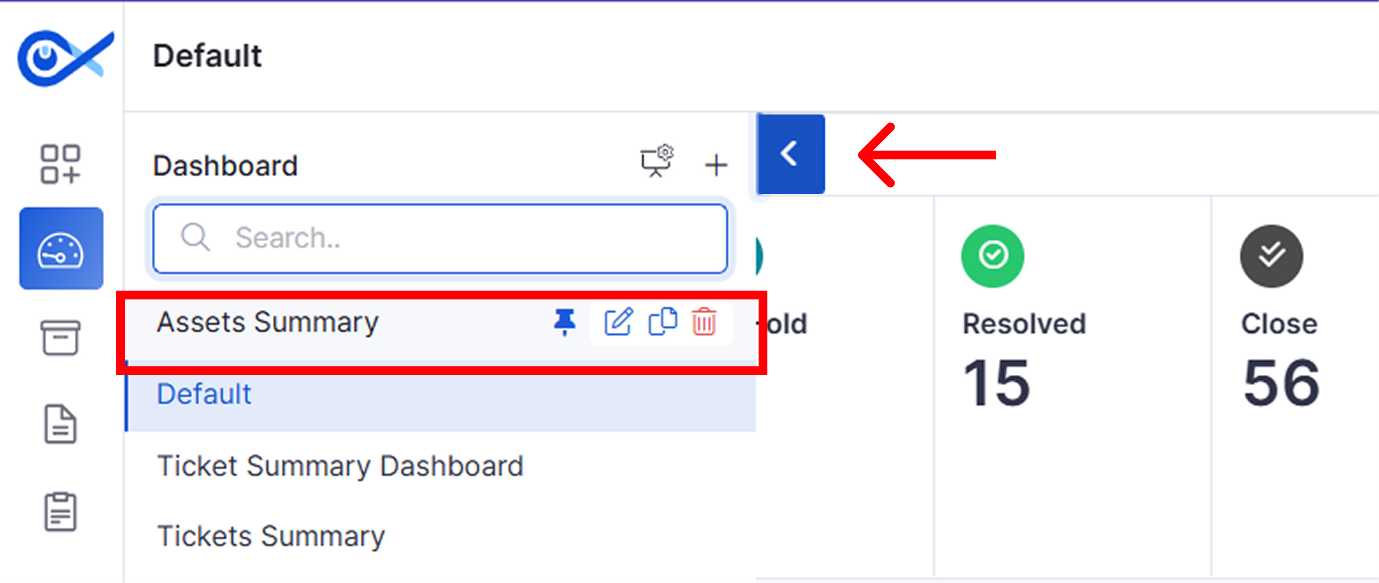
Label
Action
Description / Example
Search
Click to input text.
Allows you to search for users in the lifecycle grid. You can search by Username, Email ID, or other identifiers.
Filter
Click to input text.
Provides advanced filtering options for refining results.
Fields: Username, Email, Role, Department. Conditions: in, not in, equal to, not equal to, contains, not contains.
Username
View only
Displays the user’s login ID in the system. Often shown with an associated email ID.
Example: 10034 / 10034@mail.com
Assigned Assets
View only
Shows the total assets currently allocated to the user. If multiple assets are assigned, only a few are listed, with the remainder summarized.
Example: 461005193, +2 More
Department Name
View only
Displays the department to which the user belongs.
Example: HR, Finance, IT, etc.
Role
View only
Shows the user’s role in the system (e.g., Requester, Admin, IT Manager).
Example: Requester, Infraon Admin, Vendor Admin, etc.
Is Active
View only
Displays whether the user account is active or inactive. Represented with a toggle and status label.
Example: Active (blue toggle ON), Inactive (grey toggle OFF)
Last Login Time
View only
Shows the most recent login timestamp of the user in the system.
Example: Sep 10, 2025 11:56 AM.
Label
Description / Example
All Users
Displays the complete list of users in the system along with their currently assigned and historical assets. Example: An administrator selects All Users to audit asset allocations across the entire organization.
Owned By Me
Shows only the assets that are currently allocated to the logged-in user. Example: A requester chooses Owned By Me to review their assigned laptop and software history.
Owned By Requesters
Label
Description / Example
Assignment & Allocation
Track when an asset is assigned, acknowledged, transferred, or returned by a user. Example: A laptop is assigned to an employee during onboarding and later returned during exit.
Usage & Operations
Monitor user activity on assets, including software installations, policy violations, and maintenance requests. Example: Track when unauthorized software is installed or when a patch request is raised.
Movement & Transfer
Label
Action
Description / Example
Filter
Click to input criteria
Provides granular filtering of lifecycle events. Fields: Type, Component Type, Description, Users.
Select Date Range
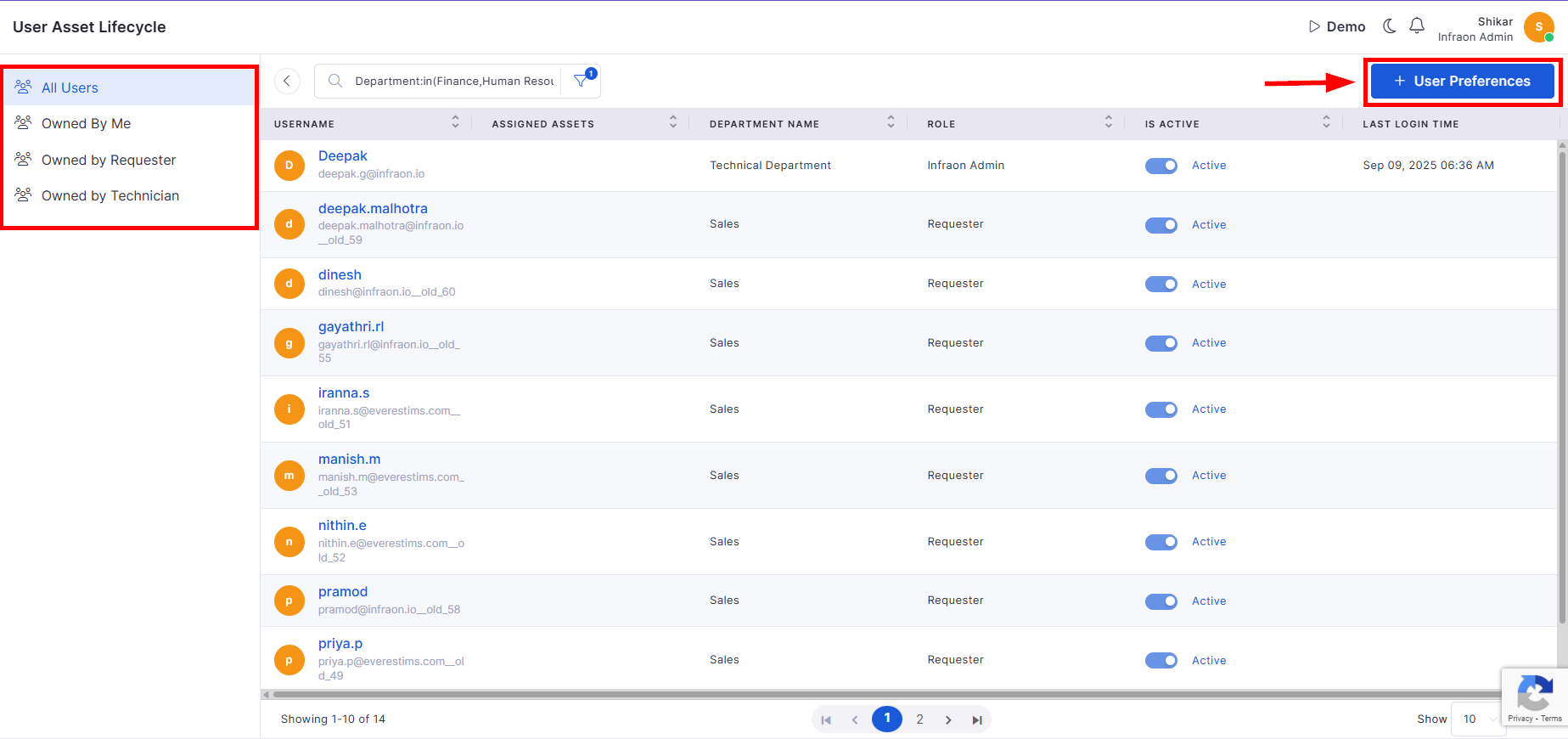
Custom Fields: Allows organizations to extend RFQ forms with business-specific information.
Purchase Order (PO): Approved vendor quotations are converted into one or more Purchase Orders for procurement execution.
Draft
Creation
The RFQ is created and saved with the required procurement details. Users can modify the RFQ before communicating it to vendors.
Example: An RFQ for purchasing office laptops is created and saved as a draft.
Sent to Vendor
Search
Enter a keyword to locate an RFQ.
Searches RFQs using values such as the RFQ ID, title, requester, or other searchable fields. Example: Enter RFQ0097 or Laptop Procurement to locate a specific RFQ.
Filter
Click the Filter icon to apply one or more filters.
Toggle (Enable/Disable)
Enables automatic recording of the RDP session. Recorded sessions are stored securely and can be accessed only by authorized users. Default: Disabled.
Unattended Access (not available for Mesh Assistant)
Toggle (Enable/Disable)
Allows sessions to start instantly without requiring user approval. Available only when the Mesh Agent is used. Default: Disabled.
Date
Select from the calendar
Choose the date on which the RDP session should start. Example: 11-09-2025.
Time
Select from the time picker
Define the exact start time of the RDP session. Example: 18:09 (6:09 PM).
Expected Duration
Enter time in minutes.
Set how long the session should remain active. Default: 30 minutes.
Example: 60 minutes.
Cancel Button
Click to cancel scheduling
Closes the Schedule Remote Access window without saving changes.
Schedule Button
Click to confirm scheduling
Confirms the entered details and creates the scheduled session.
Opens the file transfer interface, enabling users to upload or download files to or from the remote device.

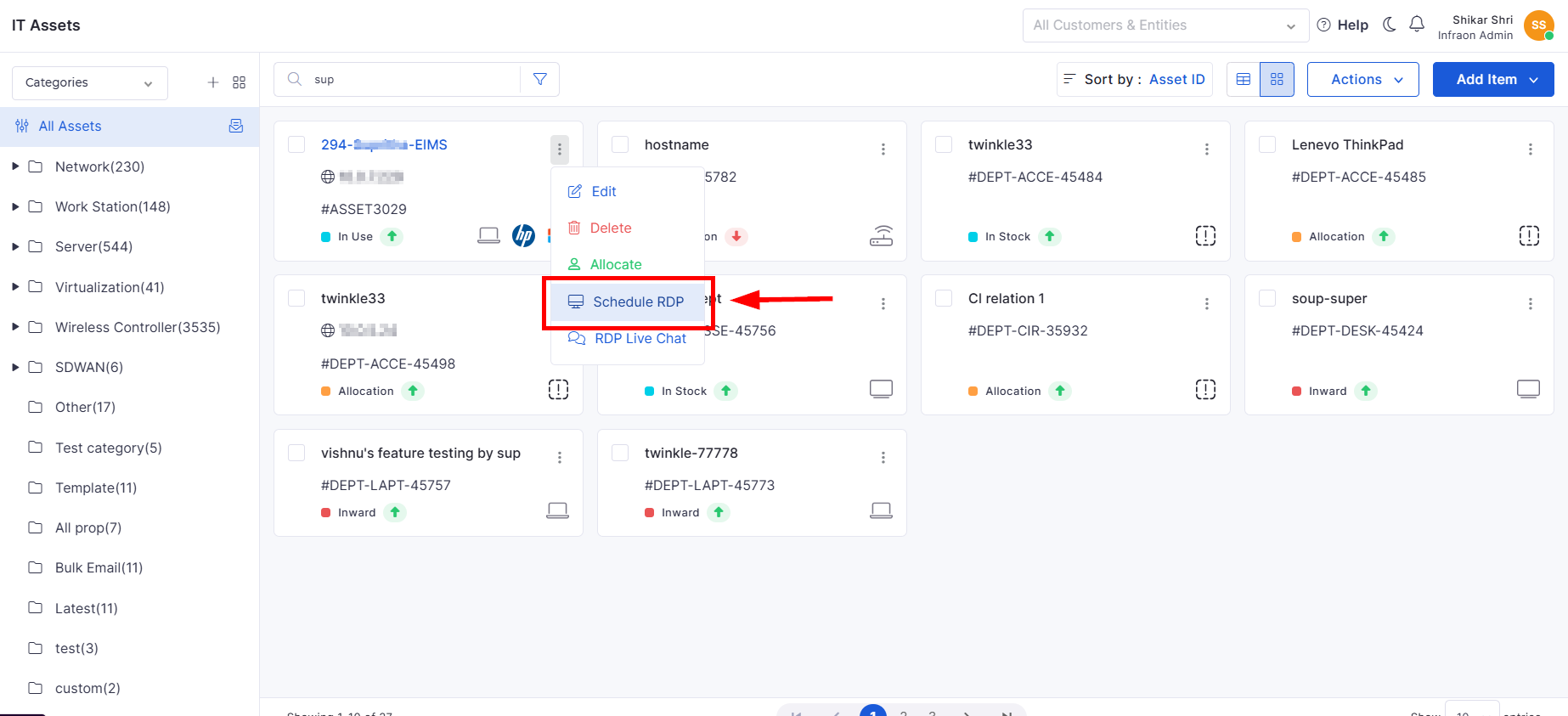
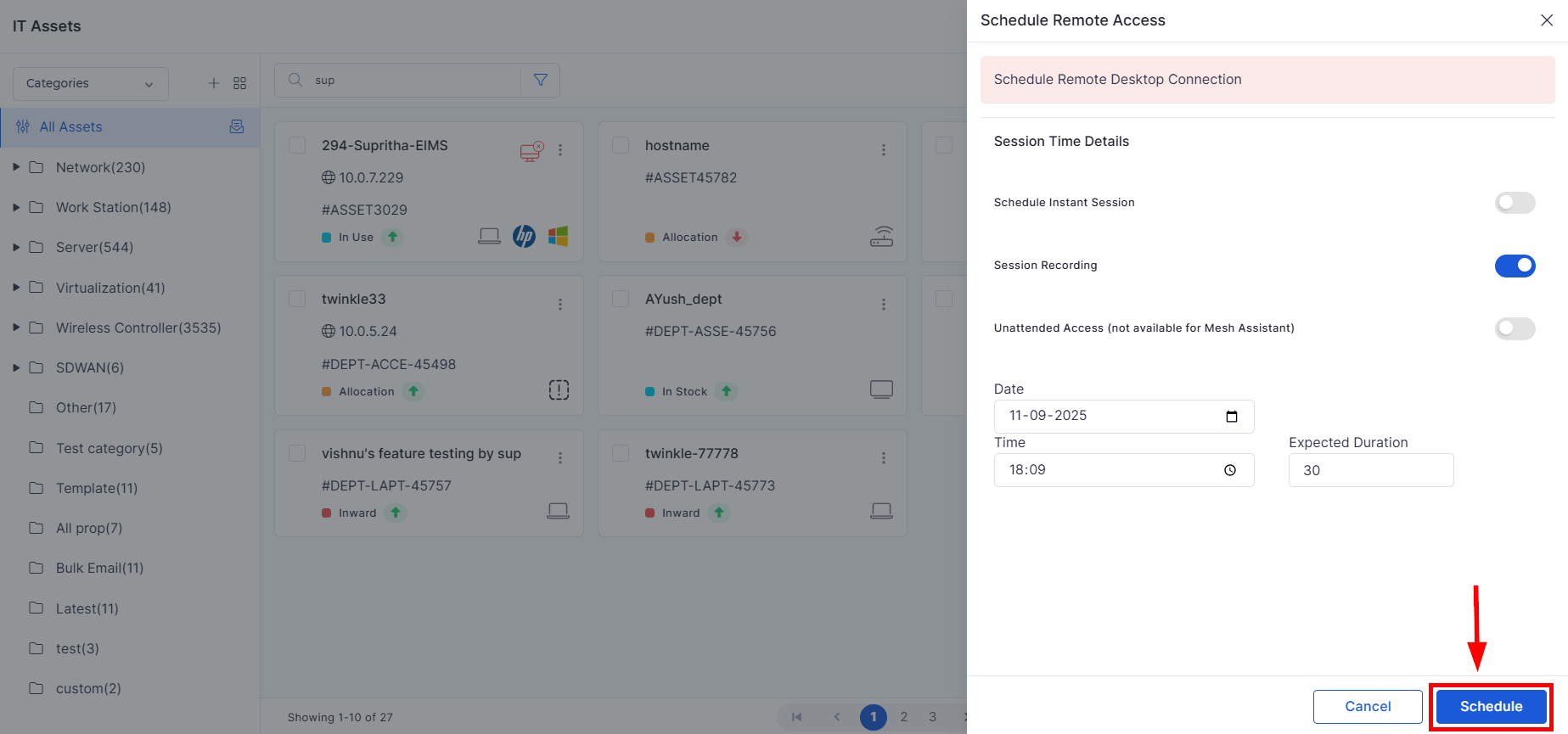
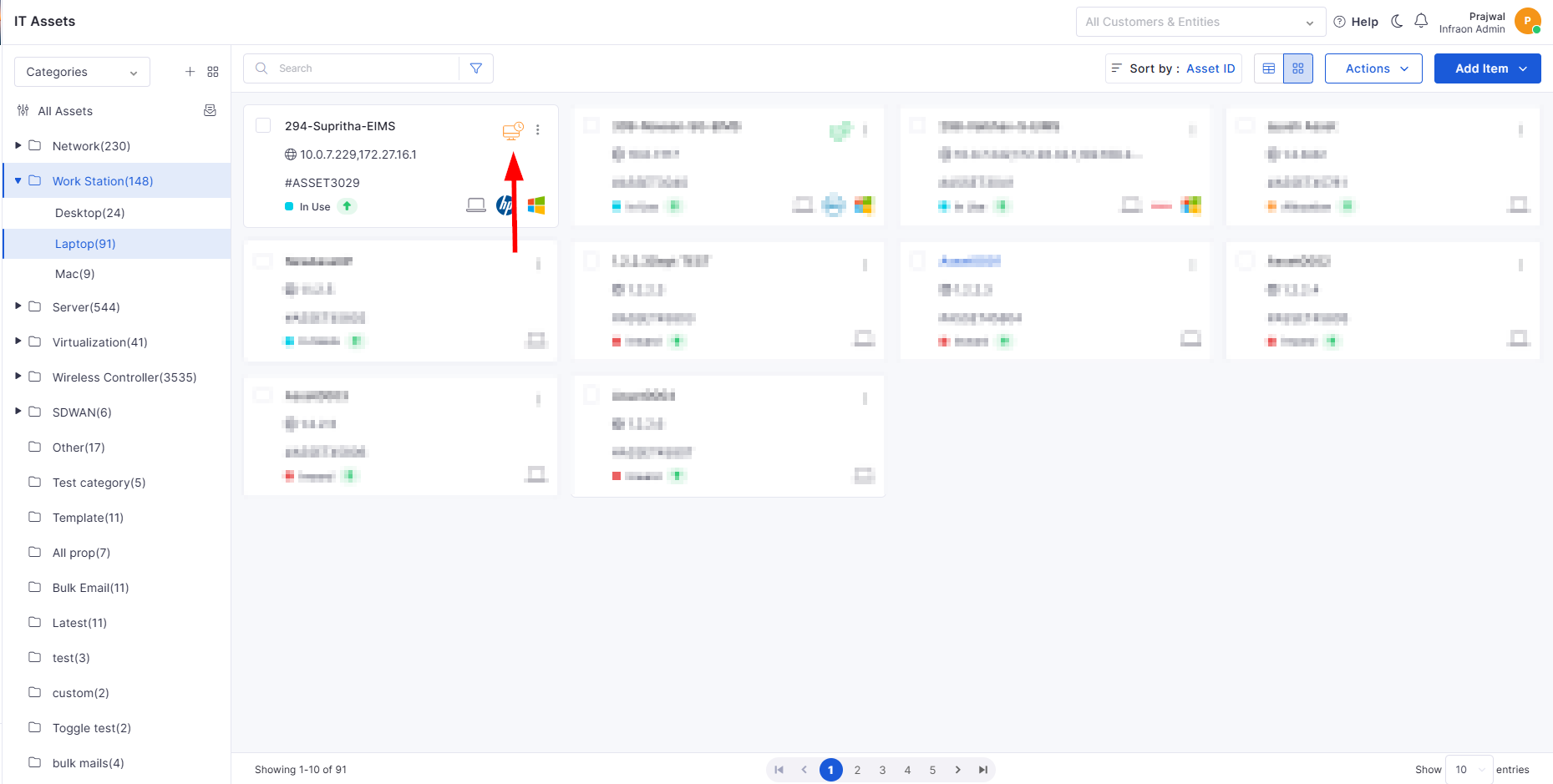
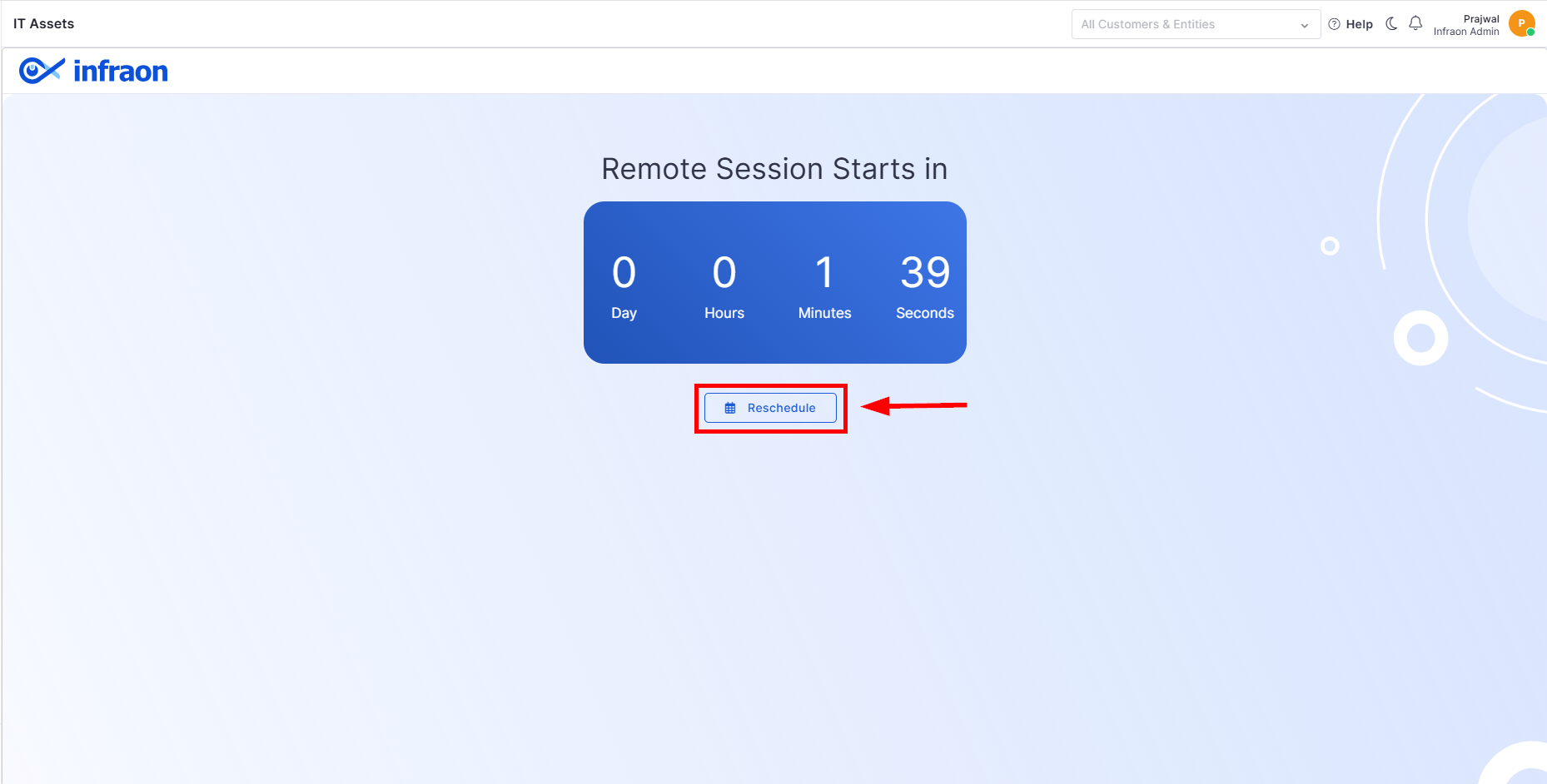
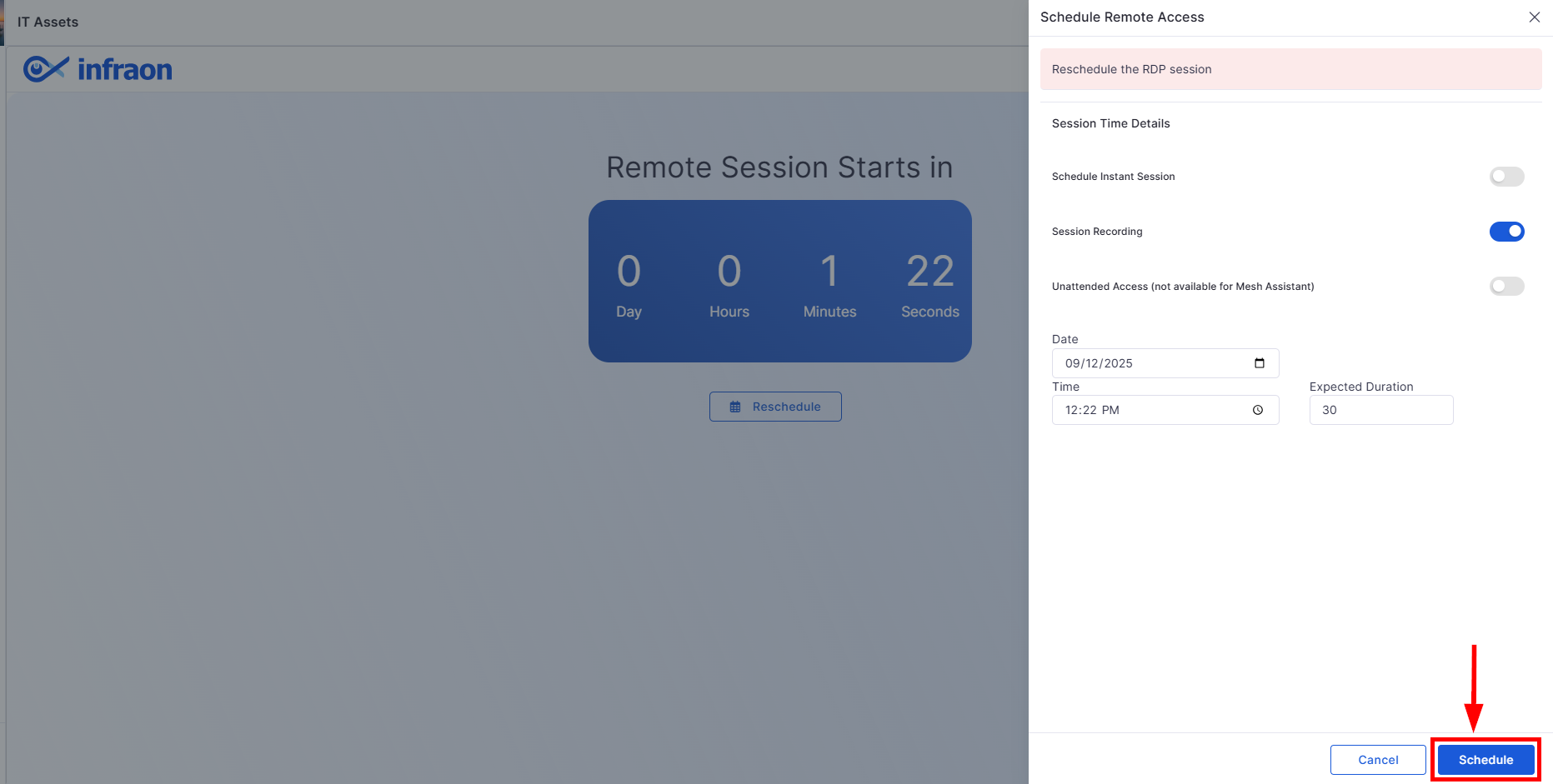
Actions
Scan & Search Asset
Search by barcode: type the asset's code.
To scan and search for an asset, click on the 'Scan and search asset' option, then use your phone to scan the QR code, which will initiate the asset search process.
Export
Click to choose the category.
To export the data, click the 'Export' button, then choose the desired category, and finally download the CSV file containing the selected data.
Maintenance
Click to redirect to the Maintenance page.
When an asset is designated for maintenance, its status is changed to the "maintenance" stage. After scheduling the maintenance time, the asset is set to run automatically during that scheduled period. Once the maintenance is completed, the asset reverts back to its previous state, resuming normal operations or the state it was in prior to the maintenance activity.
Bulk Edit
Go to the Infraon Asset Card page -> Actions -> Bulk Edit.
Select the Category.
Download the CSV file (excel sheet) and Enter the Asset details in the sheet.
Upload the same edited CSV file.
Click Next -> Import -> Proceed with Valid Records.
To Edit Multiple Assets information or details at once.
Download Agent
Click to download the Infraon agent available on Windows, MAC, and Linux.
Customize Asset ID
To customize the Asset ID configuration.
CLI Session
Click to navigate back to the CLI session module.
CLI Jobs/sessions in NCCM create direct CLI sessions (SSH or TELNET) between the Device and the User through the NCCM application.
Download Job
Click to navigate back to the Download Job module.
NCCM’s Download Jobs added through Discovery process or manual Device addition will start downloading Device configurations, Operational Data, Device Inventory Details, OS image details based on “Configuration Profile” assigned, Device Credentials, Connection & Download protocol selection and Schedule period.
RDP Session Audit
View RDP session details.
Opens the RDP Session Audit window for the selected asset. Users can view a list of RDP sessions, including the remote device name, protocol used, session start and end times, total duration, and the recorded session file size.
The page also shows the total storage size occupied by the recorded sessions.
Deletes the selected asset after confirmation.
Add Owner
Click Add Owner to assign an owner.
Allows you to assign an owner to the selected asset.
Archive Asset
Click Archive Asset to archive the asset.
Moves the asset from active asset management to Archived Assets.
CLI Session
Click CLI Session to start a CLI session.
Opens a CLI session for supported assets.
Add any additional information or context related to the archival.
Example: The asset was replaced with a new laptop and is no longer in use.
Enter text manually
Define a static prefix that appears before the numeric or alphanumeric value.
Example: ASSET, ESOL, IT-LPT
Add Field (Custom Format)
Click to add fields
(Optional) Add dynamic components like location code or department manually.
Number Type
Select from the dropdown
Choose how the numeric part of the ID should be generated. Options:
· Auto Increment: Sequential numbers (e.g., 0001, 0002)
· Alpha Numeric: Mix of letters and numbers (e.g., IT01A)
· Random: Generates a randomized unique value (e.g., X23B)
No of values
Select from the dropdown (1–10 digits)
Define the length of the numeric part.
Example: 4 creates IDs like 0001, 0002, etc.
Starting From
Enter a numeric value
Sets the starting number for the ID sequence.
Example: 1 generates 0001, 0002...
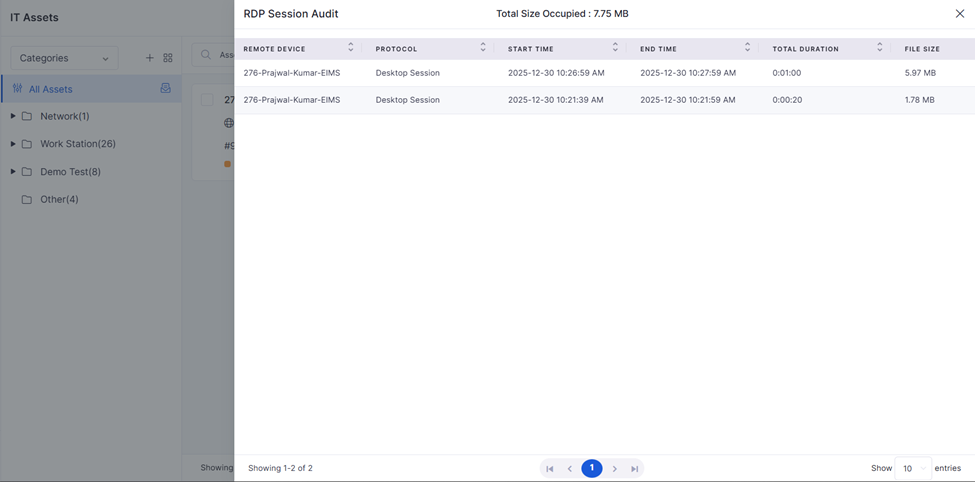


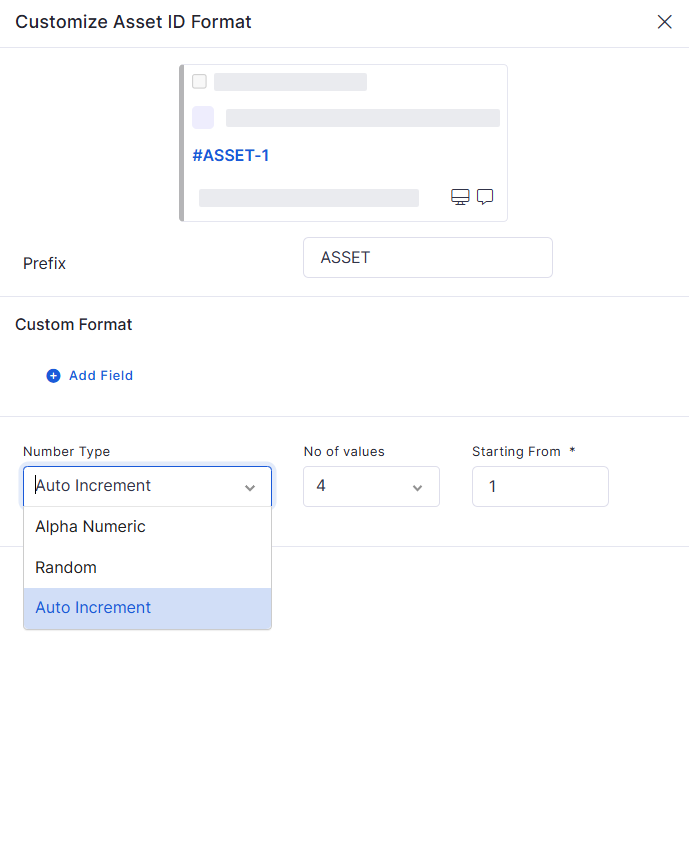
Shows performance metrics of agents, including assigned and resolved tickets.
Useful for evaluating agent productivity and team efficiency.
Ticket Created Vs Resolved
Compares tickets created against tickets resolved in a given timeframe.
Identifies backlog trends and resolution effectiveness.
Ticket Aging Summary
Highlights tickets based on their age (open duration).
Helps prioritize older pending tickets for faster closure.
Ticket Summary by Service
Displays tickets categorized by impacted service.
Provides insights into service-specific issues for IT teams.
Ticket Response Time Count
Measures response time for tickets.
Tracks SLA adherence and customer response experience.
Ticket Summary by Priority
Summarizes tickets by their assigned priority (High/Medium/Low).
Helps allocate resources to critical tickets.
Request Summary
Displays the overall number of service requests created.
Offers visibility into non-incident requests handled by IT.
Request Summary by Status
Breaks down requests into statuses such as Open, In Progress, and Closed.
Useful for request lifecycle tracking.
Request Summary by Priority
Summarizes requests by priority.
Identifies urgent service requirements.
Problem Summary
Shows total problems recorded in the system.
Helps track recurring issues that need permanent fixes.
Problem Summary by Status
Categorizes problems by status.
Provides a snapshot of active and resolved problems.
Problem Created Vs Resolved
Compares problems logged against those resolved.
Helps assess the effectiveness of root cause analysis.
Problem Summary by Priority
Summarizes problems by priority.
Ensures critical problems are addressed promptly.
Change Summary
Displays total changes recorded.
Offers visibility into change management activities.
Change Summary by Status
Categorizes changes by lifecycle status.
Tracks ongoing vs. completed changes.
Change Summary by Priority
Summarizes changes by priority.
Helps manage high-impact changes more effectively.
Change Created Vs Closed
Compares changes created against those closed.
Identifies pending changes and closure trends.
Displays average and distribution of ticket response times.
Helps ensure SLA commitments are being met.
Ticket State by Assignee
Breaks down tickets assigned to different agents.
Helps balance workloads across support staff.
Ticket State by Requester
Categorizes tickets based on who raised them.
Useful for tracking high-volume requesters.
Ticket Summary by Priority
Shows ticket distribution by assigned priority.
Helps allocate resources to urgent/critical tasks.
Ticket Aging Summary
Displays how long tickets remain unresolved.
Ensures aging tickets are escalated appropriately.
Ticket Summary by Urgency
Highlights tickets categorized by urgency levels.
Assists in addressing business-critical issues first.
Ticket Created Vs Resolved
Compares opened vs. resolved tickets over time.
Helps track backlog management and team efficiency.
Shows assets purchased in the current quarter.
Useful for budgeting and procurement reviews.
Upcoming Expenses (Next Quarter)
Projects upcoming financial commitments for assets.
Helps plan budgets and avoid surprise expenses.
IT Asset Summary
Lists IT assets with key details (type, category, ownership).
Helps IT teams maintain inventory accuracy.
Fixed Asset Summary
Displays details of fixed/long-term assets.
Supports audits and compliance checks.
Vendor Summary
Shows vendor details and associated assets.
Helps manage vendor performance and procurement contracts.
Current Year Purchase
Summarizes all purchases made in the current year.
Provides annual procurement insights.
Agent Summary
Shows workload and asset-related activities of agents.
Useful to monitor asset-related responsibilities of staff.
Asset Location Drilldown Table
Displays asset details by physical location.
Helps track distributed asset ownership.
Asset Summary
General overview of assets within the system.
Provides quick visibility into total inventory.
Location-wise Asset Summary
Breaks down assets based on location.
/Displays a location-wise count of assets on the dashboard, helping users quickly view asset distribution, track inventory, and manage resources efficiently.
Shows the total number of releases filtered by selectable states and timescales.
Quantifies open, closed, or staged releases for capacity planning and reporting.
Count Summary
Summarizes release records grouped by key attributes such as Assignee, Priority, Severity, or Impact Service.
Analyzes workload distribution and impact across teams or services.
Release Created vs Closed
Compares the number of releases created against those closed within a selected timeframe.
Tracks release velocity and closure trends, helping improve delivery efficiency.
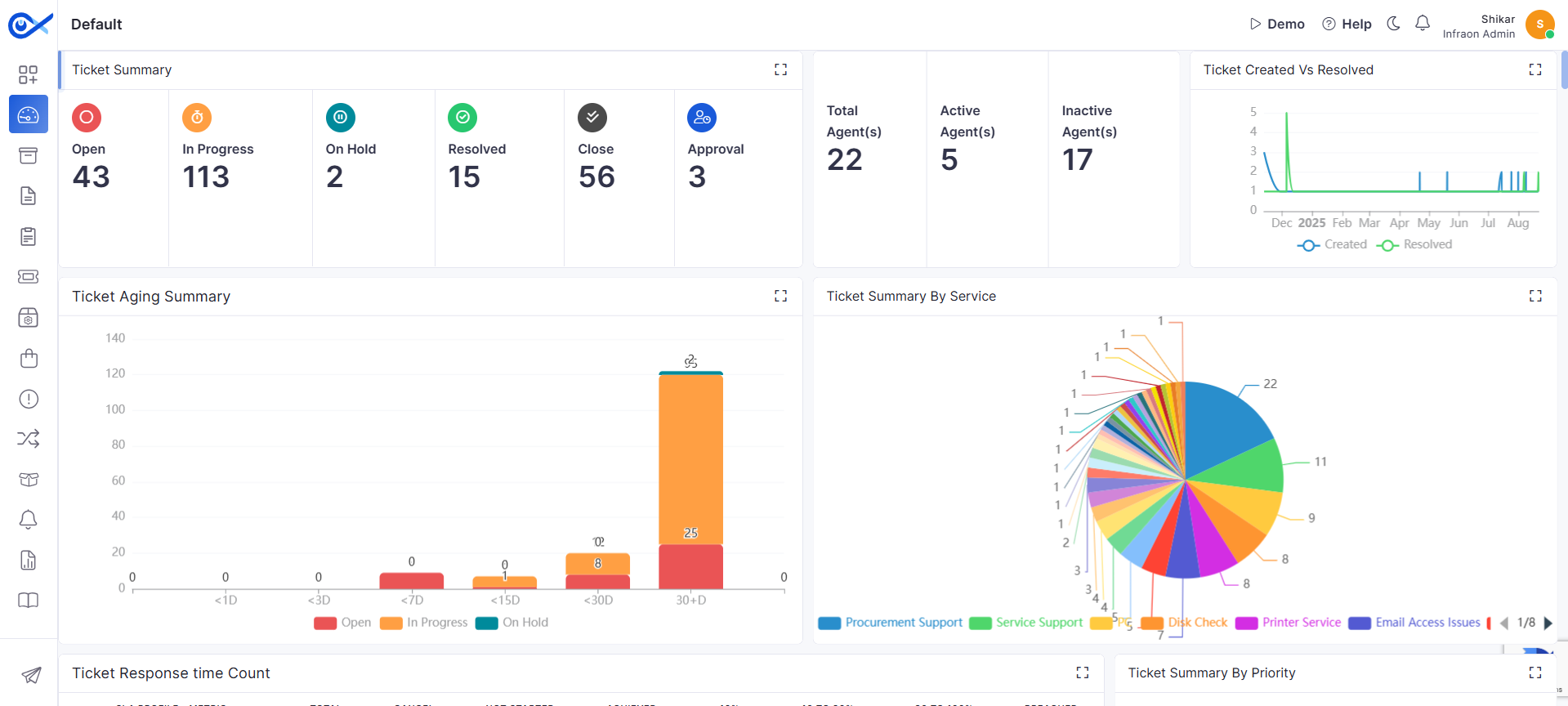
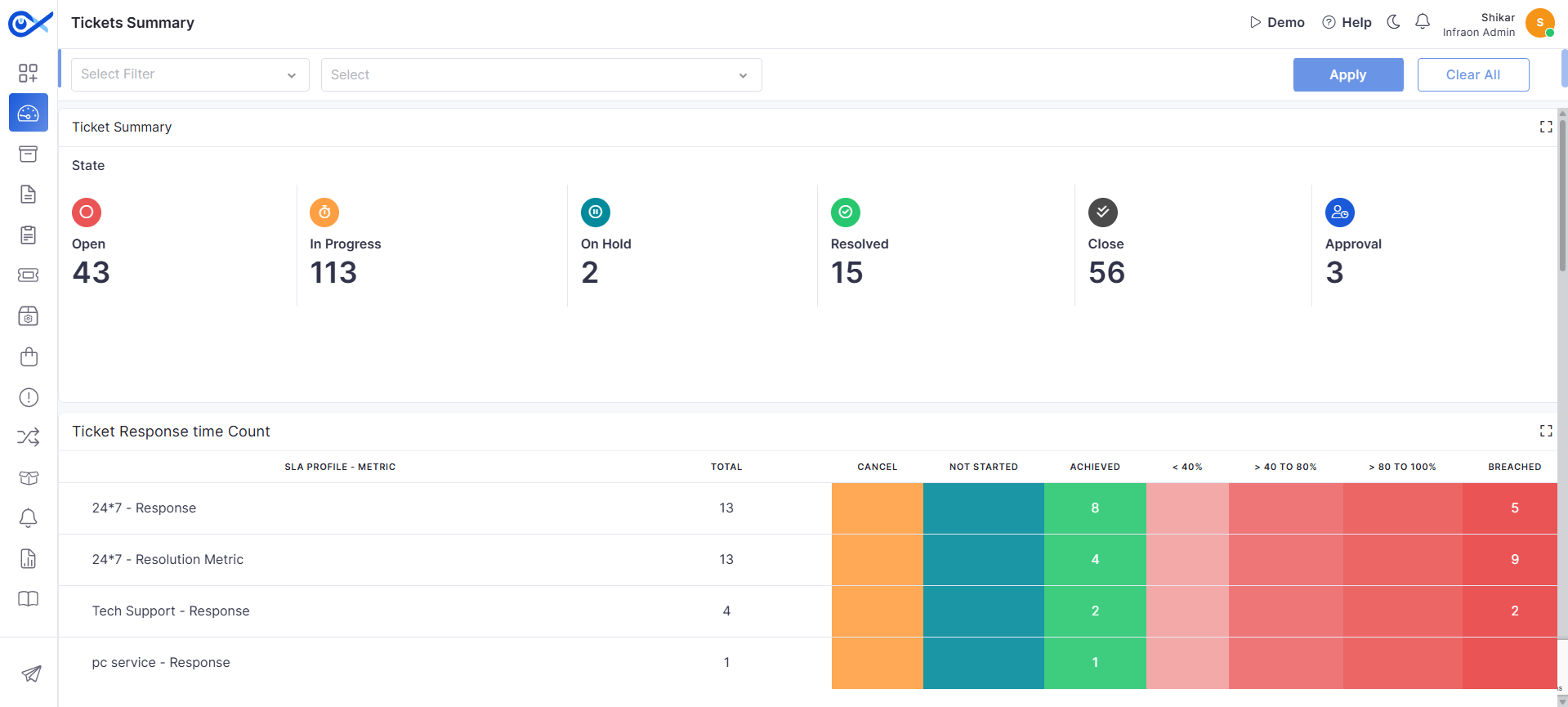
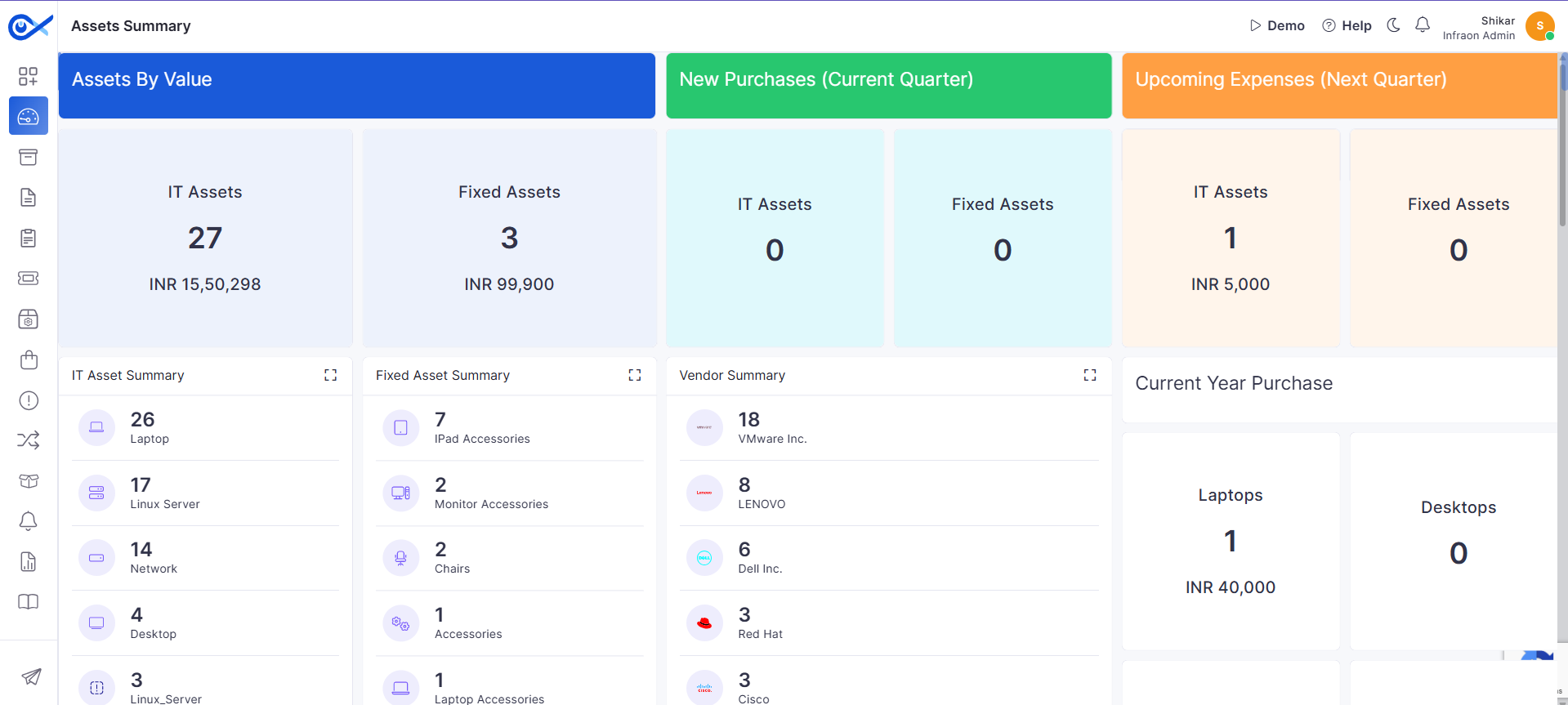
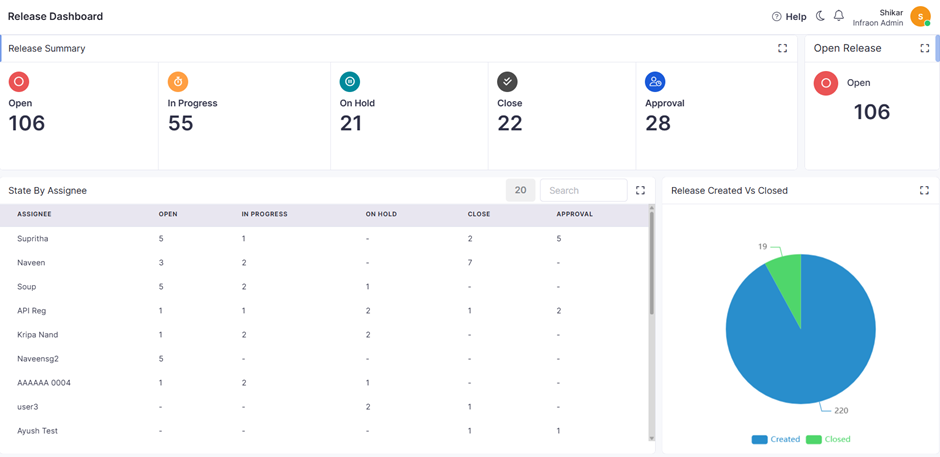
Displays assets owned by requesters (end users who raised service/incident requests). Example: A helpdesk engineer applies Owned By Requesters to identify which assets belong to the ticket raiser quickly.
Owned By Technicians
Displays assets assigned to technicians or IT staff members responsible for managing and supporting assets. Example: An IT Manager uses Owned By Technicians to check which assets are currently managed by their support team.
Log when users move assets to different locations, transfer them to others, or return them. Example: An employee shifts from the Bangalore office to the Delhi office, and their allocated device is updated accordingly.
Support & Tickets
Capture user-raised tickets, repair status updates, and issue resolutions. Example: A requester raises a ticket for a faulty monitor, and the lifecycle view shows the repair and resolution history.
Security & Compliance
Track user adherence to security policies, monitor encryption status, flag unauthorized access attempts, and log compliance audit results. Example: Record antivirus scans, detect policy violations, or log failed login attempts.
End-of-Life & Recovery
Track asset returns from users, reassignment after exit, and data wipe confirmations. Example: An employee’s laptop is collected, data-wiped, and reassigned to a new hire.
Click to select from the dropdown
Allows filtering lifecycle events by time range. Options: Current Hour, Last 60 minutes, Today, Last 7 Days, Custom Range, etc.
User Preferences
Click to select a preference.
Filters lifecycle events by organizational categories (Assignment & Allocation, Usage & Operations, Movement & Transfer, Support & Tickets, Security & Compliance, End-of-Life & Recovery). Example: Selecting Security & Compliance displays only encryption, antivirus, or compliance-related events.
Allocated Assets
View only
Displays assets currently allocated to the selected user. Includes details such as Asset Name, Serial Number, IP Address, Location/Entity, Allocation status, and deployment state. Example: APPLE IMAC PRO INF-190
Owned Assets
View only
Shows assets owned by the selected user. These are linked through ownership relationships (not just allocation). Includes details like Asset ID, Serial Number, IP, and current status. Example: Alex - INF-189
Previously Allocated Assets
View only
Displays assets that were previously assigned to the user but have since been deallocated or reassigned. Example: DESKTOP-H14QMPB
Show Activity / Hide Activity
Click to expand/collapse.
Expands or collapses the lifecycle activity timeline for a specific asset. Shows historical changes and actions performed. Example: State Changed from Manage to Deploy, Status Changed from In Use to Allocation – Performed by Shikar, Sep 10, 2025 05:58 PM.
Status
View only
Displays whether the user is active or inactive. Example: Status: Is Active
User Information (Name & Email)
View only
Displays basic details of the selected user, including display name and email ID. Example: Shikar Srivastava
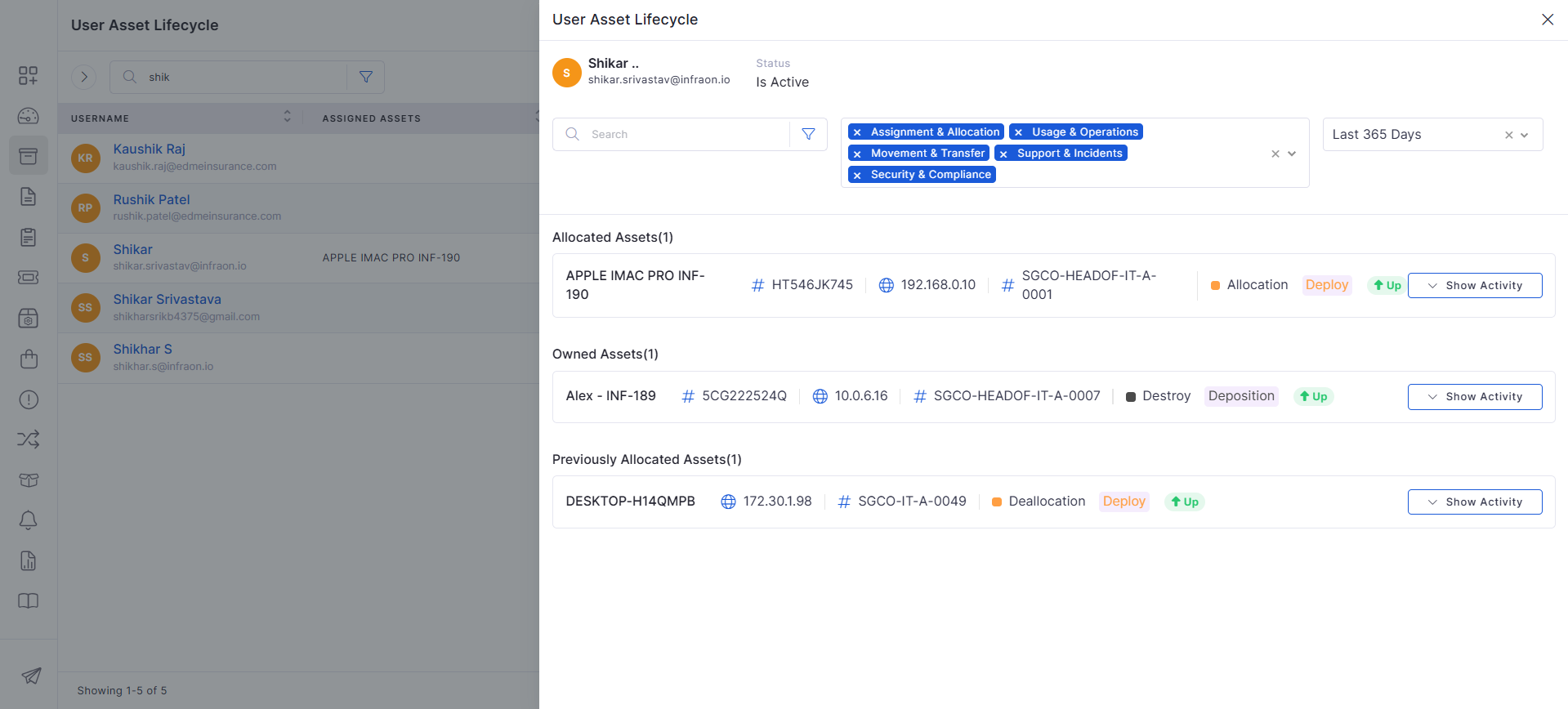
Execution
The RFQ is sent to one or more selected vendors, inviting them to submit quotations before the due date.
Example: The RFQ is emailed to three approved hardware vendors.
Pending Vendor Response
Execution
The system is waiting for vendors to respond with their quotations. Procurement users can monitor pending vendor responses during this stage.
Example: Two invited vendors have not yet submitted their quotations.
Quotation Received
Execution
One or more vendors have submitted their quotations successfully. The quotations are available for review and comparison.
Example: Three vendors submit pricing, delivery schedules, and commercial terms.
Under Evaluation
Execution
Procurement teams evaluate the received quotations based on pricing, technical specifications, delivery timelines, and commercial conditions.
Example: Vendor quotations are compared to identify the most suitable supplier.
Negotiation in Progress
Execution
Procurement users negotiate pricing, payment terms, delivery schedules, or other commercial conditions with vendors before finalizing the quotation.
Example: The procurement team requests a revised quotation with a discounted unit price.
Waiting for Quotation Approval
Approval
The selected quotation is submitted for approval according to the configured RFQ workflow.
Example: The Procurement Manager reviews the recommended vendor before approving the quotation.
Approved
Approval
The quotation has been approved and is ready for Purchase Order creation.
Example: The selected vendor quotation is approved for procurement.
PO Created
Closure
One or more Purchase Orders are generated for the approved vendor(s), completing the procurement selection process.
Example: Separate Purchase Orders are generated for two vendors supplying different line items.
Closed
Closure
The RFQ lifecycle is complete, and all procurement activities associated with the RFQ have been finalized.
Example: The RFQ is automatically closed after successful Purchase Order generation.
Rejected
Approval
The quotation or RFQ is rejected during the approval process, preventing Purchase Order creation until corrective action is taken.
Example: The quotation is rejected because it exceeds the approved procurement budget.
Cancelled
Closure
The RFQ is canceled before completion due to changes in procurement requirements or business decisions.
Example: The procurement request is withdrawn because the requested items are no longer required.
Filters the RFQ list based on configured criteria such as Status, Requested By, Supplier, Priority, Location, or custom fields. Multiple filters can be applied simultaneously and cleared when no longer required.
Date Filter
Select a predefined date range from the drop-down list.
Displays RFQs created within the selected time period. Available options include Last 60 Days, Last 90 Days, Last 180 Days, and Last 365 Days.
Actions
Click Actions to access additional page-level options.
Select Line Item Column Selection to configure the columns displayed for RFQ line items in the Add, Edit, and View pages.
Add Request for Quotation
Click + Add Request for Quotation.
Opens the New Request for Quotation wizard, allowing you to create a new RFQ by entering the quotation details, adding line items, selecting vendors, and configuring terms and conditions.
Action Icons
Edit
Edit an existing RFQ.
Opens the selected RFQ in edit mode, allowing authorized users to update the RFQ details based on the current workflow stage and assigned permissions.
Delete
Delete an existing RFQ.
Removes the selected RFQ from the system after confirmation. This action is available only to users with the required permissions and for RFQs that satisfy the configured workflow rules.
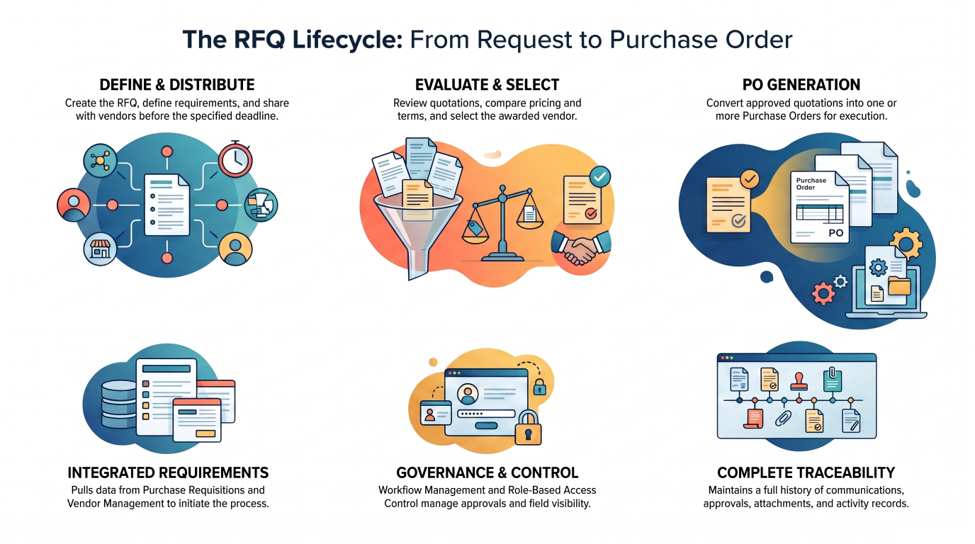
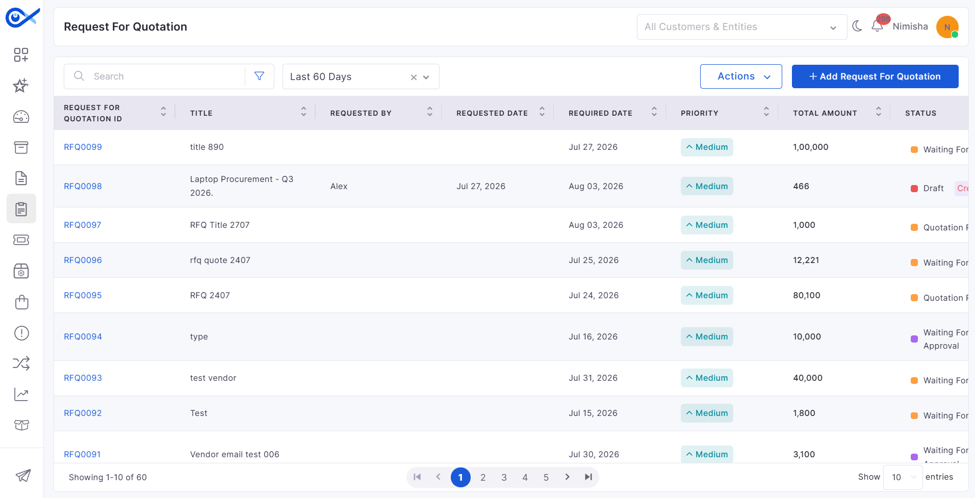
Once projects are created, they are listed under the Projects section in the left panel. Users can select a project to view, manage, and track project activities.
Based on assigned roles (such as Project Manager, Project Implementor, and other configured roles), users can access the project, work on tasks, and manage milestones from this page.
Projects can be viewed in two formats:
Table View
Displays project tasks and milestones in a structured grid format with columns such as Task ID, Title, Description, Priority, Status, and Assignee. This view is suitable for managing and updating task details in a tabular format.
Gantt Chart View
Displays project tasks and milestones on a timeline. It helps in visualizing:
Task duration
Start and end dates
Dependencies and scheduling
Users can track project progress over time and adjust timelines accordingly.
Dashboard View
The Dashboard View provides a centralized, read-only overview of the selected project through predefined widgets that display project progress, task status, milestones, budget, deliverables, and asset-related insights.
The dashboard is automatically populated with project data and is refreshed as project information changes. Unlike the platform module, these widgets are predefined and cannot be added, removed, edited, or rearranged.
Meeting View
Displays project-related meetings in calendar and list formats integrated from the Users can schedule, track, and manage project-related meetings, view attendee lists, meeting statuses, and schedules, and access meeting details to support collaboration and follow-up.
Project Details | View
Action Icons | Project
The CSV Edit option also allows users to create, update, or remove task dependencies in bulk by editing the exported CSV file and re-importing it into the project.
The exported CSV includes dependency-related columns that can be updated to define predecessor relationships between tasks.
Dependency Configuration Rules | CSV Edit
Example:
The Milestone field allows you to associate tasks with milestones when adding or updating project tasks using CSV.
To link a task to a milestone:
Open CSV Edit
In the project, open the CSV Edit option.
Specify the milestone
In the CSV file, specify the required milestone for the task in the Milestone column.
Forecast is a long-range capacity planning feature that analyzes historical performance data to project future trends over a 180-day rolling window. It helps organizations proactively manage infrastructure by identifying when to scale up or down resources such as CPU, memory, disk, and throughput.
Data Collection
A minimum of 14 days of historical performance data is required.
180 days is the standard data window for training the forecast model.
Model Generation
Forecasting models are generated for each metric.
Models are refreshed weekly (every Sunday) with a moving 180-day window.
Model Type
Machine Learning models for time-series forecasting.
Focused on performance metrics only (not availability metrics).
Each model learns the behavior pattern and forecasts based on statistical trends.
Infraon’s Forecast uses intelligent algorithms to study past data and predict future trends. It looks at how a metric (like CPU or bandwidth usage) has behaved over time and tries to spot patterns.
The forecast shows a range using upper and lower lines (called bands) to give you a safe estimate of how things might go. The middle line is the expected value. You can also fine-tune forecasts using settings added in the terminologies below.
Terminologies | Forecast Details
When you open the Forecast view, you'll see a line graph showing past and predicted values for a selected performance metric. The graph helps visualize how usage has behaved historically and how it’s expected to trend. Hovering over any point in the graph displays detailed forecast data for that timestamp.
Basic Details | Forecast
The Test Forecast feature allows users to generate a real-time forecast by temporarily rebuilding the model using customized settings. This is especially useful when users want the estimates to reflect unique scenarios—such as holidays, maintenance windows, or unusual business cycles—where typical patterns may not apply.
Test Forecast | Basic Details
This table displays the historical values collected from the device or component at regular polling intervals. It helps users understand how the resource has performed over time.
This table displays the predicted future values for the selected metric. The forecasting model generates these values using historical trends and helps anticipate upcoming changes in resource usage.
See it in action!
Defining the asset category and sub-category is the first step in adding the asset. Categories can also be called Parent categories. It is recommended that an asset category be added before an asset. The process of adding a category and a sub-category is the same.
Hovering the mouse over the category:
Spot regular patterns like higher usage during weekdays or business hours.
Change Point Detection
Flags sudden shifts in behavior
Detects when there is a significant change in the trend (e.g., after a software update).
Confidence Bands
Shows a safe prediction range
The forecast graph includes a range (upper & lower bands) with a center line for expected use.
Predicted Value
Calculates expected usage
The central point between the upper and lower bands is used for planning.
Change Point Scale
Adjusts sensitivity to changes
Higher value = model closely follows recent changes; lower = smoother trends.
Include History
Shows past data alongside forecast
Useful to compare how the system performed before and how it might behave going forward.
Predicted future usage based on past patterns.
Grey Area
Shows forecast range
It covers the lower band to the upper band, representing the confidence range.
Upper Band
Forecast upper limit
Maximum possible usage at a given time based on model predictions.
Lower Band
Forecast lower limit
The minimum possible usage forecasted by the model.
Hover Preview
Shows details at a specific timestamp
View time, polled data, and forecast values (Upper, Predicted, Lower).
Example:
Time: 18th May, 2025 07:00 PM
Polled Data: 5.50 %
Upper Band: 6.47 %
Predicted: 6.07 %
Lower Band: 5.57 %
Filter
Current Month
Filter forecast to the current month only
From today's date to the end of the current month.
Next Month
Show forecast for the next whole month
For example, from June 1 to June 30.
Next 3 Months
View medium-term trend
Displays forecast for 90 days.
Next 6 Months
Show long-term usage prediction
Forecasts for up to 180 days into the future (maximum window).
Range: 0.01 = underfit, 0.5 = overfit, 0.1 = balanced.
Include History
Toggle past data in the graph
Enables visual comparison of historical and forecast data.
Weekly Seasonal
Enable weekly pattern recognition
Helpful in detecting trends like high CPU usage every Monday.
Daily Seasonal
Enable intra-day pattern detection
Identifies time-of-day peaks, like lunch-hour bandwidth spikes.
Lower Band
The lowest possible predicted value based on trend analysis (e.g., 7.20%).
Label
Action
Description / Example
Trend Analysis
Detects the overall direction of usage
Helps identify if resource usage is increasing, decreasing, or stable over time.
Seasonality
Label
Action
Description / Example
Polled
Displays past polled data
This is collected (raw) data from devices at periodic intervals (e.g., every hour).
Predicted
Label
Action
Description / Example
Business Hour Profile
Forecast only during business hours
Example: Monday–Friday, 09:00–18:00. Excludes weekends or custom time blocks.
Change Point Scale
Label
Description / Example
Time
The exact timestamp when the data was collected (e.g., May 01, 2025 12:00 AM).
Value
The actual metric value now (e.g., 7.63%).
Label
Description / Example
Time
Future timestamp for calculating the forecast (e.g., May 01, 2025 01:00 AM).
Upper Band
The highest possible predicted value based on trend analysis (e.g., 8.03%).
Predicted
Finds repeating usage patterns
Displays forecast trend
Set model sensitivity
The most likely expected value (center of the forecast range) (e.g., 7.64%).
Displays the overall project completion percentage calculated based on completed tasks.
View: Summary Card
Expected Profit
Displays the project's projected profit based on the configured project financial information.
View: Summary Card
Milestone Completion Percentage
Displays the overall completion percentage of project milestones.
View: Summary Card
Task Status Breakdown by Priority
Displays the distribution of project tasks grouped by priority. Click a priority segment to view the corresponding tasks.
View: Pie Chart
Task Status Overview Pie Chart
Displays the distribution of project tasks across workflow statuses. Click a workflow status segment to view the corresponding tasks.
View: Pie Chart
Task Status Breakdown by Assignee
Displays the number of tasks assigned to each project member, categorized by workflow status. Click an assignee or status to view the corresponding tasks.
View: Chart
Milestone Status
Displays the completion status and progress percentage for each project milestone. Click a milestone to view its associated details.
View: Chart
Task Status Breakdown by Task Type
Displays task distribution grouped by task type and workflow status. Click a task type to view the corresponding tasks.
View: Chart
Project Deliverables
Displays all project deliverables and their current status. Click a deliverable to view its details.
View: Table
Task Status Breakdown by Category
Displays task distribution grouped by category and workflow status. Click a category to view the corresponding tasks.
View: Chart
Task Completion Trend (Actual vs Planned)
Displays a comparison of planned and actual task completion over time, helping to monitor schedule adherence.
View: Chart
Project Attachments
Displays all files attached to the project, organized by attachment category. Users can select an attachment to download or view it.
View: Table
Task Status Breakdown by Asset Region
Displays task counts grouped by the region of mapped assets and their workflow status. Click a region to view the corresponding tasks.
View: Chart
Task Status Breakdown by Geo/State
Displays task counts grouped by the geographical location or state of mapped assets, along with their workflow status. Click a location to view the corresponding tasks.
View: Chart
Filter
Apply filter criteria
Filter tasks based on parameters such as Status, Priority, Assignee, or other available fields.
Create a milestone to group related tasks or represent a key phase in the project lifecycle. Helps organize tasks and track major progress points.
Expand All
Click to expand
Expands all tasks and subtasks in the hierarchy, allowing users to view the complete structure of tasks under milestones.
Collapse All
Click to collapse
Collapses all expanded tasks and subtasks to provide a simplified and compact view of the project structure.
Zoom In
Click to zoom
Zooms into the timeline in Gantt view to view tasks and durations in finer detail (e.g., day-level visibility).
Zoom Out
Click to zoom out
Zooms out of the timeline to get a broader view of the project schedule (e.g., week/month-level visibility).
Zoom to Fit
Click to adjust
Automatically adjusts the timeline to fit all tasks and milestones within the visible screen for a complete project overview.
CSV Export
Click to export
Exports project task and milestone data to a CSV file based on the selected column configuration. The export may include calculated scheduling and reporting fields, depending on the project configuration.
PDF Export
Click to export
Exports the current project view to a PDF. The generated PDF captures the project information displayed on the screen, making it suitable for reporting, sharing, and project documentation purposes.
Import CSV
Click to import
Import tasks into the project in bulk using a CSV file. Useful for creating multiple tasks at once.
CSV Edit
Click to edit
Download, modify, and re-upload task data using CSV format for bulk updates.
CSV Export
Click CSV Export to download the project task list as a CSV file.
Exports all tasks currently displayed in the Project Task View, preserving the parent-child hierarchy via indentation.
The exported file includes only the columns currently visible in the task list and can be used for offline review or editing before re-importing.
Excel Export
Click Excel Export to download the project task list as a Microsoft Excel (.xlsx) file.
Exports the project task list along with project summary information, including the project name, baseline dates, revised end date, and actual dates.
The exported workbook preserves the task hierarchy, displays milestone rows in bold, and formats the column headers for improved readability.
Multiple Dependencies
A task can contain multiple predecessor relationships separated using the supported CSV format.
Remove Dependency
Clear the dependency value in the CSV file, then re-import it to remove the relationship.
User Acceptance Testing
FS
1
Save the CSV file and upload it to the project.
Review the linked task
The task is created or updated and linked to the specified milestone.
Task Summary
Displays the total number of tasks and the count of tasks grouped by each workflow status (such as To Do, On Going, Blocked, Done, and Closed). Click a task status to view the corresponding tasks for the selected project.
View: Summary Cards
Project Schedule
Displays key project schedule information, including revised, baseline, and actual start/end dates, schedule variance, and project methodology.
View: Table
Project Budget
Displays the project's budget details, including estimated cost, actual cost, budget variance, and Cost Performance Index (CPI).
View: Table
Column Configuration
Click to configure columns
Select the columns to display in the table view. Options include: Task ID, Title, Description, Priority, Status, Assignee, Owner, Requester, Reviewer, Manager, Type, Estimated Effort, and more.
Search
Enter keyword
Add Task
Click to add
Create a new task within the selected project. Tasks represent individual work items and can be assigned to users with defined priorities, statuses, and timelines.
Add Milestone
Predecessor Task
Specifies the task that the current task depends on. Example: Task ID 10
Dependency Type
Defines the relationship between predecessor and successor tasks.Supported values: FS, SS, FF, SF
Lag Days
User Acceptance Testing
Development Complete
FS
2
Project Completion Percentage
Search for tasks or milestones within the selected project by relevant fields such as Title or Task ID.
Click to add
Specifies the number of days to delay the successor task after the dependency condition is met.Example: 5
Production Deployment
Edit
Click to make changes to the category.
Delete
Click to delete the category.
Before adding an asset category/sub-category
The ‘Add Category’ field tab is where you can define or configure asset properties. Asset properties may include basic details like make, model, size, dimensions, etc., and critical information like EOL, EOS, end of support, etc. Some properties are mandatory for all asset categories.
The properties within Infraon are categorized into sections. Some sections are optional, whereas some are mandatory. The optional sections are available for selection based on the type or category of assets.
The sections are listed below the title ‘Available Section’. Once selected, they are added to the ‘Selected Section’ part and are available for defining permissions and field-level customizations. Please note that selecting fields makes them mandatory for the selected asset category. Field selection is also possible for mandatory sections.
In addition, Infraon allows you to create custom fields and select unique identifiers.
Few asset properties are mandatory across all asset categories. The mandatory properties and the fields are as follows:
Label
Fields
Common Properties
Status, Criticality, Service Status, Operational Status, Business Function, Description, Installation Date, Usage Type, State Change, Reason, Retire Reason, Vendor, Uninstall Date
Procurement Properties
Warranty In Year & Month, Warranty Expiry Date, Expiry Date, Purchase Vendor, AMC Vendor, AMC Cost, AMC Expiry Date, Lease End Date, Disposal Date, Reason, End Of Life, End Of Sale, End Of Support, End Of Extended Support, Last Renewal Cost, Next Support Renewal Cost, Effective Date, Effective Cost, Estimated Cost, Book Value, Tax Credit,
Cost Properties
The asset properties below are optional and available for selection.
Label
Examples
Hardware Properties
Serial Number, Hostname, Alias, Make, Model, UUID, Manufacturer, Domain, IP Address, Series, Tag No, QR Code, Barcode
OS Properties
OS Name, OS Version, OS Service Pack, OS Install Date, OS Installed By, Build Number, Product ID, Product Key, Virtual Memory
CPU Properties
Additional customizations are enabled within the 'Selected Sections.' You can define role-based view and edit permissions. These can be defined at the property level as well as the field level. You can enable or disable a specific field and make it mandatory using the relevant action icons.
Unique fields are unique identifiers for assets. Use the unique field drop-down to select as per requirement.
In addition to the default asset property fields, Infraon allows you to add custom fields. Check the ‘Add Custom Field’ section below for more information.
Add pound currency in the asset management from UI symbols verification
Expanded Currency Options! Now offering 163 currencies, with INR as the default. Detailed asset currency view, cost estimates, and currency display in asset life cycle and depreciation graphs.
Select Assets -> Asset Type (IT Asset or Fixed Asset, etc.) from the left menu panel to view the asset grid page. The category panel is displayed on the left, and the assets are listed in a card view on the right.
Click on the + icon in the category panel.
The 'Add asset category' window appears.
Choose whether you are adding the category or the sub-category using the option button.
There are two tabs to add a category/sub-category.
Basic Details | Fields
Label
Action
Description/Example
Category Name
Add the asset category name.
Define the asset category name you want to categorize for asset management. For example, the IT asset defines the category as laptop, desktop, etc.
Associate Item Types
Use the dropdown menu to associate asset items to this category.
Other Details | Fields
Label
Action
Description
Mark as CI
Select the toggle button to mark it as CI
CIs (Configuration Items) enable better tracking, management, and understanding of the asset's relationships and dependencies with other CIs.
Notify End Users on Asset Allocation (End Users can Accept/Deny assets)
After this step, click ‘Next’ to define fields for the selected asset category.
To add a sub-category within the selected category, proceed as below:
Sub-Category
Click on the sub-category.
Select this option to define an asset sub-category. A sub-category can be defined for an existing category too.
Parent Category
Select the parent category name using the drop-down menu.
Define the parent category of your asset sub-category.
Click 'Next' to define 'Fields' for the sub-category.
Basic Details | Fields
The mandatory sections are added by default. There are multiple levels of customization available here.
Level 1: From the list of mandatory fields, select fields to make them mandatory.
Level 2: Scroll down to select additional sections to add them to the selected section.
Level 3: Select fields from the additional sections to make them mandatory.
Level 4: Define role-based privileges, enable/disable fields or make them mandatory.
Level 5: Create a custom field to suit your specific needs.
Level 6: Select fields from the list of unique identifiers to add them.
Once the customization is complete, click ‘Submit’ to save. The ‘Add Item’ section provides details and instructions on adding an asset.
Label
Action
(+)
To add a sub-category.
The Endpoint Assets Lifecycle represents the systematic stages that endpoint devices, such as laptops, desktops, and mobile devices, go through within an organization.
Infraon Infinity ensures that each stage is managed efficiently, from request to retirement, to maintain operational consistency and accountability.
Below is an overview of each stage, its significance, and key actions within Infraon Infinity.
The lifecycle begins when a user or department requests a new asset. This stage involves capturing detailed information about the required asset, such as type, quantity, and purpose.
Purpose: To initiate the procurement or allocation process.
Action in Infraon Infinity: Create a request ticket and record the details of the asset requirements.
Once the request is approved, the required asset is procured or leased. This stage ensures the requested assets are obtained and ready for quality checks.
Mandatory QA Check: Every asset undergoes a quality assurance (QA) process to verify its compliance with standards.
Failed QA: Assets are marked for return to the vendor.
Passed QA: Assets are marked as ready for the next stage.
Assets that pass the QA process are added to inventory. They are categorized based on type, location, and availability for better tracking and management.
Purpose: To ensure assets are available and ready for deployment.
Action in Infraon Infinity: Record and track the asset’s status in the IT asset module.
The asset is configured and prepared for use. This includes installing required software, updating licenses, and ensuring compliance with security protocols.
Purpose: To make the asset operational and ready for allocation.
The prepared asset is assigned to a specific user or department.
Actions in Infraon Infinity:
Update the asset’s status to "Allocated."
Assign ownership details in the system.
The assigned user evaluates the asset and decides whether to accept it.
If Accepted: The lifecycle continues to the Operation stage.
If Rejected: The asset is returned to In-stock for reassessment or reallocation.
The assigned user actively uses the asset. During this stage, audits are conducted periodically to verify the asset’s compliance, functionality, and condition.
Purpose: To monitor the asset's performance during its active use.
Actions in Infraon Infinity:
Conduct regular audits and record results.
Move non-compliant or faulty assets back to In-stock for resolution.
The asset is sent for maintenance if an issue arises during the operation stage. This includes resolving technical issues, replacing parts, or updating software.
Purpose: To restore the asset to a functional state.
Actions in Infraon Infinity:
Create a maintenance ticket.
Log actions taken during the repair process.
After maintenance, the asset returns to operational status with repairs completed and parts replaced.
Purpose: Ensures the asset is functional and ready for continued use until new issues arise or it reaches EOL.
When an asset reaches its end of life (EOL) or becomes irreparable, it is decommissioned. This involves securely wiping data and marking the asset for disposal.
Purpose: To ensure safe and compliant asset removal from active inventory.
The final stage of the lifecycle involves officially retiring the asset. It is removed from the active inventory, and disposal records are archived for reference.
Purpose: To close the lifecycle and maintain audit records.
The Network Devices Lifecycle tracks the stages that network devices, such as routers, switches, firewalls, and other networking hardware, go through within an organization.
Below is an overview of each stage, its significance, and key actions within Infraon Infinity.
The lifecycle begins when a user or department requests a new network device. This stage captures detailed information about the required asset, such as type, quantity, and purpose.
Purpose: To initiate the procurement or allocation process for the required network device.
Action in Infraon Infinity: Create a request ticket and record asset details.
Once the request is approved, the required network device is procured or leased. This stage ensures that the requested devices are obtained and ready for quality checks.
Mandatory QA Check: Every device undergoes a quality assurance (QA) process to verify its compliance with standards.
Failed QA: Devices are marked for return to the vendor.
Passed QA: Devices are marked as ready for the next stage.
Devices that pass the QA process are added to inventory and categorized based on type, location, and availability. This enables better tracking and management of devices.
Purpose: To ensure network devices are available and ready for deployment.
Action in Infraon Infinity: Record and track device status in the IT Asset module.
The asset is configured and prepared for integration into the network. This includes setting up hardware, performing initial network configurations, and ensuring the device is operational.
Purpose: To make the network device operational and ready for integration into the network.
The network device is integrated into the organization's network infrastructure. This includes connecting the device to other network components, applying configurations, and testing connectivity.
Purpose: To ensure the device is fully integrated and functional within the network.
Action in Infraon Infinity: Track integration progress and update device status.
The network device enters active use, supporting the network's operation. During this stage, regular audits are conducted to verify compliance, functionality, and security.
Purpose: To monitor the device’s performance and ensure it continues to meet network requirements.
Actions in Infraon Infinity:
Conduct regular audits and record results.
Move non-compliant or faulty devices back to In-stock for resolution.
If an issue arises during operation, the device is sent for maintenance. This includes resolving technical issues, replacing components, or updating firmware/software.
Purpose: To restore the device to a functional state and ensure network stability.
Actions in Infraon Infinity:
Create a maintenance ticket.
Log actions taken during the maintenance process.
After maintenance, the device is reinstalled and reconfigured as necessary. Any replacement parts are replaced, and the device is returned to active use.
Purpose: To ensure the device is fully functional and restored to its operational state.
Action in Infraon Infinity: Track reinstallation actions and update device status to "In-use."
When the network device reaches its end of life (EOL) or is no longer functioning as intended, it is decommissioned. This stage involves securely wiping data and removing the device from the network.
Purpose: To ensure safe and compliant device removal from the network.
Action in Infraon Infinity: Mark the device as decommissioned and initiate disposal procedures.
The final stage of the lifecycle involves officially retiring the device. It has been removed from the active inventory, and disposal records have been archived for future reference.
Purpose: To close the lifecycle and maintain proper audit records.
Action in Infraon Infinity: Remove the device from the active inventory and store all related documentation for compliance and reporting.
Consumable assets are resources gradually used or consumed over time, such as printer ink, paper, cleaning supplies, or markers. While essential to daily operations, these items require careful management to ensure continuous availability and cost control.
Infraon Infinity’s Consumable Assets module offers a robust solution for tracking and managing these resources. This module allows users to monitor asset availability and associated costs, ensuring comprehensive oversight of all consumable assets.
The Consumable Asset management interface shares a consistent layout with other asset management sections, including IT Assets, Fixed Assets, Software Inventory, and Software Licenses. Asset categories are displayed in the screen's left navigation panel.
To help you get started:
Browse categories by using the intuitive left sidebar
Administrators can customize employees' web addresses (URLs) to access the Infraon Infinity portal. This functionality provides greater flexibility and branding opportunities.
For instance, instead of using a generic URL provided by Infraon, administrators can create a custom URL that reflects your organization's name.
This customization enhances brand recognition and potentially improves user experience by making the helpdesk URL more easily recognizable to employees.
Selected CI is written by this CI
Author of the selected CI
The attribute pertains to the authorship of a selected CI
Backed up by
Is backed up by the Selected CI
Back up of the selected CI
This feature refers to the backup status of a chosen CI
Cluster
Belongs to the cluster of the selected CI
Belongs to the cluster of the selected CI
This signifies the membership of a chosen CI within a specific cluster.
Connects
Connects to the selected CI
Selected CI is connected by this CI
Indication of the selcted CI is linked to or communicates with the specified CI. For Example: if a router (selected CI) is connected to a switch (connecting CI), the "Connects" attribute for the router would show the switch's name, indicating the network link.
Connected to
Connected to the selected CI
Selected CI is connected to this CI
Showcases a connection or relationship between the two components. For example: IoT, the connected to field for the bulb would display the hub’s name.
Are part of
Is a part of the selected CI
Selected CI is part of this CI
Signifies that the chosen CI is a component or element within another CI, illustrating a hierarchical relationship.
Consumes
Consumes the selected CI
Selected CI is consumed by this CI
The chosen CI utilizes or relies on another CI for its operation or functionality, representing a dependency where the selected CI consumes the specifies CI.
Attached to
Is attached to the selected CI
Selected CI contains this CI
Denotes that the selected CI is connected to or contained within the specified CI. For example: In email clients, files attached to an email are indicated through the "Attached to" field. The files are linked to the email they are attached to.
Contained By
Is contained by the selected CI
Selected CI contains this CI
Signifies that the chosen CI is encompassed or hosted within another CI, indicating that the selected CI is a part of or nested within the specified CI. For example: In web development, widgets or elements contained by a web page are represented by the Contained By field. The elements are part of the web page's content.
Cooled By
Is cooled by the selected CI
Selected CI cools this CI
This attribute signifies that the chosen CI is responsible for cooling another CI, indicating a relationship where the selected CI is the source of cooling for the specified CI. Example:
Gets Resources from
Gets resources from the selected CI
Selected CI defines resources for this CI
The chosen CI receives resources from another CI, signifying a dependency where the selected CI relies on the specified CI to provide necessary resources. Network devices like routers get resources such as bandwidth and routing information from core switches. The Gets resources from field for the router would list the core switch’s name.
Used by
Is used by the selected user
Selected CI depends on this CI
The attribute signifies that the chosen CI is utilized by a specific user, indicating a relationship where the selected CI plays a role in providing functionality or value to the user. For example: Software applications, this is used by a certain user, the attribute for the application would display the user’s name. This indicates that the user relies on the application for their tasks.
Distributes
Is used to distribute the selected CI
Selected CI is distributed
Indication that the chosen CI serves the purpose of distributing another CI, highlighting a relationship, selected CI is responsible for disseminating or sharing the specified CI. Example: Data sharing point, where a file service distributes files and documents to authorized users. The distributes field for the service would indicate its role in distributing files.
Provides DR for
Provides DR (Disaster Recovery) for the selected CI
Selected CI's DR (Disaster Recovery) is provided by this CI
The attributes signifies that the chosen CI is responsible for offering disaster recovery services for another CI, indicating a relationship where the selected CI is a source of recovery in case of a disaster affecting specified CI. Example: High availability cluster, provides disaster recovery by ensuring seamless failover in case of components failures
Is Edited by
Is edited by the selected user
Editor of the selected CI
This attribute indicates that the chosen CI is modified or edited by a specific user, highlighting the relationship where the selected CI is subject to changes made by the specified user. Example: Configuration Files: A configuration file is edited by an administrator to adjust settings or parameters for a software application or system.
Is enabled by
Is enabled by the selected CI
Enables the selected CI
This signifies that the chosen CI is made functional or operational by another CI, highlighting a relationship where the selected CI relies on the specified CI to enable its functionality. Example: Network Services, like remote desktop access is enabled by a service daemon that runs in the background to facilitate the service.
Exchanges
Exchanges information with the selected CI
Selected CI exchanges information with the selected CI
Indication that the chosen CI shares or transfers information with another CI, showcasing a relationship where both Cis interact to exchange data or communication. Example: IoT Devices, in a smart home can exchange data with a central hub to provide real-time status updates and receive commands.
Exchanges data with
Exchanges data with the selected CI
Selected CI exchanges data with this CI
The attribute indicates that the chosen CI shares or transfers data with another CI, highlighting a relationship where both Cis interact to exchange specific data or information. Example: API Communication A web application can exchange data with a third-party API to retrieve external information or perform specific actions.
Fed By
Is fed by the selected CI
Selected CI feeds this CI
The chosen CI receives inputs or resources from another CI, emphasizing a relationship where the selected CI is supplied with essential inputs or support by the specified CI. Example: Workflow automation, an automated process can be fed by data inputs that trigger different stages of the workflow.
Template for
Is a template for selected CI
Selected CI has this CI
This attribute indicates that the chosen CI serves as a template for another CI, highlighting a relationship where the selected CI provides a blueprint or predefined structure that the specified CI follows. Example: Email Template, provides a standardized format for creating consistent emails. The “Template for” field for the template would indicate its role in email communication.
Is Attached To
Is attached to the selected CI
Selected CI has this CI
This attribute signifies that the chosen CI is physically or logically connected to another CI, highlighting a relationship where the selected CI is part of or connected to the specified CI. Example: Documents in Email, an attachment is attached to an email indicating that the attachment is sent along with the email.
Is Registered On
Is registered on the selected user
Selected CI has been registered to this CI
Indicates that the chosen CI is registered or associated with a specific user, highlighting a relationship where the selected CI is linked to the specified user for identification or ownership purposes. Example: Software Licenses is registered on user’s account, indicating that the user has ownership rights to use the software.
Hosts
Hosts the selected CI
Selected CI has been hosted on to this CI
The attribute indicates that the chosen CI provides hosting or support for another CI, highlighting a relationship where the selected CI is being hosted or managed by the specified CI. The attribute indicates that the chosen CI provides hosting or support for another CI, highlighting a relationship where the selected CI is being hosted or managed by the specified CI. Example: Cloud Infrastructure a virtual machine instance hosts a software application in a cloud environment, providing the necessary resources for the application to run.
Impacts
Impacts the selected CI
Selected CI is impacted by this CI
The attribute indicates that the chosen CI has an effect or influence on another CI, highlighting a relationship where the selected CI directly or indirectly affects the specified CI. Example: Software Updates can impact the stability and functionality of an application, potentially introducing new features or causing compatibility issues.
Implement End Point From
Implement the endpoint from the selected CI
Selected CI is implemented the endpoint from this CI
The chosen CI is used to create or establish an endpoint based on another CI, highlighting a relationship where the selected CI is implemented to provide a specific endpoint using the features or capabilities of the specified CI. Example: Network Endpoint is implemented by configuring a network device, allowing data to be sent or received through the endpoint.
Rack contains
Rack contains the selected CI
Selected CI contains this CI
This indicates that the chosen CI is physically located within a rack, emphasizing a relationship where the selected CI is housed or positioned inside the specified rack. Example: Server Rack Configuration is contained within a server rack, highlighting that the server is physically installed and mounted in the rack.
Member of
Is a member of the selected CI
Selected CI contains this CI
The chosen CI is a part of or belongs to a larger entity or group represented by the selected CI. This relationship highlights that the selected CI contains or encompasses the specified CI as a constituent element. Example: Software modules, can be a member of a larger suite, indicating that the application is part of the suite offering various functionalities.
Instantiated by
Is instantiated by the selected CI
Selected CI initiates this CI
The indication that the chosen CI is initiated, created or brought into existence by another CI, highlighting a relationship where the selected CI is the result of an instantiation process initiated by the specified CI. Example: Virtual machine can be instantiated by a hypervisor, indicating that the hypervisor creates and manages the VM.
IP Connection
IP connection of the selected CI
Selected CI has IP Connection to this CI
This CI has an IP connection to another CI, highlighting a relationship where the selected CI is connected to the specified CI through an IP-based network connection. Example: Web services can have an IP connection to a load balancer distributing incoming traffic among multiple instances of the service.
Contains Room
Contains room for selected user
Selected CI has room
Provides a room intended for a specific user, highlighting a relationship where the selected CI encompasses a physical space designated as a room for the specifies user.
Zone contains
Zone contains for selected CI
Selected zone contains the selected CI
A specific zone or area, highlighting a relationship where the selected zone encompasses or contains the specified CI.
Managed by
Is managed by the selected user
Selected CI depends on this CI
The management or oversight of a specific user, highlighting a relationship where the selected CI relies on the specified user for administration, control or maintenance. Example: Network device management is managed by a network engineer, indicating that the engineer is responsible for its configuration and operation.
Stack Member of
Stack member of the selected CI
Selected Stack member of the selected CI
The chosen CI is a member or component of a larger stack or assembly represented by the selected CI. This relationship highlights that the selected CI is part of the specified stack or grouping. Example: Automation frameworks can be stack member within an automation framework, highlighting that the module is part of the framework’s functionality.
Owned by
Is owned by the selected CI
Selected CI is owned by this CI
This attribute indicates that the chosen CI is owned or possessed by a specific entity, user, or group represented by the selected CI. This relationship highlights that the selected CI is under the ownership or responsibility of the specified owner. Example: Digital Assets ownership is ow
Powered by
Is powered by the selected CI
Selected CI is powered by this CI
The chosen configuration is powered or energized by another CI, highlighting a relationship where the selected CI relies on the specified CI for the necessary power source or energy supply. Example: Data centers servers are powered by uninterruptible power supplies to ensure continuous operation during power outages.
Provides
Provides the Selected CI
Selected CI has been provided on to this CI
The attribute indicates that the chosen CI offers a specific service, capability or resource to another CI, highlighting a relationship where the selected CI serves as a source of provision for the specified CI. Example: API Provider, provides access to certain functionalities for a software application, allowing the application to interact with those functionalities.
Stored on
Is stored on for the selected CI
Selected CI has been stored on to this CI
Logically stored on another CI, highlighting a relationship where the selected CI is located, hosted or saved on the specified CI. Example: Data storage is stored on a hard drive indicating that the file's data is physically stored on the drive.
Provisioned
Provisioned to the selected user
Selected CI depends on this CI
Allocated or prepared for a specific user, system or entity, highlighting a relationship where the selected CI relies on the provisioning CI for its availability and operation. Example: Resources in cloud, Cloud resources like storage volumes are provisioned by a cloud service provider, allowing users to allocate and manage resources.
Sends data to
Sends data to the selected user
Selected CI sends data to the CI
The chosen CI sends data, information or communication to another CI, highlighting a relationship where the selected CI transmits data to the specified CI. Example: Machine-to-Machine Communication in a production line send production data to a control system, facilitating process monitoring.
Has registered
Has Registered for the selected CI
Selected CI has been registered on this CI
The chosen Configuration Item has been registered or recorded on another CI, highlighting a relationship where the selected CI is associated with or documented on the registering CI. Example: Software License has been registered with a licensing server, enabling the authorized use of the software.
Receives Traffic
Receives traffic for the selected CI
Selected CI received traffic on this CI
This attribute receives incoming data, communication, or activity, usually in the form of network traffic or interactions, from another source or CI. This relationship highlights that the selected CI is a target for incoming traffic. Example: Email Server receives incoming emails from other email servers or clients for distribution to recipients.
Runs On
Runs on by the selected user
Selected CI depends on this CI
The chosen Configuration Item is executed or operated on another CI, highlighting a relationship where the selected CI relies on the specified CI for its functioning or operation. Example: Automation script runs on an automation platform, executing the scripted tasks and workflows.
Receives Data From
Receives from the selected user
Selected CI depends in this CI
This attribute indicates that the chosen Configuration Item receives data, information, or communication from another source or CI, highlighting a relationship where the selected CI depends on the specified CI to provide data or input. Example: IoT Data exchange is a central data hub receives data from multiple IoT devices for storage and analysis.
Submitted by
Is submitted by the selected user
Selected CI depends on this CI
This attribute indicates that the chosen Configuration Item has been submitted or provided by a specific user or entity, highlighting a relationship where the selected CI relies on the submitting CI for its creation, input, or initiation. Example: Change Requests is submitted by a stakeholder initiating a formal request for changes to a system or process.
Subscribed by
Is subscribed by the selected user
Selected CI depends on this CI
This attribute indicates that the chosen Configuration Item is subscribed to or followed by a specific user, entity, or system, highlighting a relationship where the selected CI depends on the subscribing CI for updates, notifications, or interactions. Example: Email Subscriptions, an email newsletter is subscribed to by a user, receiving regular updates and content.
Supported by
Is supported by the selected user
Selected CI depends on this CI
The chosen Configuration Item is supported, maintained, or provided assistance by a specific user, team, or entity, highlighting a relationship where the selected CI relies on the supporting CI for its maintenance, troubleshooting, or operational assistance. Example: Helpdesk Services, an IT helpdesk is supported by IT support agents, providing technical assistance to users.
Use End Point From
Use End Point from the selected CI ,
Selected CI depends on this CI
Indication that the chosen Configuration Item utilizes or accesses an endpoint provided by another CI, highlighting a relationship where the selected CI relies on the specified CI's endpoint for its functionality or data exchange. Example: Data Source, a dashboard application uses a data endpoint from a database server to fetch and display real-time data.
Uses
Uses the selected CI
Selected CI has been Used on to this CI
The chosen Configuration Item is utilized, employed, or incorporated by another CI for its functionality, operation, or capabilities. This relationship highlights that the selected CI is a component or resource used by the using CI. Example: Network device, a network switch uses network cables to establish connections.
Virtualizes
Virtualizes the selected CI
Selected CI has been virtualized on to this CI
Indication that the chosen Configuration Item is subjected to virtualization, transforming it into a virtual representation that operates within a virtual environment. This relationship highlights that the selected CI has been virtualized on the specified virtualization platform. Example: Cloud Computing, a cloud provider’s infrastructure) virtualizes resources like compute, storage, and networking (selected CI) for cloud services.
Name
Parent
Child
Description
Written By
Easily establish connections between assets and their respective locations or departments. Navigate to the asset, click 'relationship,' and choose 'upstream' or 'downstream.' Explore an intuitive dropdown menu with location and department options, which makes asset management more precise and streamlined.
Update CI relation and asset when user, requester, department, asset, or location is modified, and CI relation created based on the rule
Introducing CI Rule Configuration in CMDB! Customize rules for departments, locations, requesters, software, and users. Required rules are automatically added. Enable/disable CI visibility based on relationships and configurations for a tailored experience.
Click any category to view its associated assets
Use filters and sorting options to find specific items quickly
Like the IT Assets and Fixed Assets modules, consumable assets can be organized into categories for easier management and tracking. This allows organizations to classify and manage resources based on type, usage, or department needs.
The following table provides detailed information about consumable asset management:
Consumable Assets | Basic Details |
Label
Action
Description/ Example
Search
Allows searching for specific consumable assets
Search by asset ID, asset name, owner, etc., to quickly find the required consumable asset
Filter
There are two ways to add consumable assets:
1. Single Asset - You can add a single asset from the drop-down menu in the top right corner
2. Import from CSV - If you have the asset CSV file, you can import it from the drop-down menu in the top right corner.
In the Asset module, go to the Consumable Asset submodule page.
Click Add Item and choose Single Asset.
There are two tabs on the 'Add Asset' page. Refer to the table for information.
Define Asset | Add Asset info
Label
Action
Description/ Example
Product Image
Add an image or icon representing the asset
Use the drag-and-drop feature or upload files in PNG, JPG, or JPEG formats (Max size: 20 MB)
Asset Name
Once all the parameters are added, click 'Next' to add consumable details.
Consumable Details | Common Properties
Label
Action
Description/ Example
Quantity
Enter a whole number or decimal value
Specify the available quantity of the asset in the inventory
Re-Order Quantity
Once all the parameters are added, click 'Submit.' The Asset is added under the selected category within Infraon Infinity.
Upload a CSV file containing the asset details to add multiple assets simultaneously. This process works similarly to importing a CSV file to add multiple IT or Fixed Assets. Click here to learn more.
The Asset Details page provides a comprehensive overview of each asset, displaying essential information on the top panel, such as:
Product Image
Asset Name
Asset ID
Asset Type
Model
Vendor
On the left panel of the page:
Cost Properties
Users can track the financial aspects of consumable assets, with each asset listing key cost-related information, such as:
Total Inventory Cost
Average Buying Price
Selling Price
This feature allows organizations to effectively monitor costs and profitability, providing better control over financial resources.
Managed By
Under the " Managed By " section, administrators can assign specific users to oversee individual assets, ensuring clear accountability and efficient management.
Tags
This section displays a list of tags associated with each asset, enabling easier navigation and quick filtering for faster access to relevant asset information.
Refer to the following table for detailed information:
Action Icons | Basic Details
Label
Action
Description/ Example
Add Stock
Click to modify inventory details
Use this option to add more items to the inventory. In the pop-up window, provide details such as Location, Quantity, Price, Expiry Date, and Vendor, then click Add to confirm.
Distribute
The Asset Details page is organized into three distinct sections located on the left panel of the page.
The module offers comprehensive tracking of inventory status across various periods—weekly, monthly, and yearly.
Users can monitor asset availability by location, gaining insights into the number of assets in Instock, newly Added items, and those that have been consumed. This functionality ensures optimal inventory management and aids in predicting future asset needs.
The Inventory History section provides a comprehensive overview of stock movements, allowing users to view inventory levels by location, quantity, available quantity, action type, vendor, status, added date, and expiration date. This makes it easy to track changes in stock over time, helping teams plan for restocking or asset replenishment based on consumption trends.
The Recent Activities section captures the complete history of each asset, including:
When the asset ID was created, modified, or updated.
Any changes in asset status, location, or ownership.
This audit trail ensures that users have full visibility into each asset's lifecycle, making it easier to trace any changes for reporting or troubleshooting purposes.
Label
Action/ Description
Search
Search for the required asset’s history by adding its name or ID or filtering by the user who made changes to it.
Date Range
Apply a filter to view the asset history within a specified time frame. From the drop-down menu, select options such as Current Hour, Last 30 minutes, Last Hour, etc.
Export
Invoice No., Part No., Cost, Purchase Date, Depreciation Type, Salvage Value, Currency, PO Number
Location Properties
Location Hierarchy, Country, State, City, Pin Code, Landmark, Flat House No Building Company, Area Colony Street Sector Village, Zone, Region, Division, Location Code, Latitude, Longitude
Assignment
Department, Managed By Tag, Managed By, Used By
Software Properties
Publisher, Version, Software Type, Software Category, Platform, Size, Note
CPU speed, Logical Processors, CPU Stepping, CPU Cores Count
BIOS Properties
Manufacturer, BIOS Version, Install Date
Disk Properties
Drive Name, Drive Type, Drive Capacity, Drive Filetype, Drive Serial Number
Monitor Properties
Monitor Type, Refresh Rate, Monitor Serial Number, Resolution
Keyboard Properties
Keyboard Type, Keyboard Serial Number
Mouse Properties
Mouse Serial Number, Number of Buttons
For example, items like routers and firewalls can be categorized under 'Network'.
Select the toggle button to enable the functionality
Enabling the toggle button will trigger a notification for the end user to accept/deny the allocation of the asset.
Send bulk allocation email / Send bulk deallocation email
Select the toggle button and correspondingly add the trigger notification timer.
Unified notification system for handling large-scale allocations/ deallocations across various asset categories.
The allocation/ deallocation email process begins when an asset is assigned to a user for the first time. A single email containing all allocated asset information from that specific period will be sent to the De-allocation or vice versa.
Notify End Users on Asset De-allocation
Select the toggle button to enable the functionality
Enabling the toggle button will trigger a notification for the end user to accept/deny the deallocation of the asset.
Notify Owner on Warranty and AMC expiry
Select the toggle button and correspondingly add the trigger notification timer.
Turn on the toggle and set the alert date. This will automatically notify asset owners when their warranties and AMCs are about to expire.
Notify owner on discovery of blacklisted Application
Select the toggle button to enable the functionality
The owner of the IT asset will be notified via email upon discovery of a blacklisted application.
Notify Owner on Hardware Changes
Click to turn on/off the toggle button
When enabled, the system notifies the asset owner whenever there are hardware changes detected in the asset.
In addition, administrators can configure notifications to also include a requester along with the owner. Filter allows you to specify which hardware components should trigger notifications (e.g., CPU, memory).
Note: USB component changes are excluded by default, preventing unnecessary alerts for minor modifications.
Example: If memory is upgraded in a server, both the owner and the selected requester will receive a notification. However, if only a USB device is added/removed, no notification will be sent.
CI Notification fields
Dropdown / Multi-select
Allows users to select the hardware components or CI components that should trigger notifications when changes occur.
Owner (Default)
Recipient Option
Sets the asset owner as a notification recipient by default.
Notify Asset Department
Toggle
Enables notifications to the configured email group(s) associated with the asset's department.
Department
Dropdown / Multi-select
Select one or more departments whose configured email group(s) should receive hardware change notifications for the associated assets.
This field is available only when Notify Asset Department is enabled.
Notify Asset Location
Toggle
Enables notifications to the configured email group(s) associated with the asset's base location.
Location
Dropdown / Multi-select
Select one or more locations whose configured email group(s) should receive hardware change notifications for the associated assets. This field is available only when Notify Asset Location is enabled.
Notification Email(s)
Email Configuration
Allows administrators to configure or specify the email addresses or email groups that should receive notifications, where supported by the configuration. Allows administrators to select one or more requesters as additional notification recipients.
Notify Owner on Software Change
Select the toggle button to enable the functionality and choose users to notify
When enabled, the system notifies the asset owner (and selected users) via email whenever software is installed or uninstalled on the asset. Notification content is based on the configured Software Changes template.
Notify on Inactive Inventory Agent
Select the toggle button to enable the functionality, set the inactivity duration (in days), and choose users to notify
When enabled, the system sends an email notification to the selected users if the asset’s inventory agent remains inactive for the specified number of days.
Down Since
Number and Time Unit
Specifies the duration for which an inventory agent must remain inactive before a notification is triggered.
Example: Configure 5 Days to identify agents that have been inactive for five days.
Notify To
Recipient Configuration
Specifies the user or recipient who should receive notifications about inactive inventory agents.


The My Tasks page provides a consolidated view of all project tasks assigned to the logged-in user. It enables users to track and manage their assigned tasks across multiple projects from a single location without navigating into individual projects.
Tasks are displayed in a grid view, allowing users to review task status, priority, project association, assignee details, and planned execution dates. The page also supports sorting for task-related information to help users quickly identify and prioritize their work.
Navigate to:
Workspace → Project Management → My Tasks
Select the My Tasks icon from the left navigation panel to view all tasks assigned to you.
My Tasks |
Apply filters based on specific fields and conditions
Fields: Asset Name, ID, Owner, Location, Requester, and Type. Conditions: "in," "not in, "equal to, "and "not equal to" from the drop-down options.
Add Item
Click to add a new consumable asset to the inventory
Choose between adding an asset manually or importing a CSV file for bulk upload.
Asset Name
Click on the asset name to view more details in a pop-up window
Displays the asset name (e.g., Markers, Printer Ink). Clicking will open a pop-up showing Summary, Inventory Details, and Recent Activities.
Asset ID
View-only field: no actions can be taken
Displays the unique asset ID associated with the consumable asset (e.g., INFRAON0448).
Vendor
View-only field: no actions can be taken
Shows the vendor name associated with the consumable asset (e.g., Microsoft, Camlin).
Type
View-only field: no actions can be taken
Indicates the asset type, such as whether the asset is degradable or non-degradable (e.g., Degradable, Non-Degradable).
Total Quantity
Modify the asset’s quantity
It displays the total stock available. Click on the plus or minus to adjust the quantity and add the respective details: Location, Quantity, Price, Total Price, Expiry By, and Vendor in the pop-up window.
Enter a specific name for the asset
Assigning a unique name makes it easier to locate and identify the asset
Category
Select the appropriate category from the dropdown
Placing an asset in a specific category streamlines navigation and organization
Owner/Technician
Choose from the dropdown list
Designate an owner or technician responsible for the asset
End User/Requester
Choose from the dropdown list
Identify the end user or requester who will be utilizing the asset
Owner Tags
Select tags from the dropdown
Assign tags to the owner for simplified identification and filtering
Asset Tags
Select tags from the dropdown
Tag the asset for enhanced searchability and filtering
Location
Choose the asset’s storage location from the dropdown
Specify where the asset will be stored to assist in inventory tracking and management
Enter a whole number or decimal value
Define the minimum quantity level that will trigger a reorder to maintain stock availability
Buying Price
Enter a whole number or decimal value
Specify the purchase price per unit of the asset
Selling Price
Enter a whole number or decimal value
Set the selling price of the asset if it’s available for resale
Low Stock Threshold
Enter a whole number or decimal value
The minimum quantity level set for inventory items triggers a reorder alert to prevent stockouts.
Threshold User Type
Select from the dropdown
Select whether the threshold is based on a Department or User level
Threshold To
Choose from the dropdown
Based on the selected user type, choose the specific user or department responsible for managing the threshold
Type
Select from the dropdown
Specify whether the asset is Degradable or Non-Degradable
Expiry Date
Click to open a calendar to select a date
Enter the expiration date of the consumable asset
Model
Input the model number
Provide the model number associated with the asset for better tracking and identification
Description
Input descriptive details
Include relevant details about the asset to enhance clarity and understanding
Currency
Select from the dropdown
Choose the currency in which the asset was purchased to maintain accurate cost records
Click to allocate inventory assets
Distribute the asset to specific users or departments. In the pop-up window, enter details such as Location, Quantity, and Distribution Type (User/Department), then click Distribute to finalize.
Edit
Click to open a pop-up window for updates
It allows users to modify asset details, including the Name, Image, Owner, Requester, and other relevant fields.
Delete
Click to remove the asset from the inventory
Permanently deletes the consumable asset from the inventory. Confirm the action by selecting Yes, Delete It.
Click to download the asset history details in CSV format. This format enables easier analysis of asset history for tracking and financial purposes.
Timeline View
View the asset history in a timeline format. This provides a visual representation of changes made over time, allowing users to assess the sequence of events and modifications quickly.
Grid View
Switch to a grid view for a more structured and tabular representation of the asset history. This view is ideal for comparing and analyzing multiple data points at once.
Project Name
View only
Displays the project the task belongs to. Example: Infrastructure Migration
Task ID
Click to view task details
The My Tasks page automatically displays all tasks assigned to the logged-in user from one or more projects.
Users can:
View assigned tasks across multiple projects.
Track task progress using the Status column.
Review task priorities to determine work order.
Identify project ownership using the Project Name column.
Sort task information based on task attributes and dates.
The Project Name column is displayed for reference and is not available for sorting.
Name
Parent
Child
Description
Patch Management is the process of continuously identifying, tracking, and applying software updates across IT assets to ensure systems remain secure, stable, and compliant.
In Infraon Infinity, the Patch Management module provides a centralized view of all detected patches across the organization and their installation status on assets. It helps IT teams understand which patches are available, which are missing, and where action is required, enabling informed, controlled patch-deployment decisions.
A Patch is a software update released by a vendor to address known issues in an application or operating system. These issues may include security vulnerabilities, functional bugs, performance limitations, or compatibility problems.
Patches can apply to operating systems, third-party applications, utilities, or security components.
Follow these steps to enable Patch Management in Infraon Infinity.
Step 1: Prerequisites
Ensure:
PATCH_MANAGEMENT is enabled
InfraonPatch feature flag is enabled
Infraon is installed on assets
Step 2: Install Infraon Patch App
Navigate to Marketplace
Locate
Click Install
The configuration page is displayed after installation.
Step 3: Configure and Verify
Enter the required configuration details
Click Verify
Click Submit
Step 4: Patch Agent Installation (Bulk)
After successful configuration, the Patch Agent is installed in bulk on all eligible inventory assets.
Step 5: Patch Agent Installation (Single Asset)
Navigate to Bots → Inventory Agent
Select the required asset
Click
Step 6: View All Patches
Navigate to Assets →
View all discovered patches in the organization
Step 11: Install Patch from Asset List
From the install the patch on assets where it is marked as Missing
Troubleshooting
If an older Patch Agent exists:
Navigate to C:\Program Files
Delete the infraon folder
Reinstall the Patch Agent
The Patch Management page provides a consolidated view of all patches detected across the organization, along with their associations with assets.
On the left panel, patches are categorized based on their installation status:
All displays every patch detected in the environment
Missing displays patches that are not yet installed on one or more assets
Installed display patches that have already been applied
This page primarily represents the Patches-to-Assets relationship, enabling users to identify which assets are impacted by a specific patch. to view the Assets-to-Patches relationship.
Patch | Basic Details
Patch details can be viewed by selecting a patch from the Patch Management list.The Patch Details page provides a comprehensive view of the selected patch, including its metadata, affected assets, and associated files.
The Summary tab provides high-level information about the selected patch. This view helps users quickly understand what the patch is, its importance, and its current approval and testing status.
In this section, users can view:
Patch title and description
Patch category and severity
Patch size
Release date
The Assets tab displays all assets associated with the selected patch, along with their current patch and operational status. This view helps users identify where the patch is already applied and which assets still require action.
The left panel allows users to filter assets based on patch status:
Missing: Displays assets where the selected patch has not yet been installed
Installed: Displays assets where the patch is already applied
In this section, users can:
The Files tab lists the files associated with the selected patch. This view provides visibility into the actual installation packages used during patch deployment.
In this section, users can view:
File name
Download URL
Release date of the file
File size
Contract Management is a dedicated module in Infraon Infinity designed to handle and track all essential contractual agreements. It ensures streamlined organization and visibility into each contract’s lifecycle. This module allows users to efficiently store and monitor important details such as start and end dates, renewal terms, obligations, compliance requirements, and associated costs.
With the Contract Management module, organizations can manage various contract types, including:
Procurement Contracts: Manage purchase and acquisition of IT hardware, software, fixed assets, and consumable items, including pricing, quantity, and tax details.
Support & Maintenance Contracts: Track support agreements, maintenance schedules, and service coverage for assets and systems.
Service Contracts: Manage contracts related to outsourced or third-party services and operational support.
System Integration & Project Contracts: Handle contracts for system implementation, integration activities, and project-based engagements.
Lease Contracts: Manage lease agreements for assets, equipment, or infrastructure with defined terms and durations.
Other Contracts: Capture and manage additional contract types that do not fall under standard categories.
The Contract Management page provides an organized view of all the contracts stored in the inventory and their associated details. Users can access a pre-configured list of contract categories on the left panel, including Software, Hardware, Lease, and Service.
These categories are dynamically displayed based on the types of contracts added to the system.
The following table outlines the available action icons and their functionality:
Basic Details | Contract Management |
The main page also displays essential fields for each contract, ensuring users have quick access to critical information at a glance. These fields include:
Contract Name
Contract ID
Type
Vendor
Clicking on a specific contract opens a detailed pop-up window for privileged users. This window provides a comprehensive view of the contract's key information and associated details. Refer to the table below for more information:
Contract Details | Contract Management |
When this setting is enabled, the system allows users to define a custom contract ID structure. The format can be configured using prefixes, numeric values, and custom fields to align with organizational standards.
This format is applied automatically during contract creation, ensuring each contract is uniquely and consistently identified.
Example Formats:
#CONT-0001
#PROC-2026-0001
#AMC-IND-0100
You can configure this from: Contract Management → Actions → Customize Contract ID.
Customize Contract ID Format | Field Reference
Author of
Author of the selected CI
Selected CI is written by this CI
The attribute pertains to the authorship of a selected CI
Backed up by
Back up of the selected CI
Is backed up by the Selected CI
This feature refers to the backup status of a chosen CI
Cluster of
Belongs to the cluster of the selected CI
Belongs to the cluster of the selected CI
This signifies the membership of a chosen CI within a specific cluster.
Connected by
Selected CI is connected by this CI
Connected by the selected user
Indication that the chosen CI is connected by another CI or user, highlighting a relationship where the selected CI is linked or associated with the connecting CI or user. Example: Internet Connection, a smartphone is connected by a cellular network, providing access to the internet.
Connected to
Selected CI is connected to this CI
Connected to the selected CI
Showcases a connection or relationship between the two components. For example: IoT, the connected to field for the bulb would display the hub’s name.
Consists of
Selected CI consists of this CI
Consists of selected CI
This indicates that the chosen Configuration Item is composed of or includes another CI as its component or part, highlighting a relationship where the selected CI is made up of the specified component CI. Example: Data model, a database schema consists of tables, relationships, and attributes that define the data structure.
Consumed by
Selected CI is consumed by this CI
Consumed by the selected CI
This attribute indicates that the chosen Configuration Item is consumed or utilized by another CI or process, highlighting a relationship where the selected CI is a resource, input, or service used by the consuming CI. Example: Service Dependency, a micro service is consumed by another micro service in a micro services architecture.
Attached by
Selected CI contains this CI
Is attached by the selected CI
This attribute indicates that the chosen Configuration Items attached, linked, or associated with another CI, highlighting a relationship where the selected CI is connected or added as a component or part to the attaching CI.Collaborative Document contains an attached comment thread for discussions.
Contains
Selected CI contains this CI
Contains the selected CI
Indication that the chosen Configuration Item includes, encompasses, or holds another CI as a part, component, or element, highlighting a relationship where the selected CI acts as a container for the contained CI. Example: Database Table contains multiple tables that store structured data.
Cools
Selected CI cools this CI
Cools the selected CI
The attribute indicates that the chosen Configuration Item functions to cool, dissipate heat, or regulate temperature for another CI, highlighting a relationship where the selected CI plays a role in maintaining the temperature of the cooled CI.
Defines Resources for
Selected CI defines resources for this CI
Define Resources for the selected CI
The chosen Configuration Item establishes, specifies, or sets resources, capabilities, or allocations for another CI, highlighting a relationship where the selected CI provides resource definitions or guidelines to the CI it defines resources for. Example: Cloud Resource Configuration defines resources like virtual machines and storage for a cloud deployment.
Depends on
Selected CI depends on this CI
Depends the selected user
This attribute indicates that the chosen Configuration Item relies on or has a dependency on another CI or user, highlighting a relationship where the selected CI requires the support, functionality, or input of the depending CI or user to operate effectively. Example: Network Connectivity, a printer depends on network connectivity to receive print jobs from users.
Distributed by
Selected CI is distributed
Is distributed by the selected CI
The chosen Configuration Item is distributed or made available to others by another CI, entity, or user, highlighting a relationship where the distributing CI facilitates the dissemination or availability of the selected CI. Example: Newsletter Dissemination. An email newsletter is distributed by a company to its subscribers.
DR provided by
Selected CI's DR (Disaster Recovery) is provided by this CI
DR provided by the selected CI
The chosen Configuration Item serves as the source or provider of Disaster Recovery capabilities for another CI, highlighting a relationship where the providing CI ensures the availability of recovery mechanisms in the event of a disaster affecting the selected CI. Example: Data archival system ensures disaster recovery by storing historical data for compliance and recovery purposes.
Editor
Editor of the selected CI
Edited by the selected user
Indication that the chosen Configuration Item is associated with an entity or user who is responsible for making edits, modifications, or updates to the content, settings, or configuration of the selected CI. This relationship highlights the role of the editor in managing changes to the selected CI. Document Editor: An editor is responsible for editing and revising a document (selected CI) to improve its content.
Enables
Enables the selected CI
Is enabled by the selected CI
This attribute indicates that the chosen Configuration Item empowers or allows the functionality, operation, or capabilities of another selected CI. This relationship highlights the role of the enabling CI in providing necessary support or resources for the enabled CI. Example: An API enables developers to interact with software components programmatically.
Exchanges
Selected CI exchanges information with the selected CI
Exchanges information with the selected CI
Indication that the chosen Configuration Item is involved in a two-way exchange of information, data, or communication with another selected CI. This relationship highlights the active communication and interaction between the two CIs. Data Synchronization: Two databases exchange data updates to ensure consistency between them.
Exchanges data with
Selected CI exchanges data with this CI
Exchanges data with the selected CI
The attribute indicates that the chosen CI shares or transfers data with another CI, highlighting a relationship where both Cis interact to exchange specific data or information. Example: API Communication A web application can exchange data with a third-party API to retrieve external information or perform specific actions.
Feeds
Selected CI feeds this CI
Is fed by the selected CI
The chosen Configuration Item provides data, information, resources, or inputs to another CI, highlighting a relationship where the selected CI serves as a source or supplier of essential elements to the fed CI. Example: Sensor Data in a smart home feed data on temperature, humidity, and occupancy to a central control system.
From template
Selected CI has this CI
From template for selected CI
The indicates that the chosen Configuration Item is derived, created, or instantiated from a specific template CI, highlighting a relationship where the selected CI is based on or follows the structure, configuration, or guidelines provided by the template CI. Example: Software codebase is developed following a coding template for coding standards and best practices.
Has Registered
Selected CI has been registered to this CI
Has registered on the selected user
The chosen Configuration Item has been registered or recorded on another CI, highlighting a relationship where the selected CI is associated with or documented on the registering CI. Example: Software License has been registered with a licensing server, enabling the authorized use of the software.
Hosted on
Selected CI has been hosted on to this CI
Hosted on the selected CI
This attribute indicates that the chosen Configuration Item is hosted, deployed, or run on another CI, typically a server or computing environment. This relationship highlights that the selected CI relies on the hosting CI for execution and resources. Example: Cloud Service Hosting is hosted on a cloud provider’s infrastructure for scalability and availability.
Impacted By
Selected CI is impacted by this CI
Impacted by the selected CI
The chosen Configuration Item is affected, influenced, or impacted by another CI, event, or factor, highlighting a relationship where the selected CI's functioning, state, or performance is influenced by the impacting CI or event. Example: Network Outage, a server is impacted by a network outage causing loss of connectivity.
Implement End Point To
Selected CI is implemented the endpoint from this CI
Implement the endpoint from the selected CI
Indication that the chosen Configuration Item has implemented an endpoint from another CI, implying that the selected CI has established a connection, interface, or access point to the endpoint CI. Example: IoT Device Interaction, a smart home controller implements endpoints from various IoT devices to control and monitor them.
In Rack
Selected CI has been in rack to this CI
In Rack contains the selected CI
The chosen Configuration Item is physically located within or housed in a specific rack or rack unit. This relationship highlights the physical placement of the selected CI within the specified rack. Example: Storage system are installed in storage racks for data storage and retrieval.
Includes
Selected CI has been included on to this CI
Includes the selected CI
The chosen Configuration Item encompasses or contains another CI as a component, feature, or part, highlighting a relationship where the including CI has the selected CI as an integral element. Example: Software Module, an application suite includes individual software modules that provide specific functionalities.
Instantiates
Selected CI has been instantiated on this CI
Instantiates the selected CI
This attribute indicates that the chosen Configuration Item has been created, initialized, or instantiated on another CI, typically a computing environment or platform. This relationship highlights the process of setting up and initiating the selected CI within the context of the instantiating CI. Example: Software execution, an application is instantiated on a user's device or computer to run and perform tasks.
IP Connection
Selected CI has IP Connection to this CI
IP connection of the selected CI
This attribute indicates that the chosen Configuration Item is linked or connected to another CI through an Internet Protocol connection, facilitating data transmission and communication between the two CIs. Example: Remote Access, a remote desktop application, uses IP connections to allow remote access to a host computer.
Located In
Selected CI located in this CI
Located In for the selected CI
The chosen Configuration Item is physically situated within or positioned inside another CI, typically a larger or encompassing physical entity. This relationship highlights the spatial location of the selected CI. Example: Storage room, files are located in a storage room for safekeeping.
Located in Zone
Selected CI located in zone to this CI
Located In zone for the selected CI
This attribute indicates that the chosen Configuration Item is positioned within a specific zone or area, usually with defined boundaries or characteristics. This relationship highlights the spatial location of the selected CI within the context of the zone CI. Example: Medical zone, the Medical devices are located in a medical zone within a hospital.
Manages
Selected CI has been managed on to this CI
Manages the selected CI
The chosen Configuration Item is under the management, control, or supervision of another CI or entity. This relationship highlights the overseeing and administrative role of the managing CI over the selected CI. Example: Asset Management, an IT asset management system manages computers and devices by tracking their usage and status.
Master of
Selected CI has master of the selected CI
Master of the selected CI
This attribute indicates that the chosen Configuration Item serves as a master or primary entity in relation to another CI. This relationship highlights that the selected CI is governed, controlled, or derived from the master CI. Example: Master Configuration, a master configuration file, defines standard settings for software applications.
Owns
Selected CI has been owned on to this CI
Owns the selected CI
The chosen Configuration Item is owned, possessed, or controlled by another CI or entity. This relationship highlights the ownership and responsibility that the owning CI has over the selected CI. Example: Resource Ownership, a team owns a shared server and manages its access and usage.
Powers
Selected CI has been Powered on to this CI
Powers the selected CI
Indication that the chosen Configuration Item is a source of power that enables the operation or functionality of another CI. This relationship highlights the role of the powering CI in supplying the necessary energy for the selected CI. Example: Power adapter, powers a printer by converting electrical current.
Provided By
Selected CI depends on this CI
Provides by the selected user
This Configuration Item relies on or is supported by another CI or entity for specific resources, services, or functionalities. This relationship highlights the provider's role in offering what the dependent CI needs. Example: Network connection, an application depends on a network router to establish internet connectivity.
Provides storage for
Selected CI's storage is provided by this CI
Provides storage for the selected CI
This attribute serves as a source or provider of storage resources for another CI. This relationship highlights the role of the providing CI in supplying the storage capacity required by the dependent CI. Example: Storage Array provides high-performance storage for databases in an enterprise environment.
Provisioned From
Selected CI depends on this CI
Provisioned from the selected CI
The chosen Configuration Item is provisioned, set up, or derived from another CI or entity. This relationship highlights the source from which the selected CI is created or obtained. Example: Server blueprint, a physical server is provisioned from a server blueprint that defines hardware and software settings.
Receives data from
Selected CI depends in this CI
Receives data from the selected CI
This attribute indicates that the chosen Configuration Item receives data, information, or communication from another source or CI, highlighting a relationship where the selected CI depends on the specified CI to provide data or input. Example: IoT Data exchange is a central data hub receives data from multiple IoT devices for storage and analysis.
Registered on
Selected CI has been registered on this CI
Registered on the selected CI
Indicates that the chosen CI is registered or associated with a specific user, highlighting a relationship where the selected CI is linked to the specified user for identification or ownership purposes. Example: Software Licenses is registered on user’s account, indicating that the user has ownership rights to use the software.
Routes Traffic
Selected routes traffic depends on this CI
Routes Traffic for the selected CI
This attribute plays a role in directing or routing network traffic for another CI. This relationship highlights the routing capabilities of the routing CI and its influence on the path of traffic for the selected CI. Example: Router, routes network traffic between subnets and directs data packets for servers.
Runs
Initiated running for selected CI
Runs the selected CI
Configuration Item initiates or is responsible for the execution and operation of another CI. This relationship highlights the role of the running CI in starting and managing the functionality of the selected CI. Example: Web Server, a web server runs websites and serves web content to users.
Sends Data To
Selected CI sends data to selected CI
Sends data to selected CI
The attribute indicates that the chosen Configuration Item is capable of transmitting or forwarding data to another selected CI. This relationship highlights the ability of the sending CI to deliver information or data to the receiving CI. Example: Network device, a computer sends data to a printer for printing.
Submits
Selected CI has been submitted to this CI
Submits the Selected CI
This attribute indicates that the chosen Configuration Item is presented or provided to another CI or entity for a specific purpose, often involving approval, review, or processing. This relationship highlights the action of submitting the selected CI to the receiving CI. Example: Document Submission, an employee submits an expense report to the finance department for reimbursement.
Subscribes to
Selected CI depends on this CI
Subscribes to by selected user
The attribute indicates that the chosen Configuration Item is linked to or relies on another CI or entity for receiving updates, notifications, or information. This relationship highlights the act of subscribing to the source CI for relevant updates. Example: Software Updates, a system administrator subscribes to software updates for security patches.
Supports
Selected CI has been supporting to this CI
Supports the selected CI
The chosen Configuration Item provides assistance, help, or resources to another CI or entity. This relationship highlights the role of the supporting CI in aiding and assisting the supported CI. Example: Technical Support, a help desk provides technical support to resolve issues with software applications.
Use End Point To
Selected CI uses end point to this CI
Use End Point to the selected CI
The chosen Configuration Item leverages or interacts with another CI or entity as an endpoint to achieve a specific purpose. This relationship highlights the utilization of the endpoint CI to fulfill a particular function for the using CI. Example: Messaging Platform, a chatbot uses a messaging platform's endpoint to interact with users.
Used by
Selected CI is used by the this CI
Used by the selected user
This attribute indicates that the chosen Configuration Item is actively utilized, operated, or relied upon by another CI or entity. This relationship highlights the role of the using CI in utilizing the functionalities or resources of the selected CI. Example: Application Usage, a software application is used by end-users to perform tasks.
Virtualized by
Selected CI is virtualized by this CI
Virtualized by the selected CI
The chosen Configuration Item has been transformed into a virtualized instance by another CI or entity. This relationship highlights the role of the virtualizing CI in creating and managing virtual instances of the selected CI. Example: Desktop virtualization, virtualizes desktop environments for remote access.
Support URL for reference
Test status and approval status
ID
Click to view more details.
Unique identifier for each patch. Clicking it opens the Patch Details page.Example: ZPH-W-0008.
Title
View only
Search
Click to search
Allow users to locate assets using keywords quickly. Search by asset name or asset ID to find a specific device.
Filter
Click to apply filters.
Status
Renewal Status
Expiry Date
Label
Action
Description
Search
Search for specific contracts by name, type, etc.
Use this feature to locate contracts in the inventory quickly based on specific details.
Filter
Label
Action
Description
Top Panel
View-only field, no actions can be performed here.
Displays fundamental contract details such as the contract ID, name, and associated information.
Summary
Preview Section
View-only
Displays a live preview of the generated Contract ID based on the selected format.
Prefix
Enter text manually
Displays the task's unique identifier.Example: TSK22124
Title
View only
Displays the name or summary of the task. Example: Server Configuration
Status
View only
Displays the task's current status.Example: New, To Do, Ongoing, Done
Priority
View only
Displays the priority assigned to the task. Example: Low, Medium, High, Critical
Assignee
View only
Displays the user assigned to the task. In My Tasks view, this will typically be the logged-in user.
Actual Start Date
Click the column header to sort
Displays the actual date on which work started for the task.
Actual End Date
Click the column header to sort
Displays the task's actual completion date.
Sort Columns
Click the column header
Sort task information in ascending or descending order for supported columns.
Displays the name or description of the patch. No actions can be performed. Example: 2025-09 Cumulative Update for Windows 11.
Severity
View only
Indicates the risk or importance level of the patch to help with prioritization. Example: Critical, Unspecified, etc.
Release Date
View only
Shows when the vendor released the patch. Example: Sep 09, 2025.
Category
View only
Indicates the type of patch. Example: Security updates, Definition updates, Updates, etc.
KBID
View only
Displays the related Knowledge Base reference, if available. Example: KB5065426.
Enables advanced filtering using multiple fields and conditions. Fields: CI ID, Asset Name, Asset ID, etc. Conditions: in, not in, contains, not contains, equal to, and not equal to.
Asset Name
View only
Displays the name of the asset associated with the patch. Example: 140-Sam-EIMS.
Asset ID
View only
Displays the asset's unique identifier.Example: ASSET0001.
Operational Status
View only
Indicates whether the asset is currently reachable or active. Example: Up, Down.
Type
View only
Displays the asset type.Example: Laptop.
Status
View only
Indicates the asset usage or allocation status along with patch applicability.Example: In Use, Allocation.
Make
View only
Displays the manufacturer of the asset.Example: Lenovo, Dell.
Serial Number
View only
Displays the asset's hardware serial number. Example: PF4R241T.
Bulk Actions
Select and apply
Allows users to select multiple assets using checkboxes and install the patch across all assets chosen at once. Select multiple missing assets and deploy the patch in a single action.
Apply filters based on fields and conditions.
The fields include Contract Name, Type, ID, Vendor, Status, Managed By, Approver, Description, Start Date, and End Date.
Note: Contract-level custom fields are also available for filtering. Unsupported types, such as checkbox and radio button fields, are excluded.
Grid View
Display the contract data in a grid format.
Provides a structured, row-column view of all contracts for easy comparison.
Card View
Display the contract data in a card-based layout.
Allows users to view contracts as individual cards for a concise summary of key details.
New Contract
Add a new contract to the inventory.
Create new contracts in any predefined categories: Software, Hardware, Lease, or Service.
Edit
Modify details of an existing contract.
Enables users to make changes to already added contracts.
Delete
Remove a contract from the inventory.
Permanently delete the selected contract and its associated details.
View-only field, no actions can be performed here.
Showcases detailed contract information, including basic details, software license properties, terms of the contract, and itemized cost details.
License Info
View-only field, no actions can be performed here.
Provides a summary of the license information linked to the contract, ensuring clear visibility of license-specific attributes.
Attachment
Privileged users can upload attachments
It enables privileged users to add files by dragging and dropping or browsing to upload (accepted formats: png, jpeg, jpg, txt, doc, docx, CSV, xls, xlsx, pdf; max size: 20 MB). Attachments are categorized under Default Category, Contract Agreement, Insurance and Bonding, Legal Notices, Payment Terms, and Terms and Conditions.
Activity Log
Can be viewed in grid or card view; includes search functionality
Displays the complete history of all activities performed on the contract since its creation, with advanced search capabilities for ease of navigation.
Recent Activities
View-only field, no actions can be performed here.
Highlights only the most recent actions taken on the contract, providing a quick overview of recent updates.
Define a static prefix for the contract ID. Example: CONT, PROC, AMC.
Custom Format
Click to add fields
Add dynamic components such as Vendor, Contract Template, Location, or Year.
Field Type
Select from the dropdown
Choose the type of field to include. Options include Text, Alpha Numeric, Random, Year, Contract Model, Contract Template, Vendor, Manufacturer, and Location.
No of values
Select from the dropdown
Define the length of the selected field.
Add Field
Click to add
Add multiple fields to build a structured contract ID format.
Number Type
Select from the dropdown
Define how the numeric sequence is generated (e.g., Auto Increment, Random).
Starting From
Enter a numeric value
Set the starting number for the sequence. Example: 1 → 0001.
Customize your language and time zone settings on Infraon.
The module offers a centralized location for administrators to manage various user experiences and formatting settings for different modules within the Infraon Infinity platform.
Here's a breakdown of the key functionalities:
System Configuration | Basic Details
This powerful feature allows for customization of how specific data is formatted within various Infraon modules. For example, admins can define prefixes for modules like Tickets, Assets, Requests, etc. These prefixes will be displayed instead of the actual names within the portal, potentially improving organization and clarity for users.
Additionally, formatting options for these modules can be configured, providing granular control over how information is presented.
The following section breaks down the details:
For instance, admins can configure these formatting preferences
Ticket
The Ticket module automatically closes tickets that remain in the Resolved status for a defined period. The system calculates the duration based on configured business hours and closes the ticket once the time is completed. Auto-closure starts from the first business hour after resolution and excludes weekends, holidays, and lunch breaks. All system-initiated closures are logged in the ticket activity history.
Auto-Closure Settings
The following fields are available in the Ticket module under System Configuration → Formatting.
Asset
Prefix
Request
Prefix
Once the changes are made to satisfaction, click “Save” to proceed.
The CLI Jobs allow administrators to define the default behavior and restrictions for command-line interface (CLI) jobs. This configuration ensures that access durations, idle timeout, and session frequency are consistent and secure across the platform.
Action Icons | Basic Details
These configurations manage upload jobs, CLI job restrictions, and request approval workflows in the NCCM module.
It prevents the execution of upload jobs and restricts any device configuration changes through the upload functionality.
Blocks users from executing CLI jobs, adding an extra layer of control for sensitive operations.
These three sections work together to integrate NCCM with an external approval system through API calls. You can configure endpoints and expected payloads to initiate approvals, check their status, and update results once they are actioned.
Action Icons | Basic Details
This section helps the NCCM system update the job’s approval status dynamically once a request is approved, rejected, or pending in the external system.
Two-Factor Authentication (2FA) adds an extra layer of security to requester accounts in the Self-Service Portal (SSP) by requiring a time-based one-time passcode (TOTP) from an authenticator app.
The availability of the 2FA option in the requester’s Account Settings depends on the organization-level configuration set by the administrator.
Behavior Based on Org Settings
The 2FA toggle is dynamically enabled/disabled based on org-level configuration.
Admins maintain centralized control to enforce or relax requester 2FA usage.
The API User & Token configuration allows administrators to manage the validity period of API User tokens and control encryption for API responses at the organization level.
API User & Token | Configuration
Open System Configuration
Go to Infraon Platform > System Configuration.
Enter the expiry period
In the API User & Token section, enter the required value in API User Token Expiry (Years).
Open System Configuration
Go to Infraon Platform > System Configuration.
Enable response encryption
In the API User & Token section, enable Encrypt API Response.
When response encryption is enabled, the setting takes effect on the next API call. Token regeneration is not required.
The Response Encryption Key is organization-specific and is used for API Users whose API response encryption is enabled.
When no key exists, the button displays Generate Key.
After you generate a key, the button changes to Rotate Now.
Key generation and rotation are available to the Management Admin.
Rotating the key does not require regenerating the API User token.
The organization-level Encrypt API Response setting can be overridden for individual API Users. The available response encryption behavior is:
Important Notes
API User Token Expiry (Years) applies to newly generated API User tokens.
Existing tokens are not affected when you change the token expiry configuration.
Encrypt API Response applies only to API User API traffic. Regular user sessions and standard portal traffic are not affected.
If encryption is required but no encryption key is available, the system does not return the API response as unencrypted business data.
SBOM Vulnerabilities provides a centralized view of vulnerabilities identified across the software components and applications discovered in scanned assets. It helps users review vulnerability severity, CVSS scores, fix states, affected packages, and scan information to support vulnerability assessment and remediation.
Vulnerabilities are identified from the software components recorded in the SBOM data of scanned assets. The identified CVEs are consolidated in the Vulnerabilities page, where users can review the vulnerability details and prioritize them based on severity and fix state.
The SBOM Vulnerability table is documented with the columns CVE ID, Application Name, Package, Version, Severity, CVSS Score, Fix State, Scan Time, and Actions.
When you open SBOM > Vulnerabilities, the SBOM Vulnerabilities page is displayed. The page provides an overview of the identified vulnerabilities followed by the vulnerability inventory table. Users can review vulnerability information and select the available action to view detailed information about a specific vulnerability.
The vulnerability table provides detailed information about each identified CVE, including the affected application and package, vulnerability severity, CVSS score, fix state, and scan information.
After creating a contract, click the required contract in the Contract Management list to open its details page. The page provides an overview of the contract, its basic information, item and cost details, related contracts, purchase orders, approvals, attachments, and activity history.
View Contract Details | Basic Details
that displays key financial information based on the entered item detailsTo create a new Purchase Order (PO) in the Infraon platform, navigate to the top panel and click “+ Add Purchase Order.”
You can add a PO in two ways:
Manually – Enter each PO detail individually.
Bulk Upload – Upload a CSV file to add multiple POs simultaneously.
Purchase Order | Basic Details
Enable Ticket Creation for Expired User Contracts
Click to turn on/off the toggle button.
Restricts users with expired contracts from raising new tickets. The system validates the contract status automatically. Example: If a user’s support contract expired last month, they will not be able to submit new tickets.
Determines which status is used to calculate the ageing time for auto-closure. Example: Selecting Resolved means the timer starts once the ticket enters the Resolved state.
Activation Status
Displays activation state
Shows whether auto-closure is active for the Ticket module.
Prefix
Enter or customize prefix
The prefix used when generating ticket numbers. Example: TKT results in identifiers like TKT6023.
Preview
View example output
Displays a sample ticket identifier and layout with the applied prefix.
Resolve ticket will close automatically in (1,2,3….) days
Select a filter for aging time calculation (Resolved, Closed)
Change
Prefix
Problems
Select a filter for aging time calculation (Resolved, Closed)
Releases
Prefix
Risks
Prefix
Tasks
Prefix
Knowledge Base
Prefix
Sets the starting point for job duration calculation
Options available: From First Access Time and From Approval Time.
Default Job Active Duration (Hours, Minutes)
Enter values (dropdown)
Sets the default time for which a CLI job will remain active.
Default: 0 hours 30 minutes.
Default Job Access Count (0 is unlimited)
Enter a numeric value
Defines how many times a user can access the job. Setting 0 allows unlimited access.
Choose the registered API that handles the approval request or status updates.
Method
Select HTTP method
Supported methods: GET, POST, etc., depending on your API design.
Endpoint
Enter the API endpoint.
The complete endpoint path for the selected method.
Example: /api/approval/start.
Content Type
Select content type
Usually, application/json defines the format of the request payload.
Content for CLI Jobs / Upload Jobs
Enter the payload with macros.
JSON structure with macro variables (e.g., @@@job_name@@@, @@@approval_status@@@) passed during the job request.
Expected Response for CLI / Upload Jobs
Enter response format
Define the expected response from the API for a successful status update or result pushback.
Generate Key / Rotate Now
Click the button to generate or rotate the response encryption key.
Allows a Management Admin to generate the organization's response encryption key or replace the existing key.
The button displays Generate Key when no key exists and Rotate Now after a key has been generated.
Ensure that the value is between 1 and 10.
Save the configuration
Click Save.
Generate a Response Encryption Key if one does not already exist.
Save the configuration
Click Save.
New encrypted API responses use the latest key.
Previously generated encrypted responses remain decryptable using their respective key version.
Response encryption settings take effect without regenerating the API User token.
Response encryption keys are scoped to the organization.
Language
Select the required language from the drop-down.
Defines the language used in the system interface.
Example: Select English to display the interface in English.
Country
Select the required country from the drop-down.
Defines the country configured for the system.
Example: Select Albania as the country.
Timezone
Select the required time zone from the drop-down.
Defines the time zone used by the system for displaying and processing date and time values.
Example: Select (GMT-11:00) Pacific/Midway [SST].
Idle Session Timeout
Enter the timeout duration in minutes.
Defines how long a user session can remain inactive before it times out.
Example: If set to 15, the session times out after 15 minutes of inactivity.
Account Unlock Wait (in Mins)
Enter the waiting period in minutes.
Defines the time a user must wait before attempting to unlock or access an account after it has been locked.
Example: If set to 15, the user must wait 15 minutes.
Page reload interval (Sec)
Enter the interval in seconds.
Defines how frequently the page automatically reloads or refreshes.
Example: If set to 23, the page reloads every 23 seconds.
Location
Select the required location from the drop-down.
Defines the location associated with the system configuration.
Example: Select Aaronfort Robert Throughway as the configured location.
Currency
Select the required currency from the drop-down.
Defines the default currency used for financial information across supported modules.
Example: If INR is selected, financial amounts are displayed using the INR currency format.
Disable SSP 2FA
Enable or disable the toggle.
Controls whether Two-Factor Authentication (2FA) is disabled for users accessing the Self-Service Portal (SSP).
When enabled, SSP 2FA is disabled. When disabled, users can use SSP 2FA where applicable.
Label
Action
Description / Example
Enable Ticket Creation for Out-of-Warranty Assets
Click to turn on/off the toggle button.
When enabled, the system allows ticket creation for assets that are out of warranty. Example: If disabled, users cannot raise support tickets for laptops whose warranty has expired.
Enable Ticket Creation for Out of AMC Assets
Click to turn on/off the toggle button.
Label
Action
Description / Example
Resolved tickets auto-close after the 1st SLA Business Hour in
Select the duration using Business Days and Hours
Defines when a ticket in the Resolved status should be automatically closed. The countdown begins from the first business hour after resolution. Example: 2 Business Days, 1 Hour → Ticket will close after completing this duration within defined business hours.
Select filter for aging time calculation
Label
Action
Description/ Example
Idle Session Timeout (Minutes)
Enter a value (dropdown)
Defines how long a CLI session remains active without any interaction.
Example: 15 minutes.
Active Duration Begins
Label
Action
Description/ Example
Disable Upload Jobs
Toggle ON/OFF
When enabled, all Upload Jobs are blocked from execution. Used to restrict unapproved config pushes.
Label
Action
Description/ Example
Disable CLI Jobs
Toggle ON/OFF
Prevents execution of CLI-based configuration changes through the system interface.
Label
Action
Description/ Example
Approval Method
Select from the dropdown.
Choose how approval requests are handled.
Options include:
· Third Party Integration: Approval is managed via an external system through API.
· Use Infraon Change Request: Uses Infraon's native Change Management module for CAB-based approval.
Select API
Label
Action
Description/ Example
Content for Job
Define response body
Typically includes the job name, approval status, and change ID.
Example:
{
"job_name": @@@job_name@@@,
"approval_status": "@@@approval_status@@@",
"change_id" : @@@change_id@@@
}
Disable Requester 2FA = Enabled
The 2FA toggle in the requester’s account settings is disabled. Requesters cannot activate two-factor authentication (2FA) on their accounts.
Admin has disabled requester 2FA for the organization → requesters see the toggle as disabled.
Disable Requester 2FA = Disabled
The 2FA toggle in the requester’s account settings is enabled, allowing requesters to set up and use two-factor authentication (2FA).
API User Token Expiry (Years)
Enter the required number of years.
Defines the validity period for newly generated API User tokens. The allowed range is 1 to 10 years. If no organization-specific value is configured, the default validity period is 5 years.
Example: Enter 2 to set newly generated API User tokens to expire after 2 years.
Encrypt API Response
Enable or disable the toggle.
Always encrypt
Encrypts API responses for the API User regardless of the organization-level setting.
Never encrypt
Returns API responses in plain JSON regardless of the organization-level setting.
Inherit organization default
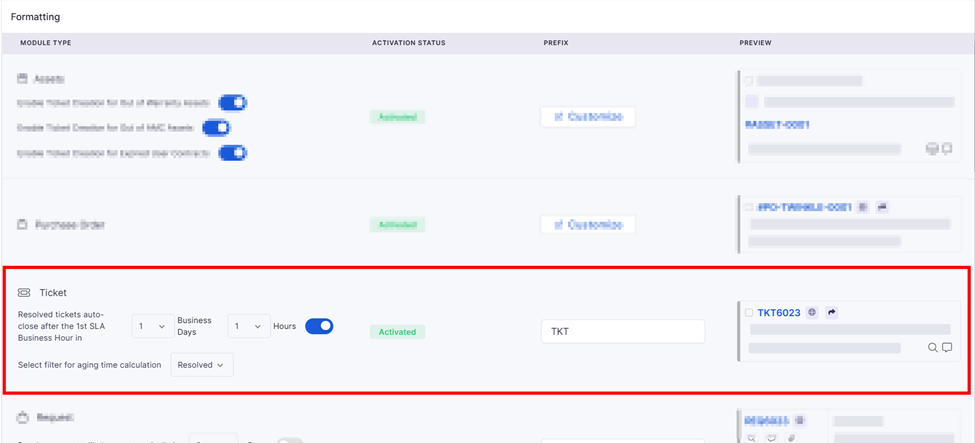

Ensures tickets cannot be raised for assets that are not under an active Annual Maintenance Contract (AMC). Applies to both Self-Service and Technician Portals. Example: If enabled, a user cannot raise a ticket for a printer that is not covered under AMC.
Choose the ticket status from the dropdown.
Select from the dropdown.
Select from the dropdown.
Admin allows requester 2FA → requesters can enable 2FA for their accounts.
Controls whether API responses for API Users are returned in encrypted format.
When enabled, API responses for API Users with encryption enabled are encrypted before being returned.
Uses the current Encrypt API Response setting configured for the organization.
Vulnerability | Column Details
CVE ID
View
Displays the unique identifier of the vulnerability.
Example: CVE-2024-1234
Application Name
View
The Actions column allows users to open the detailed information of a selected vulnerability for further investigation.
Overview
View
Displays the overview of the selected vulnerability.
The detailed specification confirms the CVE hero information, affected software, package information, description, data source, and references shown in the sidebar.
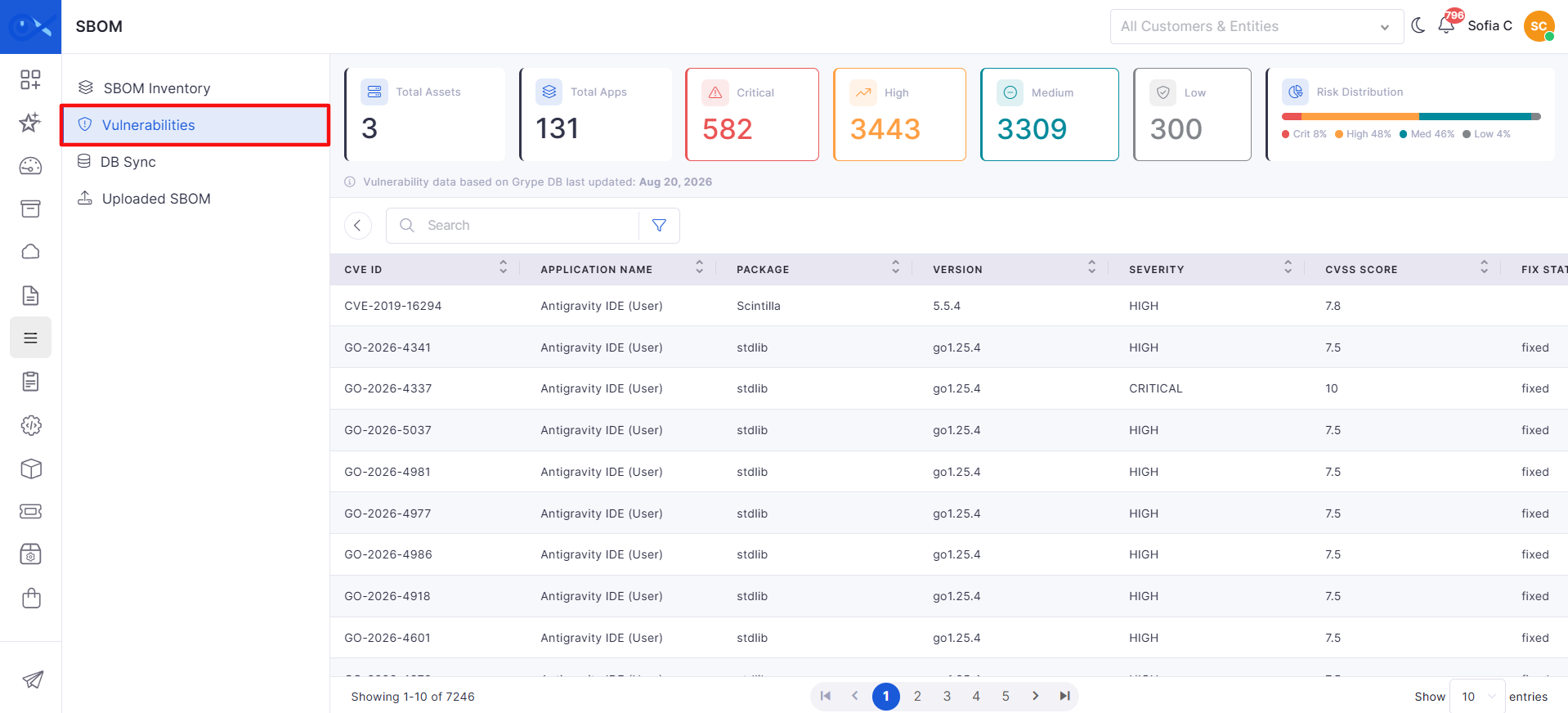
Display
Displays the name of the contract. For example, Dell Latitude 7450 Laptop.
Contract ID
Display
Displays the unique identifier assigned to the contract.
Contract Type
Display
Displays the type of contract selected during creation.
Contact Person
Display
Displays the contact person associated with the contract.
Email ID
Display
Displays the email address of the associated contact person.
The Summary section displays key information about the selected contract, including its name, ID, type, contact person, and email address.
View Contract | Summary
Label
Action
Description
Contract ID
Display
Displays the unique identifier of the contract.
Contract Name *
This section displays the contract's validity period, renewal settings, expiry notifications, and applicable terms and conditions.
View Contract Details | Term of Contract
Label
Action
Description
Start Date
Display
Displays the date on which the contract becomes effective.
End Date
The Item and Cost Details section displays the items associated with the contract and their pricing information.
View Contract Details | Item and Cost Details
Label
Action
Description
License Type
Display
Displays the type of software license, such as Perpetual or Subscription.
Software Name
The Related Contracts section allows users to view contracts associated with the current contract and establish new contract relationships.
View Contract Details | Related Contracts
Label
Action
Description
Related Contracts
View
Displays the contracts linked to the current contract.
Link Contract
Click
The Purchase Orders section allows users to view purchase orders associated with the contract, link existing purchase orders, and create new purchase orders.
View Contract Details | Purchase Orders
Label
Action
Description
Purchase Orders
View
Displays the purchase orders linked to the contract.
Link Purchase Order
Click
The Approval section displays the approval information associated with the contract.
View Contract Details | Approval
Label
Action
Description
Approval Details
View
View the available information about the contract approval process.
Approver
Display
The Attachments section allows users to view existing files associated with the contract and add new attachments.
View Contract Details | Attachments
Label
Action
Description
Attachments
View
Displays the files attached to the contract.
Add
Click
The Activity section maintains a history of events and changes associated with the contract. It helps users track updates made to contract information and related records.
Each activity entry may display the action performed, the user or system responsible, and the date and time of the event.
View Contract Details | Activity
Activity
Description
Created
Records the initial creation of the contract.
Multiple Changes
Records multiple contract field updates made during an operation.
Description Added / Description Changed
Label
Action
Description
Contract Name
Label
Action
Description / Example
Order Name*
Click to add
Enter a unique name for the PO to identify it easily.
Example: Purchase of 15 Dell Latitude 5440 Laptops – Q4
Currency*
Select from the drop-down
Add Address | Add PO
Label
Action
Description/ Example
Shipping Address*
Input text
Enter the complete shipping address where the goods or services will be delivered. Example: 101, Tech Park, Bangalore – 560001
Billing Address
Input text
Item Details | Add PO
The Add Item section is used to add line items to the Purchase Order along with their cost details. It supports both hardware and software items, with fields dynamically changing based on the selected category type.
This section captures:
Item details (type, name, category)
Quantity and pricing information
Discount and tax calculations
There are two types:
Add Hardware Asset Items
Used to add physical asset items, such as IT or Fixed Assets, to the Purchase Order.
Displays fields like Item Name, Category Type, Category, Part Number, and Quantity
Suitable for the procurement of hardware devices and asset-based inventory
Cost details are calculated based on quantity, unit price, discount, and tax
Add Software Asset Items
Used to add software licenses and subscriptions to the Purchase Order.
Enabled when Category Type = Software
Displays fields like Publisher, License Type, Software Name, License Based On, and Count
Terms of Order | Add PO
Label
Action
Description/ Example
Terms and Conditions
Input Text
Specify the contractual obligations, guidelines, or special instructions that govern the purchase. This may include delivery timelines, payment terms, warranty details, or return policies.
Example: “Delivery by 15-Oct-2025. 1-year manufacturer warranty applies.”
Remarks
Input Text
Once added, click on Save to confirm and add the PO to the inventory.
To import a purchase order using a CSV file, select the Import from CSV option from the list of available creation methods.
Follow these steps to complete the import successfully:
Download the sample CSV template to ensure the correct data structure.
Enter the required information into the CSV file accurately.
Upload the completed CSV file and click Next.
Review the system’s column mapping, adjust if needed, and click Import.
Validate the data, correct any errors, and click Proceed with the valid records to finish the process.
Displays the application associated with the vulnerability.
Example: Google Chrome
Package
View
Displays the software package affected by the vulnerability.
Example: openssl
Version
View
Displays the version of the affected package.
Example: 1.1.1
Severity
View
Displays the severity level of the vulnerability.
Example: Critical, High, Medium, or Low
CVSS Score
View
Displays the Common Vulnerability Scoring System (CVSS) score assigned to the vulnerability.
Example: 8.1
Fix State
View
Displays the current fix status of the vulnerability.
Example: Fixed / Unfixed
Scan Time
View
Displays the date and time when the vulnerability was identified during the scan.
Actions
Perform action
Provides actions available for the selected vulnerability, such as viewing its detailed information.
CVS Breakdown
Affected Software
View
Displays the applications and software packages affected by the vulnerability.
Endpoints
View
Displays the number of endpoints affected by the vulnerability.
CVSS Breakdown
View
Displays the CVSS vector and individual metrics used to calculate the vulnerability's CVSS score.
Example: CVSS:3.1/AV:L/AC:L/PR:N/UI:R/S:U/C:H/I:H/A:H
Attack Vector
View
Displays how the vulnerability can be exploited.
Example: Low
Attack Complexity
View
Displays the level of complexity required to exploit the vulnerability.
Example: Low
Privileges Required
View
Displays the level of privileges an attacker must have to exploit the vulnerability.
Example: None
User Interaction
View
Indicates whether user interaction is required to exploit the vulnerability.
Example: Required
Scope
View
Displays whether exploitation affects resources beyond the vulnerable component's security authority.
Example: Unchanged
Confidentiality
View
Displays the potential impact on the confidentiality of information.
Example: High
Integrity
View
Displays the potential impact on the integrity of information.
Example: High
Availability
View
Displays the potential impact on the availability of the affected system or resource.
Example: High
Affected Software
Application Name
View
Displays the name of the application affected by the vulnerability.
Example: Antigravity IDE (User)
Hostname
View
Displays the hostname of the endpoint where the affected application is identified.
Example: 317-Ayush-EIMS
Package
View
Displays the software package affected by the vulnerability.
Example: Scintilla
Version
View
Displays the version of the affected package.
Example: 5.5.4
CVE Lifecycle
Published
View
Displays the date when the CVE was originally published.
Example: Sep 14, 2019
NVD Updated
View
Displays the date when the CVE information was last updated in the NVD.
Patch Released
View
Displays whether a patch has been released for the vulnerability.
Example: Pending
Remediated
View
Displays whether the vulnerability has been remediated.
Example: Pending
Description
View
Displays the description of the vulnerability.
Example: SciLexer.dll in Scintilla in Notepad++ (x64) before 7.7 allows remote code execution or denial of service via Unicode characters in a crafted .ml file.
Reference(s)
View
Displays the available reference links associated with the CVE.
Example: Packet Storm, GitHub, Notepad++ download page, and Scintilla history.
Affected Software / Affected Product
Product
View
Displays the affected product.
Example: notepad++
Vendor
View
Displays the vendor associated with the affected product.
Example: notepad-plus-plus
Version Range
View
Displays the affected version range.
Example: * – 7.7
Platform
View
Displays the platform associated with the affected product, when available.
Product
View
Displays additional affected products or components.
Example: scintilla
Endpoint
Hostname
View
Displays the hostname of an endpoint associated with the affected software.
Example: 317-Ayush-EIMS
IP Address
View
Displays the IP address associated with the affected endpoint.
Example: 172.31.0.1, 10.0.7.240
Application
View
Displays the application identified on the affected endpoint.
Example: TortoiseGit 2.17.0.2 (64 bit)
Hostname
View
Displays the hostname of the affected endpoint.
Example: 317-Ayush-EIMS
IP Address
View
Displays the IP address associated with the endpoint.
Example: 172.31.0.1, 10.0.7.240
Application
View
Displays the application associated with the vulnerability on the endpoint.
Example: Antigravity IDE (User)
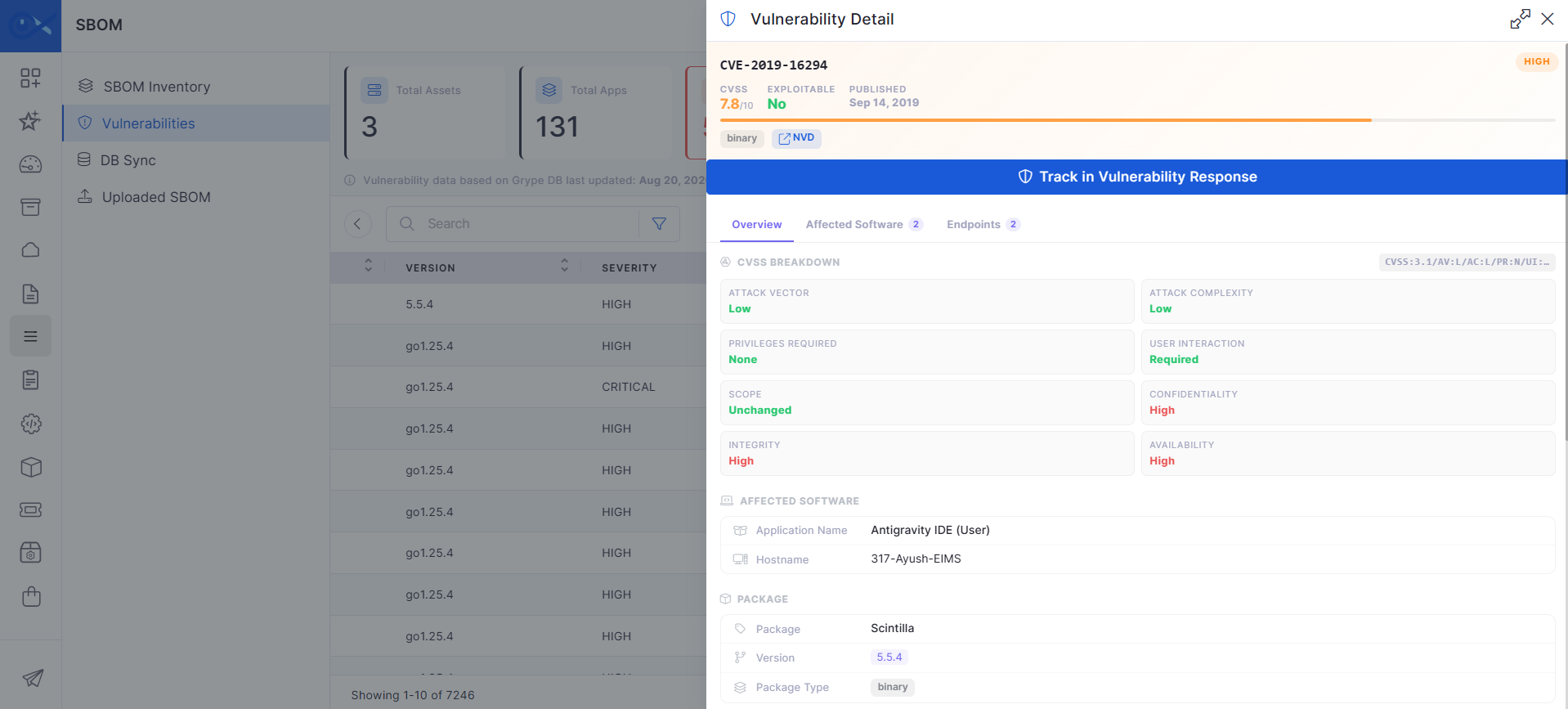
Display
Displays the name of the contract.
Vendor
Display
Displays the vendor associated with the contract.
Contract Admin
Display
Displays the user responsible for administering the contract.
Business Owners
Display
Displays the business owners associated with the contract.
Manufacturer
Display
Displays the manufacturer associated with the contract, if applicable.
Visibility Type
Display
Displays the configured visibility category for the contract.
Visibility to
Display
Displays the users, departments, or other entities permitted to access the contract.
Approver
Display
Displays the assigned approver or approval team.
Version
Display
Displays the contract version.
Currency
Display
Displays the currency used for the contract.
Description
Display
Displays the contract description.
Display
Displays the contract's expiry or end date.
Auto Renew
Display
Displays the configured automatic renewal setting.
Notify Expiry
Display
Displays whether expiry notifications are enabled.
Notify Before
Display
Displays the number of days before expiry when a notification should be sent.
Notify To
Display
Displays the configured notification recipient.
Terms and Conditions
Display
Displays the terms and conditions associated with the contract. Multiple entries may be shown.
Additional Terms and Conditions
Display
Displays any additional terms and conditions entered for the contract.
Display
Displays the name of the software associated with the contract item.
Quantity Type
Display
Displays the unit used to measure the quantity, such as User.
Price Unit
Display
Displays the price per unit for the item.
Total
Display
Displays the total amount for the item before any applicable adjustments.
Final Total
Display
Displays the final amount for the item after applicable calculations or adjustments.
Link an existing contract to the current contract.
Create Contract
Click
Create a new contract from the related contracts section, if the option is available.
Link an existing purchase order to the contract.
Create Purchase Order
Click
Create a new purchase order from the contract details page, if the option is available.
Displays the assigned approver or approval team.
Approval Status and History
View
View the available approval outcomes, approver details, and related information.
Add a new attachment related to the contract.
Attachment Details
View
Displays the available information about an attachment, such as its file name and category.
Records when a contract description is added or modified.
Version Added
Records the addition of a contract version.
Approver Added / Approver Removed
Records changes to the assigned approvers or approval team.
Attachment Added
Records when a file is attached to the contract.
Attachment Deleted
Records when an attachment is removed.
Added Related Contract(s)
Records when one or more related contracts are linked to the contract.
Added Related Purchase Order(s)
Records when one or more purchase orders are linked to the contract.
Contract Expiry Reminder Sent
Records when a contract expiry reminder is sent.


Supports license-based procurement and tracking
Subtotal (₹) – Combined cost of all items before applying discounts and taxes.
Discount (%) – Percentage discount applied to the subtotal.
Discount Amount (₹) – Monetary value of the discount.
Tax Rate (%) – Applicable tax percentage (e.g., GST).
Tax Amount (₹) – Calculated tax value based on the taxable amount.
Shipping (₹) – Any applicable shipping charges.
Total (₹) – Final payable amount after adding taxes and shipping charges and deducting discounts.
Accepted payment terms are: 30 Days, 60 Days, or 90 Days.
For subcategories, use the format Category/Subcategory (e.g., Network/Router). Specify only the category if no subcategory is provided (e.g., Network).
The Expected Delivery Date must be in either mm/dd/yyyy or dd/mm/yyyy format and must not be a past date.
Tax Rate and Discount Rate must be numeric values between 0 and 100.
Choose the currency in which the PO will be processed.
Example: INR, USD, etc.
Department*
Select from the drop-down.
Specify the department raising the PO. Configure Departments by clicking here.
Example: IT Department
Expected Delivery Date
Select from the calendar drop-down
Define the date the goods or services are expected to be delivered.
Example: 15-Oct-2025
Vendor*
Select from the list or add new
Clicking on Vendor opens a list of all registered vendors. If the required vendor is not listed, click Add Vendor to register a new one.
Example: HP India Sales Pvt. Ltd.
Requested By*
Select from the drop-down
Select the user or requester who initiated the Purchase Order. The drop-down displays both Users and Requesters in a single list.
Use the search option to quickly locate a record. Additional records load automatically as you scroll through the list. Example: John Mathews (User), David Kumar (Requester)
Payment Terms
Select from the drop-down
Specify the payment terms agreed upon with the vendor.
Example: 30 Days, 60 Days, 90 Days
Status
Select from the drop-down.
Indicates the current stage of the PO. Only two statuses are available at creation: Draft (Creation) and Waiting for Approval (Approval).
Quotation Number
Enter the quotation number and click Add
Specify the quotation reference received from the vendor. Multiple quotation numbers can be added to record revised or updated quotations for the same Purchase Order. Example: QTN-10045, QTN-10045-REV1
Description
Click to add
Provide additional details or context about the PO.
Example: Procurement of high-performance laptops for newly hired software developers, each with 32GB RAM and 1TB SSD storage.
Repetitive PO Creation
Click to select the configuration
Opens a pop-up where users can schedule recurring PO creation:
Once – Create the PO at a specific date and time.
Daily – Repeat every day at the set time.
Weekly – Select specific weekdays.
Monthly – Choose a day of the month.
Quarterly – Schedule every three months.
Yearly – Schedule annually.
Once selections are made, a confirmation message will display the schedule details. Example: Schedule every quarter on the 1st, 10:00 AM, to order IT consumables such as keyboards, mice, and docking stations.
Enter the complete billing address associated with the PO. Example: Corporate Office, MG Road, Bangalore – 560001
Same as Shipping Address
Click to tick the check box
Copies the shipping address into the billing address field automatically.
Add any additional notes or comments relevant to the purchase order that are not covered under the terms and conditions.
Example: “Please deliver the laptops to the IT storage room in Building B.”
Add Attachment
Click Add and upload file(s)
Upload quotation documents or supporting files related to the Purchase Order. You can attach one or more files and assign a category before submitting. Example: Vendor Quotation.pdf, Revised Pricing Sheet.xlsx

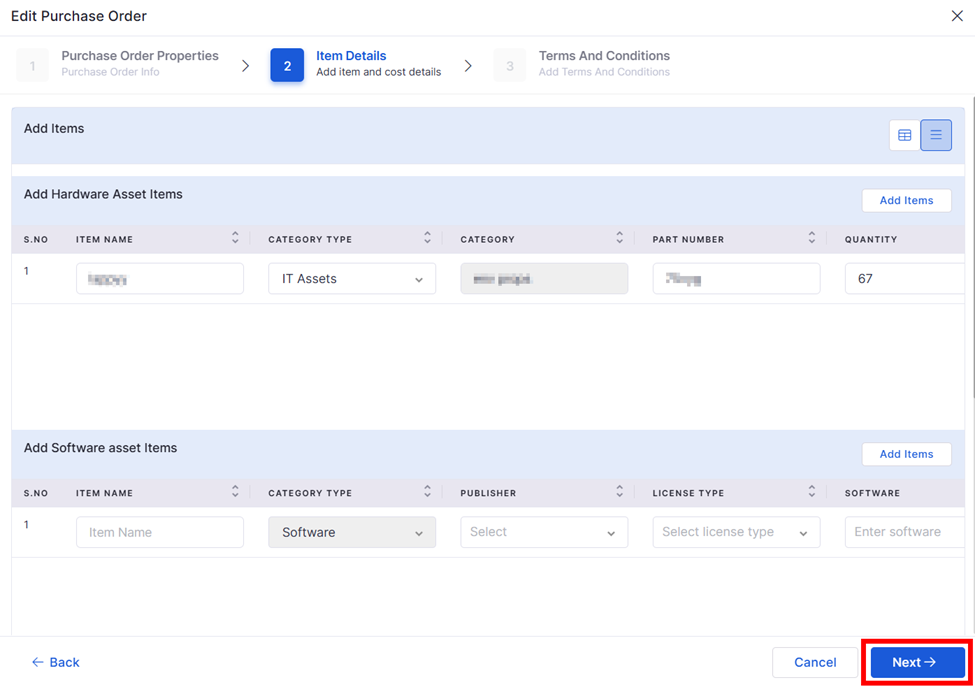
Assets are referred to as Items in Infraon. Before adding an asset, the category and subcategory must be defined.
Navigate to the respective Asset page (IT, fixed, consumables, etc.). If no categories/subcategories are pre-defined, these can be added when adding the asset (item).
There are three ways to add assets:
Single Asset - You can add a single asset from the drop-down menu in the top right corner
Import from CSV - If you have the asset CSV file, you can import it from the drop-down menu in the top right corner.
Add Assets through Discovery - This only applies to IT assets. Any asset with an IP can be discovered using agent-based discovery. Refer to the 'Discovery' section for details.
Go to Asset -> Asset Type.
Click the 'Add' button -> Single Asset.
There are two tabs on the 'Add Asset' page. Refer to the table for information.
Define Asset | Details
* Upload images if you have product images.
Click 'Next' to add 'Asset Properties.'
Please refer to the previously mentioned asset properties, which are located in the 'Add asset Categories' section.
Upon clicking on the added assets, icons appear at the top, including the owner, requester, tag, print, and additional options.
Two sections will be displayed on this page when clicking on the asset.
Asset name: This section displays the asset name, IP address, and status. The status can be modified to Trial run, in use, Maintenance, Parts repairs, Accident/failure, Audit, or Lost. To add the requester's location and allocation details, click "more options."
Sections: On the left side of the page, there are seven sections represented by tabs; clicking on these tabs will display specific data on the right side of the page. These sections include:
Details: If an asset picture has been uploaded, the details section will display it. It displays essential details such as hostname, device type, asset status, Asset ID, barcode, IP address, QR code, make, and OS name.
Enable the events menu on the asset summary page to display Windows events, and CI will enable the asset options.
The event Page Module is now enabled on the Asset page. It allows access to login/logout history and detailed event data. It also allows you to analyze key information like domain name, login type, machine name, and system details, including IP addresses. To enable it, visit the Event Page settings, choose 'Show History' for universal events, or select specific asset events from the asset page for targeted insights.
Following are the sections within the 'Asset properties' tab:
Sections
Show Only Mandatory button.
Back
Submit
Go to Asset -> Asset Type
Click the 'Add' button -> Import from CSV
In the 'Import from CSV,' there are two tabs:
Upload | Details
Click 'Next' to continue with column matching.
Column Matching | Details
Once the column matching is completed, click 'Import' to import your asset CSV file for asset management.
Asset information is imported from the CSV to the respective category on Infraon. Asset information can be viewed, edited, or deleted using the respective action icon.
Performance section: System uptime, CPU utilization, memory, and Disk is displayed.
Attachment: Attachments can be added by clicking the 'add' button and uploading a CSV file.
Details: Assets such as Alias, Asset Name, IP Version, and Model are displayed.
Owner: Owner details such as name, e-mail, and phone number are displayed.
Asset Lifecycle: The asset life cycle refers to the stages that an asset goes through, from its acquisition to retirement, encompassing its management, maintenance, and utilization throughout its entire existence.
Hardware: Any hardware components collectively enable the device to function and perform specific tasks.
Events: Infraon detects all changes or activities of CIs or configuration items, observes anomalies based on the configured thresholds, and records them as events. If triggers are configured for the same, notifications or incidents are raised accordingly.
Label
Action
Description/Example
Asset Name*
Add your asset name.
Asset names can be server, host, computer, device, etc.
Category
Label
Description/Example
Sections
Under sections, you can find various asset properties. If your assets have more than one property, you can select multiple properties and fill in the details in the left section.
Show Only Mandatory Button
When you toggle the show only mandatory button, you will get only the hardware properties, and you need to fill in only those details.
Back Button
Label
Action
Description/Example
Category*
Select asset category using the drop-down menu.
Server, Fans, etc. Download the sample CSV file and add details accordingly.
Import Asset List from CSV*
You can either drag and drop the file or browse to upload the CSV file.
Add asset category.
Select an asset category that suits your requirement. Refer to the asset categories section for more details.
Asset ID
Customize the asset ID
Customize the asset ID for the assets as required by changing the prefix, number, type, and custom format of the asset ID from the Infraon Configuration. You can opt for alphanumeric, random or auto-increment and a custom format. This allows overwriting of existing assets IDs that update all previously assigned IDs to the new format.
Asset Workflow (Beta)
Edit and customize the stages and statues of the IT Assets.
Flexible to edit and customize the stages and statuses of IT assets and change the flow based on the requirements. Easily modify the default workflow, add new statuses, and control transitions. Experience improved asset management and status tracking similar to ticket workflows.
Asset Allocation Mail
Approve or reject the mail by identifying the owner of the email.
Acceptance and rejection are identified through the email sent to the asset's owner. Allowance of resending the email by eliminating the previous restriction.
Calculation
Depreciation calculation
Calculate the depreciation based on the two methods provided for the assets. These methods gradually reduce the asset's value to provide more accurate and comprehensive reports. Enhances the accuracy and efficiency of asset management, providing a more comprehensive view of asset performance.
Maintenance
Maintenance Configuration
Configure the assets for maintenance, schedule maintenance periods and easily track progress and history.
Self-service portal
Asset details in self-service portal
With the new portal, you can easily view the complete details of the assets, which allows for a self-service portal and a more convenient and user-friendly experience.
Owner/Technician
Select the owner or technician using the drop-down menu.
Requesters
Select the requester using the drop-down menu.
User Tag
Select user tags from the drop-down.
Assets may be grouped using these using tags.
Location
Add the asset location.
The location where you are working or performing business activities.
If you feel you have entered the incorrect information, you can click the back button and fill in the correct information.
Submit
After filling in all the asset property details, click on the submit button to import the single asset.
Ensure to add asset details to the default file before uploading.
A Project Template defines the overall structure and configuration of a project. It serves as a reusable blueprint that lets users create projects with predefined settings.
Instead of configuring each project manually, users can select a Project Template to automatically apply project details, workflows, teams, and task structure.
A Project Template includes:
Project details such as name, code, description, owner, and dates
Default view and project method
Associated Task Template
Workflow selection
Team configuration (Default Team and roles)
Field configuration based on roles
Preview of the complete setup before saving
It helps in:
Standardizing project creation
Reducing manual configuration
Ensuring consistent workflow and team setup
Reusing predefined configurations across multiple projects
List of project templates with:
Project Template Name
Number of tasks
Fields configured
To create a project template, click the + Add option available at the top-right corner of the Project Settings page and select Add Project Template.
The project template is created in multiple stages. The first step is Project Details, where core project-level configurations are defined.
In this step, users define the project template's basic and operational details. These details are used when a project is created using this template.
Project Details | Basic Configuration
In this step, users select a and configure the input fields to use when creating and managing tasks in the project. These fields define what information needs to be captured for each task.
Task Template | Configuration
In this step, tasks required for the project are defined. Tasks can be added individually or imported in bulk using a CSV file. The task structure configured here will be used when projects are created from this template.
You can:
Add tasks manually
Import tasks using a CSV file
Export configured tasks for reuse or backup
In this step, users configure the that will control task lifecycle and status transitions within the project. The selected workflow defines how tasks move through stages such as creation, execution, review, and completion.
Task Workflow | Configuration
In this step, users assign teams and map roles to members for the project template. This ensures that responsibilities are clearly defined and tasks can be assigned to the appropriate users when a project is created using this template.
Define Team | Configuration
Field Configuration allows you to control the visibility and behavior of fields based on specific conditions, such as role and task/project status. It ensures that users interact only with relevant fields depending on their role and the current stage in the workflow.
Field Configuration | Configuration
The Preview tab provides a consolidated view of the configured Project Template before final submission. It allows you to review all configurations, including project details, fields, workflows, team assignments, and views on a single screen.
This step helps ensure that all configurations are correctly defined and aligned with the project requirements before creating the template.
Preview| Basic Details
Associated workflow
Actions (Edit, Clone, Delete)
Unique identifier for the project. Used for tracking and referencing. Example: 155601
Version
Enter value
Defines the project template version. Helps in maintaining revisions. Example: 1.0
Owner
Select from the dropdown
Defines the owner responsible for the project.
Sponsor
Select from the dropdown
Defines the project's stakeholder or sponsor.
Project Manager
Select from the dropdown
Assigns the user responsible for managing the project execution.
State
Select from the dropdown
Defines the project's lifecycle stage at the time of template configuration. This helps set the initial context and readiness for the project when it is created using this template. The selected state determines how the project is categorized (e.g., whether it is ready for execution or still under preparation). Available options: Draft, Active, In Progress, On Hold, Completed, Closed
Method
Select from the dropdown
Defines the execution methodology that will be followed for managing the project. This influences how tasks are structured, tracked, and progressed throughout the lifecycle. Selecting a method ensures consistency in execution and aligns the project with organizational delivery practices. Available options: Agile, Waterfall, Hybrid Example: Agile (iterative execution with continuous updates), Waterfall (sequential execution with defined phases)
View
Select from the dropdown
Defines the available views for monitoring project tasks and progress. Multiple views can be selected to provide flexibility in how users visualize and manage project data. These views support different tracking needs such as timeline planning, status tracking, or detailed task management. Available options: Gantt Chart, Table, Board (Kanban), List, Calendar, Meeting View, and Dashboard View. Example: Gantt Chart (for timeline and dependencies), Board (for status-based tracking), Table (for structured task data)
Default View
Select from the dropdown
Sets the default view when the project is opened.
Select from the dropdown
Defines the workflow controlling project status transitions.
Status
Select from the dropdown
Defines the project's initial status. Example: Not Started
Project Description
Enter details using the editor
Provides a detailed description of the project. Supports rich text formatting. Example: Deployment of network infrastructure across locations
Project Scope
Enter details using the editor
Defines the scope and boundaries of the project. Example: Includes installation and testing of network devices
Actual Start Date
Select date
Defines the project's planned or actual start date.
Project Type
Select from the dropdown
Categorizes the project. Example: Client/ Self
Customer
Select from the dropdown
Defines the customer associated with the project.
Risk
Select from the dropdown
Defines the project's risk level. Example: Low / Medium / High
Business Hours
Select from the dropdown
Defines the working hours applicable to the project.
Tags
Select from the dropdown
Adds tags for categorization and search. Example: Network, Deployment
Space
Select from the dropdown
Defines the workspace or environment under which the project is created.
Custom Fields
Add project-specific fields to capture additional information that is not available in the standard Project Details fields.
Use custom fields to capture information specific to the project or customer requirements.
For example, Country, Location, or Support Email.
See Project Details → to learn how to add and configure custom fields.
Task Template Input Fields
Auto-populated / configurable
Displays the list of input fields associated with the selected task template. These fields define what data will be captured when tasks are created (e.g., title, description, priority, dates).
Add
Click to add role
Allows adding additional roles (from configured roles) and assigning members to those roles within the team.
Type
Select from the dropdown
Defines where the configuration will be applied. Available options: Project / Task Example: Task (to control task-level fields)
Role Name
Select from the dropdown
Select the role for which this configuration will apply. Field behavior will be controlled for the selected role. Example: Field Engineer
Status
Select from the dropdown
Select the status at which the configuration should be applied. The available options are based on the selected workflow. Common options include: To Do, Ongoing, Blocked, Done, Closed Example: Ongoing
Team Members and People
Lists the assigned team and members mapped to roles.
Views
Displays the selected project views (if configured).
Actions
Edit
Allows modification of specific sections directly from the preview.
Show More
Expands the section to display complete details.
Back
Navigates to previous steps to make changes.
Submit
Finalizes and creates the Project Template.
Project Name
Enter value
Defines the project template's name. Example: Network Deployment Project
Project Code
Task Template
Select from the dropdown
Select an existing task template to associate with the project template. The selected template defines the structure of tasks, including predefined fields and task configuration. Example: Network Deployment Task
Add New Field
Click to add
Select Workflow
Select from the dropdown
Select a predefined task workflow to associate with the project template. The workflow defines task statuses, transitions, and approval stages. Example: Default Project Task Workflow (standard lifecycle with basic status transitions)
Select Team
Select from the dropdown
Select a predefined team to associate with the project template. The selected team includes members and their mapped roles. Example: Default Team
Role (e.g., Project Manager)
Auto-populated / Select members
Add Field Configuration
Click to add
Create a new rule to control field behavior.
Name
Enter text
Project Summary
Displays project name, description, and key details configured in the Project Details step.
Fields Section
Shows all configured fields such as Task ID, Title, Description, Priority, and other custom fields.
Workflow Section
Enter value
Allows users to add additional custom input fields specific to this project template. This is useful when the selected task template does not fully meet the project's specific requirements.
Displays roles associated with the selected team. Users must assign members to roles based on responsibilities. Example: Project Manager → Naveen
Define a name for the configuration rule to make it easy to identify. Example: “Engineer Task Field Control”
Displays the selected workflow, including its stages and statuses.
A Software Bill of Materials (SBOM) provides an inventory of software applications, components, and dependencies identified across assets. It helps users understand what software is installed, which components are associated with each application, and the vulnerabilities identified in those components. The SBOM data is presented at the organization level in the SBOM module.
SBOM data is collected from scanned assets and used to identify applications and their associated software components and vulnerabilities. For example, if an asset has 7-Zip installed, the SBOM inventory can show the application, its version and vendor, the components or dependencies associated with it, and the vulnerabilities identified for those components. Users can then select the application to view its detailed information.
When you open the SBOM module, the SBOM Inventory page is displayed. The page contains summary cards at the top, followed by the inventory table. The left navigation also provides access to Inventory and Vulnerabilities.
SBOM Inventory | Basic Details
The inventory table provides application, asset, component, vulnerability, and scan information, allowing users to identify the software installed across scanned assets.
Column Details | Action Icons
When View is selected, the SBOM Inventory Detail sidebar opens on the right and provides detailed information about the selected application, its host, scan details, and associated vulnerabilities.
When View Components is selected for an application, the Components page opens and displays the software components and dependencies associated with the selected application. Users can switch between All and Application views and choose either Grid View or Graph View to examine the component information.
Component Details
The component details provide information about the component, its source, licensing, dependencies, and other SBOM metadata.
Search
Search
Allows users to search the inventory using a keyword.
Filter
Filter
Allows users to refine the inventory results using Field, Condition, and Value.
Application Name
View
Displays the name of the application identified in the SBOM data.
Example: Google Chrome
Version
View
View
View
Opens the SBOM Inventory Detail sidebar for the selected application. The sidebar provides application details, host information, scan information, vulnerability summary, and the associated CVE list.
View Components
Navigate
Application Details
View
Displays the application Version, SBOM Format, Components, and Vendor.
Host Info
View
All
Select
Displays all components available for the selected SBOM inventory record, including associated dependencies.
Application
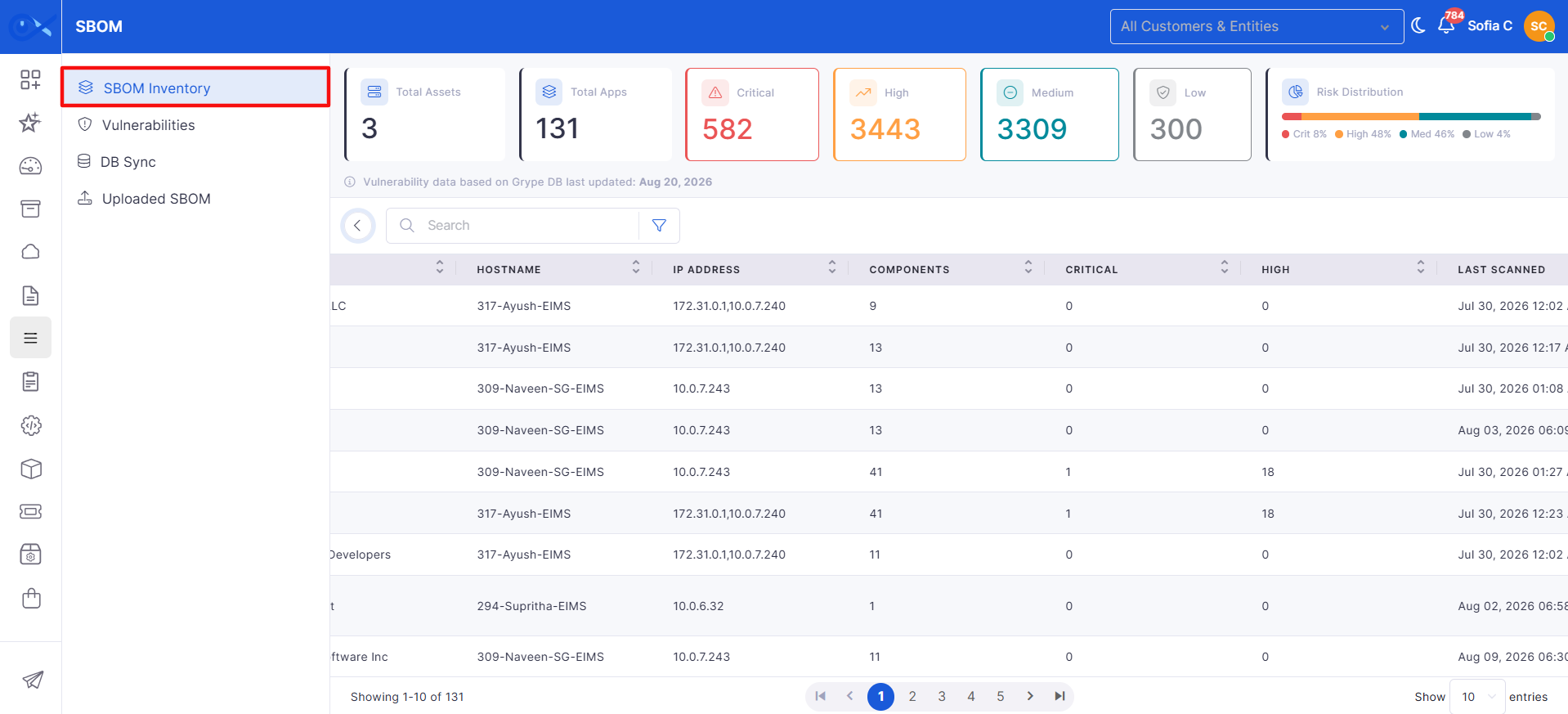
Field
Select
Select the inventory field on which the filter should be applied.
Condition
Select
Select the required condition to determine how the field should be matched.
Value
Enter/Select
Enter or select the value to be matched against the selected field and condition.
Displays the version of the application.
Example: 124.0.6367.91
Vendor
View
Displays the vendor associated with the application.
Example: Google LLC
Hostname
View
Displays the hostname of the asset where the application was identified.
Example: workstation-01
IP Address
View
Displays the IP address associated with the host.
Example: 192.168.1.50
Components
View
Displays the number of software components or dependencies identified for the application.
Example: 312
Critical
View
Displays the number of Critical vulnerabilities associated with the application.
High
View
Displays the number of High vulnerabilities associated with the application.
Last Scanned
View
Displays the date and time when the application was last scanned.
Actions
Perform action
Provides actions to view inventory details, view components, and download the SBOM for the selected application.
Navigates to the Components page for the selected application, where users can view the identified components and switch between the available All and Application views and different display modes.
Download SBOM
Download
Downloads the SBOM data associated with the selected application.
Displays the Hostname, IP Address, and Host ID associated with the application.
Scan Info
View
Displays the Generated Time and Last Scanned Time.
Vulnerability Summary
View
Displays the Critical, High, Medium, and Low vulnerability counts for the application.
CVE List
View
Displays the CVEs identified for the application along with their severity information.
Select
Displays components associated specifically with the selected application.
Version
View
Displays the version of the component.
Example: 1.1.1
Type
View
Displays the type of software component.
Supplier
View
Displays the supplier or organization that provides the component.
Origin
View
Displays the origin or source from which the component was obtained.
License
View
Displays the license associated with the component.
Description
View
Displays a description of the software component and its purpose.
Release Date
View
Displays the release date of the component version.
Checksum
View
Displays the checksum associated with the component for identification or integrity verification.
Dependencies
View
Displays the dependencies associated with the component.
Properties
View
Displays additional properties or metadata associated with the component.
Notes
View
Displays additional notes or information provided for the component.
Package URL (PURL)
View
Displays the Package URL (PURL) that uniquely identifies the software package.
Grid View
Select
Displays component information in a structured grid/table format, allowing users to view the available component details in columns.
Graph View
Select
Displays the components and their relationships in a graphical representation, making it easier to understand component and dependency relationships.
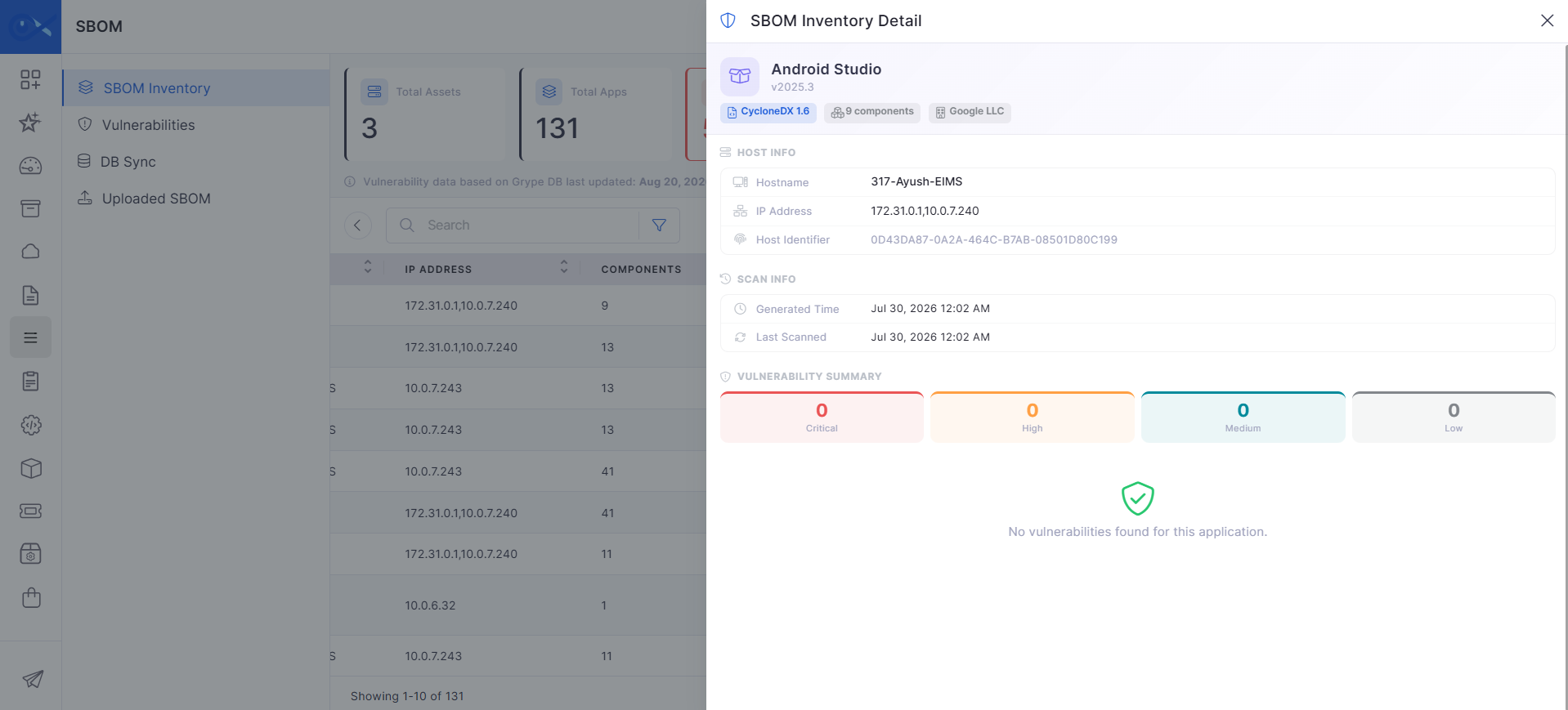
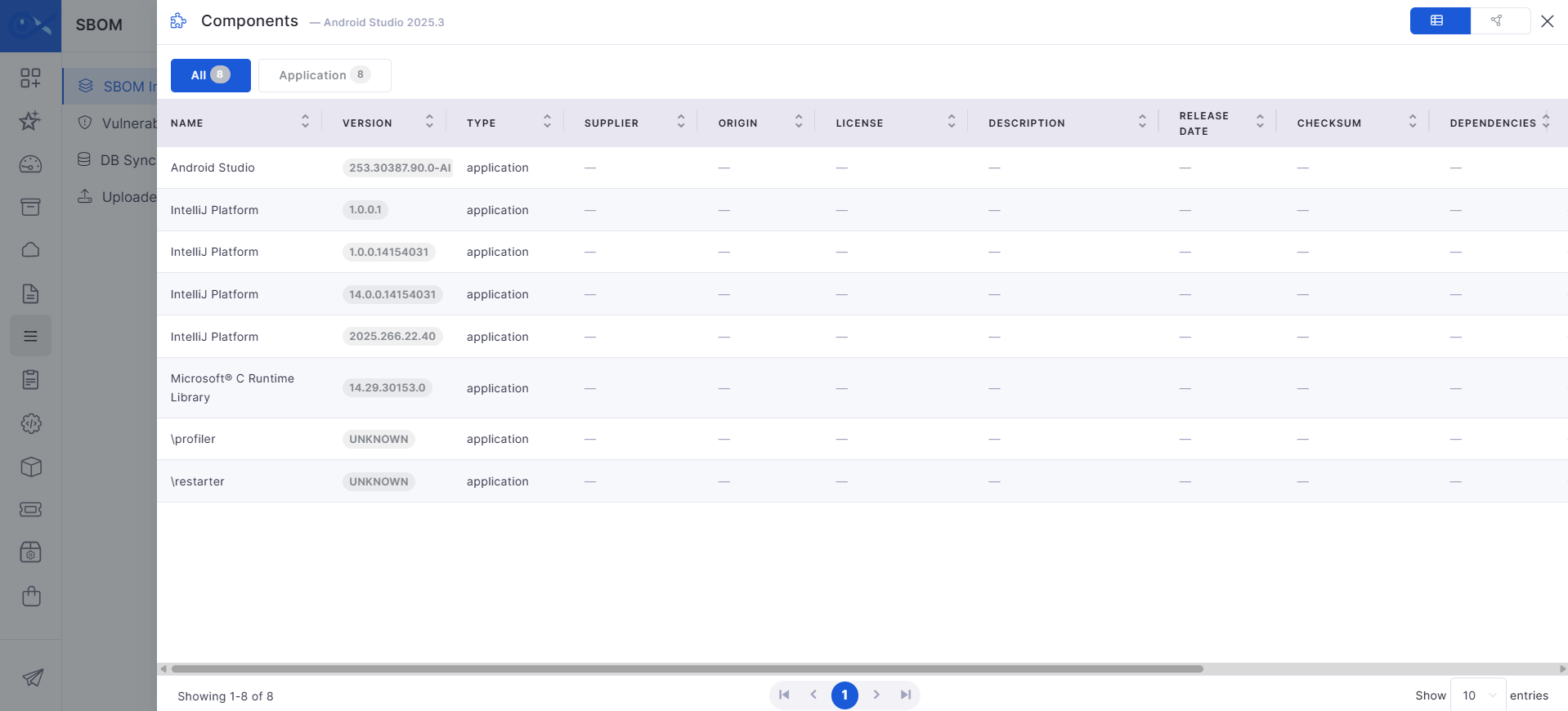
The Feature Configuration module enables administrators to manage and control system features and AI capabilities across the Infraon Platform through a centralized interface.
It allows configuration of feature behavior without requiring backend changes, ensuring consistency across modules and services. Administrators can track, discover, and enable all AI-related capabilities and privileges available within the organization.
The module provides granular control over how AI-driven functionalities operate, including knowledge base generation, search behavior, automation intelligence, and user experience settings.
Available sections include:
Knowledge Base Configuration: Configure AI-driven knowledge base creation, accuracy, and processing parameters.
Ticket AI: Manage AI capabilities related to ticket analysis, suggestions, and automation.
Request AI: Configure AI behavior for request classification and processing.
Problem AI: Control AI-assisted problem identification and root cause insights.
Change AI: Manage AI recommendations and validations for change management workflows.
Release AI: Configure AI support for release planning and execution insights.
AI Service Classification: Define how AI classifies services based on input data.
Bot Assistants: Manage AI-powered virtual assistants and their behavior.
SLA Prediction: Configure AI-based SLA prediction and risk analysis settings.
Similar Ticket Merge: Control AI logic for identifying and merging similar tickets.
Agentic Bot: Configure autonomous AI agents for task execution and assistance.
Users can automatically detect and sanitize sensitive information before AI-powered features process the data. The configuration helps protect confidential information such as personal identifiers, credentials, financial details, network information, and authentication tokens by masking, replacing, or removing sensitive values before they are sent to the AI model.
The sanitization engine scans all incoming data as plain text and applies regex-based pattern detection to identify sensitive information across multiple supported categories. Based on the configured settings, detected values are either replaced with placeholders, substituted with synthetic values, or removed completely before being sent to the AI model.
When Send Faker Data to AI Model is enabled, the system replaces detected sensitive values with realistic synthetic substitutes while maintaining a reversible mapping. This allows the AI model to retain contextual understanding without exposing actual sensitive information.
Once the AI response is generated, the original values are automatically restored before the response is displayed to the user.
Configurations
General Settings | Basic Details
Sanitization Categories | Basic Details
Sanitization Categories allow users to control which types of sensitive information should be detected and sanitized before data is processed by AI features. Each category can be enabled or disabled individually based on organizational privacy and compliance requirements.
The Knowledge Base Configuration section allows administrators to control how AI-generated knowledge base articles are created, processed, and presented across the platform. It provides:
Granular settings to manage content quality
Search behavior
AI response handling
System performance
Administrators can enable or disable the Knowledge Base feature, fine-tune AI thresholds, control KB suggestions in search and email responses, and define limits on content structure. These settings directly impact how knowledge is generated, matched, and delivered to users.
To know more, refer to the module.
The Ticket AI Configuration section allows administrators to configure AI-powered and general incident-related features. The configuration is divided into two sections:
AI
General
The AI section provides settings for AI-assisted ticket operations, while the General section controls general incident behavior.
For more information, refer to the module.
The AI section allows administrators to enable or disable AI-powered capabilities that assist users in creating, understanding, and managing tickets. These features include generating conversation summaries, enhancing ticket content, and creating tickets using information extracted from images.
The General section provides configuration options for general incident behavior. Administrators can configure how the system handles workflow conflicts, whether RCA information is captured during ticket resolution, and the default date range displayed when the Incident list view is opened.
Configuration
The Request AI Configuration section enables AI-driven enhancements for service requests, improving communication clarity and providing summarized insights.
For more information, refer to the module.
The Problem AI Configuration section controls AI assistance for problem records, enabling better analysis, documentation, and communication.
For more information, refer to the module.
The Change AI Configuration section enables AI support for change records, improving documentation quality and clarity of communication.
To know more, refer to the module.
The Release AI Configuration section allows AI assistance in release documentation and communication.
For more information, refer to the module.
The AI Service Classification section enables automated ticket and request classification using AI models.
To know more, refer to the module.
The Bot Assistants section enables AI-powered bots to provide automated responses and guidance to users.
For more information, refer to the module.
The SLA Prediction section enables AI to predict potential SLA breaches and delays.
For more information, refer to the module.
The Similar Ticket Merge section helps identify and manage duplicate or similar tickets using AI.
For more information, refer to the module.
The AI Text Assistant configuration lets administrators enable AI-powered writing assistance in rich text fields and control which modules support the feature.
When enabled, users can use the to improve, rephrase, summarize, expand, shorten, or correct text in supported rich text fields. Administrators can enable the feature globally and select the modules in which it should be available.
AI Text Assistance | Configuration
AI Text Configuration | Actions
The Meeting section allows administrators to configure the visibility and behavior of Meeting features in the Infraon Platform. Administrators can control Meeting field visibility, legacy Agenda functionality, the Meeting navbar shortcut, VC location booking conflicts, and the action buttons available in the Meeting view.
Meeting | Configuration
Meeting | Actions
A project consists of two primary components:
A Milestone represents a key stage or checkpoint within a project and is used to group related tasks under a common phase. It helps organize project work, track progress, and monitor key deliverables throughout the project timeline.
Milestones can be linked with tasks and other milestones to create a structured hierarchy within the project.
To create a milestone:
Click the Add Milestone option available on the top panel.
The Add Milestone sidebar opens.
Enter the required details and click Add to create the milestone.
Add Milestone | Basic Details
After entering the required details, click Add to save and create the milestone within the project.
The View Milestone page provides a detailed view of a selected milestone within a project. It allows users to review milestone information, manage related tasks, update ownership, and track activities.
At the top panel, users can quickly view:
Milestone ID
Assignee
Status
Users with appropriate privileges can update milestone details, manage relationships, add attachments, and track activity logs from this page.
The General section provides control over the milestone's ownership and timeline management. This section ensures that accountability and scheduling are clearly defined and can be updated as the project evolves.
Users with appropriate can modify ownership fields and baseline dates to reflect real-time project changes.
The Relation section in the task details view is used to establish relationships between the current task and other project entities such as milestones, child tasks, and assets. This section helps users maintain task dependencies, hierarchical task structures, and associated asset mappings within the project.
The following relation types can be added to a task:
Add Relations
To add relations to a task:
Navigate to the Project Task View page.
Open a task to view or edit its details.
In the right-side panel, locate the Relation section.
Click Add.
Configure the required details.
Click Submit to apply the relation successfully.
Milestone Relation
The Milestone option associates a task with a project milestone. Once linked, the milestone details are displayed under the Relation section of the task.
Actions Supported
Add milestone relation
View linked milestone details
Remove linked milestone relation
Child Task Relation
The Child option is used to create hierarchical task relationships by associating child tasks with a parent task.
Actions Supported
Add child tasks
View linked child tasks
Maintain parent-child task structure
Asset Relation
The Asset option maps assets to a task in the Asset Management or CMDB modules. Multiple assets can be linked to a task based on configured categories and filters.
Asset Mapping Workflow
In the Relation section, click Add.
Select Asset.
The Related Assets sidebar is displayed.
Configure the following filter fields:
The Summary tab provides a consolidated overview of the milestone, including its description, associated sub-tasks, and checklist items. This section is primarily used to define the scope and track execution at a granular level.
Users can:
Define or update milestone description
Link and manage child tasks (sub-tasks)
Create checklist items to track smaller, actionable steps
The Attachment tab allows users to upload and manage supporting documents related to the milestone. All relevant files, such as design documents, screenshots, and references, are centrally available.
Users can:
Upload files using drag-and-drop or browse
Categorize attachments
Add descriptions for better context
The Relation tab provides broader linking capabilities beyond tasks, allowing associations with other modules such as and
This enables cross-module traceability and ensures that milestones are connected to operational workflows.
The Conversation tab enables collaboration and communication related to the milestone. It captures all communication threads, including emails, comments, and notes.
Users can:
View communication history
Reply or forward messages
Add internal or external notes
The Recent Activities tab provides a complete audit trail of all changes made to the milestone. It ensures transparency and helps track modifications over time.
Users can:
View all updates and actions
Identify who made changes
Track timestamps for each activity
Represents an individual unit of work within a project. Tasks are assigned to users, have defined priorities, statuses, and timelines, and are used to track the execution of project activities.
to learn more.
The View Task page provides a detailed view of a selected task within a project. It allows users to review task details, manage dependencies, link related records, track communication, and monitor activity history.
At the top panel, users can quickly view:
Task ID
Priority
Status
Assignee
Users with appropriate can update task details, manage dependencies, add attachments, configure relationships, and track all activity logs from this page.
The General section provides ownership and responsibility details for the task. It ensures clear accountability across execution, review, and approval stages.
Users can view and update role-based fields depending on permissions and workflow configuration.
Task dependencies define the relationships among project tasks and determine the order in which they can start or finish.
A dependency consists of:
Predecessor: A task that must be completed or reach a specific stage before another task can proceed.
Successor: A task that depends on the predecessor and is affected by its schedule.
For example, if Server Procurement must be completed before Server Installation can begin, then:
Server Procurement is the Predecessor
Server Installation is the Successor
Infraon’s Project Management supports the following dependency types:
The Relation section in the right panel defines hierarchical associations of the task within the project.
It helps structure the task into parent-child relationships and link it to milestones.
The Summary tab provides a consolidated overview of the task, including description, dependencies, sub-tasks, and checklist items. It acts as the primary workspace for managing task execution.
Users can:
Add or update task description
Define task dependencies
Link and manage sub-tasks
Create checklist items
The Attachment tab allows users to upload and manage files related to the task. It centralizes all supporting documents for easy access.
Users can:
Upload files via drag-and-drop or browse
Categorize attachments
Add descriptions
The Relation tab enables linking the task with other modules, ensuring cross-module traceability.
Users can associate the task with operational records.
The Conversation tab captures all communication related to the task, including emails, SMS, and comments.
Users can:
View communication history
Reply or forward messages
Add notes
The Recent Activities tab provides a complete audit trail of all changes made to the task. It ensures transparency and traceability.
Users can:
View all updates and modifications
Identify the user who performed the action
Track timestamps
AA:BB:CC:DD:EE:FF → [MAC_ADDRESS]
IP Address
Redacts IPv4, IPv4 with CIDR notation, and IPv6 addresses.
192.168.1.1 → [IP_ADDRESS]
Email Address
Redacts standard and obfuscated email addresses.
user@domain.com → [EMAIL]
Phone Numbers
Redacts international and local phone number formats, including E.164, Indian, UK, and North American formats.
+91 98765 43210 → [PHONE]
Credit / Debit Card
Redacts card numbers, CVV/CVC values, and expiry dates for supported card providers.
4111 1111 1111 1111 → [CARD_NUMBER]
National / Gov. IDs
Redacts government-issued identity numbers such as Aadhaar, PAN, Passport, SSN, GSTIN, and Driving License numbers.
ABCDE1234F → [PAN]
Date of Birth & Age
Redacts date of birth information and age references in supported formats.
DOB: 15/08/1990 → [DOB]
Secrets & API Keys
Redacts API keys, tokens, passwords, JWTs, SSH keys, database connection strings, and other secret values.
sk-abc123XYZ → [API_KEY]
URL Credentials
Redacts credentials and sensitive query parameters embedded within URLs.
https://user:pass@host.com → https://[CREDENTIALS]@[SERVER]
Banking Identifiers
Redacts IFSC, IBAN, SWIFT/BIC, UPI IDs, routing numbers, and bank account numbers.
HDFC0001234 → [IFSC]
Server & Hostnames
Redacts fully qualified domain names (FQDNs), Windows machine names, and server hostnames.
prod-server-01.internal.local → [SERVER]
Location & Coordinates
Redacts GPS coordinates, DMS coordinates, Google Plus Codes, and address details.
12.9716, 77.5946 → [GEO_COORDINATES]
Vehicle Registration
Redacts vehicle registration numbers and VIN details.
MH12AB1234 → [VEHICLE_REG]
Session & Auth Tokens
Redacts session identifiers, authentication headers, cookies, CSRF tokens, and OAuth parameters.
JSESSIONID=ABC123XYZ → [SESSION_ID]
AI Context Matching
Input
Controls how strictly the AI evaluates contextual similarity (problem description, resolution steps, metadata) during KB generation and retrieval. Higher values improve contextual accuracy but may limit matches.
Search Results Count
Input
Specifies the maximum number of KB articles returned in search results. This helps control UI clutter and ensures users see a manageable list of relevant KBs.
Email Attachments Limit
Input
Sets the maximum number of KB articles that can be attached to ticket response emails. The system prioritizes the most relevant KBs based on similarity score and attaches them up to the defined limit.
Processing Timeout
Input
Specifies the maximum time (in seconds) the system waits for an AI response before timing out. If exceeded, the operation is stopped and handled as a failure or fallback scenario.
Remove Phone Numbers
Toggle
Removes phone numbers from KB articles to ensure privacy and compliance with data protection policies.
Remove IP Addresses
Toggle
Filters out IP addresses from KB content to prevent disclosure of infrastructure-level details.
Remove Server Names
Toggle
Removes server names and host identifiers from KB content to avoid exposing internal system details.
Use Placeholders
Toggle
Replaces sensitive information with placeholders such as [USER], [EMAIL], or [SERVER] rather than removing it completely, preserving context while maintaining privacy.
Max Solution Length
Input
Defines the maximum length of the solution section to ensure structured, readable, and actionable resolution steps.
Max Keywords Count
Input
Specifies the maximum number of keywords that can be associated with a KB article, helping improve searchability without overloading metadata.
Image to Ticket
Enable or disable the toggle.
Automatically extracts relevant information from an uploaded image and uses it to create a ticket.
When enabled, users can upload an image containing issue details, and the system uses AI to identify the information and populate the ticket.
When disabled, tickets must be created manually without extracting information from images.
Default Timescale
Select the required date range from the drop-down list.
Defines the default date range applied when the Incident module's list view is opened.
Example: Selecting Last 90 Days automatically displays incident records from the last 90 days when the list view is opened.
Select All
Click to select all available modules.
Selects all supported modules in the Enabled Modules list. The button is highlighted when all available modules are selected. If you remove any module from the selection, the button is no longer highlighted.
Clear All
Click to clear the module selection.
Removes all selected modules from the Enabled Modules list. When Enable AI Text Assistant is enabled, at least one module must be selected before the settings can be saved.
Show Meeting navbar shortcut
Enable or disable the toggle.
Controls the Meeting shortcut displayed in the top navigation bar.
When enabled, the shortcut appears for users with the required Meeting permission.
When disabled, the shortcut is hidden even if the user has Meeting permissions. Clicking the shortcut opens the Meeting calendar in Workspace.
Show Teams calendar sync
Enable or disable the toggle.
Controls the visibility of the Connect Teams option in the Meeting calendar.
When enabled, the Connect Teams option is displayed.
When disabled, the option is hidden. Teams calendar integration availability depends on the applicable product release and deployment.
Block VC location double-booking
Enable or disable the toggle.
Controls whether overlapping meetings can be scheduled for the same Participating VC Location.
When enabled, the system prevents the meeting from being saved if the selected VC location is already booked during an overlapping time slot and displays a conflict warning.
When disabled, you can schedule overlapping meetings without a conflict block.
Meeting action buttons
Select or clear the required options.
Controls the action buttons displayed in the Meeting view. Available options are Meeting Minutes, Meeting Notes, and Attendees. Deselecting an option removes the corresponding button from the Meeting view after the settings are saved.
Note: End Meeting is not controlled by this setting. Meeting permissions and RBAC control its visibility.
Enable Data Sanitization
Enables or disables sanitization for all AI requests before the AI model processes the data.
When enabled, sensitive information is sanitized before being sent to AI services.
Send Faker Data to AI Model
Replaces sensitive values with realistic synthetic substitutes instead of placeholders. Original values are automatically restored in AI responses via reversible mapping.
Enable All Categories
Enables or disables all sanitization category toggles together.
Enabling this option automatically enables all category-based sanitization controls.
MAC Address
Enable Knowledge Base
Toggle
Enables or disables the Knowledge Base feature across the platform. When enabled, the system enables AI-driven KB creation, similarity-based retrieval, and the attachment of KB articles to tickets and emails. When disabled, all KB-related AI operations, such as generation, search, and attachment, are restricted.
KB Creation Standard
Input
Defines the minimum quality or eligibility score required for a ticket to be converted into a KB article. This ensures that only meaningful and well-resolved tickets are considered for KB creation. Lower values increase the volume of KB creation, while higher values enforce stricter quality control.
Similarity Threshold
Input
Enable Smart KB Suggestions
Toggle
Enables AI-powered semantic search to suggest relevant KB articles during ticket creation, updates, and search operations. When enabled, users receive contextual recommendations based on issue descriptions and activity.
Search Relevance
Input
Response Consistency
Input
Controls the variability of AI-generated content. Lower values produce more deterministic, consistent responses, while higher values allow greater variation and creativity in generated KB content and responses.
Max Retries
Input
Defines the number of retry attempts for failed AI or API requests. This ensures temporary failures (e.g., network issues or provider delays) are retried before marking the operation as failed.
Max Tokens Per Request
Input
Remove Personal Information
Toggle
Enables removal of personally identifiable information (PII) from KB content. When disabled, all related privacy filters are disabled as well, allowing the original data to remain in KB articles.
Remove Email Addresses
Toggle
Max Title Length
Input
Defines the maximum allowed length for KB titles. This ensures titles remain concise, readable, and suitable for search indexing.
Max Problem Length
Input
Save Settings
Button
Saves all configured values and applies them across KB generation, search, and processing workflows. Changes take effect immediately after saving.
Reset to Default
Button
Conversation Summary [AI Generated]
Enable or disable the toggle.
Automatically generates a concise summary of ticket conversations, including interactions, updates, and resolutions.
When enabled, users can quickly understand ticket context without reviewing full conversation threads.
When disabled, summaries are not generated, and users must review the complete ticket history manually.
Text Enhancement
Enable or disable the toggle.
Ignore All Keys on Conflict
Enable or disable the toggle.
Determines how field updates are handled when a workflow version conflict occurs.
When enabled, all field updates are ignored during a workflow version conflict.
When disabled, only the status update is ignored, while other field updates are retained.
Enable RCA Category Selection on Resolution
Enable or disable the toggle.
Conversation Summary [AI Generated]
Toggle
Generates a summary of request-related interactions, approvals, and updates. Helps users quickly understand the progress of requests and decisions without having to review all activity logs.
Default Timescale
Select the required date range from the drop-down list.
Defines the default date range applied when the Request module's list view is opened. Example: Selecting Last 90 Days automatically displays Request records from the last 90 days when the list view is opened.
Conversation Summary [AI Generated]
Toggle
Generates a summarized view of problem investigation, discussions, and resolutions. Helps users quickly understand the overall problem lifecycle and key decisions.
Default Timescale
Select the required date range from the drop-down list.
Defines the default date range applied when the Problem module's list view is opened. Example: Selecting Last 90 Days automatically displays Problem records from the last 90 days when the list view is opened.
Conversation Summary [AI Generated]
Toggle
Summarizes change discussions, approvals, and implementation notes. Provides a quick overview of the change lifecycle and decision points.
Default Timescale
Select the required date range from the drop-down list.
Defines the default date range applied when the Change module's list view is opened. Example: Selecting Last 90 Days automatically displays Change records from the last 90 days when the list view is opened.
Conversation Summary [AI Generated]
Toggle
Generates summaries of release activities, updates, and deployment discussions. Helps users quickly review release progress and outcomes.
Default Timescale
Select the required date range from the drop-down list.
Defines the default date range applied when the Release module's list view is opened. Example: Selecting Last 90 Days automatically displays Release records from the last 90 days when the list view is opened.
Allow Process Classification
Toggle
Automatically classifies incoming emails into tickets or requests using AI. Reduces manual effort in identifying and routing incoming requests.
Enable Service Classification
Toggle
Enable Bot Assistants
Toggle
Allows AI bots to provide automated responses, suggestions, and assistance across the platform. Helps resolve common queries more quickly and reduces the manual workload for support teams.
Enable SLA Prediction
Toggle
Uses AI to analyze ticket patterns and predict potential SLA breaches or delays. Enables proactive action to maintain SLA compliance and avoid violations.
Enable AI Similar Ticket Merge
Toggle
Automatically detects and merges duplicate or similar tickets based on content similarity. Improves efficiency by reducing duplicate efforts and consolidating related issues.
Rule-Based Similar Incident Sidebar
Toggle
Enable AI Text Assistant
Enable or disable the toggle.
Enables or disables the AI Text Assistant across the configured modules.
When enabled, the AI Text Assistant is available in the rich text fields of the selected modules.
When disabled, the AI Text Assistant is not displayed in rich text editor toolbars, regardless of the modules selected under Enabled Modules.
Enabled Modules
Select the required modules from the multi-select dropdown.
Save Settings
Click to save the configuration.
Saves the AI Text Assistant configuration and applies the selected settings to the supported modules.
Reset to Default
Click to restore the default configuration.
Show "Associate With" field
Enable or disable the toggle.
Controls the visibility of the Associate With and Associated Items fields in the Add Meeting form.
When enabled, both fields are displayed. When disabled, both fields are removed from the Add Meeting form.
Show legacy multi-item Agenda list
Enable or disable the toggle.
Save Settings
Click to save the configuration.
Saves the configured Meeting settings and applies them to the Meeting module.
Reset to Default
Click to restore the default configuration.
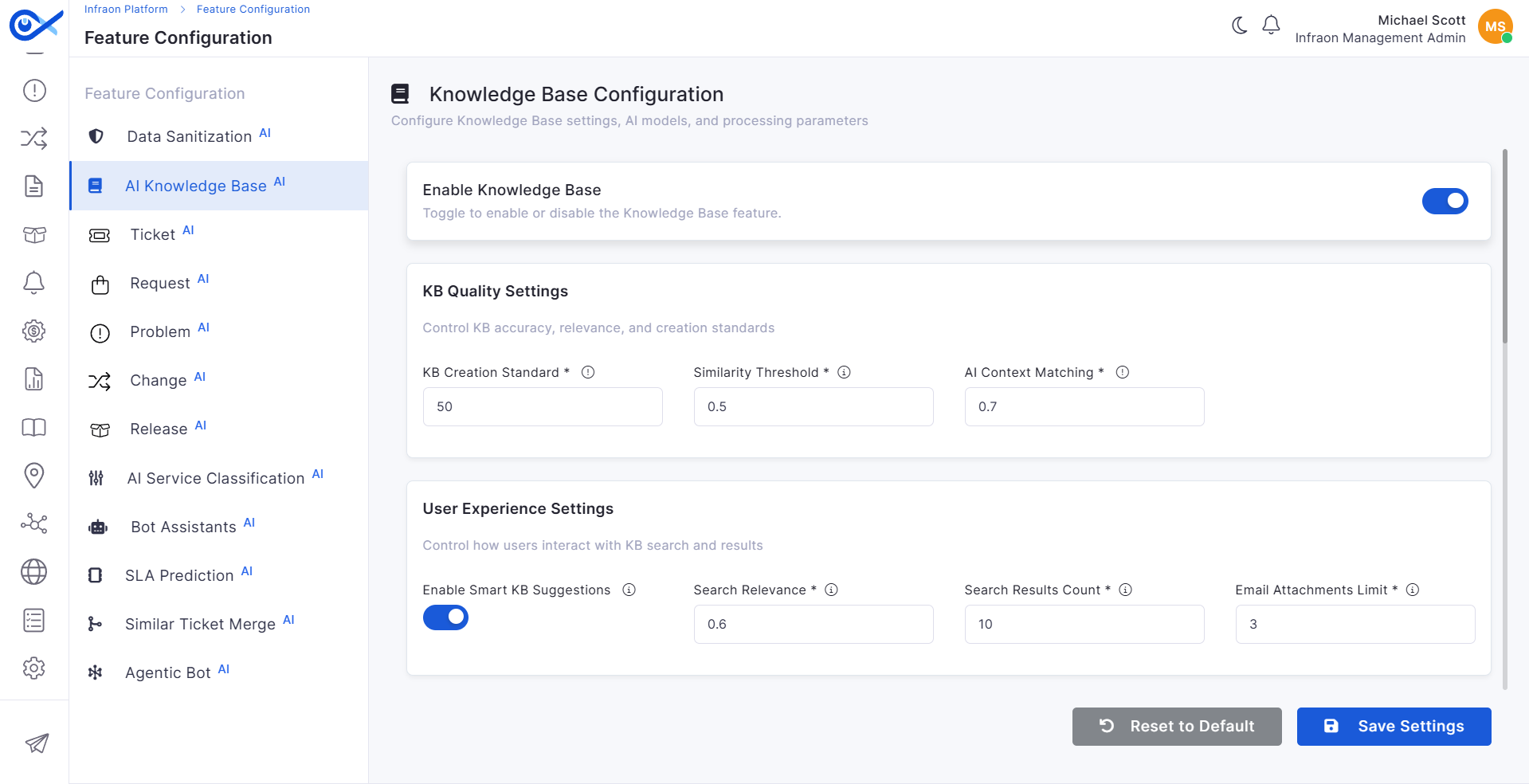
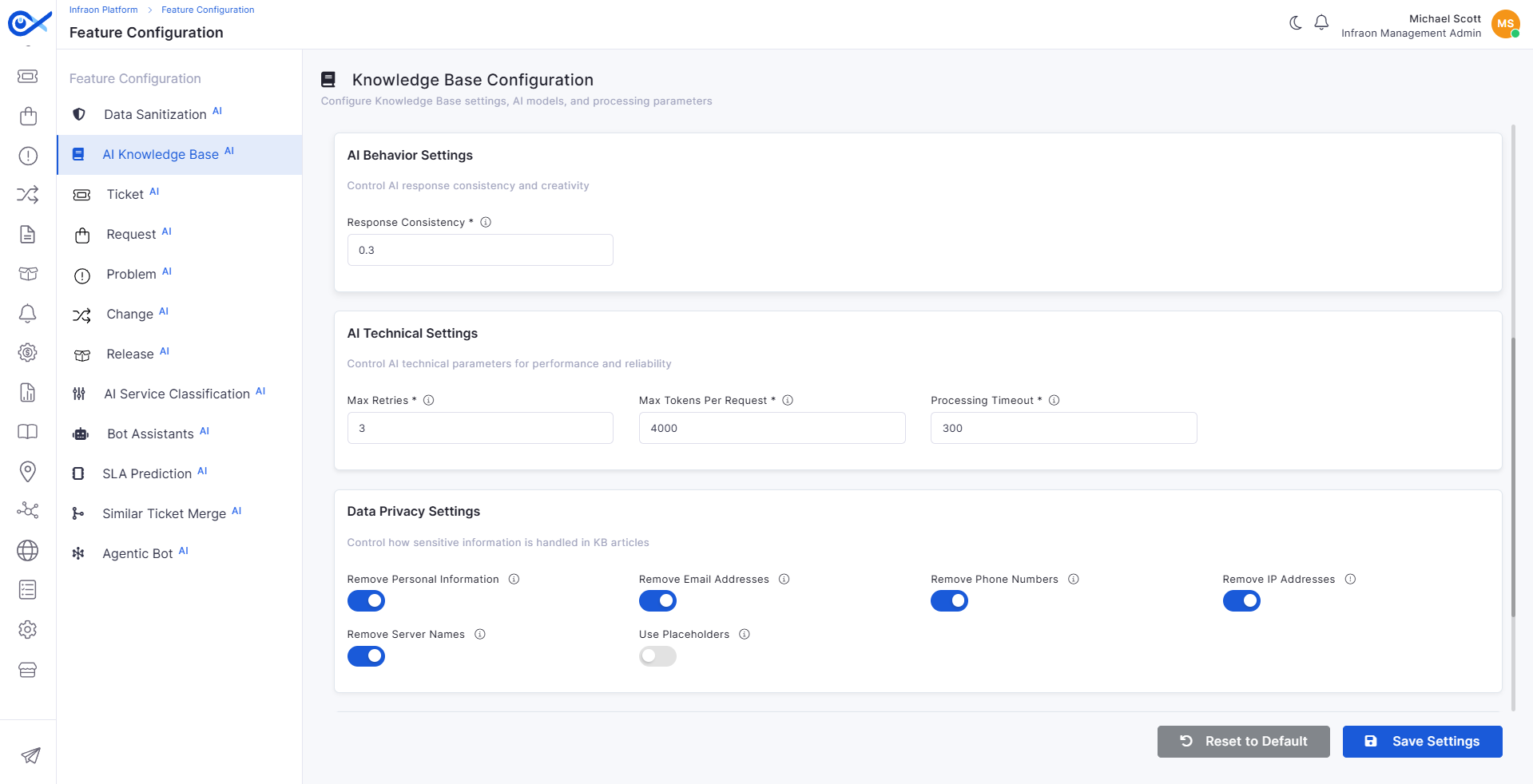
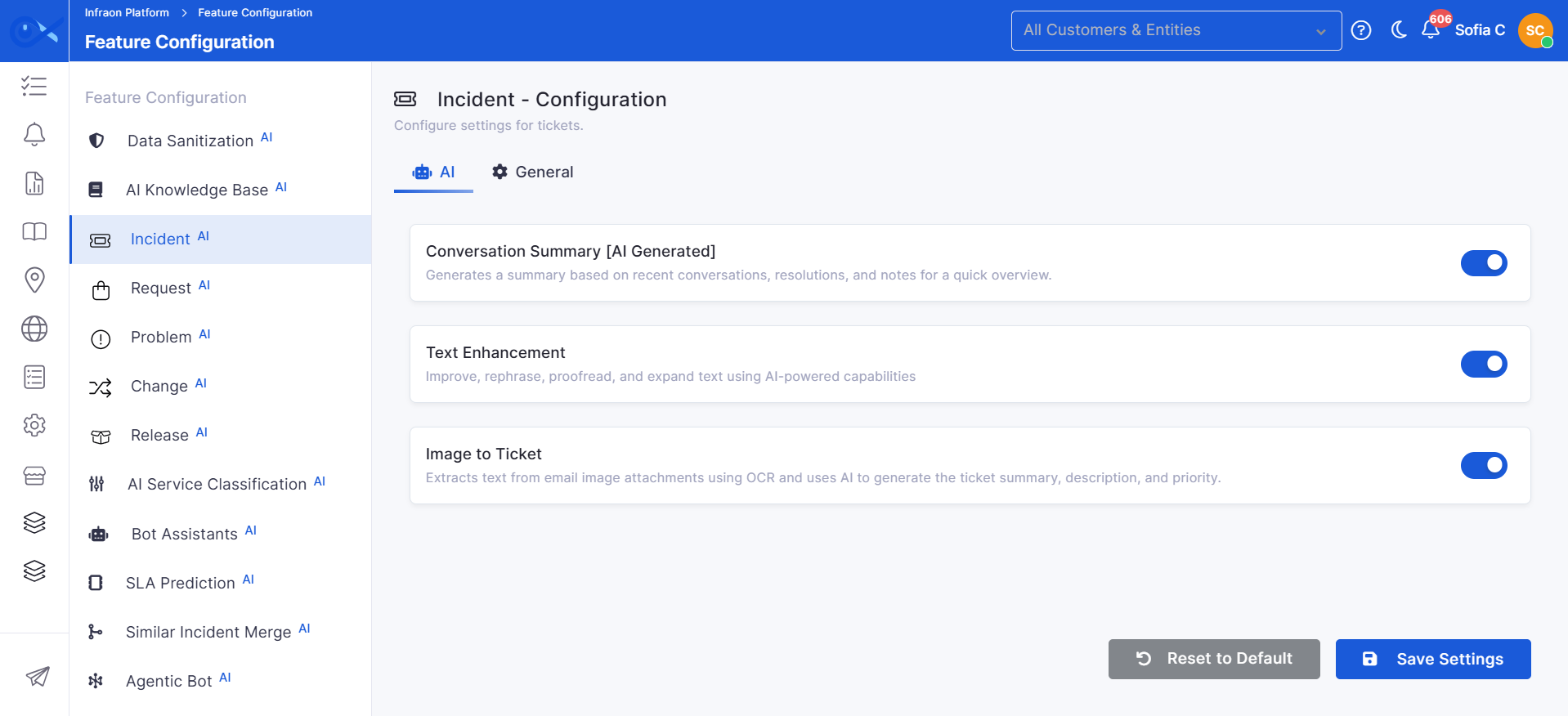
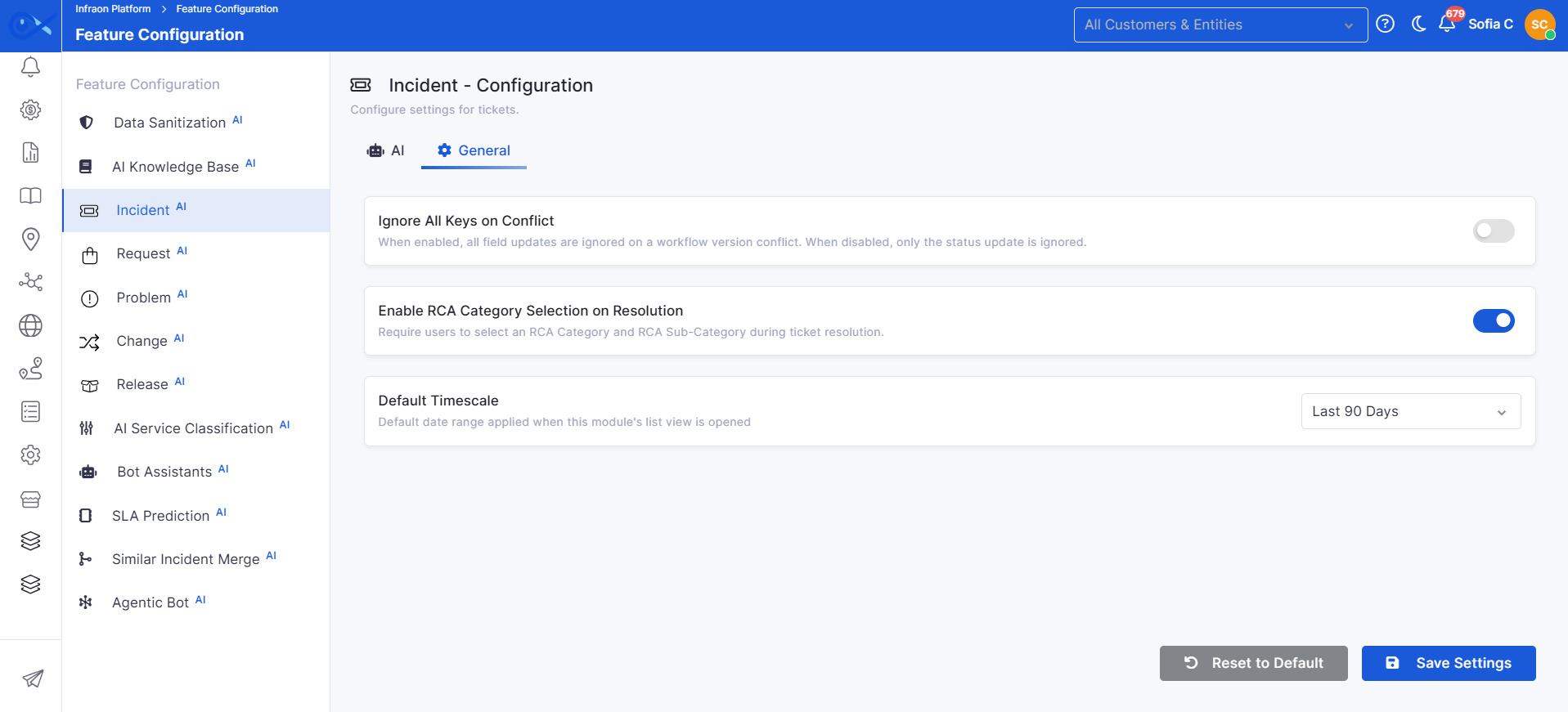
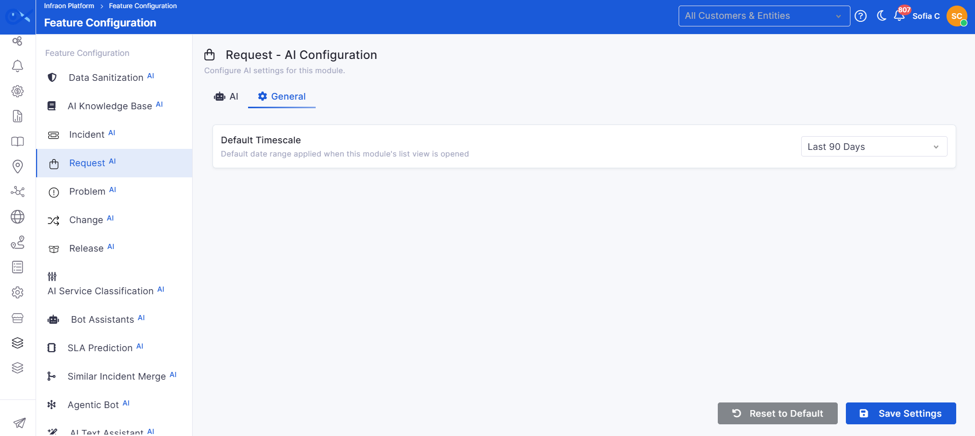
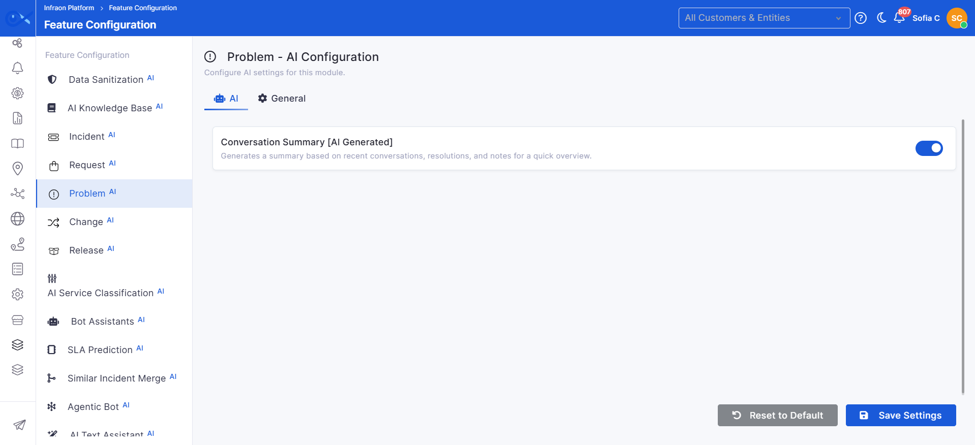
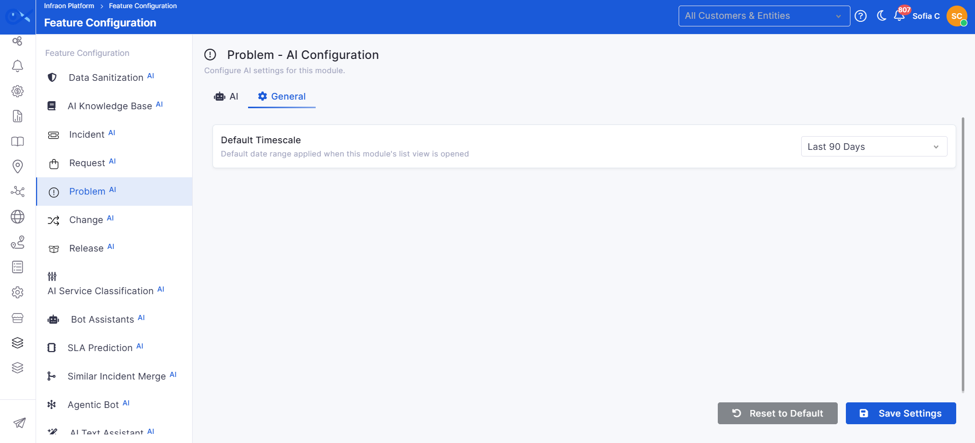
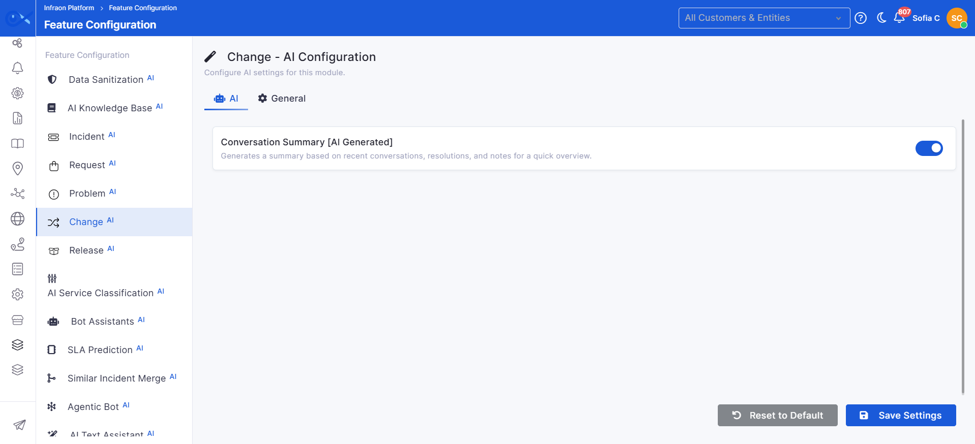
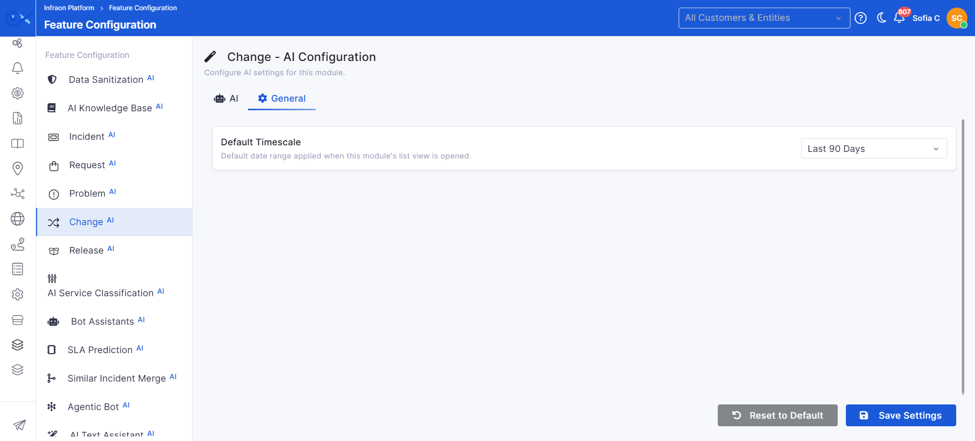
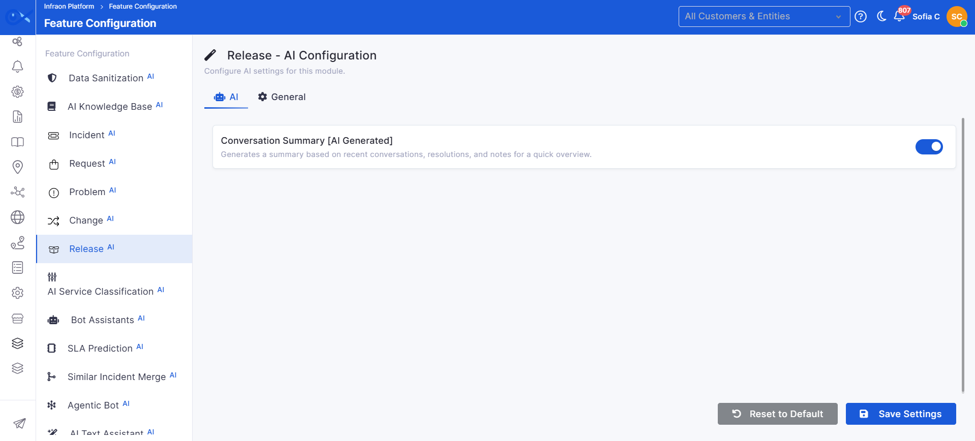
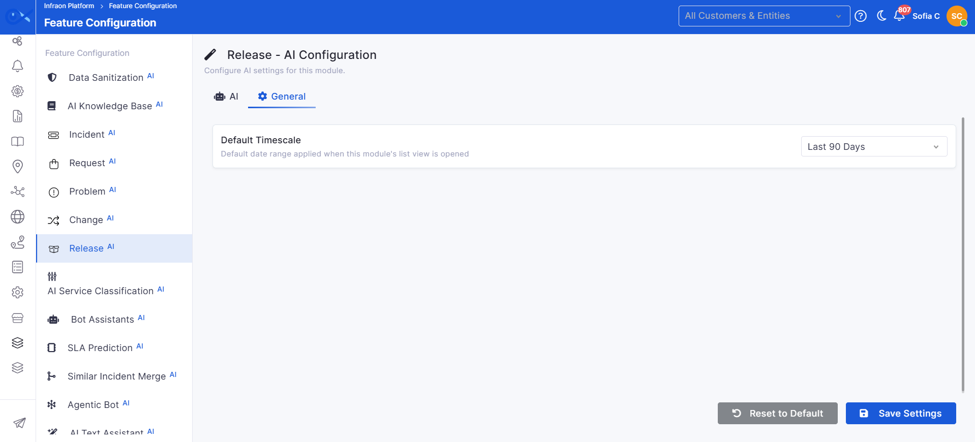
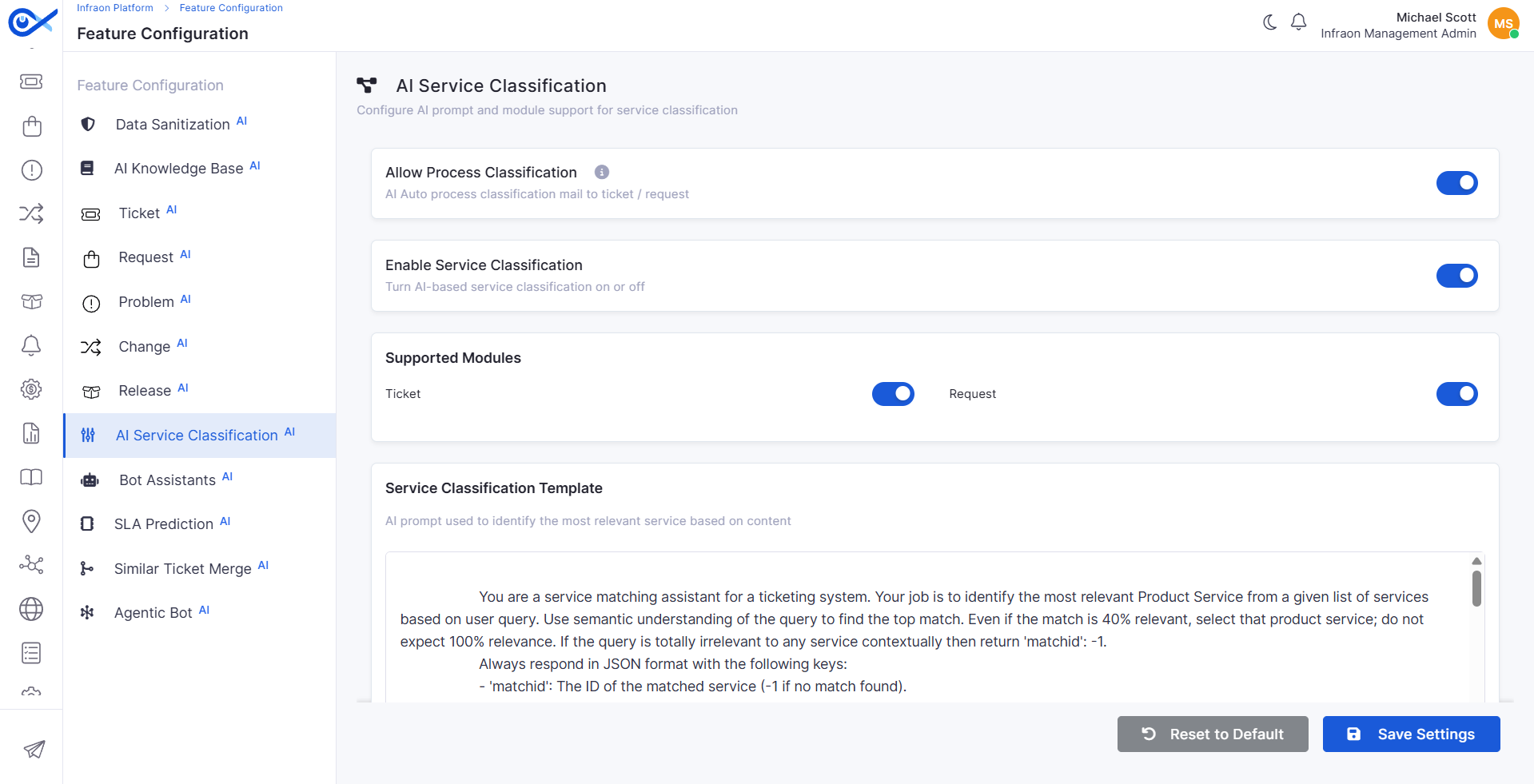
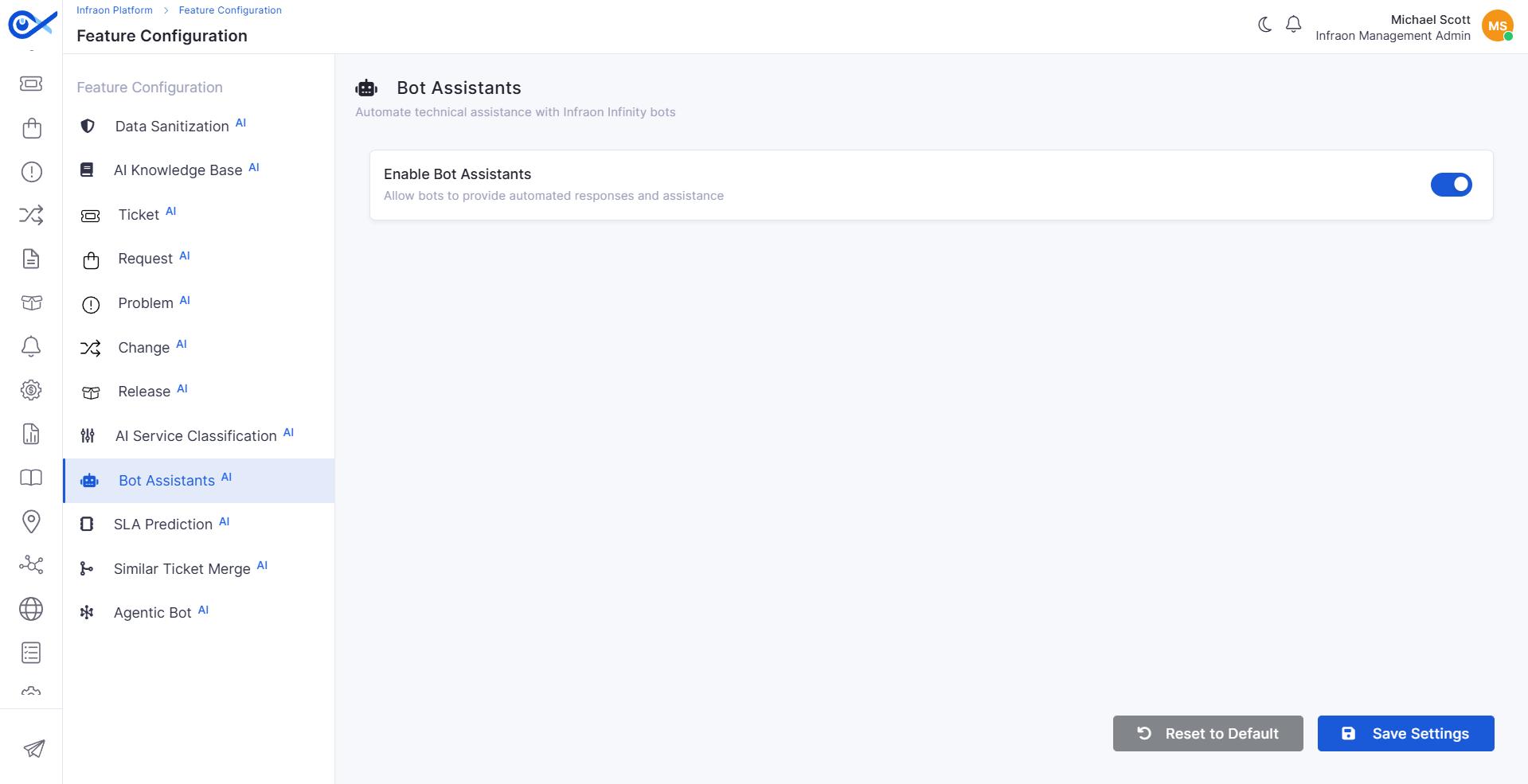
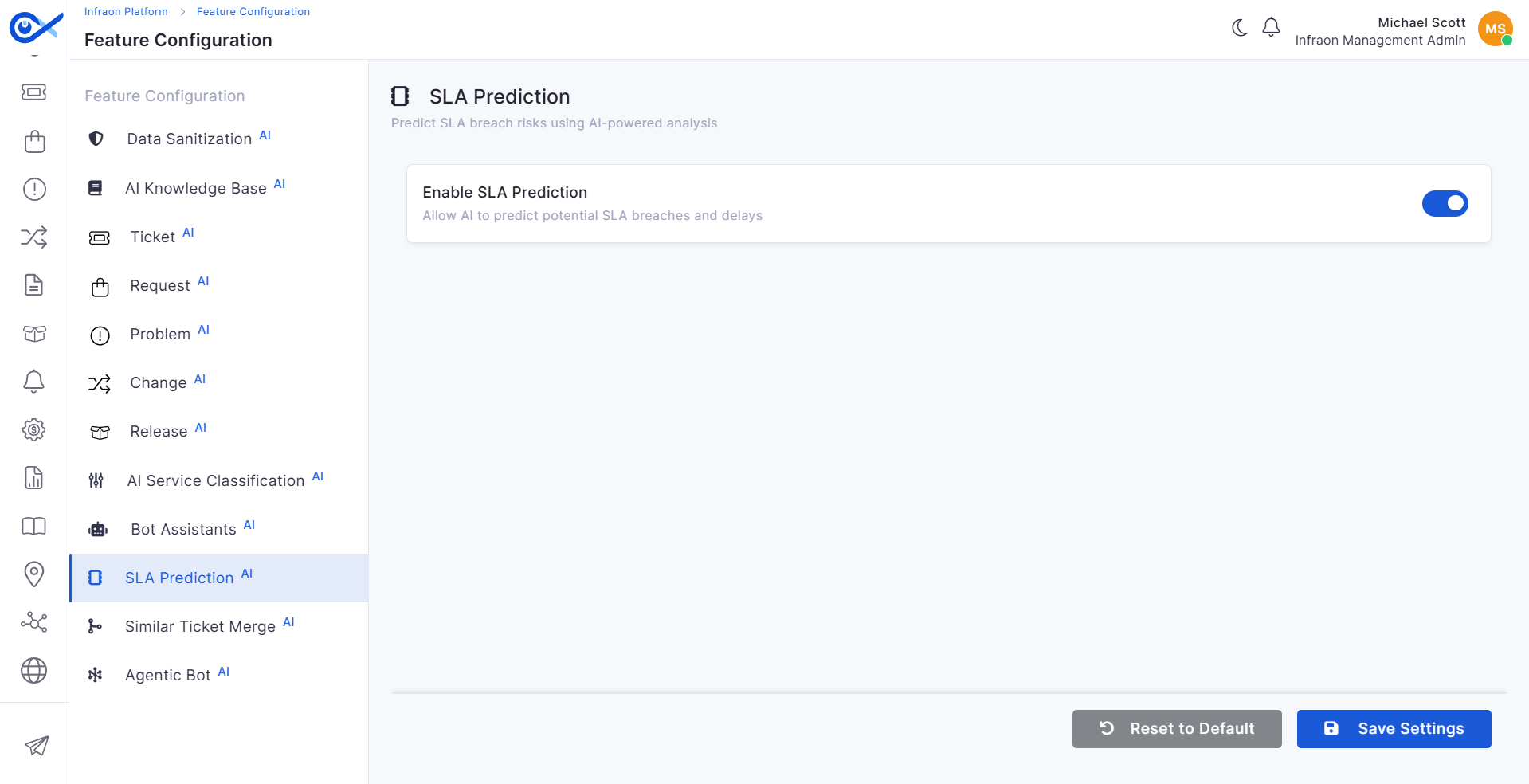
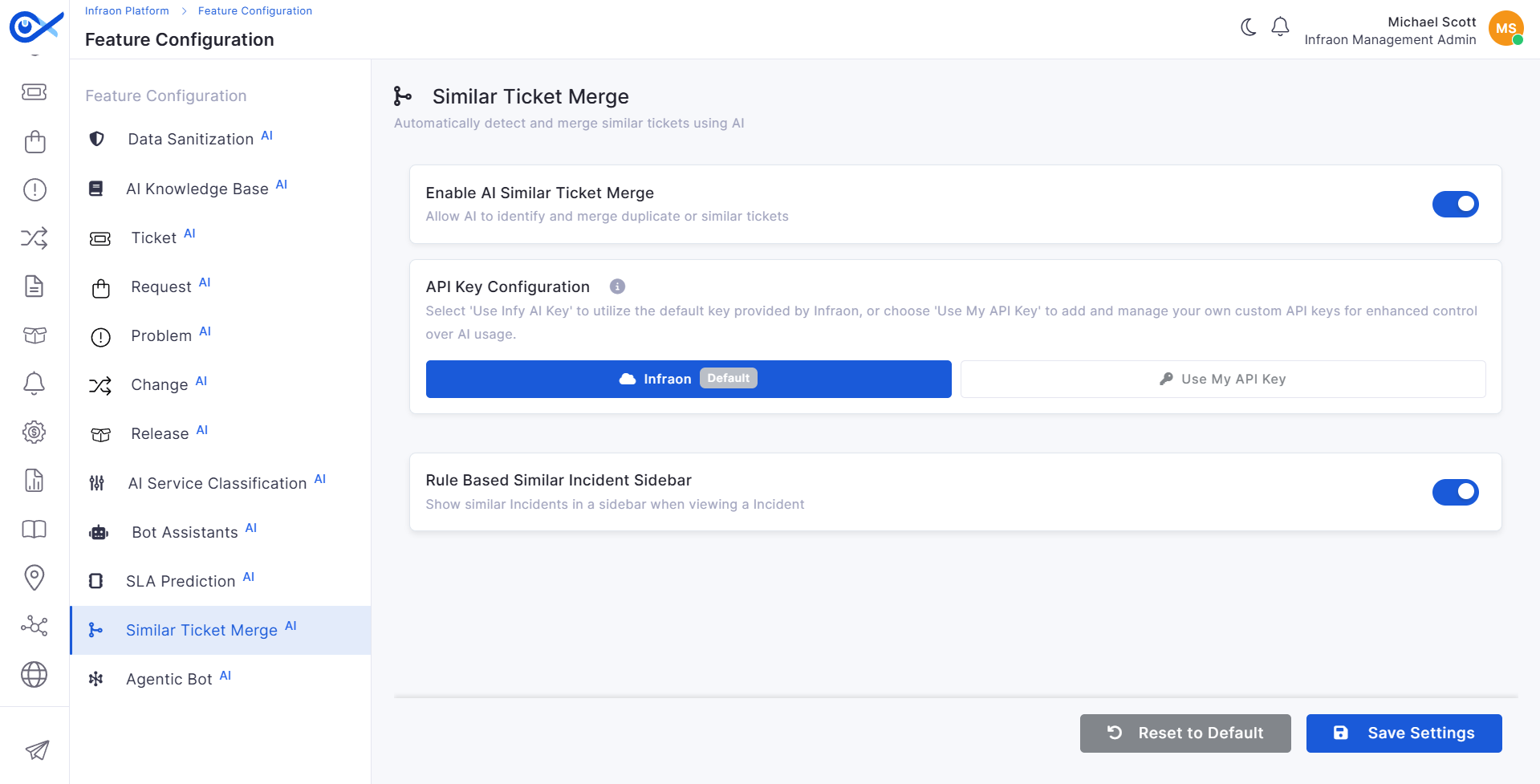


john@company.com → user1@sanitizer.example
Redacts MAC addresses in colon, dash, and Cisco dot formats.
Determines how closely a new ticket or query must match an existing KB article for it to be reused or updated. Higher thresholds ensure more accurate matches but may reduce reuse, while lower thresholds allow broader matching.
Defines the relevance score threshold for displaying KB articles in search results. Higher values ensure only highly relevant KBs are shown, while lower values allow more results with broader matching.
Limits the number of tokens processed per AI request. This helps control response size, processing cost, and performance, especially when handling large KB content.
Automatically detects and removes email addresses from KB content to prevent exposure of sensitive user or organizational data.
Limits the length of the problem description section in KB articles to maintain clarity and avoid excessively long content.
Resets all configuration fields to predefined system default values. Useful for reverting incorrect configurations or restoring recommended settings.
Enhances ticket content with AI to improve grammar, clarity, tone, and structure.
When enabled, users can rephrase, expand, or refine responses before sending.
When disabled, responses remain unchanged and fully manual.
Enables users to select an RCA Category and RCA Sub-Category while resolving a ticket.
Example: When enabled, an RCA step is displayed during ticket resolution, allowing the user to select the appropriate RCA Category and Sub-Category.
Note: If the Enable RCA Category Selection on Resolution is not enabled, the RCA tab won’t be visible while resolving a ticket.
Enables AI-based service classification based on ticket/request content. When enabled, AI dynamically assigns categories. When disabled, classification must be done manually.
Displays similar incidents in a sidebar based on predefined rules when viewing a ticket. Helps agents quickly identify related issues and reuse existing solutions.
Defines the modules in which the AI Text Assistant is available. The supported modules are:
Incident Management, Service Request Management, Problem Management, Change Management, Release Management, Task Management, Knowledge Base (KB), Service Catalogue, Project Management.
Only the selected modules display the AI Text Assistant in their supported rich text fields.
Restores the Enable AI Text Assistant toggle to ON and selects all available modules.
Controls the legacy multi-item Agenda functionality.
When enabled, the detailed multi-item Agenda list, including the Add Agenda button and grid, is available in the Add Meeting form.
When disabled, the detailed Agenda list and its separate in-progress and completed views in Meeting Details are hidden. The single Agenda field remains available regardless of this setting.
Resets the Meeting settings to their predefined default values.
Assignee
Select from the dropdown
Assign the user responsible for execution.
Owner
Select from the dropdown
Define the accountable owner of the milestone.
Status
Select from the dropdown
Set the milestone's current status. Example: To Do / In Progress
Baseline Start Date
Select date
Define the planned start date. Example: 01-Mar-2026
Baseline End Date
Select date
Define the planned end date. Example: 10-Mar-2026
Link Child Task
Click Link Task
Link tasks under this milestone. Example: UI Design, Wireframe Creation, UX Review
Link Milestone
Click Link Milestone
Link this milestone with another milestone. Example: Linked to “Development Phase” milestone
Status
View / Update
Displays the current milestone Example: To Do / Open
Baseline Start Date
Select date
Represents the milestone's planned start date. Example: 10 Apr 2026
Baseline End Date
Select date
Represents the planned completion date. Example: 20 Apr 2026
Select the required relation type:
Milestone
Child
Asset
Category Type
Category
Sub-Category
Item Name
Click the link icon in the Item Name field.
Select one or more assets from the asset selection sidebar.
Click Link Asset.
The selected asset IDs are displayed in the Item Name field.
Click Submit to successfully map the assets.
Linked Task
View / Remove
Displays associated tasks under the milestone
Checklist
Click to add
Add checklist items for progress tracking
Description
Enter text
Add context or details about the file
File Upload
Drag & Drop / Browse
Supported formats: png, jpg, doc, pdf, xls (Max: 20 MB)
Linked Records
View / Remove
Displays associated records
Add Notes
Enter text
Add comments or updates
Public / Private
Select option
Control visibility of notes
Timestamp
View
Displays the date and time of change
Change Details
View
Example: Associated with → TSK0255
Status
View / Update
Displays the current task status based on the workflow. Example: To Do / Open
Assignee
View / Update
Displays the user assigned to the task.
Requester
Select from the dropdown
Indicates the user who requested the task
Reviewer
Select from the dropdown
Assigns a reviewer for validation or approval
Manager
Select from the dropdown
Defines the managerial authority for the task
SF (Start-to-Finish)
Successor finishes after the predecessor starts.
Child
Select / Add
Associate child tasks under the current task
Task Relationship
Select from the dropdown
Defines dependency relation Example: Predecessor
Type
Select from the dropdown
Dependency type (FS, SS, FF, SF)
Lag (No. of Days)
Enter value
Delay between dependent tasks Example: 2
Sub Task
Click to add
Link tasks as sub-tasks under the current task
Checklist
Click to add
Add smaller actionable items
Description
Enter text
Add context for the attachment
File Upload
Drag & Drop / Browse
Supported formats: png, jpg, doc, pdf, xls Max size: 20 MB
Linked Records
View / Remove
Displays associated records
Add Notes
Enter text
Add internal notes or updates
Public / Private
Select option
Control note visibility
Timestamp
View
Displays the date and time of activity
Change Details
View
Example: Associated with → TSK0256
Title
Enter text
Define the name of the milestone. Example: UI/UX Design Phase
Description
Enter details
Milestone ID
System generated
Unique identifier for the milestone. Example: #MIL0018
Assignee
View / Update
Assignee
Select from the dropdown
Assign or update the user responsible for executing the milestone.
Owner
Select from the dropdown
Milestone
Links the task to a project milestone.
Child
Associate the child tasks with the current task to create a task hierarchy.
Asset
Description
Enter / Edit text
Detailed explanation of milestone scope and objectives. Example: Architecture Phase 1 planning
Sub Task
Click to add
Add Attachment
Click to upload
Upload files to the milestone
Category
Select from the dropdown
Module Tabs
Select module
Choose module (Ticket, Problem, Change, Request, Release)
Add
Click to associate
Tabs (All / Email / SMS / Comment)
Select tab
Filter communication type
Reply / Forward
Click action
Activity Log
View
Displays a list of changes (e.g., relation added/removed)
User Info
View
Task ID
System generated
Unique identifier for the task. Example: #TSK0249
Priority
View / Update
Assignee
Select from the dropdown
Assign or update the user responsible for task execution
Owner
Select from the dropdown
FS (Finish-to-Start)
Successor starts after the predecessor finishes.
SS (Start-to-Start)
Successor starts when the predecessor starts.
FF (Finish-to-Finish)
Milestone
Select / Add
Link the task to a milestone
Parent
Select / View
Description
Enter / Edit text
Detailed explanation of the task Example: Frontend Development
Dependencies
Click to add
Add Attachment
Click to upload
Upload files to the task
Category
Select from the dropdown
Module Tabs
Select module
Add
Click to associate
Tabs (All / Email / SMS / Comment)
Select tab
Filter communication type
Reply / Forward
Click action
Activity Log
View
Displays a list of actions performed
User Info
View
Provide additional information about the milestone. Example: This phase includes wireframing, prototyping, and final UI design approval.
Displays the user assigned to the milestone. Example: Stark
Defines the accountable owner for milestone completion.
Maps one or more assets to the task for tracking and dependency purposes.
Link existing tasks as child tasks
Categorize attachment (Default, Screenshot, Others)
Link records from the selected module
Respond to communication threads
Shows the user who performed the action
Displays the task priority level. Example: Medium
Defines the accountable owner for the task
Successor finishes when the predecessor finishes.
Displays the parent task (if applicable)
Define dependent tasks with a relationship type and lag
Categorize file (Default, Screenshot, Others)
Link records from the selected module
Respond to email communication
Shows the user who performed the action
The SSP (Self-Service Portal) Configuration module, exclusive to Infraon Management Admins, empowers admins to customize their end-users self-service portal (SSP) experience.
Use the toggle buttons for each module to determine which options appear as menu items on the SSP portal's top panel.
This allows admins to tailor end-user functionality to your organization's needs.
From this central location, admins can control the visibility (by enabling the toggle buttons) of various modules within the SSP (located at the top panel).
The following section breaks down the details:
The Home section allows Infraon Management Admins to customize the appearance and content of the Self-Service Portal (SSP) Home page. Administrators can configure the Home page layout, customize the banner, and control which shortcuts and Quick Access sections are displayed to end users.
To configure the Home page:
Navigate to Infraon Platform > SSP Configuration.
Enable the Home toggle.
Configure the required settings.
Save the changes.
Select the preferred Home page layout for the Self-Service Portal.
The available designs are:
Old Design
New Design
The selected design determines which Quick Help and Services options are displayed on the Home page.
The Banner Title defines the title displayed at the top of the SSP Home page.
The Banner Subtitle is available only when New Design is selected.
The Quick Help and Services section allows administrators to choose which shortcuts are displayed on the SSP Home page. Administrators can enable or disable the section using its toggle and select the required shortcuts when the section is enabled. Only the selected shortcuts are displayed to end users. If the section is disabled, it is hidden from the SSP Home page, while the previously selected options remain saved and are restored when the section is enabled again.
Go to Infraon Configuration → Infraon Platform → SSP Configuration.
Enable the Home toggle.
In the Quick Help and Services section, use the toggle to enable or disable the section.
When enabled: The options are editable, and only the selected shortcuts are displayed on the SSP Home page.
When disabled: The available options become non-editable. After saving, the Quick Help and Services section is hidden from the SSP Home page. Previously selected options are retained in the configuration.
When re-enabled: The previously selected options are restored and become editable. After saving, the Quick Help and Services section appears on the SSP Home page with those options.
Old Design
The following shortcuts are available for the Old Design layout:
New Design
The following shortcuts are available for the New Design layout:
The available Quick Help options vary depending on the selected Home page design.
The Quick Access section allows administrators to configure which expandable sections are displayed on the SSP Home page. Administrators can enable or disable the section using its toggle and select the required options when the section is enabled. Only the selected sections are displayed on the SSP Home page. When disabled, the section is hidden after saving, but its previously selected options are retained and restored when the section is enabled again.
Configure Quick Access
Go to Infraon Configuration → Infraon Platform → SSP Configuration.
Enable the Home toggle.
In the Quick Access section, use the toggle to enable or disable the section.
When enabled: The Quick Access dropdown and options are editable, allowing administrators to select or modify the available options.
When disabled: The Quick Access dropdown and options become non-editable. After saving, the Quick Access section is hidden from the SSP Home page, while the previously selected options remain saved.
When re-enabled: The previously selected options are restored and become editable. After saving, the Quick Access section is displayed on the SSP Home page with the restored options.
Available Quick Access Options
A centralized hub for managing information about software vendors associated with the organization's IT environment.
The main screen displays a comprehensive list of vendors, providing a clear overview of the vendor landscape.
Details | Basic information
When the toggle is enabled, select the required shortcuts from the available options.
Save the SSP configuration.
Log in to the SSP Portal to view the configured section.
View Change
Displays the View Change shortcut.
Submit Ticket
Displays the Submit Ticket shortcut.
Assets
Displays the Assets shortcut.
Service Catalogue
Displays the Service Catalog shortcut.
View Requests
Displays the View Requests shortcut.
Workspace
Displays the Workspace shortcut.
Browse Articles
Displays the Browse Articles shortcut.
View Change
Displays the View Change shortcut.
Hardware & Devices
Displays the Hardware & Devices shortcut.
When the toggle is enabled, select the required options from the Quick Access dropdown.
Save the SSP configuration.
Log in to the SSP Portal to view the configured section.
Trending Articles
Displays the Trending Articles section.
Service Catalogues
Displays the Service Catalogues section.
Old Design
Displays the classic SSP Home page layout.
New Design
Displays the redesigned SSP Home page with additional configuration options, including the Banner Sub-title and updated Quick Help options.
Banner Title
Enter the title to display on the SSP Home page banner.
Banner Sub-title
Enter the subtitle to display below the Banner Title on the SSP Home page. Available only for the New Design layout.
Quick Help and Services Toggle
Enable or disable the toggle.
Controls whether the Quick Help and Services section is displayed on the SSP Home page.
Quick Help and Services Options
Select the required options when the section is enabled.
Browse Articles
Displays the Browse Articles shortcut.
View Tickets
Displays the View Tickets shortcut.
View Requests
View Tickets
Displays the View Tickets shortcut.
Submit Ticket
Displays the Submit Ticket shortcut.
Assets
Quick Access Toggle
Enable or disable the toggle.
Controls whether the Quick Access section is displayed on the SSP Home page.
Quick Access Options
Select the required options when the section is enabled.
Active Tickets
Displays the Active Tickets section.
Active Requests
Displays the Active Requests section.
Assets
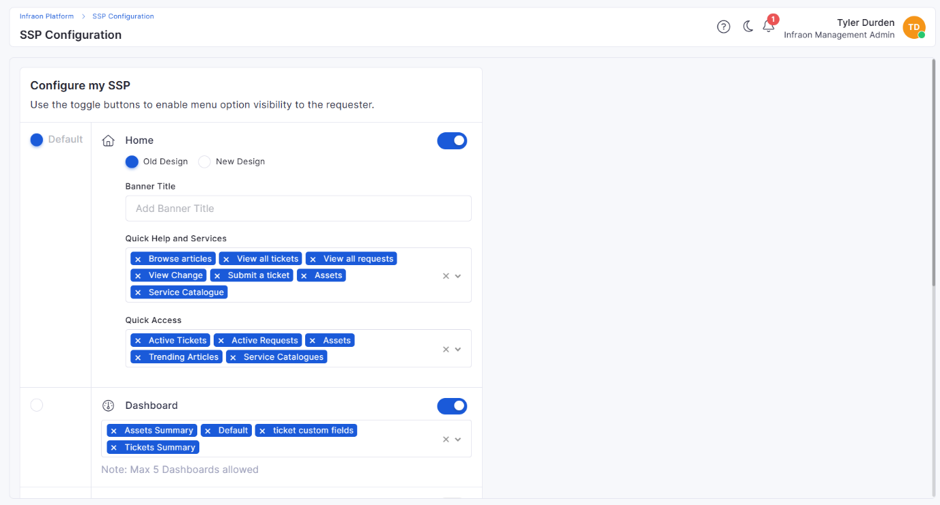
Allows administrators to configure which shortcuts are displayed to end users.
Displays the View Requests shortcut.
Displays the Assets shortcut.
Allows administrators to configure which expandable sections are displayed on the SSP Home page.
Displays the Assets section.
Filter
Filter can be added based on the field (Vendor Name, Status, Location, Web URL, Contact Person, Email ID, and Phone Number) and select the respective condition from the drop-down box below.
Vendor Name
To quickly identify the vendor.
Status
Indicates the vendor's current standing (active, inactive, etc.).
Location
View the vendor's physical location.
Web URL
Access the vendor's website with a single click.
Contact Person
Identify the designated point of contact at the vendor company.
Email ID & Phone Number
Facilitate easy communication with the vendor.
Actions
Edit
To make changes to the vendor information.
Delete
Click to delete a specific vendor information from the inventory.
The Infraon platform offers two distinct vendor roles.
Role Name
Description
Site User
Add, edit, delete, and view organization locations, holidays, password policies, and leaves.
Can edit and view their profile.
View users, organizations, dashboard, audit logs, history, knowledgebase, CMDB, software licenses, vendors, contracts, projects, and purchase orders.
Vendor Admin
All privileges of Site User.
Add, edit, delete, and view users and vendors.
This table summarizes the specific actions that Vendor Admin and Site User roles can perform for each module in the Infraon platform.
Module
Role
Add
Edit
Delete
View
Copy
To manage vendor information within the Infraon Infinity portal, navigate to the Infraon Configuration section. From there, select "Infraon Portal" and then choose the "Vendor" module.
Select the Add Vendor option located at the top right corner of the page, and add the below details respectively:
Vendor Name
Status (Draft, New, and Publish)
Vendor Location
Web URL
Contact Person
Phone Number
Description
Once the changes are made to satisfactory, click “Save” to proceed.
Click the + icon in the Vendor option on the top right corner.
The vendor creation form includes three tabs: Organization Details, Address, and Representatives.
Refer to the table below for guidance on filling in each field.
Organization Details | Add Vendor
Label
Action
Description / Example
Organization Logo
Upload (Drag and Drop/Click)
Upload the organization logo in PNG, JPEG, or JPG format. The maximum size allowed is 20 MB, with an aspect ratio of 4:4.
Click Next to proceed to the next tab – Organization Address.
Add Address| Add Vendor
Click here to view how to add basic address details.
Follow the table below to add Contact, GSTIN, and Bank Details.
Other Details | Add Address
Label
Action
Description / Example
Contact Person Name
Enter the full name
Name of the individual representing the vendor.
Example: Rahul Sharma
Email Address
Once the address is added, users can select Edit and Delete to change the vendor’s address.
Click Next to proceed to the next tab – Representatives.
The Representatives tab is the third and final step in the "Add Vendor.” This section allows you to assign individuals representing the vendor organization in the system. These users can access the portal (if login is enabled) and perform actions based on their assigned roles. Adding representatives ensures clear accountability and secure access control for vendors.
To add a representative, click + Add User and complete the necessary details. The login can be enabled or disabled based on the requirement. Below is a structured table explaining each label in the tab:
Label
Action
Description / Example
Name*
Type
Enter the full name of the representative.
Example: Emily Davis
Email*
Once done, click on Submit to save the Vendor.
The Shipment section in the Vendor details page provides end-to-end visibility into shipments associated with the vendor’s Purchase Orders. Users can view shipment details such as shipment number, shipment status, destination, linked Purchase Order, shipped asset count, and shipment timeline.
Shipment-related documents, including E-Way Bill, Proforma Invoice, and Delivery Challan, are also available based on user permissions and shipment status.
Shipment
View
Displays all shipments associated with the vendor’s eligible Purchase Orders.
Shipment Number
Label
Action
Search
Click to search, enabling efficient navigation through the vendor list.
A vendor can open the Shipment section and view #SHIP0017, its Completed status, destination, linked #PO-D-0341, and 50 Assets. The user can also access the associated E-Way Bill, Proforma Invoice, and Delivery Challan, if permitted.
User
Vendor Admin
✔️
✔️
✔️
✔️
❌
Site User
❌
❌
❌
✔️
❌
Organization
Vendor Admin
❌
❌
❌
✔️
❌
Site User
❌
❌
❌
✔️
❌
Organization Location
Vendor Admin
✔️
✔️
✔️
✔️
❌
Site User
✔️
✔️
✔️
✔️
❌
Dashboard
Vendor Admin
❌
❌
❌
✔️
❌
Site User
❌
❌
❌
✔️
❌
My Profile
Vendor Admin
❌
✔️
❌
✔️
❌
Site User
❌
✔️
❌
✔️
❌
Audit
Vendor Admin
❌
❌
❌
✔️
❌
Site User
❌
❌
❌
✔️
❌
History
Vendor Admin
❌
❌
❌
✔️
❌
Site User
❌
❌
❌
✔️
❌
Holiday
Vendor Admin
✔️
✔️
✔️
✔️
❌
Site User
✔️
✔️
✔️
✔️
❌
Password Policy
Vendor Admin
✔️
✔️
✔️
✔️
❌
Site User
✔️
✔️
✔️
✔️
❌
Leaves
Vendor Admin
✔️
✔️
✔️
✔️
❌
Site User
✔️
✔️
✔️
✔️
❌
Knowledge Base
Vendor Admin
❌
❌
❌
✔️
❌
Site User
❌
❌
❌
✔️
❌
CMDB
Vendor Admin
❌
❌
❌
✔️
❌
Site User
❌
❌
❌
✔️
❌
Software License
Vendor Admin
❌
❌
❌
✔️
❌
Site User
❌
❌
❌
✔️
❌
Vendor
Vendor Admin
✔️
✔️
✔️
✔️
❌
Site User
❌
❌
❌
✔️
❌
Contract
Vendor Admin
❌
❌
❌
✔️
❌
Site User
❌
❌
❌
✔️
❌
Project
Vendor Admin
❌
❌
❌
✔️
❌
Site User
❌
❌
❌
✔️
❌
Purchase Order
Vendor Admin
❌
❌
❌
✔️
❌
Site User
❌
❌
❌
✔️
❌
Vendor Name*
Text Input
Enter the official name of the vendor
Example: ABC Technologies.
Contact Person*
Text Input
Provide the full name of the primary contact person for this vendor
Example: John Doe.
Email*
Text Input
Provide a valid email address for vendor communication.
Example: vendor@example.com.
Phone Number
Country Code Dropdown + Input
Select the country code and enter the vendor’s contact number.
Example: +91 9876543210.
Risk
Dropdown
Select the vendor risk level: Low, Medium, High, or Critical. This helps categorize vendors based on compliance or operational risk.
Status
Dropdown
Indicates vendor onboarding stage.
Options: Draft (Creation), New (Open), Publish (Active).
Draft is the default for newly added vendors.
Country*
Dropdown
Select the vendor’s country of operation.
Example: India.
Enable Login
Toggle
Enables login access for the vendor representative. Only allow this if the vendor interacts directly within the system.
Password
Text Input
Add an eight-letter password for login.
User Approval
Select from the drop-down.
Options Include: Vendor Admin/ Site User.
Web URL
Text Input
Add the vendor’s official website URL.
Example: https://www.vendorexample.com.
Vendor ID Number
Text Input
Provide a unique internal/external identifier for the vendor, if applicable.
Example: VEN1024.
Date of Incorporation
Date Picker
Select the official incorporation date of the vendor organization from the calendar dropdown.
ID Type
Dropdown
Choose a supported ID type: Aadhar, Passport, or PAN.
This is used to validate the vendor's proof of identity.
ID Number
Text Input
Input the actual number based on the selected ID type.
Upload ID
Upload (Drag and Drop/Click)
You can upload a scanned copy or a photo of the proof of the selected ID. The file formats supported are PNG, JPEG, and JPG.
Add
Click Button
Clicking Add confirms the ID details and uploads them. This action is mandatory to save proof data before proceeding to the next step.
MSMED Details
Toggle
Enable if the vendor falls under the MSMED (Micro, Small & Medium Enterprises Development) Act.
MSMED Status
Dropdown (Visible only if enabled)
Select status: Low, Medium, High, or Critical, based on the MSMED evaluation of the vendor.
MSMED Category
Dropdown (Visible only if enabled)
Select whether the vendor is recognized under MSMED: Yes or No.
URN
Text Input
Enter the MSMED-provided Unique Registration Number (URN) if applicable. Example: MSMED12345.
Enter email
Email ID of the vendor's contact person. Example: vendor@example.com
Phone Number
Select country code & enter
Provide the vendor contact number, including the country code.
Example: +91 98765XXX10
ID Number (GSTN)
Enter alphanumeric ID
GST identification number for the vendor. This is required for taxation purposes.
Example: 27AAGPM1234C1Z5
Upload ID (GSTN)
Upload document
Upload the supporting document for the entered GSTN.
Accepted formats: PNG, JPEG, JPG
IFSC Code
Enter IFSC code
Unique code to identify the vendor’s bank branch for domestic transfers.
Example: SBIN0000456
Bank Name
Enter bank name
Name of the bank where the vendor holds their account.
Example: State Bank of India
Currency
Select from the dropdown
Currency in which the vendor prefers payment. Default value shown: INR.
Beneficiary Name
Enter name
Name of the vendor account holder (must match bank records).
Example: EverestIMS Technologies Pvt Ltd
Account Number
Enter bank account number.
The vendor’s bank account number is used to receive payments.
Example: 123456789012
Re-enter Account Number
Re-enter bank account number.
The confirmation field is used to verify the vendor’s account number to avoid payment errors.
Type
Provide a valid email address. This will be used for login if enabled.
Example: emily@example.com
Phone Number
Select Country Code + Type
Enter the representative’s mobile number.
Example: +91 9876543210
User Type*
Select from the dropdown.
Define the user’s role within the organization. Roles may vary depending on access level.
Enable Login
Toggle ON/OFF
Enable this if the user needs access to the system. Enabling this allows you to set credentials.
Password*
Type
Set a secure password for the user if login is enabled.
Site
Select from the dropdown
Assign the user to a specific site (if applicable).
Example: Bangalore HQ
View
Displays the unique identifier of the shipment, such as #SHIP0017.
Shipment Status
View
Displays the current status of the shipment, such as Completed or Delivered.
Destination
View
Displays the delivery address specified for the shipment.
Purchase Order
View
Displays the Purchase Order linked to the shipment, such as #PO-D-0341.
Asset Count
View
Displays the number of assets included in the shipment, such as 50 Assets.
Shipment Timeline
View
Displays the shipment’s progress and status updates throughout its lifecycle.
E-Way Bill
View
Allows users to upload, view, download, or delete the E-Way Bill based on permissions and shipment status.
Proforma Invoice
View
Allows users to manage the Proforma Invoice associated with the shipment.
Delivery Challan
View
Allows users to manage the Delivery Challan associated with the shipment.
History
View
Displays the shipment history and records of actions performed on the shipment and its documents.
Create / Edit / Cancel
View
Allows authorized users to create, modify, or cancel shipments based on their permissions and the current shipment status.
Audit / History Log
View
Records shipment and document-related activities for tracking and auditing purposes.
Read-only State
View
Shipment information becomes read-only when the shipment reaches a locked status according to the configured business rules.
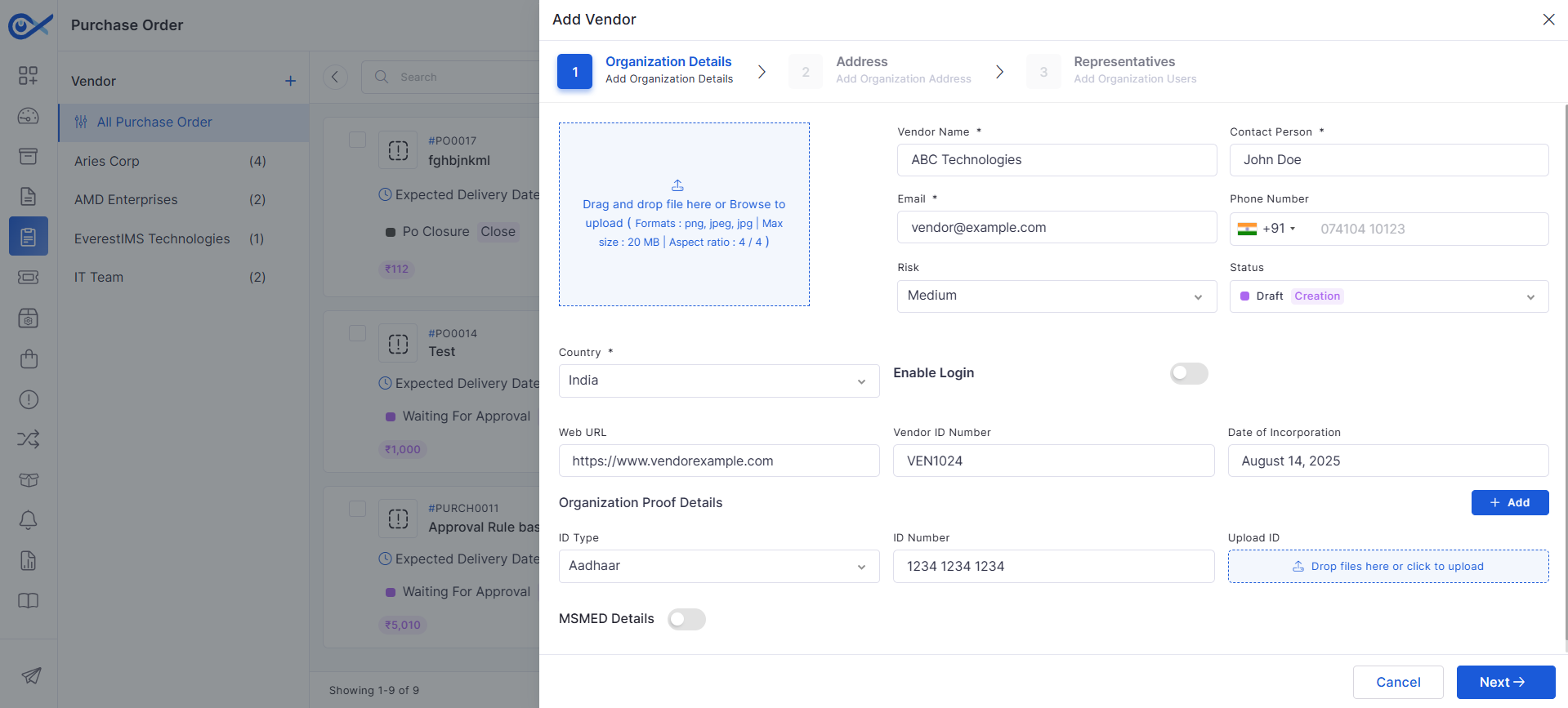
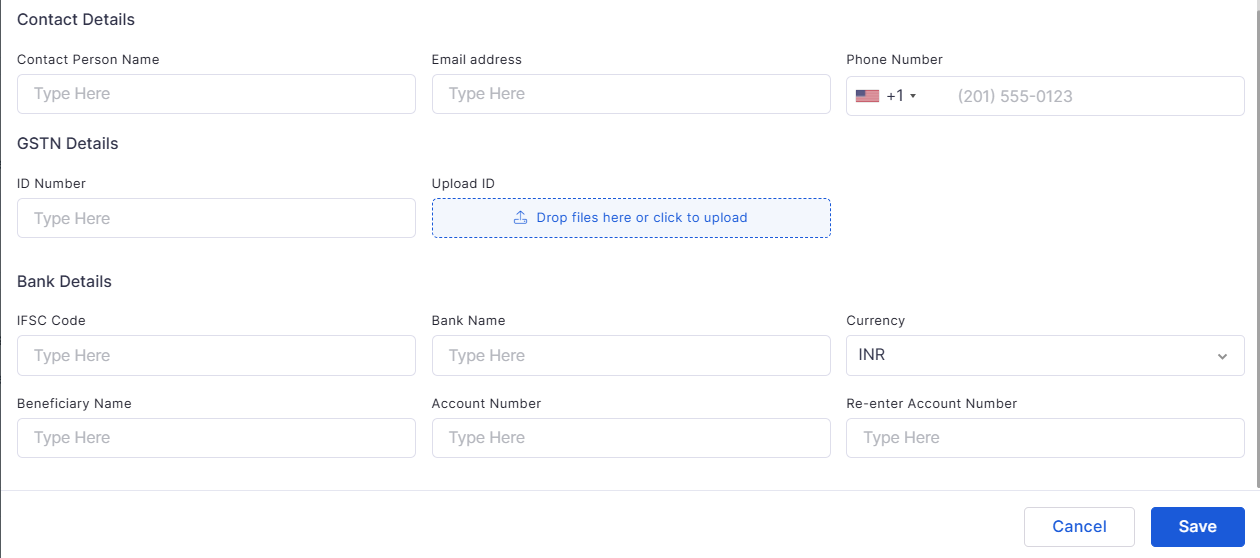
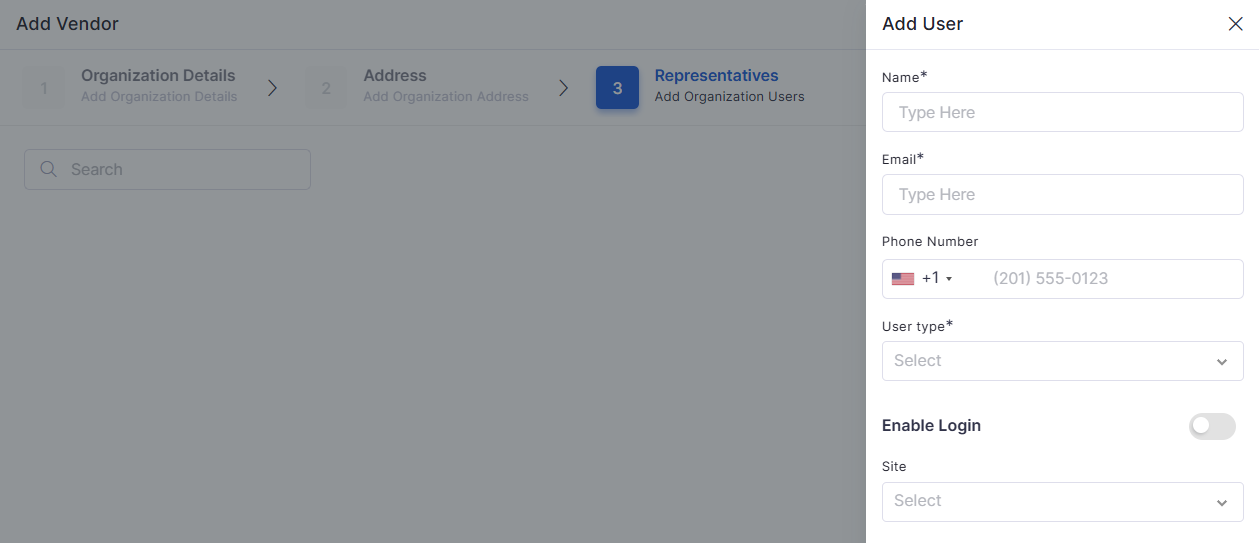
There is no single home page for Assets. Assets are added based on the asset type, each with a grid page. Click on the respective asset type from the left panel to view the list of assets in the selected category. This page is referred to as the 'Asset Grid Page'.
Assets can be viewed as a card or a grid view. Asset details include the following information.
Asset Name
IP Address
Asset Category
Asset ID
Asset Status
Device Type
Make
There are three ways to search for an asset.
Barcode Search - Click the Scan & Search Asset icon and scan the barcode using a barcode scanner. The corresponding asset information is displayed automatically.
QR Code: Users can generate, print, and scan QR codes for assets to quickly access asset-related information.
Asset Search - Click the 'Scan & Search Asset' icon and type the asset ID to search.
Users can customize the information displayed when a QR code is scanned by selecting which asset fields to include in the QR data.
To customize QR code fields:
Navigate to the required Asset module page.
Click Actions.
Select Customize QR Columns.
Choose the fields to be displayed in the QR scan result.
Click:
Submit – Applies the configuration for newly generated QR codes.
Submit & Overwrite – Regenerates QR codes for existing assets with the updated configuration.
The customization supports:
Standard asset fields
Custom fields such as:
Text
Number
Additionally:
A maximum of 6 fields can be selected for QR display.
Updated asset values are automatically reflected in QR scan results after regeneration.
Printed and bulk-generated QR codes maintain the configured field information.
Asset ID changes are reflected in QR data when Asset ID customization is enabled.
Users can scan the generated QR codes using:
Mobile device camera scanners
Third-party QR scanner applications
QR scanning applications available on Google Play Store
When scanned, the QR code displays the configured asset information based on the selected QR columns.
Customize columns based on unique preferences. Arrange columns effortlessly with a simple drag-and-drop action, streamlining the experience for optimal efficiency and organization.
Select one or more assets to view the asset actions below:
Owner - Click to add/change asset owner.
Requester - Click to update the requester and/or owner.
Tag - Click to update the asset tag.
Print - Click to print the asset label(s).
Enhanced Software Management! Now, easily sort asset ID, name, operational status, and overall status in ascending or descending order while adding software.
Asset Label Templates allow you to create and manage reusable QR code and barcode label templates for IT assets. Instead of using a single fixed label format, you can create multiple templates for different asset categories and printing requirements.
Each template supports configurable branding, asset fields, QR/barcode settings, label styling, and paper dimensions, enabling the system to generate print-ready PDF labels based on the saved template configuration.
The Asset Label Templates page displays all available label templates and provides options to search for, create, preview, edit, and delete them. From this page, you can manage reusable templates used when printing QR code or barcode labels for assets.
Asset Label Templates | Basic Details
To create a new asset label template, navigate to IT Assets → Asset Label Templates, and click Add Template.
The New Template page allows you to configure the layout, branding, visible asset fields, styling, and paper settings for the label. As you update the configuration, the preview panel displays the label layout in real time.
Complete the following sections before saving the template.
Specify the basic information for the template.
Select the label layout that defines the structure and supported configuration options.
Configure the branding elements that appear on the printed label.
Select the asset information to display on the printed label.
Configure the appearance of the label and QR/barcode.
Configure the paper and label size for printing.
After completing the required configuration, click Save Template. The template is saved and becomes available for preview, editing, and selection while printing QR code or barcode labels for assets.
The Print Jobs feature allows Infraon Platform users to generate QR/Barcode labels for multiple assets in a single print job. Users can select an existing label template, filter assets based on their requirements, choose all or specific filtered assets, and submit them for printing.
Large print jobs are processed in batches in the background, and users can track progress, download completed labels, or retry failed jobs. The Print Jobs tab provides an overview of all submitted print jobs and their current processing status.
Large print jobs are automatically divided into batches so that they can be processed in the background.
The system calculates the number of batches based on the number of selected assets. The default batch size can be 250 assets per batch. For example, a print job containing approximately 5,000 assets can be processed across multiple batches.
The progress shown on the Print Jobs page is based on the number of completed batches.
If a batch fails:
The entire job is not incorrectly marked as completed.
The failed or pending batch can be retried.
Successfully completed batches are not processed again during retry.
The system supports up to 10,000 assets per print job, subject to the configured behavior when the limit is exceeded.
After successful batch processing, the system generates the asset labels as PDF files.
If the generated output exceeds the configured PDF threshold, the output is divided into multiple PDF files. When multiple PDFs are generated, the completed print job provides a ZIP download containing the generated files.
If a batch or worker fails during processing, the print job is marked as Failed, and the failure reason is displayed in the job details.
Click Retry to resume processing the failed or pending batches.
During retry:
Completed batches are not processed again.
Already printed assets are not duplicated.
A successful retry changes the job status to Completed.
If the retry fails again, the job remains Failed with the latest failure reason.
The Print Jobs page opens with the list of existing print jobs.
The top panel displays a quick overview of the Print Jobs page, which includes:
The Print Jobs page provides an overview of print jobs and their current processing status. You can search and filter print jobs, monitor processing progress, and perform actions such as downloading completed output or retrying failed jobs.
Print Jobs | Basic Details
Click New Print Job to create a bulk asset label print job. The New Print Job panel allows you to configure the job, select a label template, filter assets, and choose the assets to be printed.
Print Job | Job Details
The selected asset count is displayed before the job is submitted.
Review the job details, selected template, and asset count.
Click Preview to review the print-job configuration.
Click Submit Job to create the print job.
Once submitted, the print job is created with Pending status and is processed in the background.
After creating a Print Job, click the Job ID from the Print Jobs list to open the Print Job details page. The details page contains the Assets and Details tabs.
The Assets tab displays the assets included in the Print Job along with their printing status. It also provides options to download the generated print files.
Print Jobs | Assets List
Details
The Details tab provides an overview of the Print Job, its completion progress, generated files, and batch processing information.
Print Jobs | Details List
The Asset Status tab provides an asset-level view of the printing status. It allows users to view assets and generate a print label for a specific asset. By selecting an asset, users can open a new Print Job, provide a job name, and send the label for printing directly.
It categorizes assets into:
All
Not Printed
Printed
Reprinted
You can search assets by Asset Name or Asset ID, and filter them by Job ID or Asset Type.
Asset Status |Basic Details
The asset list displays details such as Asset ID, Name, Type, Department, Print Status, Last Printed Date, and Last Job.
For example, an asset with status Printed can show its last printed date and the ID of the print job that generated the label.
Asset Reconciliation allows administrators to create reconciliation campaigns for selected assets and request users to verify and acknowledge the assets assigned to them.
Administrators can track the acknowledgment status, manage pending or overdue requests, send reminders, and optionally use a Maker-Checker process to verify the user's acknowledgment.
The Asset Reconciliation page provides an overview of reconciliation activities and allows administrators to manage campaigns and active acknowledgment requests.
Asset Reconciliation | Basic Details
Click New Campaign to create a reconciliation campaign.
A campaign defines which assets need to be reconciled, when the acknowledgment is due, how frequently the campaign should run, and whether Maker-Checker verification is required.
Asset Reconciliation | Campaign Details
The Active Request tab displays all currently active asset reconciliation requests and provides the information required to track and complete each request.
Active Request | Basic Details
Phone fields
QR regeneration activities are recorded in audit logs and asset history.
More - Click to update asset status and location, enable, disable, or delete the asset.
The asset(s) must be in an 'enabled' state for editing.
Filter templates by template type.
Column Details
Add Template
Click Add Template
Opens the New Template page to create a new asset label template.
Name
View
Displays the template name.
Label Type
View
Displays the selected base layout of the template. Example: Default Tag
Template Type
View
Displays the selected code type used by the template. Example: QR Code
Label Size
View
Displays the configured label dimensions. Example: 2.5" × 1.5"
Last Used
View
Displays the date when the template was last used for printing.
Created By
View
Displays the user who created the template.
Action Icons
Preview
Click the Preview icon
Opens a preview of the saved label template.
Edit
Click the Edit icon
Opens the selected template in edit mode. All previously saved settings are preloaded.
Delete
Click the Delete icon
Deletes the selected template after confirmation.
Logo
Upload, replace, or remove
Upload a company logo. Supported formats: PNG, JPG, JPEG, SVG.
QR Size
Drag the slider
Adjust the size of the QR code or barcode displayed on the label.
Specify the paper orientation. Options: Portrait, Landscape
Margin
Select or enter a value
Specify the page margin. Example: 0 mm
Label Size
Select from the dropdown
Select the predefined label size. Example: Small
Label Height
Enter a value
Specify the label height. Example: 1.5 in
Label Width
Enter a value
Specify the label width. Example: 2.5 in
Spacing L→R
Enter a value
Specify the horizontal spacing between labels. Example: 0.1 in
Spacing T→B
Enter a value
Specify the vertical spacing between labels. Example: 0.1 in
View the count.
Displays the total number of print jobs created.
Pending
View the count.
Displays the number of print jobs waiting to be processed.
Running
View the count.
Displays the number of print jobs currently being processed.
Completed
View the count.
Displays the number of print jobs that have finished successfully.
Failed
View the count.
Displays the number of print jobs that could not be completed successfully.
Search and Filters
Search
Enter a keyword in the search field.
Searches print jobs using information such as Job ID, Job Name, Template, or Submitted User.
Status
Select a status from the dropdown.
Filters print jobs by processing status, such as Running, Completed, Pending, or Failed.
Template
Select a template from the dropdown.
Filters the list to display only print jobs created using the selected label template.
Refresh
Click the Refresh icon.
Refreshes the print-job list and retrieves the latest job status and progress.
Column Details
Job ID
Click the Job ID.
Opens the details of the selected print job.
Example: PJ0119
Job Name
View the job name.
Displays the name provided when creating the print job.
Template
View the template name.
Displays the label template selected for generating the asset labels.
Assets
View the asset count.
Displays the number of assets included in the print job.
Status
View the current status.
Displays the current processing status of the print job.
Example: Completed
Progress
View the progress indicator.
Displays the percentage of the print job that has been completed.
Example: 100%
Batches
View the batch count.
Displays the number of completed batches against the total number of batches.
Example: 25 / 25
Submitted
View the submission date.
Displays the date on which the print job was submitted.
Example: Aug 05, 2026
Actions
Delete
Click the Delete icon.
Deletes the selected print job from the print-job list. Use this action to remove a print job that is no longer required.
ZIP
Click the ZIP icon.
Downloads the generated labels for the selected print job. The label package may be downloaded as a ZIP file containing the generated label files.
Determines the layout and information that will be printed on the asset label.
Field
Select an asset field.
Selects the asset attribute on which the filter should be applied.
Example: Asset Name
Condition
Select the required condition.
Defines how the selected field should match the specified value. Available conditions include In, Not In, Equal To, Not Equal To, Contains, Not Contains, and Is Empty.
Value
Enter or select the value according to the selected condition.
Specifies the value against which the selected field is filtered.
Example: If Field = Site and Condition = Equal To, select or enter Bangalore as the value. For Is Empty, no value is required.
Add
Add another filter condition.
Allows multiple conditions to be applied to further refine the list of assets.
Apply Filter
Click Apply Filter.
Applies the configured conditions and updates the matching asset count.
Delete Filter
Click the delete icon.
Removes an individual filter condition.
All Filtered
Select All Filtered.
Includes all assets matching the applied filters in the print job.
Example: If 28,749 assets match the filters, all 28,749 assets are included.
Custom Selection
Select Custom Selection.
Allows you to manually select specific assets instead of including every filtered asset.
Asset ID
View the Asset ID
Displays the asset's unique identifier.
Example: ASSET_01-2026-5CD7-5943-LAPT-9758
Name
View the Name
Displays the name of the asset to be included in the print job.
Type
View the Type of the asset
Displays the type or category of the asset.
Displays the number of assets for which the print file was generated successfully.
Failed
View the count.
Displays the number of assets for which the print operation failed.
Total Selected
View the count.
Displays the total number of assets selected for the Print Job.
Asset ID
View the asset ID.
Displays the unique identifier of the asset included in the Print Job.
Name
View the asset name.
Displays the name of the asset for which the label was generated.
Department
View the department.
Displays the department associated with the asset.
Print Status
View the status.
Displays the current printing status of the asset, such as Printed, Failed, or Reprinted.
ZIP
Click ZIP.
Downloads the generated print files for the Print Job as a ZIP file.
Download all as ZIP
Click Download all as ZIP.
Downloads all generated print files included in the Print Job as a single ZIP file.
Displays the label template used to generate the print files.
Total Assets
View the count.
Displays the total number of assets included in the Print Job.
Submitted Date
View the date and time.
Displays when the Print Job was submitted.
Submitted By
View the user name.
Displays the user who created or submitted the Print Job.
Output Size
View the size.
Displays the total size of the generated print output.
Example: 23.3 KB.
Progress
View the progress.
Displays the percentage of the Print Job completed and the number of completed batches.
Example: 100% – 1 of 1 batches complete.
Downloads
View the generated files.
Displays the files generated for the Print Job and provides options to download them individually or as a ZIP file.
Download
Click Download.
Downloads an individual generated print file.
Example: A generated PDF file for an asset.
Download all as ZIP
Click Download all as ZIP.
Downloads all generated print files as a single ZIP archive.
Batch Log
View the batch information.
Displays the batches processed for the Print Job along with the assets included in each batch and its processing status.
Selects an individual asset for which the print label needs to be generated.
Print Label
Select the print option for the asset.
Opens a New Print Job tab with the selected asset and its label details.
Job Name
Enter the Print Job name.
Enter a name to identify the Print Job.
Example: Laptop Asset Label.
Send to Print
Submit the Print Job.
Creates the Print Job for the selected asset and sends the generated label for printing.
Displays requests that are awaiting user acknowledgment.
Overdue
View the count.
Displays requests that have passed their due date without being completed.
Accepted
View the count.
Displays assets that users have acknowledged.
Rejected
View the count.
Displays assets that users have rejected.
Verified
View the count.
Displays acknowledgments that have been verified through the Maker-Checker process.
Campaigns
Select the Campaigns tab.
Displays the reconciliation campaigns created in the system.
Active Requests
Select the Active Requests tab.
Displays the currently active reconciliation requests.
Search
Enter a keyword.
Searches for the required campaign or reconciliation request.
Status
Select a status.
Filters reconciliation records according to their current status.
Date Range
Select a date range.
Filters records based on the selected period.
New Campaign
Click New Campaign.
Opens the campaign configuration page to create a new reconciliation campaign.
Provides additional information about the purpose or scope of the campaign.
Select Asset
Select Assets from the list
Determines which assets are included in the reconciliation campaign.
All Assets
Select All Assets.
Includes all applicable assets in the campaign.
Filtered Assets
Select Filtered Assets.
Includes assets that match the configured filter criteria.
Field
Select the required asset field.
Specifies the asset attribute on which the filter is applied.
Example: Asset Name, Asset Type, Site, or Department.
Condition
Select a condition from the dropdown: in, not in, equal, not equal, contains, not contains, or is Empty.
Defines how the selected field should be matched against the specified value.
Example: Contains returns assets where the selected field includes the entered value.
Value
Enter or select the required value.
Specifies the value used to filter the assets.
Example: Enter Laptop to find assets where the selected field contains “Laptop.”
Manually Selected
Select Manually Selected.
Allows specific assets to be selected manually.
Due Date
Select the due date.
Defines the date by which users should complete the acknowledgment.
Schedule Interval
Configure the required interval.
Determines how frequently the reconciliation campaign should run when recurring reconciliation is required.
Enable Maker-Checker
Enable or disable the toggle.
Enables a verification step in which a checker reviews the user's acknowledgment before it is considered verified.
Save Draft
Click Save Draft.
Saves the campaign without launching it.
Launch Campaign
Click Launch Campaign.
Launches the campaign and generates reconciliation requests for the selected assets.
Displays the asset's name and unique ID included in the reconciliation request.
User
View the assigned user.
Displays the user to whom the asset is currently assigned.
Latest Campaign
View the campaign name.
Displays the most recent reconciliation campaign associated with the request.
Example: Quarterly Asset Reconciliation.
Triggered
View the triggered date.
Displays the date on which the reconciliation request was initiated or sent to the user.
Due Date
View the due date.
Displays the deadline by which the user must complete the reconciliation request.
Status
View the request status.
Displays the current status of the reconciliation request, indicating whether it is still pending or has been completed.
Last ACK
View the latest acknowledgment.
Displays the date and details of the user's most recent acknowledgment for the asset.
Actions
Perform the available action on the request.
Provides actions to manage or process the selected reconciliation request.
Label
Action
Description / Example
Search
Enter keyword
Search templates by template name.
Filter
Label
Action
Description / Example
Name
Enter a value
Specify a unique name for the template. Example: Laptop QR Label
Type
Select from the dropdown
Label
Action
Description / Example
Layout Type
Select from the dropdown
Choose the base template layout. Available Options:
Default Tag
IT Property Label
Cable Tag
Rack Strip
Standard Tag
Detail Tag
Label
Action
Description / Example
Company Name
Enter text
Specify the company or organization name to display on the label. Example: Infraon Technologies
Brand Color
Select a color
Label
Action
Description / Example
Select fields to print on label
Select one or more fields
Select the asset fields to display on the label. Example: Asset ID, Asset Name, Serial Number,Location, Owner, Department, or Custom Fields.
Label
Action
Description / Example
Label Border
Select a border style
Choose how the label border is displayed. Options: Solid, Dashed, None
Corners
Select a corner style
Label
Action
Description / Example
Paper Size
Select from the dropdown
Select the paper size used for printing. Example: A4 – 8.27 × 11.69 inches
Orientation
Label
Action
Description / Example
Top Panel Details
Label
Action
Description / Example
Job Name*
Enter a unique name for the print job.
Identifies the print job.
Example: Q2 Audit Labels. The job name is mandatory and must be unique.
Label Template
Label
Action
Description / Example
Assets
Select the Assets tab.
Displays all assets included in the Print Job and their current print status.
Printed
Label
Action
Description / Example
Status
View the status.
Displays the current status of the Print Job.
Example: Completed.
Template
Label
Action
Description / Example
Asset Status
Select the Asset Status tab.
Displays the assets available for label printing along with their current print status.
Select Asset
Label
Action
Description / Example
Total Sent
View the count.
Displays the total number of reconciliation requests sent.
Pending
Label
Action
Description / Example
Campaign Name
Enter a name for the campaign.
Identifies the reconciliation campaign.
Example: Quarterly Asset Reconciliation.
Description
Label
Action
Description / Example
ACK #
View the acknowledgment number.
Displays the unique identifier assigned to the asset reconciliation request.
Asset Name / ID
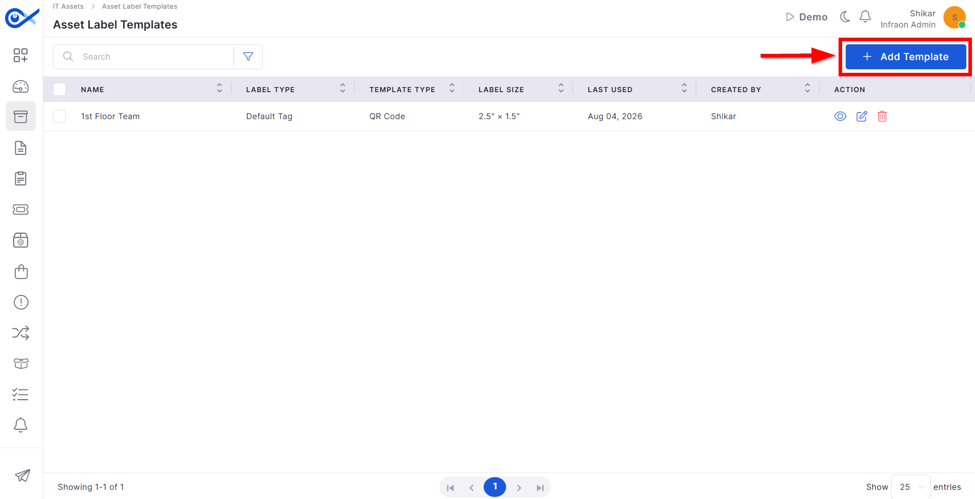
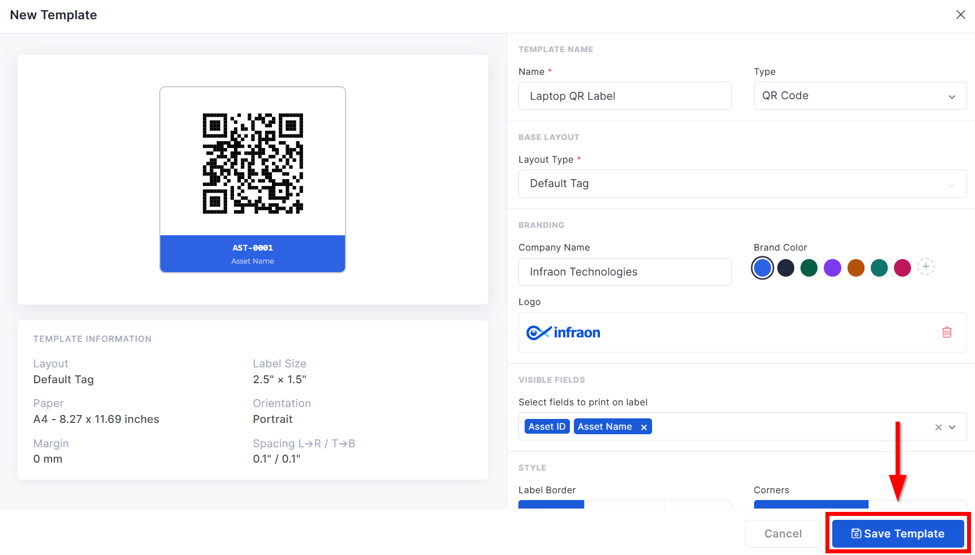
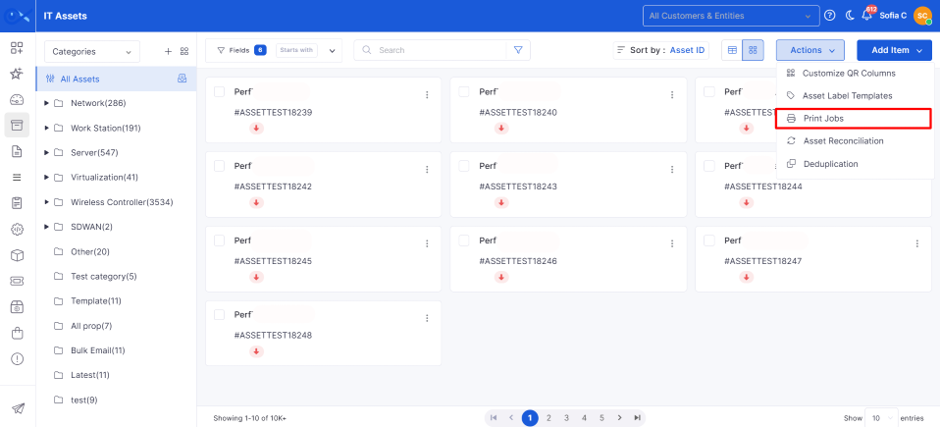
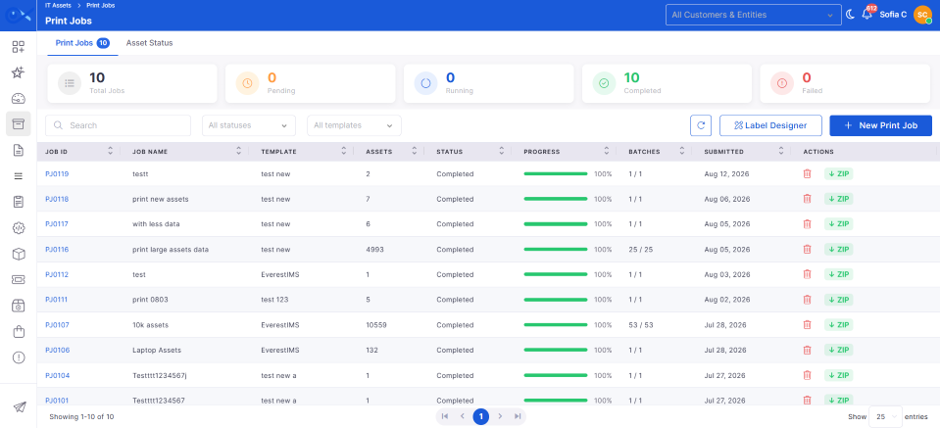
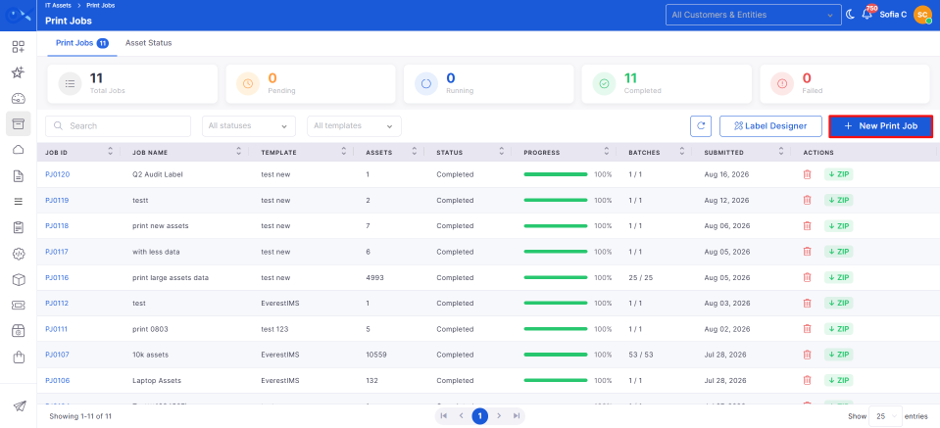
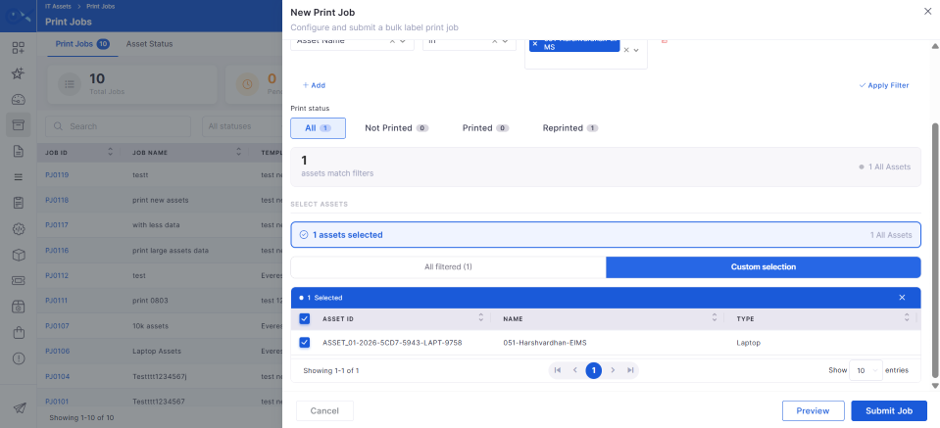
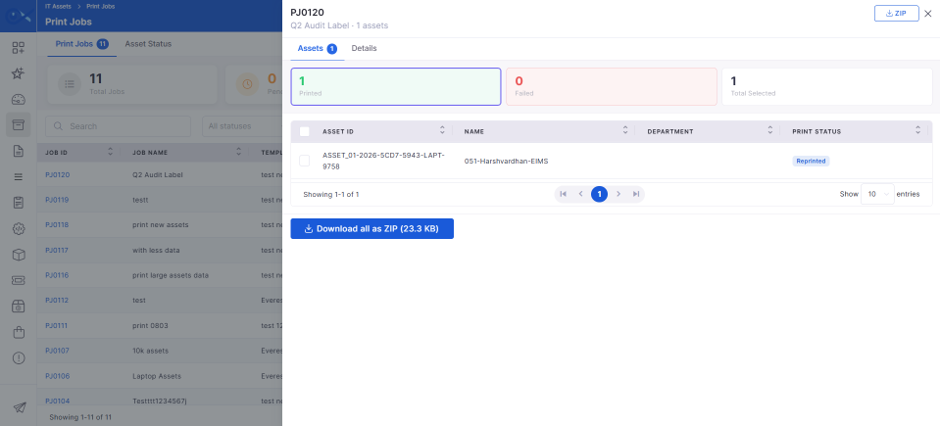
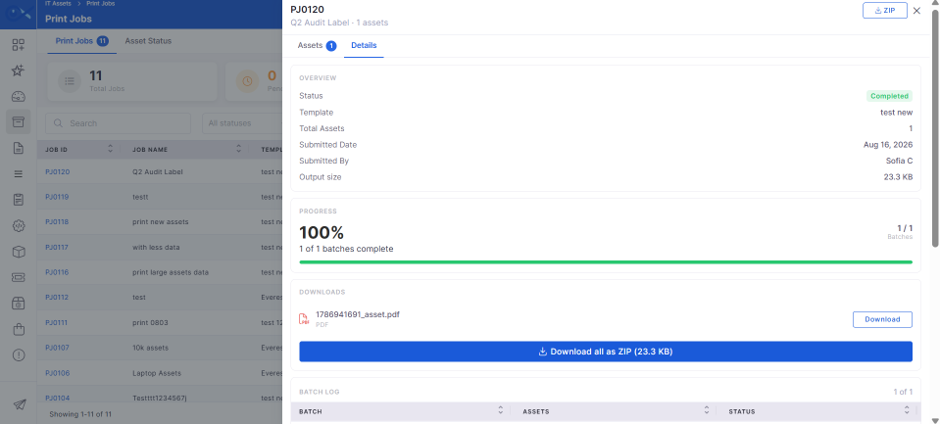
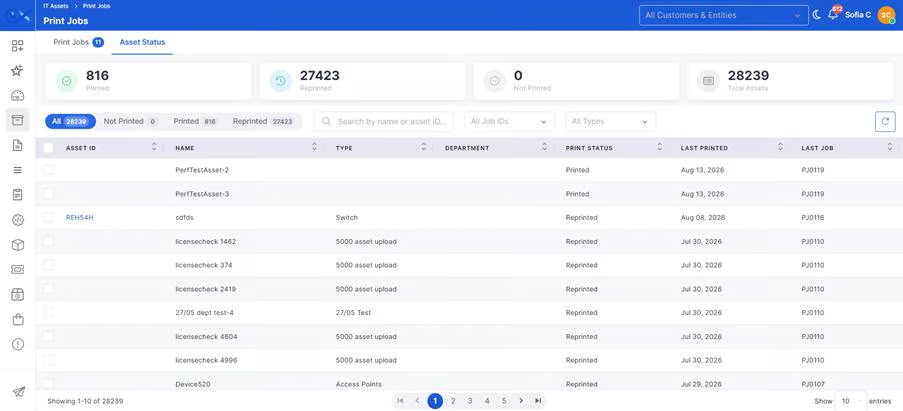
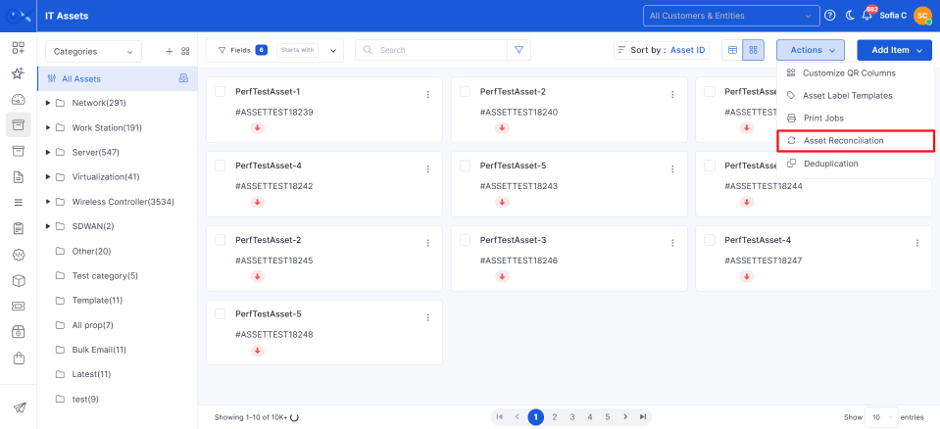
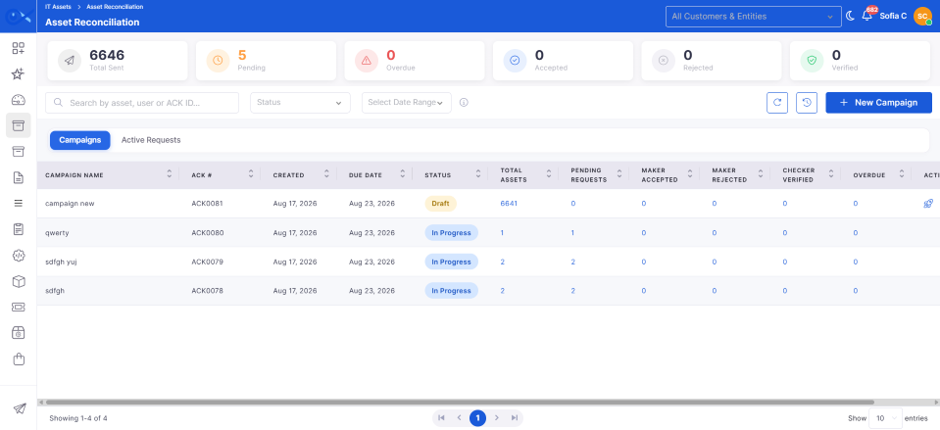
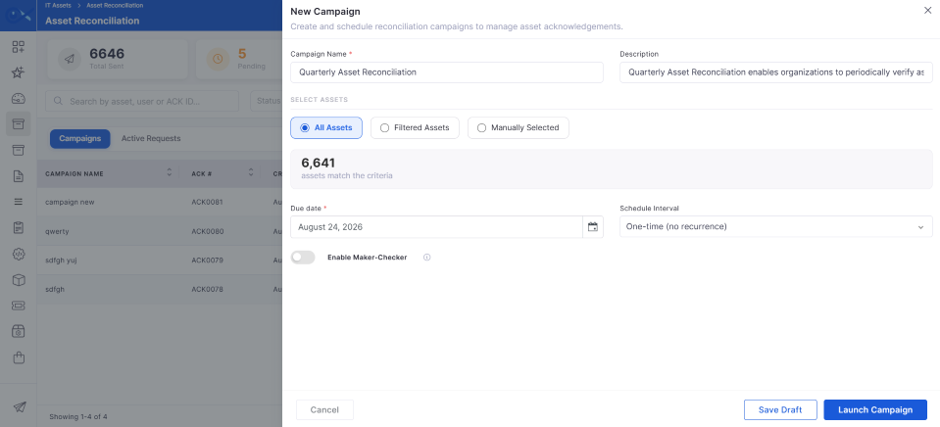
Click the Filter icon
Select the code type to print. Options: QR Code, Barcode, or both (depending on the configuration).
Select the accent color used for the label design and preview.
Configure the appearance of label corners. Options: Rounded, Sharp
Select from the dropdown
Total Jobs
Select a template from the dropdown.
View the count.
View the template name.
Select the required asset.
View the count.
Enter a description.
View the asset details.
Infraon Infinity platform supports four contract types: Procurement, Software and Maintenance, System Integration and Project, Lease, Service, and Other Contracts. Follow the steps below to add a new contract seamlessly:
Navigate to the ‘New Contract’ button located at the top-right corner of the page.
Choose the appropriate category for the new contract from the predefined options.
The Procurement Contract type allows users to create and manage contracts related to procurement activities. Users can define contract details, vendor and ownership information, contract validity, notification settings, terms and conditions, and associated purchase items.
Add Procurement Contract | Basic Details
Click the Next button to move to the Item Details section.
Add Procurement Contract | Item Details
Click the Submit button to save the created contract.
The Support and Maintenance Contract type allows users to manage contracts related to asset support, maintenance services, warranties, and Annual Maintenance Contracts (AMC). Users can define contract properties, assign ownership, configure expiry notifications, specify terms and conditions, and associate assets with maintenance and warranty details.
Add Support and Maintenance Contract | Basic Details
Once all details are entered, click ‘Next’ to proceed to the next section.
Add Support and Maintenance Contract | Item Details
Once all the details have been added, click “Submit” to add the software contract to the inventory.
The Service Contract type allows users to create and manage agreements for services provided by a vendor. Users can specify contract details, assign ownership and approval responsibilities, define contract validity and expiry notifications, and record the services offered, service-level agreements (SLAs), support details, and associated costs.
Service Contract | Basic Details
Click the Next button to go to the Item Details section.
Add Service Contract | Item Details
Click the Submit button to save the created contract.
The System Integration and Project Contract type allows users to create and manage contracts related to system integration projects and associated services. Users can define contract details, assign administrative and business responsibilities, configure visibility and approval settings, specify contract validity, and maintain terms and conditions.
Add System Integration and Project Contract | Basic Details
Click Submit to save the System Integration and Project Contract.
The Lease Contract type allows users to create and manage contracts for leased assets. Users can define contract details, assign administrative responsibilities, configure contract visibility, specify the contract period, and associate assets with lease start and end dates and applicable costs.
Add Lease Contract | Basic Details
Click Next to move to the Item Details section.
Add Lease Contract | Item Details
Click the Submit button to save the created contract.
The Other Contract type allows users to create and manage contracts that do not fall under the Procurement, Support and Maintenance, Service, System Integration and Project, or Lease categories.
Users can select a contract template, such as Insurance or NDA, and enter the relevant details based on the selected template. The available fields vary by contract type, including insurance-specific details or NDA terms.
Users can also assign contract ownership and approval responsibilities, configure visibility, specify the contract validity period, and maintain terms and conditions.
Add Other Contracts | Basic Details
Click the Next button to move to the Item Details page.
Add Other Contracts | Item Details
Click the Submit button to save the created contract.
Contract Name *
Enter text
Enter the name of the contract.
Add Items
Click
Click Add Items to add the required items to the contract.
License Type
Contract Name *
Enter text
Enter the name of the support and maintenance contract.
Parent Contract
Label
Action
Description
Add Item
Click
Click Add Items to add an item to the contract.
Name
Label
Action
Description
Contract Name *
Enter text
Enter the name of the service contract.
Label
Action
Description
Add Items
Click
Click Add Items to add a service to the contract.
Name
Label
Action
Description
Contract Name *
Enter text
Enter the name of the system integration or project contract.
Vendor *
Label
Action
Description
Contract Name *
Enter text
Enter the name of the lease contract.
Label
Action
Description
Add Items
Click
Click Add Items to add an item to the lease contract.
Name
Label
Action
Description
Contract Name *
Enter text
Enter the name of the contract.
Label
Action
Description
Add Items
Click
Click Add Items to add an insurance item to the contract.
Insurance Name
Contract Template *
Select
Select the appropriate contract template.
Parent Contract
Select
Select an existing parent contract, if applicable.
Vendor *
Select
Select the vendor associated with the contract.
Manufacturer *
Select
Select the manufacturer associated with the contract.
Status
Display
Displays the contract status. The default status is Draft.
Currency
Display/Select
Specify the currency used for the contract. The default currency is INR.
Contract Admin
Select
Assign the user responsible for administering the contract.
Business Owners
Select
Select the business owners responsible for the contract.
Version
Enter text
Specify the contract version.
Approver Team
Select
Select the team responsible for approving the contract.
Visibility Type
Select
Select the visibility category for the contract. For example, Department.
Visibility to *
Select
Specify the users, departments, or other permitted entities that can access the contract, based on the selected visibility type.
Location
Select
Select the location associated with the contract. For example, Bangalore.
Dropdown 10 *
Select
Select a value from the configured dropdown options.
Description
Enter text
Enter a brief description of the contract.
Start Date
Select
Specify the date on which the contract becomes effective.
End Date *
Select
Specify the date on which the contract expires or ends.
Auto Renew
Enable/Disable
Enable this option if the contract should be automatically renewed, subject to the configured renewal process.
Notify Expiry
Enable/Disable
Enable this option to configure notifications before the contract expires.
Notify Before (in day(s)) *
Enter number
Specify how many days before the contract end date the expiry notification should be sent.
Notify To *
Select/Enter
Specify the recipient who should receive the contract expiry notification.
Terms and Conditions
Select
Select the applicable terms and conditions for the contract. For example, Purchase Orders (Dell Vendor) T&C.
Additional Terms and Conditions
Enter text
Enter any additional contractual terms or conditions that apply to the agreement.
Phone Number 01 *
Enter number
Enter the phone number required by the configured custom field.
Dropdown 90 *
Select
Select a value from the configured dropdown options. For example, dropdown 98.
Number 9876 *
Enter number
Enter the numeric value required by the configured custom field.
Terms and Conditions
S.No
Display
Displays the serial number of each terms and conditions entry.
Title
Display
Displays the title of the selected terms and conditions document. For example, Purchase Orders (Dell Vendor) T&C.
Action
Click
View the selected terms and conditions or delete them from the contract, as required.
Select
Specify the license type, such as Perpetual or Subscription.
Software Name
Select
Select the software associated with the item. Example: Adobe Acrobat (64-bit)-25.001.20937.
Quantity Type
Select
Specify the quantity measurement type. For example, User.
PO Number
Enter/Select
Specify the purchase order number associated with the item.
Count
Enter number
Enter the quantity of the item or licenses being procured.
Price Unit
Enter amount
Specify the price per unit.
Total
Display
Displays the total amount for the item based on its quantity and unit price.
Final Total
Display
Displays the final item amount after applicable calculations or adjustments.
Dropdown
Select
Select a value from the configured dropdown options.
Action
Click
You can delete the Line item.
Subtotal
Display
Displays the subtotal of the added items before applicable discounts, taxes, and shipping charges.
Additional Discount (%)
Enter number
Enter the additional discount percentage applicable to the contract.
Total CGST (%)
Enter number/Display
Specify or view the total Central Goods and Services Tax (CGST) percentage, as supported by the form.
Total SGST (%)
Enter number/Display
Specify or view the total State Goods and Services Tax (SGST) percentage, as supported by the form.
Total IGST (%)
Enter number/Display
Specify or view the total Integrated Goods and Services Tax (IGST) percentage, as supported by the form.
Shipping
Enter amount
Enter the shipping charges associated with the procurement items.
Total
Display
Displays the overall contract item amount after applicable discounts, taxes, and shipping charges.
Select
Select an existing parent contract, if applicable.
Vendor *
Select
Select the vendor providing support and maintenance services.
Manufacturer
Select
Select the manufacturer associated with the contract, if applicable.
Status
Display
Displays the contract status. The default status is Draft.
Currency
Display/Select
Specify the currency used for the contract. The default currency is INR.
Contract Admin *
Select
Assign the user responsible for administering the contract.
Business Owners
Select
Select the business owners responsible for the contract.
Version
Enter text
Specify the contract version.
Approver Team
Select
Select the team responsible for reviewing and approving the contract. The default approval team is displayed as Default Approval Team.
Visibility Type
Select
Select the visibility category for the contract.
Visibility to
Select
Specify the users, departments, or other permitted entities that can access the contract, based on the selected visibility type.
Description
Enter text
Enter a description of the support and maintenance contract.
Start Date
Select
Specify the date on which the contract becomes effective.
End Date *
Select
Specify the date on which the contract expires or ends.
Auto Renew
Enable/Disable
Enable this option if the contract should be automatically renewed, subject to the configured renewal process.
Notify Expiry
Enable/Disable
Enable this option to configure notifications before the contract expires.
Notify Before (in day(s)) *
Enter number
Specify how many days before the contract end date the expiry notification should be sent.
Notify To *
Enter/Select
Specify the recipient who should receive the contract expiry notification. For example, .
Terms and Conditions
Select
Select the applicable terms and conditions for the contract.
Additional Terms and Conditions
Enter text
Enter any additional terms or conditions that apply to the contract.
Text Area *
Enter text
Enter the information required by the configured multiline text field.
Phone Number 100 *
Enter number
Enter the phone number required by the configured custom field.
Text 789 *
Enter text
Enter the text value required by the configured custom field.
Dropdown 90 *
Select
Select a value from the configured dropdown options.
Number 9876 *
Enter number
Enter the numeric value required by the configured custom field.
Enter/Select
Specify the name of the item covered by the support and maintenance contract.
Related Assets
Select
Select the assets associated with the contract.
Warranty Expiry
Select
Specify the expiry date of the item's existing warranty.
Extended Warranty
Select/Enter
Specify the extended warranty details, based on the available field configuration.
AMC Expiry
Select
Specify the expiry date of the Annual Maintenance Contract (AMC).
Additional Amount
Enter amount
Enter any additional charges applicable to the item.
Price Unit
Enter amount
Specify the price per unit for the item.
Total
Display
Displays the total amount calculated for the item based on the applicable quantity and pricing details.
Final Total
Display
Displays the final amount for the item after applicable calculations or adjustments.
Dropdown
Select
Select a value from the configured dropdown options.
Radio
Select
Select one of the available options. For example, Option 1, Option 2, or Option 3, depending on the configured choices.
Action
Click
Click the delete option to delete the line item.
Parent Contract
Select
Select an existing parent contract, if applicable.
Vendor *
Select
Select the vendor providing the services.
Manufacturer
Select
Select the manufacturer associated with the contract, if applicable.
Status
Display
Displays the contract status. The default status is Draft.
Creation
Display
Displays the contract creation information, if provided by the application.
Currency
Display/Select
Specify the currency used for the contract. The default currency is INR.
Contract Admin *
Select
Assign the user responsible for administering the contract.
Business Owners
Select
Select the business owners responsible for the contract.
Version
Enter text
Enter the contract version.
Approver Team
Select
Select the team responsible for approving the contract. The default approval team is displayed as Default Approval Team.
Visibility Type
Select
Select the visibility category for the contract.
Visibility to
Select
Specify the users, departments, or other permitted entities that can access the contract, based on the selected visibility type.
Description
Enter text
Enter a description of the service contract.
Start Date
Select
Specify the date on which the contract becomes effective.
End Date *
Select
Specify the date on which the contract expires or ends.
Auto Renew
Enable/Disable
Enable this option if the contract should be automatically renewed, subject to the configured renewal process.
Notify Expiry
Enable/Disable
Enable this option to configure notifications before the contract expires.
Notify Before (in day(s)) *
Enter number
Specify how many days before the contract end date the expiry notification should be sent.
Notify To *
Enter/Select
Specify the recipient who should receive the contract expiry notification. For example, .
Terms and Conditions
Select
Select the applicable terms and conditions for the service contract.
Additional Terms and Conditions
Enter text
Enter any additional terms and conditions that apply to the contract.
Date
Select
Specify the date required by the configured custom field.
Dropdown 90 *
Select
Select a value from the configured dropdown options.
Number 9876 *
Enter number
Enter the numeric value required by the configured custom field.
Select
Select the name of the service associated with the contract.
Key Services Offered
Select
Select or specify the key services included in the contract.
SLA & Support
Select
Select or specify the applicable service-level agreement (SLA) and support arrangements.
Price
Enter amount
Enter the price associated with the service item.
Final Total
Display
Displays the final amount for the service item after applicable calculations or adjustments.
Dropdown
Select
Select a value from the configured dropdown options.
Action
Click
Click the delete option to delete the line item.
Subtotal
Display
Displays the subtotal of the added service items before applicable discounts, taxes, and shipping charges.
Additional Discount (%)
Enter number
Enter the additional discount percentage applicable to the service contract.
Total CGST (%)
Enter number/Display
Specify or view the total Central Goods and Services Tax (CGST) percentage, as supported by the form.
Total SGST (%)
Enter number/Display
Specify or view the total State Goods and Services Tax (SGST) percentage, as supported by the form.
Total IGST (%)
Enter number/Display
Specify or view the total Integrated Goods and Services Tax (IGST) percentage, as supported by the form.
Shipping
Enter amount
Enter the shipping charges, if applicable.
Total
Display
Displays the overall service contract amount after applicable discounts, taxes, and shipping charges.
Select
Select the vendor associated with the contract.
Manufacturer
Select
Select the manufacturer associated with the contract, if applicable.
Status
Display
Displays the contract status. The default status is Draft.
Currency
Display/Select
Specify the currency used for the contract. The default currency is INR.
Contract Admin *
Select
Assign the user responsible for administering the contract.
Business Owners
Select
Select the business owners responsible for the contract.
Version
Enter text
Specify the contract version.
Approver Team
Select
Select the team responsible for reviewing and approving the contract. The default approval team is displayed as Default Approval Team.
Visibility Type
Select
Select the visibility category for the contract.
Visibility to
Select
Specify the users, departments, or other permitted entities that can access the contract, based on the selected visibility type.
Description
Enter text
Enter a brief description of the contract.
Contract Description *
Enter text
Enter the detailed description of the system integration or project contract. The field displays the placeholder Insert Text Here.
Start Date
Select
Specify the date on which the contract becomes effective.
End Date *
Select
Specify the date on which the contract expires or ends.
Auto Renew
Enable/Disable
Enable this option if the contract should be automatically renewed, subject to the configured renewal process.
Notify Expiry
Enable/Disable
Enable this option to configure notifications before the contract expires.
Notify Before (in day(s)) *
Enter number
Specify how many days before the contract end date the expiry notification should be sent.
Notify To *
Enter/Select
Specify the recipient who should receive the contract expiry notification. For example, .
Terms and Conditions
Select
Select the applicable terms and conditions for the contract.
Additional Terms and Conditions
Enter text
Enter any additional contractual terms and conditions that apply to the agreement.
Parent Contract
Select
Select an existing parent contract, if applicable.
Vendor *
Select
Select the vendor or leasing provider associated with the contract.
Manufacturer
Select
Select the manufacturer associated with the leased asset, if applicable.
Status
Display
Displays the contract status. The default status is Draft.
Currency
Display/Select
Specify the currency used for the contract. The default currency is INR.
Contract Admin *
Select
Assign the user responsible for administering the contract.
Business Owners
Select
Select the business owners responsible for the contract.
Version
Enter text
Specify the contract version.
Approver Team
Select
Select the team responsible for reviewing and approving the contract. The default approval team is displayed as Default Approval Team.
Visibility Type
Select
Select the visibility category for the contract.
Visibility to
Select
Specify the users, departments, or other permitted entities that can access the contract, based on the selected visibility type.
DateTime * (Asia/Kolkata)
Select
Enter the date and time required by the configured field. The displayed time zone is Asia/Kolkata.
Description
Enter text
Enter a description of the lease contract.
Start Date
Select
Specify the date on which the contract becomes effective.
End Date *
Select
Specify the date on which the contract expires or ends.
Auto Renew
Enable/Disable
Enable this option if the contract should be automatically renewed, subject to the configured renewal process.
Notify Expiry
Enable/Disable
Enable this option to configure notifications before the contract expires.
Notify Before (in day(s)) *
Enter number
Specify how many days before the contract end date the expiry notification should be sent.
Notify To *
Enter/Select
Specify the recipient who should receive the contract expiry notification.
Example: .
Terms and Conditions
Select
Select the applicable terms and conditions for the lease contract.
Additional Terms and Conditions
Enter text
Enter any additional contractual terms and conditions.
Dropdown 90 *
Select
Select a value from the configured dropdown options.
Number 9876 *
Enter number
Enter the numeric value required by the configured custom field.
Enter/Select
Specify the name of the leased item.
Related Assets
Select
Select the assets associated with the lease contract.
Lease Start Date
Select
Specify the date on which the lease for the item begins.
Lease End Date
Select
Specify the date on which the lease for the item ends.
Additional Amount
Enter amount
Enter any additional charges applicable to the leased item.
Price Unit
Enter amount
Specify the price per unit for the leased item.
Total
Display
Displays the total amount calculated for the item based on the applicable quantity and pricing details.
Final Total
Display
Displays the final item amount after applicable calculations or adjustments.
Dropdown
Select
Select a value from the configured dropdown options.
Action
Click
The delete option is provided; you can delete the item list if needed.
Subtotal
Display
Displays the subtotal of the added items before applicable discounts, taxes, and shipping charges. The initial value is 0.
Additional Discount (%)
Enter number
Enter the additional discount percentage applicable to the lease contract. The initial value is 0.
Total CGST (%)
Enter number/Display
Specify or view the total Central Goods and Services Tax (CGST) percentage. The initial value is 0.
Total SGST (%)
Enter number/Display
Specify or view the total State Goods and Services Tax (SGST) percentage. The initial value is 0.
Total IGST (%)
Enter number/Display
Specify or view the total Integrated Goods and Services Tax (IGST) percentage. The initial value is 0.
Shipping
Enter amount
Enter the shipping charges, if applicable. The initial value is 0.
Total
Display
Displays the overall lease contract amount after applicable discounts, taxes, and shipping charges.
Contract Template *
Select
Select Insurance or NDA. The fields displayed depend on the selected template.
Insurance
Insurance Type *
Select
Select the insurance type. This field is displayed only when the Insurance template is selected.
Parent Contract
Select
Select an existing parent contract, if applicable.
Vendor *
Select
Select the vendor associated with the contract.
Manufacturer
Select
Select the manufacturer associated with the contract, if applicable.
Status
Display
Displays the contract status. The default status is Draft.
Currency
Display/Select
Displays or specifies the currency used for the contract. The default currency is INR.
Contract Admin
Select
Assign the user responsible for administering the contract.
Business Owners
Select
Select the business owners responsible for the contract.
Version
Enter text
Specify the contract version.
Approver Team
Select
Select the team responsible for reviewing and approving the contract. The default team is Default Approval Team.
Visibility Type
Select
Select the visibility category for the contract.
Visibility to
Select
Specify the permitted entities that can access the contract. For Insurance, this includes a Location field.
Description
Enter text
Enter a description of the contract.
NDA
Terms of NDA *
Enter text
Enter the NDA terms in the text field provided. This mandatory field is displayed only when the NDA template is selected.
Start Date
Select
Specify the date on which the contract becomes effective.
End Date
Select
Specify the date on which the contract expires or ends.
Auto Renew
Enable/Disable
Enable this option if the contract should be automatically renewed, subject to the configured renewal process.
Notify Expiry
Enable/Disable
Enable this option to configure notifications before the contract expires.
Notify Before (in day(s))
Enter number
Specify how many days before the contract end date the expiry notification should be sent, when applicable.
Notify To
Enter/Select
Specify the recipient who should receive the contract expiry notification, when applicable.
Terms and Conditions
Select
Select the applicable terms and conditions for the contract.
Additional Terms and Conditions
Enter text
Enter any additional terms and conditions that apply to the agreement.
Enter/Select
Enter or select the name of the insurance policy.
Related Users
Select
Select the users associated with the insurance policy.
Policy Number
Enter text
Enter the unique policy number associated with the insurance contract.
Coverage Details
Enter text
Enter details about the coverage provided by the insurance policy.
Coverage Amount
Enter amount
Specify the amount covered under the insurance policy.
Premium Amount
Enter amount
Enter the premium payable for the insurance policy.
Premium Frequency
Select
Select the frequency at which the insurance premium must be paid.
Action
Click
The delete option is provided; you can delete the item list if needed.


The More Options menu is available for each project in the Projects list. It provides additional actions to view project information and perform project-level operations.
Click the three-dot (⋮) icon next to a project name to view the available options.
The options include:
Project Details
Setting
Clone
Delete
These options help users manage project-specific configurations and view complete project information without leaving the project workspace.
The Project Details option provides a consolidated view of all information related to the selected project. It allows users to review configured project attributes, ownership, workflow, and other associated details.
The top panel in the Project Details view provides a quick summary of key project attributes. It allows users to identify the project, view ownership details, and understand the project configuration at a glance.
Project Details | Top Panel
The top panel provides a read-only summary of project metadata. Any updates to these fields (if permitted) are reflected immediately and tracked in audit logs.
The Summary section provides an overview of the project’s basic information, including description, timeline, and status. This section allows users to review and update key project attributes required for tracking and planning.
All fields in this section support inline editing. Changes are saved automatically when the user modifies a field and leaves it.
Project Details | Summary
The Project Closure section provides a guided workflow for reviewing project completion details before closing a project. It allows users to verify project readiness, upload closure documents, record post-project reviews, compare planned and actual project outcomes, transfer project ownership of team members and assets, and review the project's financial summary.
The following actions are available throughout the Project Closure workflow:
Project Closure | Action Icons
The Overview page displays a summary of the project closure information and helps users verify whether the project is ready for closure. All information displayed on this page is read-only and is automatically populated from the project.
The page includes:
Planned End Date
Actual End Date
Expected ROI
Actual ROI
The Next button becomes available to proceed to the next step of the Project Closure workflow.
The Closure Documents page allows users to upload the documents required to complete the project closure process.
The following document categories are available:
Closure Documents | Basic Details
Users can upload a document by either:
Dragging and dropping the file into the upload area.
Clicking Browse to select a file.
Uploaded documents are also available under the project's Attachments section in their respective document categories.
The Reviews section allows users to conduct and track project closure reviews. Users can initiate review activities, assign reviewers, apply predefined , and monitor the completion status of each review category.
The following review categories are available:
Post Project Review
Stakeholder Satisfaction
Awards & Recognition
Each review displays its current status and the number of complete reviews and provides options to start a review or view its details.
Attempt Review
Click Attempt Review for the required review category and provide the details described below.
Attempt Review | Basic Details
Once done, click Save to initiate the review for the selected category.
The Outcomes section summarizes the project's planned and actual results. It compares key project metrics and highlights any variance between the expected and achieved values, helping stakeholders evaluate the overall project performance before closure.
The section displays the following information:
Project Outcome | Basic Details
The Team Assets page allows users to transfer project team members and project assets to another department after project completion.
The page contains two tabs:
Team
Asset
Users can click Add Transfer Entry to create a transfer record for either a team member or an asset.
Add Transfer Entry
Click Add Transfer Entry and select either Team or Asset to create a transfer record.
Team
Select Team to transfer a project team member to another department.
Transfer Entry | Team Details
Click Save to create the transfer entry.
Asset
Select Asset to transfer project assets associated with the project.
Transfer Entry | Asset Details
Click Save to create the transfer entry.
The Financials page displays a read-only summary of the project's financial information captured during project execution.
The page displays the following information:
Final Budget
Actual Spend
Cost Variance
Contracts
The financial summary helps compare the planned project budget with actual expenditures and provides quick access to the project's procurement information.
The Business Case tab is used to define the project's justification, expected benefits, return on investment, and approval details. This section helps project stakeholders understand the business value and expected outcomes associated with the project template.
The Business Case section also includes additional sub-tabs such as Impact, Objectives, Assumptions, Scope, Deliverables, and Constraints, allowing users to configure complete project planning, impact analysis, goals, assumptions, scope definitions, deliverables, and project limitations within a structured workflow.
Business Case | Configuration Details
Once the required Business Case details are added, click Next to navigate to the Impact tab while retaining the configured information.
The Impact tab is used to capture the project's potential impact across Customer, Business, and Technology. Users can select predefined impact categories from the dropdown fields and provide detailed comments for each selected impact type. This helps stakeholders evaluate how the project affects customer experience, business operations, and technical infrastructure before project execution.
The tab supports structured impact assessment by allowing users to define impact values along with supporting remarks or analysis for each section.
Impact | Configuration Details
Once the required Impact details are added, click Next to navigate to the Objectives tab while retaining the configured information.
The Objectives tab is used to define measurable project goals and expected targets. Multiple objectives can be added to track different project outcomes and performance metrics.
Objectives | Configuration Details
Once the required Objective details are added, click Next to navigate to the Assumptions tab while retaining the configured information.
The Assumptions tab is used to document project assumptions and associated risks if those assumptions are violated during project execution.
Assumptions | Configuration Details
Once the required Assumptions details are added, click Next to navigate to the Scope tab while retaining the configured information.
The Scope tab is used to define project scope items, their execution status, and whether each activity is in or out of scope for the project.
Scope | Configuration Details
Once the required Scope details are added, click Next to navigate to the Deliverables tab while retaining the configured information.
The Deliverables tab is used to define the expected project deliverables and track their execution status within the project template.
Deliverables | Configuration Details
Once the required Deliverables details are added, click Next to navigate to the Constraints tab while retaining the configured information.
The Constraints tab is used to define project limitations, restrictions, risks, and operational boundaries that may affect project execution.
Constraints | Configuration Details
Once all required constraint details are added, click Save to save the Project with all configured Business Case information.
The section allows users to associate project teams and manage team members involved in the project. It provides visibility into who is working on the project, their assigned roles, and the distribution of tasks.
Project Details | Teams
The Business Hours section is used to associate a predefined business hours profile with the project. This defines the project's working schedule and is used for time-based calculations, such as SLAs and task timelines.
This section displays the selected business hours profile along with its configuration details, including:
Profile Name – Name of the selected business hours profile
Description – Additional details about the profile
Timezone – Timezone configured for the business hours
Schedule Type – Indicates whether it is set to 24×7 or specific working days/hours
The Workflow section is used to view and configure the project's workflow. This workflow defines the different stages of the project lifecycle and the transitions between them.
Users can view a predefined workflow from the available options. This section is read-only for configuration, and users cannot create or modify workflows here.
This section displays the selected workflow along with its structure and stages, including:
Workflow Name – Name of the selected workflow (e.g., Default Project Workflow)
Stages – Different phases of the workflow, such as Initiation, Hold, Close, etc.
Statuses – Statuses within each stage (e.g., Draft, Not Started, Paused)
Transitions – Visual flow showing how tasks move from one stage/status to another
The Risk module helps project teams identify, assess, and manage risks that may affect project objectives, timelines, resources, or deliverables.
Project risks can be recorded and monitored throughout the project lifecycle to help teams evaluate potential impacts and define mitigation strategies. The module provides access to both Risk Records and Risk Assessment, allowing project managers to track identified risks and assess their severity and likelihood.
From the Project Details page, users can create project-specific risks, associate them with the project, and monitor them as part of overall project governance.
Project Details | Risk
The Project Health module enables project managers to monitor and record the overall health of a project across key operational areas, such as Schedule, Resource, Budget, Quality, and Risk. It provides a centralized view for tracking project health records, documenting action plans, and identifying areas that require attention throughout the project lifecycle.
Each health record captures the current health status of a specific project area, along with supporting details.
Click + New Health at the top-right corner of the Project Health page to create a new health record for the project.
Enter the details described in the following table.
Add New Health | Project Health
Once all required details are entered, click Save to create the project health record.
The newly added record is displayed in the Project Health grid, where it can be edited or deleted as required.
The Project Health Check allows project managers to assess a project's overall health using a predefined Health Template. The selected template presents a set of assessment questions to evaluate various aspects of the project. Based on the selected responses, the system automatically calculates the project health score and displays the corresponding health indicator.
To perform a project health assessment:
Open the required Project.
Navigate to Project Health.
Click the Project Health Check tab.
Select a Project Health Template from the drop-down list.
What you see on the screen
Health Score
The project health score is calculated based on the responses provided during the assessment.
The Milestone section displays all project milestones. It provides a consolidated view of milestone details, including ownership, timelines, status, and task progress, allowing users to track project progress at key checkpoints.
for detailed information about Project Milestone.
The Project Budget section is used to define and track a project's financial allocation by recording both estimated and actual costs.
Each budget entry created in this section is linked to a which acts as the source of funds. The cost center defines the available budget and approval controls, while the project budget shows how the allocated budget is utilized at the project level.
In this setup:
The Cost Center holds and governs the total budget.
The Project Budget consumes or allocates a portion of that budget for specific project activities.
This relationship ensures that:
Project spending is aligned with approved financial limits
Budget usage can be tracked against the respective cost center
Financial control and defined in the Cost Center are enforced at the project level.
On the Project Budget page, click the + Add option located at the top-right corner to create a new budget entry. This opens a side panel where you can enter the required budget details.
Refer to the table below for a structured overview of each field.
Add Budget | Project Budget
The Attachments section allows users to upload and manage project-related files. These files can include project documents, scope files, timelines, and other supporting materials required for project execution and reference.
Users can upload files, categorize them, and access them directly from the project for better documentation and traceability.
You can perform:
Upload files related to the project
Categorize attachments for better organization
Download uploaded files
Delete attachments when no longer required
To add an attachment, click the + Add option located at the top-right corner.
You can either:
Drag and drop files into the upload area
Click Browse to select files from your system
Add Attachments | Project Details
The Relation tab allows users to associate the project with related records in the system, improving visibility and traceability across linked activities. Users can connect the project with records such as and ensuring that all dependent or related work items are centrally accessible.
This helps track dependencies, understand the impact of changes, and maintain a unified view of all project activities.
The KPIs tab is used to define and track Key Performance Indicators (KPIs) associated with the project. This section helps project teams monitor measurable goals, track current progress, compare target values, and evaluate overall project performance throughout the project lifecycle.
Users can configure multiple KPI entries by defining the KPI name, measurement metric, status, baseline values, current progress, and target values.
KPIs | Configuration Details
Click Save after entering the KPI details to save the configured KPI information and successfully associate it with the project.
The Procurement Details section enables you to associate project procurement records with existing , , and . It provides a centralized view of procurement items used in a project while automatically retrieving related purchase order information, such as the number of items, delivery date, and procurement status.
To add a procurement record to a project, click Add Procurement located at the top-right corner of the page.
In the Add Procurement panel, provide the required information as described below.
Add Procurement | Project Details
Once you have completed the required details, click Save to add the procurement record to the project.
The procurement entry is then displayed in the Procurement Details grid for the selected project.
The Field Configuration section allows users to control how project and task fields behave based on roles and status. It defines field visibility, editability, and mandatory conditions within the project.
This configuration ensures that users see only the relevant fields based on their role and the project or task's current status.
Field Configuration in Project Management is integrated with the global module and applies specifically to the selected project.
Project Details | Field Configuration
Click + Add to create a new configuration. This opens the Add Field Configuration panel.
Add Field Configuration | Fields
The Communication section provides a centralized view of all project-related interactions. It includes emails, SMS, and comments exchanged within the project context. Users can also add internal notes for collaboration.
This section helps track communication history and ensures all stakeholders are aligned.
Project Details | Communication
Users can add notes to capture important updates, discussions, or observations related to the project.
The Recent Activities section provides a detailed audit trail of all changes made within the project. It tracks updates across different modules such as Summary, Teams, Workflow, Field Configuration, Attachments, and Relations.
This section helps users monitor project changes and maintain accountability.
Project Details | Recent Activities
The Custom Fields section allows you to capture additional project-specific information that is not covered by the standard project fields. You can create fields based on the information required for a project and enter or update their values directly from the Project Details view.
Custom fields configured for a project are also reflected in the Summary tab. Changes made to custom field values are saved and remain synchronized across the applicable project views.
To add a custom field:
Open the required project.
Navigate to More Options > Custom Fields.
Click + Add Field. The Add Fields sidebar appears.
Select the required Field Type.
The custom field is added to the project and becomes available for entering project-specific information.
The options displayed in the Add Fields sidebar depend on the selected field type. Use validation rules where required to control the values users can enter.
Add Field | Custom Fields
The Settings option allows users with project configuration permission to customize the tabs and task views available for an individual project. Use these settings to display only the project information and task views required for the project.
You can configure the Project Details and Business Case tabs, as well as Task Views.
To access the settings, select the Settings icon from the project options. The Settings sidebar appears for the selected project.
The Settings sidebar displays the configuration options available for the selected project. Select or clear the required options and select Submit to apply the configuration.
Settings | More Options
The Clone option allows users to create a new project using an existing project as a template. It copies project details, task templates, tasks, team configuration, and workflow from the source project to reduce the effort required to create similar projects.
Select the project
In the Projects list, click the three-dot (⋮) icon next to the project that you want to clone.
Clone the project
Click Clone.
The Delete option lets users permanently remove a project that is no longer needed.
The Delete option is available only to users with Project Delete permission.
Select the project
In the Projects list, click the three-dot (⋮) icon next to the project that you want to delete.
Delete the project
Click Delete.
To cancel the deletion, click Cancel.
After the project is deleted:
The project is removed from the Projects list.
The project is removed from the left-side Projects list.
Associated tasks are removed from task views and search results.
Associated milestones are removed from milestone lists and grid views.
Type
Displays the project methodology/type
Waterfall
Version
View the current project version. The version is automatically updated when the project's Baseline Start Date or Baseline End Date is modified.
Displays the current version of the project schedule. Version updates help track baseline changes and maintain project history. All version changes are recorded in the Recent Activity panel. Example: 1.1, 1.2, 1.3
Baseline End Date
Displays or selects the planned project end date
Example: Mar 30, 2026 06:30 PM
Revised Start Date
Update revised start date if schedule changes
Example: Feb 27, 2026 06:30 PM
Revised End Date
Update the revised end date based on the updates
Example: Mar 30, 2026 06:30 PM
Actual Start Date
Select the actual project start date
Example: Select Date
Actual End Date
Select the actual project completion date
Example: Select Date
Status
Displays and updates project status
**Example:**Draft → Initiation
Key Scope status
Key Deliverables status
Survey Summary
Upload the summary of customer or stakeholder feedback collected during or after project completion.
Invoice Summary
Upload the final invoice or billing summary associated with the project closure.
Status
Displays the current review status, such as In Progress or Completed.
Reviews
Displays the total number of reviews completed for the selected review category.
Attempt Review
Opens the review creation panel to assign reviewers and select a feedback template.
Show Details
Opens the selected review category and displays the associated review details.
Variance
Displays the difference between the Expected Value and the Actual Value. A negative value indicates the target was not met, while 0 indicates the planned and actual values are the same.
Department
Select from the drop-down
Select the department to which the selected member will be transferred.
Remark
Enter text
Specify additional information or comments about the transfer, if required.
Remark
Enter text
Specify additional information or comments about the asset transfer, if required.
Expected ROI
Enter the expected return on investment value
Specifies the estimated return or measurable business value expected after project completion. Example: 25% reduction in operational overhead within one year.
Approver
Select the project approver
Specifies the stakeholder or authority responsible for approving the business case. Example: IT Director, Project Sponsor, or Business Head.
Business
Select the business impact type from the dropdown list.
Defines the project's operational or organizational impact.
Available Options: Operational, Financial, Customer, or Productivity.
Business Comment
Enter comments related to the selected business impact.
Used to provide additional business impact details.
Example: Reduces operational overhead and improves workflow efficiency.
Technology
Select the technology impact type from the dropdown list.
Defines the technical impact area associated with the project.
Available Options: Infrastructure, Application, Database, or Security.
Technology Comment
Enter comments related to the selected technology impact.
Used to explain the technical impact or implementation considerations.
Example: Requires database optimization and additional security validation.
Start
Enter the initial value
Specifies the starting measurement value before project execution. Example: 60
Current
Enter the current progress value
Displays or defines the current progress value for the objective. Example: 75
Target
Enter the target value
Defines the expected target to achieve after project completion. Example: 100
Description
Enter objective details
Provides additional information about the project objective. Example: Achieve 99.9% uptime for all production systems.
+ Add Another
Click + Add Another
Adds multiple objective sections within the same project template.
Risk if violated
Enter the associated risk
Defines the potential impact or risk if the assumption is not met. Example: Deployment delays due to unavailable resources.
+ Add Another
Click + Add Another
Adds multiple assumption entries within the project template.
Scope Type
Select the scope type
Specifies whether the activity belongs within the approved project scope. Available options include:
In Scope
Out of Scope
+ Add Another
Click + Add Another
Adds multiple scope entries within the project template.
+ Add Another
Click + Add Another
Adds multiple deliverable entries within the project template.
Impact
Select the impact type
Defines the operational or business impact caused by the constraint. Available options may include:
Operational
Financial
Customer
Productivity
Remark
Enter additional remarks
Provides additional notes or comments related to the constraint. Example: Additional approvals required for budget expansion.
+ Add Another
Click + Add Another
Adds multiple constraint entries within the project template.
Projects
View associated projects
Shows the projects each user is part of (e.g., ITSM Web application).
Role
View/manage roles
Displays assigned roles such as Project Manager, Dev Team, or Test Team. Roles can be updated based on project needs.
Tasks
Monitor task count
Displays the number of tasks assigned to each user to track workload distribution.
+ Add
Add team or members
Allows users to add new teams or include additional members to the project.
Teams / Roles Tab
Switch view
Enables switching between the team-based and role-based views of users.
Working Days and Time – Defined working days along with start and end times
Exclude Hours – Configured non-working periods such as holidays or excluded time ranges
Workflow Diagram – Graphical representation of the workflow with nodes and connections
+ New Risk
Click to add
Opens the New Risk panel to create and associate a risk record with the current project.
Action Plan
Enter the corrective or improvement plan.
Specifies the actions planned to improve or maintain the health of the selected project area. Example: Hire two backend developers within the next two weeks to address resource shortages
Description
Enter additional information about the health record.
Specifies the reason, observations, or current condition related to the project's health. Example: Current sprint delivery is delayed due to insufficient development resources.
Answer the assessment questions displayed for the selected template.
Review the Health Meter, which updates automatically based on your responses.
Click Submit to save the assessment.
Submit
Saves the completed project health assessment.
Add Milestone
Click to add a milestone
Opens a pop-up window to facilitate the creation and addition of a new milestone to the project. Please refer to the Add Milestone section for detailed instructions on adding project milestones.
Milestone
View milestone name
Displays the name of the milestone (e.g., Architecture Phase 1).
Owner
View owner
Displays the user assigned as the milestone owner.
Baseline Start Date
View start date
Displays the milestone's planned start date.
Baseline End Date
View end date
Displays the milestone's planned end date.
Status
View status
Displays the milestone's current status (e.g., To Do, Open).
Tasks
View task count
Displays the number of tasks associated with the milestone along with progress (e.g., completed vs total).
Edit
Modify milestone
Allows users to edit milestone details.
Delete
Remove milestone
Allows users to delete the milestone from the project.
Cost Center *
Select cost center
Select the associated cost center from which the budget will be allocated (e.g., IT Infrastructure).
Budget *
Enter amount
Enter the budget amount to be allocated for this entry (e.g., 500000).
View file details such as name, size, and upload date
Description
Enter description
Add additional details about the file (e.g., Initial project charter document).
Upload
Click to upload
Upload the selected file(s) to the project.
Cancel
Click to cancel
Close the panel without uploading files.
Status
Select the KPI status from the dropdown list.
Defines the current progress state of the KPI.Available options include: New, In-Progress, Completed, and On Hold.
Start
Enter the initial KPI value.
Used to define the starting or baseline value for KPI tracking. The default value is set to 0.Example: 0.
Current
Enter the current KPI value.
Used to capture the current measured progress or value of the KPI. The default value is set to 0.Example: 45.
Target
Enter the expected target value.
Used to define the final expected KPI value or achievement goal. The default value is set to 0.Example: 100.
Add Another
Click Add Another to create an additional KPI entry.
Adds a new KPI configuration row, allowing users to define multiple KPIs for the project.
Contract
Select from the drop-down.
Displays only the active contracts associated with the selected vendor.
If no active contracts exist for the selected vendor, no records are displayed.
Purchase Order
Select from the drop-down.
Displays only the Purchase Orders linked to the selected contract.
Selecting a Purchase Order automatically retrieves the associated procurement details.
Number of Items
Auto-populated (Read-only).
Displays the total number of items available in the selected Purchase Order. Example: 25
Delivery Date
Auto-populated (Read-only).
Displays the delivery date defined for the selected Purchase Order. Example: 31 Jul 2026
Status
Auto-populated (Read-only).
Displays the current status of the selected Purchase Order. Example: In Progress, Delivered, or Pending
Status
View
Displays the status/stage where this configuration is applicable
Actions
Edit / Delete
Modify or remove the configuration
Add
Click to add
Create a new field configuration
Role Name *
Select from the dropdown
Choose the role for which the configuration is applied
Status *
Select from the dropdown
Select the status where this configuration should be active
SMS
Filter
Displays only SMS communications
Comment
Filter
Displays only comments
Click to compose
Send an email related to the project
Add Notes
Click to add
Add internal notes for the project
Save
Click to save
Save the note to the communication timeline
User
View
Displays the user/system that performed the action
Date & Time
View
Displays when the activity occurred
Activity Details
View
Displays details of changes made (e.g., field updates, associations)
Enter a Label for the field.
Configure the additional properties displayed for the selected field type, such as placeholder text, mandatory status, or validation rules.
Click Submit.
Placeholder
Enter
Enter instructional or sample text to display inside the field before a value is entered.
Example: Enter name
Mandatory
Enable/Disable
Enable to make the custom field mandatory. Users must provide a valid value before an applicable save or submission can be completed.
Mandatory fields are identified with an asterisk (*).
Validation Rules – Regex
Enter
Define a regular expression to validate the value entered in the field. This is useful when the input must follow a specific pattern.
Example: ^[^\s]+(\s+[^\s]+)*$
Validation Rules – Error text
Enter
Enter the validation message to display when the value does not match the configured regex.
Example: Enter a valid country name.
Options
Add/Configure
Available for selection-based fields such as Dropdown, Radio, and Checkbox. Define the values that users can select. Configure at least two options.
Example: For a Project Region dropdown, add North, South, East, and West.
Task View
Select the task views to make available.
Controls the task views available within the project. The available views are:
Available View
Enable or disable a task view.
Determines which task views users can access. Enabled views are also available for selection in the Default View list.
Default View
Select a view from the dropdown.
Sets the task view that opens by default for the project. Only enabled task views are listed.
For example, select Table View to open the project tasks in Table View by default.
Review pre-filled project information
The Add Project sidebar opens with the project information pre-filled from the selected project.
Enter required values
Enter the required values in the following fields:
Project Name
Project Code
Revised Start Date
Revised End Date
Review the tabs
Review the information in each tab.
Save the cloned project
Click Save to create the cloned project.
Confirm deletion
A confirmation pop-up is displayed.
Complete deletion
Click Confirm to delete the project.
A project deletion entry is recorded in the Audit page.
Project Name
Click to update project name or basic details.
Displays the name of the project. Example: ITSM Web application
Project Code
View only field, no actions can be taken
Project Description
Enter or update project details using a rich text editor
Example: Implementation of ITSM modules, including Incident and Change Management
Baseline Start Date
Displays or selects the planned project start date
Email Final Report
Click Email Final Report
Sends the project closure summary as a PDF attachment to the configured project stakeholders.
Download Summary
Click Download Summary
Final Report
Upload the final project completion report that summarizes the overall project execution, deliverables, achievements, and closure details.
Sign-off Document
Upload the customer or stakeholder sign-off document confirming formal acceptance of the completed project.
Handover Document
Post Project Review
Displays the post-project review status and the number of completed reviews. Click Attempt Review to initiate a new review or Show Details to view existing reviews.
Stakeholder Satisfaction
Displays stakeholder satisfaction review information. Click Attempt Review to assign reviewers and initiate the feedback process, or Show Details to view submitted reviews.
Awards & Recognition
Members
Select from the drop-down
Select one or more project members who will participate in the review process.
Select from the drop-down
Metric
Displays the project metric being evaluated, such as Milestones, Tasks, Deliverables, and Cost.
Expected Value
Displays the planned value defined for the selected project metric.
Actual Value
Select Team
Select from the drop-down
Select the project team that contains the member to be transferred.
Members
Select from the drop-down
Asset
Select from the list
Select the project asset to transfer. Only assets associated with the project are available for selection.
Department
Select from the drop-down
Summary
Enter the project business summary
Provides a high-level overview of the project purpose and business requirements. Example: Implement centralized network monitoring across branch locations.
Benefits
Enter the expected project benefits
Customer
Select the customer impact type from the dropdown list.
Defines how the project impacts customers or end users. Available Options: Customer, Productivity, Financial, or Operational.
Customer Comment
Enter comments related to the selected customer impact.
Objective
Enter the project objective
Defines the project's primary goal or outcome. Example: Improve network uptime across all data centers.
Metric
Select the measurement type
Category
Select the assumption category
Defines the assumption classification. Available options include:
Resources
Technical
Operational
Budgetary
External
Other
Assumption
Enter the project assumption
Scope
Enter the scope definition
Defines the project activity, feature, or deliverable included in the scope planning. Example: Deployment of monitoring agents across branch offices.
Status
Select the scope status
Deliverable
Enter the deliverable name
Defines the expected output or result of the project. Example: Finalized network deployment report.
Status
Select the deliverable status
Constraint Type
Select the constraint category
Defines the type of project limitation or restriction. Available options may include:
Cost Budget
Scope
Resources
Technology
Quality Standards
Legal & Compliance
Location (Geographical)
Others
Constraint
Enter the constraint details
Select Team
Select a team
Allows users to choose and associate a team with the project (e.g., ITSM Team).
Username
View team members
Risk Records
Click to view
Displays all risks associated with the selected project. Users can create, view, edit, and manage project-specific risk records.
Risk Assessment
Click to view
Name*
Enter a unique name for the health record.
Specifies the title used to identify the project health record. Example: Resource Availability
Health Type*
Select a health category from the drop-down.
Project Health Template
Select the Health Template that contains the assessment questions. Only configured Health Templates are available for selection.
Project Health Check Template Question
Displays the questions defined in the selected Health Template. Choose the appropriate response for each question.
Health Meter
0 – 40
🔴 Red (Critical)
41 – 70
🟡 Amber (Moderate)
71 – 100
Search
Search milestones
Allows users to search milestones by name.
Filter
Apply filters
Budget Title *
Enter title
Enter a name for the budget entry Example: IT Infrastructure Setup
Cost Type *
Select type
File Upload
Drag & drop / Browse
Upload files by dragging them into the upload area or selecting from your system.
Category *
Select category
KPI
Enter the KPI name.
Used to define the measurable objective or performance indicator for the project. Example: Project Completion Rate, Customer Satisfaction Score, or Deployment Accuracy.
Metric
Select the KPI measurement type from the dropdown list.
Item
Enter the procurement item name.
Specifies the item being procured for the project. Example: Dell Latitude 7450 Laptop
Vendor
Select from the drop-down.
Name
View
Displays the name of the field configuration
Role Name
View
Name *
Enter text
Define the name of the configuration
Type *
Select from the dropdown
All
View
Displays all communication types (Email, SMS, Comments)
Filter
Add Notes
Enter text
Add project-related notes
Public / Private
Select visibility
Search Configuration
Enter text
Search for specific activity logs
Activity Timeline
View
Field Type
Select
Select the type of custom field to add.
Available field types include Email, Phone Number, Text, Number, Date, Date-Time, Textarea, Dropdown, Radio, and Checkbox.
For example, select Text to create a field for entering the project's country.
Label
Enter
Project Details Tab
Select the required tabs.
Controls the tabs displayed in the project details view.
Available options can include Summary, Project Closure, Business Case, Teams, Business Hours, Workflow, Milestones, Project Budget, Risk, Project Health, Attachments, Relation, KPIs, Procurement Details, Field Configuration, Communication, Recent Activities, and Custom Fields.
Disabled tabs are hidden from the project.
Business Case Tab
Select the required Business Case tabs.
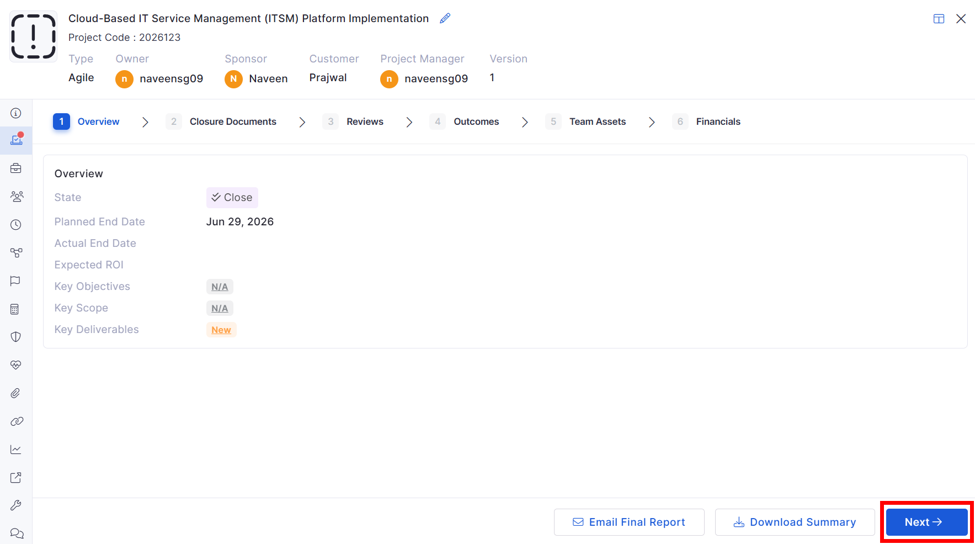
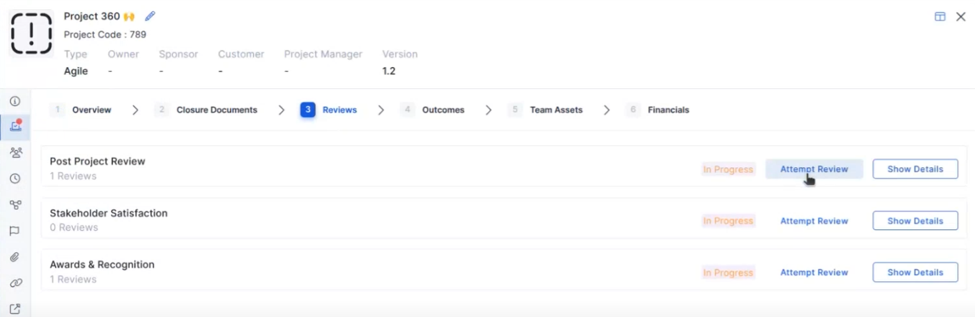
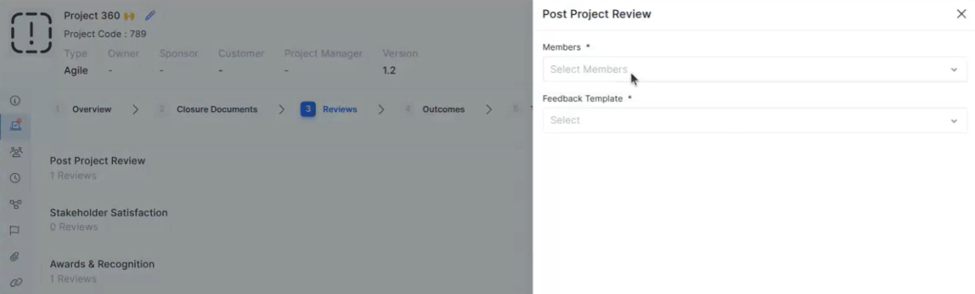
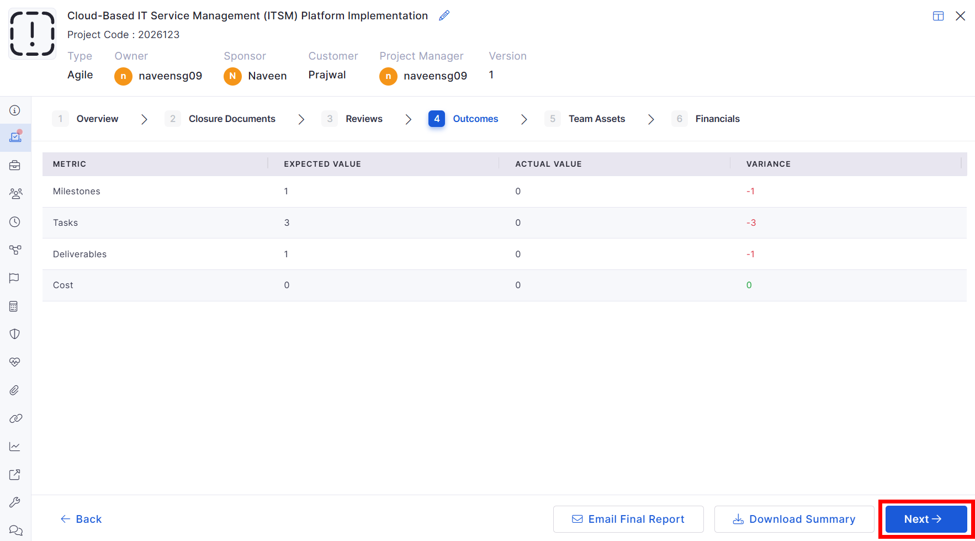
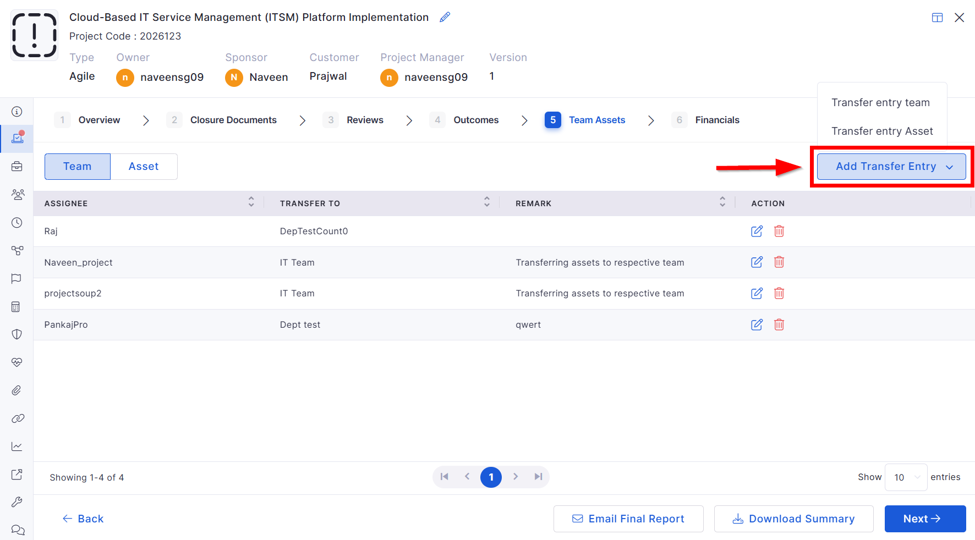
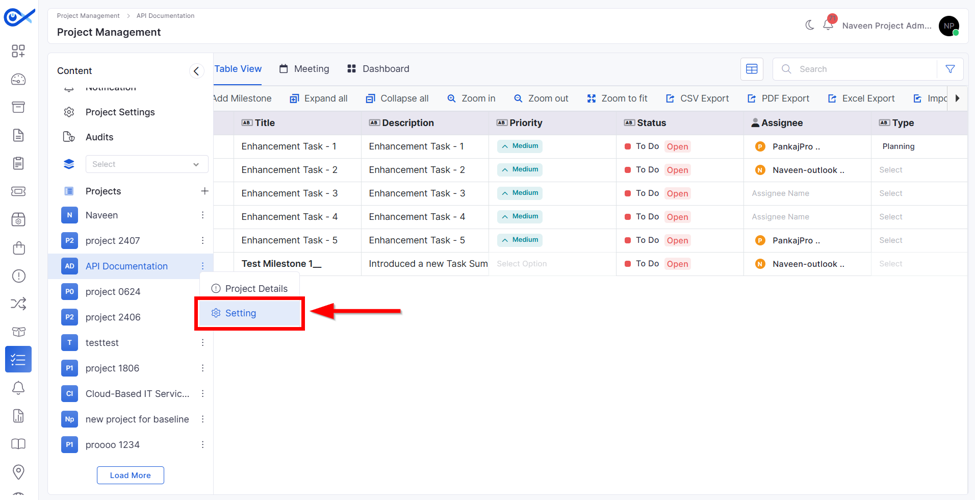

Displays a unique project identifier.
Example: 190
Example: Feb 26, 2026 06:30 PM
Downloads the project closure summary as a PDF containing the project details, outcomes, and closure information.
Upload the handover document containing operational, technical, or support information transferred to the operations or support team.
Displays awards and recognition reviews associated with the project. Click Attempt Review to create a review or Show Details to view review information.
Select a predefined feedback template that will be used to collect review responses from the selected members.
Displays the value achieved at project closure.
Select the project member to transfer. Only members assigned to the selected project team are displayed.
Select the department to which the asset will be transferred.
Defines the operational, financial, or strategic advantages expected from the project. Example: Improved monitoring visibility, reduced downtime, and faster incident response.
Used to describe the expected customer-related impact in detail. Example: Improves the customer onboarding process and reduces response time.
Defines the unit used to measure the objective progress. Available options include:
Percentage (%)
Count
Currency ($)
Specifies the assumption considered during project planning. Example: Required infrastructure resources will be available during deployment.
Defines the current execution status of the scope item. Available options include:
New
In-Progress
Completed
On Hold
Defines the deliverable's current status. Available options include:
New
In-Progress
Completed
On Hold
Defines the limitation or restriction applicable to the project. Example: Limited budget allocation for infrastructure upgrades.
Displays the list of users in the selected team along with their email IDs.
Displays risk assessment information used to evaluate the impact, probability, and overall severity of identified project risks.
Specifies the project area to which the health record applies. Available options include:
Schedule
Resource
Budget
Displays the calculated project health score as you answer the assessment questions. The meter updates dynamically based on the selected responses.
🟢 Green (Healthy)
Filter milestones based on specific fields. Fields: Milestone Name, Owner, Status Conditions: in, not in, contains, not contains, equal to, not equal to
Select the cost type from the dropdown (e.g., Hardware, Software, CapEx, OpEx).
Select the category for the attachment (e.g., Project Charter, Scope Documents, Schedules & Timelines, Risk Register).
Defines how the KPI value is measured. Available options include:
Percentage (%)
Count
$.
Example: Percentage (%) for completion tracking or $ for budget-related KPIs.
Displays the list of active vendors available in the system. The selected vendor determines the contracts available for selection.
Displays the role to which the configuration is applied
Select the configuration type (Project / Task)
Displays only email conversations
Define whether the note is visible to all users or restricted
Displays a chronological list of all activities
Enter the name displayed for the custom field.
Example: Country
Controls the sections displayed within the Business Case view.
The available options are: Business Case, Impact, Objectives, Assumptions, Scope, Deliverables, and Constraints.
For example, disable Assumptions when it is not required for the project.
Risk
Upon adding an asset to the Infraon portal, users will be presented with a default view showcasing key details about the asset. This information is a quick reference point and can be customized later to fit specific needs.
Asset Properties | Details
Label
Description/ Example
Asset Name
Infraon allows administrators or technicians to initiate secure CLI (Command Line Interface) sessions directly from the IT Assets module for supported devices. These sessions can be used for diagnostics, configuration, or troubleshooting.
The session can be launched using SSH or TELNET protocols, and the access can be controlled through Request-based approval or direct submission, depending on role privileges.
To initiate a CLI session/ Job, follow the steps below:
Locate the desired asset within the IT asset list.
Click on the "More Options" menu (usually represented by three dots) and select "CLI Session.”
A pop-up window will appear.
On the new pop-up tab, enter the IP address, username, port, and access reason, and select the SSH or TELNET protocol.
Locate the desired asset within the IT asset list.
Click on the "More Options" menu (usually represented by three dots) and select "Schedule RDP."
A pop-up window will appear. Choose the date, time, and desired duration (in minutes) for your RDP session.
Click the "Schedule" button to save your configuration.
From the Asset grid page, filter the category SDH / PDH; on the filtered grid page, click on the Device Name or IP to view additional information. There are multiple sub-views with all the necessary information about the device. These are:
Inventory information includes basic details, additional properties, Custom Fields, and Health Summary.
The following section breaks down the details:
Device Details
Hostname
Device Type
Tags (Click on ‘Edit’ to add or remove the tags)
Audit the user login and logout entries within the asset management module. This allows IT administrators to identify which users have accessed specific IT assets (laptops, desktops) and when. This information can help troubleshoot access issues, monitor asset usage, and maintain security compliance.
The inventory agent gathers data on login and logout activity for each asset at regular intervals (inventory updates) and presents this data within the user logins and logouts module.
The asset details page displays a user login and logout cart. This module details the profile name, number of logins, and number of logouts associated with each user profile for the selected asset. Additionally, a date filter allows technicians to refine the displayed data for a specific timeframe.
The following section breaks down the details:
Asset History: Track an asset's entire journey, from initial purchase through use, maintenance, and eventual disposal.
Purchase Order Details: View crucial information from the purchase order, including the date, cost, supplier, and specifications.
Annual Maintenance Contract (AMC): Monitor active AMCs associated with the asset, displaying coverage period, service provider, and key terms.
Warranty Information: Access comprehensive warranty details like start/end dates, covered components, and claims history.
Displays graphical view of a node with all inventory information including shelf, slot, card and port. Port information includes status of port, port utilization and other details.
The following section breaks down the details:
Service State
Serial Number
Vendor
Name
Displays the list of inventories and parts of the device, such as rack / shelf / slot / card / port / SFP details. Click on a specific inventory to view its properties. The inventory includes Shelves, Slots, Cards, and ports. On click of each port, it will show port information, for example: Port Status, Optical values of Port, etc.
The following section breaks down the property details:
Name
IP Address
Host Name
Type
Displays detailed information about the software, including the software name, version, and license details, such as whether the license is purchased or subscription-based and its expiration date.
This section provides detailed OS-level and system metadata for the selected asset.
This section displays a complete list of applications installed on the selected asset. Users can view details, perform quick searches, or apply filters based on various fields.
SBOM provides a consolidated view of applications, software components, assets, and vulnerability information, enabling users to review software composition and assess associated risks.
SBOM | Top Panel Details
Software Bill of Materials (SBOM) provides an inventory of the software applications, components, and dependencies identified across assets. It helps users understand what software is installed, which components are associated with each application, and the vulnerabilities identified in those components. The SBOM data is presented at the organization level in the SBOM module.
How does SBOM work?
SBOM data is collected from scanned assets and used to identify applications and their associated software components and vulnerabilities. For example, if an asset has 7-Zip installed, the SBOM inventory can show the application, its version and vendor, the components or dependencies associated with it, and the vulnerabilities identified for those components. Users can then select the application to view its detailed information.
What do you see on the screen?
When you open the SBOM module, the SBOM Inventory page is displayed. The page contains summary cards at the top, followed by the inventory table. The left navigation also provides access to Inventory and Vulnerabilities.
Basic Details
Column Details
The inventory table provides application, asset, component, vulnerability, and scan information, allowing users to identify the software installed across scanned assets.
Column Details: Action Icons
SBOM Inventory Detail
When View is selected, the SBOM Inventory Detail sidebar opens on the right and provides detailed information about the selected application, its host, scan details, and associated vulnerabilities.
Components
When View Components is selected for an application, the Components page opens and displays the software components and dependencies associated with the selected application. Users can switch between All and Application views and choose either Grid View or Graph View to examine the component information.
Component Details
The component details provide information about the component, its source, licensing, dependencies, and other SBOM metadata.
SBOM Vulnerabilities provides a centralized view of vulnerabilities identified across the software components and applications discovered in scanned assets. It helps users review vulnerability severity, CVSS scores, fix states, affected packages, and scan information to support vulnerability assessment and remediation.
How does Vulnerability work?
Vulnerabilities are identified from the software components recorded in the SBOM data of scanned assets. The identified CVEs are consolidated in the Vulnerabilities page, where users can review the vulnerability details and prioritize them based on severity and fix state.
The SBOM Vulnerability table is documented with the columns CVE ID, Application Name, Package, Version, Severity, CVSS Score, Fix State, Scan Time, and Actions.
What do you see on the screen?
When you open SBOM > Vulnerabilities, the SBOM Vulnerabilities page is displayed. The page provides an overview of the identified vulnerabilities followed by the vulnerability inventory table. Users can review vulnerability information and select the available action to view detailed information about a specific vulnerability.
Column Details
The vulnerability table provides detailed information about each identified CVE, including the affected application and package, vulnerability severity, CVSS score, fix state, and scan information.
Action Icons
The Actions column allows users to open the detailed information of a selected vulnerability for further investigation.
Overview
Affected Software
CVE Lifecycle
Affected Software / Affected Product
Endpoint
The detailed specification confirms the CVE hero information, affected software, package information, description, data source, and references shown in the sidebar.
The SSL Certificates section displays SSL certificates discovered for a Windows device through the . The agent periodically scans the Windows certificate stores and configured endpoints to collect certificate information, synchronizes the discovered data with the Infraon server, and displays it for monitoring and compliance.
The dashboard provides an overview of all discovered certificates, their validity status, expiry information, and storage location. It also enables you to search, filter, sort, and review certificate details to proactively identify certificates that are nearing expiration or have already expired.
The SSL Certificates dashboard displays discovered SSL certificates for the selected Windows asset, along with summary cards, search, and certificate details for monitoring certificate validity and expiry.
SSL Certificate | Asset Information
The Gate Pass Records section displays the gate passes generated for the selected asset through the Move process. It provides a read-only view of the gate passes associated with the asset.
The Gate Pass Records section displays the gate passes associated with the selected asset.
Gate Pass | Basic Details
Gate Pass | Status
The gate pass status is displayed as a status pill.
When multiple gate passes are available, the most recently created gate pass appears first.
Displays complete hardware information for all asset components. The data includes information collected by the Inventory Agent, as well as any additional details or custom properties added manually.
All hardware components are organized into tabs (e.g., CPU, Memory, Disk, Interface). Selecting a tab displays only the corresponding component details.
The hardware details include:
Shelf Number
Slot Number
Slot Name
Card Name
If additional properties or custom fields are configured for hardware components, they are displayed alongside the agent-collected data in the respective tab.
Search – Click to search within the selected hardware component.
Export – Click to download the hardware inventory in CSV, Excel (XLS), or PDF format.
Displays battery-related information for the asset, including:
Battery Health Percentage (calculated value)
Battery Status
Battery Chemistry
Cycle Count
Displays the overall system performance score based on hardware evaluation. The score ranges from 1.0 to 9.9, where higher values indicate better performance.
The overall WEI score is derived from the lowest score among the evaluated components.
Details Available:
The following performance metrics are displayed:
Processor Score: Performance of the CPU
Memory Score: Performance of system memory (RAM)
Graphics Score: Desktop graphics performance
3D Graphics (Direct3D) Score: Gaming and 3D rendering performance
This displays topology connections for the selected NE. Devices are marked in red/green based on their availability. Mouse over an asset to view details. Use action icons to navigate through, zoom in, and zoom out topology connections.
The following section breaks down the details:
Grid View – Click to view in a tabular format.
Map View – Click to view in a map view format.
Node – Click to see the below details:
Host Name
This option provides technicians with comprehensive access to vital information about network devices. This tab includes a detailed Download Job Summary, offering insights into recent configuration download activities and their outcomes.
The Configuration Details section displays the device's current and historical configurations, enabling comparison and change tracking.
The Inventory Details offer a complete overview of the device's hardware and software inventory. This centralized access to configuration, job summaries, and inventory details empowers technicians to manage efficiently and audit network devices, ensuring configurations are up-to-date and compliant with organizational standards.
The following information can be derived from the page:
Device Credential
Configuration Profile
Connection Protocol
Download Status
Baseline Running
Version
Download Time
Current Running
Events are colour coded based on severity. Use the calendar icon to filter active events for a specific period.
Exports - Choose your export format: Download the topology as a separate CSV or Excel-compatible XLS file.
Each event allows the below actions by hovering over the mouse (Quick action tool):
Analyse
Click to view the ‘Impact Services’ event details. Click the ‘More Details’ button to redirect to the event page.
It includes details to help analyse the event. The user can view the asset details and the statistics of how the current event is performing.
Acknowledge
Displays the list of open tickets created for this asset.
Click on the ticket name to get redirected to the ticket page.
The following section breaks down the details:
Ticket ID
Status
Created On
Last Updated On
Ticket | Record Filters and Search Options
This table lists all the services verified by UNMS for the selected NE.
The following section breaks down the details:
Search
Search for the required service.
Filter
Filter can be added based on the field and condition from the drop-down box below.
Used to view the performance of the selected Port, Port Type, Statistic, etc., based on the applied filter.
The following section breaks down the details:
Filters available for performance reports are:
Port
Granularity
PM Type
Statistic
Add filters to suit requirements and click generate.
The Activity Log meticulously tracks asset changes, providing a comprehensive history of each asset. It records all modifications made by technicians, including changes to city, country, criticality, connection protocol, device credentials, and download job details.
Entries are organized by date and time, allowing for easy monitoring and auditing of asset history. This detailed log ensures that all key actions and updates are documented, facilitating better management and oversight of IT assets.
It displays the number of channels used for that device in a table format and the available channels.
This comprehensive grid breaks down port utilization for different card levels and port types. Analyze total ports available, currently in use, unused ports, and the percentage of utilized capacity for each category.
Displays the STM Ports with Shelf/Slot/Card/Port information along with capacity used information, such as VC4, VC3, and VC12 usage for that port, in a graphical format, along with the KLM available to use.
Detailed Trail Information:
EMS Name:
Pinpoint the Element Management System responsible for each E1 trail, simplifying network management tasks.
Trail Label:
Identify specific E1 trails using their assigned labels for quick reference and troubleshooting.
Trail State:
Monitor the current operational status of each E1 trail (e.g., Active, Inactive, Faulted). This allows for proactive problem identification and resolution.
Node and Port Information:
A-End Node and Service Port:
Track the origin of each E1 service and the port at which it enters the node.
Z-End Node and Service Port:
Identify the destination of each E1 service and the port at which it exits the node.
Path:
Visualize the complete physical path of each E1 trail through the network, aiding in fault isolation and optimization efforts.
This feature provides a detailed view of VCG (Virtual Circuit Group) and Ethernet services traversing through a specific node in your network, displayed in a table format.
The following section breaks down the details:
VCG/Ethernet Service ID: Unique identifier for the service.
Source: Originating point of the service, including node and port information.
Destination: Ending point of the service, including node and port information.
Type: Specifies the service type (e.g., VCG-64, VCG-4096, Ethernet Link).
The list details all cross connections established between various optical ports and client ports, including:
Optical Port Type: Identify the optical port type involved in each connection (e.g., STM-1, STM-4, Ethernet).
Client Port Type: Understand the nature of the client port connected to the optical port (e.g., E1, ATM, IP).
Additional Information: The following section breaks down the details:
User Label
A comprehensive view of all configured Ethernet to VCG mappings at your fingertips. Identify how specific Ethernet ports are associated with corresponding VCGs, ensuring a clear understanding of traffic routing within the node.
Get a comprehensive overview of all protection groups established between optical ports within the node. Identify their names, types, and associated ports for quick reference and analysis.
This tabular view displays the E1 Channel Mapping between E1 Ports and E1 to Client (Voice, Data, Voice_Data) Channels. Each entry depicts the source E1 port, the specific E1 channel involved, and the corresponding client circuit type it serves. This detailed view fosters accurate tracking and understanding of signal routing within your network.
Displays the E1 Ports with Shelf/Slot/Card/Port information, channel used information for that port in a graphical format, and what channel is mapped to 64Kbps of Voice, Data, and Voice_Data Service.
Enable this toggle if you want to specify a custom username instead of using stored credentials.
Username*
Enter username
Required if "Use Custom Username" is toggled ON. Enter the username to initiate the CLI session.
Example: admin, techuser, etc.
Port*
Enter the port number.
Specify the port to use for the session. The default for SSH is 22, and for Telnet, it's 23.
Access Reason*
Enter justification
Provide an apparent reason for accessing the device. This helps with audit logging and approval context.
Example: Urgent troubleshooting - link down
Protocol Selection (SSH / TELNET)
Click to select
Choose the preferred protocol to establish the CLI session. SSH is recommended for secure access.
Active Duration (Hours, Minutes)*
Select duration
Specify how long the session should remain active after approval. This limits windowed access.
Example: 0 Hours, 30 Minutes
Access Count (0 = unlimited)*
Set limit
Define how many times the user can access the session. Set to 0 for unlimited access during the session window.
Active Duration Begins
Choose start type
Select whether the session should begin Immediately or From Approved Time.
Request
Click to request a session.
Sends the CLI session request for approval (if pre-approval is required)—routes through the Change Management workflow.
Submit
Click to start the session directly.
Bypasses approval (only visible for users with enough privilege). Starts session instantly.
Once scheduled, a "Session is Active" icon will appear on the IT asset within the list. Click on this icon to securely launch the remote desktop connection.
Device Type
IP Address
Make
Active Version
Ci Name
Managed EMS IP
Managed EMS Name
Model
Owner Details
Name
Mail ID
Mobile number
Edit – Click to make changes.
User Details
Name
Mail ID
Edit – Click to make changes.
Deallocate – Click to allocate a new user.
Resend Email – Click to resend the e-mail.
Attachment
Choose from the categories (Default, Procurement, Service, Retirement Documents).
Add – Click to add new attachments.
Asset Configuration
Creation Time
Last Update Time
Login Profile
Login Profile ID
Filter
The date filtering function allows technicians to narrow down the displayed data to a desired timeframe.
Location
Capacity
Layer Rate
SFP (Small Form Factor) Type
Vendor
SFP Status
SFP Serial Number
SFP Product Code
Loopback Mode
Transmitted Trace
Received Trace
PTP (Port of Tanjung Pelepas)
SFP Installed Version
IP Address
MTU (Maximum Transmission Unit)
PTP (Port of Tanjung Pelepas)
PVID
Component Type
Serial Number
Part Number
Physical Status
Service State
22631
Device Type
Indicates whether the asset is a laptop, desktop, virtual machine, or other type of device.
Laptop
Last Boot-Up Time
Date and time when the asset was last restarted
2024-07-01 11:05:35
Organization
The name of the owning organization as registered in the platform
LENOVO
OS Installed By
Name of the user or technician who installed the OS
LENOVO
Product ID
The Windows product ID is assigned to the OS
00330-80000-00000-AA121
System Directory
The directory path of the operating system's system files
C:\WINDOWS\system32
Version
The full version of the installed operating system
10.0.22631
Windows Directory
The root directory of the Windows OS installation
C:\WINDOWS
Boot Device
The primary drive used to boot the operating system
C:
Description
Optional admin-entered notes or metadata about the asset
Windows 11 machine for R&D
Hostname
The network name assigned to the asset
093-Nithin-EIMS
Manufacturer
Hardware manufacturer of the device
Microsoft Corporation
OS Install Date
Date and time the operating system was installed
2023-07-17 11:02:03
OS Name
Full name of the operating system
Microsoft Windows 11 Pro
Product Key
Unique license key used to activate the Windows OS
TY4GC-JDJH7-VJ2WF-DY4X9-HCFC6
System Drive
Drive where the OS is installed
C:
Virtual Memory
Total amount of virtual memory available to the system
23.33 Gbytes
Applies field-specific filters. Supported
Fields: Name, Type, Vendor, Version. Conditions: equal to, not equal to, contains, not contain, in, not in.
Name
View only
Displays the name of the installed application.
Example: Cisco Webex Meetings
Vendor
View only
Displays the software vendor/publisher. Example: Fortinet Technologies Inc
Type
View only
Indicates the software type.
Example: Other
Version
View only
Displays the installed version number.
Example: 7.0.0.9493
Install Date
View only
Shows the installation date of the application.
Example: 2023-11-07
Action
Click the delete icon to remove the application
Manually deletes the software record from the asset, typically used for incorrect or outdated entries.
Medium
View
Displays the total number of Medium vulnerabilities identified across the scanned assets.
Low
View
Displays the total number of Low vulnerabilities identified across the scanned assets.
Risk Distribution
View
Displays a stacked bar chart representing the distribution of vulnerabilities across different severity levels.
Total Apps
View
Displays the total number of distinct applications identified across the scanned assets.
Total Assets
View
Displays the total number of assets that have been scanned.
Field
Select
Select the inventory field on which the filter should be applied.
Condition
Select
Select the required condition to determine how the field should be matched.
Value
Enter/Select
Enter or select the value to be matched against the selected field and condition.
Vendor
View
Displays the vendor associated with the application.
Example: Google LLC
Hostname
View
Displays the hostname of the asset where the application was identified.
Example: workstation-01
IP Address
View
Displays the IP address associated with the host.
Example: 192.168.1.50
Components
View
Displays the number of software components or dependencies identified for the application.
Example: 312
Critical
View
Displays the number of Critical vulnerabilities associated with the application.
High
View
Displays the number of High vulnerabilities associated with the application.
Last Scanned
View
Displays the date and time when the application was last scanned.
Actions
Perform action
Provides actions to view inventory details, view components, and download the SBOM for the selected application.
Scan Info
View
Displays the Generated Time and Last Scanned Time.
Vulnerability Summary
View
Displays the Critical, High, Medium, and Low vulnerability counts for the application.
CVE List
View
Displays the CVEs identified for the application along with their severity information.
Displays components associated specifically with the selected application.
Version
View
Displays the version of the component.
Example: 1.1.1
Type
View
Displays the type of software component.
Supplier
View
Displays the supplier or organization that provides the component.
Origin
View
Displays the origin or source from which the component was obtained.
License
View
Displays the license associated with the component.
Description
View
Displays a description of the software component and its purpose.
Release Date
View
Displays the release date of the component version.
Checksum
View
Displays the checksum associated with the component for identification or integrity verification.
Dependencies
View
Displays the dependencies associated with the component.
Properties
View
Displays additional properties or metadata associated with the component.
Notes
View
Displays additional notes or information provided for the component.
Package URL (PURL)
View
Displays the Package URL (PURL) that uniquely identifies the software package.
Grid View
Select
Displays component information in a structured grid/table format, allowing users to view the available component details in columns.
Graph View
Select
Displays the components and their relationships in a graphical representation, making it easier to understand component and dependency relationships.
Package
View
Displays the software package affected by the vulnerability.
Example: openssl
Version
View
Displays the version of the affected package.
Example: 1.1.1
Severity
View
Displays the severity level of the vulnerability.
Example: Critical, High, Medium, or Low
CVSS Score
View
Displays the Common Vulnerability Scoring System (CVSS) score assigned to the vulnerability.
Example: 8.1
Fix State
View
Displays the current fix status of the vulnerability.
Example: Fixed / Unfixed
Scan Time
View
Displays the date and time when the vulnerability was identified during the scan.
Actions
Perform action
Provides actions available for the selected vulnerability, such as viewing its detailed information.
Affected Software
View
Displays the applications and software packages affected by the vulnerability.
Endpoints
View
Displays the number of endpoints affected by the vulnerability.
CVSS Breakdown
View
Displays the CVSS vector and individual metrics used to calculate the vulnerability's CVSS score.
Example: CVSS:3.1/AV:L/AC:L/PR:N/UI:R/S:U/C:H/I:H/A:H
Attack Vector
View
Displays how the vulnerability can be exploited.
Example: Low
Attack Complexity
View
Displays the level of complexity required to exploit the vulnerability.
Example: Low
Privileges Required
View
Displays the level of privileges an attacker must have to exploit the vulnerability. Example: None
User Interaction
View
Indicates whether user interaction is required to exploit the vulnerability.
Example: Required
Scope
View
Displays whether exploitation affects resources beyond the vulnerable component's security authority.
Example: Unchanged
Confidentiality
View
Displays the potential impact on the confidentiality of information.
Example: High
Integrity
View
Displays the potential impact on the integrity of information.
Example: High
Availability
View
Displays the potential impact on the availability of the affected system or resource.
Example: High
Package
View
Displays the software package affected by the vulnerability.
Example: Scintilla
Version
View
Displays the version of the affected package.
Example: 5.5.4
Patch Released
View
Displays whether a patch has been released for the vulnerability.
Example: Pending
Remediated
View
Displays whether the vulnerability has been remediated.
Example: Pending
Description
View
Displays the description of the vulnerability.
Example: SciLexer.dll in Scintilla in Notepad++ (x64) before 7.7 allows remote code execution or denial of service via Unicode characters in a crafted .ml file.
Reference(s)
View
Displays the available reference links associated with the CVE.
Example: Packet Storm, GitHub, Notepad++ download page, and Scintilla history.
Version Range
View
Displays the affected version range.
Example: * – 7.7
Platform
View
Displays the platform associated with the affected product, when available.
Product
View
Displays additional affected products or components.
Example: scintilla
Application
View
Displays the application identified on the affected endpoint.
Example: TortoiseGit 2.17.0.2 (64 bit)
Hostname
View
Displays the hostname of the affected endpoint.
Example: 317-Ayush-EIMS
IP Address
View
Displays the IP address associated with the endpoint.
Example: 172.31.0.1, 10.0.7.240
Application
View
Displays the application associated with the vulnerability on the endpoint.
Example: Antigravity IDE (User)
Displays the number of certificates that are currently valid and filters the grid to show only valid certificates. Example: 48.
Expiring Certificates
Click the card to filter certificates nearing expiration.
Displays the number of certificates that are approaching their expiry date and filters the grid accordingly. Example: Expiring in next 30 days.
Expired Certificates
Click the card to filter expired certificates.
Displays the number of expired certificates and filters the grid to show only expired certificates. Example: 9.
Search
Enter a keyword to search certificates.
Search certificates using the Subject, Issuer, or Certificate Description.
If no matching records are found, the system displays a No SSL Certificate Present message.
Subject / Issuer
View the certificate subject and issuing authority.
Displays the certificate subject and issuer information.
Example: CN=Microsoft ECC TS Root Certificate Authority 2018.
Cert Description
View the certificate description.
Displays additional information about the certificate. Example: Certificate signed by itself (not trusted).
Cert Expires
View the certificate expiry date and time.
Displays the certificate expiration date in DD-MMM-YYYY HH: MM AM/PM format.
Example: 28-Feb-2043 02:30 AM.
Days Remaining
View the remaining validity period.
Displays the number of days remaining before the certificate expires or the number of days since it expired. Values are color-coded:
Green – Valid certificates.
Orange – Expiring certificates.
Red – Expired certificates.
Type
View the certificate type.
Displays the certificate type as a badge. Available values: Self Signed, CA Signed.
Status
View the certificate status.
Displays the certificate validity status as a badge.
Available values: Valid, Expiring, Expired.
Store Type
View the certificate store location.
Displays the Windows certificate store from which the certificate was discovered.
Available values: Local Machine, Current User.
Route
Displays the movement route specified for the gate pass.
Created On
Displays the date and time when the gate pass was created.
RET
Indicates that the gate pass is marked as returnable.
In Transit
The asset movement is in progress.
Acknowledged
The gate pass has been acknowledged.
Rejected
The gate pass has been rejected.
Cancelled
The gate pass has been canceled.
Port State
Port Number
SFP Installed
SFP Type
Expected Hardware
Installed Hardware
Serial Number
State
Estimated Charge Remaining
Estimated Run Time
Full Charge Capacity
Device ID and Battery Name
Current Status
Disk Score: Performance of the primary disk
Last Assessment Time: Date and time when the score was last calculated
IP Address
Make
Model
Device Type
EMS Name
Firmware Version
Region
State
City
Location
Edge – Click to see the below details:
Description
Source IP
Source Device
Source Port
Destination Ip
Destination Device
Destination Port
Layer Rate
Active Events (Click to redirect to the Active Events page)
Services (Click to redirect to the Services page)
Export – Click to create a PDF of the current topology view.
Zoom Keys - Icons can be used to navigate through the topology diagram.
Arrow Keys - Icons can be used to navigate through the topology diagram.
Status
Download Start Time
Download End Time
Next Retry Action Time
Inventory Download protocol
Startup Configuration download protocol
Running Configuration download protocol
Previous V/S Current Running
Baseline V/S Current Running
Current Startup
Baseline Startup
Previous V/S Current Startup
Baseline V/S Current Startup
This is used to acknowledge the event. NOC users or technicians can acknowledge it and add a comment to let other users know they are working on it.
Diagnosis
Used to perform active diagnosis. Diagnosis can be performed using Ping, SNMP Walk, and Trace Route.
Ticket
Used to create an incident for the event.
Clear
Used to clear the vent. Cleared events can be viewed using the ‘Show History’ toggle button.
Activity log
Used to view the vent history.
Impact Asset
Requester
Name
Phone Number
Urgency
Severity
Impact
Impact Service
Service Classification
Event Status
Attachment
Knowledge Base
Filter based on duration
Select the date range from the dropdown.
Filters records based on the selected time period.
Example: Selecting Last 60 Days displays records within the last 60 days.
Service Name
Status (Icon is colour-coded for easy identification of service status)
Type
A End Node
E End IP
A End Port
Z End Node
Z End IP
Z End Port
Trail Type
Capacity
VCAT Size
Bandwidth (MBPS)
VLAN ID
Provision State
Actions
Information - Click the (i) button to access detailed information about this service.
Activate – Click to activate the service.
Deactivate – Click to deactivate the service.
PM Data - Enter the respective details in the following dialog boxes to view the performance report.
Path
Click to delete the service.
Duration
Status: Indicates the current state of the service (e.g., Active, Dropped, Passing Through).
Reason (for Dropped Services): Provides details about why the service is dropping at the selected node (e.g., Administrative shutdown, Faulty link, Bandwidth shortage).
VLAN (for Ethernet Services): Displays the associated VLAN ID for Ethernet services.
Source Port
Source JKLM
Destination Port
Destination JKLM
Source Protected Port.
Identify the asset with a user-friendly name.
Asset ID
A unique identifier is assigned to the asset within the system for easy tracking and reference.
IP Address
View the network address associated with the asset.
Status
Quickly understand the asset's current operational state (e.g., Active, Inactive, or Under Maintenance).
Manufacturer
Identify the company that produced the hardware asset.
OS Version
View the operating system version installed on the asset.
System SKU Number
Displays the unique System Stock Keeping Unit (SKU) number fetched directly from the discovery agent. This field helps in identifying the specific hardware model and configuration provided by the manufacturer. The value is auto-populated by the inventory agent when the asset is discovered and cannot be edited manually. Example: 15AB-1234-XYZ
Actions
Edit
Modify any of the asset's details to ensure accuracy and reflect any changes.
Delete
Remove the asset from the inventory if it's no longer needed.
Add Owner
Assign a specific user as the asset's owner, facilitating responsibility and ownership tracking.
Schedule RDP
This functionality is available depending on the specific configuration. It allows users to schedule a remote desktop connection to the asset (useful for managing Windows-based devices remotely).
CLI Session
Initiating a CLI session connects to a network device to execute commands for tasks like configuration, diagnostics, and software updates, enabling efficient device management.
Add Owner
Click Add Owner to assign a user as the asset owner. Assigns a user as the asset's owner for ownership tracking. If the assigned user is later marked inactive, they are automatically removed from the asset. The change is reflected in the asset fields and recorded in the activity log.
Add User
Click Add User to assign a user to the asset. Assigns a user as the asset user (used by). If the assigned user is marked inactive, they are automatically removed from the asset, ensuring assets remain linked only to active users. All changes are tracked in the activity log.
Label
Action
Description / Example
IP Address*
Auto-filled
Displays the IP address of the selected asset. This is non-editable.
Example: 10.0.4.31
Use Custom Username
Label
Description/ Example
No of Logins
Displays the total number of times a user profile has accessed this specific IT asset.
No of Logouts
Displays the number of times a user profile has ended a session on the IT asset.
Profile Name
Label
Description
Example
Alias
A custom label or nickname assigned to the asset (if configured)
EIMS-Laptop-BGLR
Build Number
Label
Action
Description / Example
Search
Type at least three characters to perform a search
Performs a global keyword search across application name, vendor, and type fields.
Filter
Critical
View
Displays the total number of Critical vulnerabilities identified across the scanned assets.
High
View
Search
Search
Allows users to search the inventory using a keyword.
Filter
Filter
Application Name
View
Displays the name of the application identified in the SBOM data.
Example: Google Chrome
Version
View
View
View
Opens the SBOM Inventory Detail sidebar for the selected application.
The sidebar provides application details, host information, scan information, vulnerability summary, and the associated CVE list.
View Components
Navigate
Application Details
View
Displays the application Version, SBOM Format, Components, and Vendor.
Host Info
View
All
Select
Displays all components available for the selected SBOM inventory record, including associated dependencies.
Application
CVE ID
View
Displays the unique identifier of the vulnerability.
Example: CVE-2024-1234
Application Name
View
Overview
View
Displays the overview of the selected vulnerability.
CVS Breakdown
Application Name
View
Displays the name of the application affected by the vulnerability.
Example: Antigravity IDE (User)
Hostname
View
Published
View
Displays the date when the CVE was originally published.
Example: Sep 14, 2019
NVD Updated
View
Product
View
Displays the affected product.
Example: notepad++
Vendor
View
Hostname
View
Displays the hostname of an endpoint associated with the affected software.
Example: 317-Ayush-EIMS
IP Address
View
Total Certificates
Click the card to view all discovered certificates.
Displays the total number of SSL certificates discovered for the selected Windows asset.
Example: 57.
Valid Certificates
Gate Pass ID
Displays the gate pass's unique identifier.
Status
Displays the gate pass's current status.
Process
Draft
The gate pass is in draft status.
Pending Approval
The gate pass is awaiting approval.
Approved
Label
Action
Description/Example
Show Only Closed
Enable or disable the toggle.
When enabled, it displays only closed records in the selected tab.
Example: Enabling the toggle in the Change tab displays only closed changes. When disabled, closed records are excluded from the list, restoring the default view.
Search
Enter a keyword in the search field.
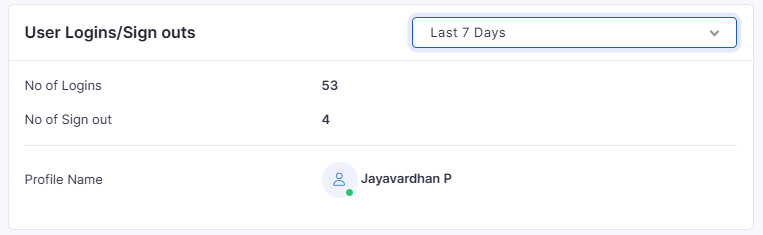
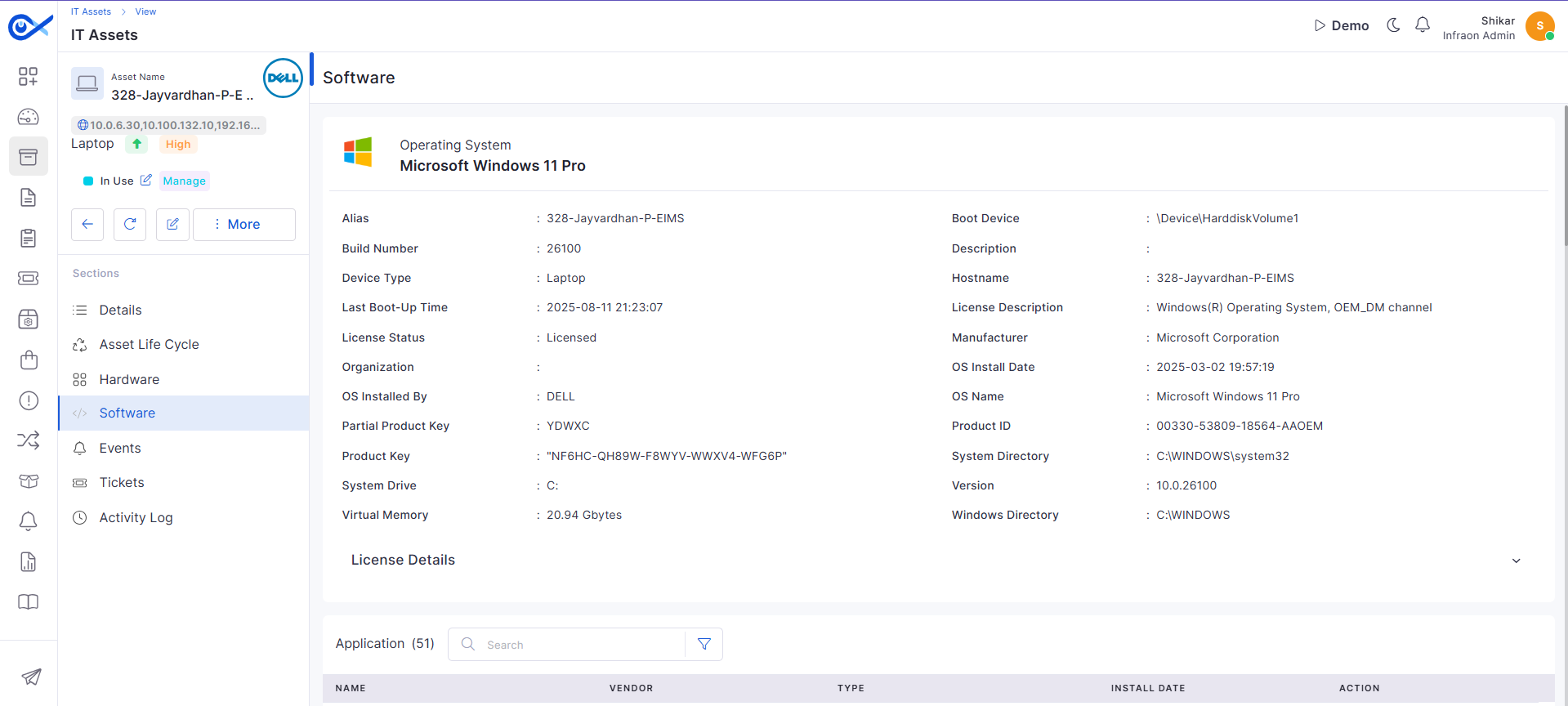
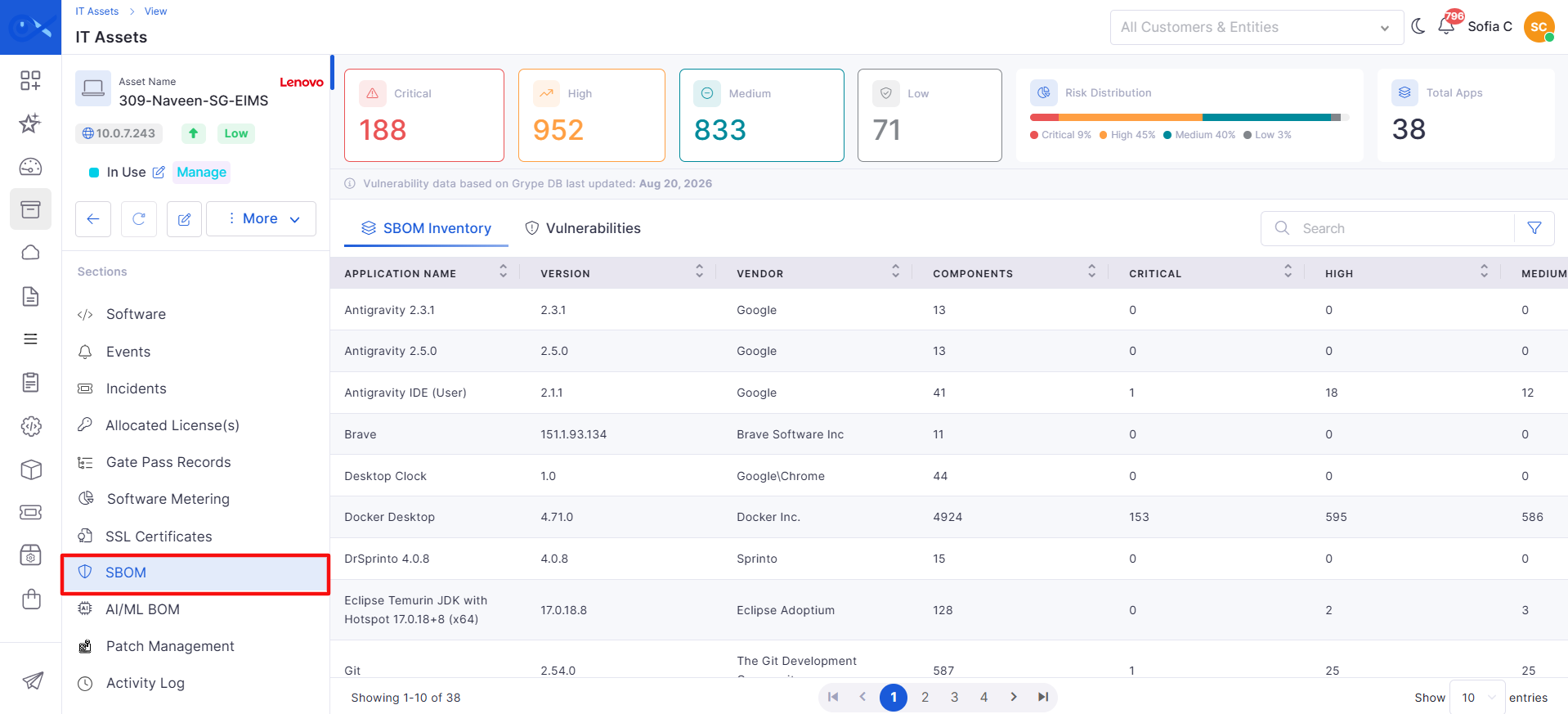
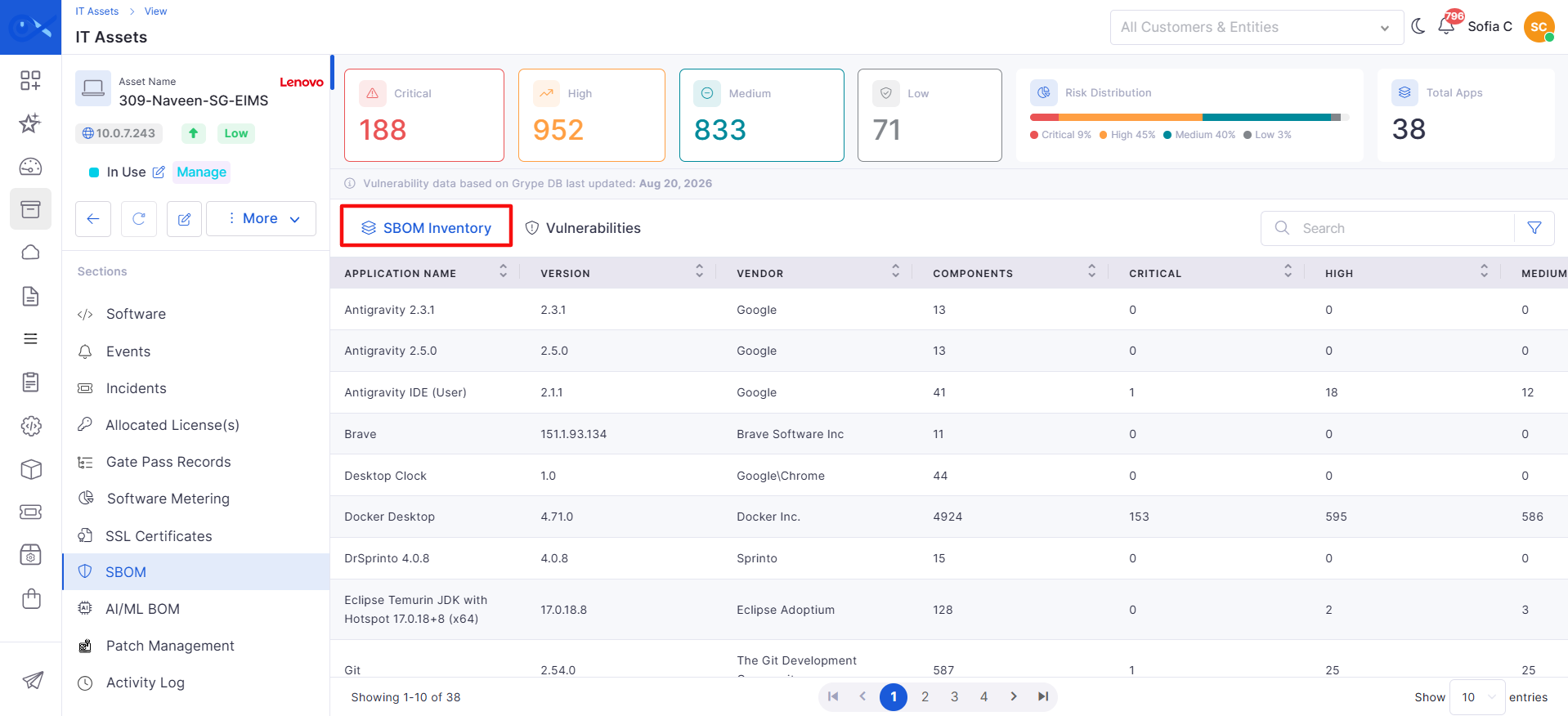
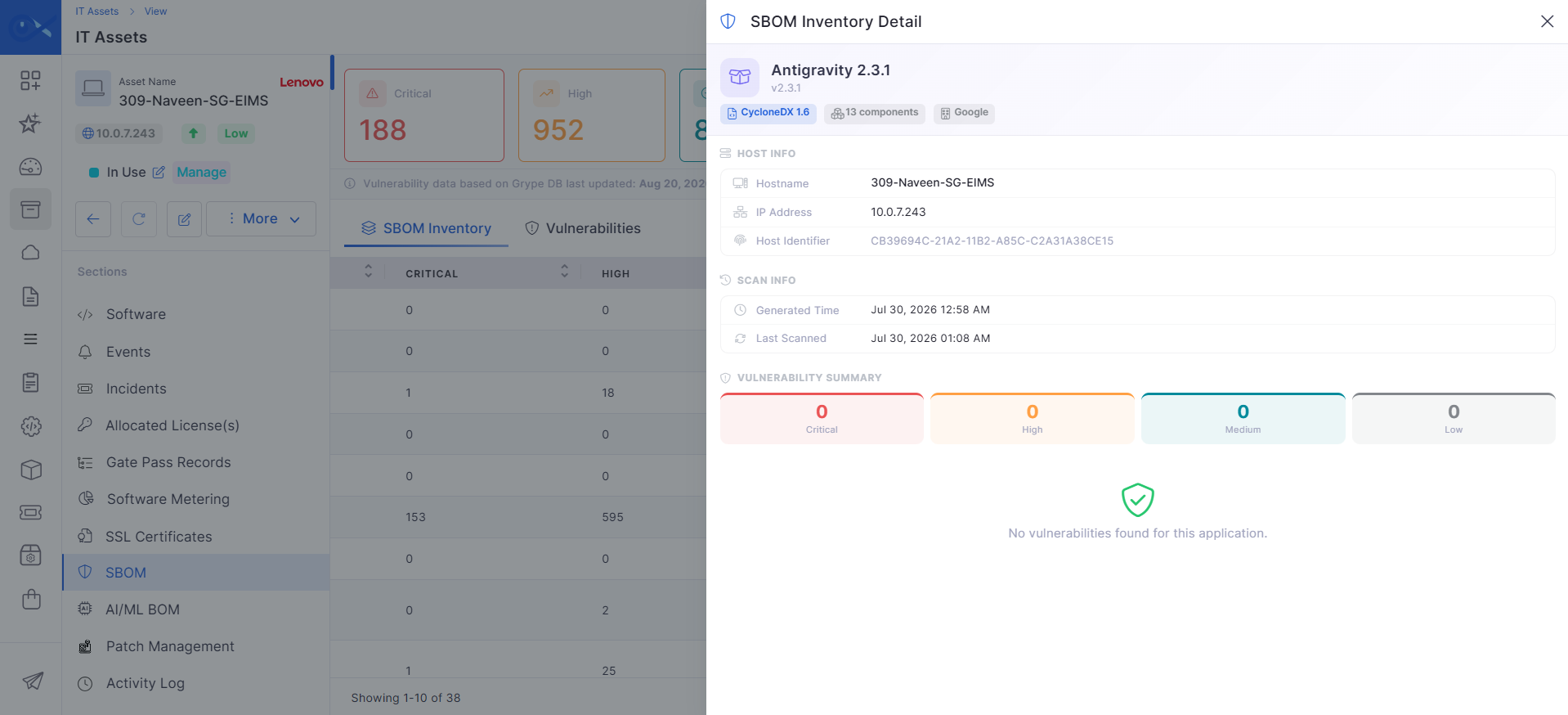
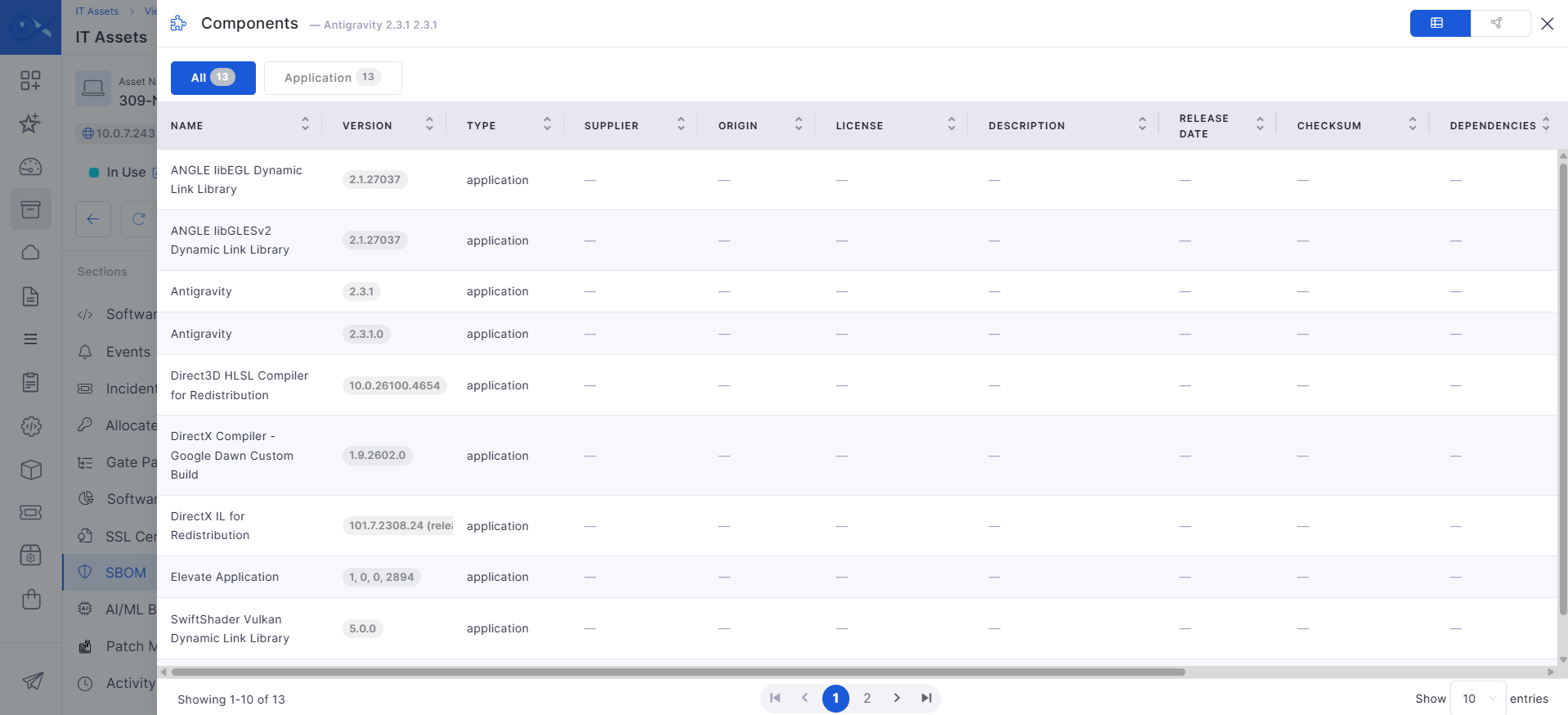
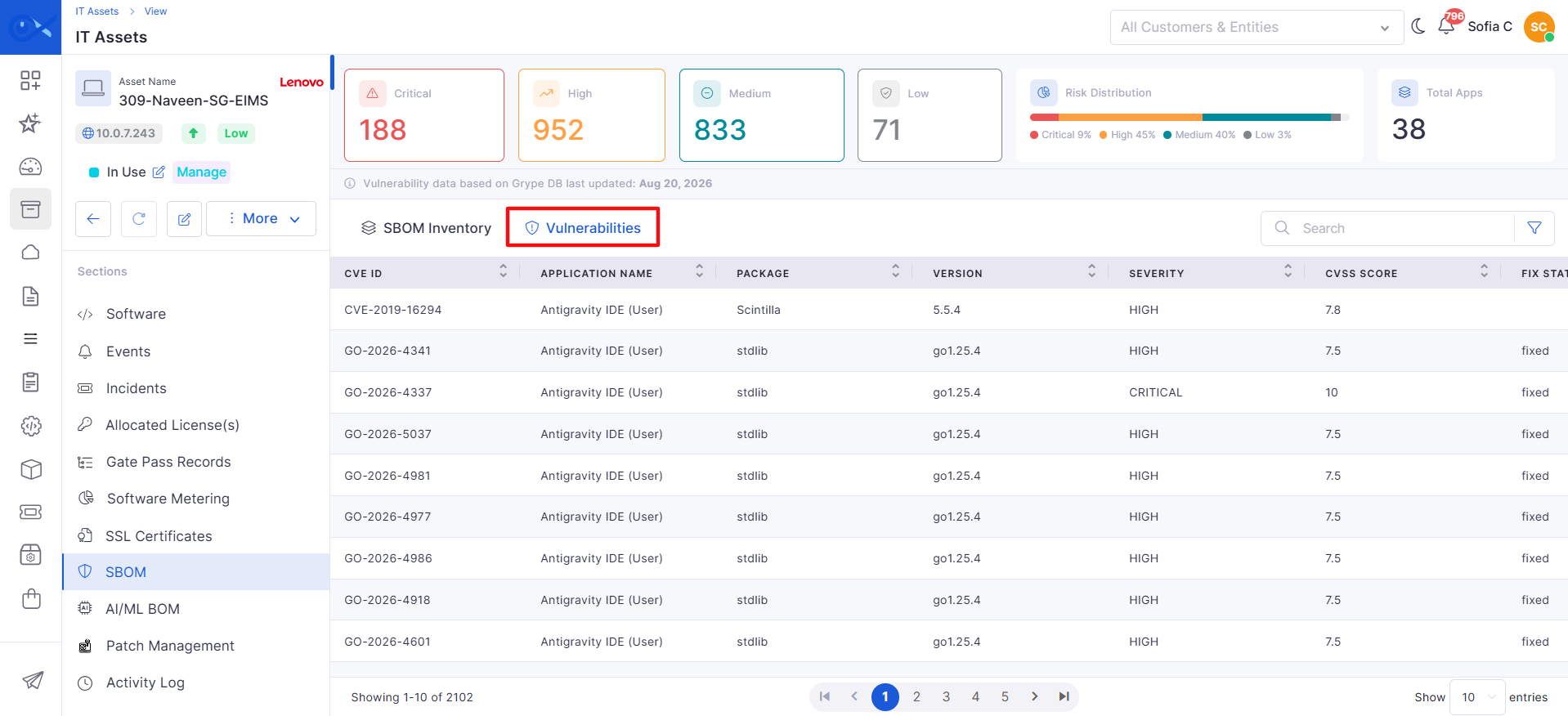
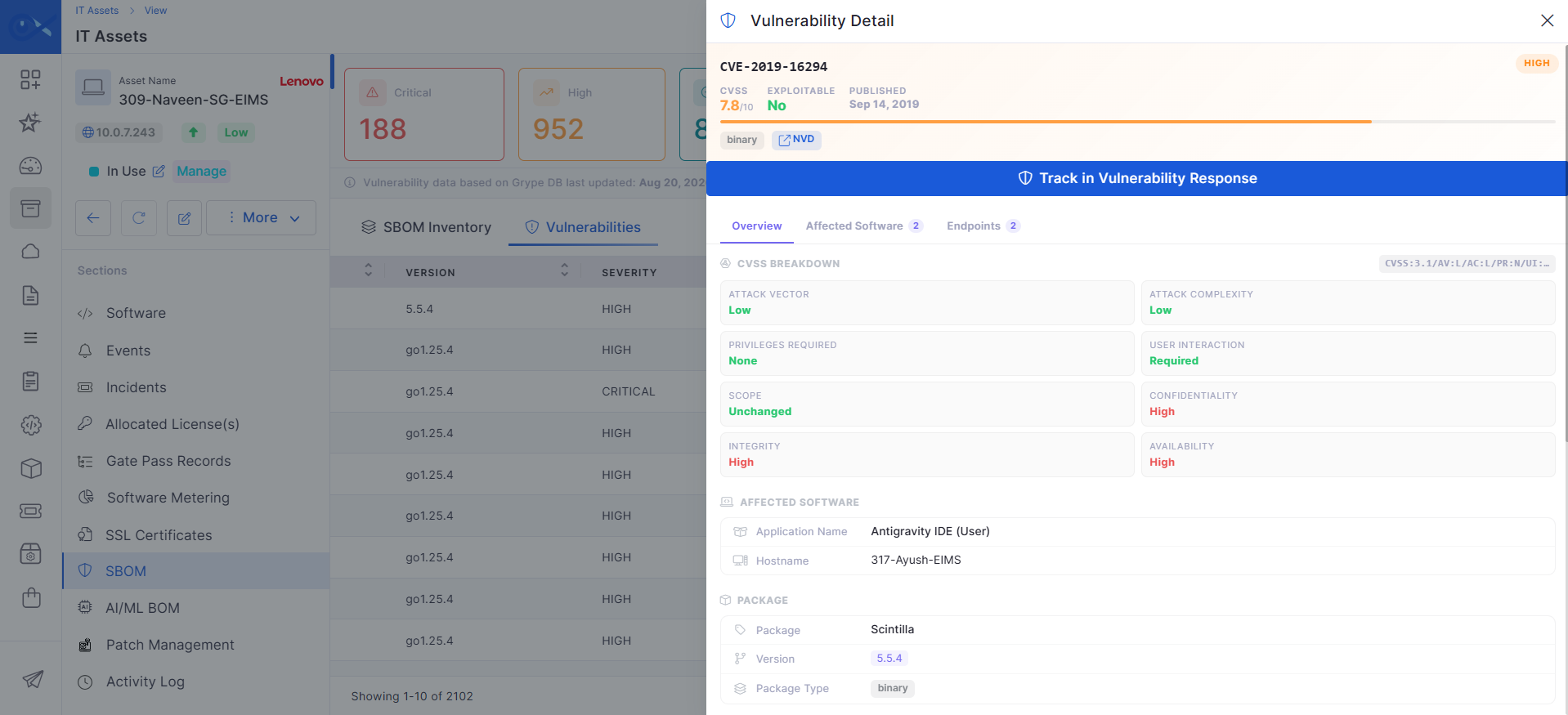

Toggle
This will typically be the user's network login name or alias.
The Windows OS build number, indicating the system's software version level
Select a field → Choose a condition → Enter a value
Displays the total number of High vulnerabilities identified across the scanned assets.
Allows users to refine the inventory results using Field, Condition, and Value.
Displays the version of the application.
Example: 124.0.6367.91
Navigates to the Components page for the selected application, where users can view the identified components and switch between the available All and Application views and different display modes.
Displays the Hostname, IP Address, and Host ID associated with the application.
Select
Displays the application associated with the vulnerability.
Example: Google Chrome
Displays the hostname of the endpoint where the affected application is identified.
Example: 317-Ayush-EIMS
Displays the date when the CVE information was last updated in the NVD.
Displays the vendor associated with the affected product.
Example: notepad-plus-plus
Displays the IP address associated with the affected endpoint.
Example: 172.31.0.1, 10.0.7.240
Click the card to filter valid certificates.
Displays the process used to generate the gate pass.
The gate pass has been approved.
Searches for records that match the entered keyword in the selected tab.
Clusters with no field conflicts that meet the configured one-click merge threshold can be merged automatically during a pipeline run. However, clusters with active dependencies such as open Incidents/Changes, License Allocations, or Contract relations are kept for manual review.
The Duplicate Clusters page provides a consolidated view of asset records identified as potential duplicates. It allows users to review duplicate clusters, compare candidate records, select a survivor, resolve field-level conflicts, and perform the required deduplication action.
The page includes:
Summary cards
Duplicate cluster filters
Duplicate cluster list
Cluster review options
Duplicate Clusters | Summary Cards
Filter Duplicate Clusters
You can filter the duplicate cluster queue based on its current state.
Cluster Details
The duplicate cluster list displays key information about each identified cluster.
Clicking a Cluster opens the Cluster Review page, where users can examine the records in detail before resolving the cluster. Use the Cluster Review page to examine candidate asset records within a duplicate cluster before deciding whether to merge them.
Review Details
The candidate records section displays the asset records identified as potential duplicates.
For each candidate record, you can review information such as:
Asset record
Source
Created date
Completeness score
Use this information to compare the candidate records and determine which record should be retained.
The Survivor is the asset record that will be retained when the duplicate records are merged.
To select a survivor
Open the duplicate cluster.
Review the candidate records.
Select the record that should remain after the merge.
The selected record is marked as Survivor.
When a survivor is selected, the field conflict table uses the survivor's values as the default values for the merged record.
Use Case
An asset may have been discovered from multiple sources and therefore exist as several records. One record may contain more complete or reliable information than the others.
In this situation, select the most appropriate record as the Survivor so that it becomes the trusted asset record after the merge.
The field conflict table allows you to compare values from the candidate records before merging them.
Fields with different values across candidate records are identified as conflicts.
Fields with matching values are not marked as conflicts.
The table provides:
Values from the different candidate records.
A result column showing the value that will be used in the merged record.
Visual identification of conflicting fields.
Review the conflicts carefully before completing the merge to ensure that the resulting asset record contains the appropriate information.
When duplicate asset records contain different values for the same field, the Field Conflict table highlights the conflicting values.
Review the values provided by each source and determine which value to retain in the final asset record.
Steps
Review the conflicting field.
Compare the values provided by the different sources.
Select the value that should be retained in the final asset record.
Continue reviewing the remaining conflicting fields.
The selected values are applied when the duplicate records are merged.
Use Case
An asset may have a different hostname or location in two discovery sources. The reviewer can compare the source values and select the correct value before merging the records.
If field-level values have been manually overridden during conflict resolution, the reviewer can reset the selections to the values associated with the proposed survivor.
Steps
Review the current field selections.
Select Reset to Survivor.
Verify that the field values have been restored to the proposed survivor's values.
Make any required changes before proceeding with the merge.
This helps quickly revert manual field selections and return to the survivor-based values.
Before merging duplicate records, review the Merge Impact Preview to understand what will happen when the merge is completed.
The preview provides information such as:
Records that will be retired.
Tickets that will be re-pointed.
Licenses that will be released.
Steps
Review the merge impact information.
Verify the records that will be retired.
Review any tickets that will be re-pointed.
Review licenses that will be released.
Cluster Review | Split Cluster
When you click the Profile icon (top-right corner of the platform), a dropdown menu appears. This menu provides quick access to personal settings, status control, log history, shortcuts, and session actions.
Profile Menu | Basic Details
Merged This Month
View
Displays the number of duplicate records merged this month.
Pending
Select
Displays clusters that are pending review or resolution.
Ambiguous
Select
Displays clusters where the duplicate relationship requires further review.
Resolved
Select
Displays clusters that have already been resolved.
Rule
Select
Displays the deduplication rule associated with the cluster.
%
Enter percentage
Displays the percentage or similarity-related value associated with the cluster.
Record
View
Displays the number of asset records included in the cluster.
Sources
View
Displays the sources from which the records originated.
Similarity
View
Displays the similarity score between the records using a progress bar.
Conflicts
View
Displays the number or presence of conflicting field values between records.
Proposed Survivor
View
Displays the asset record proposed to remain as the surviving record after merging.
State
View
Displays the current state of the duplicate cluster.
Action
Click
Provides the Review option.
Choose Survivor
Choose the Survivor
Displays multiple asset lists for selection of the survivor; it has details of the asset. Allows the reviewer to select or override the record that should remain as the surviving asset record.
Resolve field conflicts
Select the required field for the survivor
In the Resolve field conflict, it displays all details of the asset that is under the matched field like IP address, asset name. Displays field values from each source and highlights fields where conflicting values are identified. You can select from different source and make it as one cluster.
What happens on merge
View
Displays the selected result value that will be retained after the merge.
Verify that the selected values represent the most accurate asset information.
Split Cluster
Assign each record to a group
Allows users to divide records into separate groups. Records assigned to the same group remain together; the split does not merge or retire any records.
+ Add Group
Select + Add Group
Allows users to create an additional group when the records need to be divided into more than two groups.
Assign to Group
Select Cluster A, Cluster B, or another added group
Assigns each record to the selected group. Every record must be assigned to a group before the split can be confirmed.
Confirm Split
Select Confirm Split
Splits the original cluster into the configured groups based on the record assignments.
Duplicate Clusters
View
Displays the total number of identified duplicate clusters, along with a percentage badge, subtitle, and progress bar.
Redundant Records
View
Search
Enter keyword
Search for the required data.
All
Select
Cluster
Click
Displays the unique identifier of the duplicate cluster. Click to open the Cluster Review page.
Rule
View
Cluster name
View
Displays the name of the Cluster
Cluster Similarity
View
Merge
Select Merge
Consolidates duplicate asset records into a single record. The selected Survivor is retained, while the other records are retired.
Not Duplicate
Select Not Duplicate
Splitting this Cluster
Select a group (Cluster A or Cluster B) for each record
Allows users to divide the records in the cluster into separate groups. Records assigned to the same group stay together, and splitting does not merge or retire any records.
Cluster A / Cluster B
Assign records to Cluster A or Cluster B
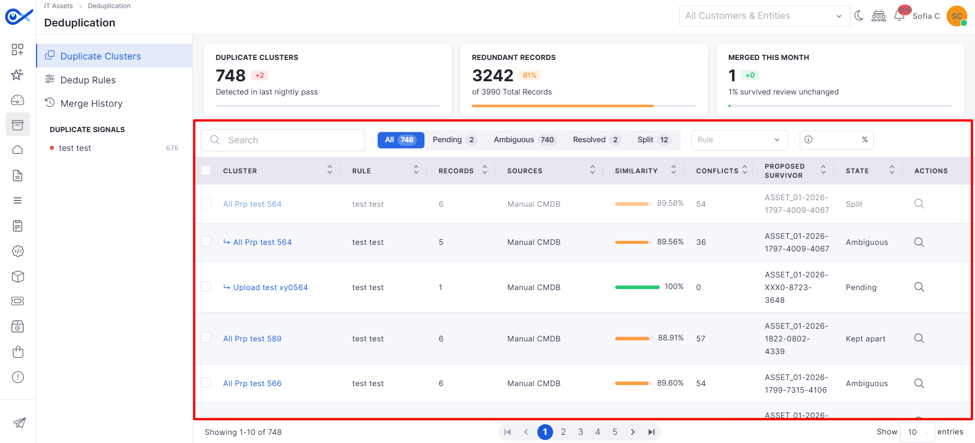
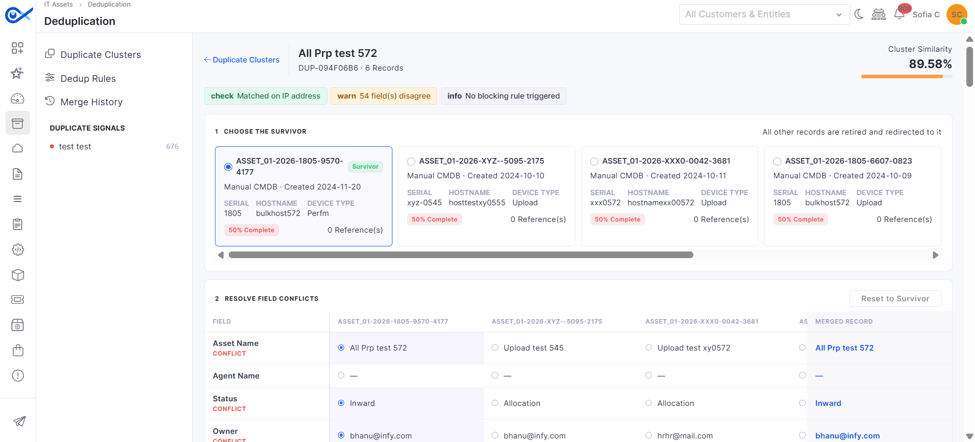
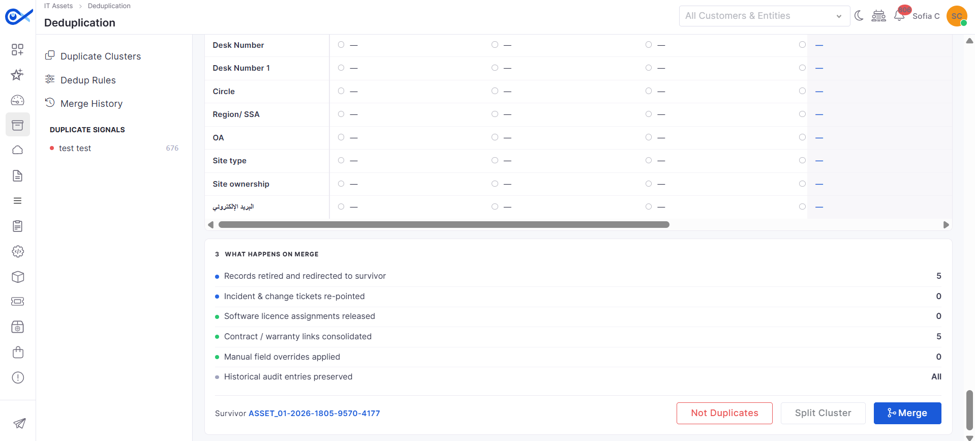
Displays the number of asset records identified as redundant.
Displays all duplicate clusters in the queue.
Displays the Rule name of the cluster.
Displays the similarity score between the records using a progress bar.
Keeps the records separate when they represent different assets, even if they have similar names or identifiers.
Provides two groups within the cluster to organize the records. For example, records can be assigned to Cluster A or Cluster B based on whether they belong to the same asset.
Displays the logged-in user’s basic profile details.
Shikar – shikar.srivastav@infraon.io
Clock In / Clock Out
Used to log working hours for attendance tracking. Switching to Clock Out ends the current active session.
Shows the timestamp of the last action.
View Logs
Opens attendance/activity logs to review login history and time entries.
View daily login/logout logs.
Status
Shows the current availability status. Users can switch between statuses such as Active, Away, and Busy, depending on configuration.
Current Status: Active
Account Settings
Navigates to the Account Settings page, where users can update profile details, security settings, preferences, and attendance config.
Click here to know more.
Keyboard Shortcuts
Opens a pop-up showing available keyboard shortcuts for quick navigation.
User: g+u, Requester: g+r, etc.
Logout
Logs the user out of the platform.
Redirects to the login page.
Privacy Policy / Terms of Service
Links to compliance and platform usage policies.
External redirect.
This page lets users manage their personal profile settings, including basic details, password, preferences, signature, attendance options, approvals, and security settings like 2FA. All changes apply only to the logged-in user.
Users can update basic profile details, including full name, gender, contact number, time zone, and email address. This section also supports changing the profile picture and enabling Two-Factor Authentication (2FA) for secure login.
General | Account Settings
Profile Picture
Upload / Change
Upload or modify your avatar displayed across the platform.
Full Name
View / Edit
Users can update their login password by entering their current password and setting a new one. This is used to maintain account security and should be updated periodically or when credentials are compromised.
Change Password | Account Settings
Current Password*
Enter existing password
Required to verify identity before applying changes
New Password*
Enter new password
Adjust personal viewing and language settings. Users can set how many records appear per page, select their preferred interface language, and adjust the font size using the slider.
These preferences apply only to the logged-in user and do not affect global system settings.
Use this section to create and manage email signatures that automatically append to communications sent from the platform. Multiple signatures can be added and stored for different use cases (e.g., support, escalation, internal).
Add Signature | Account Settings
New Signature
Click
Opens a pop-up window to create a new signature.
Title
Enter text
This section stores the user's professional details and organizational mapping. It helps in defining the user’s role, department, experience, skills, business entity, and notification contact details within the platform.
Field Details| Account Details
Designation
Enter text
Stores the job title used internally. Example: Frontdesk Engineer
Organization Role
After entering details, click Submit to save changes.
Updated details will reflect across dashboards, workflows, and reporting modules.
This section displays your attendance logs for selected date ranges. Users can view clock-in/clock-out times, total working hours, remarks, and reasons for leave. You can filter records, review daily entries, and verify time logs based on system-recorded data.
Date
View
Shows the specific date of attendance entry. Example: 19 Wed, Nov 2025
In
The Pending Approvals section displays requests that require the user’s action—typically approval or rejection of workflow items such as attendance logs, requests, or task submissions.
This page only shows items assigned to the logged-in user as an approver. If no items require action, the page remains empty.
This page displays the attendance records of users who report to you. It includes login/logout times, total and effective working hours, remarks (Worked/Absent), and location-based fields such as latitude, longitude, and distance from the base. You can search by username, apply date-range filters, and review daily logs to monitor team activity and ensure compliance.
User Info (Name & Email)
Update the display name associated with your account. Example: Shikar.
View Only
Shows the registered email address used for login and notifications.
Gender
Select Option
Choose the gender preference from Male, Female, or Other.
Phone Number
Add / Edit
Enter your primary mobile number with the country code.Example: +974 4412 3456.
Timezone
Select Dropdown
Set your local timezone for accurate timestamps.Example: (GMT+05:30) Asia/Kolkata [IST].
Landline
Add / Edit
Enter the official landline contact number (optional).
Contact Extension
Add / Edit
Add an internal extension number if applicable (optional).
Two-Factor Authentication (2FA)
Enable / Disable
Enable enhanced security using TOTP via an authenticator app.
Submit
Save Changes
Applies and saves profile updates.
Define a new secure password for login
Submit
Save changes
Applies the password update after validation
Name of the signature template.Example: "Support Team Signature"
Editor (Text area)
Type / Format
Add and format signature content. Supports text styling, hyperlinks, and images.Example: Name, role, contact details, company logo.
Formatting Toolbar
Bold / Italic / Underline / Alignment / Insert Image
Apply styling and insert media for professional formatting.
Save / Close
Save or Exit
Save changes or close the editor without saving.
Enter text
Defines the functional role assigned within the system hierarchy. Example: Service Engineer
Department
Select from the dropdown
Associates the user with a specific department. Used for routing & reporting. Example: Support / Operations / Engineering
Experience Months
Enter value (number)
Total months of professional experience. Helpful for skill-mapping. Example: 24
Experience Years
Enter value (number)
Total years of professional experience. Example: 3
Skills
Select from the dropdown
Define skillsets for resource assignment & workload mapping. Example: Networking / Troubleshooting / Linux
Notify Email
Enter email
Email address used for task/ticket notifications. Example: john.doe@infraon.com
Notify Phone No(s)
Enter phone
Phone number used for SMS/voice alerts. Example: +91 987XXXX210
Business Entity
Enter or select
Indicates the business unit to which the user belongs. Example: Global Support
Business Segment
Enter text
Categorizes the user under a business division. Example: IT Operations
Partner Name
Enter text
Used when the user belongs to a partner organization. Example: TechSolutions Pvt Ltd
Subsidiary
Enter or select
Maps the user to a subsidiary entity in multi-org setups. Example: Infraon India Pvt Ltd
View
System-recorded clock-in time. Example: 03:52 PM
Out
View
System-recorded clock-out time.Example: 06:41 PM
Effective Hours
View
Actual productive time calculated from first clock-in to last clock-out after break deductions. Example: 1 hr, 39 min
Total Hours
View
Gross working hours, including all logged sessions. Example: 2 hr, 48 min
Remarks
View
Work status based on attendance. Example: Worked / Absent
Latitude / Longitude
View
Shows captured geo-coordinates (if location tracking is enabled).
Login Type
View
Indicates login source. Example: Remote / Base / Mobile
Distance from Base
View
Distance from the assigned base location at login time.
Approval Status
View
Shows if attendance adjustments are pending approval. Example: Approved / Pending
Reason
View
Shows remarks for absence or manual edits. Example: No Reason Provided
Filter (Last 30 Days)
Select Filter
Filters attendance records based on date range. Example: Today / This Month / Custom Range
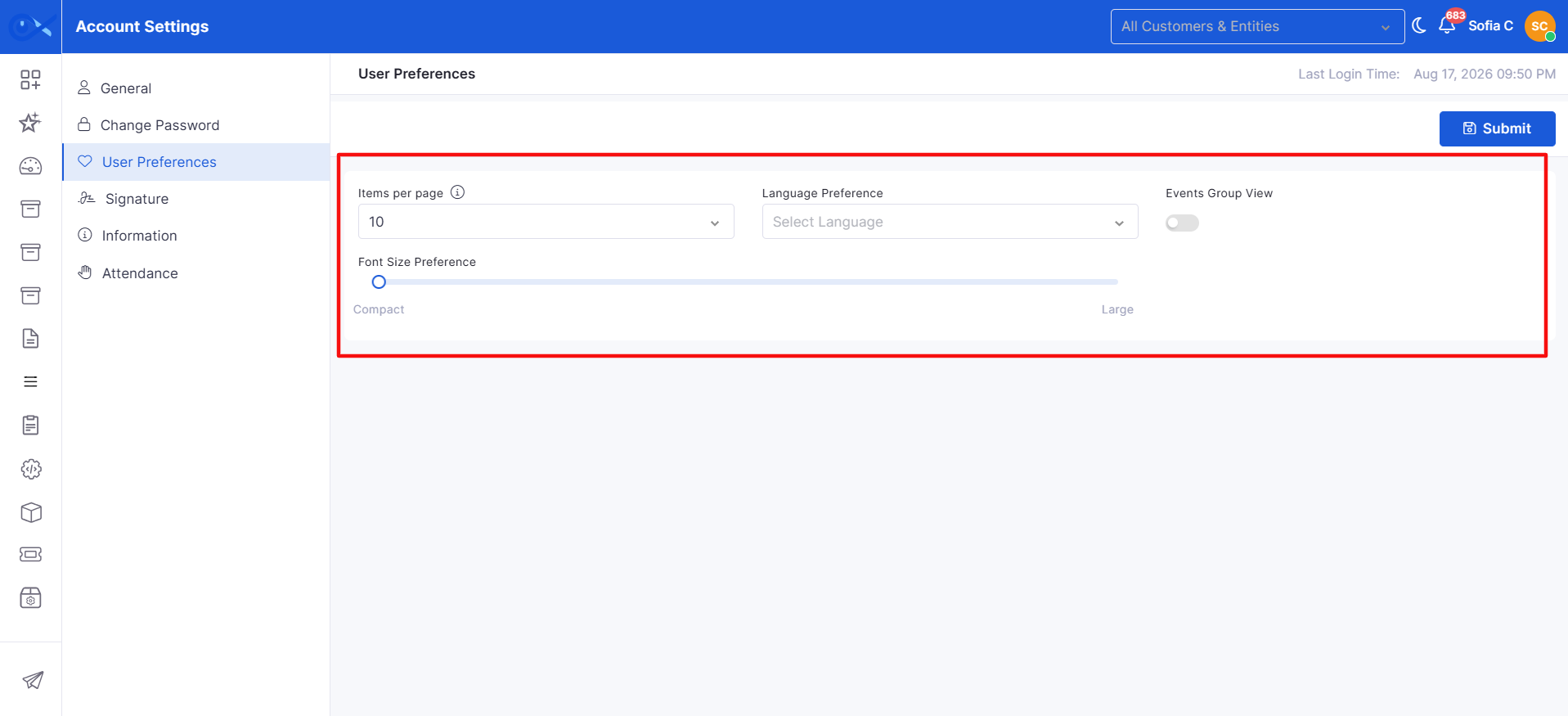
Project Settings defines the reusable configuration required to standardize project creation and execution. It allows users to predefine project structure, task structure, workflows, teams, and field behavior so that projects can be created consistently without repeated manual setup.
Within Project Management, Project Settings serves as the configuration layer for creating and managing templates. These templates are later used during project creation to auto-populate details, tasks, teams, and workflows.
Project Settings includes:
Project Template
Task Template
These two components work together to define both project-level and task-level structure.
Once a Purchase Order (PO) is created, users with the necessary privileges can manage and process it further. The PO record opens in a pop-up window containing four tabs that provide different views and actions related to the PO.
Displays all information entered during PO creation, including:
Basic Details – Order name, vendor, department, currency, delivery date, etc.
Item & Cost Details – Item name, category, quantity, pricing, discount, tax, and total cost breakdown.
This view shows a detailed summary of assets associated with the PO. It helps track order progress, including the number of items ordered, received, and pending.
Users can classify and organize files for clarity and compliance when uploading attachments to a Purchase Order.
The Shipment Creation feature allows users to create and manage shipments against an approved Purchase Order (PO). Users can create full or partial shipments based on the available quantities in the Purchase Order.
A shipment records the delivery information, shipment items, addresses, contact details, and attachments. Once the shipment is created, the received and available quantities in the Purchase Order are updated accordingly.
The Shipment section is available from the Purchase Order view page. The Add Shipment option is available only when the Purchase Order is Approved and has quantities remaining to be received.
Shipping | Shipment Items
After creation, users can view the shipment and update its status, such as Ready for Dispatch or Dispatched. Once the shipment is delivered, users can use Receive Asset to record the received items.
The received assets are linked to the shipment and added to the IT Asset page. Shipment information is also available from the associated Vendor page.
Shipment | Status Details
The Activity Log provides a detailed history of all actions and updates related to a Purchase Order (PO). It captures every modification authorized users make, including updates to terms and conditions, vendor details, billing/shipping addresses, currency, department, payment terms, and expected delivery dates.
Each log entry is time-stamped and tagged with the user who acted, making monitoring and auditing PO activities easy. The log is organized chronologically, with the most recent changes displayed at the top for quick reference.
The State / Status indicator reflects the current Purchase Order (PO) stage within its lifecycle. It helps users quickly identify whether a PO is still being drafted or is awaiting approval.
PO Workflow | Basic Details
Infraon Infinity supports Purchase Order approval through both the application UI and email-based approval actions. Once the Purchase Order reaches the configured approval stage, authorized approvers can review and approve or reject it according to the configured workflow.
Authorized approvers can directly approve or reject a Purchase Order from the Purchase Order Edit page.
To approve a Purchase Order from the Edit page:
Navigate to Purchase Order.
Open the required Purchase Order that is in Waiting for Approval status.
Click Edit to open the Purchase Order Edit page.
Move to the Terms and Conditions step in the stepper.
Click Approve.
In the approval window:
Enter comments in the Comment section.
Add or select a signature if signature approval is enabled in the workflow.
Click:
After the approval action is completed:
The Purchase Order status is updated automatically.
Approval or rejection comments are recorded in the recent activity/history section.
For multi-level approvals, the next approver in the workflow can continue the approval process.
Infraon Infinity also allows approvers to approve or reject Purchase Orders directly from email approval actions.
When a Purchase Order is submitted for approval, approval emails are automatically sent to the approvers configured in the workflow.
To approve a Purchase Order through email:
Open the approval email received for the Purchase Order.
Click Take Action from the email notification.
Review the Purchase Order details in the approval page.
Enter comments if required.
Accept to approve the Purchase Order.
Reject the Purchase Order.
Add or select a signature if signature approval is enabled.
Click:
Accept to approve the Purchase Order.
Reject the Purchase Order.
After the action is completed:
The Purchase Order workflow status is updated automatically.
Approval comments and signature details are recorded in the approval history.
If multi-level approval is configured, the request is forwarded to the next approver in the workflow.
Label
Action
Description / Example
Category
Select from the drop-down.
Choose the asset type linked to the PO. Options include IT Asset or Fixed Asset. Example: Selecting "IT Asset" will filter the list to only display IT-related items in the PO.
Search
Enter text in the input field.
Label
Action
Description
Upload Area
Drag and drop / Browse to upload
Upload files (Formats: PNG, JPEG, PDF, DOCX, XLSX, etc., Max size: 20MB).
Category*
Shipment Description
Enter a description for the shipment.
Provides additional information about the shipment.
Example: Laptop shipment - Batch 1.
Purchase Order
View the associated Purchase Order.
Item
Select/view the Purchase Order line item.
Displays the items included in the Purchase Order.
Available Quantity
View the remaining quantity available for shipment.
Status
Update the shipment status.
Tracks the current stage of the shipment.
Example: Ready for Dispatch → Dispatched.
Receive Asset
Click to record received assets.
Status / Stage
Description
Draft (Creation)
When a PO is initially created, it enters the Creation stage and is automatically marked with the status Draft. The PO is still being prepared, and details can be reviewed or edited before proceeding to the next stage.
Waiting for Approval/ Approval
Once the order process is ready to begin, users can advance the PO to the Approval stage. Upon doing so, a pop-up window will appear, prompting the user to define the type of approval and select the appropriate approver(s) — either a team or an individual manager.
Send to Reporting Manager: By default, the approval request is set to be sent to a team. When toggled on, the system switches to manager-based approval, allowing the user to select a specific reporting manager to approve the PO.
Select Team / User: Depending on the approval type, select the team or individual approver from the drop-down list.
An approval email is sent to all designated owners if a team is selected. If a manager is selected, the system sends the approval notification exclusively to that individual.
Example: Selecting Procurement Team will notify all procurement approvers; selecting Finance Manager—John Smith will notify only that manager.
Allows users to search for specific assets in the PO list.
Example: Enter "Laptop" to quickly locate all laptop assets in the PO.
Sort By
Select from the drop-down.
Sort asset records in ascending or descending order based on selected criteria. Available criteria include Hostname, Asset Name, Asset ID, Criticality, Operational Status, Status, Device Down, etc. Example: Sorting by “Operational Status” in ascending order will group active devices at the top.
Select from the drop-down
Choose a category to classify the attachment:
Default Category
Quotation
Terms & Conditions
Invoiced and Receipts
Payment and Financial Documents
Description
Enter text
Provide a brief note or context about the uploaded attachment.
Upload
Click to confirm
Uploads the selected file(s) to the PO record.
Cancel
Click to abort
Closes the pop-up without saving the changes.
Identifies the Purchase Order against which the shipment is being created.
Mode of Shipment
Select the shipment method.
Specifies how the items are being transported.
Example: Road Transport.
Challan Number
Enter the challan number.
Records the delivery/challan reference associated with the shipment.
Expected Arrival Date
Select the expected arrival date.
Specifies when the shipment is expected to arrive.
From Address
Select an existing address or add a new address.
Specifies where the shipment is being dispatched from. Addresses can be selected from the Address Book or added from the shipment page.
To Address
Select an existing address or add a new address.
Specifies where the shipment is being delivered.
Contact Details
Enter or select the contact information.
Specifies the person to contact regarding the shipment, typically the vendor contact.
Attachments
Upload supporting documents.
Allows users to attach shipment-related documents such as delivery documents or challans.
Indicates how many units are still available to be shipped.
Received Quantity
View the quantity already received.
Shows how many units have already been received against the Purchase Order.
Shipment Quantity
Enter the quantity to be shipped.
Specifies how many units are included in the current shipment.
Example: If 100 laptops were ordered and 4 have already been received, the available quantity is 96. The user can create a shipment for any valid quantity up to 96.
Records the quantity received against the shipment and links the received assets to the shipment.
Received Product History
View the receiving history.
Displays information about previously received items, including who received them and the quantity received.
Edit
Edit shipment information when permitted.
Shipment information can be edited while the shipment is in Draft status. Once it reaches another status, editing is restricted.
Received Quotes (Creation)
Procurement team records vendor quotes directly in the PO module. Each quote includes price, delivery timelines, and warranty terms and is stored for selection and audit in Infraon.
Negotiation (Execution)
After vendor discussions, procurement or the requesting department updates the PO with revised prices, delivery terms, or SLA changes. All changes are logged in the PO history.
Send to Supplier / Vendor (Execution)
The approved PO is sent to the selected vendor from the PO module. Vendor acknowledgement and expected delivery date are updated in the PO record.
Form Request and Confirmation (Execution)
Confirms final PO details, links any related PR, and performs compliance checks before execution.
Waiting for Quotation Approval (Execution)
PO remains in this stage until all threshold-based approvals are completed within the configured PO workflow in Infraon.
Waiting for Delivery (Execution)
Tracks vendor shipment status. Users can mark items as Received and view the Received Product History in real-time.
Received (Execution)
Items are verified against the PO in the Asset or Fixed Asset module. Received items are linked to asset records in Infraon CMDB.
Waiting for Invoice (Execution)
The vendor invoice is uploaded or linked to the PO. Finance validates invoice details against the PO and received assets.
Waiting for Payment (Execution)
Finance schedules payment according to the PO payment terms. Status is tracked until payment completion.
Payment Done (Execution)
Payment reference details are recorded in the PO record.
PO Close (Close)
PO is closed once all deliveries, invoices, and payments are completed. All related records remain searchable for reporting and audits.
To add a new dashboard:
Navigate to the Dashboard module.
Expand the left panel by clicking the right arrow key.
Click the plus (+) icon to create a new dashboard.
Provide a name (this name will represent and help identify the dashboard) for the dashboard and click Create.
Once created, the next step is configuring Widgets, which dynamically display data from various modules in graphical or tabular formats.
Infraon widgets are pre-built components designed to pull key insights from your infrastructure, ITSM modules, and network data, and display them in clear, interactive formats such as:
Supported Modules
Count Bar is supported across the following Ticket Summary module:
Widgets are grouped into multiple categories, such as Assets, Statistics, Events, Views, ITSM, Contract Management, IMACD, Purchase Orders, NCCM, System, Log Management, and IPAM, ensuring complete coverage across IT operations and business service management.
The Assets category provides insights into IT and Fixed Assets, including inventory distribution, purchases, license usage, consumables, and vendor information. IT teams can track asset lifecycles, utilization, and financial impact.
The Statistics category helps monitor performance metrics, availability, trends, and resource utilization. It is crucial for proactive oversight and SLA reporting.
The Events category provides a breakdown of all system events and alarms, helping teams prioritize incidents by severity and track event history over time.
The Views category provides device-level status and network visualizations, enabling topology-based monitoring and drill-downs.
The ITSM category consolidates ticketing, request, change, release, and problem metrics in one location. It allows support teams to track SLA compliance, workload, and turnaround times.
Summary Widget
The Summary widgets offer high-level aggregation and drill-down capabilities for the Ticket, Request, Problem, Change, and Release modules. These widgets support flexible data grouping and multiple drill-down levels, empowering users to visualize and analyze operational metrics with greater depth.
Count Summary Widget
The Count Summary widgets offer high-level aggregation and drill-down capabilities for the Ticket, Request, Problem, Change, and Release modules. These widgets support flexible data grouping and multiple drill-down levels, empowering users to visualize and analyze operational metrics with greater depth.
The My Approval Count Summary widget provides a summary of approval requests assigned to the logged-in user, with counts grouped by ITSM module and approval status. Users can view Pending, Approved, Rejected, and Total counts and drill down into the corresponding approval records.
Approval Record Details
The widget is then displayed on the dashboard with the available approval counts. To approve a specific request, select the required Incident, Request, Problem, Change, Release, or Task module from the widget. Click the relevant approval count to open the corresponding records and view their details. The displayed columns and record information vary based on the selected module.
My Approval Count Summary | Approve Icon
The Contract Management category enables organizations to track vendor/manufacturer contracts, including their types and status, for compliance and renewal purposes.
The IMACD category captures Install, Move, Add, Change, and Dispose activities, providing visibility into asset and service lifecycle changes.
The Purchase Order category tracks all purchase orders, providing summaries of order counts and detailed records.
The NCCM category provides insights into configuration backups, baseline comparisons, vulnerabilities, and policy compliance for network devices.
The System category monitors platform/system health for proactive troubleshooting.
The Log Management category provides an overview of collected logs, counts, and summaries for better monitoring and auditing.
The IPAM category focuses on IP address and subnet utilization, ensuring optimized network capacity planning.
Select the widget you want to configure, then set up its parameters.
While each widget serves a predefined purpose (e.g., asset tracking, ticket monitoring, event summaries), they can be fully customized by applying filters, selecting specific time ranges, or adjusting visual elements such as color schemes.
The Configuration tab allows you to define how a widget should display information. Different configuration fields will appear depending on the widget category and chart type selected. The table below combines all available fields across different widget types for reference.
The Filter tab allows you to refine and narrow widget data by applying specific filters. Instead of displaying all available information, you can limit the results to focus on relevant data points (e.g., filtering tickets by priority or assets by tags).
Click on Add to finalize your configuration and add the widget to the dashboard.
You can perform the following actions while editing a dashboard:
Edit Dashboard | Add Dashboard
Click on Submit to save and apply the changes to your dashboard.
The Global Filters section in the Edit Dashboard page is used to configure dashboard-level filters that dynamically apply across all configured widgets. These filters help users narrow down dashboard data by selected criteria, such as infrastructure, assets, locations, and ITSM-specific parameters.
Users can configure:
Standard Global Filters
Date Filters
ITSM Global Filters
Configurations | Global Filters
The Location Hierarchy Filter allows administrators to configure location-based hierarchy levels for dashboard filtering. Users can then select values through cascading dropdowns to filter ticket and asset/CMDB widgets based on the selected hierarchy.
How does it work?
An administrator can configure a hierarchy such as Country → State → City. When a user selects a country, the State dropdown displays only states under that country, and selecting a state further scopes the city options. After clicking Apply, the dashboard widgets display data matching the selected hierarchy.
Location Hierarchy Filter Configuration
The configuration sidebar allows administrators to enable the filter, add hierarchy levels, reorder them, and save or cancel the configuration.
The dashboard displays cascading dropdowns for the configured hierarchy levels.
Ticket and Request dashboard widgets support custom field-based filtering and grouping, enabling users to analyze data using workflow-specific attributes. Supported custom fields of type Dropdown, Checkbox, and Radio Button can be used in both Filter and Group By configurations for supported summary widgets.
Custom field support is available in the following widgets:
Incident Summary
Total Incident Count
Incident SLA Compliance By Templates
Incident Response Time Count
While configuring a supported widget, users can navigate to the Filter section to apply custom field-based filters and use the Group By option to group widget data based on selected custom field values.
The Group By dropdown displays both default fields and supported custom fields (Dropdown, Checkbox, and Radio Button) for the selected module.
For the Count Summary widget, Group By values update dynamically based on the selected module. When users switch between modules such as Incident and Request, the available custom fields are refreshed, and users must reselect the required Group By field.
If multiple workflows contain custom fields with the same name, the workflow name is automatically appended to the field name to avoid duplication and help users identify the correct field when selecting a filter or Group By.
Nested Grouping allows users to analyze Summary widgets data across multiple hierarchical levels within a dashboard widget. It helps organize asset data in a structured, expandable format for deeper visibility into asset distribution and categorization.
This feature is available in the Summary widgets and supports up to 4 levels of grouping.
Navigate to Dashboard → Edit Dashboard.
Select the Asset Summary widget.
Go to the Configuration tab.
Enable the Nested Grouping toggle.
Nested Grouping | Configuration
Grouping Structures | Example
After saving the widget configuration, the Asset Summary widget displays data in a hierarchical tabular structure within the dashboard.
Users can expand grouped levels, view grouped asset counts, open sidebar asset details, export data, and edit the existing widget configuration.
Custom Column allows users to create custom KPI-based calculations for supported dashboard count widgets using a formula builder. This feature helps users define calculated metrics directly within the widget configuration using ticket-related fields and mathematical operations, following BODMAS precedence rules.
Navigate to the Dashboard and select Add New Widget.
Select a supported Count Widget such as Total Incident Count.
Enable the Enable Formula toggle to activate Formula Mode.
Open the Formula tab to create custom KPI columns.
Add a custom column name and configure the formula expression using supported ticket fields and operators.
Apply the changes to preview the calculated widget data.
Save the widget configuration and dashboard.
The formula builder supports standard mathematical operations following BODMAS precedence rules:
Addition (+)
Subtraction (-)
Multiplication (*)
Division (/)
The following ticket fields can be used while building custom formulas:
Formula Configuration
To learn more about configuring Custom Columns using the Formula Builder,
Example KPI Formulas
Custom Fields allow IT admins to create and manage asset-specific metadata fields that go beyond the default system-defined attributes. These fields enable teams to tailor asset records to suit organizational, compliance, or operational needs.
It is designed to support:
Organization-specific field tracking (e.g., Warranty Location, Department Tag, Device Owner Remarks)
Flexibility in defining Text, Date, Dropdown, or Numeric fields
Bar Chart
Shows comparative metrics in horizontal/vertical bar form.
Example: Tickets by Priority, License Usage.
Area Chart
Highlights cumulative growth or changes over time with shaded areas.
Example: Static Trend of Tickets.
Gauge Chart
Displays progress against a target or threshold (like a speedometer).
Example: SLA Compliance Rate.
Sunburst Chart
Provides hierarchical data in concentric circles for drill-down insights.
Example: Business Service Summary.
Count Bar Chart
Displays ticket counts as segmented bars within summary cards based on the selected grouping field.
Example: Ticket Summary by Priority.
Bar Shows
Define the field used to break down the segmented bar. Available options are State, Priority, Severity, and Urgency.
Data Panel
Asset Count Panel
Data Panel
License Usage
Bar Chart, Data Table
True-up Cost
Data Panel
Top Publishers
Bar Chart, Data Table
Consumable Summary
Data Panel
Location-Wise Asset Summary
Bar Chart, Data Table
Agent Status
Data Panel
Asset Location Drilldown Table
Data Table
Asset Location Drilldown Summary
Data Panel
Asset Aging Summary
Bar Chart, Data Panel
Agent Count
Displays agent counts in a panel view with Total, Active, and Inactive agents. When the Creation Time filter is applied, all counts are shown. When the Down Since filter is applied, only the inactive agent count for the selected time range is displayed. View: Data Panel
Asset Lifecycle Status
Displays assets approaching or exceeding lifecycle milestones such as Warranty Expiry, EOL, EOS, AMC Expiry, etc., based on a selected timeframe (e.g., 7/14/30 days).
Shows counts including expired assets. Supports Group By (Device Type, Model, Vendor, etc.) and Category selection. Clicking a count opens a sidebar with asset details and a CSV download.
View: Data Panel.
Patch Agent Count
Displays the total number of inventory agents, the number with the Patch Agent installed, and the number without it.
Clicking a count opens a panel listing the corresponding agents. The widget is available only to organizations with the Patch Management license and the InfraonPatch feature flag enabled.
View: Data Panel
Area Chart, Data Table, Bar Chart
Resource Trend
Line Chart
Resource Status Panel
Data Panel
Statistic Panel
Data Panel, Gauge Chart
Node Status Panel
Data Panel
Link Status Panel
Data Panel
Node Availability Summary
Data Table
Critical Device Summary
Data Panel
Branch Availability Summary
Data Table
Service Provider Index
Data Panel
ISP Link Availability Summary
Data Table
Device Type Availability Summary
Data Table
Network Performance Index
Data Panel
Node Summary
Data Panel
Link Summary
Data Panel
Wireless Controller
Data Panel
Aging Summary
Data Table
Node Aging Summary
Data Table
Link Aging Summary
Data Table
Event Aging
Data Panel
Branch Summary
Data Panel
Branch Details
Data Panel
Branch Availability
Data Panel
Geo Map Drilldown Summary
Data Panel
Device Status
Data Panel
Business Service View
Data Panel
Business Service Summary
Data Table, Sunburst Chart
Task Summary
Displays a consolidated view of tasks on the dashboard, grouped by the selected Group By field, such as Module, State, Status, or Priority. By default, tasks are grouped by Module, with each group displaying its corresponding task count. Users can apply filters such as Task Module, Due Date, Status, State, Priority, and Assignee to refine the displayed task data. The widget dynamically updates its preview and displayed data based on the selected grouping and filters. Clicking on a task count opens the corresponding filtered task list for further analysis. The widget also supports Export, Clone, Edit, and Delete actions.
View: Data Panel.
Data Table
Ticket Created Vs Resolved
Line Chart, Bar Chart, Area Chart, Pie Chart
Request Summary
Pie Chart, Data Table, Bar Chart, Data Panel
Request Count
Data Panel
Request Created Vs Resolved
Pie Chart, Bar Chart, Area Chart, Line Chart
Problem Summary
Pie Chart, Bar Chart, Area Chart, Line Chart
Problem Count
Data Panel
Problem Created Vs Resolved
Pie Chart, Bar Chart, Area Chart, Line Chart
Change Summary
Pie Chart, Bar Chart, Data Panel, Data Table
Change Count
Data Panel
Change Created Vs Closed
Pie Chart, Bar Chart, Area Chart, Line Chart
Ticket SLA Compliance by Templates
Data Table
Requester Summary
Data Table
Assignee Summary
Displays a summary of requests grouped by assignee, with options to filter by module, timescale, and technician. Users can view counts per assignee, open a detailed ticket list in a slider with pagination, and manage the widget (add, clone, edit, delete).
Supports Ticket, Request, and Problem modules, with data visibility based on user roles.
The Filter tab allows you to apply custom filters, including Priority, Status, Team, Service Catalog, Department, and Location. Multiple filters can be applied together, and the widget displays only matching data. Validation ensures that required values are entered and that filters are retained during editing and cloning.
Example: Monitor requests assigned to technicians, filtered for High priority and Open status. View: Data Table.
Ticket Response Time Count
Data Panel, Data Table
Release Summary
Pie Chart, Bar Chart, Data Panel, Data Table
Release Count
Data Panel
Release Created Vs Closed
Pie Chart, Bar Chart, Area Chart, Line Chart
Ticket Aging
Data Panel
Ticket Aging Summary
Line Chart, Data Panel
Client Summary
Data Table
Request SLA Compliance by Templates
Data Table
Request Response Time Count
Data Panel, Data Table
ITSM Work Tracker
Data Table
In SLA – Out SLA Tickets
Bar Chart
Average Turnaround Time – Tickets
Bar Chart
Ticket Aging Summary Timebar
Data Panel
Ticket SLA Aging Summary
Data Panel
AI Token Consumption Count
Displays the total tokens consumed by different AI-powered features in the application. Each time features like bots, service classification, rephrasing, or knowledge base (KB) creation are used, tokens are consumed and reflected here.
Bots – AI bots that assist in real-time problem-solving for departments like IT, HR, Finance, or are custom-built for specific needs.
Service Classification – Auto-classifies tickets when emails are received via IMAP based on configured services.
Rephrase – Refines notes, replies, or emails added in tickets, requests, or other modules.
KB Creation – Converts closed tickets into AI-enhanced knowledge base articles for easy reuse.
View: Data Panel
User Attendance Widget
Displays real-time employee attendance metrics, showing Present, Absent, and Total counts with percentage-based visual indicators. Users can click Present or Absent to view detailed employee lists in the sidebar.
The widget supports filtering by location and date to analyze attendance for specific criteria. When no attendance data is available for the selected filters, the widget displays "No Data Available," with all counts set to 0.
View: Data Panel
In SLA - Out SLA Incidents
This widget displays the number of incidents that are within SLA (achieved) and those that have breached SLA for each priority level, based on the selected time range. Users can click on the widget to open a detailed incident grid in a slider view. The data displayed is determined by the selected profile and metric (e.g., Response), with an option to enable auto-reload for real-time updates.
View: Bar Chart.
Average Turnaround Time – Incidents
This widget provides a monthly view of incident counts categorized by priority, based on the selected timescale. When hovering over the chart, it displays the average turnaround time (TAT) for incidents at each priority level. Users can click on a data point to open a detailed incident grid in a slider view for deeper analysis.
View: Bar Chart.
Problem Summary
Group problems by their source with an interactive, clickable tabular view. This enables users to quickly filter, organize, and analyze problems by Source for improved issue tracking and actionable insights.
View: Pie Chart, Bar Chart, Area Chart, and Line Chart.
Count Summary
Summarizes records by grouping them across Assignee, Team, Catalogue, Category, Impact Service, Requester, and Tag. This widget visualizes the distribution of Tickets, Requests, Problems, Changes, and Releases, providing rapid insights into operational workload and service delivery effectiveness.
View: Data Table.
Assignee Summary
Displays a summary of requests grouped by assignee, with options to filter by module, timescale, and specific technician. Users can view counts per assignee, click to open a detailed ticket list in a slider with pagination, and manage the widget by adding, cloning, editing, or deleting it. Example: Monitor the number of requests assigned to each technician in the IT Helpdesk team over the last 30 days.
View: Data Table.
Ticket Aging Summary Timebar
Displays the distribution of tickets based on their aging duration, helping track SLA compliance and identify delays. It allows users to group tickets by parameters like state, priority, or assignee and visually compare time-barred versus non-time-barred cases using standard or extended aging types.
Request Summary
Displays the count of requests grouped by fields such as State, Status, Priority, Severity, Impact Service, or Request Source. Users can view how requests are distributed and drill down into specific groups for detailed data.
View: Data Panel, Pie Chart, Bar Chart, Data Table.
Ticket Summary
Displays ticket counts grouped by selected Group By, Drilldown, or Nested Group-By configuration. Supports grouping by standard fields (Status, Priority, Urgency, State, Impact, Service, Category, Assigned Team, Location, Ticket Source, Event, etc.), Ticket Custom Fields, and linked Asset Custom Fields.
Allows filtering by tags, assignee, standard and custom filters (including dynamic Event values from incidents), timescale, and custom date range. Supports up to 6-level hierarchical grouping (Flat or Drill-Down view).
Clicking any count opens a slider with the filtered ticket list, including pagination and export. Data visibility is determined by user role, license, and MSP access.
View: Data Panel, Pie Chart, Bar Chart, and Data Table.
Ticket Aging Summary
Shows tickets count across selected SLA aging ranges and highlights how long tickets have remained open.
Supports SLA Profile, Metric, breach status, timescale selection, Group By options, and filters for tags, assignees, and custom fields.
View: Data Panel.
Ticket Aging Summary Timebar
Shows ticket counts by aging buckets and time-bar status (Yes/No). Configure Group By, Aging Type and select a custom Timebar field to show only time-barred or non-time-barred tickets. Click any count to open the ticket list and export CSV.
View: Data Panel.
Asset Summary
Displays asset counts grouped based on the selected Group By or Drilldown configuration. The widget supports grouping by standard fields and all configured asset custom fields (e.g., Department, Device Type, OS Name, Zone, Region, etc.). Users can apply filters (Tag, Custom Filters, Department, etc.) to refine results. Clicking on any count or chart segment opens a sidebar with the corresponding asset list, where pagination, sorting, column selection, export (CSV), and redirection to Asset View are supported. Data visibility is enforced based on user role and MSP access. The widget supports auto-reload and resizing.
View: Data Panel, Pie Chart, and Bar Chart.
AMC Expiry
Displays the count of assets or licenses whose AMC (Annual Maintenance Contract) is approaching expiration or has expired, based on the selected timescale and filters. The widget helps users quickly identify expiring AMCs and review associated cost and date information for renewal planning.
View: Data Panel.
Ticket Summary
Provides a real-time overview of tickets based on status and performance metrics. In addition to status-wise counts (Open, In Progress, On Hold, Resolved, Closed, Approval), the widget supports Resolution Rate, which measures SLA performance using the formula:
(Tickets resolved within SLA ÷ Tickets due for resolution) × 100. Users can select the Type as Compliance or Resolution Rate to switch between SLA adherence and resolution efficiency views.
The widget supports grouping by Impact Service, Department, Profile, or All Tickets, along with configurable timescales and filters.
View: Data Panel, Pie Chart, Bar Chart, Data Table
Ticket SLA Compliance By Templates
Provides a detailed view of SLA performance across configured SLA templates (profiles) for the selected time period. The widget lists each SLA profile along with the Total Ticket Count, Breach Count, and calculated Compliance Percentage.
Compliance is calculated as the number of tickets resolved within SLA targets divided by the total number of tickets governed by that SLA template. Administrators and managers can use this widget to compare SLA effectiveness across templates, identify SLA profiles with frequent breaches, and assess overall SLA adherence at a glance.
The widget supports time-scale selection (e.g., the current month) and auto-refresh, making it suitable for operational dashboards and periodic compliance reviews.
View: Data Table
Project Task Summary
Displays a consolidated view of tasks across projects, grouped by the selected Group By field (such as Status). It shows project-wise task counts along with a total count to help assess task distribution and progress. Supports configurable Timescale filters (e.g., Current Week, Current Month, Last 30/60 Days) and Auto Reload for real-time updates.
Data is presented in a tabular format with columns such as Project Name, grouped values (e.g., To Do), and Total. The widget supports export, cloning, and dynamic configuration-based updates. Clicking on task counts opens detailed task views for further analysis. View: Data Panel.
Project Summary
Displays a consolidated summary of projects in a card view, grouped by the selected Group By field. Supported grouping options include Space, Customer, Project Type, State, Status, and Risk.
Each card shows the project count for the selected category, along with a Total count for all projects. Supports configurable Timescale filters (for example, Current Week, Current Month, Last 30/60/365 Days) and Auto Reload for automatic data refresh.
Clicking a project count opens the Project Grid view with filtered project details for further analysis.
This widget helps users monitor project distribution, status trends, risk levels, and ownership at a glance.
View: Card Panel.
Project Task Count
Displays the total count of project tasks based on the selected configuration criteria, such as Status, Priority, or Category. Users can configure the widget using project-specific filters, task fields, tags, assignee, and due date conditions to monitor task distribution and progress.
Supports configurable Timescale filters (for example, Current Week, Current Month, Last 30/60 Days) and Auto Reload for automatic data refresh. The widget dynamically updates counts based on the selected filter conditions.
Clicking the displayed count opens a filtered task sidebar that shows the corresponding project tasks for detailed analysis. The widget also supports CSV Export, Clone, Edit, and delete operations for dashboard management.
View: Count Panel.
My Activity
Displays a personalized summary of records assigned to the logged-in user across supported modules, including Ticket, Request, Problem, Change, Tasks, and Project Task. The widget supports configurable Timescale and Auto Reload options for real-time updates.
For the Project Task module, the widget displays the count of project tasks assigned to the logged-in user. Users can apply custom filters such as Project, Status, Priority, and Due Date to refine the displayed data. Changing the module dynamically updates the available filter options based on the selected module.
Clicking on the displayed count opens a sidebar with the filtered record list and matching pagination details. The widget also supports CSV export, edit, and delete operations. Exported CSV files include details such as task name, project, status, priority, assignee, and due date.
This widget helps users track assigned activities, monitor pending work items, and quickly access filtered records directly from the dashboard.
Hardware Size Metrics
Displays hardware size distribution metrics across managed assets. The widget supports the following metric types: RAM Distribution, CPU Configuration, and Disk Capacity Distribution. The widget supports grouping based on hardware-related fields such as RAM Size, Processor, Processor Speed, Number of Cores, Disk Model, Disk Size, and Disk Type. Users can also apply filters such as RAM Size Selection, Disk Size Selection, Asset Tags, and Custom Filters to refine results. Clicking a count value opens a drill-down slider that displays the related asset list, with pagination and CSV export support. The widget also supports edit, clone, delete, resize, auto-reload, and role-based data visibility.View: Tabular, Bar Chart, or Pie Chart.
Asset-Level Size Metrics Table
Displays hardware size metrics for individual assets in a tabular format, enabling users to compare RAM, CPU, memory, and disk-related metrics across managed assets. The widget displays details such as Asset Name, Asset Type, CPU, Memory Size, Free Memory Space, Disk Capacity, and Free Disk Space. Users can apply filters based on Memory Size, Disk Size, Asset Tags, and Custom Filters to refine the displayed asset data. The widget supports search, pagination, auto-reload, resizing, presentation mode, and role-based data visibility. Users can also edit, clone, delete, and resize the widget. Clicking an asset name redirects the user to the corresponding Asset Details page, where they can view detailed hardware metrics.
View: Data Table.
Ticket Aging Summary
Displays a summarized view of ticket aging across the selected Module (Incident, Request, or Change). Users can configure the widget using Group By, Auto Reload, Chart Type, and filtering options to analyze aging trends. Based on the selected module, the available Group By and filter options are updated dynamically. The widget presents ticket counts across predefined aging buckets (for example, <1 Day, <3 Days, <7 Days, <15 Days, and <30 Days) and supports both table and chart views. Clicking a count opens a detailed list of tickets for further analysis. Supports filtering by tags, assignee, ticket custom fields, asset custom fields, and custom filters. View: Table or Chart Panel.
Ticket Aging
Displays the number of tickets within a selected aging range for the chosen Module (Incident, Request, or Change). Users can configure the widget using Status, Timescale, Module, appearance settings, and filters to monitor ticket aging and identify pending work items. Based on the selected module, the available configuration and filtering options are updated dynamically. The widget highlights ticket counts for the configured aging period and supports drill-down analysis. Clicking a ticket count opens a detailed list of matching tickets, from which users can view ticket information or export the results. Supports filtering by tags, assignee, ticket custom fields, asset custom fields, and custom filters. View: Card Panel.
Meeting Summary
Displays the total count of meetings based on the selected Module, Timescale, and configured custom filters. The widget is available for the Incident, Request, Change, Asset, and Project modules. Supports configurable Auto Reload for real-time updates. Users can apply custom filters, such as Type, to refine meeting data displayed in the widget. Clicking on the meeting count opens the Meeting Details grid with matching records and standard table functionalities. The widget also supports CSV export for downloading meeting details. This widget helps users monitor meeting activities and quickly access filtered meeting records directly from the dashboard. View: Card Panel.
Project Relation Summary
Displays a consolidated project-wise summary of related records across multiple modules. Each row represents a project, while the columns display the counts of Incident, Problem, Change, Request, and Release, along with the Total count. Supports project-based custom filters to refine the displayed project data and relation counts. Clicking on any module count opens the respective filtered relation details view for further analysis. The widget also supports CSV export to download the currently displayed filtered data. This widget helps users monitor cross-module project relations and track associated records directly from the dashboard. View: Data Table.
Project Milestone Summary
Displays a milestone-wise summary of project task progress in a tabular view. Each row represents a project milestone and shows task counts for Open, Closed, and Total tasks, along with Completion % based on the selected timescale. Supports configurable Timescale filters (e.g., Current Week, Current Month, Last 30 Days) and custom filters (e.g., Project, Assignee, and Due Date) to refine milestone data. Clicking on the Open, Closed, or Total task count opens a filtered task sidebar view for detailed analysis. The widget also supports CSV export, cloning, editing, and deletion operations. This widget helps users monitor milestone progress, task completion trends, and pending workload across projects. View: Data Table.
My Approval Count Summary
Displays the approval status of requests assigned to the logged-in user, allowing Approvers to identify requests that are Pending, Approved, or Rejected.
Example: An Approver can view all their Pending approvals that require action. View: Data Table
Agent Summary
Displays a summary of Inventory Agent or Data Collector Agent instances grouped by version and build number, with Total, Active, and Inactive agent counts. Users can configure the title, grouping, display style, background color, auto-reload interval, time scale, and custom filters. Clicking a count opens a list of the corresponding agents for the selected version, build, and status. View: Data Table
Enables filtering and grouping data by the chosen attribute for focused monitoring.
Drill-Down Level 1
Select an option from the group by fields and the widget view
First-level drill-down using the chosen field, showing a quick breakdown (e.g., open/closed status).
Drill-Down Level 2
Add secondary grouping and view option.
Allows further segmentation of data (e.g., breakdown by priority within status) and supports multiple levels for deep analysis.
Timescale
Choose time period (e.g., current week)
Filters widget data by the selected timescale, aiding trend analysis.
Auto Reload
Set refresh interval
Ensures summary data is updated automatically at specified intervals.
Chart Type
Select a data panel, a pie chart, a bar chart, or a data table
Provides various visualization options for presenting summary and drill-down data.
Show Unassigned
Enable toggle
The Show Unassigned option displays data that are not assigned to you.
Show Total Count
Enable toggle
The Show Total Count option displays the total number of records along with the existing status-wise counts in the summary widget. Enables or disables the display of the total number of records in the ITSM Summary Widget. It is disabled by default.
Select the field by which the data should be grouped. For Task, the available options are Assignee, Team, and Module.
Count By
Select a count field
Select the field used to count Task records. For Task, the available options are State, Status, and Priority.
Timescale
Select a time period
Filters the widget data according to the selected time period.
Example: Current Week.
Auto Reload
Set refresh interval
Automatically refreshes the widget data at the configured interval.
Timescale
Select a time period
Filters the approval data displayed in the widget according to the selected time period.
Example: Current Week.
Auto Reload
Set refresh interval
Automatically refreshes the widget data at the configured interval.
Add
Click the Add button
Add the My Approval Count Summary widget to the dashboard.
Displays the source from which the Incident was created.
Priority
View
Displays the priority assigned to the record.
Impact Service
View
Displays the service impacted by the record.
Team
View
Displays the team associated with the record.
Location
View
Displays the location associated with the record.
Creation Time
View
Displays the date and time when the record was created.
Requester Name
View
Displays the name of the user who raised the record.
Status
View
Displays the current status of the record.
Assignee
View
Displays the user assigned to the record.
Subject
View
Displays the subject or title of the record.
Action
Click
Provides available actions for managing the record, such as Quick Edit, Edit, Delete, Clone, and Approve, based on the record and user's permissions.
Delete
Click
Deletes the selected record from the list.
Clone
Click
Creates a duplicate of the selected record.
Approve
Click
Opens the approval page, where you can review the request, add a comment, and choose to Approve, Reject, or select Need More Information to request additional details before making a decision.
Recent Downloads
Data Table
Baseline Vs Running
Data Panel
Baseline Vs Startup
Data Panel
Previous Vs Running
Data Panel
Previous Vs Startup
Data Panel
Startup Vs Running
Data Panel
Vendor Summary
Data Panel
Download Summary
Pie Chart, Data Table
Vulnerable Nodes
Data Panel
Top Vulnerable Nodes
Data Panel
Recent Authorized Changes
Data Panel
Recent Unauthorized Changes
Data Panel
Unauthorized Change Count
Data Panel
Policy Alarms
Pie Chart, Bar Chart, Line Chart, Data Panel, Data Table
Policy Failed Nodes
Data Panel
Policy Not Associated
Data Panel
Policy Violated Nodes Summary
Data Table
Policy Status Summary
Data Table
Recent Unauthorized Changes
Displays the most recent configuration changes that are identified as unauthorized during configuration comparison. The widget retrieves data from download job audits whose authorization checks returned unauthorized results.
Users can click View to open a side panel that displays configuration comparison details, including time, version, configuration type (running/startup), download time, and hostname. Options are available to view only differences or the full configuration and export the comparison as a PDF. Filters such as Timescale, MSP filter, and custom filters (for example, Vendor and IP Address) are supported.
View: Data Panel
Recent Authorized Changes
Displays the most recent configuration changes that are identified as authorized during configuration comparison. The widget shows the download job audit results for the authorization check, which is successful.
Users can click View to open a comparison panel that displays details such as time, version, configuration type, download time, and hostname. The widget supports viewing differences, full configuration comparison, PDF export, Timescale selection, MSP-based filtering, and additional custom filters.
Auto-reload configuration is supported as per the widget settings.
View: Data Panel
Backup Failed
Displays the count and details of devices where the configuration download (backup) has failed during execution. Data is derived from configuration download job results within the selected timescale.
Supports filtering using Timescale, MSP (Customer/Entity), and custom filters (for example, Vendor, IP Address, Tag, Entity). The widget supports auto-reload based on configuration.
Used to monitor failed backup attempts and quickly identify affected assets requiring re-execution or troubleshooting.
View: Data Panel
Backup Success
Displays the count and details of devices where the configuration download (backup) has completed successfully. Data is retrieved from successful download job audit results within the selected timescale.
Supports Timescale, MSP (Customer/Entity) filtering, custom filters, and auto-reload configuration. Custom entity field (Customer/Entity) visibility follows MSP configuration rules.
Used to validate successful configuration backup operations and monitor compliance with backup schedules.
View: Data Panel
Policy Severity Status
Displays policy compliance results categorized by severity level (Critical, Major, Minor, Comply/Success) for each policy. Provides an overview of the severity distribution across devices based on policy evaluation results.
Supports chart type selection, resizing, auto-reload, tag filtering, assignee filtering, MSP visibility, and custom filtering. Data visibility is role-based (Admin, Non-Admin, MSP).
Used to monitor policy compliance posture and identify high-severity violations across managed devices.
View: Chart Panel
Policy Status
Displays the overall status of each policy based on evaluation results. Shows policy name, status, device count, and rule severity distribution.
Users can click on policy names to navigate to the Policy module. Clicking the device count opens a side panel with the associated device list and export option (CSV). Supports Timescale, custom filters, MSP filtering, chart type selection, and auto-reload.
Used to analyze policy-level compliance and device distribution under each policy.
View: Data Panel
Policy Violated Node Summary
Displays a summary of devices (nodes/assets) where policy violations are detected. Shows Hostname/IP Address, Policy Count, and associated rule severity details.
Clicking IP/Hostname redirects to the respective IT-Asset view page. Supports Timescale, tag, assignee, custom filters, MSP visibility, resizing, and auto-reload configuration.
Used to identify affected assets and drill down into violation details for remediation.
View: Data Panel
Policy Status Pie
Displays a pie chart showing the distribution of policy status (e.g., Comply vs Non-Comply or Configured vs Not Configured) based on policy evaluation results.
Users can apply Timescale, Custom, and MSP filters to refine data. Clicking on a pie segment opens a count grid showing the list of devices for the selected status.
Visibility depends on user role and MSP scope.
View: Pie Chart
Policy Configured Summary
Displays a summary pie chart showing the number of policies configured versus not configured across devices. Data updates based on selected Timescale, Custom filters, and MSP filters.
Clicking on a pie segment opens a grid view displaying the list of devices corresponding to the selected status.
Visibility is determined by user role and MSP-level access control.
View: Pie Chart
Download Summary
Displays the summary of configuration download job statuses within the selected timescale. The widget shows the total count of download jobs grouped by status, such as Download Success, PING Failed, Device Access Denied, Invalid Commands, and other failure categories.
Users can configure Title, Timescale, Auto Reload, and Chart Type (Pie / Table). Custom filters and MSP-based filters are supported when enabled.
View: Pie Chart and Data Table.
Top Vulnerable Nodes
Displays the top Node devices with the highest vulnerability count based on the selected timescale. The widget shows Hostname, IP Address, Vendor, and Vulnerability Count.
Users can configure Title, Top Count, Timescale, and Auto Reload. Custom filters and MSP filters are supported when enabled. Supports CSV export of displayed data.
View: Data Table.
Vulnerable Nodes
Displays the list of devices with detected vulnerabilities within the selected timescale. The widget shows device-level vulnerability details based on applied filters.
Supports Title, Timescale, and Auto Reload configuration. Custom and MSP filters are supported when enabled. Supports CSV export of vulnerability data.
View: Data Table.
Policy Failed Nodes
Displays the count of nodes with failed policy compliance based on the selected timescale. The widget shows only the numeric count of failed nodes.
Users can configure Title Style, Font Color, Background Color, Timescale, and Auto Reload. Custom filters and MSP filters are supported when enabled.
View: Data Table.
Policy Alarms
Displays policy compliance status grouped by severity: Critical, Major, Minor, and Comply. Clicking on Pie/Bar segments or Table counts opens the filtered device grid. A line chart does not support on-click actions.
Users can configure Title, Timescale, Auto Reload, and Chart Type. Custom and MSP filters are supported when enabled.
View: Data Panel, Pie Chart, Bar Chart, and Data Table.
Policy Not Associated
Displays the count of devices that do not have any policy associated with the selected timescale. Supports configuration of Title, Title Style, Font Color, Background Color, Timescale, and Auto Reload. Custom filters and MSP filters are supported when enabled.
View: Data Panel.
Log Count Summary
Pie Chart, Bar Chart, Data Table
Choose how data is grouped (e.g., Device Type, Day, Assignee, Requester). Determines the primary categorization for the widget.
Type*
Dropdown
Select the data type or event type relevant to the widget.
Example: Active Events, Closed Tickets.
Top*
Dropdown
Define how many top results to display.
Example: Top 10 Assets by Value.
Drill-Down (Add Level)
Add additional field levels
Let's users add hierarchical drill-downs for deeper analysis.
Example: Group by Device Type → Location → Vendor.
Timescale*
Dropdown
Select the time range for data visualization.
Options: Last Hour, Current Day, Current Week, Current Month, etc.
Auto Reload*
Dropdown
Set automatic refresh intervals for the widget.
Example: 5 mins, 15 mins, 30 mins, 1 hour, etc.
Chart Type
Icon selector
Choose the display format. The available types are Panel View, Data Table, Line Chart, Bar Chart, Area Chart, Gauge Chart, Sunburst Chart, and Pie Chart.
Cross Launch URL
Input field
Provide a URL that can be cross-linked for detailed analysis or drill-through.
Example: Linking a Ticket Summary widget to the Ticket Management module.
Color Palette
Selector
Choose a predefined color scheme for graphs and charts. Helpful in aligning with brand or theme.
Show All
Toggle (On/Off)
Option to display all available results instead of a limited set.
Example: Show all services in Business Service Summary.
Filter assets by pre-defined tags.
Example: Critical Devices, Production Servers, etc.
Resource Tags
Select from the dropdown or search.
Filter resources (users, services, or configurations) by tags.
Example: Cloud Resource, Database Server, API Service, etc.
Assignee
Select from the dropdown
Restrict (ticket, etc.) data to a particular assignee. Helpful in tracking workload distribution.
Custom Filters
Add field-value pair
Filters are visible based on selected preferences. Different filters are available on the Infraon platform, which can be applied to a widget to filter data displayed in the Dashboard.
Here is the list of custom filters depending on the field :
Asset ID
IP Address
Device Type
Field
Select field type
Choose the attribute to filter on.
Example: Location, Department, Priority, etc.
Value
Select the corresponding value
Define the actual filter criteria.
Example: Critical, High, Medium, Low.
Add Filter
Click to add a new row.
Add multiple filters for complex queries.
Add new widgets using the same configuration and filter process described earlier.
Assignee
Click Assignee on the top bar.
Assign the dashboard to a specific User or a Team. Select from the pop-up list (e.g., Approval Team, Change Team).
Global Filter
Click Global Filter on the top bar
Apply overall filters to the dashboard:
Global Filter: Toggle on/off. Add filters such as Location, Department, and Make to refine dashboard and widget data.
Date Filter: Enable/disable to view data within a selected time range.
Resize Widgets
Click and drag the widget’s edges
Increase or decrease widget size to fit the dashboard layout.
Reposition Widgets
Double-click and drag a widget
Move the widget’s position anywhere on the dashboard canvas.
Disable Date Filter
Enable or disable the date filter option.
Displays the date range filter on the dashboard view page to filter widget data by the selected time duration.
Disable ITSM Global Filter
Enable or disable ITSM-specific global filter configuration.
When enabled, users can configure ITSM-based filters for dashboard widgets.
ITSM Global Filter
Select one or more ITSM filter types from the dropdown list.
Supported Options include: Impact Service, Catalog, Category, Sub-Category, Priority, Location, Team, Workflow, and Source.
Add Level
Select a level
Adds a location or asset custom field as a hierarchy level.
Example: Country, State, City.
Hierarchy Level
Configure
Defines the order in which hierarchy values are displayed and selected.
Reorder
Drag and drop
Changes the order of configured hierarchy levels.
Example: Move City above State.
Cancel
Click
Closes the configuration sidebar without saving the changes.
Submit
Click
Saves the configured hierarchy levels and applies the configuration to the dashboard.
Disable Location hierarchy filter
Disable toggle
Disable the Location Hierarchy Filter for the dashboard.
Apply
Click
Applies the selected hierarchy values to the dashboard widgets.
Incident Created vs Resolved
Incident Aging Summary
In SLA - Out SLA Incidents
Average Turnaround Time – Incidents
Incident Aging Summary Timebar
Incident SLA Aging Summary
Count Summary
Ticket Summary
Request Summary
Select required fields under Levels.
Add additional levels if required.
Click Apply Changes to preview.
Click Add and then Submit to save the dashboard.
Add Level
Click to add a grouping level
Adds additional grouping levels for deeper asset categorization. Supports up to 4 levels.
Delete Level
Click the delete icon
Removes the selected grouping level from the hierarchy configuration.
Level Sequence
Arrange selected fields
Determines how asset data is grouped in the widget. The first field becomes the parent level, followed by child levels.
Apply changes to preview
Click to generate preview
Displays widget data in a hierarchical structure based on the selected grouping levels before saving.
Auto Reload
Select refresh interval
Automatically refreshes widget data based on the selected interval without changing the grouping configuration.
Department Asset Analysis
Department → User → Status
Brackets / Parentheses ()
Severity
Critical, Major, Minor, Warning, Information
Urgency
High, Medium, Low
Other Fields
Reopened, Total Tickets
Add Column
Adds additional custom KPI columns within the same widget configuration.
Apply Changes to Preview
Validates the configured formula and refreshes the widget preview with calculated KPI values.
Chart Type
Description / Example
Data Panel
Displays high-level KPIs or summary metrics in a compact panel format.
Example: Total Tickets Today, Total Active Assets.
Data Table
Presents detailed data in a structured table with sorting, filtering, and drill-down options.
Example: Asset Location Drilldown Table.
Line Chart
Incident
Select
Adds Count Bar to the Ticket Summary widget.
Widget
View
Resource Count Summary
Pie Chart, Data Panel, Bar Chart
New Purchases
Data Panel
Widget
View
Stat Summary
Pie Chart, Data Table, Bar Chart
Multistat Summary
Pie Chart, Data Table, Bar Chart
Widget
View
Event Summary
Bar Chart, Pie Chart, Line Chart, Data Panel, Data Table
Event Count
Data Panel
Event Trend
Widget
View
Text/URL Panel
Data Panel
Network Diagram
Data Panel
Topology View
Widget
View
Total Ticket Count
Data Panel
Label
Action
Description
Widget Name
Select module (Ticket, Request, Problem, Change, Release Summary)
Displays the summary count based on the chosen ITSM category, auto-refreshes for a real-time view.
Group By
Label
Action
Description / Example
Module
Select a module
Select the ITSM module for which the summary count should be displayed.
Example: Task, Ticket, Request, Problem, Change, or Release. The Task option is available when the organization has the TASK_MANAGEMENT license.
Group By
Title
Enter a title
Defines the name displayed for the widget on the dashboard.
Example: My Pending Approvals.
Module
Select a module
Module
View
Displays the selected ITSM module associated with the approval record.
Example: Incident.
Incident Source
Quick Edit
Click
Opens a separate section on the same page, allowing you to edit the available details of the selected module without leaving the current page.
Edit
Click
Widget
View
Contract Summary
Data Panel
Contract Count Panel
Data Panel
Widget
View
IMACD Summary
Displays a summary of IMACD data based on the logged-in user's data visibility and access permissions. The widget ensures that users see only the IMACD records they are authorized to view in the IMACD module grid.
For non-admin users, the widget applies the same visibility rules as the IMACD grid, including access based on created-by, assignee, team routing, approval/review profile membership, and asset ownership/tag linkage.
The widget ensures that no record is displayed if the user does not have access to that record in the IMACD module grid. Infraon Management Admin, Infraon Admin, and Read Only Admin users continue to have unrestricted access to IMACD data.
This widget helps users view IMACD information consistently while ensuring that restricted records are not exposed through the dashboard.
View: Summary Widget.
IMACD Count
Data Panel
Widget
View
PO Summary
Data Table
PO Count
Data Panel
Widget
View
Backup Success
Data Panel
Backup Failed
Data Panel
Widget
View
System Health Summary
Data Panel
Widget
View
Log Count Panel
Data Panel
Log Tables
Data Panel
Log Summary Table
Widget
View
Subnet Usage
Displays the utilization percentage for each subnet, showing how many IPs are in use, free, or pending scan. It tracks subnet capacity, highlights usage trends, and identifies segments nearing exhaustion using color-coded thresholds for quick assessment and monitoring.
View: Data Panel.
Subnet Usage Summary
Displays a pie-chart summary of IP usage across selected subnets, including counts for Free, In Use, Transient, Allocated, Reserved, Network, Broadcast, and Yet To Scan addresses. Assess overall subnet utilization and detect capacity or usage patterns.
View: Pie Chart.
IPAM Summary Widget
Label
Action
Description / Example
Title*
Enter text
A mandatory field is needed to provide a unique name for the widget.
Example: Asset Summary, Ticket Trend.
Group By*
Label
Action
Description / Example
Ticket Tags
Select from the dropdown or search.
Filter tickets based on associated tags for better categorization.
Example: SLA Breach, Customer Escalation, etc.
Asset Tags
Label
Action
Description / Example
Edit Name
Click the pencil icon beside the dashboard name.
Rename the dashboard as per your requirement.
Example: “Organization Summary” → “Team SLA Dashboard”.
Add Widget(s)
Disable Global Filter
Enable or disable the standard global filter configuration.
When enabled, users can configure dashboard-level global filters.
Global Filters
Select one or more filter types from the dropdown list.
Location Hierarchy Filter
Click
Opens the Location Hierarchy Filter configuration sidebar from the dashboard edit page.
Enable Location Hierarchy Filter
Enable toggle
Hierarchy Dropdown
Select a value
Allows users to select a value for the configured hierarchy level.
Example: Select India under Country.
Child Dropdown
Select a value
Nested Grouping
Enable or disable toggle
Activates hierarchical grouping for the widget. When enabled, Drill-Down is disabled, and multiple grouping levels can be configured.
Levels
Select one or more fields
Asset Distribution by Location
Location → Department → Device Type
Asset Status Review
Status → Device Type → Model
Hardware Categorization
State
Open, In Progress, On Hold, Resolved, Close, Approval
Status
New, Respond, Analysis, Escalated, Waiting For Closure, Completed, Progress, In-progress
Priority
Enable Formula
Enables Formula Mode for supported count widgets and activates the Formula tab for creating custom KPI columns.
Custom Column Name
Defines the name of the custom KPI column displayed within the widget preview and dashboard.Example: Quality of Resolution.
Formula Expression
Quality of Resolution
((COUNT(State - Resolved) - COUNT(Reopened)) / COUNT(Total Tickets)) * 100
Deviation from Target (95%)
(((COUNT(State - Resolved) - COUNT(Reopened)) / COUNT(Total Tickets)) * 100) - 95
SLA for IT
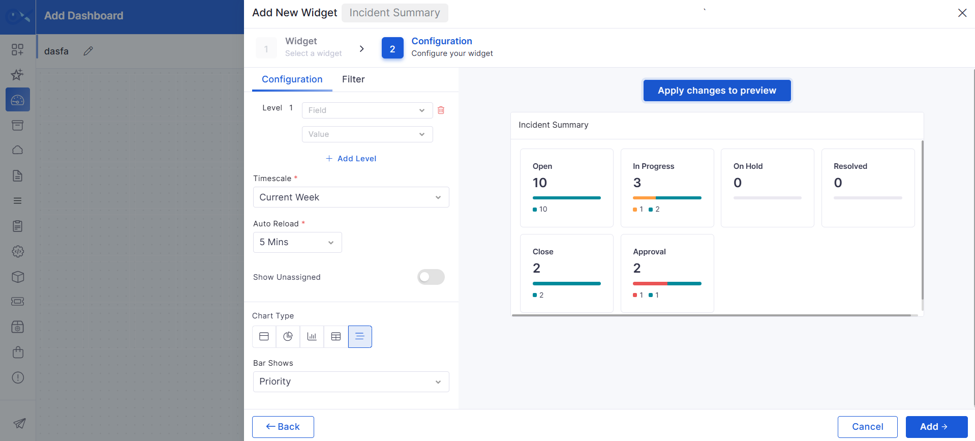
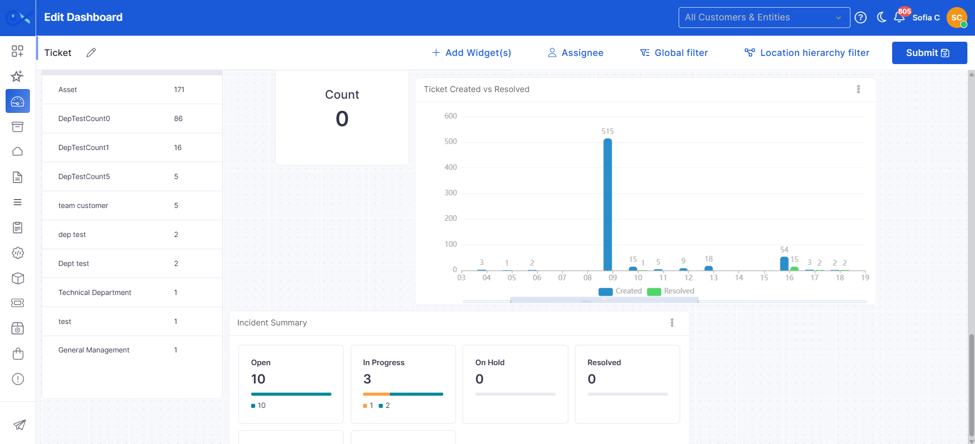
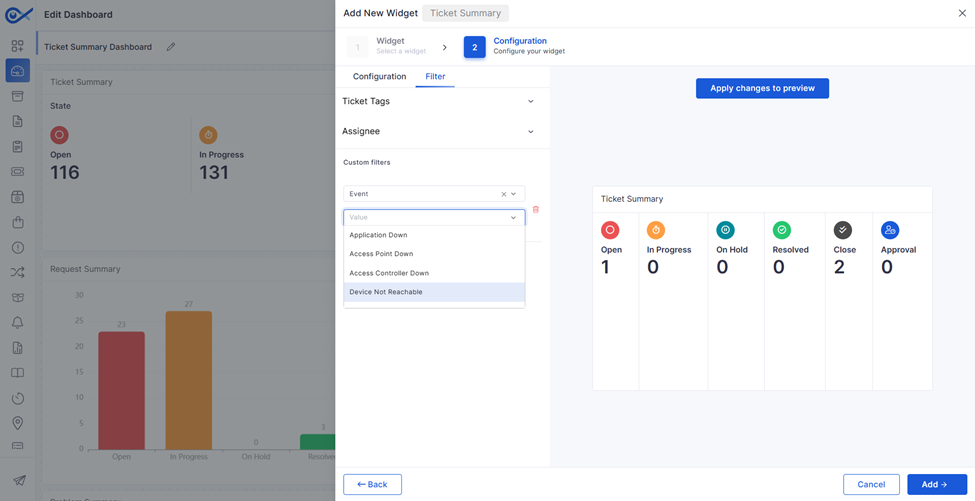
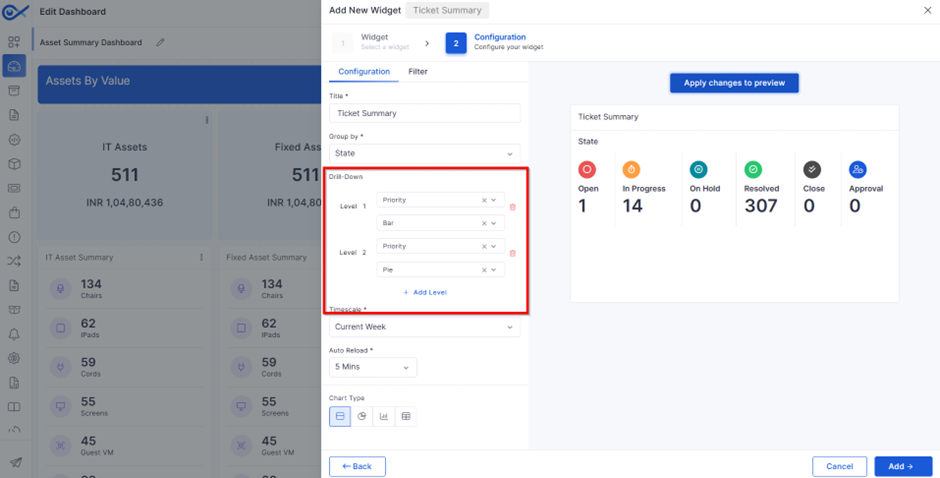
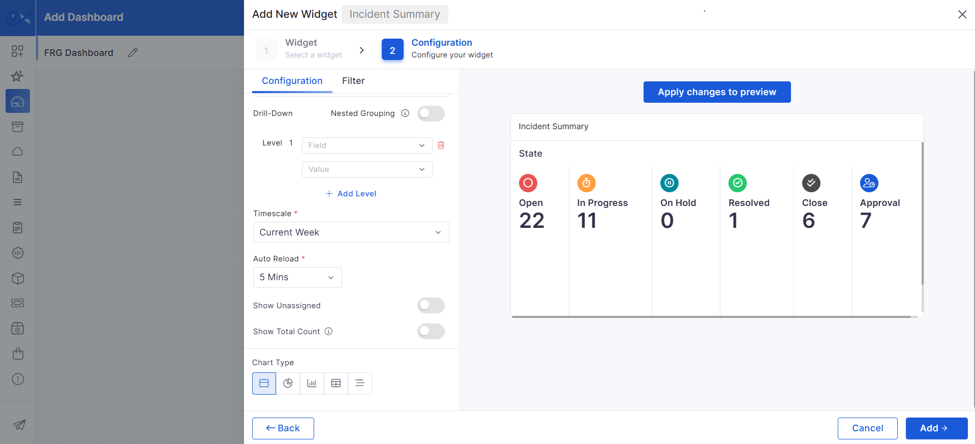
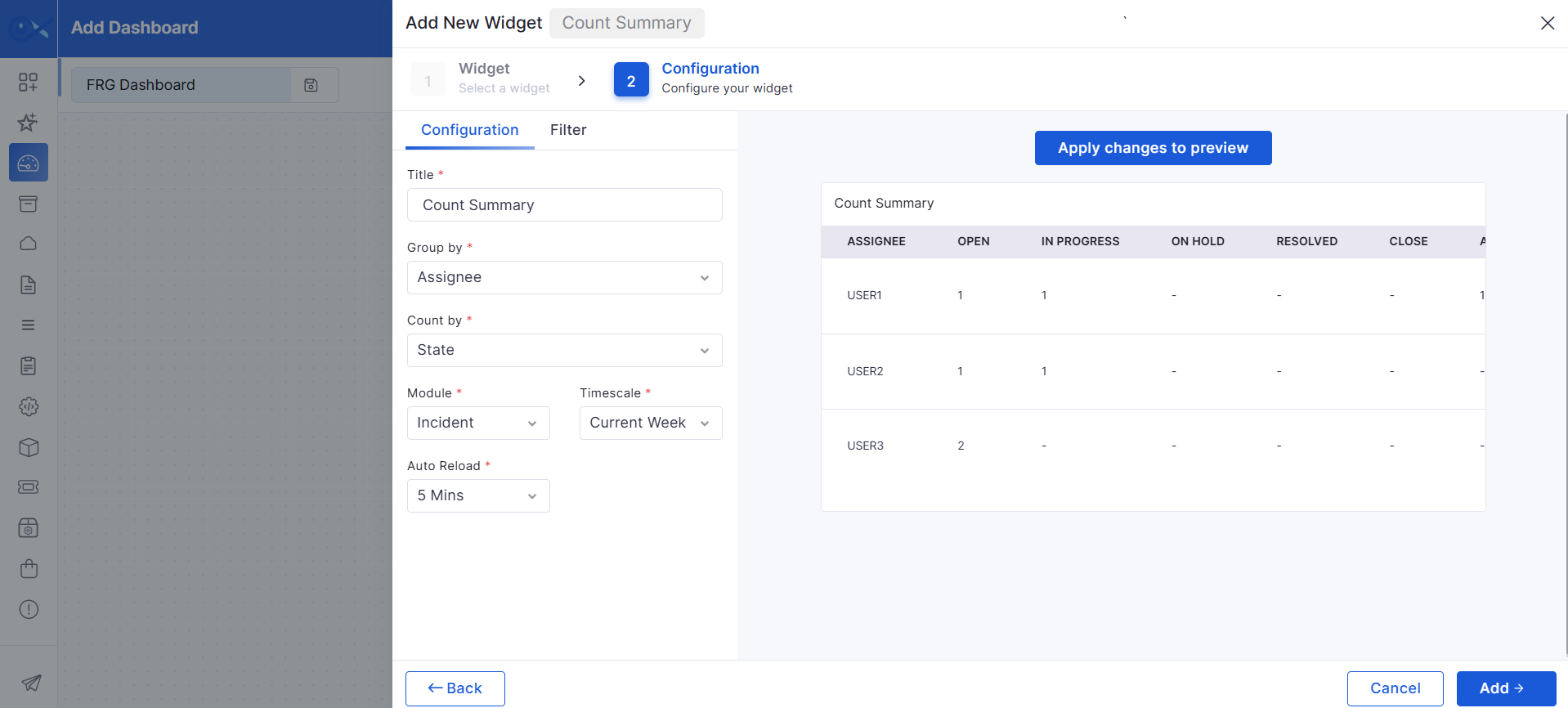
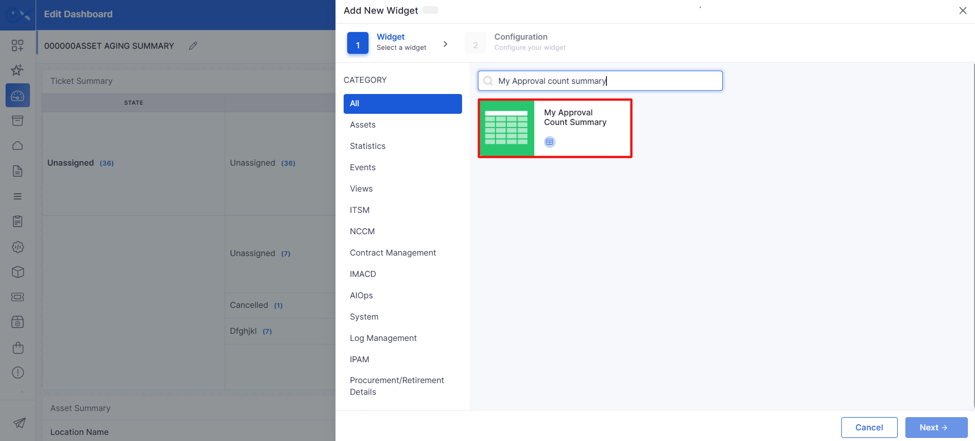
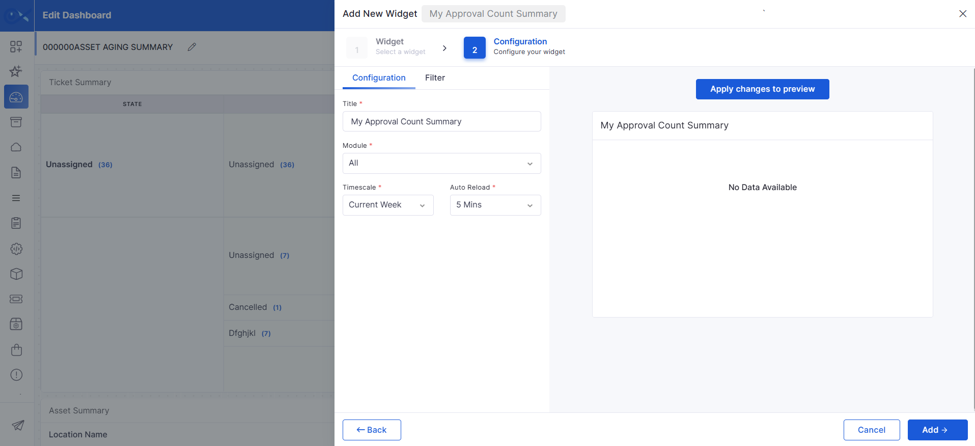
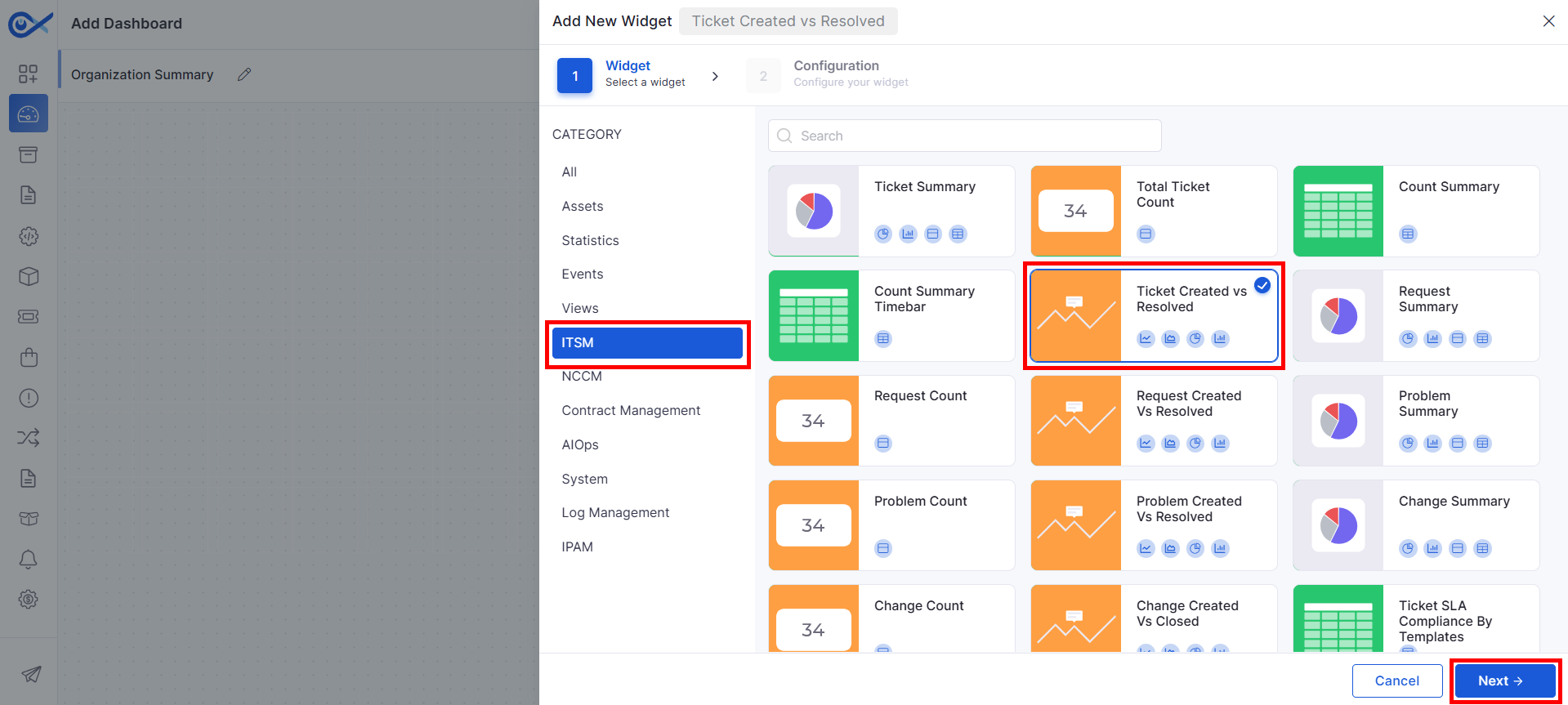
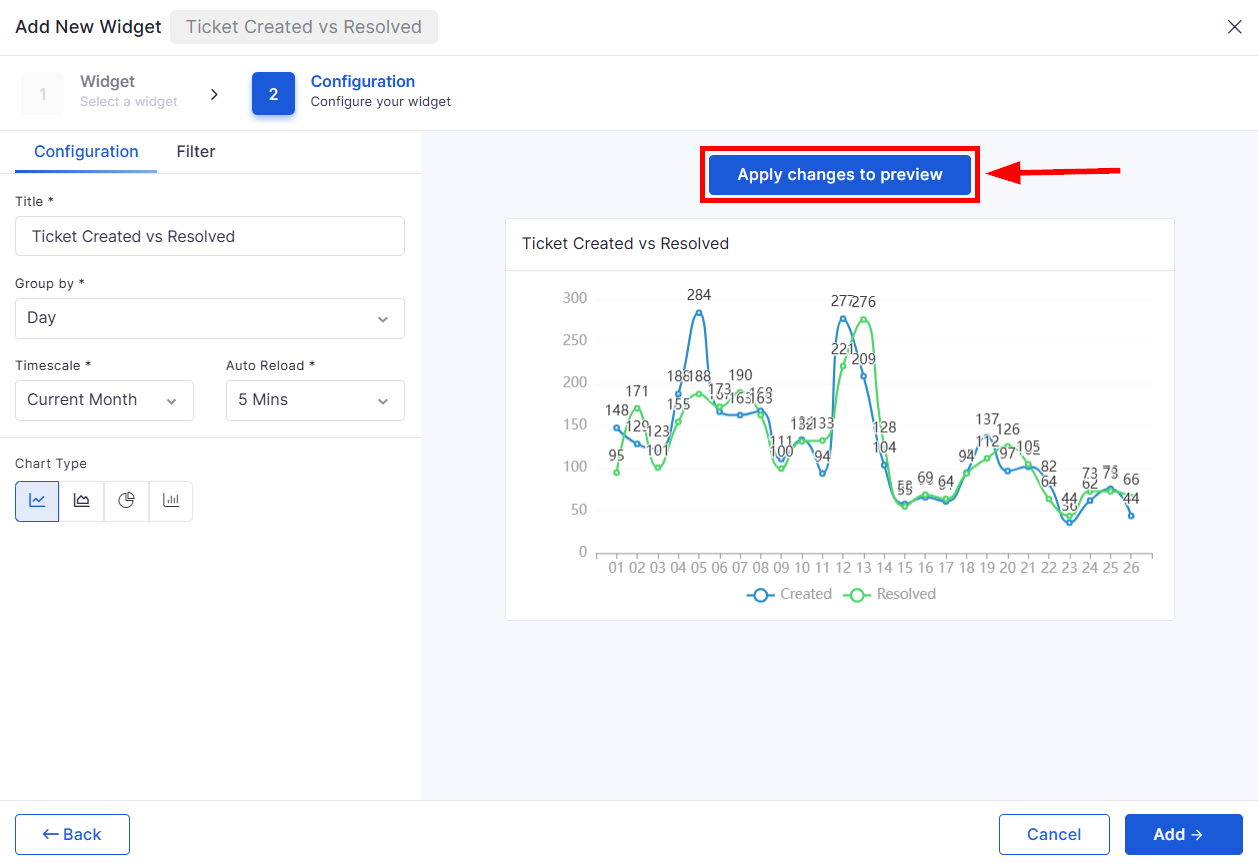
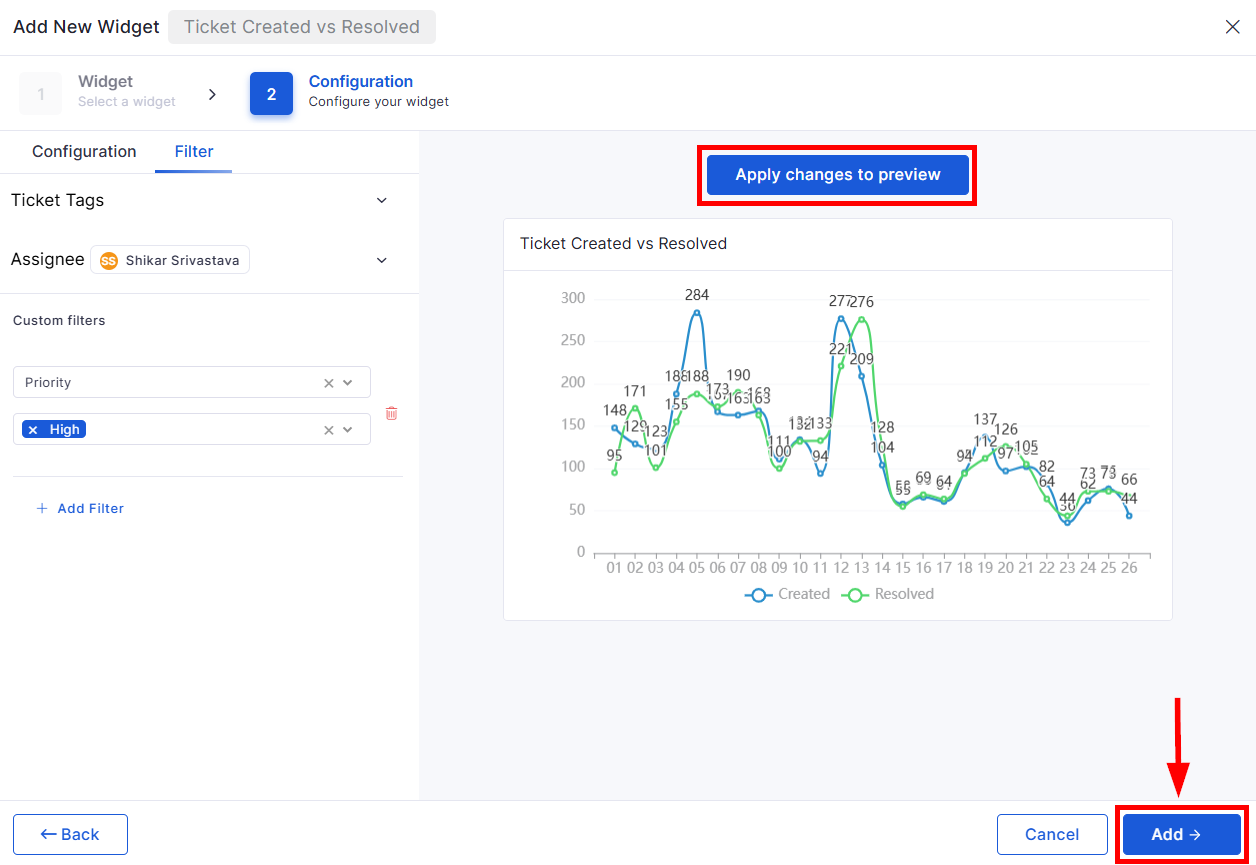
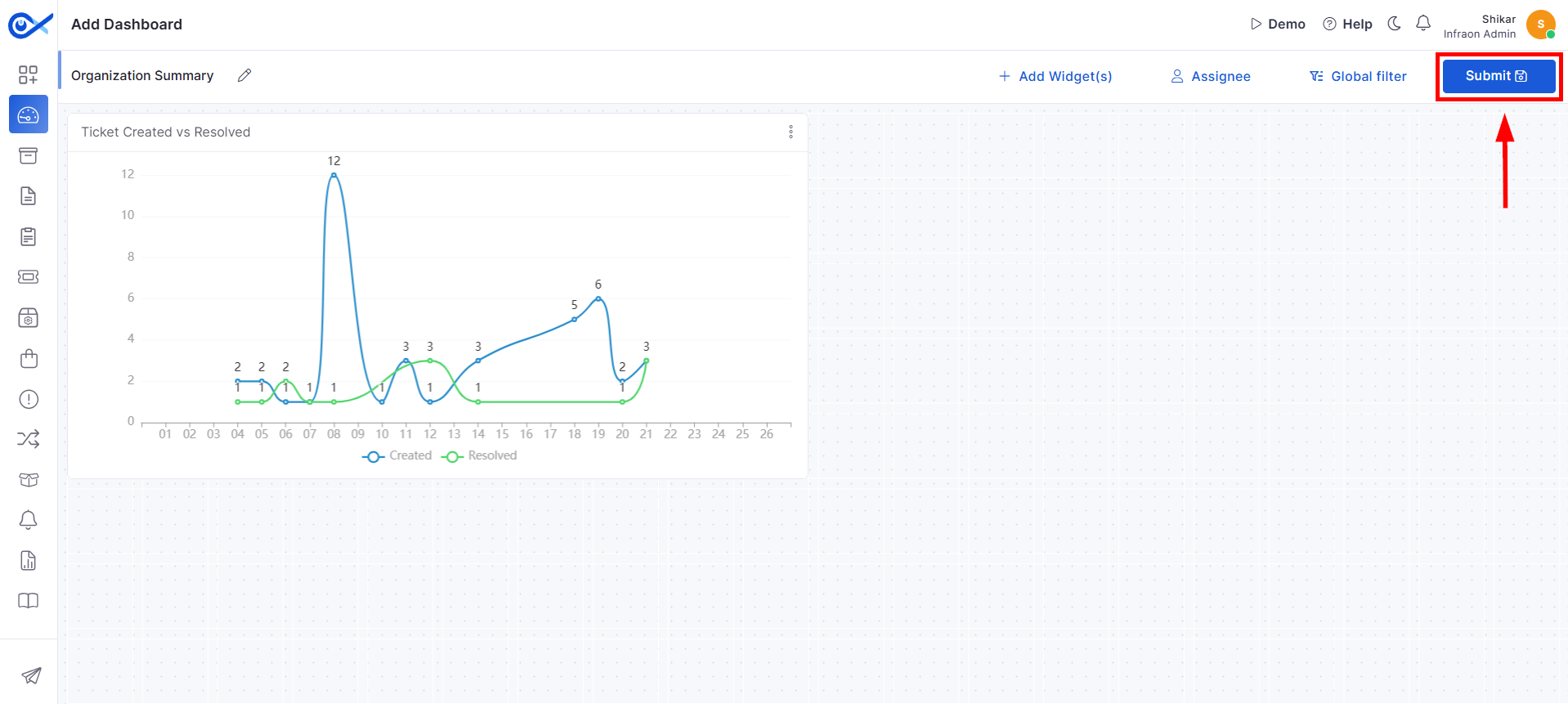
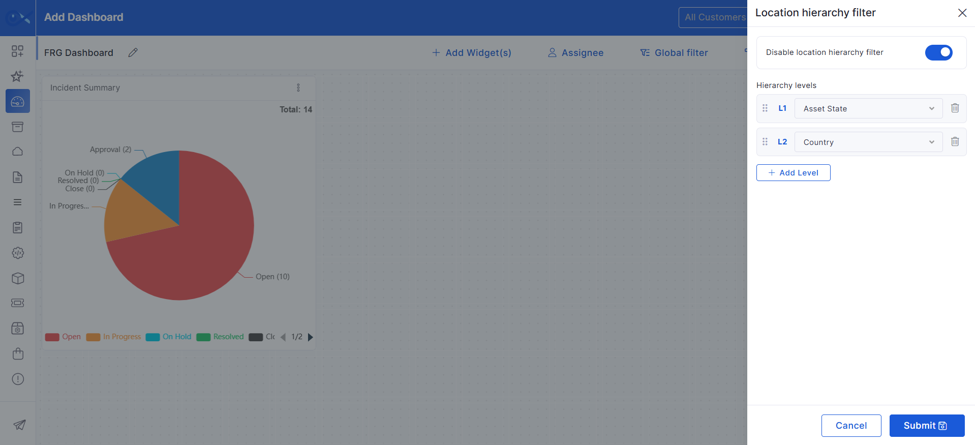
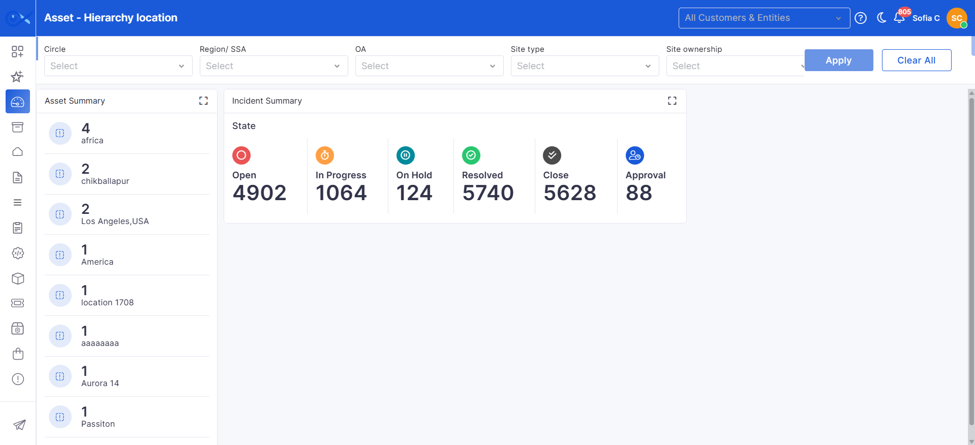
Visualizes trends over time with a line graph. Ideal for SLA breaches or request resolution trends.
AMC Expiry
Static Trend
Bar Chart, Line Chart, Pie Chart, Area Chart
Data Panel
Count Summary Timebar
Choose grouping field (State, Status, Urgency, Priority, Severity, Release Type, Impact Service)
Select a grouping field
Select the ITSM module for which the approval summary should be displayed.
Example: All, Incident, Request, Problem, Change, Release, or Task.
View
Navigates to the respective module page, where you can view and edit the complete details of the selected record.
Data Panel
Provides a consolidated view of IP allocation for any selected container, sub-container, block, or subnet. Shows group details, IP availability, used vs. available counts, and a detailed table of IP status distribution. Assess overall IP utilization, capacity, and scanning results across the selected segment.
View: Data Panel.
Dropdown
Select from the dropdown or search.
Click Add Widget(s) on the top bar
Supported options include: Location, State, City, Device Type, Make, Model, Branch, Branch Code, Asset Tags, Asset Custom Fields, Resource Tags, Resource Custom Fields, Link Name, Link Mode, ISP Name, Region, and PO Number.
Enables the Location Hierarchy Filter for the dashboard.
Displays values scoped according to the selected parent level.
Example: After selecting India, the State dropdown displays states under India.
Used to define the hierarchy of asset grouping. Each selected field becomes a grouping level in the widget.Example: Location → Department → Device Type.
Vendor → Model → Asset Type
Critical, High, Medium, Low
Configures the COUNT-based calculation logic using supported ticket fields within the Formula Builder.Example: COUNT(State - Resolved), COUNT(Reopened), or COUNT(Total Tickets)
(COUNT(State - Resolved) / COUNT(Total Tickets)) * 100
Reusability across different asset categories
Uniform data collection and visibility across modules like IT Assets, Fixed Assets, and CMDB
Custom Fields ensure that asset data models are scalable and relevant to different business environments.
Below is a detailed breakdown of the elements shown on the Custom Field listing screen:
Label
Action
Description / Example
Search
Type at least three characters to perform a search
Performs a free-text keyword search on custom field labels.
Example: Asset ID, Owner Group
Filter
Custom fields allow you to extend the default asset metadata by creating organization-specific attributes. These fields can be added to both Assets and Resources, with field type options and properties varying depending on the selection.
Begin by selecting the type of entity the custom field will be associated with:
Asset
Resource
Label
Action
Description / Example
Property
Select from the dropdown
Choose the property group the custom field belongs to. Options: Common, Procurement, OS, CPU, BIOS, Disk, Monitor, Keyboard, Mouse, Cost, Assignment, etc.
Field Type
Select from the dropdown
Based on the selected Field Type, different configurations appear on the screen. See below for type-specific settings.
Label
Action
Description / Example
Field Type
Select from dropdown
Available options: Text, Phone Number, Email, and Number.
Label
Enter custom field label
Each field type triggers a specific form layout. Below is a detailed breakdown.
Based on the selected Field Type, additional configuration fields appear. Each type serves a unique purpose. The details below explain the labels and their usage in a clear format for end users.
Email / Phone Number / Text | Configuration
Field
Purpose
Placeholder
This is the default hint text displayed in the field before the user inputs any value. It auto-fills based on the field type (e.g., “Enter your email”) but can be edited to provide more specific guidance.
Validation Rules
This allows you to add descriptive text that instructs users on what type of input is expected. For example: “Must be a valid company email address.”
Regex
Number | Configuration
Field
Purpose
Min
Sets the minimum allowable value for the number field. This prevents users from entering values below the defined threshold.
Max
Sets the maximum allowable value. Useful for setting limits like asset quantity, license count, etc.
Validation Rule
Drop-down | Configuration
Field
Purpose
Label
Visible name for each dropdown option. Should be human-readable (e.g., “HR Department”).
Value
Backend reference for that label (e.g., HR01), used for automation, filters, and rules.
Action
Text Area | Configuration
Designed for long-form input (e.g., notes, remarks).
Uses the same configuration layout as Email/Text fields.
Best used for optional descriptions or unstructured inputs.
Checkbox / Radio | Basic Details
Field
Purpose
Label
The name shown to users for the option. Use clear wording like “Yes”, “No”, “Internal Use Only”, etc.
Value
This is the stored backend value for the label (e.g., “Y” for Yes, “N” for No). Used in reports and rule automation.
Date / Date & Time | Configuration
These types do not have field-specific validations like Min/Max or Regex.
A placeholder auto-fills with a default hint (e.g., "Select a date").
All common options (like category mapping, toggles for mandatory/unique) are applicable.
Custom fields can be linked to categories or sub-categories to determine their visibility and usage.
Option
Purpose
Common Custom Field
When enabled, this makes the field available across multiple selected categories. Best for generic fields like “Department” or “Asset Tag.”
Category/Sub-Category
Select the target group where the field should be active. Fields in a Category propagate to all sub-categories. Fields added only to a Sub-Category are restricted there.
Mandatory
Select a field → choose a condition → enter value
Filter options include:
Fields: Label, Type
Conditions: equal to, not equal to, contains, not contain, in, not in
Example: Filter where Type = Text
Label
View only
Displays the name of the custom field.
Example: Customize Asset ID, Branch Code
Property
View only
Category this field belongs to (e.g., Custom Property, Procurement Property)
Field Type
View only
Data type assigned to the field.
Example: Text, Date, Dropdown, Email, etc.
Type
View only
Denotes the module or entity this field applies to.
Example: Asset, Contract, Software
All Related Categories
View only
Lists the number of asset categories using this custom field.
Example: 2, 3, etc.
Action Icons
Edit
Click pencil icon
Opens the custom field in edit mode to change label, field type, or related categories
Delete
Click trash icon
Deletes the custom field. This action is only allowed if the field is not in active use.
Choose the type of input expected for this field.
Options: Text, Phone Number, Email, Date, Date & Time, Checkbox, Radio, Text Area, Drop Down, Number.
Label
Enter custom field label
Example: Asset Location Code, Internal User Email, Device Category, etc.
Example: Resource Owner, Vendor Email
Enables admins to define pattern-based validation using regular expressions. This ensures that input strictly matches defined criteria (e.g., emails must follow abc@domain.com).
Error Text
This is the message shown to the user when the input fails validation. It should clearly explain what went wrong.
Example: “Please enter a valid email format.”
Optional message or description that informs the user what the number field is intended for or how to fill it.
Add multiple entries using "+" and remove using delete icon. Avoid duplicating labels/values.
Toggle this ON to enforce field entry during asset/resource creation.
Unique
Prevents duplicate values. Useful for fields like Serial Number, Asset ID, or Employee ID.
Disable
Temporarily hides the field from being used without deleting it.
Action Icons
Add
Confirms and applies the field-to-category association. You can add multiple mappings.
Delete
Removes the field from a specific category. Does not delete the field entirely.

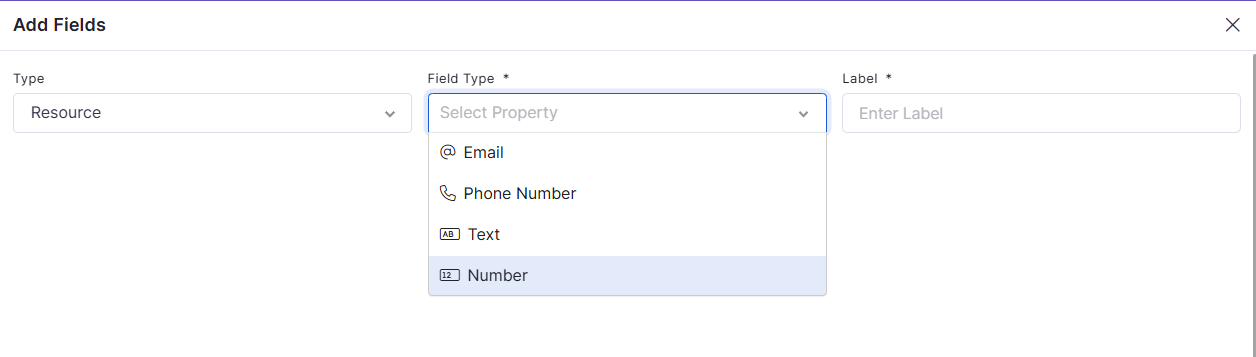
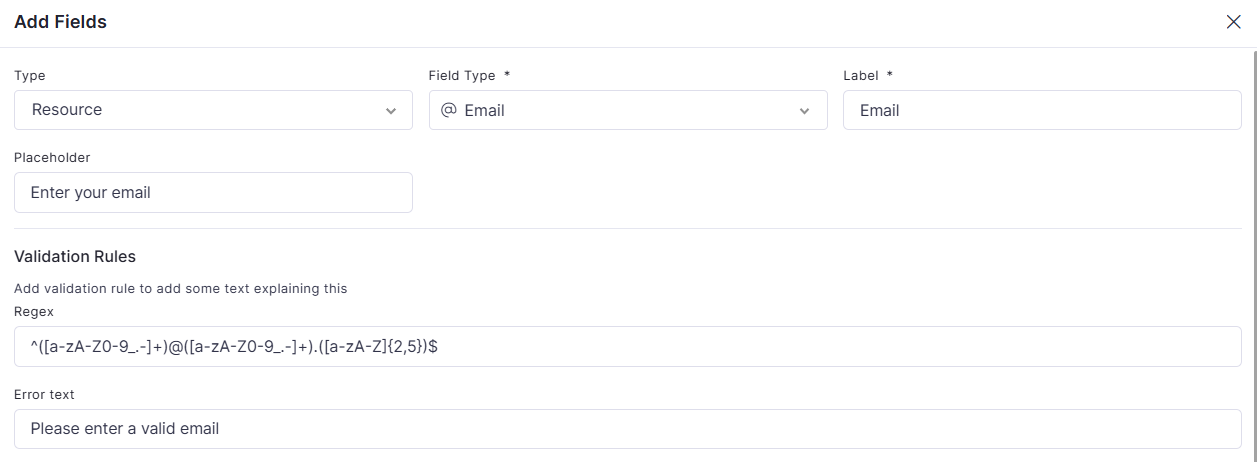
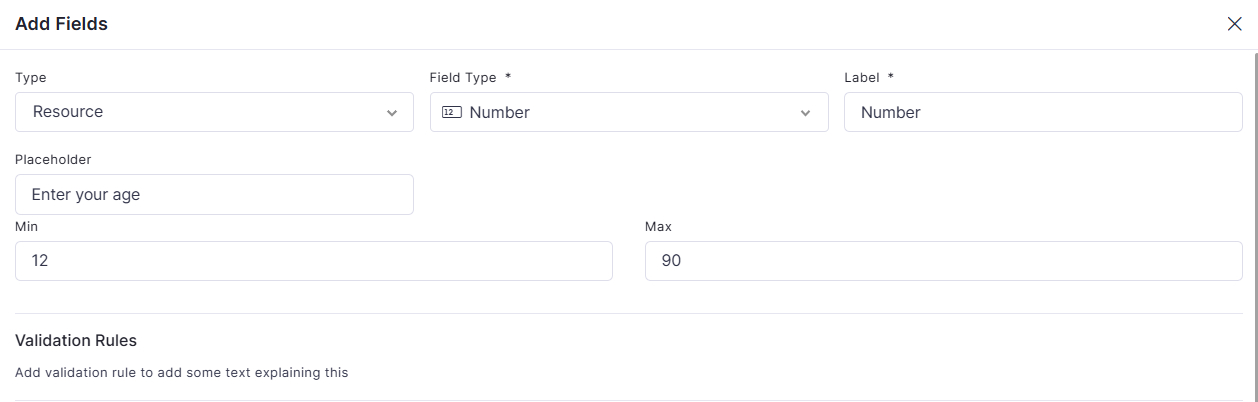
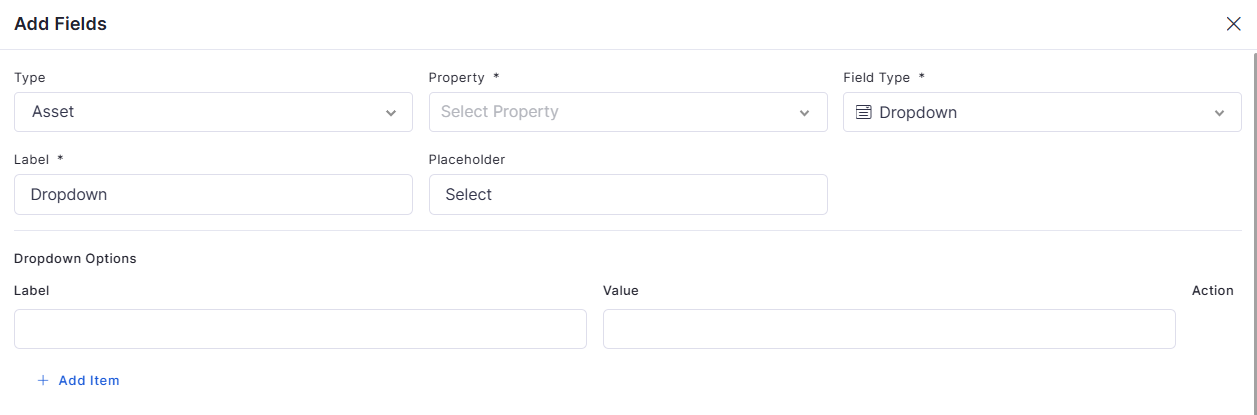

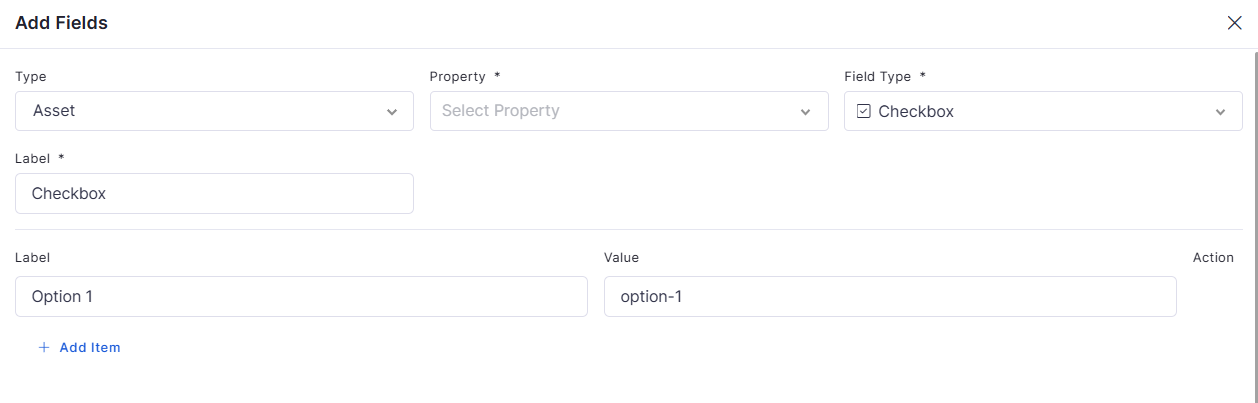
Asset Type
IT Asset Status
Fixed Asset Status
Group By
Location Name
Installed Location
Organization Name
Is Active
Designation
Floor
Building
SAP ID
Location
OLD Associated Assets
Colour
Service Catalogue
Organization Name
Department
Team
And more.
Agentic Bot is an AI-powered conversational assistant available within the Workspace module. It enables users and technicians to interact with Infraon Infinity services through natural-language conversations for ticket management, request handling, issue troubleshooting, and operational assistance.
The Agentic Bot helps users perform ITSM-related activities directly in the chat interface, without navigating multiple modules or forms.
The module supports conversational workflows for:
Ticket creation and management
Request inquiry and tracking
AI-assisted troubleshooting
Human handover to live technicians
Real-time conversational support
Service classification and recommendations
Chat history and session continuity
Users access the Agentic Bot from the Workspace module.
The AI assistant analyzes user queries and identifies the required action.
The system classifies the request based on available services and workflows.
The AI provides troubleshooting guidance or operational assistance.
For sensitive operations such as ticket creation or technician handover, the AI requests user confirmation before execution.
The Agentic Bot provides a visual execution experience that displays the agent's processing status, execution progress, and response details while processing a request.
During execution, the input field is temporarily disabled to prevent multiple requests, and users can stop the request if required. Once processing is complete, the execution summary is displayed along with the response.
To access Agentic Bot:
Navigate to Workspace.
Select the Agentic Bot icon from the left panel.
Start a new chat session or select an existing conversation.
The Agentic Bot interface contains the following sections:
Agentic Bot supports conversational service management operations for both tickets and requests.
Supported operations include:
Create tickets through chat
Create service requests
View ticket details
Retrieve request information
The AI automatically identifies the required workflow based on the user's conversation.
The Agentic Bot enables users to manage tickets through natural-language conversations. Users can create, search, view, update, assign, resolve, close, and reopen tickets, and access ticket details, history, conversations, attachments, tasks, relationships, approvals, and SLA information. The Agentic Bot guides users through the required information and validations for ticket-related activities.
Ticket Creation
The Agentic Bot lets users create tickets through natural-language conversations. Users can describe the issue or requirement in the chat, and the bot guides them through the required information before creating the ticket.
Open Workspace from the left navigation.
Select Agentic Bot.
Enter the issue or requirement in the chat window. For example:
The Agentic Bot enables users to manage service requests through natural-language conversations, from creating and tracking requests to updating, assigning, resolving, and closing them. Users can also view request details, history, conversations, attachments, tasks, relationships, approvals, and SLA information, as well as perform request conversions and bulk operations. The Agentic Bot guides users through the required information and validations to complete request-related activities.
Request Creation
The Agentic Bot allows users to create service requests using natural-language conversations. The bot identifies the requested service from the service catalogue and guides the user through confirmation before creating the request.
Open Workspace from the left navigation.
Select Agentic Bot.
Enter your request in the chat window. For example:
The request creation flow follows Intent Detection → Service Classification → Service Confirmation → Request Creation. If the service cannot be classified directly, the bot searches the service catalogue and presents matching services for selection.
The Agentic Bot enables users to manage change requests through natural-language conversations, from creating and tracking changes to updating details, assigning teams and technicians, managing workflow statuses, and closing changes. Users can also view change details, history, conversations, attachments, tasks, related records, approval status, and SLA information.
The bot also supports change tagging, cloning, deletion, conversions, and bulk operations. It guides users through service classification, change-manager selection, mandatory reasons, confirmation prompts, and applicable workflow validations to complete change-management activities.
Change Activities | Bot
Change Creation
The Agentic Bot allows users to create change requests using natural-language conversations. The bot identifies the appropriate impact service based on the change description and guides the user through confirmation before creating the change.
Open Workspace from the left navigation.
Select Agentic Bot.
Enter your change requirement in the chat window. For example:
The change creation flow follows Intent Detection → Impact Service Classification → Service Confirmation → Change Manager Validation (if required) → User Confirmation → Change Creation → Change ID Display. If the impact service cannot be classified directly, the agentic bot searches the service catalogue and presents matching services for selection.
The Agentic Bot provides troubleshooting guidance based on the user's reported issue.
The AI can:
Identify probable issue categories
Suggest troubleshooting steps
Recommend corrective actions
Provide operational guidance
Troubleshooting responses are generated in a conversational tone to assist users before escalation or ticket creation.
The system performs the requested action after approval.
If required, the conversation can be transferred to a live technician.
All conversations and actions are stored for audit and tracking purposes.
Search tickets using keywords
Filter tickets by status or date
View assigned tickets
Retrieve requester-specific tickets
Generate issue summaries
Request technician handover
“My laptop is not connecting to Wi-Fi.”
“Create a ticket for a printer issue.”
“I am unable to access the application.”
The Agentic Bot analyzes the information provided and identifies the required ticket details.
Provide any additional information requested by the bot.
Review the ticket information.
Confirm the ticket creation.
The ticket is created and the Ticket ID is displayed.
“I need a new laptop for a new joiner.”
“Create a request for MS Office license.”
“I need access to the shared finance drive.”
The Agentic Bot analyzes the request and identifies the appropriate service.
Review the service details displayed by the bot.
Confirm the selected service.
The service request is created and a Request ID is displayed.
“Raise a change to patch the production database servers this weekend.”
“Create a change for updating the load balancer configuration.”
“Raise a change to reboot the core switch.”
“Raise a high-priority change for payment gateway maintenance, with Low risk.”
The Agentic Bot analyzes the change description and identifies the appropriate impact service.
If the service cannot be classified directly, the bot searches the service catalogue and presents matching impact services for selection.
Review the change details displayed by the bot, including the selected impact service. If a change manager is required, the bot validates the available information and asks for any required details.
Confirm the change details when prompted by the Agentic Bot. The bot creates the change only after receiving your confirmation.
The change request is created, and a Change ID is displayed along with a confirmation message.
Chat Sessions Panel
Displays active and previous AI chat sessions.
Search Bar
Allows users to search previous AI conversations.
Conversation Window
Create Ticket
Enter the issue or requirement in natural language and provide the required information.
Creates a new ticket based on the user's description.
Example: “Create a ticket for my laptop not connecting to Wi-Fi.”
Issue Description
Describe the issue or requirement in natural language.
Provides the details of the issue for which the ticket needs to be created.
Example: “My laptop is not connecting to Wi-Fi.”
Ticket Details
Provide additional information requested by the bot.
Create Request
Enter the requirement in natural language and confirm the suggested service.
Creates a new service request.
Example: “I need a new laptop for a new joiner.” The bot identifies the applicable service, asks for confirmation, and creates the request.
Create Change
Describe the required change in natural language and confirm the suggested details.
Create a new change after identifying the appropriate impact service and obtaining confirmation.
Example: “Raise a change to patch the production database servers this weekend.”
Displays interactions between the user and the AI assistant.
AI Action Header
Displays the current AI operation and processing steps.
Message Composer
Allows users to send queries and instructions to the AI assistant.
Workflow Status Area
Displays AI processing stages such as classification, validation, or ticket creation.
Search Tickets
Ask the bot to search for tickets.
Retrieves tickets based on the user's query.
Example: “Show my tickets.”
View Open Tickets
Ask to view open or active tickets.
Displays tickets that are currently active.
Example: “Show my open tickets.”
View Closed Tickets
Ask to view closed tickets.
Retrieves tickets that have been closed.
Example: “Show my closed tickets.”
View Recent Tickets
Ask for recent tickets.
Displays recently created or relevant tickets.
Count Tickets
Ask how many tickets match a condition.
Returns the number of matching tickets.
Example: “How many open tickets do I have?”
View Ticket Details
Provide a Ticket ID or refer to the ticket in the conversation.
Displays available ticket information such as summary, description, requester, assignee, status, priority, and related information.
Example: “Show details of INC1115.”
Check Ticket Status
Ask for the status of a ticket.
Displays the current ticket status and relevant information.
Example: “What is the status of INC1115?”
Update Ticket
Ask the bot to modify supported ticket details.
Updates supported ticket information according to applicable permissions and validations.
Example: “Change INC1115 priority to High.”
Assign Ticket
Ask the bot to assign a ticket to a team or technician.
Assigns the ticket to the specified team or technician.
Example: “Assign INC1115 to Help Desk.”
Change Ticket Status
Ask to move the ticket to an available status.
Changes the ticket status according to workflow rules.
Example: “Move INC1115 to In Progress.”
Resolve Ticket
Ask the bot to resolve the ticket and provide resolution notes.
Resolves the ticket after validating the required information.
Example: “Resolve INC1115 with note Network access restored.”
Close Ticket
Ask the bot to close a resolved ticket and provide closure information.
Closes the ticket using the applicable closure workflow and information.
Reopen Ticket
Ask the bot to reopen a previously resolved or closed ticket.
Reopens the ticket when permitted by the applicable workflow.
Example: “Reopen INC1115.”
Add Public Note
Ask the bot to add a note to the ticket.
Adds a requester-visible note or operational comment.
Example: “Add note Waiting for user confirmation.”
Add Private Worklog
Ask the bot to add an internal worklog.
Adds an internal technician-only comment or work update.
View Conversation
Ask to view the ticket conversation.
Retrieves messages, participants, timestamps, and communication history associated with the ticket.
View History
Ask to view ticket history.
Displays ticket activities such as status changes, assignment updates, resolution actions, and closure activities.
View Attachments
Ask to view ticket attachments.
Retrieves attachments associated with the ticket and their available information.
Delete Attachment
Ask to delete an attachment and confirm the action.
Deletes the selected attachment after confirmation.
View Tasks
Ask to view tasks associated with a ticket.
Displays tasks associated with the ticket.
Create Task
Ask the bot to create a task and confirm the action.
Creates a task associated with the ticket after confirmation.
Update Task
Ask to update a ticket task.
Updates the status or applicable details of the selected task.
Delete Task
Ask to delete a ticket task and confirm the action.
Deletes the selected task after confirmation.
View Related Tickets
Ask to view tickets related to the current ticket.
Displays existing relationships between tickets.
Relate Tickets
Specify the tickets that should be related.
Creates a relationship between tickets.
Example: “Relate INC1115 to INC1116.”
Manage Tags
Ask to add, remove, or replace ticket tags.
Updates ticket tags according to the requested action.
Bulk Assignment
Provide multiple Ticket IDs and specify the team or technician.
Assigns multiple tickets in a single operation.
Example: “Assign INC1115 and INC1116 to Help Desk.”
Bulk Priority Update
Provide multiple Ticket IDs and specify the new priority.
Updates the priority of multiple tickets while applying the required validation.
Bulk Resolution
Provide multiple Ticket IDs and resolution notes.
Resolves multiple eligible tickets and reports the operation results.
Check Approval
Ask whether a ticket can be approved.
Displays approval eligibility and approval status when applicable.
View SLA Status
Ask for the SLA status of a ticket.
Displays applicable SLA targets, breach conditions, and the current SLA state.
Provides the required information to complete ticket creation.
Confirmation
Review and confirm the ticket details.
Confirms that the ticket should be created with the provided information.
Ticket ID
View the ID displayed after creation.
Identifies the newly created ticket.
Example: INC1115.
Search Requests
Ask the bot to show or search for requests.
Retrieves requests based on the user's query.
Example: “Show my requests.”
View Open Requests
Ask to view open or active requests.
Displays requests that are currently active.
Example: “Show my open requests.”
View Closed Requests
Ask to view closed requests.
Retrieves the user's closed requests.
View Recent Requests
Ask for recent requests.
Displays recently created or relevant requests.
Count Requests
Ask how many requests match a condition.
Returns the number of matching requests without retrieving the complete request list.
Example: “How many open requests do I have?”
View Request Details
Provide a Request ID or refer to the request in the current conversation.
Displays available request information such as summary, description, requester, assignee, status, priority, service, tags, and related information.
Example: “Show details of REQ1115.”
Check Request Status
Ask for the status of a request.
Displays the current status and relevant request information.
Example: “What is the status of REQ1115?”
Update Request
Ask the bot to modify supported request details.
Updates fields such as Priority, Urgency, Summary, Description, Service, or Tags, subject to validation and permissions.
Example: “Change REQ1115 priority to High.”
Change Service
Ask to change the service associated with a request.
Guides the user through selecting a new service, validating service classification, selecting the workflow status, and providing a reason before applying the change.
Assign Request
Ask the bot to assign a request to a team or technician.
Guides the user through Team → Expertise → Level → Technician selection and assigns the request.
Example: “Assign REQ1115 to Help Desk.”
Change Status
Ask to move a request to an available workflow status.
Changes the request status according to workflow rules.
Example: “Move REQ1115 to In Progress.”
Resolve Request
Ask the bot to resolve a request and provide resolution notes.
Resolves the request after validating the required workflow information.
Example: “Resolve REQ1115 with note Access granted.”
Close Request
Ask the bot to close a resolved request and provide closure information.
Closes the request using the applicable closure workflow and notes.
Reopen Request
Ask the bot to reopen a previously resolved request.
Reopens the request when the applicable workflow allows it.
Example: “Reopen REQ1115.”
Add Public Note
Ask the bot to add a note to the request.
Adds a requester-visible operational note.
Example: “Add note Waiting on procurement approval.”
Add Private Worklog
Ask the bot to add an internal worklog.
Adds a technician-only comment or internal update and supports time-tracking information.
View Conversation
Ask to view the request conversation.
Retrieves messages, participants, timestamps, and communication history associated with the request.
View History
Ask to view request history.
Displays request activities such as status changes, assignment updates, resolution actions, reopen events, and closure activities as an audit timeline.
View Attachments
Ask to view request attachments.
Retrieves attachments and their available metadata.
Delete Attachment
Ask to delete an attachment and confirm the action.
Removes the selected attachment after confirmation.
View Tasks
Ask to view tasks associated with a request.
Displays request-level tasks.
Create Task
Ask the bot to create a task for a request and confirm the action.
Creates a new request-level task after confirmation.
Update Task
Ask to update a request task.
Updates the status or applicable details of the selected task.
Delete Task
Ask to delete a request task and confirm the action.
Deletes the selected task after confirmation.
View Related Requests
Ask to view requests related to the current request.
Displays existing request relationships.
Relate Requests
Specify the requests that should be related.
Creates a relationship between requests.
Example: “Relate REQ1115 to REQ1116.”
View Knowledge Articles
Ask to view knowledge articles linked to a request.
Retrieves linked knowledge article information such as article title and article ID.
Manage Tags
Ask to add, remove, or replace request tags.
Updates request tags according to the requested action.
Convert to Ticket
Ask to convert a service request into a ticket/incident.
Converts the request into a ticket when the applicable workflow permits the operation.
Convert to Change
Ask to convert a service request into a change request.
Converts the request into a change record when permitted by the workflow.
Convert to Knowledge Article
Ask to convert a request into a knowledge article.
Converts the request into a KB article when the request meets the required workflow conditions.
Bulk Assignment
Provide multiple Request IDs and specify the team or technician.
Assigns multiple requests in one operation.
Example: “Assign REQ1115 and REQ1116 to Help Desk.”
Bulk Priority Update
Provide multiple Request IDs and specify the new priority and required reason.
Updates the priority of multiple requests while validating the mandatory reason.
Bulk Resolution
Provide multiple Request IDs and resolution notes.
Resolves multiple eligible requests and reports updated and skipped requests.
Check Approval
Ask whether a request can be approved.
Displays approval eligibility and approval status.
Example: “Can I approve REQ1115?”
View Review Status
Ask for the review status of a request.
Displays the current review workflow information.
View SLA Status
Ask for the SLA status of a request.
Displays SLA targets, breach conditions, and the current SLA state.
Search Changes
Ask the bot to display or search for changes.
Retrieves changes based on the user's query.
Example: “Show my changes.”
View Open Changes
Ask to view active changes.
Displays active changes raised by the requester.
Example: “Show my open changes.”
View Closed Changes
Ask to view closed changes.
Retrieves closed changes and displays the total count returned.
Example: “Show my closed changes.”
View Assigned Changes
Ask to view changes assigned to the current technician.
Displays changes for which the current user is the assignee. Example: “Show changes assigned to me.”
View Recent Changes
Ask for recently raised changes.
Retrieves the requester's most recent changes.
Example: “Show my recent changes.”
Count Changes
Ask how many changes match a condition.
Returns the number of matching changes without retrieving the complete list.
Example: “How many changes are pending approval?”
Filter Changes by Date
Specify a planned, deployment, or implementation date or date range.
Retrieves changes matching the specified scheduling criteria.
Example: “Show changes planned between 1 September and 30 September 2026.”
View Change Details
Provide a Change ID or refer to a change discussed in the current conversation.
Displays available details, including the change ID, summary, status, change type, change manager, priority, risk, planned dates, impact service, location, tags, and custom fields, based on the requested detail level.
Example: “Give me all details of CHG1115.”
Check Change Status
Ask for the current status of a change.
Displays the current state, summary, and change manager.
Example: “What is the status of CHG1115?”
Update Change
Ask the bot to modify supported change details.
Updates fields such as priority, risk, subject, description, and planned, deployment, or implementation dates. Mandatory reasons may be required for certain updates.
Example: “Change the priority of CHG1115 to High.”
Change Impact Service
Specify the new impact service for an existing change.
Guides the user through selecting the new impact service, choosing an available workflow status, and providing a reason before applying the update.
Example: “Change the impact service of CHG1115 to Network Maintenance.”
Assign Change
Ask to assign a change to a team and technician.
Guides the user through team selection, followed by available assignee selection. For Expert teams, the bot displays the available technicians directly.
Example: “Assign CHG1115 to the Network team.”
Change Manager Assignment
Specify the change manager for a change.
Updates the change manager independently of the assigned team or technician.
Example: “Set the change manager for CHG1115 to some mail id.”
Change Status
Ask to move a change to an available workflow status.
Updates the status according to workflow rules. Some transitions require completed approvals or additional notes.
Example: “Move CHG1115 to Deployment.”
Close Change
Ask the bot to close a change and provide a closure note.
Closes the change after validating the closure note and applicable workflow requirements.
Example: “Close CHG1115 with note post-implementation review complete, no issues.”
Add Public Note
Ask the bot to add a note to a change.
Adds a note visible to the requester.
Example: “Add a note to CHG1115: Vendor confirmed the maintenance window.”
Add Private Worklog
Ask the bot to record internal work and time spent.
Adds a private worklog that is not visible to the requester and can include time-tracking information.
Example: “Log 45 minutes on CHG1115 as private: pre-implementation validation.”
View Notes
Ask to view notes associated with a change.
Retrieves the notes recorded against the specified change.
Example: “Show all notes for CHG1115.”
View Conversation
Ask to view the conversation associated with a change.
Displays communication entries with sender information and timestamps. Example: “Show the conversation on CHG1115.”
View History
Ask to view the change history.
Displays an audit timeline of change activities, updates, status transitions, and closure actions.
Example: “Show the history of CHG1115.”
View Attachments
Ask to view attachments associated with a change.
Retrieves attachment names and available metadata.
Example: “Show attachments for CHG1115.”
Delete Attachment
Identify an attachment and request its deletion.
Deletes the selected attachment after confirmation.
Example: “Remove the deployment plan attachment from CHG1115.”
View Tasks
Ask to view tasks associated with a change.
Displays the tasks linked to the change, including their names, statuses, and priorities.
Example: “Show tasks for CHG1115.”
Create Task
Specify the task details and confirm the action.
Creates a task associated with the selected change after confirmation.
Example: “Create a task on CHG1115: Take a database snapshot before patching, status To Do, priority High.”
Update Task
Ask to update a task associated with a change.
Updates the selected task's supported details, such as status.
Example: “Mark the task on CHG1115 as Done.”
Delete Task
Identify the task to be deleted and confirm the action.
Deletes the selected task after confirmation.
Example: “Delete the task from CHG1115.”
View Related Records
Ask to view records related to a change.
Displays related records grouped by module.
Example: “Show related records for CHG1115.”
Relate Changes
Specify the two changes that should be related.
Creates a relationship between the specified changes.
Example: “Relate CHG1115 to CHG1116.”
Add Tags
Specify one or more tags to add to a change.
Adds the requested tags to the selected change.
Example: “Add the tags database and urgent to CHG1115.”
Remove Tags
Ask to remove specific tags or all tags from a change.
Removes the requested tags from the change.
Example: “Remove all tags from CHG1115.”
Create Ticket from Change
Ask to create a ticket from an existing change.
Creates a ticket linked to the change when the operation is supported.
Example: “Create a ticket from change CHG0098.”
Link Request to Change
Specify an existing request and change to link.
Links the existing request to the specified change; this operation does not create a new change.
Example: “Link REQ1115 to change CHG1115.”
Clone Change
Ask the bot to clone an existing change.
Creates a new change using the source change's field values, excluding approval-state information.
Example: “Clone CHG1115.”
Delete Change
Identify the change and confirm the deletion.
Deletes the specified change after confirmation.
Example: “Delete CHG1115.”
Bulk Assignment
Provide multiple Change IDs and specify the target team.
Assigns multiple changes to the specified team in one operation and reports the number assigned.
Example: “Assign CHG1115 and CHG1116 to the Network team.”
Bulk Tagging
Provide multiple Change IDs and specify the tag.
Adds the requested tag to each specified change.
Example: “Tag CHG1115 and CHG1116 as urgent.”
Bulk Update
Provide multiple Change IDs and specify the required update.
Updates eligible changes and identifies records that were skipped, such as closed or approval-pending changes.
Example: “Update CHG1118 and CHG1119 to High priority because of a vendor request.”
Check Approval Eligibility
Ask whether the current user can approve a change.
Indicates whether the current user is an approver for the specified change.
Example: “Can I approve CHG1115?”
View Approval Status
Ask for the approval status of a change.
Displays whether approval is pending or complete. Actual approval or rejection must be completed in the Infraon user interface.
Example: “What is the approval status of CHG1115?”
View SLA Status
Ask to check the SLA status of a change.
Displays applicable SLA targets and breach status.
Example: “What is the SLA status of CHG1115?”
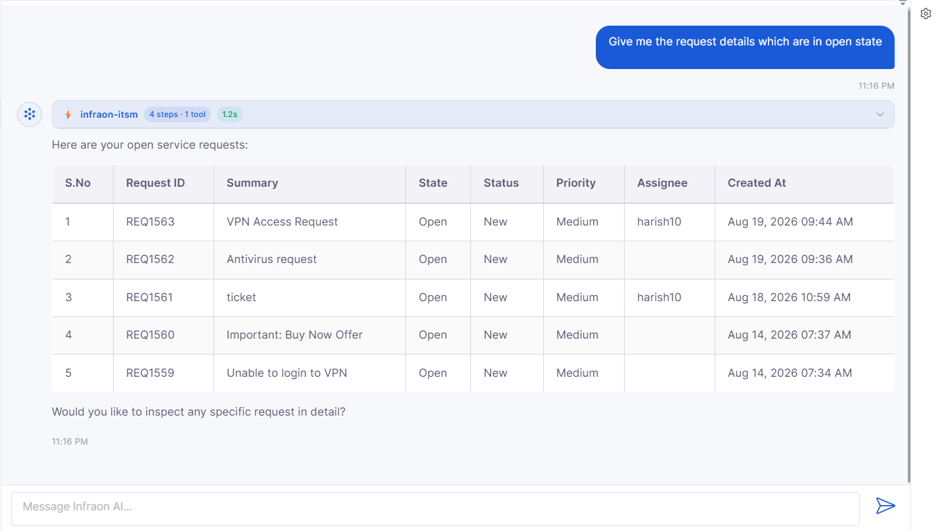
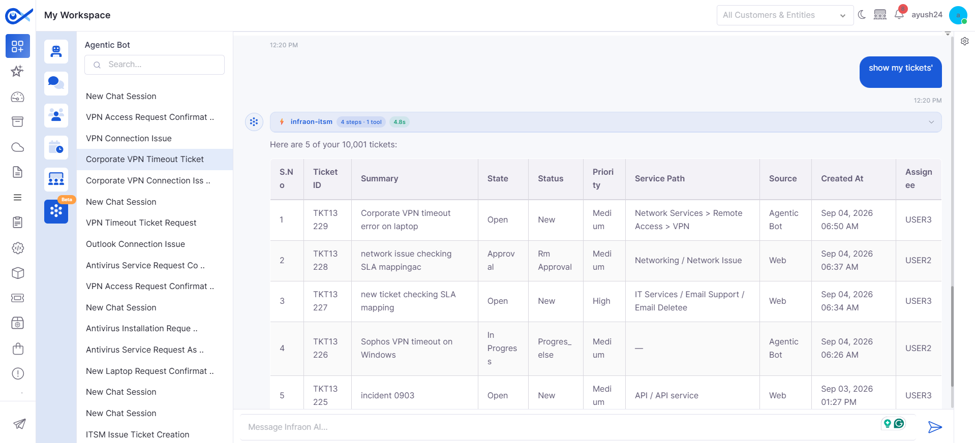
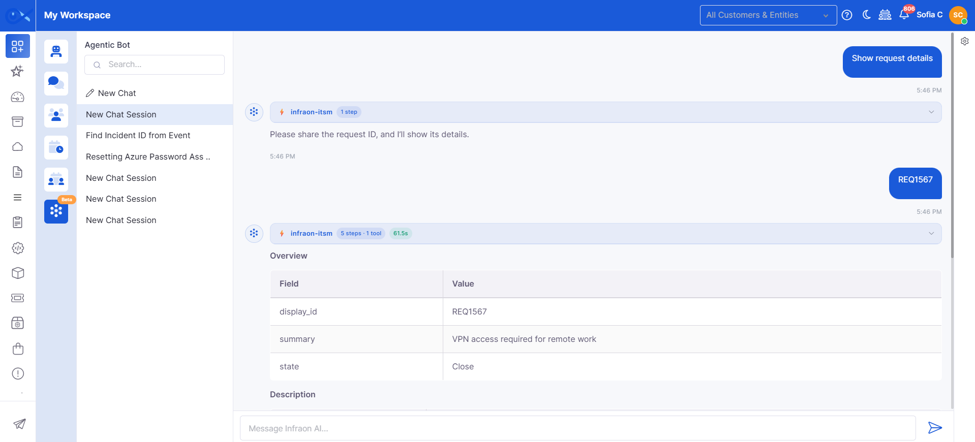

Login Settings allows administrators to configure authentication methods, Single Sign-On (SSO), two-factor authentication (2FA), CAPTCHA validity, and login page customization. These settings help organizations manage user access and apply security requirements across the Infraon platform.
Standard Authentication provides three methods for users to sign in to Infraon: Username & Password Default, Mobile Number & SMS, and Email-Based 2FA. Administrators can configure the required authentication method and its settings based on the organization's security requirements.
Login Settings | Standard Authentication Methods
Label
Action
Allows users to sign in to Infraon using their registered email address and password. This is the default authentication method and is enabled by default. Users enter their credentials on the login page to access the application.
Configure an SMS gateway to send OTPs to users' registered mobile numbers. A primary SMS gateway is required, and a secondary gateway can be configured as an additional option.
Standard Authentication | Mobile Number & SMS Configuration
Email-based 2FA requires users to verify their identity using an OTP sent to their registered email address. When enabled, the system displays the email OTP verification screen after successful primary authentication.
To configure Email-Based 2FA, enable the option and open the configuration using the edit option. Configure the OTP settings and email template, then save the changes.
Standard Authentication | Email-Based 2FA Configuration
Single Sign-On (SSO) allows users to access the Infraon portal using an external identity provider instead of managing separate login credentials. Infraon supports Microsoft SSO, Google SSO, OpenID Connect (OIDC), Security Assertion Markup Language (SAML) SSO, Secure Pass SSO, and SSO Configuration.
Microsoft Single Sign-On (SSO) allows users to sign in to Infraon using their Microsoft accounts without entering separate Infraon credentials.
To configure Microsoft SSO, enable the option and configure the SSO Allowed Domains field to specify which email domains are permitted to sign in. Submit the changes to apply the configuration.
Google Single Sign-On (SSO) allows users to sign in to Infraon using their Google accounts without entering separate Infraon credentials.
To configure Google SSO, enable the option and configure the SSO Allowed Domains field to specify which email domains are permitted to sign in. Submit the changes to apply the configuration.
OpenID Connect (OIDC) is an authentication protocol that allows users to sign in to Infraon using an external identity provider. It verifies the user's identity and enables single sign-on (SSO).
To configure OIDC, enable the option and click the Edit icon to open the configuration settings. Enter the required identity provider details, such as Client ID, Client Secret, Issuer, Auth Scope, authorization and logout endpoints, and configure role mapping. Save the settings to apply the configuration. You can click the Edit icon again to modify the settings when required.
Single Sign-On| OIDC Configuration
SAML SSO configuration includes service provider settings, identity provider settings, identity provider claims, role mapping, and additional user configuration.
Enable the SAML SSO option to open the configuration sidebar. Complete the mandatory fields and submit the configuration. Once saved, the SAML option remains enabled, and the Edit option is displayed on the SAML card.
Single Sign-On| SAML SSO Configuration
Secure Pass SSO allows users to sign in to Infraon through the configured Secure Pass authentication mechanism without entering their Infraon credentials separately.
To configure Secure Pass SSO, enable the option and click the Edit icon to open the configuration settings. Update the required details and submit the changes. You can use the Edit icon again to modify the configuration when required.
Single Sign-On| Secure Pass SSO Configuration
Select the allowed email domains for Single Sign-On (SSO) to specify which domains can be used by users to sign in to Infraon through Microsoft or Google authentication. This restricts SSO access to users whose email addresses belong to the selected domains.
The Security & Customization settings allow administrators to control login access, configure CAPTCHA validity, and customize the login page.
Configure the IP addresses, IP ranges, or subnets permitted to access Infraon. You can enter the IP details manually or import them using a CSV file. A maximum of 1,000 rows is allowed for CSV uploads. If both the IP list and CSV data are provided, the CSV data takes priority. Click Submit to apply the configuration.
After submitting, click the Edit icon to modify the allowed client IP addresses or update the configuration when required.
Security & Customization | Configure Allowed Client IP Address
Configure the CAPTCHA validity duration to control how long a successful CAPTCHA verification remains valid. Users are prompted to complete CAPTCHA verification again after the configured duration expires.
To configure CAPTCHA, enable the option and click the Edit icon to modify the validity duration. Set the required duration within the allowed range and submit the changes to save the configuration. You can use the Edit icon again to update the settings when required.
Login Page Configuration allows administrators to customize the login page's text, images, colors, links, and supporting resources.
Enable the Login Page Configuration option and click Edit to modify the available settings. After completing the changes, click Submit to save them.
Security & Customization | Login Page Configuration
Description/Example
Username & Password Default
View the default authentication option.
Allows users to sign in using their registered email address and password.
This is the default authentication method in Infraon.
Mobile Number & SMS
Enable or disable the authentication option and configure the SMS gateway.
Allows users to sign in using their registered mobile number and an SMS OTP.
Configure the primary SMS gateway and, optionally, a secondary gateway to send OTP messages.
Email-Based 2FA
Enable the option and configure OTP settings and the email template.
Allows users to verify their identity using an OTP sent to their registered email address.
Administrators can configure OTP verification limits, validity, user-level 2FA overrides, and the email template.
Label
Action
Description/Example
Primary – SMS Config Type
Select the configuration type.
Select an SMS Gateway to configure the gateway used to send OTP messages.
Title *
Label
Action
Description/Example
Max OTP Login Attempts *
Enter a number.
Specify the maximum number of OTP verification attempts allowed during a login session.
Example: Entering 5 allows up to five verification attempts.
OTP Validity (Minutes) *
Label
Action
Description/Example
Microsoft SSO
Enable or disable the option.
This option leverages the power of Single Sign-On (SSO) for a more convenient and potentially more secure login experience.
Users can log in to the Infraon Infinity portal using their existing Microsoft credentials, eliminating the need to manage separate passwords for the platform.
Relying on Microsoft's robust authentication infrastructure improves user experience and potentially enhances security.
Google SSO
Label
Action
Description/Example
Client ID *
Enter text.
Enter the client identifier provided by the OIDC identity provider.
Client Secret *
Label
Action
Description/Example
Service Provider URL *
Enter the service provider URL.
Specifies the base URL used by Infraon for SAML authentication. The related service endpoints are populated using this URL.
Label
Action
Description/Example
Client ID *
Enter text.
Enter the client identifier provided by Secure Pass.
Client Secret *
Label
Action
Description/Example
Configure Allowed Client IP Address
Enter the IP address range or subnet.
Specify the IP address range or subnet authorized to log in to Infraon.
CAPTCHA Configuration
Set the Expiry Duration in hours.
Label
Action
Description/Example
IP Address
Enter the allowed IP address, IP range, or subnet.
Specifies the client IP addresses permitted to log in.
Example: 10.0.5.24 or 192.168.1.0/24.
Import from CSV
Label
Action
Description / Example
Username Field Label
Enter the required label
Displays “E-Mail ID” instead of “Username/E-mail ID” on the login page.
Enter text.
Enter a name to identify the SMS gateway configuration.
Add Country Code
Enable or disable the option.
Configure whether the country code should be added to the recipient's mobile number, based on the gateway requirements.
Use GET Request
Enable or disable the option.
Configure whether the SMS gateway request uses the GET method.
Use HTTPS
Enable or disable the option.
Enable this option to use HTTPS for the SMS gateway request.
URL *
Enter the gateway URL.
Enter the SMS gateway endpoint URL, such as https://. Use the URL provided by the SMS gateway provider.
Status Code
Enter the required status code.
Specify the HTTP status code used to identify a successful gateway response, according to the provider's configuration.
Send SMS Individually
Enable or disable the option.
Configure whether SMS messages are sent individually to recipients.
Request Parameters
Click Add to add a parameter and the delete icon to remove an added parameter. Enter the key and value, and configure the parameter options.
Add the parameters required by the SMS gateway API.
Enter the parameter name in Key and its corresponding value in Value.
Enable Pass to Header to include the parameter in the request header, or Pass to Query to include it in the query string, as required by the gateway API.
Secondary – Enable Secondary SMS Gateway
Enable or disable the toggle.
Enable this option to configure a secondary SMS gateway.
When enabled, the secondary gateway configuration fields are available.
Submit
Click Submit after completing the configuration.
Saves the SMS gateway settings. Review the primary and secondary configurations, if applicable, before submitting.
Enter a number.
Specify how long the generated OTP remains valid.
Example: Entering 3 means the OTP is valid for three minutes.
Override User-Based 2FA (User Account Settings)
Enable or disable the option.
Configure whether the standard Email-Based 2FA settings override the 2FA configuration defined in individual user account settings.
Subject *
Enter text.
Specify the subject line of the email containing the login OTP.
Email Body *
Enter or edit the email content.
Customize the email message sent to users. Include the supported macros {{User}}, {{OTP}}, and {{Expiry Timeout}} to insert the user's name, generated OTP, and OTP expiry timeout, respectively.
Save
Click Save after configuring the settings and email template.
Saves the Email-Based 2FA configuration and template.
Enable or disable the option.
This login method prioritizes both convenience and security.
Users can access the Infraon portal with their existing Google credentials, eliminating the need for separate login details.
OIDC
Enable the option and configure the required settings.
Enables authentication through an OpenID Connect identity provider using the configured client credentials, issuer, endpoints, and role mapping.
SAML SSO
Enable the option and configure the service provider and identity provider details.
Enables authentication through a SAML-compatible identity provider. Administrators can configure endpoints, bindings, identity provider claims, and role mapping.
Secure Pass SSO
Select Secure Pass SSO and configure the required settings.
Enables authentication through Secure Pass digital identity, with access determined by the user's registration and role.
SSO Configuration (Microsoft, Google)
Select the SSO Allowed Domains
Configure single sign-on (SSO) using Microsoft or Google as the identity provider.
Specify the email domains permitted to sign in through SSO.
Users with email addresses matching the configured domains are allowed to authenticate.
Example: company.com allows users with email addresses such as user@company.com to sign in.
Enter text.
Enter the client secret associated with the registered application.
Issuer *
Enter a URL or issuer value.
Specify the issuer URL of the OIDC identity provider.
Auth Scope *
Enter the required scopes.
Specify the scopes requested during authentication, based on the identity provider's configuration.
Auth *
Enter the authentication endpoint.
Specify the endpoint used to initiate authentication with the identity provider.
Logout *
Enter the logout endpoint.
Specify the endpoint used to log users out of the identity provider, where supported.
Enter Role *
Enter a role value.
Enter the external role name to be mapped to an Infraon role.
Select Role *
Select a role.
Select the corresponding Infraon role for the specified external role.
Default Role
Select a role.
Select the role assigned by default when no specific role mapping applies, according to the system's configuration.
Create User If Not Exist
Enable or disable the option.
Configure whether a user account is created automatically when the authenticated user does not already exist in Infraon.
Generate Email If Email Not Found
Enable or disable the option.
Configure whether Infraon generates an email address when the identity provider does not supply one.
Submit
Click the Submit option
Click the Submit option to save the OIDC configuration.
Client ID *
Enter the client identifier.
Enter the identifier used to identify the registered application or service provider, as required by the configuration.
Assertion Consumer Service URL *
View the generated URL.
Displays the service provider endpoint that receives the SAML authentication response. The URL contains the service provider URL and the fixed path /ux/saml/ssocallback.
The path section is read-only.
Assertion Consumer Service Binding *
Select a binding.
Select the binding used to transmit the SAML response to the assertion consumer service.
Single SignOn Service URL *
View the generated URL.
Displays the service provider's SSO endpoint using the service provider URL and the fixed path /ux/saml/ssocallback.
The path section is read-only.
Single SignOn Service Binding *
Select a binding.
Select the binding used for the single sign-on service.
Single SignOut Service URL *
View the generated URL.
Displays the service provider's single sign-out endpoint using the service provider URL and the fixed path /ux/saml/sls.
The path section is read-only.
Single SignOut Service Binding *
Select a binding.
Specifies the binding used for the service provider's single sign-out service.
The default value is urn:oasis:names:tc:SAML:2.0:bindings:HTTP-Redirect.
Identity Provider URL *
Enter the identity provider URL.
Enter the identity provider URL used for SAML authentication.
The identity provider's service endpoints are populated using the configured URL where applicable.
Entity ID *
Enter the entity identifier.
Enter the entity identifier provided by the identity provider.
x509cert
Enter or provide the certificate.
Configure the identity provider's X.509 certificate used to validate SAML responses or assertions, as supported by the configuration.
Single SignOn Service URL *
Enter a URL.
Specifies the endpoint that processes SAML authentication requests.
The URL configuration supports the identity provider URL and an additional endpoint path.
Single SignOn Service Binding *
Select a binding.
Select the binding supported by the identity provider's SSO service.
Single SignOut Service URL *
Enter a URL.
Specifies the endpoint used for logout through the identity provider.
The URL configuration supports the identity provider URL and an additional endpoint path.
Single SignOut Service Binding *
Select a binding.
Select the binding supported by the identity provider's single sign-out service.
Email Key *
Enter the claim name.
Specify the claim containing the user's email address.
Role Key *
Enter the claim name.
Specify the claim containing the user's role information.
First Name Key *
Enter the claim name.
Specify the claim containing the user's first name.
Last Name Key *
Enter the claim name.
Specify the claim containing the user's last name.
User Name Key
Enter the claim name.
Specify the claim containing the user's username, if provided by the identity provider.
Enter Role *
Enter a role value.
Enter the role name received from the identity provider.
Select Role *
Select a role.
Map the external role to the corresponding Infraon role.
Default Role
Select a role.
Select the default Infraon role to assign when no specific role mapping applies, according to the system's configuration.
Create User If Not Exists
Enable or disable the option.
Configure whether Infraon creates a user account when an authenticated user does not already exist.
Generate Email If Email Not Found
Enable or disable the option.
Configure whether Infraon generates an email address if the identity provider does not provide one.
When enabled, the Email Suffix option will display.
Email Suffix *
Enter a suffix.
Specify the email suffix used when generating an email address for a user whose email is not provided by the identity provider.
Submit
Click Submit
Click the Submit button to save the SAML SSO
Enter text.
Enter the client secret associated with the Secure Pass application.
Environment *
Select an environment.
Select the environment in which Secure Pass authentication will operate, such as Staging.
Assurance Level (ACR) *
Select an assurance level.
Select the required authentication assurance level: SOP1 – Low (email/mobile verified), SOP2 – Medium (advanced signature), or SOP3 – High (biometric).
Scope
Enter or retain the default value.
Specifies the scope for Secure Pass profile data. Retain the default scope unless Secure Pass support advises otherwise.
Callback URL
View and register the URL.
Register this URL in the Secure Pass developer portal as the redirect URI for the application.
Redirect URI Override
Enter a URL, if required.
Use this field only for sandbox or testing when the registered redirect URI differs from the Callback URL. Leave it blank in production unless otherwise required.
Submit
Click Submit
Click Submit to save the Secure Pass
Specify how long CAPTCHA remains valid after a successful login.
Once the configured duration expires, users must complete CAPTCHA validation again.
The default expiry duration is 1 hour.
Login Page Configuration
Customize the login page settings.
Customize the login page settings by enabling the login page configuration feature.
After enabling it, click Edit to modify the login page settings, including field labels, header and footer, content, colors, font size, and links/
Select Import from CSV, then upload a CSV file using Browse or drag and drop the file.
Allows multiple client IP addresses or ranges to be imported from a CSV file.
A maximum of 1,000 rows is allowed.
Download Sample CSV
Click Download sample CSV file here.
Downloads a sample CSV file to help you prepare the import file in the required format.
Submit
Upload the CSV file or enter the IP details, then click Submit to apply the configuration.
Saves the allowed client IP address configuration. When both the IP list and CSV data are provided, the CSV data takes priority.
Password Field Label
Configure the password field label
Defines the label displayed for the password field.
Sign-in Button Text
Configure the button text
Defines the text displayed on the sign-in button.
Self Service Link Text
Configure the link text
Defines the text displayed for the self-service link.
Header Text
Enter the header text
Displays the configured text in the login page header.
Header Description
Enter the header description
Displays supporting information below the header text.
Header Image
Upload or configure the header image
Displays the configured image in the login page header.
Footer Text
Enter the footer text
Displays the configured text in the footer section.
Footer Description
Enter the footer description
Displays supporting information in the footer.
Footer Image
Upload or configure the footer image
Displays the configured image in the login page footer.
Text Color
Choose a text color
Select a color that contrasts with the login page background image to ensure readability.
Font Size
Select Small, Medium, or Large
Sets the font size for the applicable login page text.
Links
Configure the required links
Provides access to relevant pages or resources from the login page.
Documents
Upload supporting documents
Supports PDF, DOC, DOCX, XLS, XLSX, PPT, PPTX, TXT, CSV, JPG, PNG, GIF, BMP, and WEBP files, with a maximum size of 12 MB per file.
Registration Link Text
Configure the registration link
Defines the text displayed for requester registration.
Restrict to Specific Domains
Configure domain restrictions
Restricts requester registration to approved domains when enabled.
Approved Domains
Specify permitted domains
Lists the domains allowed for requester registration.
Live Clock
Configure the live clock section
Provides the live clock feature on the login page, if enabled.
User Guide
Configure the user guide resource
Makes the configured user guide available from the login page.
Get the Mobile App
Configure mobile app links
Provides links to the app on the App Store and Google Play.
Announcement
Display eligible announcements
Displays announcements without a Visibility Config restriction. Each announcement remains visible until its publish end date.
Submit
Click
Click the submit button to save the changes made on the login page.


The Rebrand Infraon module within the Infraon Portal allows administrators to customize the platform's appearance to align with the organization's branding. This fosters a more cohesive user experience and strengthens brand recognition.
Here's how it works:
Upload your organization's logo to display it within the Infraon Infinity platform prominently. The recommended size (170x96 px) and supported file formats (jpeg, png) are provided to ensure optimal display.
Admins can choose from pre-defined color themes (Fixed or Spaced Out) and light, dark, or semi-dark variations to match your organization's branding preferences.
Administrators can define specific colors for elements like the logo container, navbar, and user interface text for even greater customization. This allows for a highly tailored look and feel.
Admins can select the preferred language (English or Hindi) for the entire platform interface, ensuring user comfort and efficient interaction with the ITSM system.
Once the changes are satisfactory, click “Save” to proceed.
This section will guide you through the initial setup and configuration of Infraon Infinity, helping you get up and running with the platform's key features. Follow these steps to customize your Infraon experience and manage your product effectively.
Information in this document is subject to change without prior notice. Companies, names, and data used in examples herein are fictitious and for illustration purposes only unless otherwise stated. No part of this document may be reproduced or transmitted in any form or by any means, electronic or mechanical, for any purpose without the express permission of Infraon Corp.
This document aims to outline the features of Infraon products and give detailed information on how to customize & use all the modules available within Infraon products. This document contains sensitive information. Access to this document or the content within should be provided only to authorized users of Infraon products software on a need-to-know basis.
Any unauthorized use or sharing of information in this document will be considered a breach of respective confidentiality/copyright and shall be treated accordingly.
The Summary page provides a centralized portfolio-level overview of all projects available in the Project Management module. It enables project managers and stakeholders to monitor key project metrics, budget utilization, workforce allocation, project progress, and overall project status from a single page.
Unlike the configurable Dashboards available in Infraon, the Summary page is a pre-configured project portfolio view that displays standardized project widgets and reports. The information displayed on this page is automatically calculated based on the current project data and cannot be customized.
In addition to providing high-level insights, most widgets support drill-down navigation. Clicking a widget or its values opens the corresponding project or workforce grid, allowing you to view the records that contribute to the displayed metrics.
The Summary page contains multiple widgets that provide real-time insights into the overall project portfolio. These widgets display project statistics, financial information, project status, and project records.
Several widgets are interactive and allow you to drill down into the underlying data by opening the corresponding project or workforce grid.
Widget
Description
Active Projects
Displays the total number of projects that are currently active (excluding projects in the Closed status).
Click the widget to open the Projects Grid, which displays all active projects.
Average Progress
Displays the average completion percentage across all projects based on their progress.
Click the widget to open the Projects Grid, where you can view the projects included in the calculation along with their progress details.
Project at Risk
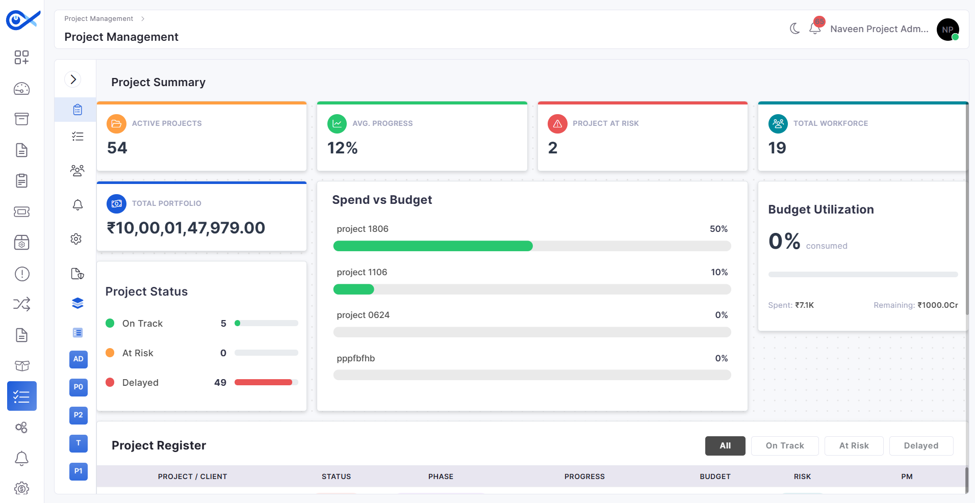
Displays the total number of projects currently marked as Critical Risk.
Click the widget to open the Projects Grid, filtered to display only at-risk projects.
Total Workforce
Displays the total number of project members assigned across all projects.
Click the widget to open the Project Members Grid, which lists all workforce members associated with the project.
Total Portfolio
Displays the combined estimated budget of all projects in the portfolio.
Click the widget to open the Projects Grid, where you can review the estimated cost, actual cost, and budget utilization for each project.
Project Status
Displays the distribution of projects by their current status (On Track, At Risk, and Delayed) along with corresponding progress indicators.
Click any status count to open the Projects Grid filtered for the selected project status.
Spend vs Budget
Compares the estimated budget against the actual expenditure for each project, helping you monitor project spending.
Click the widget to open the Projects Grid, which displays budget, actual spending, and utilization details for each project.
Budget Utilization
Displays overall budget utilization across all projects, including total spend, remaining budget, and utilization percentage. Click the widget to open the Projects Grid, which displays project-wise budget utilization details.
Project Register
Displays a consolidated table of all projects, including details such as Project/Client, Status, Phase, Progress, Budget, Risk, and Project Manager (PM). Use the All, On Track, At Risk, and Delayed filters to view projects by current status.
A Task Template defines the structure of tasks within a project. It acts as a reusable configuration for task creation and management.
Task Templates are used to predefine the set of tasks, fields, and structure available when a project is created.
A Task Template includes:
Predefined tasks
Task fields (default and custom fields)
Task structure and hierarchy
Field configuration for tasks
It helps in:
Standardizing task structure across projects
Reducing manual task creation
Ensuring consistency in task fields and data
Enabling quick project setup
When a Task Template is selected during project or project template creation:
Tasks are automatically loaded into the Task tab
Users can further add, edit, delete, or clone tasks
Tasks can also be imported using CSV
List of task templates with:
Number of tasks
Number of fields
Associated workflow
To create a task template, click the + Add option available at the top-right corner of the Project Settings page and select Add Task Template.
The Task Template creation is divided into two steps:
Input Fields – Configure task-level fields
Tasks – Define the task structure
In this step, users define the fields available for tasks created with this template.
Task template name
Custom and predefined task fields
Field labels and data types
Input Configuration | Basic Details
Add Field | Basic Details
The input configuration dynamically changes based on the selected Field Type.
Each field type has its own validation and input format:
Email → accepts a valid email format
Phone Number → numeric input with format validation
After configuring the input fields, click Next to proceed to the Tasks section, where you can define the task structure by adding tasks, organizing them into a hierarchy, and finalizing how tasks will be arranged and used within the template.
Tasks define the execution steps within a project template. They can be added either manually or in bulk using a CSV file.
Tasks can be created individually to define specific activities within the project workflow. Each task includes basic details such as title and description, along with options to manage task entries.
Add Task | Basic Details
Tasks can also be added in bulk using a CSV file. This is useful when defining multiple tasks at once.
Click on Import Tasks
Download the sample CSV file using the “CSV file here” link
Fill in the task details in the downloaded CSV file based on the defined input fields
Upload the file using the drag-and-drop or browse option
Upload Configuration | Basic Details
Actions (Edit, Clone, Delete)
Field Type
Select from the dropdown
Defines the field's data type. Available options include:
Phone Number
Text
Number
Label
Enter value
Defines the display name of the field. Example: Task Owner, Priority, Start Date
Text / Text Area → free text input
Number → numeric values only
Dropdown / Radio → predefined selectable options
Checkbox → multiple selection options
Date / Date & Time → calendar picker
Multiple fields can be added to define the complete task structure.
These fields will be available while creating or editing tasks in projects using this template.
Clone
Click the clone icon
Duplicates an existing task with the same details for reuse
Delete
Click the delete icon
Removes the task from the list
Click Next to proceed to validation
Task Template Name
Enter value
Defines the name of the task template. Example: Network Deployment Tasks
Add New Field
Click + Add New Field
Title
Enter value
Defines the name of the task. Example: Site Survey, Device Installation
Description
Enter details using the editor
File Format
Only CSV files are supported
Max File Size
10 MB
Row Limit
Opens the field configuration panel to create a new task field
Add task details using the rich text editor (which supports formatting, links, and images). Example: Check connectivity and document observations
Up to 5000 records per upload
Dropdown
Text Area
Checkbox
Radio
Date
Date & Time
The Customer Registration module enables organizations operating in MSP (Management Service Provider) mode to create and manage customer accounts within the Infraon platform.
This module is required when a single organization manages multiple customers (tenants) and needs:
Logical segregation of customer data
Customer-wise asset mapping
Customer-specific user access
License allocation and tracking per customer
Entity-level structuring under a customer
Customer Registration ensures that assets, users, licenses, reports, dashboards, and monitoring configurations are mapped and isolated based on the selected Customer or Entity.
When MSP is disabled, this module is not available, and the organization operates in a single-tenant model.
Customer Registration | Basic Details
To create a new customer, click Add Customer on the top panel.
In the Add Customer sidebar, provide the required information across the following sections:
Customer Details
Entity Details
Settings
Customer Details | Add Customer
After entering the required details, click Next to proceed to the Entity Details section.
Entity Details | Customer Details
The Entity Details tab allows you to create and associate one or more entities under a customer. An entity represents a logical or operational subdivision of a customer, such as a branch, department, region, or business unit. Each entity can maintain its own contact and location information while remaining mapped to the parent customer.
Entities help segregate assets, users, reports, and configurations within a customer scope when MSP is enabled.
Click Save to create the entity and associate it with the customer. After the entity is added, click Next to proceed to the Settings configuration.
Settings | Customer Details
Click Next to proceed to the License configuration.
License | Add Customer
The License tab is used to allocate license counts to the customer for users and assets. This section defines how many resources the customer is permitted to use within the organization.
The configured values determine the operational limits for that customer and are validated against the organization’s available license pool. This tab includes:
User License Count
User Count
Technician User Count
Asset License Count
Each value entered here controls how many corresponding users or assets the customer can manage within the platform.
After entering all required details, click Submit to create the customer.
License Allocation
IT Asset Count
Non-IT Asset Count
Mobile Device Count
Availability Monitoring Count
Performance Monitoring Count
Search
Enter text to search
Allows you to search customers by Customer Name or Customer Code.
Filter
Click to apply filters
Customer Name *
Enter customer name
Defines the customer identifier within the organization. Example: Airtel
Code *
Full Logo
Upload image file (Drag & Drop or Browse)
Upload the complete company logo displayed on the top-left of the application (expanded menu) and in exported documents. Recommended Size: 320 × 80 pxFormats: png, jpeg, jpg (Max 20 MB)
Logomark / Icon
Upload image file (Drag & Drop or Browse)
Filters customers using:
Fields: Customer Name and Customer Code
Conditions: in, not in, equal to, not equal to, contains, and not contains.
Add Customer
Click to add
Opens the Add Customer sidebar to create a new customer with customer details, entities, roles, dashboards, and license allocation.
Customer Card
Click on card
Displays customer summary including:
Customer Name
Customer Code
Assets Count
Users Count
Entity Count
Edit
Click edit icon
Opens the selected customer in edit mode to update customer details, entities, or license allocation.
Delete
Click delete icon
Deletes the selected customer after confirmation.
Customer License
Click icon
Opens the Customer License Sidebar displaying allocated and used license counts per license type.
Enter unique customer code
Unique reference code used for mapping and identification. Example: AIR001
Domain
Enter domain name
Specifies the customer’s primary domain. Example: airtel.com
Business Email
Enter official email
Used as the primary communication email for the customer. Example: enterprise@airtel.com
Phone Number
Select country code and enter number
Contact number associated with the customer. Example: +1 25********8
Website
Enter website URL
Official website of the customer. Example: https://www.airtel.com/
Subscription ID
Enter subscription reference
Identifier for subscription or contract tracking. Example: SUBAIR2026001
Is Active
Toggle On/Off
Enables or disables the customer in the system.
Location Name
Enter location name
Primary operational or registered location name. Example: Airtel Corporate HQ
Country
Enter country
Country where the customer operates. Example: United States
Region
Enter region
Regional classification within the country. Example: North America
State
Enter state
State of the customer location. Example: New York
District
Enter district/county
County within the state (if applicable). Example: New York County
City
Enter city
City of the customer location.
Pin Code
Enter postal code
ZIP code of the location. Example: 10036
Landmark
Enter nearby landmark
Reference point near the customer location. Example: Near Bryant Park
Flat, House No., Building, Company
Enter address line 1
Primary address details. Example: 1095 Avenue of the Americas
Area Colony, Street, Sector, Village
Enter address line 2
Secondary address details. Example: Midtown Manhattan
Upload the compact logo icon displayed when the side menu is collapsed.
Recommended Size: 80 × 80 pxFormats: png, jpeg, jpg (Max 20 MB)
Supported Admin Role
Select role from dropdown
Select the admin role assigned to the customer for managing configurations and operations.
Example: Customer Admin
Supported Reports
Select reports from dropdown
Select the reports accessible to the customer admin users. Multiple selections can be configured.
Example: Policy Audit Report, Network Compliance Report, CLI Job Report
Supported Dashboards
Select dashboards from dropdown
Select dashboards available to the customer admin users.
Example: NCCM Dashboard, Compliance Overview Dashboard
The Purchase Order (PO) module streamlines and manages asset and service procurement within the organization. It helps eliminate manual errors, ensures compliance, and provides visibility across procurement workflows.
Adhering to ITIL v4 principles, the PO module ensures that procurement activities support value co-creation, optimize risk and cost, and maintain compliance through standardized workflows and clearly defined responsibilities.
Users with assigned roles can manually create purchase orders. The system supports customizable PO numbering, threshold-based approval workflows, vendor quote attachment, and order tracking.
The PO module supports core workflows depending on whether the item is available in inventory or needs to be procured from a vendor.
Used when specific roles (based on RBAC) are permitted to add a Purchase Order from the PO module directly.
The PO Download option allows users to download the Purchase Order as a document for review and verification. The downloaded file includes complete PO details, including vendor information, line items, pricing, taxes, and terms.
When can you download the PO:
During Approval: If the {{PO download link}} macro is configured in the Approval Email Template, approvers can download the PO directly from the approval email when the status is Waiting for Approval.
After Approval: The PO can be downloaded from the PO view once it is approved (existing behavior).
This page displays the complete list of configured Purchase Orders (POs) categorized by vendor and allows users to perform essential procurement-related operations. You can filter records, view order statuses, configure approval rules, and manage vendor-wise orders with relevant actions like add, edit, or delete.
Basic Details | Purchase Order
When this setting is enabled, the system allows users to define a custom purchase order ID structure. The format can be configured using prefixes, numeric values, and selected fields to align with business-specific naming conventions.
This format is applied automatically during purchase order creation, ensuring each PO is uniquely and consistently identified.
Example Formats:
#PO-00001
#PO-PURCHASE-00002
#PO-2026-IT-0100
You can configure this from: Purchase Order → Actions → Customize Purchase Order ID
or
System Configuration → Formatting → Purchase Order
Customize Purchase Order ID Format | Field Reference
This option allows you to define dynamic approval workflows for POs based on predefined conditions such as role-based submission and amount thresholds. Approval rules are essential for ensuring proper financial governance aligned with organizational policies.
Click Configure Approval.
Select a User Role (e.g., NOC Operator).
Enter the Request Threshold value (e.g., ₹5,000).
Add a condition for Asset Value (optional).
This rule engine allows multiple tiers of approval, ensuring purchases are validated based on business-critical thresholds.
Click the + icon in the Vendor option on the top right corner.
The vendor creation form includes three tabs: Organization Details, Address, and Representatives. Refer to the table below for guidance on filling in each field.
to view a step-by-step guide.
Use Template Configuration to customize the Purchase Order preview, print, and PDF layout. It allows you to control how sections and fields are arranged in the final Purchase Order document.
The configuration includes two options:
Layout – Used to arrange template sections and reorder fields.
Field Manager – Used to add or remove sections and fields.
The Purchase Order template includes the following sections:
Header
Vendor Details
Order Details
Shipping Details
Assign the Approver for each rule.
Click + Condition to add layered conditions (optional).
Click + Add More Rule to create additional approval scenarios.
Save the configuration.
Summary
Terms and Conditions
Signatures
Footer
Step
Description
Create PO
A department user submits a request for an item (e.g., a laptop) via Infraon Request Management.
Users with privileges will create a PO using the "Add" option in the PO module.
PO Creation
The PO is generated manually based on request data. A unique PO identifier (customizable format) is assigned. Line items such as model, quantity, price, and delivery terms are added.
Approval Workflow
The PO follows an approval process based on threshold values (1-level and 2-level).
Example: ₹1L – Procurement Head; ₹5L – Finance Head.
Order Confirmation
After approval, the PO is shared with the vendor. The vendor acknowledges the order and provides delivery timelines.
Fulfilment
The vendor ships the item. IT/Procurement receives and verifies the asset and updates the asset system.
Invoice & Payment
Vendor sends invoice → Finance team processes payment → Linked with PO record.
Closure
Once the item is received and payment is made, the PO is marked as Closed in the system.
Label
Action
Description / Example
Search
Type search query
Use this to find a purchase order quickly.
Note: Type at least three characters to initiate the search.
Filter
Preview Section
View-only
Displays a live preview of the generated PO ID based on the selected format.
Prefix
Enter text manually
1
Navigate to Purchase Order Template Configuration.
2
Use the Layout tab to rearrange sections and reorder fields.
3
Layout
Displays the current template structure for reordering sections and fields.
Field Manager
Displays available sections and fields that can be added to the template.
Undo
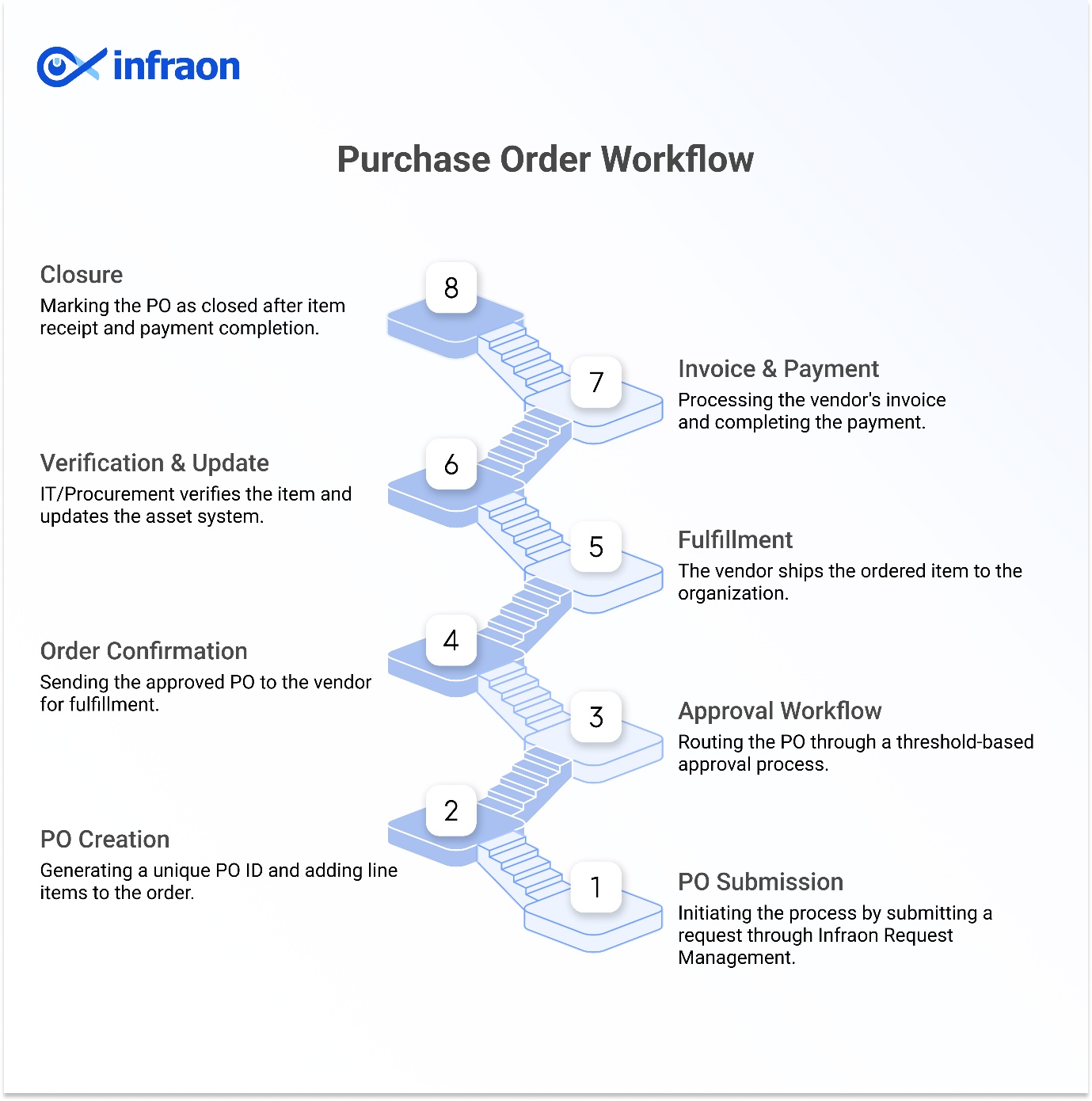
Click the filter icon
Use advanced filter logic for PO records. Fields: Purchase Order Name, ID, Vendor, Department, Description. Conditions: in, not in, equal to, not equal to, contains, not contains.
Filter by Date
Select from the dropdown
Narrow down POs based on time ranges. Options include: Last 30 Days, Last 60 Days, Last 90 Days, Custom, etc.
Click to open the configuration page.
Opens the Approval Rule Configuration. You can define role-based approval rules with thresholds and conditions for different user personas.
View
Toggle icon
Switch between Grid and Card view to see how the PO list displays.
Add Purchase Order
Click the button
Add a new Purchase Order. Two options:
1. Manual: Add each field manually. 2. Import: Upload a .CSV file to bulk import POs.
Vendor Panel
Click on vendor name or "+" icon.
Vendors are required to associate a PO with a supplier, which ensures traceability of who is fulfilling the PO.
The left panel shows all added vendors. Clicking the “+” icon allows you to add a new vendor.
Edit
Click the pencil icon
Modify the selected Purchase Order details.
Delete
Click the trash icon
Permanently remove the selected Purchase Order.
Define a static prefix for the PO ID. Example: PO.
Custom Format
Click to add fields
Add dynamic components such as Text, Vendor, Department, or Year.
Field Type
Select from the dropdown
Options include Text, Alpha Numeric, Random, Year, Department, and Vendor.
Value / No of values
Enter or select
Define the value (for Text) or length (for generated fields).
Add Field
Click to add
Add multiple fields to structure the PO ID.
Number Type
Select from the dropdown
Define how the numeric sequence is generated (e.g., Auto Increment).
Starting From
Enter a numeric value
Set the starting number for the sequence. Example: 1.
Use the Field Manager tab to add or remove sections and fields.
4
Drag and drop fields or sections to the required position.
5
Upload header or footer image if required.
6
Click Preview to review the configured template.
7
Click Save to apply the changes.
Reverts the last change.
Redo
Reapplies the reverted change.
Clear
Restores the default template layout.
Preview
Displays the latest configured template.
Save
Saves the template configuration.